Aufar Fajar – 1127019
Berli Setiawan – 1127003
Ivan Nathaniel – 0727042
Olvina Rita – 0927046
Yuki Meitius – 1127009
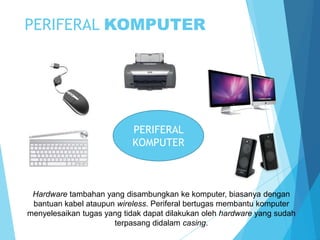
PERIFERAL KOMPUTER

PERIFERAL
KOMPUTER

Hardware tambahan yang disambungkan ke komputer, biasanya dengan
bantuan kabel ataupun wireless. Periferal bertugas membantu komputer
menyelesaikan tugas yang tidak dapat dilakukan oleh hardware yang sudah
terpasang didalam casing.
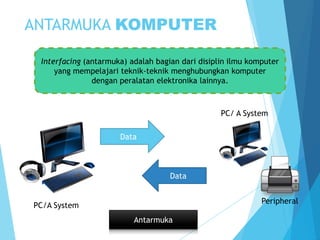
ANTARMUKA KOMPUTER
Interfacing (antarmuka) adalah bagian dari disiplin ilmu komputer
yang mempelajari teknik-teknik menghubungkan komputer
dengan peralatan elektronika lainnya.

PC/ A System
Data

Data

Peripheral

PC/A System
Antarmuka
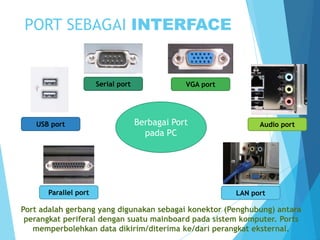
PORT SEBAGAI INTERFACE

Serial port

USB port

Parallel port

VGA port

Berbagai Port
pada PC

Audio port

LAN port

Port adalah gerbang yang digunakan sebagai konektor (Penghubung) antara
perangkat periferal dengan suatu mainboard pada sistem komputer. Ports
memperbolehkan data dikirim/diterima ke/dari perangkat eksternal.
PORT PARALEL
Definisi
Port parallel merupakan salah satu tipe antarmuka pada
komputer untuk berhubungan dengan perangkat peripheral.
Port parallel dikenal juga dengan sebagai printer port atau
centronics port.

Fungsi
Fungsi port paralel adalah sebagai penghubung motherboard
dengan printer jenis lama, beberapa Scanner, Sound Cards,
Web Cams, Gamepads, Joystick, dan External CD-R atau CDRW.

Dewasa ini, antarmuka port paralel mulai jarang digunakan
karena berkembangnya teknologi port Universal Serial Bus
(USB) dan FireWire devices (High speed serial bus).
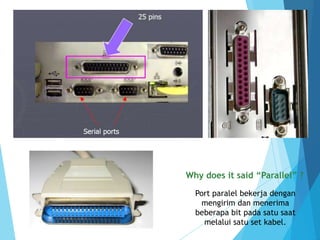
Why does it said “Parallel” ?
Port paralel bekerja dengan
mengirim dan menerima
beberapa bit pada satu saat
melalui satu set kabel.
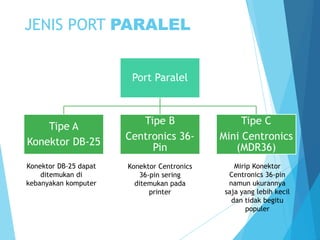
JENIS PORT PARALEL
Port Paralel

Tipe A
Konektor DB-25
Konektor DB-25 dapat
ditemukan di
kebanyakan komputer

Tipe B
Centronics 36Pin

Tipe C
Mini Centronics
(MDR36)

Konektor Centronics
36-pin sering
ditemukan pada
printer

Mirip Konektor
Centronics 36-pin
namun ukurannya
saja yang lebih kecil
dan tidak begitu
populer
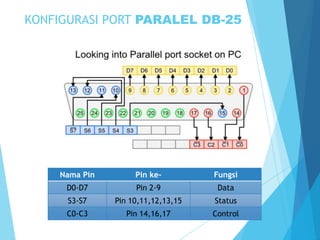
KONFIGURASI PORT PARALEL DB-25

Nama Pin

Pin ke-

Fungsi

D0-D7

Pin 2-9

Data

S3-S7

Pin 10,11,12,13,15

Status

C0-C3

Pin 14,16,17

Control
KONFIGURASI PORT PARALEL


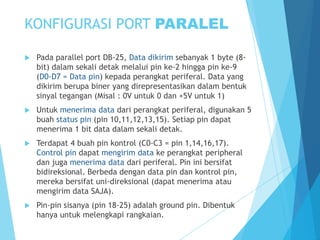
Pada parallel port DB-25, Data dikirim sebanyak 1 byte (8bit) dalam sekali detak melalui pin ke-2 hingga pin ke-9
(D0-D7 = Data pin) kepada perangkat periferal. Data yang
dikirim berupa biner yang direpresentasikan dalam bentuk
sinyal tegangan (Misal : 0V untuk 0 dan +5V untuk 1)



Untuk menerima data dari perangkat periferal, digunakan 5
buah status pin (pin 10,11,12,13,15). Setiap pin dapat
menerima 1 bit data dalam sekali detak.



Terdapat 4 buah pin kontrol (C0-C3 = pin 1,14,16,17).
Control pin dapat mengirim data ke perangkat peripheral
dan juga menerima data dari periferal. Pin ini bersifat
bidireksional. Berbeda dengan data pin dan kontrol pin,
mereka bersifat uni-direksional (dapat menerima atau
mengirim data SAJA).



Pin-pin sisanya (pin 18-25) adalah ground pin. Dibentuk
hanya untuk melengkapi rangkaian.
MODE OPEPRASI
PORT PARALEL


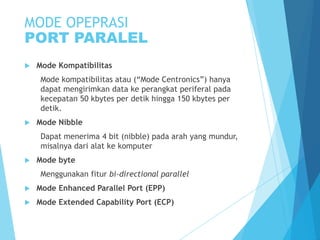
Mode Kompatibilitas
Mode kompatibilitas atau (“Mode Centronics”) hanya
dapat mengirimkan data ke perangkat periferal pada
kecepatan 50 kbytes per detik hingga 150 kbytes per
detik.



Mode Nibble
Dapat menerima 4 bit (nibble) pada arah yang mundur,
misalnya dari alat ke komputer



Mode byte
Menggunakan fitur bi-directional parallel



Mode Enhanced Parallel Port (EPP)



Mode Extended Capability Port (ECP)
APLIKASI PORT PARALEL


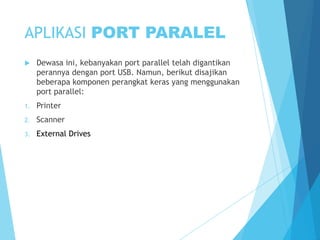
Dewasa ini, kebanyakan port parallel telah digantikan
perannya dengan port USB. Namun, berikut disajikan
beberapa komponen perangkat keras yang menggunakan
port parallel:

1.

Printer

2.

Scanner

3.

External Drives
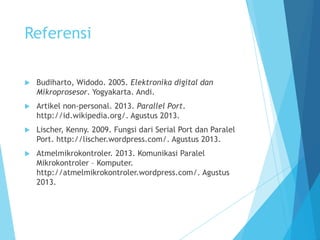
Kelebihan & Kekurangan
Kelebihan

Kekurangan

Pengiriman data cepat

Menggunakan banyak jalur

Hanya efektif untuk jarak pendek
Dewasa ini sudah jarang digunakan
Tabel kelebihan dan kekurangan port paralel
Referensi


Budiharto, Widodo. 2005. Elektronika digital dan
Mikroprosesor. Yogyakarta. Andi.



Artikel non-personal. 2013. Parallel Port.
http://id.wikipedia.org/. Agustus 2013.



Lischer, Kenny. 2009. Fungsi dari Serial Port dan Paralel
Port. http://lischer.wordpress.com/. Agustus 2013.



Atmelmikrokontroler. 2013. Komunikasi Paralel
Mikrokontroler – Komputer.
http://atmelmikrokontroler.wordpress.com/. Agustus
2013.

Parallel Port

  • 1.
    Aufar Fajar –1127019 Berli Setiawan – 1127003 Ivan Nathaniel – 0727042 Olvina Rita – 0927046 Yuki Meitius – 1127009
  • 2.
    PERIFERAL KOMPUTER PERIFERAL KOMPUTER Hardware tambahanyang disambungkan ke komputer, biasanya dengan bantuan kabel ataupun wireless. Periferal bertugas membantu komputer menyelesaikan tugas yang tidak dapat dilakukan oleh hardware yang sudah terpasang didalam casing.
  • 3.
    ANTARMUKA KOMPUTER Interfacing (antarmuka)adalah bagian dari disiplin ilmu komputer yang mempelajari teknik-teknik menghubungkan komputer dengan peralatan elektronika lainnya. PC/ A System Data Data Peripheral PC/A System Antarmuka
  • 4.
    PORT SEBAGAI INTERFACE Serialport USB port Parallel port VGA port Berbagai Port pada PC Audio port LAN port Port adalah gerbang yang digunakan sebagai konektor (Penghubung) antara perangkat periferal dengan suatu mainboard pada sistem komputer. Ports memperbolehkan data dikirim/diterima ke/dari perangkat eksternal.
  • 5.
    PORT PARALEL Definisi Port parallelmerupakan salah satu tipe antarmuka pada komputer untuk berhubungan dengan perangkat peripheral. Port parallel dikenal juga dengan sebagai printer port atau centronics port. Fungsi Fungsi port paralel adalah sebagai penghubung motherboard dengan printer jenis lama, beberapa Scanner, Sound Cards, Web Cams, Gamepads, Joystick, dan External CD-R atau CDRW. Dewasa ini, antarmuka port paralel mulai jarang digunakan karena berkembangnya teknologi port Universal Serial Bus (USB) dan FireWire devices (High speed serial bus).
  • 6.
    Why does itsaid “Parallel” ? Port paralel bekerja dengan mengirim dan menerima beberapa bit pada satu saat melalui satu set kabel.
  • 7.
    JENIS PORT PARALEL PortParalel Tipe A Konektor DB-25 Konektor DB-25 dapat ditemukan di kebanyakan komputer Tipe B Centronics 36Pin Tipe C Mini Centronics (MDR36) Konektor Centronics 36-pin sering ditemukan pada printer Mirip Konektor Centronics 36-pin namun ukurannya saja yang lebih kecil dan tidak begitu populer
  • 8.
    KONFIGURASI PORT PARALELDB-25 Nama Pin Pin ke- Fungsi D0-D7 Pin 2-9 Data S3-S7 Pin 10,11,12,13,15 Status C0-C3 Pin 14,16,17 Control
  • 9.
    KONFIGURASI PORT PARALEL  Padaparallel port DB-25, Data dikirim sebanyak 1 byte (8bit) dalam sekali detak melalui pin ke-2 hingga pin ke-9 (D0-D7 = Data pin) kepada perangkat periferal. Data yang dikirim berupa biner yang direpresentasikan dalam bentuk sinyal tegangan (Misal : 0V untuk 0 dan +5V untuk 1)  Untuk menerima data dari perangkat periferal, digunakan 5 buah status pin (pin 10,11,12,13,15). Setiap pin dapat menerima 1 bit data dalam sekali detak.  Terdapat 4 buah pin kontrol (C0-C3 = pin 1,14,16,17). Control pin dapat mengirim data ke perangkat peripheral dan juga menerima data dari periferal. Pin ini bersifat bidireksional. Berbeda dengan data pin dan kontrol pin, mereka bersifat uni-direksional (dapat menerima atau mengirim data SAJA).  Pin-pin sisanya (pin 18-25) adalah ground pin. Dibentuk hanya untuk melengkapi rangkaian.
  • 10.
    MODE OPEPRASI PORT PARALEL  ModeKompatibilitas Mode kompatibilitas atau (“Mode Centronics”) hanya dapat mengirimkan data ke perangkat periferal pada kecepatan 50 kbytes per detik hingga 150 kbytes per detik.  Mode Nibble Dapat menerima 4 bit (nibble) pada arah yang mundur, misalnya dari alat ke komputer  Mode byte Menggunakan fitur bi-directional parallel  Mode Enhanced Parallel Port (EPP)  Mode Extended Capability Port (ECP)
  • 11.
    APLIKASI PORT PARALEL  Dewasaini, kebanyakan port parallel telah digantikan perannya dengan port USB. Namun, berikut disajikan beberapa komponen perangkat keras yang menggunakan port parallel: 1. Printer 2. Scanner 3. External Drives
  • 12.
    Kelebihan & Kekurangan Kelebihan Kekurangan Pengirimandata cepat Menggunakan banyak jalur Hanya efektif untuk jarak pendek Dewasa ini sudah jarang digunakan Tabel kelebihan dan kekurangan port paralel
  • 13.
    Referensi  Budiharto, Widodo. 2005.Elektronika digital dan Mikroprosesor. Yogyakarta. Andi.  Artikel non-personal. 2013. Parallel Port. http://id.wikipedia.org/. Agustus 2013.  Lischer, Kenny. 2009. Fungsi dari Serial Port dan Paralel Port. http://lischer.wordpress.com/. Agustus 2013.  Atmelmikrokontroler. 2013. Komunikasi Paralel Mikrokontroler – Komputer. http://atmelmikrokontroler.wordpress.com/. Agustus 2013.

Editor's Notes

  • #2 Picture with background removed(Intermediate)To reproduce the picture effects on this slide, do the following:On the Home tab, in the Slides group, click Layout, and then click Blank.On the Insert tab, in the Images group, click Picture.In the Insert Picture dialog box, select a picture and then click Insert.Select the picture. Under PictureTools, on the Format tab, in the Size group, click the Size and Position dialog box launcher. In the Format Picture dialog box, resize or crop the image so that the height is set to 7.5” and the widthis set to 10”. To crop the picture, click Crop in the left pane, and in the right pane, under Crop position, enter values into the Height, Width, Left, and Top boxes. To resize the picture, click Size in the left pane, and in the right pane, under Size and rotate, enter values into the Height and Width boxes.Also under PictureTools, on the Format tab, in the Adjust group, click Color, and then under Recolor click Grayscale.Also in the Adjust group, click Corrections, and then under Brightness and Contrast, click Brightness: -40% Contrast: +20%.On the Home tab, in the Clipboard group, click the arrow to the right of Copy, and then click Duplicate.Select the second picture. On the Home tab, in the Drawing group, click Arrange, point to Align, and then do the following:Click Align to Slide.Click Align Middle. Click Align Center.Under PictureTools, on the Format tab, in the Adjust group, click ResetPicture.Also under PictureTools, on the Format tab, in the Size group, click the Size and Position dialog box launcher.. In the Format Picture dialog box, resize or crop the image to focus on the main subject in the picture. (Example picture is set to 3.54” heightand 3.24” width).To crop the picture, click Crop in the left pane, and in the right pane, under Crop position, enter values into the Height, Width, Left, and Top boxes. To resize the picture, click Size in the left pane, and in the right pane, under Size and rotate, enter values into the Height and Width boxes.Also underPictureTools, on the Format tab, in the Adjust group, click RemoveBackground, and then do the following:To remove additional background areas from the picture, on the BackgroundRemoval tab, in the Refine group, click Mark Areas to Remove. Select all of the additional areas to be removed.To keep additional areas of the picture that have been removed, on the BackgroundRemoval tab, in the Refine group, click Mark Areas to Keep. Select all of the additional areas to be kept.Click KeepChanges in the Close group when finished.To reproduce the shape effects on this slide, do the following:On the Home tab, in the Drawing group, select Rectangle.On the slide, drag to draw a rectangle.Select the rectangle. Also on the Home tab, in the Drawing group, click the Format Shape dialog box launcher.In the Format Shape dialog box, in the Size tab, enter 7.5” into the Height box and enter 4” into the Width box.Also in the Format Shape dialog box, in the Fill tab, select Gradientfill, and then do the following:In the Type list, select Linear.In the Angle box, enter 90°.Under Gradient stops, click Add gradient stops or Remove gradient stops until three stops appear in the slider.Also under Gradient stops, customize the gradient stops as follows:Select the first stop from the leftin the slider, and then do the following: In the Position box, enter 0%.Click the button next to Color, and then under Theme Colors click Black, Text 1 (first row, second option from the left).In the Transparency box, enter 100%.Select the second stop from the leftin the slider, and then do the following: In the Position box, enter 40%.Click the button next to Color, click More Colors, and then in the Colors dialog box, on the Custom tab, enter values for Red: 47, Green: 91, and Blue: 77.In the Transparency box, enter 0%.Select the third stop from the leftin the slider, and then do the following: In the Position box, enter 100%.Click the button next to Color, and then under Theme Colors click Black, Text 1 (first row, second option from the left).In the Transparency box, enter 90%.Also in the FormatShape dialog box, in the LineColor tab, select NoLine.Select the second picture. On the Home tab, in the Drawing group, click Arrange, and then click Bring to Front.To reproduce the text effects on this slide, do the following:On the Insert tab, in the Text group, click TextBox, and then on the slide drag to draw your text box.Enter text in the text box, and then select the text. On the Home tab, in the Font group, do the following:In the Font list, click Calisto MT.In the FontSize list, click 36 pt. Click FontColor, and then under Theme Colors click White, Background 1 (first row, first option from the left).Position text over the least transparent part of the gradient.