Diffusion Tensor Imaging:  from Dicom to Nrrd Sonia Pujol, Ph.D. Randy Gollub, M.D., Ph.D. National Alliance for Medical Image Computing
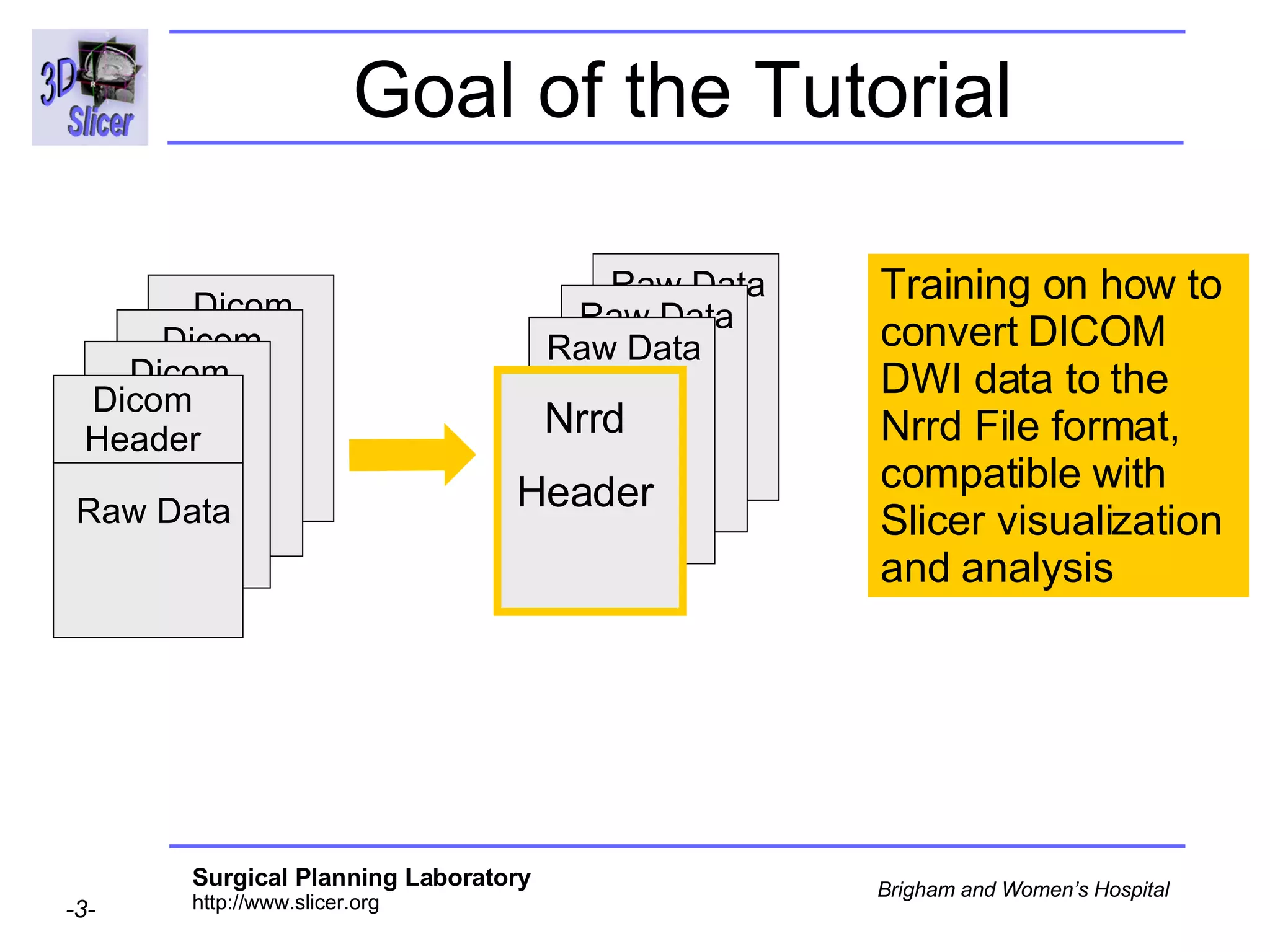
Acknowledgments National Alliance for Medical Image Computing   NIH U54EB005149  Neuroimage Analysis Center   NIH P41RR013218  Laboratory of Mathematics in Imaging,   Brigham and Women’s Hospital   Thanks to Dr. Gordon Kindlmann Dartmouth Hitchcock Medical Center  Thanks to Dr. Andy Saykin
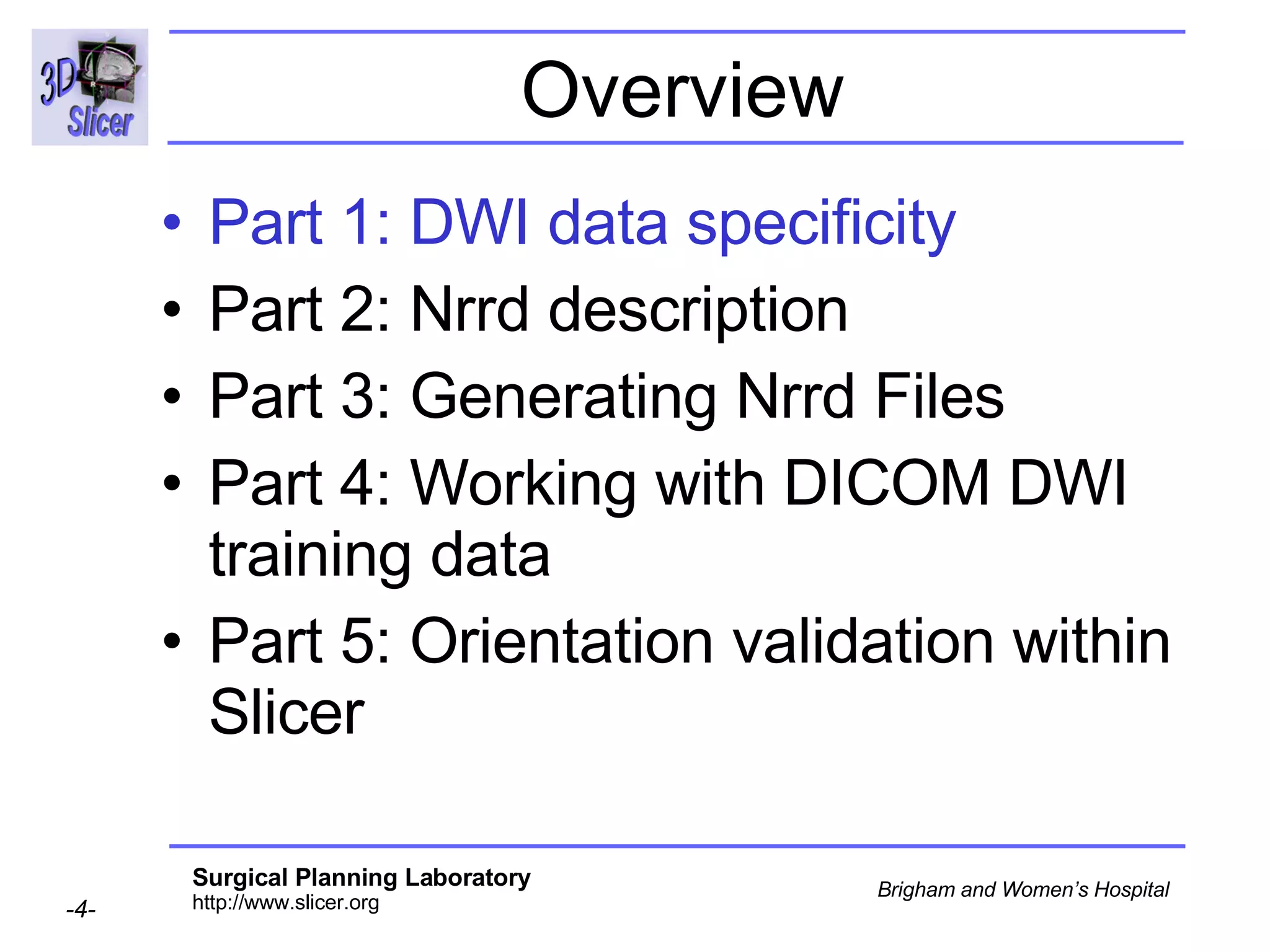
Goal of the Tutorial Training on how to convert DICOM DWI data to the Nrrd File format,  compatible with Slicer visualization and analysis Raw Data Raw Data Raw Data Nrrd Header Dicom Header Dicom Header Dicom Header Dicom Header Raw Data
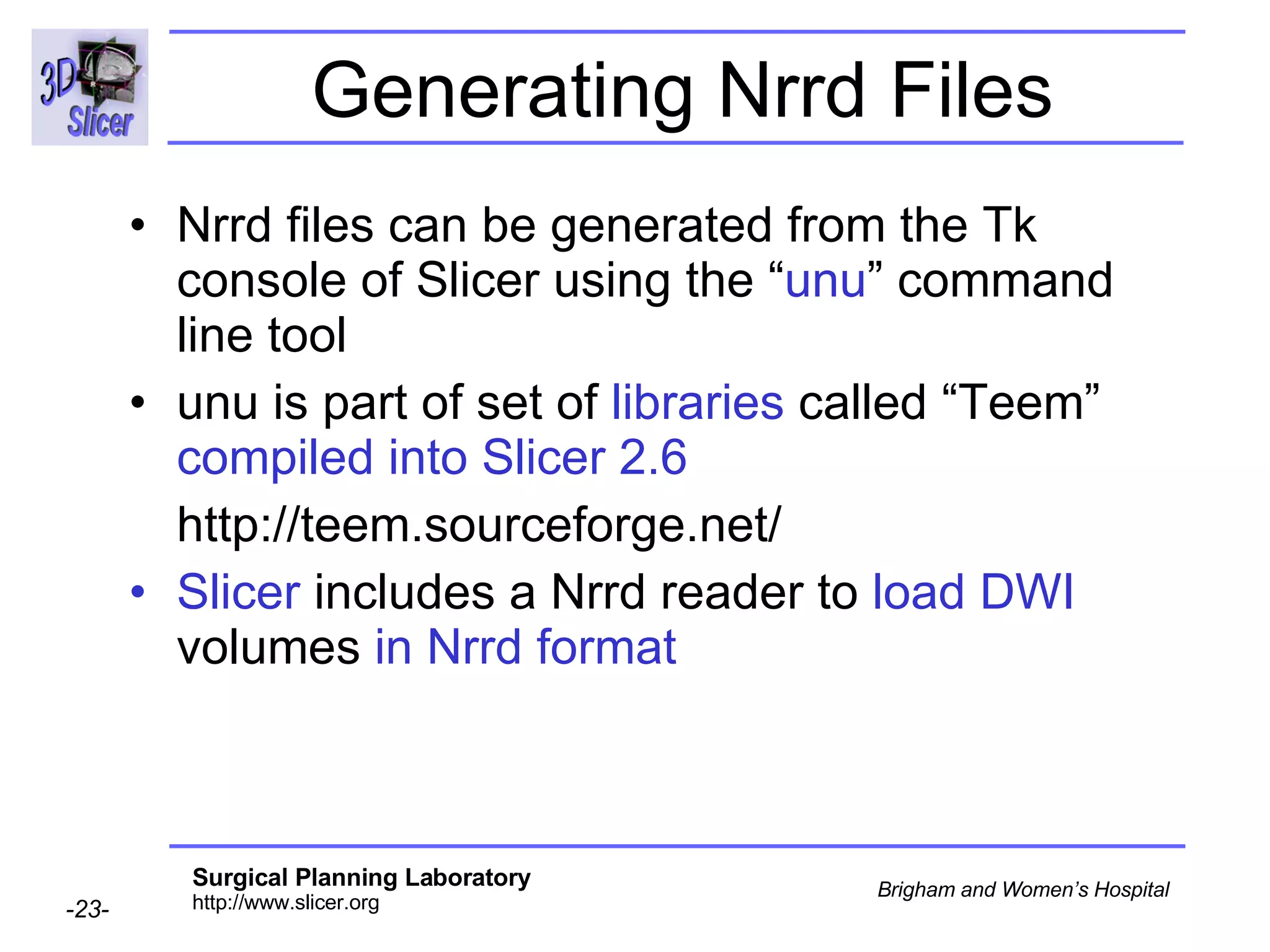
Overview Part 1: DWI data specificity Part 2: Nrrd description  Part 3: Generating Nrrd Files Part 4: Working with DICOM DWI training data Part 5: Orientation validation within Slicer
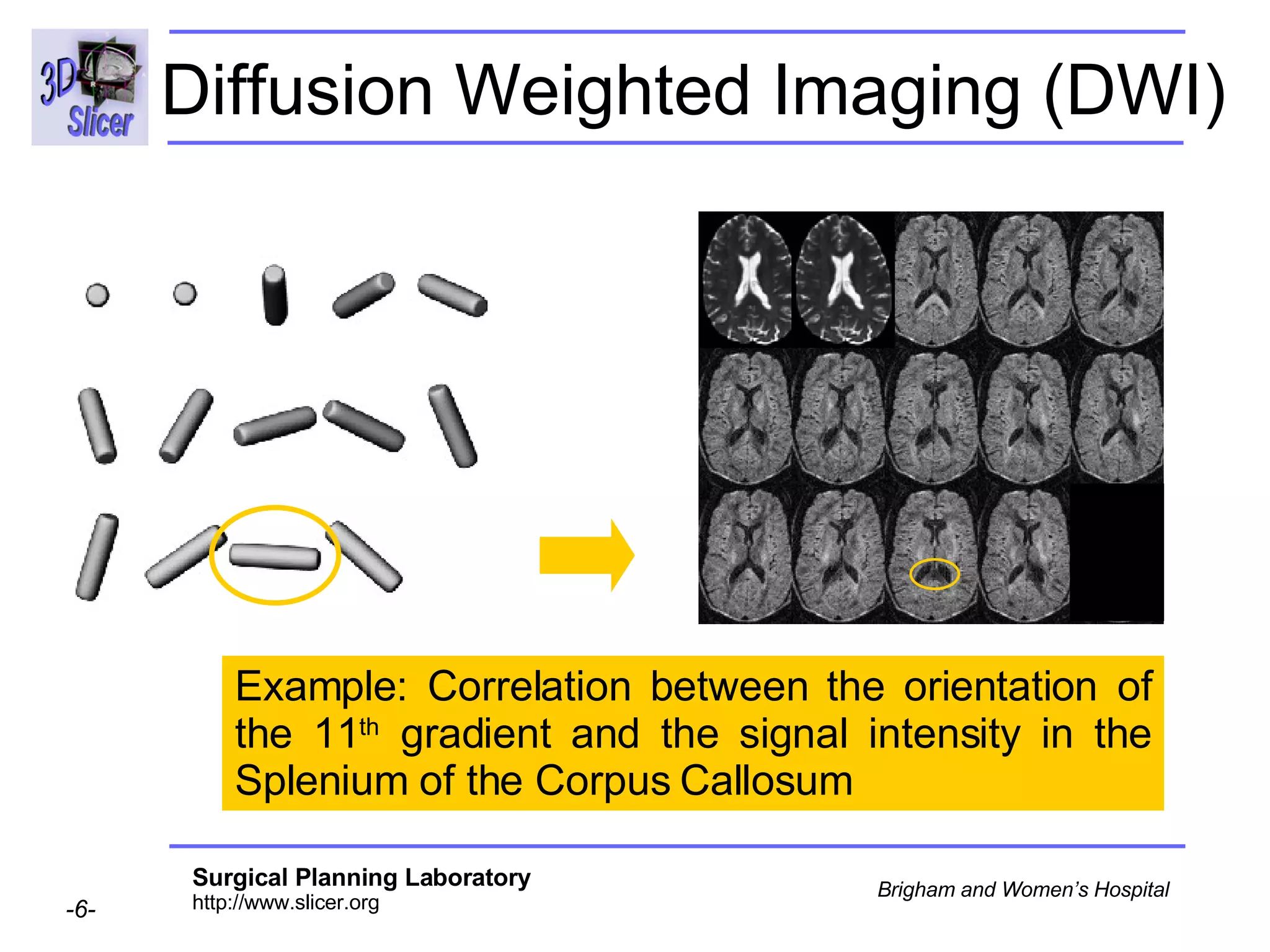
Diffusion Weighted Imaging The signal is dimmer when the direction of the applied gradient is parallel to the principal direction of diffusion. Diffusion Sensitizing Gradients  Diffusion Weighted  Images
Diffusion Weighted Imaging (DWI) Example: Correlation between the orientation of the 11 th  gradient and the signal intensity in the Splenium of the Corpus Callosum
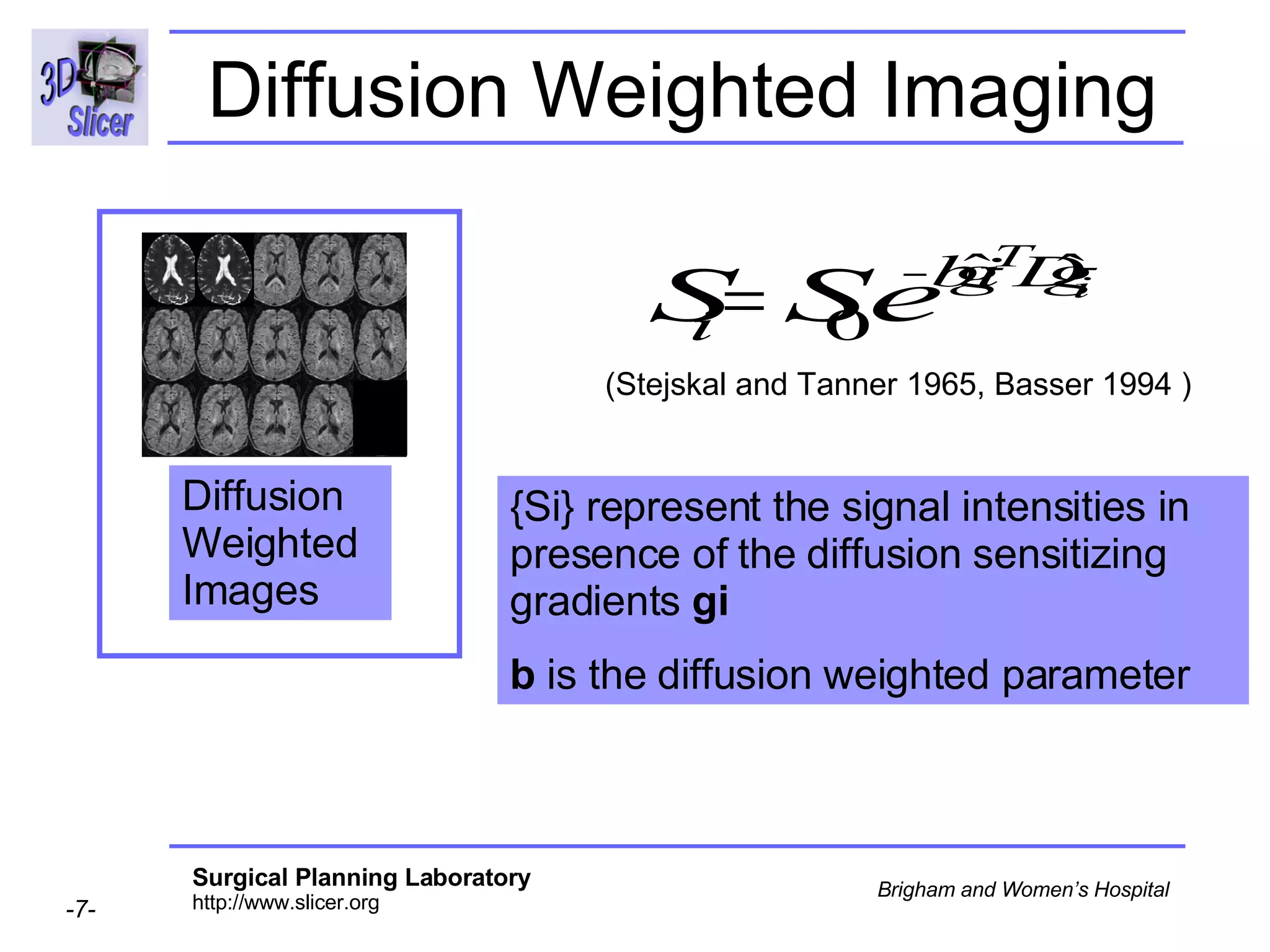
Diffusion Weighted Imaging (Stejskal and Tanner 1965, Basser 1994 ) {Si} represent the signal intensities in presence of the diffusion sensitizing gradients  gi  b  is the diffusion weighted parameter Diffusion Weighted  Images
Background Challenge:  Concise and standardized description of the information contained in DWI data.  Current situation:  DICOM (Supplement 49) contains information on how to represent  b-value  and  gradient directions  of DWI However every MR Scanner manufacturer has their own unique way of archiving the relevant image acquisition parameters The definition of the coordinate frame of the diffusion gradients is not explicitly recorded in the header Proposed Solution:   Nrrd format
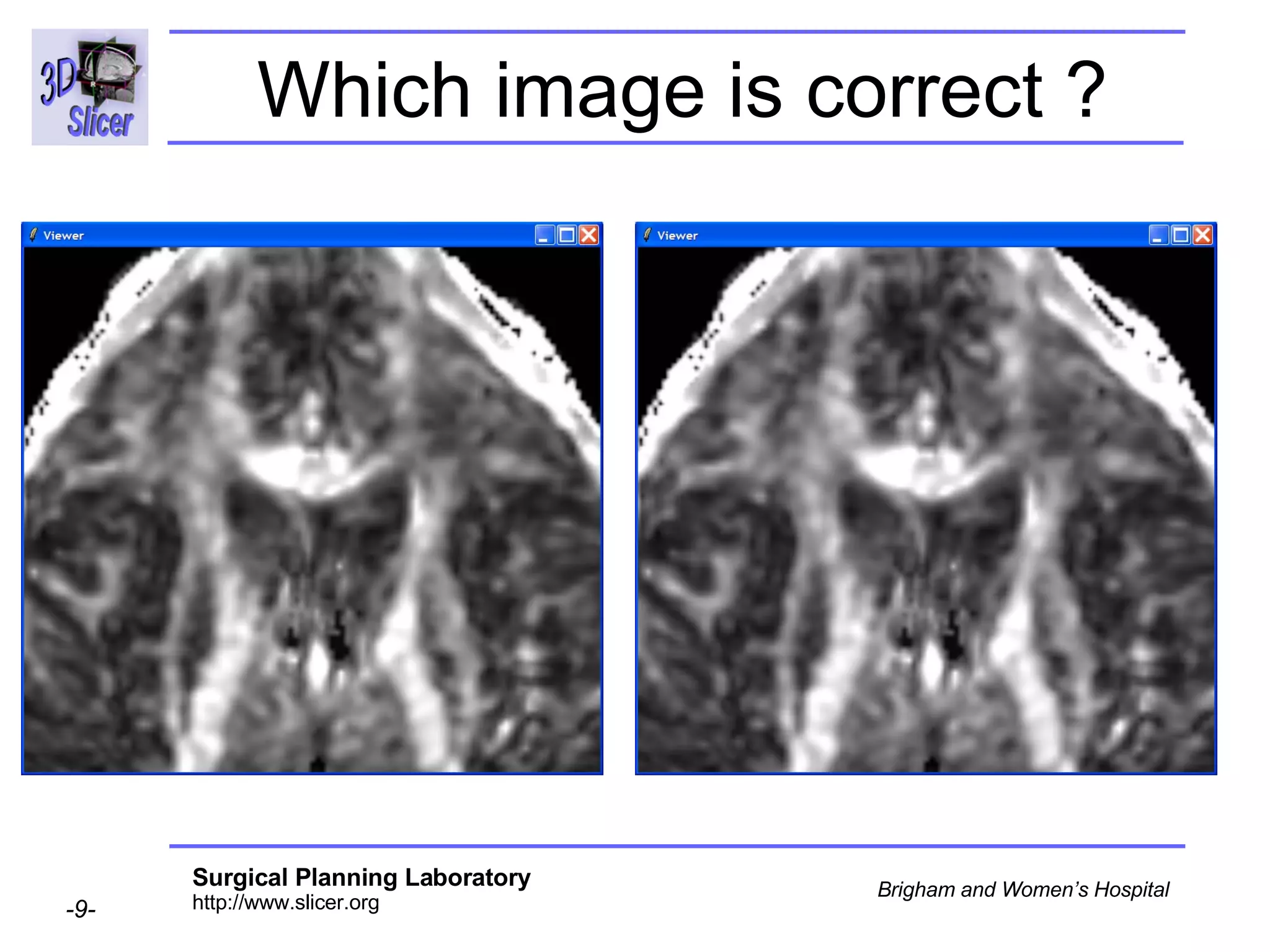
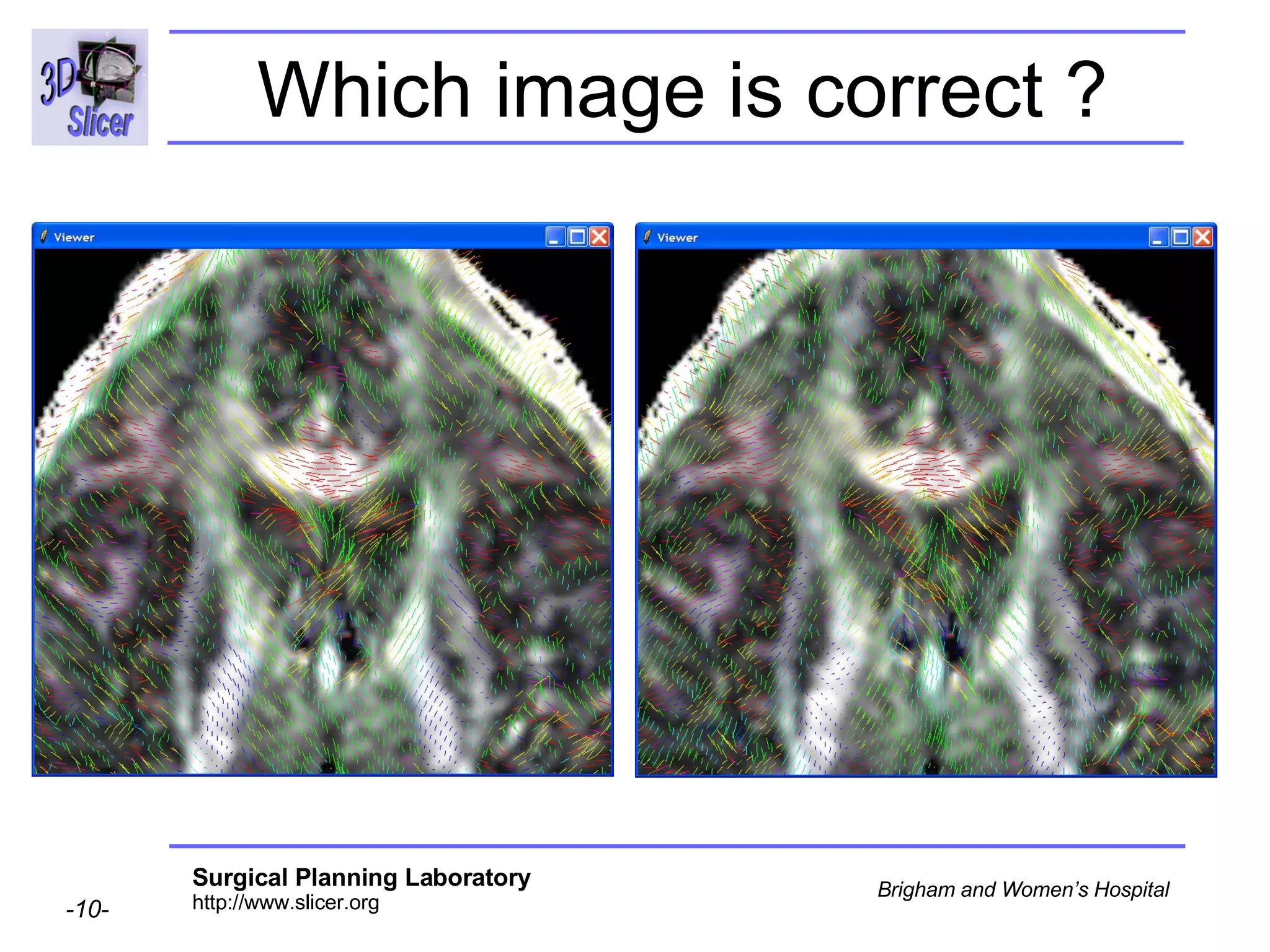
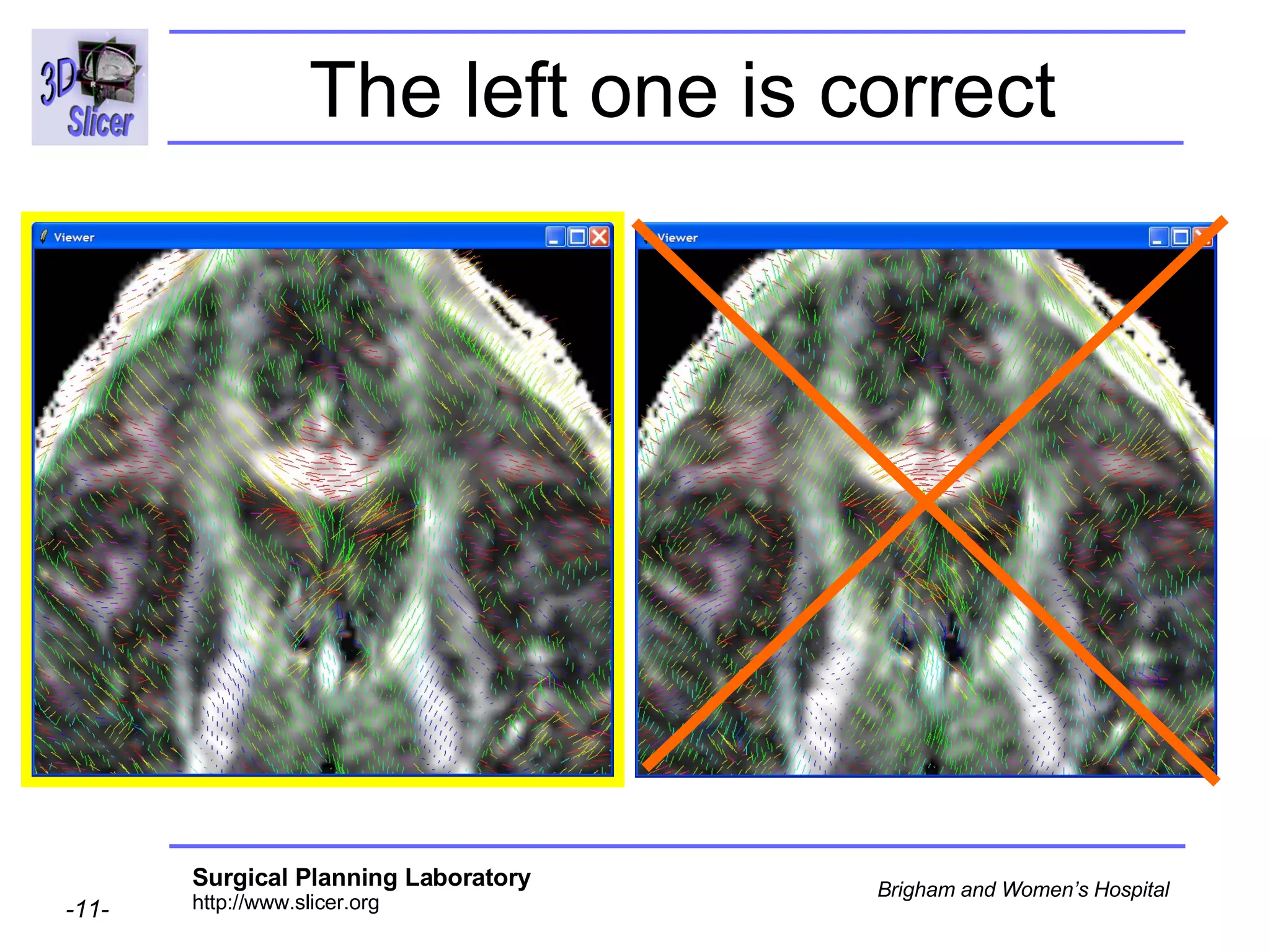
Which image is correct ?
The left one is correct
Overview Part 1: DWI data specificity Part 2: Nrrd description Part 3: Generating Nrrd Files Part 4: Working with DICOM DWI training data Part 5: Orientation validation within Slicer
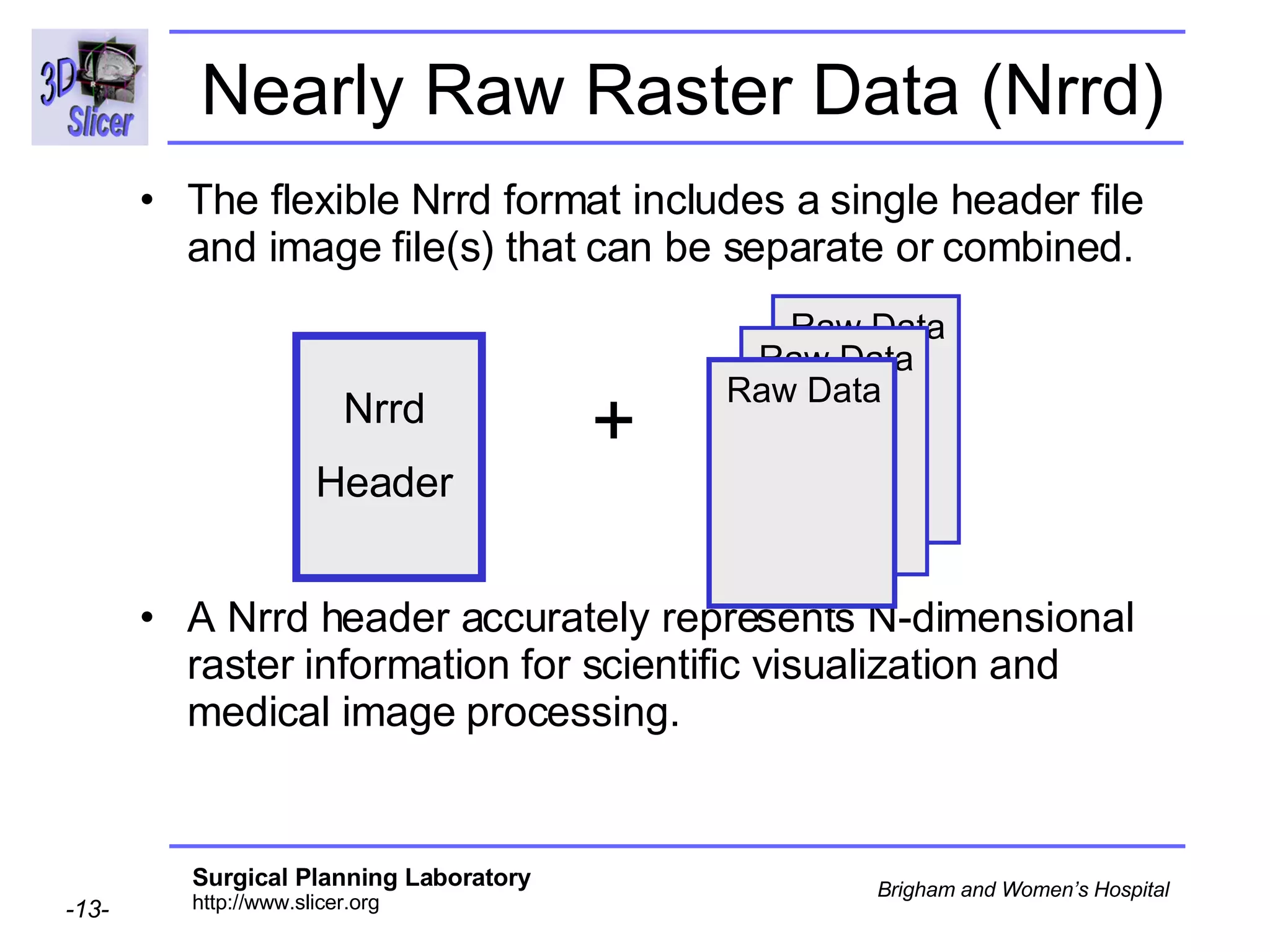
Nearly Raw Raster Data (Nrrd) The flexible Nrrd format includes a single header file and image file(s) that can be separate or combined.  A Nrrd header accurately represents N-dimensional raster information for scientific visualization and medical image processing.  Nrrd Header + Raw Data Raw Data Raw Data
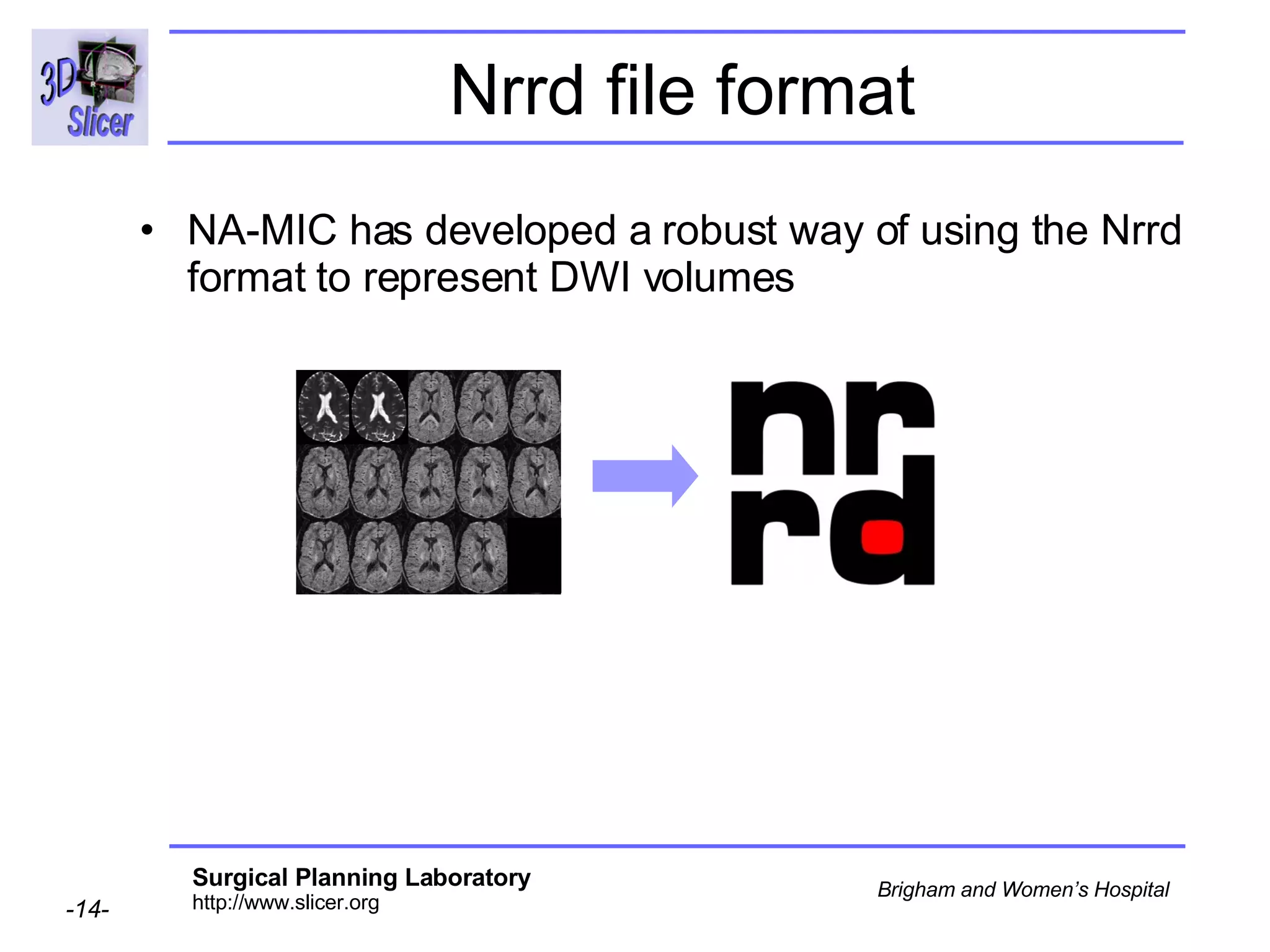
Nrrd file format NA-MIC has developed a robust way of using the Nrrd format to represent DWI volumes
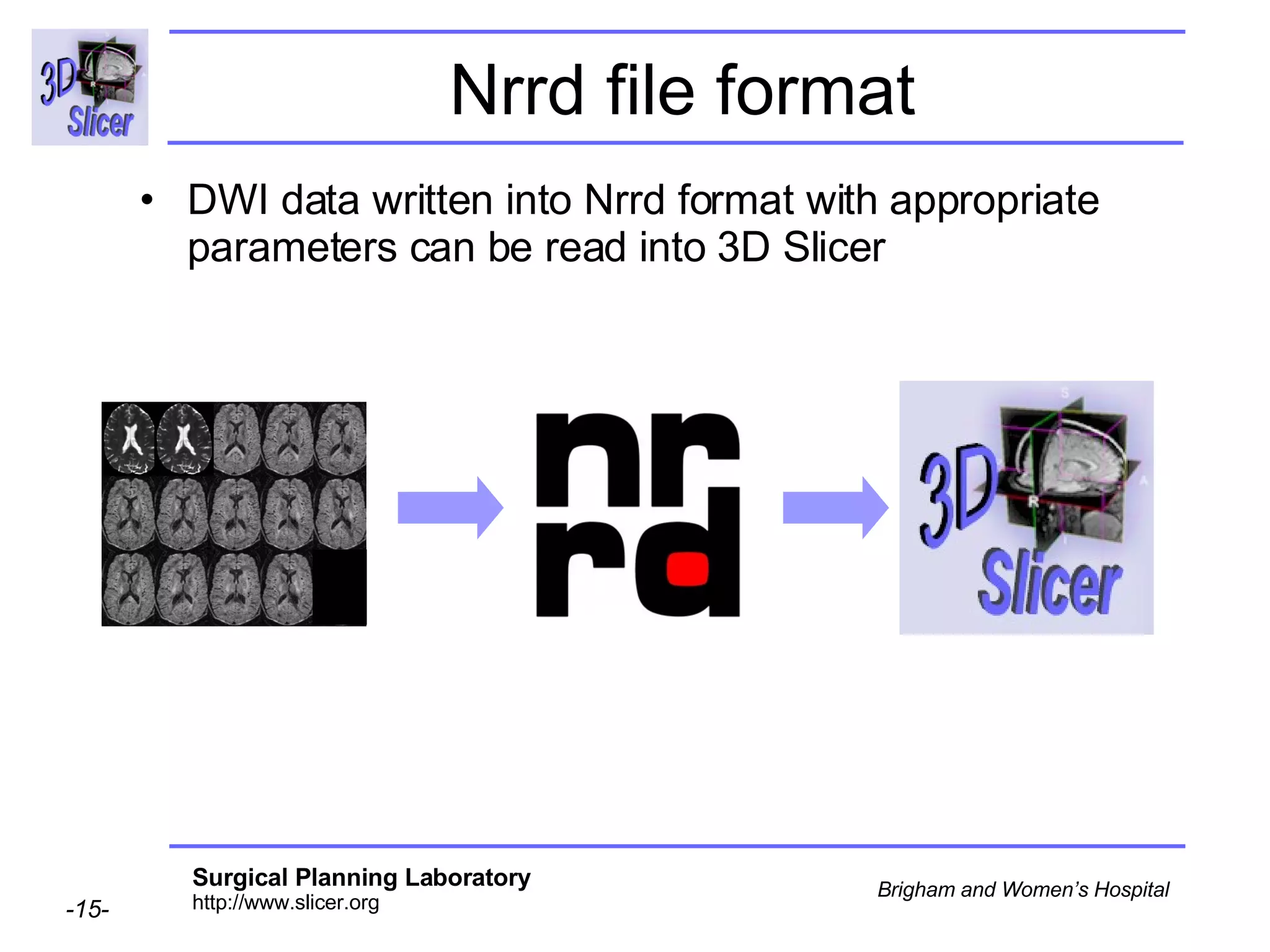
Nrrd file format DWI data written into Nrrd format with appropriate parameters can be read into 3D Slicer
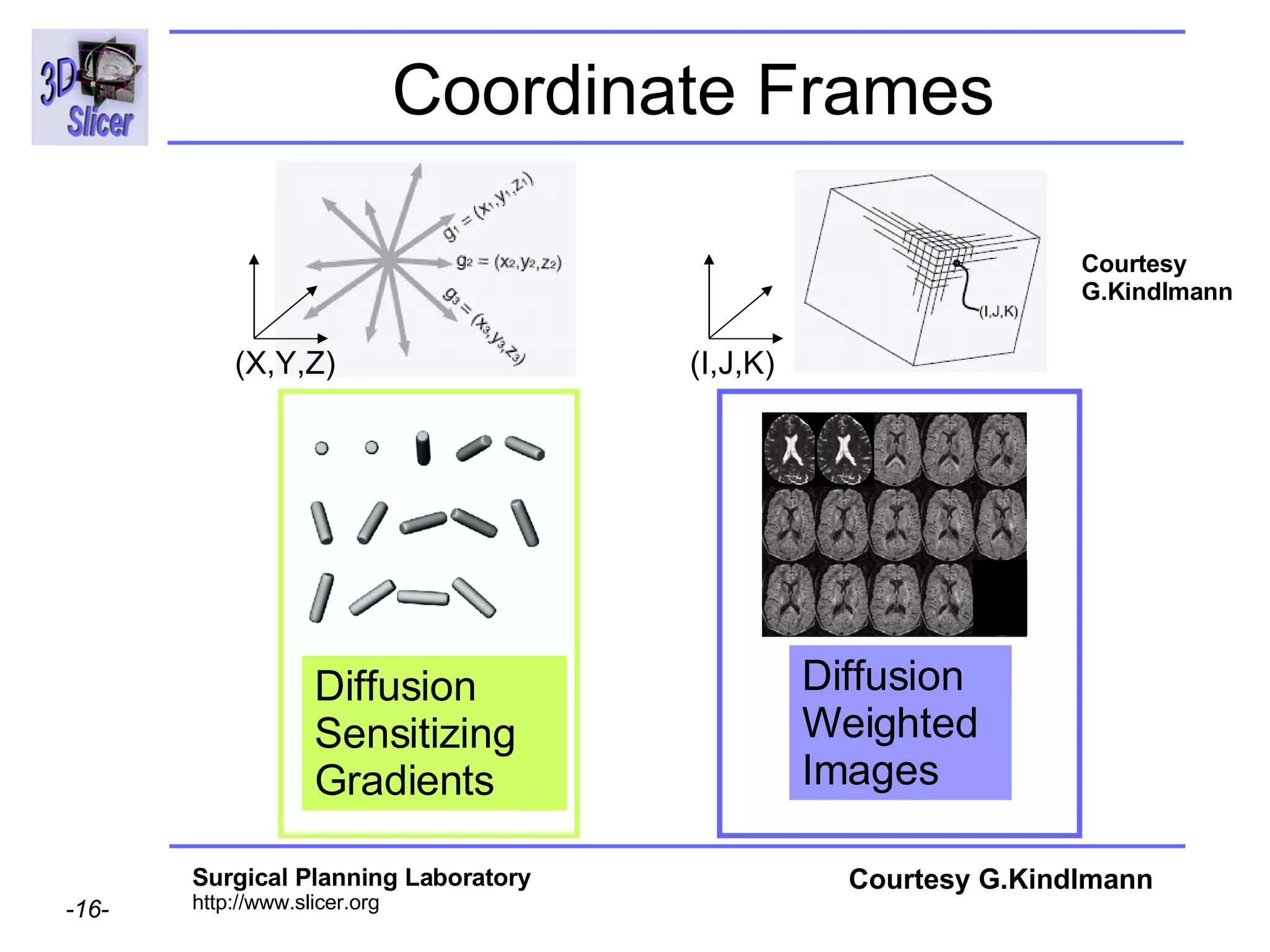
Coordinate Frames Diffusion Weighted  Images Diffusion Sensitizing Gradients  Courtesy G.Kindlmann Courtesy G.Kindlmann (X,Y,Z) (I,J,K)
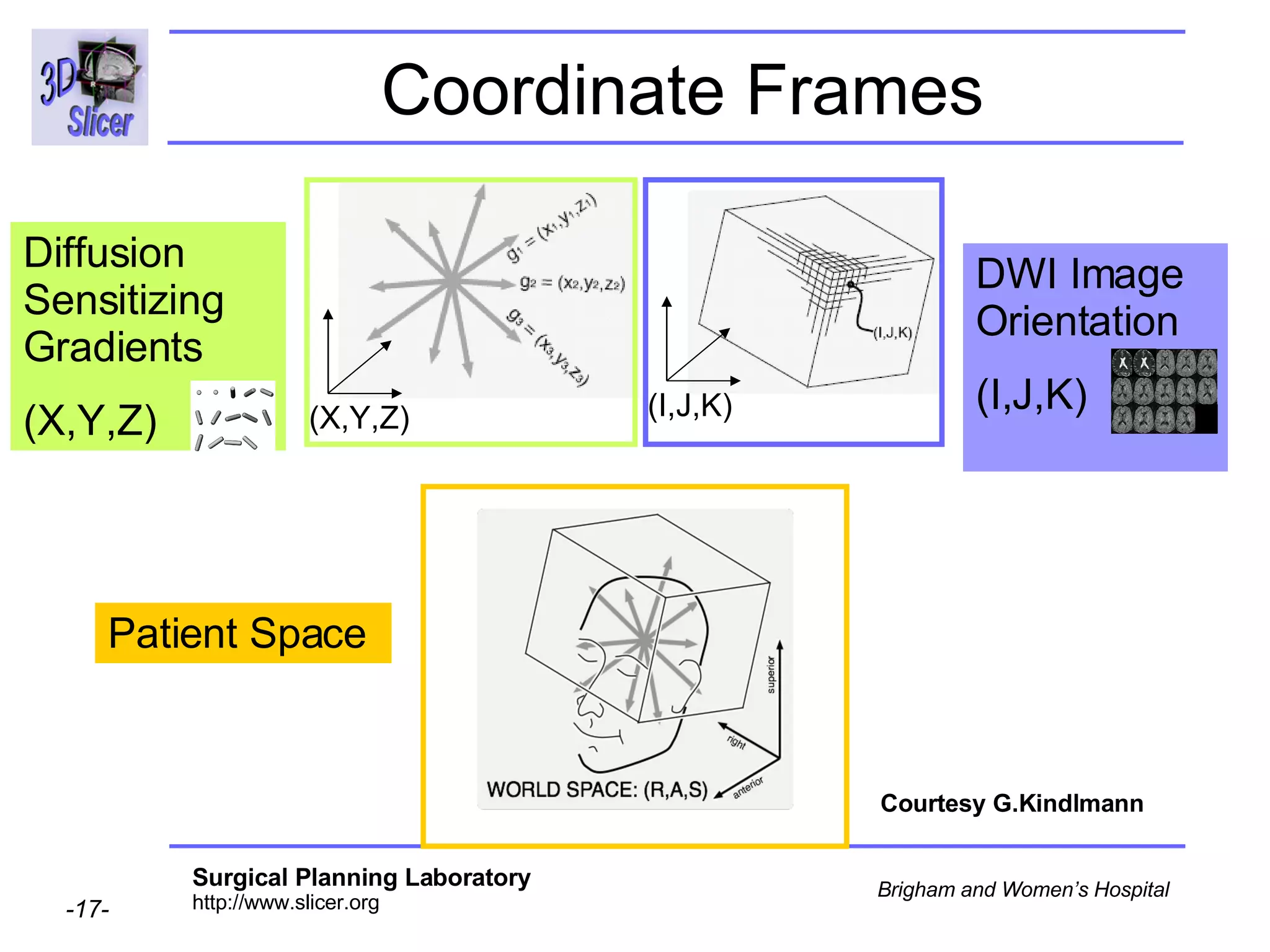
Coordinate Frames DWI Image Orientation (I,J,K)  Diffusion Sensitizing Gradients  (X,Y,Z) Patient Space Courtesy G.Kindlmann (X,Y,Z) (I,J,K)
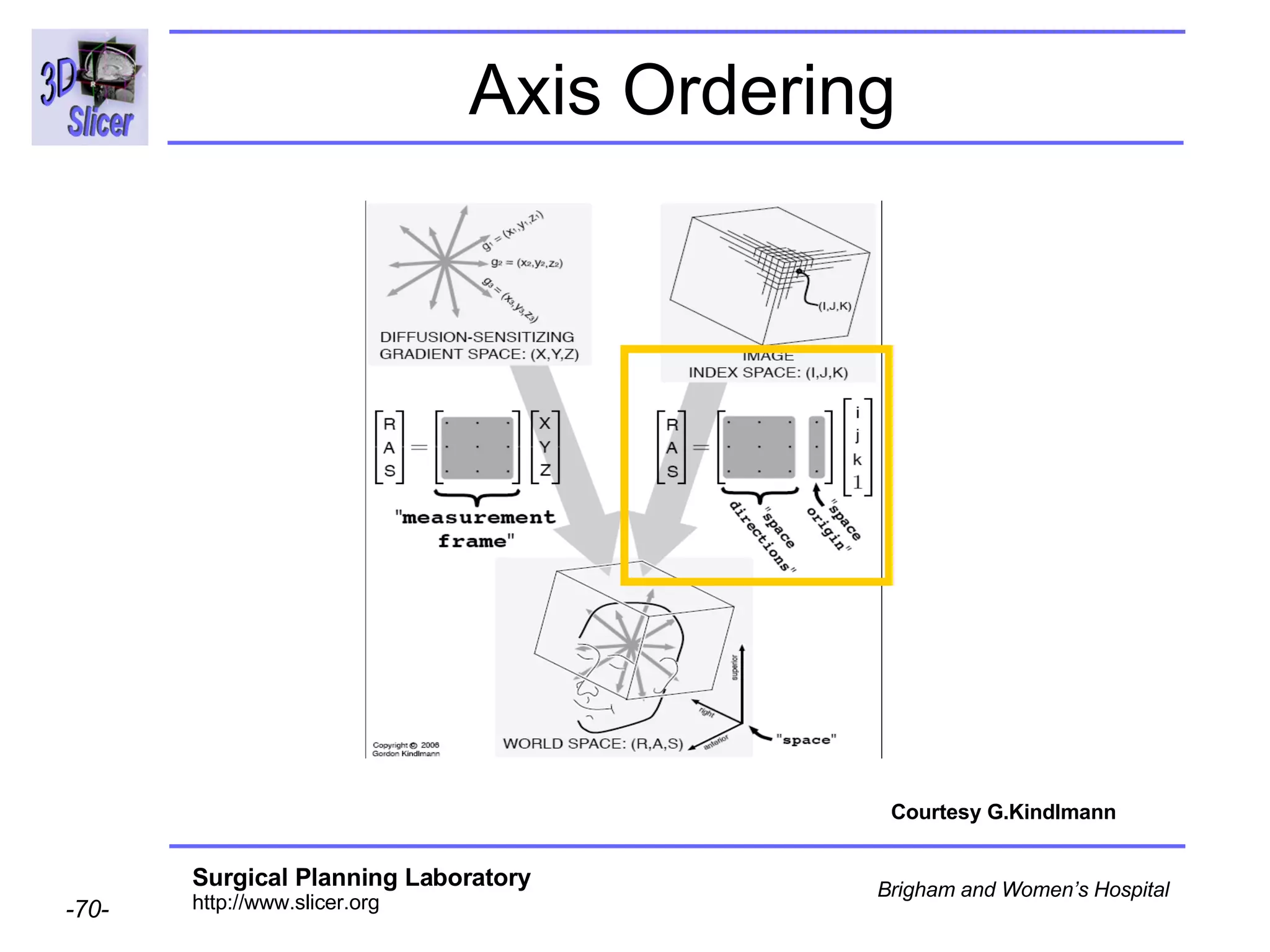
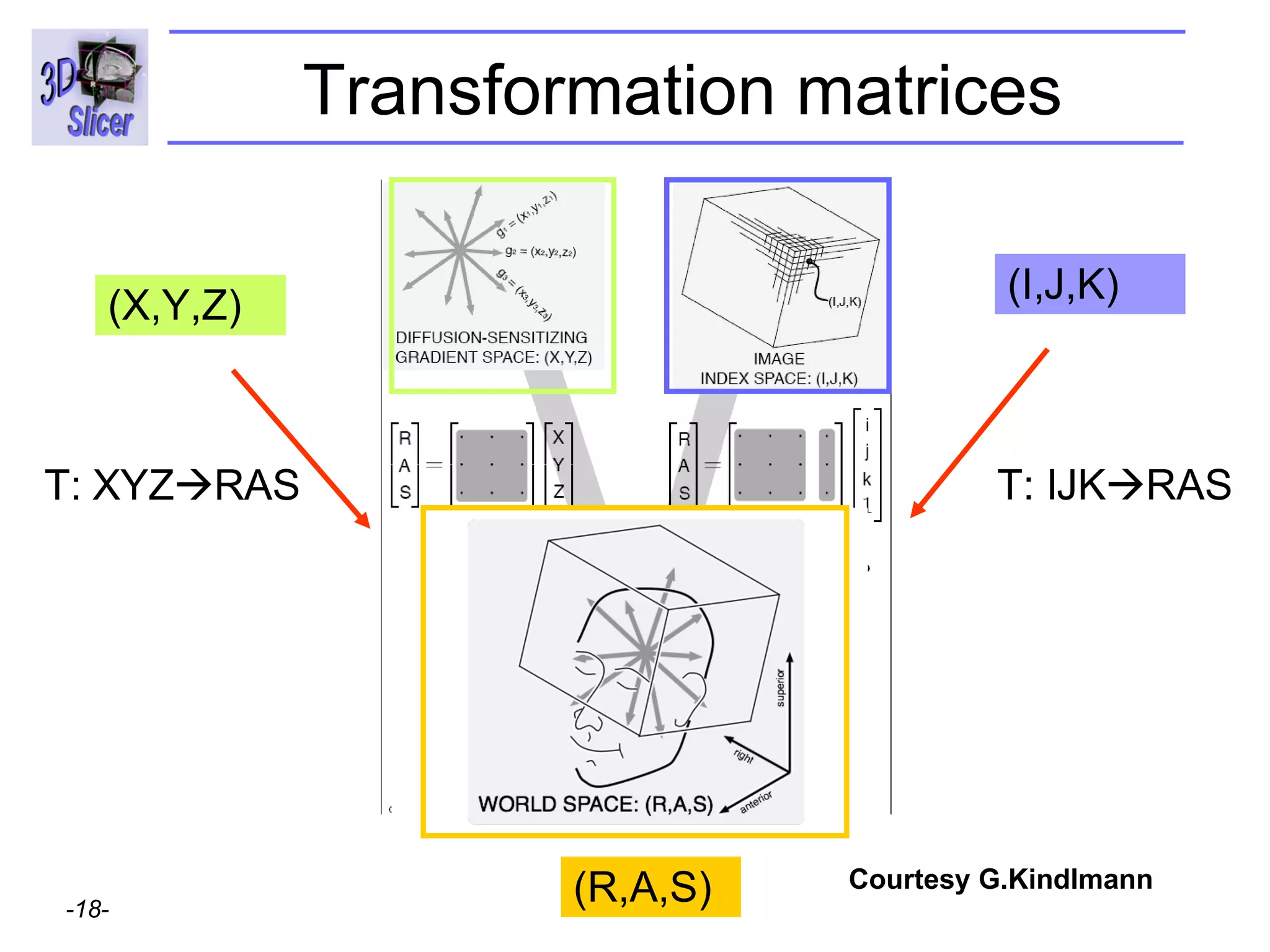
Transformation matrices T: IJK  RAS (X,Y,Z) (I,J,K) T: XYZ  RAS (R,A,S) Courtesy G.Kindlmann
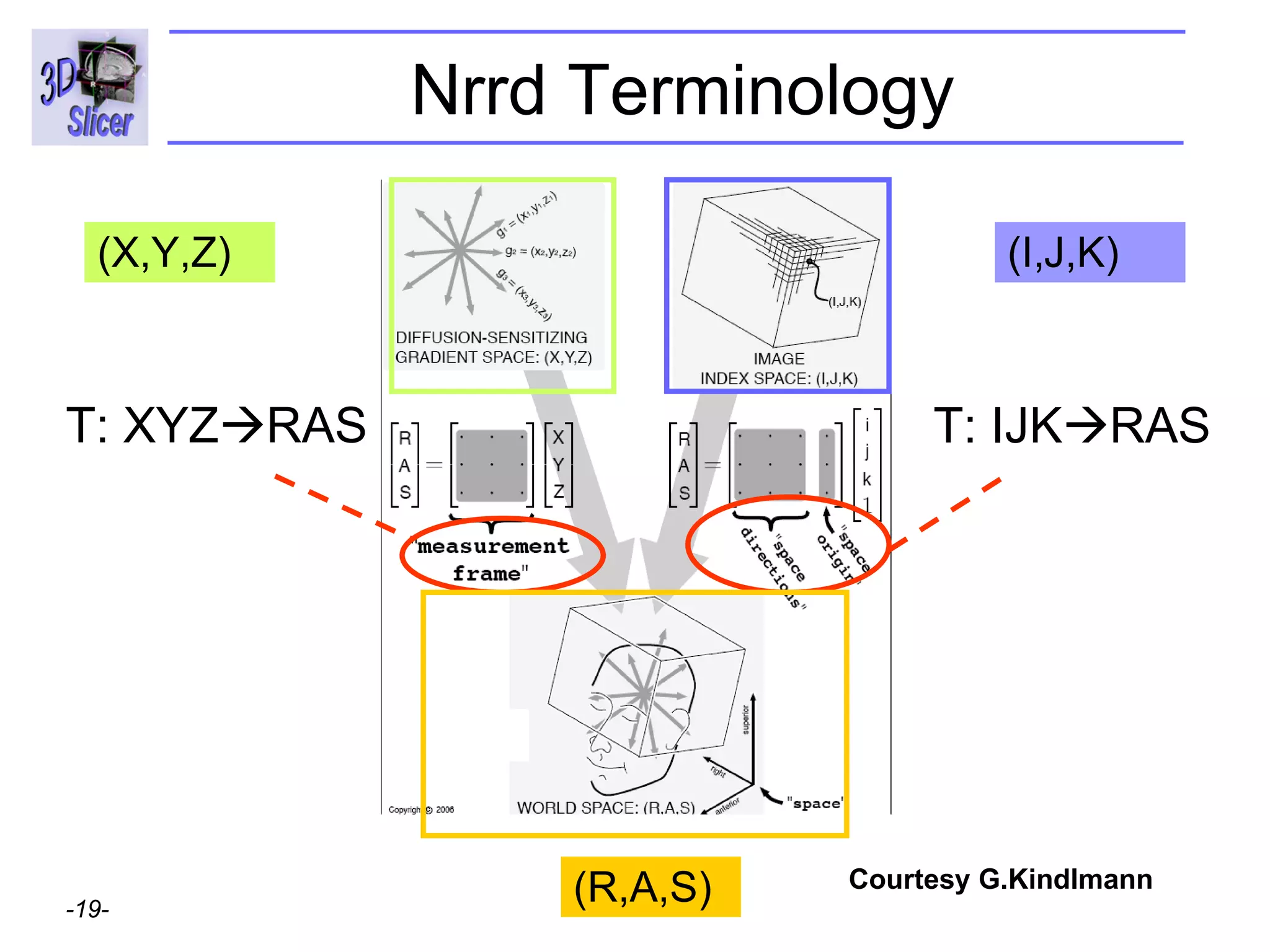
Nrrd Terminology T: XYZ  RAS (X,Y,Z) (I,J,K) (R,A,S) T: IJK  RAS Courtesy G.Kindlmann
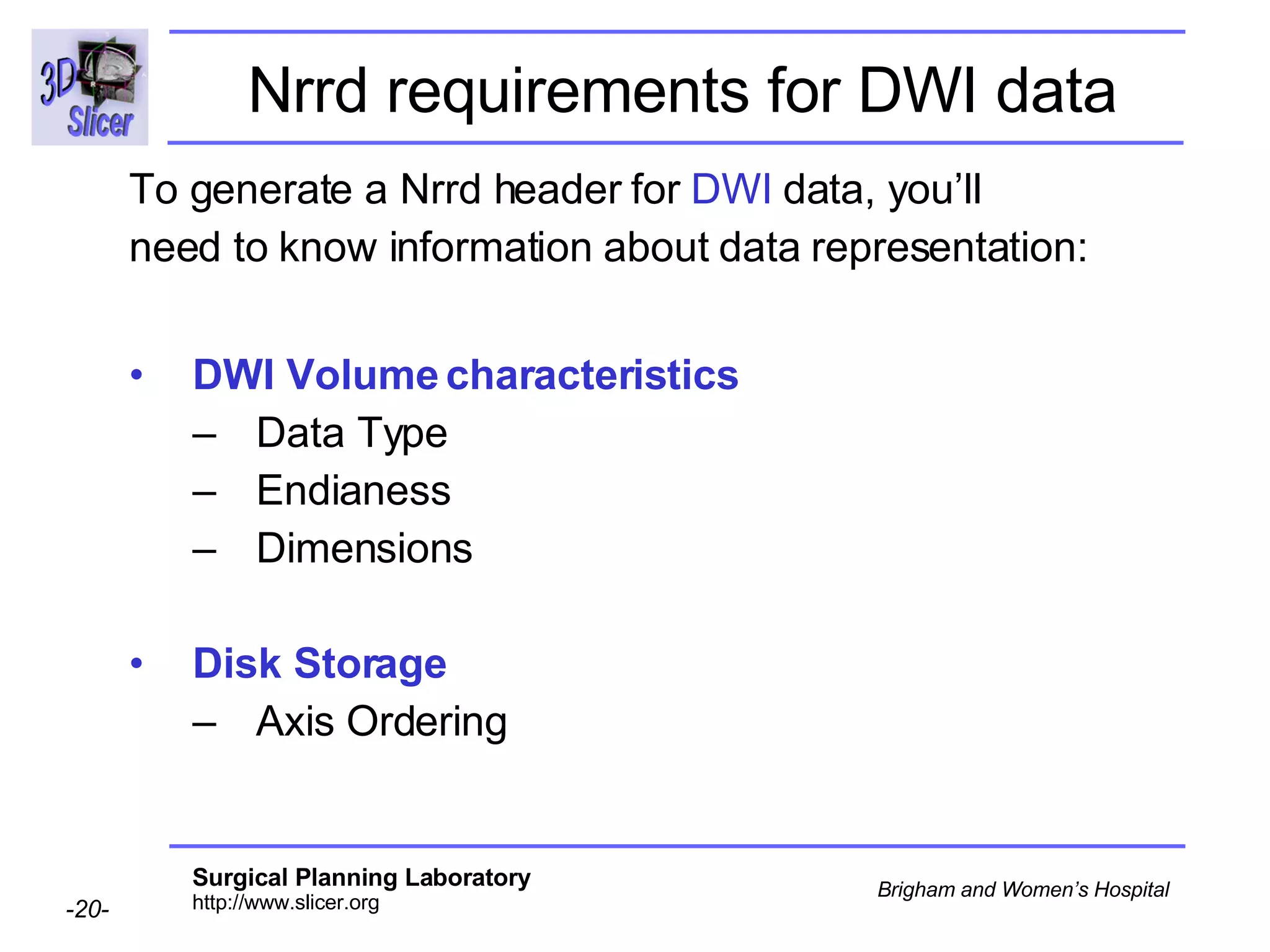
Nrrd requirements for DWI data To generate a Nrrd header for  DWI  data, you’ll need to know information about data representation: DWI Volume characteristics Data Type  Endianess Dimensions  Disk Storage Axis Ordering
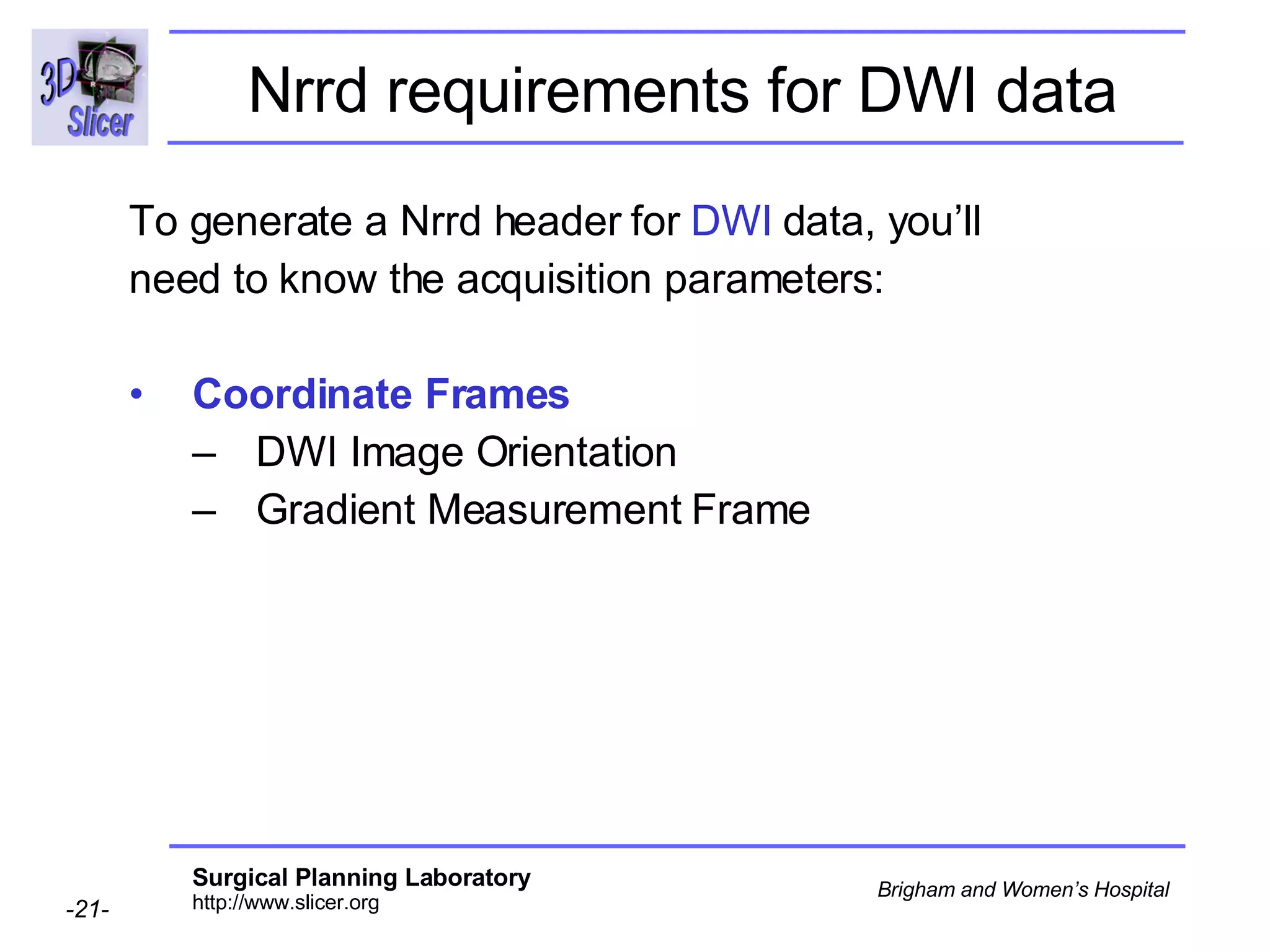
Nrrd requirements for DWI data To generate a Nrrd header for  DWI  data, you’ll need to know the acquisition parameters: Coordinate Frames DWI Image Orientation Gradient Measurement Frame
Overview Part 1: DWI data specificity Part 2: Nrrd description Part 3: Generating Nrrd Files Part 4: Working with DICOM DWI training data Part 5: Orientation validation within Slicer
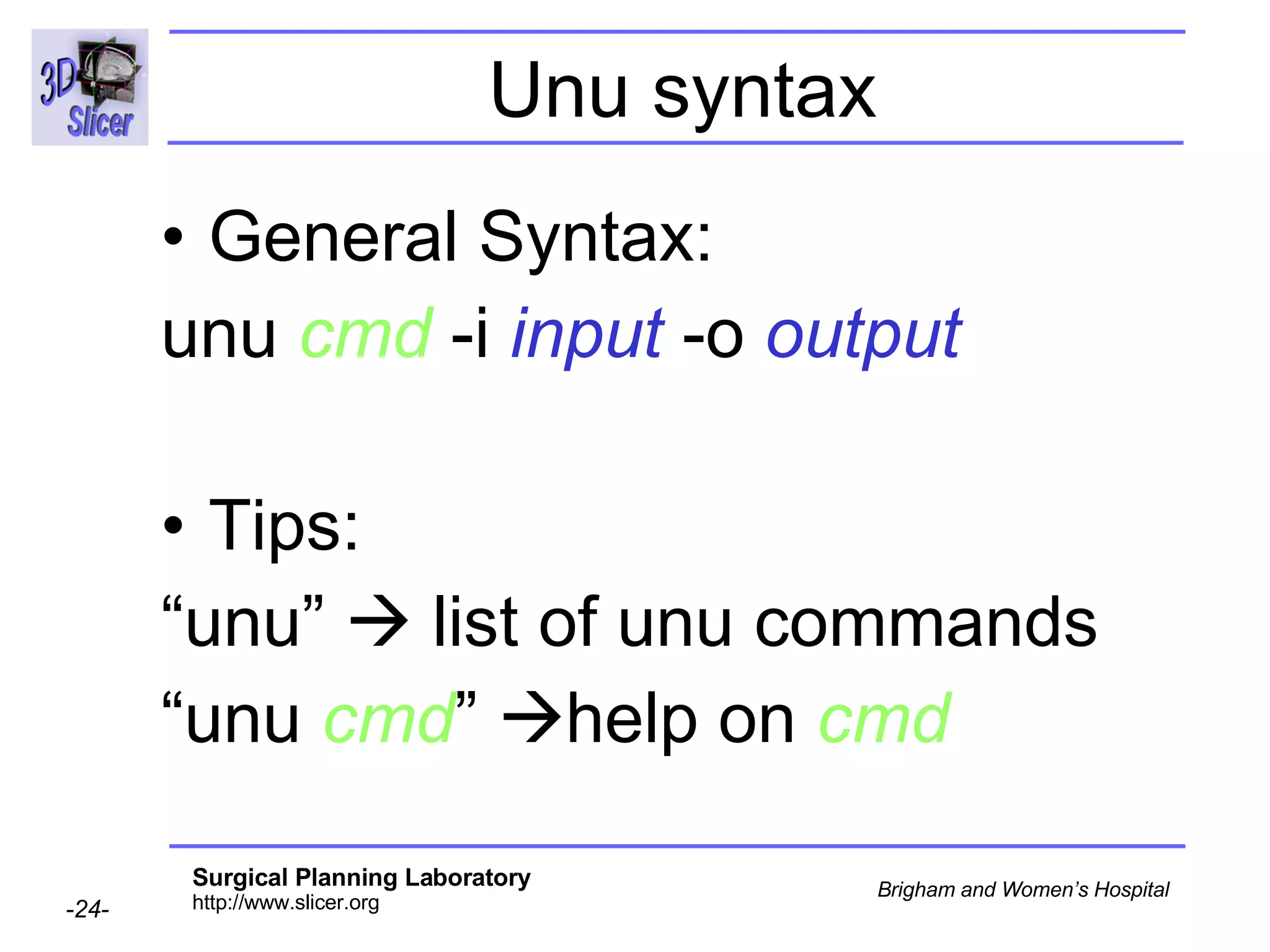
Generating Nrrd Files Nrrd files can be generated from the Tk console of Slicer using the “ unu ” command line tool  unu is part of set of  libraries  called “Teem”  compiled into Slicer 2.6 http://teem.sourceforge.net/ Slicer  includes a Nrrd reader to  load DWI  volumes  in Nrrd format
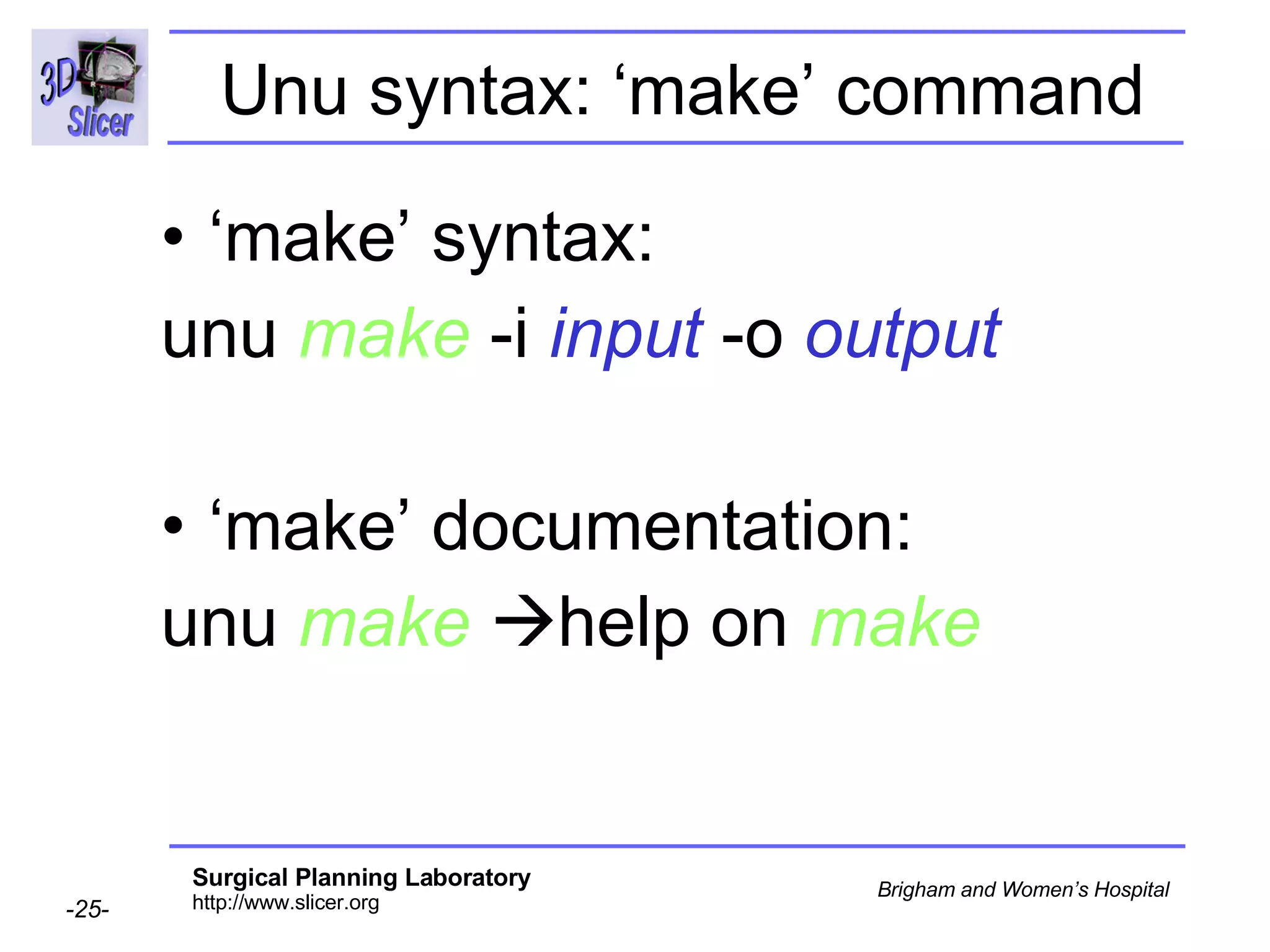
Unu syntax General Syntax: unu   cmd   -i   input   -o   output Tips: “ unu”    list of unu commands “ unu   cmd ”   help on  cmd
Unu syntax: ‘make’ command ‘ make’ syntax: unu   make   -i   input   -o   output ‘ make’ documentation: unu   make    help on  make
Running unu on Windows To run the unu command from the Tk console, type  unu.  On Windows, you do not need to be in the directory win32/bin/teem-build/bin    the unu commands run  from any location.
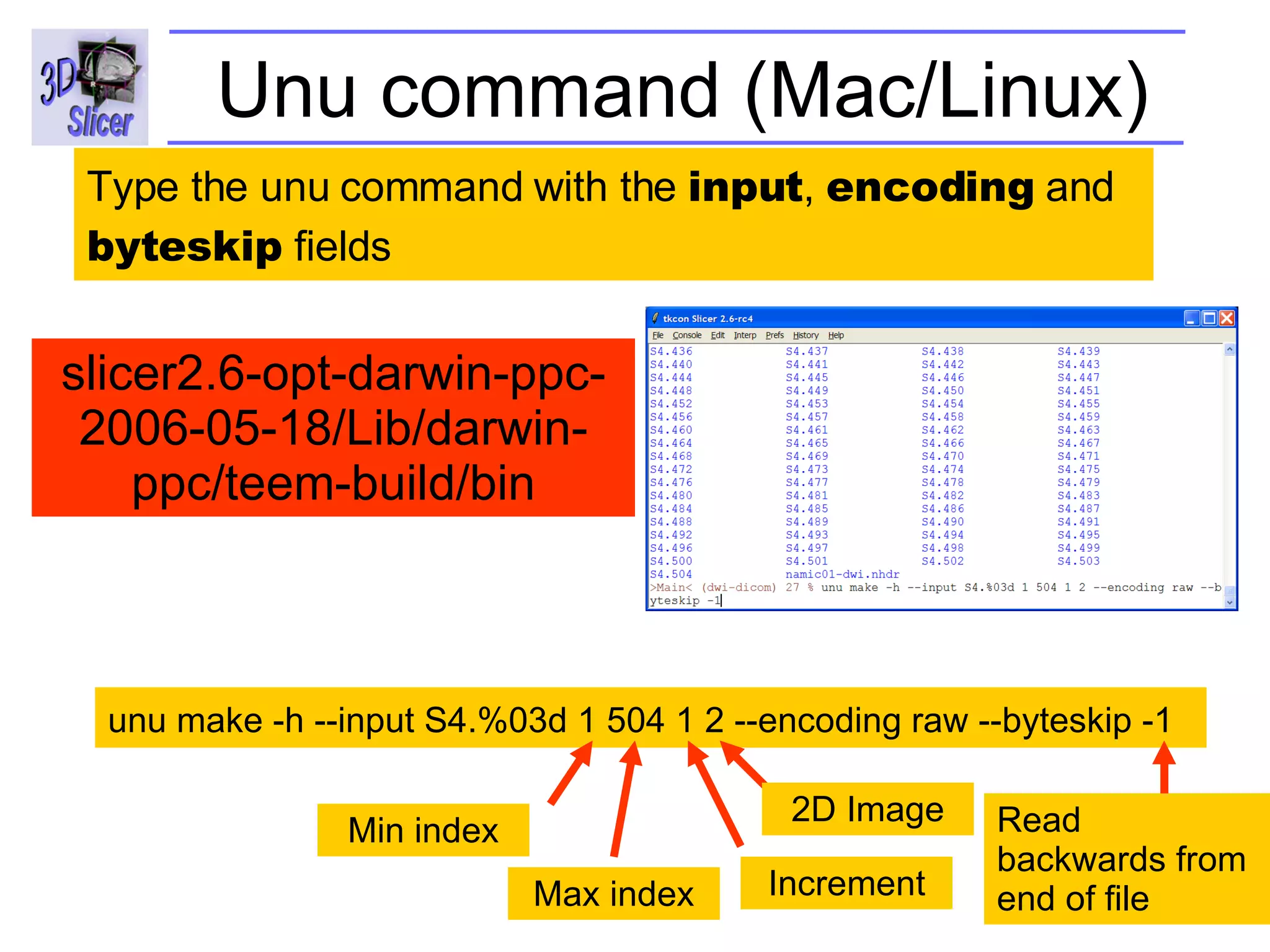
Running unu on Mac/Linux/Solaris   To run the unu command from the Tk console , you need to enter the whole path to the /bin directory  Ex:  Mac  ../slicer2.6-opt-darwin-ppc-2006-05-18/Lib/darwin-ppc/teem-build/bin
Overview Part 1: DWI data specificity Part 2: Nrrd description Part 3: Generating Nrrd Files Part 4: Working with DICOM DWI training data Part 5: Orientation validation within Slicer
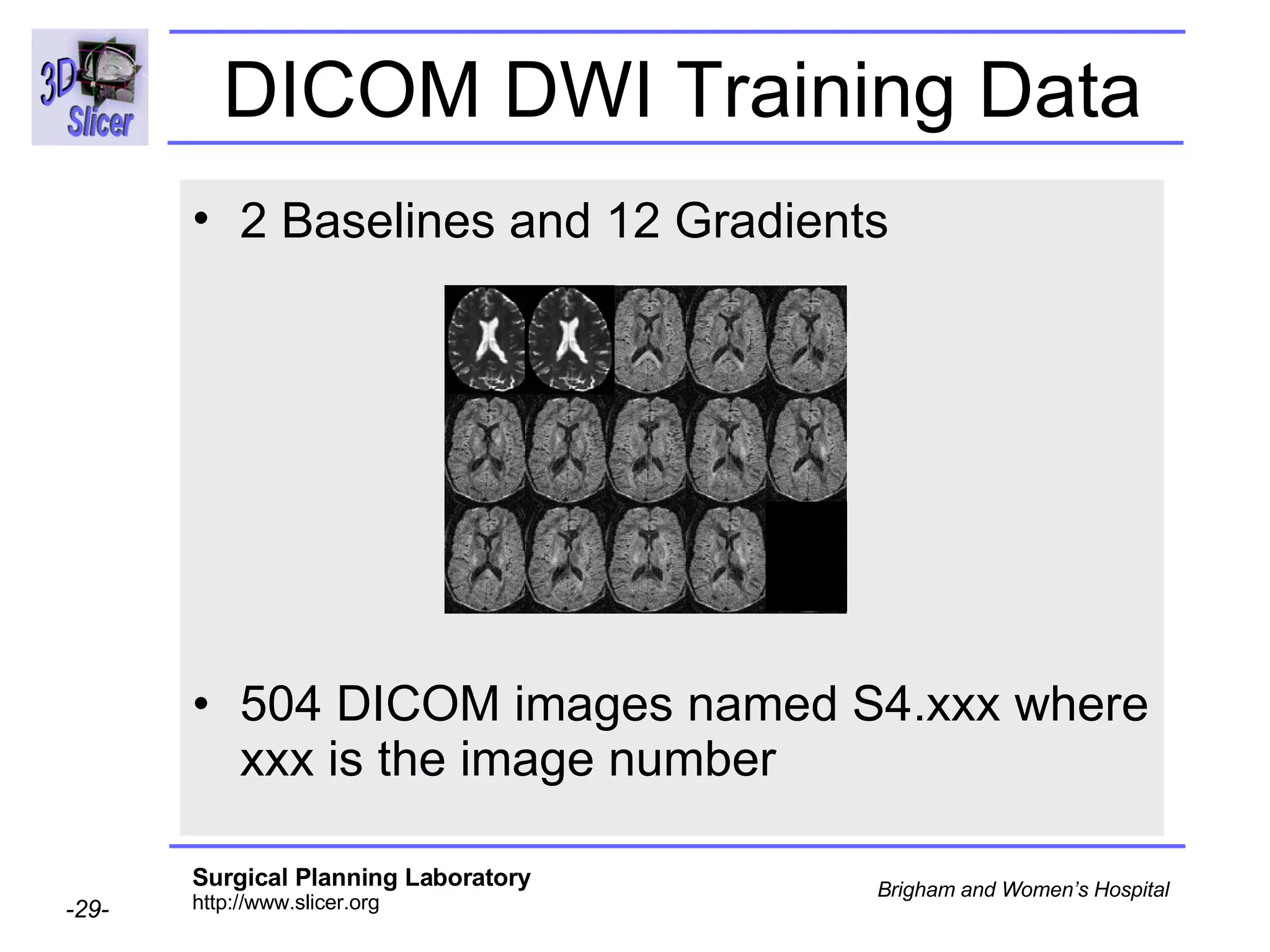
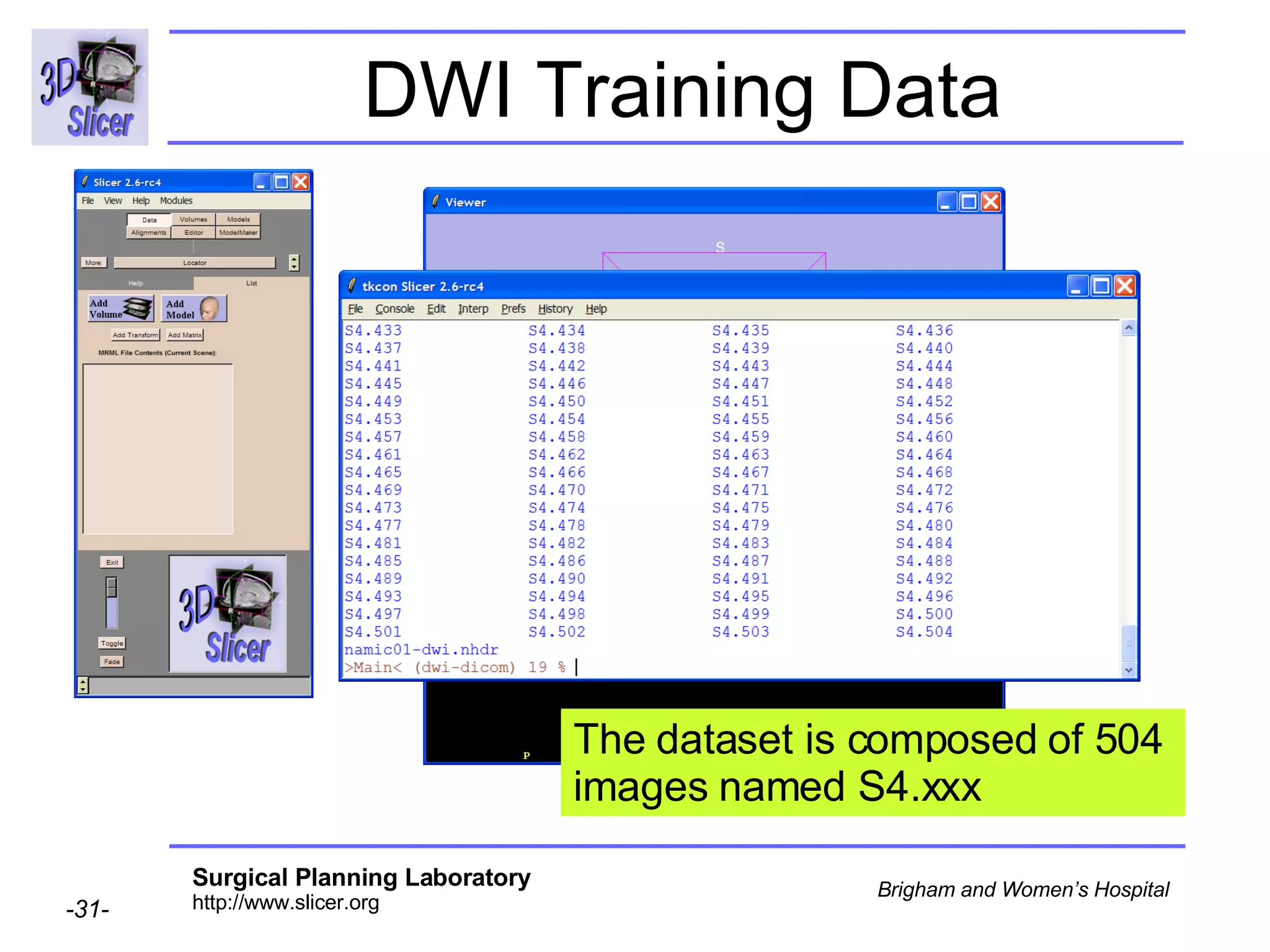
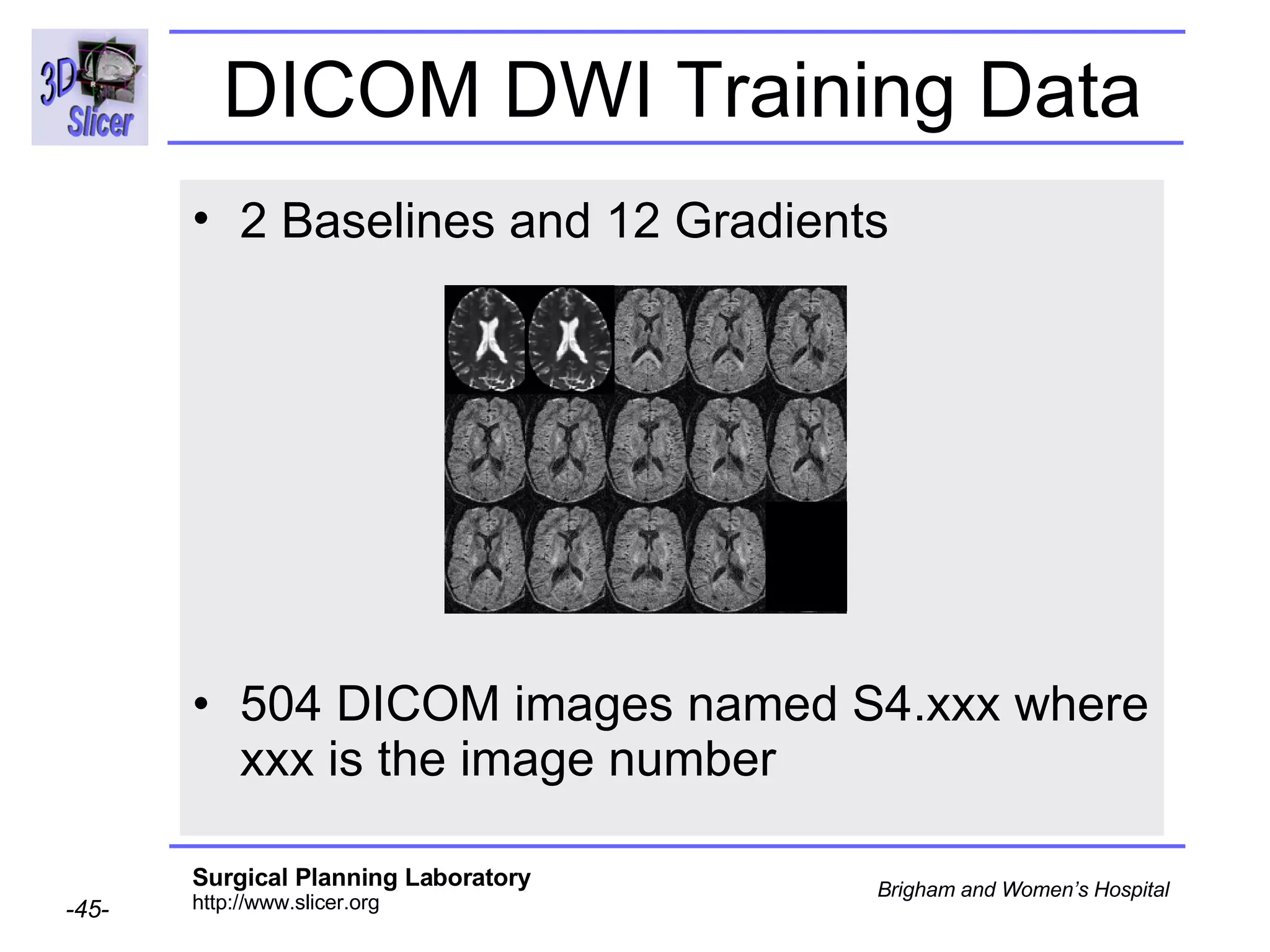
DICOM DWI Training Data 2 Baselines and 12 Gradients   504 DICOM images named S4.xxx where xxx is the image number
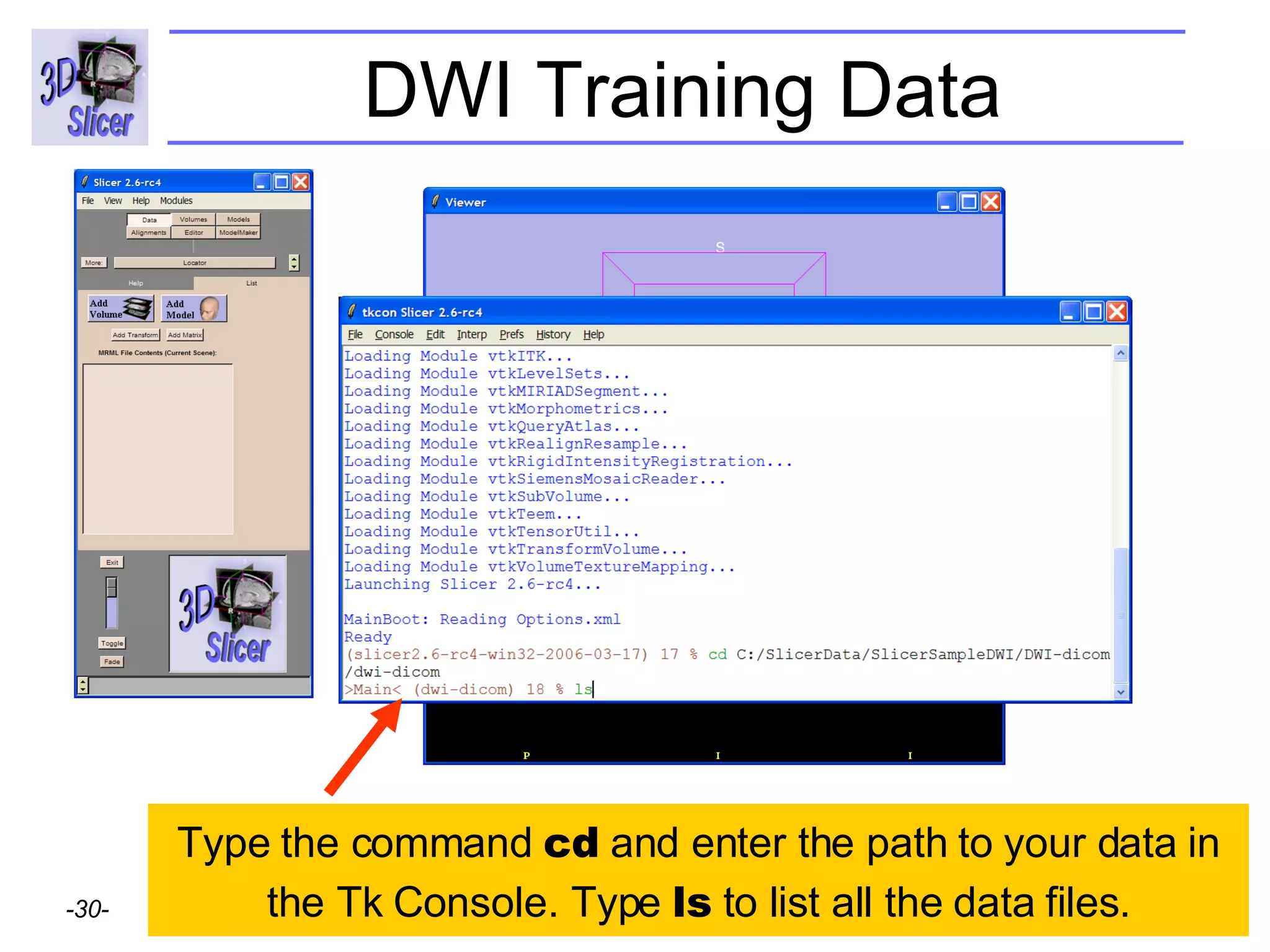
DWI Training Data Type the command  cd  and enter the path to your data in the Tk Console. Type  ls  to list all the data files.
DWI Training Data The dataset is composed of 504 images named S4.xxx
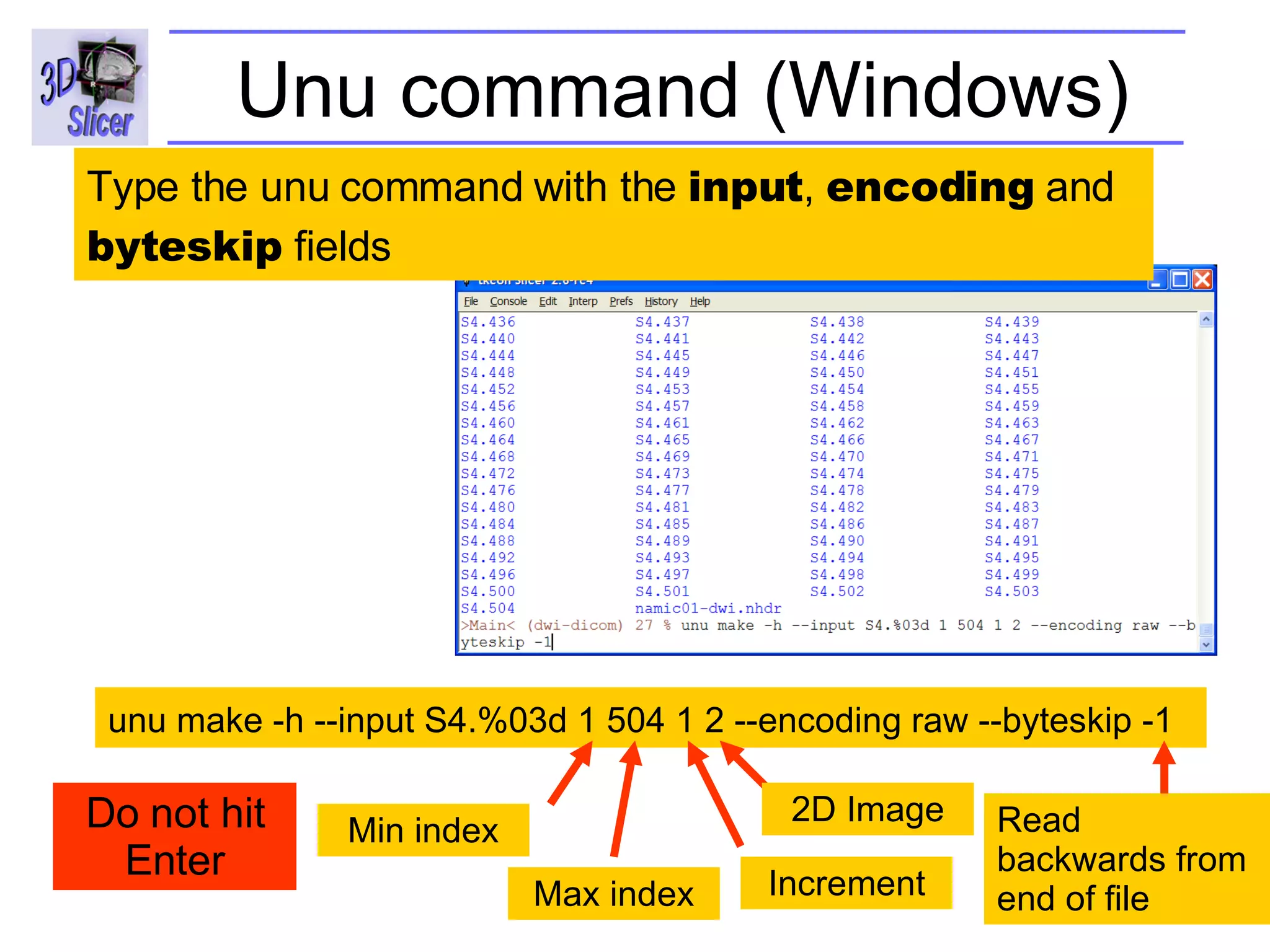
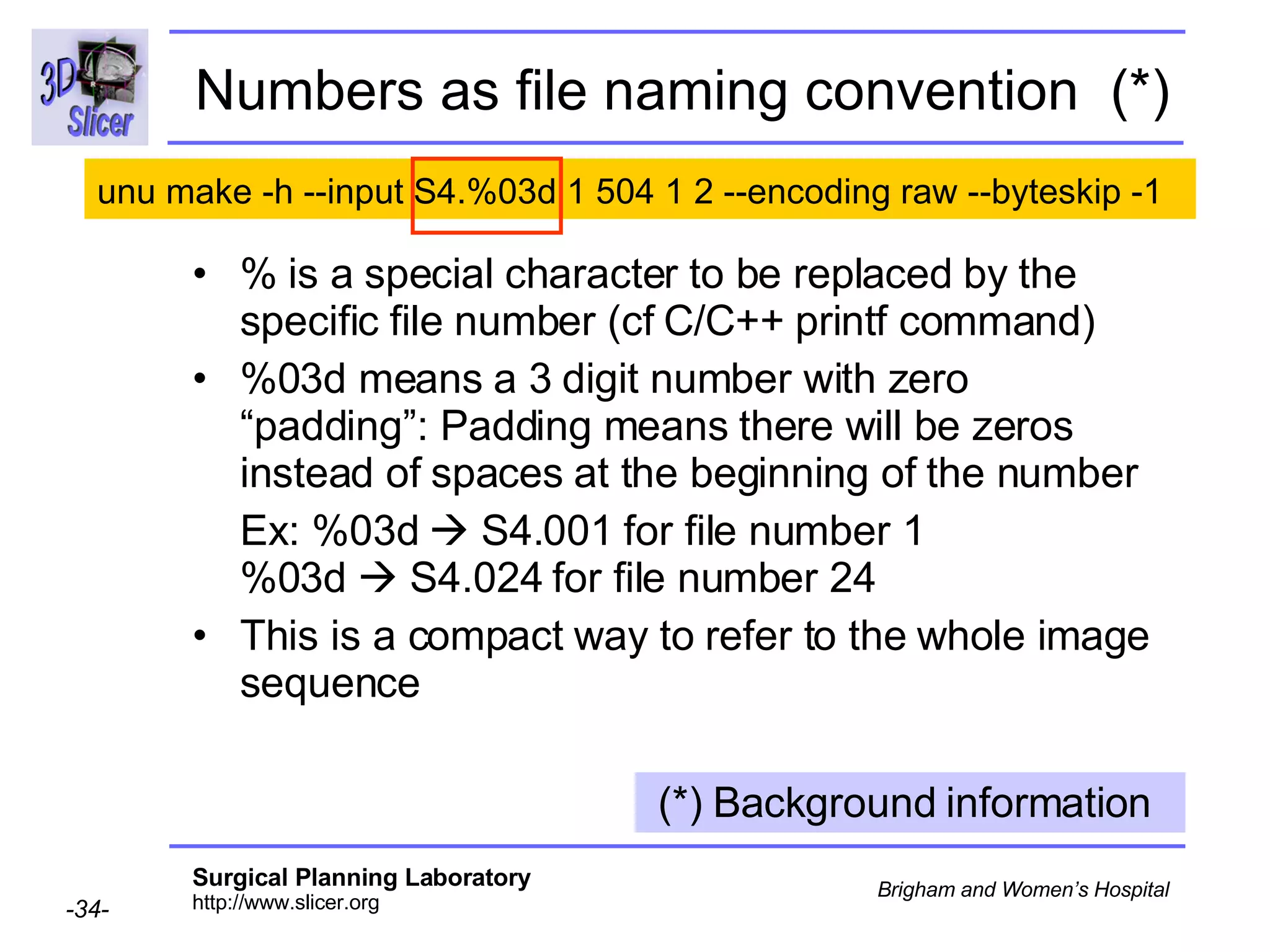
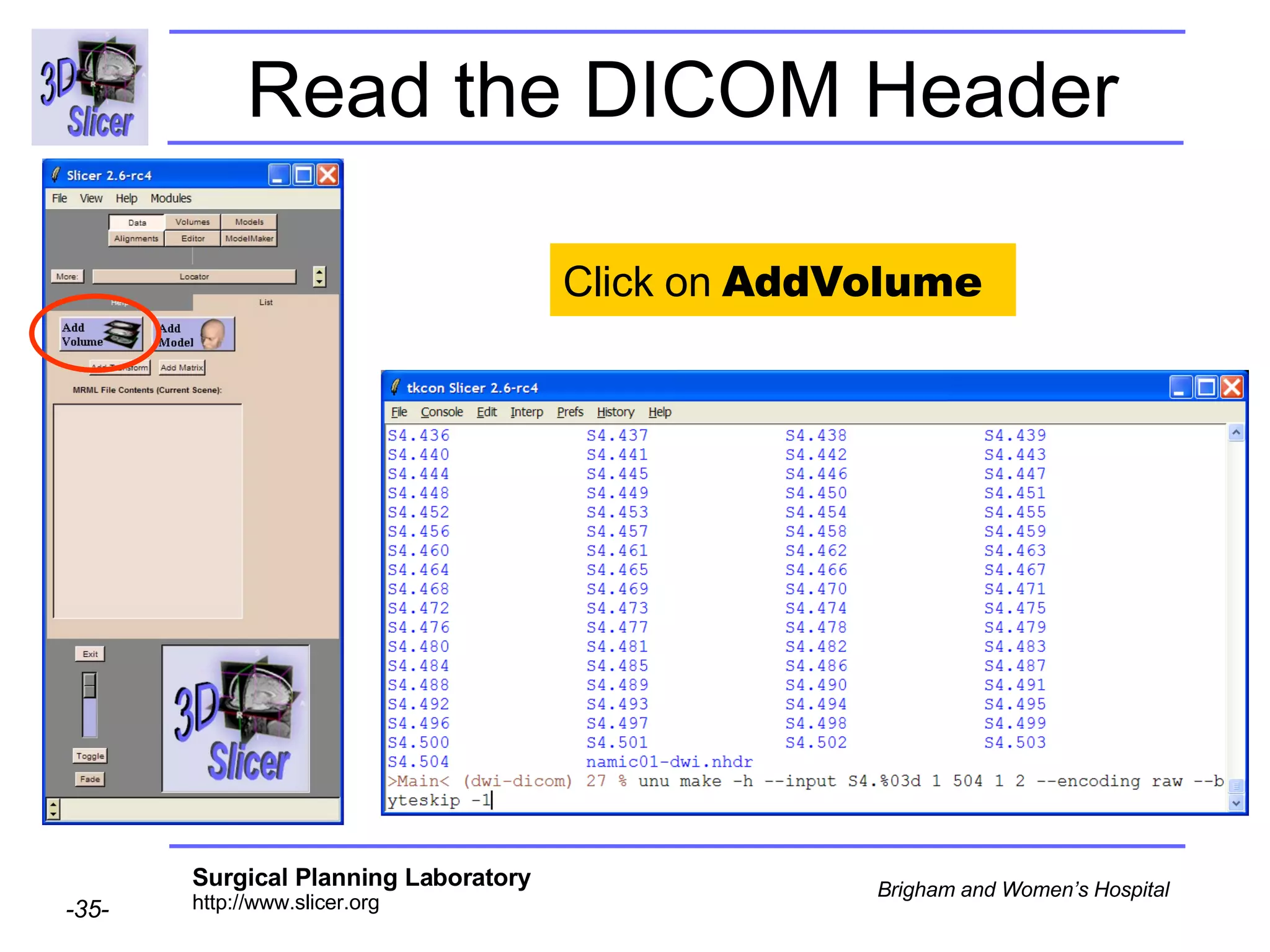
Unu command (Windows) unu make -h --input S4.%03d 1 504 1 2 --encoding raw  --byteskip -1   Type the unu command with the  input ,  encoding  and  byteskip  fields  Min index Max index Increment 2D Image Read backwards from end of file Do not hit Enter
Unu command (Mac/Linux) unu make -h --input S4.%03d 1 504 1 2 --encoding raw  --byteskip -1   Type the unu command with the  input ,  encoding  and  byteskip  fields  Min index Max index Increment 2D Image Read backwards from end of file slicer2.6-opt-darwin-ppc-2006-05-18/Lib/darwin-ppc/teem-build/bin
Numbers as file naming convention  (*) % is a special character to be replaced by the specific file number (cf C/C++ printf command) %03d means a 3 digit number with zero “padding”: Padding means there will be zeros instead of spaces at the beginning of the number Ex: %03d    S4.001 for file number 1 %03d    S4.024 for file number 24 This is a compact way to refer to the whole image sequence (*) Background information  unu make -h --input S4.%03d 1 504 1 2 --encoding raw  --byteskip -1
Read the DICOM Header Click on  AddVolume
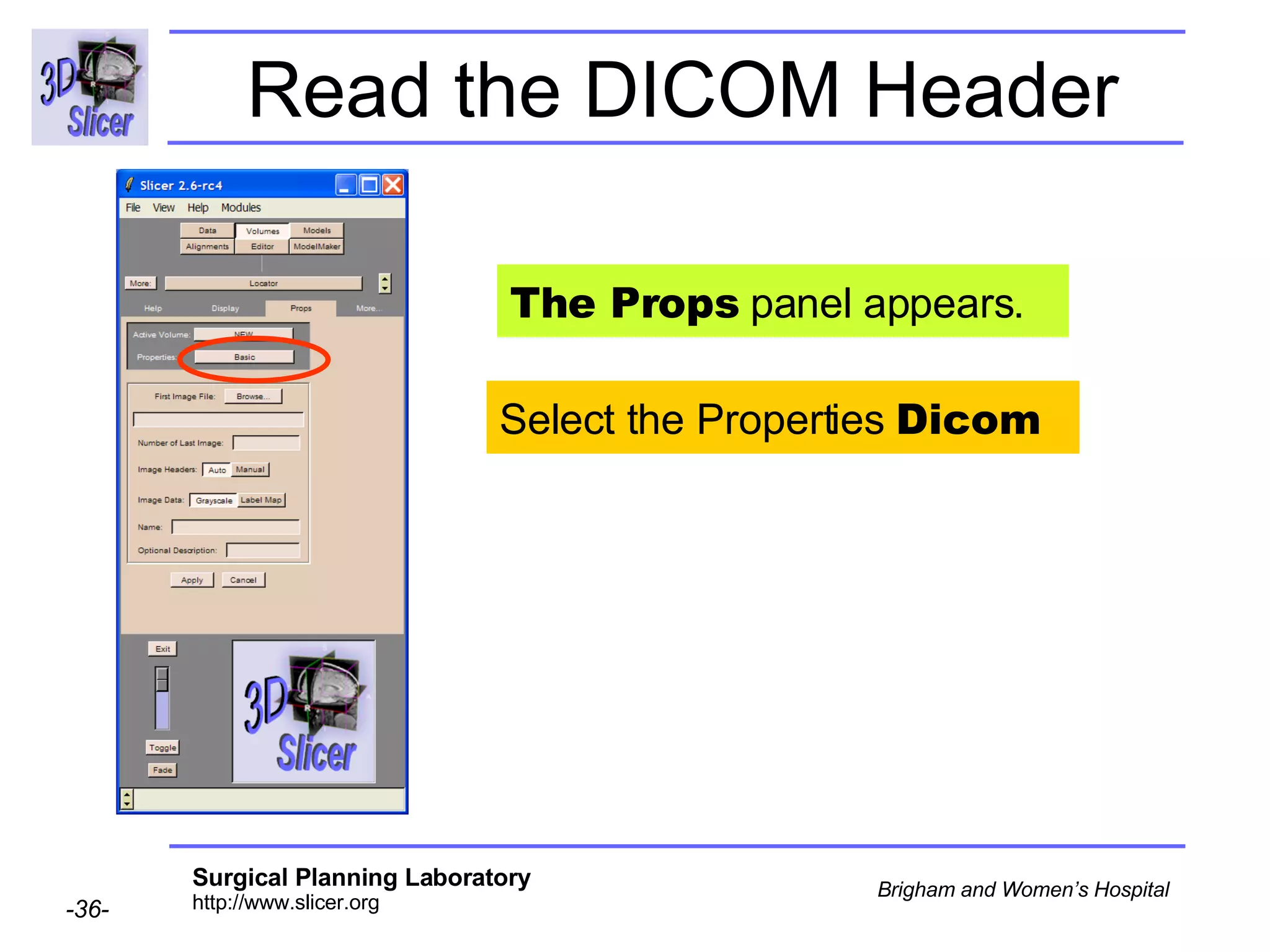
Read the DICOM Header Select the Properties  Dicom The Props  panel appears.
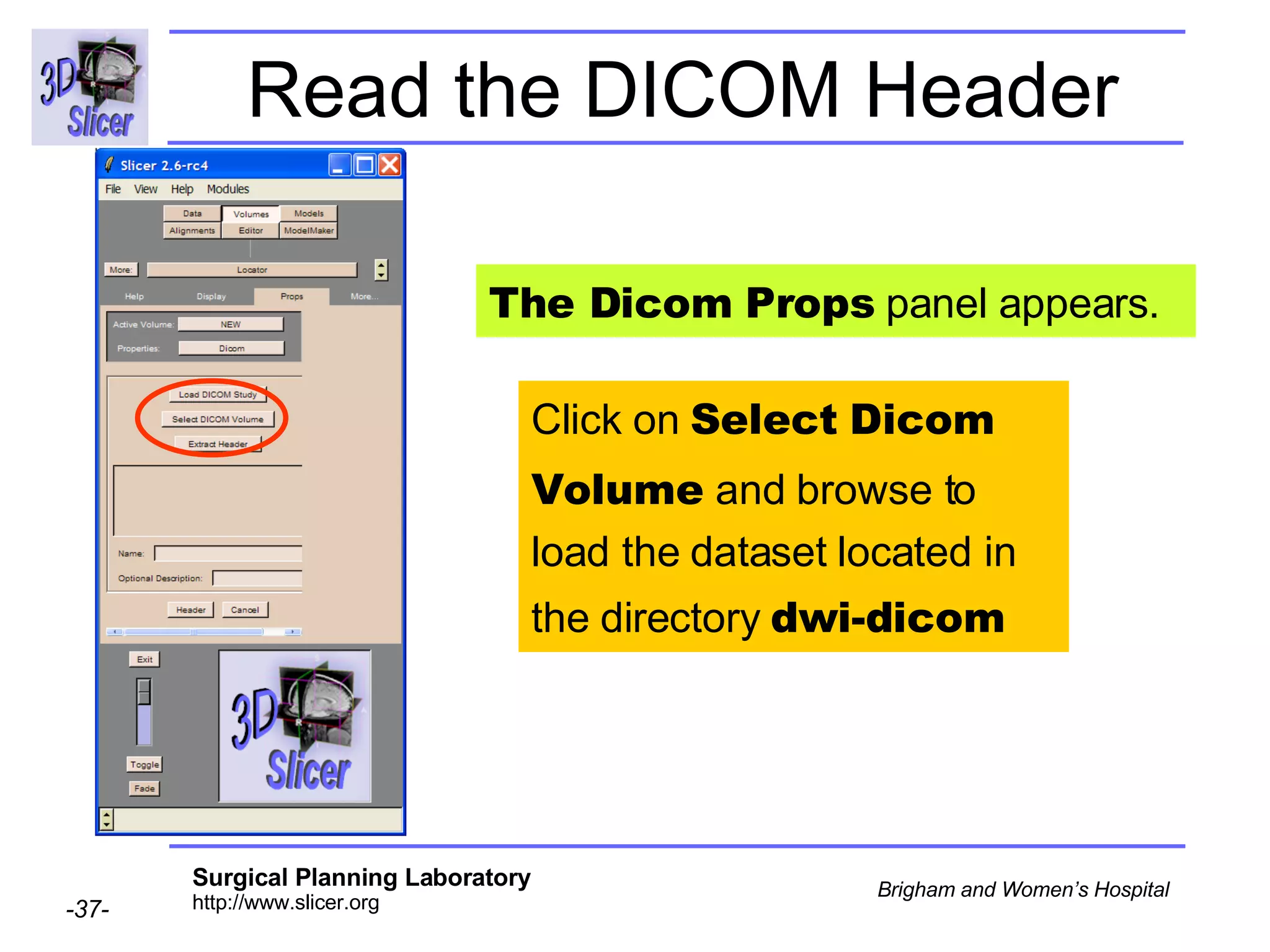
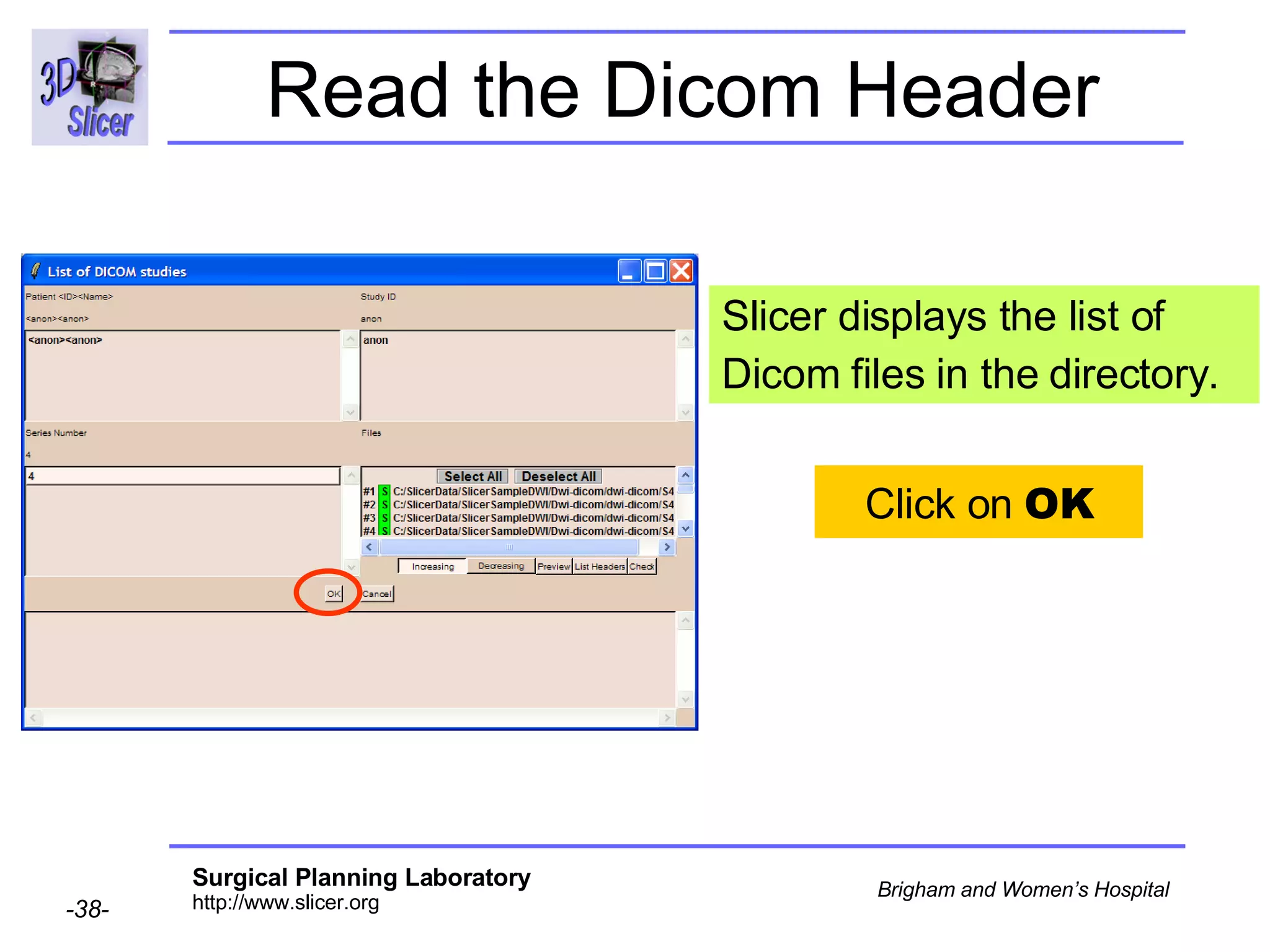
Read the DICOM Header Click on  Select Dicom Volume  and browse to load the dataset located in the directory  dwi-dicom The Dicom Props  panel appears.
Read the Dicom Header Slicer displays the list of Dicom files in the directory. Click on  OK
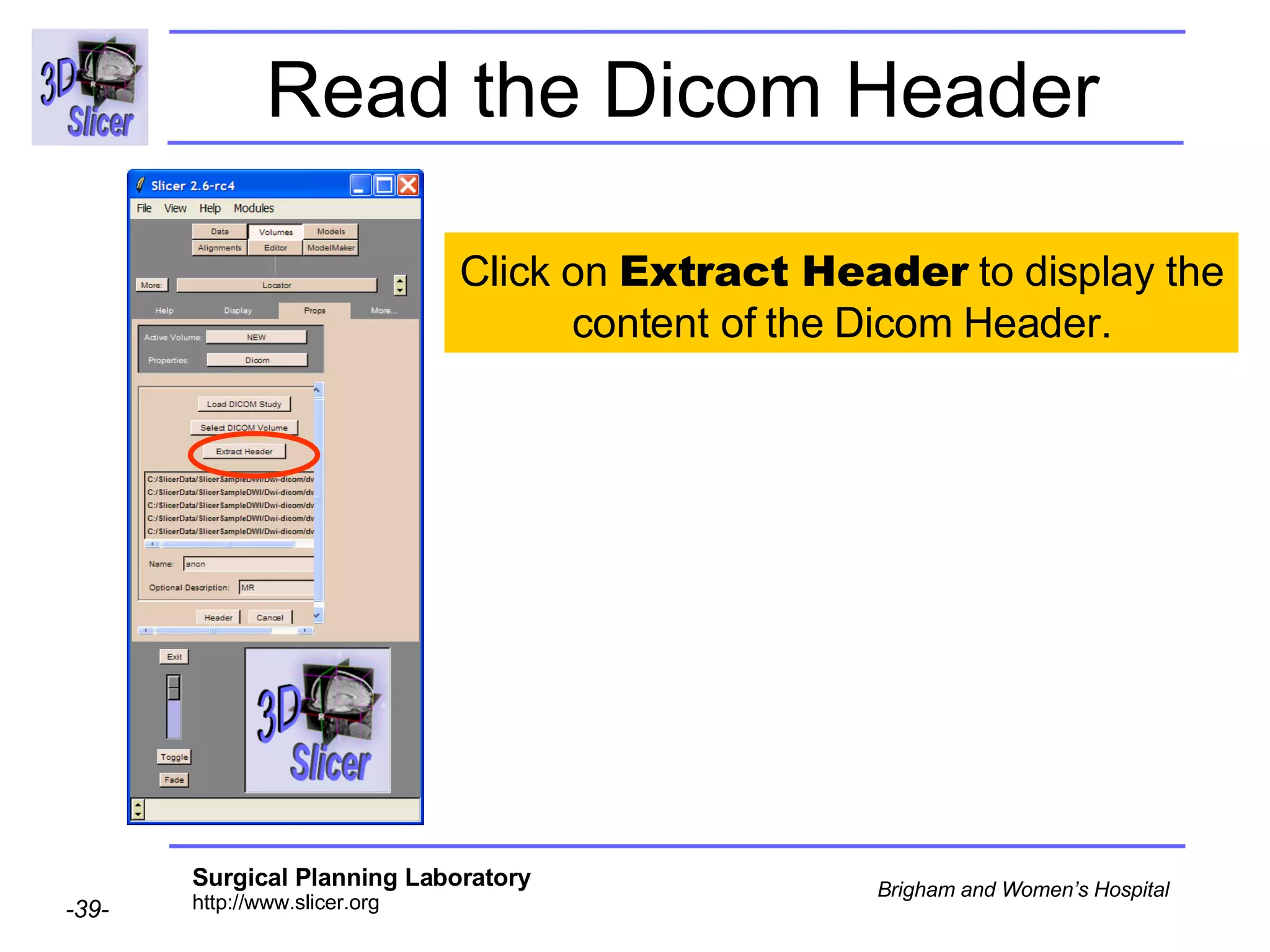
Read the Dicom Header Click on  Extract Header  to display the content of the Dicom Header.
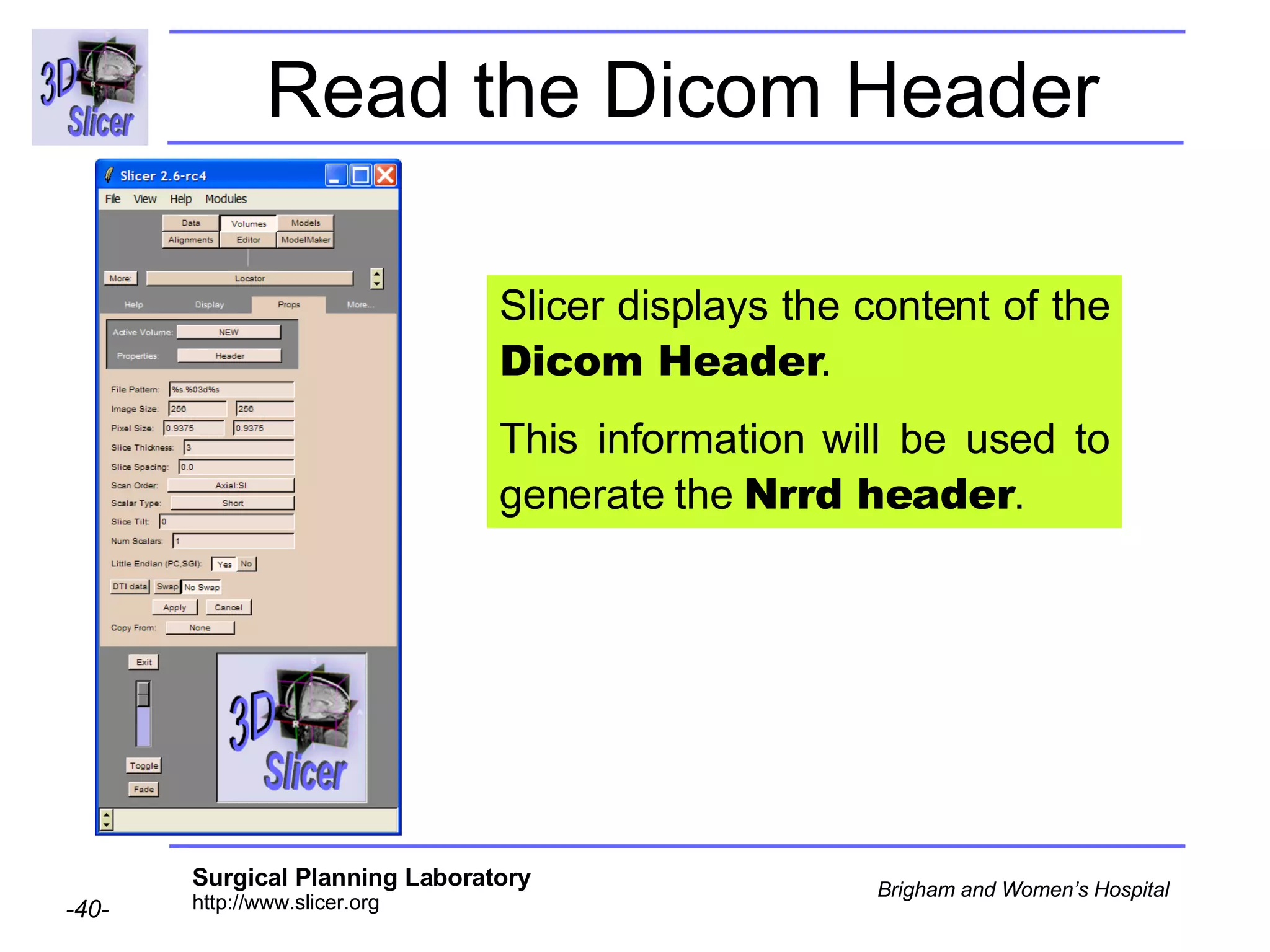
Read the Dicom Header Slicer displays the content of the  Dicom Header . This information will be used to generate the  Nrrd header .
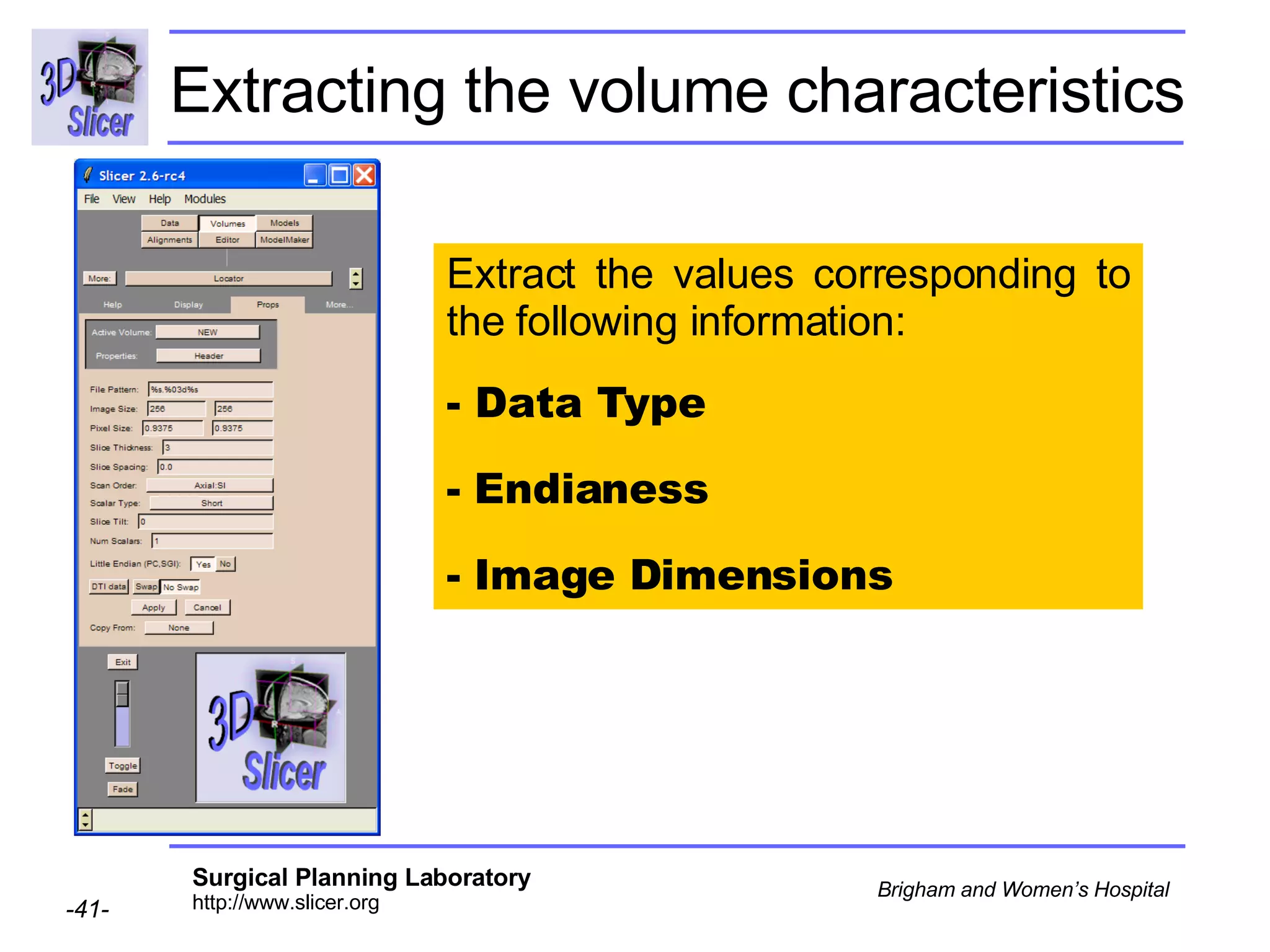
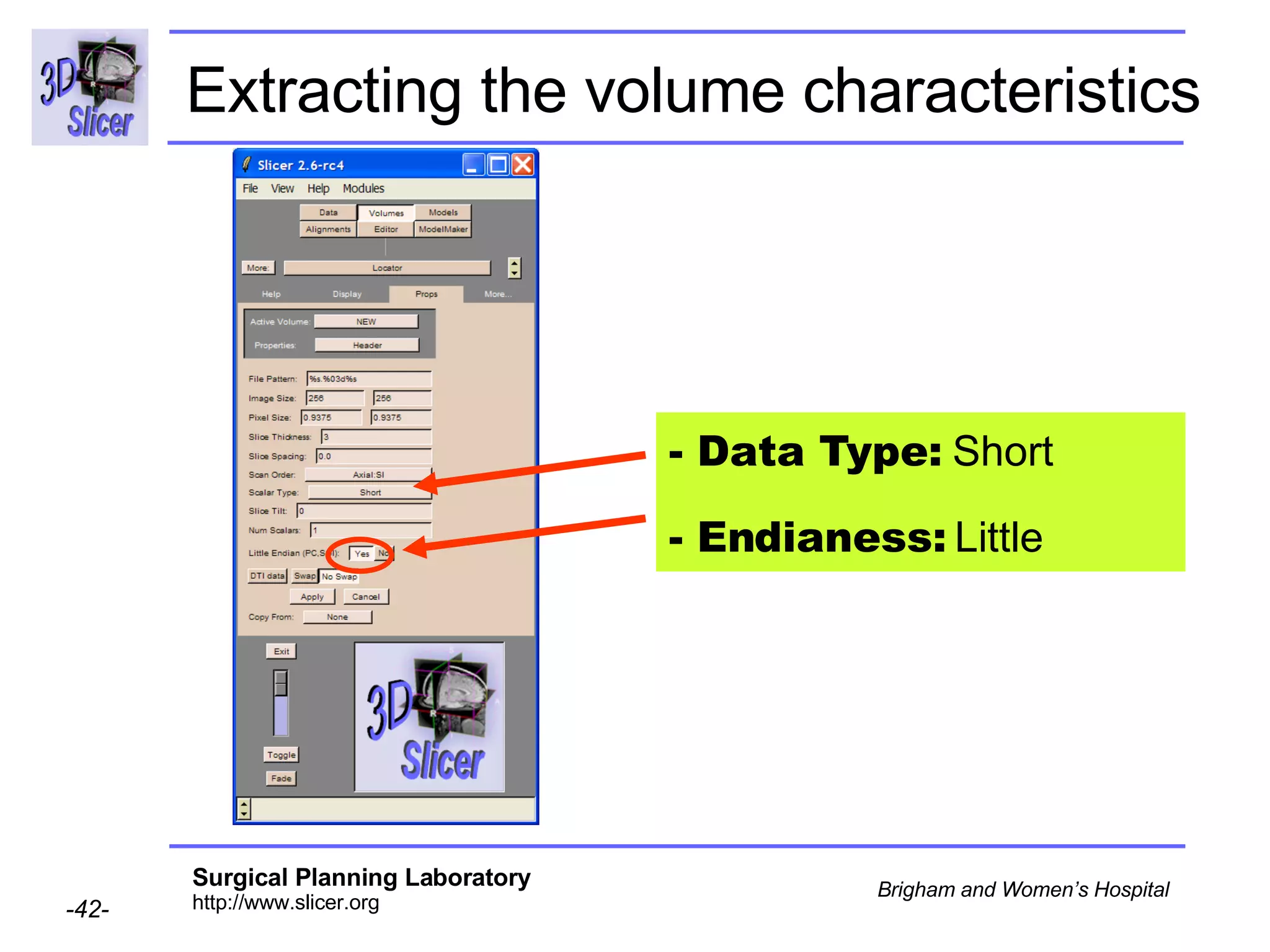
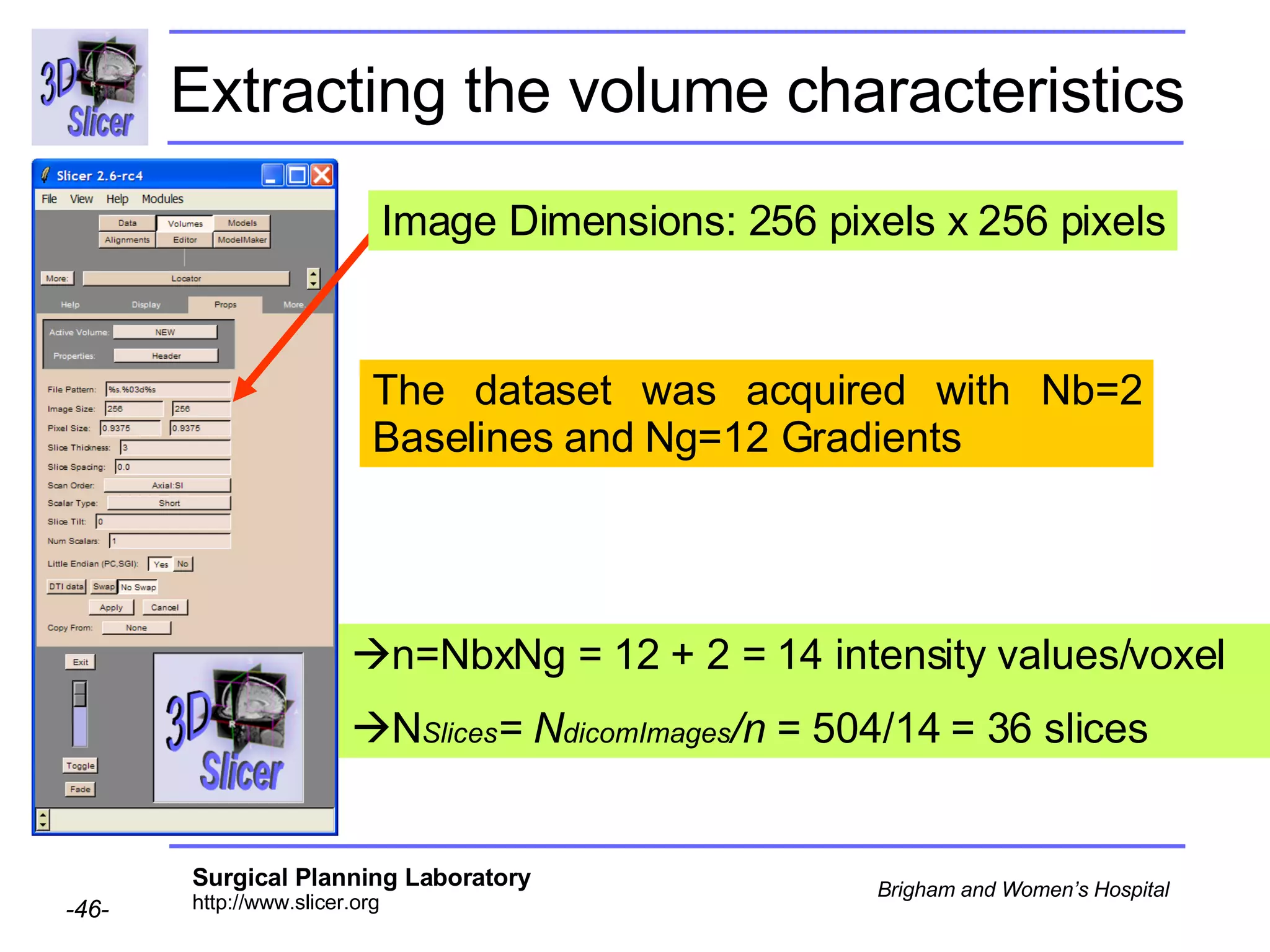
Extracting the volume characteristics Extract the values corresponding to the following information:  - Data Type Endianess Image Dimensions
Extracting the volume characteristics - Data Type:  Short - Endianess:  Little
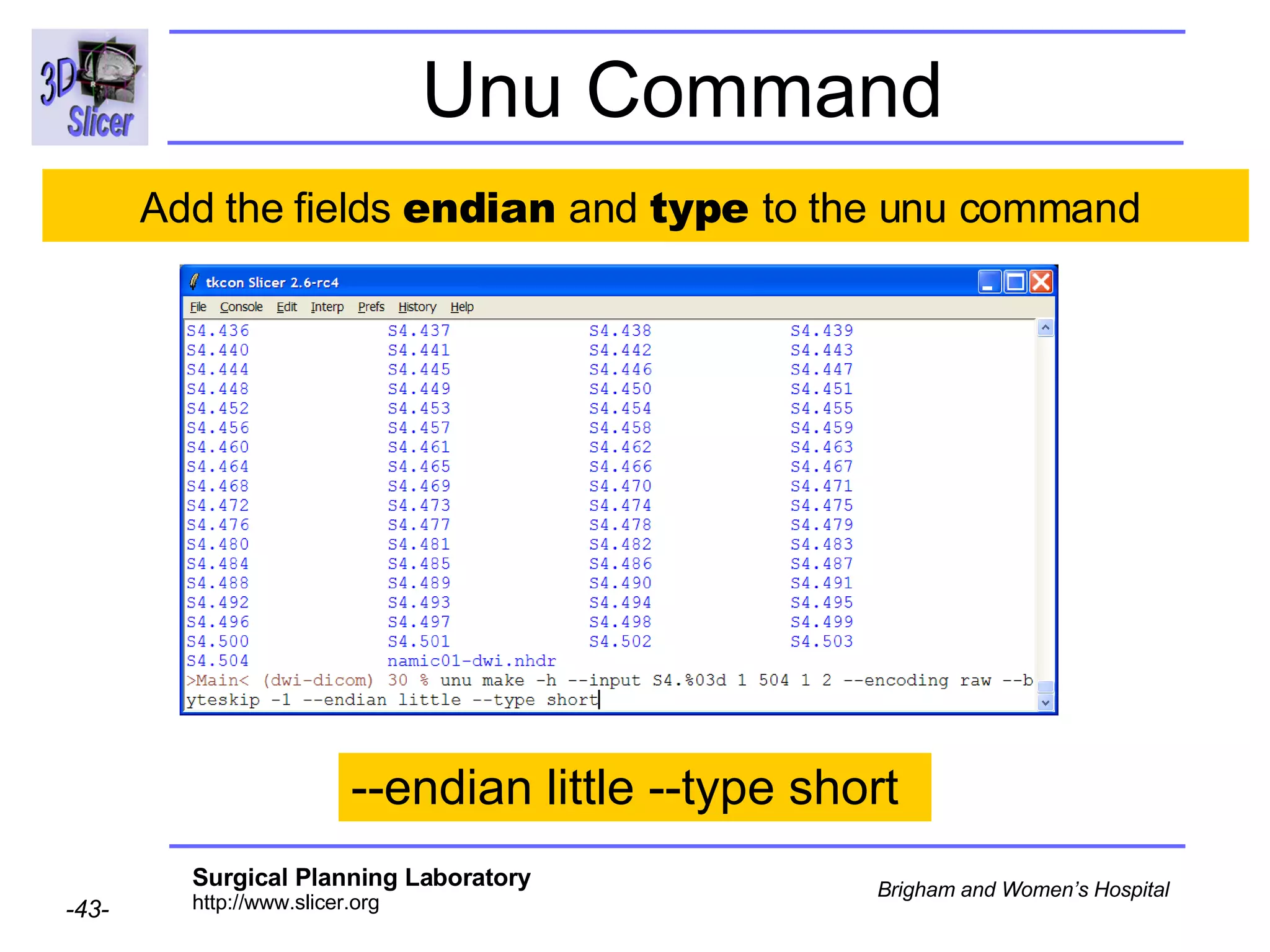
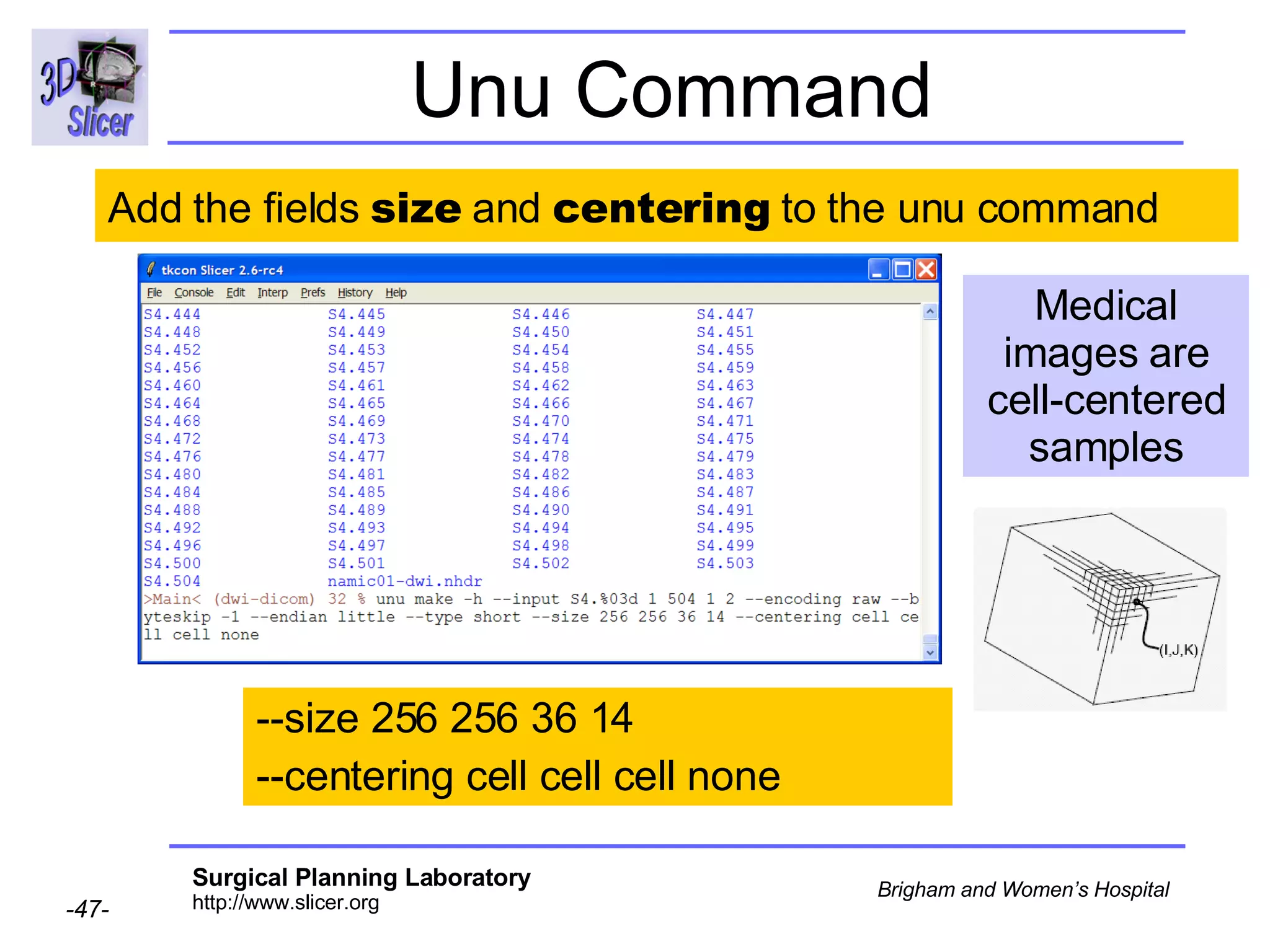
Unu Command Add the fields  endian  and  type  to the unu command  --endian little --type short
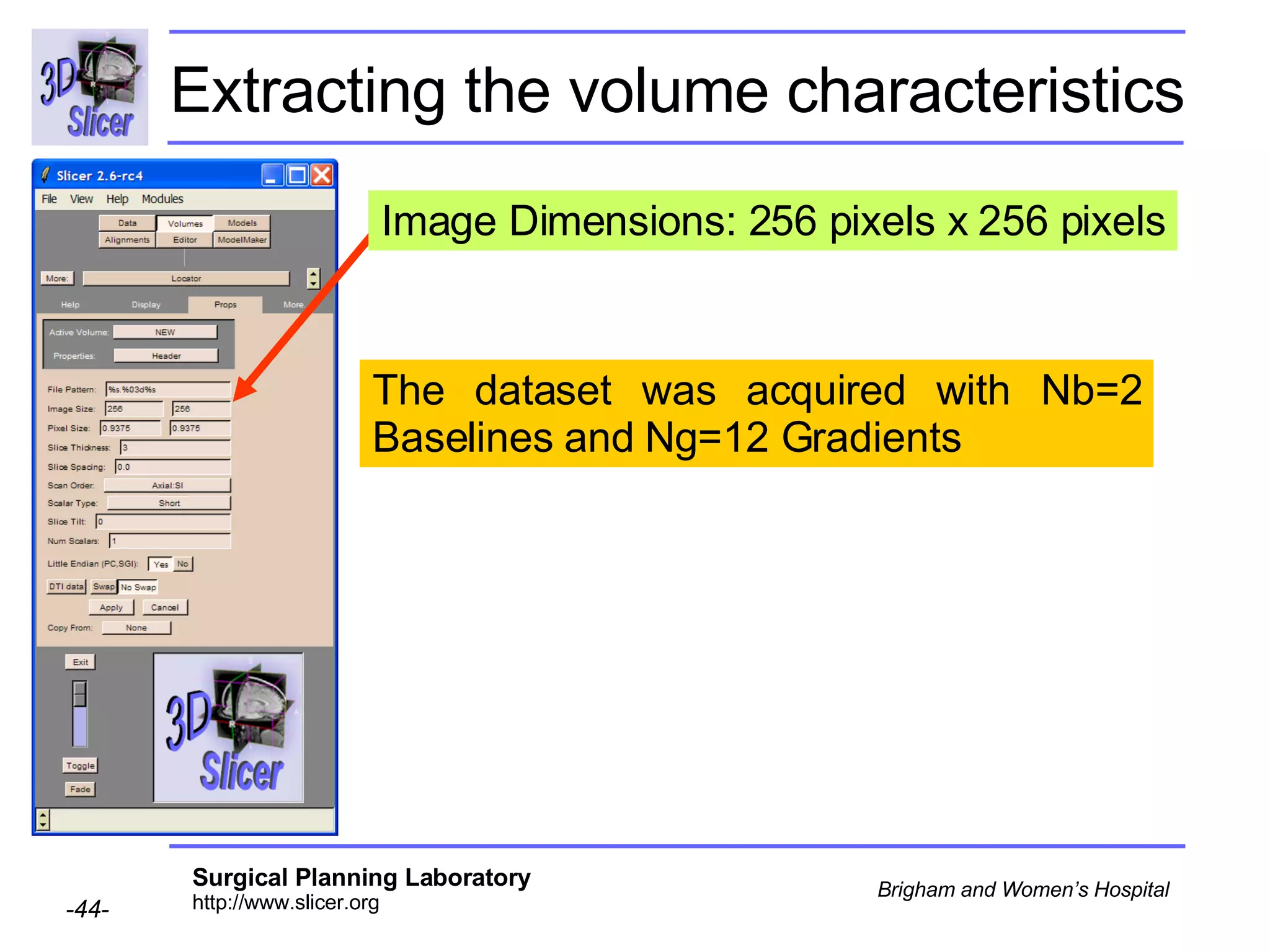
Extracting the volume characteristics The dataset was acquired with Nb=2 Baselines and Ng=12 Gradients  Image Dimensions: 256 pixels x 256 pixels
DICOM DWI Training Data 2 Baselines and 12 Gradients   504 DICOM images named S4.xxx where xxx is the image number
Extracting the volume characteristics The dataset was acquired with Nb=2 Baselines and Ng=12 Gradients  n=NbxNg = 12 + 2 = 14 intensity values/voxel N Slices = N dicomImages /n  = 504/14 = 36 slices Image Dimensions: 256 pixels x 256 pixels
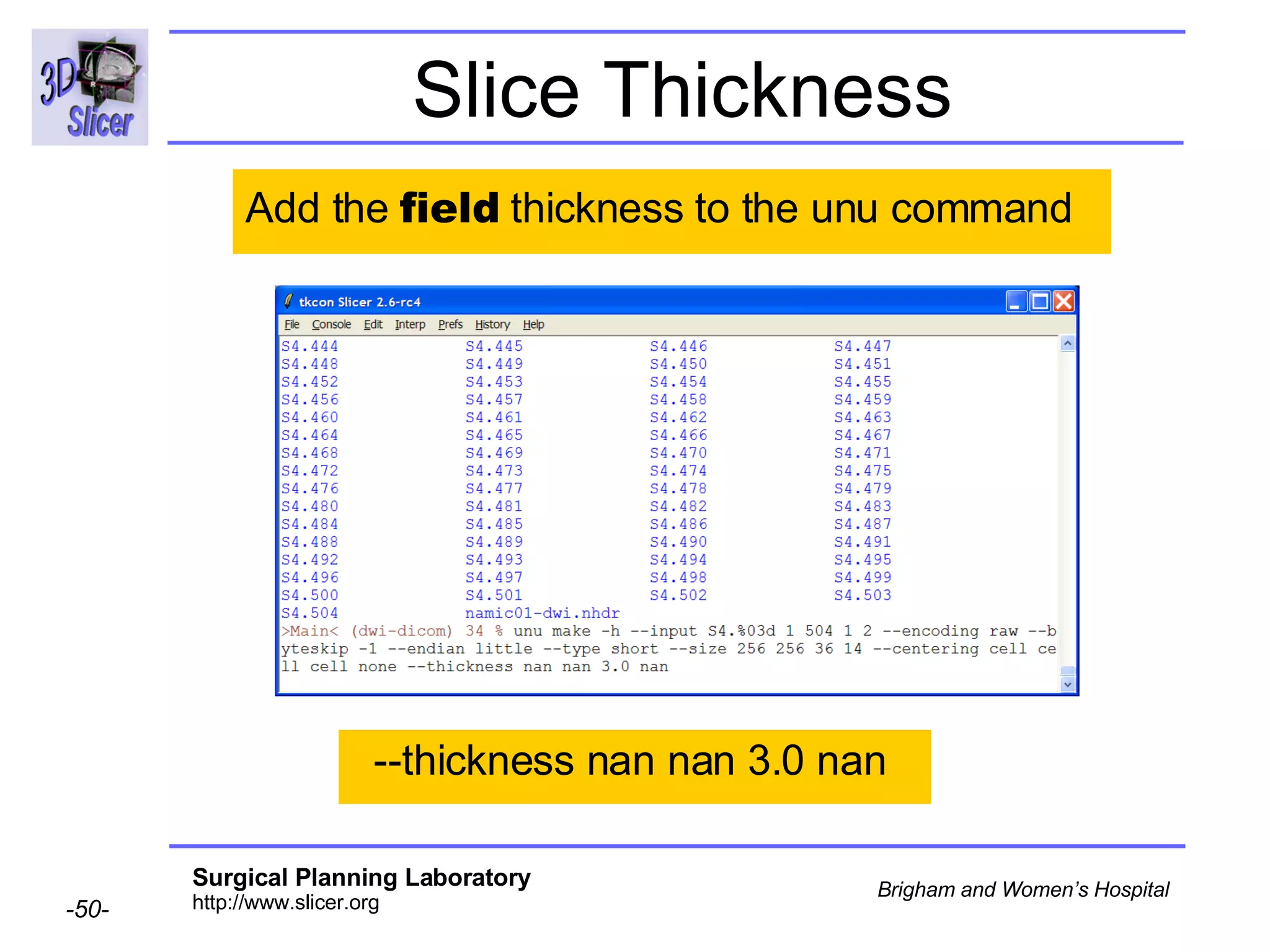
Unu Command  --size 256 256 36 14 --centering cell cell cell none Medical images are cell-centered samples Add the fields  size  and  centering  to the unu command
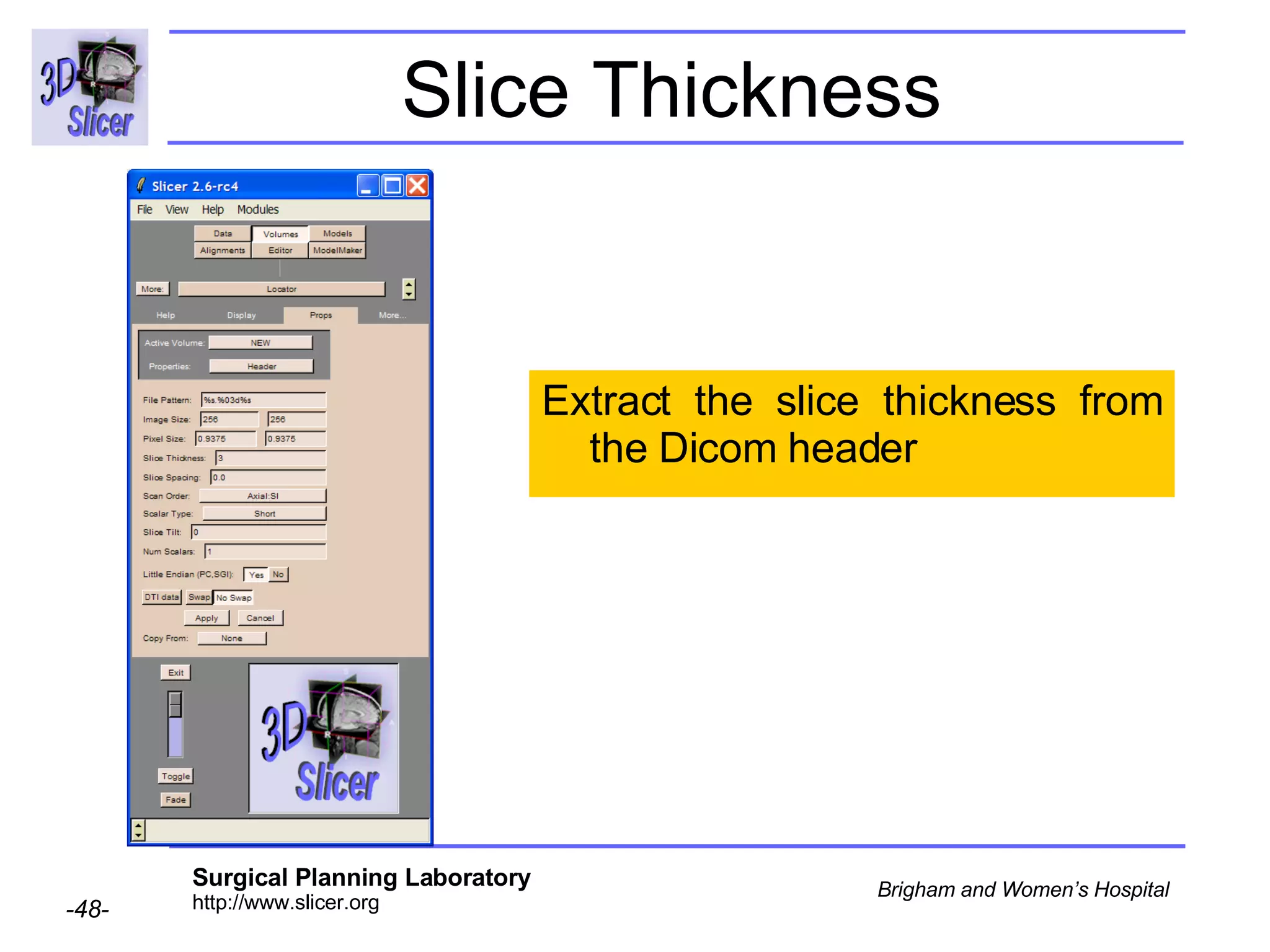
Slice Thickness  Extract the slice thickness from the Dicom header
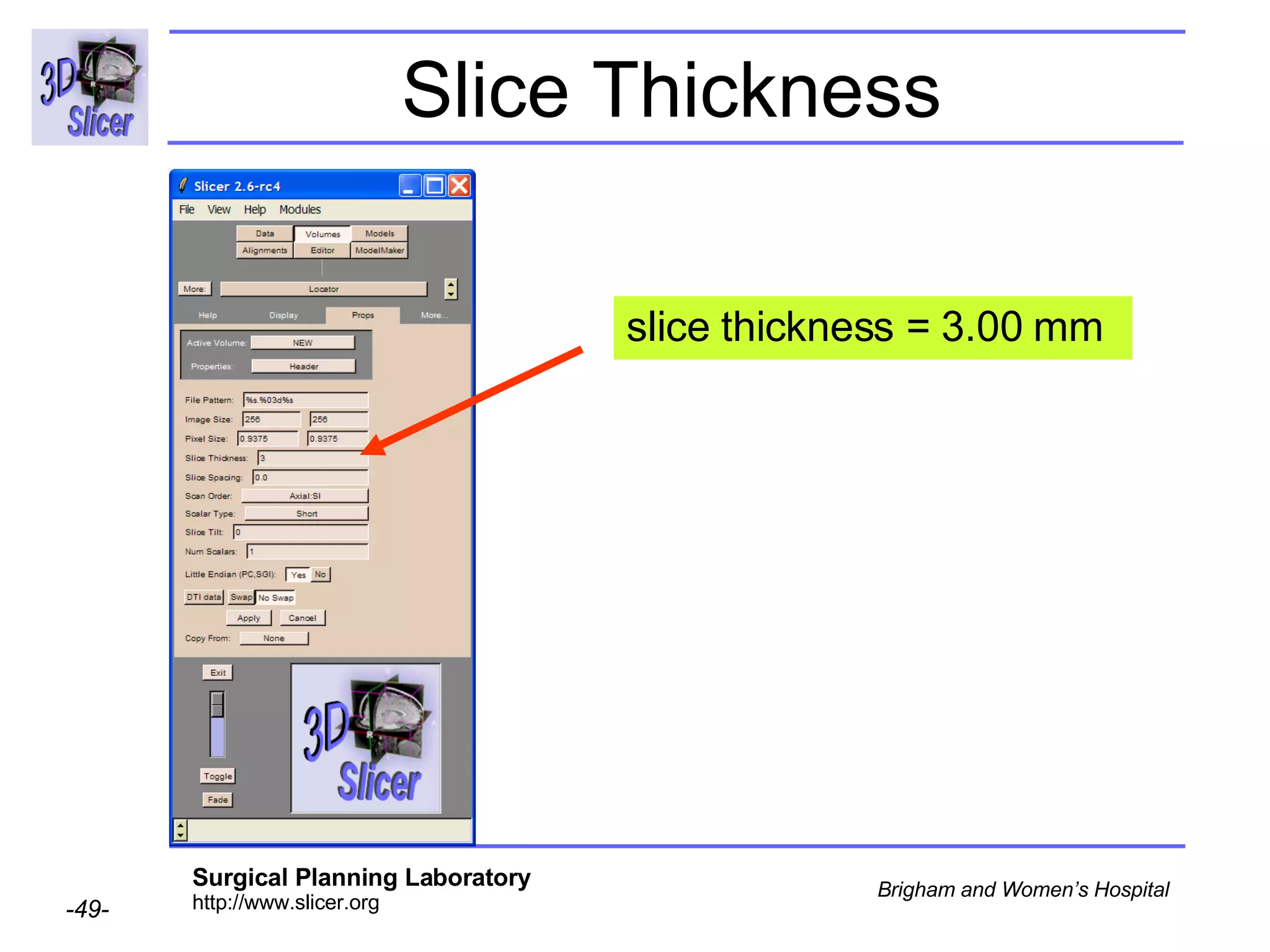
Slice Thickness  slice thickness = 3.00 mm
Slice Thickness --thickness nan nan 3.0 nan  Add the  field  thickness to the unu command
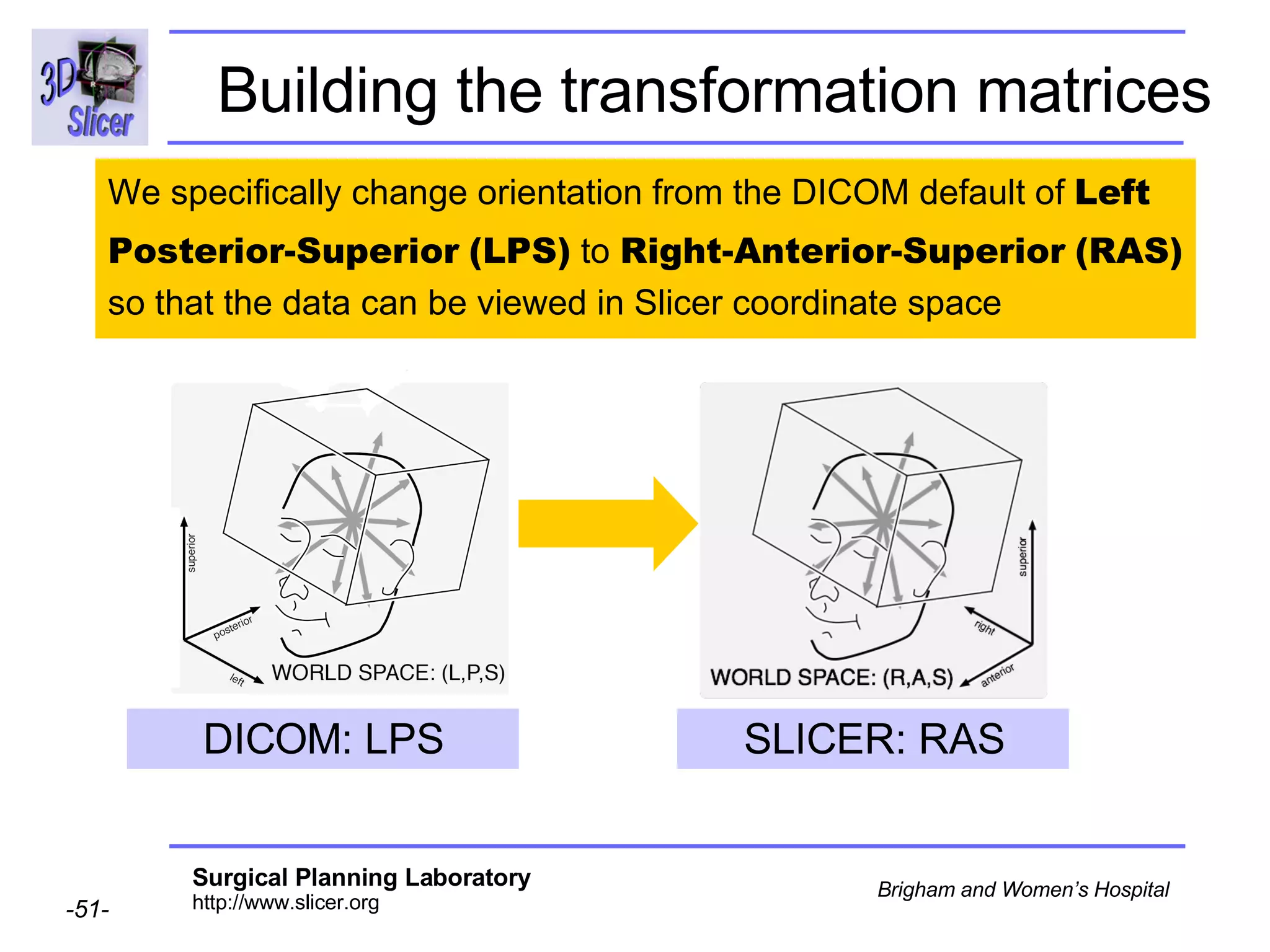
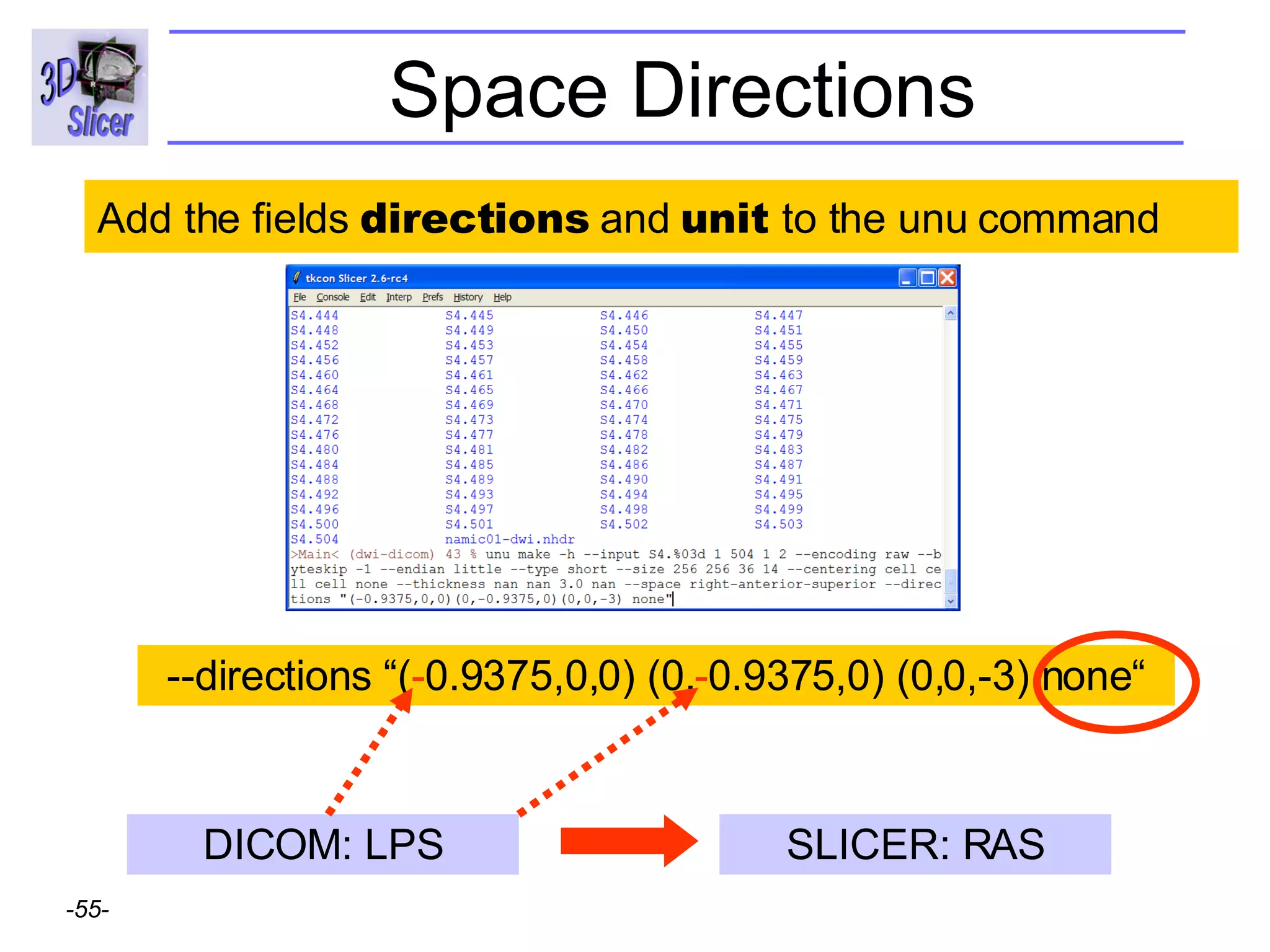
Building the transformation matrices We specifically change orientation from the DICOM default of  Left Posterior-Superior   (LPS)  to  Right-Anterior-Superior   (RAS) so that the data can be viewed in Slicer coordinate space DICOM: LPS SLICER: RAS
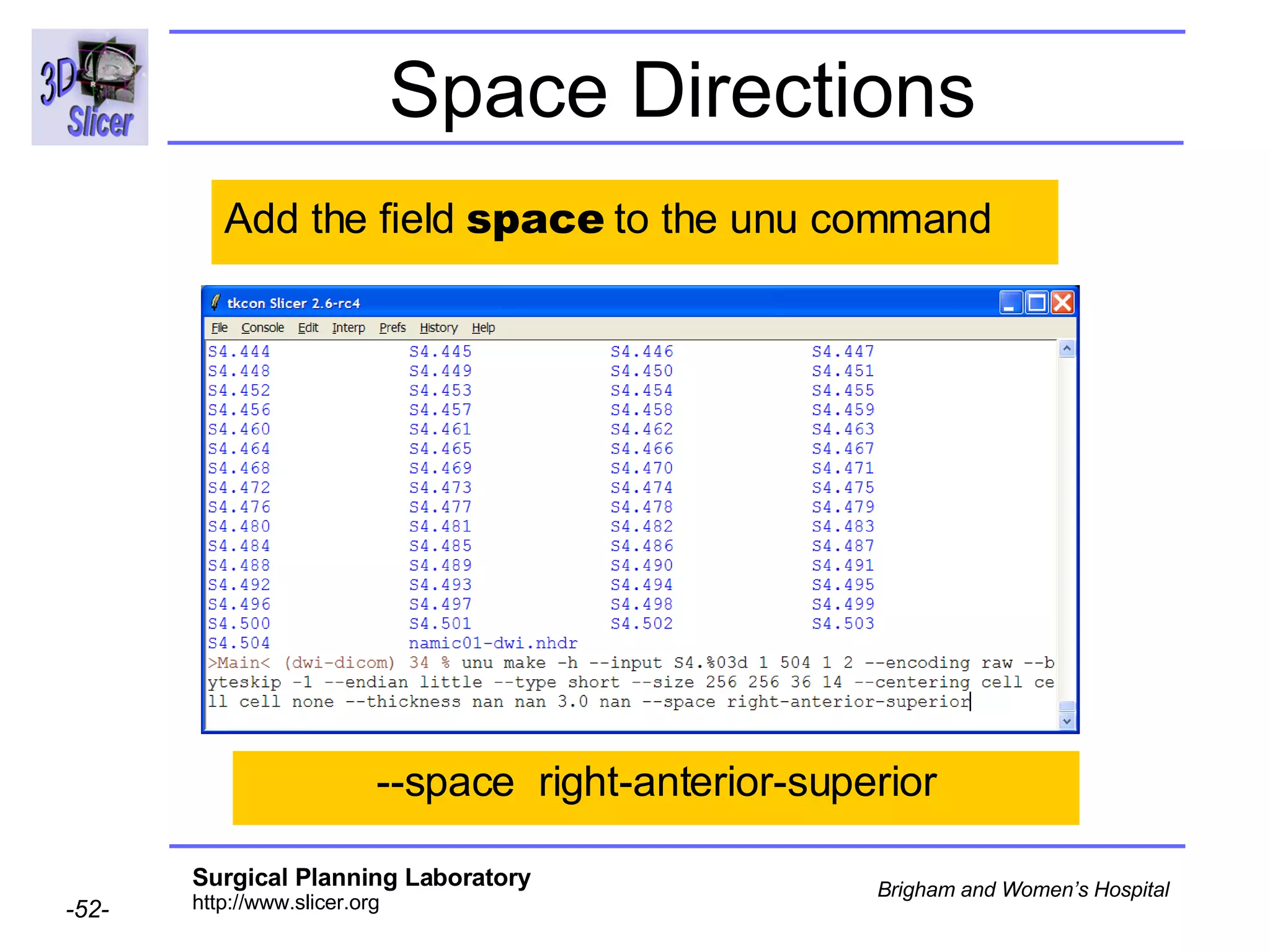
Space Directions Add the field  space  to the unu command --space  right-anterior-superior
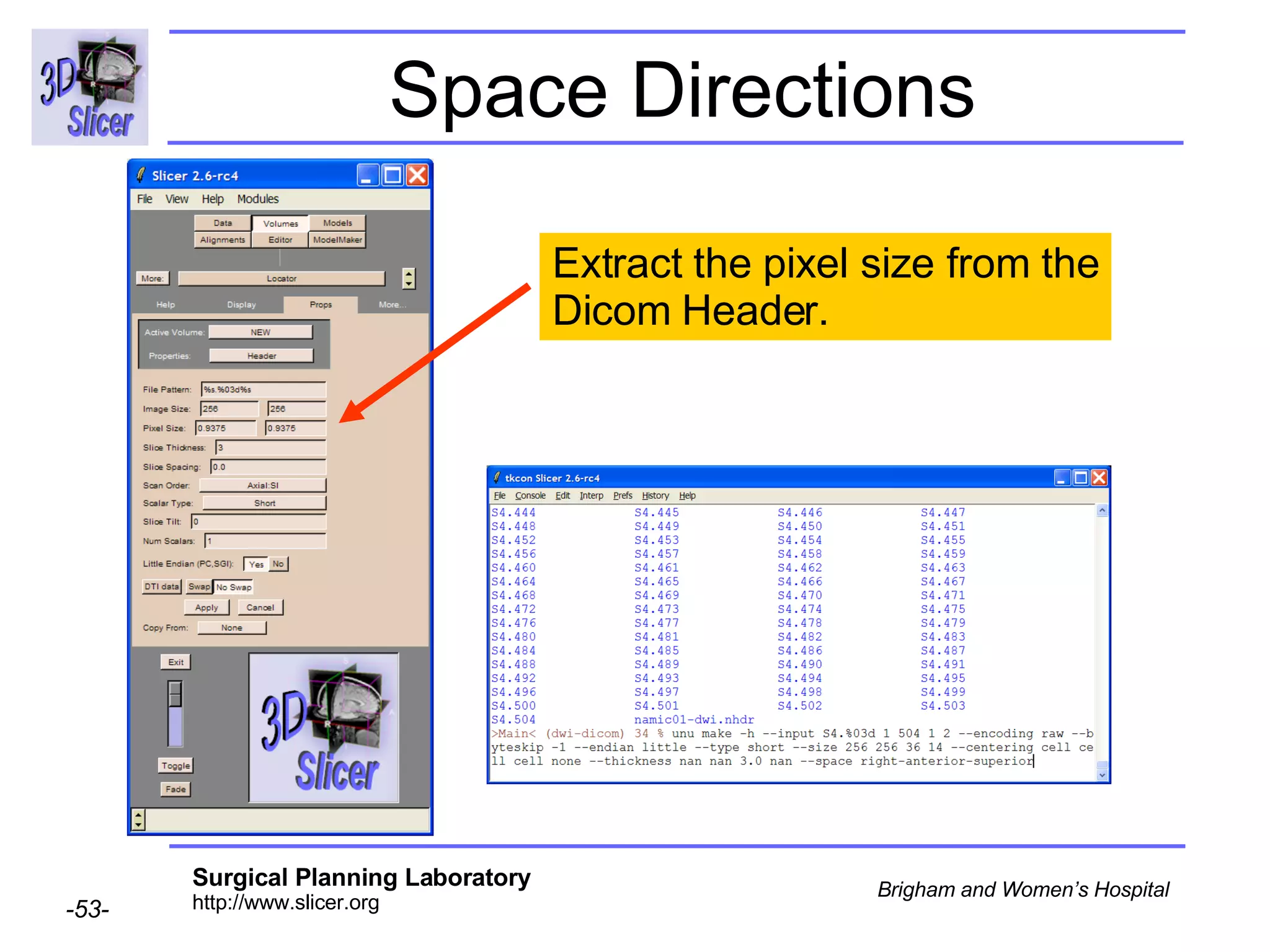
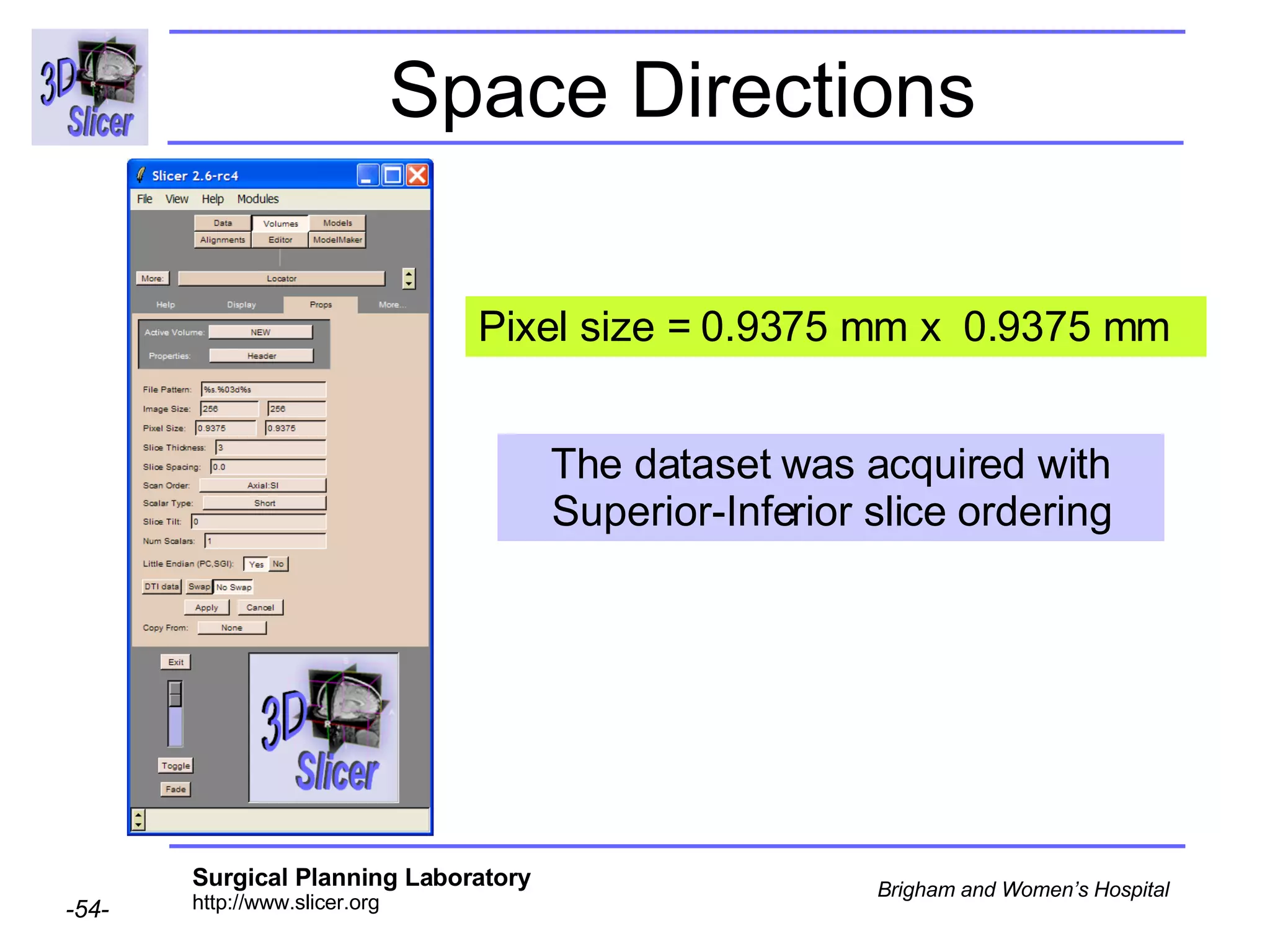
Space Directions Extract the pixel size from the Dicom Header.
Space Directions Pixel size = 0.9375 mm x  0.9375 mm The dataset was acquired with Superior-Inferior slice ordering
Space Directions --directions  “ ( - 0.9375,0,0) (0, - 0.9375,0) (0,0,-3) none “ Add the fields  directions  and  unit  to the unu command DICOM: LPS SLICER: RAS
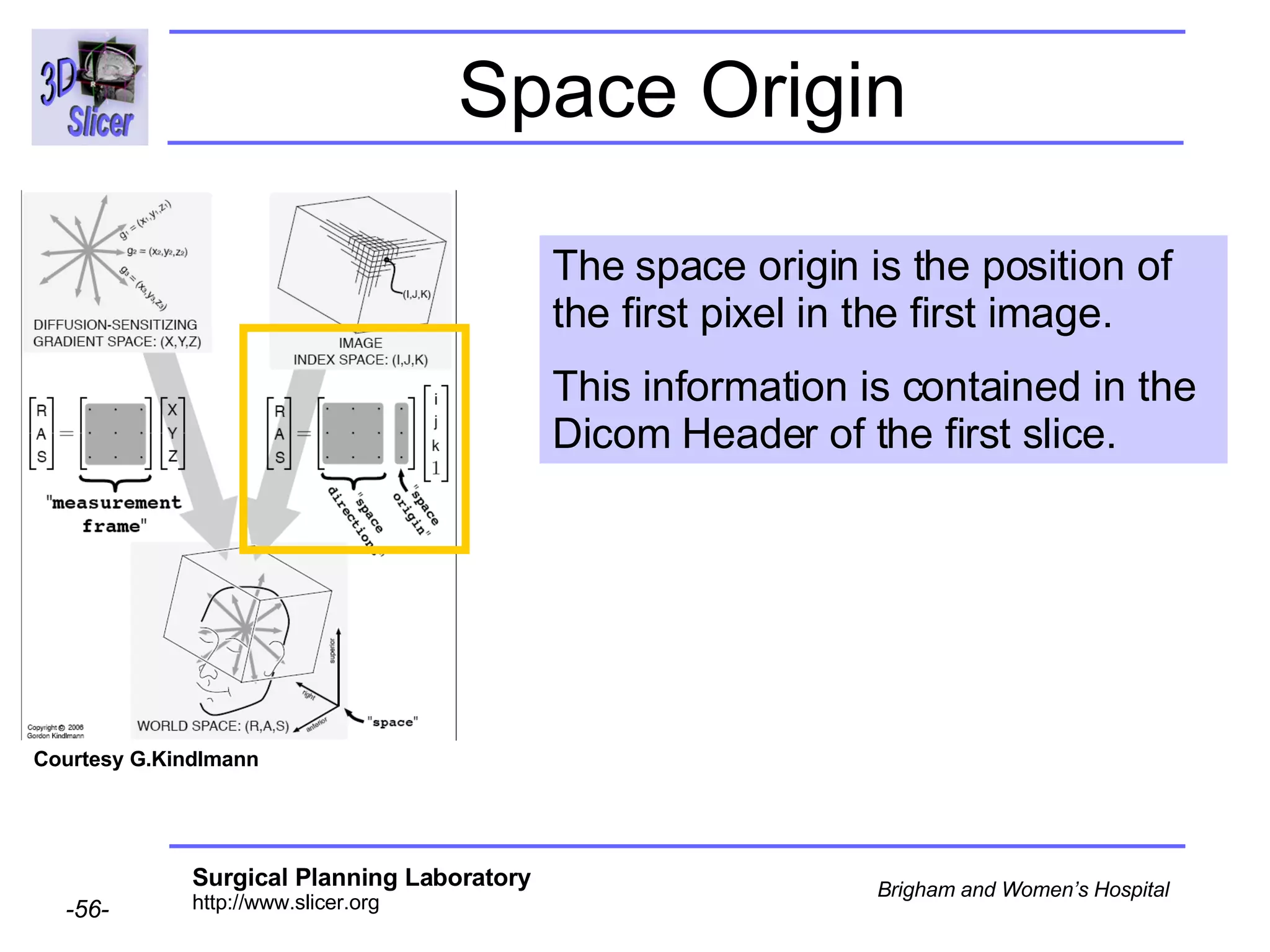
Space Origin Courtesy G.Kindlmann The space origin is the position of the first pixel in the first image.  This information is contained in the Dicom Header of the first slice.
Space Origin The space origin information is located in the Dicom header  [ 0020,0032, Image Position Patient ]  Courtesy G.Kindlmann
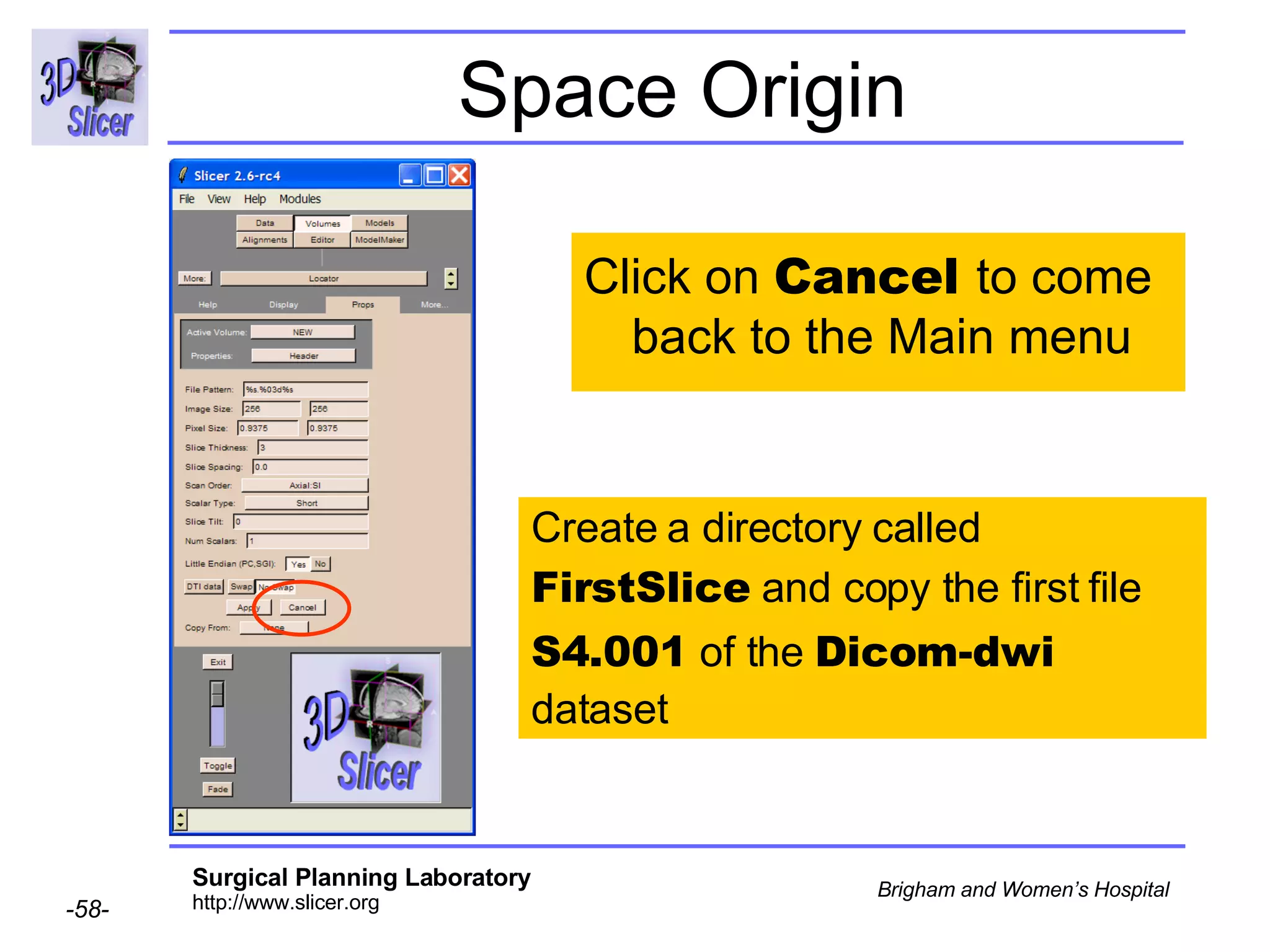
Space Origin Create a directory called FirstSlice  and copy the first file S4.001  of the  Dicom-dwi dataset Click on  Cancel  to come back to the Main menu
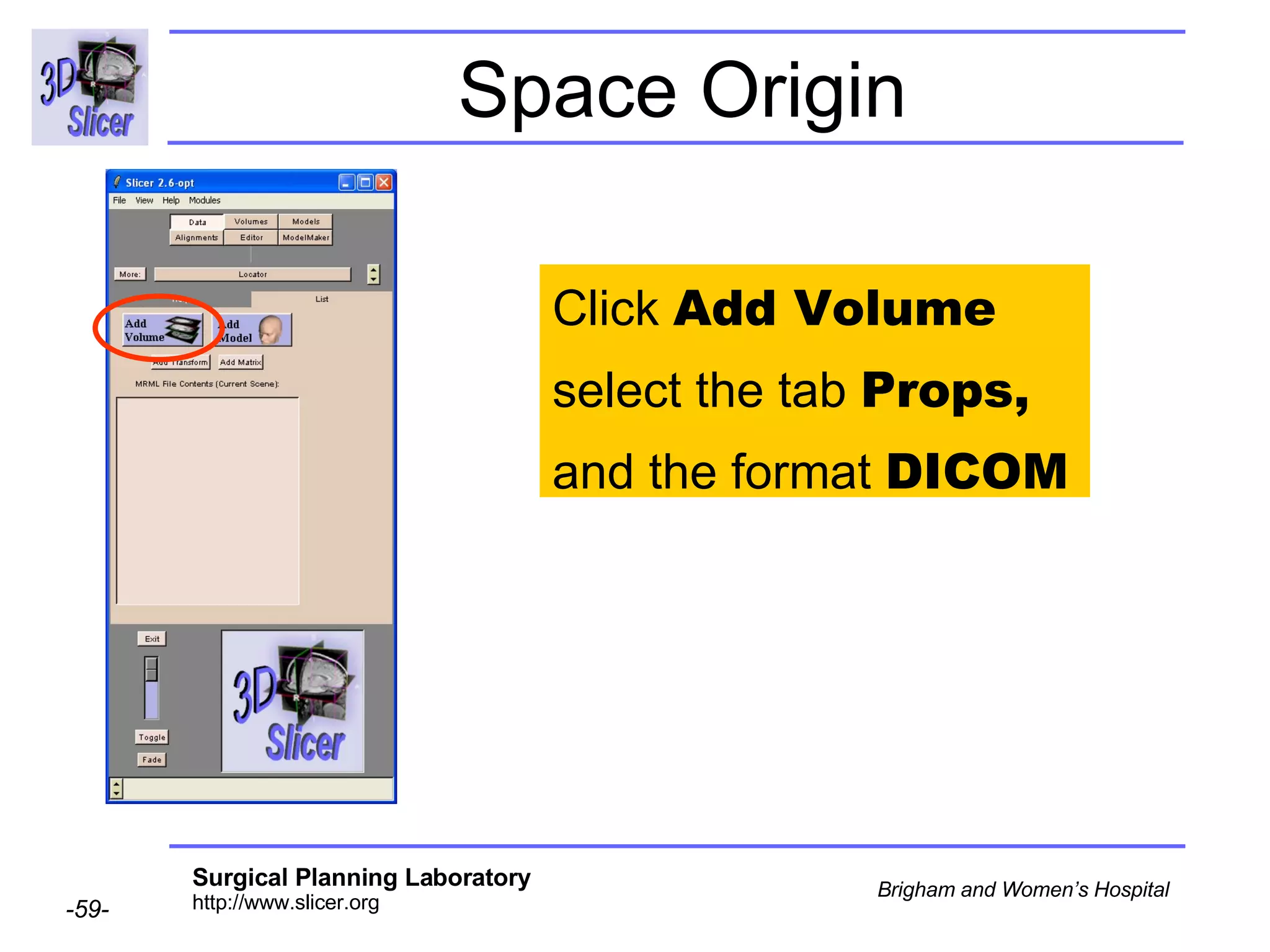
Space Origin Click  Add Volume select the tab  Props,  and the format  DICOM
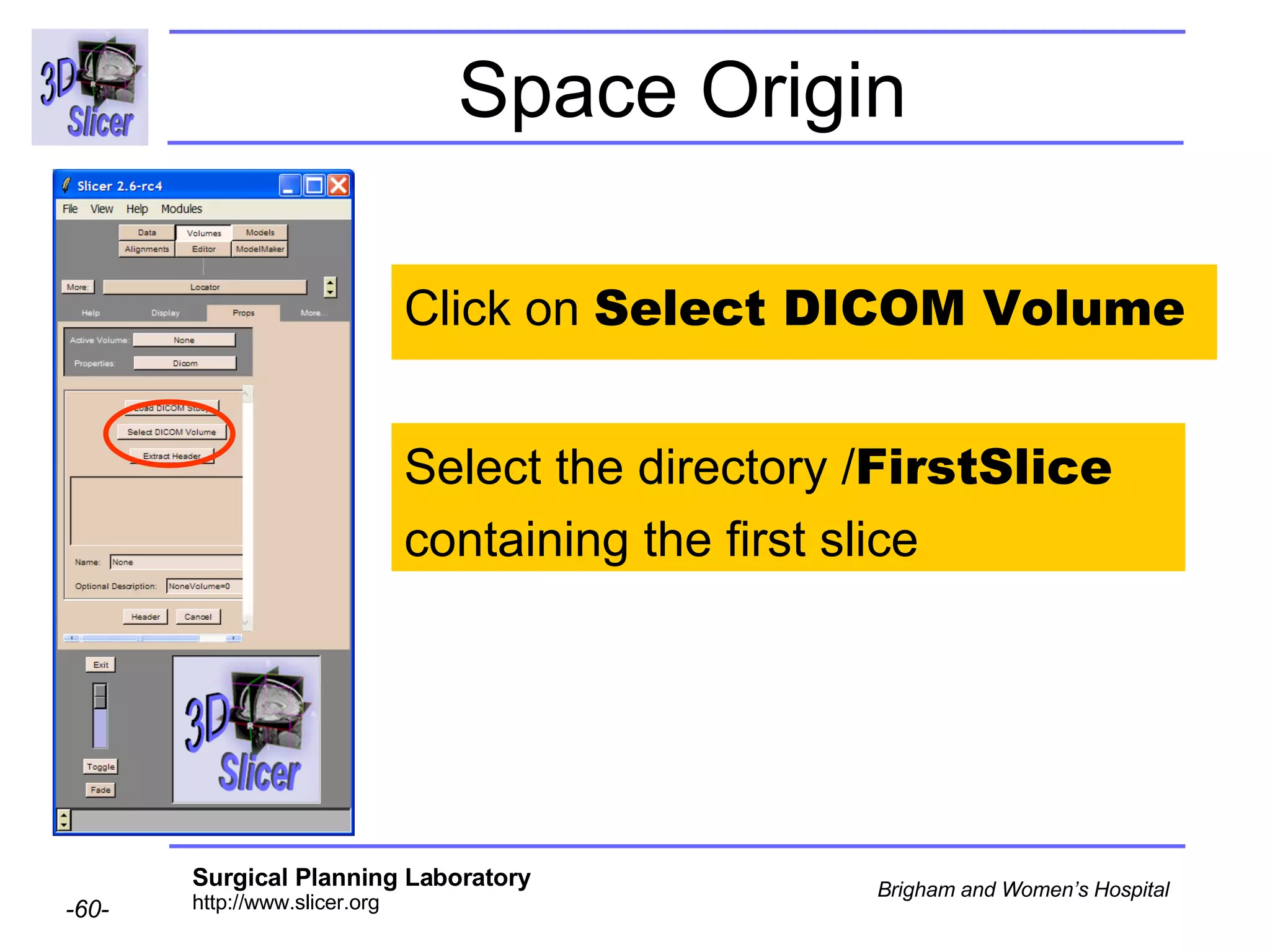
Space Origin Click on  Select DICOM Volume Select the directory / FirstSlice containing the first slice
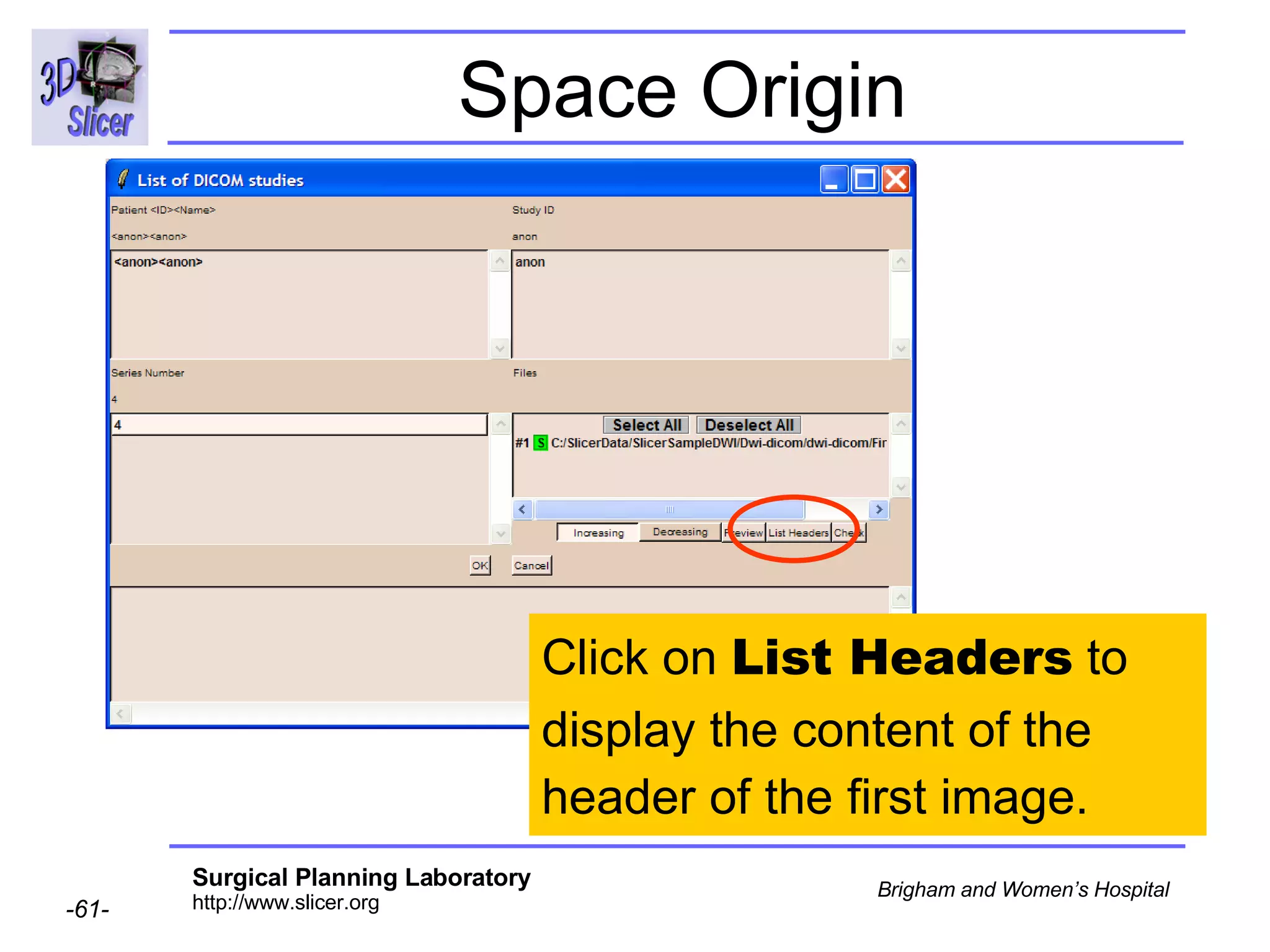
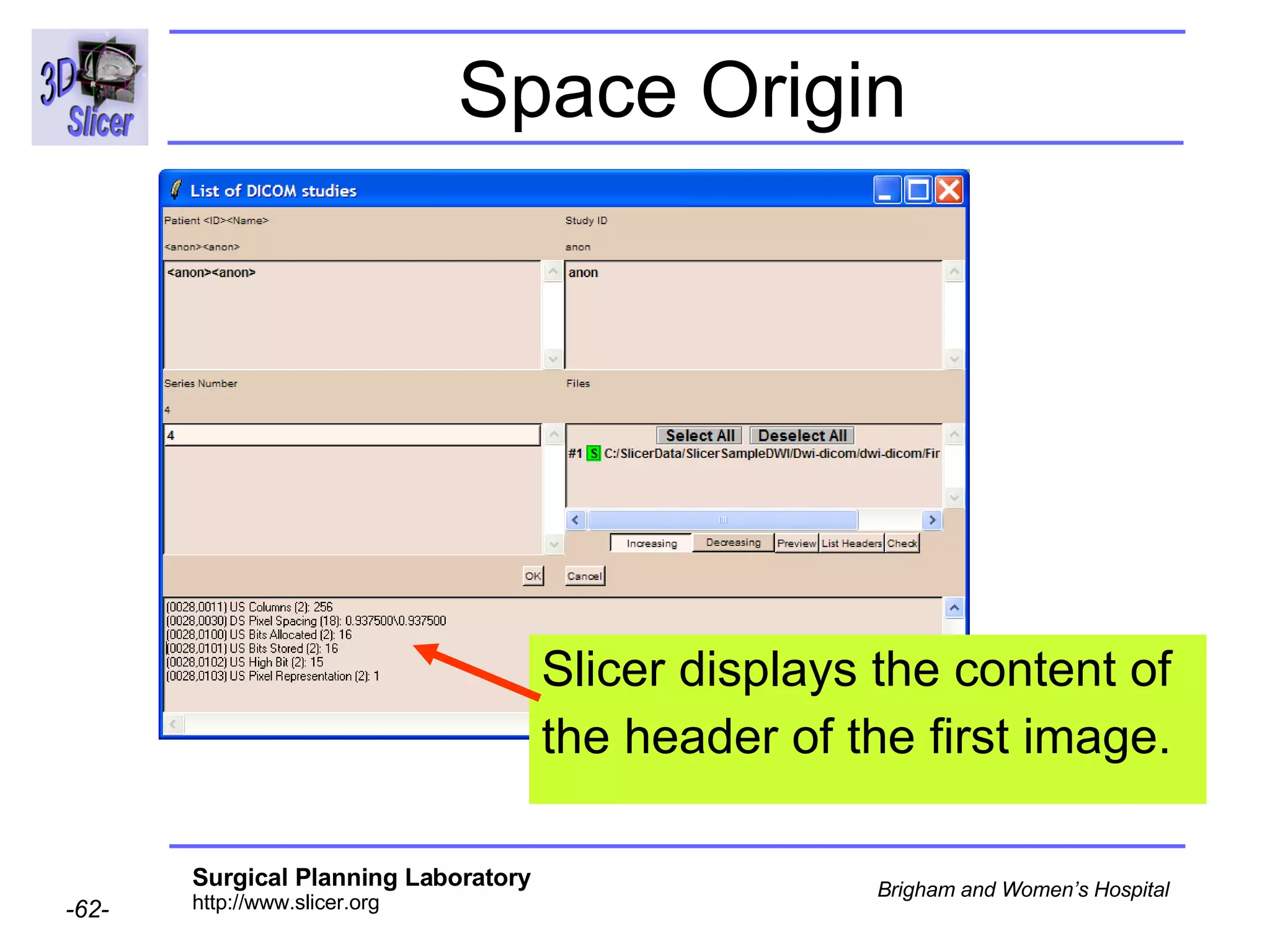
Space Origin Click on  List Headers  to display the content of the header of the first image.
Space Origin Slicer displays the content of the header of the first image.
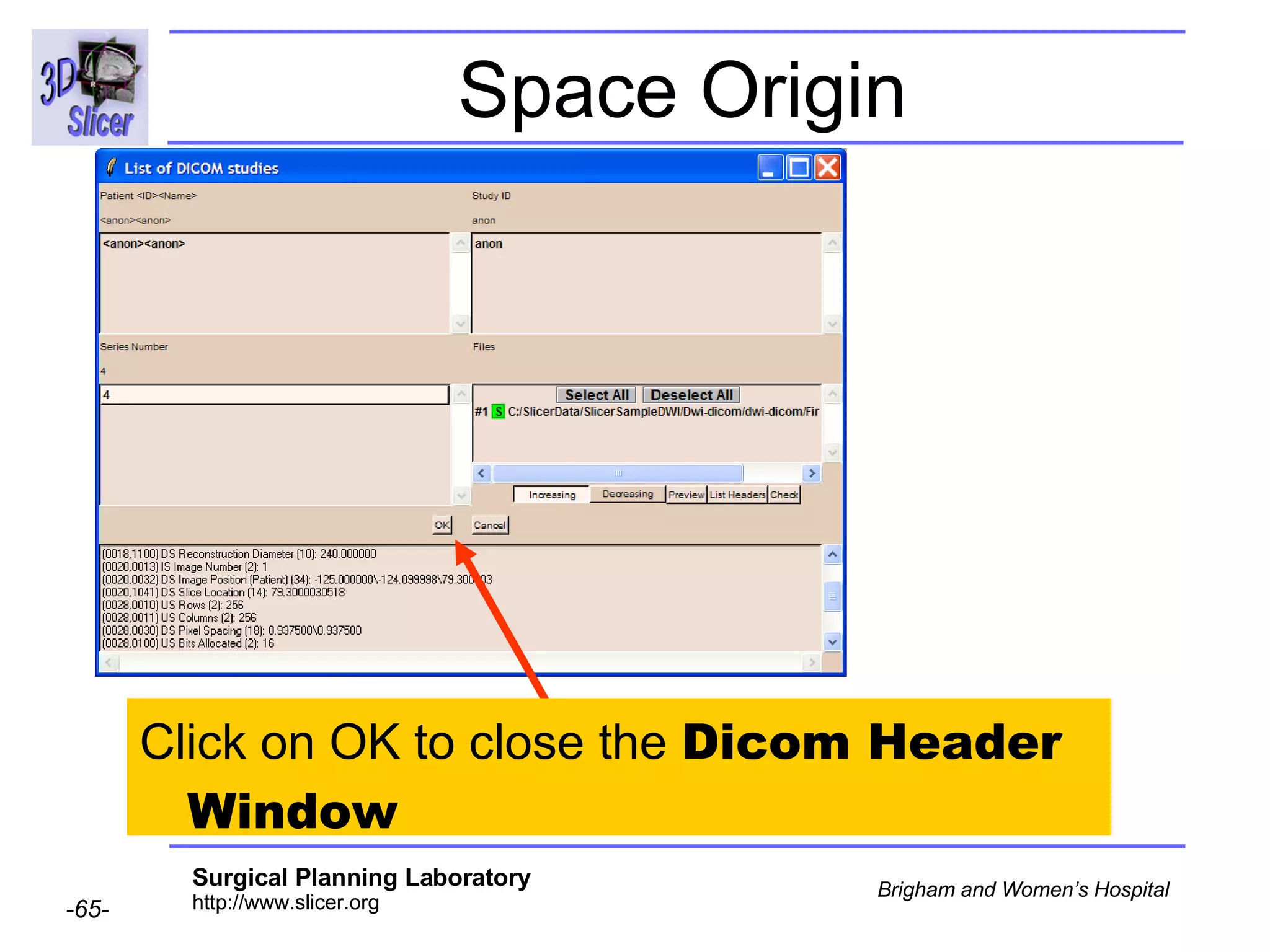
Space Origin Scroll down to display the value of the tag  [0020,0032, Image Position Patient ]
Space Origin [0020,0032, Image Position Patient ]   = -125.0, -124.09, 79.30
Space Origin Click on OK to close the  Dicom Header Window
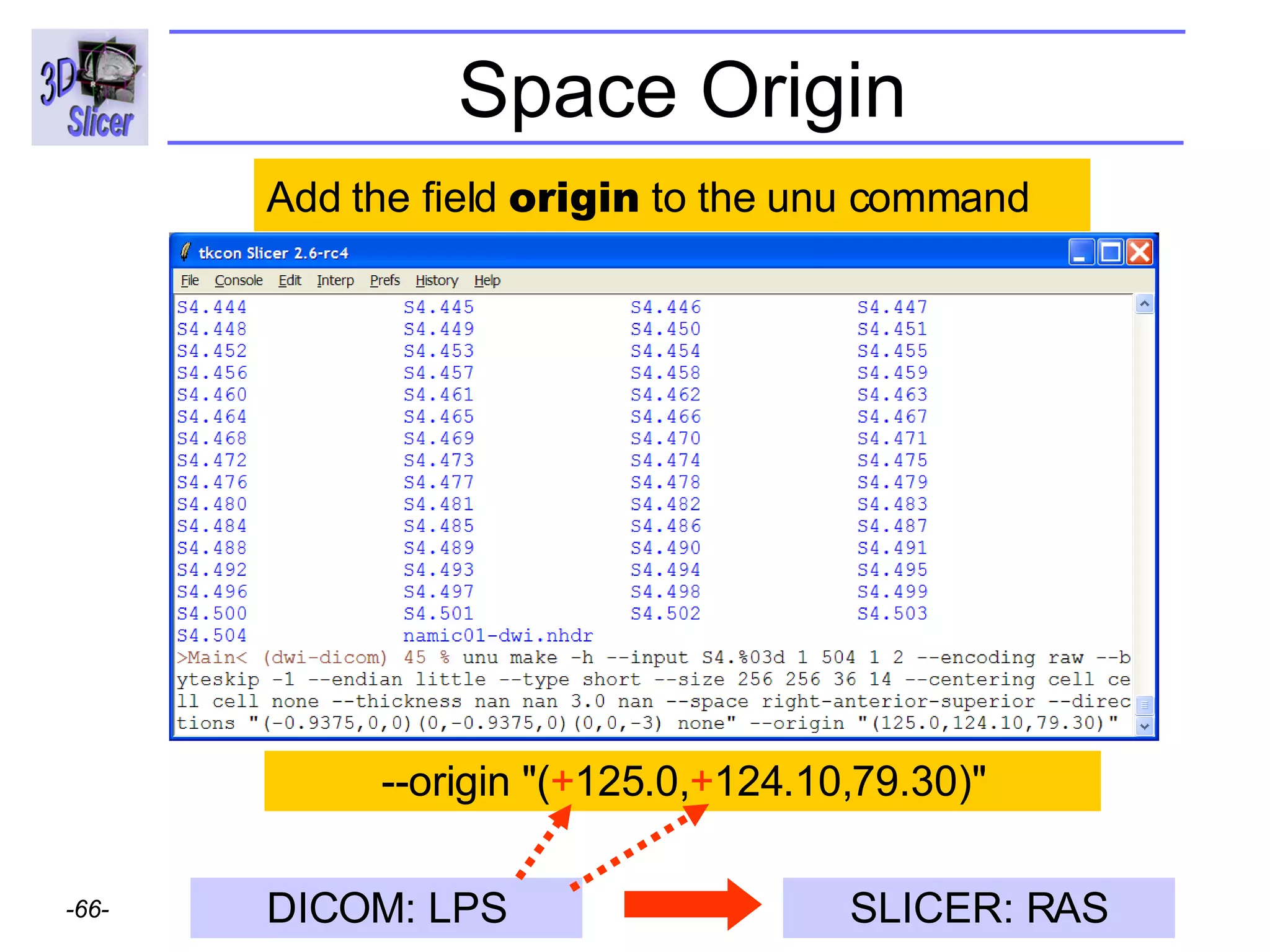
Space Origin --origin "( + 125.0, + 124.10,79.30)" Add the field  origin  to the unu command DICOM: LPS SLICER: RAS
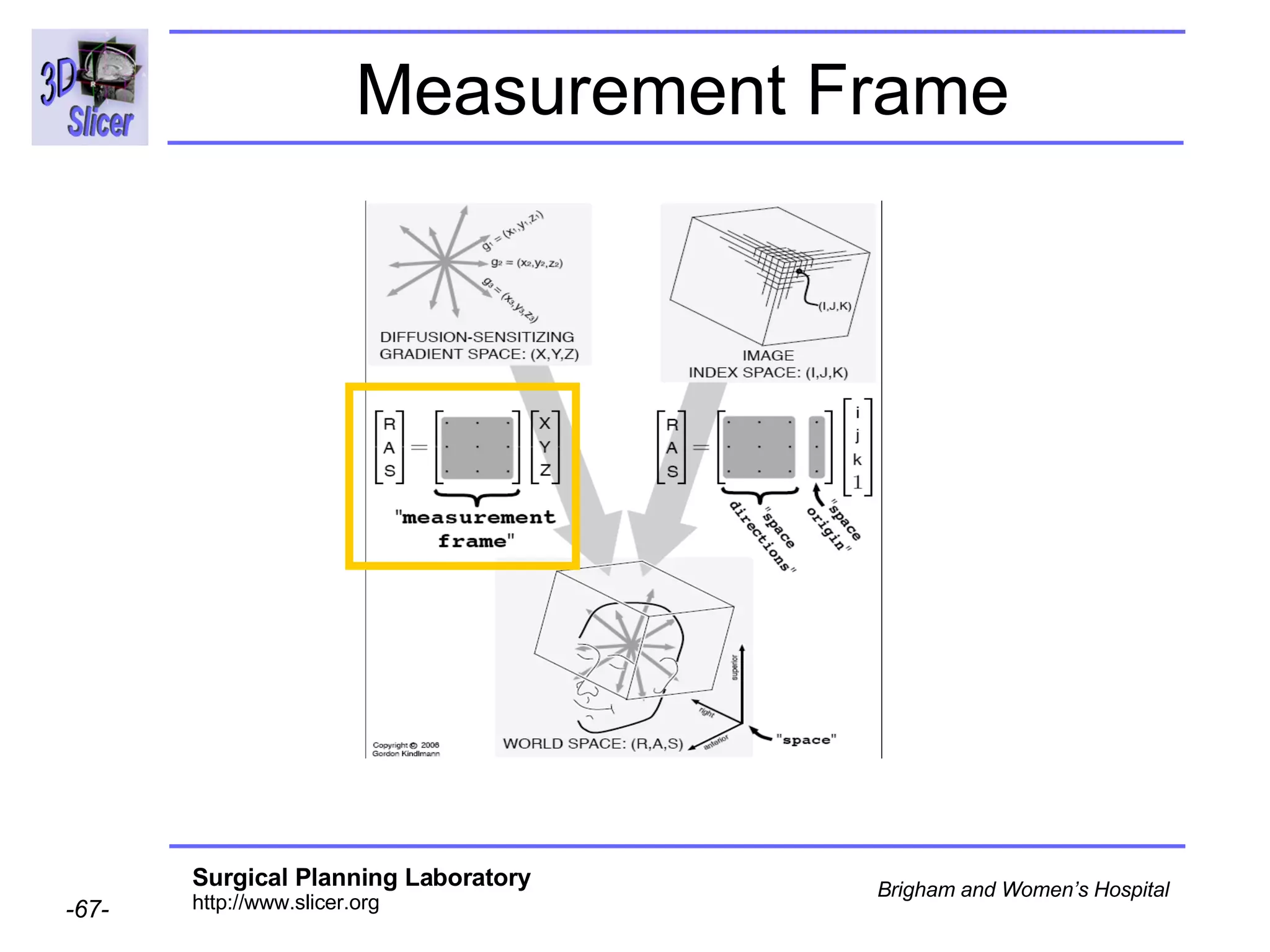
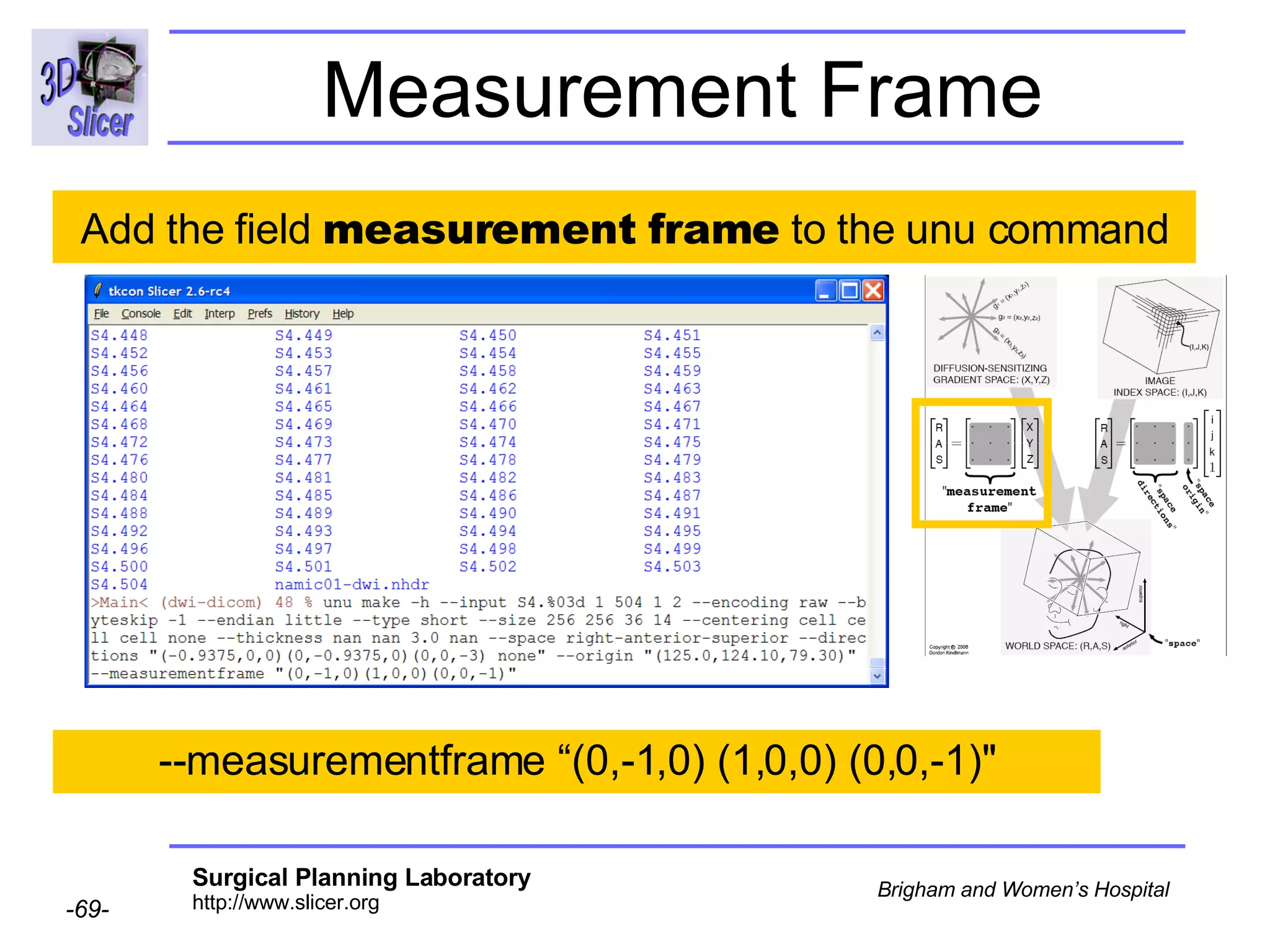
Measurement Frame
Measurement Frame
Measurement Frame --measurementframe “(0,-1,0) (1,0,0) (0,0,-1)" Add the field  measurement frame  to the unu command
Axis Ordering Courtesy G.Kindlmann
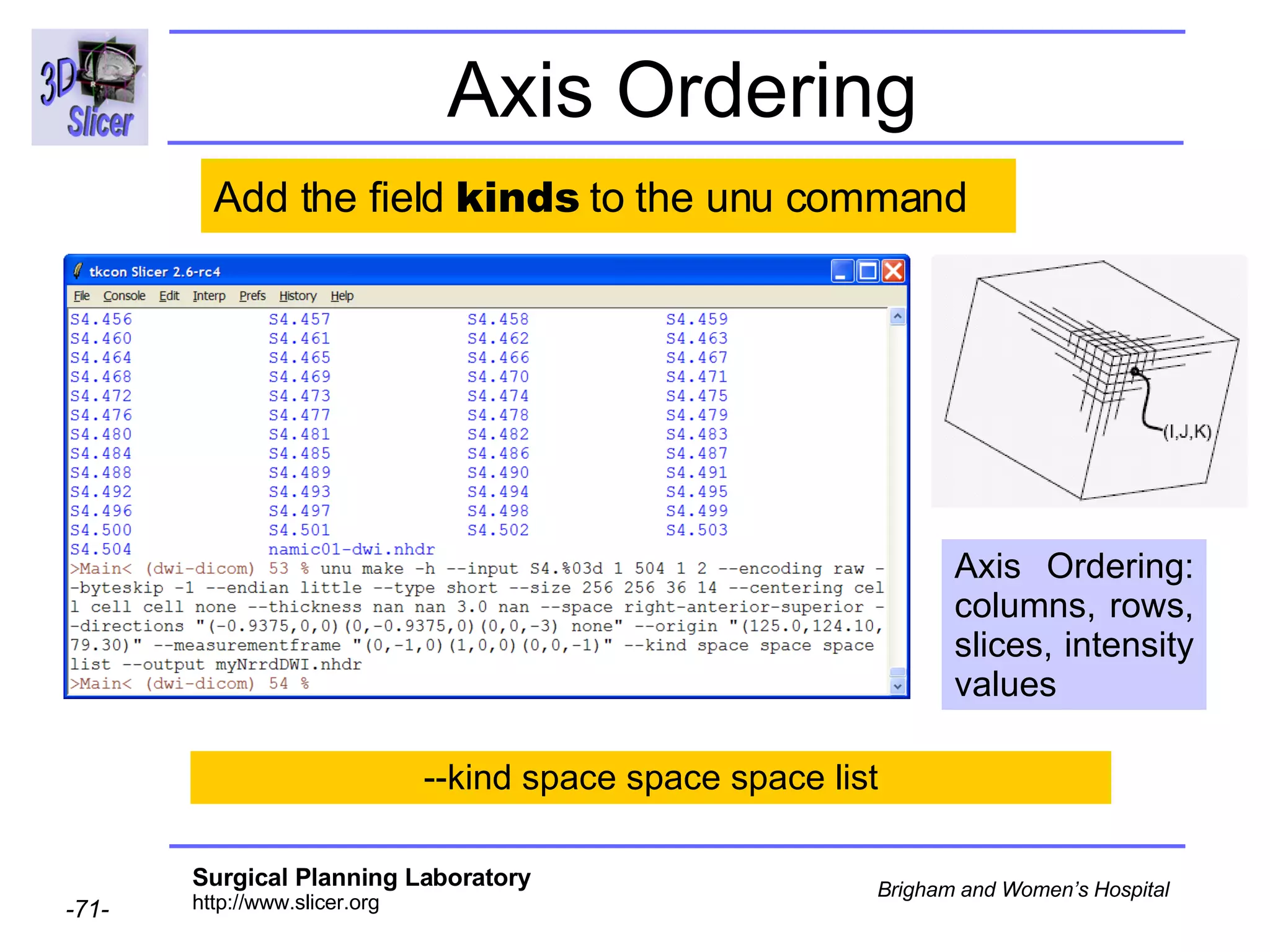
Axis Ordering --kind space space space list Add the field  kinds  to the unu command Axis Ordering: columns, rows, slices, intensity values
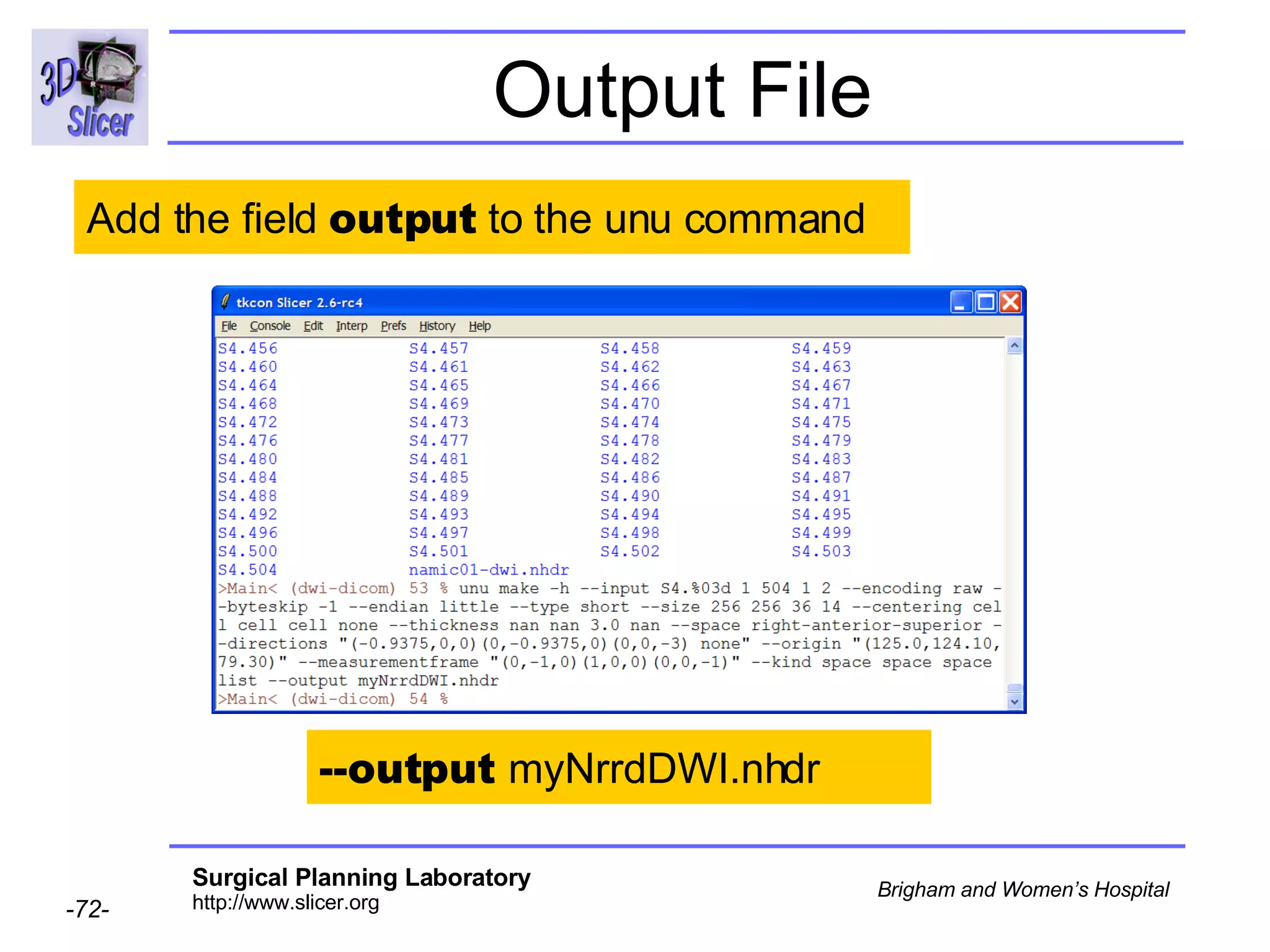
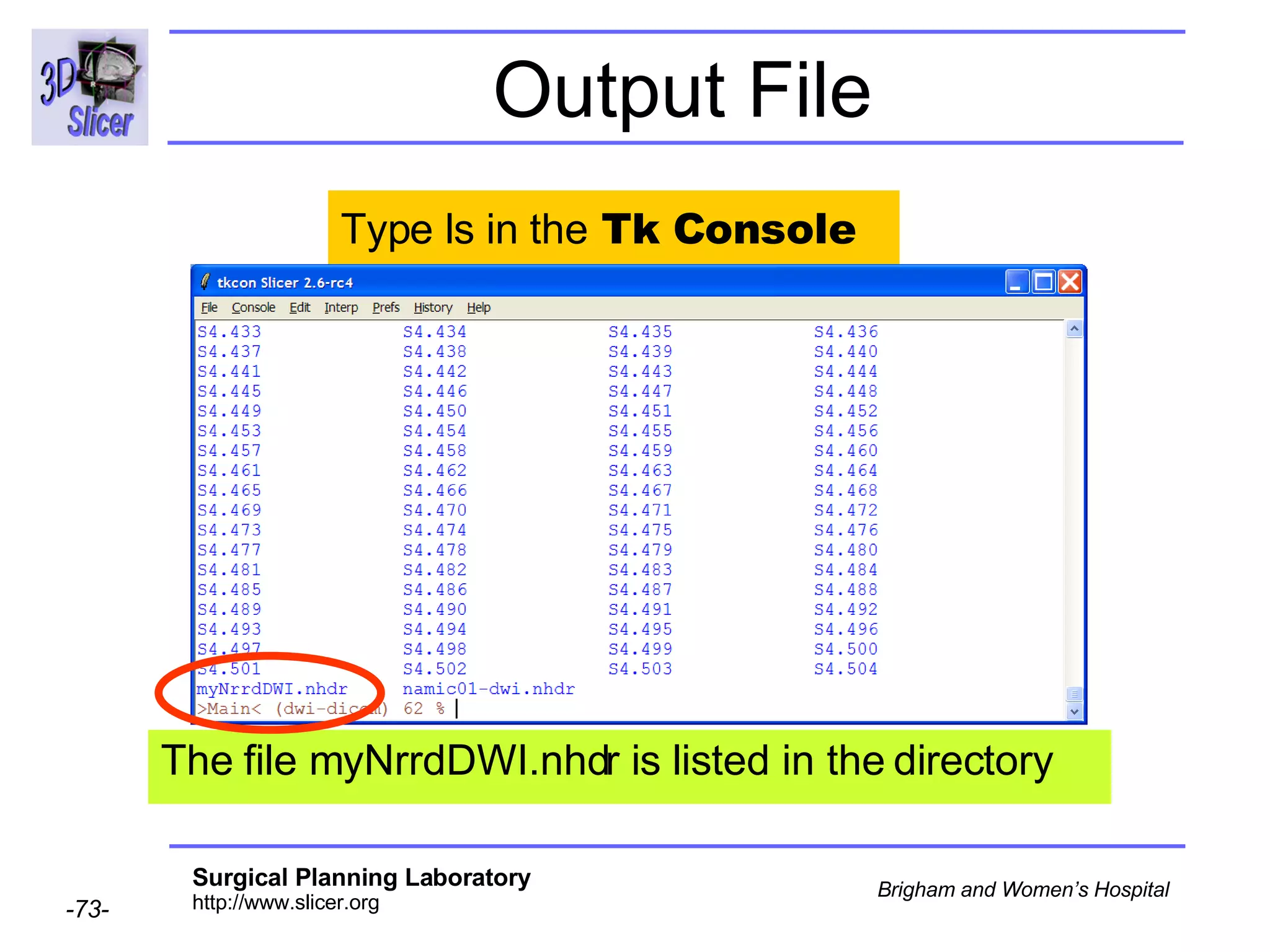
Output File Add the field  output  to the unu command --output  myNrrdDWI.nhdr
Output File Type ls in the  Tk Console The file myNrrdDWI.nhdr is listed in the directory
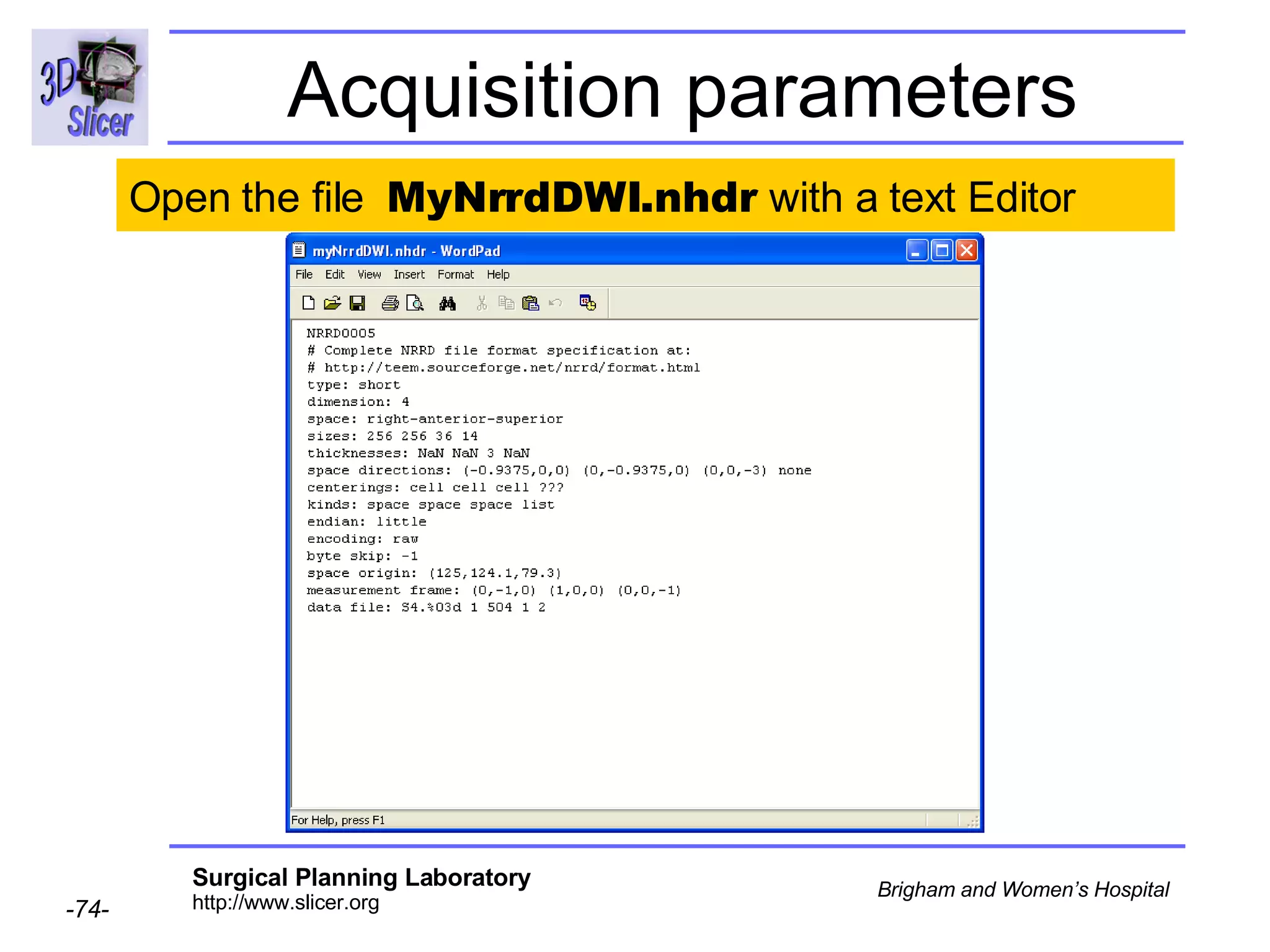
Acquisition parameters Open the file  MyNrrdDWI.nhdr  with a text Editor
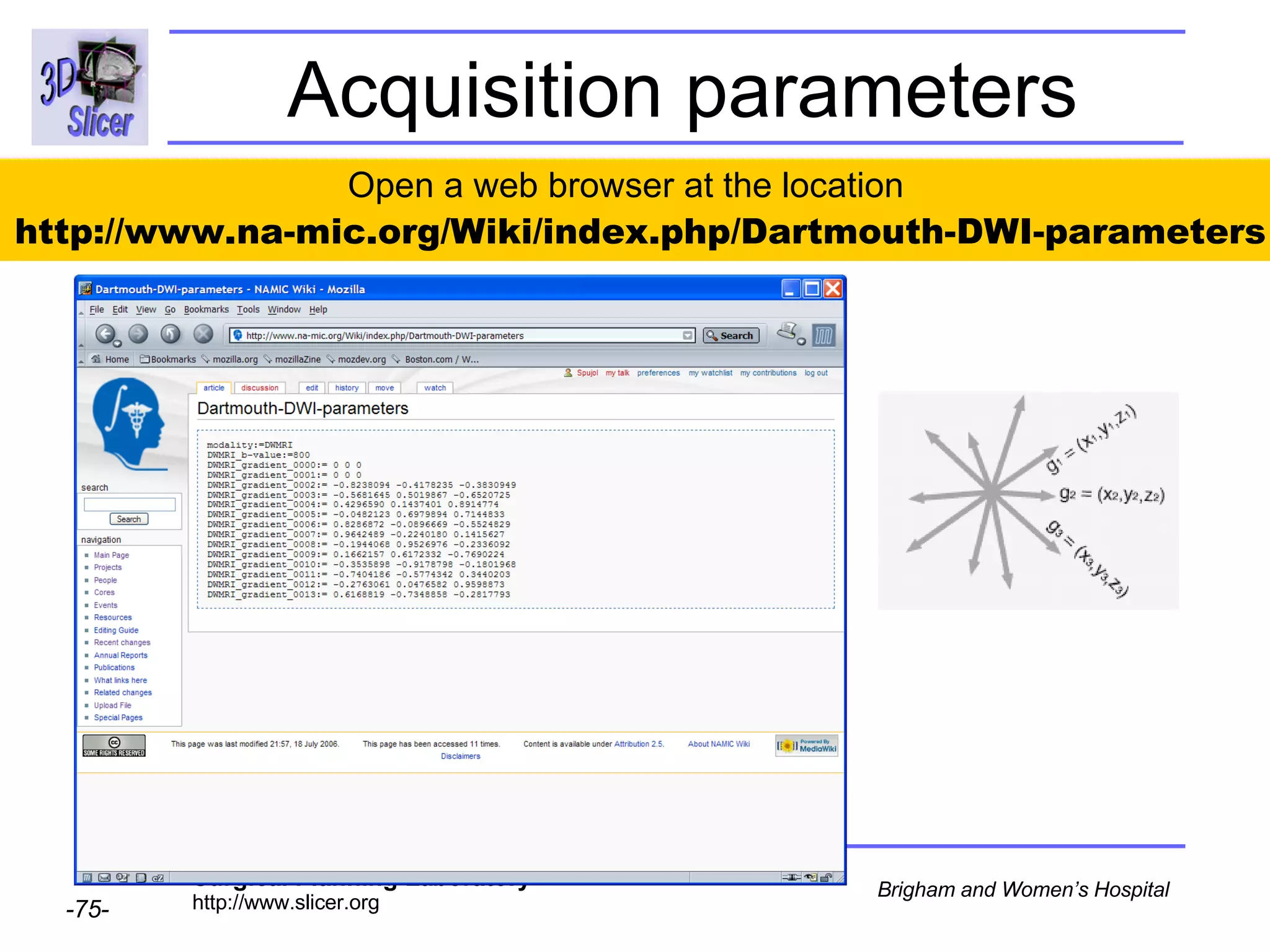
Acquisition parameters Open a web browser at the location  http://www.na-mic.org/Wiki/index.php/Dartmouth-DWI-parameters
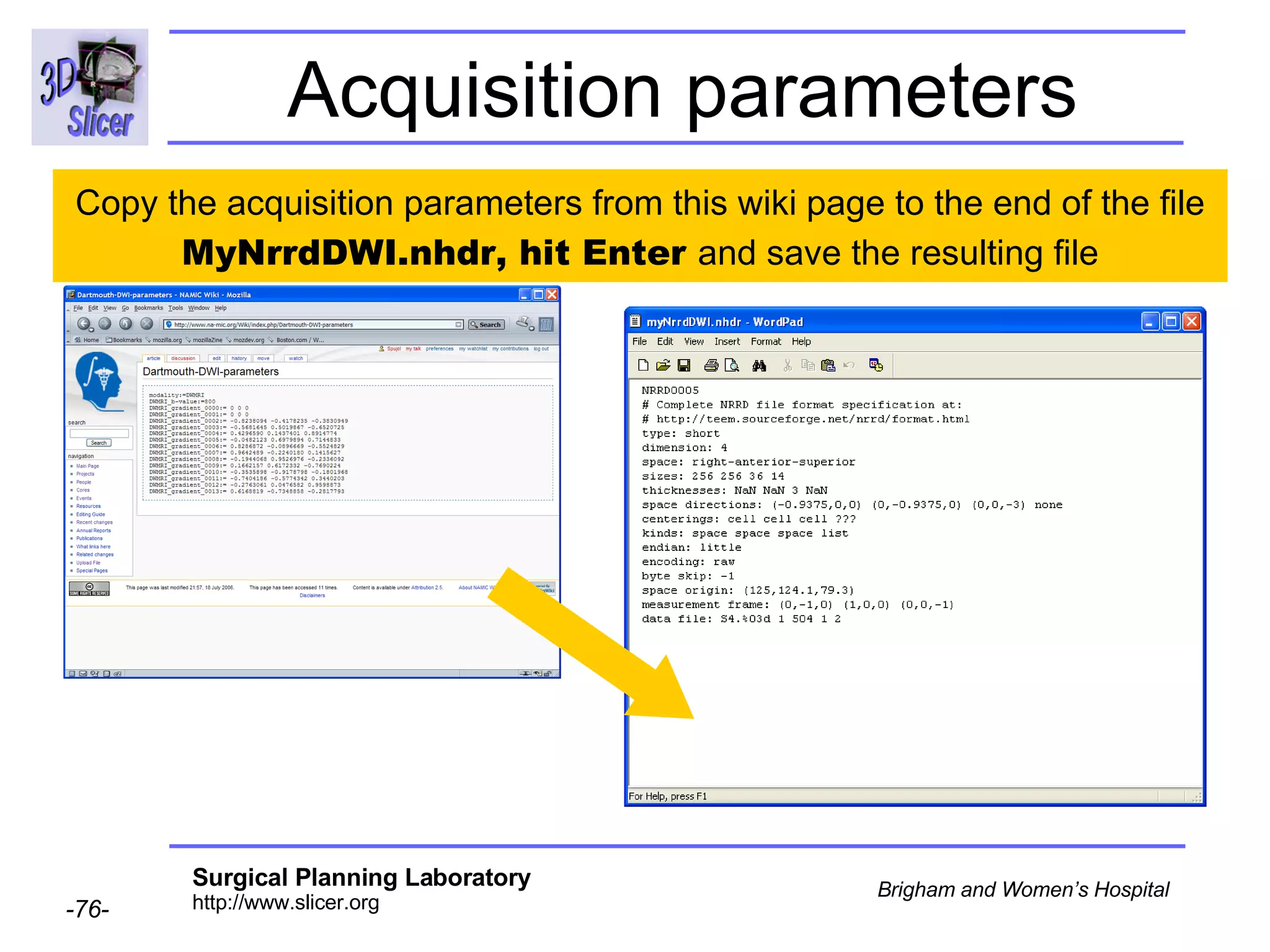
Acquisition parameters Copy the acquisition parameters from this wiki page to the end of the file  MyNrrdDWI.nhdr, hit Enter  and save the resulting file
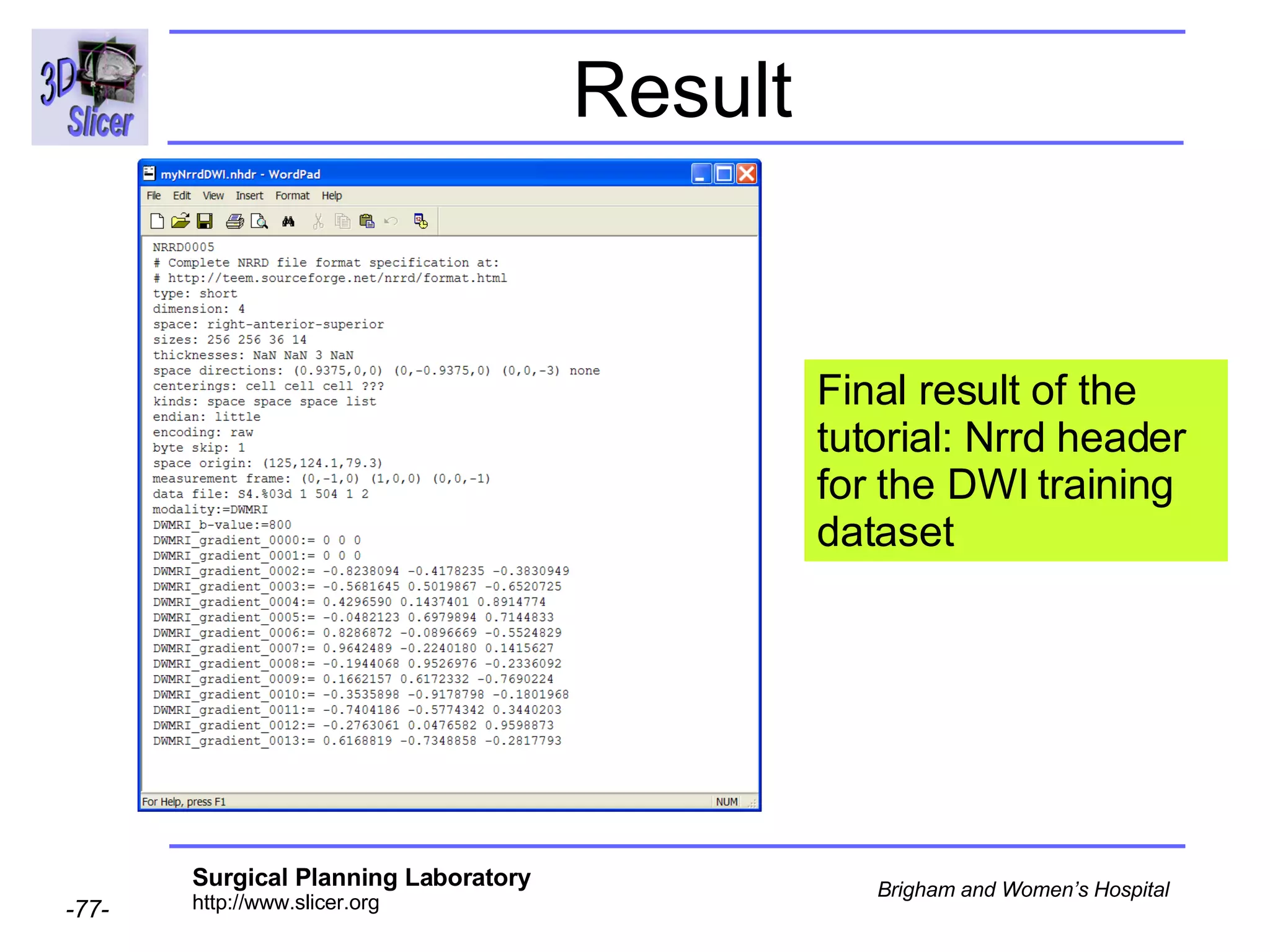
Result Final result of the tutorial: Nrrd header for the DWI training dataset
Overview Part 1: DWI data specificity Part 2: Nrrd description Part 3: Generating Nrrd Files Part 4: Working with DICOM DWI training data Part 5: Orientation validation within Slicer
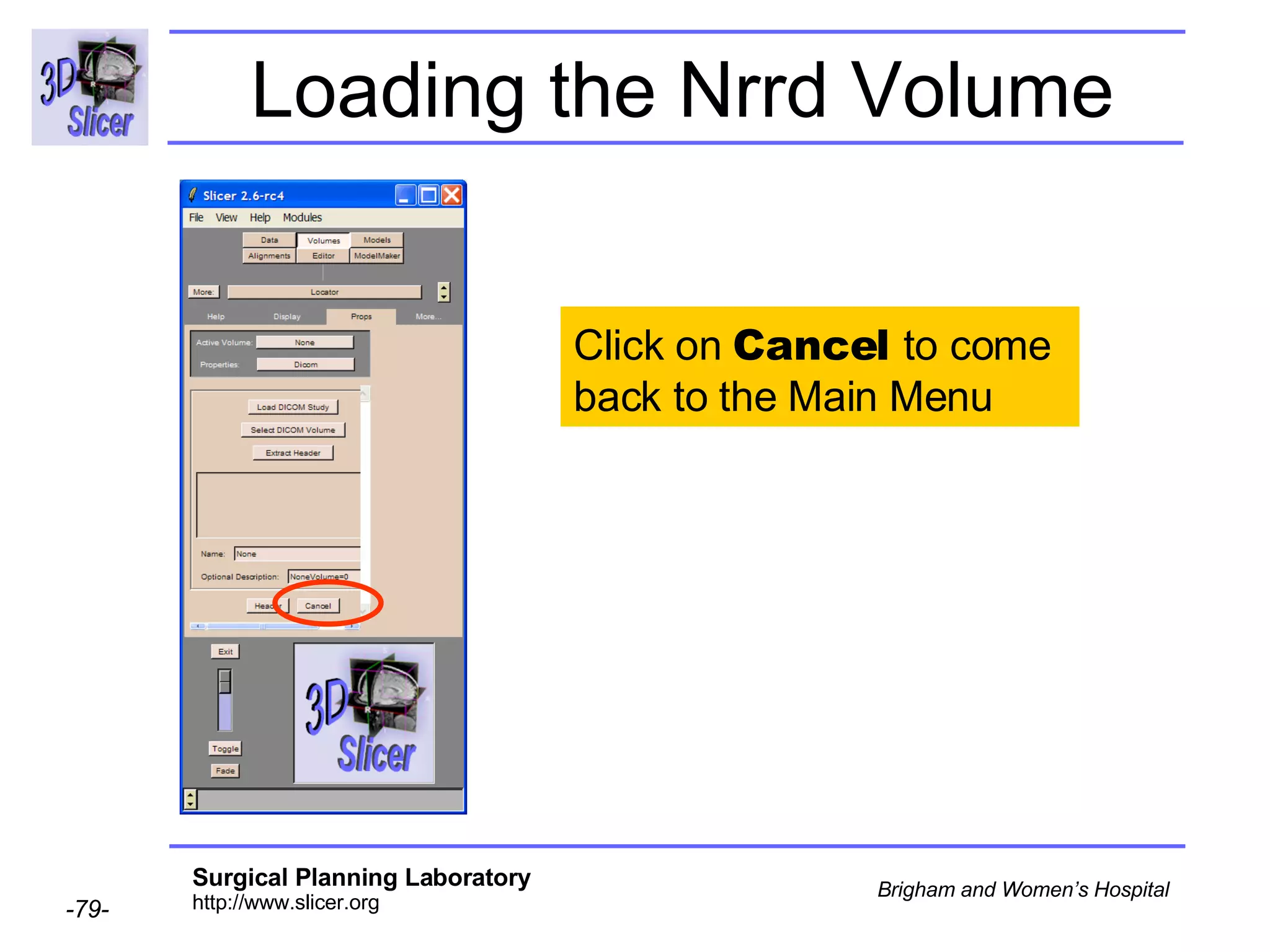
Loading the Nrrd Volume Click on  Cancel  to come back to the Main Menu
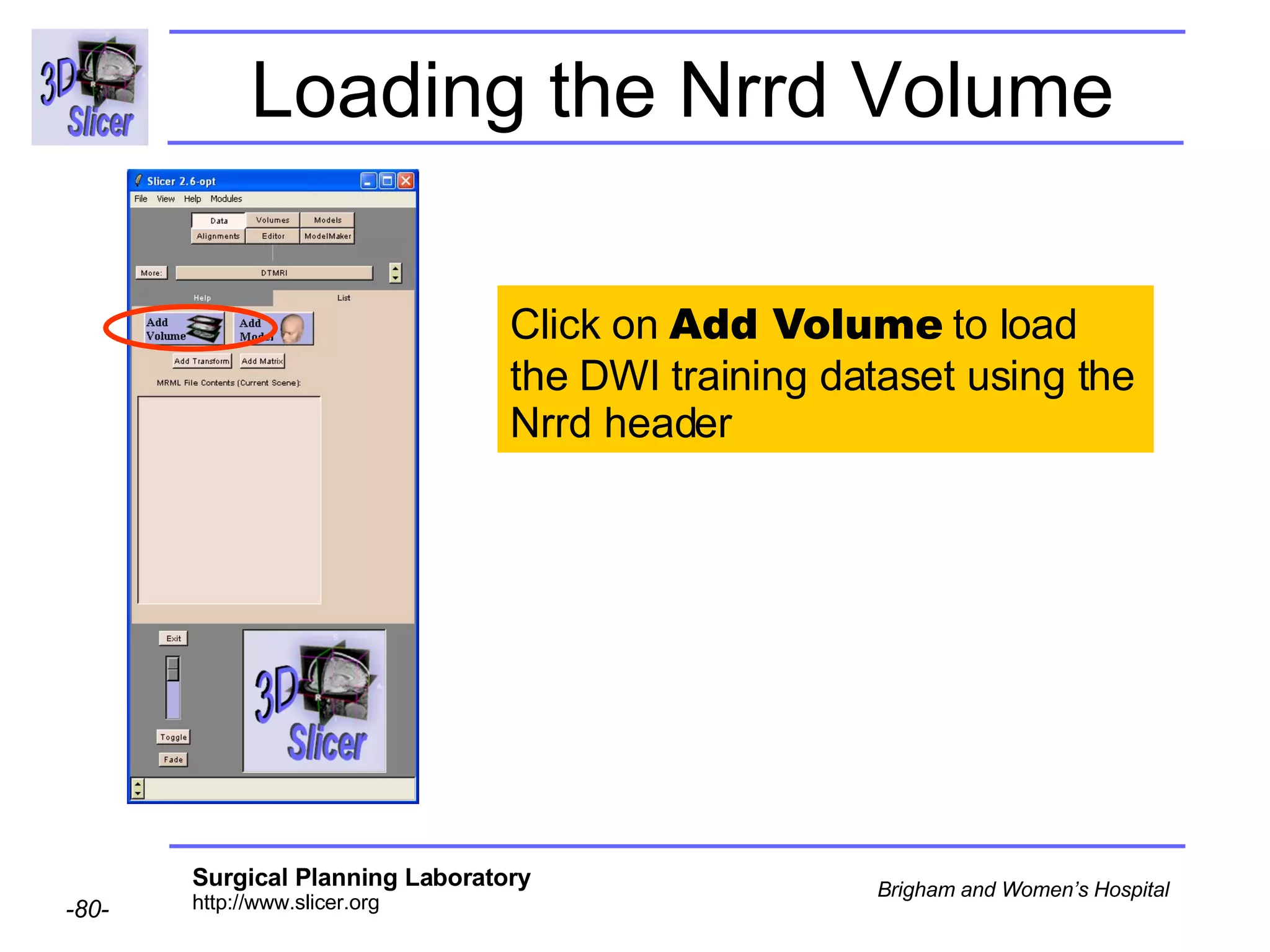
Loading the Nrrd Volume Click on  Add Volume  to load the DWI training dataset using the Nrrd header
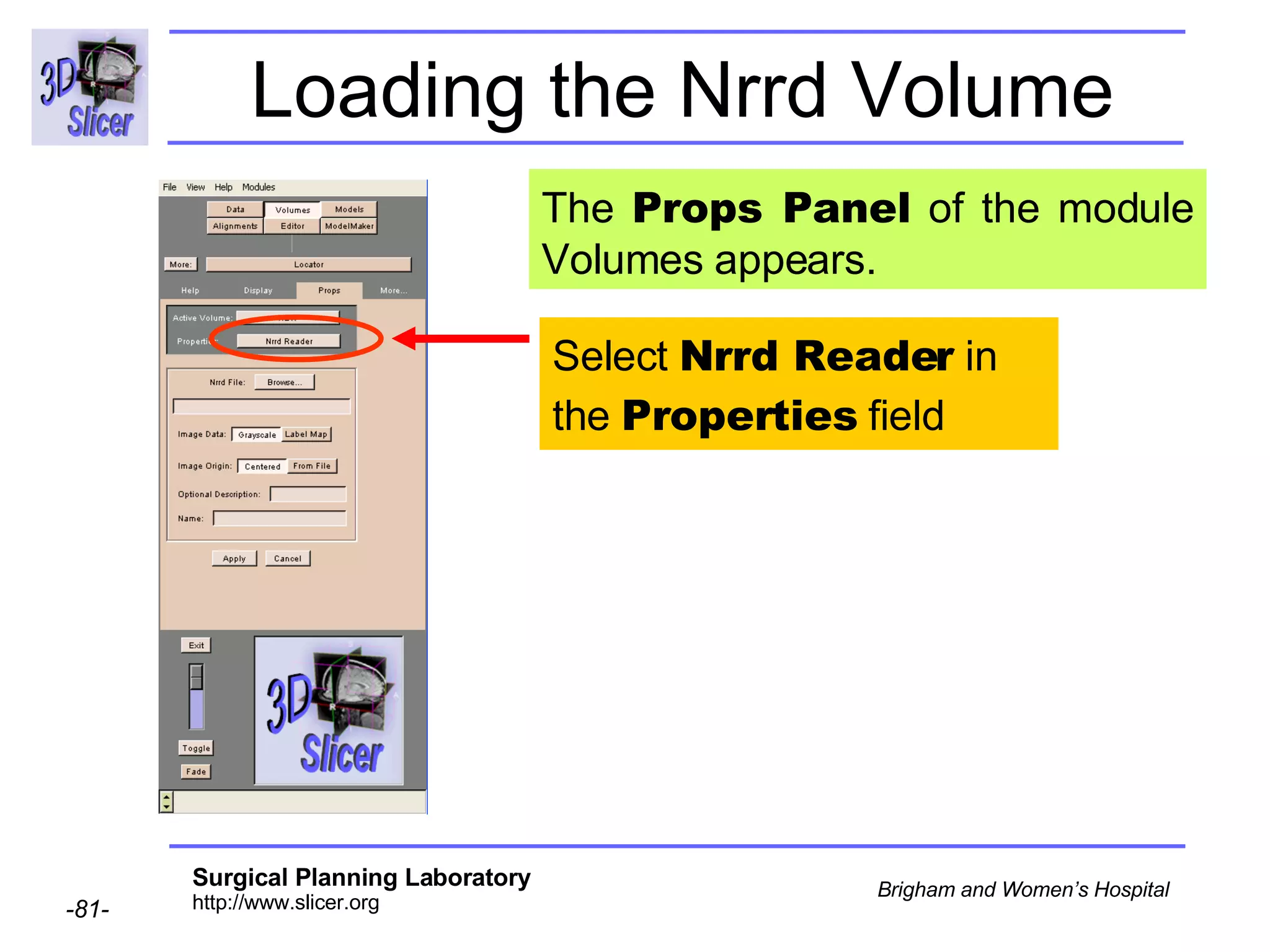
Loading the Nrrd Volume Select  Nrrd Reader  in the  Properties  field The  Props Panel  of the module Volumes appears.
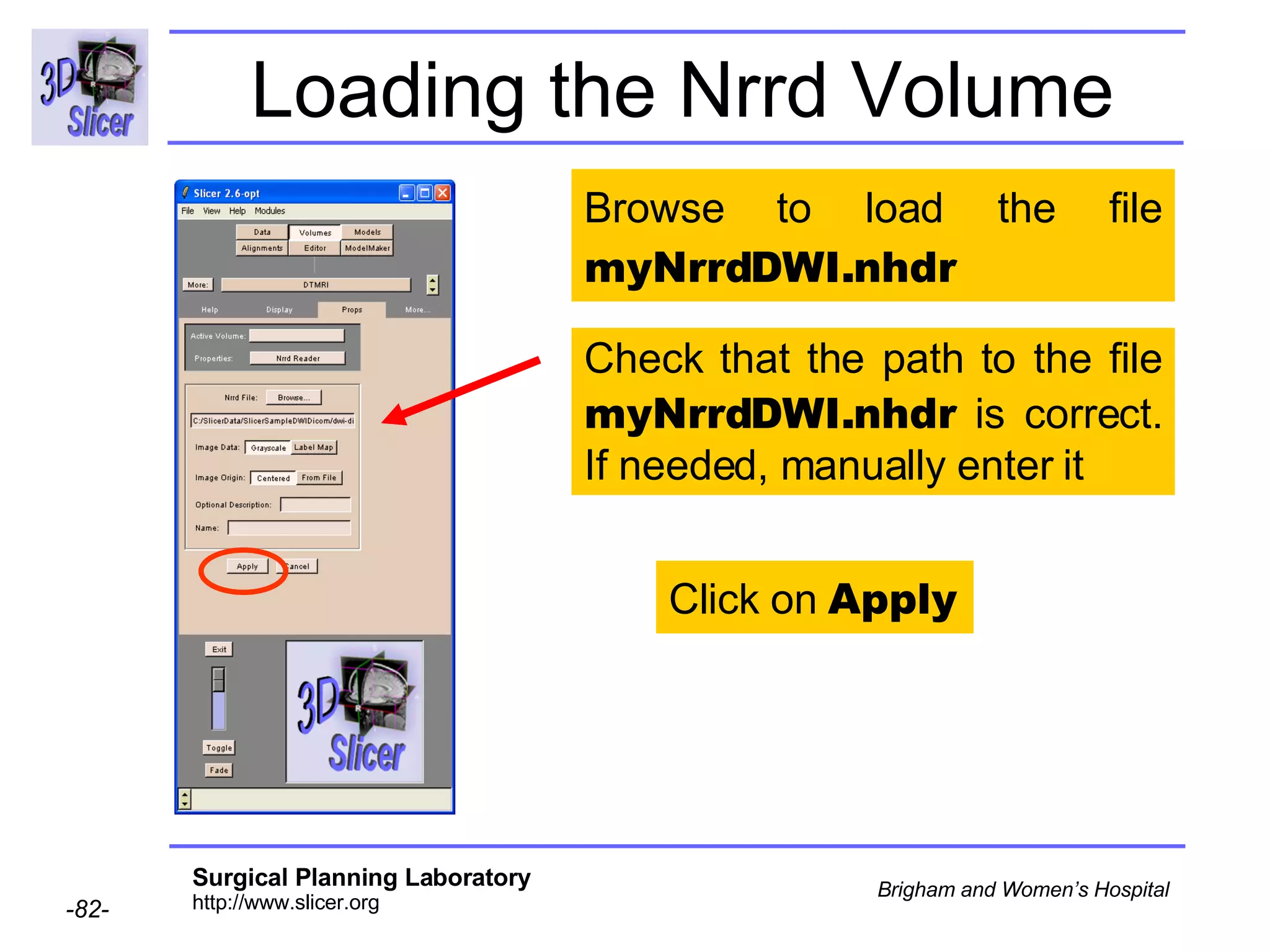
Loading the Nrrd Volume Click on  Apply Check that the path to the file  myNrrdDWI.nhdr  is correct. If needed, manually enter it Browse to load the file  myNrrdDWI.nhdr
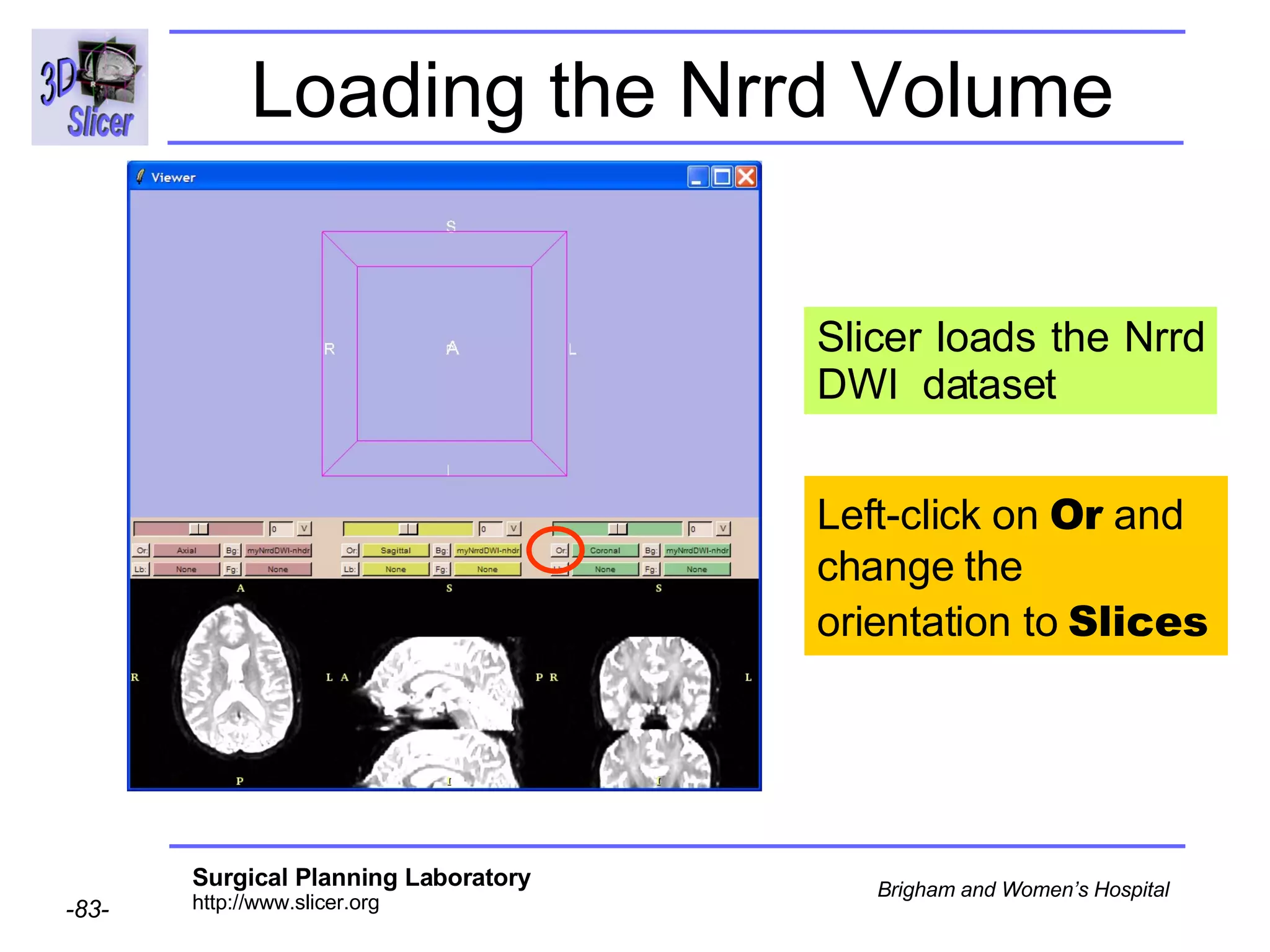
Loading the Nrrd Volume Slicer loads the Nrrd DWI  dataset  Left-click on  Or  and change the orientation to  Slices
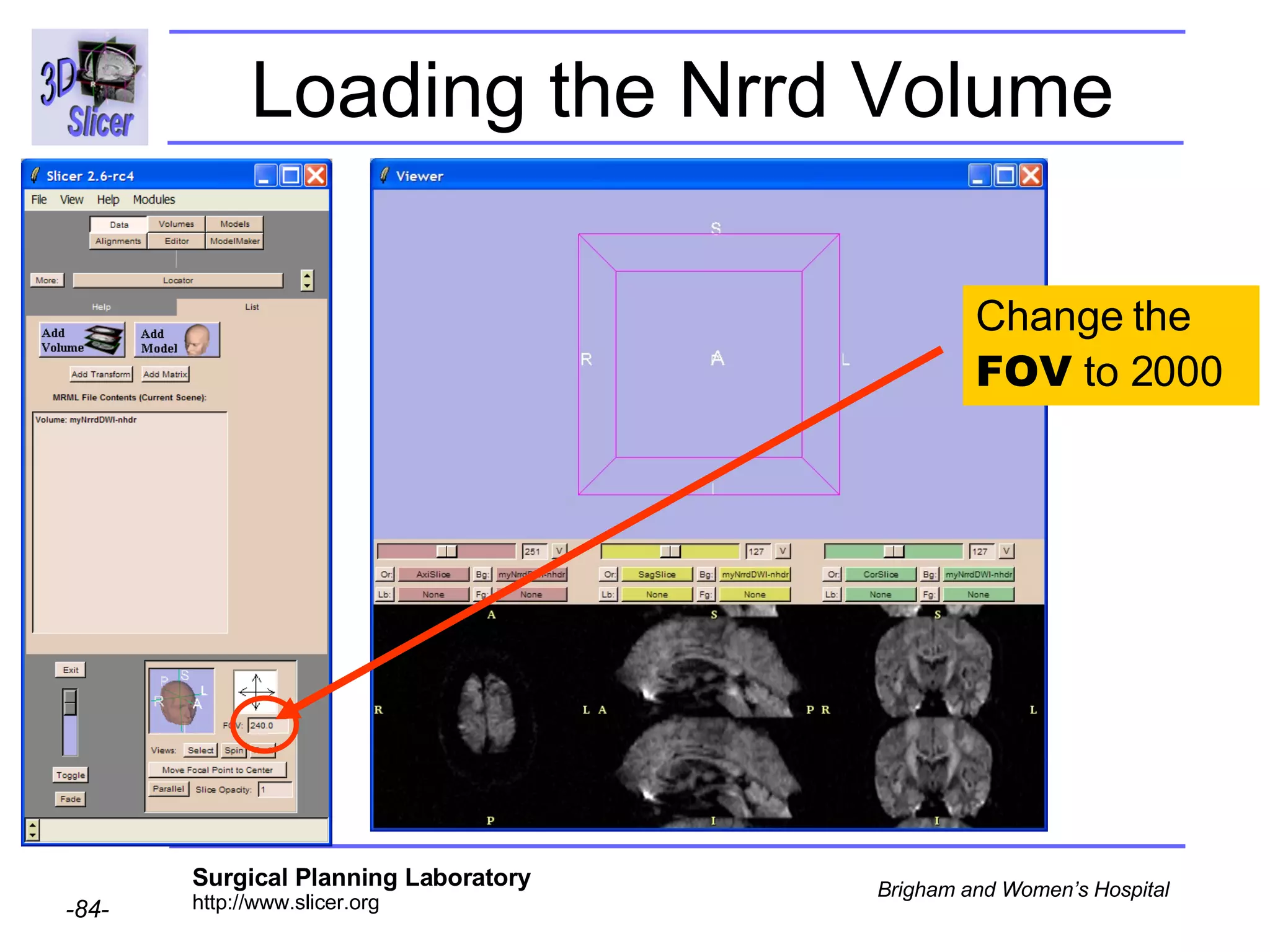
Loading the Nrrd Volume Change the  FOV  to 2000
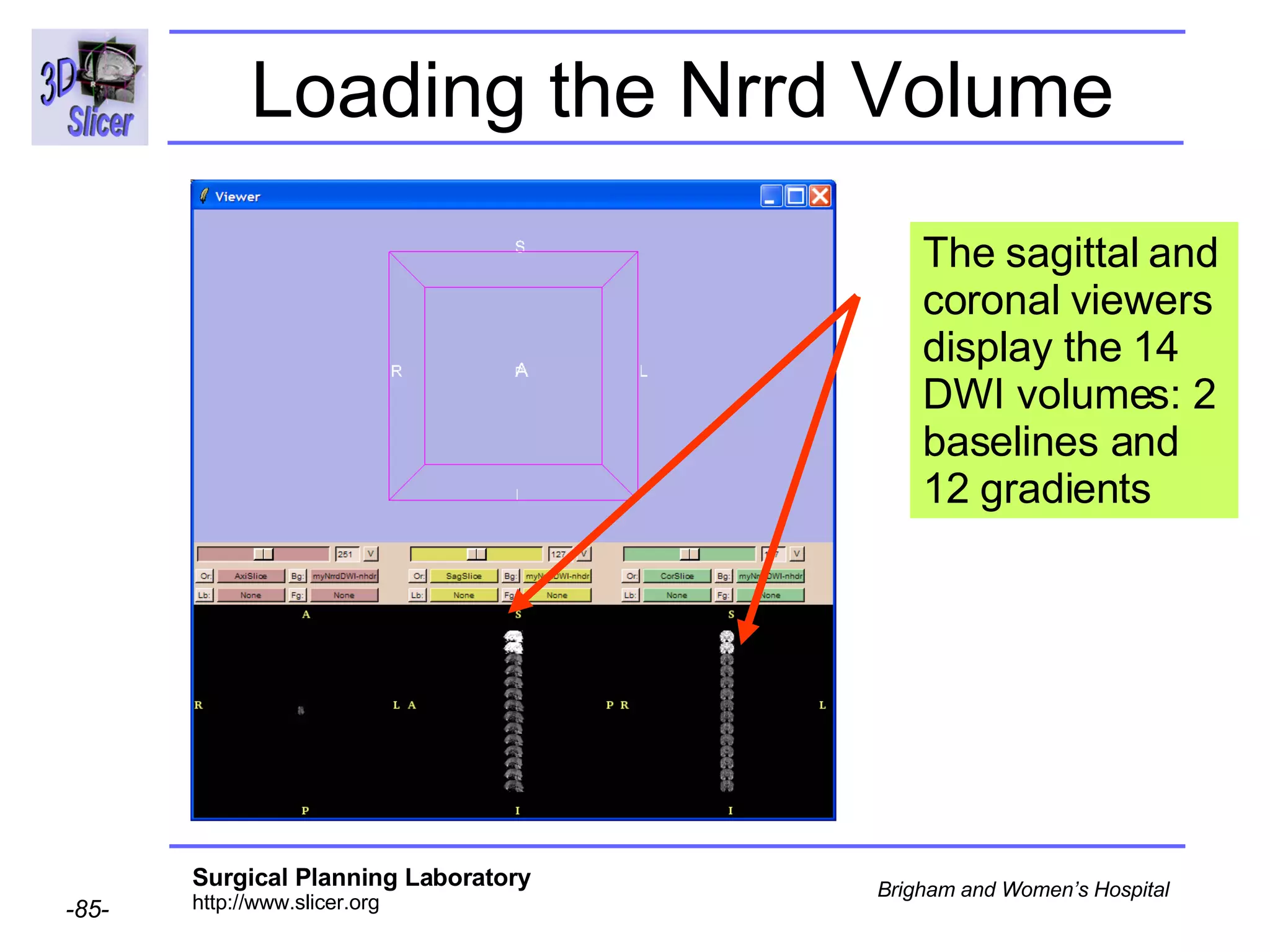
Loading the Nrrd Volume The sagittal and coronal viewers display the 14 DWI volumes: 2 baselines and 12 gradients
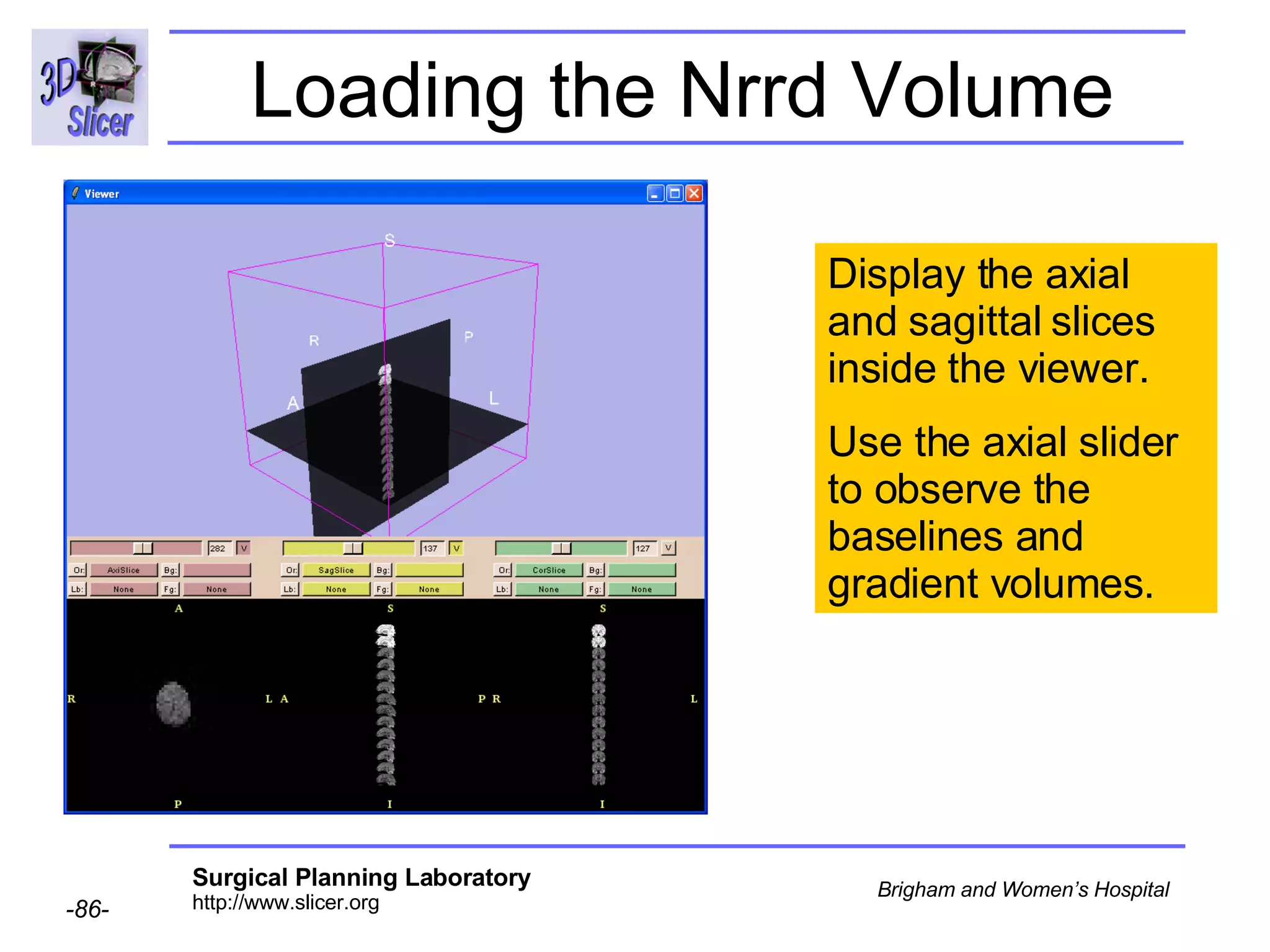
Loading the Nrrd Volume Display the axial and sagittal slices inside the viewer. Use the axial slider to observe the baselines and gradient volumes.
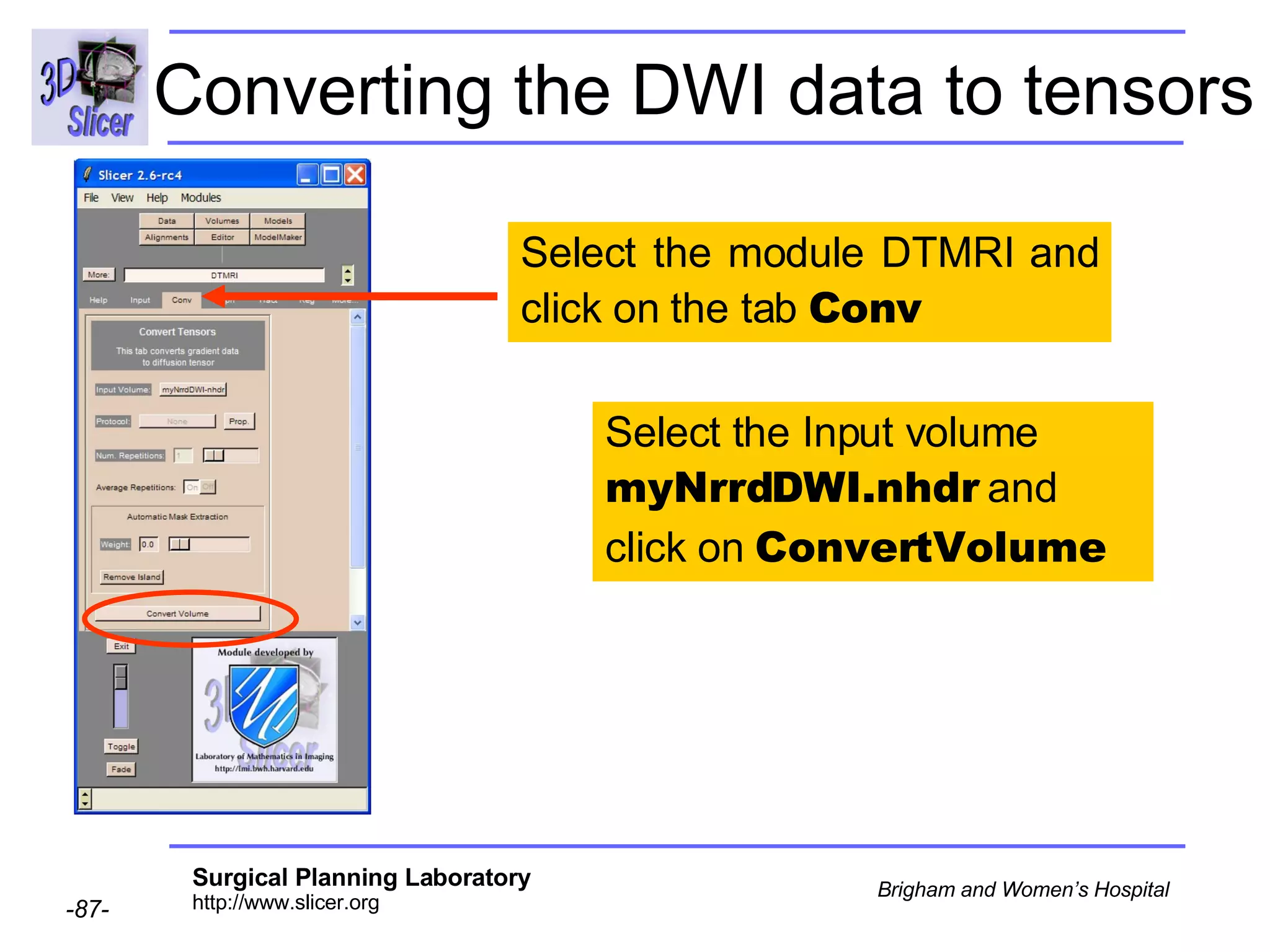
Converting the DWI data to tensors Select the module DTMRI and click on the tab  Conv Select the Input volume  myNrrdDWI.nhdr  and click on  ConvertVolume
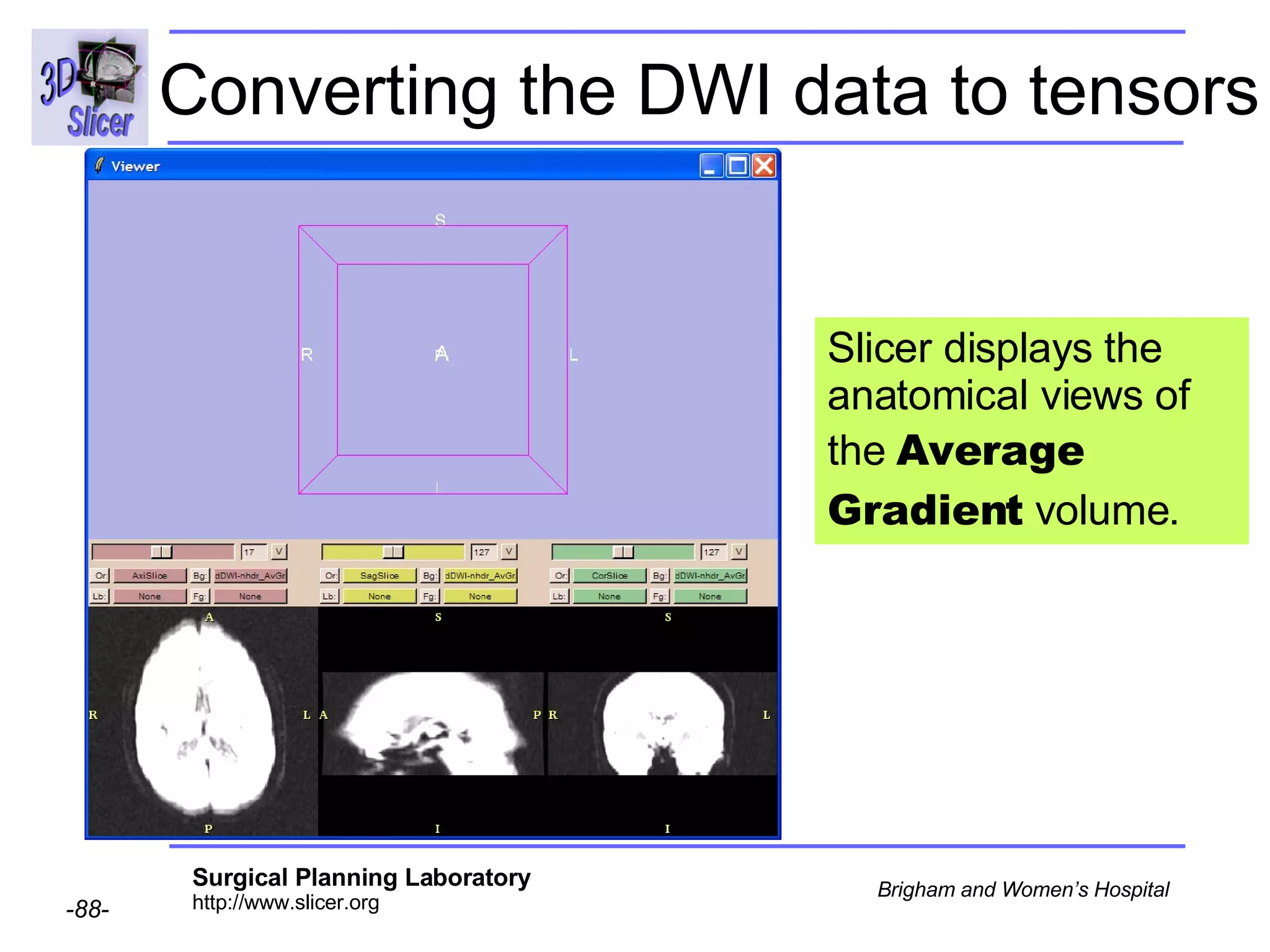
Converting the DWI data to tensors Slicer displays the anatomical views of the  Average Gradient  volume.
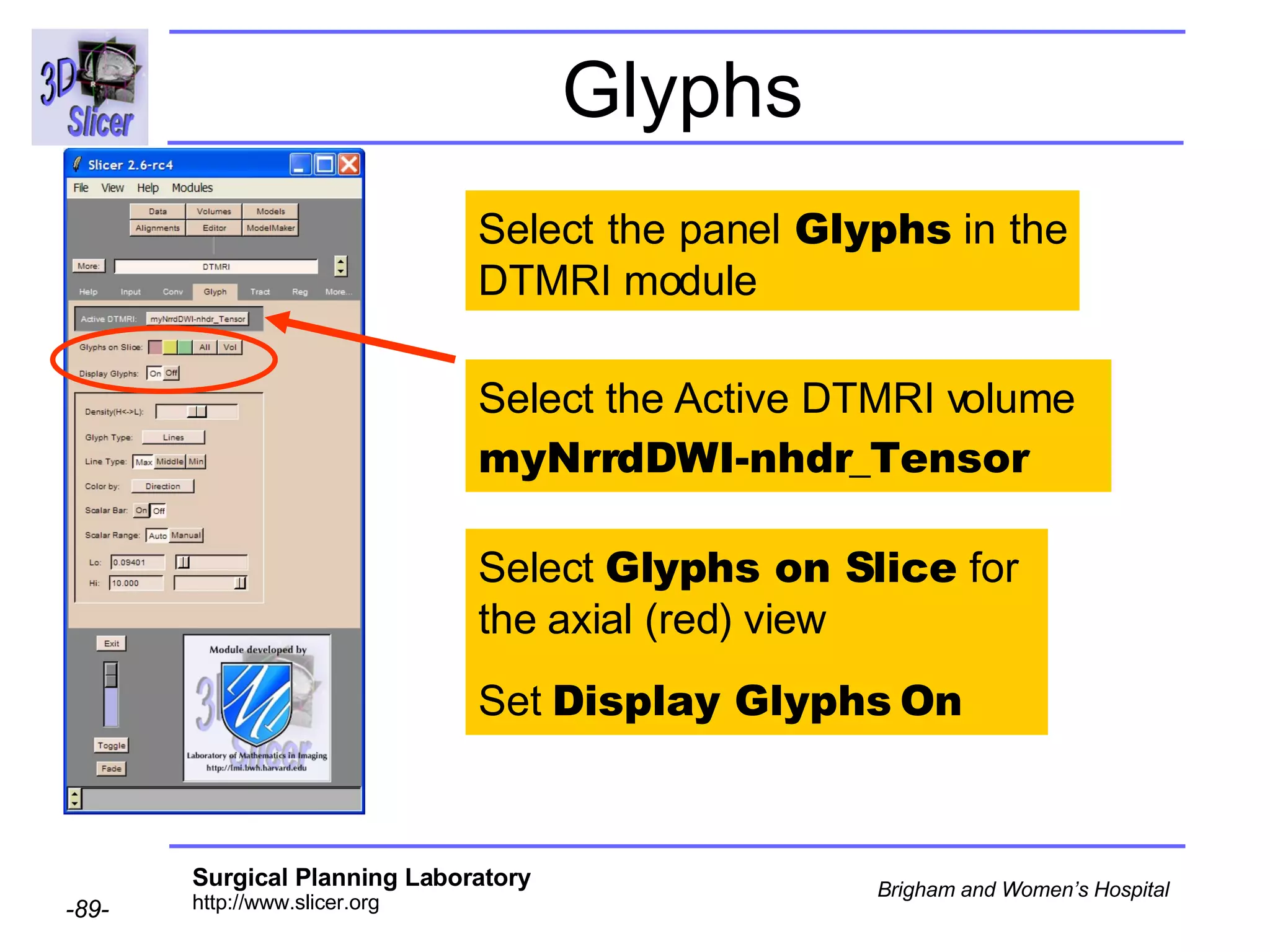
Glyphs Select the panel  Glyphs  in the DTMRI module Select the Active DTMRI volume  myNrrdDWI-nhdr_Tensor Select  Glyphs on Slice  for the axial (red) view Set  Display Glyphs On
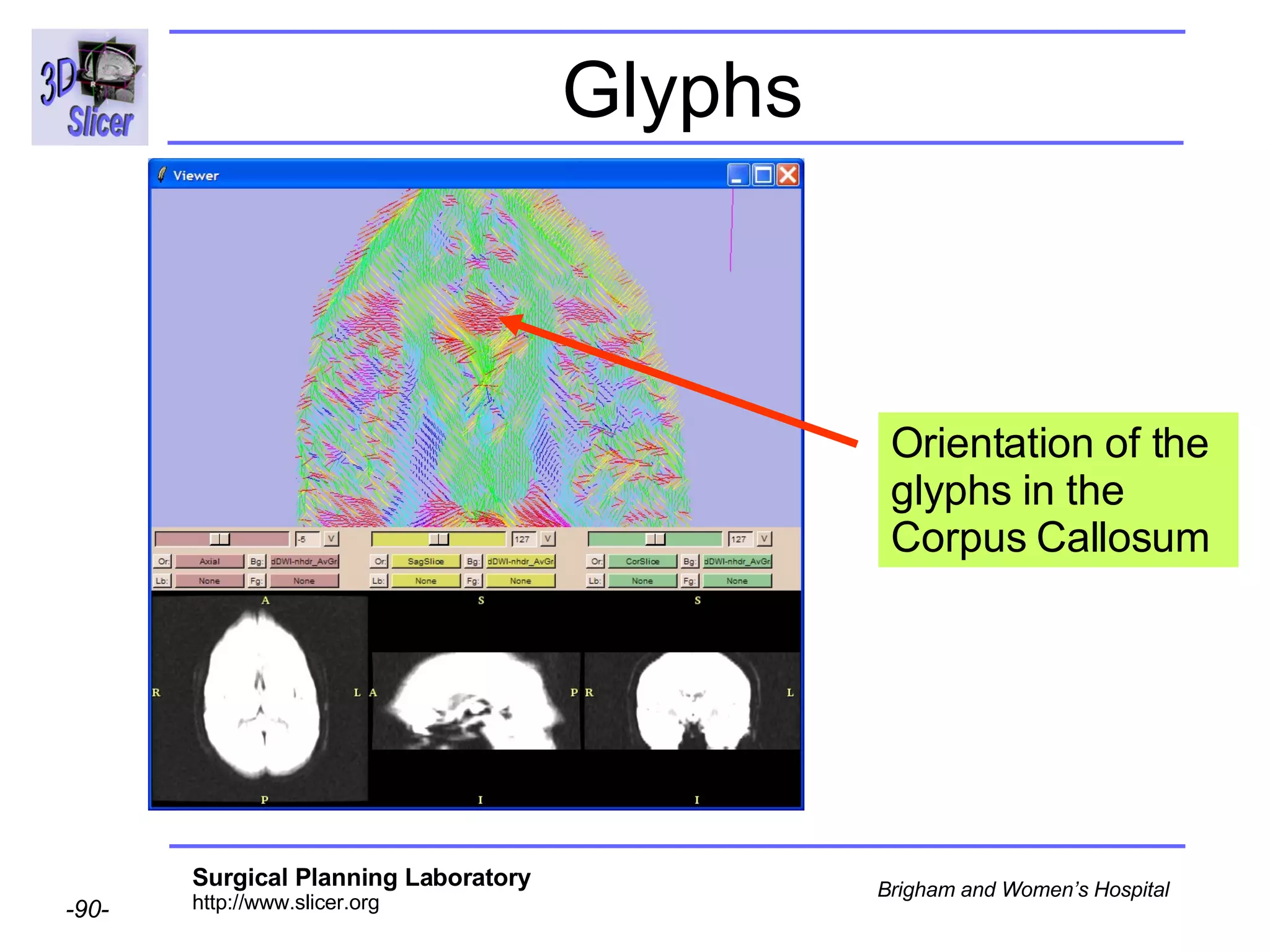
Glyphs Orientation of the glyphs in the Corpus Callosum
Conclusion Standardized description of the information contained in DWI data. Rapid, intuitive visual assessment of orientation results within Slicer  Open-Source:  http://teem.sourceforge.net/nrrd/

Nrrd to Dicom Conversion-3769

  • 1.
    Diffusion Tensor Imaging: from Dicom to Nrrd Sonia Pujol, Ph.D. Randy Gollub, M.D., Ph.D. National Alliance for Medical Image Computing
  • 2.
    Acknowledgments National Alliancefor Medical Image Computing NIH U54EB005149 Neuroimage Analysis Center NIH P41RR013218 Laboratory of Mathematics in Imaging, Brigham and Women’s Hospital Thanks to Dr. Gordon Kindlmann Dartmouth Hitchcock Medical Center Thanks to Dr. Andy Saykin
  • 3.
    Goal of theTutorial Training on how to convert DICOM DWI data to the Nrrd File format, compatible with Slicer visualization and analysis Raw Data Raw Data Raw Data Nrrd Header Dicom Header Dicom Header Dicom Header Dicom Header Raw Data
  • 4.
    Overview Part 1:DWI data specificity Part 2: Nrrd description Part 3: Generating Nrrd Files Part 4: Working with DICOM DWI training data Part 5: Orientation validation within Slicer
  • 5.
    Diffusion Weighted ImagingThe signal is dimmer when the direction of the applied gradient is parallel to the principal direction of diffusion. Diffusion Sensitizing Gradients Diffusion Weighted Images
  • 6.
    Diffusion Weighted Imaging(DWI) Example: Correlation between the orientation of the 11 th gradient and the signal intensity in the Splenium of the Corpus Callosum
  • 7.
    Diffusion Weighted Imaging(Stejskal and Tanner 1965, Basser 1994 ) {Si} represent the signal intensities in presence of the diffusion sensitizing gradients gi b is the diffusion weighted parameter Diffusion Weighted Images
  • 8.
    Background Challenge: Concise and standardized description of the information contained in DWI data. Current situation: DICOM (Supplement 49) contains information on how to represent b-value and gradient directions of DWI However every MR Scanner manufacturer has their own unique way of archiving the relevant image acquisition parameters The definition of the coordinate frame of the diffusion gradients is not explicitly recorded in the header Proposed Solution: Nrrd format
  • 9.
    Which image iscorrect ?
  • 10.
    Which image iscorrect ?
  • 11.
    The left oneis correct
  • 12.
    Overview Part 1:DWI data specificity Part 2: Nrrd description Part 3: Generating Nrrd Files Part 4: Working with DICOM DWI training data Part 5: Orientation validation within Slicer
  • 13.
    Nearly Raw RasterData (Nrrd) The flexible Nrrd format includes a single header file and image file(s) that can be separate or combined. A Nrrd header accurately represents N-dimensional raster information for scientific visualization and medical image processing. Nrrd Header + Raw Data Raw Data Raw Data
  • 14.
    Nrrd file formatNA-MIC has developed a robust way of using the Nrrd format to represent DWI volumes
  • 15.
    Nrrd file formatDWI data written into Nrrd format with appropriate parameters can be read into 3D Slicer
  • 16.
    Coordinate Frames DiffusionWeighted Images Diffusion Sensitizing Gradients Courtesy G.Kindlmann Courtesy G.Kindlmann (X,Y,Z) (I,J,K)
  • 17.
    Coordinate Frames DWIImage Orientation (I,J,K) Diffusion Sensitizing Gradients (X,Y,Z) Patient Space Courtesy G.Kindlmann (X,Y,Z) (I,J,K)
  • 18.
    Transformation matrices T:IJK  RAS (X,Y,Z) (I,J,K) T: XYZ  RAS (R,A,S) Courtesy G.Kindlmann
  • 19.
    Nrrd Terminology T:XYZ  RAS (X,Y,Z) (I,J,K) (R,A,S) T: IJK  RAS Courtesy G.Kindlmann
  • 20.
    Nrrd requirements forDWI data To generate a Nrrd header for DWI data, you’ll need to know information about data representation: DWI Volume characteristics Data Type Endianess Dimensions Disk Storage Axis Ordering
  • 21.
    Nrrd requirements forDWI data To generate a Nrrd header for DWI data, you’ll need to know the acquisition parameters: Coordinate Frames DWI Image Orientation Gradient Measurement Frame
  • 22.
    Overview Part 1:DWI data specificity Part 2: Nrrd description Part 3: Generating Nrrd Files Part 4: Working with DICOM DWI training data Part 5: Orientation validation within Slicer
  • 23.
    Generating Nrrd FilesNrrd files can be generated from the Tk console of Slicer using the “ unu ” command line tool unu is part of set of libraries called “Teem” compiled into Slicer 2.6 http://teem.sourceforge.net/ Slicer includes a Nrrd reader to load DWI volumes in Nrrd format
  • 24.
    Unu syntax GeneralSyntax: unu cmd -i input -o output Tips: “ unu”  list of unu commands “ unu cmd ”  help on cmd
  • 25.
    Unu syntax: ‘make’command ‘ make’ syntax: unu make -i input -o output ‘ make’ documentation: unu make  help on make
  • 26.
    Running unu onWindows To run the unu command from the Tk console, type unu. On Windows, you do not need to be in the directory win32/bin/teem-build/bin  the unu commands run from any location.
  • 27.
    Running unu onMac/Linux/Solaris To run the unu command from the Tk console , you need to enter the whole path to the /bin directory Ex: Mac ../slicer2.6-opt-darwin-ppc-2006-05-18/Lib/darwin-ppc/teem-build/bin
  • 28.
    Overview Part 1:DWI data specificity Part 2: Nrrd description Part 3: Generating Nrrd Files Part 4: Working with DICOM DWI training data Part 5: Orientation validation within Slicer
  • 29.
    DICOM DWI TrainingData 2 Baselines and 12 Gradients 504 DICOM images named S4.xxx where xxx is the image number
  • 30.
    DWI Training DataType the command cd and enter the path to your data in the Tk Console. Type ls to list all the data files.
  • 31.
    DWI Training DataThe dataset is composed of 504 images named S4.xxx
  • 32.
    Unu command (Windows)unu make -h --input S4.%03d 1 504 1 2 --encoding raw --byteskip -1 Type the unu command with the input , encoding and byteskip fields Min index Max index Increment 2D Image Read backwards from end of file Do not hit Enter
  • 33.
    Unu command (Mac/Linux)unu make -h --input S4.%03d 1 504 1 2 --encoding raw --byteskip -1 Type the unu command with the input , encoding and byteskip fields Min index Max index Increment 2D Image Read backwards from end of file slicer2.6-opt-darwin-ppc-2006-05-18/Lib/darwin-ppc/teem-build/bin
  • 34.
    Numbers as filenaming convention (*) % is a special character to be replaced by the specific file number (cf C/C++ printf command) %03d means a 3 digit number with zero “padding”: Padding means there will be zeros instead of spaces at the beginning of the number Ex: %03d  S4.001 for file number 1 %03d  S4.024 for file number 24 This is a compact way to refer to the whole image sequence (*) Background information unu make -h --input S4.%03d 1 504 1 2 --encoding raw --byteskip -1
  • 35.
    Read the DICOMHeader Click on AddVolume
  • 36.
    Read the DICOMHeader Select the Properties Dicom The Props panel appears.
  • 37.
    Read the DICOMHeader Click on Select Dicom Volume and browse to load the dataset located in the directory dwi-dicom The Dicom Props panel appears.
  • 38.
    Read the DicomHeader Slicer displays the list of Dicom files in the directory. Click on OK
  • 39.
    Read the DicomHeader Click on Extract Header to display the content of the Dicom Header.
  • 40.
    Read the DicomHeader Slicer displays the content of the Dicom Header . This information will be used to generate the Nrrd header .
  • 41.
    Extracting the volumecharacteristics Extract the values corresponding to the following information: - Data Type Endianess Image Dimensions
  • 42.
    Extracting the volumecharacteristics - Data Type: Short - Endianess: Little
  • 43.
    Unu Command Addthe fields endian and type to the unu command --endian little --type short
  • 44.
    Extracting the volumecharacteristics The dataset was acquired with Nb=2 Baselines and Ng=12 Gradients Image Dimensions: 256 pixels x 256 pixels
  • 45.
    DICOM DWI TrainingData 2 Baselines and 12 Gradients 504 DICOM images named S4.xxx where xxx is the image number
  • 46.
    Extracting the volumecharacteristics The dataset was acquired with Nb=2 Baselines and Ng=12 Gradients n=NbxNg = 12 + 2 = 14 intensity values/voxel N Slices = N dicomImages /n = 504/14 = 36 slices Image Dimensions: 256 pixels x 256 pixels
  • 47.
    Unu Command --size 256 256 36 14 --centering cell cell cell none Medical images are cell-centered samples Add the fields size and centering to the unu command
  • 48.
    Slice Thickness Extract the slice thickness from the Dicom header
  • 49.
    Slice Thickness slice thickness = 3.00 mm
  • 50.
    Slice Thickness --thicknessnan nan 3.0 nan Add the field thickness to the unu command
  • 51.
    Building the transformationmatrices We specifically change orientation from the DICOM default of Left Posterior-Superior (LPS) to Right-Anterior-Superior (RAS) so that the data can be viewed in Slicer coordinate space DICOM: LPS SLICER: RAS
  • 52.
    Space Directions Addthe field space to the unu command --space right-anterior-superior
  • 53.
    Space Directions Extractthe pixel size from the Dicom Header.
  • 54.
    Space Directions Pixelsize = 0.9375 mm x 0.9375 mm The dataset was acquired with Superior-Inferior slice ordering
  • 55.
    Space Directions --directions “ ( - 0.9375,0,0) (0, - 0.9375,0) (0,0,-3) none “ Add the fields directions and unit to the unu command DICOM: LPS SLICER: RAS
  • 56.
    Space Origin CourtesyG.Kindlmann The space origin is the position of the first pixel in the first image. This information is contained in the Dicom Header of the first slice.
  • 57.
    Space Origin Thespace origin information is located in the Dicom header [ 0020,0032, Image Position Patient ] Courtesy G.Kindlmann
  • 58.
    Space Origin Createa directory called FirstSlice and copy the first file S4.001 of the Dicom-dwi dataset Click on Cancel to come back to the Main menu
  • 59.
    Space Origin Click Add Volume select the tab Props, and the format DICOM
  • 60.
    Space Origin Clickon Select DICOM Volume Select the directory / FirstSlice containing the first slice
  • 61.
    Space Origin Clickon List Headers to display the content of the header of the first image.
  • 62.
    Space Origin Slicerdisplays the content of the header of the first image.
  • 63.
    Space Origin Scrolldown to display the value of the tag [0020,0032, Image Position Patient ]
  • 64.
    Space Origin [0020,0032,Image Position Patient ] = -125.0, -124.09, 79.30
  • 65.
    Space Origin Clickon OK to close the Dicom Header Window
  • 66.
    Space Origin --origin"( + 125.0, + 124.10,79.30)" Add the field origin to the unu command DICOM: LPS SLICER: RAS
  • 67.
  • 68.
  • 69.
    Measurement Frame --measurementframe“(0,-1,0) (1,0,0) (0,0,-1)" Add the field measurement frame to the unu command
  • 70.
  • 71.
    Axis Ordering --kindspace space space list Add the field kinds to the unu command Axis Ordering: columns, rows, slices, intensity values
  • 72.
    Output File Addthe field output to the unu command --output myNrrdDWI.nhdr
  • 73.
    Output File Typels in the Tk Console The file myNrrdDWI.nhdr is listed in the directory
  • 74.
    Acquisition parameters Openthe file MyNrrdDWI.nhdr with a text Editor
  • 75.
    Acquisition parameters Opena web browser at the location http://www.na-mic.org/Wiki/index.php/Dartmouth-DWI-parameters
  • 76.
    Acquisition parameters Copythe acquisition parameters from this wiki page to the end of the file MyNrrdDWI.nhdr, hit Enter and save the resulting file
  • 77.
    Result Final resultof the tutorial: Nrrd header for the DWI training dataset
  • 78.
    Overview Part 1:DWI data specificity Part 2: Nrrd description Part 3: Generating Nrrd Files Part 4: Working with DICOM DWI training data Part 5: Orientation validation within Slicer
  • 79.
    Loading the NrrdVolume Click on Cancel to come back to the Main Menu
  • 80.
    Loading the NrrdVolume Click on Add Volume to load the DWI training dataset using the Nrrd header
  • 81.
    Loading the NrrdVolume Select Nrrd Reader in the Properties field The Props Panel of the module Volumes appears.
  • 82.
    Loading the NrrdVolume Click on Apply Check that the path to the file myNrrdDWI.nhdr is correct. If needed, manually enter it Browse to load the file myNrrdDWI.nhdr
  • 83.
    Loading the NrrdVolume Slicer loads the Nrrd DWI dataset Left-click on Or and change the orientation to Slices
  • 84.
    Loading the NrrdVolume Change the FOV to 2000
  • 85.
    Loading the NrrdVolume The sagittal and coronal viewers display the 14 DWI volumes: 2 baselines and 12 gradients
  • 86.
    Loading the NrrdVolume Display the axial and sagittal slices inside the viewer. Use the axial slider to observe the baselines and gradient volumes.
  • 87.
    Converting the DWIdata to tensors Select the module DTMRI and click on the tab Conv Select the Input volume myNrrdDWI.nhdr and click on ConvertVolume
  • 88.
    Converting the DWIdata to tensors Slicer displays the anatomical views of the Average Gradient volume.
  • 89.
    Glyphs Select thepanel Glyphs in the DTMRI module Select the Active DTMRI volume myNrrdDWI-nhdr_Tensor Select Glyphs on Slice for the axial (red) view Set Display Glyphs On
  • 90.
    Glyphs Orientation ofthe glyphs in the Corpus Callosum
  • 91.
    Conclusion Standardized descriptionof the information contained in DWI data. Rapid, intuitive visual assessment of orientation results within Slicer Open-Source: http://teem.sourceforge.net/nrrd/