Intel Confidential — Do Not Forward
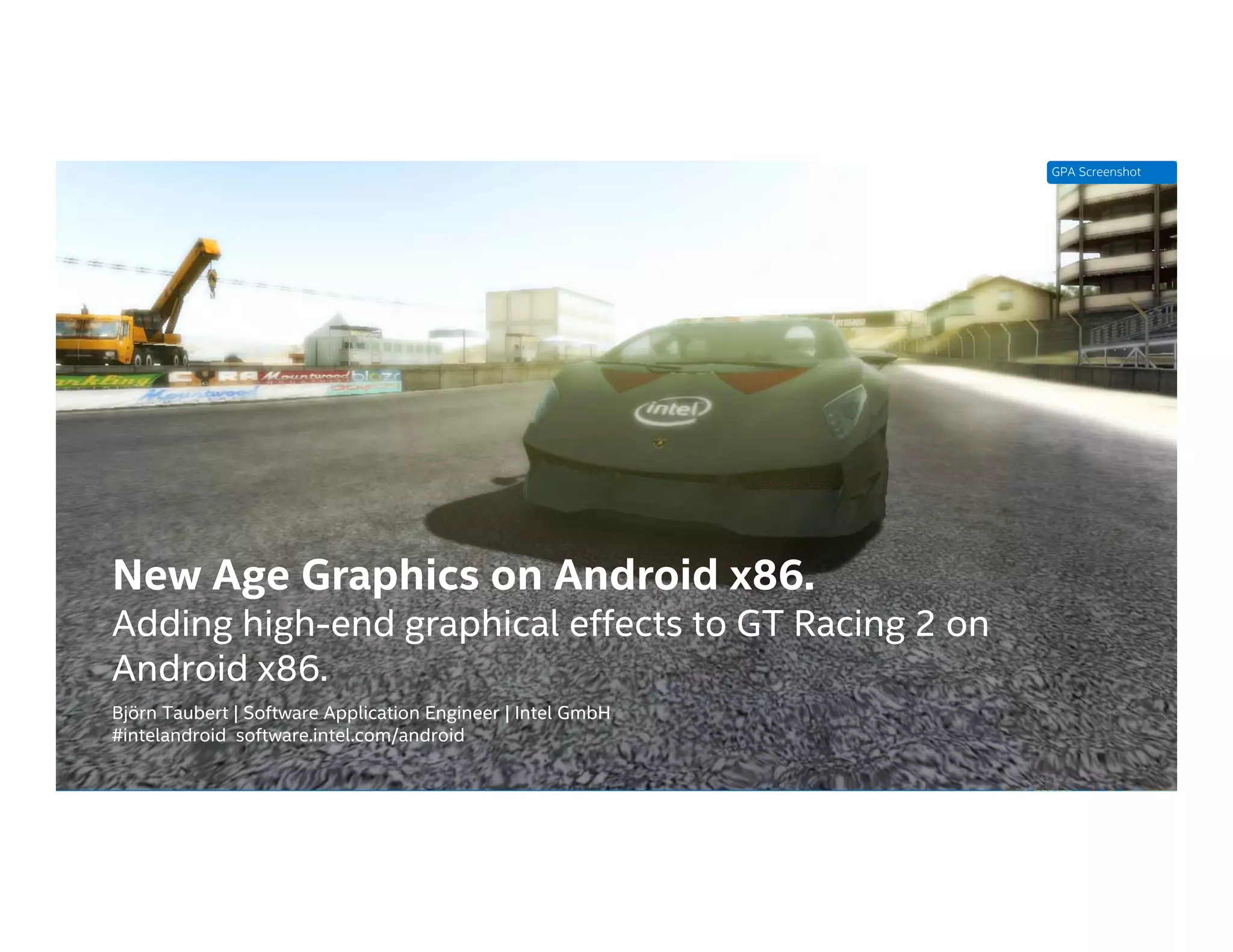
New Age Graphics on Android x86.
Adding high-end graphical effects to GT Racing 2 on
Android x86.
Björn Taubert | Software Application Engineer | Intel GmbH
#intelandroid software.intel.com/android
GPA Screenshot
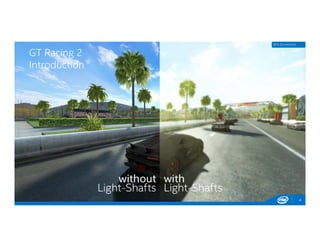
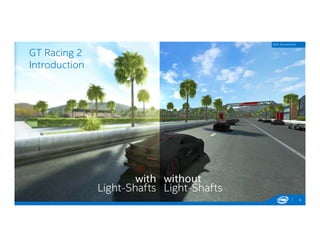
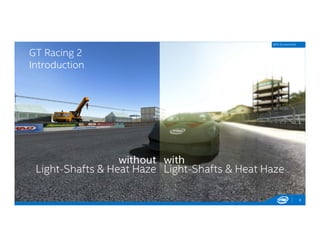
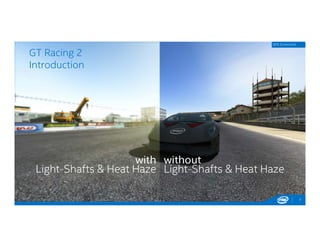
GT Racing 2 - Introduction
2
 Introducing the Intel & Gameloft team: Adrian Voinea & Steve Hughes
 Gameloft, the leading global publisher with key franchises like Asphalt, Despicable Me, Ice Age,
Modern Combat
 Intel, global silicon company to push the hardware capabilities of BayTrail T running Android
KitKat.
 Optimize GT Racing 2 (visual experience, performance, battery life)
 Depth of Field
 Light Shafts
 Heat Haze
 Bloom
 Improved Particles
 MSAA
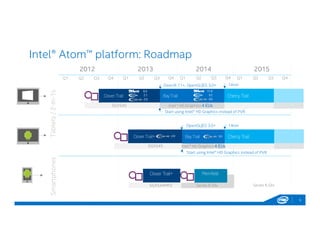
Intel® Atom™ platform: Roadmap
3
2012 2013 2014 2015
Clover Trail
SmartphonesTablets/2-in-1s
Bay Trail
Clover Trail+ Merrifield
Intel ® HD Graphics 4 EUs
9.3
2.1
2.0
Clover Trail+ 2.0
11.0
3.2
3.0
Bay Trail 3.0
Series 6 GfxSGX544MP2
SGX545
SGX545
Q1 Q2 Q3 Q4 Q1 Q2 Q3 Q4 Q1 Q2 Q3 Q4 Q1 Q2 Q3 Q4
Cherry Trail
Series 6 Gfx
Start using Intel® HD Graphics instead of PVR
OpenGL|ES 3.0+
DirectX 11+, OpenGL|ES 3.0+
Cherry Trail
Intel ® HD Graphics 4 EUs
14nm
14nm
4
GT Racing 2
Introduction
GPA Screenshot
5
GT Racing 2
Introduction
GPA Screenshot
GT Racing 2
Introduction
6
GPA Screenshot
GT Racing 2
Introduction
7
GPA Screenshot
8
GT Racing 2
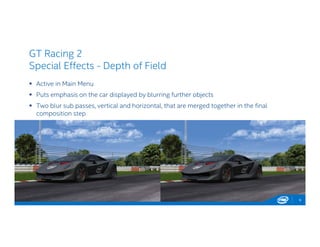
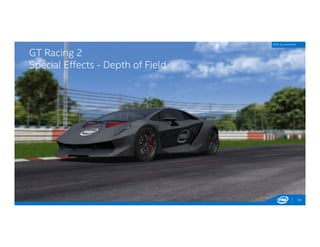
Special Effects - Depth of Field
 Active in Main Menu
 Puts emphasis on the car displayed by blurring further objects
 Two blur sub passes, vertical and horizontal, that are merged together in the final
composition step
9
GT Racing 2
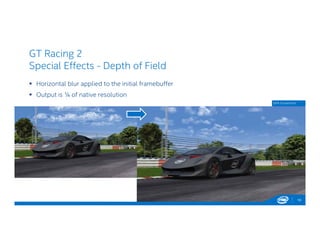
Special Effects - Depth of Field
 Horizontal blur applied to the initial framebuffer
 Output is ¼ of native resolution
10
GPA Screenshot
GT Racing 2
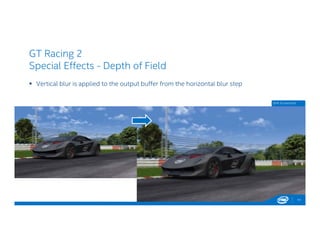
Special Effects - Depth of Field
 Vertical blur is applied to the output buffer from the horizontal blur step
11
GPA Screenshot
GT Racing 2
Special Effects - Depth of Field
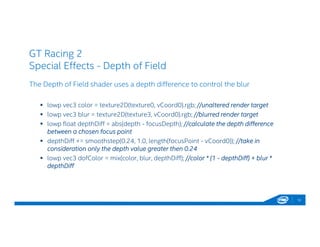
The Depth of Field shader uses a depth difference to control the blur
 lowp vec3 color = texture2D(texture0, vCoord0).rgb; //unaltered render target
 lowp vec3 blur = texture2D(texture3, vCoord0).rgb; //blurred render target
 lowp float depthDiff = abs(depth - focusDepth); //calculate the depth difference
between a chosen focus point
 depthDiff += smoothstep(0.24, 1.0, length(focusPoint - vCoord0)); //take in
consideration only the depth value greater then 0.24
 lowp vec3 dofColor = mix(color, blur, depthDiff); //color * (1 - depthDiff) + blur *
depthDiff
12
GT Racing 2
Special Effects - Depth of Field
13
GPA Screenshot
GT Racing 2
Special Effects - Depth of Field
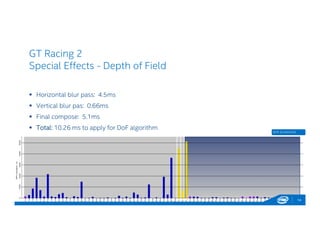
 Horizontal blur pass: 4.5ms
 Vertical blur pas: 0.66ms
 Final compose: 5.1ms
 Total: 10.26 ms to apply for DoF algorithm
14
GPA Screenshot
GT Racing 2
Special Effects – Heat Haze
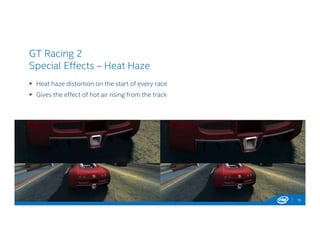
 Heat haze distortion on the start of every race
 Gives the effect of hot air rising from the track
15
GT Racing 2 Intel
Special Effects – Heat Haze
16
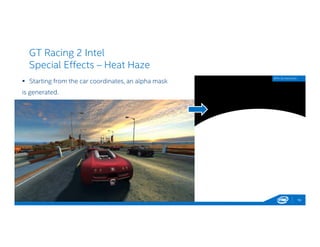
 Starting from the car coordinates, an alpha mask
is generated.
GPA Screenshot
GT Racing 2 Intel
Special Effects – Heat Haze
17
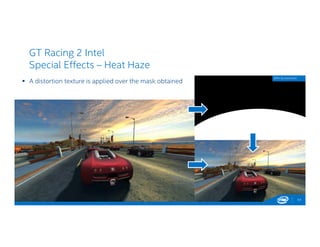
 A distortion texture is applied over the mask obtained
GPA Screenshot
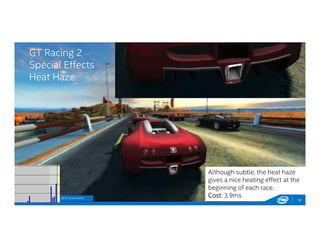
Although subtle, the heat haze
gives a nice heating effect at the
beginning of each race.
Cost: 3.9ms
GT Racing 2
Special Effects
Heat Haze
18
GPA Screenshot
GT Racing 2
Special Effects – Lightshafts
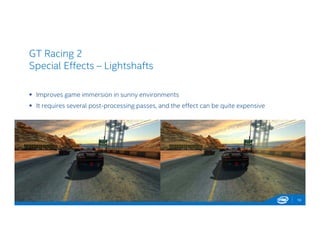
 Improves game immersion in sunny environments
 It requires several post-processing passes, and the effect can be quite expensive
19
GT Racing 2
Special Effects – Lightshafts
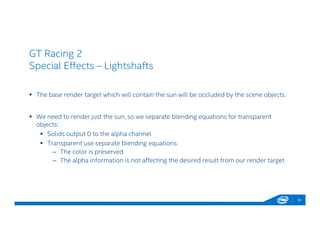
 The base render target which will contain the sun will be occluded by the scene objects.
 We need to render just the sun, so we separate blending equations for transparent
objects:
 Solids output 0 to the alpha channel
 Transparent use separate blending equations:
– The color is preserved
– The alpha information is not affecting the desired result from our render target
20
GT Racing 2
Special Effects – Lightshafts
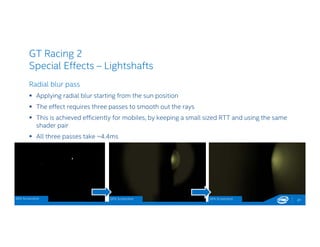
Radial blur pass
 Applying radial blur starting from the sun position
 The effect requires three passes to smooth out the rays
 This is achieved efficiently for mobiles, by keeping a small sized RTT and using the same
shader pair
 All three passes take ~4.4ms
21GPA Screenshot GPA Screenshot GPA Screenshot
GT Racing 2
Special Effects – Lightshafts
22
Radial blur pass
 In the vertex shader , we are computing texture coordinates for the radial blur
 mediump vec2 center = vec2(center_x, center_y); //sun position in uv coordinates
 mediump vec2 dir = (center - vCoord0) * scale; //radial blur direction
 mediump vec2 SampleUVDelta = (dir * blurScale) / 8.0; //offset for radial blur
 mediump float blurOffset = 0.01;
 vCoord0 = vCoord0 + (dir * blurOffset);
 vCoord1 = vCoord0 + SampleUVDelta;
 vCoord2 = vCoord1 + SampleUVDelta;
 vCoord3 = vCoord2 + SampleUVDelta;
 vCoord4 = vCoord3 + SampleUVDelta;
 vCoord5 = vCoord4 + SampleUVDelta;
 vCoord6 = vCoord5 + SampleUVDelta;
 vCoord7 = vCoord6 + SampleUVDelta;
GT Racing 2
Special Effects – Lightshafts
Radial blur pass
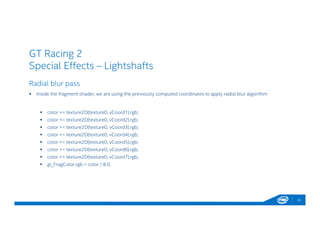
 Inside the fragment shader, we are using the previously computed coordinates to apply radial blur algorithm
 color += texture2D(texture0, vCoord1).rgb;
 color += texture2D(texture0, vCoord2).rgb;
 color += texture2D(texture0, vCoord3).rgb;
 color += texture2D(texture0, vCoord4).rgb;
 color += texture2D(texture0, vCoord5).rgb;
 color += texture2D(texture0, vCoord6).rgb;
 color += texture2D(texture0, vCoord7).rgb;
 gl_FragColor.rgb = color / 8.0;
23
GT Racing 2 Intel
Special Effects
Lightshafts
24
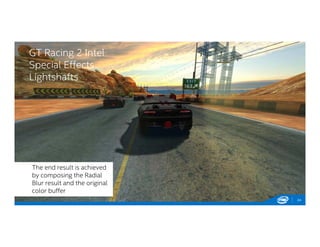
The end result is achieved
by composing the Radial
Blur result and the original
color buffer
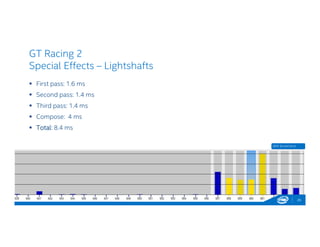
GT Racing 2
Special Effects – Lightshafts
 First pass: 1.6 ms
 Second pass: 1.4 ms
 Third pass: 1.4 ms
 Compose: 4 ms
 Total: 8.4 ms
25
GPA Screenshot
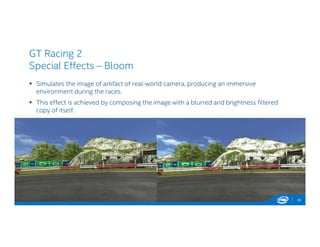
GT Racing 2
Special Effects – Bloom
 Simulates the image of artifact of real-world camera, producing an immersive
environment during the races.
 This effect is achieved by composing the image with a blurred and brightness filtered
copy of itself.
26
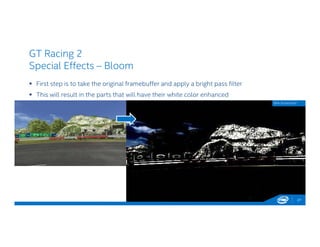
GT Racing 2
Special Effects – Bloom
 First step is to take the original framebuffer and apply a bright pass filter
 This will result in the parts that will have their white color enhanced
27
GPA Screenshot
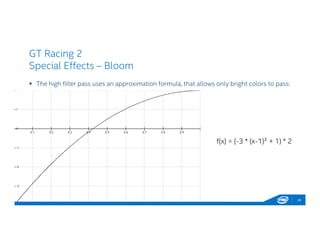
GT Racing 2
Special Effects – Bloom
 The high filter pass uses an approximation formula, that allows only bright colors to pass:
28
f(x) = (-3 * (x-1)² + 1) * 2
GT Racing 2
Special Effects – Bloom
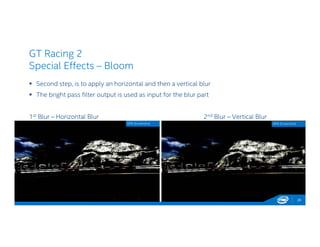
 Second step, is to apply an horizontal and then a vertical blur
 The bright pass filter output is used as input for the blur part
1st Blur – Horizontal Blur 2nd Blur – Vertical Blur
29
GPA Screenshot GPA Screenshot
GT Racing 2
Special Effects – Bloom
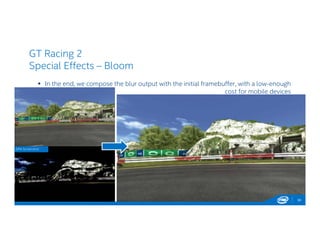
 In the end, we compose the blur output with the initial framebuffer, with a low-enough
cost for mobile devices
30
GPA Screenshot
GT Racing 2
Special Effects – Bloom
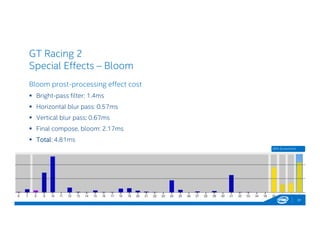
Bloom prost-processing effect cost
 Bright-pass filter: 1.4ms
 Horizontal blur pass: 0.57ms
 Vertical blur pass: 0.67ms
 Final compose, bloom: 2.17ms
 Total: 4.81ms
31
GPA Screenshot
GT Racing 2
Special Effects
32
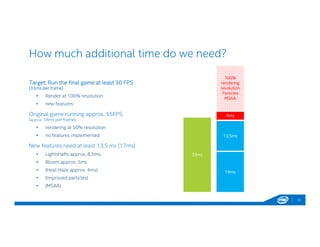
How much additional time do we need?
Target: Run the final game at least 30 FPS
(33ms per frame)
• Render at 100% resolution
• new features
Original game running approx. 55FPS
(approx. 18ms per frame)
• rendering at 50% resolution
• no features implemented
New features need at least 13,5 ms (17ms)
• Lightshafts approx. 8,5ms
• Bloom approx. 5ms
• (Heat Haze approx. 4ms)
• (Improved particles)
• (MSAA)
33
33ms
100%
rendering
resolution
Particles
MSAA
4ms
13,5ms
18ms
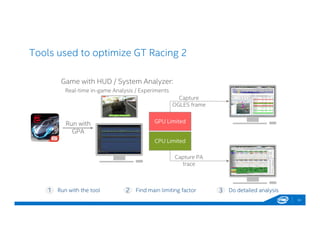
Tools used to optimize GT Racing 2
34
Run with the tool Find main limiting factor Do detailed analysis1 2 3
Game with HUD / System Analyzer:
Real-time in-game Analysis / Experiments
CPU Limited
GPU Limited
Capture
OGLES frame
Capture PA
trace
Run with
GPA
Optimization opportunities
35
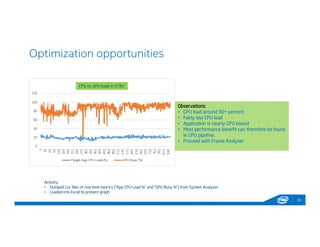
Observations:
• GPU load around 90+ percent
• Fairly low CPU load
• Application is clearly GPU bound
• Most performance benefit can therefore be found
in GPU pipeline.
• Proceed with Frame Analyzer
Observations:
• GPU load around 90+ percent
• Fairly low CPU load
• Application is clearly GPU bound
• Most performance benefit can therefore be found
in GPU pipeline.
• Proceed with Frame Analyzer
CPU vs. GPU loads in GTR2
Activity:
• Dumped csv files of real time metrics (“App CPU Load %” and “GPU Busy %”) from System Analyzer
• Loaded into Excel to present graph
Optimization opportunities
36
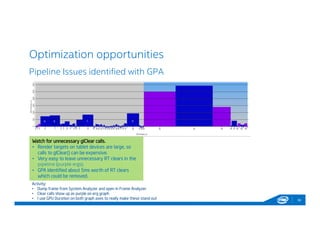
Pipeline Issues identified with GPA
Watch for unnecessary glClear calls.
• Render targets on tablet devices are large, so
calls to glClear() can be expensive.
• Very easy to leave unnecessary RT clears in the
pipeline (purple ergs).
• GPA Identified about 5ms worth of RT clears
which could be removed.
Watch for unnecessary glClear calls.
• Render targets on tablet devices are large, so
calls to glClear() can be expensive.
• Very easy to leave unnecessary RT clears in the
pipeline (purple ergs).
• GPA Identified about 5ms worth of RT clears
which could be removed.
Activity:
• Dump frame from System Analyzer and open in Frame Analyzer
• Clear calls show up as purple on erg graph
• I use GPU Duration on both graph axes to really make these stand out
Optimization opportunities
37
Pipeline Issues identified with GPA
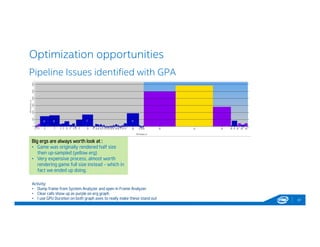
Big ergs are always worth look at :
• Game was originally rendered half size
then up-sampled (yellow erg)
• Very expensive process, almost worth
rendering game full size instead – which in
fact we ended up doing.
Activity:
• Dump frame from System Analyzer and open in Frame Analyzer
• Clear calls show up as purple on erg graph
• I use GPU Duration on both graph axes to really make these stand out
Optimization opportunities
38
Pipeline Issues identified with GPA
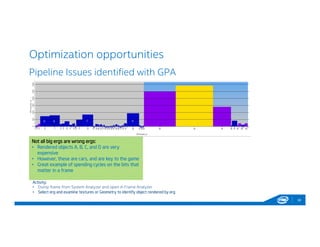
Not all big ergs are wrong ergs:
• Rendered objects A, B, C, and D are very
expensive
• However, these are cars, and are key to the game
• Great example of spending cycles on the bits that
matter in a frame
Not all big ergs are wrong ergs:
• Rendered objects A, B, C, and D are very
expensive
• However, these are cars, and are key to the game
• Great example of spending cycles on the bits that
matter in a frame
Activity:
• Dump frame from System Analyzer and open in Frame Analyzer
• Select erg and examine textures or Geometry to identify object rendered by erg
Optimization opportunities
39
Pipeline Issues identified with GPA
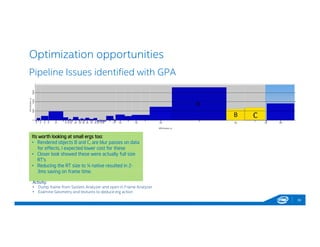
Its worth looking at small ergs too:
• Rendered objects B and C, are blur passes on data
for effects, I expected lower cost for these
• Closer look showed these were actually full size
RT’s
• Reducing the RT size to ¼ native resulted in 2-
3ms saving on frame time.
Its worth looking at small ergs too:
• Rendered objects B and C, are blur passes on data
for effects, I expected lower cost for these
• Closer look showed these were actually full size
RT’s
• Reducing the RT size to ¼ native resulted in 2-
3ms saving on frame time.
Activity:
• Dump frame from System Analyzer and open in Frame Analyzer
• Examine Geometry and textures to deduce erg action
Optimization opportunities
40
Pipeline Issues identified with GPA
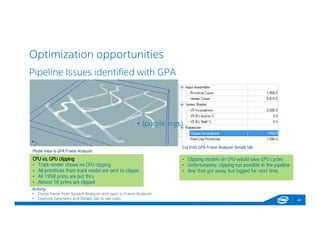
CPU vs. GPU clipping
• Track render shows no CPU clipping
• All primitives from track model are sent to clipper
• All 1958 prims are put thru
• Almost 1K prims are clipped
CPU vs. GPU clipping
• Track render shows no CPU clipping
• All primitives from track model are sent to clipper
• All 1958 prims are put thru
• Almost 1K prims are clipped
Activity:
• Dump frame from System Analyzer and open in Frame Analyzer
• Examine Geometry and Details tab to see stats
Model View in GPA Frame Analyzer
Cut from GPA Frame Analyzer Details tab
• Clipping models on CPU would save GPU cycles
• Unfortunately, clipping not possible in the pipeline
• One that got away, but logged for next time.
• Clipping models on CPU would save GPU cycles
• Unfortunately, clipping not possible in the pipeline
• One that got away, but logged for next time.
• (purple ergs).• (purple ergs).
Optimization opportunities
41
Pipeline Issues identified with GPA
Activity:
• Dump frame from System Analyzer and open in Frame Analyzer
• Find shader responsible for effect
• Edit shaders to experiment with effects without recompiling the game!
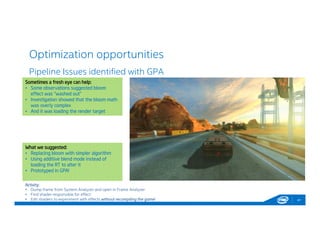
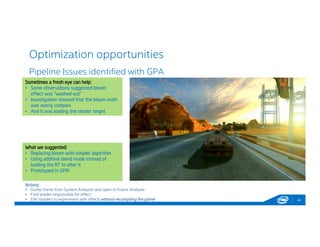
Sometimes a fresh eye can help:
• Some observations suggested bloom
effect was “washed out”
• Investigation showed that the bloom math
was overly complex
• And it was loading the render target
Sometimes a fresh eye can help:
• Some observations suggested bloom
effect was “washed out”
• Investigation showed that the bloom math
was overly complex
• And it was loading the render target
What we suggested:
• Replacing bloom with simpler algorithm
• Using additive blend mode instead of
loading the RT to alter it
• Prototyped in GPA!
What we suggested:
• Replacing bloom with simpler algorithm
• Using additive blend mode instead of
loading the RT to alter it
• Prototyped in GPA!
Optimization opportunities
42
Pipeline Issues identified with GPA
Activity:
• Dump frame from System Analyzer and open in Frame Analyzer
• Find shader responsible for effect
• Edit shaders to experiment with effects without recompiling the game!
Sometimes a fresh eye can help:
• Some observations suggested bloom
effect was “washed out”
• Investigation showed that the bloom math
was overly complex
• And it was loading the render target
Sometimes a fresh eye can help:
• Some observations suggested bloom
effect was “washed out”
• Investigation showed that the bloom math
was overly complex
• And it was loading the render target
What we suggested:
• Replacing bloom with simpler algorithm
• Using additive blend mode instead of
loading the RT to alter it
• Prototyped in GPA!
What we suggested:
• Replacing bloom with simpler algorithm
• Using additive blend mode instead of
loading the RT to alter it
• Prototyped in GPA!
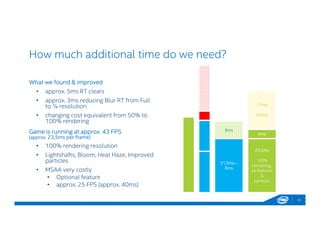
How much additional time do we need?
What we found & improved
• approx. 5ms RT clears
• approx. 3ms reducing Blur RT from Full
to ¼ resolution
• changing cost equivalent from 50% to
100% rendering
Game is running at approx. 43 FPS
(approx. 23,5ms per frame)
• 100% rendering resolution
• Lightshafts, Bloom, Heat Haze, Improved
particles
• MSAA very costly
• Optional feature
• approx. 25 FPS (approx. 40ms)
43
8ms
31,5ms –
8ms
17ms
MSAA
4ms
23,5ms
100%
rendering,
all features
&
particles
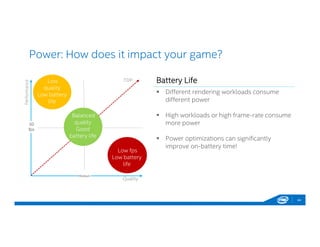
Power: How does it impact your game?
Performance
Quality
Low fps
Low battery
life
Low
quality
Low battery
life
30
fps
Medium
Balanced
quality
Good
battery life
TDP Battery Life
 Different rendering workloads consume
different power
 High workloads or high frame-rate consume
more power
 Power optimizations can significantly
improve on-battery time!
44
Optimization opportunities
45
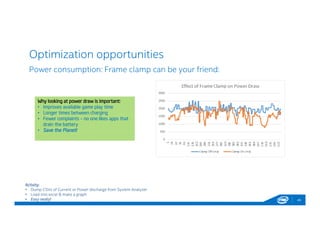
Power consumption: Frame clamp can be your friend:
Activity:
• Dump CSVs of Current or Power discharge from System Analyzer
• Load into excel & make a graph
• Easy really!
Why looking at power draw is important:
• Improves available game play time
• Longer times between charging
• Fewer complaints – no one likes apps that
drain the battery
• Save the Planet!
Why looking at power draw is important:
• Improves available game play time
• Longer times between charging
• Fewer complaints – no one likes apps that
drain the battery
• Save the Planet!
Adding x86 Build Target to your Android Game
46
• Not very different to ArmV7a
• 32 bit word size
• Little-endian storage
• HW FPU
• Not usually anything to do about textures
Minor differences
• Any low level vector math needs translating (NEON to SSE)
• Need to specify tool chain in Application.mk
• Easy runtime and compile time checks to detect platform if you need them
• Compiler flags (at O2) -march=atom, -mssse3, -finline-limit (about 300 is good for x86)
• Common starting issues
• Prebuilt libs will need recompiling
• Textures may need converting
Summary:
Optimization is the key to “Next Level” Graphics on Mobile devices!
47
Need high frame rate to allow room for effects like the ones we’ve seen.
• A 5ms effect means you need to shrink render time at 30fps by 15% to fit it in.
• Find those extra ms by profiling hard with GPA and staying on the look out for
savings at all times.
Resources:
• Android on x86 (_64) platforms (Alex/Xavier)
May 9th, 17.30h – 18.15h
• software.intel.com/android
• #intelandroid

new_age_graphics_android_x86

  • 1.
    Intel Confidential —Do Not Forward New Age Graphics on Android x86. Adding high-end graphical effects to GT Racing 2 on Android x86. Björn Taubert | Software Application Engineer | Intel GmbH #intelandroid software.intel.com/android GPA Screenshot
  • 2.
    GT Racing 2- Introduction 2  Introducing the Intel & Gameloft team: Adrian Voinea & Steve Hughes  Gameloft, the leading global publisher with key franchises like Asphalt, Despicable Me, Ice Age, Modern Combat  Intel, global silicon company to push the hardware capabilities of BayTrail T running Android KitKat.  Optimize GT Racing 2 (visual experience, performance, battery life)  Depth of Field  Light Shafts  Heat Haze  Bloom  Improved Particles  MSAA
  • 3.
    Intel® Atom™ platform:Roadmap 3 2012 2013 2014 2015 Clover Trail SmartphonesTablets/2-in-1s Bay Trail Clover Trail+ Merrifield Intel ® HD Graphics 4 EUs Intel ® HD Graphics 4 EUs 9.3 2.1 2.0 Clover Trail+ 2.0 11.0 3.2 3.0 Bay Trail 3.0 Series 6 GfxSGX544MP2 SGX545 SGX545 Q1 Q2 Q3 Q4 Q1 Q2 Q3 Q4 Q1 Q2 Q3 Q4 Q1 Q2 Q3 Q4 Cherry Trail Series 6 Gfx Start using Intel® HD Graphics instead of PVR Start using Intel® HD Graphics instead of PVR OpenGL|ES 3.0+ DirectX 11+, OpenGL|ES 3.0+ Cherry Trail Intel ® HD Graphics 4 EUs 14nm 14nm
  • 4.
  • 5.
  • 6.
  • 7.
  • 8.
  • 9.
    GT Racing 2 SpecialEffects - Depth of Field  Active in Main Menu  Puts emphasis on the car displayed by blurring further objects  Two blur sub passes, vertical and horizontal, that are merged together in the final composition step 9
  • 10.
    GT Racing 2 SpecialEffects - Depth of Field  Horizontal blur applied to the initial framebuffer  Output is ¼ of native resolution 10 GPA Screenshot
  • 11.
    GT Racing 2 SpecialEffects - Depth of Field  Vertical blur is applied to the output buffer from the horizontal blur step 11 GPA Screenshot
  • 12.
    GT Racing 2 SpecialEffects - Depth of Field The Depth of Field shader uses a depth difference to control the blur  lowp vec3 color = texture2D(texture0, vCoord0).rgb; //unaltered render target  lowp vec3 blur = texture2D(texture3, vCoord0).rgb; //blurred render target  lowp float depthDiff = abs(depth - focusDepth); //calculate the depth difference between a chosen focus point  depthDiff += smoothstep(0.24, 1.0, length(focusPoint - vCoord0)); //take in consideration only the depth value greater then 0.24  lowp vec3 dofColor = mix(color, blur, depthDiff); //color * (1 - depthDiff) + blur * depthDiff 12
  • 13.
    GT Racing 2 SpecialEffects - Depth of Field 13 GPA Screenshot
  • 14.
    GT Racing 2 SpecialEffects - Depth of Field  Horizontal blur pass: 4.5ms  Vertical blur pas: 0.66ms  Final compose: 5.1ms  Total: 10.26 ms to apply for DoF algorithm 14 GPA Screenshot
  • 15.
    GT Racing 2 SpecialEffects – Heat Haze  Heat haze distortion on the start of every race  Gives the effect of hot air rising from the track 15
  • 16.
    GT Racing 2Intel Special Effects – Heat Haze 16  Starting from the car coordinates, an alpha mask is generated. GPA Screenshot
  • 17.
    GT Racing 2Intel Special Effects – Heat Haze 17  A distortion texture is applied over the mask obtained GPA Screenshot
  • 18.
    Although subtle, theheat haze gives a nice heating effect at the beginning of each race. Cost: 3.9ms GT Racing 2 Special Effects Heat Haze 18 GPA Screenshot
  • 19.
    GT Racing 2 SpecialEffects – Lightshafts  Improves game immersion in sunny environments  It requires several post-processing passes, and the effect can be quite expensive 19
  • 20.
    GT Racing 2 SpecialEffects – Lightshafts  The base render target which will contain the sun will be occluded by the scene objects.  We need to render just the sun, so we separate blending equations for transparent objects:  Solids output 0 to the alpha channel  Transparent use separate blending equations: – The color is preserved – The alpha information is not affecting the desired result from our render target 20
  • 21.
    GT Racing 2 SpecialEffects – Lightshafts Radial blur pass  Applying radial blur starting from the sun position  The effect requires three passes to smooth out the rays  This is achieved efficiently for mobiles, by keeping a small sized RTT and using the same shader pair  All three passes take ~4.4ms 21GPA Screenshot GPA Screenshot GPA Screenshot
  • 22.
    GT Racing 2 SpecialEffects – Lightshafts 22 Radial blur pass  In the vertex shader , we are computing texture coordinates for the radial blur  mediump vec2 center = vec2(center_x, center_y); //sun position in uv coordinates  mediump vec2 dir = (center - vCoord0) * scale; //radial blur direction  mediump vec2 SampleUVDelta = (dir * blurScale) / 8.0; //offset for radial blur  mediump float blurOffset = 0.01;  vCoord0 = vCoord0 + (dir * blurOffset);  vCoord1 = vCoord0 + SampleUVDelta;  vCoord2 = vCoord1 + SampleUVDelta;  vCoord3 = vCoord2 + SampleUVDelta;  vCoord4 = vCoord3 + SampleUVDelta;  vCoord5 = vCoord4 + SampleUVDelta;  vCoord6 = vCoord5 + SampleUVDelta;  vCoord7 = vCoord6 + SampleUVDelta;
  • 23.
    GT Racing 2 SpecialEffects – Lightshafts Radial blur pass  Inside the fragment shader, we are using the previously computed coordinates to apply radial blur algorithm  color += texture2D(texture0, vCoord1).rgb;  color += texture2D(texture0, vCoord2).rgb;  color += texture2D(texture0, vCoord3).rgb;  color += texture2D(texture0, vCoord4).rgb;  color += texture2D(texture0, vCoord5).rgb;  color += texture2D(texture0, vCoord6).rgb;  color += texture2D(texture0, vCoord7).rgb;  gl_FragColor.rgb = color / 8.0; 23
  • 24.
    GT Racing 2Intel Special Effects Lightshafts 24 The end result is achieved by composing the Radial Blur result and the original color buffer
  • 25.
    GT Racing 2 SpecialEffects – Lightshafts  First pass: 1.6 ms  Second pass: 1.4 ms  Third pass: 1.4 ms  Compose: 4 ms  Total: 8.4 ms 25 GPA Screenshot
  • 26.
    GT Racing 2 SpecialEffects – Bloom  Simulates the image of artifact of real-world camera, producing an immersive environment during the races.  This effect is achieved by composing the image with a blurred and brightness filtered copy of itself. 26
  • 27.
    GT Racing 2 SpecialEffects – Bloom  First step is to take the original framebuffer and apply a bright pass filter  This will result in the parts that will have their white color enhanced 27 GPA Screenshot
  • 28.
    GT Racing 2 SpecialEffects – Bloom  The high filter pass uses an approximation formula, that allows only bright colors to pass: 28 f(x) = (-3 * (x-1)² + 1) * 2
  • 29.
    GT Racing 2 SpecialEffects – Bloom  Second step, is to apply an horizontal and then a vertical blur  The bright pass filter output is used as input for the blur part 1st Blur – Horizontal Blur 2nd Blur – Vertical Blur 29 GPA Screenshot GPA Screenshot
  • 30.
    GT Racing 2 SpecialEffects – Bloom  In the end, we compose the blur output with the initial framebuffer, with a low-enough cost for mobile devices 30 GPA Screenshot
  • 31.
    GT Racing 2 SpecialEffects – Bloom Bloom prost-processing effect cost  Bright-pass filter: 1.4ms  Horizontal blur pass: 0.57ms  Vertical blur pass: 0.67ms  Final compose, bloom: 2.17ms  Total: 4.81ms 31 GPA Screenshot
  • 32.
  • 33.
    How much additionaltime do we need? Target: Run the final game at least 30 FPS (33ms per frame) • Render at 100% resolution • new features Original game running approx. 55FPS (approx. 18ms per frame) • rendering at 50% resolution • no features implemented New features need at least 13,5 ms (17ms) • Lightshafts approx. 8,5ms • Bloom approx. 5ms • (Heat Haze approx. 4ms) • (Improved particles) • (MSAA) 33 33ms 100% rendering resolution Particles MSAA 4ms 13,5ms 18ms
  • 34.
    Tools used tooptimize GT Racing 2 34 Run with the tool Find main limiting factor Do detailed analysis1 2 3 Game with HUD / System Analyzer: Real-time in-game Analysis / Experiments CPU Limited GPU Limited Capture OGLES frame Capture PA trace Run with GPA
  • 35.
    Optimization opportunities 35 Observations: • GPUload around 90+ percent • Fairly low CPU load • Application is clearly GPU bound • Most performance benefit can therefore be found in GPU pipeline. • Proceed with Frame Analyzer Observations: • GPU load around 90+ percent • Fairly low CPU load • Application is clearly GPU bound • Most performance benefit can therefore be found in GPU pipeline. • Proceed with Frame Analyzer CPU vs. GPU loads in GTR2 Activity: • Dumped csv files of real time metrics (“App CPU Load %” and “GPU Busy %”) from System Analyzer • Loaded into Excel to present graph
  • 36.
    Optimization opportunities 36 Pipeline Issuesidentified with GPA Watch for unnecessary glClear calls. • Render targets on tablet devices are large, so calls to glClear() can be expensive. • Very easy to leave unnecessary RT clears in the pipeline (purple ergs). • GPA Identified about 5ms worth of RT clears which could be removed. Watch for unnecessary glClear calls. • Render targets on tablet devices are large, so calls to glClear() can be expensive. • Very easy to leave unnecessary RT clears in the pipeline (purple ergs). • GPA Identified about 5ms worth of RT clears which could be removed. Activity: • Dump frame from System Analyzer and open in Frame Analyzer • Clear calls show up as purple on erg graph • I use GPU Duration on both graph axes to really make these stand out
  • 37.
    Optimization opportunities 37 Pipeline Issuesidentified with GPA Big ergs are always worth look at : • Game was originally rendered half size then up-sampled (yellow erg) • Very expensive process, almost worth rendering game full size instead – which in fact we ended up doing. Activity: • Dump frame from System Analyzer and open in Frame Analyzer • Clear calls show up as purple on erg graph • I use GPU Duration on both graph axes to really make these stand out
  • 38.
    Optimization opportunities 38 Pipeline Issuesidentified with GPA Not all big ergs are wrong ergs: • Rendered objects A, B, C, and D are very expensive • However, these are cars, and are key to the game • Great example of spending cycles on the bits that matter in a frame Not all big ergs are wrong ergs: • Rendered objects A, B, C, and D are very expensive • However, these are cars, and are key to the game • Great example of spending cycles on the bits that matter in a frame Activity: • Dump frame from System Analyzer and open in Frame Analyzer • Select erg and examine textures or Geometry to identify object rendered by erg
  • 39.
    Optimization opportunities 39 Pipeline Issuesidentified with GPA Its worth looking at small ergs too: • Rendered objects B and C, are blur passes on data for effects, I expected lower cost for these • Closer look showed these were actually full size RT’s • Reducing the RT size to ¼ native resulted in 2- 3ms saving on frame time. Its worth looking at small ergs too: • Rendered objects B and C, are blur passes on data for effects, I expected lower cost for these • Closer look showed these were actually full size RT’s • Reducing the RT size to ¼ native resulted in 2- 3ms saving on frame time. Activity: • Dump frame from System Analyzer and open in Frame Analyzer • Examine Geometry and textures to deduce erg action
  • 40.
    Optimization opportunities 40 Pipeline Issuesidentified with GPA CPU vs. GPU clipping • Track render shows no CPU clipping • All primitives from track model are sent to clipper • All 1958 prims are put thru • Almost 1K prims are clipped CPU vs. GPU clipping • Track render shows no CPU clipping • All primitives from track model are sent to clipper • All 1958 prims are put thru • Almost 1K prims are clipped Activity: • Dump frame from System Analyzer and open in Frame Analyzer • Examine Geometry and Details tab to see stats Model View in GPA Frame Analyzer Cut from GPA Frame Analyzer Details tab • Clipping models on CPU would save GPU cycles • Unfortunately, clipping not possible in the pipeline • One that got away, but logged for next time. • Clipping models on CPU would save GPU cycles • Unfortunately, clipping not possible in the pipeline • One that got away, but logged for next time. • (purple ergs).• (purple ergs).
  • 41.
    Optimization opportunities 41 Pipeline Issuesidentified with GPA Activity: • Dump frame from System Analyzer and open in Frame Analyzer • Find shader responsible for effect • Edit shaders to experiment with effects without recompiling the game! Sometimes a fresh eye can help: • Some observations suggested bloom effect was “washed out” • Investigation showed that the bloom math was overly complex • And it was loading the render target Sometimes a fresh eye can help: • Some observations suggested bloom effect was “washed out” • Investigation showed that the bloom math was overly complex • And it was loading the render target What we suggested: • Replacing bloom with simpler algorithm • Using additive blend mode instead of loading the RT to alter it • Prototyped in GPA! What we suggested: • Replacing bloom with simpler algorithm • Using additive blend mode instead of loading the RT to alter it • Prototyped in GPA!
  • 42.
    Optimization opportunities 42 Pipeline Issuesidentified with GPA Activity: • Dump frame from System Analyzer and open in Frame Analyzer • Find shader responsible for effect • Edit shaders to experiment with effects without recompiling the game! Sometimes a fresh eye can help: • Some observations suggested bloom effect was “washed out” • Investigation showed that the bloom math was overly complex • And it was loading the render target Sometimes a fresh eye can help: • Some observations suggested bloom effect was “washed out” • Investigation showed that the bloom math was overly complex • And it was loading the render target What we suggested: • Replacing bloom with simpler algorithm • Using additive blend mode instead of loading the RT to alter it • Prototyped in GPA! What we suggested: • Replacing bloom with simpler algorithm • Using additive blend mode instead of loading the RT to alter it • Prototyped in GPA!
  • 43.
    How much additionaltime do we need? What we found & improved • approx. 5ms RT clears • approx. 3ms reducing Blur RT from Full to ¼ resolution • changing cost equivalent from 50% to 100% rendering Game is running at approx. 43 FPS (approx. 23,5ms per frame) • 100% rendering resolution • Lightshafts, Bloom, Heat Haze, Improved particles • MSAA very costly • Optional feature • approx. 25 FPS (approx. 40ms) 43 8ms 31,5ms – 8ms 17ms MSAA 4ms 23,5ms 100% rendering, all features & particles
  • 44.
    Power: How doesit impact your game? Performance Quality Low fps Low battery life Low quality Low battery life 30 fps Medium Balanced quality Good battery life TDP Battery Life  Different rendering workloads consume different power  High workloads or high frame-rate consume more power  Power optimizations can significantly improve on-battery time! 44
  • 45.
    Optimization opportunities 45 Power consumption:Frame clamp can be your friend: Activity: • Dump CSVs of Current or Power discharge from System Analyzer • Load into excel & make a graph • Easy really! Why looking at power draw is important: • Improves available game play time • Longer times between charging • Fewer complaints – no one likes apps that drain the battery • Save the Planet! Why looking at power draw is important: • Improves available game play time • Longer times between charging • Fewer complaints – no one likes apps that drain the battery • Save the Planet!
  • 46.
    Adding x86 BuildTarget to your Android Game 46 • Not very different to ArmV7a • 32 bit word size • Little-endian storage • HW FPU • Not usually anything to do about textures Minor differences • Any low level vector math needs translating (NEON to SSE) • Need to specify tool chain in Application.mk • Easy runtime and compile time checks to detect platform if you need them • Compiler flags (at O2) -march=atom, -mssse3, -finline-limit (about 300 is good for x86) • Common starting issues • Prebuilt libs will need recompiling • Textures may need converting
  • 47.
    Summary: Optimization is thekey to “Next Level” Graphics on Mobile devices! 47 Need high frame rate to allow room for effects like the ones we’ve seen. • A 5ms effect means you need to shrink render time at 30fps by 15% to fit it in. • Find those extra ms by profiling hard with GPA and staying on the look out for savings at all times. Resources: • Android on x86 (_64) platforms (Alex/Xavier) May 9th, 17.30h – 18.15h • software.intel.com/android • #intelandroid