Network Troubleshooting and
                                                   Problem Identification- Part 2

                  Tips for Configuration and IP Address
                                 Conflicts

© 2012, SolarWinds Worldwide, LLC. All rights reserved.

                                                          1
Agenda

 Troubleshooting Network Configuration & IP Address Conflicts

 »      1. Troubleshooting Configuration Issues

 »      2. Troubleshooting IP Address Conflicts

 »      3. Network Troubleshooting Steps

 »      4. Tools for Network Troubleshooting

 »      5. How can SolarWinds help?


NETWORK TROUBLESHOOTING AND PROBLEM IDENTIFICATION
                                                     2
1. Troubleshooting Configuration Issues

 »      Reasons for more than 80% of network issues: Device configuration
        errors

 »      Why?
       »      Unplanned, unauthorized and not fully tested prior to deployment.


 »      Keep an archive of your device configurations so that you can compare
        the current version to the previously archived versions


NETWORK TROUBLESHOOTING AND PROBLEM IDENTIFICATION
                                                     3
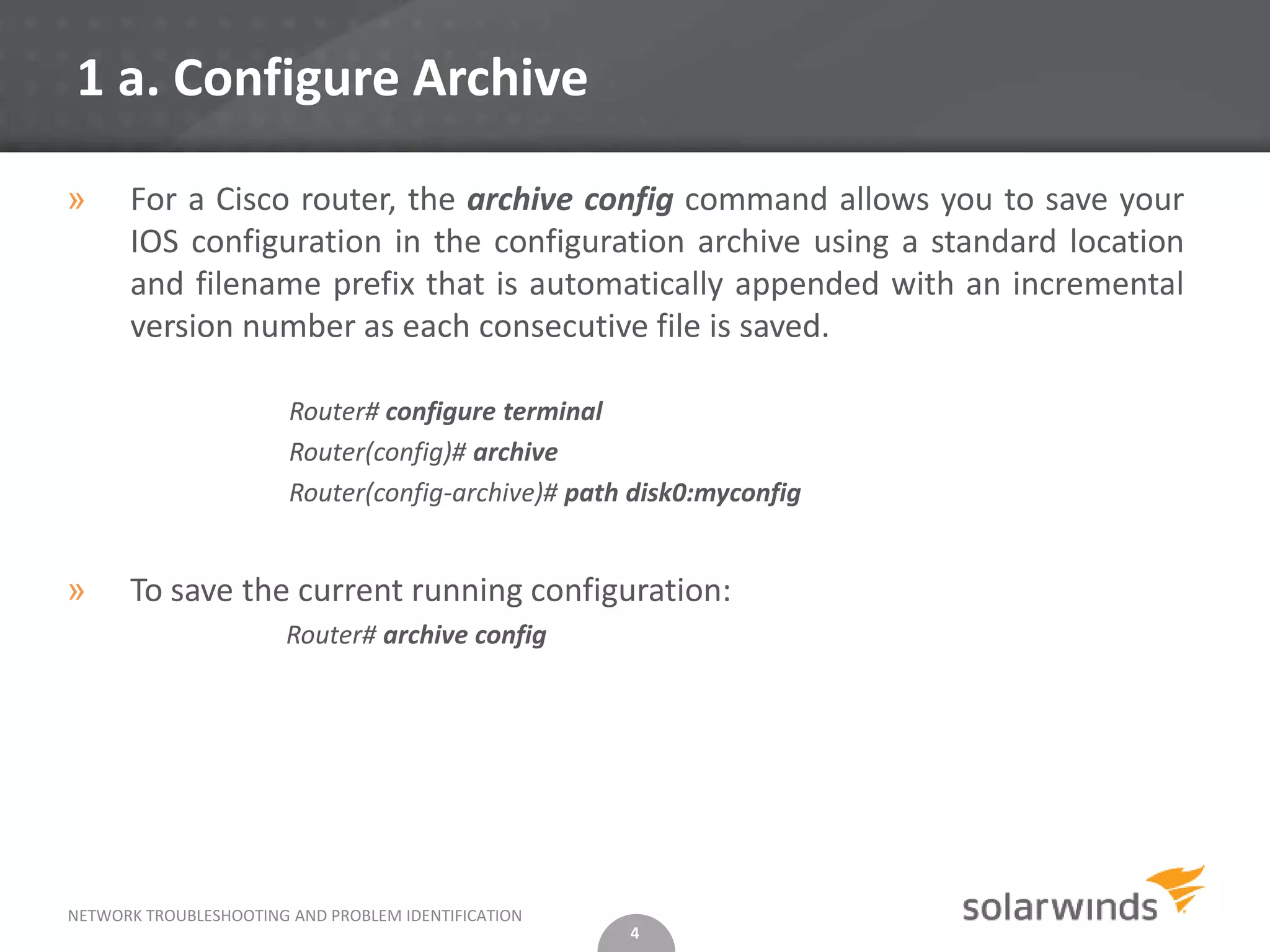
1 a. Configure Archive

»     For a Cisco router, the archive config command allows you to save your
      IOS configuration in the configuration archive using a standard location
      and filename prefix that is automatically appended with an incremental
      version number as each consecutive file is saved.

                        Router# configure terminal
                        Router(config)# archive
                        Router(config-archive)# path disk0:myconfig


»     To save the current running configuration:
                        Router# archive config


NETWORK TROUBLESHOOTING AND PROBLEM IDENTIFICATION
                                                     4
1 b. Show Archive

»       The show archive command displays information on the files saved in the
        configuration archive as shown in the following sample output:
                       Router# show archive
                   There are currently 1 archive configurations saved.
                   The next archive file will be named disk0:myconfig-2
                   Archive # Name
                    0
                    1    disk0:myconfig-1 <- Most Recent
                    2


»       Assuming that you have a config archive, you can perform a line-by-line comparison of
        any two configuration files and generate a list of the differences between them using
        the show archive config differences command.

               show archive config differences[filename1(path)[filename2(path)][ignorecase]]


    NETWORK TROUBLESHOOTING AND PROBLEM IDENTIFICATION
                                                         5
1 b. Show Archive (Contd.)
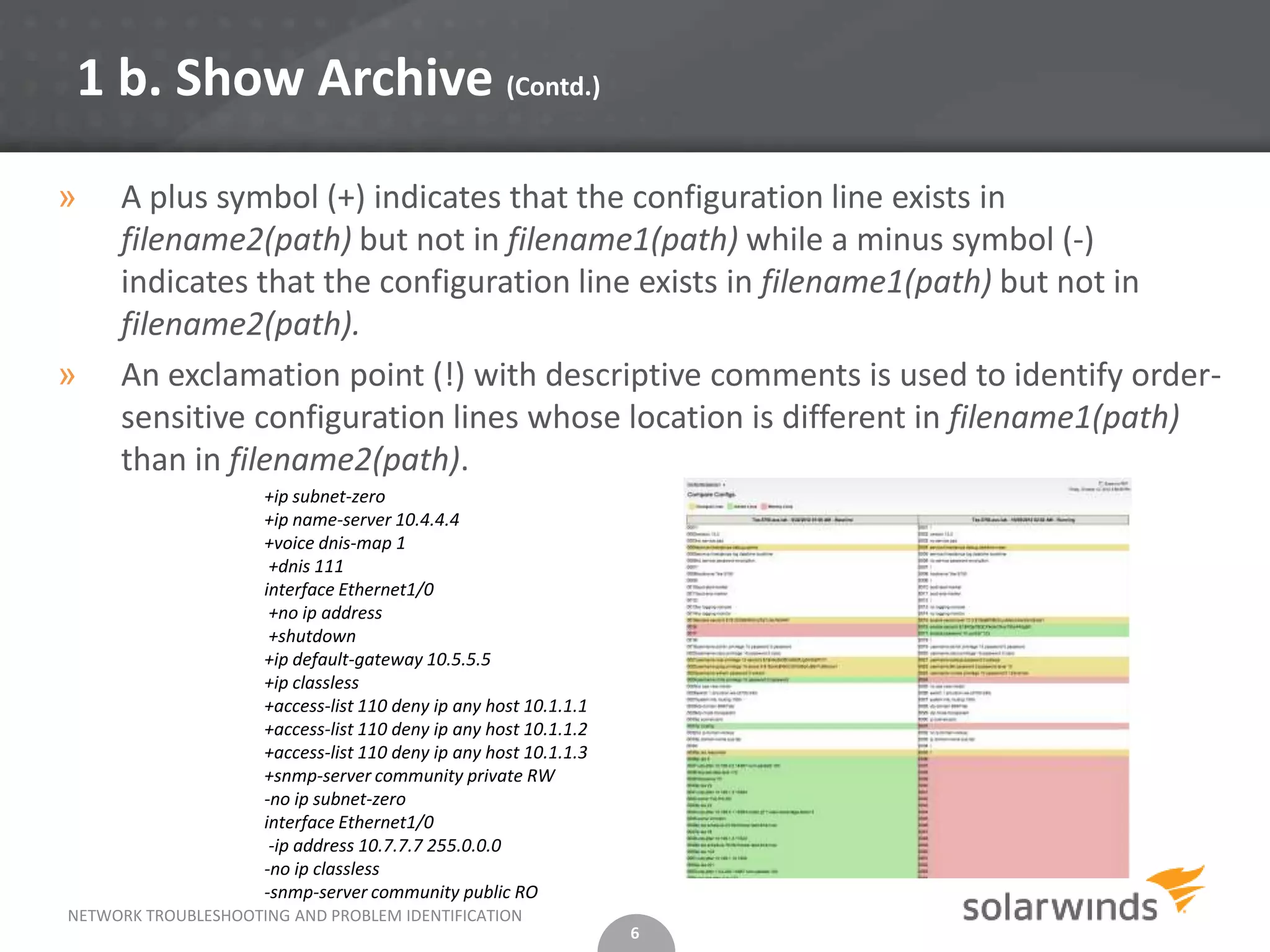
»    A plus symbol (+) indicates that the configuration line exists in
     filename2(path) but not in filename1(path) while a minus symbol (-)
     indicates that the configuration line exists in filename1(path) but not in
     filename2(path).
»    An exclamation point (!) with descriptive comments is used to identify order-
     sensitive configuration lines whose location is different in filename1(path)
     than in filename2(path).
                     +ip subnet-zero
                     +ip name-server 10.4.4.4
                     +voice dnis-map 1
                      +dnis 111
                     interface Ethernet1/0
                      +no ip address
                      +shutdown
                     +ip default-gateway 10.5.5.5
                     +ip classless
                     +access-list 110 deny ip any host 10.1.1.1
                     +access-list 110 deny ip any host 10.1.1.2
                     +access-list 110 deny ip any host 10.1.1.3
                     +snmp-server community private RW
                     -no ip subnet-zero
                     interface Ethernet1/0
                      -ip address 10.7.7.7 255.0.0.0
                     -no ip classless
                     -snmp-server community public RO
NETWORK TROUBLESHOOTING AND PROBLEM IDENTIFICATION
                                                                  6
1 b. Show Archive (Contd.)

»     Once you determine that a config has changed, its easy to replace the current
      running config with any saved config file using the configure replace command.


                Router# configure replace disk0:myconfig

                This will apply all necessary additions and deletions
                to replace the current running configuration with the
                contents of the specified configuration file, which is
                assumed to be a complete configuration, not a partial
                configuration.
                Enter Y if you are sure you want to proceed. ? [no]: Y
                 Total number of passes: 1
                Rollback Done


NETWORK TROUBLESHOOTING AND PROBLEM IDENTIFICATION
                                                     7
2. Troubleshooting IP Address Conflicts

»      IP address conflicts occur when two devices on a network are assigned
       the same IP address resulting in one or both being disabled and losing
       connectivity until the conflict is resolved.

»      IP address conflicts mostly occur due to configuration errors including:
              • Assignment of the same static IP address by a network administrator

              • Assignment of a static IP address within the DHCP range (dynamic range) resulting
                in the same address being automatically assigned by the local DHCP server

              • An error in the DHCP server

              • A system coming back online after an extended period in stand-by or hibernate
                mode with an IP address that has been re-assigned and is in use on the network


NETWORK TROUBLESHOOTING AND PROBLEM IDENTIFICATION
                                                     8
2. Troubleshooting IP Address Conflicts                                          Step 1
    (Contd.)


»     Look For Overlapping IP Address Ranges on Your DHCP Server

       Verify that no two servers have overlapping IP address ranges.

       This can be as simple as comparing the IP address ranges and looking for
        overlaps when the servers are using dynamic or automatic allocation of IP
        addresses.

       If they are using static allocation, then you will need to review each hard coded
        IP address assignment.


                                              9
2. Troubleshooting IP Address Conflicts                                         Step 2
    (Contd.)


»       Look for Duplicate Static IP Addresses

         Look for devices on the network segment that have been statically configured
          with the duplicate IP address.


         Once found, you can either reconfigure the device to use DHCP or you can
          configure the DHCP server to stop assigning the duplicated IP address.


    NETWORK TROUBLESHOOTING AND PROBLEM IDENTIFICATION
                                                         10
2. Troubleshooting IP Address Conflicts                                             Step 3
(Contd.)


»      If steps 1 and 2 do not produce results, you will need to find the MAC addresses
       of the conflicting devices.

»      Since the MAC address is unique for each device on the network, you can look for
       devices that contain the same IP address but with different MAC addresses.

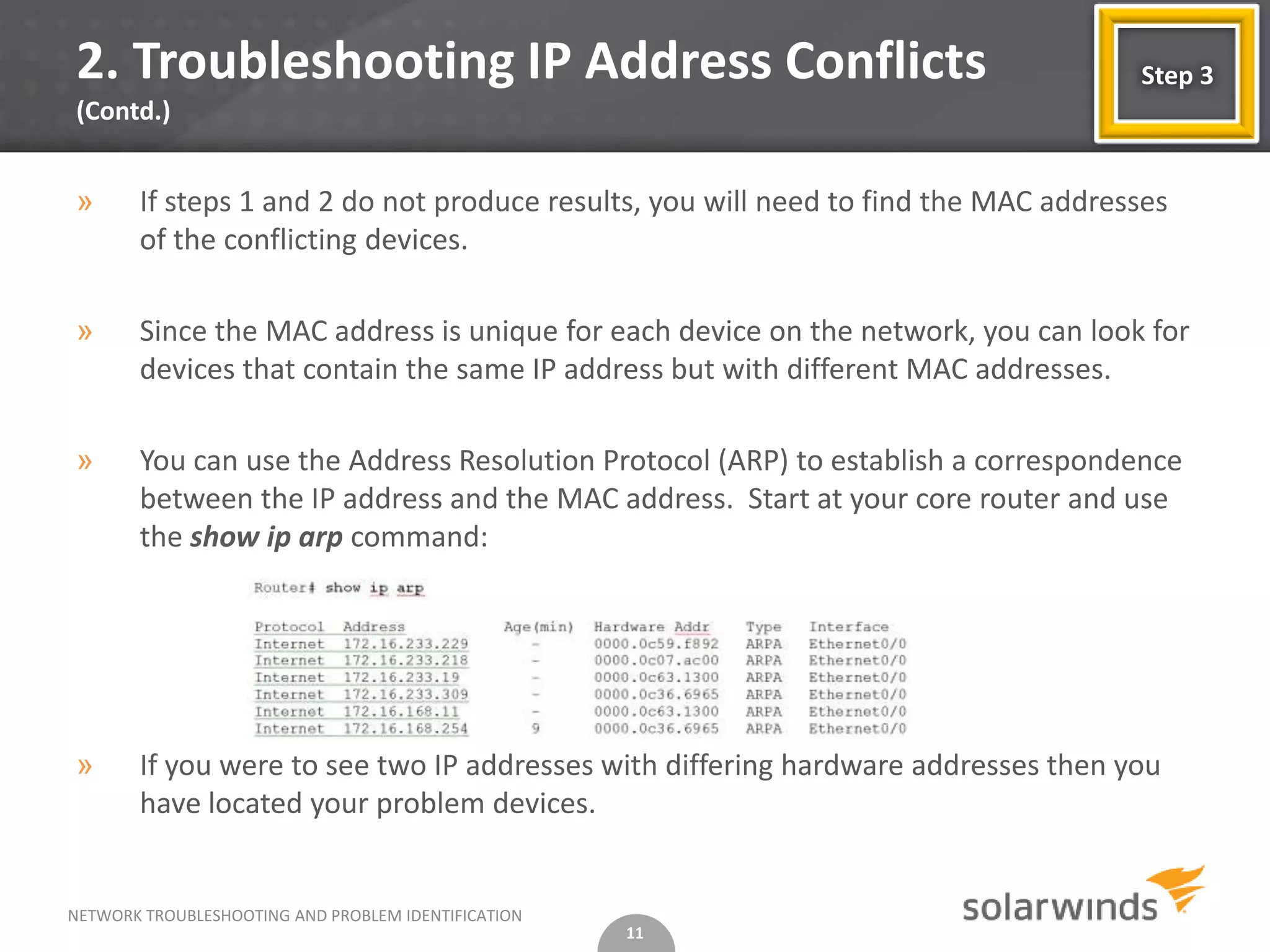
»      You can use the Address Resolution Protocol (ARP) to establish a correspondence
       between the IP address and the MAC address. Start at your core router and use
       the show ip arp command:


»      If you were to see two IP addresses with differing hardware addresses then you
       have located your problem devices.


NETWORK TROUBLESHOOTING AND PROBLEM IDENTIFICATION
                                                     11
2. Troubleshooting IP Address Conflicts                                              Step 4
(Contd.)


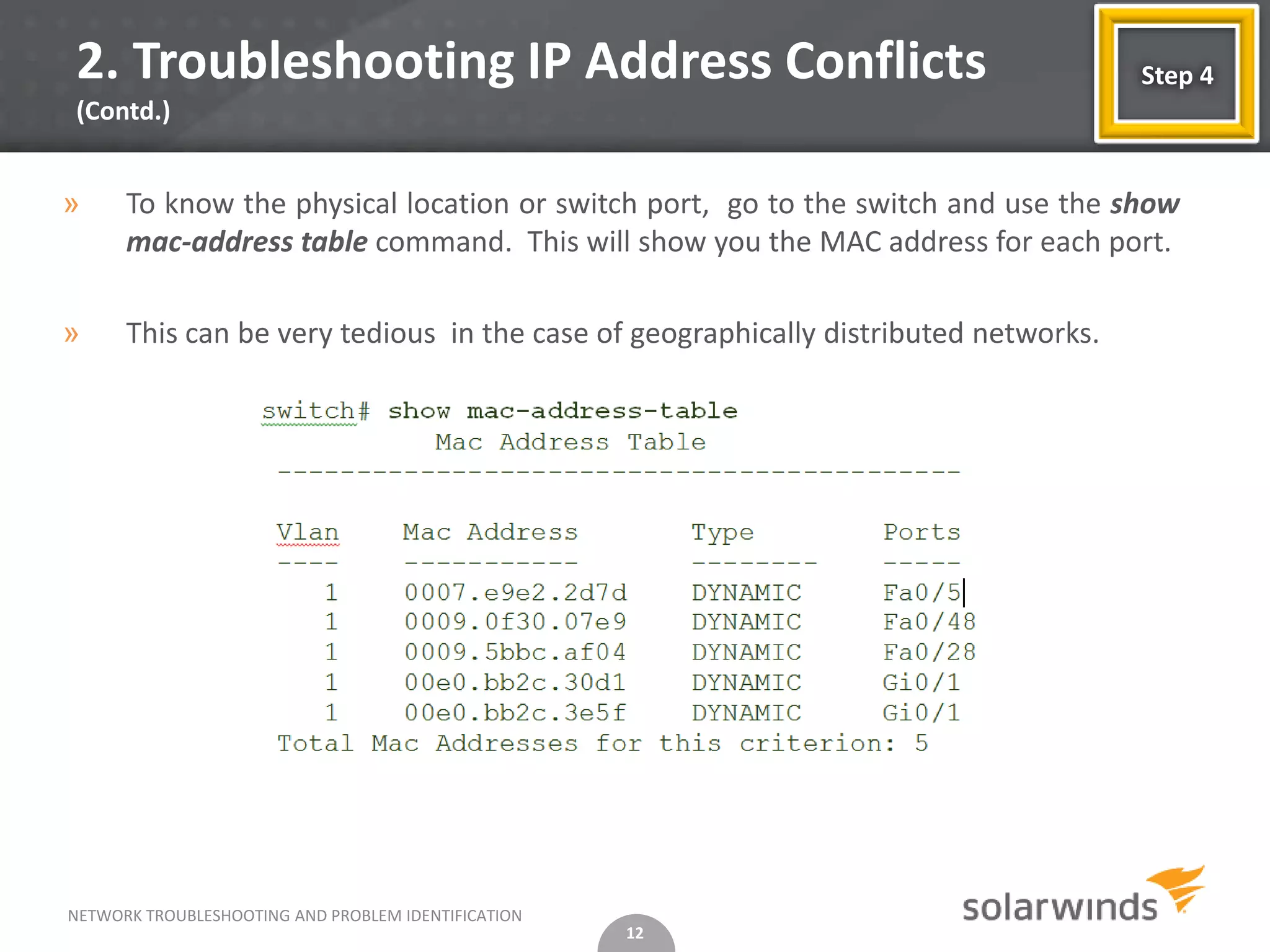
»     To know the physical location or switch port, go to the switch and use the show
      mac-address table command. This will show you the MAC address for each port.

»     This can be very tedious in the case of geographically distributed networks.


NETWORK TROUBLESHOOTING AND PROBLEM IDENTIFICATION
                                                     12
2. Troubleshooting IP Address Conflicts (Contd.)

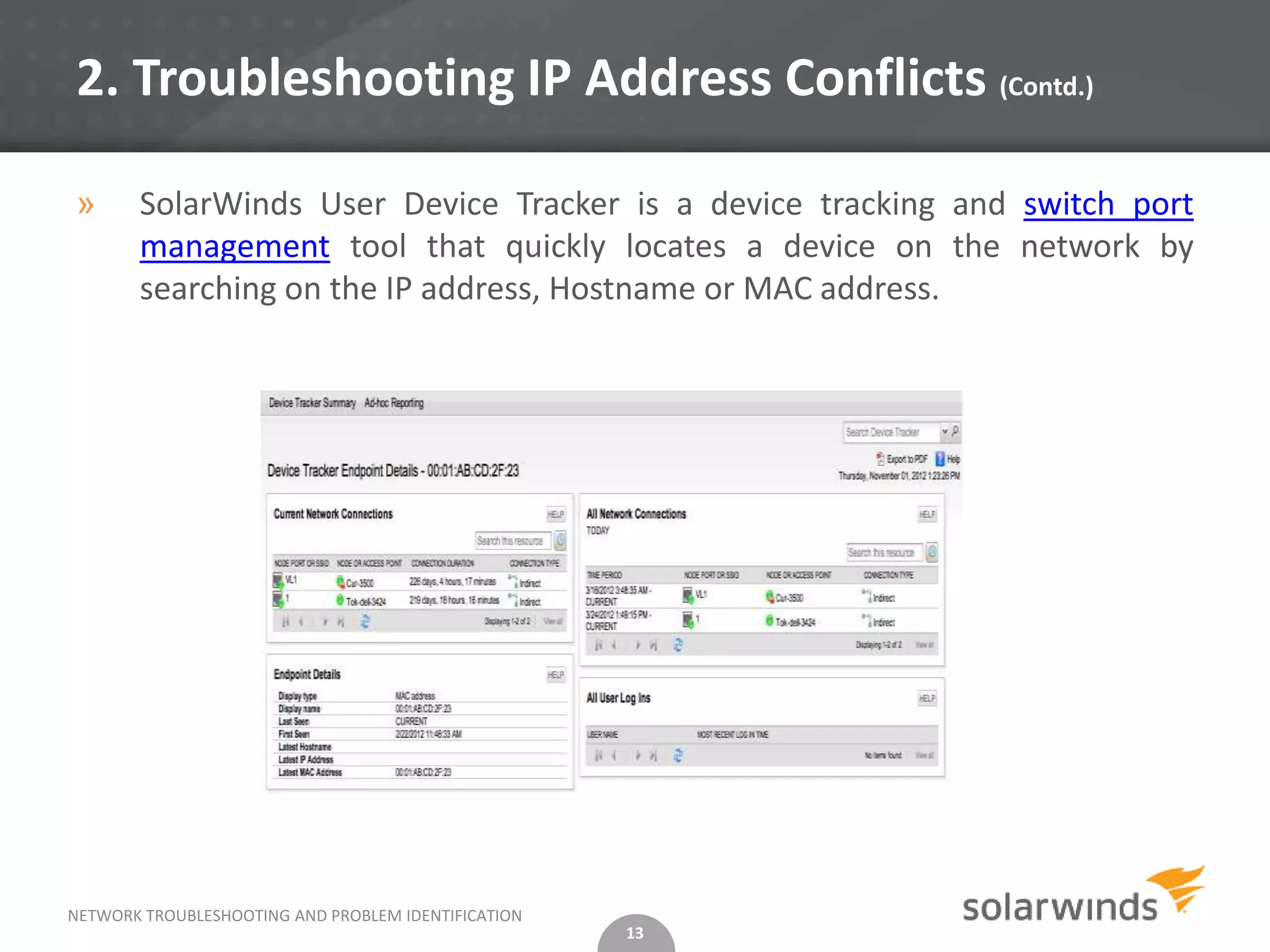
»      SolarWinds User Device Tracker is a device tracking and switch port
       management tool that quickly locates a device on the network by
       searching on the IP address, Hostname or MAC address.


NETWORK TROUBLESHOOTING AND PROBLEM IDENTIFICATION
                                                     13
2 a. Preventing conflicts in the Future

»      Some tips to prevent future conflicts
          Use DHCP to reduce the chances of manually assigning duplicate addresses.
          Set your DHCP server to detect IP address conflicts.
          Modify the DHCP lease duration to something less than the default lease time of 8 days.
          Use multiple DHCP servers, each having it own specific scope.
          Reserve IP addresses instead of assigning static IP addresses.
          Use automated DHCP, DNS, and IP address management and monitoring tools


»      Despite these preventive measures, the possibility that IP conflicts
       occurring still remains

»      It is better to evaluate a commercially available IP address management
       product that allows you to centrally manage, monitor, alert, and report
       on your IP infrastructure.


NETWORK TROUBLESHOOTING AND PROBLEM IDENTIFICATION
                                                     14
3. Network Troubleshooting Steps

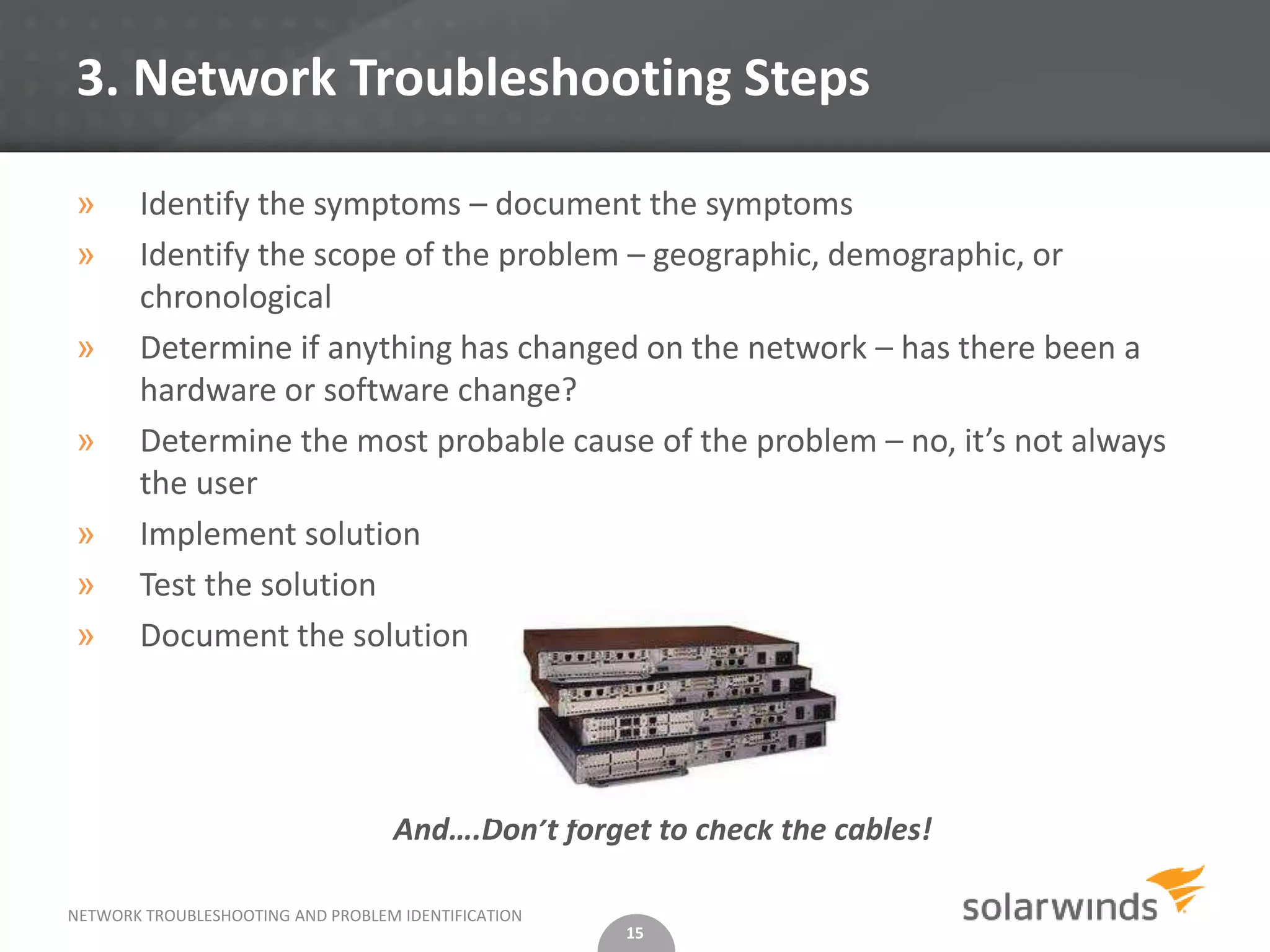
»      Identify the symptoms – document the symptoms
»      Identify the scope of the problem – geographic, demographic, or
       chronological
»      Determine if anything has changed on the network – has there been a
       hardware or software change?
»      Determine the most probable cause of the problem – no, it’s not always
       the user
»      Implement solution
»      Test the solution
»      Document the solution


                                   And….Don’t forget to check the cables!

NETWORK TROUBLESHOOTING AND PROBLEM IDENTIFICATION
                                                     15
4. Tools for Network Troubleshooting

»      There are hundreds of open source, free, or commercially licensed
       products available to monitor and troubleshoot network performance,
       traffic and bandwidth, configurations, and IP infrastructure.

»      Here are some guidelines to pick the right tool:
        Multiple Vendor device support
        Support for multiple standard protocols including SNMP, ICMP, Syslog, and
         others.
        Real-time and historical analysis capabilities
        Vizualizations accessible from anywhere
        Drill-down support
        Affordability


NETWORK TROUBLESHOOTING AND PROBLEM IDENTIFICATION
                                                     16
3. How SolarWinds can help?

» SolarWinds award-winning network management software
  makes it easy to:
           Discover and map network devices
           Monitor network performance
           Analyze network traffic
           Manage and back up network configurations
           Track IP addresses
           Find rogue devices, and much more.


NETWORK TROUBLESHOOTING AND PROBLEM IDENTIFICATION
                                                     17
3 a. SolarWinds Network Configuration Manager

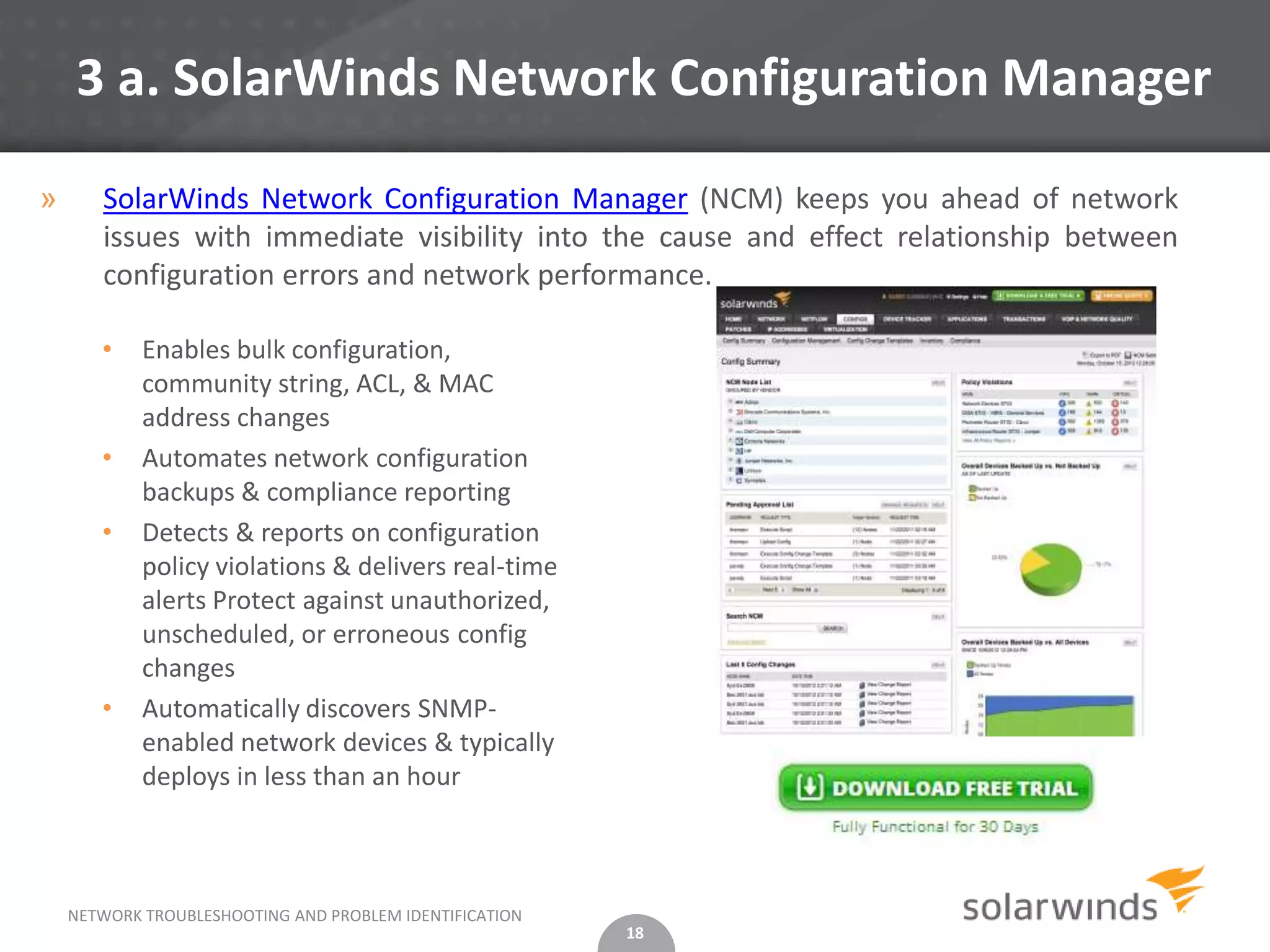
»      SolarWinds Network Configuration Manager (NCM) keeps you ahead of network
       issues with immediate visibility into the cause and effect relationship between
       configuration errors and network performance.

       •    Enables bulk configuration,
            community string, ACL, & MAC
            address changes
       •    Automates network configuration
            backups & compliance reporting
       •    Detects & reports on configuration
            policy violations & delivers real-time
            alerts Protect against unauthorized,
            unscheduled, or erroneous config
            changes
       •    Automatically discovers SNMP-
            enabled network devices & typically
            deploys in less than an hour


    NETWORK TROUBLESHOOTING AND PROBLEM IDENTIFICATION
                                                         18
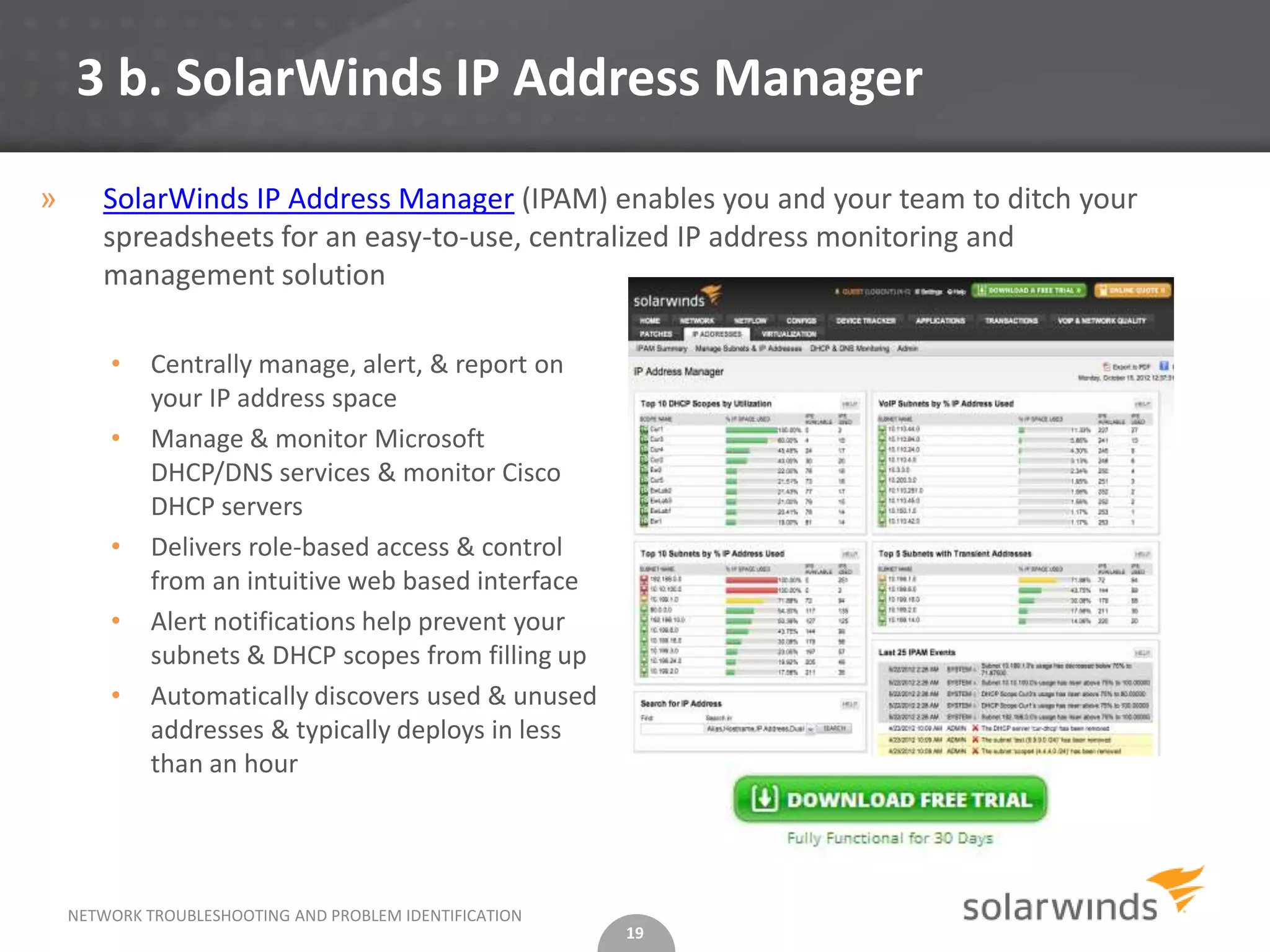
3 b. SolarWinds IP Address Manager

»      SolarWinds IP Address Manager (IPAM) enables you and your team to ditch your
       spreadsheets for an easy-to-use, centralized IP address monitoring and
       management solution

        •    Centrally manage, alert, & report on
             your IP address space
        •    Manage & monitor Microsoft
             DHCP/DNS services & monitor Cisco
             DHCP servers
        •    Delivers role-based access & control
             from an intuitive web based interface
        •    Alert notifications help prevent your
             subnets & DHCP scopes from filling up
        •    Automatically discovers used & unused
             addresses & typically deploys in less
             than an hour


    NETWORK TROUBLESHOOTING AND PROBLEM IDENTIFICATION
                                                         19
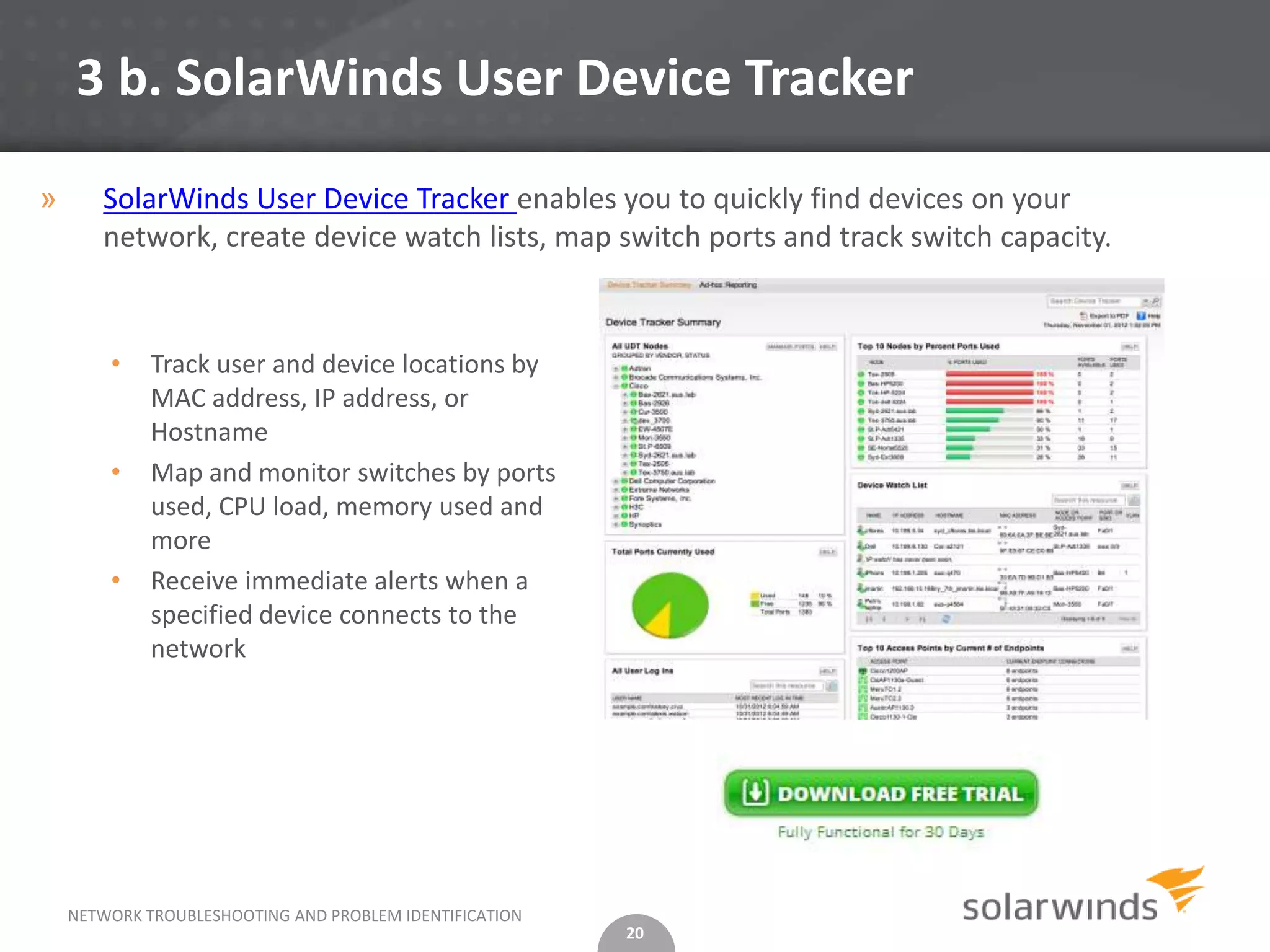
3 b. SolarWinds User Device Tracker

»      SolarWinds User Device Tracker enables you to quickly find devices on your
       network, create device watch lists, map switch ports and track switch capacity.


        •    Track user and device locations by
             MAC address, IP address, or
             Hostname
        •    Map and monitor switches by ports
             used, CPU load, memory used and
             more
        •    Receive immediate alerts when a
             specified device connects to the
             network


    NETWORK TROUBLESHOOTING AND PROBLEM IDENTIFICATION
                                                         20
Helpful Resources
We invite you to learn more about SolarWinds Network Management Software


                                                                                   Watch the IP Address Manager
                                                                                          Overview Video


                                           Explore the FEATURES
                                             of SolarWinds IPAM
                                         • No more spreadsheets
                                         • Centralized IP Address
                                           Management


                                            --- Click any of the links above ---
NETWORK TROUBLESHOOTING AND PROBLEM IDENTIFICATION
                                                                    21
Thank You!


NETWORK TROUBLESHOOTING AND PROBLEM IDENTIFICATION
                                                     22

Network Troubleshooting - Part 2

  • 1.
    Network Troubleshooting and Problem Identification- Part 2 Tips for Configuration and IP Address Conflicts © 2012, SolarWinds Worldwide, LLC. All rights reserved. 1
  • 2.
    Agenda Troubleshooting NetworkConfiguration & IP Address Conflicts » 1. Troubleshooting Configuration Issues » 2. Troubleshooting IP Address Conflicts » 3. Network Troubleshooting Steps » 4. Tools for Network Troubleshooting » 5. How can SolarWinds help? NETWORK TROUBLESHOOTING AND PROBLEM IDENTIFICATION 2
  • 3.
    1. Troubleshooting ConfigurationIssues » Reasons for more than 80% of network issues: Device configuration errors » Why? » Unplanned, unauthorized and not fully tested prior to deployment. » Keep an archive of your device configurations so that you can compare the current version to the previously archived versions NETWORK TROUBLESHOOTING AND PROBLEM IDENTIFICATION 3
  • 4.
    1 a. ConfigureArchive » For a Cisco router, the archive config command allows you to save your IOS configuration in the configuration archive using a standard location and filename prefix that is automatically appended with an incremental version number as each consecutive file is saved. Router# configure terminal Router(config)# archive Router(config-archive)# path disk0:myconfig » To save the current running configuration: Router# archive config NETWORK TROUBLESHOOTING AND PROBLEM IDENTIFICATION 4
  • 5.
    1 b. ShowArchive » The show archive command displays information on the files saved in the configuration archive as shown in the following sample output: Router# show archive There are currently 1 archive configurations saved. The next archive file will be named disk0:myconfig-2 Archive # Name 0 1 disk0:myconfig-1 <- Most Recent 2 » Assuming that you have a config archive, you can perform a line-by-line comparison of any two configuration files and generate a list of the differences between them using the show archive config differences command. show archive config differences[filename1(path)[filename2(path)][ignorecase]] NETWORK TROUBLESHOOTING AND PROBLEM IDENTIFICATION 5
  • 6.
    1 b. ShowArchive (Contd.) » A plus symbol (+) indicates that the configuration line exists in filename2(path) but not in filename1(path) while a minus symbol (-) indicates that the configuration line exists in filename1(path) but not in filename2(path). » An exclamation point (!) with descriptive comments is used to identify order- sensitive configuration lines whose location is different in filename1(path) than in filename2(path). +ip subnet-zero +ip name-server 10.4.4.4 +voice dnis-map 1 +dnis 111 interface Ethernet1/0 +no ip address +shutdown +ip default-gateway 10.5.5.5 +ip classless +access-list 110 deny ip any host 10.1.1.1 +access-list 110 deny ip any host 10.1.1.2 +access-list 110 deny ip any host 10.1.1.3 +snmp-server community private RW -no ip subnet-zero interface Ethernet1/0 -ip address 10.7.7.7 255.0.0.0 -no ip classless -snmp-server community public RO NETWORK TROUBLESHOOTING AND PROBLEM IDENTIFICATION 6
  • 7.
    1 b. ShowArchive (Contd.) » Once you determine that a config has changed, its easy to replace the current running config with any saved config file using the configure replace command. Router# configure replace disk0:myconfig This will apply all necessary additions and deletions to replace the current running configuration with the contents of the specified configuration file, which is assumed to be a complete configuration, not a partial configuration. Enter Y if you are sure you want to proceed. ? [no]: Y Total number of passes: 1 Rollback Done NETWORK TROUBLESHOOTING AND PROBLEM IDENTIFICATION 7
  • 8.
    2. Troubleshooting IPAddress Conflicts » IP address conflicts occur when two devices on a network are assigned the same IP address resulting in one or both being disabled and losing connectivity until the conflict is resolved. » IP address conflicts mostly occur due to configuration errors including: • Assignment of the same static IP address by a network administrator • Assignment of a static IP address within the DHCP range (dynamic range) resulting in the same address being automatically assigned by the local DHCP server • An error in the DHCP server • A system coming back online after an extended period in stand-by or hibernate mode with an IP address that has been re-assigned and is in use on the network NETWORK TROUBLESHOOTING AND PROBLEM IDENTIFICATION 8
  • 9.
    2. Troubleshooting IPAddress Conflicts Step 1 (Contd.) » Look For Overlapping IP Address Ranges on Your DHCP Server  Verify that no two servers have overlapping IP address ranges.  This can be as simple as comparing the IP address ranges and looking for overlaps when the servers are using dynamic or automatic allocation of IP addresses.  If they are using static allocation, then you will need to review each hard coded IP address assignment. 9
  • 10.
    2. Troubleshooting IPAddress Conflicts Step 2 (Contd.) » Look for Duplicate Static IP Addresses  Look for devices on the network segment that have been statically configured with the duplicate IP address.  Once found, you can either reconfigure the device to use DHCP or you can configure the DHCP server to stop assigning the duplicated IP address. NETWORK TROUBLESHOOTING AND PROBLEM IDENTIFICATION 10
  • 11.
    2. Troubleshooting IPAddress Conflicts Step 3 (Contd.) » If steps 1 and 2 do not produce results, you will need to find the MAC addresses of the conflicting devices. » Since the MAC address is unique for each device on the network, you can look for devices that contain the same IP address but with different MAC addresses. » You can use the Address Resolution Protocol (ARP) to establish a correspondence between the IP address and the MAC address. Start at your core router and use the show ip arp command: » If you were to see two IP addresses with differing hardware addresses then you have located your problem devices. NETWORK TROUBLESHOOTING AND PROBLEM IDENTIFICATION 11
  • 12.
    2. Troubleshooting IPAddress Conflicts Step 4 (Contd.) » To know the physical location or switch port, go to the switch and use the show mac-address table command. This will show you the MAC address for each port. » This can be very tedious in the case of geographically distributed networks. NETWORK TROUBLESHOOTING AND PROBLEM IDENTIFICATION 12
  • 13.
    2. Troubleshooting IPAddress Conflicts (Contd.) » SolarWinds User Device Tracker is a device tracking and switch port management tool that quickly locates a device on the network by searching on the IP address, Hostname or MAC address. NETWORK TROUBLESHOOTING AND PROBLEM IDENTIFICATION 13
  • 14.
    2 a. Preventingconflicts in the Future » Some tips to prevent future conflicts  Use DHCP to reduce the chances of manually assigning duplicate addresses.  Set your DHCP server to detect IP address conflicts.  Modify the DHCP lease duration to something less than the default lease time of 8 days.  Use multiple DHCP servers, each having it own specific scope.  Reserve IP addresses instead of assigning static IP addresses.  Use automated DHCP, DNS, and IP address management and monitoring tools » Despite these preventive measures, the possibility that IP conflicts occurring still remains » It is better to evaluate a commercially available IP address management product that allows you to centrally manage, monitor, alert, and report on your IP infrastructure. NETWORK TROUBLESHOOTING AND PROBLEM IDENTIFICATION 14
  • 15.
    3. Network TroubleshootingSteps » Identify the symptoms – document the symptoms » Identify the scope of the problem – geographic, demographic, or chronological » Determine if anything has changed on the network – has there been a hardware or software change? » Determine the most probable cause of the problem – no, it’s not always the user » Implement solution » Test the solution » Document the solution And….Don’t forget to check the cables! NETWORK TROUBLESHOOTING AND PROBLEM IDENTIFICATION 15
  • 16.
    4. Tools forNetwork Troubleshooting » There are hundreds of open source, free, or commercially licensed products available to monitor and troubleshoot network performance, traffic and bandwidth, configurations, and IP infrastructure. » Here are some guidelines to pick the right tool:  Multiple Vendor device support  Support for multiple standard protocols including SNMP, ICMP, Syslog, and others.  Real-time and historical analysis capabilities  Vizualizations accessible from anywhere  Drill-down support  Affordability NETWORK TROUBLESHOOTING AND PROBLEM IDENTIFICATION 16
  • 17.
    3. How SolarWindscan help? » SolarWinds award-winning network management software makes it easy to:  Discover and map network devices  Monitor network performance  Analyze network traffic  Manage and back up network configurations  Track IP addresses  Find rogue devices, and much more. NETWORK TROUBLESHOOTING AND PROBLEM IDENTIFICATION 17
  • 18.
    3 a. SolarWindsNetwork Configuration Manager » SolarWinds Network Configuration Manager (NCM) keeps you ahead of network issues with immediate visibility into the cause and effect relationship between configuration errors and network performance. • Enables bulk configuration, community string, ACL, & MAC address changes • Automates network configuration backups & compliance reporting • Detects & reports on configuration policy violations & delivers real-time alerts Protect against unauthorized, unscheduled, or erroneous config changes • Automatically discovers SNMP- enabled network devices & typically deploys in less than an hour NETWORK TROUBLESHOOTING AND PROBLEM IDENTIFICATION 18
  • 19.
    3 b. SolarWindsIP Address Manager » SolarWinds IP Address Manager (IPAM) enables you and your team to ditch your spreadsheets for an easy-to-use, centralized IP address monitoring and management solution • Centrally manage, alert, & report on your IP address space • Manage & monitor Microsoft DHCP/DNS services & monitor Cisco DHCP servers • Delivers role-based access & control from an intuitive web based interface • Alert notifications help prevent your subnets & DHCP scopes from filling up • Automatically discovers used & unused addresses & typically deploys in less than an hour NETWORK TROUBLESHOOTING AND PROBLEM IDENTIFICATION 19
  • 20.
    3 b. SolarWindsUser Device Tracker » SolarWinds User Device Tracker enables you to quickly find devices on your network, create device watch lists, map switch ports and track switch capacity. • Track user and device locations by MAC address, IP address, or Hostname • Map and monitor switches by ports used, CPU load, memory used and more • Receive immediate alerts when a specified device connects to the network NETWORK TROUBLESHOOTING AND PROBLEM IDENTIFICATION 20
  • 21.
    Helpful Resources We inviteyou to learn more about SolarWinds Network Management Software Watch the IP Address Manager Overview Video Explore the FEATURES of SolarWinds IPAM • No more spreadsheets • Centralized IP Address Management --- Click any of the links above --- NETWORK TROUBLESHOOTING AND PROBLEM IDENTIFICATION 21
  • 22.
    Thank You! NETWORK TROUBLESHOOTINGAND PROBLEM IDENTIFICATION 22