Transcend® Management Software 
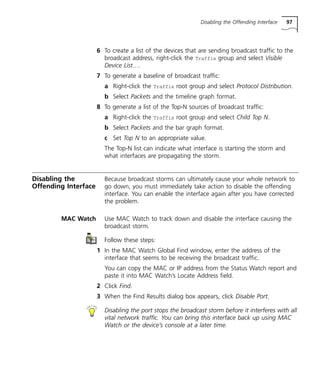
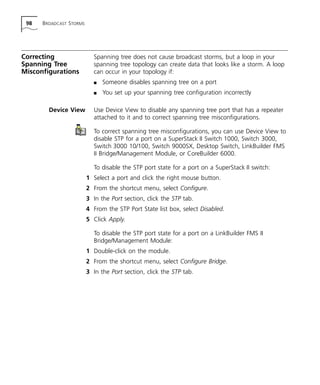
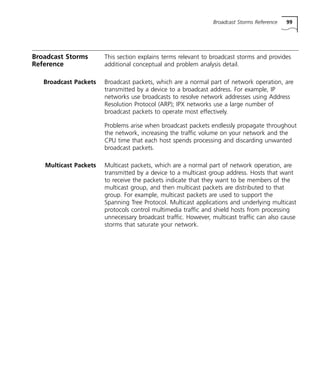
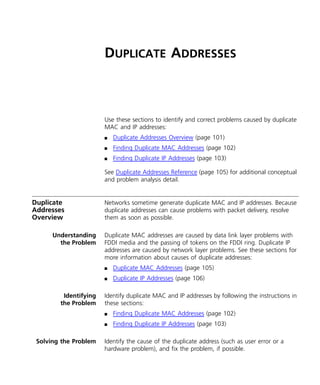
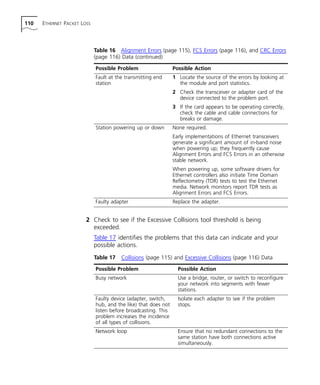
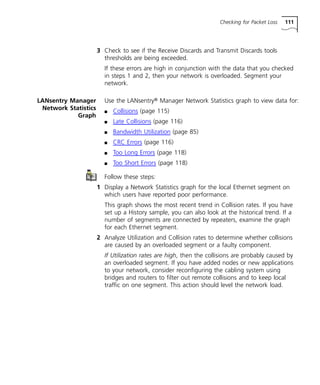
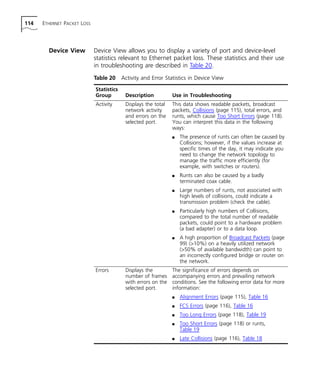
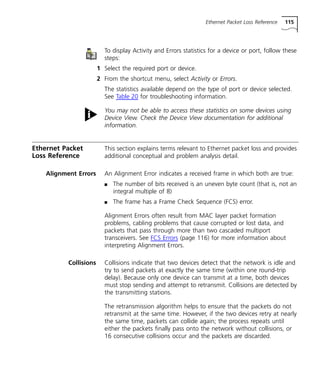
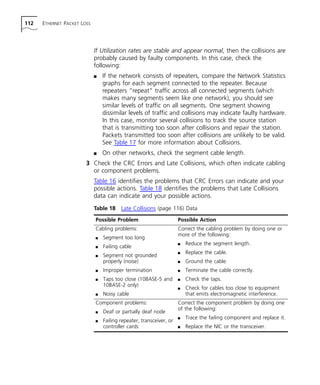
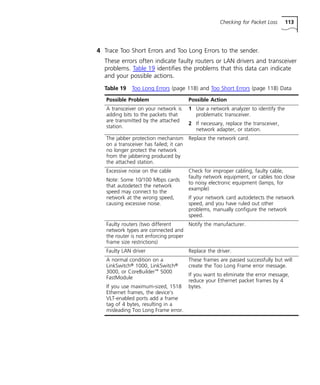
Network Troubleshooting Guide 
‘ 9 7 f o r Wi n d o w s N T ®
® 
http://www.3com.com/ 
Transcend 
® 
Management 
Software 
Network Troubleshooting Guide 
Part No. 09-1293-000 
Published September 1997
3Com Corporation 
5400 Bayfront Plaza 
Santa Clara, California 
95052-8145 
ii 
Copyright © 1997, 3Com Corporation. All rights reserved. No part of this documentation may be 
reproduced in any form or by any means or used to make any derivative work (such as translation, 
transformation, or adaptation) without permission from 3Com Corporation. 
3Com Corporation reserves the right to revise this documentation and to make changes in content from 
time to time without obligation on the part of 3Com Corporation to provide notification of such revision or 
change. 
3Com Corporation provides this documentation without warranty of any kind, either implied or expressed, 
including, but not limited to, the implied warranties of merchantability and fitness for a particular purpose. 
3Com may make improvements or changes in the product(s) and/or the program(s) described in this 
documentation at any time. 
UNITED STATES GOVERNMENT LEGENDS: 
If you are a United States government agency, then this documentation and the software described herein 
are provided to you subject to the following restricted rights: 
For units of the Department of Defense: 
Restricted Rights Legend: 
Use, duplication, or disclosure by the Government is subject to restrictions as set 
forth in subparagraph (c) (1) (ii) for Restricted Rights in Technical Data and Computer Software Clause at 48 
C.F.R. 52.227-7013. 3Com Corporation, 5400 Bayfront Plaza, Santa Clara, California 95052-8145. 
For civilian agencies: 
Restricted Rights Legend: 
Use, reproduction, or disclosure is subject to restrictions set forth in subparagraph 
(a) through (d) of the Commercial Computer Software – Restricted Rights Clause at 48 C.F.R. 52.227-19 
and the limitations set forth in 3Com Corporation’s standard commercial agreement for the software. 
Unpublished rights reserved under the copyright laws of the United States. 
If there is any software on removable media described in this documentation, it is furnished under a license 
agreement included with the product as a separate document, in the hard copy documentation, or on the 
removable media in a directory file named LICENSE.TXT. If you are unable to locate a copy, please contact 
3Com and a copy will be provided to you. 
Unless otherwise indicated, 3Com registered trademarks are registered in the United States and may or may 
not be registered in other countries. 
3Com, the 3Com logo, Boundary Routing, EtherDisk, EtherLink, EtherLink II, LANplex, LANsentry, 
LinkBuilder, LinkSwitch, NetAge, NETBuilder, NETBuilder II, Parallel Tasking, SmartAgent, SuperStack, 
TokenDisk, TokenLink, Transcend, and ViewBuilder are registered trademarks of 3Com Corporation. 
CoreBuilder, FDDILink, NetProbe, and Traffix are trademarks of 3Com Corporation. 3ComFacts is a service 
mark of 3Com Corporation. 
AppleTalk and Macintosh are registered trademarks of Apple Computer Company. VINES is a registered 
trademark of Banyan Systems, Inc. CompuServe is a registered trademark of CompuServe, Inc. DECnet is a 
trademark of Digital Equipment Corporation. HP and OpenView are a registered trademarks of 
Hewlett-Packard Co. AIX, IBM, and NetView are registered trademarks of International Business Machines 
Corporation. Zip is a trademark of Iomega. Windows and Windows NT are registered trademarks of 
Microsoft Corporation. Sniffer is a registered trademark of Network General Holding Corporation. Novell is 
a registered trademark of Novell, Inc. OpenWindows, SunNet Manager, and SunOS are trademarks of 
Sun Microsystems Inc. SPARCstation is a trademark and is licensed exclusively to Sun Microsystems Inc. UNIX 
is a registered trademark in the United States and other countries, licensed exclusively through X/Open 
Company Ltd. 
Other brand and product names may be registered trademarks or trademarks of their respective holders. 
Guide written by Patricia Johnson, Sarah Newman, Iain Young, and Adam Bell. Technical information 
provided by Dan Bailey, Bob McTague, Graeme Robertson, and Andrew Ward. Edited by Beth Britt and 
Bonnie Jo Collins. Production by Christine Zak.
iii 
C 
ONTENTS 
A 
BOUT 
T 
HIS 
G 
UIDE 
Finding Specific Information in This Guide 12 
What to Expect from This Guide 12 
Conventions 13 
Related Documentation 15 
Documents 15 
Help Systems 15 
P 
ART 
I B 
EFORE 
T 
ROUBLESHOOTING 
N 
ETWORK 
T 
ROUBLESHOOTING 
O 
VERVIEW 
Introduction to Network Troubleshooting 19 
About Connectivity Problems 19 
About Performance Problems 20 
Solving Connectivity and Performance Problems 20 
Network Troubleshooting Framework 21 
Troubleshooting Strategy 23 
Recognizing Symptoms 24 
User Comments 24 
Network Management Software Alerts 24 
Analyzing Symptoms 25 
Understanding the Problem 25 
Identifying and Testing the Cause of the Problem 26 
Sample Problem Analysis 27 
Equipment for Testing 28 
Solving the Problem 29
iv 
Y 
OUR 
N 
ETWORK 
T 
ROUBLESHOOTING 
T 
OOLBOX 
Transcend Applications 31 
Transcend Central 32 
Status View 32 
Status Watch 32 
MAC Watch 33 
Web Reporter 33 
LANsentry Manager 33 
Traffix Manager 34 
Device View 35 
Network Management Platforms 35 
3Com SmartAgent Embedded Software 36 
Other Commonly Used Tools 38 
Ping 38 
Strategies for Using Ping 39 
Tips on Interpreting Ping Messages 40 
Telnet 40 
FTP and TFTP 40 
Analyzers 41 
Probes 41 
Cable Testers 42 
S 
TEPS 
TO 
A 
CTIVELY 
M 
ANAGING 
Y 
OUR 
N 
ETWORK 
Designing Your Network for Troubleshooting 43 
Positioning Your SNMP Management Station 44 
Using Probes 45 
Monitoring Business-critical Networks 47 
FDDI Backbone Monitoring 48 
Internet WAN Link Monitoring 48 
Switch Management Monitoring 48 
Using Telnet, Serial Line, and Modem Connections 49 
Using Communications Servers 50 
Setting Up Redundant Management 51 
Other Tips on Network Design 52 
Management Station Configuration 52 
More Tips 52
v 
Preparing Devices for Management 53 
Configuring Management Parameters 53 
Configuring Traps 53 
Configuring Transcend Software 54 
Monitoring Devices 54 
Setting Thresholds and Alarms 54 
Setting Thresholds in Status Watch 55 
Setting Thresholds and Alarms in LANsentry Manager 55 
Refining Alarm Settings 56 
Setting Alarms Based on a Baseline 57 
Other Tips for Setting Thresholds and Alarms 57 
Knowing Your Network 58 
Knowing Your Network’s Configuration 58 
Site Network Map 58 
Logical Connections 60 
Device Configuration Information 60 
Other Important Data About Your Network 61 
Identifying Your Network’s Normal Behavior 62 
Baselining Your Network 62 
Identifying Background Noise 63 
P 
ART 
II N 
ETWORK 
C 
ONNECTIVITY 
P 
ROBLEMS 
AND 
S 
OLUTIONS 
M 
- 
ANAGER 
TO 
-A 
GENT 
C 
OMMUNICATION 
Manager-to-Agent Communication Overview 67 
Understanding the Problem 67 
Identifying the Problem 67 
Solving the Problem 68 
Checking Management Configurations 68 
Manager-to-Agent Communication Reference 69 
IP Address 69 
Gateway Address 69 
Subnetwork Mask 69 
SNMP Community Strings 69 
SNMP Traps 72
vi 
FDDI C 
ONNECTIVITY 
FDDI Connectivity Overview 73 
Understanding the Problem 73 
Identifying the Problem 75 
Solving the Problem 76 
Monitoring FDDI Connections 77 
Status Watch 77 
Making Your FDDI Connections More Resilient 77 
Implementing Dual Homing 77 
Installing an Optical Bypass Unit 79 
FDDI Connectivity Reference 79 
Peer Wrap Condition 79 
Twisted Ring Condition 80 
Undesired Connection Attempt Event 80 
P 
ART 
III N 
ETWORK 
P 
ERFORMANCE 
P 
ROBLEMS 
AND 
S 
OLUTIONS 
B 
ANDWIDTH 
U 
TILIZATION 
Bandwidth Utilization Overview 85 
Understanding the Problem 85 
Identifying the Problem 85 
Solving the Problem 86 
Identifying Utilization Problems 86 
Status Watch 86 
Generating Historical Utilization Reports 88 
Web Reporter 88 
Bandwidth Utilization Reference 89 
ATM Utilization 89 
Ethernet Utilization 89 
FDDI Utilization 90 
Token Ring Utilization 90
vii 
B 
ROADCAST 
S 
TORMS 
Broadcast Storms Overview 93 
Understanding the Problem 93 
Identifying the Problem 93 
Solving the Problem 94 
Identifying a Broadcast Storm 94 
Status Watch 94 
Traffix Manager 96 
Disabling the Offending Interface 97 
MAC Watch 97 
Correcting Spanning Tree Misconfigurations 98 
Device View 98 
Broadcast Storms Reference 99 
Broadcast Packets 99 
Multicast Packets 99 
D 
UPLICATE 
A 
DDRESSES 
Duplicate Addresses Overview 101 
Understanding the Problem 101 
Identifying the Problem 101 
Solving the Problem 101 
Finding Duplicate MAC Addresses 102 
MAC Watch 102 
Status Watch 103 
Finding Duplicate IP Addresses 103 
MAC Watch 104 
LANsentry Manager 104 
Duplicate Addresses Reference 105 
Duplicate MAC Addresses 105 
Duplicate IP Addresses 106
viii 
E 
THERNET 
P 
ACKET 
L 
OSS 
Ethernet Packet Loss Overview 107 
Understanding the Problem 107 
Identifying the Problem 108 
Solving the Problem 108 
Checking for Packet Loss 109 
Status Watch 109 
LANsentry Manager Network Statistics Graph 111 
Device View 114 
Ethernet Packet Loss Reference 115 
Alignment Errors 115 
Collisions 115 
CRC Errors 116 
Excessive Collisions 116 
FCS Errors 116 
Late Collisions 116 
Nonstandard Ethernet Problems 117 
Receive Discards 118 
Too Long Errors 118 
Too Short Errors 118 
Transmit Discards 118 
FDDI R 
ING 
E 
RRORS 
FDDI Ring Errors Overview 119 
Understanding the Problem 119 
Identifying the Problem 119 
Solving the Problem 120 
Identifying Ring Errors 121 
Status Watch 121 
FDDI Ring Errors Reference 121 
Elasticity Buffer Error Condition 121 
Frame Error Condition 121 
Frames Not Copied Condition 122 
Link Error Condition 122 
MAC Neighbor Change Event 122
ix 
N 
ETWORK 
F 
ILE 
S 
ERVER 
T 
IMEOUTS 
Network File Server Timeout Overview 123 
Understanding the Problem 123 
Identifying the Problem 124 
Solving the Problem 124 
Checking for Obvious Errors 124 
Ping and Telnet 124 
LANsentry Manager Alarms View 124 
LANsentry Manager Statistics View 125 
LANsentry Manager History View 125 
Reproducing the Fault While Monitoring the Network 126 
LANsentry Manager Top-N Graph 126 
LANsentry Manager Packet Capture 126 
LANsentry Manager Packet Decode 127 
MAC Watch 128 
LANsentry Manager Packet Decode 128 
Correcting the Fault 129 
Network File Server Timeouts Reference 129 
Jabbering 129 
Network File System (NFS) Protocol 129
x 
P 
ART 
IV R 
EFERENCE 
SNMP 
IN 
N 
ETWORK 
T 
ROUBLESHOOTING 
SNMP Operation 133 
Manager/Agent Operation 133 
SNMP Messages 134 
Trap Reporting 134 
Security 135 
SNMP MIBs 136 
MIB Tree 136 
MIB-II 138 
RMON MIB 139 
RMON2 MIB 140 
3Com Enterprise MIBs 141 
I 
NFORMATION 
R 
ESOURCES 
Books 143 
URLs 144 
I 
NDEX
A 
BOUT 
T 
HIS 
G 
UIDE 
About This Guide provides an overview of this guide, describes guide 
conventions, tells you where to look for specific information, and lists 
other publications that may be useful. 
This guide helps you to troubleshoot connectivity and performance 
problems on your network using Transcend 
® 
software and other tools. 
This guide is intended for network administrators who understand 
networking technologies and how to integrate networking devices. You 
should have a working knowledge of: 
n 
Transmission Control Protocol/Internet Protocol (TCP/IP) 
n 
Simple Network Management Protocol (SNMP) 
n 
Network management platforms (especially HP OpenView Network 
Node Manager from Hewlett-Packard) 
n 
3Com devices on your network 
You should also be familiar with the interface and features of the 
Transcend 
management software you have installed. 
With subsequent releases of Transcend management software, this 
guide will be updated with new troubleshooting information and 
additional Transcend troubleshooting tools. The most current version of 
this guide is on the 3Com Web site: www.3Com.com.
12 ABOUT THIS GUIDE 
Finding Specific 
Information in 
This Guide 
This guide, which is available online (in PDF and HTML formats) and on 
paper, is designed to be used online. For the online version, 
cross-references to other sections are indicated with links in blue, 
underlined text, which you can click. You can print any pages as 
needed. 
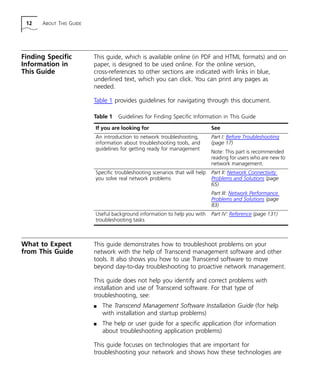
Table 1 provides guidelines for navigating through this document. 
What to Expect 
from This Guide 
Table 1 Guidelines for Finding Specific Information in This Guide 
If you are looking for See 
An introduction to network troubleshooting, 
information about troubleshooting tools, and 
guidelines for getting ready for management 
Part I: Before Troubleshooting 
(page 17) 
Note: This part is recommended 
reading for users who are new to 
network management. 
Specific troubleshooting scenarios that will help 
you solve real network problems 
Part II: Network Connectivity 
Problems and Solutions (page 
65) 
Part III: Network Performance 
Problems and Solutions (page 
83) 
Useful background information to help you with 
troubleshooting tasks 
Part IV: Reference (page 131) 
This guide demonstrates how to troubleshoot problems on your 
network with the help of Transcend management software and other 
tools. It also shows you how to use Transcend software to move 
beyond day-to-day troubleshooting to proactive network management. 
This guide does not help you identify and correct problems with 
installation and use of Transcend software. For that type of 
troubleshooting, see: 
n The Transcend Management Software Installation Guide (for help 
with installation and startup problems) 
n The help or user guide for a specific application (for information 
about troubleshooting application problems) 
This guide focuses on technologies that are important for 
troubleshooting your network and shows how these technologies are
Conventions 13 
applied using Transcend management software. For additional 
information, see the resources listed in Information Resources (page 
143). 
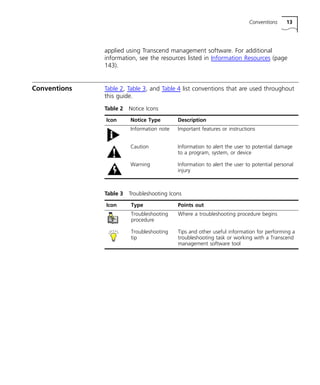
Conventions Table 2, Table 3, and Table 4 list conventions that are used throughout 
this guide. 
Table 2 Notice Icons 
Icon Notice Type Description 
Information note Important features or instructions 
Caution Information to alert the user to potential damage 
to a program, system, or device 
Warning Information to alert the user to potential personal 
injury 
Table 3 Troubleshooting Icons 
Icon Type Points out 
Troubleshooting 
procedure 
Where a troubleshooting procedure begins 
Troubleshooting 
tip 
Tips and other useful information for performing a 
troubleshooting task or working with a Transcend 
management software tool
14 ABOUT THIS GUIDE 
Table 4 Text Conventions 
Convention Description 
Syntax The word “syntax” means you must evaluate the syntax 
provided and supply the appropriate values. Placeholders 
for values you must supply appear in angle brackets. 
Example: 
Enable RIPIP by using the following syntax: 
SETDefault !<port> -RIPIP CONTrol = Listen 
In this example, you must supply a port number for 
<port>. 
Commands The word “command” means you must enter the 
command exactly as shown in text and press the Return or 
Enter key. Example: 
To remove the IP address, enter the following 
command: 
SETDefault !0 -IP NETaddr = 0.0.0.0 
Screen displays This typeface represents information as it appears on the 
screen. 
The words “enter” 
and “type” 
When you see the word “enter” in this guide, you must 
type something, and then press the Return or Enter key. 
Do not press the Return or Enter key when an instruction 
simply says “type.” 
[Key] names Key names appear in text in one of two ways: 
n Referred to by their labels, such as “the Return key” or 
“the Escape key” 
n Written with brackets, such as [Return] or [Esc]. 
If you must press two or more keys simultaneously, the key 
names are linked with a plus sign (+). Example: 
Press [Ctrl]+[Alt]+[Del]. 
Menu commands 
and buttons 
Menu commands or button names appear in italics. 
Example: 
From the Help menu, select Contents. 
Words in italicized 
type 
Italics emphasize a point or denote new terms at the place 
where they are defined in the text. 
Words in boldface 
type 
Bold text denotes key features.
Related Documentation 15 
Related 
Documentation 
This guide is complemented by other 3Com documents and 
comprehensive help systems. 
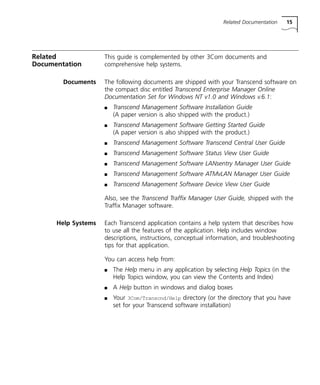
Documents The following documents are shipped with your Transcend software on 
the compact disc entitled Transcend Enterprise Manager Online 
Documentation Set for Windows NT v1.0 and Windows v.6.1: 
n Transcend Management Software Installation Guide 
(A paper version is also shipped with the product.) 
n Transcend Management Software Getting Started Guide 
(A paper version is also shipped with the product.) 
n Transcend Management Software Transcend Central User Guide 
n Transcend Management Software Status View User Guide 
n Transcend Management Software LANsentry Manager User Guide 
n Transcend Management Software ATMvLAN Manager User Guide 
n Transcend Management Software Device View User Guide 
Also, see the Transcend Traffix Manager User Guide, shipped with the 
Traffix Manager software. 
Help Systems Each Transcend application contains a help system that describes how 
to use all the features of the application. Help includes window 
descriptions, instructions, conceptual information, and troubleshooting 
tips for that application. 
You can access help from: 
n The Help menu in any application by selecting Help Topics (in the 
Help Topics window, you can view the Contents and Index) 
n A Help button in windows and dialog boxes 
n Your 3Com/Transcnd/Help directory (or the directory that you have 
set for your Transcend software installation)
16 ABOUT THIS GUIDE
I BEFORE TROUBLESHOOTING 
Network Troubleshooting Overview (page 19) 
Your Network Troubleshooting Toolbox (page 31) 
Steps to Actively Managing Your Network (page 43)
NETWORK TROUBLESHOOTING 
OVERVIEW 
These sections introduce you to the concepts and practice of network 
troubleshooting: 
n Introduction to Network Troubleshooting (page 19) 
n Network Troubleshooting Framework (page 21) 
n Troubleshooting Strategy (page 23) 
Introduction to 
Network 
Troubleshooting 
Network troubleshooting means recognizing and diagnosing 
networking problems with the goal of keeping your network running 
optimally. As a network administrator, your primary concern is 
maintaining connectivity of all devices (a process often called fault 
management). You also continually evaluate and improve your 
network’s performance. Because serious networking problems can 
sometimes begin as performance problems, paying attention to 
performance can help you address issues before they become serious. 
About Connectivity 
Problems 
Connectivity problems occur when end stations cannot communicate 
with other areas of your local or wide-area network. Using 
management tools, you can often fix a connectivity problem before the 
user even notices it. Connectivity problems include: 
n Loss of connectivity — Immediately correct any connectivity 
breaks. When users cannot access areas of your network, your 
organization’s effectiveness is impaired. 
n Intermittent connectivity — If connectivity is erratic, investigate 
the problem immediately. Although users have access to network 
resources some of the time, they are still facing periods of 
downtime. Intermittent connectivity problems could indicate that 
your network is on the verge of a major break. 
n Timeout problems — Timeouts cause loss of connectivity, but are 
often associated with poor network performance.
20 NETWORK TROUBLESHOOTING OVERVIEW 
About Performance 
Problems 
Your network has performance problems when it is not operating as 
effectively as it should. For example, response times may be slow, the 
network may not be as reliable as usual, and users may be complaining 
that it takes them longer to do their work. Some performance 
problems are intermittent, like instances of duplicate addresses. Other 
problems can indicate a growing strain on your network, such as 
consistently high utilization rates. 
If you regularly check your network for performance problems, you can 
extend the usefulness of your existing network configuration and plan 
network enhancements, instead of waiting for a performance problem 
to adversely affect the users’ productivity. 
Solving Connectivity 
and Performance 
Problems 
When troubleshooting your network, you employ tools and knowledge 
already at your disposal. With an in-depth understanding of your 
network, you can use network software tools, such as Ping (page 38), 
and network devices, such as Analyzers (page 41), to locate problems, 
and then make corrections, such as swapping equipment or 
reconfiguring segments, based on your analysis. 
Transcend® management software provides another set of tools for 
network troubleshooting. These tools have graphical user interfaces 
that make managing and troubleshooting your network easier. With 
Transcend Applications (page 31), you can: 
n Baseline your network’s normal status so that you can use it as a 
basis for comparison when troubleshooting 
n Precisely monitor network events 
n Be immediately notified of critical problems on your network, such 
as a device losing connectivity 
n Establish alert thresholds that warn you of potential problems so 
that you can correct problems before they affect your network 
n Resolve problems by disabling ports or reconfiguring devices 
See Your Network Troubleshooting Toolbox (page 31) for details about 
each troubleshooting tool.
Network Troubleshooting Framework 21 
Network 
Troubleshooting 
Framework 
The International Standards Organization (ISO) Open Systems 
Interconnect (OSI) reference model is the foundation of all network 
communications. This seven-layer structure provides a clear picture of 
how network communications work. 
Protocols (rules) govern communications between the layers of a single 
system and among several systems. In this way, devices made by 
different manufacturers or using different designs can use different 
protocols and still be about to communicate. 
Understanding how network troubleshooting fits into the framework of 
the OSI model will help you to identify at what layer problems are 
located and which type of troubleshooting tools you might want to 
use. For example, unreliable packet delivery could be caused by a 
problem with the transmission media or with a router configuration. If 
you are receiving high rates of FCS Errors (page 116) and Alignment 
Errors (page 115), which you can monitor with Status Watch, then the 
problem is probably located at the physical layer and not the network 
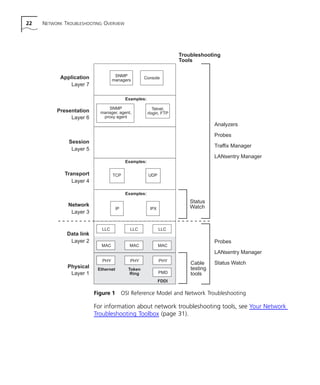
layer. Figure 1 shows how to troubleshoot the layers of the OSI model. 
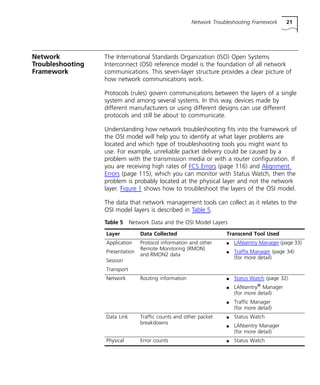
The data that network management tools can collect as it relates to the 
OSI model layers is described in Table 5. 
Table 5 Network Data and the OSI Model Layers 
Layer Data Collected Transcend Tool Used 
Application 
Protocol information and other 
Presentation 
Remote Monitoring (RMON) 
and RMON2 data 
Session 
Transport 
n LANsentry Manager (page 33) 
n Traffix Manager (page 34) 
(for more detail) 
Network Routing information n Status Watch (page 32) 
n LANsentry® Manager 
(for more detail) 
n Traffic Manager 
(for more detail) 
Data Link Traffic counts and other packet 
breakdowns 
n Status Watch 
n LANsentry Manager 
(for more detail) 
Physical Error counts n Status Watch
22 NETWORK TROUBLESHOOTING OVERVIEW 
SNMP 
managers Console 
SNMP 
manager, agent, 
proxy agent 
Telnet, 
rlogin, FTP 
TCP UDP 
IP 
Troubleshooting 
Tools 
LLC 
MAC 
PHY 
LLC 
MAC 
PHY 
LLC 
MAC 
PHY 
PMD 
Figure 1 OSI Reference Model and Network Troubleshooting 
For information about network troubleshooting tools, see Your Network 
Troubleshooting Toolbox (page 31). 
Application 
Layer 7 
Presentation 
Layer 6 
Session 
Layer 5 
Transport 
Network 
Layer 3 
Analyzers 
Probes 
Traffix Manager 
LANsentry Manager 
Probes 
LANsentry Manager 
Status Watch 
Examples: 
Examples: 
Examples: 
IPX 
Data link 
Layer 2 
Physical 
Layer 1 
Ethernet 
Token 
Ring 
FDDI 
Layer 4 
Status 
Watch 
Cable 
testing 
tools
Troubleshooting Strategy 23 
Troubleshooting 
Strategy 
How do you know when you are having a network problem? The 
answer to this question depends on your site’s network configuration 
and on your network’s normal behavior. See Knowing Your Network 
(page 58) for more information. 
If you notice changes on your network, ask the following questions: 
n Is the change expected or unusual? 
n Has this event ever occurred before? 
n Does the change involve a device or network path for which you 
already have a backup solution in place? 
n Does the change interfere with vital network operations? 
n Does the change affect one or many devices or network paths? 
Once you have an idea of how the change is affecting your network, 
you can categorize it as critical or noncritical. Both of these categories 
need resolution (except for changes that are one-time occurrences); the 
difference between the categories is the time you have to fix the 
problem. 
Using a strategy for network troubleshooting helps you to approach a 
problem methodically and resolve it with minimal disruption to the 
network users. A good approach to problem resolution is: 
n Recognizing Symptoms (page 24) 
n Understanding the Problem (page 25) 
n Identifying and Testing the Cause of the Problem (page 26) 
n Solving the Problem (page 29)
24 NETWORK TROUBLESHOOTING OVERVIEW 
Recognizing 
Symptoms 
The first step to resolving any problem is to identify and interpret the 
symptoms. You may discover network problems in several ways. You 
may have users complaining that the network seems slow or that they 
cannot connect to a server. You may pass your network management 
station and notice that a node icon is red. Your beeper may go off and 
display the message: WAN connection down. 
User Comments 
While you can often solve networking problems before users notice a 
change in their environment, you invariably get feedback from your 
users about how the network is running, such as: 
“I can’t print.” 
“I can’t access the application server.” 
“It’s taking me much longer to copy files across the network than it 
usually does.” 
“I can’t log on to a remote server.” 
“When I send e-mail to our other site, I get a routing error message.” 
“My system freezes whenever I try to Telnet.” 
Network Management Software Alerts 
Network management software, as described in Your Network 
Troubleshooting Toolbox (page 31), can alert you to areas of your 
network that need attention. For example: 
n The application displays red (Warning) icons. 
n Your weekly Top-N utilization report (which provides you with a 
table of the top ten ports showing the highest utilization rates) 
shows that one port is experiencing much higher utilization levels 
than normal. 
n You receive an e-mail message from your network management 
station that the threshold for broadcast and multicast packets has 
been exceeded. 
These signs usually provide additional information about the problem, 
allowing you to focus on the right area.
Troubleshooting Strategy 25 
Analyzing Symptoms 
When confronted with a symptom, ask yourself these types of 
questions to narrow the location of the problem and to get more data 
for analysis: 
n To what degree is the network not acting normally (for example, 
does it now take one minute to perform a task that normally takes 
five seconds)? 
n On what subnetwork is the user located? 
n Is the user trying to reach a server, end station, or printer on the 
same subnetwork or on a different subnetwork? 
n Are many users complaining that the network is operating slowly or 
that a specific network application is operating slowly? 
n Are many users reporting network logon failures? 
n Are the problems intermittent? For example, some files may print 
with no problems, while other printing attempts generate error 
messages, make users lose their connections, and cause systems to 
freeze. 
Understanding the 
Problem 
Networks are designed to move packets of data from a transmitting 
device to a receiving device. When communication becomes 
problematic, you must determine why packets are not traveling as 
expected and then find a solution. The two most common causes for 
packets not moving reliably from source to destination are: 
n The physical connection breaks (that is, a cable is unplugged or 
broken). 
n A network device is not working properly and cannot send or 
receive some or all packets. 
Network management software can easily locate and report a physical 
connection break (layer 1 problem). You will find it harder to determine 
why a network device is not working as expected, which is often 
related to a layer 2 or a layer 3 problem.
26 NETWORK TROUBLESHOOTING OVERVIEW 
When trying to determine why a network device is not working 
properly, check first for: 
n Valid service — Is the device configured properly for the type of 
service it is supposed to provide? For example, has Quality of Service 
(QoS), the definition of the transmission parameters, been 
established? 
n Restricted access — Is an end station supposed to be able to 
connect with a specific device or is that connection restricted? For 
example, is a firewall set up preventing that device from accessing 
certain network resources? 
n Correct configuration — Is there a misconfiguration of IP address, 
network mask, gateway, or broadcast address? Network problems 
are commonly caused by misconfiguration of newly connected or 
configured devices. See Manager-to-Agent Communication (page 
67) for more information. 
Identifying and 
Testing the Cause of 
the Problem 
After you develop a possible theory about what is causing the problem, 
you must test your theory. The test must conclusively prove or disprove 
your theory. 
A general rule of troubleshooting is that, if you cannot reproduce a 
problem, then no problem exists unless it happens again on its own. 
However, if the problem is intermittent and you cannot replicate it, you 
can configure your network management software to catch the event 
in progress. 
For example, with LANsentry Manager (page 33), you can set alarms 
and automatic packet capture filters to monitor your network and 
inform you when the problem occurs again. See Configuring Transcend 
Software (page 54) for more information. 
Although network management tools can provide a great deal of 
information about problems and their general location, you may still 
need to swap equipment or replace components of your network setup 
until you locate the exact trouble spot. 
After testing your theory, you should either fix the problem as 
described in Solving the Problem (page 29) or develop another theory 
to check.
Troubleshooting Strategy 27 
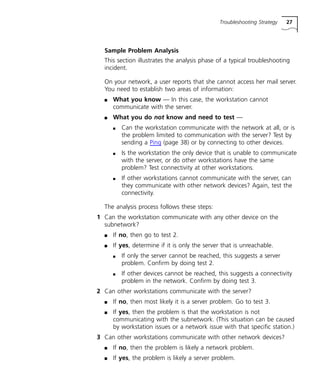
Sample Problem Analysis 
This section illustrates the analysis phase of a typical troubleshooting 
incident. 
On your network, a user reports that she cannot access her mail server. 
You need to establish two areas of information: 
n What you know — In this case, the workstation cannot 
communicate with the server. 
n What you do not know and need to test — 
n Can the workstation communicate with the network at all, or is 
the problem limited to communication with the server? Test by 
sending a Ping (page 38) or by connecting to other devices. 
n Is the workstation the only device that is unable to communicate 
with the server, or do other workstations have the same 
problem? Test connectivity at other workstations. 
n If other workstations cannot communicate with the server, can 
they communicate with other network devices? Again, test the 
connectivity. 
The analysis process follows these steps: 
1 Can the workstation communicate with any other device on the 
subnetwork? 
n If no, then go to test 2. 
n If yes, determine if it is only the server that is unreachable. 
n If only the server cannot be reached, this suggests a server 
problem. Confirm by doing test 2. 
n If other devices cannot be reached, this suggests a connectivity 
problem in the network. Confirm by doing test 3. 
2 Can other workstations communicate with the server? 
n If no, then most likely it is a server problem. Go to test 3. 
n If yes, then the problem is that the workstation is not 
communicating with the subnetwork. (This situation can be caused 
by workstation issues or a network issue with that specific station.) 
3 Can other workstations communicate with other network devices? 
n If no, then the problem is likely a network problem. 
n If yes, the problem is likely a server problem.
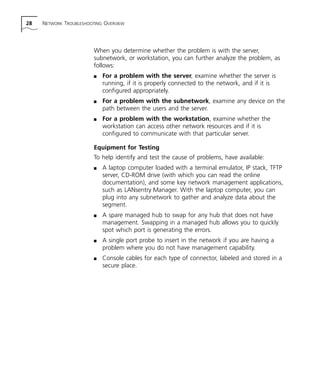
28 NETWORK TROUBLESHOOTING OVERVIEW 
When you determine whether the problem is with the server, 
subnetwork, or workstation, you can further analyze the problem, as 
follows: 
n For a problem with the server, examine whether the server is 
running, if it is properly connected to the network, and if it is 
configured appropriately. 
n For a problem with the subnetwork, examine any device on the 
path between the users and the server. 
n For a problem with the workstation, examine whether the 
workstation can access other network resources and if it is 
configured to communicate with that particular server. 
Equipment for Testing 
To help identify and test the cause of problems, have available: 
n A laptop computer loaded with a terminal emulator, IP stack, TFTP 
server, CD-ROM drive (with which you can read the online 
documentation), and some key network management applications, 
such as LANsentry Manager. With the laptop computer, you can 
plug into any subnetwork to gather and analyze data about the 
segment. 
n A spare managed hub to swap for any hub that does not have 
management. Swapping in a managed hub allows you to quickly 
spot which port is generating the errors. 
n A single port probe to insert in the network if you are having a 
problem where you do not have management capability. 
n Console cables for each type of connector, labeled and stored in a 
secure place.
Troubleshooting Strategy 29 
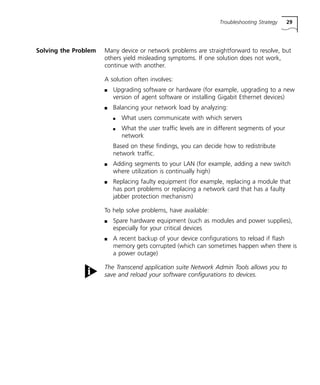
Solving the Problem Many device or network problems are straightforward to resolve, but 
others yield misleading symptoms. If one solution does not work, 
continue with another. 
A solution often involves: 
n Upgrading software or hardware (for example, upgrading to a new 
version of agent software or installing Gigabit Ethernet devices) 
n Balancing your network load by analyzing: 
n What users communicate with which servers 
n What the user traffic levels are in different segments of your 
network 
Based on these findings, you can decide how to redistribute 
network traffic. 
n Adding segments to your LAN (for example, adding a new switch 
where utilization is continually high) 
n Replacing faulty equipment (for example, replacing a module that 
has port problems or replacing a network card that has a faulty 
jabber protection mechanism) 
To help solve problems, have available: 
n Spare hardware equipment (such as modules and power supplies), 
especially for your critical devices 
n A recent backup of your device configurations to reload if flash 
memory gets corrupted (which can sometimes happen when there is 
a power outage) 
The Transcend application suite Network Admin Tools allows you to 
save and reload your software configurations to devices.
30 NETWORK TROUBLESHOOTING OVERVIEW
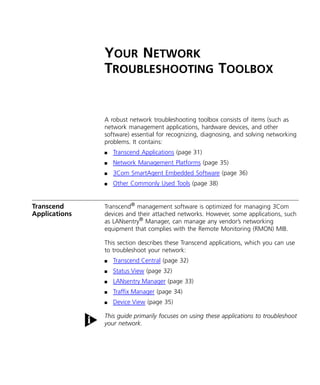
YOUR NETWORK 
TROUBLESHOOTING TOOLBOX 
A robust network troubleshooting toolbox consists of items (such as 
network management applications, hardware devices, and other 
software) essential for recognizing, diagnosing, and solving networking 
problems. It contains: 
n Transcend Applications (page 31) 
n Network Management Platforms (page 35) 
n 3Com SmartAgent Embedded Software (page 36) 
n Other Commonly Used Tools (page 38) 
Transcend 
Applications 
Transcend® management software is optimized for managing 3Com 
devices and their attached networks. However, some applications, such 
as LANsentry® Manager, can manage any vendor’s networking 
equipment that complies with the Remote Monitoring (RMON) MIB. 
This section describes these Transcend applications, which you can use 
to troubleshoot your network: 
n Transcend Central (page 32) 
n Status View (page 32) 
n LANsentry Manager (page 33) 
n Traffix Manager (page 34) 
n Device View (page 35) 
This guide primarily focuses on using these applications to troubleshoot 
your network.
32 YOUR NETWORK TROUBLESHOOTING TOOLBOX 
Transcend Central Transcend Central, an asset management and device grouping 
application, is your starting point for understanding what your network 
consists of and for controlling the Transcend network management 
troubleshooting tools. Transcend Central is available as both a native 
Windows application and a Java application that you can access using a 
browser. 
Using Transcend Central for troubleshooting, you can: 
n Display an inventory of device, module, and port information. 
n Group devices to make your troubleshooting tasks easier. Managing 
a collection of devices allows you to simultaneously perform the 
same tasks on each device in a group and to locate physical or 
logical problems on your network. 
n Launch Transcend applications, including some of your primary 
Transcend troubleshooting tools: 
n Status View (page 32), which includes Status Watch and MAC 
Watch (from the native version) and Web Reporter (from the Java 
version) 
n LANsentry Manager (page 33) 
n Device View (page 35) 
Status View The Status View applications manage 3Com devices and their attached 
networks. Status View applications primarily poll for MIB-II (page 138) 
data. 
Check the Status View help to see which 3Com devices are supported 
by each Status View application. 
Status Watch 
Status Watch is a performance monitoring application that allows you 
to monitor the operational status of your network devices and quickly 
identify any problems that require your attention.
Transcend Applications 33 
MAC Watch 
MAC Watch is an address collection and discovery application that: 
n Polls managed devices for all MAC addresses 
n Polls managed devices and routers for IP addresses to perform 
MAC-to-IP address translation 
n Allows you to disable troublesome ports 
Web Reporter 
Web Reporter is a data-reporting application that runs in a World Wide 
Web (WWW) browser. It generates reports from data collected by the 
Status Watch and MAC Watch applications, allowing you to compare 
network statistics against a baseline 
LANsentry Manager LANsentry Manager is a set of integrated applications that displays and 
explores the real-time and historical data captured by RMON-compliant 
devices (probes) on the network. LANsentry Manager uses SNMP 
polling to gather RMON and RMON2 data from the probes. 
Use LANsentry Manager to: 
n Monitor current performance of network segments 
n See trends over time 
n Spot signs of current problems 
n Configure alarms to monitor for specific events 
n Capture packets and display their contents 
LANsentry Manager works with any device (from 3Com or other 
vendors) that supports the RMON MIB (page 139) or the RMON2 MIB 
(page 140).
34 YOUR NETWORK TROUBLESHOOTING TOOLBOX 
Traffix Manager Traffix™ Manager is a performance-monitoring application that provides 
information about layer 3 conversations between nodes. It helps you to 
assess traffic patterns on your network. Traffix Manager: 
n Monitors all the stations seen by the RMON2–compliant probes 
deployed on your network 
n Captures and stores RMON and RMON2 data for your network’s 
protocols and applications 
n Displays traffic between stations in user-defined views of the 
network 
n Graphs current or historical data on the devices selected 
n Delivers reports for user-specified stations and time periods as 
postscript to your printer or as HTML to your web server 
n Launches LANsentry Manager tools for in-depth analysis of a station 
or a conversation between stations 
You can use Traffix Manager to: 
n Know your network — Understand overall flow patterns and 
interactions between systems and see how your network is really 
being used at the application level 
n Optimize your network — Gain an insight into traffic and 
application usage trends to help you optimize the use and 
placement of current network resources and make wise decisions 
about capacity planning and network growth 
Traffix Manager works with any device (from 3Com or other vendors) 
that supports the RMON2 MIB (page 140).
Network Management Platforms 35 
Device View The Device View application is a device configuration tool. When 
troubleshooting your network, you can use Device View to check or 
change a device’s configuration and upgrade a device’s agent software. 
You can also use Device View to look at a device’s statistics and to set 
alarms. 
Device View manages only 3Com devices. 
See the Device View help for which 3Com devices are supported by 
Device View. 
You can also use Transcend Upgrade Manager, which is one of the 
Network Admin Tools applications, to perform bulk software upgrades 
on devices. 
Network 
Management 
Platforms 
As part of your troubleshooting toolbox, your network management 
platform is the first place that you go to view the overall health of your 
network. With the platform, you can understand the logical 
configuration of your network and configure views of your network to 
understand how devices work together and the role they play in the 
users’ work. The network management platform that supports your 
Transcend software installation can provide valuable troubleshooting 
tools. 
For example, Transcend Enterprise Manager ‘97 for Windows NT 
software is integrated with HP OpenView Network Node Manager 
Version 5.01, which runs on Windows NT Version 4.0. Network Node 
Manager (NNM) provides a number of functions useful in 
troubleshooting. 
It automatically discovers all the devices on your network and creates a 
database that contains information about each device. NNM updates 
the database when new devices are added or when existing devices are 
modified or deleted. 
Using this device database, NNM creates a default map that displays a 
graphical representation of your network. Each device on your network 
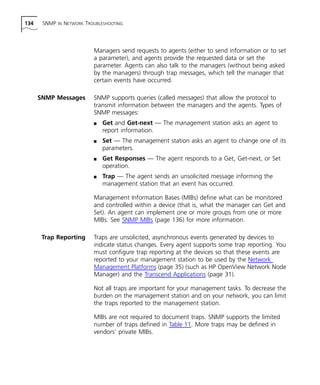
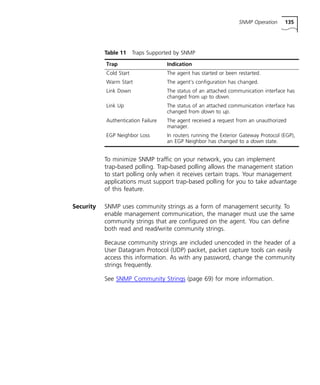
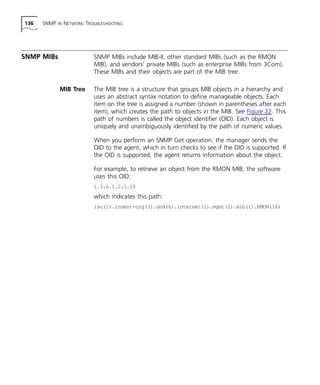
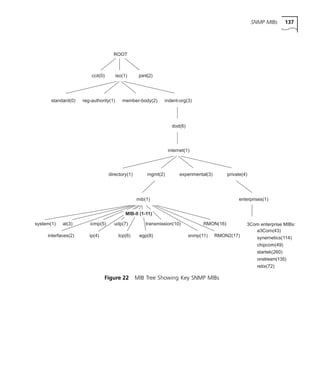
appears as a symbol (icon) on the map. You can configure views of 
your network to show devices on the same subnetworks or floors.
36 YOUR NETWORK TROUBLESHOOTING TOOLBOX 
You can use NNM to monitor network performance and to diagnose 
network performance and connectivity problems. You can: 
n Take a snapshot of your network in its normal state. The snapshot 
records the state of your network at a particular instant. If you later 
have network performance problems, you can compare the current 
state of your network to the snapshot. 
n Quickly determine the connectivity status of a device by noting the 
color of its map symbol. Red usually means a device disconnection. 
n Diagnose connectivity problems by determining whether two devices 
can communicate. If they can communicate, then examine the route 
between the devices, the number of packets sent and lost, and the 
roundtrip time between the two devices. 
n Manage MIB information (for example, collecting and storing MIB 
data for trend analysis and graphing) using MIB queries. NNM 
compiles MIBs and lets you navigate up and down the MIB Tree 
(page 136) to retrieve MIB objects from devices. You can set 
thresholds for MIB data and generate events when a threshold is 
exceeded. 
n Configure the software to act on certain events. The Event 
Categories window informs you of any unexpected events (which 
arrive in the form of traps). 
For more information, see the HP documentation shipped with your 
software. 
3Com SmartAgent 
Embedded 
Software 
Traditional SNMP management places the burden of collecting network 
management information on the management station. In this 
traditional model, software agents collect information about 
throughput, record errors or packet overflows, and measure 
performance based on established thresholds. Through a polling 
process, agents pass this information to a centralized network 
management station whenever they receive an SNMP query. 
Management applications then make the data useful and alert the user 
if there are problems on the device. 
For more information about traditional SNMP management, see SNMP 
Operation (page 133).
3Com SmartAgent Embedded Software 37 
As a useful companion to traditional network management methods, 
3Com’s SmartAgent® technology places management intelligence into 
the software agent that runs within a 3Com device. This scalable 
solution reduces the amount of computational load on the 
management station and helps minimize management-related network 
traffic. 
SmartAgent software, which uses the RMON MIB (page 139), is 
self-monitoring, collecting and analyzing its own statistical, analytical, 
and diagnostic data. In this way, you can conduct network 
management by exception — that is, you are only notified if a problem 
occurs. Management by exception is unlike traditional SNMP 
management, in which the management software collects all data from 
the device through polling. 
SmartAgent software works autonomously and reports to the network 
management station whenever an exceptional network event occurs. 
The software can also take direct action without involving the 
management station. Devices that contain SmartAgent software may be 
able to: 
n Perform broadcast throttling to minimize the flow of broadcast 
traffic on your network 
n Monitor the ratio of good to bad frames 
n Switch a resilient link pair to the standby path if the primary path 
corrupts frames 
n Report if traffic on vital segments drops below minimum usage 
levels 
n Disable a port for five seconds to clear problems, and then 
automatically reconnect it 
To configure these advanced SmartAgent software features, see your 
device documentation. 
The Transcend applications LANsentry Manager (page 33) and 
Traffix Manager (page 34) make RMON data collected by the 
SmartAgent software more usable by summarizing and correlating 
important information.
38 YOUR NETWORK TROUBLESHOOTING TOOLBOX 
Other Commonly 
Used Tools 
These commonly used tools can also help you troubleshoot your 
network: 
n Network software, such as Ping (page 38), Telnet (page 40), and FTP 
and TFTP (page 40). You can use these applications to troubleshoot, 
configure and upgrade your system. 
n Network monitoring devices, such as Analyzers (page 41) and Probes 
(page 41). 
n Tools, such as Cable Testers (page 42), for working on physical 
problems. 
Many of the tools discussed in this section are only useful in TCP/IP 
networks. 
Ping Packet Internet Groper (Ping) allows you to quickly verify the 
connectivity of your network devices. Ping sends a packet from one 
device, attempts to transmit it to a station on the network, and listens 
for the response to ensure that it was correctly received. You can 
validate connections on the parts of your network by pinging different 
devices: 
n A successful response tells you that a valid network path exists 
between your station and the remote host and that the remote host 
is active. 
n Slower response times than normal can tell you that the path is 
congested or obstructed. 
n A failed response indicates that a connection is broken somewhere; 
use the message to help locate the problem. See Tips on 
Interpreting Ping Messages (page 40). 
Some network devices, like the CoreBuilder® 5000, must be configured 
to be able to respond to Ping messages. If you are not receiving 
responses from a device, first check that it is set up to be a Ping 
responder.
Other Commonly Used Tools 39 
Strategies for Using Ping 
Follow these strategies for using Ping: 
n Ping devices when your network is operating normally so that you 
have a performance baseline for comparison. See Identifying Your 
Network’s Normal Behavior (page 62) for more information. 
n Ping by IP address when: 
n You want to test devices on different subnetworks. This method 
allows you to Ping your network segments in an organized way, 
rather than having to remember all the hostnames and locations. 
n Your DNS server is down and your system cannot look up host 
names properly. You can Ping with IP addresses even if you 
cannot access hostname information. 
n Ping by hostname when you want to identify DNS server problems. 
n To troubleshoot problems involving large packet sizes, Ping the 
remote host repeatedly, increasing the packet size each time. 
n To determine if a link is erratic, perform a continuous Ping (using 
PING -t on Windows NT or ping -s on UNIX), which provides you 
with the time that it took the device to respond to each Ping. 
n To determine a route taken to a destination, use the trace route 
function (tracert) on Windows 95 and Windows NT. 
n Consider creating a Ping script that periodically sends a Ping to all 
necessary networking devices. If a Ping failure message is received, 
the script can perform some action to notify you of the problem, 
such as paging you. 
n Use the Ping functions of your network management platform. For 
example, in your HP Openview map, selecting a device and 
right-clicking provides access to Ping functions.
40 YOUR NETWORK TROUBLESHOOTING TOOLBOX 
Tips on Interpreting Ping Messages 
Use the following Ping failure messages to troubleshoot problems: 
n No reply from <destination> — Shows that the destination routes 
are available but that there is a problem with the destination itself. 
n <destination> is unreachable — Shows that your system does not 
know how to get to the destination. This message means either that 
routing information to a different subnetwork is unavailable or that 
a device on the same subnetwork is down. 
n ICMP host unreachable from gateway — Indicates that your 
system can transmit to the target address using a gateway, but the 
gateway cannot forward the packet properly because either a device 
is misconfigured or the gateway is down. 
Telnet Telnet, which is a login and terminal emulation program for 
Transmission Control Protocol/Internet Protocol (TCP/IP) networks, is a 
common way to communicate with an individual device. You log into 
the device (a remote host) and use that remote device as if it were a 
local terminal. 
If you have an out-of-band Telnet connection established with a device, 
you can use Telnet to communicate with that device even if the 
network goes down. This feature makes Telnet one of the most 
frequently used network troubleshooting tools. Usually, all device 
statistics and configuration capabilities are accessible by using Telnet to 
connect to the device’s console. For more information about setting up 
an out-of-band connection, see Using Telnet, Serial Line, and Modem 
Connections (page 49). 
You can invoke the Telnet application on your local system and set up a 
link to a Telnet process running on a remote host. You can then run a 
program located on a remote host as if you were working on the 
remote system. 
FTP and TFTP Most network devices support either the File Transfer Protocol (FTP) or 
the Trivial File Transfer Protocol (TFTP) for downloading updates of 
system software. Updating system software is often the solution to 
networking problems that are related to agent problems. Also, new 
software features may help correct a networking problem.
Other Commonly Used Tools 41 
FTP provides flexibility and security for file transfer by: 
n Accepting many file formats, such as ASCII and binary 
n Using data compression 
n Providing Read and Write access so that you can display, create, and 
delete files and directories 
n Providing password protection 
TFTP is a simple version of FTP that does not list directories or require 
passwords. TFTP only transfers files to and from a remote server. 
Analyzers An analyzer, often called a Sniffer, is a network device that collects 
network data on the segment to which it is attached, a process called 
packet capturing. Software on the device analyzes this data, a process 
referred to as protocol analysis. Most analyzers can interpret different 
types of protocol traffic, such as TCP/IP, AppleTalk, and Banyan Vines 
traffic. 
You usually use analyzers for reactive troubleshooting — you see a 
problem somewhere on your network and you attach an analyzer to 
capture and interpret the data from that area. Analyzers are particularly 
helpful in identifying intermittent problems. For example, if your 
network backbone has experienced moments of instability that prevent 
users from logging onto the network, you can attach an analyzer to 
the backbone to capture the intermittent problems when they happen 
again. 
Probes Like Analyzers (page 41), a probe is a network device that collects 
network data. Depending on its type, a probe can collect data from 
multiple segments simultaneously. It stores the collected data and 
transfers the data to an analysis site when requested. Unlike an 
analyzer, probes do not interpret data. 
A probe can be either a stand-alone device or an agent in a network 
device. The Transcend Enterprise Monitor 500 series and the 
SuperStack® II Monitor series are stand-alone RMON probes. LANsentry 
Manager and Traffix Manager use data from probes that are compliant 
with the RMON MIB (page 139) or the RMON2 MIB (page 140).
42 YOUR NETWORK TROUBLESHOOTING TOOLBOX 
You can use a probe daily to check the health of your network. The 
Transcend applications can interpret and report this data, alerting you 
to possible problems so that you can proactively manage your network. 
For example, an RMON2 probe can help you to analyze traffic patterns 
on your network. Use this data to make decisions about reconfiguring 
devices and end stations as needed. 
Cable Testers Cable testers check the electrical characteristics of the wiring. They are 
most commonly used to ensure that building wiring and cables meet 
Category 5, 4, and 3 standards. For example, network technologies 
such as Fast Ethernet require the cabling to meet Category 5 
requirements. Testers are also used to find defective and broken wiring 
in a building.
STEPS TO ACTIVELY MANAGING 
YOUR NETWORK 
These sections describe the steps you can take to effectively 
troubleshoot your network when the need arises: 
n Designing Your Network for Troubleshooting (page 43) 
n Preparing Devices for Management (page 53) 
n Configuring Transcend Software (page 54) 
n Knowing Your Network (page 58) 
Designing Your 
Network for 
Troubleshooting 
Designing your network for troubleshooting facilitates your access to 
key devices on your network when your network is experiencing 
connectivity or performance problems. Having adequate management 
access depends on these design criteria: 
n Position of the management station so that it can gather the 
greatest amount of network data through SNMP polling 
n Position of probes for distributed management of critical networks 
n Ability to communicate with each device even when your 
management station cannot access the network 
The following sections discuss how to design your network with the 
above criteria in mind: 
n Positioning Your SNMP Management Station (page 44) 
n Using Probes (page 45) 
n Monitoring Business-critical Networks (page 47) 
n Using Telnet, Serial Line, and Modem Connections (page 49) 
n Using Communications Servers (page 50) 
n Setting Up Redundant Management (page 51) 
n Other Tips on Network Design (page 52)
44 STEPS TO ACTIVELY MANAGING YOUR NETWORK 
Positioning Your 
SNMP Management 
Station 
In a typical LAN, it is best to locate your Windows NT or UNIX 
management station directly off the backbone where it can conduct 
SNMP polling and manage network devices. The backbone is usually 
the optimum location for the management station because: 
n The backbone is not subject to the failures of individual 
subnetworked routers or switches. 
n In a partial network outage, the information collected by a 
backbone management station is probably more accurate than a 
station in a routed subnet. 
n The backbone is usually protected with redundant power and 
technologies, like FDDI, that correct their own problems. This 
redundancy ensures that the backbone remains operational, even 
when other areas of the network are having problems. 
n The backbone is typically faster and has a higher bandwidth than 
other areas of your network, making it a more efficient location for 
a management station. 
Make sure that the capacity of your backbone can accommodate the 
SNMP traffic that is generated by the management applications. 
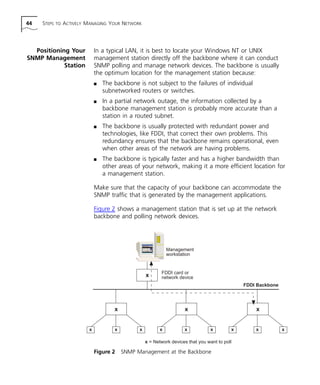
Figure 2 shows a management station that is set up at the network 
backbone and polling network devices. 
Management 
workstation 
x 
FDDI card or 
network device 
Figure 2 SNMP Management at the Backbone 
FDDI Backbone 
x x x 
x x x x x x x x x 
x = Network devices that you want to poll
Designing Your Network for Troubleshooting 45 
Although SNMP management from the backbone is a good way to 
keep track of what is happening on your network, do not rely on it 
exclusively. Because SNMP management occurs in-band (that is, SNMP 
traffic shares network bandwidth with data traffic), network 
troubleshooting using SNMP can become a problem in these ways: 
n Very heavy data traffic or a break in the network can make it 
difficult or impossible for the management station to poll a device. 
n Traffic added to the network by SNMP polling may contribute to 
networking problems. 
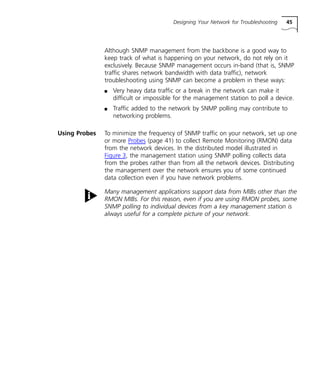
Using Probes To minimize the frequency of SNMP traffic on your network, set up one 
or more Probes (page 41) to collect Remote Monitoring (RMON) data 
from the network devices. In the distributed model illustrated in 
Figure 3, the management station using SNMP polling collects data 
from the probes rather than from all the network devices. Distributing 
the management over the network ensures you of some continued 
data collection even if you have network problems. 
Many management applications support data from MIBs other than the 
RMON MIBs. For this reason, even if you are using RMON probes, some 
SNMP polling to individual devices from a key management station is 
always useful for a complete picture of your network.
46 STEPS TO ACTIVELY MANAGING YOUR NETWORK 
Probe 
FDDI card or 
network device 
FDDI Backbone 
Management 
workstation 
x 
x 
FDDI card or x 
network device 
x x x 
x x x x x x 
x = Network devices that you want to poll 
x 
Probe 
x 
x x x 
Figure 3 Management at the Backbone with as Attached Probe 
To extend your remote monitoring capabilities, use embedded RMON 
probes or roving analysis (monitoring one port for a period of time, 
moving on to another port for a while, and so on). However, with 
roving analysis, you cannot see a historical analysis of the ports because 
the probe is moving from one port to another. 
Some probes, like 3Com’s Enterprise Monitor, are designed to support 
the large number of interfaces found in switched environments. The 
probe’s high port density supports this multi-segmented switched 
environment. The probe’s interfaces can also be used to monitor mirror 
(or copy) ports on the switch, which means that all data received and 
transmitted on a port is also sent to the probe. 
Probes will not indicate which port has caused an error. Only a 
managed hub (a hub or switch with an onboard management module) 
can provide that level of detail. Probes and a hub’s own management 
module complement each other.
Designing Your Network for Troubleshooting 47 
Monitoring 
Business-critical 
Networks 
On business-critical networks, you need to increase your level of 
management by dedicating probes to the essential areas of your 
network. For detailed network management, it is not enough to gather 
raw performance figures — you need to know, at the network and 
conversation level, who is generating the traffic and when it is being 
generated. For this type of analysis, use reporting tools, such as 
Traffix Manager (page 34), and low-level, fault diagnostic tools, such as 
LANsentry Manager (page 33). 
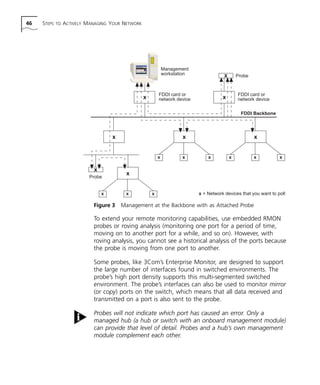
The three critical areas on this type of network that you should monitor 
are discussed in these sections and shown in Figure 4: 
n FDDI Backbone Monitoring (page 48) 
n Internet WAN Link Monitoring (page 48) 
n Switch Management Monitoring (page 48) 
FDDI Backbone 
Management 
workstation 
x 
SuperStack II 
Enterprise Monitor 
x x 
x 
x x x x x x 
x = Network devices that you want to poll 
SuperStack® II 
WAN Monitor 700 
Figure 4 Probes Monitoring a Business-critical Network 
SuperStack II 
Enterprise Monitor 
with FDDI module 
Direct connection to the 
management workstation 
WAN = Possible probe attachment to a switch’s 
roving analysis port 
Inline monitoring 
on Fast Ethernet
48 STEPS TO ACTIVELY MANAGING YOUR NETWORK 
FDDI Backbone Monitoring 
On the FDDI backbone, you need to continually monitor whether it is 
being overutilized, and, if so, by what type of traffic. By placing the 
SuperStack® II Enterprise Monitor with an FDDI media module directly 
at the backbone, you can gather utilization and host matrix 
information. This data is used by Traffix™ Manager to provide regular 
segment utilization reports and Top-N host reports. In addition, the 
probe provides a full range of FDDI performance statistics that can be 
recorded with LANsentry® Manager or reported to the management 
station by way of SNMP traps. 
To ensure management access to the probe, provide a direct 
connection to the probe from your management station. This 
connection allows you to access probe data even if the ring is unusable 
and keeps management traffic off the main ring. 
Internet WAN Link Monitoring 
The Internet link is a concern for dedicated network management 
because it represents an external cost to the company that requires 
budgeting and because it is a possible security problem. In a way 
similar to monitoring the FDDI backbone, Traffix Manager reports can 
indicate whether you are paying for too much bandwidth or whether 
you need to purchase more. It can also indicate the level of use on a 
workgroup basis for internal billing and highlight the top sites visited by 
users. Similarly, you can monitor for unexpected conversations and 
protocols. 
You also need to know the error rates on this link and whether you are 
experiencing congestion because of circumstances on the Internet 
provider’s network. LANsentry Manager can record and display these 
statistics and provide a detailed real-time view. 
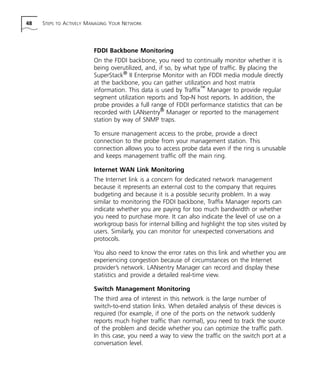
Switch Management Monitoring 
The third area of interest in this network is the large number of 
switch-to-end station links. When detailed analysis of these devices is 
required (for example, if one of the ports on the network suddenly 
reports much higher traffic than normal), you need to track the source 
of the problem and decide whether you can optimize the traffic path. 
In this case, you need a way to view the traffic on the switch port at a 
conversation level.
Designing Your Network for Troubleshooting 49 
By placing a Superstack II Enterprise Monitor in a central location, you 
can easily attach it to the switches that have the most Ethernet ports as 
the need arises. Using the roving analysis feature of many 3Com 
devices, data from a monitored port can be copied to the port on the 
switch to which the SuperStack II is connected. When a problem arises, 
roving analysis is activated for a particular switch and LANsentry 
Manager or Traffix Manager collects the data from the SuperStack II 
Enterprise Monitor. These applications can then monitor the network 
data for the devices connected to that switch. 
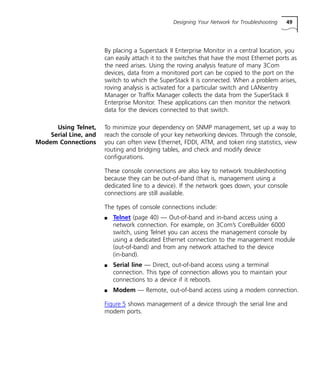
Using Telnet, 
Serial Line, and 
Modem Connections 
To minimize your dependency on SNMP management, set up a way to 
reach the console of your key networking devices. Through the console, 
you can often view Ethernet, FDDI, ATM, and token ring statistics, view 
routing and bridging tables, and check and modify device 
configurations. 
These console connections are also key to network troubleshooting 
because they can be out-of-band (that is, management using a 
dedicated line to a device). If the network goes down, your console 
connections are still available. 
The types of console connections include: 
n Telnet (page 40) — Out-of-band and in-band access using a 
network connection. For example, on 3Com’s CoreBuilder 6000 
switch, using Telnet you can access the management console by 
using a dedicated Ethernet connection to the management module 
(out-of-band) and from any network attached to the device 
(in-band). 
n Serial line — Direct, out-of-band access using a terminal 
connection. This type of connection allows you to maintain your 
connections to a device if it reboots. 
n Modem — Remote, out-of-band access using a modem connection. 
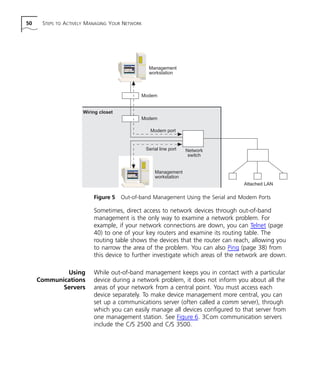
Figure 5 shows management of a device through the serial line and 
modem ports.
50 STEPS TO ACTIVELY MANAGING YOUR NETWORK 
Management 
workstation 
Modem 
Modem 
Modem port 
Serial line port 
Management 
workstation 
Wiring closet 
Network 
switch 
Attached LAN 
Figure 5 Out-of-band Management Using the Serial and Modem Ports 
Sometimes, direct access to network devices through out-of-band 
management is the only way to examine a network problem. For 
example, if your network connections are down, you can Telnet (page 
40) to one of your key routers and examine its routing table. The 
routing table shows the devices that the router can reach, allowing you 
to narrow the area of the problem. You can also Ping (page 38) from 
this device to further investigate which areas of the network are down. 
Using 
Communications 
Servers 
While out-of-band management keeps you in contact with a particular 
device during a network problem, it does not inform you about all the 
areas of your network from a central point. You must access each 
device separately. To make device management more central, you can 
set up a communications server (often called a comm server), through 
which you can easily manage all devices configured to that server from 
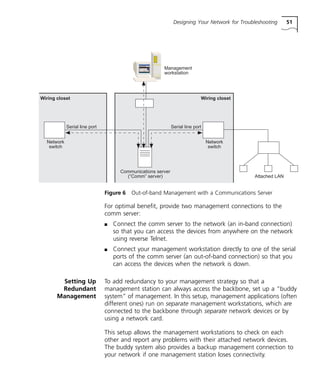
one management station. See Figure 6. 3Com communication servers 
include the C/S 2500 and C/S 3500.
Designing Your Network for Troubleshooting 51 
Management 
workstation 
Figure 6 Out-of-band Management with a Communications Server 
For optimal benefit, provide two management connections to the 
comm server: 
n Connect the comm server to the network (an in-band connection) 
so that you can access the devices from anywhere on the network 
using reverse Telnet. 
n Connect your management workstation directly to one of the serial 
ports of the comm server (an out-of-band connection) so that you 
can access the devices when the network is down. 
Setting Up 
Redundant 
Management 
To add redundancy to your management strategy so that a 
management station can always access the backbone, set up a “buddy 
system” of management. In this setup, management applications (often 
different ones) run on separate management workstations, which are 
connected to the backbone through separate network devices or by 
using a network card. 
This setup allows the management workstations to check on each 
other and report any problems with their attached network devices. 
The buddy system also provides a backup management connection to 
your network if one management station loses connectivity. 
Wiring closet 
Serial line port 
Attached LAN 
Serial line port 
Communications server 
(“Comm” server) 
Wiring closet 
Network 
switch 
Network 
switch
52 STEPS TO ACTIVELY MANAGING YOUR NETWORK 
Other Tips on 
Network Design 
This section provides some additional tips for designing your network 
for troubleshooting. 
Management Station Configuration 
n Configure the management station to run without any network 
connection — including NIS, NFS, and DNS lookups. Because your 
management station should run with all network cables pulled out, 
do not install Transcend® Enterprise Manager on a network drive. 
n Have more than one interface available on the management station, 
an arrangement called dual hosting. Connect vital probes to the 
second interface to create a private monitoring LAN (one without 
regular network traffic) on which network problems will not impair 
communication. 
n Do not give the management station privileges on the network, 
such as the ability to log in with no passwords (rsh). Hackers can 
easily spot management stations. 
n Connect the management station to an uninterruptible power 
supply (UPS) to protect the station from events that interrupt power, 
such as blackouts, power surges, and brownouts. 
n Regularly back up the management station. 
More Tips 
n Provide remote access through a modem to the management 
station so that you can keep track of your network’s activity 
remotely. 
n Use managed hubs to narrow which link is causing an error. Even if 
your budget does not allow you to manage all hubs, strategically 
install one managed hub for error tracking. 
n Keep copies of all configurations on a file server and on the 
management station. See Knowing Your Network’s Configuration 
(page 58) for more information.
Preparing Devices for Management 53 
Preparing Devices 
for Management 
Before Transcend management software (or any other management 
software) can work with the devices on your network, make sure that 
the devices are configured appropriately for management 
communication. 
If you have a problem establishing a management connection, see 
Manager-to-Agent Communication (page 67) for more information 
about solving this problem. 
Configuring 
Management 
Parameters 
Before attempting to manage the supported devices with Transcend 
applications, check these prerequisites for each device: 
n The device must have an IP hostname and IP address. When you are 
managing modular devices, use the IP address of the device’s 
management module, if one is present. 
n The device and your network management platform must use the 
same SNMP read (get) and write (set) community strings. See 
Security (page 135) for more information about community strings. 
Configuring Traps SNMP trap reporting means that management agents send unsolicited 
messages to management stations, relaying events that have occurred 
at the device, such as a system reboot. Traps include an object 
identification (OID) that passes integer values or strings that are 
decoded by the management software. 
Configure each device to send the SNMP traps that are required by the 
network management applications to the management station. You can 
set SNMP traps using the device’s console program or Device View 
(page 35), a Transcend application. 
For more information about traps, see Trap Reporting (page 134).
54 STEPS TO ACTIVELY MANAGING YOUR NETWORK 
Configuring 
Transcend Software 
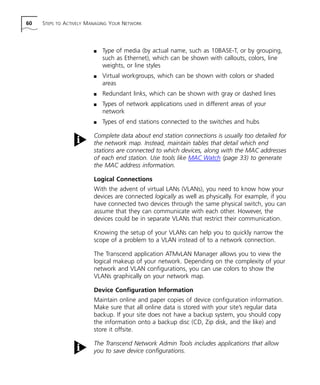
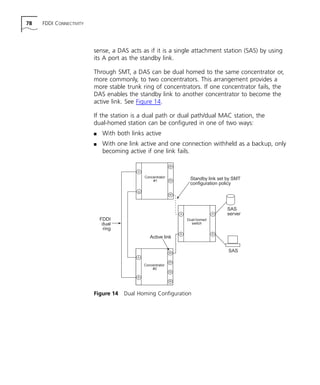
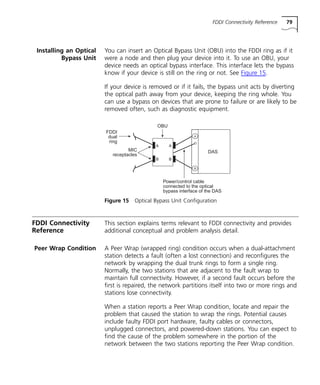
Configure your Transcend management software to monitor your 
network most effectively, identify when thresholds are exceeded, and 
alert you to problems or potential problems. 
Monitoring Devices For Transcend management software to monitor your devices: 
n Use your platform’s autodiscovery feature to detect all manageable 
devices on your network and to create a network map. Transcend 
applications use this data for their operation. For Transcend 
applications to recognize 3Com devices from the platform, the 
device icons must be 3Com device icons. 
n Add 3Com devices to an inventory database using Transcend Central 
(page 32). You can import devices from your platform’s database. 
The Transcend Central database defines the devices to be managed 
by many of the Transcend applications and allows you to group 
devices for easier management and faster troubleshooting. 
n Create logical and physical groups of the devices in your database 
using Transcend Central. 
Setting Thresholds 
and Alarms 
Thresholds are the upper and lower limits that you set for the network 
conditions and events that you are monitoring with network 
management software. When these limits are exceeded, the 
management software reports that a threshold has been exceeded 
(usually by icons changing color). Alarms add to this reporting 
functionality by allowing you to configure an action to be taken (such 
as disabling ports or sending e-mail) if the threshold is exceeded. 
Alarms are powerful tools that, when configured correctly, can be used 
to prevent inconvenient or even catastrophic network failures. The main 
advantage of alarms is that you can specify at exactly which point an 
action should take place, and you can tailor them to suit the normal 
operating conditions of your network. 
The first time you are using the Transcend applications, you should use 
the default thresholds to see how they apply to your network. After 
assessing your network’s normal behavior, you can adjust the thresholds 
and alarms to make them more useful for your particular network. See 
Identifying Your Network’s Normal Behavior (page 62) for more 
information.
Configuring Transcend Software 55 
Setting Thresholds in Status Watch 
You can set a rising threshold and a falling threshold for most 
Status Watch (page 32) tools. The rising threshold triggers a status 
severity change when the threshold is exceeded. The falling threshold 
causes a status severity change when the excessive activity or abnormal 
condition has returned to normal. 
For example, your Ethernet network may normally accommodate 50 
percent utilization. If it exceeds 60 percent for an extended time, your 
network slows considerably. You want to know when and for how long 
you network exceeds the threshold of 60 percent. 
Status Watch also allows you to set status severity levels for events in 
the FDDI Status and the System Status tools. You can set the severity 
level setting for the conditions and events. For some conditions and 
events, you can specify severity level settings for the individual values of 
the variables. 
For more information about setting thresholds in Status Watch, see the 
Status View User Guide and Status Watch help. 
Setting Thresholds and Alarms in LANsentry Manager 
Much of network management involves monitoring for specific network 
events. LANsentry Manager (page 33) lets you specify these events in 
advance and then lets you know as soon as they occur. This process is 
known as setting alarms. 
Consider the following examples of alarms: 
n Example A: The router on your network, which is capable of 
forwarding data at 3,000 packets per second (pps), appears to have 
problems forwarding at the top of its specification. You configure an 
alarm to tell you as soon as the traffic approaches this rate. 
n Example B: Your network is running at 1,400 pps. Typically, a Cyclic 
Redundancy Check (CRC) rate of more than 1 percent of network 
traffic is considered excessive. You configure an alarm to tell you as 
soon as the CRC rate climbs above the threshold of 14 pps. 
Over time, you build up a library of alarms tailored to your own 
network.
56 STEPS TO ACTIVELY MANAGING YOUR NETWORK 
Refining Alarm Settings 
You can refine your alarms for more exact monitoring by setting the 
hysteresis zone and defining Start and Stop events. 
Hysteresis zone For more control over the conditions that trigger an alarm, you can also 
specify a hysteresis zone around the specified value. The hysteresis zone 
ensures that alarms are not triggered due to small fluctuations around 
the threshold value. The hysteresis zone is the area where a value has 
fallen below the upper threshold (also called the rising threshold) but 
has not yet reached a lower threshold (also called the falling threshold). 
After a rising threshold generates an alarm, the value must fall below 
the falling threshold before another alarm is generated. For alarms set 
on falling thresholds, the rule is reversed. An example of this alarm 
mechanism is shown in Figure 5-7. 
Hysteresis zone 
Figure 5-7 Alarm Triggering Mechanism
Configuring Transcend Software 57 
Stop and Start 
events 
As well as using alarms on their own, in LANsentry Manager, you can 
use them as Start or Stop events when capturing packets with the 
Capture application. In Example A, you could start capturing all packets 
transmitted by the router whenever the traffic rate rose above 2,800 
packets per second and then stop capturing when it dropped below 
this level. By combining alarms and the Capture application, you have 
powerful troubleshooting capabilities. 
For more information about setting alarms with LANsentry Manager, 
see the LANsentry Manager User Guide and help. 
Setting Alarms Based on a Baseline 
When you have determined the baselines of your network’s normal 
activity with Traffix Manager (page 34) and LANsentry Manager, you 
can use the Alarms View in LANsentry Manager to set alarms that 
trigger when network activity deviates from the baseline. See Baselining 
Your Network (page 62) for more information. 
When determining the baseline for setting utilization alarms, use either 
of these approaches: 
n Set alarms for any peaks in network utilization — Pick a 
baseline value that covers most of your network traffic, ignoring any 
obvious one-time-only peaks. For example, as users log on at the 
start of the day, you would to see a large peak in network 
utilization. The alarm is triggered whenever such peaks occur. 
n Set alarms for exceptional peaks in network utilization — Pick 
a baseline value that covers the highest possible peak seen when 
service was still provided. The alarm is triggered at levels higher than 
this peak, alerting you to the most serious utilization on your 
network. 
When you choose the baseline for error alarms, pick the lowest 
possible baseline so that the alarm is triggered by any peaks. 
Other Tips for Setting Thresholds and Alarms 
For SNMP traps to be effective, their thresholds must be high enough 
so that they do not generate false alarms. On the other hand, high 
thresholds also mean that small amounts of errors can escape 
detection.
58 STEPS TO ACTIVELY MANAGING YOUR NETWORK 
A very small error rate that regularly occurs (such as four per minute) 
can cause major problems with protocols with large retry delays. For 
example, some MAC-level errors corrupt packets so that a switch does 
not forward them. 
Knowing Your 
Network 
You can better troubleshoot the problems on your network by: 
n Knowing Your Network’s Configuration (page 58) 
n Identifying Your Network’s Normal Behavior (page 62) 
Knowing Your 
Network’s 
Configuration 
Part of understanding how your network normally looks is in knowing 
its physical and logical configuration. You should know which devices 
are on your network, how the devices are configured, which devices 
are attached to the backbone, and which devices connect your network 
to the outside world (WAN). To keep track of your network’s 
configuration, gather the following information: 
n Site Network Map (page 58) 
n Logical Connections (page 60) 
n Device Configuration Information (page 60) 
n Other Important Data About Your Network (page 61) 
This data, when kept up to date, is extremely helpful for locating 
information when you experience network or device problems. 
Site Network Map 
A network map helps you to: 
n Know exactly where each device is physically located 
n Easily identify the users and applications that are affected by a 
problem 
n Systematically check each part of your network for problems 
You can create a network map using any drawing or flow chart 
application. Store your network map online. In addition, make sure that 
you always have a current version on paper in case you cannot access 
the online version. Figure 8 shows a simple example of a network map 
consisting of 3Com devices.
Knowing Your Network 59 
CoreBuilder 5000 
with SwitchModules 
Macintosh workstations 
SuperStack II 
WAN Monitor 700 
SuperStack II 
Switch 3000 FX 
Server farm 
Web server 
Figure 8 Example of a Site Network Map 
Consider including the following information on your network map: 
n Location of important devices and workgroups (by floor, building, or 
area) 
n Location of the network backbone, data center, and wiring closets, 
as appropriate for your network 
n Location of your network management stations 
n Location and type of remote connections 
n IP subnetwork addresses for all managed switches and hubs 
n Other subnetwork addresses, such as Novell IPX and AppleTalk, if 
appropriate for your network 
NETBuilder II® 
8-slot 
AccessBuilder® 
5000 7-slot 
CS/2500 
Servers 
Windows NT workstations 
Printers 
Network 
management 
station 
with FDDI card 
Floor 1 
SuperStack® II 
Switch 2200 
CoreBuilderTM 2500 
Internet Modems 
ISDN 
Ethernet 
Windows 95 
workstations 
Printers 
FDDI 
IP: 138.6.12.xxx 
Floor 2 
Floor 1 
Ethernet 
SuperStack II 
Hub 100 TX 
UNIX workstations 
CoreBuilder 2500 
Ethernet 
Fast 
Ethernet 
FDDI 
IP: 138.6.13.xxx 
FDDI Backbone 
IP: 138.6.1.xxx 
Data center 
Fast Ethernet 
Fast Ethernet 
FDDI 
Mail server 
NetWare servers 
NETBuilder II 
8-slot 
SuperStack II 
Enterprise Monitor 
with FDDI module 
UNIX workstations
60 STEPS TO ACTIVELY MANAGING YOUR NETWORK 
n Type of media (by actual name, such as 10BASE-T, or by grouping, 
such as Ethernet), which can be shown with callouts, colors, line 
weights, or line styles 
n Virtual workgroups, which can be shown with colors or shaded 
areas 
n Redundant links, which can be shown with gray or dashed lines 
n Types of network applications used in different areas of your 
network 
n Types of end stations connected to the switches and hubs 
Complete data about end station connections is usually too detailed for 
the network map. Instead, maintain tables that detail which end 
stations are connected to which devices, along with the MAC addresses 
of each end station. Use tools like MAC Watch (page 33) to generate 
the MAC address information. 
Logical Connections 
With the advent of virtual LANs (VLANs), you need to know how your 
devices are connected logically as well as physically. For example, if you 
have connected two devices through the same physical switch, you can 
assume that they can communicate with each other. However, the 
devices could be in separate VLANs that restrict their communication. 
Knowing the setup of your VLANs can help you to quickly narrow the 
scope of a problem to a VLAN instead of to a network connection. 
The Transcend application ATMvLAN Manager allows you to view the 
logical makeup of your network. Depending on the complexity of your 
network and VLAN configurations, you can use colors to show the 
VLANs graphically on your network map. 
Device Configuration Information 
Maintain online and paper copies of device configuration information. 
Make sure that all online data is stored with your site’s regular data 
backup. If your site does not have a backup system, you should copy 
the information onto a backup disc (CD, Zip disk, and the like) and 
store it offsite. 
The Transcend Network Admin Tools includes applications that allow 
you to save device configurations.
Knowing Your Network 61 
Follow these guidelines for saving configuration information: 
n Because the easiest way to recover a device’s configuration is to use 
FTP or TFTP, save the configuration settings of each device that 
supports this method of uploading. 
n For other devices, Telnet in and save the session (which contains 
configuration details) to a file. If you cannot print the configuration 
of a device, then create a quick “rebuild” guide that explains the 
quickest way to configure the device from a fresh install. 
n For devices that store information to diskette, store this data as part 
of your site’s regular backup. 
n For routers and other important devices with text configuration files, 
store this data online in a revision control system. Keep the most 
recent version on paper. Keep previous versions. 
n For PCs, keep a recovery disk for each type of PC. For any device 
that you use as a server, store all startup scripts and copies of 
registries. 
Other Important Data About Your Network 
For a complete picture of your network, have the following information 
available: 
n All passwords — Store passwords in a safe place. Keep previous 
passwords in case you restore a device to a previous software 
version and need to use the old password that was valid for that 
version. 
n Device inventory — The inventory allows you to see the device 
type, IP address, ports, MAC addresses, and attached devices at a 
glance. Software tools, such as Transcend Central (page 32), can 
help you keep track of the 3Com devices on your network. Using 
Transcend Central, you can group devices by type and location and 
have this information on hand for troubleshooting. 
n MAC address-to-port number list — If your hubs or switches are 
not managed, you must keep a list of the MAC addresses that 
correlate to the ports on your hubs and switches. Generate and 
keep a paper copy of this list, which is crucial for deciphering 
captured packets, using MAC Watch (page 33).
62 STEPS TO ACTIVELY MANAGING YOUR NETWORK 
Do not rely on getting an up-to-date list of MAC addresses from MAC 
Watch because the network may be down, which prevents SNMP 
polling. If the network is down, an exported copy of MAC Watch’s data 
is invaluable (online or on paper). 
n Log book — Document your interactions, no matter how trivial, 
with each device that is critical to your network’s operation (that is, 
routers, remote access devices, security servers). For example, 
document that you noticed a fan making noise one morning (which 
is probably not a problem). Your note may help you to identify why 
a device is over temperature a week later (because the fan stopped 
working). 
n Change control — Maintain a change control system for all critical 
systems. Permanently store change control records. 
n Contact details — Store, online and on paper, the details of all 
support contracts, support numbers, engineer details, and telephone 
and fax numbers. 
To be ready to remotely access your network, store the network maps, 
contact details, and important network addresses at the homes of 
those who support the network. 
Identifying Your 
Network’s Normal 
Behavior 
By monitoring your network over a long period, you begin to 
understand its normal behavior. You begin to see a pattern in the 
traffic flow, such as which servers are typically accessed, when peak 
usage times occur, and so on. If you are familiar with your network 
when it is fully operational, you will be more effective at 
troubleshooting problems that arise. 
Baselining Your Network 
You can use a baseline analysis, an important indicator of overall 
network health, to identify problems. A baseline can serve as a useful 
reference of network traffic during normal operation, which you can 
then compare to captured network traffic while troubleshooting 
network problems. A baseline analysis speeds the process of isolating 
network problems. 
By running tests on a healthy network, you compile “normal” data to 
compare against the results you get when your network is in trouble. 
For example, Ping (page 38) each node to discover how long it typically 
takes you to receive a response from devices on your network.
Knowing Your Network 63 
Applications such as Status Watch (page 32), LANsentry Manager (page 
33), and Traffix Manager (page 34) allow you to collect days and weeks 
of data and set a baseline for comparison. Through the reporting 
mechanisms in the following list, you can continuously assess the data 
from your network and ensure that its performance is optimal: 
n Web Reporter (page 33) generates daily or weekly reports from data 
collected by Status Watch. 
n Traffix Manager generates weekly reports from collected data and 
calculates the baselines for you. Set up Utilization History and Error 
History reports with data resolution set to Weekly. 
n LANsentry Manager History View generates daily utilization graphs, 
sampled every 30 minutes, for each day over one week. Use these 
graphs to calculate your network baselines manually. 
Identifying Background Noise 
Know your network’s background noise so that you can recognize 
“real” data flow. For example, one evening after everyone is gone, no 
backups are running, and most nodes are on, analyze the traffic on 
your network using the Traffix Manager (page 34) application. The 
traffic you see is mostly broadcast and multicast packets. Any errors 
you see are the result of very faulty devices (trace). This traffic is the 
background noise of your network — traffic that occurs for little value. 
If background noise is high, redesign your network.
64 STEPS TO ACTIVELY MANAGING YOUR NETWORK
II 
NETWORK CONNECTIVITY 
PROBLEMS AND SOLUTIONS 
Manager-to-Agent Communication (page 67) 
FDDI Connectivity (page 73)
MANAGER-TO-AGENT 
COMMUNICATION 
Use these sections to identify and correct problems with 
communication between the management station and network devices: 
n Manager-to-Agent Communication Overview (page 67) 
n Checking Management Configurations (page 68) 
See Manager-to-Agent Communication Reference (page 69) for 
additional conceptual and problem analysis detail. 
Manager-to-Agent 
Communication 
Overview 
If your management workstation cannot communicate with devices on 
the network, check your management configurations for the devices 
and your management station configurations. 
For more information about SNMP, see SNMP Operation (page 133). 
Understanding 
the Problem 
If your management station or the devices you are managing are 
incorrectly configured for management, then the management station, 
which includes your Transcend applications, cannot perform 
autodiscovery, polling, or SNMP Get and Set requests on the device. 
If you have not configured port connections (including a possible 
out-of-band serial or modem connection) and created an administration 
password for access to the management agent, then do so before 
continuing. 
Identifying 
the Problem 
Check your management configurations for any device that your 
management station cannot reach. Also check your management 
station setup. If you can reach a device but are not receiving traps, first 
check the trap configurations (the trap destination address and the 
traps configured to send). See Configuring Traps (page 53) for more 
information.
68 MANAGER-TO-AGENT COMMUNICATION 
Solving the Problem Either modify device configurations so that they are the same as your 
management stations or modify the management station to match the 
configurations of your devices. 
Checking 
Management 
Configurations 
Check the following management configurations: 
n IP Address (page 69) 
n Gateway Address (page 69) 
n Subnetwork Mask (page 69) 
n SNMP Community Strings (page 69) 
n SNMP Traps (page 72) 
How these parameters are configured can vary by device. For more 
information, see the user guide provided with each device. 
Follow these steps: 
1 Ping the device. 
If the device is accessible by Ping, then its IP address is valid and you 
may have a problem with the SNMP setup. Go to step 5. 
If the device is not accessible by Ping, then there is a problem with 
either the path or the IP address. 
2 To test the IP address, Telnet into the device using an out-of-band 
connection. 
If Telnet works, then your IP address is working. 
3 If Telnet does not work, connect to the device’s console using a serial 
line connection and check your device’s IP address setting. 
If your management station is on a separate subnetwork, make sure 
that the gateway address and subnetwork mask are set correctly. 
4 Using a management application, perform an SNMP Get and an SNMP 
Set (that is, try to poll the device or change a configuration using 
management software). 
5 If you cannot reach the device using SNMP, access the device’s console 
and make sure that your SNMP community strings and traps are set 
correctly. 
You can access the console using Telnet, a serial connection, or a web 
management interface.
Manager-to-Agent Communication Reference 69 
Manager-to-Agent 
Communication 
Reference 
This section explains terms relevant to management configurations and 
provides additional conceptual and problem analysis detail. 
IP Address Devices use IP addresses to communicate (that is, to talk to the 
management station and to perform routing tasks). Assign a unique IP 
address to each device in your network. Choose each IP address from 
the range of addresses assigned to your organization. 
Gateway Address The default gateway IP address identifies the gateway (for example, a 
router) that receives and forwards those packets whose addresses are 
unknown to the local network. The agent uses the default gateway 
address when sending alert packets to the management workstation on 
a network other than the local network. Assign the gateway address 
on each device. 
Subnetwork Mask The subnetwork mask is a 32-bit number in the same format and 
representation as IP addresses. The subnetwork mask determines which 
bits in the IP address are interpreted as the network number, which as 
the subnetwork number, and which as the host number. Each IP 
address bit that corresponds to a 1 in the subnetwork mask is in the 
network/subnetwork part of the address. This group of numbers is also 
called the Network ID. Each IP address bit that corresponds to a 0 is in 
the host part of the IP address. 
The subnetwork mask is specific to each type of Internet class. The 
subnetwork mask must match the subnetwork mask that you used 
when you configured your TCP/IP software. 
SNMP Community 
Strings 
An SNMP community string is a text string that acts as a password. It is 
used to authenticate messages sent between the management station 
(the SNMP manager) and the device (the SNMP agent). The community 
string is included in every packet transmitted between the SNMP 
manager and the SNMP agent.
70 MANAGER-TO-AGENT COMMUNICATION 
After receiving an SNMP request, the SNMP agent compares the 
community string in the request to the community strings that are 
configured for the agent. The requests are valid under these 
circumstances: 
n Only SNMP Get and Get-next requests are valid if the community 
string in the request matches the read-only community. 
n SNMP Get, Get-next, and Set requests are valid if the community 
string in the request matches the agent’s read-write community. 
For more information about SNMP requests and community strings, see 
SNMP Operation (page 133). 
A device is difficult or impossible to manage if: 
n The device is not using the correct community strings. 
n Your management station uses community strings that do not 
match those of the devices it manages 
If community strings do not match, either modify the community string 
at the device so it is the string expected by the management station, or 
modify the management station so that it uses the device’s community 
strings. 
Table 6 lists the default community strings for some common 3Com 
devices. Modify these default strings when you install a new device. 
You can use Device View (page 35) to change community strings of 
most 3Com devices. 
Community string settings are case-sensitive for all devices.
Manager-to-Agent Communication Reference 71 
Table 6 Default Security Settings for Common 3Com Devices 
Device 
Read-Only 
Community 
Read-Write 
Community 
AccessBuilder® 7000 BRI Card and PRI Card public private 
CoreBuilder™ 2500 public private 
CoreBuilder™ 3500 public private 
CoreBuilder™ 5000 public private 
CoreBuilder™ 6000 public private 
CoreBuilder™ 7000 public private 
NETBuilder® public * 
NETBuilder II® public * 
OfficeConnect® products monitor security 
OfficeConnect® Remote 511, 521, and 531 public private 
Online™ hubs public * 
SuperStack® II Desktop Switch public security 
SuperStack® II Hub TR Network Management 
public private 
Module 
SuperStack® II Enterprise Monitor public admin 
SuperStack® II PS Hub monitor security 
SuperStack® II Switch 1000 public security 
SuperStack® II Switch 2000 TR public private 
SuperStack® II Switch 2200 public private 
SuperStack® II Switch 3000 (all variations) public security 
SuperStack® II Token Ring Monitor public admin 
SuperStack® II WAN 700 Monitor public admin 
Transcend® Enterprise Monitor 540 public admin 
Transcend® Enterprise Monitor 542 public admin 
Transcend® Enterprise Monitor 570 public admin 
* By default, no setting exists or is needed for initial access on this device. 
Although community strings are SNMP’s way to secure management 
communication, these strings appear in the SNMP packet header 
unencrypted and are visible if the packet data is analyzed. For this 
reason, change community string settings frequently to improve 
management security.
72 MANAGER-TO-AGENT COMMUNICATION 
SNMP Traps If your platform or management applications do not report events for 
some devices, then SNMP trap reporting may not be configured 
correctly for those devices. 
If you find that traps are overwhelming your management workstation, 
you can filter out (disable) some common traps so that the 
management station does not receive them. Most devices allow you to 
select which traps to send to a management station IP address. 
You can use Device View (page 35) to change the trap reporting 
configuration of most 3Com devices. 
See Trap Reporting (page 134) for more information.
FDDI CONNECTIVITY 
Use these sections to identify and correct connectivity errors on an FDDI 
ring: 
n FDDI Connectivity Overview (page 73) 
n Monitoring FDDI Connections (page 77) 
See FDDI Connectivity Reference (page 79) for additional conceptual 
and problem analysis detail. 
FDDI Connectivity 
Overview 
FDDI, a self-healing technology, automatically corrects ring faults to 
maintain connectivity throughout most of the network. However, you 
should monitor your FDDI connections for wrapped rings and other 
problems with ring connectivity. 
Understanding 
the Problem 
As shown in Figure 9, in a thru FDDI LAN, no stations on the trunk ring 
have a Configuration State (SMTConfigurationState) of Wrap or 
Isolated. However, users complaining about network performance may 
have lost connectivity to other stations on the network because the 
FDDI network is wrapped or segmented. 
thru 
thru thru 
thru 
Figure 9 Thru Ring
74 FDDI CONNECTIVITY 
Wrapped ring By monitoring the Peer Wrap Condition (page 79), you can see when 
the Configuration State changes. In a wrapped ring (Figure 10), two 
stations on the LAN are in a wrapped Configuration State. This 
condition may or may not affect the connectivity of certain stations. 
Although operational, your network may have a cabling problem or a 
problem with a link. 
thru 
thru wrap_A 
wrap_B 
Figure 10 Wrapped LAN 
Segmented ring In a segmented ring (Figure 11), more than two stations are wrapped 
on the trunk ring. Although this mode of operation is a valid FDDI LAN 
configuration, your LAN is probably experiencing a degraded or 
degrading condition. 
wrap_A 
wrap_B 
wrap_A 
wrap_B 
Figure 11 Segmented Ring 
When a network connection has excessively high link errors, Station 
Management (SMT) shuts down the connection and tries to bring it up 
again. A dual-attachment trunk ring station with an A or B connection 
that is shut down is one of the wrap points in the network. See 
Making Your FDDI Connections More Resilient (page 77) for 
information about keeping a dual-attachment station connection from 
wrapping. 
Isolated station Sometimes a network wraps a particular station out of the ring. 
Stations on either side of a problem station can be wrapped. This 
effectively isolates the station or links that have problems, as shown in 
Figure 12.
FDDI Connectivity Overview 75 
thru 
thru wrap_A 
wrap_B 
isolated 
Figure 12 Wrapped Ring with Isolated Station 
If a ring was already wrapped when a network wraps a station out of 
the ring, then a segmented ring results, as shown in Figure 13. 
thru 
thru 
wrap_B 
wrap_A 
thru 
isolated 
1st down 
isolated 
wrap_A 
2nd down 
wrap_B 
wrap_A 
Figure 13 Segmented Ring with Isolated Stations 
wrap_B 
isolated 
Twisted ring In a twisted ring, an A port is connected to an A port and a B port is 
connected to a B port instead of the normal A-to-B connections. A 
twisted ring, which always has two twist points (stations), can exist in 
either a Thru or Wrap state. You can monitor the Twisted Ring 
Condition (page 80) and Undesired Connection Attempt Event (page 
80) for evidence of twisted ring and other connection problems. 
Identifying 
the Problem 
To identify the problem, follow this process: 
1 At the FDDI LAN level, verify that your network is up. 
If the network is up, the FDDI ring may be segmented, and therefore 
an FDDI station or an Ethernet station on an Ethernet link may have 
lost connectivity to other nodes on the network. 
2 Determine if a ring is in a Thru, Wrap, or Segmented state. See 
Monitoring FDDI Connections (page 77) for more information. 
If the FDDI ring is segmented or wrapped, look for a problem with a 
link somewhere in the network or for a nonfunctioning node on your
76 FDDI CONNECTIVITY 
trunk ring. If the ring is up and is not segmented, or if it is segmented 
but you still have connectivity to the stations in question, move to a 
more specific level in your network. 
3 Determine if the poorly performing station is an Ethernet or FDDI 
station. 
If the problem is an FDDI station, find out if it is congested (that is, if 
the station is so busy that it cannot accept all the network traffic 
directed to it) by checking its Bandwidth Utilization (page 85). You 
must also determine if the station has a high frame error rate by 
checking the FDDI Ring Errors (page 119). 
If the problem is an Ethernet station, check for congestion by 
examining Ethernet Packet Loss (page 107) and Bandwidth Utilization 
(page 85). 
Solving the Problem Identify the station that is causing the disconnection and take the 
appropriate steps: 
n If the disconnection is caused by a wrapped ring, then fix the 
hardware or cabling problem at that station. 
n If the station is congested, you have a device problem rather than a 
network problem. For example, if the congested station is a file 
server and every other machine on the network is retrieving and 
saving files using that server, consider upgrading your server or 
adding additional servers to the network. A variety of devices from 
different vendors may be communicating on an FDDI or Ethernet 
network; some are faster and more capable, and some slower and 
more prone to congestion. 
n If the station is an Ethernet station attached to an Ethernet 
segment, reevaluate the setup of your Ethernet network and make 
some changes to improve its performance. 
You can also make FDDI connections more resilient by implementing 
dual homing or installing an Optical Bypass Unit (OBU) where FDDI 
connections are prone to fail. See Making Your FDDI Connections More 
Resilient (page 77) for more information.
Monitoring FDDI Connections 77 
Monitoring FDDI 
Connections 
Monitor your FDDI devices for Warning or Critical alerts in the FDDI 
Status tool. 
Status Watch Use Status Watch to identify these FDDI connectivity errors: 
n Peer Wrap Condition (page 79) 
n Twisted Ring Condition (page 80) 
n Undesired Connection Attempt Event (page 80) 
Follow these steps: 
1 In the Device area, select the device that is located where you suspect 
an FDDI ring connectivity problem. 
2 Monitor the FDDI Status tool for the currently selected device. 
Here are some pointers for monitoring: 
n If the Peer Wrap Configuration State variable is Isolated, the device 
is not connected to the FDDI trunk ring. If you intend the device to 
remain isolated, this indication is not a serious condition. However, if 
the device is supposed to be connected on a trunk ring, a serious 
problem may exist. The device is no longer transmitting packets to 
the larger trunk ring. 
n If the Peer Wrap flag (SMTPeerWrapFlag) is set, the device is one of 
the wrap points. The cause of the wrapped ring is somewhere in the 
portion of the network between the two stations reporting the peer 
wrap condition. 
Making Your FDDI 
Connections More 
Resilient 
When devices are removed from an FDDI ring, there is a break in the 
fiber path that causes the ring to wrap until the ring is made whole 
again. To prevent the break in the FDDI connection, you can implement 
dual homing or install an Optical Bypass Unit (OBU). 
Implementing Dual 
Homing 
When the operation of a dual attachment node is critical to your 
network, dual homing adds reliability by providing a backup connection 
if the primary link fails. Because a dual attachment station (DAS) has 
two attachments to the FDDI ring (A-to-M and B-to-M), it is possible to 
use one of them as a “standby” link if the active link fails. Using dual 
homing, only one of the two attachments is active at a time. In this
78 FDDI CONNECTIVITY 
sense, a DAS acts as if it is a single attachment station (SAS) by using 
its A port as the standby link. 
Through SMT, a DAS can be dual homed to the same concentrator or, 
more commonly, to two concentrators. This arrangement provides a 
more stable trunk ring of concentrators. If one concentrator fails, the 
DAS enables the standby link to another concentrator to become the 
active link. See Figure 14. 
If the station is a dual path or dual path/dual MAC station, the 
dual-homed station can be configured in one of two ways: 
n With both links active 
n With one link active and one connection withheld as a backup, only 
becoming active if one link fails. 
A 
A 
A 
B 
Standby link set by SMT 
configuration policy 
M 
Active link 
M 
M 
M 
Figure 14 Dual Homing Configuration 
A 
B 
SAS 
server 
SAS 
Dual-homed 
switch 
Concentrator 
#1 
FDDI 
dual 
ring 
Concentrator 
#2 
M 
M 
B 
B 
M
FDDI Connectivity Reference 79 
Installing an Optical 
Bypass Unit 
You can insert an Optical Bypass Unit (OBU) into the FDDI ring as if it 
were a node and then plug your device into it. To use an OBU, your 
device needs an optical bypass interface. This interface lets the bypass 
know if your device is still on the ring or not. See Figure 15. 
If your device is removed or if it fails, the bypass unit acts by diverting 
the optical path away from your device, keeping the ring whole. You 
can use a bypass on devices that are prone to failure or are likely to be 
removed often, such as diagnostic equipment. 
A 
B 
OBU 
FDDI 
dual 
ring 
MIC 
receptacles 
DAS 
A A 
B B 
Power/control cable 
connected to the optical 
bypass interface of the DAS 
Figure 15 Optical Bypass Unit Configuration 
FDDI Connectivity 
Reference 
This section explains terms relevant to FDDI connectivity and provides 
additional conceptual and problem analysis detail. 
Peer Wrap Condition A Peer Wrap (wrapped ring) condition occurs when a dual-attachment 
station detects a fault (often a lost connection) and reconfigures the 
network by wrapping the dual trunk rings to form a single ring. 
Normally, the two stations that are adjacent to the fault wrap to 
maintain full connectivity. However, if a second fault occurs before the 
first is repaired, the network partitions itself into two or more rings and 
stations lose connectivity. 
When a station reports a Peer Wrap condition, locate and repair the 
problem that caused the station to wrap the rings. Potential causes 
include faulty FDDI port hardware, faulty cables or connectors, 
unplugged connectors, and powered-down stations. You can expect to 
find the cause of the problem somewhere in the portion of the 
network between the two stations reporting the Peer Wrap condition.
80 FDDI CONNECTIVITY 
Twisted Ring 
Condition 
A Twisted Ring condition occurs when certain undesirable connection 
types exist. 
See Table 7 for more information. Although similar to the Undesired 
Connection Attempt, the Twisted Ring condition provides specific 
Station Management (SMT) and port information for diagnosis. 
Undesired 
Connection 
Attempt Event 
An Undesired Connection Attempt event occurs when a port tries to 
connect to another port of a type that may result in an undesirable 
network topology. Whether the connection attempt is successful 
depends on the current setting of the station’s connection policies. 
Connections that the FDDI standard defines as undesirable are 
described in Table 7. The managed devices may or may not permit 
these connections, depending on their FDDI station configurations. 
Table 7 Undesirable Connection Types 
Connection Type* 
Reason That the Connection Is Undesirable 
A-A Twisted primary and secondary rings 
A-S A wrapped ring 
B-B Twisted primary and secondary rings 
B-S A wrapped ring 
S-A A wrapped ring 
S-B A wrapped ring 
M-M A tree of rings topology (illegal connection) 
* SuperStack II Monitor series and Transcend Enterprise Monitor series use type 1 to represent 
connection type A and type 2 to represent connection type B.
FDDI Connectivity Reference 81 
FDDI connections that create valid topologies are described in Table 8. 
Table 8 Valid Connection Types 
Connection Type Reason That the Connection Is Valid 
A-B A normal trunk peer connection 
A-M A tree connection with possible redundancy. In a single MAC 
node, Port B has precedence (by default) for connecting to a 
Port M. 
B-A A normal trunk ring peer connection 
B-M A tree connection with possible redundancy. In a single MAC 
node, Port B has precedence (by default) for connecting to a 
Port M. 
S-S A single ring of two slave stations 
S-M A normal tree connection 
M-A A tree connection that provides possible redundancy 
M-B A tree connection that provides possible redundancy 
M-S A normal tree connection
82 FDDI CONNECTIVITY
III 
NETWORK PERFORMANCE 
PROBLEMS AND SOLUTIONS 
Bandwidth Utilization (page 85) 
Broadcast Storms (page 93) 
Duplicate Addresses (page 101) 
Ethernet Packet Loss (page 107) 
FDDI Ring Errors (page 119) 
Network File Server Timeouts (page 123)
BANDWIDTH UTILIZATION 
Use these sections to identify and correct problems that are indicated 
by changes in bandwidth utilization: 
n Bandwidth Utilization Overview (page 85) 
n Identifying Utilization Problems (page 86) 
n Generating Historical Utilization Reports (page 88) 
See Bandwidth Utilization Reference (page 89) for additional conceptual 
and problem analysis detail. 
Bandwidth 
Utilization 
Overview 
To determine how your network is operating on a day-to-day basis, 
examine its bandwidth utilization. Changes in utilization can alert you 
to actual or potential problems. 
Understanding 
the Problem 
Utilization varies depending on the media and on how your network is 
configured and used. Become aware of your network’s normal behavior 
so that you know when to examine utilization levels more closely. See 
the section Identifying Your Network’s Normal Behavior (page 62) for 
more information. 
Identifying 
the Problem 
Check the current utilization of all media on your network (Ethernet, 
FDDI, token ring, and ATM) to see whether utilization rates are 
exceeding thresholds that you have set in the management software. 
On most networks, utilization gradually increases as users begin using 
more network resources, such as electronic mail, network printing, and 
file sharing. You should be concerned with utilization peaks that do not 
follow this pattern of use. 
The process of identifying immediate utilization levels is discussed in 
Identifying Utilization Problems (page 86).
86 BANDWIDTH UTILIZATION 
Examine your network’s historical trends (its typical utilization over time) 
and note whether your network has experienced a gradual or sudden 
increase in utilization. Here are ways to assess trends: 
n A sharp increase in utilization indicates an abnormal condition. 
Check the area of the network where the increase occurred. For 
example, a device could be causing Broadcast Storms (page 93). 
n A sustained high or low level of utilization indicates an increasing or 
decreasing load on your network. Balance your network’s load by 
adding or redistributing segments. 
The process of identifying historical trends is discussed in Generating 
Historical Utilization Reports (page 88). 
A high rate of utilization can lead to high rates of packet fragments. As 
utilization exceeds the alarm threshold, packet fragments become 
common. See Ethernet Packet Loss (page 107) for information about 
identifying when packet fragments are occurring. 
Solving the Problem Narrow the utilization problem to the ports that have excessively high 
or low utilization. If necessary, redistribute network traffic accordingly 
by segmenting your LAN with a bridge, router, or switch. 
Sometimes, a hardware problem can cause abnormal utilization rates. 
In this case, see Ethernet Packet Loss (page 107) and FDDI Ring Errors 
(page 119) for troubleshooting information. 
Identifying 
Utilization 
Problems 
First, check utilization levels on your current network. Try to locate the 
segments that are experiencing high or low utilization levels. 
When checking for bandwidth utilization, use Status Watch, which 
collects MIB-II data using SNMP polling 
Status Watch The Status Watch utilization tools monitor the amount of traffic on 
network segments and show how the bandwidth is being allocated. 
These tools provide a real-time report of utilization data on the selected 
device or group of devices. 
Table 9 shows the Status Watch tools that monitor your network’s 
utilization.
Identifying Utilization Problems 87 
Table 9 Status Watch Tools Used for Examining Utilization 
Tool Icon What It Tells You 
Ethernet Utilization 
(page 89) 
FDDI Utilization (page 
90) 
Token Ring 
Utilization (page 90) 
ATM Utilization (page 
89) 
Follow these steps: 
The aggregate percentage of utilization of an 
Ethernet segment (calculated by tracking the 
receive and transmit utilizations of Ethernet 
ports) 
The percentage of utilization of the primary, 
secondary, and local FDDI rings (calculated by 
tracking the percent utilization of FDDI ports) 
The percentage of utilization of a token ring 
segment 
The percentage of utilization of supported ATM 
interfaces 
1 Select the group that you suspect has a performance problem. 
The color-coded icons (for groups, devices, and tools) can guide you to 
the areas of your network that are experiencing problems. For example, 
red icons mean you should examine a problem immediately. If a group 
is red, click the group to see all devices in that group, and locate the 
device that is red. Select the device and examine which tool icons are 
also red. 
2 Select the utilization tool icon that indicates a problem. 
The tool report displays all the interfaces in the group or device. Check 
to see which interfaces reflect high rates. If some interfaces are 
experiencing excessively high utilization rates, check for broadcast 
storms and other conditions that cause packet loss, as described in: 
n Broadcast Storms (page 93) 
n Ethernet Packet Loss (page 107)
88 BANDWIDTH UTILIZATION 
If an increase in utilization causes an increase in Error rates (other than 
collisions), look for MAC and physical layer problems (for example, 
faulty network cards, illegal repeater hops, and cables that are too 
long). Additionally, monitor Collision rates as utilization rises, looking 
for large increases that are out of the ordinary. In particular, check 
devices on the segment for Excessive Collisions (page 116). While 
Collisions are normal, Excessive Collisions means network delays. 
Generating 
Historical 
Utilization Reports 
Use real-time utilization data to see how your network is operating at 
the moment. To gauge whether utilization is at a critical point for your 
network, look at historical data. Use Web Reporter to generate a 
historical report that shows the utilization trends for a specific set of 
devices on your network. 
Web Reporter Using Web Reporter, you can save days and weeks of network data, 
save a baseline week of “normal” data, and determine when utilization 
is constantly high. 
Follow these steps: 
1 Access Web Reporter. Use as the uniform resource locator (URL) the 
directory where you installed Transcend® Enterprise Manager on the 
Web. 
2 Generate a weekly Historical report to see utilization rates for the 
whole week. 
3 Compare your weekly Historical report to a baseline of historical 
utilization data. 
See Identifying Your Network’s Normal Behavior (page 62) and the Web 
Reporter help for more information about setting a baseline.
Bandwidth Utilization Reference 89 
Bandwidth 
Utilization 
Reference 
This section explains terms relevant to bandwidth utilization and 
provides additional conceptual and problem analysis detail. 
ATM Utilization Over time, if a port has experienced increased, sustained utilization 
levels, then you need to balance the load of your ATM segments. 
Status Watch calculates ATM utilization in this way: 
greater of (in_util, out_util) 
where: 
n in_util = 
( ((rate of ifInOctets)*8) / ((linespeed)*0.9875) )*100 
n out_util = 
( ((rate of ifOutOctets)*8) / ((linespeed)*0.9875) )*100 
The 8 factor converts octets to bits. 
The 0.9875 factor offsets the interframe gap. 
Ethernet Utilization Over time, if a port has experienced increased utilization levels (often a 
sustained level of over 40 percent), then you need to rebalance the 
load of your Ethernet segments. 
Typically, the larger the frame size, the more utilization your network 
can accommodate. 
You may recognize utilization problems with certain protocols before 
other protocols because some protocols have less tolerance for high 
rates of traffic. When utilization becomes a problem also depends on 
users. For example, you may allow higher utilization rates on an 
engineering network, yet you want greater bandwidth availability on a 
financial network where data delivery is critical. 
As general guidelines, your network is healthy in these conditions: 
n Utilization is running up to 15 percent most of the time. 
n Utilization is peaking at 30 to 35 percent for a few seconds at a 
time, with large gaps of time between peaks.
90 BANDWIDTH UTILIZATION 
n Utilization is peaking at 60 percent for a few seconds, with large 
gaps of time between peaks. However, in this instance, locate the 
reason for the peak. Determine if the problem will get worse or if 
you can isolate it. 
If the 30 percent utilization peaks start occurring very close together, 
your network will start showing signs of degraded performance. 
Status Watch calculates Ethernet utilization in this way: 
in_util + out_util 
where: 
n in_util = 
( ((rate of ifInOctets)*8) / ((linespeed)*0.9875) )*100 
n out_util = 
( ((rate of ifOutOctets)*8) / ((linespeed)*0.9875) )*100 
The 8 factor converts octets to bits. 
The 0.9875 factor offsets the interframe gap. 
FDDI Utilization FDDI accepts utilization levels that are equivalent to its rated speed. 
Unlike Ethernet, FDDI does not have delays and problems caused by 
collisions. 
The best way to determine high FDDI utilization is to know the normal 
capacity of your FDDI network. Generally, if your FDDI network is 
consistently reporting 90 percent or more utilization, plan to balance 
the load on your network. 
Status Watch calculates FDDI utilization in this way: 
(1 - (delta(token_count)*latency) / delta(time) )*100 
Token Ring 
Utilization 
Token ring media accepts utilization levels equivalent to its rated speed. 
Unlike Ethernet, token ring does not have delays and problems caused 
by collisions. 
The best way to determine high token ring utilization is to know the 
normal capacity of your token ring network. Generally, if your token 
ring network is consistently reporting 90 percent or more utilization, 
plan to balance the load on your network.
Bandwidth Utilization Reference 91 
Status Watch calculates token ring utilization in this way: 
( ( rate*8) / (speed) )*100 
where: 
n rate = ifInOctets / delta(time) 
n speed = line speed of 4 or 16 
The 8 factor converts octets to bits.
92 BANDWIDTH UTILIZATION
BROADCAST STORMS 
Use these sections to identify and eliminate broadcast storms: 
n Broadcast Storms Overview (page 93) 
n Identifying a Broadcast Storm (page 94) 
n Disabling the Offending Interface (page 97) 
n Correcting Spanning Tree Misconfigurations (page 98) 
See Broadcast Storms Reference (page 99) for additional conceptual 
and problem analysis detail. 
Broadcast Storms 
Overview 
A broadcast storm means that your network is overwhelmed with 
constant broadcast or multicast traffic. Broadcast storms can eventually 
lead to a complete loss of network connectivity as the packets 
proliferate. 
Some devices, like the CoreBuilder™ 2500 and CoreBuilder 3500, have 
firewall protection against broadcast storms. If a certain broadcast 
transmit threshold is reached, the port drops all broadcast traffic. 
Firewalls are one of the best ways to protect your network against 
broadcast storms. Check to see if your network devices support this 
functionality. 
Understanding 
the Problem 
Broadcast Packets (page 99) and Multicast Packets (page 99) are a 
normal part of your network’s operation. To recognize a storm, you 
must be able to identify when broadcast and multicast traffic is 
abnormal for your network. 
Identifying 
the Problem 
You may start to suspect that a broadcast storm is occurring when your 
network response times become extremely slow and network 
operations are timing out. As a broadcast storm progresses, users
94 BROADCAST STORMS 
cannot log into servers or access e-mail. As the storm worsens, the 
network becomes unusable. 
When your network is operating normally, monitor the percentage of 
broadcast and multicast traffic. You can then use this data as a baseline 
to determine when broadcast and multicast traffic is too high. 
The process of identifying the problem is discussed in Identifying a 
Broadcast Storm (page 94). 
Solving the Problem Storms can occur if network equipment is faulty or configured 
incorrectly, if the Spanning Tree Protocol is not implemented correctly, 
or if poorly designed programs that generate broadcast or multicast 
traffic are used. 
The process for solving the problem is discussed in these sections: 
n Disabling the Offending Interface (page 97) 
n Correcting Spanning Tree Misconfigurations (page 98) 
Identifying a 
Broadcast Storm 
When identifying broadcast storms, use the following applications: 
n Status Watch (page 94) — To recognize when broadcast and 
multicast traffic exceeds the normal rates for your network 
n Traffix Manager (page 96) — To monitor all broadcast traffic over 
time 
Status Watch Using the Status Watch tools in Table 10, you can identify when and 
where a broadcast storm is occurring.
Identifying a Broadcast Storm 95 
Table 10 Status Watch Tools Used for Identifying Broadcast Storms 
Tool Icon Description 
Broadcast Receive The percentage of broadcast and multicast 
traffic received on an Ethernet or token ring 
port 
Broadcast Transmit The percentage of broadcast and multicast 
traffic transmitted from an Ethernet or token 
ring port 
Ethernet Utilization 
(page 89) 
 
The aggregate percentage of utilization of an 
Ethernet segment as calculated by tracking the 
receive and transmit utilizations of Ethernet 
ports 
For the Broadcast Receive and Broadcast Transmit tools, if the value for 
receive utilization is less than ten percent, Status Watch ignores the 
high rate of broadcast traffic. This way, a broadcast problem is not 
falsely triggered in Status Watch for a segment on which a majority of 
traffic is spanning tree or Routing Information Protocol (RIP) packets. 
Follow these steps: 
1 Use the Summary View window to check the Broadcast Transmit tool 
and Broadcast Receive tool to see if any thresholds have been exceeded 
on your monitored devices. 
These tools work together in this way: 
n If the thresholds for both the Broadcast Transmit tool and Broadcast 
Receive tool are exceeded on a device, then a broadcast storm is 
occurring on your network, and this device is receiving and 
transmitting the broadcast traffic. 
n If the threshold for the Broadcast Receive tool is exceeded but the 
Broadcast Transmit tool reports normal data on a device, then a 
broadcast storm is probably occurring on the segment attached to 
the interface reporting the excessive traffic, but this device might 
have a filter (such as a multicast packet firewall) that prevents the 
storm from propagating. 
n If the threshold for the Broadcast Transmit tool is exceeded but the 
Broadcast Receive tool reports normal data on a device, then the 
device is responsible for the broadcast storm.
96 BROADCAST STORMS 
2 Check the ATM, Ethernet, FDDI, and token ring utilization tools to see 
if their reported rates are abnormally high. This means that traffic is 
flooding the network. See Bandwidth Utilization (page 85) for more 
information. 
3 Check for Ethernet Packet Loss (page 107) as an additional indicator 
that a broadcast storm is occurring. Increased collisions occur as the 
network becomes saturated. 
After baselining your normal network, you can set the Broadcast 
Transmit tool and Broadcast Receive tool thresholds to alert you when 
broadcast and multicast traffic is heavier than normal. 
Traffix Manager Using Traffix Manager, you can monitor all broadcast traffic to identify 
exactly which devices are generating broadcast traffic. 
Follow these steps: 
1 Using the Select Database Traffic to Load dialog box, retrieve data to 
the Map using the 6-Hourly or Hourly data resolution. 
Finer resolutions take longer to load from the database to the Map. 
However, they are more suitable for in-depth analysis of network traffic 
than the daily or weekly resolutions. For quicker retrieval of finer 
resolution data, consider selecting a shorter time range. 
2 Launch the Protocol Selection dialog box and set all protocols to appear 
as Other: 
a Click Clear All to deselect all protocols. 
b Click the Other square to select it without selecting any child 
protocols. 
c Set the Protocol Filter Mode to Unselected protocols are added to 
parent. 
3 In the Map, select MAC Labels to display devices by their MAC 
addresses. 
4 Use the Find Objects tool to locate the broadcast MAC address 
ff:ff:ff:ff:ff:ff and select it from the Object List or Map. 
5 From the Display menu, select Show Conversations To and From to 
display all traffic going to and from the broadcast MAC address. Set 
the Map all objects button to Map connected objects.
Disabling the Offending Interface 97 
6 To create a list of the devices that are sending broadcast traffic to the 
broadcast address, right-click the Traffix group and select Visible 
Device List…. 
7 To generate a baseline of broadcast traffic: 
a Right-click the Traffix root group and select Protocol Distribution. 
b Select Packets and the timeline graph format. 
8 To generate a list of the Top-N sources of broadcast traffic: 
a Right-click the Traffix root group and select Child Top N. 
b Select Packets and the bar graph format. 
c Set Top N to an appropriate value. 
The Top-N list can indicate what interface is starting the storm and 
what interfaces are propagating the storm. 
Disabling the 
Offending Interface 
Because broadcast storms can ultimately cause your whole network to 
go down, you must immediately take action to disable the offending 
interface. You can enable the interface again after you have corrected 
the problem. 
MAC Watch Use MAC Watch to track down and disable the interface causing the 
broadcast storm. 
Follow these steps: 
1 In the MAC Watch Global Find window, enter the address of the 
interface that seems to be receiving the broadcast traffic. 
You can copy the MAC or IP address from the Status Watch report and 
paste it into MAC Watch’s Locate Address field. 
2 Click Find. 
3 When the Find Results dialog box appears, click Disable Port. 
Disabling the port stops the broadcast storm before it interferes with all 
vital network traffic. You can bring this interface back up using MAC 
Watch or the device’s console at a later time.
98 BROADCAST STORMS 
Correcting 
Spanning Tree 
Misconfigurations 
Spanning tree does not cause broadcast storms, but a loop in your 
spanning tree topology can create data that looks like a storm. A loop 
can occur in your topology if: 
n Someone disables spanning tree on a port 
n You set up your spanning tree configuration incorrectly 
Device View Use Device View to disable any spanning tree port that has a repeater 
attached to it and to correct spanning tree misconfigurations. 
To correct spanning tree misconfigurations, you can use Device View to 
disable STP for a port on a SuperStack II Switch 1000, Switch 3000, 
Switch 3000 10/100, Switch 9000SX, Desktop Switch, LinkBuilder FMS 
II Bridge/Management Module, or CoreBuilder 6000. 
To disable the STP port state for a port on a SuperStack II switch: 
1 Select a port and click the right mouse button. 
2 From the shortcut menu, select Configure. 
3 In the Port section, click the STP tab. 
4 From the STP Port State list box, select Disabled. 
5 Click Apply. 
To disable the STP port state for a port on a LinkBuilder FMS II 
Bridge/Management Module: 
1 Double-click on the module. 
2 From the shortcut menu, select Configure Bridge. 
3 In the Port section, click the STP tab.
Broadcast Storms Reference 99 
Broadcast Storms 
Reference 
This section explains terms relevant to broadcast storms and provides 
additional conceptual and problem analysis detail. 
Broadcast Packets Broadcast packets, which are a normal part of network operation, are 
transmitted by a device to a broadcast address. For example, IP 
networks use broadcasts to resolve network addresses using Address 
Resolution Protocol (ARP); IPX networks use a large number of 
broadcast packets to operate most effectively. 
Problems arise when broadcast packets endlessly propagate throughout 
the network, increasing the traffic volume on your network and the 
CPU time that each host spends processing and discarding unwanted 
broadcast packets. 
Multicast Packets Multicast packets, which are a normal part of network operation, are 
transmitted by a device to a multicast group address. Hosts that want 
to receive the packets indicate that they want to be members of the 
multicast group, and then multicast packets are distributed to that 
group. For example, multicast packets are used to support the 
Spanning Tree Protocol. Multicast applications and underlying multicast 
protocols control multimedia traffic and shield hosts from processing 
unnecessary broadcast traffic. However, multicast traffic can also cause 
storms that saturate your network.
100 BROADCAST STORMS
DUPLICATE ADDRESSES 
Use these sections to identify and correct problems caused by duplicate 
MAC and IP addresses: 
n Duplicate Addresses Overview (page 101) 
n Finding Duplicate MAC Addresses (page 102) 
n Finding Duplicate IP Addresses (page 103) 
See Duplicate Addresses Reference (page 105) for additional conceptual 
and problem analysis detail. 
Duplicate 
Addresses 
Overview 
Networks sometime generate duplicate MAC and IP addresses. Because 
duplicate addresses can cause problems with packet delivery, resolve 
them as soon as possible. 
Understanding 
the Problem 
Duplicate MAC addresses are caused by data link layer problems with 
FDDI media and the passing of tokens on the FDDI ring. Duplicate IP 
addresses are caused by network layer problems. See these sections for 
more information about causes of duplicate addresses: 
n Duplicate MAC Addresses (page 105) 
n Duplicate IP Addresses (page 106) 
Identifying 
the Problem 
Identify duplicate MAC and IP addresses by following the instructions in 
these sections: 
n Finding Duplicate MAC Addresses (page 102) 
n Finding Duplicate IP Addresses (page 103) 
Solving the Problem Identify the cause of the duplicate address (such as user error or a 
hardware problem), and fix the problem, if possible.
102 DUPLICATE ADDRESSES 
Finding Duplicate 
MAC Addresses 
To find out if duplicate MAC addresses are occurring, monitor your 
network using these applications: 
n MAC Watch (page 104) — To find duplicate MAC addresses on 
3Com devices and their attached networks 
n Status Watch (page 32) — To find identify duplicate FDDI MAC 
addresses 
MAC Watch MAC Watch can help you determine when and where duplicate MAC 
addresses occur. 
Follow these steps: 
1 From within MAC Watch, start polling. 
2 Select a group and check the MAC Watch graph for Duplicates. 
Duplicates is the count of MAC addresses that appear on the same poll 
sample but at more than one device, slot, and port location. 
3 If the MAC Watch graph shows duplicate MAC addresses, launch the 
MAC Change Report window by double-clicking the polling interval in 
the Summary Report window, located below the graph. 
4 Check the Duplicates tab for information about the duplicate MAC 
addresses. 
If the duplicate MAC addresses are caused by the setup of managed 
groups (that is, a group that includes cascading devices or devices that 
are managed by multiple IP addresses), use the Transcend® Central 
application to change the group setup. 
To identify where a MAC address resides in a cascading environment, 
look for the device, slot, and interface in your sample that has the 
fewest MAC addresses listed.
Finding Duplicate IP Addresses 103 
Status Watch The Status Watch FDDI Status tool identifies duplicate FDDI MAC 
addresses. A Duplicate Address condition occurs and is reported in 
Status Watch when two or more MACs on the same ring have the 
same MAC address. 
Follow these steps: 
1 In the Status Watch Summary View window, check to see if any FDDI 
Status conditions are reported. If there are, double-click on the table 
cell value, displaying the Device List window. 
Another approach is to check only the devices that you know reside on 
your FDDI ring. In the Status Watch main window, see if those device 
icons appear red, which indicates that a threshold has been exceeded. 
2 Select a device. 
If you selected the device from the Device List window, the real-time 
report for that device appears in the Status Watch main window. 
If you selected the device from the main window, also select the FDDI 
Status tool to view the real-time report. 
3 Check to see if a Duplicate Address condition that caused the FDDI 
Status tool to trigger a Critical or Warning status for that device. 
In Status Watch, you can specify the status severity level that should be 
applied to a Duplicate Address condition. 
Finding Duplicate 
IP Addresses 
To find out if duplicate IP addresses are occurring, monitor your 
network using these applications: 
n MAC Watch (page 104) — To find duplicate IP addresses on 3Com 
devices and their attached networks 
n LANsentry Manager (page 104) — To find duplicate IP addresses 
that are collected by probes gathering RMON2 SmartAgent® data 
from the Enterprise Communications Analysis Module (ECAM) 
downloaded on your network devices
104 DUPLICATE ADDRESSES 
MAC Watch Use MAC Watch to determine when and where duplicate IP addresses 
occur. 
Follow these steps: 
1 Within MAC Watch, start polling. 
2 Select a group and check the MAC Watch graph for IP Duplicates. 
IP Duplicates is the count of IP addresses that appear on the same poll 
sample but at more than one device, slot, and port location. 
3 If the MAC Watch graph shows duplicate IP addresses, select Show 
Global IP Duplicates from the Options menu. 
4 Check the Global IP Duplicates dialog box for information about the 
duplicate IP addresses, such as when the duplicate was detected and 
the device to which the IP address belongs. 
LANsentry Manager Use the Duplicates table in LANsentry® Manager to compile a list of all 
stations with duplicate IP addresses. This table is available only on 
probes that have downloaded RMON2 (ECAM) SmartAgent software. 
Follow these steps: 
1 From the Address Map menu in the LANsentry Manager menu bar, 
select Duplicates. Address Map data will be retrieved from the probe 
and displayed as a table. 
2 To export the contents of the table, click Export to launch the Data 
Export dialog box.
Duplicate Addresses Reference 105 
Duplicate 
Addresses 
Reference 
This section explains terms relevant to duplicate addresses and provides 
additional conceptual and problem analysis detail. 
Duplicate MAC 
Addresses 
Each device on your network has a unique MAC address. This address 
identifies a single device on the network, allowing packets to be 
delivered to correct destinations. 
Packets are delivered to their destinations by means of 
MAC-address-to-IP address translation that is provided by the Address 
Resolution Protocol (ARP). Therefore, if MAC addresses are duplicated 
on the network, ARP caches of routing devices contain erroneous 
destinations. In FDDI, devices monitor network traffic, checking for their 
own MAC address in each packet to determine whether to decode the 
packet. If MAC addresses are not unique, two stations cannot be 
distinguished from each other. 
Duplicate MAC addresses can occur for the following reasons: 
n Someone has manually configured a MAC address for a device 
instead of using the address supplied by the vendor or allowing it to 
be assigned dynamically, and this address is the same as one 
assigned to a different device. 
n In rare circumstances, loops in a bridged network can cause a MAC 
hardware problem or an address learning problem that creates a 
duplicate MAC address entry in the bridging address table. 
n On DECnet Phase 4 networks, MAC addresses are set from the 
DECnet address. A duplicate NET address can cause a duplicate 
MAC address. 
A router mapping the same MAC address to more than one IP address 
is creating a valid network configuration. These MAC address 
assignments are not considered duplicate MAC addresses. 
Burnt-in addresses (BIAs), which are those MAC addresses permanently 
given to a device by the vendor, are always unique.
106 DUPLICATE ADDRESSES 
Duplicate IP 
Addresses 
Because IP addresses are critical for transmission of packets on TCP/IP 
networks, resolve them immediately. 
Duplicate IP addresses can occur when someone has configured an IP 
address that is identical to an IP address assigned to a different device. 
Address assignments, although possible for you to configure manually, 
are usually made using one of these protocols: 
n Dynamic Host Configuration Protocol (DHCP) — Allows your 
network to dynamically assign IP addresses to nodes. With this 
protocol, a DHCP server temporarily assigns an IP address to a node, 
or you can statically configure addresses as needed. 
n BOOTstrap protocol (BootP) — Allows you to statically assign IP 
addresses to nodes. This protocol is more efficient than RARP. 
n Reverse ARP (RARP) — Allows you to statically assign IP addresses 
to nodes. However, because this protocol relies on the MAC address 
to identify the node, it cannot be used on networks that 
dynamically assign hardware addresses.
ETHERNET PACKET LOSS 
Use these sections to identify and correct Ethernet packet loss: 
n Ethernet Packet Loss Overview (page 107) 
n Checking for Packet Loss (page 109) 
See Ethernet Packet Loss Reference (page 115) for additional 
conceptual and problem analysis detail. 
Ethernet Packet 
Loss Overview 
If your Ethernet network is showing signs of congestion, it may be 
experiencing packet loss. When your network is congested, utilization is 
usually high, packets are discarded because buffers are full, and 
collision rates are up. Problems related to Collisions (page 115) are 
often at the heart of packet loss. 
Understanding the 
Problem 
Collisions are normal in Ethernet networks. In many cases, Collision 
rates of 50 percent will not cause a large decrease in throughput. The 
Collision rate helps mark the upper limit on your network (the 
maximum percentage of collisions that your network can bear), which 
is usually around 70 percent. If Collisions increase above this upper 
limit, your network can become unreliable. 
When the Collision rates increase, so do Excessive Collisions (page 116), 
which means that there is a delay in transmitting data. An increase in 
Collisions also means that network utilization and network errors, such 
as FCS Errors (page 116), are probably increasing. 
The real packet problems to watch for, however, are undetected 
collisions that show up as Late Collisions (page 116). 
If small packets are colliding, you do not necessarily see a rise in 
utilization, but you may still have a problem. You can capture packets 
to determine their size.
108 ETHERNET PACKET LOSS 
Identifying the 
Problem 
To identify that your network’s problem is related to packet loss, verify 
that frames are being dropped on your network by checking this 
packet loss data: 
n Alignment Errors (page 115) 
n Collisions (page 115) 
n Excessive Collisions (page 116) 
n FCS Errors (page 116) 
n CRC Errors (page 116) 
n Late Collisions (page 116) 
n Receive Discards (page 118) 
n Too Long Errors (page 118) 
n Too Short Errors (page 118) 
n Transmit Discards (page 118) 
The process of identifying the problem is discussed in Checking for 
Packet Loss (page 109). 
Solving the Problem If you notice that packet loss data is consistently high, then your 
network is too congested. In this case, segment your network with the 
appropriate network device (such as a switch or router). If Collision 
data shows increases but your network’s utilization is the same, then 
your network may have a physical problem, such as cabling that is too 
long. Other problems that packet loss data can indicate include: 
n Faulty connectors or improper cabling 
n Excessive numbers of repeaters between network devices 
n Defective Ethernet transceivers or controllers 
Possible solutions to these problems are explained in the procedures in 
Checking for Packet Loss (page 109).
Checking for Packet Loss 109 
Checking for Packet 
Loss 
When checking for packet loss, use the following applications: 
n Status Watch (page 109) — For Ethernet and MIB-II data collection 
using SNMP polling 
n LANsentry Manager Network Statistics Graph (page 111) — For 
RMON data collection using an RMON probe 
n Device View (page 35) — On a per-device basis, you can evaluate 
statistics for any port on the device. 
Status Watch Status Watch monitors: 
n Alignment Errors (page 115) 
n Excessive Collisions (page 116) 
n FCS Errors (page 116) 
n Receive Discards (page 118) 
n Transmit Discards (page 118) 
Follow these steps: 
1 Check to see if the thresholds for the Alignment Errors tool and FCS 
Errors tool are being exceeded. 
Table 16 identifies the problems that this data can indicate and your 
possible actions. For information about problems related to a 
nonstandard Ethernet implementation, see Nonstandard Ethernet 
Problems (page 117). 
Table 16 Alignment Errors (page 115), FCS Errors (page 116), and CRC Errors 
(page 116) Data 
Possible Problem Possible Action 
Faulty cabling Check the cable and cable connections for 
breaks or damage. 
Network noise Check for improper cabling, faulty cable, faulty 
network equipment, or cables too close to 
equipment that emits electromagnetic 
interference (lamps, for example). 
Faulty transceiver Use an analyzer to identify the problematic 
transceiver. If necessary, replace the transceiver, 
network adapter, or station. 
(continued)
110 ETHERNET PACKET LOSS 
Table 16 Alignment Errors (page 115), FCS Errors (page 116), and CRC Errors 
(page 116) Data (continued) 
Possible Problem Possible Action 
Fault at the transmitting end 
station 
1 Locate the source of the errors by looking at 
the module and port statistics. 
2 Check the transceiver or adapter card of the 
device connected to the problem port. 
3 If the card appears to be operating correctly, 
check the cable and cable connections for 
breaks or damage. 
Station powering up or down None required. 
Early implementations of Ethernet transceivers 
generate a significant amount of in-band noise 
when powering up; they frequently cause 
Alignment Errors and FCS Errors in an otherwise 
stable network. 
When powering up, some software drivers for 
Ethernet controllers also initiate Time Domain 
Reflectometry (TDR) tests to test the Ethernet 
media. Network monitors report TDR tests as 
Alignment Errors and FCS Errors. 
Faulty adapter Replace the adapter. 
2 Check to see if the Excessive Collisions tool threshold is being 
exceeded. 
Table 17 identifies the problems that this data can indicate and your 
possible actions. 
Table 17 Collisions (page 115) and Excessive Collisions (page 116) Data 
Possible Problem Possible Action 
Busy network Use a bridge, router, or switch to reconfigure 
your network into segments with fewer 
stations. 
Faulty device (adapter, switch, 
hub, and the like) that does not 
listen before broadcasting. This 
problem increases the incidence 
of all types of collisions. 
Isolate each adapter to see if the problem 
stops. 
Network loop Ensure that no redundant connections to the 
same station have both connections active 
simultaneously.
Checking for Packet Loss 111 
3 Check to see if the Receive Discards and Transmit Discards tools 
thresholds are being exceeded. 
If these errors are high in conjunction with the data that you checked 
in steps 1 and 2, then your network is overloaded. Segment your 
network. 
LANsentry Manager 
Network Statistics 
Graph 
Use the LANsentry® Manager Network Statistics graph to view data for: 
n Collisions (page 115) 
n Late Collisions (page 116) 
n Bandwidth Utilization (page 85) 
n CRC Errors (page 116) 
n Too Long Errors (page 118) 
n Too Short Errors (page 118) 
Follow these steps: 
1 Display a Network Statistics graph for the local Ethernet segment on 
which users have reported poor performance. 
This graph shows the most recent trend in Collision rates. If you have 
set up a History sample, you can also look at the historical trend. If a 
number of segments are connected by repeaters, examine the graph 
for each Ethernet segment. 
2 Analyze Utilization and Collision rates to determine whether collisions 
are caused by an overloaded segment or a faulty component. 
If Utilization rates are high, then the collisions are probably caused by 
an overloaded segment. If you have added nodes or new applications 
to your network, consider reconfiguring the cabling system using 
bridges and routers to filter out remote collisions and to keep local 
traffic on one segment. This action should level the network load.
112 ETHERNET PACKET LOSS 
If Utilization rates are stable and appear normal, then the collisions are 
probably caused by faulty components. In this case, check the 
following: 
n If the network consists of repeaters, compare the Network Statistics 
graphs for each segment connected to the repeater. Because 
repeaters “repeat” traffic across all connected segments (which 
makes many segments seem like one network), you should see 
similar levels of traffic on all segments. One segment showing 
dissimilar levels of traffic and collisions may indicate faulty hardware. 
In this case, monitor several collisions to track the source station 
that is transmitting too soon after collisions and repair the station. 
Packets transmitted too soon after collisions are unlikely to be valid. 
See Table 17 for more information about Collisions. 
n On other networks, check the segment cable length. 
3 Check the CRC Errors and Late Collisions, which often indicate cabling 
or component problems. 
Table 16 identifies the problems that CRC Errors can indicate and your 
possible actions. Table 18 identifies the problems that Late Collisions 
data can indicate and your possible actions. 
Table 18 Late Collisions (page 116) Data 
Possible Problem Possible Action 
Cabling problems: 
n Segment too long 
n Failing cable 
n Segment not grounded 
properly (noise) 
n Improper termination 
n Taps too close (10BASE-5 and 
10BASE-2 only) 
n Noisy cable 
Correct the cabling problem by doing one or 
more of the following: 
n Reduce the segment length. 
n Replace the cable. 
n Ground the cable. 
n Terminate the cable correctly. 
n Check the taps. 
n Check for cables too close to equipment 
that emits electromagnetic interference. 
Component problems: 
n Deaf or partially deaf node 
n Failing repeater, transceiver, or 
controller cards 
Correct the component problem by doing one 
of the following: 
n Trace the failing component and replace it. 
n Replace the NIC or the transceiver.
Checking for Packet Loss 113 
4 Trace Too Short Errors and Too Long Errors to the sender. 
These errors often indicate faulty routers or LAN drivers and transceiver 
problems. Table 19 identifies the problems that this data can indicate 
and your possible actions. 
Table 19 Too Long Errors (page 118) and Too Short Errors (page 118) Data 
Possible Problem Possible Action 
A transceiver on your network is 
1 Use a network analyzer to identify the 
adding bits to the packets that 
problematic transceiver. 
are transmitted by the attached 
station. 
2 If necessary, replace the transceiver, 
network adapter, or station. 
The jabber protection mechanism 
on a transceiver has failed; it can 
no longer protect the network 
from the jabbering produced by 
the attached station. 
Replace the network card. 
Excessive noise on the cable 
Note: Some 10/100 Mbps cards 
that autodetect the network 
speed may connect to the 
network at the wrong speed, 
causing excessive noise. 
Check for improper cabling, faulty cable, 
faulty network equipment, or cables too close 
to noisy electronic equipment (lamps, for 
example) 
If your network card autodetects the network 
speed, and you have ruled out other 
problems, manually configure the network 
speed. 
Faulty routers (two different 
network types are connected and 
the router is not enforcing proper 
frame size restrictions) 
Notify the manufacturer. 
Faulty LAN driver Replace the driver. 
A normal condition on a 
LinkSwitch® 1000, LinkSwitch® 
3000, or CoreBuilder™ 5000 
FastModule 
If you use maximum-sized, 1518 
Ethernet frames, the device’s 
VLT-enabled ports add a frame 
tag of 4 bytes, resulting in a 
misleading Too Long Frame error. 
These frames are passed successfully but will 
create the Too Long Frame error message. 
If you want to eliminate the error message, 
reduce your Ethernet packet frames by 4 
bytes.
114 ETHERNET PACKET LOSS 
Device View Device View allows you to display a variety of port and device-level 
statistics relevant to Ethernet packet loss. These statistics and their use 
in troubleshooting are described in Table 20. 
: 
Table 20 Activity and Error Statistics in Device View 
Statistics 
Group Description Use in Troubleshooting 
Activity Displays the total 
network activity 
and errors on the 
selected port. 
This data shows readable packets, broadcast 
packets, Collisions (page 115), total errors, and 
runts, which cause Too Short Errors (page 118). 
You can interpret this data in the following 
ways: 
n The presence of runts can often be caused by 
Collisions; however, if the values increase at 
specific times of the day, it may indicate you 
need to change the network topology to 
manage the traffic more efficiently (for 
example, with switches or routers). 
n Runts can also be caused by a badly 
terminated coax cable. 
n Large numbers of runts, not associated with 
high levels of collisions, could indicate a 
transmission problem (check the cable). 
n Particularly high numbers of Collisions, 
compared to the total number of readable 
packets, could point to a hardware problem 
(a bad adapter) or to a data loop. 
n A high proportion of Broadcast Packets (page 
99) (>10%) on a heavily utilized network 
(>50% of available bandwidth) can point to 
an incorrectly configured bridge or router on 
the network. 
Errors Displays the 
number of frames 
with errors on the 
selected port. 
The significance of errors depends on 
accompanying errors and prevailing network 
conditions. See the following error data for more 
information: 
n Alignment Errors (page 115), Table 16 
n FCS Errors (page 116), Table 16 
n Too Long Errors (page 118), Table 19 
n Too Short Errors (page 118) or runts, 
Table 19 
n Late Collisions (page 116), Table 18
Ethernet Packet Loss Reference 115 
To display Activity and Errors statistics for a device or port, follow these 
steps: 
1 Select the required port or device. 
2 From the shortcut menu, select Activity or Errors. 
The statistics available depend on the type of port or device selected. 
See Table 20 for troubleshooting information. 
You may not be able to access these statistics on some devices using 
Device View. Check the Device View documentation for additional 
information. 
Ethernet Packet 
Loss Reference 
This section explains terms relevant to Ethernet packet loss and provides 
additional conceptual and problem analysis detail. 
Alignment Errors An Alignment Error indicates a received frame in which both are true: 
n The number of bits received is an uneven byte count (that is, not an 
integral multiple of 8) 
n The frame has a Frame Check Sequence (FCS) error. 
Alignment Errors often result from MAC layer packet formation 
problems, cabling problems that cause corrupted or lost data, and 
packets that pass through more than two cascaded multiport 
transceivers. See FCS Errors (page 116) for more information about 
interpreting Alignment Errors. 
Collisions Collisions indicate that two devices detect that the network is idle and 
try to send packets at exactly the same time (within one round-trip 
delay). Because only one device can transmit at a time, both devices 
must stop sending and attempt to retransmit. Collisions are detected by 
the transmitting stations. 
The retransmission algorithm helps to ensure that the packets do not 
retransmit at the same time. However, if the two devices retry at nearly 
the same time, packets can collide again; the process repeats until 
either the packets finally pass onto the network without collisions, or 
16 consecutive collisions occur and the packets are discarded.
116 ETHERNET PACKET LOSS 
CRC Errors A Cyclic Redundancy Check (CRC) Error is an RMON statistic that 
combines FCS Errors (page 116) and Alignment Errors (page 115). 
These errors indicate that packets were received with: 
n A bad FCS and an integral number of octets (FCS Errors) 
n A bad FCS and a non-integral number of octets (Alignment Errors) 
CRC Errors can cause an end station to freeze. If a large number of 
CRC Errors are attributed to a single station on the network, replace 
the station’s network interface board. Typically, a CRC Error rate of 
more than 1 percent of network traffic is considered excessive. 
Excessive Collisions Excessive Collisions indicate that 16 consecutive collisions have 
occurred, usually a sign that the network is becoming congested. For 
each excessive collision count (or after 16 consecutive collisions), a 
packet is dropped. If you know the normal rate of excessive collisions, 
then you can determine when the rate of packet loss is affecting your 
network’s performance. See Knowing Your Network (page 58) for more 
information. 
FCS Errors Frame Check Sequence (FCS) Errors, a type of CRC, indicate that 
frames received by an interface are an integral number of octets long 
but do not pass the FCS check. The FCS is a mathematical way to 
ensure that all the frame’s bits are correct without having the system 
examine each bit and compare it to the original. Packets with 
Alignment Errors also generate FCS Errors. 
Both Alignment Errors and FCS Errors can be caused by equipment 
powering up or down or by interference (noise) on unshielded 
twisted-pair (10BASE-T) segments. In a network that complies with the 
Ethernet standard, FCS or Alignment Errors indicate bit errors during a 
transmission or reception. A very low rate is acceptable. Although 
Ethernet allows a 1 in 108 bit error rate, typical Ethernet performance is 
1 in 1012 or better. 
Late Collisions Late Collisions indicate that two devices have transmitted at the same 
time, but cabling errors (most commonly, excessive network segment 
length or repeaters between devices) prevent either transmitting device 
from detecting a collision. Neither device detects a collision because the 
time to propagate the signal from one end of the network to the other 
is longer than the time to put the entire packet on the network. As a
Ethernet Packet Loss Reference 117 
result, neither of the devices that cause the late collision senses the 
other’s transmission until the entire packet is on the network. 
Although late collisions occur for small packets, the transmitter cannot 
detect them. As a result, a network suffering measurable Late Collisions 
for large packets is losing small packets as well. 
Nonstandard 
Ethernet Problems 
Table 21 lists the symptoms that typically occur if a system violates the 
Ethernet standard. 
Table 21 Symptoms of Common Ethernet Network Problems 
Symptoms Problem Notes 
FCS Errors (page 116) 
Network cabling is 
and Alignment Errors 
too long. 
(page 115) increase 
significantly. 
If you use a promiscuous network 
monitor, the number of Late Collisions 
reported by stations should correlate 
with the FCS and Alignment Errors 
reported by the monitor. 
FCS and Alignment 
Errors increase 
proportionally with 
interference 
(sometimes referred 
to as noise hits). 
Network segment 
is noisy. 
Typically observed on a 10BASE-T 
network segment in a noisy 
environment. If you use multiple 
promiscuous monitors, the FCS and 
Alignment Errors among the monitors 
will not correlate. 
If the monitor can track runts, also 
called Too Short Errors (page 118), the 
number of runt packets should be 
significantly higher than normal. 
FCS and Alignment 
Errors are much 
higher than normal. 
Networks do not 
conform to the 
access scheme of 
Carrier Sense 
Multiple Access 
with Collision 
Detect 
(CSMA/CD). 
Occurs when some implementations of 
Ethernet in the segment are not 
entirely compatible with IEEE 802.3 
repeaters. 
Collision fragments linger on the 
network long enough to collide with 
retry packets at the minimum 
interpacket gap (IPG). The IPG is 
smaller on one side of the repeated 
network, causing a lost packet. 
Ethernet controllers cannot receive 
packets that are separated by 4.7 ms 
or less. Some controllers cannot 
sustain receptions of packets 
separated by as much as 9.6 ms. If 
runt packets are received one after 
another and are followed by a collision 
fragment, Ethernet controllers that 
cannot sustain reception will lose 
packets.
118 ETHERNET PACKET LOSS 
Receive Discards Receive Discards indicate that received packets could not be delivered 
to a high-layer protocol because of congestion or packet errors. 
Too Long Errors A Too Long Error indicates that a packet is longer than 1518 octets 
(including FCS octets) but otherwise well formed. Too Long Errors are 
often caused by a bad transceiver, a malfunction of the jabber 
protection mechanism on a transceiver, or excessive noise on the cable. 
Too Short Errors A Too Short Error, also called a runt, indicates that a packet is less than 
64 octets long (including FCS octets) but otherwise well formed. 
Transmit Discards Transmit Discards indicate that packets were not transmitted because of 
network congestion.
FDDI RING ERRORS 
Use these sections to identify and correct FDDI ring errors: 
n FDDI Ring Errors Overview (page 119) 
n Identifying Ring Errors (page 121) 
See FDDI Ring Errors Reference (page 121) for additional conceptual 
and problem analysis detail. 
FDDI Ring Errors 
Overview 
FDDI often corrects its own problems. However, because FDDI cannot 
correct all errors (especially those related to hardware problems), you 
should monitor FDDI errors. 
Understanding 
the Problem 
FDDI ring errors that you should monitor include: 
n Elasticity Buffer Error Condition (page 121) 
n Frame Error Condition (page 121) 
n Frames Not Copied Condition (page 122) 
n Link Error Condition (page 122) 
Identifying 
the Problem 
First determine the type of FDDI ring errors and where they are 
occurring. As with other FDDI problems, identify the upstream and 
downstream neighbors of the devices that you are monitoring. 
Several types of network errors can cause FDDI performance problems. 
For example, problems with cables or physical connections may result in 
a link or frame error. Elasticity buffer (EB) errors can also lead to link 
and frame errors.
120 FDDI RING ERRORS 
FDDI deals with port-related errors as follows: 
n The variable PORTlerAlarm is the link error rate (LER) value at which 
a link connection generates an alarm. When the LER is greater than 
the alarm setting, Station Management (SMT) sends a Status Report 
Frame (SRF) to notify you that there is a problem with a port. 
The PORTlerAlarm threshold is set lower than the PORTlerCutoff 
threshold so that you are notified of a problem before the port is 
actually removed from the ring. 
n When link errors reach the threshold defined by the variable 
PORTLERCutoff, SMT breaks the connection, disabling the PHY that 
detected the problem. A Link Error Condition (page 122) is also 
generated. 
FDDI deals with MAC-related errors as follows: 
n When MAC frame errors reach a certain threshold, a Frame Error 
Condition (page 121) is generated. Because the actual error could 
be further upstream than the immediate connection, the connection 
remains intact. 
n For a large network, the worst case MACFrameErrorRatio is less than 
0.1 percent. However, during network configuration, frame error 
ratios can reach 50 percent for short periods. When you detect a 
sustained frame error ratio of more than 0.1 percent, a problem 
exists between the station that is reporting the condition and the 
nearest upstream MAC. 
See Identifying Ring Errors (page 121) for more information. 
Solving the Problem To solve problems related to FDDI errors, fix the hardware, cabling, or 
congestion problem.
Identifying Ring Errors 121 
Identifying Ring 
Errors 
Use Status Watch to monitor your FDDI devices for Warning or Critical 
alerts. 
Status Watch Use Status Watch to identify FDDI ring errors. 
Follow these steps: 
1 Monitor the FDDI Status tool for the currently selected device. 
2 Check to see if Status Watch is reporting Elasticity Buffer Errors or a 
high percentage of Frame Errors, Frames Not Copied, or Link Error 
Rates for the currently selected device. 
FDDI Ring Errors 
Reference 
This section provides additional conceptual and problem analysis detail. 
Elasticity Buffer Error 
Condition 
The Elasticity Buffer Error condition occurs when a port’s elasticity 
buffer overflows or underflows. This condition usually indicates that a 
port’s hardware is not operating within the tolerances specified by the 
FDDI standard. Look for the problem in the hardware of either the port 
that is reporting the condition or the immediately adjacent port. 
Frame Error 
Condition 
The Frame Error condition occurs when the percentage of frames 
containing errors exceeds a preset threshold. In the situation when a 
device is an uplink to FDDI (that is, a device is transmitting onto FDDI), 
this type of condition indicates that the ring is saturated. The ring is 
out of buffer space and packets are being dropped from the device’s 
backbone port. 
The problem indicated by the frame errors is usually located between 
the MAC that reports the condition and its upstream neighbor. 
Because many physical connections can lie along this path, the 
MACFrameErrorRatio variable identifies only the two MACs between 
which the problem is occurring.
122 FDDI RING ERRORS 
Frames Not Copied 
Condition 
The Frames Not Copied condition occurs when the percentage of 
frames that are dropped because of insufficient buffer space exceeds a 
preset threshold. This condition indicates that the station is congested 
and is unable to process frames as quickly as they arrive. To help 
eliminate congestion: 
n Add more capacity to the station 
n Reconfigure your network so that end stations that communicate 
heavily with one another are on the same bridge or switch 
n Filter out certain traffic 
Link Error Condition The Link Error condition occurs when a port detects link errors at a rate 
that exceeds a preset threshold. When the Link Error threshold is 
exceeded, the station removes itself from the ring and tries to reinsert 
itself on the ring. This action creates a MAC Neighbor Change Event 
(page 122) (which also occurs if a ring wraps). 
Link errors may indicate an FDDI PHY hardware problem (such as a 
faulty transmitter) or a faulty cable or connector. Look for the problem 
in the portion of the network between the port that is reporting the 
condition and the first upstream transmitter. 
MAC Neighbor 
Change Event 
The MAC Neighbor Change event occurs when a MAC’s upstream or 
downstream neighbor changes. 
This event indicates either: 
n A network reconfiguration 
n Another station leaving or joining the ring
NETWORK FILE SERVER 
TIMEOUTS 
Use these sections to identify and correct timeouts on network file 
servers: 
n Network File Server Timeout Overview (page 123) 
n Checking for Obvious Errors (page 124) 
n Reproducing the Fault While Monitoring the Network (page 126) 
n Correcting the Fault (page 129) 
See Network File Server Timeouts Reference (page 129) for additional 
conceptual and problem analysis detail. 
Network File Server 
Timeout Overview 
A network file server can time out if your network gets congested or if 
your server is having problems. Users might have problems 
downloading data from or to the server or copying files from or to the 
server. To help you to understand the troubleshooting process for this 
type of problem, an EXAMPLE throughout this section follows the 
symptoms, analysis, and resolution of a typical file server timeout 
problem. 
Understanding the 
Problem 
When users log in, their station makes network file server calls, either 
to check quotas (if this features has been enabled) or to mount user 
home directories. The network file server timeout messages, even when 
spread across multiple nodes, indicate a problem either with the 
network or with a server. 
EXAMPLE: UNIX users are noticing that it takes a long time — over 30 
seconds in some cases — to log into any machine. Some machines are 
reporting network file server timeout messages, but the messages have 
no obvious pattern and are infrequent. You begin to get a sense of the 
problem.
124 NETWORK FILE SERVER TIMEOUTS 
Identifying the 
Problem 
First, rule out the obvious causes. Ask these questions: 
n Can you access the network file server with Telnet? 
n Have any alarms been triggered? 
n Are there any new errors? 
The process of identifying the problem is developed in Checking for 
Obvious Errors (page 124). 
Solving the Problem To determine the cause, reproduce the fault while monitoring the 
network. Once you know the cause, you can fix the problem. 
The solutions to the network file server timeout are identified in these 
sections: 
n Reproducing the Fault While Monitoring the Network (page 126) 
n Correcting the Fault (page 129) 
Checking for 
Obvious Errors 
To check for obvious errors, use these applications: 
n Ping and Telnet (page 124) — To check for connectivity to the 
network file server nodes 
n LANsentry Manager Alarms View (page 124) — To check for 
triggered alarms 
n LANsentry Manager Statistics View (page 125) — To check for errors 
n LANsentry Manager History View (page 125) — To check for trends 
Ping and Telnet Check whether you can contact network file server nodes using Ping 
(page 38) and Telnet (page 40). If the response is extremely slow, then 
a problem may exist with the connections to the nodes. No delay 
indicates that the connections are normal, implying that the delay is 
occurring elsewhere. In this case, use LANsentry® Manager tools to see 
whether packets are being lost or ignored. 
LANsentry Manager 
Alarms View 
Using the LANsentry Manager Alarms View, you can see if any 
configured alarms have been triggered. 
Check the Alarms View to see if any MAC events have been logged.
Checking for Obvious Errors 125 
EXAMPLE: MAC events have not been logged for the network on which 
the UNIX users are attached. 
Even though no alarms have occurred, errors may exist. For example, a 
lower rate of background errors may exist just below the alarm 
threshold. Based on maximum and minimum values, RMON errors may 
miss constant, periodic, or low amounts of errors. 
Before monitoring your network with LANsentry Manager, you should 
have already set up alarms for obvious errors related to MAC events 
and loading problems. See Setting Thresholds and Alarms in LANsentry 
Manager (page 55) for more information. 
LANsentry Manager 
Statistics View 
Using the LANsentry Manager Statistics View, you can display a 
multisegment graph of utilization and error statistics. 
Follow these steps: 
1 Set up a graph showing utilization and errors on all your major 
segments. 
2 Check to see if any segments are particularly busy or error prone. 
EXAMPLE: You notice that one segment of the UNIX network, HUB3, is 
reporting Too Long Errors (page 118) and FCS Errors (page 116) roughly 
every second sample. While the amount is not higher than normal, it is 
currently higher than any other segment. 
LANsentry Manager 
History View 
Using the LANsentry Manager History View, you can display a rolling 
history table to determine if the errors that you are seeing are new. For 
example, if you have a history table running for 30-minute samples 
over two days, you can compare the most recent sample to a previous 
sample, looking for new errors. If your probe has the resources, use a 
much finer resolution sample stored for a shorter time (every 30 
seconds for two hours) to more easily spot recent errors. 
EXAMPLE: You see that the history table shows that no error rates 
remained constant throughout the day. However, errors that did occur 
were on the device HUB3 and were Too Long Errors and FCS Errors. 
If you notice low error rates that are not triggering alarms, use a recent 
history of the network to see if the errors occur in regular bursts and to 
estimate the average number of errors.
126 NETWORK FILE SERVER TIMEOUTS 
Reproducing the 
Fault While 
Monitoring the 
Network 
While the RMON View in LANsentry Manager can show error rates and 
help you to identify the location of the problem, it may not provide 
enough data to solve the problem. To determine the cause of the 
problem, reproduce it while monitoring the network by using these 
applications: 
n LANsentry Manager Top-N Graph (page 126) — To locate a quiet 
node to use for reproducing the fault 
n LANsentry Manager Packet Capture (page 126) — To capture 
packets from the hub to which the quiet node is attached 
n LANsentry Manager Packet Decode (page 127) — To analyze the 
packets to assess network file server traffic and delays 
n MAC Watch (page 128) — To find the location of the problem 
nodes 
EXAMPLE: Using LANsentry Manager, you find a hub on the network 
with a higher than normal error rate. However, the error rate does not 
seem high enough to cause login delays of 60 seconds or more. 
LANsentry Manager 
Top-N Graph 
Using the Top-N graph in the LANsentry Manager main window, locate 
a quiet node that has been showing the same problem. Choose a quiet 
node so that you do not receive excessive traffic when trying to isolate 
the problem. 
EXAMPLE: You see that the node, Monolith, which has the same NFS 
mounts as the other nodes on the network, is quiet. You decide to use 
this node for reproducing the fault. See Network File System (NFS) 
Protocol (page 129) for more information about NFS. 
LANsentry Manager 
Packet Capture 
Using the LANsentry Manager Packet Capture application, capture 
packets from the network using predefined patterns and start-and-stop 
conditions. 
Follow these steps: 
1 Set up a capture buffer on a probe that is connected to the same hub 
as the quiet node. Until you know more about the problem, set a very 
general filter. 
EXAMPLE: You select a MAC-layer filter and set a conversation filter to 
capture all packets to and from Monolith.
Reproducing the Fault While Monitoring the Network 127 
2 Telnet into and log out from the quiet node. Then reset the capture 
buffer. Repeat this procedure until you see the problem reflected in 
your captured data. To keep the buffer information clean, reset the 
buffer each time you repeat the procedure. 
3 When you see the delay, note the rough value of the packet count on 
the LANsentry Manager packet buffer. 
By noting the packet count at which you think the delay has occurred, 
you can narrow the problem to within about 20 packets in the buffer. 
If you have used an extremely quiet node, you may even identify the 
exact packet. 
LANsentry Manager 
Packet Decode 
The LANsentry Manager Packet Decode application decodes all major 
protocols and displays the packet contents at three levels of detail: 
summary information, header information, and actual packet content. 
Follow these steps: 
1 Open the buffer in the Packet Decode application and locate the 
number of the packet at which the delay occurred. 
When you Telnet into a node, the traffic that the Telnet operation 
generates appears in the capture buffer. Expect this traffic when 
reading the buffer. 
2 Select the packet and launch a MAC-layer conversation filter. In the 
filter display, look for a gap in the conversation (that is, where the node 
sent a request and then resent it at approximately the same rate as the 
delay you experienced when recreating the problem). 
3 Repeat the test to see if the result concentrates on one node or if it 
appears on other nodes. 
EXAMPLE: On the quiet node that you selected, the delay is obvious. You 
see an NFS request going out to a node and a repeat of the request 30 
seconds later. During that time, the node did not respond. You now 
know that the delay occurred because nodes were not seeing responses 
for NFS requests. When you repeat the test on other nodes, you find 
that the delay is happening with more than one destination node.
128 NETWORK FILE SERVER TIMEOUTS 
MAC Watch Use MAC Watch, which polls managed devices, to determine the hubs 
to which the problem nodes are attached. If the problem end stations 
are located on unmanaged devices, then you can at least narrow the 
problem to those unmanaged devices. 
EXAMPLE: Although your network does not have managed hubs that 
Transcend® management software can poll, it does have managed 
switches. When polling the switches, MAC Watch displays the switch 
ports on which addresses were last seen. This information tells you the 
hub (but not the hub port) on which the device is located. 
If you need to take immediate action to resolve this problem for your 
users, move all the network file servers to different hubs. This quick fix 
reduces the amount of timeouts. 
LANsentry Manager 
Packet Decode 
Once you know the location of the hub that has the problem node, 
monitor the problem from the hub using LANsentry Manager Packet 
Decode. 
Follow these steps: 
1 To capture packets from one of the nodes on the hub, set up another 
capture buffer and repeat the exercise described in LANsentry Manager 
Packet Capture (page 126). Because a delay may occur on a different 
node, use two capture buffers without stopping the first one. 
Note the rough packet count where the delay appears. 
2 Display a conversation filter of the packet where the delay appears and 
look for the gap in the conversation. 
EXAMPLE: You are hoping that the nodes will be on the same hub. You 
find that all the nodes are on HUB3. This result indicates that FCS Errors 
may be causing the timeouts. However, because the errors are 
occurring at a low rate, you decide to verify this diagnosis. You monitor 
the problem from the hub, logging in and out many times, and the 
delay eventually occurs. This time, the delay shows that the node’s reply 
had an FCS Error even though the node received the request. The 
switch would not have transmitted this packet, causing a timeout on 
the NFS protocol. The retry time is presumably 30 seconds. During this 
test, you see the problem occurring on another node.
Correcting the Fault 129 
Correcting the 
Fault 
Without a managed hub, you may find it very difficult to further track 
down a network file server timeout error. To find the problematic node, 
you must either systematically isolate nodes by monitoring each node 
for a prolonged period or temporarily insert a managed hub. 
EXAMPLE: You notice that the captured error packet failed FCS because 
it was corrupted by a regular pattern during transmission. A possible 
reason for this occurrence is a Jabbering (page 129) node. This 
explanation makes sense because FCS/Jabber frames increased linearly 
when you were monitoring the live network. 
Network File Server 
Timeouts Reference 
This section explains terms relevant to network file server timeouts and 
provides additional conceptual and problem analysis detail. 
Jabbering Jabbering occurs when a node transmits illegal length packets and is 
possibly not operating within carrier specifications. In effect, another 
node has written bad data over a valid packet. This bad data is often 
interpreted as a repeated sequence of data. 
Network File System 
(NFS) Protocol 
A distributed file system protocol developed by Sun Microsystems that 
allows a computer system to access files over a network as if they were 
on its local disks. This protocol has been incorporated into products by 
more than two hundred companies. It is now a de facto Internet 
standard. 
NFS is one protocol in the NFS suite of protocols, which includes NFS, 
RPC, XDR (External Data Representation), and others. These protocols 
are part of a larger architecture that Sun refers to as Open Network 
Computing (ONC). ONC is a distributed applications architecture 
designed by Sun and currently controlled by a consortium led by Sun.
130 NETWORK FILE SERVER TIMEOUTS
IV 
REFERENCE 
SNMP in Network Troubleshooting (page 133) 
Information Resources (page 143)
SNMP IN NETWORK 
TROUBLESHOOTING 
SNMP and the MIBs it uses are important for troubleshooting your 
network. These sections provide information about: 
n SNMP Operation (page 133) 
n SNMP MIBs (page 136) 
SNMP Operation Simple Network Management Protocol (SNMP), one of the most widely 
used management protocols, allows management communication 
between network devices and your management workstation across 
TCP/IP internets. 
Most management applications, including Status View (page 32) 
applications, require SNMP to perform their management functions. 
Manager/Agent 
Operation 
SNMP communication requires a manager (the station that is managing 
network devices) and an agent (the software in the devices that talks to 
the management station). SNMP provides the language and the rules 
that the manager and agent use to communicate. 
Managers can discover agents: 
n Through autodiscovery tools on Network Management Platforms 
(page 35) (such as HP OpenView Network Node Manager) 
n When you manually enter IP addresses of the devices that you want 
to manage 
For agents to discover their managers, you must provide the agent with 
the IP address of the management station or stations.
134 SNMP IN NETWORK TROUBLESHOOTING 
Managers send requests to agents (either to send information or to set 
a parameter), and agents provide the requested data or set the 
parameter. Agents can also talk to the managers (without being asked 
by the managers) through trap messages, which tell the manager that 
certain events have occurred. 
SNMP Messages SNMP supports queries (called messages) that allow the protocol to 
transmit information between the managers and the agents. Types of 
SNMP messages: 
n Get and Get-next — The management station asks an agent to 
report information. 
n Set — The management station asks an agent to change one of its 
parameters. 
n Get Responses — The agent responds to a Get, Get-next, or Set 
operation. 
n Trap — The agent sends an unsolicited message informing the 
management station that an event has occurred. 
Management Information Bases (MIBs) define what can be monitored 
and controlled within a device (that is, what the manager can Get and 
Set). An agent can implement one or more groups from one or more 
MIBs. See SNMP MIBs (page 136) for more information. 
Trap Reporting Traps are unsolicited, asynchronous events generated by devices to 
indicate status changes. Every agent supports some trap reporting. You 
must configure trap reporting at the devices so that these events are 
reported to your management station to be used by the Network 
Management Platforms (page 35) (such as HP OpenView Network Node 
Manager) and the Transcend Applications (page 31). 
Not all traps are important for your management tasks. To decrease the 
burden on the management station and on your network, you can limit 
the traps reported to the management station. 
MIBs are not required to document traps. SNMP supports the limited 
number of traps defined in Table 11. More traps may be defined in 
vendors’ private MIBs.
SNMP Operation 135 
Table 11 Traps Supported by SNMP 
Trap Indication 
Cold Start The agent has started or been restarted. 
Warm Start The agent’s configuration has changed. 
Link Down The status of an attached communication interface has 
changed from up to down. 
Link Up The status of an attached communication interface has 
changed from down to up. 
Authentication Failure The agent received a request from an unauthorized 
manager. 
EGP Neighbor Loss In routers running the Exterior Gateway Protocol (EGP), 
an EGP Neighbor has changed to a down state. 
To minimize SNMP traffic on your network, you can implement 
trap-based polling. Trap-based polling allows the management station 
to start polling only when it receives certain traps. Your management 
applications must support trap-based polling for you to take advantage 
of this feature. 
Security SNMP uses community strings as a form of management security. To 
enable management communication, the manager must use the same 
community strings that are configured on the agent. You can define 
both read and read/write community strings. 
Because community strings are included unencoded in the header of a 
User Datagram Protocol (UDP) packet, packet capture tools can easily 
access this information. As with any password, change the community 
strings frequently. 
See SNMP Community Strings (page 69) for more information.
136 SNMP IN NETWORK TROUBLESHOOTING 
SNMP MIBs SNMP MIBs include MIB-II, other standard MIBs (such as the RMON 
MIB), and vendors’ private MIBs (such as enterprise MIBs from 3Com). 
These MIBs and their objects are part of the MIB tree. 
MIB Tree The MIB tree is a structure that groups MIB objects in a hierarchy and 
uses an abstract syntax notation to define manageable objects. Each 
item on the tree is assigned a number (shown in parentheses after each 
item), which creates the path to objects in the MIB. See Figure 22. This 
path of numbers is called the object identifier (OID). Each object is 
uniquely and unambiguously identified by the path of numeric values. 
When you perform an SNMP Get operation, the manager sends the 
OID to the agent, which in turn checks to see if the OID is supported. If 
the OID is supported, the agent returns information about the object. 
For example, to retrieve an object from the RMON MIB, the software 
uses this OID: 
1.3.6.1.2.1.16 
which indicates this path: 
iso(1).indent-org(3).dod(6).internet(1).mgmt(2).mib(1).RMON(16)
SNMP MIBs 137 
ROOT 
ccit(0) iso(1) joint(2) 
standard(0) reg-authority(1) member-body(2) indent-org(3) 
dod(6) 
internet(1) 
directory(1) mgmt(2) experimental(3) private(4) 
mib(1) 
icmp(5) 
udp(7) 
RMON(16) 
Figure 22 MIB Tree Showing Key SNMP MIBs 
system(1) 
at(3) 
interfaces(2) 
ip(4) 
tcp(6) 
egp(8) 
enterprises(1) 
3Com enterprise MIBs: 
a3Com(43) 
synernetics(114) 
chipcom(49) 
startek(260) 
onstream(135) 
transmission(10) 
snmp(11) 
RMON2(17) 
MIB-II (1-11) 
retix(72)
138 SNMP IN NETWORK TROUBLESHOOTING 
MIB-II MIB-II defines various groups of manageable objects that contain device 
statistics as well as information about the device, device status, and the 
number and status of interfaces. 
The MIB-II data is collected from network devices using SNMP. As 
collected, this data is in its raw form. To be useful, data must be 
interpreted by a management application, such as Status Watch. 
MIB-II, the only MIB that has reached Internet Engineering Task Force 
(IETF) standard status, is the one MIB that all SNMP agents are likely to 
support. 
Table 12 lists the MIB-II object groups. The number following each 
group indicates the group’s branch in the MIB subtree. 
MIB-I supports groups 1 through 8; MIB-II supports groups 1 through 
8, plus two additional groups. 
Table 12 SNMP MIB-II Group Descriptions 
MIB-II Group Purpose 
system(1) Operates on the managed node 
interfaces(2) Operates on the network interface (for example, a port or 
MAC) that attaches the device to the network 
at(3) Were used for address translation in MIB-I but are no longer 
needed in MIB-II 
ip(4) Operates on the Internet Protocol (IP) 
icmp(5) Operates on the Internet Control Message Protocol (ICMP) 
tcp(6) Operates on the Transmission Control Protocol (TCP) 
udp(7) Operates on the User Datagram Protocol (UDP) 
egp(8) Operates on the Exterior Gateway Protocol (EGP) 
transmission(10) Applies to media-specific information (implemented in MIB-II 
only) 
snmp(11) Operates on SNMP (implemented in MIB-II only)
SNMP MIBs 139 
RMON MIB RMON is an SNMP MIB that enables the collection of data about the 
network itself, rather than about devices on the network. 
A typical RMON system consists of two components: 
n Probe — Connects to a LAN segment, examines all the LAN traffic 
on that segment, and keeps a summary of statistics (including 
historical data) in the probe’s local memory. The probe can stand 
alone or be embedded within the agent software. See Other 
Commonly Used Tools (page 38) and 3Com SmartAgent Embedded 
Software (page 36) for more information. 
n Management station — Communicates with the probe and 
collects the summarized data from it. The station can be on a 
different network from the probe and can manage the probe 
through either in-band or out-of-band connections. 
The IETF definition for the RMON MIB specifies several groups of 
information. These groups are described in Table 13. 
Table 13 RMON Group Descriptions 
RMON Group Description 
Statistics(1) Total LAN statistics 
History(2) Time-based statistics for trend analysis 
Alarm(3) Notices that are triggered when statistics reach predefined 
thresholds 
Hosts(4) Statistics stored for each station’s MAC address 
HostTopN(5) Stations ranked by traffic or errors 
Matrix(6) Map of traffic communication among devices (that is, who is 
talking to whom) 
Filter(7) Packet selection mechanism 
Capture(8) Traces of packets according to predefined filters 
Event(9) Reporting mechanisms for alarms 
Token Ring(10) n Ring Station — Statistics and status information associated 
with each token ring station on the local ring, which also 
includes status information for each ring being monitored 
n Ring Station Order — Location of stations on monitored 
rings 
n Source Routing Statistics — Utilization statistics derived 
from source routing information optionally present in 
token ring packets
140 SNMP IN NETWORK TROUBLESHOOTING 
RMON2 MIB RMON and RMON2 are complementary MIBs. The RMON2 MIB extends 
the capability of the original RMON MIB to include protocols above the 
MAC level. Because network-layer protocols (such as IP) are included, a 
probe can monitor traffic through routers attached to the local 
subnetwork. 
Use RMON2 data to identify traffic patterns and slow applications. The 
RMON2 probe can monitor: 
n The sources of traffic arriving by a router from another network 
n The destination of traffic leaving by a router to another network 
Because it includes higher-layer protocols (such as those at the 
application level), an RMON2 probe can provide a detailed breakdown 
of traffic by application. 
Table 14 shows the additional MIB groups available with RMON2. 
Table 14 RMON2 Group Descriptions 
RMON2 Group Description 
Protocol Directory(11) Lists the inventory of protocols that the probe can 
monitor 
Protocol Distribution(12) Collects the number of octets and packets for 
protocols detected on a network segment 
Address Map(13) Lists MAC-address-to-network-address bindings 
discovered by the probe, and the interface on 
which the bindings were last seen 
Network Layer Host(14) Counts the amount of traffic sent from and to 
each network address discovered by the probe 
Network Layer Matrix(15) Counts the amount of traffic sent between each 
pair of network addresses discovered by the probe 
Application Layer Host(16) Counts the amount of traffic, by protocol, sent 
from and to each network address discovered by 
the probe 
Application Layer Matrix(17) Counts the amount of traffic, by protocol, sent 
between each pair of network addresses 
discovered by the probe 
User History(18) Periodically samples user-specified variables and 
logs the data based on user-defined parameters 
Probe Configuration(19) Defines standard configuration parameters for 
RMON probes
SNMP MIBs 141 
3Com Enterprise 
MIBs 
3Com Enterprise MIBs allow you to manage unique and advanced 
functionality of 3Com devices. MIB names and numbers are usually 
retained when organizations restructure their businesses; therefore, 
many of the 3Com Enterprise MIB names do not contain the word 
“3Com.” Figure 22 shows some of the 3Com Enterprise MIB names 
and numbers.
142 SNMP IN NETWORK TROUBLESHOOTING
INFORMATION RESOURCES 
This section lists the information resources you can use to help 
troubleshoot problems with your network. It contains: 
n Books (page 143) 
n URLs (page 144) 
Books The books listed in Table 15 can help you with network 
troubleshooting. 
Table 15 Reference Books 
IBM’s Token-Ring Networking Handbook 
(J. Ranade Series on Computer 
Communications) 
Author: George C. Sackett 
Publisher: McGraw Hill Text 
ISBN: 0070544182 
Publish Date: June 1993 
Interconnections: Bridges and Routers 
(Addison-Wesley Professional 
Computing Series) 
Author: Radia Perlman 
Publisher: Addison-Wesley Publishing 
Co. 
ISBN: 0201563320 
Publish Date: May 1992 
Internetworking with TCP/IP: Design, 
Implementation, and Internals 
Authors: Douglas E. Comer, David L. 
Stevens 
Publisher: Prentice Hall 
Edition: 2nd 
ISBN: 0131255274 
Publish Date: June 1994 
Internetworking with TCP/IP: Principles, 
Protocols, and Architecture 
Author: Douglas E. Comer 
Publisher: Prentice-Hall 
Edition: 3rd 
ISBN: 0132169878 
Publish Date: April 1995 
(continued)
144 INFORMATION RESOURCES 
Managing Switched Local Area 
Networks. 
Author: Darryl Black 
Publisher: Addison Wesley Longman, 
Inc. 
ISBN: 0201185547 
Publish Date: November 1997 
URLs The following uniform resource locators (URLs) lead to Web sites that 
are useful for network troubleshooting: 
n www.3Com.com — 3Com Corporation’s web site, which contains: 
n The latest release notes and documentation for all 3Com 
products. Documents are organized in the Support area by 
product type. 
n White papers and other technical documents about networking 
technology and solutions. 
n 3Com product information. 
n The 3Com Shopping Network. 
Network Management Standards: 
SNMP, CMIP, TMN, MIBs, and Object 
Libraries (McGraw-Hill Computer 
Communications) 
Author: Uyless Black 
Publisher: McGraw Hill Text 
Edition: 2nd 
ISBN: 007005570X 
Publish Date: November 1994 
The Complete Guide to Netware LAN 
Analysis 
Authors: Laura A. Chappell, Dan E. 
Hakes 
Publisher: Sybex 
Edition: 3rd 
ISBN: 0782119034 
Publish Date: July 1996 
The Simple Book: An Introduction to 
Networking Management 
Author: Marshall Rose 
Publisher: Prentice-Hall 
Edition: 2nd 
ISBN: 0134516591 
Publish Date: 1996 
Token Ring Network Design (Data 
Communications and Networks) 
Author: David Bird 
Publisher: Addison-Wesley Publishing 
Co. 
ISBN: 0201627604 
Publish Date: July 1994 
Troubleshooting TCP/IP (Network 
Troubleshooting Library) 
Author: Mark A. Miller 
Publisher: M & T Books 
Edition: 2nd 
ISBN: 1558514503 
Publish Date: June 1996 
Table 15 Reference Books (continued)
URLs 145 
n wwwhost.ots.utexas.edu/ethernet/ethernet-home.html — 
Charles Spurgeon’s Ethernet Web Site, which includes Ethernet 
troubleshooting information. 
n techweb.cmp.com/nc/netdesign/series.htm — Network 
Computing Online’s Interactive Network Design Manual, which helps 
you to design and troubleshoot networks. 
n www.nmf.org — Network Management Forum (NMF), a nonprofit 
global consortium that promotes and accelerates the worldwide 
acceptance and implementation of a common, service-based 
approach to the management of networked information systems. 
n www.ovforum.org — HP OpenView Forum’s web site. HP 
OpenView Forum is a nonprofit corporation formed by the largest 
licensees of Hewlett-Packard OpenView to represent the interests of 
HP OpenView users and developers world-wide. The Forum is an 
independent corporation, not affiliated with Hewlett-Packard 
Company. 
n hpcc920.external.hp.com/openview/index.html — HP OpenView 
home page. 
n www.iol.unh.edu/index.html — University of New Hampshire 
InterOperability Lab (IOL) web site. Information on IOL consortiums, 
test suites, and technology tutorials. 
n www.3com.com/nsc/500251.html — Location of the document 
RMON Methodology: Towards Successful Deployment for Distributed 
Enterprise Management by John McConnell of McConnell 
Consulting, published in 1997. 
These URLs are known to work; however, URLs are subject to change 
without notice.
146 INFORMATION RESOURCES
INDEX 
Numbers 
3Com enterprise MIBs 141 
A 
Address Resolution Protocol 
role in duplicate MAC addresses 105 
alarms 
defined 54 
defining Start and Stop events 57 
setting against a baseline 57 
setting in LANsentry Manager 55 
tips for setting 57 
alignment errors 
causes and actions 109 
defined 115 
See also FCS errors 
analyzers 
defined 41 
use in troubleshooting 41 
See also probes 
analyzing symptoms 25 
application layer 21 
ARP (Address Resolution Protocol) 
role in duplicate MAC addresses 105 
ATM (Asynchronous Transfer Mode) utilization 89 
ATMvLAN Manager 
VLAN map 60 
audience description, About This Guide 11 
B 
backbone 
checking utilization 85 
location of management station 44 
monitoring with probes 48 
background noise 63 
balancing network load 29 
bandwidth utilization 
ATM parameters 89 
Ethernet parameters 89 
FDDI parameters 90 
problems with 85 
token ring parameters 90 
baselines 
creating 63 
defined 62 
setting alarms from 57 
book resources 143 
BootP 
defined 106 
BOOTstrap protocol 106 
broadcast packets 
defined 99 
See also broadcast storms 
broadcast storms 
broadcast packets 99 
defined 93 
disabling the offending interface 97 
first clues 93 
identifying with Traffix Manager 96 
monitoring with Status Watch 94 
multicast packets 99 
troubleshooting 93 
C 
cable testers 42 
cabling 
faulty 109 
problems 74, 112 
testing 42 
too long 118 
too short 118 
collisions 
causes and actions 111 
defined 115 
excessive 107 
late 107 
related to packet loss 107 
when normal 107 
See also excessive collisions and late collisions 
communications servers 
connecting on the network 51 
defined 50 
community strings 
default settings for 3Com devices 71 
defined 135 
device configuration 53
148 INDEX 
congested station 76 
connections 
adding redundancy 77 
undesirable for FDDI 80 
valid for FDDI 81 
connectivity problems 
defined 19 
FDDI ring disconnections 73 
manager-to-agent communication 67 
conventions 
notice icons, About This Guide 13 
text, About This Guide 14 
troubleshooting icons, About This Guide 13 
CRC (Cyclic Redundancy Check) errors 
causes and actions 112 
defined 116 
D 
data link layer 21 
DECnet Phase 4 networks 105 
default community strings 71 
default thresholds 54 
designing a network 43 
device configurations 
for management 53 
misconfigured 26 
Ping responder 38 
storing 60 
Device View 
checking packet loss statistics 114 
correcting spanning tree configurations 98 
defined 35 
using to set traps 53 
devices 
configuration information 60 
configuring for management 53 
default community strings 71 
faulty 110 
grouping 32, 54 
inventory 32, 61 
monitoring with probes 48 
monitoring with Transcend software 54 
DHCP (Dynamic Host Configuration Protocol) 
defined 106 
diagnostic equipment on FDDI 79 
disabling an interface 97 
DNS server problems 39 
dropped packets. See Ethernet packet loss 
dual homing 
configuration 78 
defined 77 
dual hosting 52 
duplicate adresses 
causes 101 
troubleshooting 101 
with IP addresses 103 
with MAC addresses 102 
Dynamic Host Configuration Protocol 106 
E 
ECAM 103, 104 
elasticity buffer errors 
causes 119 
defined 121 
Enterprise Communications Analysis Module 103 
enterprise MIBs 141 
equipment 
backups 29 
for testing 28 
replacing 29 
Ethernet 
cabling problems 112 
network problems 76 
nonstandard cabling problems 117 
segment problems 76 
station problems 75 
utilization 89 
Ethernet packet loss 
checking with LANsentry Manager 111 
checking with Status Watch 109 
Ethernet standard violations 117 
troubleshooting 107 
excessive collisions 
causes and actions 110 
defined 116 
related to packet loss 107 
F 
fault management. See connectivity problems 
FCS (Frame Check Sequence) errors 
defined 116 
related to packet loss 107 
FCS errors 
See also alignment errors 
FDDI 
identifying problems with Status Watch 121 
MAC errors 120 
ring errors 119 
station problems 76 
utilization 90 
FDDI backbone 
monitoring with probes 48 
position of management station 44
INDEX 149 
FDDI connectivity 
adding redundancy 77 
dual homing 77 
Optical Bypass Unit 79 
SMT role 74 
troubleshooting 73 
undesired connections 80 
valid connections 81 
Fiber Distributed Data Interface. See FDDI entries 
file servers 
correcting timeouts 124 
File Transfer Protocol. See FTP 
firewalls 
protection against broadcast storms 93 
restricting access 26 
Frame Check Sequence. See FCS errors 
frame errors 119 
causes 120 
defined 121 
frame loss. See Ethernet packet loss 
frames not copied 
defined 122 
FTP (File Transfer Protocol) 
compared to TFTP 40 
defined 40 
G 
gateway address 
defined 69 
H 
hardware 
backups 29 
upgrading 29 
historical reports 88 
HP OpenView NNM 
defined 35 
hysteresis zone 
controlling alarms 56 
I 
IETF 
MIB-II MIB 138 
RMON MIB 139 
in-band management 49 
information resources 143 
installation problems 12 
intermittent connectivity 19 
International Standards Organization. See ISO 
Internet Engineering Task Force. See IETF 
internet link 
monitoring with probes 48 
IP addresses 
causes of duplicates 101, 106 
defined 69 
device configuration 53 
dynamically assigned 106 
identifying duplicates 103 
Pinging 39 
IP hostnames 
device configuration 53 
Pinging 39 
ISO (International Standards Organization) 21 
isolated stations 
defined 74 
J 
jabbering 
defined 129 
protection mechanism failure 113 
L 
LAN driver, faulty 113 
LANsentry Manager 
analyzing file server timeouts 124, 126 
checking Ethernet packet loss 111 
decoding packets 127 
defined 33 
identifying duplicate IP addresses 104 
setting alarms 55 
setting thresholds 55 
late collisions 
causes and actions 112 
defined 116 
related to packet loss 107 
LER cutoff 120 
link errors 74 
causes 120 
defined 122 
log book 
maintaining 62 
logical network configuration 60 
loss of connectivity 
overview 19 
M 
MAC addresses 
causes of duplicate 101, 105 
finding 33 
identifying duplicate 102 
storing 61 
MAC neighbor change events 122
150 INDEX 
MAC Watch 
defined 33 
finding duplicate IP addresses 104 
finding duplicate MAC addresses 102 
stopping a broadcast storm 97 
troubleshooting file server timeouts 128 
MACFrameErrorRatio variable 120 
MAC-to-IP address translation 33 
managed hubs 
defined 46 
in troubleshooting 52 
troubleshooting file server timeouts 128 
management configurations 
checking 68 
design of network 43 
gateway address 69 
IP address 69 
SNMP community strings 69 
SNMP traps 72 
Management Information Base. See MIB entries 
management software 
ATMvLAN Manager 60 
Device View 35 
LANsentry Manager 33 
MAC Watch 33 
Network Admin Tools 29 
Status Watch 32 
Traffix Manager 34 
Transcend Central 32 
Upgrade Manager 35 
Web Reporter 33 
management station 
configuration 52 
connecting to UPS 52 
dual hosting 52 
location on network 44 
RMON MIB 139 
security 52 
MIB browser 
in NNM 36 
viewing the tree 136 
MIB-II 
defined 138 
objects 138 
MIBs 
enterprise 141 
example of OID 136 
in SNMP management 134 
MIB-II 138 
RMON 139 
RMON2 140 
tree representation 137 
tree structure 136 
misconfigurations 
in newly connected devices 26 
modem 
accessing the device console 49 
out-of-band connections 49 
multicast packets 
defined 99 
See also broadcast storms 
N 
Network Admin Tools 29 
network changes 
interpreting 23 
network configuration 
device configurations 60 
site map 58 
VLAN setup 60 
network congestion. See bandwidth utilization, 
broadcasts storms, and Ethernet packet loss 
network design 
console connections 49 
criteria 43 
for business-critical networks 47 
position of management station 44 
redundant management 51 
tips 52 
using communications servers 50 
using probes 45 
network file server timeouts 
checking for errors 124 
correcting the problem 129 
decoding packets 127 
description 123 
overview 123 
reproducing the fault 126 
Network File System. See NFS 
Network ID 69 
network layer 21 
network load 
balancing 29 
network loop 110 
network management 
position of management station 44 
network management platforms 
defined 35 
in troubleshooting 36 
network map 
content 59 
creating in NNM 36 
defined 58 
example 59 
Network Node Manager. See NNM 
network noise 109 
NFS 
defined 129 
in file server timeouts 126
INDEX 151 
NNM 
creating a network map 36 
defined 35 
MIB browser 36 
normal networks 
baselining 62 
collision rates 107 
defined 62 
identifying background noise 63 
setting thresholds and alarms 54 
O 
object identification. See OID 
OBU 
configuration 79 
defined 79 
OID 
example 136 
MIB tree 137 
use in trap reporting 53 
ONC 129 
Open Network Computing 129 
Open Systems Interconnect. See OSI reference model 
OpenView 35 
Optical Bypass Unit. See OBU 
OSI reference model 
and network troubleshooting 21 
graphical representation 22 
layers and troubleshooting tools 21 
out-of-band connections 
defined 49 
with Telnet 40 
P 
packet capturing 
using analyzers 41 
Packet Internet Groper. See Ping 
packet loss. See Ethernet packet loss 
passwords 
community strings 135 
storing 61 
peer wrap condition 
causes 74 
defined 79 
evaluating 77 
performance problems 119 
checking utilization 85 
correcting duplicate addresses 101 
correcting FDDI ring errors 119 
defined 20 
Ethernet congestion problems 107 
solving file server timeouts 123 
stopping broadcast storms 93 
physical connection break 25 
physical layer 21 
Ping 
checking file server response 124 
creating a script 39 
defined 38 
device configuration 38 
interpreting messages 40 
strategies for using 39 
Ping responder 38 
platforms 35 
presentation layer 21 
probes 
defined 41 
in troubleshooting 41 
on business-critical networks 47 
placement on a network 45 
RMON MIB 139 
roving analysis 46 
See also analyzers 41 
problems 
analysis example 27 
device configuration 25 
identifying causes 26 
physical connection break 25 
recognizing symptoms 24 
software installation 12 
solving 29 
testing causes 26 
Transcend software errors 12 
understanding 25 
protocol analysis 41 
Q 
QoS (Quality of Service) 26 
R 
RARP 106 
receive discards 118 
redundant connections 
dual homing 77 
Optical Bypass Unit 79 
redundant management 51 
replacing faulty equipment 29 
reporting 
with Web Reporter 33 
reports 
historical 88 
utilization 88 
resources 
books 143 
URLs 144
152 INDEX 
Reverse ARP 106 
RIP packets 95 
RMON 
groups 139 
LANsentry Manager 33 
MIB definition 139 
probes 41 
SmartAgent software 37 
Traffix Manager 34 
RMON2 
groups 140 
LANsentry Manager 33 
MIB definition 140 
probes 41 
purpose 140 
Traffix Manager 34 
routers, faulty 113 
Routing Information Protocol 95 
routing table 
examining 50 
roving analysis 
in business-critical networks 49 
with probes 46 
S 
security 
of management station 52 
SNMP community strings 71, 135 
segmented ring 
defined 74 
identifying 75 
serial line 
accessing the device console 49 
out-of-band connections 49 
servers 
comm 50 
timeouts 123 
session layer 21 
Simple Network Management Protocol. See SNMP 
entries 
site network map. See network map 
SmartAgent software 
defined 36 
use in troubleshooting 37 
SMT (Station Management) 
role in FDDI connectivity 74 
SMTConfigurationState variable 73 
SMTPeerWrapFlag variable 77 
Sniffer. See analyzers 
SNMP 
defined 133 
messages 134 
SNMP agent 
defined 133 
troubleshooting communication problems 67 
SNMP community strings 
3Com defaults 71 
defined 69, 135 
device configuration 53 
SNMP Get 
defined 134 
when valid 70 
SNMP Get Responses 
defined 134 
SNMP Get-next 
defined 134 
when valid 70 
SNMP management 
location of station on network 45 
problems with 45 
SNMP manager 
defined 133 
troubleshooting communication problems 67 
SNMP Set 
defined 134 
when valid 70 
SNMP traps 
defined 72, 134 
device configuration 53 
message description 134 
supported objects 135 
software 
alerts 24 
backups 29 
problems 12 
upgrading 29 
solving problems 
balancing network load 29 
overview 20 
replacing equipment 29 
upgrading software and hardware 29 
spanning tree 
causing broadcast storms 94 
correcting configurations 98 
traffic not monitored 95 
Spanning Tree Protocol. See spanning tree 
Status Watch 
checking for Ethernet packet loss 109 
checking utilization 86 
defined 32 
identifying a broadcast storm 94 
identifying duplicate FDDI MAC addresses 103 
identifying FDDI ring errors 121 
setting thresholds 55 
Stop and Start events 57 
storm. See broadcast storms 
subnetwork mask 
defined 69
INDEX 153 
switches. See devices 
symptoms 
analyzing 25 
recognizing 24 
software alerts 24 
user comments 24 
T Telnet 
accessing the device console 49 
checking file server response 124 
defined 40 
examining a routing table 50 
out-of-band connections 40, 49 
use in troubleshooting 40 
testing 
equipment 28 
proving a theory 26 
TFTP 
compared to FTP 41 
defined 41 
thresholds 
defined 54 
hysteresis zone 56 
setting in LANsentry Manager 55 
setting in Status Watch 55 
tips for setting 57 
thru ring 73 
timeout problems 
network file servers 123 
overview 19 
token ring utilization 90 
too long errors 
causes and actions 113 
defined 118 
too short errors 
causes and actions 113 
defined 118 
traffic patterns 
evaluating 34 
RMON2 MIB 140 
Traffix Manager 
defined 34 
identifying broadcast storms 96 
transceiver, faulty 109 
Transcend Central 
3Com inventory database 54 
defined 32 
grouping devices 54 
Transcend Software 
Upgrade Manager 35 
Transcend software 
ATMvLAN Manager 60 
Device View 35 
LANsentry Manager 33 
MAC Watch 33 
monitoring devices 54 
Network Admin Tools 29 
Status Watch 32 
Traffix Manager 34 
Transcend Central 32 
troubleshooting toolbox 31 
Web Reporter 33 
transmit discards 
defined 118 
transport layer 21 
trap reporting 
defined 134 
device configuration 53 
trap-based polling 135 
Trivial File Transfer Protocol. See TFTP 
troubleshooting strategy 23 
twisted ring 
defined 75, 80 
evaluating 77 
U 
undesired connection attempt 
defined 80 
evaluating 77 
uninterruptible power supply 52 
upgrading software 
to solve problems 29 
using FTP 40 
using TFTP 41 
UPS 52 
URL resources 144 
user complaints 24 
utilization 
ATM parameters 89 
Ethernet parameters 89 
FDDI parameters 90 
historical reports 88 
problems with 85 
token ring parameters 90 
V 
valid service 26 
VLANs (virtual LANs) 60
154 INDEX 
W WAN Link 
monitoring with probes 48 
Web Reporter 
defined 33 
historical utilization reports 88 
wiring 
testing 42 
World Wide Web. See WWW browser 
wrapped ring 
defined 74 
identifying 75 
peer wrap condition 74, 79 
WWW browser 
with Web Reporter 33

Network troubleshooting-guide1889

  • 1.
    Transcend® Management Software Network Troubleshooting Guide ‘ 9 7 f o r Wi n d o w s N T ®
  • 2.
    ® http://www.3com.com/ Transcend ® Management Software Network Troubleshooting Guide Part No. 09-1293-000 Published September 1997
  • 3.
    3Com Corporation 5400Bayfront Plaza Santa Clara, California 95052-8145 ii Copyright © 1997, 3Com Corporation. All rights reserved. No part of this documentation may be reproduced in any form or by any means or used to make any derivative work (such as translation, transformation, or adaptation) without permission from 3Com Corporation. 3Com Corporation reserves the right to revise this documentation and to make changes in content from time to time without obligation on the part of 3Com Corporation to provide notification of such revision or change. 3Com Corporation provides this documentation without warranty of any kind, either implied or expressed, including, but not limited to, the implied warranties of merchantability and fitness for a particular purpose. 3Com may make improvements or changes in the product(s) and/or the program(s) described in this documentation at any time. UNITED STATES GOVERNMENT LEGENDS: If you are a United States government agency, then this documentation and the software described herein are provided to you subject to the following restricted rights: For units of the Department of Defense: Restricted Rights Legend: Use, duplication, or disclosure by the Government is subject to restrictions as set forth in subparagraph (c) (1) (ii) for Restricted Rights in Technical Data and Computer Software Clause at 48 C.F.R. 52.227-7013. 3Com Corporation, 5400 Bayfront Plaza, Santa Clara, California 95052-8145. For civilian agencies: Restricted Rights Legend: Use, reproduction, or disclosure is subject to restrictions set forth in subparagraph (a) through (d) of the Commercial Computer Software – Restricted Rights Clause at 48 C.F.R. 52.227-19 and the limitations set forth in 3Com Corporation’s standard commercial agreement for the software. Unpublished rights reserved under the copyright laws of the United States. If there is any software on removable media described in this documentation, it is furnished under a license agreement included with the product as a separate document, in the hard copy documentation, or on the removable media in a directory file named LICENSE.TXT. If you are unable to locate a copy, please contact 3Com and a copy will be provided to you. Unless otherwise indicated, 3Com registered trademarks are registered in the United States and may or may not be registered in other countries. 3Com, the 3Com logo, Boundary Routing, EtherDisk, EtherLink, EtherLink II, LANplex, LANsentry, LinkBuilder, LinkSwitch, NetAge, NETBuilder, NETBuilder II, Parallel Tasking, SmartAgent, SuperStack, TokenDisk, TokenLink, Transcend, and ViewBuilder are registered trademarks of 3Com Corporation. CoreBuilder, FDDILink, NetProbe, and Traffix are trademarks of 3Com Corporation. 3ComFacts is a service mark of 3Com Corporation. AppleTalk and Macintosh are registered trademarks of Apple Computer Company. VINES is a registered trademark of Banyan Systems, Inc. CompuServe is a registered trademark of CompuServe, Inc. DECnet is a trademark of Digital Equipment Corporation. HP and OpenView are a registered trademarks of Hewlett-Packard Co. AIX, IBM, and NetView are registered trademarks of International Business Machines Corporation. Zip is a trademark of Iomega. Windows and Windows NT are registered trademarks of Microsoft Corporation. Sniffer is a registered trademark of Network General Holding Corporation. Novell is a registered trademark of Novell, Inc. OpenWindows, SunNet Manager, and SunOS are trademarks of Sun Microsystems Inc. SPARCstation is a trademark and is licensed exclusively to Sun Microsystems Inc. UNIX is a registered trademark in the United States and other countries, licensed exclusively through X/Open Company Ltd. Other brand and product names may be registered trademarks or trademarks of their respective holders. Guide written by Patricia Johnson, Sarah Newman, Iain Young, and Adam Bell. Technical information provided by Dan Bailey, Bob McTague, Graeme Robertson, and Andrew Ward. Edited by Beth Britt and Bonnie Jo Collins. Production by Christine Zak.
  • 4.
    iii C ONTENTS A BOUT T HIS G UIDE Finding Specific Information in This Guide 12 What to Expect from This Guide 12 Conventions 13 Related Documentation 15 Documents 15 Help Systems 15 P ART I B EFORE T ROUBLESHOOTING N ETWORK T ROUBLESHOOTING O VERVIEW Introduction to Network Troubleshooting 19 About Connectivity Problems 19 About Performance Problems 20 Solving Connectivity and Performance Problems 20 Network Troubleshooting Framework 21 Troubleshooting Strategy 23 Recognizing Symptoms 24 User Comments 24 Network Management Software Alerts 24 Analyzing Symptoms 25 Understanding the Problem 25 Identifying and Testing the Cause of the Problem 26 Sample Problem Analysis 27 Equipment for Testing 28 Solving the Problem 29
  • 5.
    iv Y OUR N ETWORK T ROUBLESHOOTING T OOLBOX Transcend Applications 31 Transcend Central 32 Status View 32 Status Watch 32 MAC Watch 33 Web Reporter 33 LANsentry Manager 33 Traffix Manager 34 Device View 35 Network Management Platforms 35 3Com SmartAgent Embedded Software 36 Other Commonly Used Tools 38 Ping 38 Strategies for Using Ping 39 Tips on Interpreting Ping Messages 40 Telnet 40 FTP and TFTP 40 Analyzers 41 Probes 41 Cable Testers 42 S TEPS TO A CTIVELY M ANAGING Y OUR N ETWORK Designing Your Network for Troubleshooting 43 Positioning Your SNMP Management Station 44 Using Probes 45 Monitoring Business-critical Networks 47 FDDI Backbone Monitoring 48 Internet WAN Link Monitoring 48 Switch Management Monitoring 48 Using Telnet, Serial Line, and Modem Connections 49 Using Communications Servers 50 Setting Up Redundant Management 51 Other Tips on Network Design 52 Management Station Configuration 52 More Tips 52
  • 6.
    v Preparing Devicesfor Management 53 Configuring Management Parameters 53 Configuring Traps 53 Configuring Transcend Software 54 Monitoring Devices 54 Setting Thresholds and Alarms 54 Setting Thresholds in Status Watch 55 Setting Thresholds and Alarms in LANsentry Manager 55 Refining Alarm Settings 56 Setting Alarms Based on a Baseline 57 Other Tips for Setting Thresholds and Alarms 57 Knowing Your Network 58 Knowing Your Network’s Configuration 58 Site Network Map 58 Logical Connections 60 Device Configuration Information 60 Other Important Data About Your Network 61 Identifying Your Network’s Normal Behavior 62 Baselining Your Network 62 Identifying Background Noise 63 P ART II N ETWORK C ONNECTIVITY P ROBLEMS AND S OLUTIONS M - ANAGER TO -A GENT C OMMUNICATION Manager-to-Agent Communication Overview 67 Understanding the Problem 67 Identifying the Problem 67 Solving the Problem 68 Checking Management Configurations 68 Manager-to-Agent Communication Reference 69 IP Address 69 Gateway Address 69 Subnetwork Mask 69 SNMP Community Strings 69 SNMP Traps 72
  • 7.
    vi FDDI C ONNECTIVITY FDDI Connectivity Overview 73 Understanding the Problem 73 Identifying the Problem 75 Solving the Problem 76 Monitoring FDDI Connections 77 Status Watch 77 Making Your FDDI Connections More Resilient 77 Implementing Dual Homing 77 Installing an Optical Bypass Unit 79 FDDI Connectivity Reference 79 Peer Wrap Condition 79 Twisted Ring Condition 80 Undesired Connection Attempt Event 80 P ART III N ETWORK P ERFORMANCE P ROBLEMS AND S OLUTIONS B ANDWIDTH U TILIZATION Bandwidth Utilization Overview 85 Understanding the Problem 85 Identifying the Problem 85 Solving the Problem 86 Identifying Utilization Problems 86 Status Watch 86 Generating Historical Utilization Reports 88 Web Reporter 88 Bandwidth Utilization Reference 89 ATM Utilization 89 Ethernet Utilization 89 FDDI Utilization 90 Token Ring Utilization 90
  • 8.
    vii B ROADCAST S TORMS Broadcast Storms Overview 93 Understanding the Problem 93 Identifying the Problem 93 Solving the Problem 94 Identifying a Broadcast Storm 94 Status Watch 94 Traffix Manager 96 Disabling the Offending Interface 97 MAC Watch 97 Correcting Spanning Tree Misconfigurations 98 Device View 98 Broadcast Storms Reference 99 Broadcast Packets 99 Multicast Packets 99 D UPLICATE A DDRESSES Duplicate Addresses Overview 101 Understanding the Problem 101 Identifying the Problem 101 Solving the Problem 101 Finding Duplicate MAC Addresses 102 MAC Watch 102 Status Watch 103 Finding Duplicate IP Addresses 103 MAC Watch 104 LANsentry Manager 104 Duplicate Addresses Reference 105 Duplicate MAC Addresses 105 Duplicate IP Addresses 106
  • 9.
    viii E THERNET P ACKET L OSS Ethernet Packet Loss Overview 107 Understanding the Problem 107 Identifying the Problem 108 Solving the Problem 108 Checking for Packet Loss 109 Status Watch 109 LANsentry Manager Network Statistics Graph 111 Device View 114 Ethernet Packet Loss Reference 115 Alignment Errors 115 Collisions 115 CRC Errors 116 Excessive Collisions 116 FCS Errors 116 Late Collisions 116 Nonstandard Ethernet Problems 117 Receive Discards 118 Too Long Errors 118 Too Short Errors 118 Transmit Discards 118 FDDI R ING E RRORS FDDI Ring Errors Overview 119 Understanding the Problem 119 Identifying the Problem 119 Solving the Problem 120 Identifying Ring Errors 121 Status Watch 121 FDDI Ring Errors Reference 121 Elasticity Buffer Error Condition 121 Frame Error Condition 121 Frames Not Copied Condition 122 Link Error Condition 122 MAC Neighbor Change Event 122
  • 10.
    ix N ETWORK F ILE S ERVER T IMEOUTS Network File Server Timeout Overview 123 Understanding the Problem 123 Identifying the Problem 124 Solving the Problem 124 Checking for Obvious Errors 124 Ping and Telnet 124 LANsentry Manager Alarms View 124 LANsentry Manager Statistics View 125 LANsentry Manager History View 125 Reproducing the Fault While Monitoring the Network 126 LANsentry Manager Top-N Graph 126 LANsentry Manager Packet Capture 126 LANsentry Manager Packet Decode 127 MAC Watch 128 LANsentry Manager Packet Decode 128 Correcting the Fault 129 Network File Server Timeouts Reference 129 Jabbering 129 Network File System (NFS) Protocol 129
  • 11.
    x P ART IV R EFERENCE SNMP IN N ETWORK T ROUBLESHOOTING SNMP Operation 133 Manager/Agent Operation 133 SNMP Messages 134 Trap Reporting 134 Security 135 SNMP MIBs 136 MIB Tree 136 MIB-II 138 RMON MIB 139 RMON2 MIB 140 3Com Enterprise MIBs 141 I NFORMATION R ESOURCES Books 143 URLs 144 I NDEX
  • 12.
    A BOUT T HIS G UIDE About This Guide provides an overview of this guide, describes guide conventions, tells you where to look for specific information, and lists other publications that may be useful. This guide helps you to troubleshoot connectivity and performance problems on your network using Transcend ® software and other tools. This guide is intended for network administrators who understand networking technologies and how to integrate networking devices. You should have a working knowledge of: n Transmission Control Protocol/Internet Protocol (TCP/IP) n Simple Network Management Protocol (SNMP) n Network management platforms (especially HP OpenView Network Node Manager from Hewlett-Packard) n 3Com devices on your network You should also be familiar with the interface and features of the Transcend management software you have installed. With subsequent releases of Transcend management software, this guide will be updated with new troubleshooting information and additional Transcend troubleshooting tools. The most current version of this guide is on the 3Com Web site: www.3Com.com.
  • 13.
    12 ABOUT THISGUIDE Finding Specific Information in This Guide This guide, which is available online (in PDF and HTML formats) and on paper, is designed to be used online. For the online version, cross-references to other sections are indicated with links in blue, underlined text, which you can click. You can print any pages as needed. Table 1 provides guidelines for navigating through this document. What to Expect from This Guide Table 1 Guidelines for Finding Specific Information in This Guide If you are looking for See An introduction to network troubleshooting, information about troubleshooting tools, and guidelines for getting ready for management Part I: Before Troubleshooting (page 17) Note: This part is recommended reading for users who are new to network management. Specific troubleshooting scenarios that will help you solve real network problems Part II: Network Connectivity Problems and Solutions (page 65) Part III: Network Performance Problems and Solutions (page 83) Useful background information to help you with troubleshooting tasks Part IV: Reference (page 131) This guide demonstrates how to troubleshoot problems on your network with the help of Transcend management software and other tools. It also shows you how to use Transcend software to move beyond day-to-day troubleshooting to proactive network management. This guide does not help you identify and correct problems with installation and use of Transcend software. For that type of troubleshooting, see: n The Transcend Management Software Installation Guide (for help with installation and startup problems) n The help or user guide for a specific application (for information about troubleshooting application problems) This guide focuses on technologies that are important for troubleshooting your network and shows how these technologies are
  • 14.
    Conventions 13 appliedusing Transcend management software. For additional information, see the resources listed in Information Resources (page 143). Conventions Table 2, Table 3, and Table 4 list conventions that are used throughout this guide. Table 2 Notice Icons Icon Notice Type Description Information note Important features or instructions Caution Information to alert the user to potential damage to a program, system, or device Warning Information to alert the user to potential personal injury Table 3 Troubleshooting Icons Icon Type Points out Troubleshooting procedure Where a troubleshooting procedure begins Troubleshooting tip Tips and other useful information for performing a troubleshooting task or working with a Transcend management software tool
  • 15.
    14 ABOUT THISGUIDE Table 4 Text Conventions Convention Description Syntax The word “syntax” means you must evaluate the syntax provided and supply the appropriate values. Placeholders for values you must supply appear in angle brackets. Example: Enable RIPIP by using the following syntax: SETDefault !<port> -RIPIP CONTrol = Listen In this example, you must supply a port number for <port>. Commands The word “command” means you must enter the command exactly as shown in text and press the Return or Enter key. Example: To remove the IP address, enter the following command: SETDefault !0 -IP NETaddr = 0.0.0.0 Screen displays This typeface represents information as it appears on the screen. The words “enter” and “type” When you see the word “enter” in this guide, you must type something, and then press the Return or Enter key. Do not press the Return or Enter key when an instruction simply says “type.” [Key] names Key names appear in text in one of two ways: n Referred to by their labels, such as “the Return key” or “the Escape key” n Written with brackets, such as [Return] or [Esc]. If you must press two or more keys simultaneously, the key names are linked with a plus sign (+). Example: Press [Ctrl]+[Alt]+[Del]. Menu commands and buttons Menu commands or button names appear in italics. Example: From the Help menu, select Contents. Words in italicized type Italics emphasize a point or denote new terms at the place where they are defined in the text. Words in boldface type Bold text denotes key features.
  • 16.
    Related Documentation 15 Related Documentation This guide is complemented by other 3Com documents and comprehensive help systems. Documents The following documents are shipped with your Transcend software on the compact disc entitled Transcend Enterprise Manager Online Documentation Set for Windows NT v1.0 and Windows v.6.1: n Transcend Management Software Installation Guide (A paper version is also shipped with the product.) n Transcend Management Software Getting Started Guide (A paper version is also shipped with the product.) n Transcend Management Software Transcend Central User Guide n Transcend Management Software Status View User Guide n Transcend Management Software LANsentry Manager User Guide n Transcend Management Software ATMvLAN Manager User Guide n Transcend Management Software Device View User Guide Also, see the Transcend Traffix Manager User Guide, shipped with the Traffix Manager software. Help Systems Each Transcend application contains a help system that describes how to use all the features of the application. Help includes window descriptions, instructions, conceptual information, and troubleshooting tips for that application. You can access help from: n The Help menu in any application by selecting Help Topics (in the Help Topics window, you can view the Contents and Index) n A Help button in windows and dialog boxes n Your 3Com/Transcnd/Help directory (or the directory that you have set for your Transcend software installation)
  • 17.
  • 18.
    I BEFORE TROUBLESHOOTING Network Troubleshooting Overview (page 19) Your Network Troubleshooting Toolbox (page 31) Steps to Actively Managing Your Network (page 43)
  • 20.
    NETWORK TROUBLESHOOTING OVERVIEW These sections introduce you to the concepts and practice of network troubleshooting: n Introduction to Network Troubleshooting (page 19) n Network Troubleshooting Framework (page 21) n Troubleshooting Strategy (page 23) Introduction to Network Troubleshooting Network troubleshooting means recognizing and diagnosing networking problems with the goal of keeping your network running optimally. As a network administrator, your primary concern is maintaining connectivity of all devices (a process often called fault management). You also continually evaluate and improve your network’s performance. Because serious networking problems can sometimes begin as performance problems, paying attention to performance can help you address issues before they become serious. About Connectivity Problems Connectivity problems occur when end stations cannot communicate with other areas of your local or wide-area network. Using management tools, you can often fix a connectivity problem before the user even notices it. Connectivity problems include: n Loss of connectivity — Immediately correct any connectivity breaks. When users cannot access areas of your network, your organization’s effectiveness is impaired. n Intermittent connectivity — If connectivity is erratic, investigate the problem immediately. Although users have access to network resources some of the time, they are still facing periods of downtime. Intermittent connectivity problems could indicate that your network is on the verge of a major break. n Timeout problems — Timeouts cause loss of connectivity, but are often associated with poor network performance.
  • 21.
    20 NETWORK TROUBLESHOOTINGOVERVIEW About Performance Problems Your network has performance problems when it is not operating as effectively as it should. For example, response times may be slow, the network may not be as reliable as usual, and users may be complaining that it takes them longer to do their work. Some performance problems are intermittent, like instances of duplicate addresses. Other problems can indicate a growing strain on your network, such as consistently high utilization rates. If you regularly check your network for performance problems, you can extend the usefulness of your existing network configuration and plan network enhancements, instead of waiting for a performance problem to adversely affect the users’ productivity. Solving Connectivity and Performance Problems When troubleshooting your network, you employ tools and knowledge already at your disposal. With an in-depth understanding of your network, you can use network software tools, such as Ping (page 38), and network devices, such as Analyzers (page 41), to locate problems, and then make corrections, such as swapping equipment or reconfiguring segments, based on your analysis. Transcend® management software provides another set of tools for network troubleshooting. These tools have graphical user interfaces that make managing and troubleshooting your network easier. With Transcend Applications (page 31), you can: n Baseline your network’s normal status so that you can use it as a basis for comparison when troubleshooting n Precisely monitor network events n Be immediately notified of critical problems on your network, such as a device losing connectivity n Establish alert thresholds that warn you of potential problems so that you can correct problems before they affect your network n Resolve problems by disabling ports or reconfiguring devices See Your Network Troubleshooting Toolbox (page 31) for details about each troubleshooting tool.
  • 22.
    Network Troubleshooting Framework21 Network Troubleshooting Framework The International Standards Organization (ISO) Open Systems Interconnect (OSI) reference model is the foundation of all network communications. This seven-layer structure provides a clear picture of how network communications work. Protocols (rules) govern communications between the layers of a single system and among several systems. In this way, devices made by different manufacturers or using different designs can use different protocols and still be about to communicate. Understanding how network troubleshooting fits into the framework of the OSI model will help you to identify at what layer problems are located and which type of troubleshooting tools you might want to use. For example, unreliable packet delivery could be caused by a problem with the transmission media or with a router configuration. If you are receiving high rates of FCS Errors (page 116) and Alignment Errors (page 115), which you can monitor with Status Watch, then the problem is probably located at the physical layer and not the network layer. Figure 1 shows how to troubleshoot the layers of the OSI model. The data that network management tools can collect as it relates to the OSI model layers is described in Table 5. Table 5 Network Data and the OSI Model Layers Layer Data Collected Transcend Tool Used Application Protocol information and other Presentation Remote Monitoring (RMON) and RMON2 data Session Transport n LANsentry Manager (page 33) n Traffix Manager (page 34) (for more detail) Network Routing information n Status Watch (page 32) n LANsentry® Manager (for more detail) n Traffic Manager (for more detail) Data Link Traffic counts and other packet breakdowns n Status Watch n LANsentry Manager (for more detail) Physical Error counts n Status Watch
  • 23.
    22 NETWORK TROUBLESHOOTINGOVERVIEW SNMP managers Console SNMP manager, agent, proxy agent Telnet, rlogin, FTP TCP UDP IP Troubleshooting Tools LLC MAC PHY LLC MAC PHY LLC MAC PHY PMD Figure 1 OSI Reference Model and Network Troubleshooting For information about network troubleshooting tools, see Your Network Troubleshooting Toolbox (page 31). Application Layer 7 Presentation Layer 6 Session Layer 5 Transport Network Layer 3 Analyzers Probes Traffix Manager LANsentry Manager Probes LANsentry Manager Status Watch Examples: Examples: Examples: IPX Data link Layer 2 Physical Layer 1 Ethernet Token Ring FDDI Layer 4 Status Watch Cable testing tools
  • 24.
    Troubleshooting Strategy 23 Troubleshooting Strategy How do you know when you are having a network problem? The answer to this question depends on your site’s network configuration and on your network’s normal behavior. See Knowing Your Network (page 58) for more information. If you notice changes on your network, ask the following questions: n Is the change expected or unusual? n Has this event ever occurred before? n Does the change involve a device or network path for which you already have a backup solution in place? n Does the change interfere with vital network operations? n Does the change affect one or many devices or network paths? Once you have an idea of how the change is affecting your network, you can categorize it as critical or noncritical. Both of these categories need resolution (except for changes that are one-time occurrences); the difference between the categories is the time you have to fix the problem. Using a strategy for network troubleshooting helps you to approach a problem methodically and resolve it with minimal disruption to the network users. A good approach to problem resolution is: n Recognizing Symptoms (page 24) n Understanding the Problem (page 25) n Identifying and Testing the Cause of the Problem (page 26) n Solving the Problem (page 29)
  • 25.
    24 NETWORK TROUBLESHOOTINGOVERVIEW Recognizing Symptoms The first step to resolving any problem is to identify and interpret the symptoms. You may discover network problems in several ways. You may have users complaining that the network seems slow or that they cannot connect to a server. You may pass your network management station and notice that a node icon is red. Your beeper may go off and display the message: WAN connection down. User Comments While you can often solve networking problems before users notice a change in their environment, you invariably get feedback from your users about how the network is running, such as: “I can’t print.” “I can’t access the application server.” “It’s taking me much longer to copy files across the network than it usually does.” “I can’t log on to a remote server.” “When I send e-mail to our other site, I get a routing error message.” “My system freezes whenever I try to Telnet.” Network Management Software Alerts Network management software, as described in Your Network Troubleshooting Toolbox (page 31), can alert you to areas of your network that need attention. For example: n The application displays red (Warning) icons. n Your weekly Top-N utilization report (which provides you with a table of the top ten ports showing the highest utilization rates) shows that one port is experiencing much higher utilization levels than normal. n You receive an e-mail message from your network management station that the threshold for broadcast and multicast packets has been exceeded. These signs usually provide additional information about the problem, allowing you to focus on the right area.
  • 26.
    Troubleshooting Strategy 25 Analyzing Symptoms When confronted with a symptom, ask yourself these types of questions to narrow the location of the problem and to get more data for analysis: n To what degree is the network not acting normally (for example, does it now take one minute to perform a task that normally takes five seconds)? n On what subnetwork is the user located? n Is the user trying to reach a server, end station, or printer on the same subnetwork or on a different subnetwork? n Are many users complaining that the network is operating slowly or that a specific network application is operating slowly? n Are many users reporting network logon failures? n Are the problems intermittent? For example, some files may print with no problems, while other printing attempts generate error messages, make users lose their connections, and cause systems to freeze. Understanding the Problem Networks are designed to move packets of data from a transmitting device to a receiving device. When communication becomes problematic, you must determine why packets are not traveling as expected and then find a solution. The two most common causes for packets not moving reliably from source to destination are: n The physical connection breaks (that is, a cable is unplugged or broken). n A network device is not working properly and cannot send or receive some or all packets. Network management software can easily locate and report a physical connection break (layer 1 problem). You will find it harder to determine why a network device is not working as expected, which is often related to a layer 2 or a layer 3 problem.
  • 27.
    26 NETWORK TROUBLESHOOTINGOVERVIEW When trying to determine why a network device is not working properly, check first for: n Valid service — Is the device configured properly for the type of service it is supposed to provide? For example, has Quality of Service (QoS), the definition of the transmission parameters, been established? n Restricted access — Is an end station supposed to be able to connect with a specific device or is that connection restricted? For example, is a firewall set up preventing that device from accessing certain network resources? n Correct configuration — Is there a misconfiguration of IP address, network mask, gateway, or broadcast address? Network problems are commonly caused by misconfiguration of newly connected or configured devices. See Manager-to-Agent Communication (page 67) for more information. Identifying and Testing the Cause of the Problem After you develop a possible theory about what is causing the problem, you must test your theory. The test must conclusively prove or disprove your theory. A general rule of troubleshooting is that, if you cannot reproduce a problem, then no problem exists unless it happens again on its own. However, if the problem is intermittent and you cannot replicate it, you can configure your network management software to catch the event in progress. For example, with LANsentry Manager (page 33), you can set alarms and automatic packet capture filters to monitor your network and inform you when the problem occurs again. See Configuring Transcend Software (page 54) for more information. Although network management tools can provide a great deal of information about problems and their general location, you may still need to swap equipment or replace components of your network setup until you locate the exact trouble spot. After testing your theory, you should either fix the problem as described in Solving the Problem (page 29) or develop another theory to check.
  • 28.
    Troubleshooting Strategy 27 Sample Problem Analysis This section illustrates the analysis phase of a typical troubleshooting incident. On your network, a user reports that she cannot access her mail server. You need to establish two areas of information: n What you know — In this case, the workstation cannot communicate with the server. n What you do not know and need to test — n Can the workstation communicate with the network at all, or is the problem limited to communication with the server? Test by sending a Ping (page 38) or by connecting to other devices. n Is the workstation the only device that is unable to communicate with the server, or do other workstations have the same problem? Test connectivity at other workstations. n If other workstations cannot communicate with the server, can they communicate with other network devices? Again, test the connectivity. The analysis process follows these steps: 1 Can the workstation communicate with any other device on the subnetwork? n If no, then go to test 2. n If yes, determine if it is only the server that is unreachable. n If only the server cannot be reached, this suggests a server problem. Confirm by doing test 2. n If other devices cannot be reached, this suggests a connectivity problem in the network. Confirm by doing test 3. 2 Can other workstations communicate with the server? n If no, then most likely it is a server problem. Go to test 3. n If yes, then the problem is that the workstation is not communicating with the subnetwork. (This situation can be caused by workstation issues or a network issue with that specific station.) 3 Can other workstations communicate with other network devices? n If no, then the problem is likely a network problem. n If yes, the problem is likely a server problem.
  • 29.
    28 NETWORK TROUBLESHOOTINGOVERVIEW When you determine whether the problem is with the server, subnetwork, or workstation, you can further analyze the problem, as follows: n For a problem with the server, examine whether the server is running, if it is properly connected to the network, and if it is configured appropriately. n For a problem with the subnetwork, examine any device on the path between the users and the server. n For a problem with the workstation, examine whether the workstation can access other network resources and if it is configured to communicate with that particular server. Equipment for Testing To help identify and test the cause of problems, have available: n A laptop computer loaded with a terminal emulator, IP stack, TFTP server, CD-ROM drive (with which you can read the online documentation), and some key network management applications, such as LANsentry Manager. With the laptop computer, you can plug into any subnetwork to gather and analyze data about the segment. n A spare managed hub to swap for any hub that does not have management. Swapping in a managed hub allows you to quickly spot which port is generating the errors. n A single port probe to insert in the network if you are having a problem where you do not have management capability. n Console cables for each type of connector, labeled and stored in a secure place.
  • 30.
    Troubleshooting Strategy 29 Solving the Problem Many device or network problems are straightforward to resolve, but others yield misleading symptoms. If one solution does not work, continue with another. A solution often involves: n Upgrading software or hardware (for example, upgrading to a new version of agent software or installing Gigabit Ethernet devices) n Balancing your network load by analyzing: n What users communicate with which servers n What the user traffic levels are in different segments of your network Based on these findings, you can decide how to redistribute network traffic. n Adding segments to your LAN (for example, adding a new switch where utilization is continually high) n Replacing faulty equipment (for example, replacing a module that has port problems or replacing a network card that has a faulty jabber protection mechanism) To help solve problems, have available: n Spare hardware equipment (such as modules and power supplies), especially for your critical devices n A recent backup of your device configurations to reload if flash memory gets corrupted (which can sometimes happen when there is a power outage) The Transcend application suite Network Admin Tools allows you to save and reload your software configurations to devices.
  • 31.
  • 32.
    YOUR NETWORK TROUBLESHOOTINGTOOLBOX A robust network troubleshooting toolbox consists of items (such as network management applications, hardware devices, and other software) essential for recognizing, diagnosing, and solving networking problems. It contains: n Transcend Applications (page 31) n Network Management Platforms (page 35) n 3Com SmartAgent Embedded Software (page 36) n Other Commonly Used Tools (page 38) Transcend Applications Transcend® management software is optimized for managing 3Com devices and their attached networks. However, some applications, such as LANsentry® Manager, can manage any vendor’s networking equipment that complies with the Remote Monitoring (RMON) MIB. This section describes these Transcend applications, which you can use to troubleshoot your network: n Transcend Central (page 32) n Status View (page 32) n LANsentry Manager (page 33) n Traffix Manager (page 34) n Device View (page 35) This guide primarily focuses on using these applications to troubleshoot your network.
  • 33.
    32 YOUR NETWORKTROUBLESHOOTING TOOLBOX Transcend Central Transcend Central, an asset management and device grouping application, is your starting point for understanding what your network consists of and for controlling the Transcend network management troubleshooting tools. Transcend Central is available as both a native Windows application and a Java application that you can access using a browser. Using Transcend Central for troubleshooting, you can: n Display an inventory of device, module, and port information. n Group devices to make your troubleshooting tasks easier. Managing a collection of devices allows you to simultaneously perform the same tasks on each device in a group and to locate physical or logical problems on your network. n Launch Transcend applications, including some of your primary Transcend troubleshooting tools: n Status View (page 32), which includes Status Watch and MAC Watch (from the native version) and Web Reporter (from the Java version) n LANsentry Manager (page 33) n Device View (page 35) Status View The Status View applications manage 3Com devices and their attached networks. Status View applications primarily poll for MIB-II (page 138) data. Check the Status View help to see which 3Com devices are supported by each Status View application. Status Watch Status Watch is a performance monitoring application that allows you to monitor the operational status of your network devices and quickly identify any problems that require your attention.
  • 34.
    Transcend Applications 33 MAC Watch MAC Watch is an address collection and discovery application that: n Polls managed devices for all MAC addresses n Polls managed devices and routers for IP addresses to perform MAC-to-IP address translation n Allows you to disable troublesome ports Web Reporter Web Reporter is a data-reporting application that runs in a World Wide Web (WWW) browser. It generates reports from data collected by the Status Watch and MAC Watch applications, allowing you to compare network statistics against a baseline LANsentry Manager LANsentry Manager is a set of integrated applications that displays and explores the real-time and historical data captured by RMON-compliant devices (probes) on the network. LANsentry Manager uses SNMP polling to gather RMON and RMON2 data from the probes. Use LANsentry Manager to: n Monitor current performance of network segments n See trends over time n Spot signs of current problems n Configure alarms to monitor for specific events n Capture packets and display their contents LANsentry Manager works with any device (from 3Com or other vendors) that supports the RMON MIB (page 139) or the RMON2 MIB (page 140).
  • 35.
    34 YOUR NETWORKTROUBLESHOOTING TOOLBOX Traffix Manager Traffix™ Manager is a performance-monitoring application that provides information about layer 3 conversations between nodes. It helps you to assess traffic patterns on your network. Traffix Manager: n Monitors all the stations seen by the RMON2–compliant probes deployed on your network n Captures and stores RMON and RMON2 data for your network’s protocols and applications n Displays traffic between stations in user-defined views of the network n Graphs current or historical data on the devices selected n Delivers reports for user-specified stations and time periods as postscript to your printer or as HTML to your web server n Launches LANsentry Manager tools for in-depth analysis of a station or a conversation between stations You can use Traffix Manager to: n Know your network — Understand overall flow patterns and interactions between systems and see how your network is really being used at the application level n Optimize your network — Gain an insight into traffic and application usage trends to help you optimize the use and placement of current network resources and make wise decisions about capacity planning and network growth Traffix Manager works with any device (from 3Com or other vendors) that supports the RMON2 MIB (page 140).
  • 36.
    Network Management Platforms35 Device View The Device View application is a device configuration tool. When troubleshooting your network, you can use Device View to check or change a device’s configuration and upgrade a device’s agent software. You can also use Device View to look at a device’s statistics and to set alarms. Device View manages only 3Com devices. See the Device View help for which 3Com devices are supported by Device View. You can also use Transcend Upgrade Manager, which is one of the Network Admin Tools applications, to perform bulk software upgrades on devices. Network Management Platforms As part of your troubleshooting toolbox, your network management platform is the first place that you go to view the overall health of your network. With the platform, you can understand the logical configuration of your network and configure views of your network to understand how devices work together and the role they play in the users’ work. The network management platform that supports your Transcend software installation can provide valuable troubleshooting tools. For example, Transcend Enterprise Manager ‘97 for Windows NT software is integrated with HP OpenView Network Node Manager Version 5.01, which runs on Windows NT Version 4.0. Network Node Manager (NNM) provides a number of functions useful in troubleshooting. It automatically discovers all the devices on your network and creates a database that contains information about each device. NNM updates the database when new devices are added or when existing devices are modified or deleted. Using this device database, NNM creates a default map that displays a graphical representation of your network. Each device on your network appears as a symbol (icon) on the map. You can configure views of your network to show devices on the same subnetworks or floors.
  • 37.
    36 YOUR NETWORKTROUBLESHOOTING TOOLBOX You can use NNM to monitor network performance and to diagnose network performance and connectivity problems. You can: n Take a snapshot of your network in its normal state. The snapshot records the state of your network at a particular instant. If you later have network performance problems, you can compare the current state of your network to the snapshot. n Quickly determine the connectivity status of a device by noting the color of its map symbol. Red usually means a device disconnection. n Diagnose connectivity problems by determining whether two devices can communicate. If they can communicate, then examine the route between the devices, the number of packets sent and lost, and the roundtrip time between the two devices. n Manage MIB information (for example, collecting and storing MIB data for trend analysis and graphing) using MIB queries. NNM compiles MIBs and lets you navigate up and down the MIB Tree (page 136) to retrieve MIB objects from devices. You can set thresholds for MIB data and generate events when a threshold is exceeded. n Configure the software to act on certain events. The Event Categories window informs you of any unexpected events (which arrive in the form of traps). For more information, see the HP documentation shipped with your software. 3Com SmartAgent Embedded Software Traditional SNMP management places the burden of collecting network management information on the management station. In this traditional model, software agents collect information about throughput, record errors or packet overflows, and measure performance based on established thresholds. Through a polling process, agents pass this information to a centralized network management station whenever they receive an SNMP query. Management applications then make the data useful and alert the user if there are problems on the device. For more information about traditional SNMP management, see SNMP Operation (page 133).
  • 38.
    3Com SmartAgent EmbeddedSoftware 37 As a useful companion to traditional network management methods, 3Com’s SmartAgent® technology places management intelligence into the software agent that runs within a 3Com device. This scalable solution reduces the amount of computational load on the management station and helps minimize management-related network traffic. SmartAgent software, which uses the RMON MIB (page 139), is self-monitoring, collecting and analyzing its own statistical, analytical, and diagnostic data. In this way, you can conduct network management by exception — that is, you are only notified if a problem occurs. Management by exception is unlike traditional SNMP management, in which the management software collects all data from the device through polling. SmartAgent software works autonomously and reports to the network management station whenever an exceptional network event occurs. The software can also take direct action without involving the management station. Devices that contain SmartAgent software may be able to: n Perform broadcast throttling to minimize the flow of broadcast traffic on your network n Monitor the ratio of good to bad frames n Switch a resilient link pair to the standby path if the primary path corrupts frames n Report if traffic on vital segments drops below minimum usage levels n Disable a port for five seconds to clear problems, and then automatically reconnect it To configure these advanced SmartAgent software features, see your device documentation. The Transcend applications LANsentry Manager (page 33) and Traffix Manager (page 34) make RMON data collected by the SmartAgent software more usable by summarizing and correlating important information.
  • 39.
    38 YOUR NETWORKTROUBLESHOOTING TOOLBOX Other Commonly Used Tools These commonly used tools can also help you troubleshoot your network: n Network software, such as Ping (page 38), Telnet (page 40), and FTP and TFTP (page 40). You can use these applications to troubleshoot, configure and upgrade your system. n Network monitoring devices, such as Analyzers (page 41) and Probes (page 41). n Tools, such as Cable Testers (page 42), for working on physical problems. Many of the tools discussed in this section are only useful in TCP/IP networks. Ping Packet Internet Groper (Ping) allows you to quickly verify the connectivity of your network devices. Ping sends a packet from one device, attempts to transmit it to a station on the network, and listens for the response to ensure that it was correctly received. You can validate connections on the parts of your network by pinging different devices: n A successful response tells you that a valid network path exists between your station and the remote host and that the remote host is active. n Slower response times than normal can tell you that the path is congested or obstructed. n A failed response indicates that a connection is broken somewhere; use the message to help locate the problem. See Tips on Interpreting Ping Messages (page 40). Some network devices, like the CoreBuilder® 5000, must be configured to be able to respond to Ping messages. If you are not receiving responses from a device, first check that it is set up to be a Ping responder.
  • 40.
    Other Commonly UsedTools 39 Strategies for Using Ping Follow these strategies for using Ping: n Ping devices when your network is operating normally so that you have a performance baseline for comparison. See Identifying Your Network’s Normal Behavior (page 62) for more information. n Ping by IP address when: n You want to test devices on different subnetworks. This method allows you to Ping your network segments in an organized way, rather than having to remember all the hostnames and locations. n Your DNS server is down and your system cannot look up host names properly. You can Ping with IP addresses even if you cannot access hostname information. n Ping by hostname when you want to identify DNS server problems. n To troubleshoot problems involving large packet sizes, Ping the remote host repeatedly, increasing the packet size each time. n To determine if a link is erratic, perform a continuous Ping (using PING -t on Windows NT or ping -s on UNIX), which provides you with the time that it took the device to respond to each Ping. n To determine a route taken to a destination, use the trace route function (tracert) on Windows 95 and Windows NT. n Consider creating a Ping script that periodically sends a Ping to all necessary networking devices. If a Ping failure message is received, the script can perform some action to notify you of the problem, such as paging you. n Use the Ping functions of your network management platform. For example, in your HP Openview map, selecting a device and right-clicking provides access to Ping functions.
  • 41.
    40 YOUR NETWORKTROUBLESHOOTING TOOLBOX Tips on Interpreting Ping Messages Use the following Ping failure messages to troubleshoot problems: n No reply from <destination> — Shows that the destination routes are available but that there is a problem with the destination itself. n <destination> is unreachable — Shows that your system does not know how to get to the destination. This message means either that routing information to a different subnetwork is unavailable or that a device on the same subnetwork is down. n ICMP host unreachable from gateway — Indicates that your system can transmit to the target address using a gateway, but the gateway cannot forward the packet properly because either a device is misconfigured or the gateway is down. Telnet Telnet, which is a login and terminal emulation program for Transmission Control Protocol/Internet Protocol (TCP/IP) networks, is a common way to communicate with an individual device. You log into the device (a remote host) and use that remote device as if it were a local terminal. If you have an out-of-band Telnet connection established with a device, you can use Telnet to communicate with that device even if the network goes down. This feature makes Telnet one of the most frequently used network troubleshooting tools. Usually, all device statistics and configuration capabilities are accessible by using Telnet to connect to the device’s console. For more information about setting up an out-of-band connection, see Using Telnet, Serial Line, and Modem Connections (page 49). You can invoke the Telnet application on your local system and set up a link to a Telnet process running on a remote host. You can then run a program located on a remote host as if you were working on the remote system. FTP and TFTP Most network devices support either the File Transfer Protocol (FTP) or the Trivial File Transfer Protocol (TFTP) for downloading updates of system software. Updating system software is often the solution to networking problems that are related to agent problems. Also, new software features may help correct a networking problem.
  • 42.
    Other Commonly UsedTools 41 FTP provides flexibility and security for file transfer by: n Accepting many file formats, such as ASCII and binary n Using data compression n Providing Read and Write access so that you can display, create, and delete files and directories n Providing password protection TFTP is a simple version of FTP that does not list directories or require passwords. TFTP only transfers files to and from a remote server. Analyzers An analyzer, often called a Sniffer, is a network device that collects network data on the segment to which it is attached, a process called packet capturing. Software on the device analyzes this data, a process referred to as protocol analysis. Most analyzers can interpret different types of protocol traffic, such as TCP/IP, AppleTalk, and Banyan Vines traffic. You usually use analyzers for reactive troubleshooting — you see a problem somewhere on your network and you attach an analyzer to capture and interpret the data from that area. Analyzers are particularly helpful in identifying intermittent problems. For example, if your network backbone has experienced moments of instability that prevent users from logging onto the network, you can attach an analyzer to the backbone to capture the intermittent problems when they happen again. Probes Like Analyzers (page 41), a probe is a network device that collects network data. Depending on its type, a probe can collect data from multiple segments simultaneously. It stores the collected data and transfers the data to an analysis site when requested. Unlike an analyzer, probes do not interpret data. A probe can be either a stand-alone device or an agent in a network device. The Transcend Enterprise Monitor 500 series and the SuperStack® II Monitor series are stand-alone RMON probes. LANsentry Manager and Traffix Manager use data from probes that are compliant with the RMON MIB (page 139) or the RMON2 MIB (page 140).
  • 43.
    42 YOUR NETWORKTROUBLESHOOTING TOOLBOX You can use a probe daily to check the health of your network. The Transcend applications can interpret and report this data, alerting you to possible problems so that you can proactively manage your network. For example, an RMON2 probe can help you to analyze traffic patterns on your network. Use this data to make decisions about reconfiguring devices and end stations as needed. Cable Testers Cable testers check the electrical characteristics of the wiring. They are most commonly used to ensure that building wiring and cables meet Category 5, 4, and 3 standards. For example, network technologies such as Fast Ethernet require the cabling to meet Category 5 requirements. Testers are also used to find defective and broken wiring in a building.
  • 44.
    STEPS TO ACTIVELYMANAGING YOUR NETWORK These sections describe the steps you can take to effectively troubleshoot your network when the need arises: n Designing Your Network for Troubleshooting (page 43) n Preparing Devices for Management (page 53) n Configuring Transcend Software (page 54) n Knowing Your Network (page 58) Designing Your Network for Troubleshooting Designing your network for troubleshooting facilitates your access to key devices on your network when your network is experiencing connectivity or performance problems. Having adequate management access depends on these design criteria: n Position of the management station so that it can gather the greatest amount of network data through SNMP polling n Position of probes for distributed management of critical networks n Ability to communicate with each device even when your management station cannot access the network The following sections discuss how to design your network with the above criteria in mind: n Positioning Your SNMP Management Station (page 44) n Using Probes (page 45) n Monitoring Business-critical Networks (page 47) n Using Telnet, Serial Line, and Modem Connections (page 49) n Using Communications Servers (page 50) n Setting Up Redundant Management (page 51) n Other Tips on Network Design (page 52)
  • 45.
    44 STEPS TOACTIVELY MANAGING YOUR NETWORK Positioning Your SNMP Management Station In a typical LAN, it is best to locate your Windows NT or UNIX management station directly off the backbone where it can conduct SNMP polling and manage network devices. The backbone is usually the optimum location for the management station because: n The backbone is not subject to the failures of individual subnetworked routers or switches. n In a partial network outage, the information collected by a backbone management station is probably more accurate than a station in a routed subnet. n The backbone is usually protected with redundant power and technologies, like FDDI, that correct their own problems. This redundancy ensures that the backbone remains operational, even when other areas of the network are having problems. n The backbone is typically faster and has a higher bandwidth than other areas of your network, making it a more efficient location for a management station. Make sure that the capacity of your backbone can accommodate the SNMP traffic that is generated by the management applications. Figure 2 shows a management station that is set up at the network backbone and polling network devices. Management workstation x FDDI card or network device Figure 2 SNMP Management at the Backbone FDDI Backbone x x x x x x x x x x x x x = Network devices that you want to poll
  • 46.
    Designing Your Networkfor Troubleshooting 45 Although SNMP management from the backbone is a good way to keep track of what is happening on your network, do not rely on it exclusively. Because SNMP management occurs in-band (that is, SNMP traffic shares network bandwidth with data traffic), network troubleshooting using SNMP can become a problem in these ways: n Very heavy data traffic or a break in the network can make it difficult or impossible for the management station to poll a device. n Traffic added to the network by SNMP polling may contribute to networking problems. Using Probes To minimize the frequency of SNMP traffic on your network, set up one or more Probes (page 41) to collect Remote Monitoring (RMON) data from the network devices. In the distributed model illustrated in Figure 3, the management station using SNMP polling collects data from the probes rather than from all the network devices. Distributing the management over the network ensures you of some continued data collection even if you have network problems. Many management applications support data from MIBs other than the RMON MIBs. For this reason, even if you are using RMON probes, some SNMP polling to individual devices from a key management station is always useful for a complete picture of your network.
  • 47.
    46 STEPS TOACTIVELY MANAGING YOUR NETWORK Probe FDDI card or network device FDDI Backbone Management workstation x x FDDI card or x network device x x x x x x x x x x = Network devices that you want to poll x Probe x x x x Figure 3 Management at the Backbone with as Attached Probe To extend your remote monitoring capabilities, use embedded RMON probes or roving analysis (monitoring one port for a period of time, moving on to another port for a while, and so on). However, with roving analysis, you cannot see a historical analysis of the ports because the probe is moving from one port to another. Some probes, like 3Com’s Enterprise Monitor, are designed to support the large number of interfaces found in switched environments. The probe’s high port density supports this multi-segmented switched environment. The probe’s interfaces can also be used to monitor mirror (or copy) ports on the switch, which means that all data received and transmitted on a port is also sent to the probe. Probes will not indicate which port has caused an error. Only a managed hub (a hub or switch with an onboard management module) can provide that level of detail. Probes and a hub’s own management module complement each other.
  • 48.
    Designing Your Networkfor Troubleshooting 47 Monitoring Business-critical Networks On business-critical networks, you need to increase your level of management by dedicating probes to the essential areas of your network. For detailed network management, it is not enough to gather raw performance figures — you need to know, at the network and conversation level, who is generating the traffic and when it is being generated. For this type of analysis, use reporting tools, such as Traffix Manager (page 34), and low-level, fault diagnostic tools, such as LANsentry Manager (page 33). The three critical areas on this type of network that you should monitor are discussed in these sections and shown in Figure 4: n FDDI Backbone Monitoring (page 48) n Internet WAN Link Monitoring (page 48) n Switch Management Monitoring (page 48) FDDI Backbone Management workstation x SuperStack II Enterprise Monitor x x x x x x x x x x = Network devices that you want to poll SuperStack® II WAN Monitor 700 Figure 4 Probes Monitoring a Business-critical Network SuperStack II Enterprise Monitor with FDDI module Direct connection to the management workstation WAN = Possible probe attachment to a switch’s roving analysis port Inline monitoring on Fast Ethernet
  • 49.
    48 STEPS TOACTIVELY MANAGING YOUR NETWORK FDDI Backbone Monitoring On the FDDI backbone, you need to continually monitor whether it is being overutilized, and, if so, by what type of traffic. By placing the SuperStack® II Enterprise Monitor with an FDDI media module directly at the backbone, you can gather utilization and host matrix information. This data is used by Traffix™ Manager to provide regular segment utilization reports and Top-N host reports. In addition, the probe provides a full range of FDDI performance statistics that can be recorded with LANsentry® Manager or reported to the management station by way of SNMP traps. To ensure management access to the probe, provide a direct connection to the probe from your management station. This connection allows you to access probe data even if the ring is unusable and keeps management traffic off the main ring. Internet WAN Link Monitoring The Internet link is a concern for dedicated network management because it represents an external cost to the company that requires budgeting and because it is a possible security problem. In a way similar to monitoring the FDDI backbone, Traffix Manager reports can indicate whether you are paying for too much bandwidth or whether you need to purchase more. It can also indicate the level of use on a workgroup basis for internal billing and highlight the top sites visited by users. Similarly, you can monitor for unexpected conversations and protocols. You also need to know the error rates on this link and whether you are experiencing congestion because of circumstances on the Internet provider’s network. LANsentry Manager can record and display these statistics and provide a detailed real-time view. Switch Management Monitoring The third area of interest in this network is the large number of switch-to-end station links. When detailed analysis of these devices is required (for example, if one of the ports on the network suddenly reports much higher traffic than normal), you need to track the source of the problem and decide whether you can optimize the traffic path. In this case, you need a way to view the traffic on the switch port at a conversation level.
  • 50.
    Designing Your Networkfor Troubleshooting 49 By placing a Superstack II Enterprise Monitor in a central location, you can easily attach it to the switches that have the most Ethernet ports as the need arises. Using the roving analysis feature of many 3Com devices, data from a monitored port can be copied to the port on the switch to which the SuperStack II is connected. When a problem arises, roving analysis is activated for a particular switch and LANsentry Manager or Traffix Manager collects the data from the SuperStack II Enterprise Monitor. These applications can then monitor the network data for the devices connected to that switch. Using Telnet, Serial Line, and Modem Connections To minimize your dependency on SNMP management, set up a way to reach the console of your key networking devices. Through the console, you can often view Ethernet, FDDI, ATM, and token ring statistics, view routing and bridging tables, and check and modify device configurations. These console connections are also key to network troubleshooting because they can be out-of-band (that is, management using a dedicated line to a device). If the network goes down, your console connections are still available. The types of console connections include: n Telnet (page 40) — Out-of-band and in-band access using a network connection. For example, on 3Com’s CoreBuilder 6000 switch, using Telnet you can access the management console by using a dedicated Ethernet connection to the management module (out-of-band) and from any network attached to the device (in-band). n Serial line — Direct, out-of-band access using a terminal connection. This type of connection allows you to maintain your connections to a device if it reboots. n Modem — Remote, out-of-band access using a modem connection. Figure 5 shows management of a device through the serial line and modem ports.
  • 51.
    50 STEPS TOACTIVELY MANAGING YOUR NETWORK Management workstation Modem Modem Modem port Serial line port Management workstation Wiring closet Network switch Attached LAN Figure 5 Out-of-band Management Using the Serial and Modem Ports Sometimes, direct access to network devices through out-of-band management is the only way to examine a network problem. For example, if your network connections are down, you can Telnet (page 40) to one of your key routers and examine its routing table. The routing table shows the devices that the router can reach, allowing you to narrow the area of the problem. You can also Ping (page 38) from this device to further investigate which areas of the network are down. Using Communications Servers While out-of-band management keeps you in contact with a particular device during a network problem, it does not inform you about all the areas of your network from a central point. You must access each device separately. To make device management more central, you can set up a communications server (often called a comm server), through which you can easily manage all devices configured to that server from one management station. See Figure 6. 3Com communication servers include the C/S 2500 and C/S 3500.
  • 52.
    Designing Your Networkfor Troubleshooting 51 Management workstation Figure 6 Out-of-band Management with a Communications Server For optimal benefit, provide two management connections to the comm server: n Connect the comm server to the network (an in-band connection) so that you can access the devices from anywhere on the network using reverse Telnet. n Connect your management workstation directly to one of the serial ports of the comm server (an out-of-band connection) so that you can access the devices when the network is down. Setting Up Redundant Management To add redundancy to your management strategy so that a management station can always access the backbone, set up a “buddy system” of management. In this setup, management applications (often different ones) run on separate management workstations, which are connected to the backbone through separate network devices or by using a network card. This setup allows the management workstations to check on each other and report any problems with their attached network devices. The buddy system also provides a backup management connection to your network if one management station loses connectivity. Wiring closet Serial line port Attached LAN Serial line port Communications server (“Comm” server) Wiring closet Network switch Network switch
  • 53.
    52 STEPS TOACTIVELY MANAGING YOUR NETWORK Other Tips on Network Design This section provides some additional tips for designing your network for troubleshooting. Management Station Configuration n Configure the management station to run without any network connection — including NIS, NFS, and DNS lookups. Because your management station should run with all network cables pulled out, do not install Transcend® Enterprise Manager on a network drive. n Have more than one interface available on the management station, an arrangement called dual hosting. Connect vital probes to the second interface to create a private monitoring LAN (one without regular network traffic) on which network problems will not impair communication. n Do not give the management station privileges on the network, such as the ability to log in with no passwords (rsh). Hackers can easily spot management stations. n Connect the management station to an uninterruptible power supply (UPS) to protect the station from events that interrupt power, such as blackouts, power surges, and brownouts. n Regularly back up the management station. More Tips n Provide remote access through a modem to the management station so that you can keep track of your network’s activity remotely. n Use managed hubs to narrow which link is causing an error. Even if your budget does not allow you to manage all hubs, strategically install one managed hub for error tracking. n Keep copies of all configurations on a file server and on the management station. See Knowing Your Network’s Configuration (page 58) for more information.
  • 54.
    Preparing Devices forManagement 53 Preparing Devices for Management Before Transcend management software (or any other management software) can work with the devices on your network, make sure that the devices are configured appropriately for management communication. If you have a problem establishing a management connection, see Manager-to-Agent Communication (page 67) for more information about solving this problem. Configuring Management Parameters Before attempting to manage the supported devices with Transcend applications, check these prerequisites for each device: n The device must have an IP hostname and IP address. When you are managing modular devices, use the IP address of the device’s management module, if one is present. n The device and your network management platform must use the same SNMP read (get) and write (set) community strings. See Security (page 135) for more information about community strings. Configuring Traps SNMP trap reporting means that management agents send unsolicited messages to management stations, relaying events that have occurred at the device, such as a system reboot. Traps include an object identification (OID) that passes integer values or strings that are decoded by the management software. Configure each device to send the SNMP traps that are required by the network management applications to the management station. You can set SNMP traps using the device’s console program or Device View (page 35), a Transcend application. For more information about traps, see Trap Reporting (page 134).
  • 55.
    54 STEPS TOACTIVELY MANAGING YOUR NETWORK Configuring Transcend Software Configure your Transcend management software to monitor your network most effectively, identify when thresholds are exceeded, and alert you to problems or potential problems. Monitoring Devices For Transcend management software to monitor your devices: n Use your platform’s autodiscovery feature to detect all manageable devices on your network and to create a network map. Transcend applications use this data for their operation. For Transcend applications to recognize 3Com devices from the platform, the device icons must be 3Com device icons. n Add 3Com devices to an inventory database using Transcend Central (page 32). You can import devices from your platform’s database. The Transcend Central database defines the devices to be managed by many of the Transcend applications and allows you to group devices for easier management and faster troubleshooting. n Create logical and physical groups of the devices in your database using Transcend Central. Setting Thresholds and Alarms Thresholds are the upper and lower limits that you set for the network conditions and events that you are monitoring with network management software. When these limits are exceeded, the management software reports that a threshold has been exceeded (usually by icons changing color). Alarms add to this reporting functionality by allowing you to configure an action to be taken (such as disabling ports or sending e-mail) if the threshold is exceeded. Alarms are powerful tools that, when configured correctly, can be used to prevent inconvenient or even catastrophic network failures. The main advantage of alarms is that you can specify at exactly which point an action should take place, and you can tailor them to suit the normal operating conditions of your network. The first time you are using the Transcend applications, you should use the default thresholds to see how they apply to your network. After assessing your network’s normal behavior, you can adjust the thresholds and alarms to make them more useful for your particular network. See Identifying Your Network’s Normal Behavior (page 62) for more information.
  • 56.
    Configuring Transcend Software55 Setting Thresholds in Status Watch You can set a rising threshold and a falling threshold for most Status Watch (page 32) tools. The rising threshold triggers a status severity change when the threshold is exceeded. The falling threshold causes a status severity change when the excessive activity or abnormal condition has returned to normal. For example, your Ethernet network may normally accommodate 50 percent utilization. If it exceeds 60 percent for an extended time, your network slows considerably. You want to know when and for how long you network exceeds the threshold of 60 percent. Status Watch also allows you to set status severity levels for events in the FDDI Status and the System Status tools. You can set the severity level setting for the conditions and events. For some conditions and events, you can specify severity level settings for the individual values of the variables. For more information about setting thresholds in Status Watch, see the Status View User Guide and Status Watch help. Setting Thresholds and Alarms in LANsentry Manager Much of network management involves monitoring for specific network events. LANsentry Manager (page 33) lets you specify these events in advance and then lets you know as soon as they occur. This process is known as setting alarms. Consider the following examples of alarms: n Example A: The router on your network, which is capable of forwarding data at 3,000 packets per second (pps), appears to have problems forwarding at the top of its specification. You configure an alarm to tell you as soon as the traffic approaches this rate. n Example B: Your network is running at 1,400 pps. Typically, a Cyclic Redundancy Check (CRC) rate of more than 1 percent of network traffic is considered excessive. You configure an alarm to tell you as soon as the CRC rate climbs above the threshold of 14 pps. Over time, you build up a library of alarms tailored to your own network.
  • 57.
    56 STEPS TOACTIVELY MANAGING YOUR NETWORK Refining Alarm Settings You can refine your alarms for more exact monitoring by setting the hysteresis zone and defining Start and Stop events. Hysteresis zone For more control over the conditions that trigger an alarm, you can also specify a hysteresis zone around the specified value. The hysteresis zone ensures that alarms are not triggered due to small fluctuations around the threshold value. The hysteresis zone is the area where a value has fallen below the upper threshold (also called the rising threshold) but has not yet reached a lower threshold (also called the falling threshold). After a rising threshold generates an alarm, the value must fall below the falling threshold before another alarm is generated. For alarms set on falling thresholds, the rule is reversed. An example of this alarm mechanism is shown in Figure 5-7. Hysteresis zone Figure 5-7 Alarm Triggering Mechanism
  • 58.
    Configuring Transcend Software57 Stop and Start events As well as using alarms on their own, in LANsentry Manager, you can use them as Start or Stop events when capturing packets with the Capture application. In Example A, you could start capturing all packets transmitted by the router whenever the traffic rate rose above 2,800 packets per second and then stop capturing when it dropped below this level. By combining alarms and the Capture application, you have powerful troubleshooting capabilities. For more information about setting alarms with LANsentry Manager, see the LANsentry Manager User Guide and help. Setting Alarms Based on a Baseline When you have determined the baselines of your network’s normal activity with Traffix Manager (page 34) and LANsentry Manager, you can use the Alarms View in LANsentry Manager to set alarms that trigger when network activity deviates from the baseline. See Baselining Your Network (page 62) for more information. When determining the baseline for setting utilization alarms, use either of these approaches: n Set alarms for any peaks in network utilization — Pick a baseline value that covers most of your network traffic, ignoring any obvious one-time-only peaks. For example, as users log on at the start of the day, you would to see a large peak in network utilization. The alarm is triggered whenever such peaks occur. n Set alarms for exceptional peaks in network utilization — Pick a baseline value that covers the highest possible peak seen when service was still provided. The alarm is triggered at levels higher than this peak, alerting you to the most serious utilization on your network. When you choose the baseline for error alarms, pick the lowest possible baseline so that the alarm is triggered by any peaks. Other Tips for Setting Thresholds and Alarms For SNMP traps to be effective, their thresholds must be high enough so that they do not generate false alarms. On the other hand, high thresholds also mean that small amounts of errors can escape detection.
  • 59.
    58 STEPS TOACTIVELY MANAGING YOUR NETWORK A very small error rate that regularly occurs (such as four per minute) can cause major problems with protocols with large retry delays. For example, some MAC-level errors corrupt packets so that a switch does not forward them. Knowing Your Network You can better troubleshoot the problems on your network by: n Knowing Your Network’s Configuration (page 58) n Identifying Your Network’s Normal Behavior (page 62) Knowing Your Network’s Configuration Part of understanding how your network normally looks is in knowing its physical and logical configuration. You should know which devices are on your network, how the devices are configured, which devices are attached to the backbone, and which devices connect your network to the outside world (WAN). To keep track of your network’s configuration, gather the following information: n Site Network Map (page 58) n Logical Connections (page 60) n Device Configuration Information (page 60) n Other Important Data About Your Network (page 61) This data, when kept up to date, is extremely helpful for locating information when you experience network or device problems. Site Network Map A network map helps you to: n Know exactly where each device is physically located n Easily identify the users and applications that are affected by a problem n Systematically check each part of your network for problems You can create a network map using any drawing or flow chart application. Store your network map online. In addition, make sure that you always have a current version on paper in case you cannot access the online version. Figure 8 shows a simple example of a network map consisting of 3Com devices.
  • 60.
    Knowing Your Network59 CoreBuilder 5000 with SwitchModules Macintosh workstations SuperStack II WAN Monitor 700 SuperStack II Switch 3000 FX Server farm Web server Figure 8 Example of a Site Network Map Consider including the following information on your network map: n Location of important devices and workgroups (by floor, building, or area) n Location of the network backbone, data center, and wiring closets, as appropriate for your network n Location of your network management stations n Location and type of remote connections n IP subnetwork addresses for all managed switches and hubs n Other subnetwork addresses, such as Novell IPX and AppleTalk, if appropriate for your network NETBuilder II® 8-slot AccessBuilder® 5000 7-slot CS/2500 Servers Windows NT workstations Printers Network management station with FDDI card Floor 1 SuperStack® II Switch 2200 CoreBuilderTM 2500 Internet Modems ISDN Ethernet Windows 95 workstations Printers FDDI IP: 138.6.12.xxx Floor 2 Floor 1 Ethernet SuperStack II Hub 100 TX UNIX workstations CoreBuilder 2500 Ethernet Fast Ethernet FDDI IP: 138.6.13.xxx FDDI Backbone IP: 138.6.1.xxx Data center Fast Ethernet Fast Ethernet FDDI Mail server NetWare servers NETBuilder II 8-slot SuperStack II Enterprise Monitor with FDDI module UNIX workstations
  • 61.
    60 STEPS TOACTIVELY MANAGING YOUR NETWORK n Type of media (by actual name, such as 10BASE-T, or by grouping, such as Ethernet), which can be shown with callouts, colors, line weights, or line styles n Virtual workgroups, which can be shown with colors or shaded areas n Redundant links, which can be shown with gray or dashed lines n Types of network applications used in different areas of your network n Types of end stations connected to the switches and hubs Complete data about end station connections is usually too detailed for the network map. Instead, maintain tables that detail which end stations are connected to which devices, along with the MAC addresses of each end station. Use tools like MAC Watch (page 33) to generate the MAC address information. Logical Connections With the advent of virtual LANs (VLANs), you need to know how your devices are connected logically as well as physically. For example, if you have connected two devices through the same physical switch, you can assume that they can communicate with each other. However, the devices could be in separate VLANs that restrict their communication. Knowing the setup of your VLANs can help you to quickly narrow the scope of a problem to a VLAN instead of to a network connection. The Transcend application ATMvLAN Manager allows you to view the logical makeup of your network. Depending on the complexity of your network and VLAN configurations, you can use colors to show the VLANs graphically on your network map. Device Configuration Information Maintain online and paper copies of device configuration information. Make sure that all online data is stored with your site’s regular data backup. If your site does not have a backup system, you should copy the information onto a backup disc (CD, Zip disk, and the like) and store it offsite. The Transcend Network Admin Tools includes applications that allow you to save device configurations.
  • 62.
    Knowing Your Network61 Follow these guidelines for saving configuration information: n Because the easiest way to recover a device’s configuration is to use FTP or TFTP, save the configuration settings of each device that supports this method of uploading. n For other devices, Telnet in and save the session (which contains configuration details) to a file. If you cannot print the configuration of a device, then create a quick “rebuild” guide that explains the quickest way to configure the device from a fresh install. n For devices that store information to diskette, store this data as part of your site’s regular backup. n For routers and other important devices with text configuration files, store this data online in a revision control system. Keep the most recent version on paper. Keep previous versions. n For PCs, keep a recovery disk for each type of PC. For any device that you use as a server, store all startup scripts and copies of registries. Other Important Data About Your Network For a complete picture of your network, have the following information available: n All passwords — Store passwords in a safe place. Keep previous passwords in case you restore a device to a previous software version and need to use the old password that was valid for that version. n Device inventory — The inventory allows you to see the device type, IP address, ports, MAC addresses, and attached devices at a glance. Software tools, such as Transcend Central (page 32), can help you keep track of the 3Com devices on your network. Using Transcend Central, you can group devices by type and location and have this information on hand for troubleshooting. n MAC address-to-port number list — If your hubs or switches are not managed, you must keep a list of the MAC addresses that correlate to the ports on your hubs and switches. Generate and keep a paper copy of this list, which is crucial for deciphering captured packets, using MAC Watch (page 33).
  • 63.
    62 STEPS TOACTIVELY MANAGING YOUR NETWORK Do not rely on getting an up-to-date list of MAC addresses from MAC Watch because the network may be down, which prevents SNMP polling. If the network is down, an exported copy of MAC Watch’s data is invaluable (online or on paper). n Log book — Document your interactions, no matter how trivial, with each device that is critical to your network’s operation (that is, routers, remote access devices, security servers). For example, document that you noticed a fan making noise one morning (which is probably not a problem). Your note may help you to identify why a device is over temperature a week later (because the fan stopped working). n Change control — Maintain a change control system for all critical systems. Permanently store change control records. n Contact details — Store, online and on paper, the details of all support contracts, support numbers, engineer details, and telephone and fax numbers. To be ready to remotely access your network, store the network maps, contact details, and important network addresses at the homes of those who support the network. Identifying Your Network’s Normal Behavior By monitoring your network over a long period, you begin to understand its normal behavior. You begin to see a pattern in the traffic flow, such as which servers are typically accessed, when peak usage times occur, and so on. If you are familiar with your network when it is fully operational, you will be more effective at troubleshooting problems that arise. Baselining Your Network You can use a baseline analysis, an important indicator of overall network health, to identify problems. A baseline can serve as a useful reference of network traffic during normal operation, which you can then compare to captured network traffic while troubleshooting network problems. A baseline analysis speeds the process of isolating network problems. By running tests on a healthy network, you compile “normal” data to compare against the results you get when your network is in trouble. For example, Ping (page 38) each node to discover how long it typically takes you to receive a response from devices on your network.
  • 64.
    Knowing Your Network63 Applications such as Status Watch (page 32), LANsentry Manager (page 33), and Traffix Manager (page 34) allow you to collect days and weeks of data and set a baseline for comparison. Through the reporting mechanisms in the following list, you can continuously assess the data from your network and ensure that its performance is optimal: n Web Reporter (page 33) generates daily or weekly reports from data collected by Status Watch. n Traffix Manager generates weekly reports from collected data and calculates the baselines for you. Set up Utilization History and Error History reports with data resolution set to Weekly. n LANsentry Manager History View generates daily utilization graphs, sampled every 30 minutes, for each day over one week. Use these graphs to calculate your network baselines manually. Identifying Background Noise Know your network’s background noise so that you can recognize “real” data flow. For example, one evening after everyone is gone, no backups are running, and most nodes are on, analyze the traffic on your network using the Traffix Manager (page 34) application. The traffic you see is mostly broadcast and multicast packets. Any errors you see are the result of very faulty devices (trace). This traffic is the background noise of your network — traffic that occurs for little value. If background noise is high, redesign your network.
  • 65.
    64 STEPS TOACTIVELY MANAGING YOUR NETWORK
  • 66.
    II NETWORK CONNECTIVITY PROBLEMS AND SOLUTIONS Manager-to-Agent Communication (page 67) FDDI Connectivity (page 73)
  • 68.
    MANAGER-TO-AGENT COMMUNICATION Usethese sections to identify and correct problems with communication between the management station and network devices: n Manager-to-Agent Communication Overview (page 67) n Checking Management Configurations (page 68) See Manager-to-Agent Communication Reference (page 69) for additional conceptual and problem analysis detail. Manager-to-Agent Communication Overview If your management workstation cannot communicate with devices on the network, check your management configurations for the devices and your management station configurations. For more information about SNMP, see SNMP Operation (page 133). Understanding the Problem If your management station or the devices you are managing are incorrectly configured for management, then the management station, which includes your Transcend applications, cannot perform autodiscovery, polling, or SNMP Get and Set requests on the device. If you have not configured port connections (including a possible out-of-band serial or modem connection) and created an administration password for access to the management agent, then do so before continuing. Identifying the Problem Check your management configurations for any device that your management station cannot reach. Also check your management station setup. If you can reach a device but are not receiving traps, first check the trap configurations (the trap destination address and the traps configured to send). See Configuring Traps (page 53) for more information.
  • 69.
    68 MANAGER-TO-AGENT COMMUNICATION Solving the Problem Either modify device configurations so that they are the same as your management stations or modify the management station to match the configurations of your devices. Checking Management Configurations Check the following management configurations: n IP Address (page 69) n Gateway Address (page 69) n Subnetwork Mask (page 69) n SNMP Community Strings (page 69) n SNMP Traps (page 72) How these parameters are configured can vary by device. For more information, see the user guide provided with each device. Follow these steps: 1 Ping the device. If the device is accessible by Ping, then its IP address is valid and you may have a problem with the SNMP setup. Go to step 5. If the device is not accessible by Ping, then there is a problem with either the path or the IP address. 2 To test the IP address, Telnet into the device using an out-of-band connection. If Telnet works, then your IP address is working. 3 If Telnet does not work, connect to the device’s console using a serial line connection and check your device’s IP address setting. If your management station is on a separate subnetwork, make sure that the gateway address and subnetwork mask are set correctly. 4 Using a management application, perform an SNMP Get and an SNMP Set (that is, try to poll the device or change a configuration using management software). 5 If you cannot reach the device using SNMP, access the device’s console and make sure that your SNMP community strings and traps are set correctly. You can access the console using Telnet, a serial connection, or a web management interface.
  • 70.
    Manager-to-Agent Communication Reference69 Manager-to-Agent Communication Reference This section explains terms relevant to management configurations and provides additional conceptual and problem analysis detail. IP Address Devices use IP addresses to communicate (that is, to talk to the management station and to perform routing tasks). Assign a unique IP address to each device in your network. Choose each IP address from the range of addresses assigned to your organization. Gateway Address The default gateway IP address identifies the gateway (for example, a router) that receives and forwards those packets whose addresses are unknown to the local network. The agent uses the default gateway address when sending alert packets to the management workstation on a network other than the local network. Assign the gateway address on each device. Subnetwork Mask The subnetwork mask is a 32-bit number in the same format and representation as IP addresses. The subnetwork mask determines which bits in the IP address are interpreted as the network number, which as the subnetwork number, and which as the host number. Each IP address bit that corresponds to a 1 in the subnetwork mask is in the network/subnetwork part of the address. This group of numbers is also called the Network ID. Each IP address bit that corresponds to a 0 is in the host part of the IP address. The subnetwork mask is specific to each type of Internet class. The subnetwork mask must match the subnetwork mask that you used when you configured your TCP/IP software. SNMP Community Strings An SNMP community string is a text string that acts as a password. It is used to authenticate messages sent between the management station (the SNMP manager) and the device (the SNMP agent). The community string is included in every packet transmitted between the SNMP manager and the SNMP agent.
  • 71.
    70 MANAGER-TO-AGENT COMMUNICATION After receiving an SNMP request, the SNMP agent compares the community string in the request to the community strings that are configured for the agent. The requests are valid under these circumstances: n Only SNMP Get and Get-next requests are valid if the community string in the request matches the read-only community. n SNMP Get, Get-next, and Set requests are valid if the community string in the request matches the agent’s read-write community. For more information about SNMP requests and community strings, see SNMP Operation (page 133). A device is difficult or impossible to manage if: n The device is not using the correct community strings. n Your management station uses community strings that do not match those of the devices it manages If community strings do not match, either modify the community string at the device so it is the string expected by the management station, or modify the management station so that it uses the device’s community strings. Table 6 lists the default community strings for some common 3Com devices. Modify these default strings when you install a new device. You can use Device View (page 35) to change community strings of most 3Com devices. Community string settings are case-sensitive for all devices.
  • 72.
    Manager-to-Agent Communication Reference71 Table 6 Default Security Settings for Common 3Com Devices Device Read-Only Community Read-Write Community AccessBuilder® 7000 BRI Card and PRI Card public private CoreBuilder™ 2500 public private CoreBuilder™ 3500 public private CoreBuilder™ 5000 public private CoreBuilder™ 6000 public private CoreBuilder™ 7000 public private NETBuilder® public * NETBuilder II® public * OfficeConnect® products monitor security OfficeConnect® Remote 511, 521, and 531 public private Online™ hubs public * SuperStack® II Desktop Switch public security SuperStack® II Hub TR Network Management public private Module SuperStack® II Enterprise Monitor public admin SuperStack® II PS Hub monitor security SuperStack® II Switch 1000 public security SuperStack® II Switch 2000 TR public private SuperStack® II Switch 2200 public private SuperStack® II Switch 3000 (all variations) public security SuperStack® II Token Ring Monitor public admin SuperStack® II WAN 700 Monitor public admin Transcend® Enterprise Monitor 540 public admin Transcend® Enterprise Monitor 542 public admin Transcend® Enterprise Monitor 570 public admin * By default, no setting exists or is needed for initial access on this device. Although community strings are SNMP’s way to secure management communication, these strings appear in the SNMP packet header unencrypted and are visible if the packet data is analyzed. For this reason, change community string settings frequently to improve management security.
  • 73.
    72 MANAGER-TO-AGENT COMMUNICATION SNMP Traps If your platform or management applications do not report events for some devices, then SNMP trap reporting may not be configured correctly for those devices. If you find that traps are overwhelming your management workstation, you can filter out (disable) some common traps so that the management station does not receive them. Most devices allow you to select which traps to send to a management station IP address. You can use Device View (page 35) to change the trap reporting configuration of most 3Com devices. See Trap Reporting (page 134) for more information.
  • 74.
    FDDI CONNECTIVITY Usethese sections to identify and correct connectivity errors on an FDDI ring: n FDDI Connectivity Overview (page 73) n Monitoring FDDI Connections (page 77) See FDDI Connectivity Reference (page 79) for additional conceptual and problem analysis detail. FDDI Connectivity Overview FDDI, a self-healing technology, automatically corrects ring faults to maintain connectivity throughout most of the network. However, you should monitor your FDDI connections for wrapped rings and other problems with ring connectivity. Understanding the Problem As shown in Figure 9, in a thru FDDI LAN, no stations on the trunk ring have a Configuration State (SMTConfigurationState) of Wrap or Isolated. However, users complaining about network performance may have lost connectivity to other stations on the network because the FDDI network is wrapped or segmented. thru thru thru thru Figure 9 Thru Ring
  • 75.
    74 FDDI CONNECTIVITY Wrapped ring By monitoring the Peer Wrap Condition (page 79), you can see when the Configuration State changes. In a wrapped ring (Figure 10), two stations on the LAN are in a wrapped Configuration State. This condition may or may not affect the connectivity of certain stations. Although operational, your network may have a cabling problem or a problem with a link. thru thru wrap_A wrap_B Figure 10 Wrapped LAN Segmented ring In a segmented ring (Figure 11), more than two stations are wrapped on the trunk ring. Although this mode of operation is a valid FDDI LAN configuration, your LAN is probably experiencing a degraded or degrading condition. wrap_A wrap_B wrap_A wrap_B Figure 11 Segmented Ring When a network connection has excessively high link errors, Station Management (SMT) shuts down the connection and tries to bring it up again. A dual-attachment trunk ring station with an A or B connection that is shut down is one of the wrap points in the network. See Making Your FDDI Connections More Resilient (page 77) for information about keeping a dual-attachment station connection from wrapping. Isolated station Sometimes a network wraps a particular station out of the ring. Stations on either side of a problem station can be wrapped. This effectively isolates the station or links that have problems, as shown in Figure 12.
  • 76.
    FDDI Connectivity Overview75 thru thru wrap_A wrap_B isolated Figure 12 Wrapped Ring with Isolated Station If a ring was already wrapped when a network wraps a station out of the ring, then a segmented ring results, as shown in Figure 13. thru thru wrap_B wrap_A thru isolated 1st down isolated wrap_A 2nd down wrap_B wrap_A Figure 13 Segmented Ring with Isolated Stations wrap_B isolated Twisted ring In a twisted ring, an A port is connected to an A port and a B port is connected to a B port instead of the normal A-to-B connections. A twisted ring, which always has two twist points (stations), can exist in either a Thru or Wrap state. You can monitor the Twisted Ring Condition (page 80) and Undesired Connection Attempt Event (page 80) for evidence of twisted ring and other connection problems. Identifying the Problem To identify the problem, follow this process: 1 At the FDDI LAN level, verify that your network is up. If the network is up, the FDDI ring may be segmented, and therefore an FDDI station or an Ethernet station on an Ethernet link may have lost connectivity to other nodes on the network. 2 Determine if a ring is in a Thru, Wrap, or Segmented state. See Monitoring FDDI Connections (page 77) for more information. If the FDDI ring is segmented or wrapped, look for a problem with a link somewhere in the network or for a nonfunctioning node on your
  • 77.
    76 FDDI CONNECTIVITY trunk ring. If the ring is up and is not segmented, or if it is segmented but you still have connectivity to the stations in question, move to a more specific level in your network. 3 Determine if the poorly performing station is an Ethernet or FDDI station. If the problem is an FDDI station, find out if it is congested (that is, if the station is so busy that it cannot accept all the network traffic directed to it) by checking its Bandwidth Utilization (page 85). You must also determine if the station has a high frame error rate by checking the FDDI Ring Errors (page 119). If the problem is an Ethernet station, check for congestion by examining Ethernet Packet Loss (page 107) and Bandwidth Utilization (page 85). Solving the Problem Identify the station that is causing the disconnection and take the appropriate steps: n If the disconnection is caused by a wrapped ring, then fix the hardware or cabling problem at that station. n If the station is congested, you have a device problem rather than a network problem. For example, if the congested station is a file server and every other machine on the network is retrieving and saving files using that server, consider upgrading your server or adding additional servers to the network. A variety of devices from different vendors may be communicating on an FDDI or Ethernet network; some are faster and more capable, and some slower and more prone to congestion. n If the station is an Ethernet station attached to an Ethernet segment, reevaluate the setup of your Ethernet network and make some changes to improve its performance. You can also make FDDI connections more resilient by implementing dual homing or installing an Optical Bypass Unit (OBU) where FDDI connections are prone to fail. See Making Your FDDI Connections More Resilient (page 77) for more information.
  • 78.
    Monitoring FDDI Connections77 Monitoring FDDI Connections Monitor your FDDI devices for Warning or Critical alerts in the FDDI Status tool. Status Watch Use Status Watch to identify these FDDI connectivity errors: n Peer Wrap Condition (page 79) n Twisted Ring Condition (page 80) n Undesired Connection Attempt Event (page 80) Follow these steps: 1 In the Device area, select the device that is located where you suspect an FDDI ring connectivity problem. 2 Monitor the FDDI Status tool for the currently selected device. Here are some pointers for monitoring: n If the Peer Wrap Configuration State variable is Isolated, the device is not connected to the FDDI trunk ring. If you intend the device to remain isolated, this indication is not a serious condition. However, if the device is supposed to be connected on a trunk ring, a serious problem may exist. The device is no longer transmitting packets to the larger trunk ring. n If the Peer Wrap flag (SMTPeerWrapFlag) is set, the device is one of the wrap points. The cause of the wrapped ring is somewhere in the portion of the network between the two stations reporting the peer wrap condition. Making Your FDDI Connections More Resilient When devices are removed from an FDDI ring, there is a break in the fiber path that causes the ring to wrap until the ring is made whole again. To prevent the break in the FDDI connection, you can implement dual homing or install an Optical Bypass Unit (OBU). Implementing Dual Homing When the operation of a dual attachment node is critical to your network, dual homing adds reliability by providing a backup connection if the primary link fails. Because a dual attachment station (DAS) has two attachments to the FDDI ring (A-to-M and B-to-M), it is possible to use one of them as a “standby” link if the active link fails. Using dual homing, only one of the two attachments is active at a time. In this
  • 79.
    78 FDDI CONNECTIVITY sense, a DAS acts as if it is a single attachment station (SAS) by using its A port as the standby link. Through SMT, a DAS can be dual homed to the same concentrator or, more commonly, to two concentrators. This arrangement provides a more stable trunk ring of concentrators. If one concentrator fails, the DAS enables the standby link to another concentrator to become the active link. See Figure 14. If the station is a dual path or dual path/dual MAC station, the dual-homed station can be configured in one of two ways: n With both links active n With one link active and one connection withheld as a backup, only becoming active if one link fails. A A A B Standby link set by SMT configuration policy M Active link M M M Figure 14 Dual Homing Configuration A B SAS server SAS Dual-homed switch Concentrator #1 FDDI dual ring Concentrator #2 M M B B M
  • 80.
    FDDI Connectivity Reference79 Installing an Optical Bypass Unit You can insert an Optical Bypass Unit (OBU) into the FDDI ring as if it were a node and then plug your device into it. To use an OBU, your device needs an optical bypass interface. This interface lets the bypass know if your device is still on the ring or not. See Figure 15. If your device is removed or if it fails, the bypass unit acts by diverting the optical path away from your device, keeping the ring whole. You can use a bypass on devices that are prone to failure or are likely to be removed often, such as diagnostic equipment. A B OBU FDDI dual ring MIC receptacles DAS A A B B Power/control cable connected to the optical bypass interface of the DAS Figure 15 Optical Bypass Unit Configuration FDDI Connectivity Reference This section explains terms relevant to FDDI connectivity and provides additional conceptual and problem analysis detail. Peer Wrap Condition A Peer Wrap (wrapped ring) condition occurs when a dual-attachment station detects a fault (often a lost connection) and reconfigures the network by wrapping the dual trunk rings to form a single ring. Normally, the two stations that are adjacent to the fault wrap to maintain full connectivity. However, if a second fault occurs before the first is repaired, the network partitions itself into two or more rings and stations lose connectivity. When a station reports a Peer Wrap condition, locate and repair the problem that caused the station to wrap the rings. Potential causes include faulty FDDI port hardware, faulty cables or connectors, unplugged connectors, and powered-down stations. You can expect to find the cause of the problem somewhere in the portion of the network between the two stations reporting the Peer Wrap condition.
  • 81.
    80 FDDI CONNECTIVITY Twisted Ring Condition A Twisted Ring condition occurs when certain undesirable connection types exist. See Table 7 for more information. Although similar to the Undesired Connection Attempt, the Twisted Ring condition provides specific Station Management (SMT) and port information for diagnosis. Undesired Connection Attempt Event An Undesired Connection Attempt event occurs when a port tries to connect to another port of a type that may result in an undesirable network topology. Whether the connection attempt is successful depends on the current setting of the station’s connection policies. Connections that the FDDI standard defines as undesirable are described in Table 7. The managed devices may or may not permit these connections, depending on their FDDI station configurations. Table 7 Undesirable Connection Types Connection Type* Reason That the Connection Is Undesirable A-A Twisted primary and secondary rings A-S A wrapped ring B-B Twisted primary and secondary rings B-S A wrapped ring S-A A wrapped ring S-B A wrapped ring M-M A tree of rings topology (illegal connection) * SuperStack II Monitor series and Transcend Enterprise Monitor series use type 1 to represent connection type A and type 2 to represent connection type B.
  • 82.
    FDDI Connectivity Reference81 FDDI connections that create valid topologies are described in Table 8. Table 8 Valid Connection Types Connection Type Reason That the Connection Is Valid A-B A normal trunk peer connection A-M A tree connection with possible redundancy. In a single MAC node, Port B has precedence (by default) for connecting to a Port M. B-A A normal trunk ring peer connection B-M A tree connection with possible redundancy. In a single MAC node, Port B has precedence (by default) for connecting to a Port M. S-S A single ring of two slave stations S-M A normal tree connection M-A A tree connection that provides possible redundancy M-B A tree connection that provides possible redundancy M-S A normal tree connection
  • 83.
  • 84.
    III NETWORK PERFORMANCE PROBLEMS AND SOLUTIONS Bandwidth Utilization (page 85) Broadcast Storms (page 93) Duplicate Addresses (page 101) Ethernet Packet Loss (page 107) FDDI Ring Errors (page 119) Network File Server Timeouts (page 123)
  • 86.
    BANDWIDTH UTILIZATION Usethese sections to identify and correct problems that are indicated by changes in bandwidth utilization: n Bandwidth Utilization Overview (page 85) n Identifying Utilization Problems (page 86) n Generating Historical Utilization Reports (page 88) See Bandwidth Utilization Reference (page 89) for additional conceptual and problem analysis detail. Bandwidth Utilization Overview To determine how your network is operating on a day-to-day basis, examine its bandwidth utilization. Changes in utilization can alert you to actual or potential problems. Understanding the Problem Utilization varies depending on the media and on how your network is configured and used. Become aware of your network’s normal behavior so that you know when to examine utilization levels more closely. See the section Identifying Your Network’s Normal Behavior (page 62) for more information. Identifying the Problem Check the current utilization of all media on your network (Ethernet, FDDI, token ring, and ATM) to see whether utilization rates are exceeding thresholds that you have set in the management software. On most networks, utilization gradually increases as users begin using more network resources, such as electronic mail, network printing, and file sharing. You should be concerned with utilization peaks that do not follow this pattern of use. The process of identifying immediate utilization levels is discussed in Identifying Utilization Problems (page 86).
  • 87.
    86 BANDWIDTH UTILIZATION Examine your network’s historical trends (its typical utilization over time) and note whether your network has experienced a gradual or sudden increase in utilization. Here are ways to assess trends: n A sharp increase in utilization indicates an abnormal condition. Check the area of the network where the increase occurred. For example, a device could be causing Broadcast Storms (page 93). n A sustained high or low level of utilization indicates an increasing or decreasing load on your network. Balance your network’s load by adding or redistributing segments. The process of identifying historical trends is discussed in Generating Historical Utilization Reports (page 88). A high rate of utilization can lead to high rates of packet fragments. As utilization exceeds the alarm threshold, packet fragments become common. See Ethernet Packet Loss (page 107) for information about identifying when packet fragments are occurring. Solving the Problem Narrow the utilization problem to the ports that have excessively high or low utilization. If necessary, redistribute network traffic accordingly by segmenting your LAN with a bridge, router, or switch. Sometimes, a hardware problem can cause abnormal utilization rates. In this case, see Ethernet Packet Loss (page 107) and FDDI Ring Errors (page 119) for troubleshooting information. Identifying Utilization Problems First, check utilization levels on your current network. Try to locate the segments that are experiencing high or low utilization levels. When checking for bandwidth utilization, use Status Watch, which collects MIB-II data using SNMP polling Status Watch The Status Watch utilization tools monitor the amount of traffic on network segments and show how the bandwidth is being allocated. These tools provide a real-time report of utilization data on the selected device or group of devices. Table 9 shows the Status Watch tools that monitor your network’s utilization.
  • 88.
    Identifying Utilization Problems87 Table 9 Status Watch Tools Used for Examining Utilization Tool Icon What It Tells You Ethernet Utilization (page 89) FDDI Utilization (page 90) Token Ring Utilization (page 90) ATM Utilization (page 89) Follow these steps: The aggregate percentage of utilization of an Ethernet segment (calculated by tracking the receive and transmit utilizations of Ethernet ports) The percentage of utilization of the primary, secondary, and local FDDI rings (calculated by tracking the percent utilization of FDDI ports) The percentage of utilization of a token ring segment The percentage of utilization of supported ATM interfaces 1 Select the group that you suspect has a performance problem. The color-coded icons (for groups, devices, and tools) can guide you to the areas of your network that are experiencing problems. For example, red icons mean you should examine a problem immediately. If a group is red, click the group to see all devices in that group, and locate the device that is red. Select the device and examine which tool icons are also red. 2 Select the utilization tool icon that indicates a problem. The tool report displays all the interfaces in the group or device. Check to see which interfaces reflect high rates. If some interfaces are experiencing excessively high utilization rates, check for broadcast storms and other conditions that cause packet loss, as described in: n Broadcast Storms (page 93) n Ethernet Packet Loss (page 107)
  • 89.
    88 BANDWIDTH UTILIZATION If an increase in utilization causes an increase in Error rates (other than collisions), look for MAC and physical layer problems (for example, faulty network cards, illegal repeater hops, and cables that are too long). Additionally, monitor Collision rates as utilization rises, looking for large increases that are out of the ordinary. In particular, check devices on the segment for Excessive Collisions (page 116). While Collisions are normal, Excessive Collisions means network delays. Generating Historical Utilization Reports Use real-time utilization data to see how your network is operating at the moment. To gauge whether utilization is at a critical point for your network, look at historical data. Use Web Reporter to generate a historical report that shows the utilization trends for a specific set of devices on your network. Web Reporter Using Web Reporter, you can save days and weeks of network data, save a baseline week of “normal” data, and determine when utilization is constantly high. Follow these steps: 1 Access Web Reporter. Use as the uniform resource locator (URL) the directory where you installed Transcend® Enterprise Manager on the Web. 2 Generate a weekly Historical report to see utilization rates for the whole week. 3 Compare your weekly Historical report to a baseline of historical utilization data. See Identifying Your Network’s Normal Behavior (page 62) and the Web Reporter help for more information about setting a baseline.
  • 90.
    Bandwidth Utilization Reference89 Bandwidth Utilization Reference This section explains terms relevant to bandwidth utilization and provides additional conceptual and problem analysis detail. ATM Utilization Over time, if a port has experienced increased, sustained utilization levels, then you need to balance the load of your ATM segments. Status Watch calculates ATM utilization in this way: greater of (in_util, out_util) where: n in_util = ( ((rate of ifInOctets)*8) / ((linespeed)*0.9875) )*100 n out_util = ( ((rate of ifOutOctets)*8) / ((linespeed)*0.9875) )*100 The 8 factor converts octets to bits. The 0.9875 factor offsets the interframe gap. Ethernet Utilization Over time, if a port has experienced increased utilization levels (often a sustained level of over 40 percent), then you need to rebalance the load of your Ethernet segments. Typically, the larger the frame size, the more utilization your network can accommodate. You may recognize utilization problems with certain protocols before other protocols because some protocols have less tolerance for high rates of traffic. When utilization becomes a problem also depends on users. For example, you may allow higher utilization rates on an engineering network, yet you want greater bandwidth availability on a financial network where data delivery is critical. As general guidelines, your network is healthy in these conditions: n Utilization is running up to 15 percent most of the time. n Utilization is peaking at 30 to 35 percent for a few seconds at a time, with large gaps of time between peaks.
  • 91.
    90 BANDWIDTH UTILIZATION n Utilization is peaking at 60 percent for a few seconds, with large gaps of time between peaks. However, in this instance, locate the reason for the peak. Determine if the problem will get worse or if you can isolate it. If the 30 percent utilization peaks start occurring very close together, your network will start showing signs of degraded performance. Status Watch calculates Ethernet utilization in this way: in_util + out_util where: n in_util = ( ((rate of ifInOctets)*8) / ((linespeed)*0.9875) )*100 n out_util = ( ((rate of ifOutOctets)*8) / ((linespeed)*0.9875) )*100 The 8 factor converts octets to bits. The 0.9875 factor offsets the interframe gap. FDDI Utilization FDDI accepts utilization levels that are equivalent to its rated speed. Unlike Ethernet, FDDI does not have delays and problems caused by collisions. The best way to determine high FDDI utilization is to know the normal capacity of your FDDI network. Generally, if your FDDI network is consistently reporting 90 percent or more utilization, plan to balance the load on your network. Status Watch calculates FDDI utilization in this way: (1 - (delta(token_count)*latency) / delta(time) )*100 Token Ring Utilization Token ring media accepts utilization levels equivalent to its rated speed. Unlike Ethernet, token ring does not have delays and problems caused by collisions. The best way to determine high token ring utilization is to know the normal capacity of your token ring network. Generally, if your token ring network is consistently reporting 90 percent or more utilization, plan to balance the load on your network.
  • 92.
    Bandwidth Utilization Reference91 Status Watch calculates token ring utilization in this way: ( ( rate*8) / (speed) )*100 where: n rate = ifInOctets / delta(time) n speed = line speed of 4 or 16 The 8 factor converts octets to bits.
  • 93.
  • 94.
    BROADCAST STORMS Usethese sections to identify and eliminate broadcast storms: n Broadcast Storms Overview (page 93) n Identifying a Broadcast Storm (page 94) n Disabling the Offending Interface (page 97) n Correcting Spanning Tree Misconfigurations (page 98) See Broadcast Storms Reference (page 99) for additional conceptual and problem analysis detail. Broadcast Storms Overview A broadcast storm means that your network is overwhelmed with constant broadcast or multicast traffic. Broadcast storms can eventually lead to a complete loss of network connectivity as the packets proliferate. Some devices, like the CoreBuilder™ 2500 and CoreBuilder 3500, have firewall protection against broadcast storms. If a certain broadcast transmit threshold is reached, the port drops all broadcast traffic. Firewalls are one of the best ways to protect your network against broadcast storms. Check to see if your network devices support this functionality. Understanding the Problem Broadcast Packets (page 99) and Multicast Packets (page 99) are a normal part of your network’s operation. To recognize a storm, you must be able to identify when broadcast and multicast traffic is abnormal for your network. Identifying the Problem You may start to suspect that a broadcast storm is occurring when your network response times become extremely slow and network operations are timing out. As a broadcast storm progresses, users
  • 95.
    94 BROADCAST STORMS cannot log into servers or access e-mail. As the storm worsens, the network becomes unusable. When your network is operating normally, monitor the percentage of broadcast and multicast traffic. You can then use this data as a baseline to determine when broadcast and multicast traffic is too high. The process of identifying the problem is discussed in Identifying a Broadcast Storm (page 94). Solving the Problem Storms can occur if network equipment is faulty or configured incorrectly, if the Spanning Tree Protocol is not implemented correctly, or if poorly designed programs that generate broadcast or multicast traffic are used. The process for solving the problem is discussed in these sections: n Disabling the Offending Interface (page 97) n Correcting Spanning Tree Misconfigurations (page 98) Identifying a Broadcast Storm When identifying broadcast storms, use the following applications: n Status Watch (page 94) — To recognize when broadcast and multicast traffic exceeds the normal rates for your network n Traffix Manager (page 96) — To monitor all broadcast traffic over time Status Watch Using the Status Watch tools in Table 10, you can identify when and where a broadcast storm is occurring.
  • 96.
    Identifying a BroadcastStorm 95 Table 10 Status Watch Tools Used for Identifying Broadcast Storms Tool Icon Description Broadcast Receive The percentage of broadcast and multicast traffic received on an Ethernet or token ring port Broadcast Transmit The percentage of broadcast and multicast traffic transmitted from an Ethernet or token ring port Ethernet Utilization (page 89) The aggregate percentage of utilization of an Ethernet segment as calculated by tracking the receive and transmit utilizations of Ethernet ports For the Broadcast Receive and Broadcast Transmit tools, if the value for receive utilization is less than ten percent, Status Watch ignores the high rate of broadcast traffic. This way, a broadcast problem is not falsely triggered in Status Watch for a segment on which a majority of traffic is spanning tree or Routing Information Protocol (RIP) packets. Follow these steps: 1 Use the Summary View window to check the Broadcast Transmit tool and Broadcast Receive tool to see if any thresholds have been exceeded on your monitored devices. These tools work together in this way: n If the thresholds for both the Broadcast Transmit tool and Broadcast Receive tool are exceeded on a device, then a broadcast storm is occurring on your network, and this device is receiving and transmitting the broadcast traffic. n If the threshold for the Broadcast Receive tool is exceeded but the Broadcast Transmit tool reports normal data on a device, then a broadcast storm is probably occurring on the segment attached to the interface reporting the excessive traffic, but this device might have a filter (such as a multicast packet firewall) that prevents the storm from propagating. n If the threshold for the Broadcast Transmit tool is exceeded but the Broadcast Receive tool reports normal data on a device, then the device is responsible for the broadcast storm.
  • 97.
    96 BROADCAST STORMS 2 Check the ATM, Ethernet, FDDI, and token ring utilization tools to see if their reported rates are abnormally high. This means that traffic is flooding the network. See Bandwidth Utilization (page 85) for more information. 3 Check for Ethernet Packet Loss (page 107) as an additional indicator that a broadcast storm is occurring. Increased collisions occur as the network becomes saturated. After baselining your normal network, you can set the Broadcast Transmit tool and Broadcast Receive tool thresholds to alert you when broadcast and multicast traffic is heavier than normal. Traffix Manager Using Traffix Manager, you can monitor all broadcast traffic to identify exactly which devices are generating broadcast traffic. Follow these steps: 1 Using the Select Database Traffic to Load dialog box, retrieve data to the Map using the 6-Hourly or Hourly data resolution. Finer resolutions take longer to load from the database to the Map. However, they are more suitable for in-depth analysis of network traffic than the daily or weekly resolutions. For quicker retrieval of finer resolution data, consider selecting a shorter time range. 2 Launch the Protocol Selection dialog box and set all protocols to appear as Other: a Click Clear All to deselect all protocols. b Click the Other square to select it without selecting any child protocols. c Set the Protocol Filter Mode to Unselected protocols are added to parent. 3 In the Map, select MAC Labels to display devices by their MAC addresses. 4 Use the Find Objects tool to locate the broadcast MAC address ff:ff:ff:ff:ff:ff and select it from the Object List or Map. 5 From the Display menu, select Show Conversations To and From to display all traffic going to and from the broadcast MAC address. Set the Map all objects button to Map connected objects.
  • 98.
    Disabling the OffendingInterface 97 6 To create a list of the devices that are sending broadcast traffic to the broadcast address, right-click the Traffix group and select Visible Device List…. 7 To generate a baseline of broadcast traffic: a Right-click the Traffix root group and select Protocol Distribution. b Select Packets and the timeline graph format. 8 To generate a list of the Top-N sources of broadcast traffic: a Right-click the Traffix root group and select Child Top N. b Select Packets and the bar graph format. c Set Top N to an appropriate value. The Top-N list can indicate what interface is starting the storm and what interfaces are propagating the storm. Disabling the Offending Interface Because broadcast storms can ultimately cause your whole network to go down, you must immediately take action to disable the offending interface. You can enable the interface again after you have corrected the problem. MAC Watch Use MAC Watch to track down and disable the interface causing the broadcast storm. Follow these steps: 1 In the MAC Watch Global Find window, enter the address of the interface that seems to be receiving the broadcast traffic. You can copy the MAC or IP address from the Status Watch report and paste it into MAC Watch’s Locate Address field. 2 Click Find. 3 When the Find Results dialog box appears, click Disable Port. Disabling the port stops the broadcast storm before it interferes with all vital network traffic. You can bring this interface back up using MAC Watch or the device’s console at a later time.
  • 99.
    98 BROADCAST STORMS Correcting Spanning Tree Misconfigurations Spanning tree does not cause broadcast storms, but a loop in your spanning tree topology can create data that looks like a storm. A loop can occur in your topology if: n Someone disables spanning tree on a port n You set up your spanning tree configuration incorrectly Device View Use Device View to disable any spanning tree port that has a repeater attached to it and to correct spanning tree misconfigurations. To correct spanning tree misconfigurations, you can use Device View to disable STP for a port on a SuperStack II Switch 1000, Switch 3000, Switch 3000 10/100, Switch 9000SX, Desktop Switch, LinkBuilder FMS II Bridge/Management Module, or CoreBuilder 6000. To disable the STP port state for a port on a SuperStack II switch: 1 Select a port and click the right mouse button. 2 From the shortcut menu, select Configure. 3 In the Port section, click the STP tab. 4 From the STP Port State list box, select Disabled. 5 Click Apply. To disable the STP port state for a port on a LinkBuilder FMS II Bridge/Management Module: 1 Double-click on the module. 2 From the shortcut menu, select Configure Bridge. 3 In the Port section, click the STP tab.
  • 100.
    Broadcast Storms Reference99 Broadcast Storms Reference This section explains terms relevant to broadcast storms and provides additional conceptual and problem analysis detail. Broadcast Packets Broadcast packets, which are a normal part of network operation, are transmitted by a device to a broadcast address. For example, IP networks use broadcasts to resolve network addresses using Address Resolution Protocol (ARP); IPX networks use a large number of broadcast packets to operate most effectively. Problems arise when broadcast packets endlessly propagate throughout the network, increasing the traffic volume on your network and the CPU time that each host spends processing and discarding unwanted broadcast packets. Multicast Packets Multicast packets, which are a normal part of network operation, are transmitted by a device to a multicast group address. Hosts that want to receive the packets indicate that they want to be members of the multicast group, and then multicast packets are distributed to that group. For example, multicast packets are used to support the Spanning Tree Protocol. Multicast applications and underlying multicast protocols control multimedia traffic and shield hosts from processing unnecessary broadcast traffic. However, multicast traffic can also cause storms that saturate your network.
  • 101.
  • 102.
    DUPLICATE ADDRESSES Usethese sections to identify and correct problems caused by duplicate MAC and IP addresses: n Duplicate Addresses Overview (page 101) n Finding Duplicate MAC Addresses (page 102) n Finding Duplicate IP Addresses (page 103) See Duplicate Addresses Reference (page 105) for additional conceptual and problem analysis detail. Duplicate Addresses Overview Networks sometime generate duplicate MAC and IP addresses. Because duplicate addresses can cause problems with packet delivery, resolve them as soon as possible. Understanding the Problem Duplicate MAC addresses are caused by data link layer problems with FDDI media and the passing of tokens on the FDDI ring. Duplicate IP addresses are caused by network layer problems. See these sections for more information about causes of duplicate addresses: n Duplicate MAC Addresses (page 105) n Duplicate IP Addresses (page 106) Identifying the Problem Identify duplicate MAC and IP addresses by following the instructions in these sections: n Finding Duplicate MAC Addresses (page 102) n Finding Duplicate IP Addresses (page 103) Solving the Problem Identify the cause of the duplicate address (such as user error or a hardware problem), and fix the problem, if possible.
  • 103.
    102 DUPLICATE ADDRESSES Finding Duplicate MAC Addresses To find out if duplicate MAC addresses are occurring, monitor your network using these applications: n MAC Watch (page 104) — To find duplicate MAC addresses on 3Com devices and their attached networks n Status Watch (page 32) — To find identify duplicate FDDI MAC addresses MAC Watch MAC Watch can help you determine when and where duplicate MAC addresses occur. Follow these steps: 1 From within MAC Watch, start polling. 2 Select a group and check the MAC Watch graph for Duplicates. Duplicates is the count of MAC addresses that appear on the same poll sample but at more than one device, slot, and port location. 3 If the MAC Watch graph shows duplicate MAC addresses, launch the MAC Change Report window by double-clicking the polling interval in the Summary Report window, located below the graph. 4 Check the Duplicates tab for information about the duplicate MAC addresses. If the duplicate MAC addresses are caused by the setup of managed groups (that is, a group that includes cascading devices or devices that are managed by multiple IP addresses), use the Transcend® Central application to change the group setup. To identify where a MAC address resides in a cascading environment, look for the device, slot, and interface in your sample that has the fewest MAC addresses listed.
  • 104.
    Finding Duplicate IPAddresses 103 Status Watch The Status Watch FDDI Status tool identifies duplicate FDDI MAC addresses. A Duplicate Address condition occurs and is reported in Status Watch when two or more MACs on the same ring have the same MAC address. Follow these steps: 1 In the Status Watch Summary View window, check to see if any FDDI Status conditions are reported. If there are, double-click on the table cell value, displaying the Device List window. Another approach is to check only the devices that you know reside on your FDDI ring. In the Status Watch main window, see if those device icons appear red, which indicates that a threshold has been exceeded. 2 Select a device. If you selected the device from the Device List window, the real-time report for that device appears in the Status Watch main window. If you selected the device from the main window, also select the FDDI Status tool to view the real-time report. 3 Check to see if a Duplicate Address condition that caused the FDDI Status tool to trigger a Critical or Warning status for that device. In Status Watch, you can specify the status severity level that should be applied to a Duplicate Address condition. Finding Duplicate IP Addresses To find out if duplicate IP addresses are occurring, monitor your network using these applications: n MAC Watch (page 104) — To find duplicate IP addresses on 3Com devices and their attached networks n LANsentry Manager (page 104) — To find duplicate IP addresses that are collected by probes gathering RMON2 SmartAgent® data from the Enterprise Communications Analysis Module (ECAM) downloaded on your network devices
  • 105.
    104 DUPLICATE ADDRESSES MAC Watch Use MAC Watch to determine when and where duplicate IP addresses occur. Follow these steps: 1 Within MAC Watch, start polling. 2 Select a group and check the MAC Watch graph for IP Duplicates. IP Duplicates is the count of IP addresses that appear on the same poll sample but at more than one device, slot, and port location. 3 If the MAC Watch graph shows duplicate IP addresses, select Show Global IP Duplicates from the Options menu. 4 Check the Global IP Duplicates dialog box for information about the duplicate IP addresses, such as when the duplicate was detected and the device to which the IP address belongs. LANsentry Manager Use the Duplicates table in LANsentry® Manager to compile a list of all stations with duplicate IP addresses. This table is available only on probes that have downloaded RMON2 (ECAM) SmartAgent software. Follow these steps: 1 From the Address Map menu in the LANsentry Manager menu bar, select Duplicates. Address Map data will be retrieved from the probe and displayed as a table. 2 To export the contents of the table, click Export to launch the Data Export dialog box.
  • 106.
    Duplicate Addresses Reference105 Duplicate Addresses Reference This section explains terms relevant to duplicate addresses and provides additional conceptual and problem analysis detail. Duplicate MAC Addresses Each device on your network has a unique MAC address. This address identifies a single device on the network, allowing packets to be delivered to correct destinations. Packets are delivered to their destinations by means of MAC-address-to-IP address translation that is provided by the Address Resolution Protocol (ARP). Therefore, if MAC addresses are duplicated on the network, ARP caches of routing devices contain erroneous destinations. In FDDI, devices monitor network traffic, checking for their own MAC address in each packet to determine whether to decode the packet. If MAC addresses are not unique, two stations cannot be distinguished from each other. Duplicate MAC addresses can occur for the following reasons: n Someone has manually configured a MAC address for a device instead of using the address supplied by the vendor or allowing it to be assigned dynamically, and this address is the same as one assigned to a different device. n In rare circumstances, loops in a bridged network can cause a MAC hardware problem or an address learning problem that creates a duplicate MAC address entry in the bridging address table. n On DECnet Phase 4 networks, MAC addresses are set from the DECnet address. A duplicate NET address can cause a duplicate MAC address. A router mapping the same MAC address to more than one IP address is creating a valid network configuration. These MAC address assignments are not considered duplicate MAC addresses. Burnt-in addresses (BIAs), which are those MAC addresses permanently given to a device by the vendor, are always unique.
  • 107.
    106 DUPLICATE ADDRESSES Duplicate IP Addresses Because IP addresses are critical for transmission of packets on TCP/IP networks, resolve them immediately. Duplicate IP addresses can occur when someone has configured an IP address that is identical to an IP address assigned to a different device. Address assignments, although possible for you to configure manually, are usually made using one of these protocols: n Dynamic Host Configuration Protocol (DHCP) — Allows your network to dynamically assign IP addresses to nodes. With this protocol, a DHCP server temporarily assigns an IP address to a node, or you can statically configure addresses as needed. n BOOTstrap protocol (BootP) — Allows you to statically assign IP addresses to nodes. This protocol is more efficient than RARP. n Reverse ARP (RARP) — Allows you to statically assign IP addresses to nodes. However, because this protocol relies on the MAC address to identify the node, it cannot be used on networks that dynamically assign hardware addresses.
  • 108.
    ETHERNET PACKET LOSS Use these sections to identify and correct Ethernet packet loss: n Ethernet Packet Loss Overview (page 107) n Checking for Packet Loss (page 109) See Ethernet Packet Loss Reference (page 115) for additional conceptual and problem analysis detail. Ethernet Packet Loss Overview If your Ethernet network is showing signs of congestion, it may be experiencing packet loss. When your network is congested, utilization is usually high, packets are discarded because buffers are full, and collision rates are up. Problems related to Collisions (page 115) are often at the heart of packet loss. Understanding the Problem Collisions are normal in Ethernet networks. In many cases, Collision rates of 50 percent will not cause a large decrease in throughput. The Collision rate helps mark the upper limit on your network (the maximum percentage of collisions that your network can bear), which is usually around 70 percent. If Collisions increase above this upper limit, your network can become unreliable. When the Collision rates increase, so do Excessive Collisions (page 116), which means that there is a delay in transmitting data. An increase in Collisions also means that network utilization and network errors, such as FCS Errors (page 116), are probably increasing. The real packet problems to watch for, however, are undetected collisions that show up as Late Collisions (page 116). If small packets are colliding, you do not necessarily see a rise in utilization, but you may still have a problem. You can capture packets to determine their size.
  • 109.
    108 ETHERNET PACKETLOSS Identifying the Problem To identify that your network’s problem is related to packet loss, verify that frames are being dropped on your network by checking this packet loss data: n Alignment Errors (page 115) n Collisions (page 115) n Excessive Collisions (page 116) n FCS Errors (page 116) n CRC Errors (page 116) n Late Collisions (page 116) n Receive Discards (page 118) n Too Long Errors (page 118) n Too Short Errors (page 118) n Transmit Discards (page 118) The process of identifying the problem is discussed in Checking for Packet Loss (page 109). Solving the Problem If you notice that packet loss data is consistently high, then your network is too congested. In this case, segment your network with the appropriate network device (such as a switch or router). If Collision data shows increases but your network’s utilization is the same, then your network may have a physical problem, such as cabling that is too long. Other problems that packet loss data can indicate include: n Faulty connectors or improper cabling n Excessive numbers of repeaters between network devices n Defective Ethernet transceivers or controllers Possible solutions to these problems are explained in the procedures in Checking for Packet Loss (page 109).
  • 110.
    Checking for PacketLoss 109 Checking for Packet Loss When checking for packet loss, use the following applications: n Status Watch (page 109) — For Ethernet and MIB-II data collection using SNMP polling n LANsentry Manager Network Statistics Graph (page 111) — For RMON data collection using an RMON probe n Device View (page 35) — On a per-device basis, you can evaluate statistics for any port on the device. Status Watch Status Watch monitors: n Alignment Errors (page 115) n Excessive Collisions (page 116) n FCS Errors (page 116) n Receive Discards (page 118) n Transmit Discards (page 118) Follow these steps: 1 Check to see if the thresholds for the Alignment Errors tool and FCS Errors tool are being exceeded. Table 16 identifies the problems that this data can indicate and your possible actions. For information about problems related to a nonstandard Ethernet implementation, see Nonstandard Ethernet Problems (page 117). Table 16 Alignment Errors (page 115), FCS Errors (page 116), and CRC Errors (page 116) Data Possible Problem Possible Action Faulty cabling Check the cable and cable connections for breaks or damage. Network noise Check for improper cabling, faulty cable, faulty network equipment, or cables too close to equipment that emits electromagnetic interference (lamps, for example). Faulty transceiver Use an analyzer to identify the problematic transceiver. If necessary, replace the transceiver, network adapter, or station. (continued)
  • 111.
    110 ETHERNET PACKETLOSS Table 16 Alignment Errors (page 115), FCS Errors (page 116), and CRC Errors (page 116) Data (continued) Possible Problem Possible Action Fault at the transmitting end station 1 Locate the source of the errors by looking at the module and port statistics. 2 Check the transceiver or adapter card of the device connected to the problem port. 3 If the card appears to be operating correctly, check the cable and cable connections for breaks or damage. Station powering up or down None required. Early implementations of Ethernet transceivers generate a significant amount of in-band noise when powering up; they frequently cause Alignment Errors and FCS Errors in an otherwise stable network. When powering up, some software drivers for Ethernet controllers also initiate Time Domain Reflectometry (TDR) tests to test the Ethernet media. Network monitors report TDR tests as Alignment Errors and FCS Errors. Faulty adapter Replace the adapter. 2 Check to see if the Excessive Collisions tool threshold is being exceeded. Table 17 identifies the problems that this data can indicate and your possible actions. Table 17 Collisions (page 115) and Excessive Collisions (page 116) Data Possible Problem Possible Action Busy network Use a bridge, router, or switch to reconfigure your network into segments with fewer stations. Faulty device (adapter, switch, hub, and the like) that does not listen before broadcasting. This problem increases the incidence of all types of collisions. Isolate each adapter to see if the problem stops. Network loop Ensure that no redundant connections to the same station have both connections active simultaneously.
  • 112.
    Checking for PacketLoss 111 3 Check to see if the Receive Discards and Transmit Discards tools thresholds are being exceeded. If these errors are high in conjunction with the data that you checked in steps 1 and 2, then your network is overloaded. Segment your network. LANsentry Manager Network Statistics Graph Use the LANsentry® Manager Network Statistics graph to view data for: n Collisions (page 115) n Late Collisions (page 116) n Bandwidth Utilization (page 85) n CRC Errors (page 116) n Too Long Errors (page 118) n Too Short Errors (page 118) Follow these steps: 1 Display a Network Statistics graph for the local Ethernet segment on which users have reported poor performance. This graph shows the most recent trend in Collision rates. If you have set up a History sample, you can also look at the historical trend. If a number of segments are connected by repeaters, examine the graph for each Ethernet segment. 2 Analyze Utilization and Collision rates to determine whether collisions are caused by an overloaded segment or a faulty component. If Utilization rates are high, then the collisions are probably caused by an overloaded segment. If you have added nodes or new applications to your network, consider reconfiguring the cabling system using bridges and routers to filter out remote collisions and to keep local traffic on one segment. This action should level the network load.
  • 113.
    112 ETHERNET PACKETLOSS If Utilization rates are stable and appear normal, then the collisions are probably caused by faulty components. In this case, check the following: n If the network consists of repeaters, compare the Network Statistics graphs for each segment connected to the repeater. Because repeaters “repeat” traffic across all connected segments (which makes many segments seem like one network), you should see similar levels of traffic on all segments. One segment showing dissimilar levels of traffic and collisions may indicate faulty hardware. In this case, monitor several collisions to track the source station that is transmitting too soon after collisions and repair the station. Packets transmitted too soon after collisions are unlikely to be valid. See Table 17 for more information about Collisions. n On other networks, check the segment cable length. 3 Check the CRC Errors and Late Collisions, which often indicate cabling or component problems. Table 16 identifies the problems that CRC Errors can indicate and your possible actions. Table 18 identifies the problems that Late Collisions data can indicate and your possible actions. Table 18 Late Collisions (page 116) Data Possible Problem Possible Action Cabling problems: n Segment too long n Failing cable n Segment not grounded properly (noise) n Improper termination n Taps too close (10BASE-5 and 10BASE-2 only) n Noisy cable Correct the cabling problem by doing one or more of the following: n Reduce the segment length. n Replace the cable. n Ground the cable. n Terminate the cable correctly. n Check the taps. n Check for cables too close to equipment that emits electromagnetic interference. Component problems: n Deaf or partially deaf node n Failing repeater, transceiver, or controller cards Correct the component problem by doing one of the following: n Trace the failing component and replace it. n Replace the NIC or the transceiver.
  • 114.
    Checking for PacketLoss 113 4 Trace Too Short Errors and Too Long Errors to the sender. These errors often indicate faulty routers or LAN drivers and transceiver problems. Table 19 identifies the problems that this data can indicate and your possible actions. Table 19 Too Long Errors (page 118) and Too Short Errors (page 118) Data Possible Problem Possible Action A transceiver on your network is 1 Use a network analyzer to identify the adding bits to the packets that problematic transceiver. are transmitted by the attached station. 2 If necessary, replace the transceiver, network adapter, or station. The jabber protection mechanism on a transceiver has failed; it can no longer protect the network from the jabbering produced by the attached station. Replace the network card. Excessive noise on the cable Note: Some 10/100 Mbps cards that autodetect the network speed may connect to the network at the wrong speed, causing excessive noise. Check for improper cabling, faulty cable, faulty network equipment, or cables too close to noisy electronic equipment (lamps, for example) If your network card autodetects the network speed, and you have ruled out other problems, manually configure the network speed. Faulty routers (two different network types are connected and the router is not enforcing proper frame size restrictions) Notify the manufacturer. Faulty LAN driver Replace the driver. A normal condition on a LinkSwitch® 1000, LinkSwitch® 3000, or CoreBuilder™ 5000 FastModule If you use maximum-sized, 1518 Ethernet frames, the device’s VLT-enabled ports add a frame tag of 4 bytes, resulting in a misleading Too Long Frame error. These frames are passed successfully but will create the Too Long Frame error message. If you want to eliminate the error message, reduce your Ethernet packet frames by 4 bytes.
  • 115.
    114 ETHERNET PACKETLOSS Device View Device View allows you to display a variety of port and device-level statistics relevant to Ethernet packet loss. These statistics and their use in troubleshooting are described in Table 20. : Table 20 Activity and Error Statistics in Device View Statistics Group Description Use in Troubleshooting Activity Displays the total network activity and errors on the selected port. This data shows readable packets, broadcast packets, Collisions (page 115), total errors, and runts, which cause Too Short Errors (page 118). You can interpret this data in the following ways: n The presence of runts can often be caused by Collisions; however, if the values increase at specific times of the day, it may indicate you need to change the network topology to manage the traffic more efficiently (for example, with switches or routers). n Runts can also be caused by a badly terminated coax cable. n Large numbers of runts, not associated with high levels of collisions, could indicate a transmission problem (check the cable). n Particularly high numbers of Collisions, compared to the total number of readable packets, could point to a hardware problem (a bad adapter) or to a data loop. n A high proportion of Broadcast Packets (page 99) (>10%) on a heavily utilized network (>50% of available bandwidth) can point to an incorrectly configured bridge or router on the network. Errors Displays the number of frames with errors on the selected port. The significance of errors depends on accompanying errors and prevailing network conditions. See the following error data for more information: n Alignment Errors (page 115), Table 16 n FCS Errors (page 116), Table 16 n Too Long Errors (page 118), Table 19 n Too Short Errors (page 118) or runts, Table 19 n Late Collisions (page 116), Table 18
  • 116.
    Ethernet Packet LossReference 115 To display Activity and Errors statistics for a device or port, follow these steps: 1 Select the required port or device. 2 From the shortcut menu, select Activity or Errors. The statistics available depend on the type of port or device selected. See Table 20 for troubleshooting information. You may not be able to access these statistics on some devices using Device View. Check the Device View documentation for additional information. Ethernet Packet Loss Reference This section explains terms relevant to Ethernet packet loss and provides additional conceptual and problem analysis detail. Alignment Errors An Alignment Error indicates a received frame in which both are true: n The number of bits received is an uneven byte count (that is, not an integral multiple of 8) n The frame has a Frame Check Sequence (FCS) error. Alignment Errors often result from MAC layer packet formation problems, cabling problems that cause corrupted or lost data, and packets that pass through more than two cascaded multiport transceivers. See FCS Errors (page 116) for more information about interpreting Alignment Errors. Collisions Collisions indicate that two devices detect that the network is idle and try to send packets at exactly the same time (within one round-trip delay). Because only one device can transmit at a time, both devices must stop sending and attempt to retransmit. Collisions are detected by the transmitting stations. The retransmission algorithm helps to ensure that the packets do not retransmit at the same time. However, if the two devices retry at nearly the same time, packets can collide again; the process repeats until either the packets finally pass onto the network without collisions, or 16 consecutive collisions occur and the packets are discarded.
  • 117.
    116 ETHERNET PACKETLOSS CRC Errors A Cyclic Redundancy Check (CRC) Error is an RMON statistic that combines FCS Errors (page 116) and Alignment Errors (page 115). These errors indicate that packets were received with: n A bad FCS and an integral number of octets (FCS Errors) n A bad FCS and a non-integral number of octets (Alignment Errors) CRC Errors can cause an end station to freeze. If a large number of CRC Errors are attributed to a single station on the network, replace the station’s network interface board. Typically, a CRC Error rate of more than 1 percent of network traffic is considered excessive. Excessive Collisions Excessive Collisions indicate that 16 consecutive collisions have occurred, usually a sign that the network is becoming congested. For each excessive collision count (or after 16 consecutive collisions), a packet is dropped. If you know the normal rate of excessive collisions, then you can determine when the rate of packet loss is affecting your network’s performance. See Knowing Your Network (page 58) for more information. FCS Errors Frame Check Sequence (FCS) Errors, a type of CRC, indicate that frames received by an interface are an integral number of octets long but do not pass the FCS check. The FCS is a mathematical way to ensure that all the frame’s bits are correct without having the system examine each bit and compare it to the original. Packets with Alignment Errors also generate FCS Errors. Both Alignment Errors and FCS Errors can be caused by equipment powering up or down or by interference (noise) on unshielded twisted-pair (10BASE-T) segments. In a network that complies with the Ethernet standard, FCS or Alignment Errors indicate bit errors during a transmission or reception. A very low rate is acceptable. Although Ethernet allows a 1 in 108 bit error rate, typical Ethernet performance is 1 in 1012 or better. Late Collisions Late Collisions indicate that two devices have transmitted at the same time, but cabling errors (most commonly, excessive network segment length or repeaters between devices) prevent either transmitting device from detecting a collision. Neither device detects a collision because the time to propagate the signal from one end of the network to the other is longer than the time to put the entire packet on the network. As a
  • 118.
    Ethernet Packet LossReference 117 result, neither of the devices that cause the late collision senses the other’s transmission until the entire packet is on the network. Although late collisions occur for small packets, the transmitter cannot detect them. As a result, a network suffering measurable Late Collisions for large packets is losing small packets as well. Nonstandard Ethernet Problems Table 21 lists the symptoms that typically occur if a system violates the Ethernet standard. Table 21 Symptoms of Common Ethernet Network Problems Symptoms Problem Notes FCS Errors (page 116) Network cabling is and Alignment Errors too long. (page 115) increase significantly. If you use a promiscuous network monitor, the number of Late Collisions reported by stations should correlate with the FCS and Alignment Errors reported by the monitor. FCS and Alignment Errors increase proportionally with interference (sometimes referred to as noise hits). Network segment is noisy. Typically observed on a 10BASE-T network segment in a noisy environment. If you use multiple promiscuous monitors, the FCS and Alignment Errors among the monitors will not correlate. If the monitor can track runts, also called Too Short Errors (page 118), the number of runt packets should be significantly higher than normal. FCS and Alignment Errors are much higher than normal. Networks do not conform to the access scheme of Carrier Sense Multiple Access with Collision Detect (CSMA/CD). Occurs when some implementations of Ethernet in the segment are not entirely compatible with IEEE 802.3 repeaters. Collision fragments linger on the network long enough to collide with retry packets at the minimum interpacket gap (IPG). The IPG is smaller on one side of the repeated network, causing a lost packet. Ethernet controllers cannot receive packets that are separated by 4.7 ms or less. Some controllers cannot sustain receptions of packets separated by as much as 9.6 ms. If runt packets are received one after another and are followed by a collision fragment, Ethernet controllers that cannot sustain reception will lose packets.
  • 119.
    118 ETHERNET PACKETLOSS Receive Discards Receive Discards indicate that received packets could not be delivered to a high-layer protocol because of congestion or packet errors. Too Long Errors A Too Long Error indicates that a packet is longer than 1518 octets (including FCS octets) but otherwise well formed. Too Long Errors are often caused by a bad transceiver, a malfunction of the jabber protection mechanism on a transceiver, or excessive noise on the cable. Too Short Errors A Too Short Error, also called a runt, indicates that a packet is less than 64 octets long (including FCS octets) but otherwise well formed. Transmit Discards Transmit Discards indicate that packets were not transmitted because of network congestion.
  • 120.
    FDDI RING ERRORS Use these sections to identify and correct FDDI ring errors: n FDDI Ring Errors Overview (page 119) n Identifying Ring Errors (page 121) See FDDI Ring Errors Reference (page 121) for additional conceptual and problem analysis detail. FDDI Ring Errors Overview FDDI often corrects its own problems. However, because FDDI cannot correct all errors (especially those related to hardware problems), you should monitor FDDI errors. Understanding the Problem FDDI ring errors that you should monitor include: n Elasticity Buffer Error Condition (page 121) n Frame Error Condition (page 121) n Frames Not Copied Condition (page 122) n Link Error Condition (page 122) Identifying the Problem First determine the type of FDDI ring errors and where they are occurring. As with other FDDI problems, identify the upstream and downstream neighbors of the devices that you are monitoring. Several types of network errors can cause FDDI performance problems. For example, problems with cables or physical connections may result in a link or frame error. Elasticity buffer (EB) errors can also lead to link and frame errors.
  • 121.
    120 FDDI RINGERRORS FDDI deals with port-related errors as follows: n The variable PORTlerAlarm is the link error rate (LER) value at which a link connection generates an alarm. When the LER is greater than the alarm setting, Station Management (SMT) sends a Status Report Frame (SRF) to notify you that there is a problem with a port. The PORTlerAlarm threshold is set lower than the PORTlerCutoff threshold so that you are notified of a problem before the port is actually removed from the ring. n When link errors reach the threshold defined by the variable PORTLERCutoff, SMT breaks the connection, disabling the PHY that detected the problem. A Link Error Condition (page 122) is also generated. FDDI deals with MAC-related errors as follows: n When MAC frame errors reach a certain threshold, a Frame Error Condition (page 121) is generated. Because the actual error could be further upstream than the immediate connection, the connection remains intact. n For a large network, the worst case MACFrameErrorRatio is less than 0.1 percent. However, during network configuration, frame error ratios can reach 50 percent for short periods. When you detect a sustained frame error ratio of more than 0.1 percent, a problem exists between the station that is reporting the condition and the nearest upstream MAC. See Identifying Ring Errors (page 121) for more information. Solving the Problem To solve problems related to FDDI errors, fix the hardware, cabling, or congestion problem.
  • 122.
    Identifying Ring Errors121 Identifying Ring Errors Use Status Watch to monitor your FDDI devices for Warning or Critical alerts. Status Watch Use Status Watch to identify FDDI ring errors. Follow these steps: 1 Monitor the FDDI Status tool for the currently selected device. 2 Check to see if Status Watch is reporting Elasticity Buffer Errors or a high percentage of Frame Errors, Frames Not Copied, or Link Error Rates for the currently selected device. FDDI Ring Errors Reference This section provides additional conceptual and problem analysis detail. Elasticity Buffer Error Condition The Elasticity Buffer Error condition occurs when a port’s elasticity buffer overflows or underflows. This condition usually indicates that a port’s hardware is not operating within the tolerances specified by the FDDI standard. Look for the problem in the hardware of either the port that is reporting the condition or the immediately adjacent port. Frame Error Condition The Frame Error condition occurs when the percentage of frames containing errors exceeds a preset threshold. In the situation when a device is an uplink to FDDI (that is, a device is transmitting onto FDDI), this type of condition indicates that the ring is saturated. The ring is out of buffer space and packets are being dropped from the device’s backbone port. The problem indicated by the frame errors is usually located between the MAC that reports the condition and its upstream neighbor. Because many physical connections can lie along this path, the MACFrameErrorRatio variable identifies only the two MACs between which the problem is occurring.
  • 123.
    122 FDDI RINGERRORS Frames Not Copied Condition The Frames Not Copied condition occurs when the percentage of frames that are dropped because of insufficient buffer space exceeds a preset threshold. This condition indicates that the station is congested and is unable to process frames as quickly as they arrive. To help eliminate congestion: n Add more capacity to the station n Reconfigure your network so that end stations that communicate heavily with one another are on the same bridge or switch n Filter out certain traffic Link Error Condition The Link Error condition occurs when a port detects link errors at a rate that exceeds a preset threshold. When the Link Error threshold is exceeded, the station removes itself from the ring and tries to reinsert itself on the ring. This action creates a MAC Neighbor Change Event (page 122) (which also occurs if a ring wraps). Link errors may indicate an FDDI PHY hardware problem (such as a faulty transmitter) or a faulty cable or connector. Look for the problem in the portion of the network between the port that is reporting the condition and the first upstream transmitter. MAC Neighbor Change Event The MAC Neighbor Change event occurs when a MAC’s upstream or downstream neighbor changes. This event indicates either: n A network reconfiguration n Another station leaving or joining the ring
  • 124.
    NETWORK FILE SERVER TIMEOUTS Use these sections to identify and correct timeouts on network file servers: n Network File Server Timeout Overview (page 123) n Checking for Obvious Errors (page 124) n Reproducing the Fault While Monitoring the Network (page 126) n Correcting the Fault (page 129) See Network File Server Timeouts Reference (page 129) for additional conceptual and problem analysis detail. Network File Server Timeout Overview A network file server can time out if your network gets congested or if your server is having problems. Users might have problems downloading data from or to the server or copying files from or to the server. To help you to understand the troubleshooting process for this type of problem, an EXAMPLE throughout this section follows the symptoms, analysis, and resolution of a typical file server timeout problem. Understanding the Problem When users log in, their station makes network file server calls, either to check quotas (if this features has been enabled) or to mount user home directories. The network file server timeout messages, even when spread across multiple nodes, indicate a problem either with the network or with a server. EXAMPLE: UNIX users are noticing that it takes a long time — over 30 seconds in some cases — to log into any machine. Some machines are reporting network file server timeout messages, but the messages have no obvious pattern and are infrequent. You begin to get a sense of the problem.
  • 125.
    124 NETWORK FILESERVER TIMEOUTS Identifying the Problem First, rule out the obvious causes. Ask these questions: n Can you access the network file server with Telnet? n Have any alarms been triggered? n Are there any new errors? The process of identifying the problem is developed in Checking for Obvious Errors (page 124). Solving the Problem To determine the cause, reproduce the fault while monitoring the network. Once you know the cause, you can fix the problem. The solutions to the network file server timeout are identified in these sections: n Reproducing the Fault While Monitoring the Network (page 126) n Correcting the Fault (page 129) Checking for Obvious Errors To check for obvious errors, use these applications: n Ping and Telnet (page 124) — To check for connectivity to the network file server nodes n LANsentry Manager Alarms View (page 124) — To check for triggered alarms n LANsentry Manager Statistics View (page 125) — To check for errors n LANsentry Manager History View (page 125) — To check for trends Ping and Telnet Check whether you can contact network file server nodes using Ping (page 38) and Telnet (page 40). If the response is extremely slow, then a problem may exist with the connections to the nodes. No delay indicates that the connections are normal, implying that the delay is occurring elsewhere. In this case, use LANsentry® Manager tools to see whether packets are being lost or ignored. LANsentry Manager Alarms View Using the LANsentry Manager Alarms View, you can see if any configured alarms have been triggered. Check the Alarms View to see if any MAC events have been logged.
  • 126.
    Checking for ObviousErrors 125 EXAMPLE: MAC events have not been logged for the network on which the UNIX users are attached. Even though no alarms have occurred, errors may exist. For example, a lower rate of background errors may exist just below the alarm threshold. Based on maximum and minimum values, RMON errors may miss constant, periodic, or low amounts of errors. Before monitoring your network with LANsentry Manager, you should have already set up alarms for obvious errors related to MAC events and loading problems. See Setting Thresholds and Alarms in LANsentry Manager (page 55) for more information. LANsentry Manager Statistics View Using the LANsentry Manager Statistics View, you can display a multisegment graph of utilization and error statistics. Follow these steps: 1 Set up a graph showing utilization and errors on all your major segments. 2 Check to see if any segments are particularly busy or error prone. EXAMPLE: You notice that one segment of the UNIX network, HUB3, is reporting Too Long Errors (page 118) and FCS Errors (page 116) roughly every second sample. While the amount is not higher than normal, it is currently higher than any other segment. LANsentry Manager History View Using the LANsentry Manager History View, you can display a rolling history table to determine if the errors that you are seeing are new. For example, if you have a history table running for 30-minute samples over two days, you can compare the most recent sample to a previous sample, looking for new errors. If your probe has the resources, use a much finer resolution sample stored for a shorter time (every 30 seconds for two hours) to more easily spot recent errors. EXAMPLE: You see that the history table shows that no error rates remained constant throughout the day. However, errors that did occur were on the device HUB3 and were Too Long Errors and FCS Errors. If you notice low error rates that are not triggering alarms, use a recent history of the network to see if the errors occur in regular bursts and to estimate the average number of errors.
  • 127.
    126 NETWORK FILESERVER TIMEOUTS Reproducing the Fault While Monitoring the Network While the RMON View in LANsentry Manager can show error rates and help you to identify the location of the problem, it may not provide enough data to solve the problem. To determine the cause of the problem, reproduce it while monitoring the network by using these applications: n LANsentry Manager Top-N Graph (page 126) — To locate a quiet node to use for reproducing the fault n LANsentry Manager Packet Capture (page 126) — To capture packets from the hub to which the quiet node is attached n LANsentry Manager Packet Decode (page 127) — To analyze the packets to assess network file server traffic and delays n MAC Watch (page 128) — To find the location of the problem nodes EXAMPLE: Using LANsentry Manager, you find a hub on the network with a higher than normal error rate. However, the error rate does not seem high enough to cause login delays of 60 seconds or more. LANsentry Manager Top-N Graph Using the Top-N graph in the LANsentry Manager main window, locate a quiet node that has been showing the same problem. Choose a quiet node so that you do not receive excessive traffic when trying to isolate the problem. EXAMPLE: You see that the node, Monolith, which has the same NFS mounts as the other nodes on the network, is quiet. You decide to use this node for reproducing the fault. See Network File System (NFS) Protocol (page 129) for more information about NFS. LANsentry Manager Packet Capture Using the LANsentry Manager Packet Capture application, capture packets from the network using predefined patterns and start-and-stop conditions. Follow these steps: 1 Set up a capture buffer on a probe that is connected to the same hub as the quiet node. Until you know more about the problem, set a very general filter. EXAMPLE: You select a MAC-layer filter and set a conversation filter to capture all packets to and from Monolith.
  • 128.
    Reproducing the FaultWhile Monitoring the Network 127 2 Telnet into and log out from the quiet node. Then reset the capture buffer. Repeat this procedure until you see the problem reflected in your captured data. To keep the buffer information clean, reset the buffer each time you repeat the procedure. 3 When you see the delay, note the rough value of the packet count on the LANsentry Manager packet buffer. By noting the packet count at which you think the delay has occurred, you can narrow the problem to within about 20 packets in the buffer. If you have used an extremely quiet node, you may even identify the exact packet. LANsentry Manager Packet Decode The LANsentry Manager Packet Decode application decodes all major protocols and displays the packet contents at three levels of detail: summary information, header information, and actual packet content. Follow these steps: 1 Open the buffer in the Packet Decode application and locate the number of the packet at which the delay occurred. When you Telnet into a node, the traffic that the Telnet operation generates appears in the capture buffer. Expect this traffic when reading the buffer. 2 Select the packet and launch a MAC-layer conversation filter. In the filter display, look for a gap in the conversation (that is, where the node sent a request and then resent it at approximately the same rate as the delay you experienced when recreating the problem). 3 Repeat the test to see if the result concentrates on one node or if it appears on other nodes. EXAMPLE: On the quiet node that you selected, the delay is obvious. You see an NFS request going out to a node and a repeat of the request 30 seconds later. During that time, the node did not respond. You now know that the delay occurred because nodes were not seeing responses for NFS requests. When you repeat the test on other nodes, you find that the delay is happening with more than one destination node.
  • 129.
    128 NETWORK FILESERVER TIMEOUTS MAC Watch Use MAC Watch, which polls managed devices, to determine the hubs to which the problem nodes are attached. If the problem end stations are located on unmanaged devices, then you can at least narrow the problem to those unmanaged devices. EXAMPLE: Although your network does not have managed hubs that Transcend® management software can poll, it does have managed switches. When polling the switches, MAC Watch displays the switch ports on which addresses were last seen. This information tells you the hub (but not the hub port) on which the device is located. If you need to take immediate action to resolve this problem for your users, move all the network file servers to different hubs. This quick fix reduces the amount of timeouts. LANsentry Manager Packet Decode Once you know the location of the hub that has the problem node, monitor the problem from the hub using LANsentry Manager Packet Decode. Follow these steps: 1 To capture packets from one of the nodes on the hub, set up another capture buffer and repeat the exercise described in LANsentry Manager Packet Capture (page 126). Because a delay may occur on a different node, use two capture buffers without stopping the first one. Note the rough packet count where the delay appears. 2 Display a conversation filter of the packet where the delay appears and look for the gap in the conversation. EXAMPLE: You are hoping that the nodes will be on the same hub. You find that all the nodes are on HUB3. This result indicates that FCS Errors may be causing the timeouts. However, because the errors are occurring at a low rate, you decide to verify this diagnosis. You monitor the problem from the hub, logging in and out many times, and the delay eventually occurs. This time, the delay shows that the node’s reply had an FCS Error even though the node received the request. The switch would not have transmitted this packet, causing a timeout on the NFS protocol. The retry time is presumably 30 seconds. During this test, you see the problem occurring on another node.
  • 130.
    Correcting the Fault129 Correcting the Fault Without a managed hub, you may find it very difficult to further track down a network file server timeout error. To find the problematic node, you must either systematically isolate nodes by monitoring each node for a prolonged period or temporarily insert a managed hub. EXAMPLE: You notice that the captured error packet failed FCS because it was corrupted by a regular pattern during transmission. A possible reason for this occurrence is a Jabbering (page 129) node. This explanation makes sense because FCS/Jabber frames increased linearly when you were monitoring the live network. Network File Server Timeouts Reference This section explains terms relevant to network file server timeouts and provides additional conceptual and problem analysis detail. Jabbering Jabbering occurs when a node transmits illegal length packets and is possibly not operating within carrier specifications. In effect, another node has written bad data over a valid packet. This bad data is often interpreted as a repeated sequence of data. Network File System (NFS) Protocol A distributed file system protocol developed by Sun Microsystems that allows a computer system to access files over a network as if they were on its local disks. This protocol has been incorporated into products by more than two hundred companies. It is now a de facto Internet standard. NFS is one protocol in the NFS suite of protocols, which includes NFS, RPC, XDR (External Data Representation), and others. These protocols are part of a larger architecture that Sun refers to as Open Network Computing (ONC). ONC is a distributed applications architecture designed by Sun and currently controlled by a consortium led by Sun.
  • 131.
    130 NETWORK FILESERVER TIMEOUTS
  • 132.
    IV REFERENCE SNMPin Network Troubleshooting (page 133) Information Resources (page 143)
  • 134.
    SNMP IN NETWORK TROUBLESHOOTING SNMP and the MIBs it uses are important for troubleshooting your network. These sections provide information about: n SNMP Operation (page 133) n SNMP MIBs (page 136) SNMP Operation Simple Network Management Protocol (SNMP), one of the most widely used management protocols, allows management communication between network devices and your management workstation across TCP/IP internets. Most management applications, including Status View (page 32) applications, require SNMP to perform their management functions. Manager/Agent Operation SNMP communication requires a manager (the station that is managing network devices) and an agent (the software in the devices that talks to the management station). SNMP provides the language and the rules that the manager and agent use to communicate. Managers can discover agents: n Through autodiscovery tools on Network Management Platforms (page 35) (such as HP OpenView Network Node Manager) n When you manually enter IP addresses of the devices that you want to manage For agents to discover their managers, you must provide the agent with the IP address of the management station or stations.
  • 135.
    134 SNMP INNETWORK TROUBLESHOOTING Managers send requests to agents (either to send information or to set a parameter), and agents provide the requested data or set the parameter. Agents can also talk to the managers (without being asked by the managers) through trap messages, which tell the manager that certain events have occurred. SNMP Messages SNMP supports queries (called messages) that allow the protocol to transmit information between the managers and the agents. Types of SNMP messages: n Get and Get-next — The management station asks an agent to report information. n Set — The management station asks an agent to change one of its parameters. n Get Responses — The agent responds to a Get, Get-next, or Set operation. n Trap — The agent sends an unsolicited message informing the management station that an event has occurred. Management Information Bases (MIBs) define what can be monitored and controlled within a device (that is, what the manager can Get and Set). An agent can implement one or more groups from one or more MIBs. See SNMP MIBs (page 136) for more information. Trap Reporting Traps are unsolicited, asynchronous events generated by devices to indicate status changes. Every agent supports some trap reporting. You must configure trap reporting at the devices so that these events are reported to your management station to be used by the Network Management Platforms (page 35) (such as HP OpenView Network Node Manager) and the Transcend Applications (page 31). Not all traps are important for your management tasks. To decrease the burden on the management station and on your network, you can limit the traps reported to the management station. MIBs are not required to document traps. SNMP supports the limited number of traps defined in Table 11. More traps may be defined in vendors’ private MIBs.
  • 136.
    SNMP Operation 135 Table 11 Traps Supported by SNMP Trap Indication Cold Start The agent has started or been restarted. Warm Start The agent’s configuration has changed. Link Down The status of an attached communication interface has changed from up to down. Link Up The status of an attached communication interface has changed from down to up. Authentication Failure The agent received a request from an unauthorized manager. EGP Neighbor Loss In routers running the Exterior Gateway Protocol (EGP), an EGP Neighbor has changed to a down state. To minimize SNMP traffic on your network, you can implement trap-based polling. Trap-based polling allows the management station to start polling only when it receives certain traps. Your management applications must support trap-based polling for you to take advantage of this feature. Security SNMP uses community strings as a form of management security. To enable management communication, the manager must use the same community strings that are configured on the agent. You can define both read and read/write community strings. Because community strings are included unencoded in the header of a User Datagram Protocol (UDP) packet, packet capture tools can easily access this information. As with any password, change the community strings frequently. See SNMP Community Strings (page 69) for more information.
  • 137.
    136 SNMP INNETWORK TROUBLESHOOTING SNMP MIBs SNMP MIBs include MIB-II, other standard MIBs (such as the RMON MIB), and vendors’ private MIBs (such as enterprise MIBs from 3Com). These MIBs and their objects are part of the MIB tree. MIB Tree The MIB tree is a structure that groups MIB objects in a hierarchy and uses an abstract syntax notation to define manageable objects. Each item on the tree is assigned a number (shown in parentheses after each item), which creates the path to objects in the MIB. See Figure 22. This path of numbers is called the object identifier (OID). Each object is uniquely and unambiguously identified by the path of numeric values. When you perform an SNMP Get operation, the manager sends the OID to the agent, which in turn checks to see if the OID is supported. If the OID is supported, the agent returns information about the object. For example, to retrieve an object from the RMON MIB, the software uses this OID: 1.3.6.1.2.1.16 which indicates this path: iso(1).indent-org(3).dod(6).internet(1).mgmt(2).mib(1).RMON(16)
  • 138.
    SNMP MIBs 137 ROOT ccit(0) iso(1) joint(2) standard(0) reg-authority(1) member-body(2) indent-org(3) dod(6) internet(1) directory(1) mgmt(2) experimental(3) private(4) mib(1) icmp(5) udp(7) RMON(16) Figure 22 MIB Tree Showing Key SNMP MIBs system(1) at(3) interfaces(2) ip(4) tcp(6) egp(8) enterprises(1) 3Com enterprise MIBs: a3Com(43) synernetics(114) chipcom(49) startek(260) onstream(135) transmission(10) snmp(11) RMON2(17) MIB-II (1-11) retix(72)
  • 139.
    138 SNMP INNETWORK TROUBLESHOOTING MIB-II MIB-II defines various groups of manageable objects that contain device statistics as well as information about the device, device status, and the number and status of interfaces. The MIB-II data is collected from network devices using SNMP. As collected, this data is in its raw form. To be useful, data must be interpreted by a management application, such as Status Watch. MIB-II, the only MIB that has reached Internet Engineering Task Force (IETF) standard status, is the one MIB that all SNMP agents are likely to support. Table 12 lists the MIB-II object groups. The number following each group indicates the group’s branch in the MIB subtree. MIB-I supports groups 1 through 8; MIB-II supports groups 1 through 8, plus two additional groups. Table 12 SNMP MIB-II Group Descriptions MIB-II Group Purpose system(1) Operates on the managed node interfaces(2) Operates on the network interface (for example, a port or MAC) that attaches the device to the network at(3) Were used for address translation in MIB-I but are no longer needed in MIB-II ip(4) Operates on the Internet Protocol (IP) icmp(5) Operates on the Internet Control Message Protocol (ICMP) tcp(6) Operates on the Transmission Control Protocol (TCP) udp(7) Operates on the User Datagram Protocol (UDP) egp(8) Operates on the Exterior Gateway Protocol (EGP) transmission(10) Applies to media-specific information (implemented in MIB-II only) snmp(11) Operates on SNMP (implemented in MIB-II only)
  • 140.
    SNMP MIBs 139 RMON MIB RMON is an SNMP MIB that enables the collection of data about the network itself, rather than about devices on the network. A typical RMON system consists of two components: n Probe — Connects to a LAN segment, examines all the LAN traffic on that segment, and keeps a summary of statistics (including historical data) in the probe’s local memory. The probe can stand alone or be embedded within the agent software. See Other Commonly Used Tools (page 38) and 3Com SmartAgent Embedded Software (page 36) for more information. n Management station — Communicates with the probe and collects the summarized data from it. The station can be on a different network from the probe and can manage the probe through either in-band or out-of-band connections. The IETF definition for the RMON MIB specifies several groups of information. These groups are described in Table 13. Table 13 RMON Group Descriptions RMON Group Description Statistics(1) Total LAN statistics History(2) Time-based statistics for trend analysis Alarm(3) Notices that are triggered when statistics reach predefined thresholds Hosts(4) Statistics stored for each station’s MAC address HostTopN(5) Stations ranked by traffic or errors Matrix(6) Map of traffic communication among devices (that is, who is talking to whom) Filter(7) Packet selection mechanism Capture(8) Traces of packets according to predefined filters Event(9) Reporting mechanisms for alarms Token Ring(10) n Ring Station — Statistics and status information associated with each token ring station on the local ring, which also includes status information for each ring being monitored n Ring Station Order — Location of stations on monitored rings n Source Routing Statistics — Utilization statistics derived from source routing information optionally present in token ring packets
  • 141.
    140 SNMP INNETWORK TROUBLESHOOTING RMON2 MIB RMON and RMON2 are complementary MIBs. The RMON2 MIB extends the capability of the original RMON MIB to include protocols above the MAC level. Because network-layer protocols (such as IP) are included, a probe can monitor traffic through routers attached to the local subnetwork. Use RMON2 data to identify traffic patterns and slow applications. The RMON2 probe can monitor: n The sources of traffic arriving by a router from another network n The destination of traffic leaving by a router to another network Because it includes higher-layer protocols (such as those at the application level), an RMON2 probe can provide a detailed breakdown of traffic by application. Table 14 shows the additional MIB groups available with RMON2. Table 14 RMON2 Group Descriptions RMON2 Group Description Protocol Directory(11) Lists the inventory of protocols that the probe can monitor Protocol Distribution(12) Collects the number of octets and packets for protocols detected on a network segment Address Map(13) Lists MAC-address-to-network-address bindings discovered by the probe, and the interface on which the bindings were last seen Network Layer Host(14) Counts the amount of traffic sent from and to each network address discovered by the probe Network Layer Matrix(15) Counts the amount of traffic sent between each pair of network addresses discovered by the probe Application Layer Host(16) Counts the amount of traffic, by protocol, sent from and to each network address discovered by the probe Application Layer Matrix(17) Counts the amount of traffic, by protocol, sent between each pair of network addresses discovered by the probe User History(18) Periodically samples user-specified variables and logs the data based on user-defined parameters Probe Configuration(19) Defines standard configuration parameters for RMON probes
  • 142.
    SNMP MIBs 141 3Com Enterprise MIBs 3Com Enterprise MIBs allow you to manage unique and advanced functionality of 3Com devices. MIB names and numbers are usually retained when organizations restructure their businesses; therefore, many of the 3Com Enterprise MIB names do not contain the word “3Com.” Figure 22 shows some of the 3Com Enterprise MIB names and numbers.
  • 143.
    142 SNMP INNETWORK TROUBLESHOOTING
  • 144.
    INFORMATION RESOURCES Thissection lists the information resources you can use to help troubleshoot problems with your network. It contains: n Books (page 143) n URLs (page 144) Books The books listed in Table 15 can help you with network troubleshooting. Table 15 Reference Books IBM’s Token-Ring Networking Handbook (J. Ranade Series on Computer Communications) Author: George C. Sackett Publisher: McGraw Hill Text ISBN: 0070544182 Publish Date: June 1993 Interconnections: Bridges and Routers (Addison-Wesley Professional Computing Series) Author: Radia Perlman Publisher: Addison-Wesley Publishing Co. ISBN: 0201563320 Publish Date: May 1992 Internetworking with TCP/IP: Design, Implementation, and Internals Authors: Douglas E. Comer, David L. Stevens Publisher: Prentice Hall Edition: 2nd ISBN: 0131255274 Publish Date: June 1994 Internetworking with TCP/IP: Principles, Protocols, and Architecture Author: Douglas E. Comer Publisher: Prentice-Hall Edition: 3rd ISBN: 0132169878 Publish Date: April 1995 (continued)
  • 145.
    144 INFORMATION RESOURCES Managing Switched Local Area Networks. Author: Darryl Black Publisher: Addison Wesley Longman, Inc. ISBN: 0201185547 Publish Date: November 1997 URLs The following uniform resource locators (URLs) lead to Web sites that are useful for network troubleshooting: n www.3Com.com — 3Com Corporation’s web site, which contains: n The latest release notes and documentation for all 3Com products. Documents are organized in the Support area by product type. n White papers and other technical documents about networking technology and solutions. n 3Com product information. n The 3Com Shopping Network. Network Management Standards: SNMP, CMIP, TMN, MIBs, and Object Libraries (McGraw-Hill Computer Communications) Author: Uyless Black Publisher: McGraw Hill Text Edition: 2nd ISBN: 007005570X Publish Date: November 1994 The Complete Guide to Netware LAN Analysis Authors: Laura A. Chappell, Dan E. Hakes Publisher: Sybex Edition: 3rd ISBN: 0782119034 Publish Date: July 1996 The Simple Book: An Introduction to Networking Management Author: Marshall Rose Publisher: Prentice-Hall Edition: 2nd ISBN: 0134516591 Publish Date: 1996 Token Ring Network Design (Data Communications and Networks) Author: David Bird Publisher: Addison-Wesley Publishing Co. ISBN: 0201627604 Publish Date: July 1994 Troubleshooting TCP/IP (Network Troubleshooting Library) Author: Mark A. Miller Publisher: M & T Books Edition: 2nd ISBN: 1558514503 Publish Date: June 1996 Table 15 Reference Books (continued)
  • 146.
    URLs 145 nwwwhost.ots.utexas.edu/ethernet/ethernet-home.html — Charles Spurgeon’s Ethernet Web Site, which includes Ethernet troubleshooting information. n techweb.cmp.com/nc/netdesign/series.htm — Network Computing Online’s Interactive Network Design Manual, which helps you to design and troubleshoot networks. n www.nmf.org — Network Management Forum (NMF), a nonprofit global consortium that promotes and accelerates the worldwide acceptance and implementation of a common, service-based approach to the management of networked information systems. n www.ovforum.org — HP OpenView Forum’s web site. HP OpenView Forum is a nonprofit corporation formed by the largest licensees of Hewlett-Packard OpenView to represent the interests of HP OpenView users and developers world-wide. The Forum is an independent corporation, not affiliated with Hewlett-Packard Company. n hpcc920.external.hp.com/openview/index.html — HP OpenView home page. n www.iol.unh.edu/index.html — University of New Hampshire InterOperability Lab (IOL) web site. Information on IOL consortiums, test suites, and technology tutorials. n www.3com.com/nsc/500251.html — Location of the document RMON Methodology: Towards Successful Deployment for Distributed Enterprise Management by John McConnell of McConnell Consulting, published in 1997. These URLs are known to work; however, URLs are subject to change without notice.
  • 147.
  • 148.
    INDEX Numbers 3Comenterprise MIBs 141 A Address Resolution Protocol role in duplicate MAC addresses 105 alarms defined 54 defining Start and Stop events 57 setting against a baseline 57 setting in LANsentry Manager 55 tips for setting 57 alignment errors causes and actions 109 defined 115 See also FCS errors analyzers defined 41 use in troubleshooting 41 See also probes analyzing symptoms 25 application layer 21 ARP (Address Resolution Protocol) role in duplicate MAC addresses 105 ATM (Asynchronous Transfer Mode) utilization 89 ATMvLAN Manager VLAN map 60 audience description, About This Guide 11 B backbone checking utilization 85 location of management station 44 monitoring with probes 48 background noise 63 balancing network load 29 bandwidth utilization ATM parameters 89 Ethernet parameters 89 FDDI parameters 90 problems with 85 token ring parameters 90 baselines creating 63 defined 62 setting alarms from 57 book resources 143 BootP defined 106 BOOTstrap protocol 106 broadcast packets defined 99 See also broadcast storms broadcast storms broadcast packets 99 defined 93 disabling the offending interface 97 first clues 93 identifying with Traffix Manager 96 monitoring with Status Watch 94 multicast packets 99 troubleshooting 93 C cable testers 42 cabling faulty 109 problems 74, 112 testing 42 too long 118 too short 118 collisions causes and actions 111 defined 115 excessive 107 late 107 related to packet loss 107 when normal 107 See also excessive collisions and late collisions communications servers connecting on the network 51 defined 50 community strings default settings for 3Com devices 71 defined 135 device configuration 53
  • 149.
    148 INDEX congestedstation 76 connections adding redundancy 77 undesirable for FDDI 80 valid for FDDI 81 connectivity problems defined 19 FDDI ring disconnections 73 manager-to-agent communication 67 conventions notice icons, About This Guide 13 text, About This Guide 14 troubleshooting icons, About This Guide 13 CRC (Cyclic Redundancy Check) errors causes and actions 112 defined 116 D data link layer 21 DECnet Phase 4 networks 105 default community strings 71 default thresholds 54 designing a network 43 device configurations for management 53 misconfigured 26 Ping responder 38 storing 60 Device View checking packet loss statistics 114 correcting spanning tree configurations 98 defined 35 using to set traps 53 devices configuration information 60 configuring for management 53 default community strings 71 faulty 110 grouping 32, 54 inventory 32, 61 monitoring with probes 48 monitoring with Transcend software 54 DHCP (Dynamic Host Configuration Protocol) defined 106 diagnostic equipment on FDDI 79 disabling an interface 97 DNS server problems 39 dropped packets. See Ethernet packet loss dual homing configuration 78 defined 77 dual hosting 52 duplicate adresses causes 101 troubleshooting 101 with IP addresses 103 with MAC addresses 102 Dynamic Host Configuration Protocol 106 E ECAM 103, 104 elasticity buffer errors causes 119 defined 121 Enterprise Communications Analysis Module 103 enterprise MIBs 141 equipment backups 29 for testing 28 replacing 29 Ethernet cabling problems 112 network problems 76 nonstandard cabling problems 117 segment problems 76 station problems 75 utilization 89 Ethernet packet loss checking with LANsentry Manager 111 checking with Status Watch 109 Ethernet standard violations 117 troubleshooting 107 excessive collisions causes and actions 110 defined 116 related to packet loss 107 F fault management. See connectivity problems FCS (Frame Check Sequence) errors defined 116 related to packet loss 107 FCS errors See also alignment errors FDDI identifying problems with Status Watch 121 MAC errors 120 ring errors 119 station problems 76 utilization 90 FDDI backbone monitoring with probes 48 position of management station 44
  • 150.
    INDEX 149 FDDIconnectivity adding redundancy 77 dual homing 77 Optical Bypass Unit 79 SMT role 74 troubleshooting 73 undesired connections 80 valid connections 81 Fiber Distributed Data Interface. See FDDI entries file servers correcting timeouts 124 File Transfer Protocol. See FTP firewalls protection against broadcast storms 93 restricting access 26 Frame Check Sequence. See FCS errors frame errors 119 causes 120 defined 121 frame loss. See Ethernet packet loss frames not copied defined 122 FTP (File Transfer Protocol) compared to TFTP 40 defined 40 G gateway address defined 69 H hardware backups 29 upgrading 29 historical reports 88 HP OpenView NNM defined 35 hysteresis zone controlling alarms 56 I IETF MIB-II MIB 138 RMON MIB 139 in-band management 49 information resources 143 installation problems 12 intermittent connectivity 19 International Standards Organization. See ISO Internet Engineering Task Force. See IETF internet link monitoring with probes 48 IP addresses causes of duplicates 101, 106 defined 69 device configuration 53 dynamically assigned 106 identifying duplicates 103 Pinging 39 IP hostnames device configuration 53 Pinging 39 ISO (International Standards Organization) 21 isolated stations defined 74 J jabbering defined 129 protection mechanism failure 113 L LAN driver, faulty 113 LANsentry Manager analyzing file server timeouts 124, 126 checking Ethernet packet loss 111 decoding packets 127 defined 33 identifying duplicate IP addresses 104 setting alarms 55 setting thresholds 55 late collisions causes and actions 112 defined 116 related to packet loss 107 LER cutoff 120 link errors 74 causes 120 defined 122 log book maintaining 62 logical network configuration 60 loss of connectivity overview 19 M MAC addresses causes of duplicate 101, 105 finding 33 identifying duplicate 102 storing 61 MAC neighbor change events 122
  • 151.
    150 INDEX MACWatch defined 33 finding duplicate IP addresses 104 finding duplicate MAC addresses 102 stopping a broadcast storm 97 troubleshooting file server timeouts 128 MACFrameErrorRatio variable 120 MAC-to-IP address translation 33 managed hubs defined 46 in troubleshooting 52 troubleshooting file server timeouts 128 management configurations checking 68 design of network 43 gateway address 69 IP address 69 SNMP community strings 69 SNMP traps 72 Management Information Base. See MIB entries management software ATMvLAN Manager 60 Device View 35 LANsentry Manager 33 MAC Watch 33 Network Admin Tools 29 Status Watch 32 Traffix Manager 34 Transcend Central 32 Upgrade Manager 35 Web Reporter 33 management station configuration 52 connecting to UPS 52 dual hosting 52 location on network 44 RMON MIB 139 security 52 MIB browser in NNM 36 viewing the tree 136 MIB-II defined 138 objects 138 MIBs enterprise 141 example of OID 136 in SNMP management 134 MIB-II 138 RMON 139 RMON2 140 tree representation 137 tree structure 136 misconfigurations in newly connected devices 26 modem accessing the device console 49 out-of-band connections 49 multicast packets defined 99 See also broadcast storms N Network Admin Tools 29 network changes interpreting 23 network configuration device configurations 60 site map 58 VLAN setup 60 network congestion. See bandwidth utilization, broadcasts storms, and Ethernet packet loss network design console connections 49 criteria 43 for business-critical networks 47 position of management station 44 redundant management 51 tips 52 using communications servers 50 using probes 45 network file server timeouts checking for errors 124 correcting the problem 129 decoding packets 127 description 123 overview 123 reproducing the fault 126 Network File System. See NFS Network ID 69 network layer 21 network load balancing 29 network loop 110 network management position of management station 44 network management platforms defined 35 in troubleshooting 36 network map content 59 creating in NNM 36 defined 58 example 59 Network Node Manager. See NNM network noise 109 NFS defined 129 in file server timeouts 126
  • 152.
    INDEX 151 NNM creating a network map 36 defined 35 MIB browser 36 normal networks baselining 62 collision rates 107 defined 62 identifying background noise 63 setting thresholds and alarms 54 O object identification. See OID OBU configuration 79 defined 79 OID example 136 MIB tree 137 use in trap reporting 53 ONC 129 Open Network Computing 129 Open Systems Interconnect. See OSI reference model OpenView 35 Optical Bypass Unit. See OBU OSI reference model and network troubleshooting 21 graphical representation 22 layers and troubleshooting tools 21 out-of-band connections defined 49 with Telnet 40 P packet capturing using analyzers 41 Packet Internet Groper. See Ping packet loss. See Ethernet packet loss passwords community strings 135 storing 61 peer wrap condition causes 74 defined 79 evaluating 77 performance problems 119 checking utilization 85 correcting duplicate addresses 101 correcting FDDI ring errors 119 defined 20 Ethernet congestion problems 107 solving file server timeouts 123 stopping broadcast storms 93 physical connection break 25 physical layer 21 Ping checking file server response 124 creating a script 39 defined 38 device configuration 38 interpreting messages 40 strategies for using 39 Ping responder 38 platforms 35 presentation layer 21 probes defined 41 in troubleshooting 41 on business-critical networks 47 placement on a network 45 RMON MIB 139 roving analysis 46 See also analyzers 41 problems analysis example 27 device configuration 25 identifying causes 26 physical connection break 25 recognizing symptoms 24 software installation 12 solving 29 testing causes 26 Transcend software errors 12 understanding 25 protocol analysis 41 Q QoS (Quality of Service) 26 R RARP 106 receive discards 118 redundant connections dual homing 77 Optical Bypass Unit 79 redundant management 51 replacing faulty equipment 29 reporting with Web Reporter 33 reports historical 88 utilization 88 resources books 143 URLs 144
  • 153.
    152 INDEX ReverseARP 106 RIP packets 95 RMON groups 139 LANsentry Manager 33 MIB definition 139 probes 41 SmartAgent software 37 Traffix Manager 34 RMON2 groups 140 LANsentry Manager 33 MIB definition 140 probes 41 purpose 140 Traffix Manager 34 routers, faulty 113 Routing Information Protocol 95 routing table examining 50 roving analysis in business-critical networks 49 with probes 46 S security of management station 52 SNMP community strings 71, 135 segmented ring defined 74 identifying 75 serial line accessing the device console 49 out-of-band connections 49 servers comm 50 timeouts 123 session layer 21 Simple Network Management Protocol. See SNMP entries site network map. See network map SmartAgent software defined 36 use in troubleshooting 37 SMT (Station Management) role in FDDI connectivity 74 SMTConfigurationState variable 73 SMTPeerWrapFlag variable 77 Sniffer. See analyzers SNMP defined 133 messages 134 SNMP agent defined 133 troubleshooting communication problems 67 SNMP community strings 3Com defaults 71 defined 69, 135 device configuration 53 SNMP Get defined 134 when valid 70 SNMP Get Responses defined 134 SNMP Get-next defined 134 when valid 70 SNMP management location of station on network 45 problems with 45 SNMP manager defined 133 troubleshooting communication problems 67 SNMP Set defined 134 when valid 70 SNMP traps defined 72, 134 device configuration 53 message description 134 supported objects 135 software alerts 24 backups 29 problems 12 upgrading 29 solving problems balancing network load 29 overview 20 replacing equipment 29 upgrading software and hardware 29 spanning tree causing broadcast storms 94 correcting configurations 98 traffic not monitored 95 Spanning Tree Protocol. See spanning tree Status Watch checking for Ethernet packet loss 109 checking utilization 86 defined 32 identifying a broadcast storm 94 identifying duplicate FDDI MAC addresses 103 identifying FDDI ring errors 121 setting thresholds 55 Stop and Start events 57 storm. See broadcast storms subnetwork mask defined 69
  • 154.
    INDEX 153 switches.See devices symptoms analyzing 25 recognizing 24 software alerts 24 user comments 24 T Telnet accessing the device console 49 checking file server response 124 defined 40 examining a routing table 50 out-of-band connections 40, 49 use in troubleshooting 40 testing equipment 28 proving a theory 26 TFTP compared to FTP 41 defined 41 thresholds defined 54 hysteresis zone 56 setting in LANsentry Manager 55 setting in Status Watch 55 tips for setting 57 thru ring 73 timeout problems network file servers 123 overview 19 token ring utilization 90 too long errors causes and actions 113 defined 118 too short errors causes and actions 113 defined 118 traffic patterns evaluating 34 RMON2 MIB 140 Traffix Manager defined 34 identifying broadcast storms 96 transceiver, faulty 109 Transcend Central 3Com inventory database 54 defined 32 grouping devices 54 Transcend Software Upgrade Manager 35 Transcend software ATMvLAN Manager 60 Device View 35 LANsentry Manager 33 MAC Watch 33 monitoring devices 54 Network Admin Tools 29 Status Watch 32 Traffix Manager 34 Transcend Central 32 troubleshooting toolbox 31 Web Reporter 33 transmit discards defined 118 transport layer 21 trap reporting defined 134 device configuration 53 trap-based polling 135 Trivial File Transfer Protocol. See TFTP troubleshooting strategy 23 twisted ring defined 75, 80 evaluating 77 U undesired connection attempt defined 80 evaluating 77 uninterruptible power supply 52 upgrading software to solve problems 29 using FTP 40 using TFTP 41 UPS 52 URL resources 144 user complaints 24 utilization ATM parameters 89 Ethernet parameters 89 FDDI parameters 90 historical reports 88 problems with 85 token ring parameters 90 V valid service 26 VLANs (virtual LANs) 60
  • 155.
    154 INDEX WWAN Link monitoring with probes 48 Web Reporter defined 33 historical utilization reports 88 wiring testing 42 World Wide Web. See WWW browser wrapped ring defined 74 identifying 75 peer wrap condition 74, 79 WWW browser with Web Reporter 33