

CMS CRASH
COURSE
Andy McIlwain @
Net Tuesday Toronto
July 8, 2014
Agenda
1. Introductions
2. What’s a CMS? Why should you care?
3. Choosing a CMS
4. Comparing Popular Platforms
5. Discussion
Who is this guy?
Andy McIlwain
• Content @ SIDEKICK (www.sidekick.pro)
• Organizer, WordCamp Toronto 2014
• Web “Generalist”
Connect
• The Twitter: @andymci
• Email: andy@sidekick.pro
What’s a CMS?
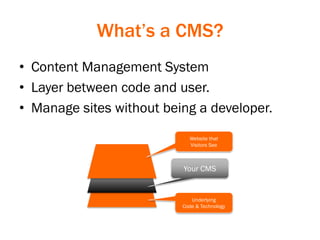
• Content Management System
• Layer between code and user.
• Manage sites without being a developer.
Website that
Visitors See
Underlying
Code & Technology
Your CMS
Why should you care?
• Reduce IT/developer involvement.
• Be responsive. Get things done faster.
e.g. Breaking news and you need to update the site quickly.
• Easier training & onboarding.
Choosing a CMS
Shopping for a CMS is like shopping
for groceries. It’s better when you
have a list of what to look for.
Image Credit: Situ Herrera
Remember: Your CMS is a tool.
It’s just means to an end.
• Don’t get distracted by features.
• Some CMSes better suited to certain tasks.
• There’s always a learning curve.
Define your requirements first.
Image credit: Freepik
Functional Requirements
• What should users be able to do?
• E.g. Make a purchase, create an account,
submit a contact form, make a donation.
• Create a functional requirements list.
Design Requirements
• The “Look and Feel” of your site.
• Usually handled by CMS themes (a.k.a.
templates, styles, skins…)
• Create a design requirements list.
Content Requirements
• The type of content (written, media) that will
be managed by the CMS.
• Blogging? Press releases? Restricted
content?
• Create a sitemap that outlines all major
pages or sections of your site.
Time & Money Requirements
• What’s the timeline? What’re the
milestones?
• What needs to be done now vs. later?
• What’s the available budget?
– Encompasses setup, customization, training,
support, etc.
People / Stakeholders
Image Credit: Freepik
Who is leading the project?
• What’s their understanding of the project?
– Technical? Non-technical?
• What’s their experience with CMSes?
• Are they comfortable coordinating between
stakeholders?
– Developers, Administration, Executives,
Constituents, etc…
Who is implementing the CMS?
• Who’s putting the pieces together, and what
knowledge do they have?
– What’s their experience? Are they comfortable to
deliver on the requirements?
• In-house isn’t always the right solution.
• Look at your requirements, consider all the
options available.
Who will be working with the CMS?
• Primary, day-to-day users.
• Have they used a system like this before?
• Will they need additional support?
• Will you need to train people quickly?
Things To Investigate
Before You Commit
Image credit: Icomoon
Learning Curve
• How complex is the tool?
– Look for discussions and reviews.
• Are there lessons online?
• How usable is the software?
– Can you play with a demo?
– Useful site: http://www.opensourcecms.com/
Documentation
• What’s available from the vendor?
• What’s available from 3rd parties?
• Is it understandable? Up-to-date?
• How well-written is it? Any visual examples?
System Requirements
• Do you host yourself or with the vendor?
• Are there specific environment
requirements?
– E.g. PHP, Rails, Node, ASP.NET …
Licensing
• Open Source vs. Proprietary
– Are you “locked in” with a sole-source product?
• What’s the cost?
• What are your rights as a user?
Market
• Are there developers already?
What’s their going rate?
– Less Popular = More Specialization = More Lock-
In
– More Popular = Greater variance in rates, but
also a variance in quality.
• Are extensions (plugins) or themes
available? What’s the average cost?
– E.g. WordPress has 1000s of themes available,
whereas Drupal does not.
Comparing CMS Options
Image Credit: Icons8
Pros
• Relatively easy to learn.
• Ample documentation.
• Works on vast majority of
hosting providers.
• 100% GPL license.
• Large market of themes,
plugins, and developers.
• Actively updated, lots of
custom functionality
through plugins.
Cons
• User experience geared
towards publishing
content. Experience is
lacking in other areas.
• Not well suited (IMO) to
more complex
functionality.
WordPress
Download @
www.WordPress.org
Drupal
Pros
• Free & open source.
• Works on most hosting
providers.
• Built with complex sites in
mind, e.g. whitehouse.gov
• Active community of
developers.
• Good-sized market of
themes and extensions.
• Very stable.
Cons
• Steep learning curve.
• More intensive hosting
requirements.
• Projects typically longer,
more expensive.
Download @
www.Drupal.org
Joomla!
Pros
• Free, open source.
• Works on majority of
hosting providers.
• Themes and extensions
available.
Cons
• Development is relatively
inactive compared to other
CMS platforms.
• Small market of
developers, extensions.
Download @
www.Joomla.org
Tendenci
Pros
• Catered specifically to non-
profit organizations.
• Free & open source. (Need
to use “Developers” link on
the home page.)
Cons
• Requires hosting provider
that supports Python.
• Smaller CMS means small
market of experts.
• Written in Python. Popular,
but less popular than PHP.
More information @
http://tendenci.com/
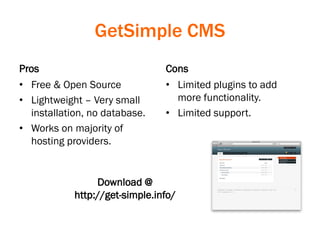
GetSimple CMS
Pros
• Free & Open Source
• Lightweight – Very small
installation, no database.
• Works on majority of
hosting providers.
Cons
• Limited plugins to add
more functionality.
• Limited support.
Download @
http://get-simple.info/
ExpressionEngine
Pros
• Free version available to
experiment with.
• Active community of
developers + backed by an
established company.
• Works with most hosting
providers.
Cons
• Costs!
• Per-Site License ($299++)
• Support ($49/mo++)
• No Refunds
Info/Purchase @
http://ellislab.com/expressionengine/
To Recap…
• Start with your requirements.
• Identify your stakeholders.
• Research each platform before you decide.
Thank You!
(Discussion)

CMS Crash Course!

  • 1.
    CMS CRASH COURSE Andy McIlwain@ Net Tuesday Toronto July 8, 2014
  • 2.
    Agenda 1. Introductions 2. What’sa CMS? Why should you care? 3. Choosing a CMS 4. Comparing Popular Platforms 5. Discussion
  • 3.
    Who is thisguy? Andy McIlwain • Content @ SIDEKICK (www.sidekick.pro) • Organizer, WordCamp Toronto 2014 • Web “Generalist” Connect • The Twitter: @andymci • Email: andy@sidekick.pro
  • 4.
    What’s a CMS? •Content Management System • Layer between code and user. • Manage sites without being a developer. Website that Visitors See Underlying Code & Technology Your CMS
  • 5.
    Why should youcare? • Reduce IT/developer involvement. • Be responsive. Get things done faster. e.g. Breaking news and you need to update the site quickly. • Easier training & onboarding.
  • 6.
    Choosing a CMS Shoppingfor a CMS is like shopping for groceries. It’s better when you have a list of what to look for. Image Credit: Situ Herrera
  • 7.
    Remember: Your CMSis a tool. It’s just means to an end. • Don’t get distracted by features. • Some CMSes better suited to certain tasks. • There’s always a learning curve.
  • 8.
    Define your requirementsfirst. Image credit: Freepik
  • 9.
    Functional Requirements • Whatshould users be able to do? • E.g. Make a purchase, create an account, submit a contact form, make a donation. • Create a functional requirements list.
  • 10.
    Design Requirements • The“Look and Feel” of your site. • Usually handled by CMS themes (a.k.a. templates, styles, skins…) • Create a design requirements list.
  • 11.
    Content Requirements • Thetype of content (written, media) that will be managed by the CMS. • Blogging? Press releases? Restricted content? • Create a sitemap that outlines all major pages or sections of your site.
  • 12.
    Time & MoneyRequirements • What’s the timeline? What’re the milestones? • What needs to be done now vs. later? • What’s the available budget? – Encompasses setup, customization, training, support, etc.
  • 13.
  • 14.
    Who is leadingthe project? • What’s their understanding of the project? – Technical? Non-technical? • What’s their experience with CMSes? • Are they comfortable coordinating between stakeholders? – Developers, Administration, Executives, Constituents, etc…
  • 15.
    Who is implementingthe CMS? • Who’s putting the pieces together, and what knowledge do they have? – What’s their experience? Are they comfortable to deliver on the requirements? • In-house isn’t always the right solution. • Look at your requirements, consider all the options available.
  • 16.
    Who will beworking with the CMS? • Primary, day-to-day users. • Have they used a system like this before? • Will they need additional support? • Will you need to train people quickly?
  • 17.
    Things To Investigate BeforeYou Commit Image credit: Icomoon
  • 18.
    Learning Curve • Howcomplex is the tool? – Look for discussions and reviews. • Are there lessons online? • How usable is the software? – Can you play with a demo? – Useful site: http://www.opensourcecms.com/
  • 19.
    Documentation • What’s availablefrom the vendor? • What’s available from 3rd parties? • Is it understandable? Up-to-date? • How well-written is it? Any visual examples?
  • 20.
    System Requirements • Doyou host yourself or with the vendor? • Are there specific environment requirements? – E.g. PHP, Rails, Node, ASP.NET …
  • 21.
    Licensing • Open Sourcevs. Proprietary – Are you “locked in” with a sole-source product? • What’s the cost? • What are your rights as a user?
  • 22.
    Market • Are theredevelopers already? What’s their going rate? – Less Popular = More Specialization = More Lock- In – More Popular = Greater variance in rates, but also a variance in quality. • Are extensions (plugins) or themes available? What’s the average cost? – E.g. WordPress has 1000s of themes available, whereas Drupal does not.
  • 23.
  • 24.
    Pros • Relatively easyto learn. • Ample documentation. • Works on vast majority of hosting providers. • 100% GPL license. • Large market of themes, plugins, and developers. • Actively updated, lots of custom functionality through plugins. Cons • User experience geared towards publishing content. Experience is lacking in other areas. • Not well suited (IMO) to more complex functionality. WordPress Download @ www.WordPress.org
  • 25.
    Drupal Pros • Free &open source. • Works on most hosting providers. • Built with complex sites in mind, e.g. whitehouse.gov • Active community of developers. • Good-sized market of themes and extensions. • Very stable. Cons • Steep learning curve. • More intensive hosting requirements. • Projects typically longer, more expensive. Download @ www.Drupal.org
  • 26.
    Joomla! Pros • Free, opensource. • Works on majority of hosting providers. • Themes and extensions available. Cons • Development is relatively inactive compared to other CMS platforms. • Small market of developers, extensions. Download @ www.Joomla.org
  • 27.
    Tendenci Pros • Catered specificallyto non- profit organizations. • Free & open source. (Need to use “Developers” link on the home page.) Cons • Requires hosting provider that supports Python. • Smaller CMS means small market of experts. • Written in Python. Popular, but less popular than PHP. More information @ http://tendenci.com/
  • 28.
    GetSimple CMS Pros • Free& Open Source • Lightweight – Very small installation, no database. • Works on majority of hosting providers. Cons • Limited plugins to add more functionality. • Limited support. Download @ http://get-simple.info/
  • 29.
    ExpressionEngine Pros • Free versionavailable to experiment with. • Active community of developers + backed by an established company. • Works with most hosting providers. Cons • Costs! • Per-Site License ($299++) • Support ($49/mo++) • No Refunds Info/Purchase @ http://ellislab.com/expressionengine/
  • 30.
    To Recap… • Startwith your requirements. • Identify your stakeholders. • Research each platform before you decide.
  • 31.