



Twenty Technology Training Tips from Two Trainers Internet Librarian International October 10, 2005 Rob Coers Michael Stephens
Who We Are Michael Training since 1995 in libraries PhD student & blogger Fired up about tools, tech & librarians www.tametheweb.com
 
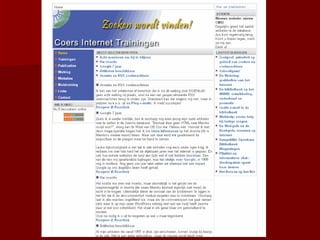
Who We Are Rob Qualified as a music librarian Worked in several public libraries Since 1996 internet trainer and consultant in the Netherlands www.robcoers.nl
 
Introduction Why technology training? Why now? Technology training VS training
Our Goal: We will discuss: Teaching people how to work with technology, software and the Internet. Ways YOU can train effectively Some new ideas to take back to your training rooms
Tips for Each Area Make Technology work for you Designing the Sessions Presentation skills Staying current
1. Make Technology work for You Use these tips to control your technology - not the other way around!
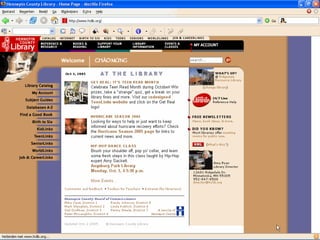
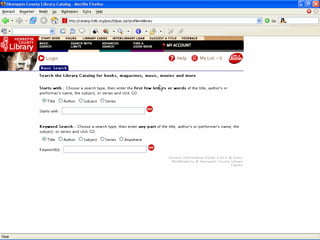
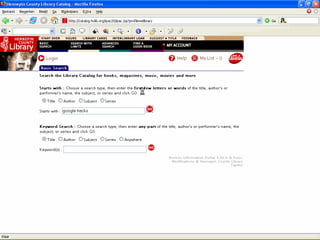
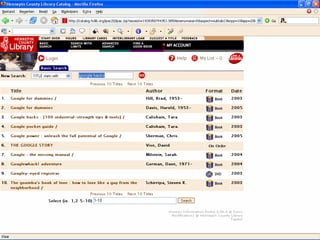
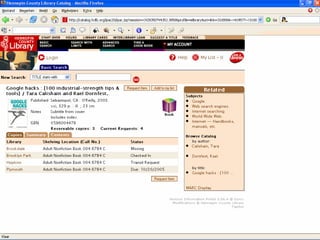
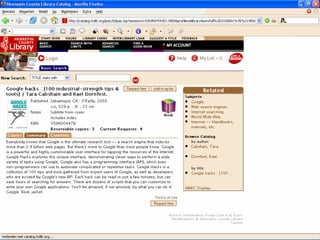
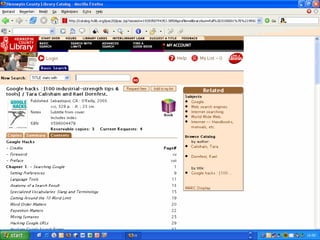
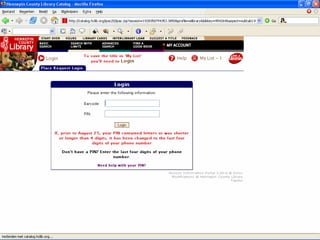
Use Powerpoint Effectively People can read themselves (don’t read for them what’s on screen) Make screendumps of your browser to simulate live clicking (know where you click!) Have multiple copies and versions of your presentation available as your Plan B


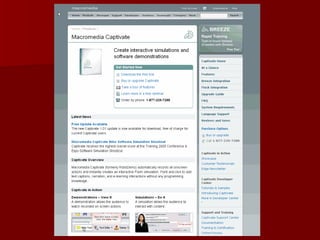
Use some Flashy Tech Too Use Macromedia Captivate for instructing Creates small flash files Looks sexy Easy to use Not free www.macromedia.com/software/captivate Our demo
 
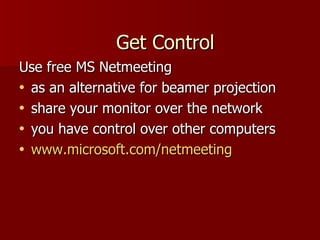
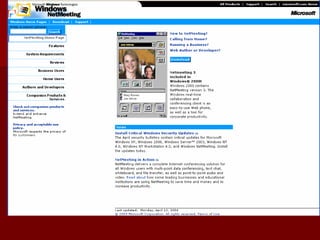
Use free MS Netmeeting  as an alternative for beamer projection share your monitor over the network you have control over other computers www.microsoft.com/netmeeting   Get Control
 
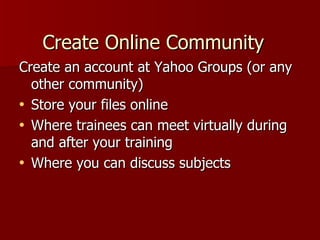
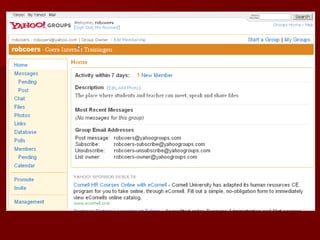
Create an account at Yahoo Groups (or any other community) Store your files online Where trainees can meet virtually during and after your training Where you can discuss subjects Create Online Community
 
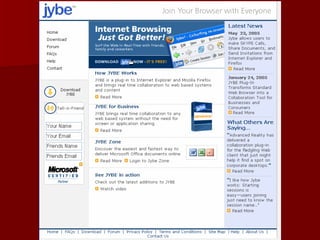
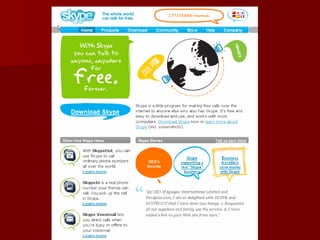
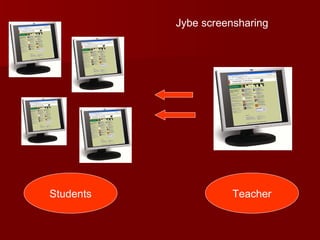
Use Jybe and Skype Share presentations and other (MS Office) documents Chat one-on-one or in a group (Skype offers audio) Great for e-learning www.jybe.com www.skype.com   Go Virtual with Training
 
 
Teacher Students Jybe screensharing
Watch for these Technology Traps in Training Don’t use tech for the sake of tech Avoid GEEKSPEAK Different versions of applications No back up plan!
GEEKSPEAK: “Flickr has RSS, so now I get the London feed in my Bloglines!”
2. Designing the Sessions Use these tips to create well-planned, focused, USER-DRIVEN courses
Know your audience Adjust your examples and language to them (teens, adults, seniors, students) Adjust time as well, for slower or faster groups Avoid abstract language. For example, "open a new file" is abstract. "From the File menu choose New" is concrete
 
Utilize Principles of Instructional Design Objectives guide the way Build sessions from user need and objective ARCS Method Evaluate learners and your classes
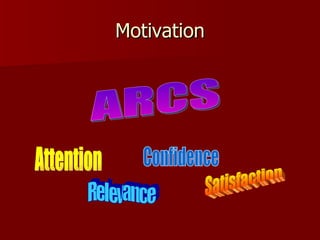
Motivation ARCS Attention Relevance Confidence Satisfaction
Create Useful Exercises For searching: there is always more than one answer It’s better to learn HOW things can be found Give them “real life” scenarios and tasks Again, users drive the training experience - ask them what they do
Examples of exercises Hands-on Using workstations, print-outs, artifacts Problem or case based Include misdirection, errors, etc. Students can create exercise & swap Show someone else how to do it Debrief/report back
3. Presentation skills In the classroom or lab
Be Prepared Check URL’s regularly Check example searches Update printed materials/screenshots Know who to call if something fails Roll with the punches!
Know your equipment   Switch on all computers and make sure they work and have connectivity before the class starts Do you know how the beamer works?  (spare lamp!) Remote control
www.marksman.com
Control Yourself Do not take the keyboard or mouse away from the learner! Let them do all the typing and mouse manipulation even if the process is slower this way Be patient  ;-)
Make Things Visual & Hands On Show hardware when you talk about Digicams, PDAs, MP3 players, iPods, USB devices, E-Books Let the group try it out!
Be Yourself Have fun with teaching and bring your interests & life to the class  with real examples You collect Barbie dolls? Show them how you browse and sell on E-bay
Mind your Body Language Kneel down or sit down when you explain something at the trainee’s desk Use your body! When they look at the monitor, look at the monitor When they look at you, look back at them
Get their Attention People remember what you did, more than what you’ve told them Bring in some silence Use your voice Walk around, stand in the middle of the class
4. Staying  “In the Know” Keep sessions fresh, interesting and current with these tips for professional development
Don’t Stand Still Stagnant classes are just that! Take note of trends and develop new and exciting training sessions as the technology world grows ever bigger! Have you added RSS, blogs, wikis, tagging, flickr, etc.?
More Hot Topics Develop trainings on hot topics, such as Digital Music/podcasts New tech devices Subjects that trainees can benefit from (stock exchanges, genealogy, security of your children on the internet) Hire experts if needed
 
What is a Podcast? Podcasting  is a method of publishing audio programs via the Internet, allowing users to subscribe to a feed of new files (usually MP3s). It became popular in late 2004, largely due to automatic downloading of audio onto portable players or personal computers. Podcasting is distinct from other types of online media delivery because of its subscription model, which uses a feed (such as RSS or Atom) to deliver an enclosed file. http://en.wikipedia.org/wiki/Podcast
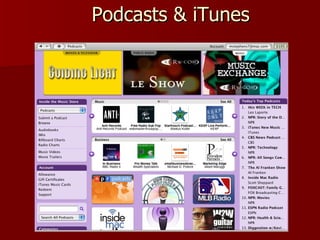
Podcasts: Began as self-published “shows” Everyone can be a “radio star!” Business has jumped in as well: Podcasts can generate interest and fuel advertising dollars Launch of iTunes 4.9 with built in Podcast support brought it to mainsteam
Podcasts & iTunes
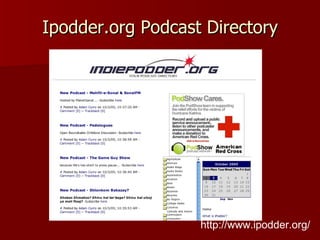
Ipodder.org Podcast Directory http://www.ipodder.org/
How do I listen to Podcasts? Needs: A computer or MP3 player A directory of podcasts to find content Time to listen Bonus idea: Burn Podcasts to CD for the car!
Podcast Demo
How do I create my own Podcast Needs: Recording software & a computer Microphone Software to create an MP3 from your ‘cast A blog to post the podcast Time and something to say!
Read Anything You Can On technology training and trendspotting Monitor weblogs Receive RSS feeds Newsletters Join Mailing Lists Trade journals, newspaper tech pages, etc.
Get Inspired Attend other training sessions and learn from other trainers Watch what great speakers do on stage
Never Stop Learning “ Learn all the time without even thinking about it.”  Roy Tennant
How to end? Summarize what we have done today End with a sentence that leads to an inevitable applause
Not: “ i  hope  you learned  alot  today and  maybe  you  come back  for our training about weblogs”
But: “ you have learned about RSS and i am sure you can now stay up to date with ANY subject. Enjoy it and i meet you in our next class about weblogs”
Now YOU can  practice our tips! Michael: mstephens7@mac.com Rob: info@robcoers.nl

20 Technology training tips

  • 1.
    Twenty Technology TrainingTips from Two Trainers Internet Librarian International October 10, 2005 Rob Coers Michael Stephens
  • 2.
    Who We AreMichael Training since 1995 in libraries PhD student & blogger Fired up about tools, tech & librarians www.tametheweb.com
  • 3.
  • 4.
    Who We AreRob Qualified as a music librarian Worked in several public libraries Since 1996 internet trainer and consultant in the Netherlands www.robcoers.nl
  • 5.
  • 6.
    Introduction Why technologytraining? Why now? Technology training VS training
  • 7.
    Our Goal: Wewill discuss: Teaching people how to work with technology, software and the Internet. Ways YOU can train effectively Some new ideas to take back to your training rooms
  • 8.
    Tips for EachArea Make Technology work for you Designing the Sessions Presentation skills Staying current
  • 9.
    1. Make Technologywork for You Use these tips to control your technology - not the other way around!
  • 10.
    Use Powerpoint EffectivelyPeople can read themselves (don’t read for them what’s on screen) Make screendumps of your browser to simulate live clicking (know where you click!) Have multiple copies and versions of your presentation available as your Plan B
  • 11.
  • 12.
  • 13.
  • 14.
  • 15.
  • 16.
  • 17.
  • 18.
  • 19.
    Use some FlashyTech Too Use Macromedia Captivate for instructing Creates small flash files Looks sexy Easy to use Not free www.macromedia.com/software/captivate Our demo
  • 20.
  • 21.
    Use free MSNetmeeting as an alternative for beamer projection share your monitor over the network you have control over other computers www.microsoft.com/netmeeting Get Control
  • 22.
  • 23.
    Create an accountat Yahoo Groups (or any other community) Store your files online Where trainees can meet virtually during and after your training Where you can discuss subjects Create Online Community
  • 24.
  • 25.
    Use Jybe andSkype Share presentations and other (MS Office) documents Chat one-on-one or in a group (Skype offers audio) Great for e-learning www.jybe.com www.skype.com Go Virtual with Training
  • 26.
  • 27.
  • 28.
    Teacher Students Jybescreensharing
  • 29.
    Watch for theseTechnology Traps in Training Don’t use tech for the sake of tech Avoid GEEKSPEAK Different versions of applications No back up plan!
  • 30.
    GEEKSPEAK: “Flickr hasRSS, so now I get the London feed in my Bloglines!”
  • 31.
    2. Designing theSessions Use these tips to create well-planned, focused, USER-DRIVEN courses
  • 32.
    Know your audienceAdjust your examples and language to them (teens, adults, seniors, students) Adjust time as well, for slower or faster groups Avoid abstract language. For example, "open a new file" is abstract. "From the File menu choose New" is concrete
  • 33.
  • 34.
    Utilize Principles ofInstructional Design Objectives guide the way Build sessions from user need and objective ARCS Method Evaluate learners and your classes
  • 35.
    Motivation ARCS AttentionRelevance Confidence Satisfaction
  • 36.
    Create Useful ExercisesFor searching: there is always more than one answer It’s better to learn HOW things can be found Give them “real life” scenarios and tasks Again, users drive the training experience - ask them what they do
  • 37.
    Examples of exercisesHands-on Using workstations, print-outs, artifacts Problem or case based Include misdirection, errors, etc. Students can create exercise & swap Show someone else how to do it Debrief/report back
  • 38.
    3. Presentation skillsIn the classroom or lab
  • 39.
    Be Prepared CheckURL’s regularly Check example searches Update printed materials/screenshots Know who to call if something fails Roll with the punches!
  • 40.
    Know your equipment Switch on all computers and make sure they work and have connectivity before the class starts Do you know how the beamer works? (spare lamp!) Remote control
  • 41.
  • 42.
    Control Yourself Donot take the keyboard or mouse away from the learner! Let them do all the typing and mouse manipulation even if the process is slower this way Be patient ;-)
  • 43.
    Make Things Visual& Hands On Show hardware when you talk about Digicams, PDAs, MP3 players, iPods, USB devices, E-Books Let the group try it out!
  • 44.
    Be Yourself Havefun with teaching and bring your interests & life to the class with real examples You collect Barbie dolls? Show them how you browse and sell on E-bay
  • 45.
    Mind your BodyLanguage Kneel down or sit down when you explain something at the trainee’s desk Use your body! When they look at the monitor, look at the monitor When they look at you, look back at them
  • 46.
    Get their AttentionPeople remember what you did, more than what you’ve told them Bring in some silence Use your voice Walk around, stand in the middle of the class
  • 47.
    4. Staying “In the Know” Keep sessions fresh, interesting and current with these tips for professional development
  • 48.
    Don’t Stand StillStagnant classes are just that! Take note of trends and develop new and exciting training sessions as the technology world grows ever bigger! Have you added RSS, blogs, wikis, tagging, flickr, etc.?
  • 49.
    More Hot TopicsDevelop trainings on hot topics, such as Digital Music/podcasts New tech devices Subjects that trainees can benefit from (stock exchanges, genealogy, security of your children on the internet) Hire experts if needed
  • 50.
  • 51.
    What is aPodcast? Podcasting is a method of publishing audio programs via the Internet, allowing users to subscribe to a feed of new files (usually MP3s). It became popular in late 2004, largely due to automatic downloading of audio onto portable players or personal computers. Podcasting is distinct from other types of online media delivery because of its subscription model, which uses a feed (such as RSS or Atom) to deliver an enclosed file. http://en.wikipedia.org/wiki/Podcast
  • 52.
    Podcasts: Began asself-published “shows” Everyone can be a “radio star!” Business has jumped in as well: Podcasts can generate interest and fuel advertising dollars Launch of iTunes 4.9 with built in Podcast support brought it to mainsteam
  • 53.
  • 54.
    Ipodder.org Podcast Directoryhttp://www.ipodder.org/
  • 55.
    How do Ilisten to Podcasts? Needs: A computer or MP3 player A directory of podcasts to find content Time to listen Bonus idea: Burn Podcasts to CD for the car!
  • 56.
  • 57.
    How do Icreate my own Podcast Needs: Recording software & a computer Microphone Software to create an MP3 from your ‘cast A blog to post the podcast Time and something to say!
  • 58.
    Read Anything YouCan On technology training and trendspotting Monitor weblogs Receive RSS feeds Newsletters Join Mailing Lists Trade journals, newspaper tech pages, etc.
  • 59.
    Get Inspired Attendother training sessions and learn from other trainers Watch what great speakers do on stage
  • 60.
    Never Stop Learning“ Learn all the time without even thinking about it.” Roy Tennant
  • 61.
    How to end?Summarize what we have done today End with a sentence that leads to an inevitable applause
  • 62.
    Not: “ i hope you learned alot today and maybe you come back for our training about weblogs”
  • 63.
    But: “ youhave learned about RSS and i am sure you can now stay up to date with ANY subject. Enjoy it and i meet you in our next class about weblogs”
  • 64.
    Now YOU can practice our tips! Michael: mstephens7@mac.com Rob: info@robcoers.nl