#ATM16
Multi-vendor access network
management with Aruba
AirWave
Angel Vidal, Senior Technical Marketing
Engineer
March 9-10, 2016 @ArubaNetworks |
2#ATM16
– AirWave Features
– Clarity
– AppRF
– UCC
– Zero Touch Provisioning
– Multi-Vendor
– VisualRF
– RAPIDS
– Client Diagnostics
– Alerting
– Reporting
– Questions
@ArubaNetworks |
Agenda
3#ATM16
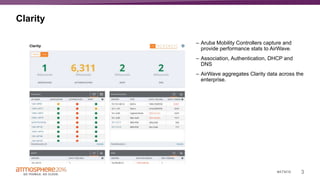
Clarity
– Aruba Mobility Controllers capture and
provide performance stats to AirWave.
– Association, Authentication, DHCP and
DNS
– AirWave aggregates Clarity data across the
enterprise.
@ArubaNetworks |
4#ATM16
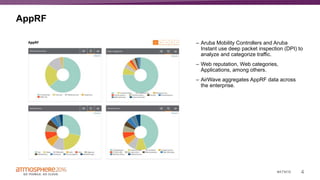
AppRF
– Aruba Mobility Controllers and Aruba
Instant use deep packet inspection (DPI) to
analyze and categorize traffic.
– Web reputation, Web categories,
Applications, among others.
– AirWave aggregates AppRF data across
the enterprise.
@ArubaNetworks |
5#ATM16
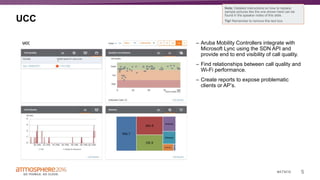
UCC
– Aruba Mobility Controllers integrate with
Microsoft Lync using the SDN API and
provide end to end visibility of call quality.
– Find relationships between call quality and
Wi-Fi performance.
– Create reports to expose problematic
clients or AP’s.
Note: Detailed instructions on how to replace
sample pictures like the one shown here can be
found in the speaker notes of this slide.
Tip! Remember to remove this text box.
@ArubaNetworks |
6#ATM16
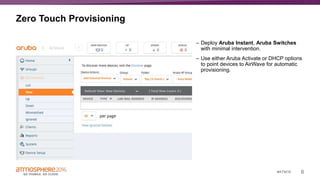
Zero Touch Provisioning
– Deploy Aruba Instant, Aruba Switches
with minimal intervention.
– Use either Aruba Activate or DHCP options
to point devices to AirWave for automatic
provisioning.
@ArubaNetworks |
7
Multi-vendor Features
8#ATM16
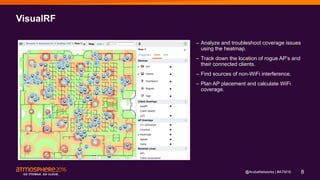
VisualRF
– Analyze and troubleshoot coverage issues
using the heatmap.
– Track down the location of rogue AP’s and
their connected clients.
– Find sources of non-WiFi interference.
– Plan AP placement and calculate WiFi
coverage.
@ArubaNetworks |
9#ATM16
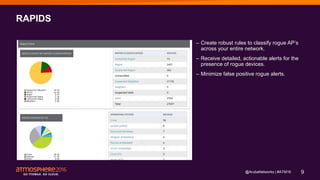
RAPIDS
– Create robust rules to classify rogue AP’s
across your entire network.
– Receive detailed, actionable alerts for the
presence of rogue devices.
– Minimize false positive rogue alerts.
@ArubaNetworks |
10#ATM16
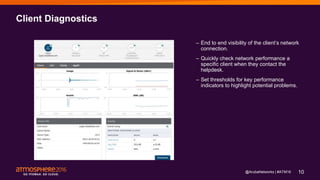
Client Diagnostics
– End to end visibility of the client’s network
connection.
– Quickly check network performance a
specific client when they contact the
helpdesk.
– Set thresholds for key performance
indicators to highlight potential problems.
@ArubaNetworks |
11#ATM16
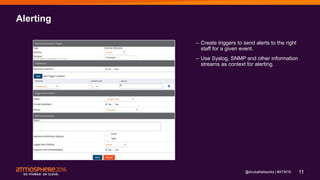
Alerting
– Create triggers to send alerts to the right
staff for a given event.
– Use Syslog, SNMP and other information
streams as context for alerting.
@ArubaNetworks |
12#ATM16
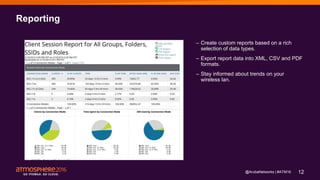
Reporting
– Create custom reports based on a rich
selection of data types.
– Export report data into XML, CSV and PDF
formats.
– Stay informed about trends on your
wireless lan.
@ArubaNetworks |
13
Questions
14#ATM16
Join Aruba’s Titans of Tomorrow
force in the fight against network
mayhem. Find out what your
IT superpower is.
Share your results with friends
and receive a free superpower
t-shirt.
www.arubatitans.com
Thank you
angel.vidal@hpe.com

Multi-Vendor Access Network Management with Aruba Airwave

  • 1.
    #ATM16 Multi-vendor access network managementwith Aruba AirWave Angel Vidal, Senior Technical Marketing Engineer March 9-10, 2016 @ArubaNetworks |
  • 2.
    2#ATM16 – AirWave Features –Clarity – AppRF – UCC – Zero Touch Provisioning – Multi-Vendor – VisualRF – RAPIDS – Client Diagnostics – Alerting – Reporting – Questions @ArubaNetworks | Agenda
  • 3.
    3#ATM16 Clarity – Aruba MobilityControllers capture and provide performance stats to AirWave. – Association, Authentication, DHCP and DNS – AirWave aggregates Clarity data across the enterprise. @ArubaNetworks |
  • 4.
    4#ATM16 AppRF – Aruba MobilityControllers and Aruba Instant use deep packet inspection (DPI) to analyze and categorize traffic. – Web reputation, Web categories, Applications, among others. – AirWave aggregates AppRF data across the enterprise. @ArubaNetworks |
  • 5.
    5#ATM16 UCC – Aruba MobilityControllers integrate with Microsoft Lync using the SDN API and provide end to end visibility of call quality. – Find relationships between call quality and Wi-Fi performance. – Create reports to expose problematic clients or AP’s. Note: Detailed instructions on how to replace sample pictures like the one shown here can be found in the speaker notes of this slide. Tip! Remember to remove this text box. @ArubaNetworks |
  • 6.
    6#ATM16 Zero Touch Provisioning –Deploy Aruba Instant, Aruba Switches with minimal intervention. – Use either Aruba Activate or DHCP options to point devices to AirWave for automatic provisioning. @ArubaNetworks |
  • 7.
  • 8.
    8#ATM16 VisualRF – Analyze andtroubleshoot coverage issues using the heatmap. – Track down the location of rogue AP’s and their connected clients. – Find sources of non-WiFi interference. – Plan AP placement and calculate WiFi coverage. @ArubaNetworks |
  • 9.
    9#ATM16 RAPIDS – Create robustrules to classify rogue AP’s across your entire network. – Receive detailed, actionable alerts for the presence of rogue devices. – Minimize false positive rogue alerts. @ArubaNetworks |
  • 10.
    10#ATM16 Client Diagnostics – Endto end visibility of the client’s network connection. – Quickly check network performance a specific client when they contact the helpdesk. – Set thresholds for key performance indicators to highlight potential problems. @ArubaNetworks |
  • 11.
    11#ATM16 Alerting – Create triggersto send alerts to the right staff for a given event. – Use Syslog, SNMP and other information streams as context for alerting. @ArubaNetworks |
  • 12.
    12#ATM16 Reporting – Create customreports based on a rich selection of data types. – Export report data into XML, CSV and PDF formats. – Stay informed about trends on your wireless lan. @ArubaNetworks |
  • 13.
  • 14.
    14#ATM16 Join Aruba’s Titansof Tomorrow force in the fight against network mayhem. Find out what your IT superpower is. Share your results with friends and receive a free superpower t-shirt. www.arubatitans.com
  • 15.

Editor's Notes

  • #4 This is a sample Picture with Content slide ideal for including a picture with a brief descriptive statement. To Replace the Picture on this Sample Slide (this applies to all slides in this template that contain replaceable pictures) Select the sample picture and press Delete. Click the icon inside the shape to open the Insert Picture dialog box. Navigate to the location where the picture is stored, select desired picture and click on the Insert button to fit the image proportionally within the shape. Note: Do not right-click the image to change the picture inside the picture placeholder. This will change the frame size of the picture placeholder. Instead, follow the steps outlined above. Tip: use the Crop tool to reposition a picture within a placeholder. From the Picture Tools Format tab on the ribbon, click the Crop button. Click and drag the picture within the placeholder to reposition. To scale the picture within the placeholder (while Crop is active), grab a round corner handle and drag to resize. Hold Shift key to constrain picture aspect ratio when resizing.
  • #5 This is a sample Picture with Content slide ideal for including a picture with a brief descriptive statement. To Replace the Picture on this Sample Slide (this applies to all slides in this template that contain replaceable pictures) Select the sample picture and press Delete. Click the icon inside the shape to open the Insert Picture dialog box. Navigate to the location where the picture is stored, select desired picture and click on the Insert button to fit the image proportionally within the shape. Note: Do not right-click the image to change the picture inside the picture placeholder. This will change the frame size of the picture placeholder. Instead, follow the steps outlined above. Tip: use the Crop tool to reposition a picture within a placeholder. From the Picture Tools Format tab on the ribbon, click the Crop button. Click and drag the picture within the placeholder to reposition. To scale the picture within the placeholder (while Crop is active), grab a round corner handle and drag to resize. Hold Shift key to constrain picture aspect ratio when resizing.
  • #6 This is a sample Picture with Content slide ideal for including a picture with a brief descriptive statement. To Replace the Picture on this Sample Slide (this applies to all slides in this template that contain replaceable pictures) Select the sample picture and press Delete. Click the icon inside the shape to open the Insert Picture dialog box. Navigate to the location where the picture is stored, select desired picture and click on the Insert button to fit the image proportionally within the shape. Note: Do not right-click the image to change the picture inside the picture placeholder. This will change the frame size of the picture placeholder. Instead, follow the steps outlined above. Tip: use the Crop tool to reposition a picture within a placeholder. From the Picture Tools Format tab on the ribbon, click the Crop button. Click and drag the picture within the placeholder to reposition. To scale the picture within the placeholder (while Crop is active), grab a round corner handle and drag to resize. Hold Shift key to constrain picture aspect ratio when resizing.
  • #7 This is a sample Picture with Content slide ideal for including a picture with a brief descriptive statement. To Replace the Picture on this Sample Slide (this applies to all slides in this template that contain replaceable pictures) Select the sample picture and press Delete. Click the icon inside the shape to open the Insert Picture dialog box. Navigate to the location where the picture is stored, select desired picture and click on the Insert button to fit the image proportionally within the shape. Note: Do not right-click the image to change the picture inside the picture placeholder. This will change the frame size of the picture placeholder. Instead, follow the steps outlined above. Tip: use the Crop tool to reposition a picture within a placeholder. From the Picture Tools Format tab on the ribbon, click the Crop button. Click and drag the picture within the placeholder to reposition. To scale the picture within the placeholder (while Crop is active), grab a round corner handle and drag to resize. Hold Shift key to constrain picture aspect ratio when resizing.
  • #9 This is a sample Picture with Content slide ideal for including a picture with a brief descriptive statement. To Replace the Picture on this Sample Slide (this applies to all slides in this template that contain replaceable pictures) Select the sample picture and press Delete. Click the icon inside the shape to open the Insert Picture dialog box. Navigate to the location where the picture is stored, select desired picture and click on the Insert button to fit the image proportionally within the shape. Note: Do not right-click the image to change the picture inside the picture placeholder. This will change the frame size of the picture placeholder. Instead, follow the steps outlined above. Tip: use the Crop tool to reposition a picture within a placeholder. From the Picture Tools Format tab on the ribbon, click the Crop button. Click and drag the picture within the placeholder to reposition. To scale the picture within the placeholder (while Crop is active), grab a round corner handle and drag to resize. Hold Shift key to constrain picture aspect ratio when resizing.
  • #10 This is a sample Picture with Content slide ideal for including a picture with a brief descriptive statement. To Replace the Picture on this Sample Slide (this applies to all slides in this template that contain replaceable pictures) Select the sample picture and press Delete. Click the icon inside the shape to open the Insert Picture dialog box. Navigate to the location where the picture is stored, select desired picture and click on the Insert button to fit the image proportionally within the shape. Note: Do not right-click the image to change the picture inside the picture placeholder. This will change the frame size of the picture placeholder. Instead, follow the steps outlined above. Tip: use the Crop tool to reposition a picture within a placeholder. From the Picture Tools Format tab on the ribbon, click the Crop button. Click and drag the picture within the placeholder to reposition. To scale the picture within the placeholder (while Crop is active), grab a round corner handle and drag to resize. Hold Shift key to constrain picture aspect ratio when resizing.
  • #11 This is a sample Picture with Content slide ideal for including a picture with a brief descriptive statement. To Replace the Picture on this Sample Slide (this applies to all slides in this template that contain replaceable pictures) Select the sample picture and press Delete. Click the icon inside the shape to open the Insert Picture dialog box. Navigate to the location where the picture is stored, select desired picture and click on the Insert button to fit the image proportionally within the shape. Note: Do not right-click the image to change the picture inside the picture placeholder. This will change the frame size of the picture placeholder. Instead, follow the steps outlined above. Tip: use the Crop tool to reposition a picture within a placeholder. From the Picture Tools Format tab on the ribbon, click the Crop button. Click and drag the picture within the placeholder to reposition. To scale the picture within the placeholder (while Crop is active), grab a round corner handle and drag to resize. Hold Shift key to constrain picture aspect ratio when resizing.
  • #12 This is a sample Picture with Content slide ideal for including a picture with a brief descriptive statement. To Replace the Picture on this Sample Slide (this applies to all slides in this template that contain replaceable pictures) Select the sample picture and press Delete. Click the icon inside the shape to open the Insert Picture dialog box. Navigate to the location where the picture is stored, select desired picture and click on the Insert button to fit the image proportionally within the shape. Note: Do not right-click the image to change the picture inside the picture placeholder. This will change the frame size of the picture placeholder. Instead, follow the steps outlined above. Tip: use the Crop tool to reposition a picture within a placeholder. From the Picture Tools Format tab on the ribbon, click the Crop button. Click and drag the picture within the placeholder to reposition. To scale the picture within the placeholder (while Crop is active), grab a round corner handle and drag to resize. Hold Shift key to constrain picture aspect ratio when resizing.
  • #13 This is a sample Picture with Content slide ideal for including a picture with a brief descriptive statement. To Replace the Picture on this Sample Slide (this applies to all slides in this template that contain replaceable pictures) Select the sample picture and press Delete. Click the icon inside the shape to open the Insert Picture dialog box. Navigate to the location where the picture is stored, select desired picture and click on the Insert button to fit the image proportionally within the shape. Note: Do not right-click the image to change the picture inside the picture placeholder. This will change the frame size of the picture placeholder. Instead, follow the steps outlined above. Tip: use the Crop tool to reposition a picture within a placeholder. From the Picture Tools Format tab on the ribbon, click the Crop button. Click and drag the picture within the placeholder to reposition. To scale the picture within the placeholder (while Crop is active), grab a round corner handle and drag to resize. Hold Shift key to constrain picture aspect ratio when resizing.
  • #15 Contest Overview - Aruba is running a marketing campaign where we ask “What is your IT superpower?” - Go to arubatitans.com to take a quick quiz to discover your superpower. - Share your results with friends and encourage others to play the game - Once you share, go to the Social and Community Hub, Gracia Commons, 3rd fl to pick up your free superpower shirt. FAQ 1. What do I have to do to get a shirt? Share your IT superpower results with friends and encourage them to play the game. Then come to the Social & Community Hub, 3rd Floor Gracia Commons to pick up your shirt. We just need your name and badge for verification. 2. Where do I get my shirt? Come to the #ATM16 Social & Community hub located at Gracia Commons on the 3rd Floor 3. Do I have to be at the event to get the shirt? Yes. You have to be at #ATM16 to get a shirt. 4. Can I get my colleague a shirt? He/she is in a session right now. Unfortunately not. We encourage your colleague to participate so that they can win a shirt for themselves. 5. Can I bring a shirt home for my colleague? Unfortunately not. You have to be at #ATM16 to get a shirt. 6. You don’t have a shirt in my size, can you ship the right size to me later? Unfortunately not. Please select the best size from our inventory on site.