Multi Zone AP In AOS 8.X
10:00 GMT | 11:00 CEST | 13:00 GST
Sep 26th, 2017
Presenter: Ramkumar Radhakrishnan
Ramkumar.Radhakrishnan@hpe.com
2
Agenda
1. How multi zone works
2. Basic requirements
3. Supported topologies
4. Configuration
5. Verification and Troubleshooting
3
Multi Zone AP
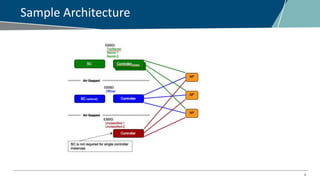
This feature allows AP to terminate to multiple controllers that resides in different
zones.
• Definition of a zone
– A zone is a collection of controllers under a single administration
domain.
– Can be as small as a single controller, or as complex as a cluster.
– Air gapped and no physical connection between zones.
4
Sample Architecture
5
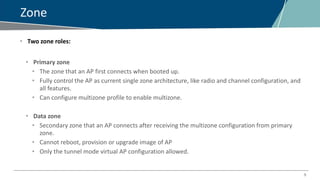
Zone
• Two zone roles:
• Primary zone
• The zone that an AP first connects when booted up.
• Fully control the AP as current single zone architecture, like radio and channel configuration, and
all features.
• Can configure multizone profile to enable multizone.
• Data zone
• Secondary zone that an AP connects after receiving the multizone configuration from primary
zone.
• Cannot reboot, provision or upgrade image of AP
• Only the tunnel mode virtual AP configuration allowed.
6
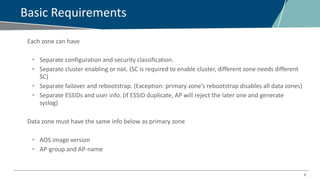
Basic Requirements
Each zone can have
• Separate configuration and security classification.
• Separate cluster enabling or not. (SC is required to enable cluster, different zone needs different
SC)
• Separate failover and rebootstrap. (Exception: primary zone’s rebootstrap disables all data zones)
• Separate ESSIDs and user info. (if ESSID duplicate, AP will reject the later one and generate
syslog)
Data zone must have the same info below as primary zone
• AOS image version
• AP-group and AP-name
7
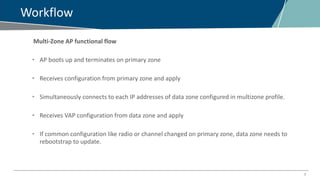
Workflow
Multi-Zone AP functional flow
• AP boots up and terminates on primary zone
• Receives configuration from primary zone and apply
• Simultaneously connects to each IP addresses of data zone configured in multizone profile.
• Receives VAP configuration from data zone and apply
• If common configuration like radio or channel changed on primary zone, data zone needs to
rebootstrap to update.
8
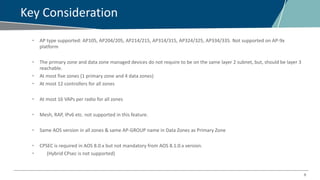
Key Consideration
• AP type supported: AP105, AP204/205, AP214/215, AP314/315, AP324/325, AP334/335. Not supported on AP-9x
platform
• The primary zone and data zone managed devices do not require to be on the same layer 2 subnet, but, should be layer 3
reachable.
• At most five zones (1 primary zone and 4 data zones)
• At most 12 controllers for all zones
• At most 16 VAPs per radio for all zones
• Mesh, RAP, IPv6 etc. not supported in this feature.
• Same AOS version in all zones & same AP-GROUP name in Data Zones as Primary Zone
• CPSEC is required in AOS 8.0.x but not mandatory from AOS 8.1.0.x version.
• (Hybrid CPsec is not supported)
9
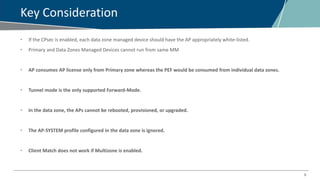
Key Consideration
• If the CPsec is enabled, each data zone managed device should have the AP appropriately white-listed.
• Primary and Data Zones Managed Devices cannot run from same MM
• AP consumes AP license only from Primary zone whereas the PEF would be consumed from individual data zones.
• Tunnel mode is the only supported Forward-Mode.
• In the data zone, the APs cannot be rebooted, provisioned, or upgraded.
• The AP-SYSTEM profile configured in the data zone is ignored.
• Client Match does not work if Multizone is enabled.
10
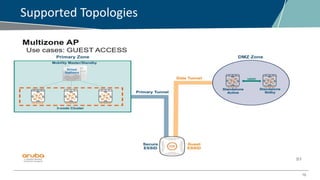
Supported Topologies
11
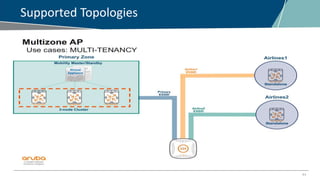
Supported Topologies
12
Configuration
From CLI:
Create a multizone profile, set the data zone index and controller-ip (specific MD)
(Aruba-MM)^[00:0b:86:b8:aa:90] (config) #ap multizone-profile Multizone
(Aruba-MM)^[00:0b:86:b8:aa:90] (AP multizone profile "Multizone") #datazone 1 controller-ip 10.29.162.245
num-vaps 3 num-nodes 3
(Aruba-MM)^[00:0b:86:b8:aa:90] (AP multizone profile "Multizone") #primaryzone num-vaps 3 num-nodes3
(Aruba-MM)^[00:0b:86:b8:aa:90] (AP multizone profile "Multizone") #write mem
Attach the profile to ap-group or ap-name
(Aruba-MM)^ [00:0b:86:b8:aa:90] (config) #ap-group primaryzone
(Aruba-MM)^ [00:0b:86:b8:aa:90](AP group "primaryzone") #ap-multizone-profile Multizone
(Aruba-MM)^[00:0b:86:b8:aa:90] #write mem
To disable multi-zone
Either “no multizone-enable” in multizone profile, or detach the profile from ap-group or ap-name
13
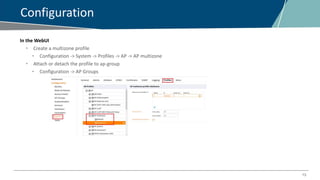
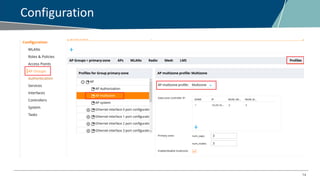
Configuration
In the WebUI
• Create a multizone profile
• Configuration -> System -> Profiles -> AP -> AP multizone
• Attach or detach the profile to ap-group
• Configuration -> AP Groups
14
Configuration
15
How do I test it?
From CLI:
On data zone, AP will be up with “z” flag
(Aruba-Standalone-8.x) [mynode] #show ap database long
AP Database
-----------
Name Group AP Type IP Address Status Flags Switch IP Standby IP Wired MAC Address Serial # Port FQLN Outer IP User
---- ----- ------- ---------- ------ ----- --------- ---------- ----------------- -------- ---- ---- -------- ----
Multizone primary-zone 225 10.29.160.252 Up 9h:33m:45s z 10.29.162.245 0.0.0.0 94:b4:0f:c8:dd:fa CT0421407 N/A N/A N/A
(Aruba-Standalone-8.x) [mynode] #show ap bss-table
Aruba AP BSS Table
------------------
bss ess port ip phy type ch/EIRP/max-EIRP cur-cl ap name in-t(s) tot-t mtu acl-state acl fm cluster datazone
--- --- ---- -- --- ---- ---------------- ------ ------- ------- ----- --- --------- --- -- ------- --------
94:b4:0f:0d:df:b5 datazone N/A 10.29.160.252 a-VHT ap 64E/18/22 0 Multizone 0 9h:31m:44s 1500 - 2 T yes
94:b4:0f:0d:df:a5 datazone N/A 10.29.160.252 g-HT ap 6/9/21.5 0 Multizone 0 9h:31m:44s 1500 - 2 T yes
16
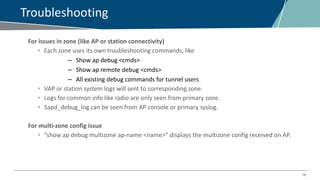
Troubleshooting
For issues in zone (like AP or station connectivity)
• Each zone uses its own troubleshooting commands, like
– Show ap debug <cmds>
– Show ap remote debug <cmds>
– All existing debug commands for tunnel users
• VAP or station system logs will sent to corresponding zone.
• Logs for common info like radio are only seen from primary zone.
• Sapd_debug_log can be seen from AP console or primary syslog.
For multi-zone config issue
• “show ap debug multizone ap-name <name>” displays the multizone config received on AP.
QUESTIONS?
Centralized Image Upgrade and Multiversion
10:00 GMT | 11:00 CEST | 13:00 GST
Sep 26th, 2017
Presenter: Arunkumar Santhanam
arunkumar.santhanam@hpe.com
19
Agenda
 What’s different in 8.x Centralized image upgrade ?
 Configuration
 Limitations and troubleshooting.
 Bringing up APs in multiversion and how the AP's image
upgrade differs in 8.x.
20
What’s different in 8.x Centralized image upgrade ?
 In 6.x Centralized Image Upgrade, there is no option for users to specify the upgrade-to image
version. When an upgrade request is given, locals always get upgraded to the same version as
the master.
 In 8.x Centralized Image Upgrade, when doing the upgrade, users have the option to specify the
image version for the managed devices to upgrade to.
 Instead of statically configured, the upgrade-to version is specified when doing the upgrade.
 Different managed devices can be upgraded to different versions by initializing centralized image
upgrade to different managed devices separately with different specified version.
21
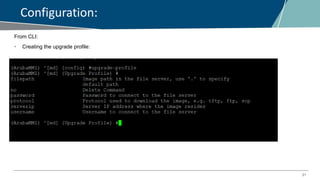
Configuration:
From CLI:
• Creating the upgrade profile:
22
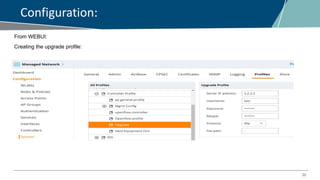
Configuration:
From WEBUI:
Creating the upgrade profile:
23
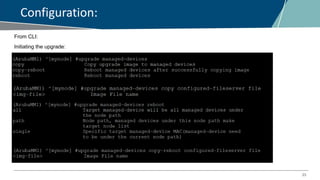
Configuration:
From CLI:
Initiating the upgrade:
24
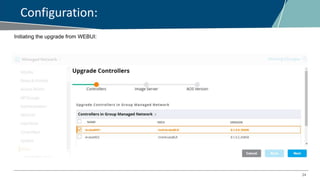
Configuration:
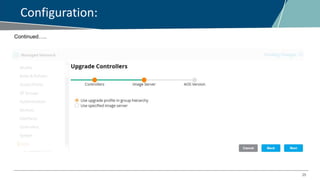
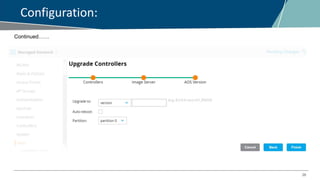
Initiating the upgrade from WEBUI:
25
Configuration:
Continued…..
26
Configuration:
Continued……
27
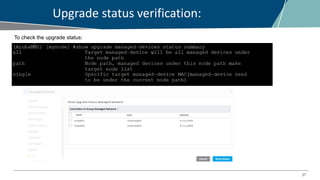
Upgrade status verification:
To check the upgrade status:
28
Limitations:
When there are VPN Concentrators, for Centralized Image Upgrade, copy-reboot (managed devices rebooted
automatically after images is downloaded) is not recommended for all devices at the same time.
This is because the VPN Concentrators may finish downloading the image and reboot before the devices
connected to the VPN Concentrator complete the image download. With VPN concentrators, please follow the
steps below:
1. Copy and reboot all MDs, exclude VPN concentrators
2. Copy and reboot VPN concentrators
29
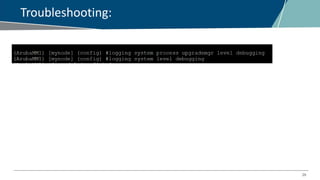
Troubleshooting:
30
AP image upgrade on Multiversion:
• In 6.x, it is mandatory that the APs’ Master and LMS having the same version, otherwise, the APs will keep
upgrading.
• In 8.x, since multiversion is supported across locals (managed devices), the APs image upgrading process
has made some changes.
• In 6.x, APs always check and upgrade the image version before getting the configuration, including the
LMS-IP, from the APs’ Master.
• In 8.x, APs will bypass the image version check process and get the LMS-IP from the AP’s Master. APs then
check/upgrade image version with LMS. If there is no LMS configured, the Master will be the LMS.
31
Configuration & troubleshooting:
• This feature (APs bypass checking image version with Master) is enabled by default and cannot be
disabled.
“show ap database” status will show “Upgrading” when APs are doing image upgrade with the LMS.
Limitation:
LMS and Backup-LMS have to run the same image version.
THANK YOU!

EMEA Airheads - Multi zone ap and centralized image upgrade

  • 1.
    Multi Zone APIn AOS 8.X 10:00 GMT | 11:00 CEST | 13:00 GST Sep 26th, 2017 Presenter: Ramkumar Radhakrishnan Ramkumar.Radhakrishnan@hpe.com
  • 2.
    2 Agenda 1. How multizone works 2. Basic requirements 3. Supported topologies 4. Configuration 5. Verification and Troubleshooting
  • 3.
    3 Multi Zone AP Thisfeature allows AP to terminate to multiple controllers that resides in different zones. • Definition of a zone – A zone is a collection of controllers under a single administration domain. – Can be as small as a single controller, or as complex as a cluster. – Air gapped and no physical connection between zones.
  • 4.
  • 5.
    5 Zone • Two zoneroles: • Primary zone • The zone that an AP first connects when booted up. • Fully control the AP as current single zone architecture, like radio and channel configuration, and all features. • Can configure multizone profile to enable multizone. • Data zone • Secondary zone that an AP connects after receiving the multizone configuration from primary zone. • Cannot reboot, provision or upgrade image of AP • Only the tunnel mode virtual AP configuration allowed.
  • 6.
    6 Basic Requirements Each zonecan have • Separate configuration and security classification. • Separate cluster enabling or not. (SC is required to enable cluster, different zone needs different SC) • Separate failover and rebootstrap. (Exception: primary zone’s rebootstrap disables all data zones) • Separate ESSIDs and user info. (if ESSID duplicate, AP will reject the later one and generate syslog) Data zone must have the same info below as primary zone • AOS image version • AP-group and AP-name
  • 7.
    7 Workflow Multi-Zone AP functionalflow • AP boots up and terminates on primary zone • Receives configuration from primary zone and apply • Simultaneously connects to each IP addresses of data zone configured in multizone profile. • Receives VAP configuration from data zone and apply • If common configuration like radio or channel changed on primary zone, data zone needs to rebootstrap to update.
  • 8.
    8 Key Consideration • APtype supported: AP105, AP204/205, AP214/215, AP314/315, AP324/325, AP334/335. Not supported on AP-9x platform • The primary zone and data zone managed devices do not require to be on the same layer 2 subnet, but, should be layer 3 reachable. • At most five zones (1 primary zone and 4 data zones) • At most 12 controllers for all zones • At most 16 VAPs per radio for all zones • Mesh, RAP, IPv6 etc. not supported in this feature. • Same AOS version in all zones & same AP-GROUP name in Data Zones as Primary Zone • CPSEC is required in AOS 8.0.x but not mandatory from AOS 8.1.0.x version. • (Hybrid CPsec is not supported)
  • 9.
    9 Key Consideration • Ifthe CPsec is enabled, each data zone managed device should have the AP appropriately white-listed. • Primary and Data Zones Managed Devices cannot run from same MM • AP consumes AP license only from Primary zone whereas the PEF would be consumed from individual data zones. • Tunnel mode is the only supported Forward-Mode. • In the data zone, the APs cannot be rebooted, provisioned, or upgraded. • The AP-SYSTEM profile configured in the data zone is ignored. • Client Match does not work if Multizone is enabled.
  • 10.
  • 11.
  • 12.
    12 Configuration From CLI: Create amultizone profile, set the data zone index and controller-ip (specific MD) (Aruba-MM)^[00:0b:86:b8:aa:90] (config) #ap multizone-profile Multizone (Aruba-MM)^[00:0b:86:b8:aa:90] (AP multizone profile "Multizone") #datazone 1 controller-ip 10.29.162.245 num-vaps 3 num-nodes 3 (Aruba-MM)^[00:0b:86:b8:aa:90] (AP multizone profile "Multizone") #primaryzone num-vaps 3 num-nodes3 (Aruba-MM)^[00:0b:86:b8:aa:90] (AP multizone profile "Multizone") #write mem Attach the profile to ap-group or ap-name (Aruba-MM)^ [00:0b:86:b8:aa:90] (config) #ap-group primaryzone (Aruba-MM)^ [00:0b:86:b8:aa:90](AP group "primaryzone") #ap-multizone-profile Multizone (Aruba-MM)^[00:0b:86:b8:aa:90] #write mem To disable multi-zone Either “no multizone-enable” in multizone profile, or detach the profile from ap-group or ap-name
  • 13.
    13 Configuration In the WebUI •Create a multizone profile • Configuration -> System -> Profiles -> AP -> AP multizone • Attach or detach the profile to ap-group • Configuration -> AP Groups
  • 14.
  • 15.
    15 How do Itest it? From CLI: On data zone, AP will be up with “z” flag (Aruba-Standalone-8.x) [mynode] #show ap database long AP Database ----------- Name Group AP Type IP Address Status Flags Switch IP Standby IP Wired MAC Address Serial # Port FQLN Outer IP User ---- ----- ------- ---------- ------ ----- --------- ---------- ----------------- -------- ---- ---- -------- ---- Multizone primary-zone 225 10.29.160.252 Up 9h:33m:45s z 10.29.162.245 0.0.0.0 94:b4:0f:c8:dd:fa CT0421407 N/A N/A N/A (Aruba-Standalone-8.x) [mynode] #show ap bss-table Aruba AP BSS Table ------------------ bss ess port ip phy type ch/EIRP/max-EIRP cur-cl ap name in-t(s) tot-t mtu acl-state acl fm cluster datazone --- --- ---- -- --- ---- ---------------- ------ ------- ------- ----- --- --------- --- -- ------- -------- 94:b4:0f:0d:df:b5 datazone N/A 10.29.160.252 a-VHT ap 64E/18/22 0 Multizone 0 9h:31m:44s 1500 - 2 T yes 94:b4:0f:0d:df:a5 datazone N/A 10.29.160.252 g-HT ap 6/9/21.5 0 Multizone 0 9h:31m:44s 1500 - 2 T yes
  • 16.
    16 Troubleshooting For issues inzone (like AP or station connectivity) • Each zone uses its own troubleshooting commands, like – Show ap debug <cmds> – Show ap remote debug <cmds> – All existing debug commands for tunnel users • VAP or station system logs will sent to corresponding zone. • Logs for common info like radio are only seen from primary zone. • Sapd_debug_log can be seen from AP console or primary syslog. For multi-zone config issue • “show ap debug multizone ap-name <name>” displays the multizone config received on AP.
  • 17.
  • 18.
    Centralized Image Upgradeand Multiversion 10:00 GMT | 11:00 CEST | 13:00 GST Sep 26th, 2017 Presenter: Arunkumar Santhanam arunkumar.santhanam@hpe.com
  • 19.
    19 Agenda  What’s differentin 8.x Centralized image upgrade ?  Configuration  Limitations and troubleshooting.  Bringing up APs in multiversion and how the AP's image upgrade differs in 8.x.
  • 20.
    20 What’s different in8.x Centralized image upgrade ?  In 6.x Centralized Image Upgrade, there is no option for users to specify the upgrade-to image version. When an upgrade request is given, locals always get upgraded to the same version as the master.  In 8.x Centralized Image Upgrade, when doing the upgrade, users have the option to specify the image version for the managed devices to upgrade to.  Instead of statically configured, the upgrade-to version is specified when doing the upgrade.  Different managed devices can be upgraded to different versions by initializing centralized image upgrade to different managed devices separately with different specified version.
  • 21.
  • 22.
  • 23.
  • 24.
  • 25.
  • 26.
  • 27.
    27 Upgrade status verification: Tocheck the upgrade status:
  • 28.
    28 Limitations: When there areVPN Concentrators, for Centralized Image Upgrade, copy-reboot (managed devices rebooted automatically after images is downloaded) is not recommended for all devices at the same time. This is because the VPN Concentrators may finish downloading the image and reboot before the devices connected to the VPN Concentrator complete the image download. With VPN concentrators, please follow the steps below: 1. Copy and reboot all MDs, exclude VPN concentrators 2. Copy and reboot VPN concentrators
  • 29.
  • 30.
    30 AP image upgradeon Multiversion: • In 6.x, it is mandatory that the APs’ Master and LMS having the same version, otherwise, the APs will keep upgrading. • In 8.x, since multiversion is supported across locals (managed devices), the APs image upgrading process has made some changes. • In 6.x, APs always check and upgrade the image version before getting the configuration, including the LMS-IP, from the APs’ Master. • In 8.x, APs will bypass the image version check process and get the LMS-IP from the AP’s Master. APs then check/upgrade image version with LMS. If there is no LMS configured, the Master will be the LMS.
  • 31.
    31 Configuration & troubleshooting: •This feature (APs bypass checking image version with Master) is enabled by default and cannot be disabled. “show ap database” status will show “Upgrading” when APs are doing image upgrade with the LMS. Limitation: LMS and Backup-LMS have to run the same image version.
  • 32.