Multiple items order
processing - Wholesale
In this module, we will discuss :-
1. How to process an order having multiple items?
How to filter your Wholesale (B2B) orders?
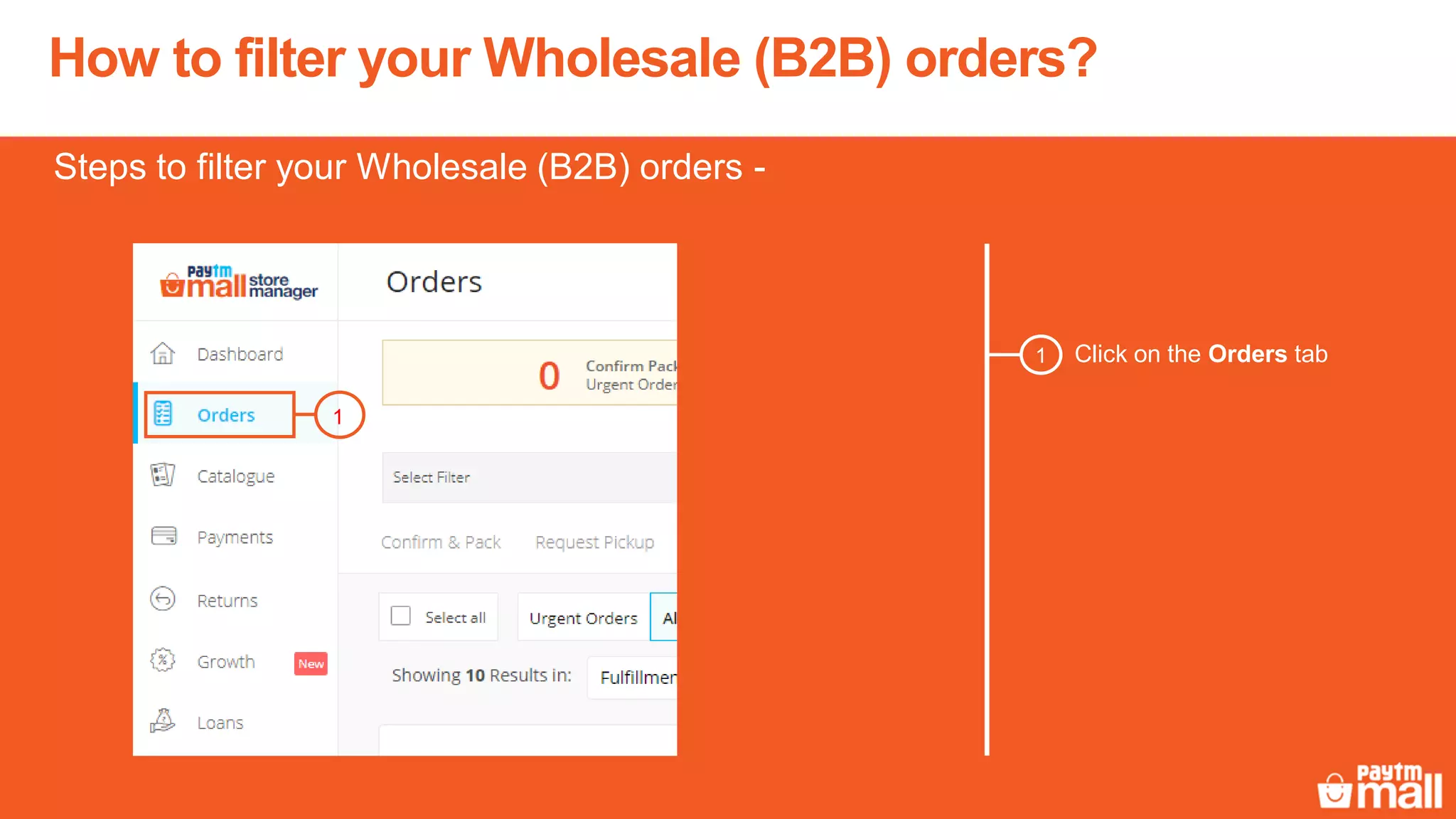
Click on the Orders tab1
Steps to filter your Wholesale (B2B) orders -
1
How to filter your Wholesale (B2B) orders?
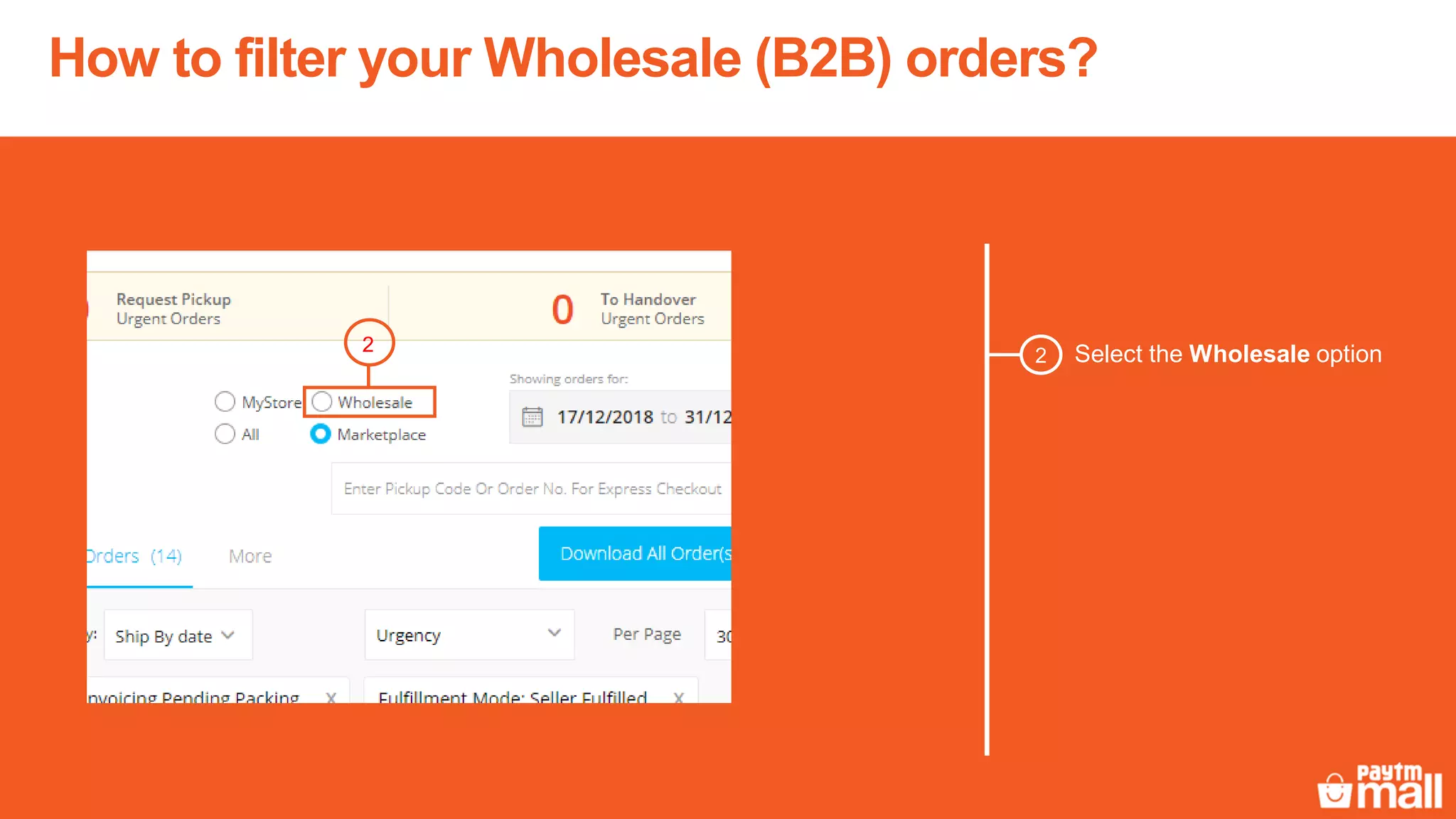
Select the Wholesale option2
2
How to filter your Wholesale (B2B) orders?
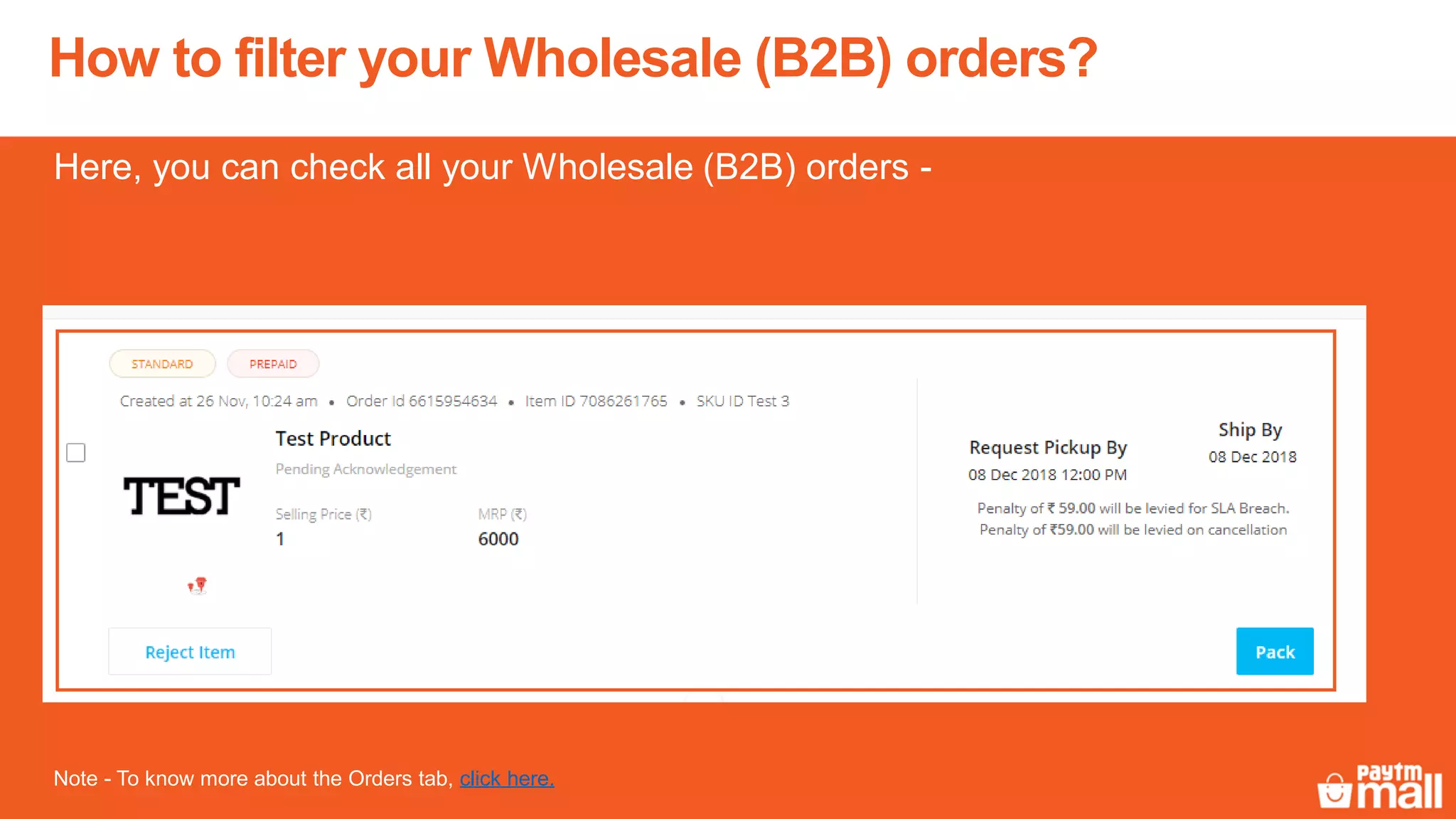
Here, you can check all your Wholesale (B2B) orders -
Note - To know more about the Orders tab, click here.
There are five stages of order processing
Delivered
The order is delivered
to the customer
5.
Confirm and pack
Acknowledge the order
and pack the order
1. To handover
The order is moved to
the “To handover” stage
till it is picked up
3.Request pickup
Download the manifest
slip by clicking on the
Request pickup tab
2.
Shipped
The order is shipped
from your warehouse
4.
Multiple items order processing
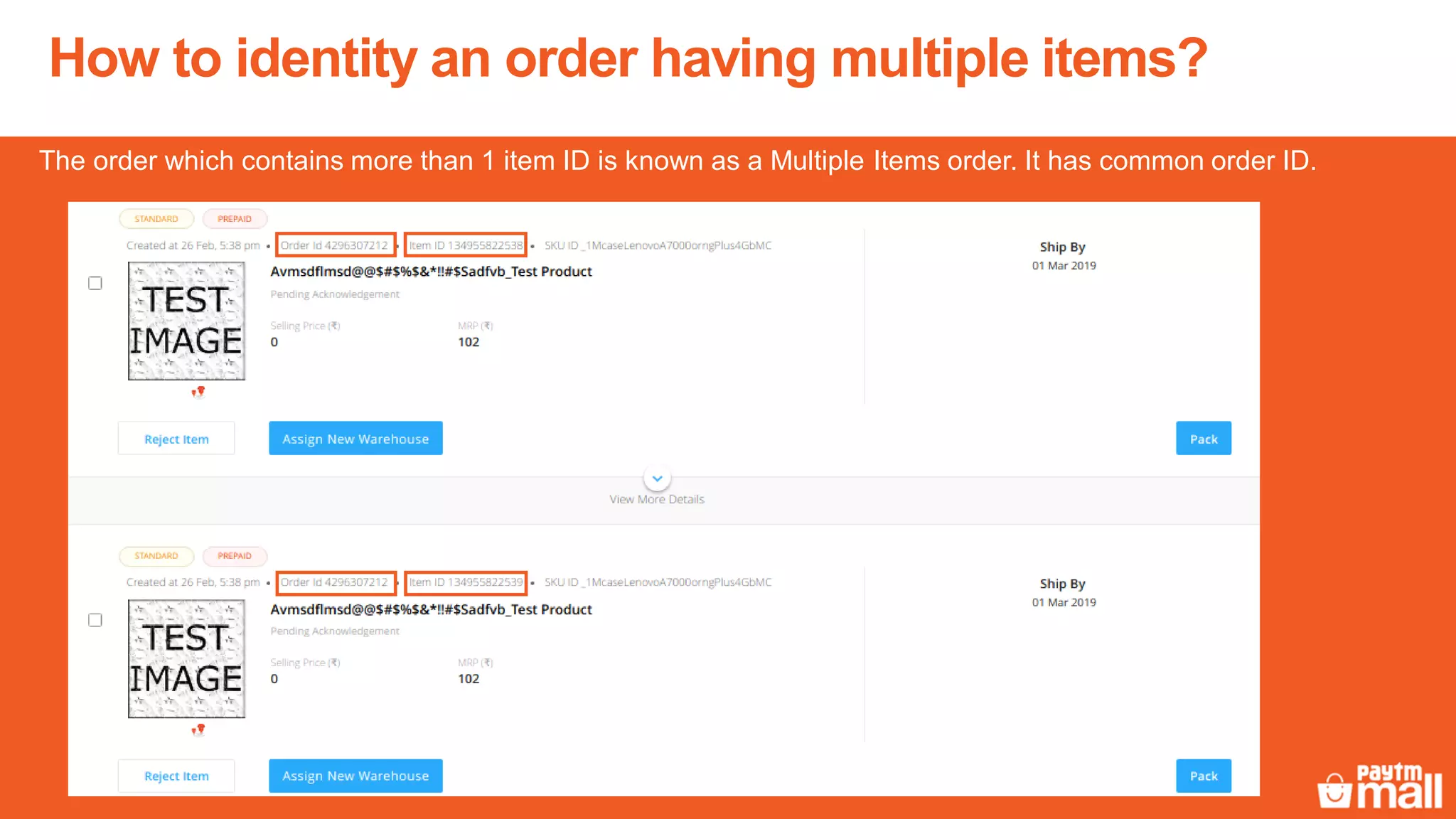
The order which contains more than 1 item ID is known as a Multiple Items order. It has common order ID.
How to identity an order having multiple items?
How to process an order having multiple items?
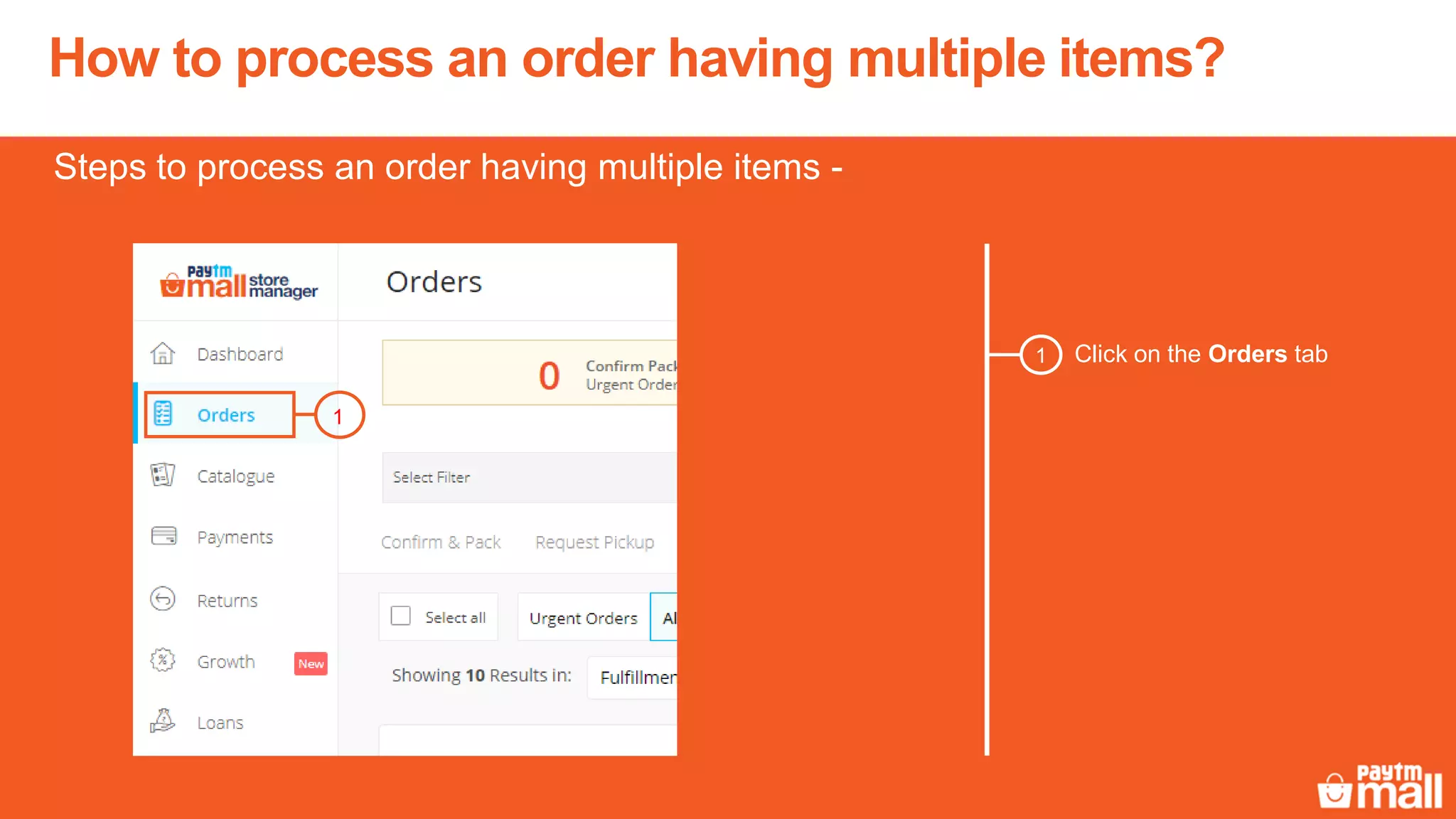
Click on the Orders tab1
Steps to process an order having multiple items -
1
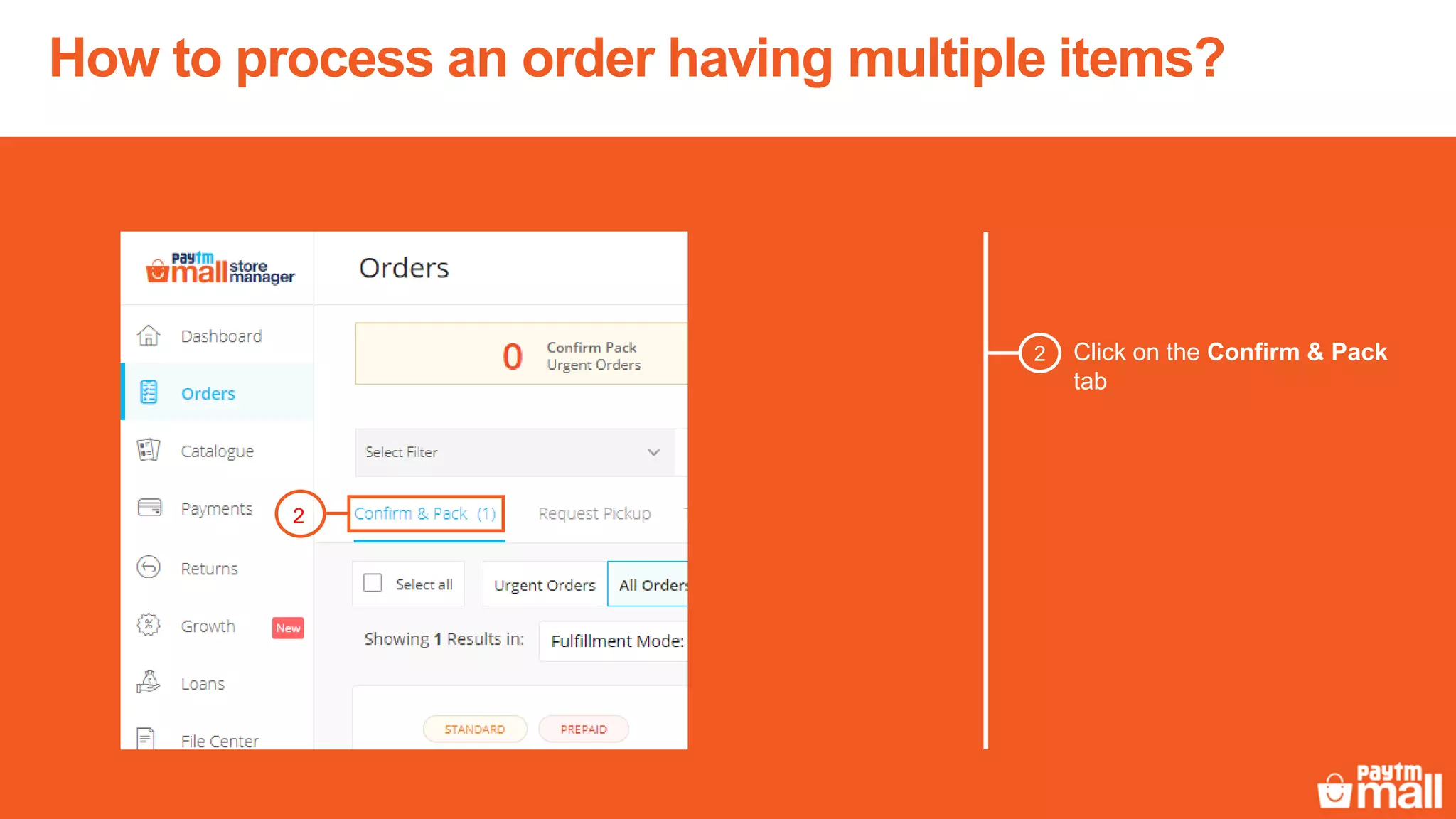
Click on the Confirm & Pack
tab
2
How to process an order having multiple items?
2
How to process an order having multiple items?
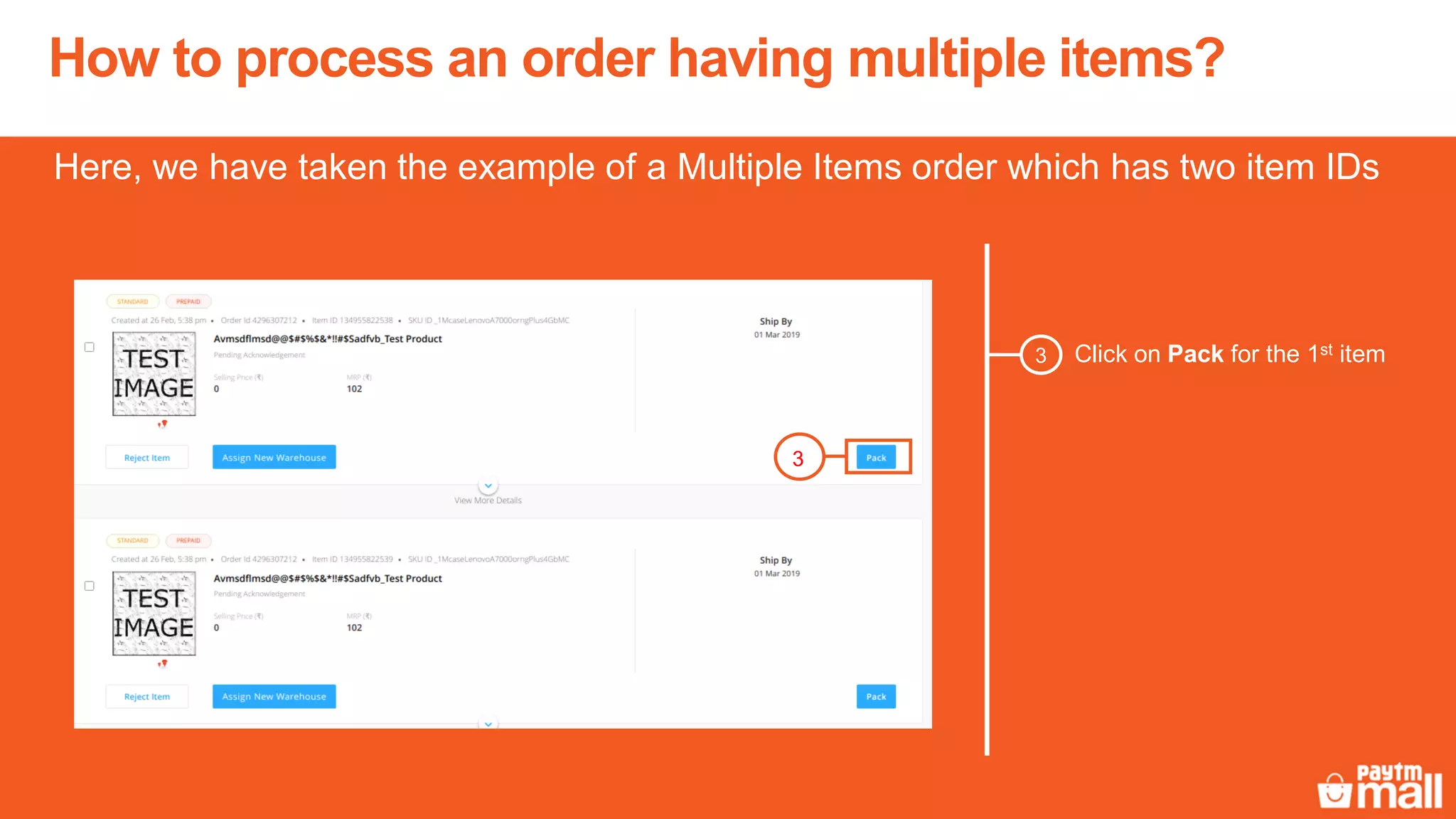
Click on Pack for the 1st item3
Here, we have taken the example of a Multiple Items order which has two item IDs
3
How to process an order having multiple items?
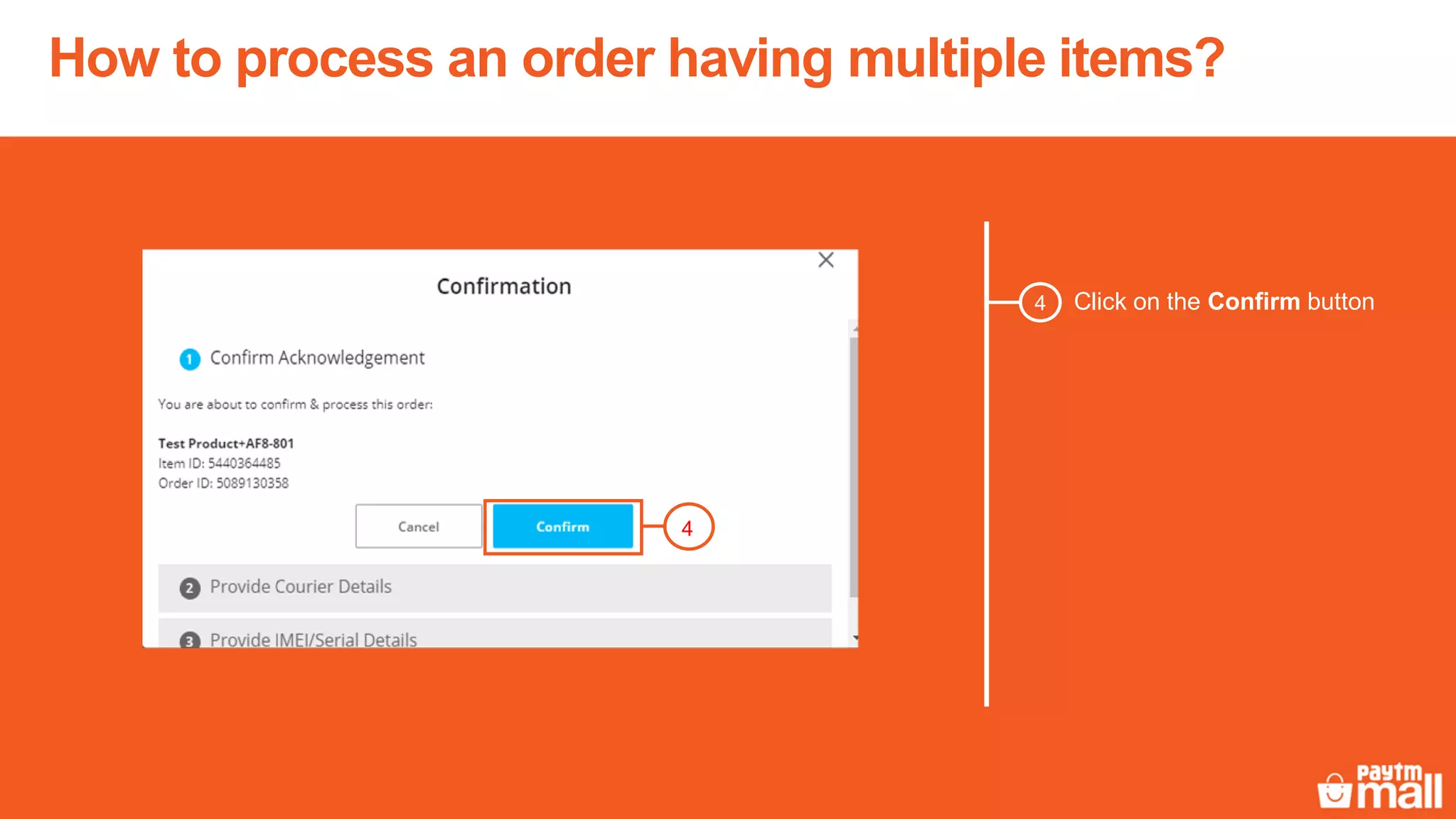
Click on the Confirm button4
4
How to process an order having multiple items?
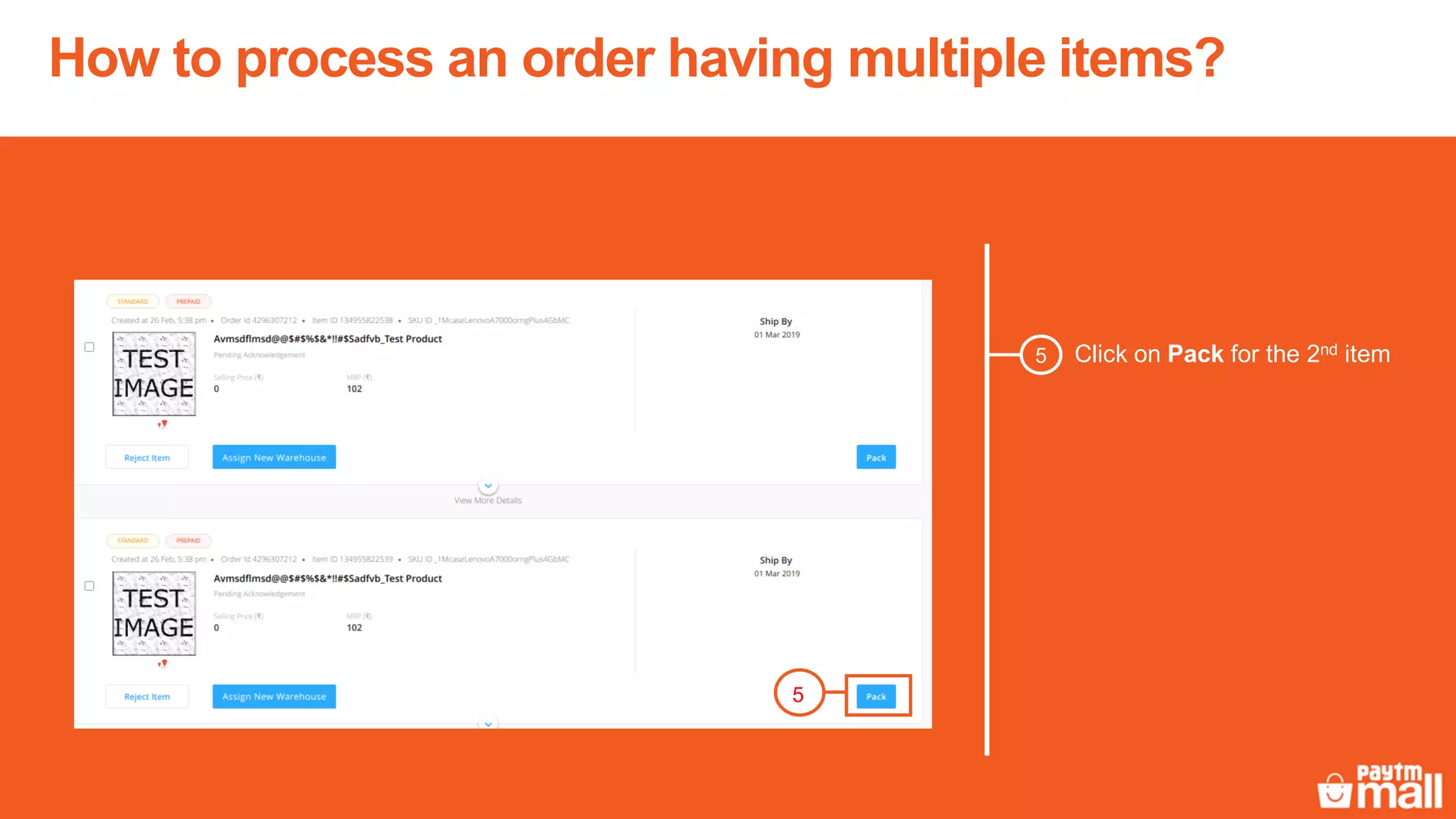
Click on Pack for the 2nd item5
5
How to process an order having multiple items?
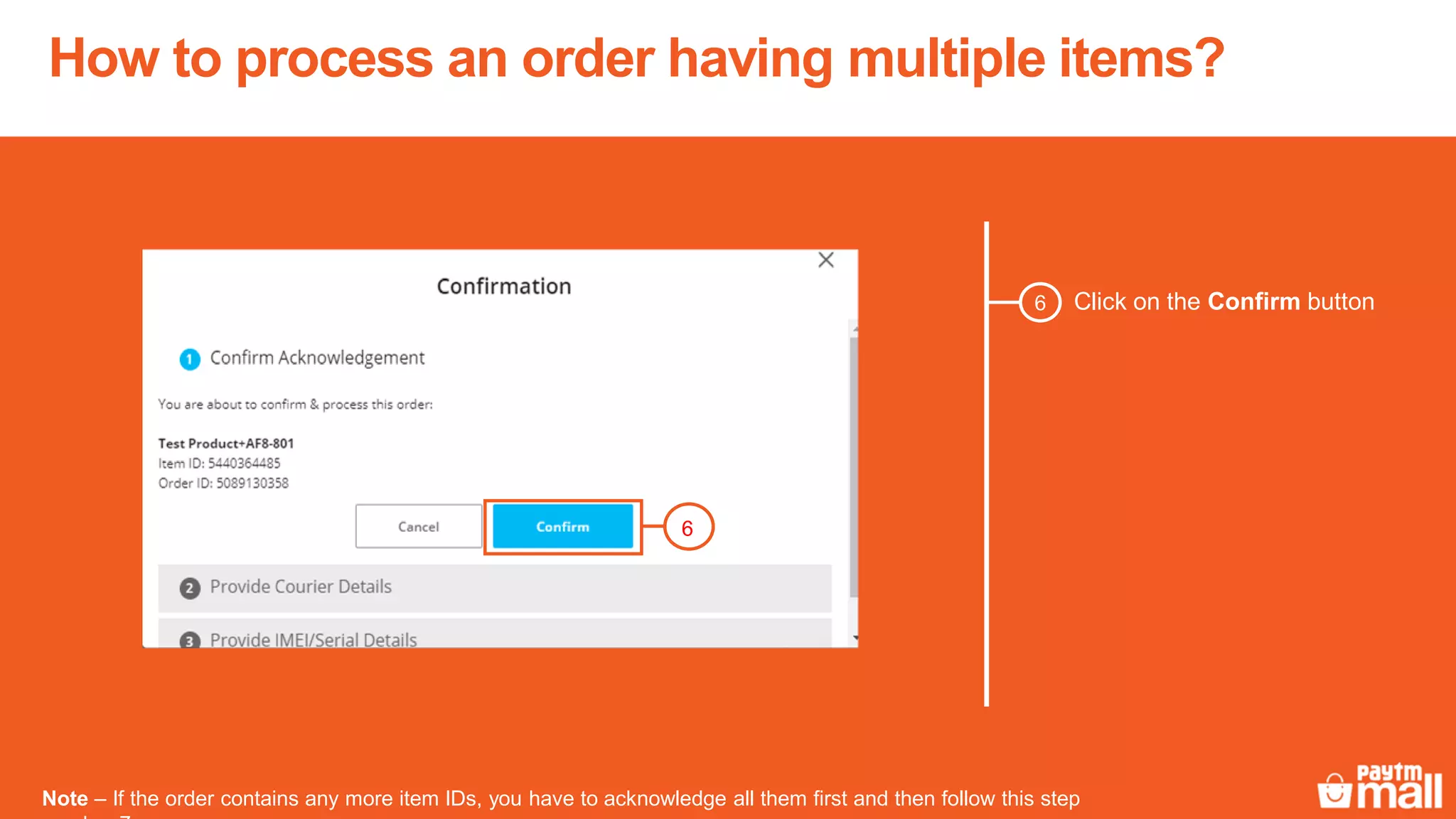
Click on the Confirm button6
6
Note – If the order contains any more item IDs, you have to acknowledge all them first and then follow this step
How to process an order having multiple items?
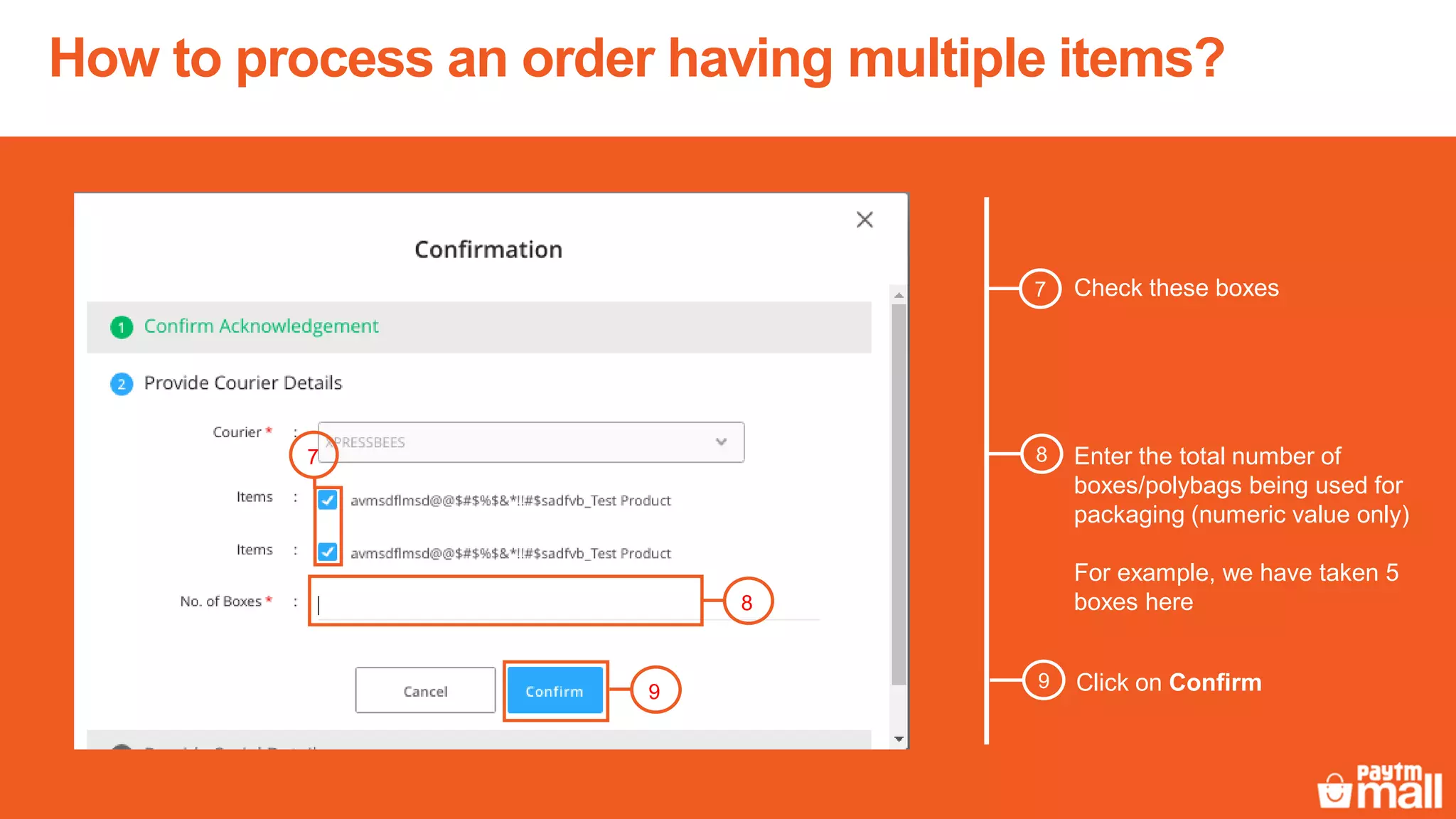
Check these boxes7
8 Enter the total number of
boxes/polybags being used for
packaging (numeric value only)
For example, we have taken 5
boxes here8
7
9
9 Click on Confirm
How to process an order having multiple items?
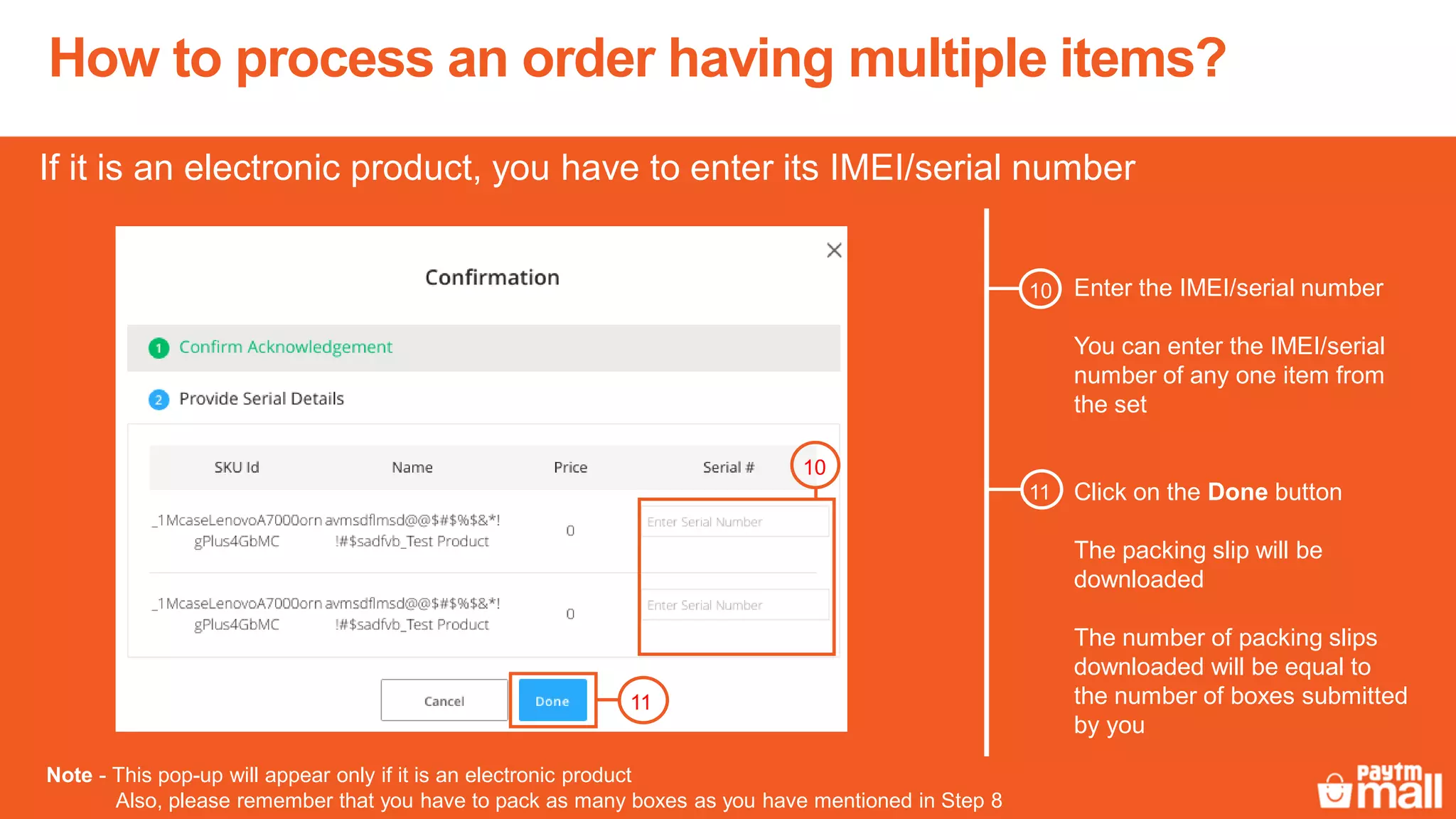
Enter the IMEI/serial number
You can enter the IMEI/serial
number of any one item from
the set
If it is an electronic product, you have to enter its IMEI/serial number
Click on the Done button
The packing slip will be
downloaded
The number of packing slips
downloaded will be equal to
the number of boxes submitted
by you
11
10
10
11
Note - This pop-up will appear only if it is an electronic product
Also, please remember that you have to pack as many boxes as you have mentioned in Step 8
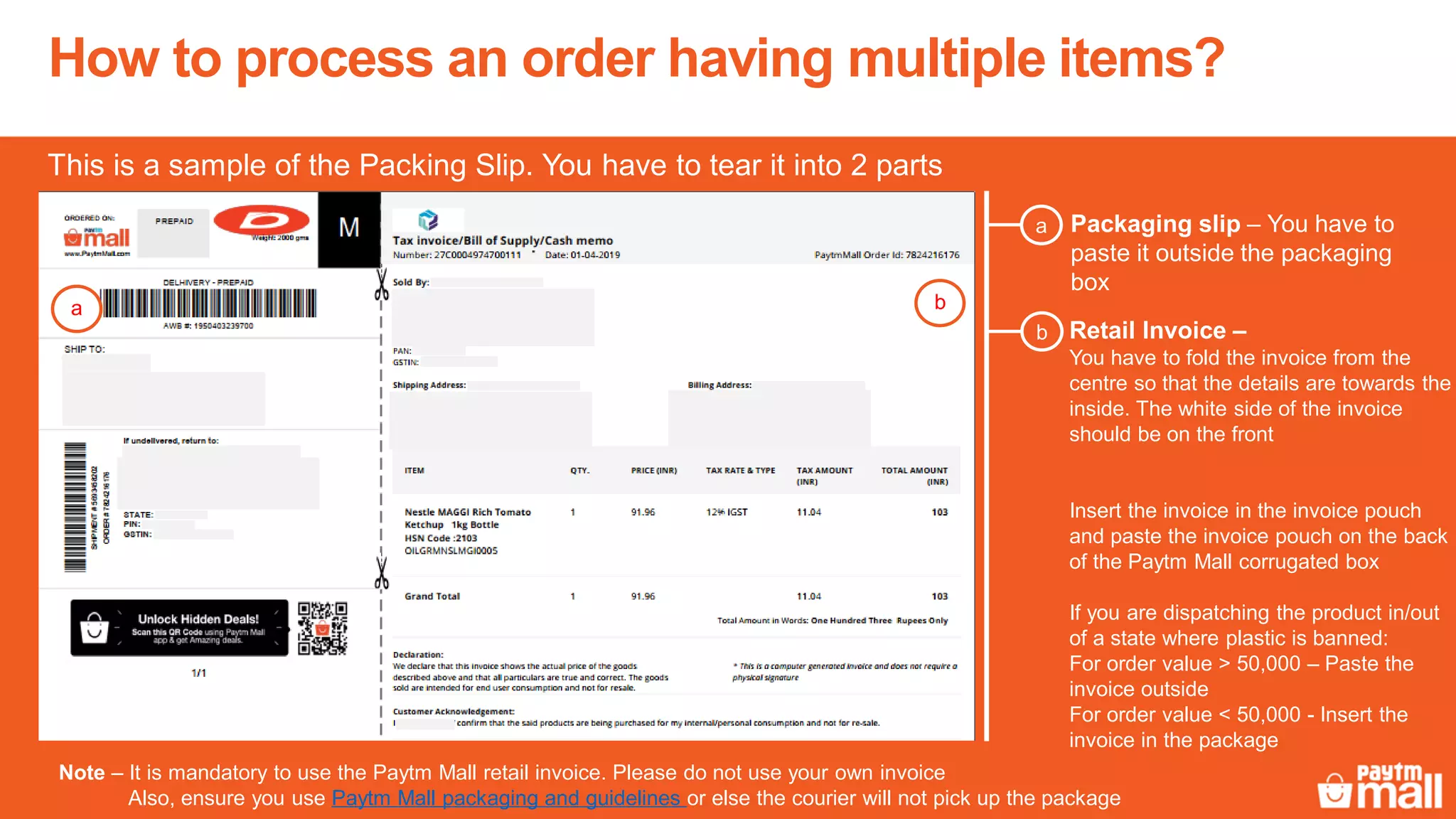
Packaging slip – You have to
paste it outside the packaging
box
a
Retail Invoice –
You have to fold the invoice from the
centre so that the details are towards the
inside. The white side of the invoice
should be on the front
Insert the invoice in the invoice pouch
and paste the invoice pouch on the back
of the Paytm Mall corrugated box
If you are dispatching the product in/out
of a state where plastic is banned:
For order value > 50,000 – Paste the
invoice outside
For order value < 50,000 - Insert the
invoice in the package
b
This is a sample of the Packing Slip. You have to tear it into 2 parts
Note – It is mandatory to use the Paytm Mall retail invoice. Please do not use your own invoice
Also, ensure you use Paytm Mall packaging and guidelines or else the courier will not pick up the package
How to process an order having multiple items?
a b
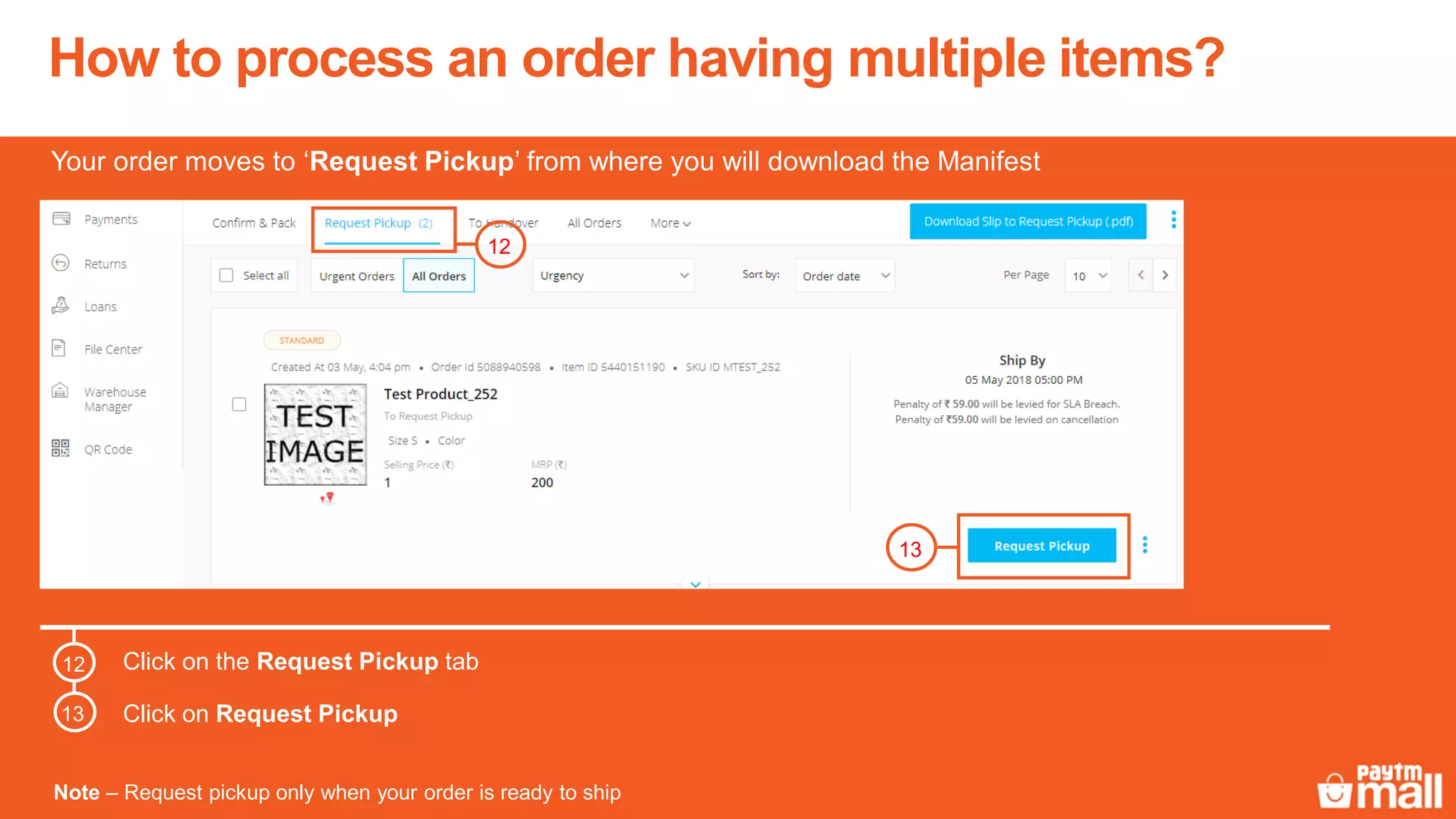
Your order moves to ‘Request Pickup’ from where you will download the Manifest
Note – Request pickup only when your order is ready to ship
Click on the Request Pickup tab
Click on Request Pickup
How to process an order having multiple items?
13
12
12
13
How to process an order having multiple items?
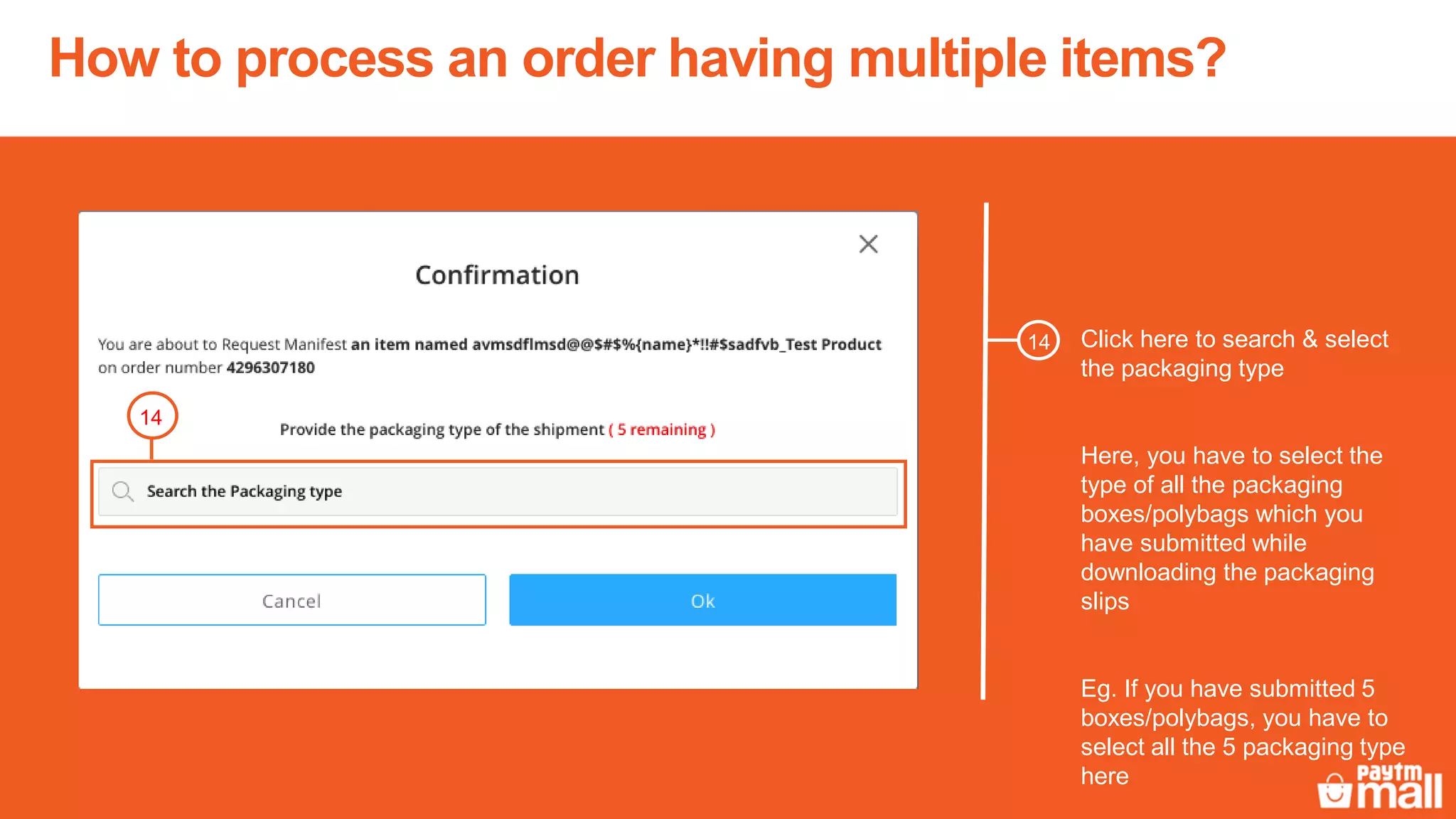
Click here to search & select
the packaging type
Here, you have to select the
type of all the packaging
boxes/polybags which you
have submitted while
downloading the packaging
slips
Eg. If you have submitted 5
boxes/polybags, you have to
select all the 5 packaging type
here
14
14
How to process an order having multiple items?
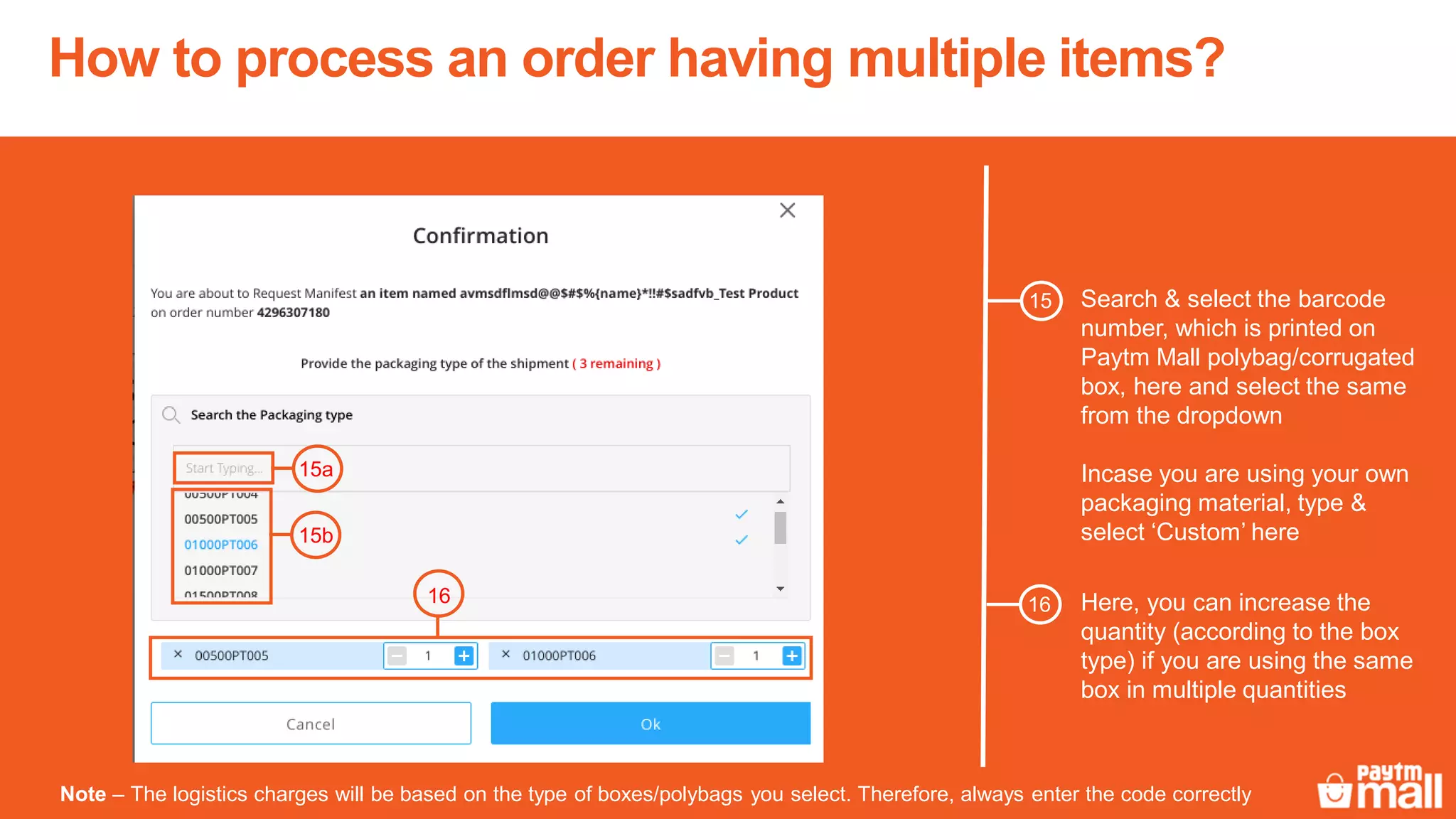
Search & select the barcode
number, which is printed on
Paytm Mall polybag/corrugated
box, here and select the same
from the dropdown
Incase you are using your own
packaging material, type &
select ‘Custom’ here
Note – The logistics charges will be based on the type of boxes/polybags you select. Therefore, always enter the code correctly
15b
16 Here, you can increase the
quantity (according to the box
type) if you are using the same
box in multiple quantities
16
15
15a
How to process an order having multiple items?
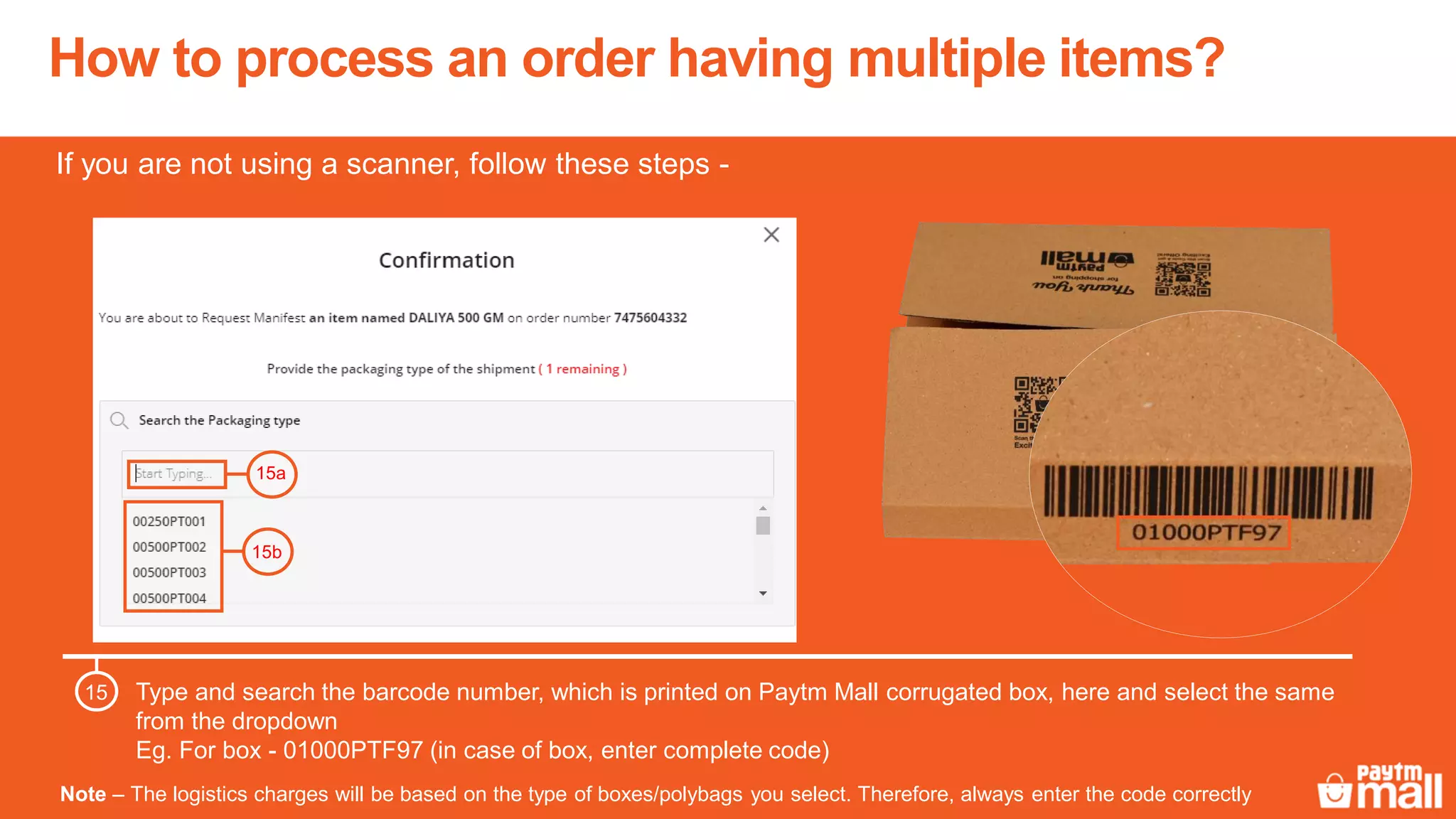
Type and search the barcode number, which is printed on Paytm Mall corrugated box, here and select the same
from the dropdown
Eg. For box - 01000PTF97 (in case of box, enter complete code)
15
15a
15b
Note – The logistics charges will be based on the type of boxes/polybags you select. Therefore, always enter the code correctly
If you are not using a scanner, follow these steps -
How to process an order having multiple items?
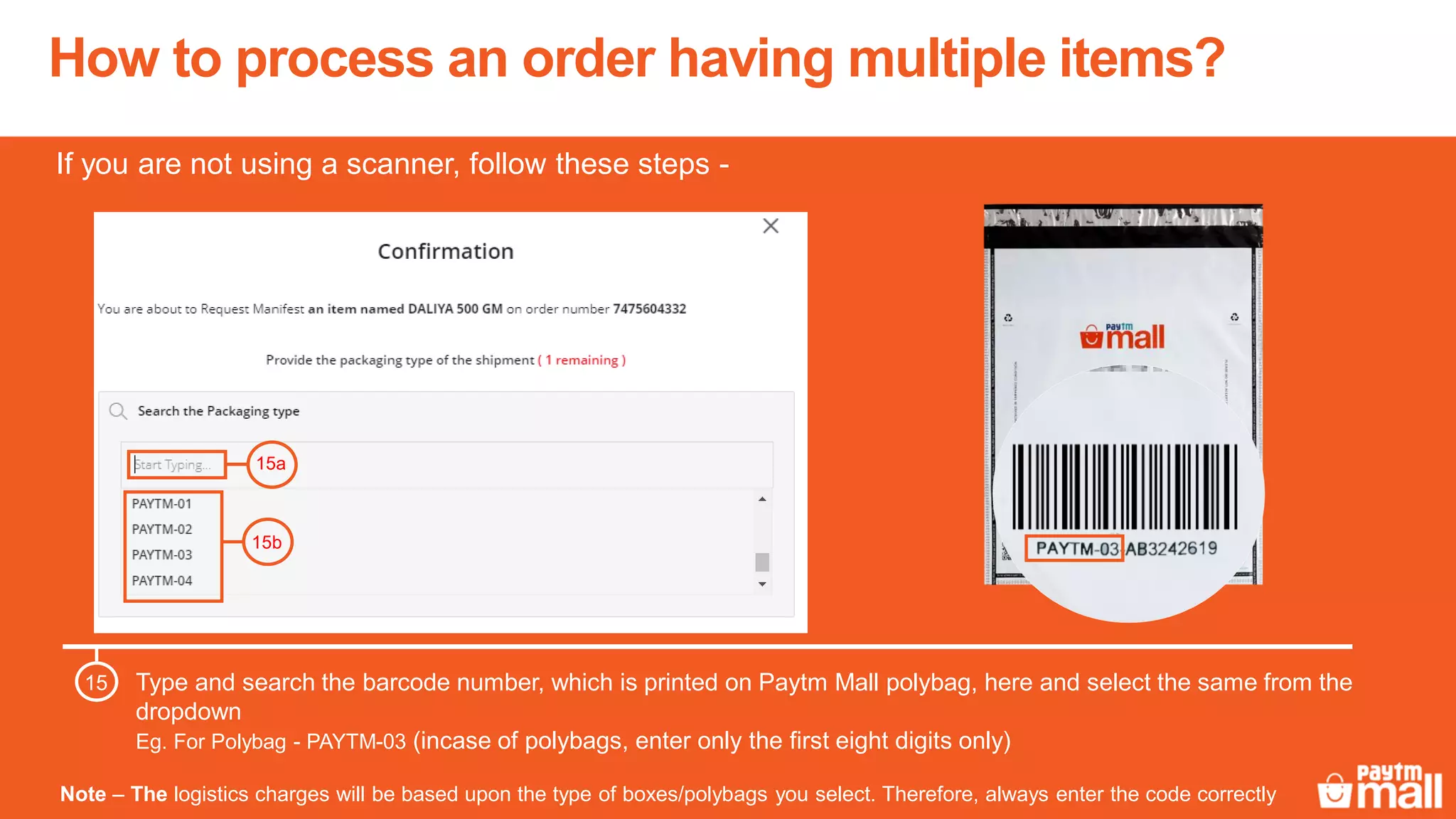
Note – The logistics charges will be based upon the type of boxes/polybags you select. Therefore, always enter the code correctly
Type and search the barcode number, which is printed on Paytm Mall polybag, here and select the same from the
dropdown
Eg. For Polybag - PAYTM-03 (incase of polybags, enter only the first eight digits only)
15
15a
15b
If you are not using a scanner, follow these steps -
How to process an order having multiple items?
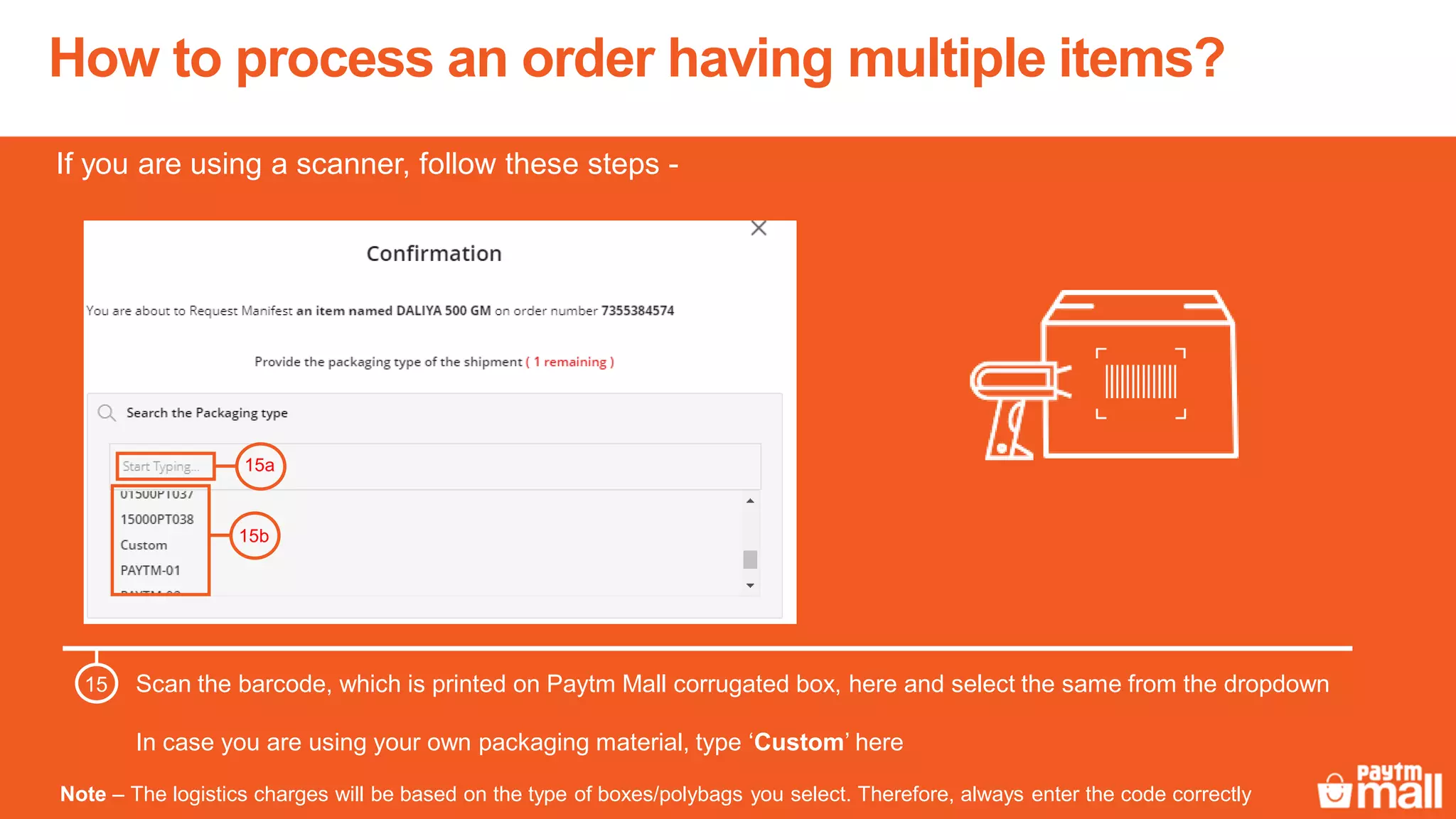
Scan the barcode, which is printed on Paytm Mall corrugated box, here and select the same from the dropdown
In case you are using your own packaging material, type ‘Custom’ here
15
15a
15b
Note – The logistics charges will be based on the type of boxes/polybags you select. Therefore, always enter the code correctly
If you are using a scanner, follow these steps -
How to process an order having multiple items?
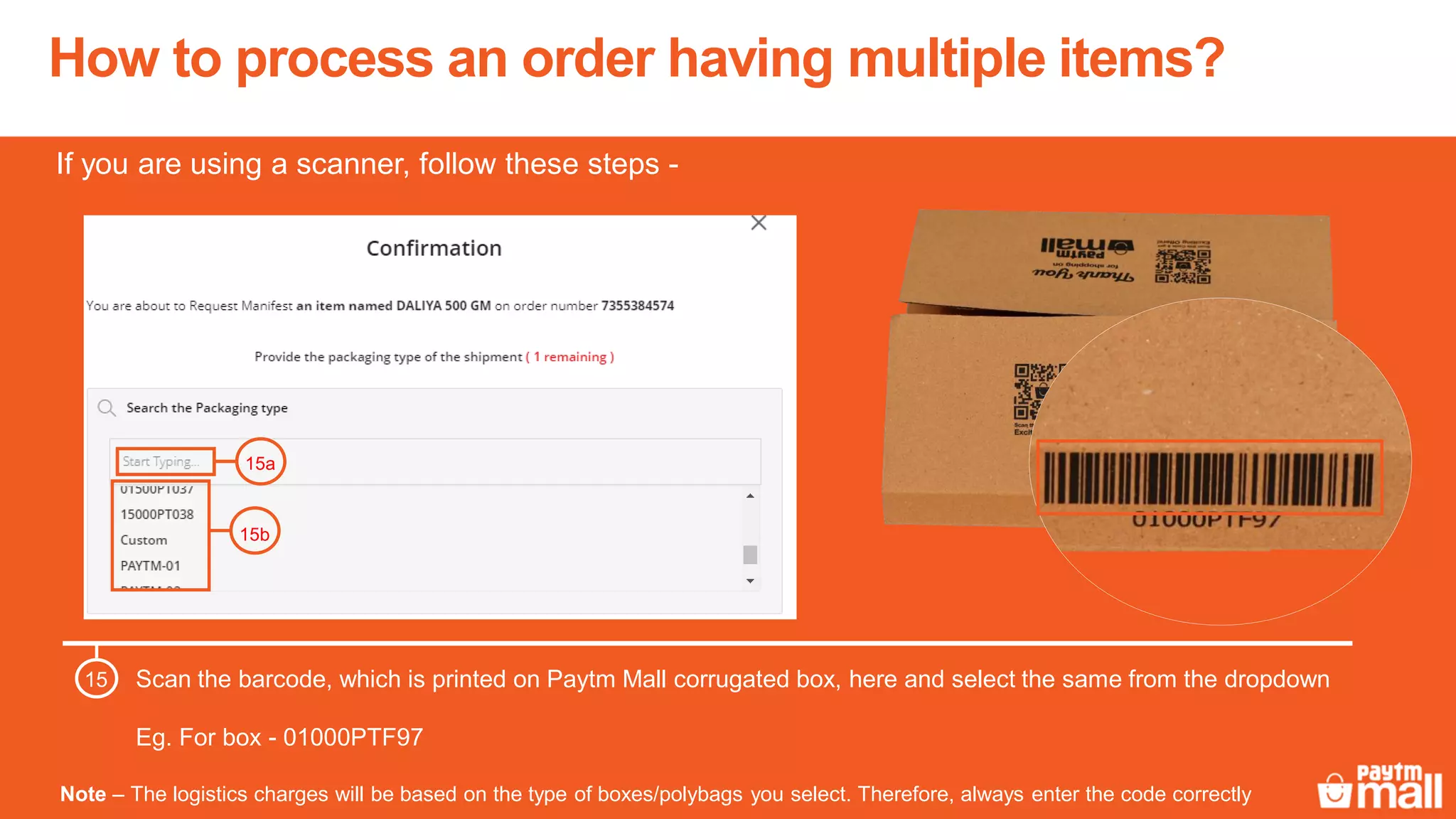
Scan the barcode, which is printed on Paytm Mall corrugated box, here and select the same from the dropdown
Eg. For box - 01000PTF97
15
15a
15b
Note – The logistics charges will be based on the type of boxes/polybags you select. Therefore, always enter the code correctly
If you are using a scanner, follow these steps -
How to process an order having multiple items?
Note – The logistics charges will be based on the type of boxes/polybags you select. Therefore, always enter the code correctly
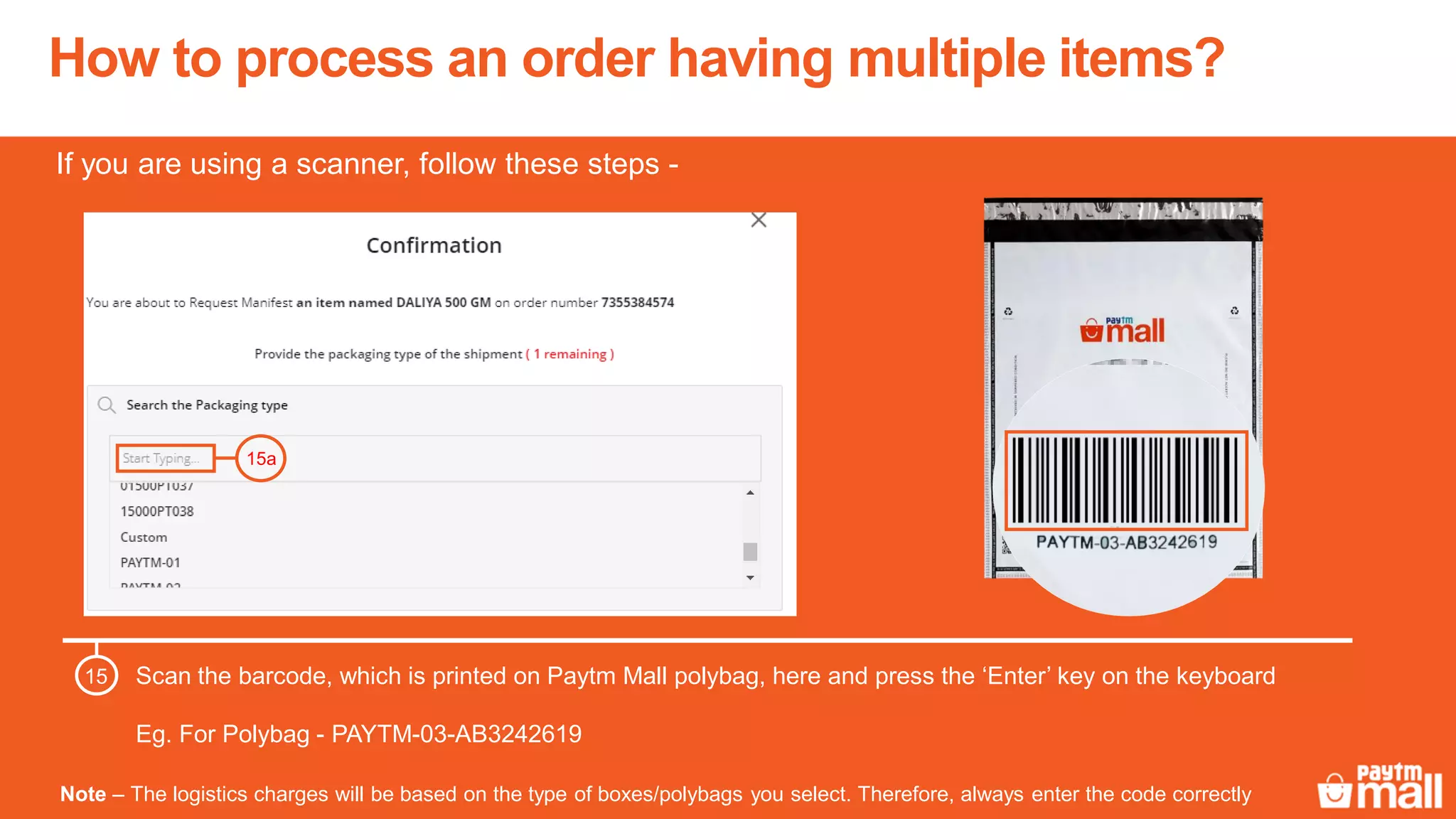
Scan the barcode, which is printed on Paytm Mall polybag, here and press the ‘Enter’ key on the keyboard
Eg. For Polybag - PAYTM-03-AB3242619
15
15a
If you are using a scanner, follow these steps -
How to process an order having multiple items?
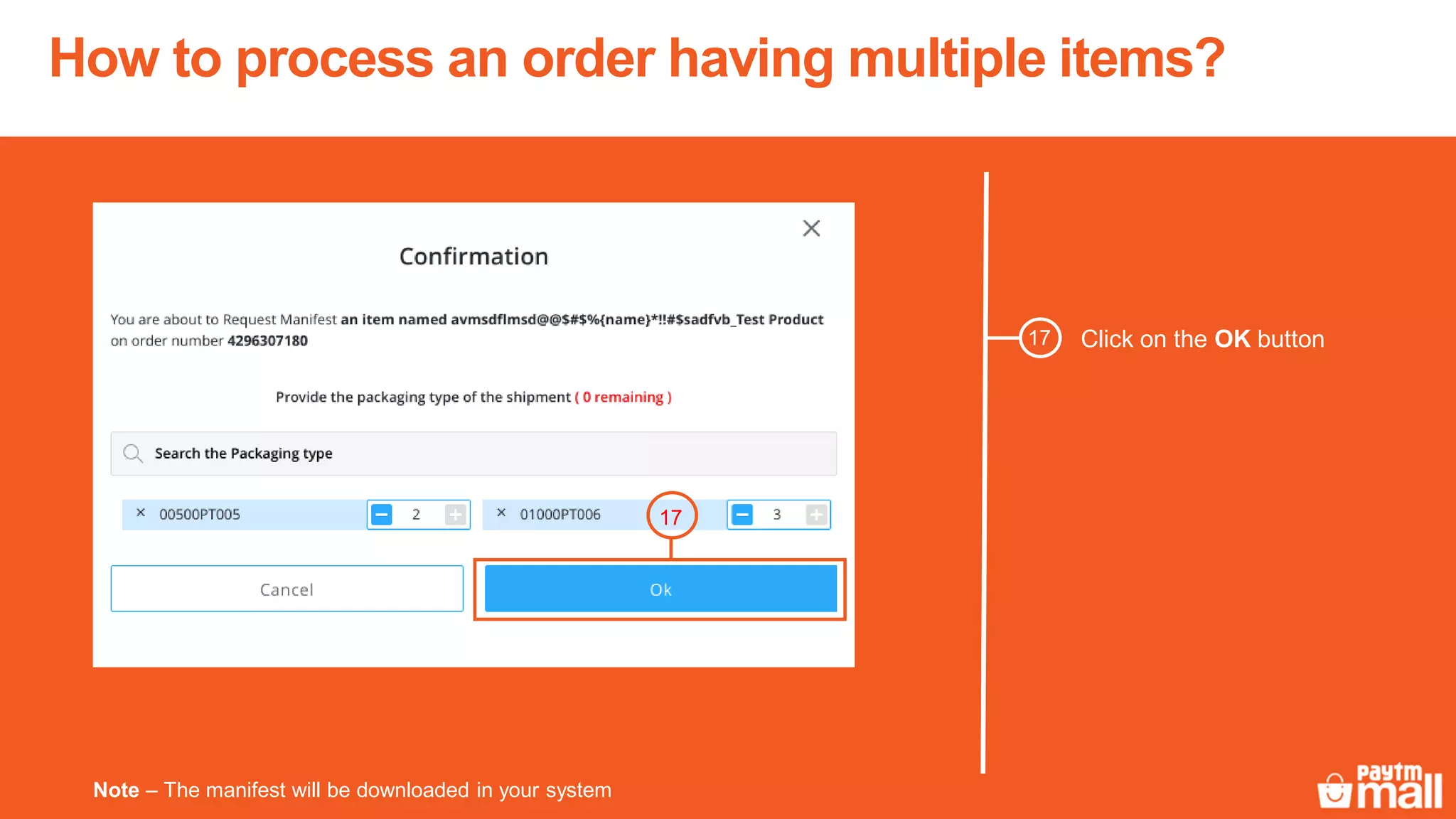
Note – The manifest will be downloaded in your system
Click on the OK button17
17
How to process an order having multiple items?
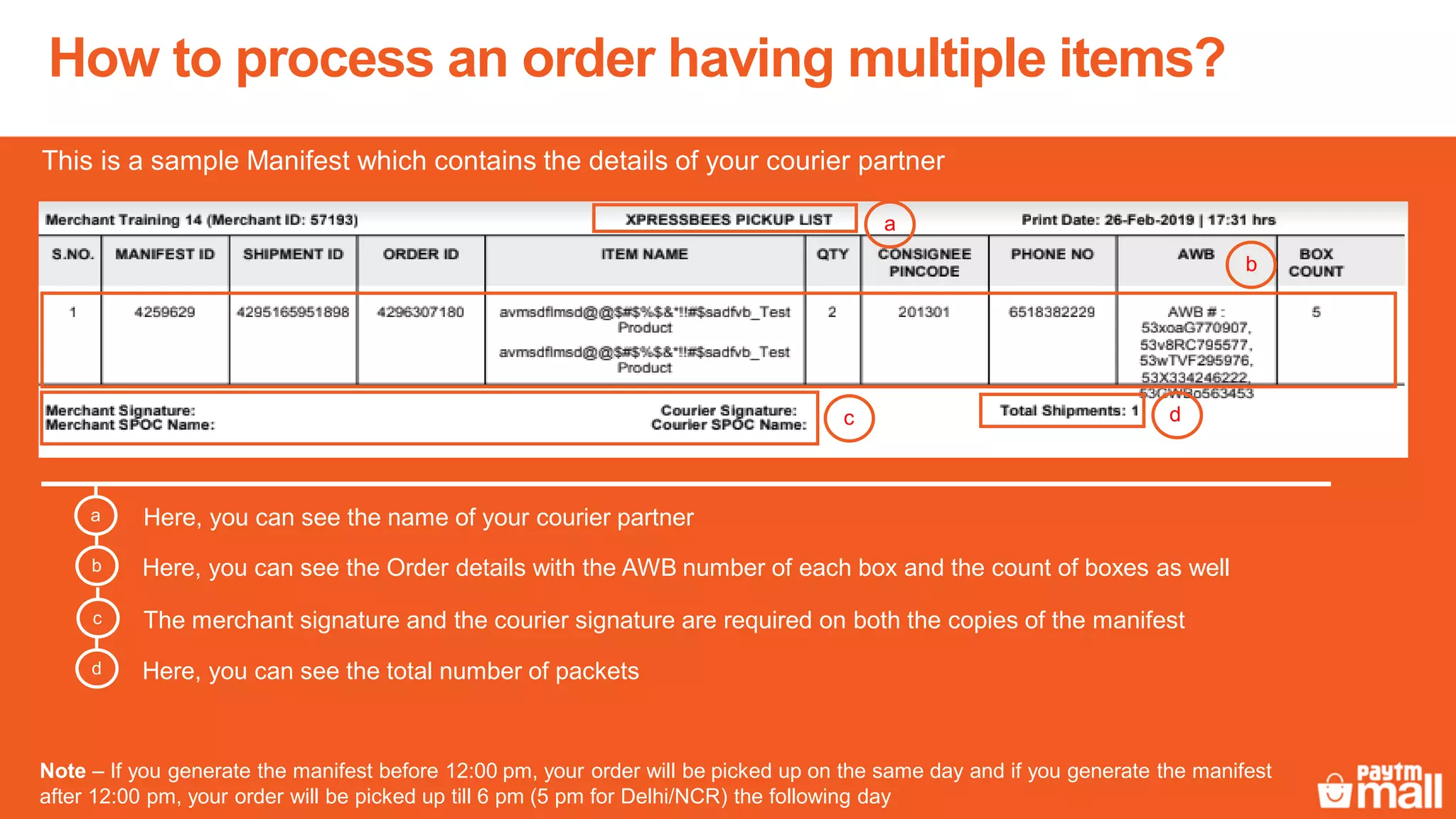
Here, you can see the name of your courier partnera
This is a sample Manifest which contains the details of your courier partner
Here, you can see the Order details with the AWB number of each box and the count of boxes as wellb
The merchant signature and the courier signature are required on both the copies of the manifestc
Here, you can see the total number of packetsd
a
b
c d
Note – If you generate the manifest before 12:00 pm, your order will be picked up on the same day and if you generate the manifest
after 12:00 pm, your order will be picked up till 6 pm (5 pm for Delhi/NCR) the following day
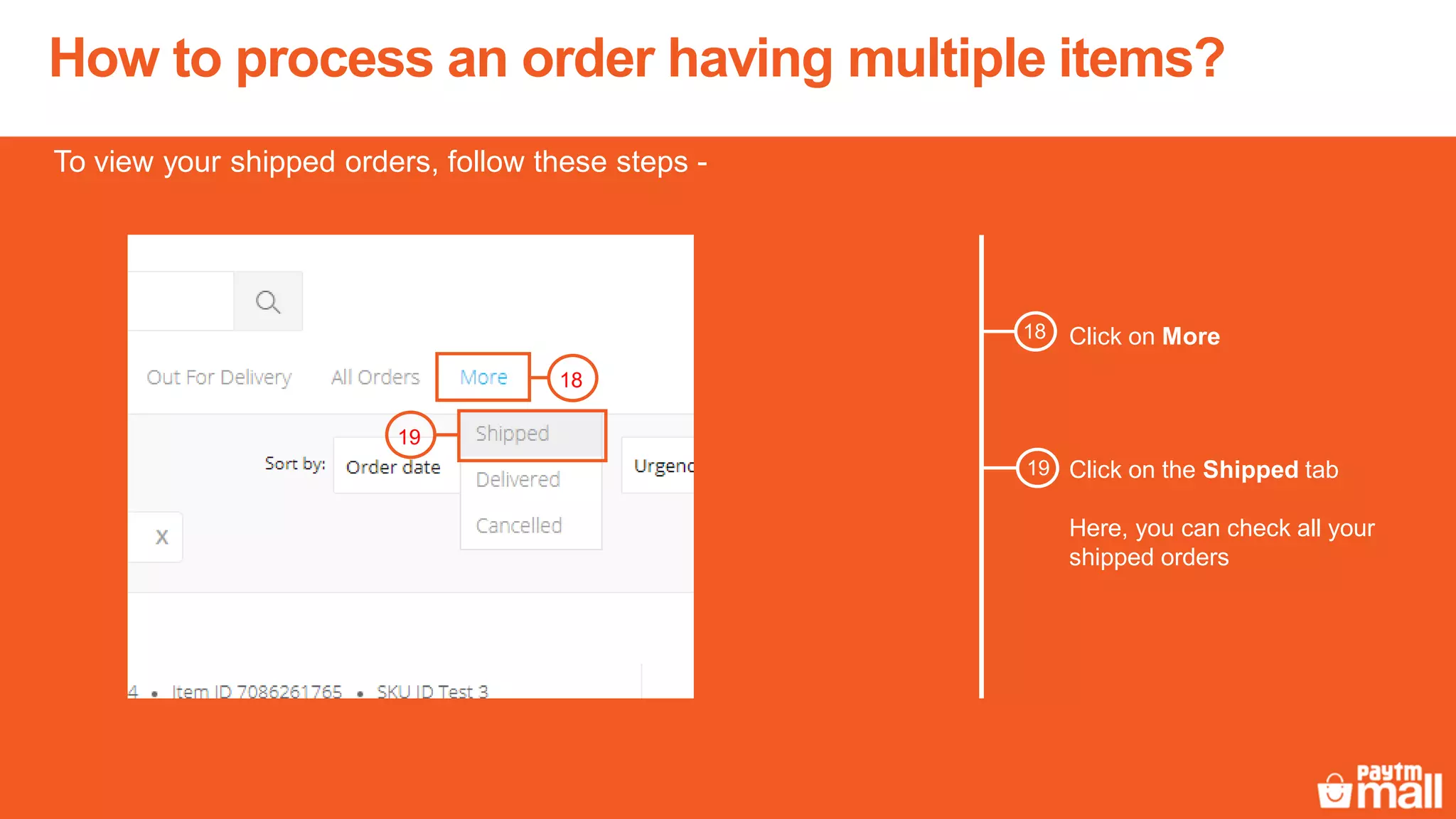
Click on More
To view your shipped orders, follow these steps -
Click on the Shipped tab
Here, you can check all your
shipped orders
18
19
How to process an order having multiple items?
18
19
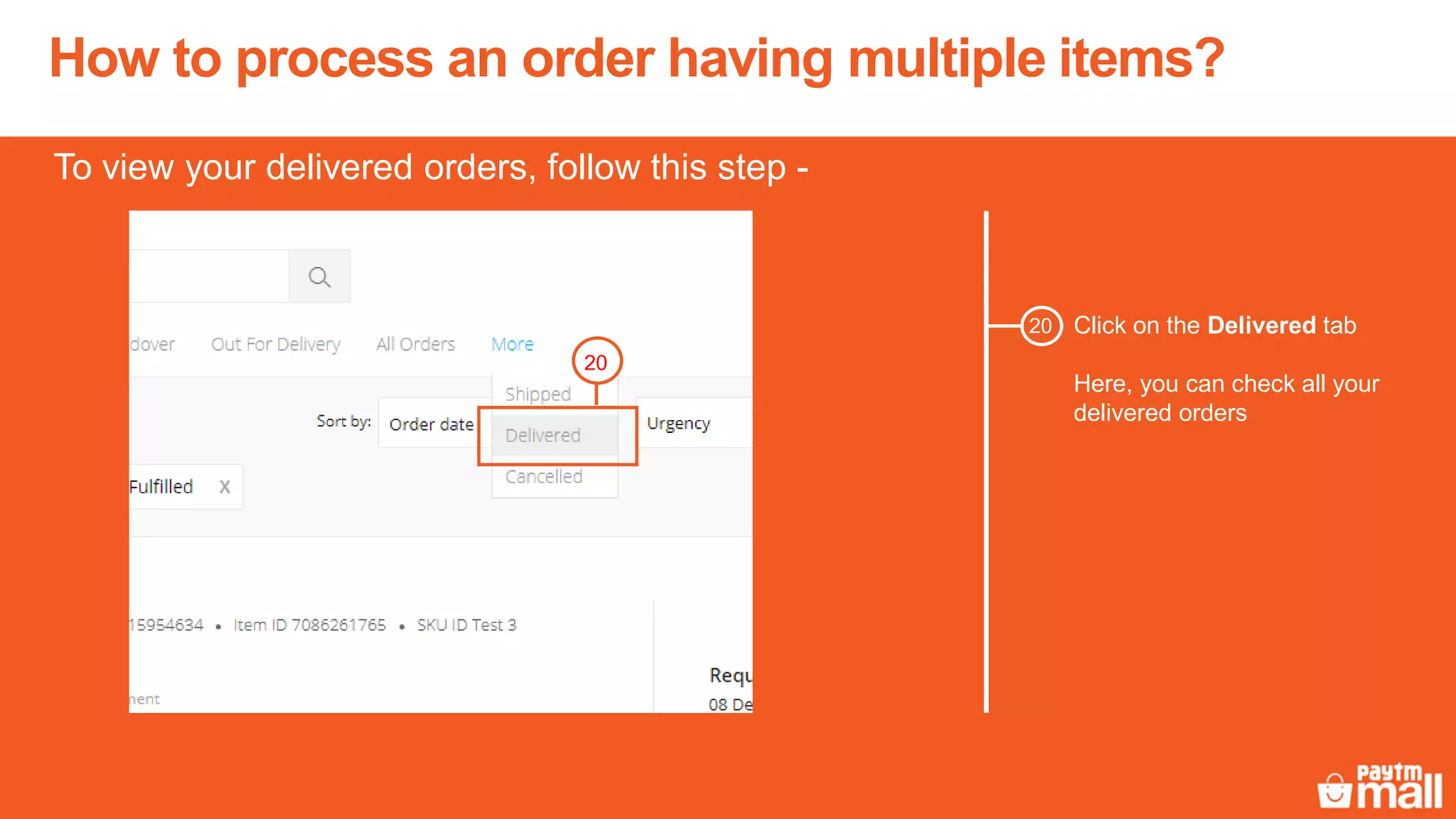
Click on the Delivered tab
Here, you can check all your
delivered orders
To view your delivered orders, follow this step -
20
How to process an order having multiple items?
20
Thanks everyone!
For any query, please raise a ticket on Support

Multiple items order processing- LMD - Wholesale

  • 1.
    Multiple items order processing- Wholesale In this module, we will discuss :- 1. How to process an order having multiple items?
  • 2.
    How to filteryour Wholesale (B2B) orders? Click on the Orders tab1 Steps to filter your Wholesale (B2B) orders - 1
  • 3.
    How to filteryour Wholesale (B2B) orders? Select the Wholesale option2 2
  • 4.
    How to filteryour Wholesale (B2B) orders? Here, you can check all your Wholesale (B2B) orders - Note - To know more about the Orders tab, click here.
  • 5.
    There are fivestages of order processing Delivered The order is delivered to the customer 5. Confirm and pack Acknowledge the order and pack the order 1. To handover The order is moved to the “To handover” stage till it is picked up 3.Request pickup Download the manifest slip by clicking on the Request pickup tab 2. Shipped The order is shipped from your warehouse 4.
  • 6.
  • 7.
    The order whichcontains more than 1 item ID is known as a Multiple Items order. It has common order ID. How to identity an order having multiple items?
  • 8.
    How to processan order having multiple items? Click on the Orders tab1 Steps to process an order having multiple items - 1
  • 9.
    Click on theConfirm & Pack tab 2 How to process an order having multiple items? 2
  • 10.
    How to processan order having multiple items? Click on Pack for the 1st item3 Here, we have taken the example of a Multiple Items order which has two item IDs 3
  • 11.
    How to processan order having multiple items? Click on the Confirm button4 4
  • 12.
    How to processan order having multiple items? Click on Pack for the 2nd item5 5
  • 13.
    How to processan order having multiple items? Click on the Confirm button6 6 Note – If the order contains any more item IDs, you have to acknowledge all them first and then follow this step
  • 14.
    How to processan order having multiple items? Check these boxes7 8 Enter the total number of boxes/polybags being used for packaging (numeric value only) For example, we have taken 5 boxes here8 7 9 9 Click on Confirm
  • 15.
    How to processan order having multiple items? Enter the IMEI/serial number You can enter the IMEI/serial number of any one item from the set If it is an electronic product, you have to enter its IMEI/serial number Click on the Done button The packing slip will be downloaded The number of packing slips downloaded will be equal to the number of boxes submitted by you 11 10 10 11 Note - This pop-up will appear only if it is an electronic product Also, please remember that you have to pack as many boxes as you have mentioned in Step 8
  • 16.
    Packaging slip –You have to paste it outside the packaging box a Retail Invoice – You have to fold the invoice from the centre so that the details are towards the inside. The white side of the invoice should be on the front Insert the invoice in the invoice pouch and paste the invoice pouch on the back of the Paytm Mall corrugated box If you are dispatching the product in/out of a state where plastic is banned: For order value > 50,000 – Paste the invoice outside For order value < 50,000 - Insert the invoice in the package b This is a sample of the Packing Slip. You have to tear it into 2 parts Note – It is mandatory to use the Paytm Mall retail invoice. Please do not use your own invoice Also, ensure you use Paytm Mall packaging and guidelines or else the courier will not pick up the package How to process an order having multiple items? a b
  • 17.
    Your order movesto ‘Request Pickup’ from where you will download the Manifest Note – Request pickup only when your order is ready to ship Click on the Request Pickup tab Click on Request Pickup How to process an order having multiple items? 13 12 12 13
  • 18.
    How to processan order having multiple items? Click here to search & select the packaging type Here, you have to select the type of all the packaging boxes/polybags which you have submitted while downloading the packaging slips Eg. If you have submitted 5 boxes/polybags, you have to select all the 5 packaging type here 14 14
  • 19.
    How to processan order having multiple items? Search & select the barcode number, which is printed on Paytm Mall polybag/corrugated box, here and select the same from the dropdown Incase you are using your own packaging material, type & select ‘Custom’ here Note – The logistics charges will be based on the type of boxes/polybags you select. Therefore, always enter the code correctly 15b 16 Here, you can increase the quantity (according to the box type) if you are using the same box in multiple quantities 16 15 15a
  • 20.
    How to processan order having multiple items? Type and search the barcode number, which is printed on Paytm Mall corrugated box, here and select the same from the dropdown Eg. For box - 01000PTF97 (in case of box, enter complete code) 15 15a 15b Note – The logistics charges will be based on the type of boxes/polybags you select. Therefore, always enter the code correctly If you are not using a scanner, follow these steps -
  • 21.
    How to processan order having multiple items? Note – The logistics charges will be based upon the type of boxes/polybags you select. Therefore, always enter the code correctly Type and search the barcode number, which is printed on Paytm Mall polybag, here and select the same from the dropdown Eg. For Polybag - PAYTM-03 (incase of polybags, enter only the first eight digits only) 15 15a 15b If you are not using a scanner, follow these steps -
  • 22.
    How to processan order having multiple items? Scan the barcode, which is printed on Paytm Mall corrugated box, here and select the same from the dropdown In case you are using your own packaging material, type ‘Custom’ here 15 15a 15b Note – The logistics charges will be based on the type of boxes/polybags you select. Therefore, always enter the code correctly If you are using a scanner, follow these steps -
  • 23.
    How to processan order having multiple items? Scan the barcode, which is printed on Paytm Mall corrugated box, here and select the same from the dropdown Eg. For box - 01000PTF97 15 15a 15b Note – The logistics charges will be based on the type of boxes/polybags you select. Therefore, always enter the code correctly If you are using a scanner, follow these steps -
  • 24.
    How to processan order having multiple items? Note – The logistics charges will be based on the type of boxes/polybags you select. Therefore, always enter the code correctly Scan the barcode, which is printed on Paytm Mall polybag, here and press the ‘Enter’ key on the keyboard Eg. For Polybag - PAYTM-03-AB3242619 15 15a If you are using a scanner, follow these steps -
  • 25.
    How to processan order having multiple items? Note – The manifest will be downloaded in your system Click on the OK button17 17
  • 26.
    How to processan order having multiple items? Here, you can see the name of your courier partnera This is a sample Manifest which contains the details of your courier partner Here, you can see the Order details with the AWB number of each box and the count of boxes as wellb The merchant signature and the courier signature are required on both the copies of the manifestc Here, you can see the total number of packetsd a b c d Note – If you generate the manifest before 12:00 pm, your order will be picked up on the same day and if you generate the manifest after 12:00 pm, your order will be picked up till 6 pm (5 pm for Delhi/NCR) the following day
  • 27.
    Click on More Toview your shipped orders, follow these steps - Click on the Shipped tab Here, you can check all your shipped orders 18 19 How to process an order having multiple items? 18 19
  • 28.
    Click on theDelivered tab Here, you can check all your delivered orders To view your delivered orders, follow this step - 20 How to process an order having multiple items? 20
  • 29.
    Thanks everyone! For anyquery, please raise a ticket on Support