Cancellation of the orders
In this module, we will discuss:-
1. Steps to cancel a single order
2. Steps to cancel orders in bulk
3. Checking cancelled orders
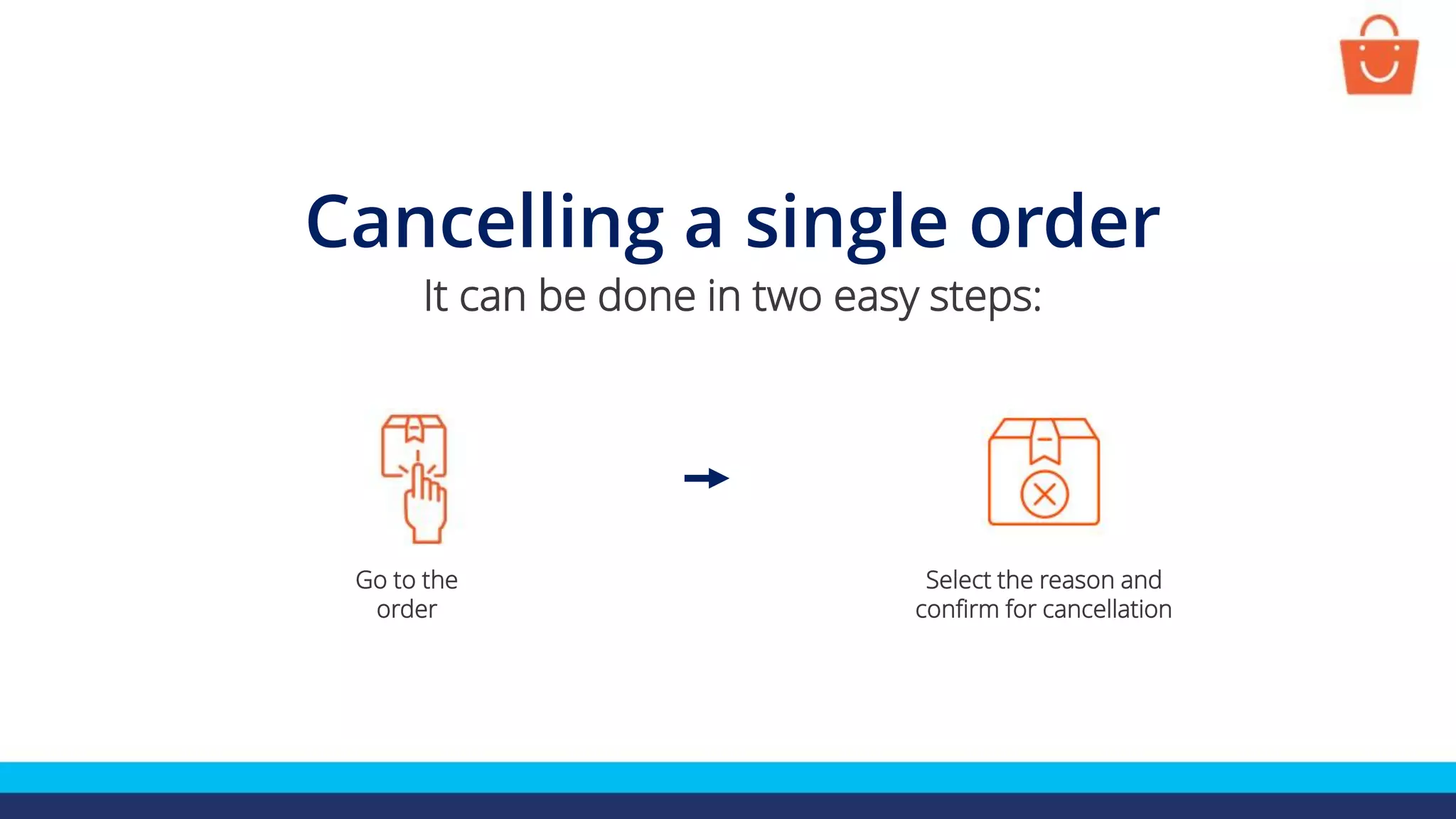
Cancelling a single order
It can be done in two easy steps:
Go to the
order
Select the reason and
confirm for cancellation
Steps to cancel a single order
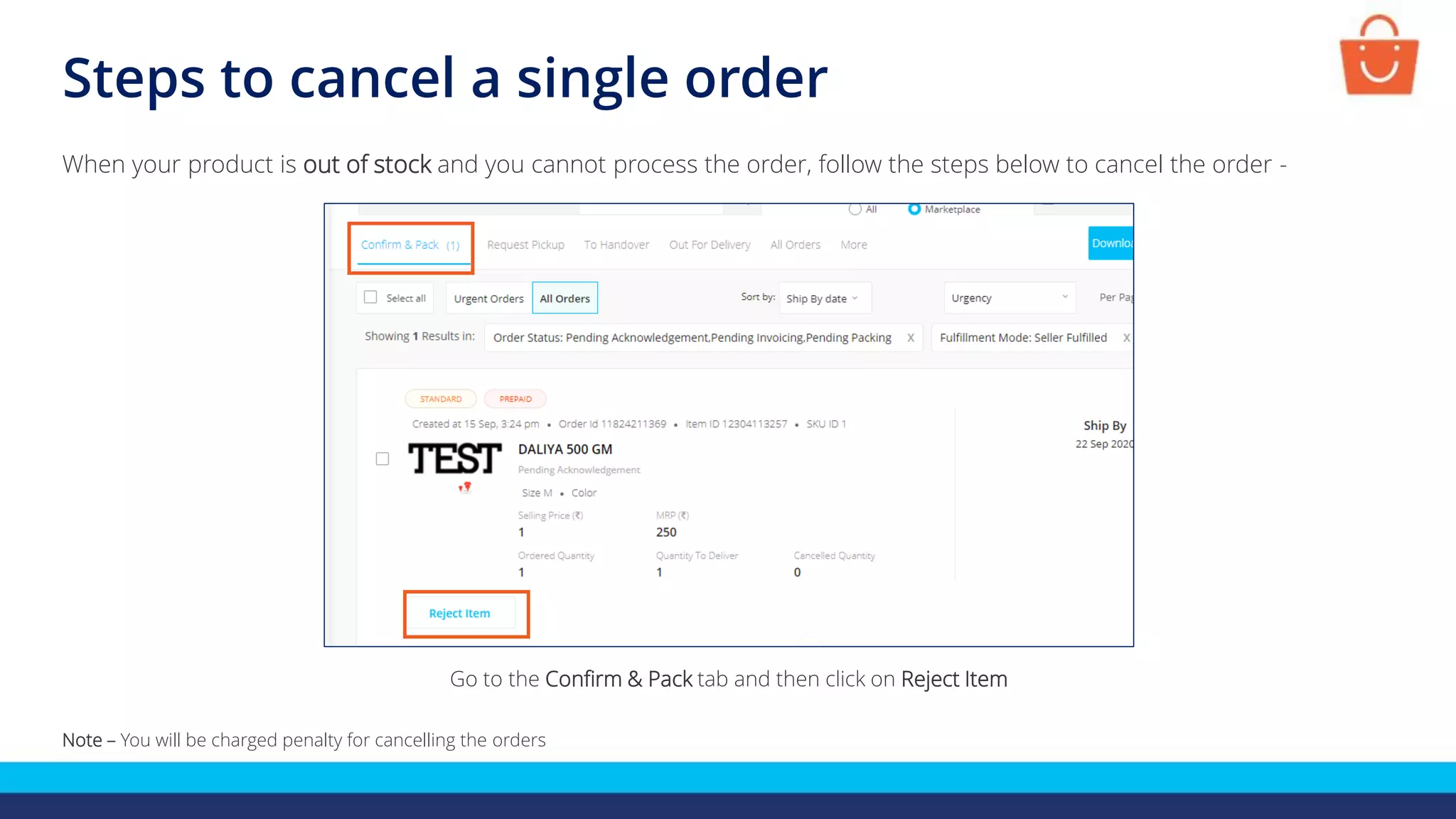
When your product is out of stock and you cannot process the order, follow the steps below to cancel the order -
Note – You will be charged penalty for cancelling the orders
Go to the Confirm & Pack tab and then click on Reject Item
Steps to cancel a single order
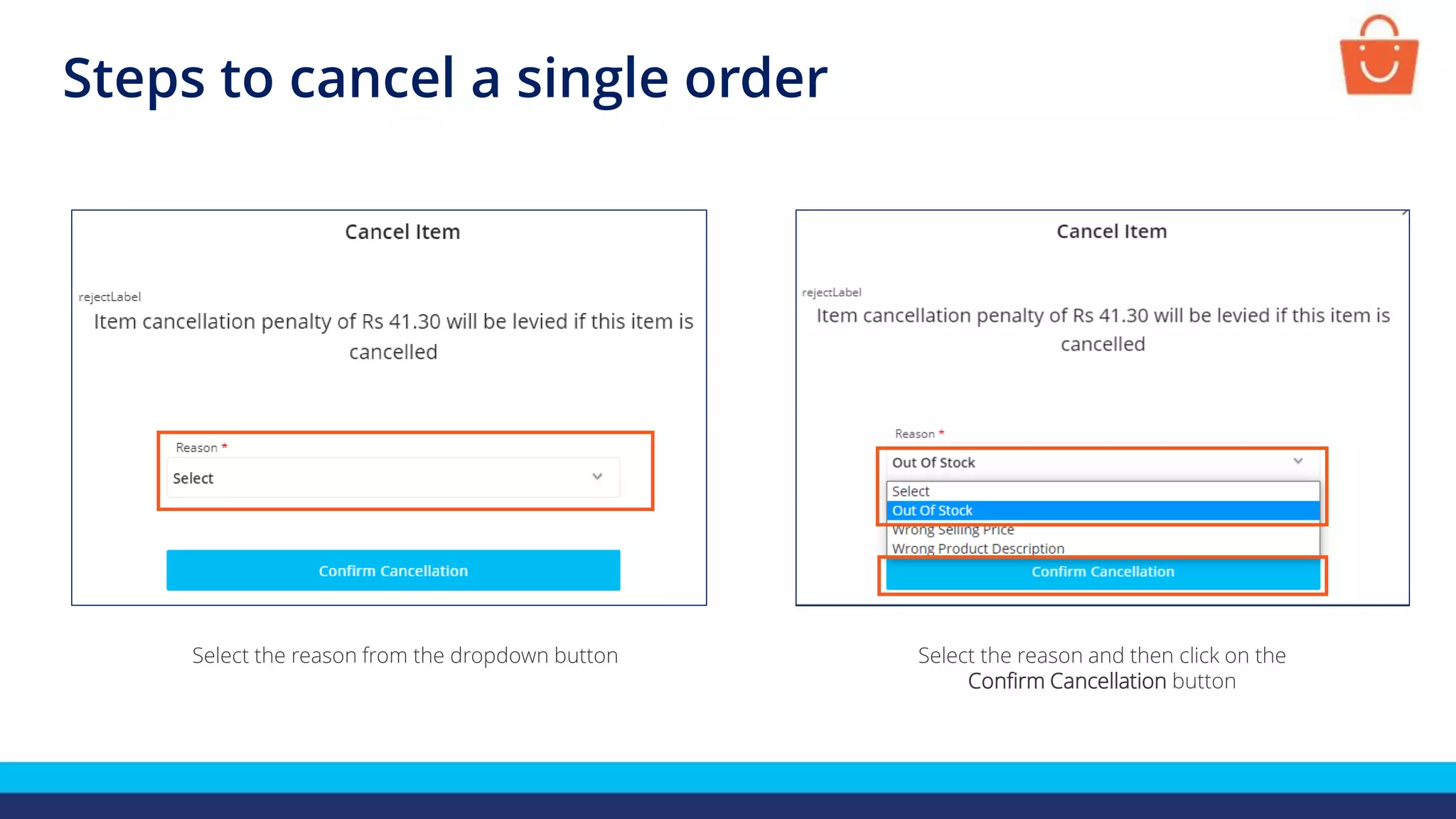
Select the reason from the dropdown button Select the reason and then click on the
Confirm Cancellation button
Cancelling orders in bulk
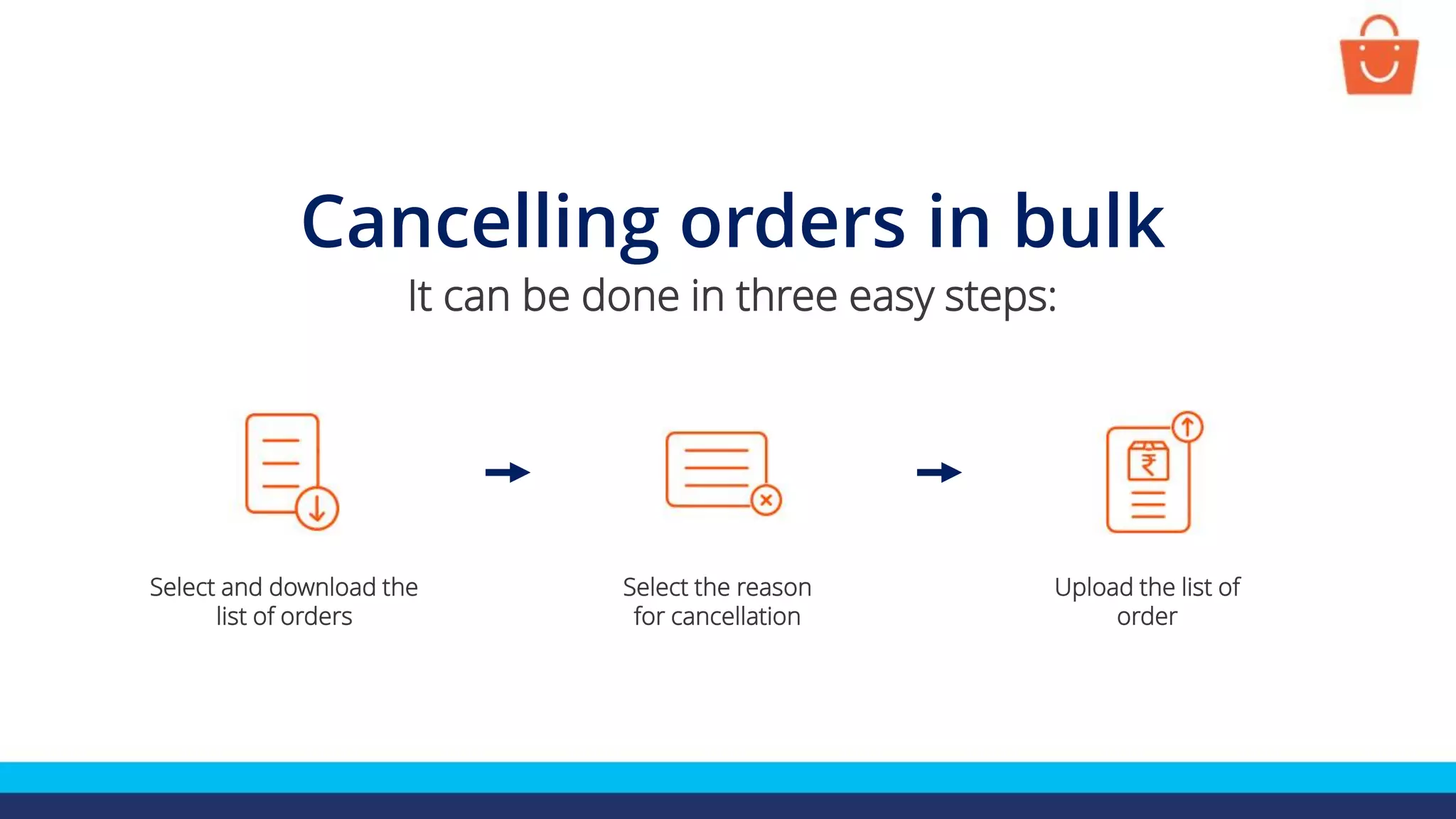
It can be done in three easy steps:
Select and download the
list of orders
Upload the list of
order
Select the reason
for cancellation
Steps to cancel orders in bulk
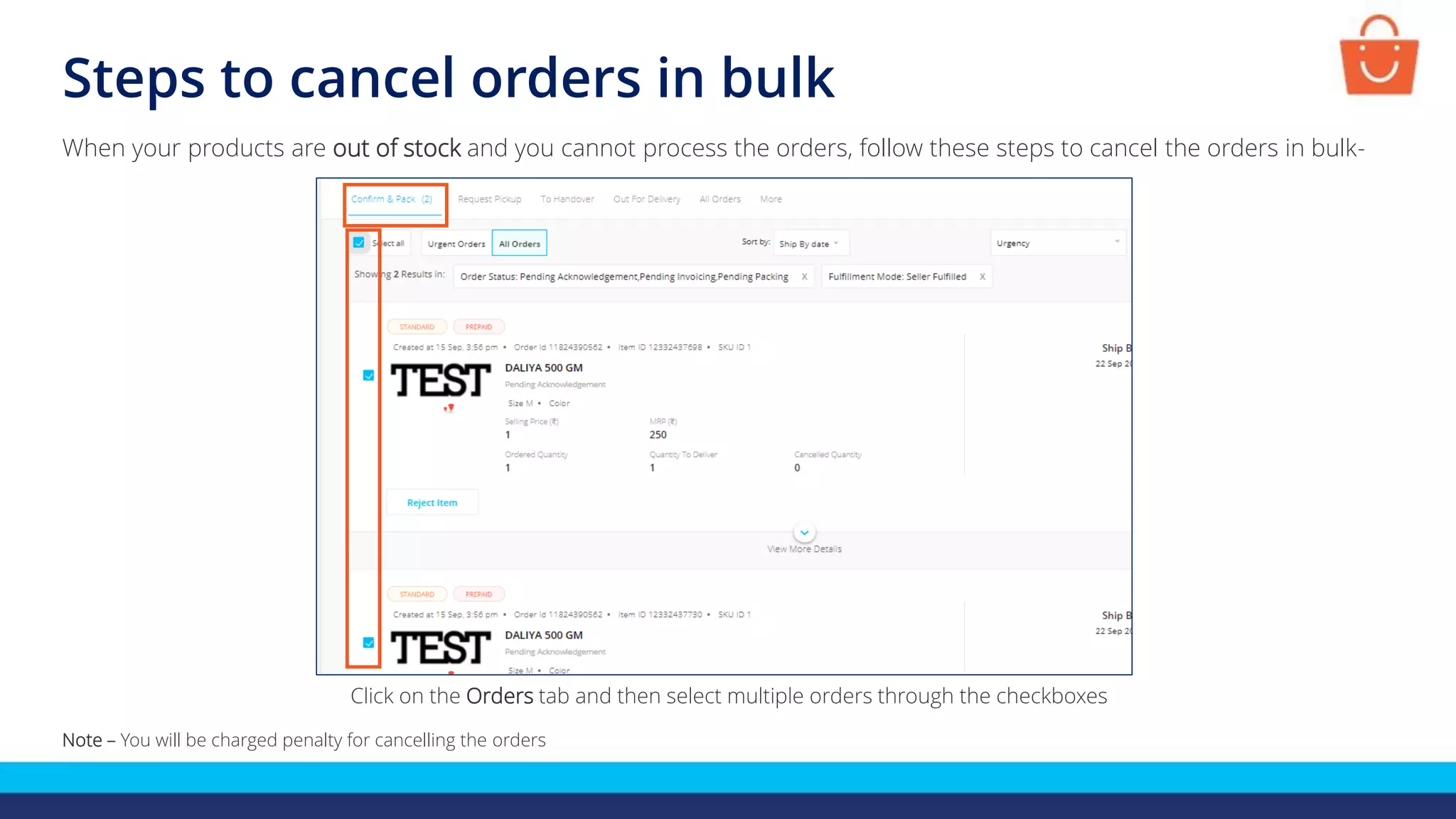
When your products are out of stock and you cannot process the orders, follow these steps to cancel the orders in bulk-
Note – You will be charged penalty for cancelling the orders
Click on the Orders tab and then select multiple orders through the checkboxes
Steps to cancel orders in bulk
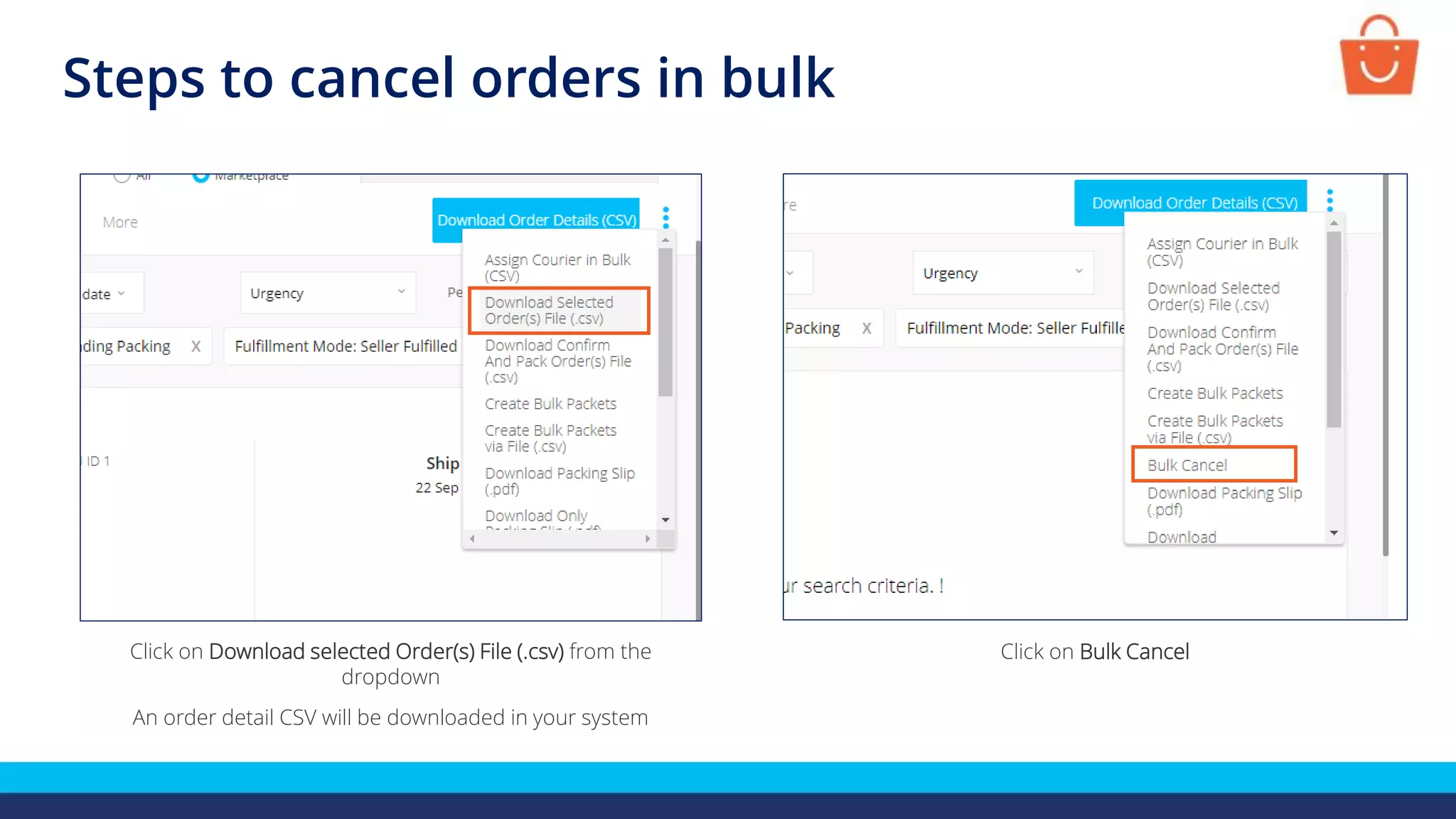
Click on Download selected Order(s) File (.csv) from the
dropdown
An order detail CSV will be downloaded in your system
Click on Bulk Cancel
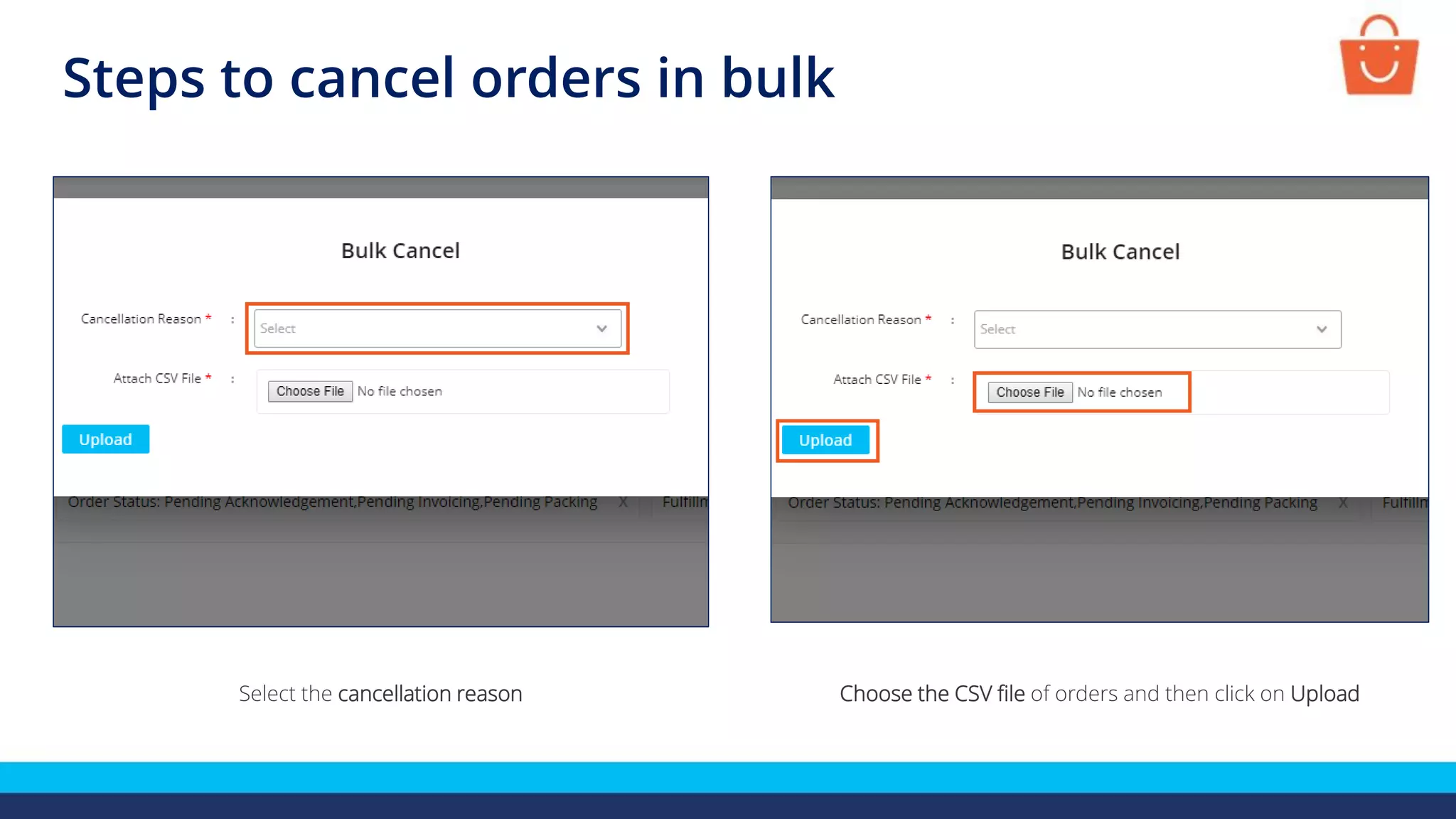
Select the cancellation reason Choose the CSV file of orders and then click on Upload
Steps to cancel orders in bulk
Checking cancelled orders
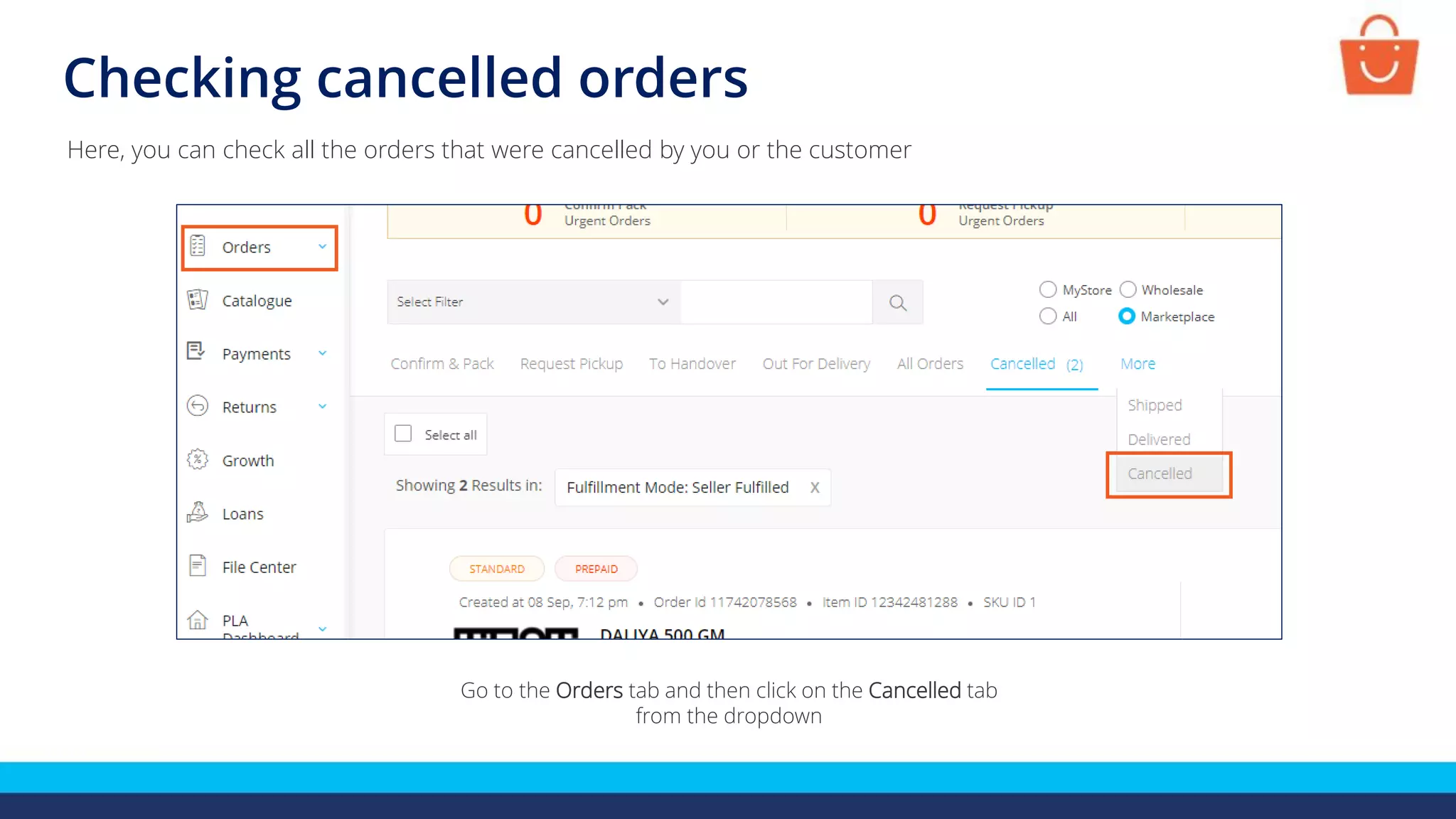
Here, you can check all the orders that were cancelled by you or the customer
Checking cancelled orders
Go to the Orders tab and then click on the Cancelled tab
from the dropdown
Checking cancelled orders
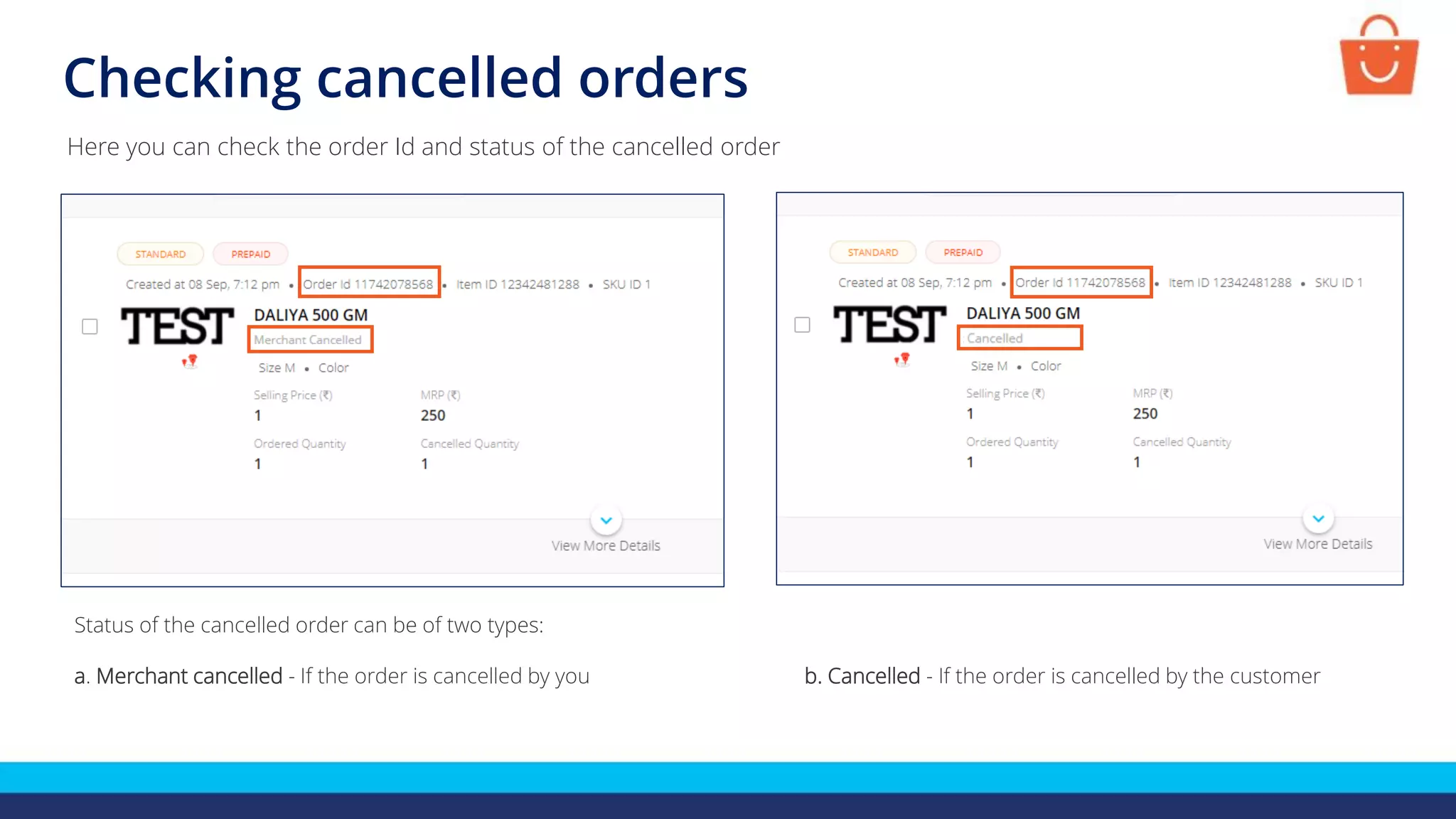
Status of the cancelled order can be of two types:
a. Merchant cancelled - If the order is cancelled by you
Here you can check the order Id and status of the cancelled order
b. Cancelled - If the order is cancelled by the customer
Thanks everyone!
For any query, please raise a ticket using the Seller Helpdesk tab on
your seller panel

How to cancel an order

  • 1.
    Cancellation of theorders In this module, we will discuss:- 1. Steps to cancel a single order 2. Steps to cancel orders in bulk 3. Checking cancelled orders
  • 2.
    Cancelling a singleorder It can be done in two easy steps: Go to the order Select the reason and confirm for cancellation
  • 3.
    Steps to cancela single order When your product is out of stock and you cannot process the order, follow the steps below to cancel the order - Note – You will be charged penalty for cancelling the orders Go to the Confirm & Pack tab and then click on Reject Item
  • 4.
    Steps to cancela single order Select the reason from the dropdown button Select the reason and then click on the Confirm Cancellation button
  • 5.
    Cancelling orders inbulk It can be done in three easy steps: Select and download the list of orders Upload the list of order Select the reason for cancellation
  • 6.
    Steps to cancelorders in bulk When your products are out of stock and you cannot process the orders, follow these steps to cancel the orders in bulk- Note – You will be charged penalty for cancelling the orders Click on the Orders tab and then select multiple orders through the checkboxes
  • 7.
    Steps to cancelorders in bulk Click on Download selected Order(s) File (.csv) from the dropdown An order detail CSV will be downloaded in your system Click on Bulk Cancel
  • 8.
    Select the cancellationreason Choose the CSV file of orders and then click on Upload Steps to cancel orders in bulk
  • 9.
  • 10.
    Here, you cancheck all the orders that were cancelled by you or the customer Checking cancelled orders Go to the Orders tab and then click on the Cancelled tab from the dropdown
  • 11.
    Checking cancelled orders Statusof the cancelled order can be of two types: a. Merchant cancelled - If the order is cancelled by you Here you can check the order Id and status of the cancelled order b. Cancelled - If the order is cancelled by the customer
  • 12.
    Thanks everyone! For anyquery, please raise a ticket using the Seller Helpdesk tab on your seller panel