MOST ESSENTIAL
EXCEL FUNCTIONS
AND FORMULAS
FOR TEACHERS
BY MARY LOVELY S.
TRANGIA
Microsoft Excel is a crucial tool for
teachers, streamlining tasks such as
gradebook management, data
analysis, lesson planning, and
attendance tracking.
OVERVIEW
It offers an organized platform for
storing diverse information, from student
details to assessment scores. Teachers
can create visually appealing reports for
effective communication with parents
and use Excel for grading rubrics.
OVERVIEW
Teachers can create visually
appealing reports for effective
communication with parents and use
Excel for grading rubrics.
OVERVIEW
The software's versatility extends to
collaborative efforts with
colleagues, making it indispensable
for educators in enhancing
administrative efficiency and data-
driven decision-making.
OVERVIEW
 Cell References - Understanding
how to reference cells is crucial.
Excel uses cell references (e.g.,
A1, B2) to identify specific
locations in the spreadsheet.
Key Things to Know:
 Cell References - There are
absolute references (e.g., $A$1)
and relative references (e.g., A1),
which behave differently when
you copy or move formulas.
Key Things to Know:
 Operators - Excel supports
various operators, such as +
(addition), - (subtraction), *
(multiplication), / (division),
and others.
Key Things to Know:
 Order of Operations – PEMDAS
 Functions – Functions like SUM,
AVERAGE, IF, VLOOKUP, and
others can greatly simplify
calculations and data
manipulation.
Key Things to Know:
 Error Handling - Learn about
common errors like #DIV/0!,
#VALUE!, and #REF!. Knowing
how to troubleshoot and handle
errors is crucial for working with
formulas effectively.
Key Things to Know:
 Equals (=) sign - used to
indicate the start of a
formula or a function
- also used in a formula to
reference the content of
another cell
Key Things to Know:
MOST ESSENTIAL EXCEL
FUNCTIONS AND
FORMULAS
 Calculates the sum of a range of
cells.
Example: =SUM(A1:A10) adds up
the values in cells A1 through A10.
SUM Function
You do it! Calculate
the sum of the
students’ grades.
SUM Function
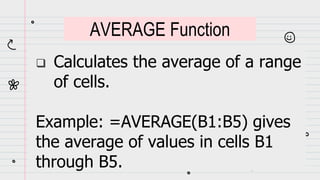
 Calculates the average of a range
of cells.
Example: =AVERAGE(B1:B5) gives
the average of values in cells B1
through B5.
AVERAGE Function
You do it!
Calculate the
average grade of
the students.
AVERAGE Function
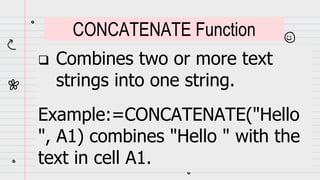
 Combines two or more text
strings into one string.
Example:=CONCATENATE("Hello
", A1) combines "Hello " with the
text in cell A1.
CONCATENATE Function
You do it! Combine
the first and last
names of each
student.
CONCATENATE Function
 Performs a conditional test and
returns one value if the test is true
and another value if false.
 Example: =IF(C1>=70, "Pass",
"Fail") checks if the value in cell C1 is
greater than or equal to 70.
IF Function
You do it! Determine
the students who
received an
outstanding grade
(90 or higher).
IF Function
 Counts the number of cells that
contain numbers in a range.
Example: =COUNT(C1:C20) counts the
number of cells in the range C1 through
C20 that contain numbers.
COUNT Function
You do it! Count
the number of
grades there are.
COUNT Function
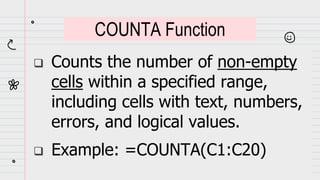
 Counts the number of non-empty
cells within a specified range,
including cells with text, numbers,
errors, and logical values.
 Example: =COUNTA(C1:C20)
COUNTA Function
You do it! Count
the number of
absences of each
student.
COUNTA Function
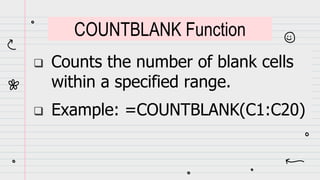
 Counts the number of blank cells
within a specified range.
 Example: =COUNTBLANK(C1:C20)
COUNTBLANK Function
You do it! Count
the number of
days each student
was present.
COUNTBLANK Function
 Counts the number of cells within
a specified range that meet a
single condition. You provide the
range to be evaluated and a
criteria expression.
COUNTIF Function
Example: =COUNTIF(A1:A10,
">=90") counts the number of
cells in the range A1 to A10 that
are greater than or equal to 90.
COUNTIF Function
You do it! Count
how many
students got a
grade of 90 or
higher.
COUNTIF Function
 Extends the functionality of
COUNTIF by allowing you to count
cells based on multiple conditions.
You can specify multiple ranges
and criteria pairs.
COUNTIFS Function
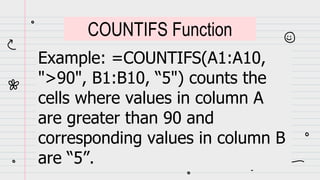
Example: =COUNTIFS(A1:A10,
">90", B1:B10, “5") counts the
cells where values in column A
are greater than 90 and
corresponding values in column B
are “5”.
COUNTIFS Function
You do it! Count the
number of students
who received a grade
higher than 90 and
were present for 5
days.
COUNTIFS Function
 Searches for a value in the first
column of a table and returns a
value in the same row from
another column.
VLOOKUP Function
Example: =VLOOKUP(D1,
GradeTable, 2, FALSE) looks
up the grade for the student in
cell D1 from a table named
GradeTable.
VLOOKUP Function
You do it! Use the
VLOOKUP function to
retrieve information
about a student’s
grade.
VLOOKUP Function
 The MIN function returns the
smallest value from a set of
values.
 The MAX function returns the
largest value from a set of values.
MIN/MAX Functions
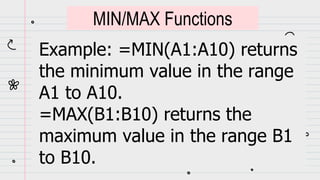
Example: =MIN(A1:A10) returns
the minimum value in the range
A1 to A10.
=MAX(B1:B10) returns the
maximum value in the range B1
to B10.
MIN/MAX Functions
You do it! Find the
minimum and
maximum grades
received by the
students.
MIN/MAX Functions
 =UPPER(text) returns the text in
all uppercase letters.
 =LOWER(text) returns the text in
all lowercase letters.
UPPER/LOWER/Functions
 =PROPER(text) capitalizes the
first letter of each word in a text
string and converts the rest of
the letters to lowercase.
PROPER Functions
MOST ESSENTIAL EXCEL FUNCTIONS AND FORMULASFOR TEACHERS

MOST ESSENTIAL EXCEL FUNCTIONS AND FORMULAS FOR TEACHERS

  • 1.
    MOST ESSENTIAL EXCEL FUNCTIONS ANDFORMULAS FOR TEACHERS BY MARY LOVELY S. TRANGIA
  • 2.
    Microsoft Excel isa crucial tool for teachers, streamlining tasks such as gradebook management, data analysis, lesson planning, and attendance tracking. OVERVIEW
  • 3.
    It offers anorganized platform for storing diverse information, from student details to assessment scores. Teachers can create visually appealing reports for effective communication with parents and use Excel for grading rubrics. OVERVIEW
  • 4.
    Teachers can createvisually appealing reports for effective communication with parents and use Excel for grading rubrics. OVERVIEW
  • 5.
    The software's versatilityextends to collaborative efforts with colleagues, making it indispensable for educators in enhancing administrative efficiency and data- driven decision-making. OVERVIEW
  • 6.
     Cell References- Understanding how to reference cells is crucial. Excel uses cell references (e.g., A1, B2) to identify specific locations in the spreadsheet. Key Things to Know:
  • 7.
     Cell References- There are absolute references (e.g., $A$1) and relative references (e.g., A1), which behave differently when you copy or move formulas. Key Things to Know:
  • 8.
     Operators -Excel supports various operators, such as + (addition), - (subtraction), * (multiplication), / (division), and others. Key Things to Know:
  • 9.
     Order ofOperations – PEMDAS  Functions – Functions like SUM, AVERAGE, IF, VLOOKUP, and others can greatly simplify calculations and data manipulation. Key Things to Know:
  • 10.
     Error Handling- Learn about common errors like #DIV/0!, #VALUE!, and #REF!. Knowing how to troubleshoot and handle errors is crucial for working with formulas effectively. Key Things to Know:
  • 11.
     Equals (=)sign - used to indicate the start of a formula or a function - also used in a formula to reference the content of another cell Key Things to Know:
  • 12.
  • 13.
     Calculates thesum of a range of cells. Example: =SUM(A1:A10) adds up the values in cells A1 through A10. SUM Function
  • 14.
    You do it!Calculate the sum of the students’ grades. SUM Function
  • 15.
     Calculates theaverage of a range of cells. Example: =AVERAGE(B1:B5) gives the average of values in cells B1 through B5. AVERAGE Function
  • 16.
    You do it! Calculatethe average grade of the students. AVERAGE Function
  • 17.
     Combines twoor more text strings into one string. Example:=CONCATENATE("Hello ", A1) combines "Hello " with the text in cell A1. CONCATENATE Function
  • 18.
    You do it!Combine the first and last names of each student. CONCATENATE Function
  • 19.
     Performs aconditional test and returns one value if the test is true and another value if false.  Example: =IF(C1>=70, "Pass", "Fail") checks if the value in cell C1 is greater than or equal to 70. IF Function
  • 20.
    You do it!Determine the students who received an outstanding grade (90 or higher). IF Function
  • 21.
     Counts thenumber of cells that contain numbers in a range. Example: =COUNT(C1:C20) counts the number of cells in the range C1 through C20 that contain numbers. COUNT Function
  • 22.
    You do it!Count the number of grades there are. COUNT Function
  • 23.
     Counts thenumber of non-empty cells within a specified range, including cells with text, numbers, errors, and logical values.  Example: =COUNTA(C1:C20) COUNTA Function
  • 24.
    You do it!Count the number of absences of each student. COUNTA Function
  • 25.
     Counts thenumber of blank cells within a specified range.  Example: =COUNTBLANK(C1:C20) COUNTBLANK Function
  • 26.
    You do it!Count the number of days each student was present. COUNTBLANK Function
  • 27.
     Counts thenumber of cells within a specified range that meet a single condition. You provide the range to be evaluated and a criteria expression. COUNTIF Function
  • 28.
    Example: =COUNTIF(A1:A10, ">=90") countsthe number of cells in the range A1 to A10 that are greater than or equal to 90. COUNTIF Function
  • 29.
    You do it!Count how many students got a grade of 90 or higher. COUNTIF Function
  • 30.
     Extends thefunctionality of COUNTIF by allowing you to count cells based on multiple conditions. You can specify multiple ranges and criteria pairs. COUNTIFS Function
  • 31.
    Example: =COUNTIFS(A1:A10, ">90", B1:B10,“5") counts the cells where values in column A are greater than 90 and corresponding values in column B are “5”. COUNTIFS Function
  • 32.
    You do it!Count the number of students who received a grade higher than 90 and were present for 5 days. COUNTIFS Function
  • 33.
     Searches fora value in the first column of a table and returns a value in the same row from another column. VLOOKUP Function
  • 34.
    Example: =VLOOKUP(D1, GradeTable, 2,FALSE) looks up the grade for the student in cell D1 from a table named GradeTable. VLOOKUP Function
  • 35.
    You do it!Use the VLOOKUP function to retrieve information about a student’s grade. VLOOKUP Function
  • 36.
     The MINfunction returns the smallest value from a set of values.  The MAX function returns the largest value from a set of values. MIN/MAX Functions
  • 37.
    Example: =MIN(A1:A10) returns theminimum value in the range A1 to A10. =MAX(B1:B10) returns the maximum value in the range B1 to B10. MIN/MAX Functions
  • 38.
    You do it!Find the minimum and maximum grades received by the students. MIN/MAX Functions
  • 39.
     =UPPER(text) returnsthe text in all uppercase letters.  =LOWER(text) returns the text in all lowercase letters. UPPER/LOWER/Functions
  • 40.
     =PROPER(text) capitalizesthe first letter of each word in a text string and converts the rest of the letters to lowercase. PROPER Functions

Editor's Notes

  • #8 When a cell reference is relative, it adjusts its position based on the location to which the formula is copied or filled. When a cell reference is absolute, it remains fixed, and its position does not change when the formula is copied or filled to other cells. Mixed references have one part (either row or column) absolute and the other part relative. You can have an absolute column with a relative row or vice versa.
  • #9 Knowing how to use these operators in formulas is essential for performing calculations.
  • #10 Familiarize yourself with common Excel functions.
  • #11 #DIV/0!: This error occurs when you attempt to divide a number by zero. Division by zero is undefined in mathematics, and Excel displays #DIV/0! to indicate that a formula is attempting to perform such a division. #VALUE!: The #VALUE! error occurs when there is an issue with the data type of the arguments in a formula. This can happen when a function or operation is expecting a certain type of data, but the provided data doesn't match the expected type. Example: If you have the formula =SUM("A", 2, 3), the #VALUE! error will occur because the SUM function expects numerical values, not text. #REF!: The #REF! error indicates that a cell reference in a formula is not valid. This can happen if a referenced cell or range is deleted, or if the reference is not correctly specified. Example: If you have the formula =A1+B1, and you delete column A, the formula will result in a #REF! error because cell A1 is no longer a valid reference.
  • #12 When you type an equals sign into a cell, Excel recognizes that you are entering a formula, and you can then input the desired formula or function
  • #18 In summary, while both functions serve the purpose of combining text strings, CONCAT is the more modern and preferred choice in recent versions of Excel. It provides the same functionality as CONCATENATE but offers a more concise and versatile syntax.