Quiz Question TypesRandom short-answer matching questionsLike a Matching question, but created randomly from the short answer questions in a particular question bank category.
To use this question type …From the student perspective, this looks just like a Matching question. The difference is that the sub-questions are drawn randomly from the Short Answer questions in the current category. So you must have already created at least 2 short answer questions in order for this feature to have questions to draw from. This option can be useful if you have a substantial question bank already created.
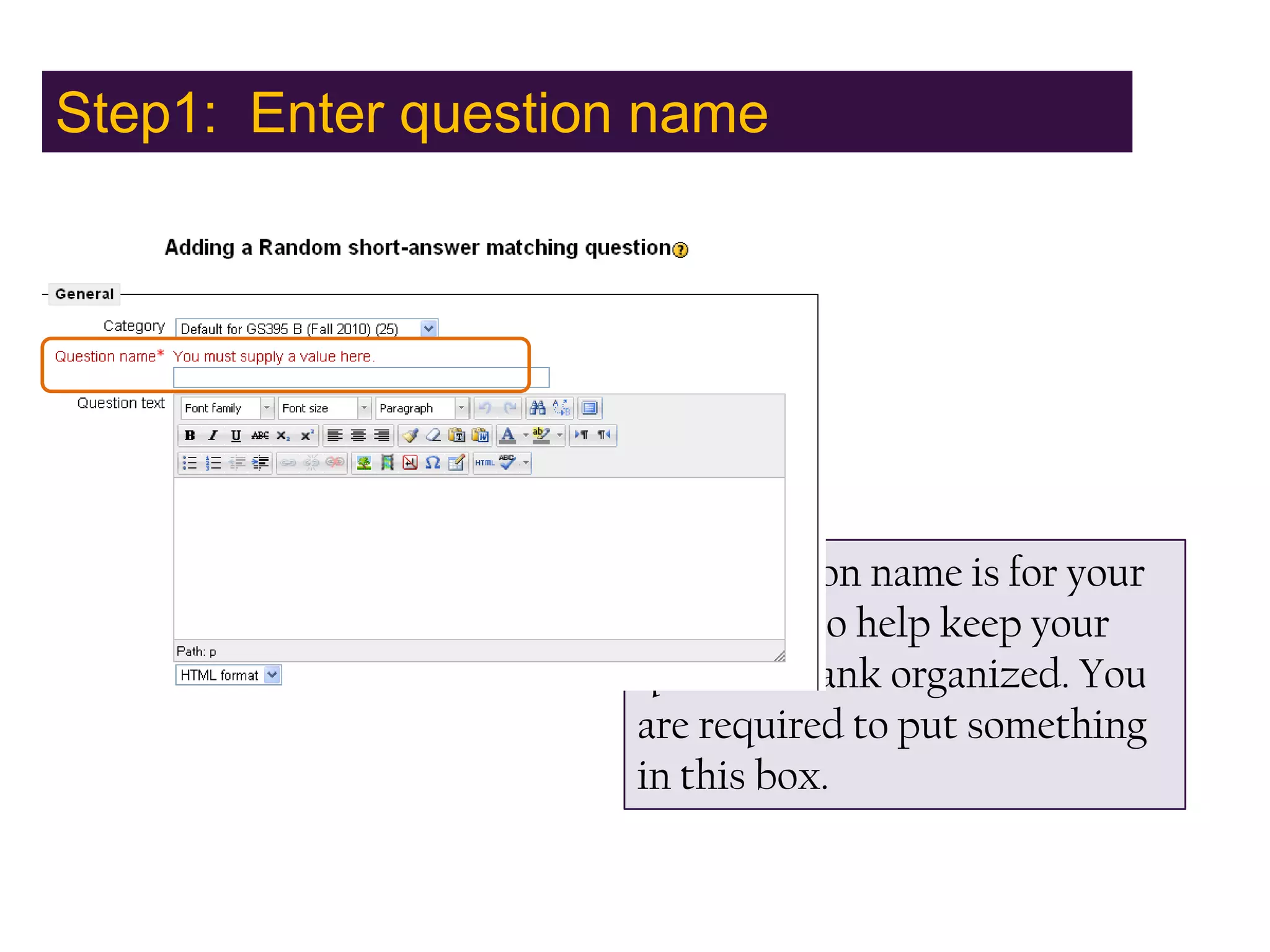
Step1:  Enter question nameThe question name is for your purposes, to help keep your question bank organized. You are required to put something in this box.
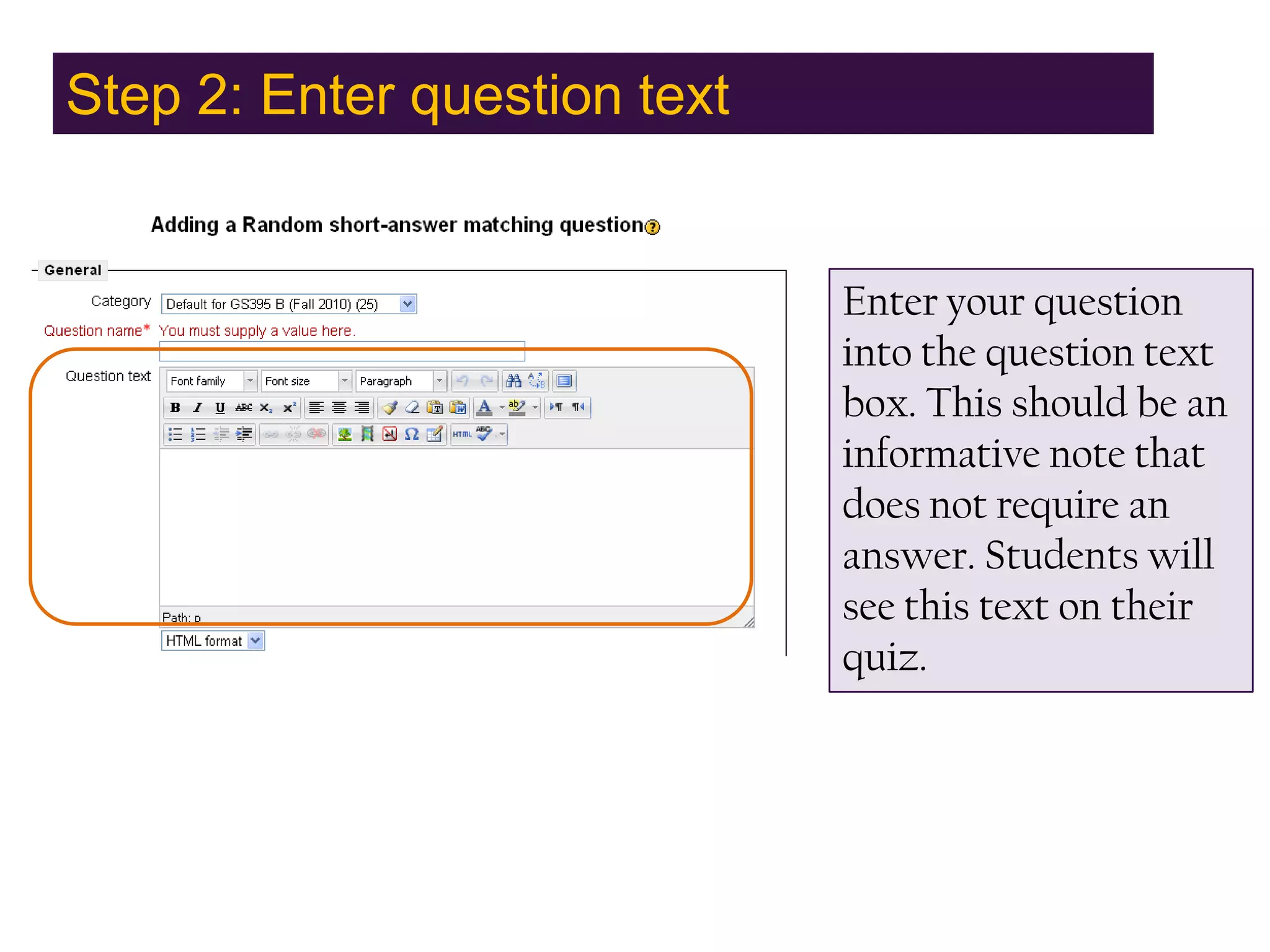
Step 2: Enter question textEnter your question into the question text box. This should be an informative note that does not require an answer. Students will see this text on their quiz.
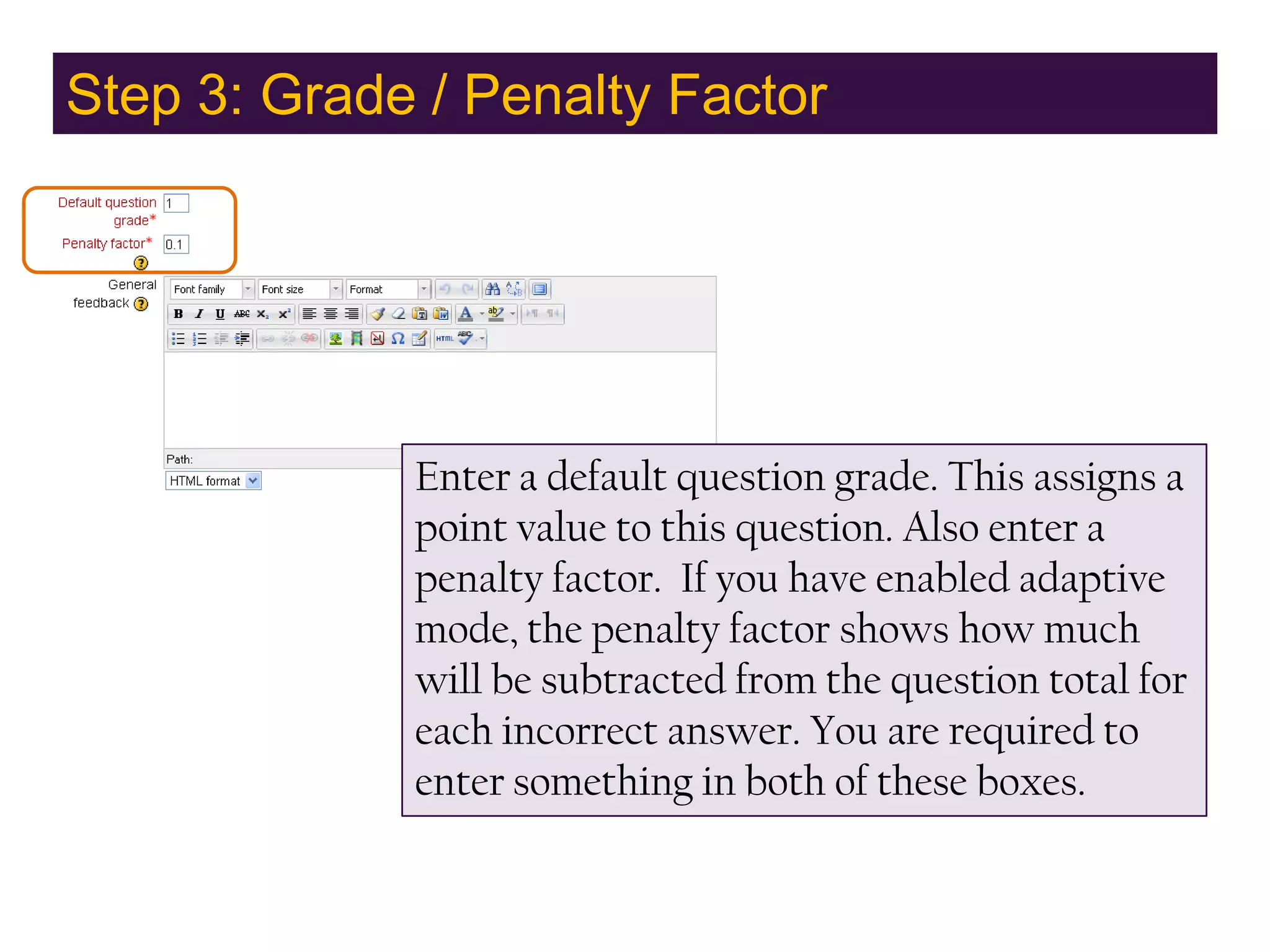
Step 3: Grade / Penalty FactorEnter a default question grade. This assigns a point value to this question. Also enter a penalty factor.  If you have enabled adaptive mode, the penalty factor shows how much will be subtracted from the question total for each incorrect answer. You are required to enter something in both of these boxes.
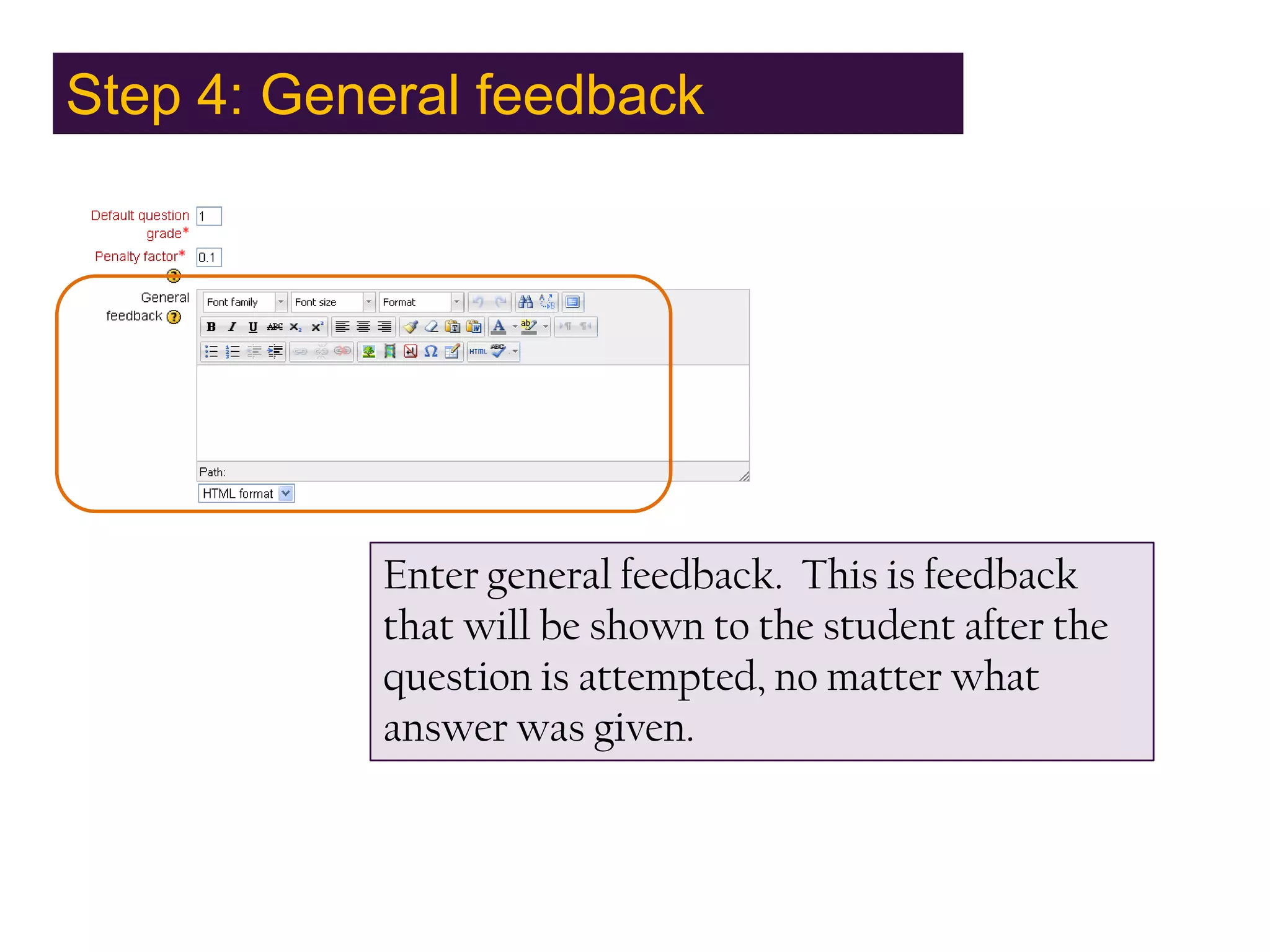
Step 4: General feedbackEnter general feedback.  This is feedback that will be shown to the student after the question is attempted, no matter what answer was given.
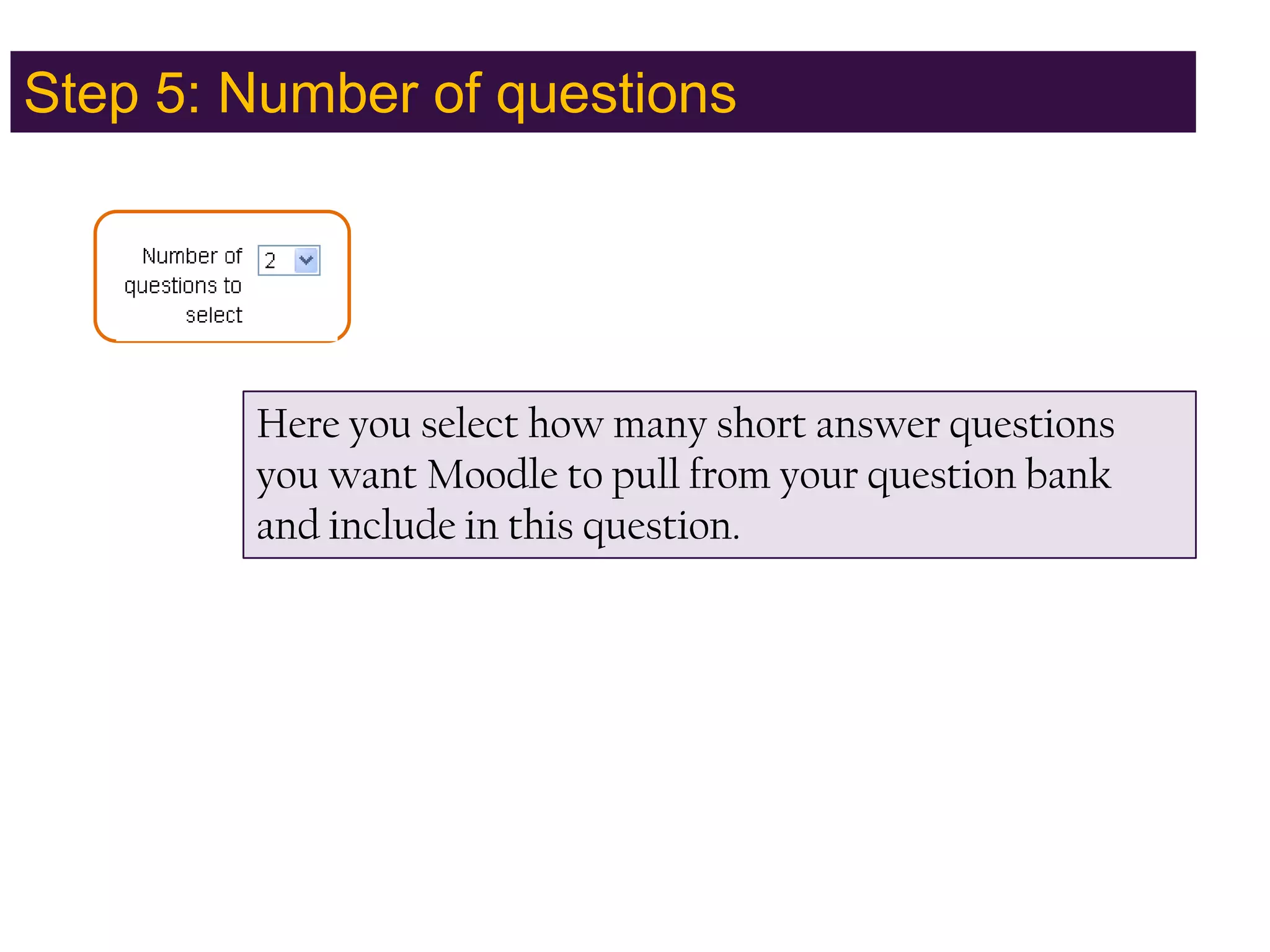
Step 5: Number of questionsHere you select how many short answer questions you want Moodle to pull from your question bank and include in this question.
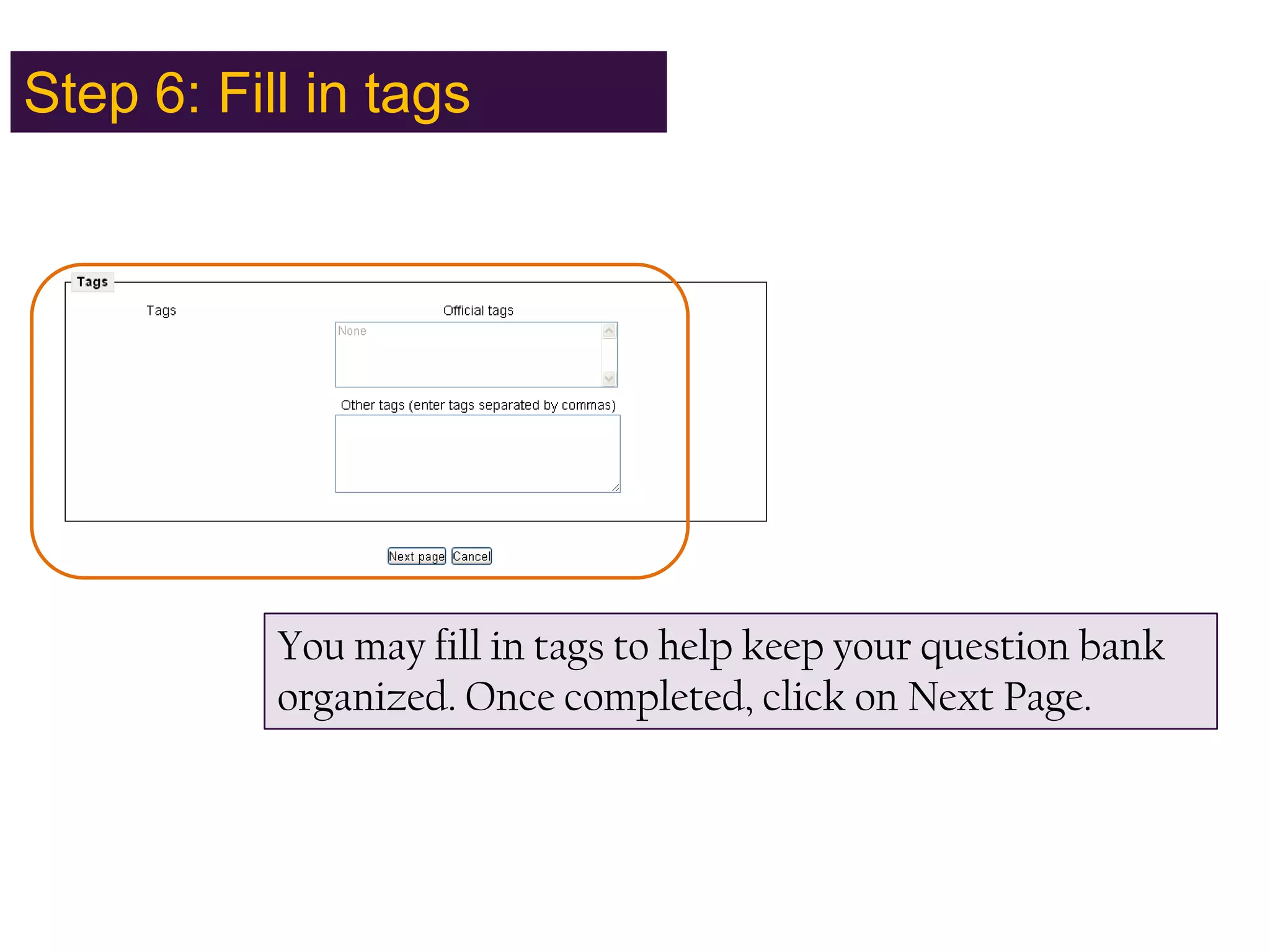
Step 6: Fill in tagsYou may fill in tags to help keep your question bank organized. Once completed, click on Next Page.
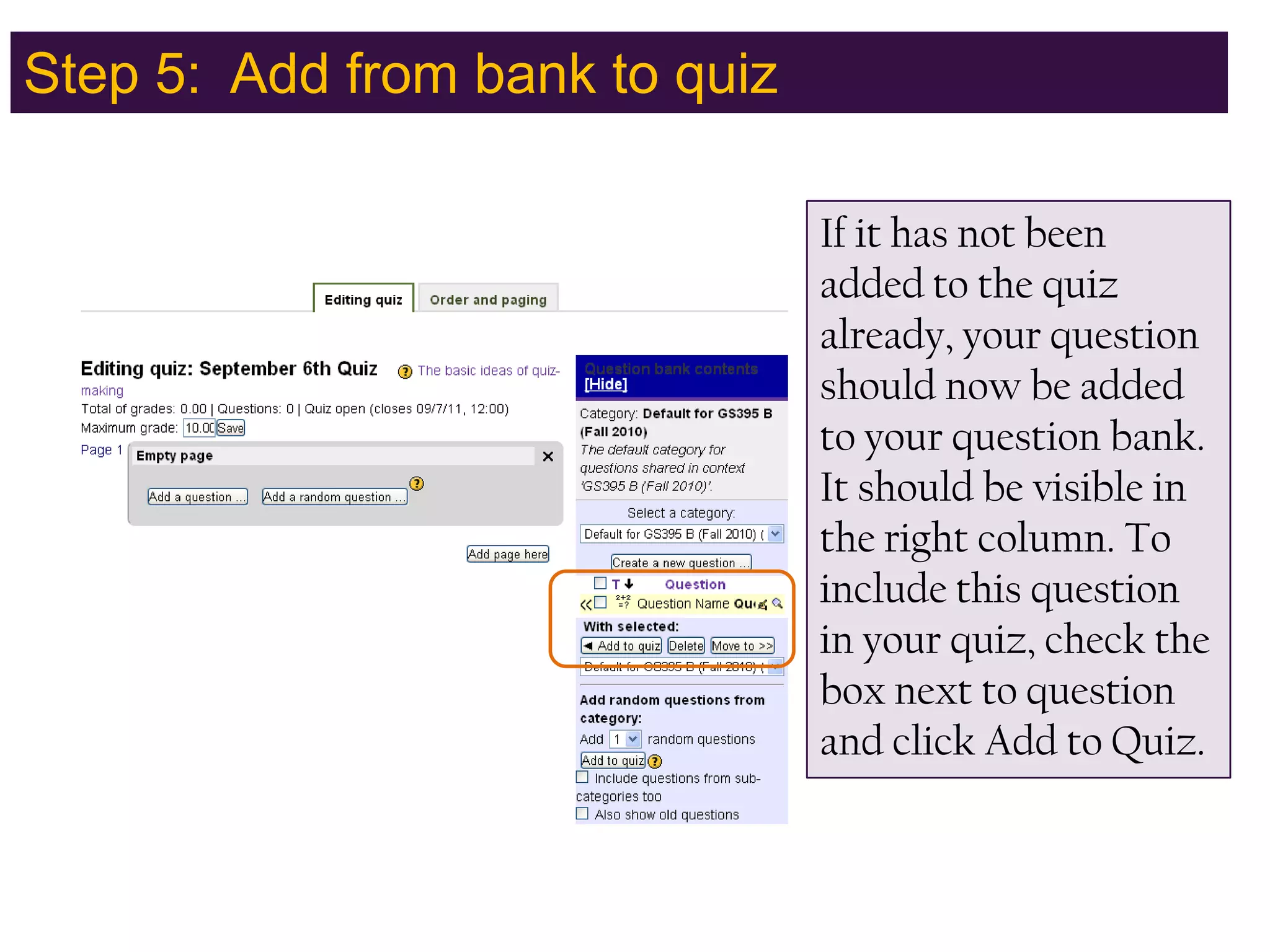
Step 5:  Add from bank to quizIf it has not been added to the quiz already, your question should now be added to your question bank.  It should be visible in the right column. To include this question in your quiz, check the box next to question and click Add to Quiz.
Quiz Question TypesThe End: Random short-answer matching questionsIf you have further questions about this quiz question type, please visit this website. If you have further questions, please email moodle@defiance.edu

Moodle random short answer matching quiz question

  • 1.
    Quiz Question TypesRandomshort-answer matching questionsLike a Matching question, but created randomly from the short answer questions in a particular question bank category.
  • 2.
    To use thisquestion type …From the student perspective, this looks just like a Matching question. The difference is that the sub-questions are drawn randomly from the Short Answer questions in the current category. So you must have already created at least 2 short answer questions in order for this feature to have questions to draw from. This option can be useful if you have a substantial question bank already created.
  • 3.
    Step1: Enterquestion nameThe question name is for your purposes, to help keep your question bank organized. You are required to put something in this box.
  • 4.
    Step 2: Enterquestion textEnter your question into the question text box. This should be an informative note that does not require an answer. Students will see this text on their quiz.
  • 5.
    Step 3: Grade/ Penalty FactorEnter a default question grade. This assigns a point value to this question. Also enter a penalty factor. If you have enabled adaptive mode, the penalty factor shows how much will be subtracted from the question total for each incorrect answer. You are required to enter something in both of these boxes.
  • 6.
    Step 4: GeneralfeedbackEnter general feedback. This is feedback that will be shown to the student after the question is attempted, no matter what answer was given.
  • 7.
    Step 5: Numberof questionsHere you select how many short answer questions you want Moodle to pull from your question bank and include in this question.
  • 8.
    Step 6: Fillin tagsYou may fill in tags to help keep your question bank organized. Once completed, click on Next Page.
  • 9.
    Step 5: Add from bank to quizIf it has not been added to the quiz already, your question should now be added to your question bank. It should be visible in the right column. To include this question in your quiz, check the box next to question and click Add to Quiz.
  • 10.
    Quiz Question TypesTheEnd: Random short-answer matching questionsIf you have further questions about this quiz question type, please visit this website. If you have further questions, please email moodle@defiance.edu