Quiz Question TypesCalculated  Simple QuestionA simpler version of calculated questions which are like numerical questions but with the numbers used selected randomly from a set when the quiz is taken.
Step1:  Enter question nameThe question name will not be visible on the quiz. This is for your purposes, to help keep your question bank organized. You are required to put something in this box.
Step 2: Enter question textPut your question in the question text box. This is the question that students will see on their quiz.
Step 3: Grade / Penalty FactorEnter a default question grade. This assigns a point value to this question. Also enter a penalty factor.  If you have enabled adaptive mode, the penalty factor shows how much will be subtracted from the question total for each incorrect answer. You are required to enter something in both of these boxes.
Step 4: General feedbackEnter general feedback.  This is feedback that will be shown to the student after the question is attempted, no matter what answer was given.
Step 5: Fill in answer infoEnter information, including the correct answer formula. You can enter response-specific feedback by selecting the grade percentage and entering appropriate feedback. To give feedback or partial credit for more than one response possibility, click on Blanks for 1 more choice. Visit this website if you have more questions.
Step 6: Fill in unit infoEnter unit information.  Visit this website if you have more questions.
Step 7: Fill in wildcard infoEnter wildcard parameters.  Click to have wildcards extracted from your correct answer formula.  Visit this website if you have more questions.
Step 8: Fill in tagsYou may fill in tags to help keep your question bank organized. Once completed, click on Next Page.
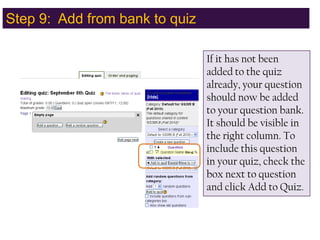
Step 9:  Add from bank to quizIf it has not been added to the quiz already, your question should now be added to your question bank.  It should be visible in the right column. To include this question in your quiz, check the box next to question and click Add to Quiz.
Quiz Question TypesThe End: Calculated Simple QuestionIf you have further questions about this quiz question type, please visit this website. If you have further questions, please email moodle@defiance.edu

Moodle calculated simple quiz question

  • 1.
    Quiz Question TypesCalculated Simple QuestionA simpler version of calculated questions which are like numerical questions but with the numbers used selected randomly from a set when the quiz is taken.
  • 2.
    Step1: Enterquestion nameThe question name will not be visible on the quiz. This is for your purposes, to help keep your question bank organized. You are required to put something in this box.
  • 3.
    Step 2: Enterquestion textPut your question in the question text box. This is the question that students will see on their quiz.
  • 4.
    Step 3: Grade/ Penalty FactorEnter a default question grade. This assigns a point value to this question. Also enter a penalty factor. If you have enabled adaptive mode, the penalty factor shows how much will be subtracted from the question total for each incorrect answer. You are required to enter something in both of these boxes.
  • 5.
    Step 4: GeneralfeedbackEnter general feedback. This is feedback that will be shown to the student after the question is attempted, no matter what answer was given.
  • 6.
    Step 5: Fillin answer infoEnter information, including the correct answer formula. You can enter response-specific feedback by selecting the grade percentage and entering appropriate feedback. To give feedback or partial credit for more than one response possibility, click on Blanks for 1 more choice. Visit this website if you have more questions.
  • 7.
    Step 6: Fillin unit infoEnter unit information. Visit this website if you have more questions.
  • 8.
    Step 7: Fillin wildcard infoEnter wildcard parameters. Click to have wildcards extracted from your correct answer formula. Visit this website if you have more questions.
  • 9.
    Step 8: Fillin tagsYou may fill in tags to help keep your question bank organized. Once completed, click on Next Page.
  • 10.
    Step 9: Add from bank to quizIf it has not been added to the quiz already, your question should now be added to your question bank. It should be visible in the right column. To include this question in your quiz, check the box next to question and click Add to Quiz.
  • 11.
    Quiz Question TypesTheEnd: Calculated Simple QuestionIf you have further questions about this quiz question type, please visit this website. If you have further questions, please email moodle@defiance.edu