Quiz Question TypesEmbedded Answers (Cloze)Embedded answer questions allow you to ask multiple questions, in multiple formats, in one chunk of text.  Answers can be embedded within text.  Questions of this type are very flexible, but can only be created by entering text containing special codes that create embedded multiple-choice, short answers and numerical questions.
Step1:  Enter question nameThe question name is for your purposes, to help keep your question bank organized. You are required to put something in this box.
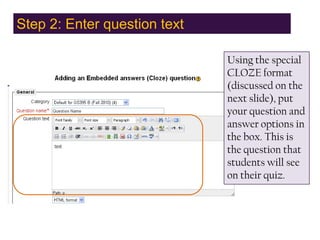
Step 2: Enter question textUsing the special CLOZE format (discussed on the next slide), put your question and answer options in the box. This is the question that students will see on their quiz.
CLOZE questionsYou have to use special format and codes for Moodle to understand how you want your questions and answers to be embedded.  Click to see an example.
CLOZE questionsThis is an example code and text you would put into the Question Text box.This question consists of some text with an answer embedded right here {1:MULTICHOICE:Wrong answer#Feedback for this wrong answer~Another wrong answer#Feedback for the other wrong answer~=Correct answer#Feedback for correct answer~%50%Answer that gives half the credit#Feedback for half credit answer}and right after that you will have to deal with this short answer {1:SHORTANSWER:Wrong answer#Feedback for this wrong answer~=Correct answer#Feedback for correct answer~%50%Answer that gives half the credit#Feedback for half credit answer}and finally we have a floating point number {2:NUMERICAL:=23.8:0.1#Feedback for correct answer 23.8~%50%23.8:2#Feedback for half credit answer in the nearby region of the correct answer}.The multichoice question can also be shown in the vertical display of the standard moodle multiple choice. {2:MCV:1. Wrong answer#Feedback for this wrong answer~2. Another wrong answer#Feedback for the other wrong answer~=3. Correct answer#Feedback for correct answer~%50%4. Answer that gives half the credit#Feedback for half credit answer}Or in an horizontal display that is included here in a table {2:MCH:a. Wrong answer#Feedback for this wrong answer~b. Another wrong answer#Feedback for the other wrong answer~=c. Correct answer#Feedback for correct answer~%50%d. Answer that gives half the credit#Feedback for half credit answer}A shortanswer question where case must match. Write moodle in upper case letters {1:SHORTANSWER_C:moodle#Feedback for moodle in lower case ~=MOODLE#Feedback for MOODLE in upper case ~%50%Moodle#Feedback for only first letter in upper case}Note that addresses like www.moodle.org and smileys :-) all work as normal:a) How good is this? {:MULTICHOICE:=Yes#Correct~No#We have a different opinion}b) What grade would you give it? {3:NUMERICAL:=3:2}
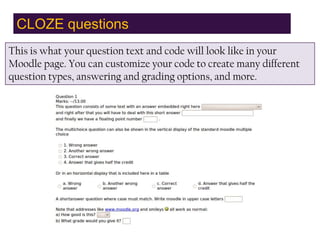
CLOZE questionsThis is what your question text and code will look like in your Moodle page. You can customize your code to create many different question types, answering and grading options, and more.
CLOZE questionsVisit this website to learn about this format and the codes you need to use to create the questions you want.
Step 3: Penalty FactorEnter a penalty factor.  If you have enabled adaptive mode, the penalty factor shows how much will be subtracted from the question total for each incorrect answer. You are required to enter something in this box.
Step 4: General feedbackEnter general feedback.  This is feedback that will be shown to the student after the question is attempted, no matter what answer was given.
Step 5: Fill in tagsYou may fill in tags to help keep your question bank organized. Once completed, click on Next Page.
Step 6:  Add from bank to quizIf it has not been added to the quiz already, your question should now be added to your question bank.  It should be visible in the right column. To include this question in your quiz, check the box next to question and click Add to Quiz.
Quiz Question TypesThe End: Embedded Answers (Cloze)If you have further questions about this quiz question type, please visit this website. If you have further questions, please email moodle@defiance.edu

Moodle embedded quiz question

  • 1.
    Quiz Question TypesEmbeddedAnswers (Cloze)Embedded answer questions allow you to ask multiple questions, in multiple formats, in one chunk of text. Answers can be embedded within text. Questions of this type are very flexible, but can only be created by entering text containing special codes that create embedded multiple-choice, short answers and numerical questions.
  • 2.
    Step1: Enterquestion nameThe question name is for your purposes, to help keep your question bank organized. You are required to put something in this box.
  • 3.
    Step 2: Enterquestion textUsing the special CLOZE format (discussed on the next slide), put your question and answer options in the box. This is the question that students will see on their quiz.
  • 4.
    CLOZE questionsYou haveto use special format and codes for Moodle to understand how you want your questions and answers to be embedded. Click to see an example.
  • 5.
    CLOZE questionsThis isan example code and text you would put into the Question Text box.This question consists of some text with an answer embedded right here {1:MULTICHOICE:Wrong answer#Feedback for this wrong answer~Another wrong answer#Feedback for the other wrong answer~=Correct answer#Feedback for correct answer~%50%Answer that gives half the credit#Feedback for half credit answer}and right after that you will have to deal with this short answer {1:SHORTANSWER:Wrong answer#Feedback for this wrong answer~=Correct answer#Feedback for correct answer~%50%Answer that gives half the credit#Feedback for half credit answer}and finally we have a floating point number {2:NUMERICAL:=23.8:0.1#Feedback for correct answer 23.8~%50%23.8:2#Feedback for half credit answer in the nearby region of the correct answer}.The multichoice question can also be shown in the vertical display of the standard moodle multiple choice. {2:MCV:1. Wrong answer#Feedback for this wrong answer~2. Another wrong answer#Feedback for the other wrong answer~=3. Correct answer#Feedback for correct answer~%50%4. Answer that gives half the credit#Feedback for half credit answer}Or in an horizontal display that is included here in a table {2:MCH:a. Wrong answer#Feedback for this wrong answer~b. Another wrong answer#Feedback for the other wrong answer~=c. Correct answer#Feedback for correct answer~%50%d. Answer that gives half the credit#Feedback for half credit answer}A shortanswer question where case must match. Write moodle in upper case letters {1:SHORTANSWER_C:moodle#Feedback for moodle in lower case ~=MOODLE#Feedback for MOODLE in upper case ~%50%Moodle#Feedback for only first letter in upper case}Note that addresses like www.moodle.org and smileys :-) all work as normal:a) How good is this? {:MULTICHOICE:=Yes#Correct~No#We have a different opinion}b) What grade would you give it? {3:NUMERICAL:=3:2}
  • 6.
    CLOZE questionsThis iswhat your question text and code will look like in your Moodle page. You can customize your code to create many different question types, answering and grading options, and more.
  • 7.
    CLOZE questionsVisit thiswebsite to learn about this format and the codes you need to use to create the questions you want.
  • 8.
    Step 3: PenaltyFactorEnter a penalty factor. If you have enabled adaptive mode, the penalty factor shows how much will be subtracted from the question total for each incorrect answer. You are required to enter something in this box.
  • 9.
    Step 4: GeneralfeedbackEnter general feedback. This is feedback that will be shown to the student after the question is attempted, no matter what answer was given.
  • 10.
    Step 5: Fillin tagsYou may fill in tags to help keep your question bank organized. Once completed, click on Next Page.
  • 11.
    Step 6: Add from bank to quizIf it has not been added to the quiz already, your question should now be added to your question bank. It should be visible in the right column. To include this question in your quiz, check the box next to question and click Add to Quiz.
  • 12.
    Quiz Question TypesTheEnd: Embedded Answers (Cloze)If you have further questions about this quiz question type, please visit this website. If you have further questions, please email moodle@defiance.edu