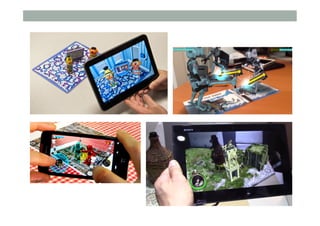
MOBILE AR: A TUTORIAL
Mark Billinghurst
mark.billinghurst@unisa.edu.au
1st – 5th December 2015
INDMF/ICIDM 2015
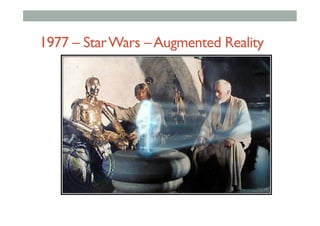
1977 – StarWars –Augmented Reality
Augmented Reality Definition
• Defining Characteristics [Azuma 97]
• Combines Real andVirtual Images
• Both can be seen at the same time
• Interactive in real-time
• The virtual content can be interacted with
• Registered in 3D
• Virtual objects appear fixed in space
Azuma, R. T. (1997). A survey of augmented reality. Presence, 6(4), 355-385.
2008 - CNN
•  Put AR pictures here
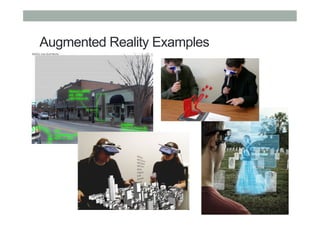
Augmented Reality Examples
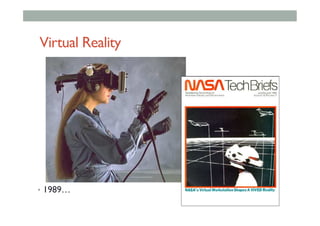
Virtual Reality
•  1989…
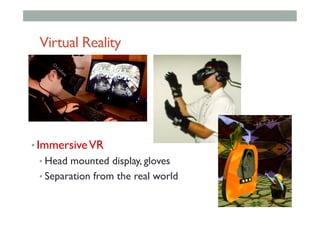
Virtual Reality
• ImmersiveVR
• Head mounted display, gloves
• Separation from the real world
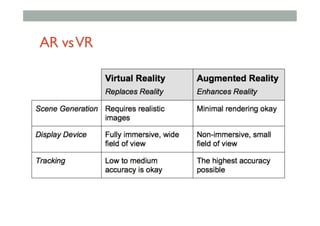
AR vsVR
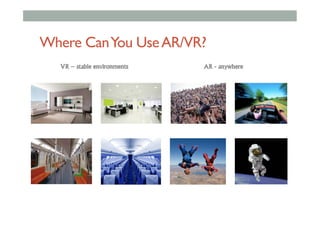
Where CanYou UseAR/VR?
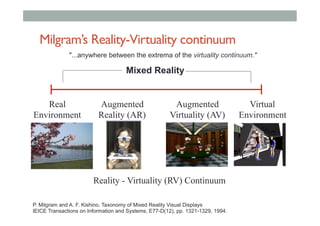
Milgram’s Reality-Virtuality continuum
Mixed Reality
Reality - Virtuality (RV) Continuum
Real
Environment
Augmented
Reality (AR)

Augmented
Virtuality (AV)
Virtual
Environment
"...anywhere between the extrema of the virtuality continuum."
P. Milgram and A. F. Kishino, Taxonomy of Mixed Reality Visual Displays
IEICE Transactions on Information and Systems, E77-D(12), pp. 1321-1329, 1994.
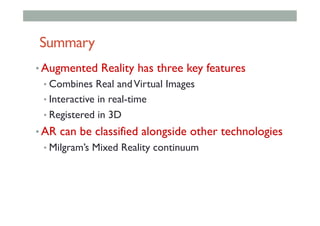
Summary
• Augmented Reality has three key features
• Combines Real andVirtual Images
• Interactive in real-time
• Registered in 3D
• AR can be classified alongside other technologies
• Milgram’s Mixed Reality continuum
TECHNOLOGY
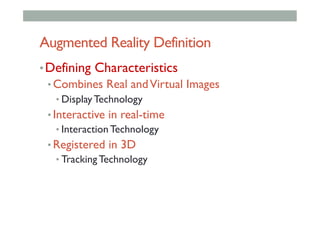
Augmented Reality Definition
• Defining Characteristics
• Combines Real andVirtual Images
• Display Technology
• Interactive in real-time
• Interaction Technology
• Registered in 3D
• Tracking Technology
DISPLAY
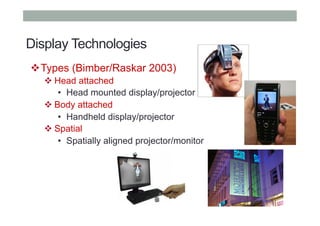
Display Technologies
! Types (Bimber/Raskar 2003)
! Head attached
•  Head mounted display/projector
! Body attached
•  Handheld display/projector
! Spatial
•  Spatially aligned projector/monitor
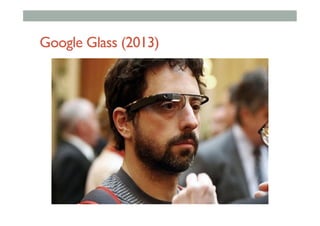
Google Glass (2013)
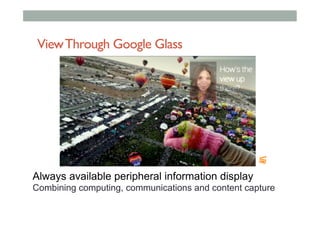
ViewThrough Google Glass
Always available peripheral information display
Combining computing, communications and content capture
TRACKING
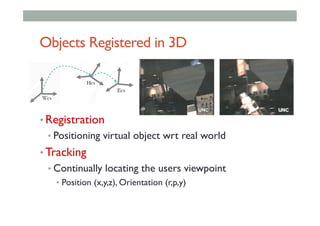
Objects Registered in 3D
• Registration
• Positioning virtual object wrt real world
• Tracking
• Continually locating the users viewpoint
•  Position (x,y,z), Orientation (r,p,y)
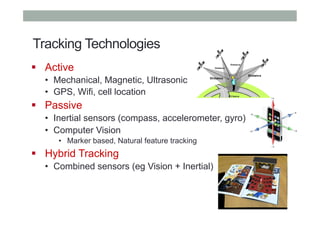
Tracking Technologies
"  Active
•  Mechanical, Magnetic, Ultrasonic
•  GPS, Wifi, cell location
"  Passive
•  Inertial sensors (compass, accelerometer, gyro)
•  Computer Vision
•  Marker based, Natural feature tracking
"  Hybrid Tracking
•  Combined sensors (eg Vision + Inertial)
INTERACTION
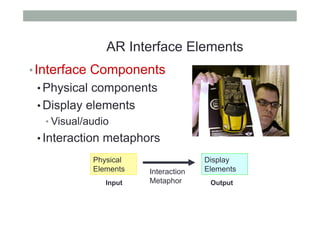
• Interface Components
• Physical components
• Display elements
• Visual/audio
• Interaction metaphors
Physical
Elements
Display
ElementsInteraction
MetaphorInput Output
AR Interface Elements
AR APPLICATIONS
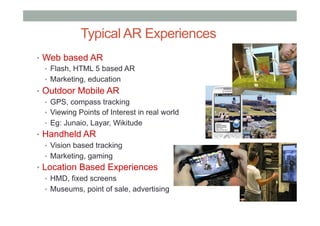
•  Web based AR
•  Flash, HTML 5 based AR
•  Marketing, education
•  Outdoor Mobile AR
•  GPS, compass tracking
•  Viewing Points of Interest in real world
•  Eg: Junaio, Layar, Wikitude
•  Handheld AR
•  Vision based tracking
•  Marketing, gaming
•  Location Based Experiences
•  HMD, fixed screens
•  Museums, point of sale, advertising
Typical AR Experiences
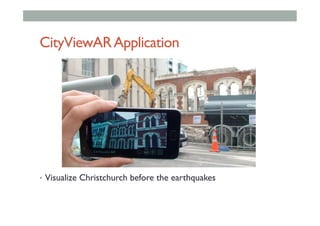
CityViewARApplication
•  Visualize Christchurch before the earthquakes
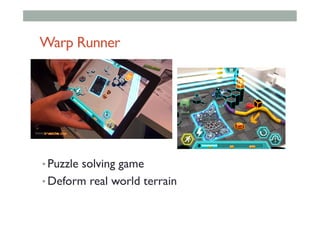
Warp Runner
• Puzzle solving game
• Deform real world terrain
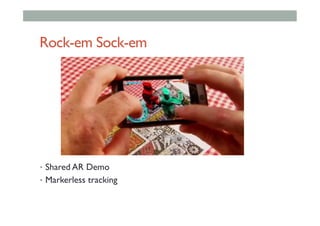
Rock-em Sock-em
•  Shared AR Demo
•  Markerless tracking
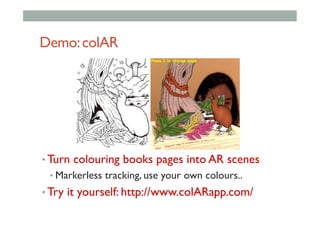
Demo:colAR
• Turn colouring books pages into AR scenes
• Markerless tracking, use your own colours..
• Try it yourself: http://www.colARapp.com/
What Makes a GoodAR Experience?
• Compelling
• Engaging,‘Magic’ moment
• Intuitive, ease of use
• Uses existing skills
• Anchored in physical world
• Seamless combination of real and digital
INTRODUCTION TO UNITY
Mark Billinghurst
mark.billinghurst@unisa.edu.au
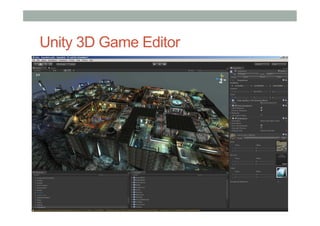
Unity 3D Game Editor
SETUP
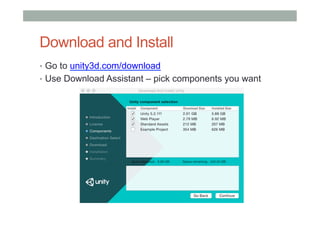
Download and Install
•  Go to unity3d.com/download
•  Use Download Assistant – pick components you want
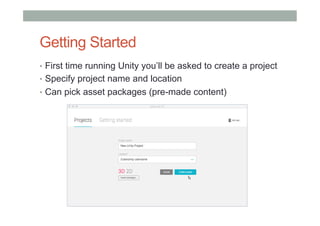
Getting Started
•  First time running Unity you’ll be asked to create a project
•  Specify project name and location
•  Can pick asset packages (pre-made content)
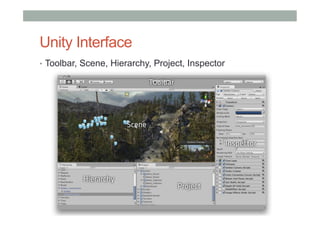
Unity Interface
•  Toolbar, Scene, Hierarchy, Project, Inspector
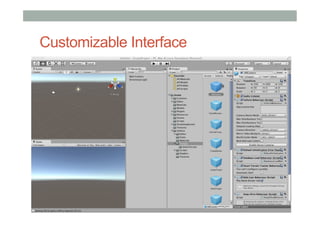
Customizable Interface
Building Scenes
• Use GameObjects:
•  Containers that hold different components
•  Eg 3D model, texture, animation
• Use Inspector
•  View and edit object properties and other settings
• Use Scene View
•  Position objects, camera, lights, other GameObjects etc
• Scripting
•  Adding interaction, user input, events, etc
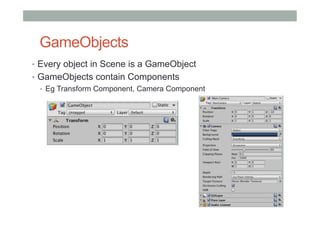
GameObjects
•  Every object in Scene is a GameObject
•  GameObjects contain Components
•  Eg Transform Component, Camera Component
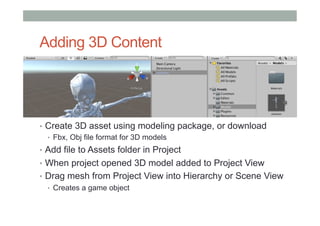
Adding 3D Content
•  Create 3D asset using modeling package, or download
•  Fbx, Obj file format for 3D models
•  Add file to Assets folder in Project
•  When project opened 3D model added to Project View
•  Drag mesh from Project View into Hierarchy or Scene View
•  Creates a game object
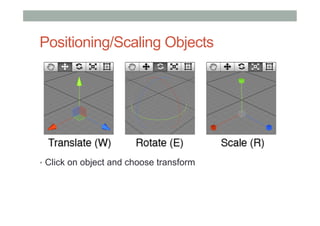
Positioning/Scaling Objects
•  Click on object and choose transform
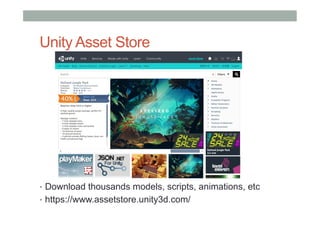
Unity Asset Store
•  Download thousands models, scripts, animations, etc
•  https://www.assetstore.unity3d.com/
UNITY BASICS
Making a Simple Scene
1.  Create New Project
2.  Create Game Object
3.  Moving main camera position
4.  Adding lights
5.  Adding more objects
6.  Adding physics
7.  Changing object materials
8.  Adding script behaviour
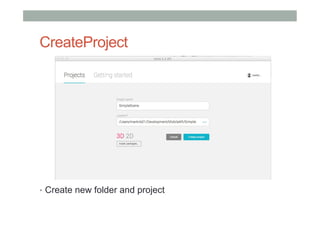
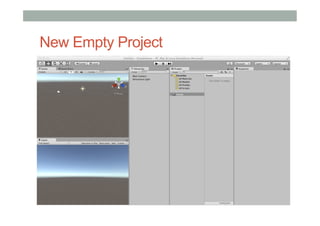
CreateProject
•  Create new folder and project
New Empty Project
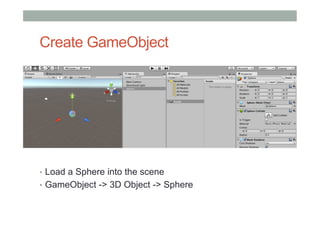
Create GameObject
•  Load a Sphere into the scene
•  GameObject -> 3D Object -> Sphere
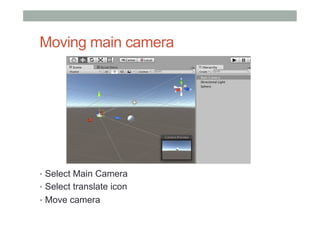
Moving main camera
•  Select Main Camera
•  Select translate icon
•  Move camera
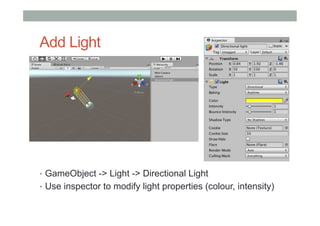
Add Light
•  GameObject -> Light -> Directional Light
•  Use inspector to modify light properties (colour, intensity)
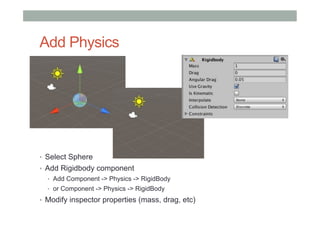
Add Physics
•  Select Sphere
•  Add Rigidbody component
•  Add Component -> Physics -> RigidBody
•  or Component -> Physics -> RigidBody
•  Modify inspector properties (mass, drag, etc)
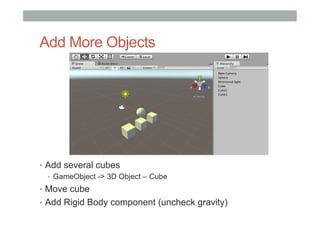
Add More Objects
•  Add several cubes
•  GameObject -> 3D Object – Cube
•  Move cube
•  Add Rigid Body component (uncheck gravity)
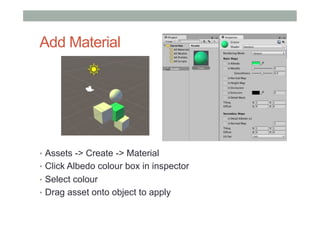
Add Material
•  Assets -> Create -> Material
•  Click Albedo colour box in inspector
•  Select colour
•  Drag asset onto object to apply
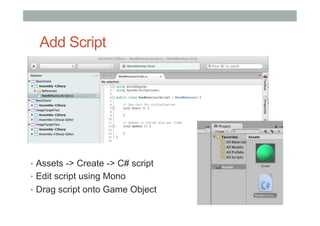
Add Script
•  Assets -> Create -> C# script
•  Edit script using Mono
•  Drag script onto Game Object
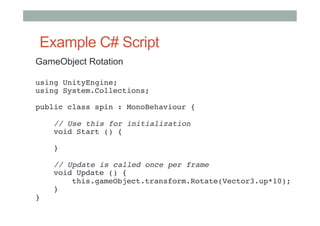
Example C# Script
GameObject Rotation
using UnityEngine;

using System.Collections;


public class spin : MonoBehaviour {


    // Use this for initialization

    void Start () {


    }


    // Update is called once per frame

    void Update () {

        this.gameObject.transform.Rotate(Vector3.up*10);

    }

}

#
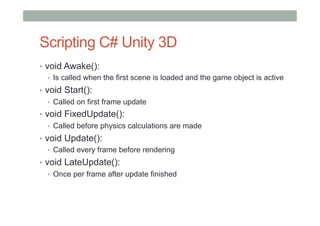
Scripting C# Unity 3D
•  void Awake():
•  Is called when the first scene is loaded and the game object is active
•  void Start():
•  Called on first frame update
•  void FixedUpdate():
•  Called before physics calculations are made
•  void Update():
•  Called every frame before rendering
•  void LateUpdate():
•  Once per frame after update finished
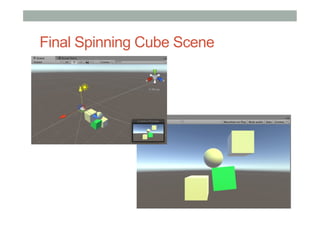
Final Spinning Cube Scene
Resources
• Unity Main site
• http://www.unity3d.com/
• Holistic Development with Unity
• http://holistic3d.com
• Official Unity Tutorials
• http://unity3d.com/learn/tutorials
• Unity Coder Blog
• http://unitycoder.com
USING VUFORIA
Mark Billinghurst
mark.billinghurst@unisa.edu.au
What you will learn
•  Introduction to Vuforia
•  Platform and features
•  How to install/set-up Vuforia
•  Vuforia Basics
•  Marker Tracking, Object tracking
•  Deploying to Mobile Device
•  Android, iOS
OVERVIEW
Vuforia Overview
•  Platform for Mobile Computer Vision
•  https://www.qualcomm.com/products/vuforia
•  Released by Qualcomm in 2010, acquired by PTC 2015
•  Used by over 100K developers, >10K applications
•  Main Features:
•  Recognition
•  Image, text, object recognition
•  Tracking
•  Image, marker, scene, object
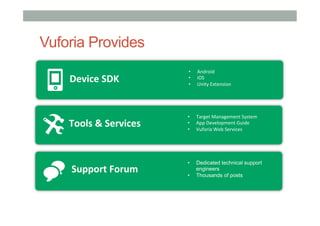
Vuforia Provides
•  Android	
  
•  iOS	
  
•  Unity	
  Extension	
  
Device	
  SDK	
  
•  Target	
  Management	
  System	
  	
  
•  App	
  Development	
  Guide	
  
•  Vuforia	
  Web	
  Services	
  
Tools	
  &	
  Services	
  
•  Dedicated technical support
engineers
•  Thousands of posts
Support	
  Forum	
  
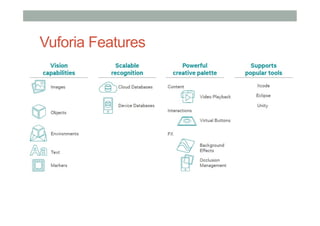
Vuforia Features
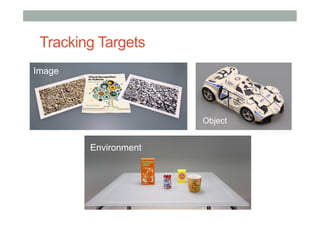
Tracking Targets
Image
Object
Environment
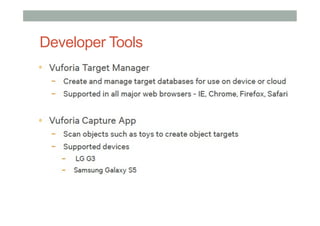
Developer Tools
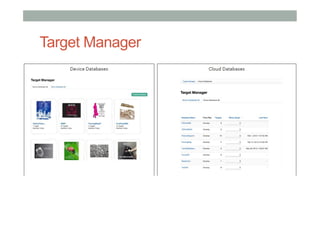
Target Manager
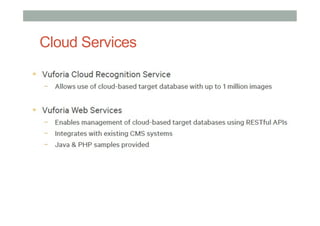
Cloud Services
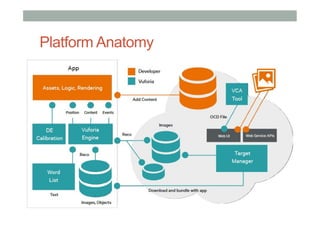
Platform Anatomy
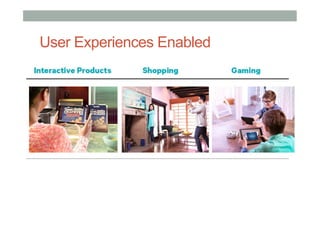
User Experiences Enabled
INSTALLATION
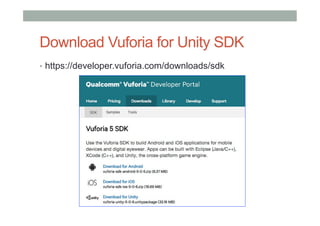
Download Vuforia for Unity SDK
•  https://developer.vuforia.com/downloads/sdk
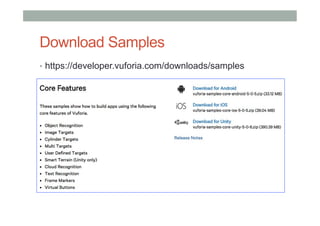
Download Samples
•  https://developer.vuforia.com/downloads/samples
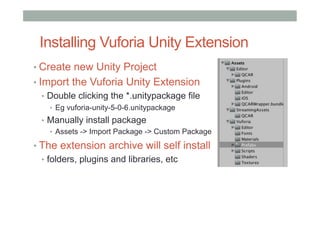
Installing Vuforia Unity Extension
• Create new Unity Project
• Import the Vuforia Unity Extension
•  Double clicking the *.unitypackage file
•  Eg vuforia-unity-5-0-6.unitypackage
•  Manually install package
•  Assets -> Import Package -> Custom Package
• The extension archive will self install
•  folders, plugins and libraries, etc
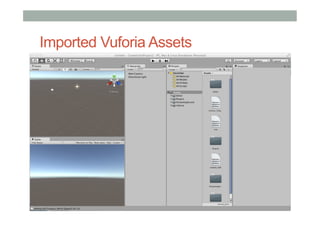
Imported Vuforia Assets
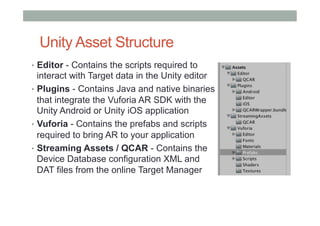
Unity Asset Structure
•  Editor - Contains the scripts required to
interact with Target data in the Unity editor
•  Plugins - Contains Java and native binaries
that integrate the Vuforia AR SDK with the
Unity Android or Unity iOS application
•  Vuforia - Contains the prefabs and scripts
required to bring AR to your application
•  Streaming Assets / QCAR - Contains the
Device Database configuration XML and
DAT files from the online Target Manager
USING VUFORIA
Setting up a Vuforia Project
•  Register as Developer
•  Create a Project
•  Obtain a License Key
•  Add license key to AR Camera
•  Replace Main Camera with AR camera
•  Add Tracking Targets
•  Move ImageTarget into Scene
•  Add sample object to ImageTarget
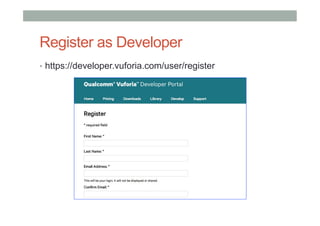
Register as Developer
•  https://developer.vuforia.com/user/register
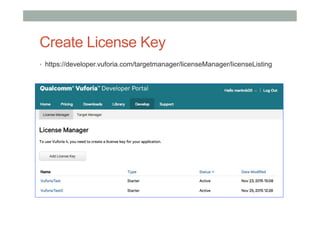
Create License Key
•  https://developer.vuforia.com/targetmanager/licenseManager/licenseListing
Obtain a License Key
•  Vuforia 5 apps utilize a license key that uniquely identifies
each app. License keys are created in the License Manager
•  The steps to creating a new license key are..
•  Choose a SDK
•  Choose a licensing option based on your requirements
•  Provide your Billing Information if you've chosen to use a paid license
•  Obtain your license Key
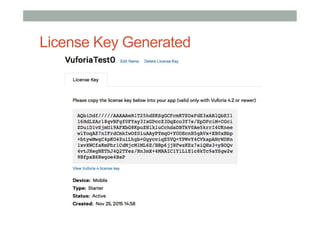
License Key Generated
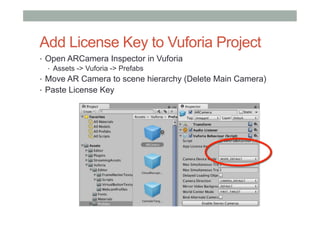
Add License Key to Vuforia Project
•  Open ARCamera Inspector in Vuforia
•  Assets -> Vuforia -> Prefabs
•  Move AR Camera to scene hierarchy (Delete Main Camera)
•  Paste License Key
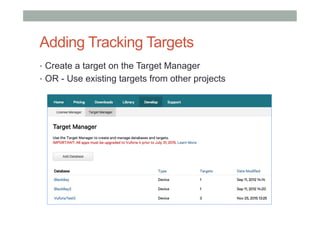
Adding Tracking Targets
•  Create a target on the Target Manager
•  OR - Use existing targets from other projects
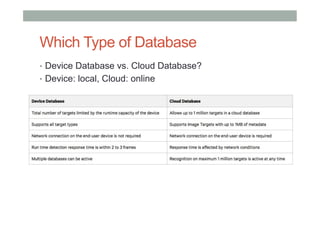
Which Type of Database
•  Device Database vs. Cloud Database?
•  Device: local, Cloud: online
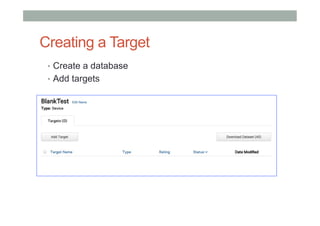
Creating a Target
•  Create a database
•  Add targets
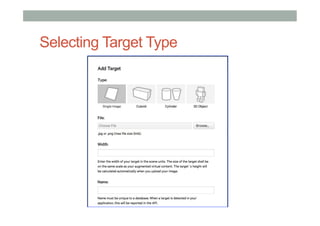
Selecting Target Type
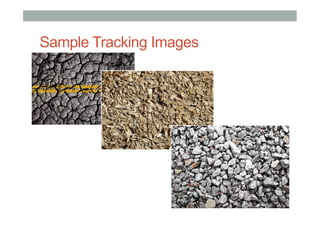
Sample Tracking Images
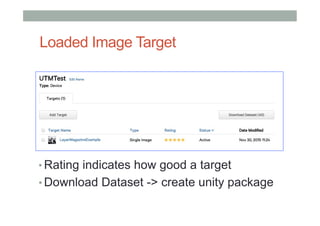
Loaded Image Target
• Rating indicates how good a target
• Download Dataset -> create unity package
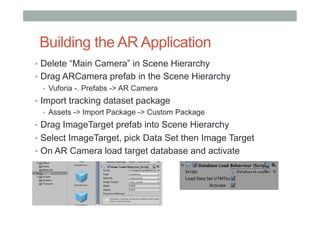
Building the AR Application
•  Delete “Main Camera” in Scene Hierarchy
•  Drag ARCamera prefab in the Scene Hierarchy
•  Vuforia -. Prefabs -> AR Camera
•  Import tracking dataset package
•  Assets -> Import Package -> Custom Package
•  Drag ImageTarget prefab into Scene Hierarchy
•  Select ImageTarget, pick Data Set then Image Target
•  On AR Camera load target database and activate
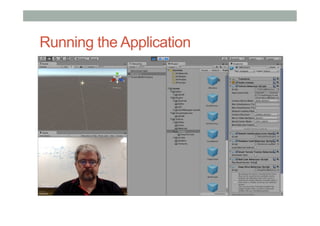
Running the Application
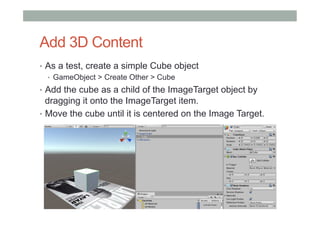
Add 3D Content
•  As a test, create a simple Cube object
•  GameObject > Create Other > Cube
•  Add the cube as a child of the ImageTarget object by
dragging it onto the ImageTarget item.
•  Move the cube until it is centered on the Image Target.
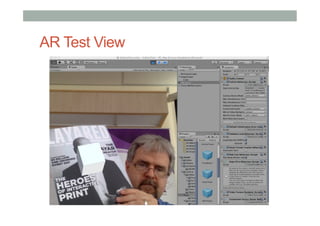
AR Test View
NEXT STEPS
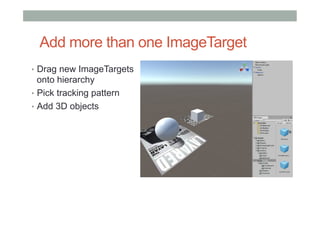
Add more than one ImageTarget
•  Drag new ImageTargets
onto hierarchy
•  Pick tracking pattern
•  Add 3D objects
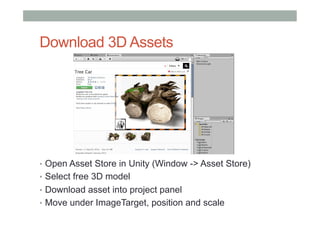
Download 3D Assets
•  Open Asset Store in Unity (Window -> Asset Store)
•  Select free 3D model
•  Download asset into project panel
•  Move under ImageTarget, position and scale
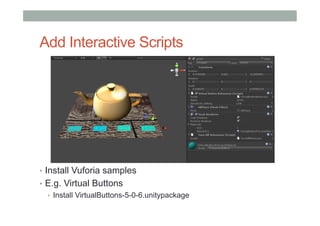
Add Interactive Scripts
•  Install Vuforia samples
•  E.g. Virtual Buttons
•  Install VirtualButtons-5-0-6.unitypackage
Try Vuforia Samples
•  Object Recognition
•  Image Targets
•  Cylinder Targets
•  Multi Targets
•  User Defined Targets
•  Smart Terrain (Unity only)
•  Cloud Recognition
•  Text Recognition
•  Frame Markers
•  Virtual Buttons
DEPLOYING TO MOBILE
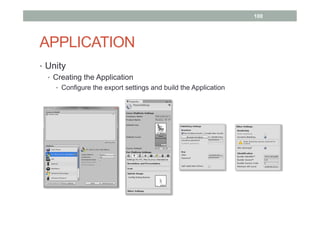
APPLICATION
•  Unity
•  Creating the Application
•  Configure the export settings and build the Application
100
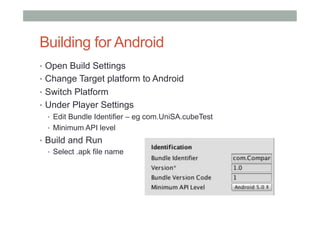
Building for Android
•  Open Build Settings
•  Change Target platform to Android
•  Switch Platform
•  Under Player Settings
•  Edit Bundle Identifier – eg com.UniSA.cubeTest
•  Minimum API level
•  Build and Run
•  Select .apk file name
RESOURCES
Resources
•  Vuforia Product Page
https://www.qualcomm.com/products/vuforia
•  Vuforia Developer Page
https://developer.vuforia.com
•  SDK Download Page
https://developer.vuforia.com/downloads/sdk
•  Installing Vuforia for Unity extension
http://developer.vuforia.com/library/articles/Solution/
Installing-the-Unity-Extension
•  Tutorials
https://developer.vuforia.com/resources/tutorials

Mobile AR Tutorial

  • 1.
    MOBILE AR: ATUTORIAL Mark Billinghurst mark.billinghurst@unisa.edu.au 1st – 5th December 2015 INDMF/ICIDM 2015
  • 2.
    1977 – StarWars–Augmented Reality
  • 3.
    Augmented Reality Definition • DefiningCharacteristics [Azuma 97] • Combines Real andVirtual Images • Both can be seen at the same time • Interactive in real-time • The virtual content can be interacted with • Registered in 3D • Virtual objects appear fixed in space Azuma, R. T. (1997). A survey of augmented reality. Presence, 6(4), 355-385.
  • 4.
  • 5.
    •  Put ARpictures here Augmented Reality Examples
  • 6.
  • 7.
    Virtual Reality • ImmersiveVR • Head mounteddisplay, gloves • Separation from the real world
  • 8.
  • 9.
  • 10.
    Milgram’s Reality-Virtuality continuum MixedReality Reality - Virtuality (RV) Continuum Real Environment Augmented Reality (AR) Augmented Virtuality (AV) Virtual Environment "...anywhere between the extrema of the virtuality continuum." P. Milgram and A. F. Kishino, Taxonomy of Mixed Reality Visual Displays IEICE Transactions on Information and Systems, E77-D(12), pp. 1321-1329, 1994.
  • 11.
    Summary • Augmented Reality hasthree key features • Combines Real andVirtual Images • Interactive in real-time • Registered in 3D • AR can be classified alongside other technologies • Milgram’s Mixed Reality continuum
  • 12.
  • 13.
    Augmented Reality Definition • DefiningCharacteristics • Combines Real andVirtual Images • Display Technology • Interactive in real-time • Interaction Technology • Registered in 3D • Tracking Technology
  • 14.
  • 15.
    Display Technologies ! Types (Bimber/Raskar2003) ! Head attached •  Head mounted display/projector ! Body attached •  Handheld display/projector ! Spatial •  Spatially aligned projector/monitor
  • 16.
  • 17.
    ViewThrough Google Glass Alwaysavailable peripheral information display Combining computing, communications and content capture
  • 18.
  • 19.
    Objects Registered in3D • Registration • Positioning virtual object wrt real world • Tracking • Continually locating the users viewpoint •  Position (x,y,z), Orientation (r,p,y)
  • 20.
    Tracking Technologies "  Active • Mechanical, Magnetic, Ultrasonic •  GPS, Wifi, cell location "  Passive •  Inertial sensors (compass, accelerometer, gyro) •  Computer Vision •  Marker based, Natural feature tracking "  Hybrid Tracking •  Combined sensors (eg Vision + Inertial)
  • 21.
  • 22.
    • Interface Components • Physical components • Displayelements • Visual/audio • Interaction metaphors Physical Elements Display ElementsInteraction MetaphorInput Output AR Interface Elements
  • 23.
  • 24.
    •  Web basedAR •  Flash, HTML 5 based AR •  Marketing, education •  Outdoor Mobile AR •  GPS, compass tracking •  Viewing Points of Interest in real world •  Eg: Junaio, Layar, Wikitude •  Handheld AR •  Vision based tracking •  Marketing, gaming •  Location Based Experiences •  HMD, fixed screens •  Museums, point of sale, advertising Typical AR Experiences
  • 25.
  • 26.
    Warp Runner • Puzzle solvinggame • Deform real world terrain
  • 27.
    Rock-em Sock-em •  SharedAR Demo •  Markerless tracking
  • 28.
    Demo:colAR • Turn colouring bookspages into AR scenes • Markerless tracking, use your own colours.. • Try it yourself: http://www.colARapp.com/
  • 29.
    What Makes aGoodAR Experience? • Compelling • Engaging,‘Magic’ moment • Intuitive, ease of use • Uses existing skills • Anchored in physical world • Seamless combination of real and digital
  • 30.
    INTRODUCTION TO UNITY MarkBillinghurst mark.billinghurst@unisa.edu.au
  • 32.
  • 33.
  • 34.
    Download and Install • Go to unity3d.com/download •  Use Download Assistant – pick components you want
  • 35.
    Getting Started •  Firsttime running Unity you’ll be asked to create a project •  Specify project name and location •  Can pick asset packages (pre-made content)
  • 36.
    Unity Interface •  Toolbar,Scene, Hierarchy, Project, Inspector
  • 37.
  • 38.
    Building Scenes • Use GameObjects: • Containers that hold different components •  Eg 3D model, texture, animation • Use Inspector •  View and edit object properties and other settings • Use Scene View •  Position objects, camera, lights, other GameObjects etc • Scripting •  Adding interaction, user input, events, etc
  • 39.
    GameObjects •  Every objectin Scene is a GameObject •  GameObjects contain Components •  Eg Transform Component, Camera Component
  • 40.
    Adding 3D Content • Create 3D asset using modeling package, or download •  Fbx, Obj file format for 3D models •  Add file to Assets folder in Project •  When project opened 3D model added to Project View •  Drag mesh from Project View into Hierarchy or Scene View •  Creates a game object
  • 41.
    Positioning/Scaling Objects •  Clickon object and choose transform
  • 42.
    Unity Asset Store • Download thousands models, scripts, animations, etc •  https://www.assetstore.unity3d.com/
  • 43.
  • 44.
    Making a SimpleScene 1.  Create New Project 2.  Create Game Object 3.  Moving main camera position 4.  Adding lights 5.  Adding more objects 6.  Adding physics 7.  Changing object materials 8.  Adding script behaviour
  • 45.
  • 46.
  • 47.
    Create GameObject •  Loada Sphere into the scene •  GameObject -> 3D Object -> Sphere
  • 48.
    Moving main camera • Select Main Camera •  Select translate icon •  Move camera
  • 49.
    Add Light •  GameObject-> Light -> Directional Light •  Use inspector to modify light properties (colour, intensity)
  • 50.
    Add Physics •  SelectSphere •  Add Rigidbody component •  Add Component -> Physics -> RigidBody •  or Component -> Physics -> RigidBody •  Modify inspector properties (mass, drag, etc)
  • 51.
    Add More Objects • Add several cubes •  GameObject -> 3D Object – Cube •  Move cube •  Add Rigid Body component (uncheck gravity)
  • 52.
    Add Material •  Assets-> Create -> Material •  Click Albedo colour box in inspector •  Select colour •  Drag asset onto object to apply
  • 53.
    Add Script •  Assets-> Create -> C# script •  Edit script using Mono •  Drag script onto Game Object
  • 54.
    Example C# Script GameObjectRotation using UnityEngine;
 using System.Collections;
 
 public class spin : MonoBehaviour {
 
     // Use this for initialization
     void Start () {
     
     }
     
     // Update is called once per frame
     void Update () {
         this.gameObject.transform.Rotate(Vector3.up*10);
     }
 }
 #
  • 55.
    Scripting C# Unity3D •  void Awake(): •  Is called when the first scene is loaded and the game object is active •  void Start(): •  Called on first frame update •  void FixedUpdate(): •  Called before physics calculations are made •  void Update(): •  Called every frame before rendering •  void LateUpdate(): •  Once per frame after update finished
  • 56.
  • 57.
    Resources • Unity Main site • http://www.unity3d.com/ • HolisticDevelopment with Unity • http://holistic3d.com • Official Unity Tutorials • http://unity3d.com/learn/tutorials • Unity Coder Blog • http://unitycoder.com
  • 58.
  • 60.
    What you willlearn •  Introduction to Vuforia •  Platform and features •  How to install/set-up Vuforia •  Vuforia Basics •  Marker Tracking, Object tracking •  Deploying to Mobile Device •  Android, iOS
  • 61.
  • 62.
    Vuforia Overview •  Platformfor Mobile Computer Vision •  https://www.qualcomm.com/products/vuforia •  Released by Qualcomm in 2010, acquired by PTC 2015 •  Used by over 100K developers, >10K applications •  Main Features: •  Recognition •  Image, text, object recognition •  Tracking •  Image, marker, scene, object
  • 63.
    Vuforia Provides •  Android   •  iOS   •  Unity  Extension   Device  SDK   •  Target  Management  System     •  App  Development  Guide   •  Vuforia  Web  Services   Tools  &  Services   •  Dedicated technical support engineers •  Thousands of posts Support  Forum  
  • 64.
  • 65.
  • 66.
  • 67.
  • 68.
  • 69.
  • 70.
  • 71.
  • 72.
    Download Vuforia forUnity SDK •  https://developer.vuforia.com/downloads/sdk
  • 73.
  • 74.
    Installing Vuforia UnityExtension • Create new Unity Project • Import the Vuforia Unity Extension •  Double clicking the *.unitypackage file •  Eg vuforia-unity-5-0-6.unitypackage •  Manually install package •  Assets -> Import Package -> Custom Package • The extension archive will self install •  folders, plugins and libraries, etc
  • 75.
  • 76.
    Unity Asset Structure • Editor - Contains the scripts required to interact with Target data in the Unity editor •  Plugins - Contains Java and native binaries that integrate the Vuforia AR SDK with the Unity Android or Unity iOS application •  Vuforia - Contains the prefabs and scripts required to bring AR to your application •  Streaming Assets / QCAR - Contains the Device Database configuration XML and DAT files from the online Target Manager
  • 77.
  • 78.
    Setting up aVuforia Project •  Register as Developer •  Create a Project •  Obtain a License Key •  Add license key to AR Camera •  Replace Main Camera with AR camera •  Add Tracking Targets •  Move ImageTarget into Scene •  Add sample object to ImageTarget
  • 79.
    Register as Developer • https://developer.vuforia.com/user/register
  • 80.
    Create License Key • https://developer.vuforia.com/targetmanager/licenseManager/licenseListing
  • 81.
    Obtain a LicenseKey •  Vuforia 5 apps utilize a license key that uniquely identifies each app. License keys are created in the License Manager •  The steps to creating a new license key are.. •  Choose a SDK •  Choose a licensing option based on your requirements •  Provide your Billing Information if you've chosen to use a paid license •  Obtain your license Key
  • 82.
  • 83.
    Add License Keyto Vuforia Project •  Open ARCamera Inspector in Vuforia •  Assets -> Vuforia -> Prefabs •  Move AR Camera to scene hierarchy (Delete Main Camera) •  Paste License Key
  • 84.
    Adding Tracking Targets • Create a target on the Target Manager •  OR - Use existing targets from other projects
  • 85.
    Which Type ofDatabase •  Device Database vs. Cloud Database? •  Device: local, Cloud: online
  • 86.
    Creating a Target • Create a database •  Add targets
  • 87.
  • 88.
  • 89.
    Loaded Image Target • Ratingindicates how good a target • Download Dataset -> create unity package
  • 90.
    Building the ARApplication •  Delete “Main Camera” in Scene Hierarchy •  Drag ARCamera prefab in the Scene Hierarchy •  Vuforia -. Prefabs -> AR Camera •  Import tracking dataset package •  Assets -> Import Package -> Custom Package •  Drag ImageTarget prefab into Scene Hierarchy •  Select ImageTarget, pick Data Set then Image Target •  On AR Camera load target database and activate
  • 91.
  • 92.
    Add 3D Content • As a test, create a simple Cube object •  GameObject > Create Other > Cube •  Add the cube as a child of the ImageTarget object by dragging it onto the ImageTarget item. •  Move the cube until it is centered on the Image Target.
  • 93.
  • 94.
  • 95.
    Add more thanone ImageTarget •  Drag new ImageTargets onto hierarchy •  Pick tracking pattern •  Add 3D objects
  • 96.
    Download 3D Assets • Open Asset Store in Unity (Window -> Asset Store) •  Select free 3D model •  Download asset into project panel •  Move under ImageTarget, position and scale
  • 97.
    Add Interactive Scripts • Install Vuforia samples •  E.g. Virtual Buttons •  Install VirtualButtons-5-0-6.unitypackage
  • 98.
    Try Vuforia Samples • Object Recognition •  Image Targets •  Cylinder Targets •  Multi Targets •  User Defined Targets •  Smart Terrain (Unity only) •  Cloud Recognition •  Text Recognition •  Frame Markers •  Virtual Buttons
  • 99.
  • 100.
    APPLICATION •  Unity •  Creatingthe Application •  Configure the export settings and build the Application 100
  • 101.
    Building for Android • Open Build Settings •  Change Target platform to Android •  Switch Platform •  Under Player Settings •  Edit Bundle Identifier – eg com.UniSA.cubeTest •  Minimum API level •  Build and Run •  Select .apk file name
  • 102.
  • 103.
    Resources •  Vuforia ProductPage https://www.qualcomm.com/products/vuforia •  Vuforia Developer Page https://developer.vuforia.com •  SDK Download Page https://developer.vuforia.com/downloads/sdk •  Installing Vuforia for Unity extension http://developer.vuforia.com/library/articles/Solution/ Installing-the-Unity-Extension •  Tutorials https://developer.vuforia.com/resources/tutorials