Design for AR &
Build an AR app
Version 2.0
Kumar Ahir - Jul 18
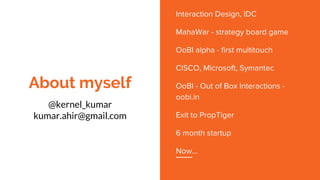
About myself
@kernel_kumar
kumar.ahir@gmail.com
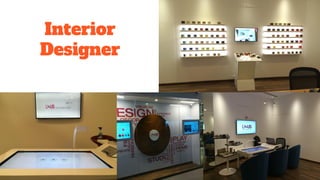
Interior
Designer
Questions
AR for disabled
AR/VR without devices
AR for wearables
Handy AR hardware for explorations
Building AR mockup
Content
Difference between AR and VR and XR
Devices - Hardware
Applications - Consumer and Business
Technology standards
Design fundamentals
Let’s do it !!!
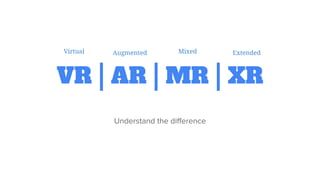
VR | AR | MR | XR
Virtual Augmented Mixed Extended
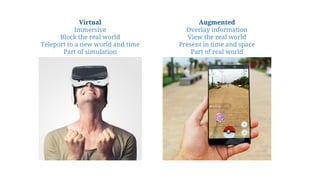
Virtual
Immersive
Block the real world
Teleport to a new world and time
Part of simulation
Augmented
Overlay information
View the real world
Present in time and space
Part of real world
Design Fundamentals Mobile AR
Single Hand use
Still a WINDOW - you can move around
3d in Flat screen
Interactions attached to world UI and not flat screen
Prompt to move around
Visual affordances to interactive elements
Design Fundamentals Mobile AR
Interactions and information based on Proximity
Portals - door to VR
Minimal animation which are grounded to plane
Add Text with background - solid or translucent
Feedback - sound, haptics
Embed a story, not just 3d popup
Everything is placed on a reference Plane
User onboarding every time for first 10 times
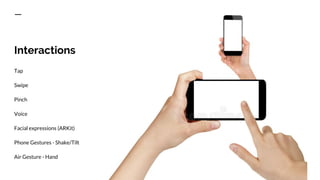
Tap
Swipe
Pinch
Voice
Facial expressions (ARKit)
Phone Gestures - Shake/Tilt
Air Gesture - Hand
Interactions
Technology
Unity
ARCore
ARKit
Vuforia
Marker based
Markerless
2D Image Tracking
Environment scanning
3d Object perception
Face AR
Body AR
Let’s Create !
Vuforia
Unity
Photoshop
We’ll create a marker based AR
experience using Vuforia SDK and
Unity Game Engine.
The app will work in Desktop
To publish an android you’ll need
Android SDK and JDK also installed
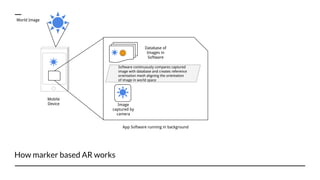
How marker based AR works
Mobile
Device
World Image
Image
captured by
camera
Database of
Images in
Software
Software continuously compares captured
image with database and creates reference
orientation mesh aligning the orientation
of image in world space
App Software running in background
Setting up Vuforia
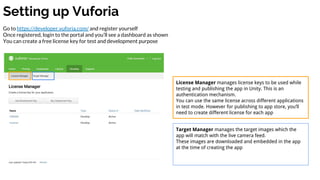
Go to https://developer.vuforia.com/ and register yourself
Once registered, login to the portal and you’ll see a dashboard as shown
You can create a free license key for test and development purpose
License Manager manages license keys to be used while
testing and publishing the app in Unity. This is an
authentication mechanism.
You can use the same license across different applications
in test mode. However for publishing to app store, you’ll
need to create different license for each app
Target Manager manages the target images which the
app will match with the live camera feed.
These images are downloaded and embedded in the app
at the time of creating the app
Creating License
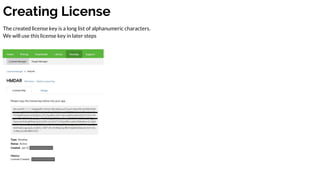
The created license key is a long list of alphanumeric characters.
We will use this license key in later steps
Adding Target Database
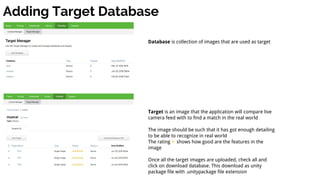
Database is collection of images that are used as target
Target is an image that the application will compare live
camera feed with to find a match in the real world
The image should be such that it has got enough detailing
to be able to recognize in real world
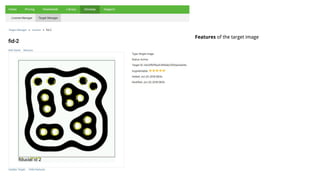
The rating shows how good are the features in the
image
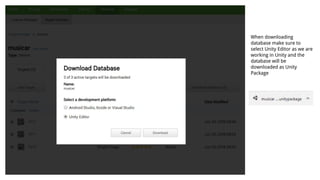
Once all the target images are uploaded, check all and
click on download database. This download as unity
package file with .unitypackage file extension
Features of the target image
When downloading
database make sure to
select Unity Editor as we are
working in Unity and the
database will be
downloaded as Unity
Package
Now time to work in Unity
Download latest version of Unity from
https://unity3d.com/get-unity/download
For this tutorial am using 2018.1.1f1 version
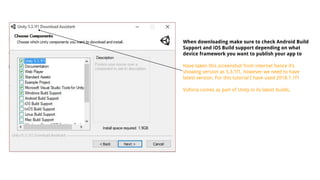
When downloading make sure to check Android Build
Support and iOS Build support depending on what
device framework you want to publish your app to
Have taken this screenshot from internet hence it’s
showing version as 5.3.1f1, however we need to have
latest version. For this tutorial I have used 2018.1.1f1
Vuforia comes as part of Unity in its latest builds.
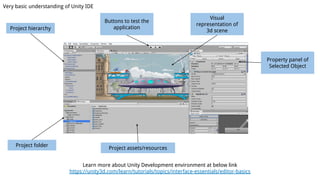
Learn more about Unity Development environment at below link
https://unity3d.com/learn/tutorials/topics/interface-essentials/editor-basics
Project hierarchy
Project folder
Project assets/resources
Property panel of
Selected Object
Visual
representation of
3d scene
Buttons to test the
application
Very basic understanding of Unity IDE
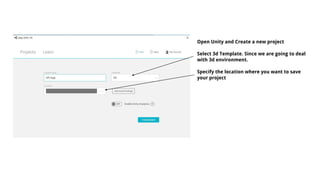
Open Unity and Create a new project
Select 3d Template. Since we are going to deal
with 3d environment.
Specify the location where you want to save
your project
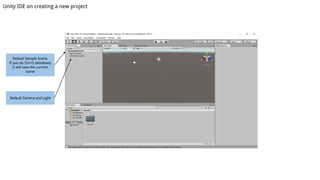
Default Camera and Light
Unity IDE on creating a new project
Default Sample Scene.
If you do Ctrl+S (windows)
it will save the current
scene
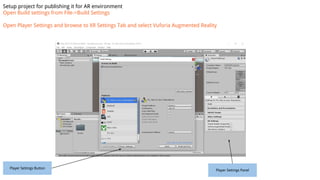
Setup project for publishing it for AR environment
Open Build settings from File->Build Settings
Open Player Settings and browse to XR Settings Tab and select Vuforia Augmented Reality
Player Settings Button
Player Settings Panel
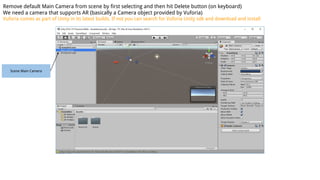
Scene Main Camera
Remove default Main Camera from scene by first selecting and then hit Delete button (on keyboard)
We need a camera that supports AR (basically a Camera object provided by Vuforia)
Vuforia comes as part of Unity in its latest builds. If not you can search for Vuforia Unity sdk and download and install
Vuforia AR Camera
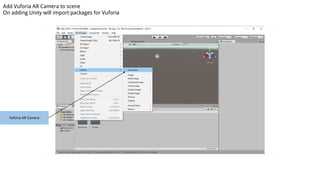
Add Vuforia AR Camera to scene
On adding Unity will import packages for Vuforia
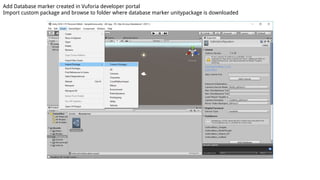
Add Database marker created in Vuforia developer portal
Import custom package and browse to folder where database marker unitypackage is downloaded
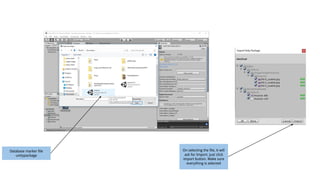
Database marker file
unitypackage
On selecting the file, it will
ask for Import. Just click
import button. Make sure
everything is selected
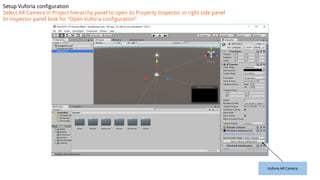
Vuforia AR Camera
Setup Vuforia configuration
Select AR Camera in Project hierarchy panel to open its Property Inspector in right side panel
In inspector panel look for “Open Vuforia configuration”
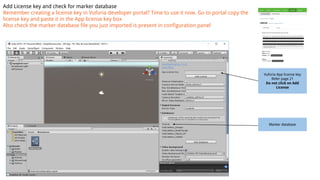
Add License key and check for marker database
Remember creating a license key in Vuforia developer portal? Time to use it now. Go to portal copy the
license key and paste it in the App license key box
Also check the marker database file you just imported is present in configuration panel
Vuforia App license key
Refer page 21
Do not click on Add
License
Marker database
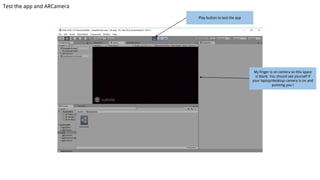
Test the app and ARCamera
Play button to test the app
My finger is on camera so this space
is blank. You should see yourself if
your laptop/desktop camera is on and
pointing you !
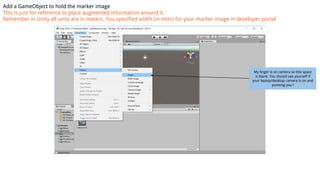
Add a GameObject to hold the marker image
This is just for reference to place augmented information around it.
Remember in Unity all units are in meters. You specified width (in mtrs) for your marker image in developer portal
My finger is on camera so this space
is blank. You should see yourself if
your laptop/desktop camera is on and
pointing you !
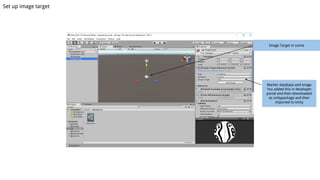
Set up image target
Image Target in scene
Marker database and image
You added this in developer
portal and then downloaded
as unitypackage and then
imported to Unity
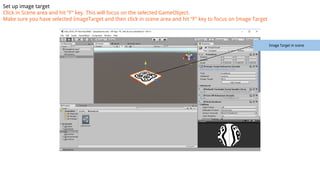
Set up image target
Click in Scene area and hit “F” key. This will focus on the selected GameObject.
Make sure you have selected ImageTarget and then click in scene area and hit “F” key to focus on Image Target
Image Target in scene
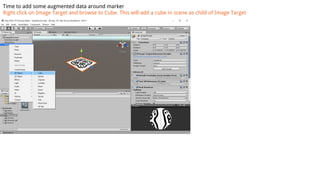
Time to add some augmented data around marker
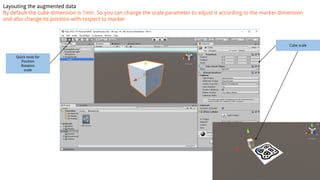
Right click on Image Target and browse to Cube. This will add a cube in scene as child of Image Target
Layouting the augmented data
By default the cube dimension is 1mtr. So you can change the scale parameter to adjust it according to the marker dimension
and also change its position with respect to marker
Cube scale
Quick tools for
Position
Rotation
scale
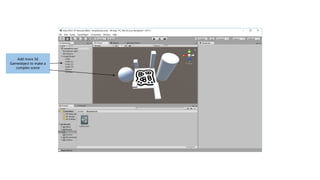
Add more 3d
Gameobject to make a
complex scene
Time to test the camera
Hit play button to start the camera, now when you bring the marker infront of camera
you’ll see the object you added around the marker image
That’s all we need.
You can go ahead create an interesting 3d model around marker image and create an AR
experience.
Research a bit on adding external 3d model to the scene to make a richer experience
You can download models from poly.google.com or turbosquid.com
Let’s Design
Let’s create
We are hiring
Front End Developer
Virtual Reality Programmers
3d Artist
UI Designer
UX Researcher
Flexible work hours
Equity options
Monthly Team activity
Lucrative package
Kumar Ahir
kumar.ahir@gmail.com
@kernel_kumar
Reach out to me for any doubts or
help
Am open for project collaboration
If you have an interesting idea and
need a PoC developed, am happy to
help
Resources
AR in Action - Youtube channel
references
Finding FOV the easy way - http://doc-ok.org/?p=1274
https://www.blog.google/products/google-ar-vr/best-practic
es-mobile-ar-design/
https://code.likeagirl.io/design-lessons-from-mobile-ar-experiments-b32ea3f42bb
https://uxdesign.cc/the-principles-of-good-user-experience-design-for-augmented-reality-d8e22777
aabd

Build an AR app v2.0

  • 1.
    Design for AR& Build an AR app Version 2.0 Kumar Ahir - Jul 18
  • 2.
  • 4.
  • 5.
    Questions AR for disabled AR/VRwithout devices AR for wearables Handy AR hardware for explorations Building AR mockup
  • 6.
    Content Difference between ARand VR and XR Devices - Hardware Applications - Consumer and Business Technology standards Design fundamentals Let’s do it !!!
  • 7.
    VR | AR| MR | XR Virtual Augmented Mixed Extended
  • 8.
    Virtual Immersive Block the realworld Teleport to a new world and time Part of simulation Augmented Overlay information View the real world Present in time and space Part of real world
  • 13.
    Design Fundamentals MobileAR Single Hand use Still a WINDOW - you can move around 3d in Flat screen Interactions attached to world UI and not flat screen Prompt to move around Visual affordances to interactive elements
  • 14.
    Design Fundamentals MobileAR Interactions and information based on Proximity Portals - door to VR Minimal animation which are grounded to plane Add Text with background - solid or translucent Feedback - sound, haptics Embed a story, not just 3d popup
  • 15.
    Everything is placedon a reference Plane User onboarding every time for first 10 times
  • 16.
    Tap Swipe Pinch Voice Facial expressions (ARKit) PhoneGestures - Shake/Tilt Air Gesture - Hand Interactions
  • 17.
    Technology Unity ARCore ARKit Vuforia Marker based Markerless 2D ImageTracking Environment scanning 3d Object perception Face AR Body AR
  • 18.
    Let’s Create ! Vuforia Unity Photoshop We’llcreate a marker based AR experience using Vuforia SDK and Unity Game Engine. The app will work in Desktop To publish an android you’ll need Android SDK and JDK also installed
  • 19.
    How marker basedAR works Mobile Device World Image Image captured by camera Database of Images in Software Software continuously compares captured image with database and creates reference orientation mesh aligning the orientation of image in world space App Software running in background
  • 20.
    Setting up Vuforia Goto https://developer.vuforia.com/ and register yourself Once registered, login to the portal and you’ll see a dashboard as shown You can create a free license key for test and development purpose License Manager manages license keys to be used while testing and publishing the app in Unity. This is an authentication mechanism. You can use the same license across different applications in test mode. However for publishing to app store, you’ll need to create different license for each app Target Manager manages the target images which the app will match with the live camera feed. These images are downloaded and embedded in the app at the time of creating the app
  • 21.
    Creating License The createdlicense key is a long list of alphanumeric characters. We will use this license key in later steps
  • 22.
    Adding Target Database Databaseis collection of images that are used as target Target is an image that the application will compare live camera feed with to find a match in the real world The image should be such that it has got enough detailing to be able to recognize in real world The rating shows how good are the features in the image Once all the target images are uploaded, check all and click on download database. This download as unity package file with .unitypackage file extension
  • 23.
    Features of thetarget image
  • 24.
    When downloading database makesure to select Unity Editor as we are working in Unity and the database will be downloaded as Unity Package
  • 25.
    Now time towork in Unity Download latest version of Unity from https://unity3d.com/get-unity/download For this tutorial am using 2018.1.1f1 version
  • 26.
    When downloading makesure to check Android Build Support and iOS Build support depending on what device framework you want to publish your app to Have taken this screenshot from internet hence it’s showing version as 5.3.1f1, however we need to have latest version. For this tutorial I have used 2018.1.1f1 Vuforia comes as part of Unity in its latest builds.
  • 27.
    Learn more aboutUnity Development environment at below link https://unity3d.com/learn/tutorials/topics/interface-essentials/editor-basics Project hierarchy Project folder Project assets/resources Property panel of Selected Object Visual representation of 3d scene Buttons to test the application Very basic understanding of Unity IDE
  • 28.
    Open Unity andCreate a new project Select 3d Template. Since we are going to deal with 3d environment. Specify the location where you want to save your project
  • 29.
    Default Camera andLight Unity IDE on creating a new project Default Sample Scene. If you do Ctrl+S (windows) it will save the current scene
  • 30.
    Setup project forpublishing it for AR environment Open Build settings from File->Build Settings Open Player Settings and browse to XR Settings Tab and select Vuforia Augmented Reality Player Settings Button Player Settings Panel
  • 31.
    Scene Main Camera Removedefault Main Camera from scene by first selecting and then hit Delete button (on keyboard) We need a camera that supports AR (basically a Camera object provided by Vuforia) Vuforia comes as part of Unity in its latest builds. If not you can search for Vuforia Unity sdk and download and install
  • 32.
    Vuforia AR Camera AddVuforia AR Camera to scene On adding Unity will import packages for Vuforia
  • 33.
    Add Database markercreated in Vuforia developer portal Import custom package and browse to folder where database marker unitypackage is downloaded
  • 34.
    Database marker file unitypackage Onselecting the file, it will ask for Import. Just click import button. Make sure everything is selected
  • 35.
    Vuforia AR Camera SetupVuforia configuration Select AR Camera in Project hierarchy panel to open its Property Inspector in right side panel In inspector panel look for “Open Vuforia configuration”
  • 36.
    Add License keyand check for marker database Remember creating a license key in Vuforia developer portal? Time to use it now. Go to portal copy the license key and paste it in the App license key box Also check the marker database file you just imported is present in configuration panel Vuforia App license key Refer page 21 Do not click on Add License Marker database
  • 37.
    Test the appand ARCamera Play button to test the app My finger is on camera so this space is blank. You should see yourself if your laptop/desktop camera is on and pointing you !
  • 38.
    Add a GameObjectto hold the marker image This is just for reference to place augmented information around it. Remember in Unity all units are in meters. You specified width (in mtrs) for your marker image in developer portal My finger is on camera so this space is blank. You should see yourself if your laptop/desktop camera is on and pointing you !
  • 39.
    Set up imagetarget Image Target in scene Marker database and image You added this in developer portal and then downloaded as unitypackage and then imported to Unity
  • 40.
    Set up imagetarget Click in Scene area and hit “F” key. This will focus on the selected GameObject. Make sure you have selected ImageTarget and then click in scene area and hit “F” key to focus on Image Target Image Target in scene
  • 41.
    Time to addsome augmented data around marker Right click on Image Target and browse to Cube. This will add a cube in scene as child of Image Target
  • 42.
    Layouting the augmenteddata By default the cube dimension is 1mtr. So you can change the scale parameter to adjust it according to the marker dimension and also change its position with respect to marker Cube scale Quick tools for Position Rotation scale
  • 43.
    Add more 3d Gameobjectto make a complex scene
  • 44.
    Time to testthe camera Hit play button to start the camera, now when you bring the marker infront of camera you’ll see the object you added around the marker image That’s all we need. You can go ahead create an interesting 3d model around marker image and create an AR experience. Research a bit on adding external 3d model to the scene to make a richer experience You can download models from poly.google.com or turbosquid.com
  • 45.
  • 46.
  • 47.
    We are hiring FrontEnd Developer Virtual Reality Programmers 3d Artist UI Designer UX Researcher Flexible work hours Equity options Monthly Team activity Lucrative package
  • 48.
    Kumar Ahir kumar.ahir@gmail.com @kernel_kumar Reach outto me for any doubts or help Am open for project collaboration If you have an interesting idea and need a PoC developed, am happy to help
  • 49.
    Resources AR in Action- Youtube channel
  • 50.
    references Finding FOV theeasy way - http://doc-ok.org/?p=1274 https://www.blog.google/products/google-ar-vr/best-practic es-mobile-ar-design/ https://code.likeagirl.io/design-lessons-from-mobile-ar-experiments-b32ea3f42bb https://uxdesign.cc/the-principles-of-good-user-experience-design-for-augmented-reality-d8e22777 aabd