


MOBILE APPLICATION DEVELOPMENT
Instructor: Dr. Mazin Md. Alkathiri
Head of Information Technology Department
College of Computers, Seiyun University, Yemen
Oct. 2024
2
SHARED PREFERENCES FOR
LOCAL STORAGE
LECTURE 5
3
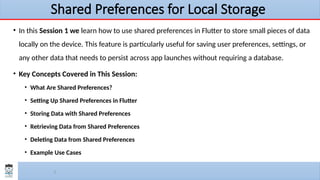
Shared Preferences for Local Storage
• In this Session 1 we learn how to use shared preferences in Flutter to store small pieces of data
locally on the device. This feature is particularly useful for saving user preferences, settings, or
any other data that needs to persist across app launches without requiring a database.
• Key Concepts Covered in This Session:
• What Are Shared Preferences?
• Setting Up Shared Preferences in Flutter
• Storing Data with Shared Preferences
• Retrieving Data from Shared Preferences
• Deleting Data from Shared Preferences
• Example Use Cases
4
1. What Are Shared Preferences?
Shared preferences provide a simple way to store key-value pairs on the
device. This storage mechanism is intended for small pieces of data, like settings,
preferences, or flags that need to persist between app sessions but are not
complex enough to require a full database.
• Characteristics of Shared Preferences:
• Persistent Storage: Data remains on the device even if the app is closed.
• Key-Value Pair Storage: Data is stored as a key-value pair (like a dictionary).
• Suitable for Small Data: Best for storing settings, user preferences, or flags. Not suitable
for large or complex data structures.
5
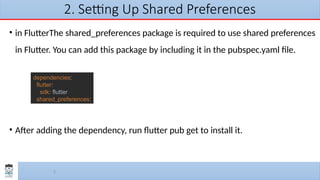
2. Setting Up Shared Preferences
• in FlutterThe shared_preferences package is required to use shared preferences
in Flutter. You can add this package by including it in the pubspec.yaml file.
• After adding the dependency, run flutter pub get to install it.
dependencies:
flutter:
sdk: flutter
shared_preferences:
6
Why Add Package Names to pubspec.yaml in Flutter?
The pubspec.yaml file serves as a central repository for managing dependencies in a Flutter project. By explicitly
listing package names and their versions, you achieve the following:
• 1. Dependency Management:
• Clarity and Organization: It provides a clear overview of all external libraries used in your project.
• Version Control: You can specify exact versions or version ranges to ensure compatibility and avoid unexpected behavior.
• Easy Updates: The flutter pub get command automatically fetches and updates packages based on the information in
pubspec.yaml.
• 2. Package Resolution:
• Conflict Resolution: The Dart package manager (pub) analyzes the pubspec.yaml to resolve dependencies and their transitive
dependencies, ensuring compatibility between packages.
• Efficient Fetching: It optimizes the process of downloading and installing packages, reducing build times.
• 3. Project Portability:
• Consistent Environment: When sharing your project or working on a team, the pubspec.yaml guarantees that everyone uses
the same package versions.
• Easy Setup: New developers can quickly set up the project by running flutter pub get to fetch all necessary dependencies.
• In essence, the pubspec.yaml file is the backbone of your Flutter project's dependency management, ensuring
that your application can leverage the power of the vast Flutter ecosystem while maintaining stability and
reliability.
7
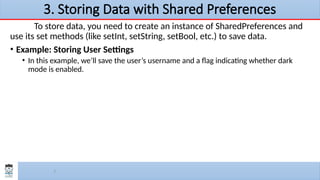
3. Storing Data with Shared Preferences
To store data, you need to create an instance of SharedPreferences and
use its set methods (like setInt, setString, setBool, etc.) to save data.
• Example: Storing User Settings
• In this example, we’ll save the user’s username and a flag indicating whether dark
mode is enabled.
8
• We use SharedPreferences.getInstance() to obtain an instance of shared preferences.
• _saveSettings() saves the username and darkMode values using setString and setBool respectively
• The SwitchListTile allows toggling dark mode, and the TextField takes the username.
class _SettingsPageState extends State<SettingsPage> {
TextEditingController _usernameController = TextEditingController();
bool _darkModeEnabled = false;
// Method to save settings
Future<void> _saveSettings() async {
final prefs = await SharedPreferences.getInstance();
await prefs.setString('username', _usernameController.text);
await prefs.setBool('darkMode', _darkModeEnabled);
print('Settings saved');
}
@override
Widget build(BuildContext context) {}
}
TextField(
controller: _usernameController,
decoration: InputDecoration(
labelText: 'Username'),
),
SwitchListTile(
title: Text('Dark Mode'),
value: _darkModeEnabled,
onChanged: (bool value) {
setState(() {
_darkModeEnabled = value;
}); },),
ElevatedButton(
onPressed: _saveSettings,
child: Text('Save Settings'),
),
9
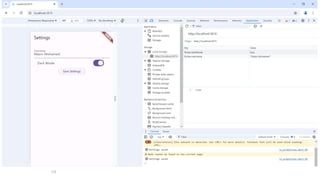
Where to Find the Shared Preferences Data
You can access LocalStorage data directly from the browser's developer tools:
1. Open Chrome Developer Tools:
o Right-click on your Flutter web app page and select Inspect, or press Ctrl+Shift+I (or
Cmd+Option+I on macOS).
2. Navigate to Application:
o In the Developer Tools panel, go to the Application tab.
3. Check Local Storage:
o In the left sidebar, expand Local Storage and select the URL for your app.
o Here, you'll see key-value pairs stored by the shared_preferences package.
• You should find data items with keys that look like your shared preferences keys.
The values can be viewed and edited in this panel.
10
11
Where to Find the Shared Preferences Data
1. Open Device File Explorer:
o In Android Studio, go to View > Tool Windows > Device File Explorer.
2. Navigate to the Shared Preferences File:
o In the Device File Explorer pane, expand the following path:
• /data/data/<your.package.name>/shared_prefs/
o Replace <your.package.name> with the package name of your Flutter app, which you can find in the
AndroidManifest.xml file (typically in android/app/src/main/AndroidManifest.xml).
3. Locate the Shared Preferences File:
o Inside the shared_prefs folder, you’ll find a file named something like
FlutterSharedPreferences.xml. This file is used by the shared_preferences package to store your
app's data as XML key-value pairs.
4. View the File:
o Right-click on FlutterSharedPreferences.xml and select Save As to download it to your local
machine, or double-click to open and view it directly in Android Studio.
o The XML file will display the saved preferences in key-value format.
12
4. Retrieving Data from Shared Preferences
When the app is reopened, we want to retrieve the saved data to restore
the settings. You can use the getString, getBool, getInt, etc., methods to
retrieve stored values.
• Example: Retrieving Saved Settings
• We’ll retrieve and display the previously saved username and dark mode
preference.
13
•loadSettings() reads the values of username and darkMode.
•We use prefs.getString('username') and prefs.getBool('darkMode') to
retrieve the values.
•If the values do not exist, we assign default values ('' for username and false for
darkMode).
Future<void> _loadSettings() async {
final prefs = await SharedPreferences.getInstance();
setState(() {
_usernameController.text = prefs.getString('username') ?? '';
_darkModeEnabled = prefs.getBool('darkMode') ?? false;
});
}
@override
void initState() {
super.initState();
_loadSettings();
}
14
5. Deleting Data from Shared Preferences
To remove saved data, use the remove() method with the key name.
// Method to Delete settings
Future<void> _clearSettings() async {
final prefs = await SharedPreferences.getInstance();
await prefs.remove('username'); // Remove username
await prefs.remove('darkMode'); // Remove dark mode preference
}
15
6. Example Use Cases for Shared Preferences
 User Preferences: Save and retrieve settings like theme (dark/light mode),
notification settings, or language preferences.
 App Walkthrough: Track if the user has completed an app walkthrough and
show it only on the first launch.
 Login State: Store whether a user is logged in, so they’re directed to the correct
screen upon app launch.
16
Summary
•The SharedPreferences class in Flutter provides a simple way to store and retrieve key-
value pairs locally. It’s perfect for saving small, persistent pieces of data such as app
settings, flags, or user preferences. This session covered:
• Setting up and using shared preferences for storing, retrieving, and deleting data.
• Practical example: Saving a username and dark mode preference.
• Example use cases where shared preferences are beneficial.
•By using shared preferences effectively, you can create a more personalized and seamless
experience for users by saving and restoring settings and preferences across app sessions.
17
pub.dev
• is the official package repository for Flutter and Dart. It hosts a vast library
of packages, plugins, and tools developed by the community and by Google,
aimed at enhancing and extending the capabilities of Flutter applications.
• It provides both Dart-only and Flutter-specific packages that make it easy to add new
features to your apps without reinventing the wheel.
• Using packages from pub.dev allows you to add prebuilt functionality, such
as
• HTTP requests,
• JSON parsing,
• animations,
• layout management,
• UI components, and much more.
• These packages can save a lot of time and effort, making it easier to
implement complex features with just a few lines of code.
18
How to Use Packages from pub.dev
1. Search for a Package: Go to pub.dev and search for a package that suits your needs. For
example, let’s look for a layout package, such as flutter_staggered_grid_view, which allows
us to create custom grid layouts.
2. Check the Documentation: Each package page provides details, including installation
instructions, examples, and usage notes. This is essential for understanding how to
integrate the package.
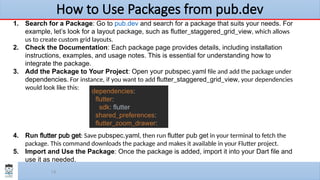
3. Add the Package to Your Project: Open your pubspec.yaml file and add the package under
dependencies. For instance, if you want to add flutter_staggered_grid_view, your dependencies
would look like this:
4. Run flutter pub get: Save pubspec.yaml, then run flutter pub get in your terminal to fetch the
package. This command downloads the package and makes it available in your Flutter project.
5. Import and Use the Package: Once the package is added, import it into your Dart file and
use it as needed.
dependencies:
flutter:
sdk: flutter
shared_preferences:
flutter_zoom_drawer:

Mobile Application Development (Shared Preferences) class-06

  • 1.
    MOBILE APPLICATION DEVELOPMENT Instructor:Dr. Mazin Md. Alkathiri Head of Information Technology Department College of Computers, Seiyun University, Yemen Oct. 2024
  • 2.
  • 3.
    3 Shared Preferences forLocal Storage • In this Session 1 we learn how to use shared preferences in Flutter to store small pieces of data locally on the device. This feature is particularly useful for saving user preferences, settings, or any other data that needs to persist across app launches without requiring a database. • Key Concepts Covered in This Session: • What Are Shared Preferences? • Setting Up Shared Preferences in Flutter • Storing Data with Shared Preferences • Retrieving Data from Shared Preferences • Deleting Data from Shared Preferences • Example Use Cases
  • 4.
    4 1. What AreShared Preferences? Shared preferences provide a simple way to store key-value pairs on the device. This storage mechanism is intended for small pieces of data, like settings, preferences, or flags that need to persist between app sessions but are not complex enough to require a full database. • Characteristics of Shared Preferences: • Persistent Storage: Data remains on the device even if the app is closed. • Key-Value Pair Storage: Data is stored as a key-value pair (like a dictionary). • Suitable for Small Data: Best for storing settings, user preferences, or flags. Not suitable for large or complex data structures.
  • 5.
    5 2. Setting UpShared Preferences • in FlutterThe shared_preferences package is required to use shared preferences in Flutter. You can add this package by including it in the pubspec.yaml file. • After adding the dependency, run flutter pub get to install it. dependencies: flutter: sdk: flutter shared_preferences:
  • 6.
    6 Why Add PackageNames to pubspec.yaml in Flutter? The pubspec.yaml file serves as a central repository for managing dependencies in a Flutter project. By explicitly listing package names and their versions, you achieve the following: • 1. Dependency Management: • Clarity and Organization: It provides a clear overview of all external libraries used in your project. • Version Control: You can specify exact versions or version ranges to ensure compatibility and avoid unexpected behavior. • Easy Updates: The flutter pub get command automatically fetches and updates packages based on the information in pubspec.yaml. • 2. Package Resolution: • Conflict Resolution: The Dart package manager (pub) analyzes the pubspec.yaml to resolve dependencies and their transitive dependencies, ensuring compatibility between packages. • Efficient Fetching: It optimizes the process of downloading and installing packages, reducing build times. • 3. Project Portability: • Consistent Environment: When sharing your project or working on a team, the pubspec.yaml guarantees that everyone uses the same package versions. • Easy Setup: New developers can quickly set up the project by running flutter pub get to fetch all necessary dependencies. • In essence, the pubspec.yaml file is the backbone of your Flutter project's dependency management, ensuring that your application can leverage the power of the vast Flutter ecosystem while maintaining stability and reliability.
  • 7.
    7 3. Storing Datawith Shared Preferences To store data, you need to create an instance of SharedPreferences and use its set methods (like setInt, setString, setBool, etc.) to save data. • Example: Storing User Settings • In this example, we’ll save the user’s username and a flag indicating whether dark mode is enabled.
  • 8.
    8 • We useSharedPreferences.getInstance() to obtain an instance of shared preferences. • _saveSettings() saves the username and darkMode values using setString and setBool respectively • The SwitchListTile allows toggling dark mode, and the TextField takes the username. class _SettingsPageState extends State<SettingsPage> { TextEditingController _usernameController = TextEditingController(); bool _darkModeEnabled = false; // Method to save settings Future<void> _saveSettings() async { final prefs = await SharedPreferences.getInstance(); await prefs.setString('username', _usernameController.text); await prefs.setBool('darkMode', _darkModeEnabled); print('Settings saved'); } @override Widget build(BuildContext context) {} } TextField( controller: _usernameController, decoration: InputDecoration( labelText: 'Username'), ), SwitchListTile( title: Text('Dark Mode'), value: _darkModeEnabled, onChanged: (bool value) { setState(() { _darkModeEnabled = value; }); },), ElevatedButton( onPressed: _saveSettings, child: Text('Save Settings'), ),
  • 9.
    9 Where to Findthe Shared Preferences Data You can access LocalStorage data directly from the browser's developer tools: 1. Open Chrome Developer Tools: o Right-click on your Flutter web app page and select Inspect, or press Ctrl+Shift+I (or Cmd+Option+I on macOS). 2. Navigate to Application: o In the Developer Tools panel, go to the Application tab. 3. Check Local Storage: o In the left sidebar, expand Local Storage and select the URL for your app. o Here, you'll see key-value pairs stored by the shared_preferences package. • You should find data items with keys that look like your shared preferences keys. The values can be viewed and edited in this panel.
  • 10.
  • 11.
    11 Where to Findthe Shared Preferences Data 1. Open Device File Explorer: o In Android Studio, go to View > Tool Windows > Device File Explorer. 2. Navigate to the Shared Preferences File: o In the Device File Explorer pane, expand the following path: • /data/data/<your.package.name>/shared_prefs/ o Replace <your.package.name> with the package name of your Flutter app, which you can find in the AndroidManifest.xml file (typically in android/app/src/main/AndroidManifest.xml). 3. Locate the Shared Preferences File: o Inside the shared_prefs folder, you’ll find a file named something like FlutterSharedPreferences.xml. This file is used by the shared_preferences package to store your app's data as XML key-value pairs. 4. View the File: o Right-click on FlutterSharedPreferences.xml and select Save As to download it to your local machine, or double-click to open and view it directly in Android Studio. o The XML file will display the saved preferences in key-value format.
  • 12.
    12 4. Retrieving Datafrom Shared Preferences When the app is reopened, we want to retrieve the saved data to restore the settings. You can use the getString, getBool, getInt, etc., methods to retrieve stored values. • Example: Retrieving Saved Settings • We’ll retrieve and display the previously saved username and dark mode preference.
  • 13.
    13 •loadSettings() reads thevalues of username and darkMode. •We use prefs.getString('username') and prefs.getBool('darkMode') to retrieve the values. •If the values do not exist, we assign default values ('' for username and false for darkMode). Future<void> _loadSettings() async { final prefs = await SharedPreferences.getInstance(); setState(() { _usernameController.text = prefs.getString('username') ?? ''; _darkModeEnabled = prefs.getBool('darkMode') ?? false; }); } @override void initState() { super.initState(); _loadSettings(); }
  • 14.
    14 5. Deleting Datafrom Shared Preferences To remove saved data, use the remove() method with the key name. // Method to Delete settings Future<void> _clearSettings() async { final prefs = await SharedPreferences.getInstance(); await prefs.remove('username'); // Remove username await prefs.remove('darkMode'); // Remove dark mode preference }
  • 15.
    15 6. Example UseCases for Shared Preferences  User Preferences: Save and retrieve settings like theme (dark/light mode), notification settings, or language preferences.  App Walkthrough: Track if the user has completed an app walkthrough and show it only on the first launch.  Login State: Store whether a user is logged in, so they’re directed to the correct screen upon app launch.
  • 16.
    16 Summary •The SharedPreferences classin Flutter provides a simple way to store and retrieve key- value pairs locally. It’s perfect for saving small, persistent pieces of data such as app settings, flags, or user preferences. This session covered: • Setting up and using shared preferences for storing, retrieving, and deleting data. • Practical example: Saving a username and dark mode preference. • Example use cases where shared preferences are beneficial. •By using shared preferences effectively, you can create a more personalized and seamless experience for users by saving and restoring settings and preferences across app sessions.
  • 17.
    17 pub.dev • is theofficial package repository for Flutter and Dart. It hosts a vast library of packages, plugins, and tools developed by the community and by Google, aimed at enhancing and extending the capabilities of Flutter applications. • It provides both Dart-only and Flutter-specific packages that make it easy to add new features to your apps without reinventing the wheel. • Using packages from pub.dev allows you to add prebuilt functionality, such as • HTTP requests, • JSON parsing, • animations, • layout management, • UI components, and much more. • These packages can save a lot of time and effort, making it easier to implement complex features with just a few lines of code.
  • 18.
    18 How to UsePackages from pub.dev 1. Search for a Package: Go to pub.dev and search for a package that suits your needs. For example, let’s look for a layout package, such as flutter_staggered_grid_view, which allows us to create custom grid layouts. 2. Check the Documentation: Each package page provides details, including installation instructions, examples, and usage notes. This is essential for understanding how to integrate the package. 3. Add the Package to Your Project: Open your pubspec.yaml file and add the package under dependencies. For instance, if you want to add flutter_staggered_grid_view, your dependencies would look like this: 4. Run flutter pub get: Save pubspec.yaml, then run flutter pub get in your terminal to fetch the package. This command downloads the package and makes it available in your Flutter project. 5. Import and Use the Package: Once the package is added, import it into your Dart file and use it as needed. dependencies: flutter: sdk: flutter shared_preferences: flutter_zoom_drawer:

Editor's Notes

  • #3 إرشادات عامه : عند القيام بعملية الهت ريستارت والهت ريبوت لا يتم تثبيت اخر التعديلات انما يتم تشغيلها فقط