MOBILE APPLICATION DEVELOPMENT
Instructor: Dr. Mazin Md. Alkathiri
Head of Information Technology Department
College of Computers, Seiyun University, Yemen
Oct. 2024
2
HANDLING USER INPUT AND
NAVIGATION
LECTURE 5
3
Handling User Input
• This session will focus on how to capture and handle user input in
Flutter. It will cover different input methods like text fields, buttons,
and other interactive widgets, as well as how to validate and manage
the input state effectively.
4
Introduction to User Input in FlutterUser
• input is one of the core elements in any mobile app, allowing users to
interact with the application.
• Flutter provides various widgets that capture and handle input, such
as:
• TextField,
• Checkbox,
• Radio,
• Switch,
• and Slider.
5
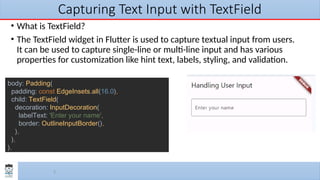
Capturing Text Input with TextField
• What is TextField?
• The TextField widget in Flutter is used to capture textual input from users.
It can be used to capture single-line or multi-line input and has various
properties for customization like hint text, labels, styling, and validation.
body: Padding(
padding: const EdgeInsets.all(16.0),
child: TextField(
decoration: InputDecoration(
labelText: 'Enter your name',
border: OutlineInputBorder(),
),
),
),
6
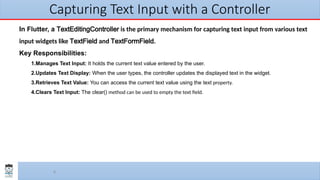
Capturing Text Input with a Controller
In Flutter, a TextEditingController is the primary mechanism for capturing text input from various text
input widgets like TextField and TextFormField.
Key Responsibilities:
1.Manages Text Input: It holds the current text value entered by the user.
2.Updates Text Display: When the user types, the controller updates the displayed text in the widget.
3.Retrieves Text Value: You can access the current text value using the text property.
4.Clears Text Input: The clear() method can be used to empty the text field.
7
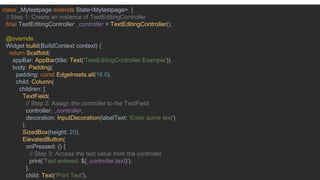
class _Mytestpage extends State<Mytestpage> {
// Step 1: Create an instance of TextEditingController
final TextEditingController _controller = TextEditingController();
@override
Widget build(BuildContext context) {
return Scaffold(
appBar: AppBar(title: Text('TextEditingController Example')),
body: Padding(
padding: const EdgeInsets.all(16.0),
child: Column(
children: [
TextField(
// Step 2: Assign the controller to the TextField
controller: _controller,
decoration: InputDecoration(labelText: 'Enter some text'),
),
SizedBox(height: 20),
ElevatedButton(
onPressed: () {
// Step 3: Access the text value from the controller
print('Text entered: ${_controller.text}');
},
child: Text('Print Text'),
8
Explanation
1.Creating the Controller:
•A TextEditingController is created as _controller, which will be used to manage the TextField
input.
2.Assigning the Controller to the TextField:
•The controller is assigned to the TextField by setting the controller property to _controller. Now,
any text entered in the TextField can be accessed via _controller.text.
3.Accessing the Text Value:
•In the onPressed callback of the button, we retrieve the text using _controller.text and print it to
the console.
9
Handling Form Input
•What is a Form?
•In Flutter, a Form widget allows for managing multiple input fields together, providing validation,
and enabling submission.
•Each input field inside a form is typically wrapped in a TextFormField widget.
•The Form widget works in conjunction with FormField widgets, such as TextFormField,
allowing the entire form to be validated at once rather than validating each field individually.
This widget makes form handling easier by managing the state of form fields collectively.
10
Key Benefits of Using Form Widget
•Centralized Validation:
•The Form widget allows you to validate all fields at once using the validate() method on the FormState,
making it easier to manage multiple input fields together.
•Easy Data Management:
•With FormState, you can call save() on each field to capture and store data efficiently, without having to
handle each input field separately.
•Resetting the Form:
•You can use FormState.reset() to clear all input fields within the form. This is useful for "Clear" or
"Reset" buttons in forms.
11
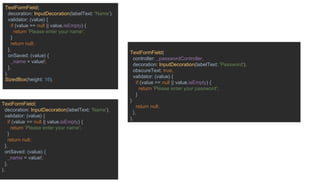
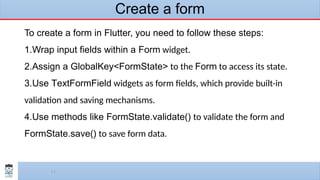
Create a form
To create a form in Flutter, you need to follow these steps:
1.Wrap input fields within a Form widget.
2.Assign a GlobalKey<FormState> to the Form to access its state.
3.Use TextFormField widgets as form fields, which provide built-in
validation and saving mechanisms.
4.Use methods like FormState.validate() to validate the form and
FormState.save() to save form data.
12
class _ProfileAppState extends State<ProfileApp> {
final _formKey = GlobalKey<FormState>();
String _name = '';
String _email = '';
void _submitForm() {
if (_formKey.currentState!.validate()) {
_formKey.currentState!.save();
print('Name: $_name, Email: $_email'); } }
@override
Widget build(BuildContext context) {
return MaterialApp(
home: Scaffold(
appBar: AppBar(title: Text('Form Example')),
body: Padding(padding: const EdgeInsets.all(16.0),
child: Form(
key: _formKey,
child: Column(
children: [
TextFormField( ),
TextFormField( ),
TextFormField( ),
ElevatedButton(
onPressed: _submitForm,
child: Text('Submit'),
), ], ), ), ), ), ); }}
13
TextFormField(
decoration: InputDecoration(labelText: 'Name'),
validator: (value) {
if (value == null || value.isEmpty) {
return 'Please enter your name';
}
return null;
},
onSaved: (value) {
_name = value!;
},
),
SizedBox(height: 16),
TextFormField(
decoration: InputDecoration(labelText: 'Name'),
validator: (value) {
if (value == null || value.isEmpty) {
return 'Please enter your name';
}
return null;
},
onSaved: (value) {
_name = value!;
},
),
TextFormField(
controller: _passwordController,
decoration: InputDecoration(labelText: 'Password'),
obscureText: true,
validator: (value) {
if (value == null || value.isEmpty) {
return 'Please enter your password';
}
}
return null;
},
),
14
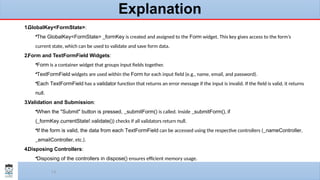
Explanation
1.GlobalKey<FormState>:
•The GlobalKey<FormState> _formKey is created and assigned to the Form widget. This key gives access to the form’s
current state, which can be used to validate and save form data.
2.Form and TextFormField Widgets:
•Form is a container widget that groups input fields together.
•TextFormField widgets are used within the Form for each input field (e.g., name, email, and password).
•Each TextFormField has a validator function that returns an error message if the input is invalid. If the field is valid, it returns
null.
3.Validation and Submission:
•When the "Submit" button is pressed, _submitForm() is called. Inside _submitForm(), if
(_formKey.currentState!.validate()) checks if all validators return null.
•If the form is valid, the data from each TextFormField can be accessed using the respective controllers (_nameController,
_emailController, etc.).
4.Disposing Controllers:
•Disposing of the controllers in dispose() ensures efficient memory usage.
15
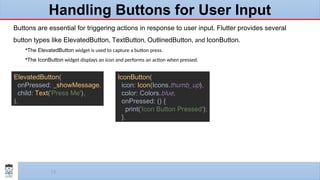
Handling Buttons for User Input
Buttons are essential for triggering actions in response to user input. Flutter provides several
button types like ElevatedButton, TextButton, OutlinedButton, and IconButton.
•The ElevatedButton widget is used to capture a button press.
•The IconButton widget displays an icon and performs an action when pressed.
ElevatedButton(
onPressed: _showMessage,
child: Text('Press Me'),
),
IconButton(
icon: Icon(Icons.thumb_up),
color: Colors.blue,
onPressed: () {
print('Icon Button Pressed');
},
16
IconButton with an Icon
•A Checkbox widget is used to toggle a boolean value.
•The state is managed using a setState call to re-
render the widget when the checkbox is clicked.
class _ProfileAppState extends State<ProfileApp> {
bool _isChecked = false;
@override
Widget build(BuildContext context) {
return MaterialApp(
home: Scaffold(
appBar: AppBar(title: Text('Checkbox Example')),
body: Center(
child: Row(
mainAxisAlignment: MainAxisAlignment.center,
children: [
Checkbox (
value: _isChecked,
onChanged: (bool? value) {
setState(() {
_isChecked = value!;
});
},
),
Text(_isChecked ? 'Checked' : 'Unchecked'),
],
), ), ), ); }}
17
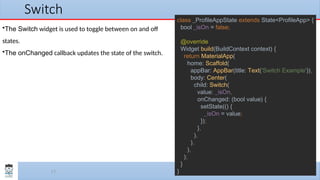
Switch
class _ProfileAppState extends State<ProfileApp> {
bool _isOn = false;
@override
Widget build(BuildContext context) {
return MaterialApp(
home: Scaffold(
appBar: AppBar(title: Text('Switch Example')),
body: Center(
child: Switch(
value: _isOn,
onChanged: (bool value) {
setState(() {
_isOn = value;
});
},
),
),
),
);
}
}
•The Switch widget is used to toggle between on and off
states.
•The onChanged callback updates the state of the switch.
18
Basic Navigation: Pushing and
Popping Routes
19
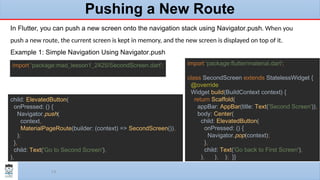
Pushing a New Route
In Flutter, you can push a new screen onto the navigation stack using Navigator.push. When you
push a new route, the current screen is kept in memory, and the new screen is displayed on top of it.
Example 1: Simple Navigation Using Navigator.push
child: ElevatedButton(
onPressed: () {
Navigator.push(
context,
MaterialPageRoute(builder: (context) => SecondScreen()),
);
},
child: Text('Go to Second Screen'),
),
import 'package:flutter/material.dart';
class SecondScreen extends StatelessWidget {
@override
Widget build(BuildContext context) {
return Scaffold(
appBar: AppBar(title: Text('Second Screen')),
body: Center(
child: ElevatedButton(
onPressed: () {
Navigator.pop(context);
},
child: Text('Go back to First Screen'),
), ), ); }}
import 'package:mad_lesson1_2425/SecondScreen.dart';
20
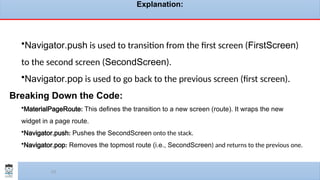
Explanation:
•Navigator.push is used to transition from the first screen (FirstScreen)
to the second screen (SecondScreen).
•Navigator.pop is used to go back to the previous screen (first screen).
Breaking Down the Code:
•MaterialPageRoute: This defines the transition to a new screen (route). It wraps the new
widget in a page route.
•Navigator.push: Pushes the SecondScreen onto the stack.
•Navigator.pop: Removes the topmost route (i.e., SecondScreen) and returns to the previous one.
21
Passing Data Between Screens
In many scenarios, you will need to pass data between screens. Flutter allows you to pass
arguments to routes when navigating using both Navigator.push and named routes.
body: Center(
child: Column(
children: [
TextField(
controller: Textcontroller,
),
ElevatedButton(
onPressed: () {
Navigator.push(
context,
MaterialPageRoute(builder: (context) =>
SecondScreen(data: Textcontroller.text)),
);
},
child: Text('Go to Second Screen'),
),
], ),),
class SecondScreen extends StatelessWidget {
final String data;
SecondScreen({required this.data});
@override
Widget build(BuildContext context) {
return Scaffold(
appBar: AppBar(title: Text('Second Screen')),
body: Center(
child: Column(
children: [
ElevatedButton(
onPressed: () {Navigator.pop(context); },
child: Text('Go back to First Screen'),
),
SizedBox(height: 20),
Text(data)
], ), ), ); }}

Mobile Application Development((Handling User Input and Navigation) class-05

  • 1.
    MOBILE APPLICATION DEVELOPMENT Instructor:Dr. Mazin Md. Alkathiri Head of Information Technology Department College of Computers, Seiyun University, Yemen Oct. 2024
  • 2.
    2 HANDLING USER INPUTAND NAVIGATION LECTURE 5
  • 3.
    3 Handling User Input •This session will focus on how to capture and handle user input in Flutter. It will cover different input methods like text fields, buttons, and other interactive widgets, as well as how to validate and manage the input state effectively.
  • 4.
    4 Introduction to UserInput in FlutterUser • input is one of the core elements in any mobile app, allowing users to interact with the application. • Flutter provides various widgets that capture and handle input, such as: • TextField, • Checkbox, • Radio, • Switch, • and Slider.
  • 5.
    5 Capturing Text Inputwith TextField • What is TextField? • The TextField widget in Flutter is used to capture textual input from users. It can be used to capture single-line or multi-line input and has various properties for customization like hint text, labels, styling, and validation. body: Padding( padding: const EdgeInsets.all(16.0), child: TextField( decoration: InputDecoration( labelText: 'Enter your name', border: OutlineInputBorder(), ), ), ),
  • 6.
    6 Capturing Text Inputwith a Controller In Flutter, a TextEditingController is the primary mechanism for capturing text input from various text input widgets like TextField and TextFormField. Key Responsibilities: 1.Manages Text Input: It holds the current text value entered by the user. 2.Updates Text Display: When the user types, the controller updates the displayed text in the widget. 3.Retrieves Text Value: You can access the current text value using the text property. 4.Clears Text Input: The clear() method can be used to empty the text field.
  • 7.
    7 class _Mytestpage extendsState<Mytestpage> { // Step 1: Create an instance of TextEditingController final TextEditingController _controller = TextEditingController(); @override Widget build(BuildContext context) { return Scaffold( appBar: AppBar(title: Text('TextEditingController Example')), body: Padding( padding: const EdgeInsets.all(16.0), child: Column( children: [ TextField( // Step 2: Assign the controller to the TextField controller: _controller, decoration: InputDecoration(labelText: 'Enter some text'), ), SizedBox(height: 20), ElevatedButton( onPressed: () { // Step 3: Access the text value from the controller print('Text entered: ${_controller.text}'); }, child: Text('Print Text'),
  • 8.
    8 Explanation 1.Creating the Controller: •ATextEditingController is created as _controller, which will be used to manage the TextField input. 2.Assigning the Controller to the TextField: •The controller is assigned to the TextField by setting the controller property to _controller. Now, any text entered in the TextField can be accessed via _controller.text. 3.Accessing the Text Value: •In the onPressed callback of the button, we retrieve the text using _controller.text and print it to the console.
  • 9.
    9 Handling Form Input •Whatis a Form? •In Flutter, a Form widget allows for managing multiple input fields together, providing validation, and enabling submission. •Each input field inside a form is typically wrapped in a TextFormField widget. •The Form widget works in conjunction with FormField widgets, such as TextFormField, allowing the entire form to be validated at once rather than validating each field individually. This widget makes form handling easier by managing the state of form fields collectively.
  • 10.
    10 Key Benefits ofUsing Form Widget •Centralized Validation: •The Form widget allows you to validate all fields at once using the validate() method on the FormState, making it easier to manage multiple input fields together. •Easy Data Management: •With FormState, you can call save() on each field to capture and store data efficiently, without having to handle each input field separately. •Resetting the Form: •You can use FormState.reset() to clear all input fields within the form. This is useful for "Clear" or "Reset" buttons in forms.
  • 11.
    11 Create a form Tocreate a form in Flutter, you need to follow these steps: 1.Wrap input fields within a Form widget. 2.Assign a GlobalKey<FormState> to the Form to access its state. 3.Use TextFormField widgets as form fields, which provide built-in validation and saving mechanisms. 4.Use methods like FormState.validate() to validate the form and FormState.save() to save form data.
  • 12.
    12 class _ProfileAppState extendsState<ProfileApp> { final _formKey = GlobalKey<FormState>(); String _name = ''; String _email = ''; void _submitForm() { if (_formKey.currentState!.validate()) { _formKey.currentState!.save(); print('Name: $_name, Email: $_email'); } } @override Widget build(BuildContext context) { return MaterialApp( home: Scaffold( appBar: AppBar(title: Text('Form Example')), body: Padding(padding: const EdgeInsets.all(16.0), child: Form( key: _formKey, child: Column( children: [ TextFormField( ), TextFormField( ), TextFormField( ), ElevatedButton( onPressed: _submitForm, child: Text('Submit'), ), ], ), ), ), ), ); }}
  • 13.
    13 TextFormField( decoration: InputDecoration(labelText: 'Name'), validator:(value) { if (value == null || value.isEmpty) { return 'Please enter your name'; } return null; }, onSaved: (value) { _name = value!; }, ), SizedBox(height: 16), TextFormField( decoration: InputDecoration(labelText: 'Name'), validator: (value) { if (value == null || value.isEmpty) { return 'Please enter your name'; } return null; }, onSaved: (value) { _name = value!; }, ), TextFormField( controller: _passwordController, decoration: InputDecoration(labelText: 'Password'), obscureText: true, validator: (value) { if (value == null || value.isEmpty) { return 'Please enter your password'; } } return null; }, ),
  • 14.
    14 Explanation 1.GlobalKey<FormState>: •The GlobalKey<FormState> _formKeyis created and assigned to the Form widget. This key gives access to the form’s current state, which can be used to validate and save form data. 2.Form and TextFormField Widgets: •Form is a container widget that groups input fields together. •TextFormField widgets are used within the Form for each input field (e.g., name, email, and password). •Each TextFormField has a validator function that returns an error message if the input is invalid. If the field is valid, it returns null. 3.Validation and Submission: •When the "Submit" button is pressed, _submitForm() is called. Inside _submitForm(), if (_formKey.currentState!.validate()) checks if all validators return null. •If the form is valid, the data from each TextFormField can be accessed using the respective controllers (_nameController, _emailController, etc.). 4.Disposing Controllers: •Disposing of the controllers in dispose() ensures efficient memory usage.
  • 15.
    15 Handling Buttons forUser Input Buttons are essential for triggering actions in response to user input. Flutter provides several button types like ElevatedButton, TextButton, OutlinedButton, and IconButton. •The ElevatedButton widget is used to capture a button press. •The IconButton widget displays an icon and performs an action when pressed. ElevatedButton( onPressed: _showMessage, child: Text('Press Me'), ), IconButton( icon: Icon(Icons.thumb_up), color: Colors.blue, onPressed: () { print('Icon Button Pressed'); },
  • 16.
    16 IconButton with anIcon •A Checkbox widget is used to toggle a boolean value. •The state is managed using a setState call to re- render the widget when the checkbox is clicked. class _ProfileAppState extends State<ProfileApp> { bool _isChecked = false; @override Widget build(BuildContext context) { return MaterialApp( home: Scaffold( appBar: AppBar(title: Text('Checkbox Example')), body: Center( child: Row( mainAxisAlignment: MainAxisAlignment.center, children: [ Checkbox ( value: _isChecked, onChanged: (bool? value) { setState(() { _isChecked = value!; }); }, ), Text(_isChecked ? 'Checked' : 'Unchecked'), ], ), ), ), ); }}
  • 17.
    17 Switch class _ProfileAppState extendsState<ProfileApp> { bool _isOn = false; @override Widget build(BuildContext context) { return MaterialApp( home: Scaffold( appBar: AppBar(title: Text('Switch Example')), body: Center( child: Switch( value: _isOn, onChanged: (bool value) { setState(() { _isOn = value; }); }, ), ), ), ); } } •The Switch widget is used to toggle between on and off states. •The onChanged callback updates the state of the switch.
  • 18.
    18 Basic Navigation: Pushingand Popping Routes
  • 19.
    19 Pushing a NewRoute In Flutter, you can push a new screen onto the navigation stack using Navigator.push. When you push a new route, the current screen is kept in memory, and the new screen is displayed on top of it. Example 1: Simple Navigation Using Navigator.push child: ElevatedButton( onPressed: () { Navigator.push( context, MaterialPageRoute(builder: (context) => SecondScreen()), ); }, child: Text('Go to Second Screen'), ), import 'package:flutter/material.dart'; class SecondScreen extends StatelessWidget { @override Widget build(BuildContext context) { return Scaffold( appBar: AppBar(title: Text('Second Screen')), body: Center( child: ElevatedButton( onPressed: () { Navigator.pop(context); }, child: Text('Go back to First Screen'), ), ), ); }} import 'package:mad_lesson1_2425/SecondScreen.dart';
  • 20.
    20 Explanation: •Navigator.push is usedto transition from the first screen (FirstScreen) to the second screen (SecondScreen). •Navigator.pop is used to go back to the previous screen (first screen). Breaking Down the Code: •MaterialPageRoute: This defines the transition to a new screen (route). It wraps the new widget in a page route. •Navigator.push: Pushes the SecondScreen onto the stack. •Navigator.pop: Removes the topmost route (i.e., SecondScreen) and returns to the previous one.
  • 21.
    21 Passing Data BetweenScreens In many scenarios, you will need to pass data between screens. Flutter allows you to pass arguments to routes when navigating using both Navigator.push and named routes. body: Center( child: Column( children: [ TextField( controller: Textcontroller, ), ElevatedButton( onPressed: () { Navigator.push( context, MaterialPageRoute(builder: (context) => SecondScreen(data: Textcontroller.text)), ); }, child: Text('Go to Second Screen'), ), ], ),), class SecondScreen extends StatelessWidget { final String data; SecondScreen({required this.data}); @override Widget build(BuildContext context) { return Scaffold( appBar: AppBar(title: Text('Second Screen')), body: Center( child: Column( children: [ ElevatedButton( onPressed: () {Navigator.pop(context); }, child: Text('Go back to First Screen'), ), SizedBox(height: 20), Text(data) ], ), ), ); }}