Advance Mobile Application
Development
Firebase part 2
Dr. Mazin Alkathiri
IT Department
Seiyun University
2023-2024
Future addAnyData(Map<String, dynamic> ListMap, String id, String CollectionName)async{
return await FirebaseFirestore.instance
.collection(CollectionName)
.doc(id)
.set(ListMap);
}
Future addData(Map<String, dynamic> DoctorsInfoMap, String id)async{
return await FirebaseFirestore.instance
.collection("lecturer")
.doc(id)
.set(LecInfoMap);
}
Firestore
• Used to
• Store data
• Add data
• Modify data
• Delete data
• Firestore Store data as Documents and each Document inside a
collection
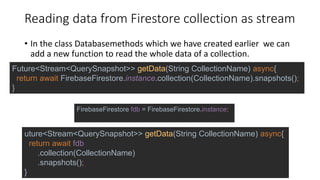
Reading data from Firestore collection as stream
• In the class Databasemethods which we have created earlier we can
add a new function to read the whole data of a collection.
Future<Stream<QuerySnapshot>> getData(String CollectionName) async{
return await FirebaseFirestore.instance.collection(CollectionName).snapshots();
}
uture<Stream<QuerySnapshot>> getData(String CollectionName) async{
return await fdb
.collection(CollectionName)
.snapshots();
}
FirebaseFirestore fdb = FirebaseFirestore.instance;
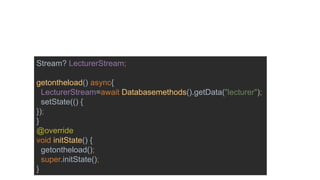
Stream? LecturerStream;
getontheload() async{
LecturerStream=await Databasemethods().getData("lecturer");
setState(() {
});
}
@override
void initState() {
getontheload();
super.initState();
}
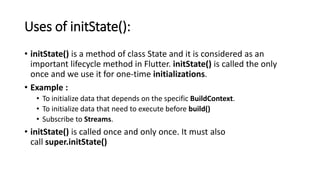
Uses of initState():
• initState() is a method of class State and it is considered as an
important lifecycle method in Flutter. initState() is called the only
once and we use it for one-time initializations.
• Example :
• To initialize data that depends on the specific BuildContext.
• To initialize data that need to execute before build()
• Subscribe to Streams.
• initState() is called once and only once. It must also
call super.initState()
Building the vessel for the data
Widget allLecDetails(){
return StreamBuilder(
>>> Stream builder settings <<<
? ListView.builder(
>>>ListView setting<<<
return Material(
>>> the card or material elements<<<
);
}):Container();
});
}
>>> Stream builder settings <<<
return StreamBuilder(
stream: LecturerStream,
builder:(context, AsyncSnapshot snapshot){
return snapshot.hasData
? ListView.builder(
>>>ListView setting<<<
? ListView.builder(
itemCount: snapshot.data.docs.length,
itemBuilder: (context, index){
DocumentSnapshot ds=snapshot.data.docs[index];
return Material(
StreamBuilder
• A StreamBuilder in Flutter is used to listen to a stream of data
and rebuild its widget subtree whenever new data is emitted by the
stream. It’s commonly used for real-time updates, such as when
working with streams of data from network requests, databases, or
other asynchronous sources.
return Material(
elevation: 5.0,
borderRadius: BorderRadius.circular(10),
child: Container(
padding: EdgeInsets.all(20),
width: MediaQuery.of(context).size.width,
decoration: BoxDecoration(color: Colors.white,borderRadius: BorderRadius.circular(10)),
child: Column(
crossAxisAlignment: CrossAxisAlignment.start,
children: [
Text("name : "+ds["lecName"],
style:TextStyle(color: Colors.blue,fontSize: 20.0, fontWeight: FontWeight.bold) ),
Text("college : "+ds["lecCol"],
style:TextStyle(color: Colors.blue,fontSize: 20.0, fontWeight: FontWeight.bold) ),
Text("Department : "+ds["lecDept"],
style:TextStyle(color: Colors.blue,fontSize: 20.0, fontWeight: FontWeight.bold) ),
Text("Phone No. : "+ds["lecPhNo"],
style:TextStyle(color: Colors.blue,fontSize: 20.0, fontWeight: FontWeight.bold) ),
],
),
),
);
@override
Widget build(BuildContext context) {
return Scaffold(
appBar: AppBar(
backgroundColor: Theme.of(context).colorScheme.inversePrimary,
title: Text(“Lecturers of Seiyun University"),
),
body: Padding(
padding: const EdgeInsets.all(16.0),
child: Column(
children: [
Expanded(child: allLecDetails()),
]
)
)
);
}
Read and show some specific data in a stream
Future<Stream<QuerySnapshot>> getselectedData
(String CollectionName,String docname,String docvalue) async{
return await FirebaseFirestore.instance
.collection(CollectionName)
.where(docname, isEqualTo: docvalue)
.snapshots();
}
child: Column(
children: [
TextField(
controller: collectionname,
),
TextField(
controller: docname,
),
TextField(
controller: docvalue,
),
ElevatedButton(
child: Text(
"‫"بحث‬,
style: TextStyle(
fontSize: 16.0,
),
),
),
]
)
onPressed: () async{
LecturerStream=await Databasemethods()
.getselectedData(collectionname.text,docname.text,docvalue.text)
.then((value) {
Navigator.push(
context,
MaterialPageRoute(
builder: (context) => Showdata(LecturerStream: value),
),
);
});
}
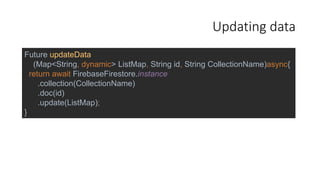
Updating data
Future updateData
(Map<String, dynamic> ListMap, String id, String CollectionName)async{
return await FirebaseFirestore.instance
.collection(CollectionName)
.doc(id)
.update(ListMap);
}
Future deleteData
(String id, String CollectionName)async{
return await FirebaseFirestore.instance
.collection(CollectionName)
.doc(id)
.delete();
}

Advance Mobile Application Development class 05

  • 1.
    Advance Mobile Application Development Firebasepart 2 Dr. Mazin Alkathiri IT Department Seiyun University 2023-2024
  • 2.
    Future addAnyData(Map<String, dynamic>ListMap, String id, String CollectionName)async{ return await FirebaseFirestore.instance .collection(CollectionName) .doc(id) .set(ListMap); } Future addData(Map<String, dynamic> DoctorsInfoMap, String id)async{ return await FirebaseFirestore.instance .collection("lecturer") .doc(id) .set(LecInfoMap); }
  • 3.
    Firestore • Used to •Store data • Add data • Modify data • Delete data • Firestore Store data as Documents and each Document inside a collection
  • 4.
    Reading data fromFirestore collection as stream • In the class Databasemethods which we have created earlier we can add a new function to read the whole data of a collection. Future<Stream<QuerySnapshot>> getData(String CollectionName) async{ return await FirebaseFirestore.instance.collection(CollectionName).snapshots(); } uture<Stream<QuerySnapshot>> getData(String CollectionName) async{ return await fdb .collection(CollectionName) .snapshots(); } FirebaseFirestore fdb = FirebaseFirestore.instance;
  • 5.
    Stream? LecturerStream; getontheload() async{ LecturerStream=awaitDatabasemethods().getData("lecturer"); setState(() { }); } @override void initState() { getontheload(); super.initState(); }
  • 6.
    Uses of initState(): •initState() is a method of class State and it is considered as an important lifecycle method in Flutter. initState() is called the only once and we use it for one-time initializations. • Example : • To initialize data that depends on the specific BuildContext. • To initialize data that need to execute before build() • Subscribe to Streams. • initState() is called once and only once. It must also call super.initState()
  • 7.
    Building the vesselfor the data Widget allLecDetails(){ return StreamBuilder( >>> Stream builder settings <<< ? ListView.builder( >>>ListView setting<<< return Material( >>> the card or material elements<<< ); }):Container(); }); } >>> Stream builder settings <<< return StreamBuilder( stream: LecturerStream, builder:(context, AsyncSnapshot snapshot){ return snapshot.hasData ? ListView.builder( >>>ListView setting<<< ? ListView.builder( itemCount: snapshot.data.docs.length, itemBuilder: (context, index){ DocumentSnapshot ds=snapshot.data.docs[index]; return Material(
  • 8.
    StreamBuilder • A StreamBuilderin Flutter is used to listen to a stream of data and rebuild its widget subtree whenever new data is emitted by the stream. It’s commonly used for real-time updates, such as when working with streams of data from network requests, databases, or other asynchronous sources.
  • 9.
    return Material( elevation: 5.0, borderRadius:BorderRadius.circular(10), child: Container( padding: EdgeInsets.all(20), width: MediaQuery.of(context).size.width, decoration: BoxDecoration(color: Colors.white,borderRadius: BorderRadius.circular(10)), child: Column( crossAxisAlignment: CrossAxisAlignment.start, children: [ Text("name : "+ds["lecName"], style:TextStyle(color: Colors.blue,fontSize: 20.0, fontWeight: FontWeight.bold) ), Text("college : "+ds["lecCol"], style:TextStyle(color: Colors.blue,fontSize: 20.0, fontWeight: FontWeight.bold) ), Text("Department : "+ds["lecDept"], style:TextStyle(color: Colors.blue,fontSize: 20.0, fontWeight: FontWeight.bold) ), Text("Phone No. : "+ds["lecPhNo"], style:TextStyle(color: Colors.blue,fontSize: 20.0, fontWeight: FontWeight.bold) ), ], ), ), );
  • 10.
    @override Widget build(BuildContext context){ return Scaffold( appBar: AppBar( backgroundColor: Theme.of(context).colorScheme.inversePrimary, title: Text(“Lecturers of Seiyun University"), ), body: Padding( padding: const EdgeInsets.all(16.0), child: Column( children: [ Expanded(child: allLecDetails()), ] ) ) ); }
  • 11.
    Read and showsome specific data in a stream Future<Stream<QuerySnapshot>> getselectedData (String CollectionName,String docname,String docvalue) async{ return await FirebaseFirestore.instance .collection(CollectionName) .where(docname, isEqualTo: docvalue) .snapshots(); }
  • 12.
    child: Column( children: [ TextField( controller:collectionname, ), TextField( controller: docname, ), TextField( controller: docvalue, ), ElevatedButton( child: Text( "‫"بحث‬, style: TextStyle( fontSize: 16.0, ), ), ), ] ) onPressed: () async{ LecturerStream=await Databasemethods() .getselectedData(collectionname.text,docname.text,docvalue.text) .then((value) { Navigator.push( context, MaterialPageRoute( builder: (context) => Showdata(LecturerStream: value), ), ); }); }
  • 13.
    Updating data Future updateData (Map<String,dynamic> ListMap, String id, String CollectionName)async{ return await FirebaseFirestore.instance .collection(CollectionName) .doc(id) .update(ListMap); }
  • 14.
    Future deleteData (String id,String CollectionName)async{ return await FirebaseFirestore.instance .collection(CollectionName) .doc(id) .delete(); }