Flutter for Beginners
Dr.T.Abirami
Associate Professor
Department of Information Technology
Kongu Engineering College Perundurai
abi.it@kongu.edu
9788654804
🦋 What is Flutter?
• Flutter is an open-source UI framework created by Google for building
beautiful, fast, cross-platform apps — from a single codebase.
• one set of Dart code to make:
✅ Android apps
✅ iOS apps
✅ Web apps
✅ Windows, macOS, and Linux desktop apps
💡 Write once, run anywhere.
🎯 Purpose / Why Flutter was created
• developers had to build separate apps for Android (Java/Kotlin) and
iOS (Swift/Objective-C).
Flutter’s goal is to remove that duplication.
Purpose:
• To build multi-platform apps using a single language (Dart).
• To give native performance and beautiful UI on every device.
• To make development faster using Hot Reload (you can see changes
instantly).
⚙️What is Flutter used for?
• Flutter is used to create:
🌍 Web apps (like dashboards, e-commerce sites, portals)
📱 Mobile apps (like Google Ads, Dream11, eBay Motors, BMW app)
💻 Desktop apps (like productivity or control panel tools)
🔌 Embedded UI (IoT devices, smart displays)
💡 Need for Flutter
•Develop Android + iOS + Web apps quickly.
•Maintain only one codebase instead of multiple.
•Create modern, visually rich UIs.
•Avoid learning multiple languages (Kotlin, Swift, JS).
•Save time, money, and reduce bugs across platforms.
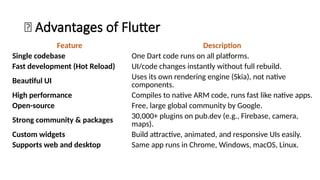
🚀 Advantages of Flutter
Feature Description
Single codebase One Dart code runs on all platforms.
Fast development (Hot Reload) UI/code changes instantly without full rebuild.
Beautiful UI Uses its own rendering engine (Skia), not native
components.
High performance Compiles to native ARM code, runs fast like native apps.
Open-source Free, large global community by Google.
Strong community & packages 30,000+ plugins on pub.dev (e.g., Firebase, camera,
maps).
Custom widgets Build attractive, animated, and responsive UIs easily.
Supports web and desktop Same app runs in Chrome, Windows, macOS, Linux.
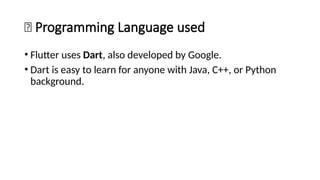
🧩 Programming Language used
• Flutter uses Dart, also developed by Google.
• Dart is easy to learn for anyone with Java, C++, or Python
background.
️
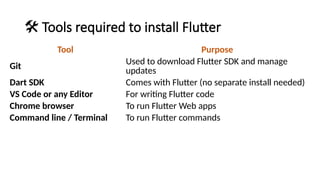
🛠️Tools required to install Flutter
Tool Purpose
Git Used to download Flutter SDK and manage
updates
Dart SDK Comes with Flutter (no separate install needed)
VS Code or any Editor For writing Flutter code
Chrome browser To run Flutter Web apps
Command line / Terminal To run Flutter commands
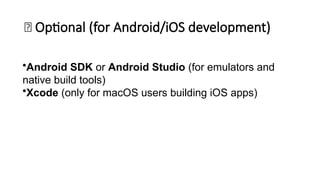
🧩 Optional (for Android/iOS development)
•Android SDK or Android Studio (for emulators and
native build tools)
•Xcode (only for macOS users building iOS apps)
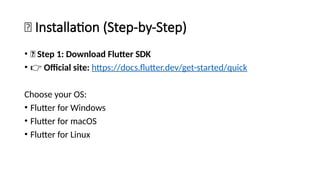
🧭 Installation (Step-by-Step)
• 🔹 Step 1: Download Flutter SDK
• 👉 Official site: https://docs.flutter.dev/get-started/quick
Choose your OS:
• Flutter for Windows
• Flutter for macOS
• Flutter for Linux
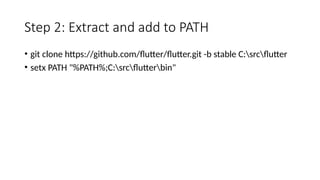
Step 2: Extract and add to PATH
• git clone https://github.com/flutter/flutter.git -b stable C:srcflutter
• setx PATH "%PATH%;C:srcflutterbin"
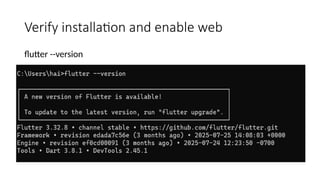
Verify installation and enable web
flutter --version
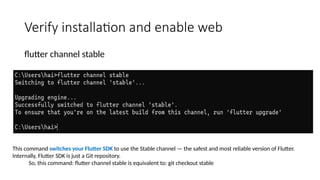
Verify installation and enable web
flutter channel stable
This command switches your Flutter SDK to use the Stable channel — the safest and most reliable version of Flutter.
Internally, Flutter SDK is just a Git repository.
So, this command: flutter channel stable is equivalent to: git checkout stable
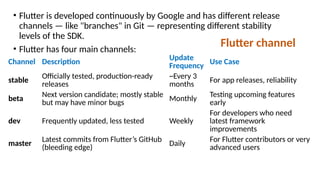
• Flutter is developed continuously by Google and has different release
channels — like "branches" in Git — representing different stability
levels of the SDK.
• Flutter has four main channels:
Channel Description
Update
Frequency Use Case
stable Officially tested, production-ready
releases
~Every 3
months
For app releases, reliability
beta
Next version candidate; mostly stable
but may have minor bugs Monthly
Testing upcoming features
early
dev Frequently updated, less tested Weekly
For developers who need
latest framework
improvements
master
Latest commits from Flutter’s GitHub
(bleeding edge) Daily
For Flutter contributors or very
advanced users
Flutter channel
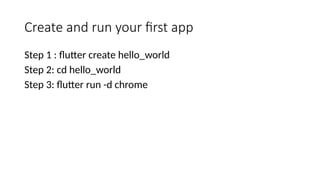
Create and run your first app
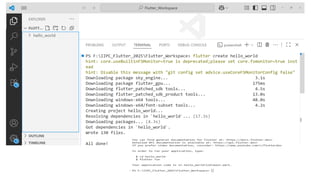
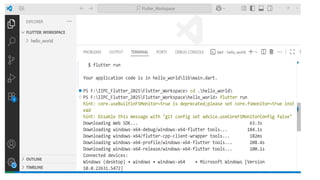
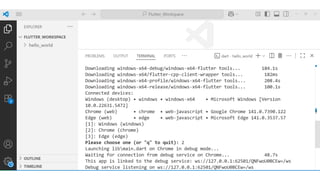
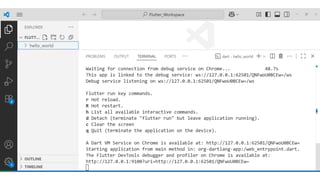
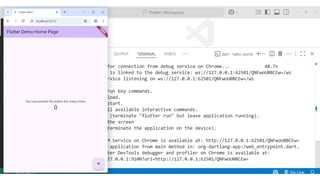
Step 1 : flutter create hello_world
Step 2: cd hello_world
Step 3: flutter run -d chrome
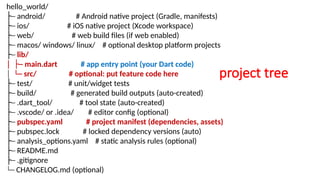
project tree
hello_world/
─
├ android/ # Android native project (Gradle, manifests)
─
├ ios/ # iOS native project (Xcode workspace)
─
├ web/ # web build files (if web enabled)
─
├ macos/ windows/ linux/ # optional desktop platform projects
─
├ lib/
│ ─
├ main.dart # app entry point (your Dart code)
│ └─ src/ # optional: put feature code here
─
├ test/ # unit/widget tests
─
├ build/ # generated build outputs (auto-created)
─
├ .dart_tool/ # tool state (auto-created)
─
├ .vscode/ or .idea/ # editor config (optional)
─
├ pubspec.yaml # project manifest (dependencies, assets)
─
├ pubspec.lock # locked dependency versions (auto)
─
├ analysis_options.yaml # static analysis rules (optional)
─
├ README.md
─
├ .gitignore
└─ CHANGELOG.md (optional)
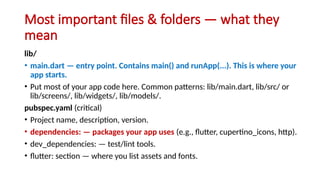
Most important files & folders — what they
mean
lib/
• main.dart — entry point. Contains main() and runApp(...). This is where your
app starts.
• Put most of your app code here. Common patterns: lib/main.dart, lib/src/ or
lib/screens/, lib/widgets/, lib/models/.
pubspec.yaml (critical)
• Project name, description, version.
• dependencies: — packages your app uses (e.g., flutter, cupertino_icons, http).
• dev_dependencies: — test/lint tools.
• flutter: section — where you list assets and fonts.
Flutter Programming
https://api.flutter.dev/index.html
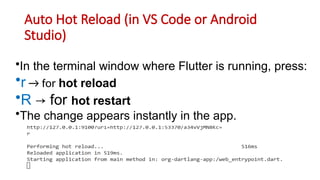
Auto Hot Reload (in VS Code or Android
Studio)
•In the terminal window where Flutter is running, press:
•r → for hot reload
•R → for hot restart
•The change appears instantly in the app.
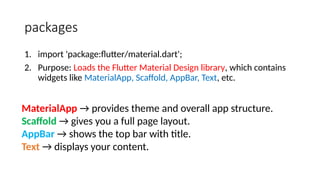
packages
1. import 'package:flutter/material.dart';
2. Purpose: Loads the Flutter Material Design library, which contains
widgets like MaterialApp, Scaffold, AppBar, Text, etc.
MaterialApp → provides theme and overall app structure.
Scaffold → gives you a full page layout.
AppBar → shows the top bar with title.
Text → displays your content.
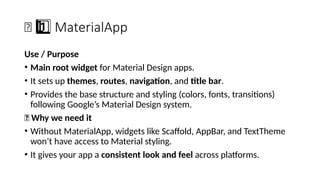
🧱 MaterialApp
1 ️
1️⃣
Use / Purpose
• Main root widget for Material Design apps.
• It sets up themes, routes, navigation, and title bar.
• Provides the base structure and styling (colors, fonts, transitions)
following Google’s Material Design system.
🔹 Why we need it
• Without MaterialApp, widgets like Scaffold, AppBar, and TextTheme
won’t have access to Material styling.
• It gives your app a consistent look and feel across platforms.
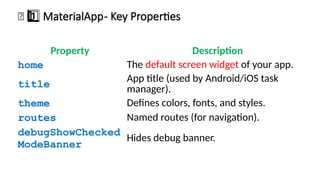
Property Description
home The default screen widget of your app.
title
App title (used by Android/iOS task
manager).
theme Defines colors, fonts, and styles.
routes Named routes (for navigation).
debugShowChecked
ModeBanner
Hides debug banner.
🧱 1 ️
1️⃣MaterialApp- Key Properties
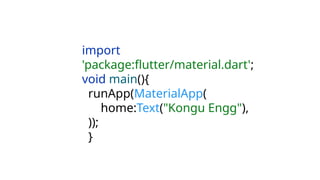
import
'package:flutter/material.dart';
void main(){
runApp(MaterialApp(
home:Text("Kongu Engg"),
));
}
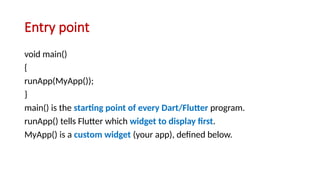
Entry point
void main()
{
runApp(MyApp());
}
main() is the starting point of every Dart/Flutter program.
runApp() tells Flutter which widget to display first.
MyApp() is a custom widget (your app), defined below.
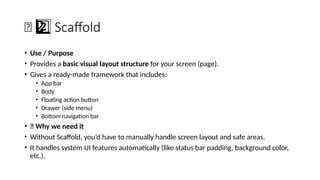
🧩 Scaffold
2 ️
2️⃣
• Use / Purpose
• Provides a basic visual layout structure for your screen (page).
• Gives a ready-made framework that includes:
• App bar
• Body
• Floating action button
• Drawer (side menu)
• Bottom navigation bar
• 🔹 Why we need it
• Without Scaffold, you’d have to manually handle screen layout and safe areas.
• It handles system UI features automatically (like status bar padding, background color,
etc.).
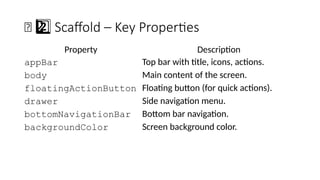
Property Description
appBar Top bar with title, icons, actions.
body Main content of the screen.
floatingActionButton Floating button (for quick actions).
drawer Side navigation menu.
bottomNavigationBar Bottom bar navigation.
backgroundColor Screen background color.
🧩 Scaffold – Key Properties
2 ️
2️⃣
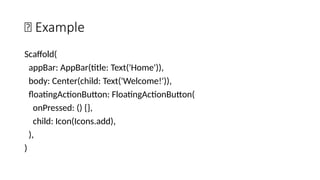
🔹 Example
Scaffold(
appBar: AppBar(title: Text('Home')),
body: Center(child: Text('Welcome!')),
floatingActionButton: FloatingActionButton(
onPressed: () {},
child: Icon(Icons.add),
),
)
️
🎛️3️⃣AppBar
• 🔹 Use / Purpose
• The top bar (header) of your app screen.
• Used to show title, actions (like search, menu, settings), and
navigation icons (back button, drawer icon).
• 🔹 Why we need it
• Gives a consistent and beautiful top header across all screens.
• Provides built-in animation and system integration.
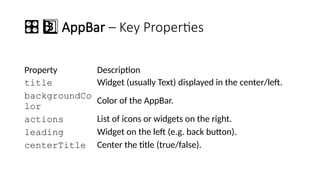
🎛️3 ️
3️⃣AppBar – Key Properties
Property Description
title Widget (usually Text) displayed in the center/left.
backgroundCo
lor
Color of the AppBar.
actions List of icons or widgets on the right.
leading Widget on the left (e.g. back button).
centerTitle Center the title (true/false).
🔹 Example
AppBar(
title: Text('Kongu Engg'),
backgroundColor: Colors.blueAccent,
actions: [
IconButton(onPressed: () {}, icon: Icon(Icons.search)),
],
)
✍️4️⃣Text
• 🔹 Use / Purpose
• Displays a string of text on the screen.
• One of the simplest but most-used widgets in Flutter.
• 🔹 Why we need it
• Every label, title, or message on your screen uses a Text widget.
• Highly customizable for style, font, color, and alignment.
✍️4 ️
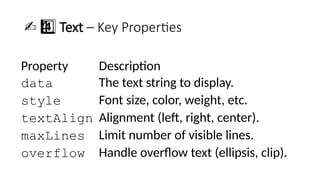
4️⃣Text – Key Properties
Property Description
data The text string to display.
style Font size, color, weight, etc.
textAlign Alignment (left, right, center).
maxLines Limit number of visible lines.
overflow Handle overflow text (ellipsis, clip).
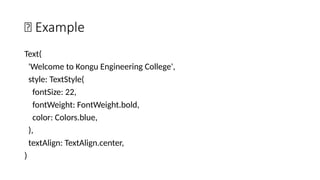
🔹 Example
Text(
'Welcome to Kongu Engineering College',
style: TextStyle(
fontSize: 22,
fontWeight: FontWeight.bold,
color: Colors.blue,
),
textAlign: TextAlign.center,
)
🧱 What is a Widget?
1️
1️
⃣
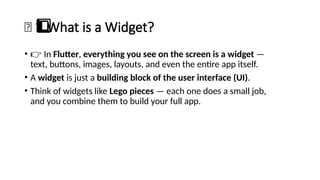
• 👉 In Flutter, everything you see on the screen is a widget —
text, buttons, images, layouts, and even the entire app itself.
• A widget is just a building block of the user interface (UI).
• Think of widgets like Lego pieces — each one does a small job,
and you combine them to build your full app.
🎯 Purpose of a Widget
2️
⃣
• Widgets are used to:
• Build the UI layout.
• Manage the state (data that changes on screen).
• Handle user interactions (like button taps).
• Apply styling and themes.
• In short: a widget tells Flutter what to draw and how to behave.
⚙️ Why we need Widgets
3️
3️
⃣
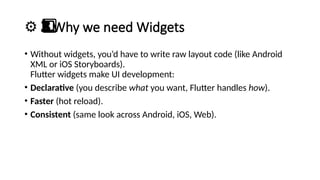
• Without widgets, you’d have to write raw layout code (like Android
XML or iOS Storyboards).
Flutter widgets make UI development:
• Declarative (you describe what you want, Flutter handles how).
• Faster (hot reload).
• Consistent (same look across Android, iOS, Web).
🧩 Types of Widgets
4️
⃣
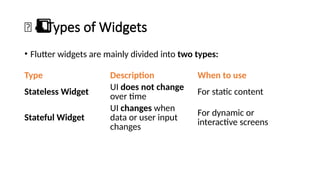
• Flutter widgets are mainly divided into two types:
Type Description When to use
Stateless Widget UI does not change
over time For static content
Stateful Widget
UI changes when
data or user input
changes
For dynamic or
interactive screens
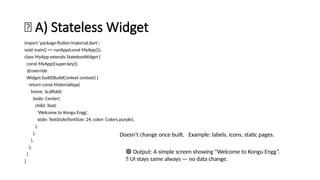
🧱 A) Stateless Widget
import 'package:flutter/material.dart';
void main() => runApp(const MyApp());
class MyApp extends StatelessWidget {
const MyApp({super.key});
@override
Widget build(BuildContext context) {
return const MaterialApp(
home: Scaffold(
body: Center(
child: Text(
'Welcome to Kongu Engg',
style: TextStyle(fontSize: 24, color: Colors.purple),
),
),
),
);
}
}
Doesn’t change once built. Example: labels, icons, static pages.
🟢 Output: A simple screen showing “Welcome to Kongu Engg”.
🧠 UI stays same always — no data change.
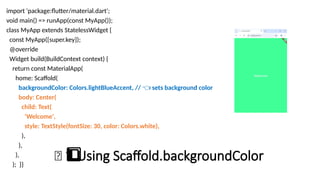
🎨 Using Scaffold.backgroundColor
1️
1️
⃣
import 'package:flutter/material.dart';
void main() => runApp(const MyApp());
class MyApp extends StatelessWidget {
const MyApp({super.key});
@override
Widget build(BuildContext context) {
return const MaterialApp(
home: Scaffold(
backgroundColor: Colors.lightBlueAccent, // sets background color
👈
body: Center(
child: Text(
'Welcome',
style: TextStyle(fontSize: 30, color: Colors.white),
),
),
),
); }}
✅ Flutter Code: Get name and print it
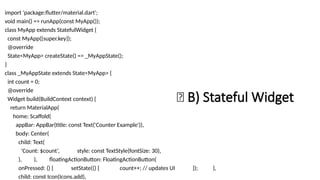
🔁 B) Stateful Widget
import 'package:flutter/material.dart';
void main() => runApp(const MyApp());
class MyApp extends StatefulWidget {
const MyApp({super.key});
@override
State<MyApp> createState() => _MyAppState();
}
class _MyAppState extends State<MyApp> {
int count = 0;
@override
Widget build(BuildContext context) {
return MaterialApp(
home: Scaffold(
appBar: AppBar(title: const Text('Counter Example')),
body: Center(
child: Text(
'Count: $count’, style: const TextStyle(fontSize: 30),
), ), floatingActionButton: FloatingActionButton(
onPressed: () { setState(() { count++; // updates UI }); },
child: const Icon(Icons.add),
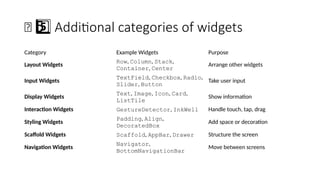
🧠 Additional categories of widgets
5 ️
5️⃣
Category Example Widgets Purpose
Layout Widgets
Row, Column, Stack,
Container, Center
Arrange other widgets
Input Widgets
TextField, Checkbox, Radio,
Slider, Button
Take user input
Display Widgets
Text, Image, Icon, Card,
ListTile
Show information
Interaction Widgets GestureDetector, InkWell Handle touch, tap, drag
Styling Widgets
Padding, Align,
DecoratedBox
Add space or decoration
Scaffold Widgets Scaffold, AppBar, Drawer Structure the screen
Navigation Widgets
Navigator,
BottomNavigationBar
Move between screens
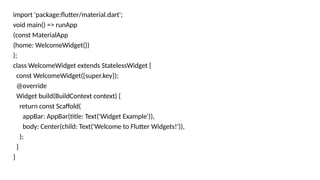
import 'package:flutter/material.dart';
void main() => runApp
(const MaterialApp
(home: WelcomeWidget())
);
class WelcomeWidget extends StatelessWidget {
const WelcomeWidget({super.key});
@override
Widget build(BuildContext context) {
return const Scaffold(
appBar: AppBar(title: Text('Widget Example')),
body: Center(child: Text('Welcome to Flutter Widgets!')),
);
}
}
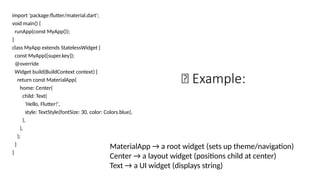
🧩 Example:
import 'package:flutter/material.dart';
void main() {
runApp(const MyApp());
}
class MyApp extends StatelessWidget {
const MyApp({super.key});
@override
Widget build(BuildContext context) {
return const MaterialApp(
home: Center(
child: Text(
'Hello, Flutter!',
style: TextStyle(fontSize: 30, color: Colors.blue),
),
),
);
}
}
MaterialApp → a root widget (sets up theme/navigation)
Center → a layout widget (positions child at center)
Text → a UI widget (displays string)
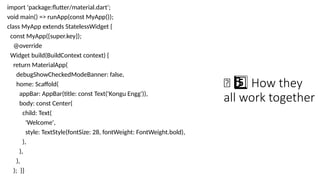
🧠 How they
5 ️
5️⃣
all work together
import 'package:flutter/material.dart';
void main() => runApp(const MyApp());
class MyApp extends StatelessWidget {
const MyApp({super.key});
@override
Widget build(BuildContext context) {
return MaterialApp(
debugShowCheckedModeBanner: false,
home: Scaffold(
appBar: AppBar(title: const Text('Kongu Engg')),
body: const Center(
child: Text(
'Welcome',
style: TextStyle(fontSize: 28, fontWeight: FontWeight.bold),
),
),
),
); }}
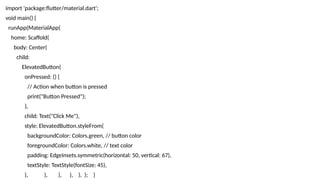
import 'package:flutter/material.dart';
void main() {
runApp(MaterialApp(
home: Scaffold(
body: Center(
child:
ElevatedButton(
onPressed: () {
// Action when button is pressed
print("Button Pressed");
},
child: Text("Click Me"),
style: ElevatedButton.styleFrom(
backgroundColor: Colors.green, // button color
foregroundColor: Colors.white, // text color
padding: EdgeInsets.symmetric(horizontal: 50, vertical: 67),
textStyle: TextStyle(fontSize: 45),
), ), ), ), ), ); }
Example: Rectangle ElevatedButton
shape: RoundedRectangleBorder( // Rectangle shape
👇
borderRadius: BorderRadius.zero,
),
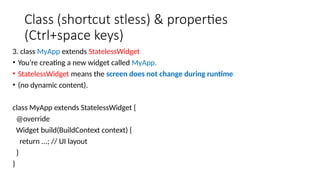
Class (shortcut stless) & properties
(Ctrl+space keys)
3. class MyApp extends StatelessWidget
• You’re creating a new widget called MyApp.
• StatelessWidget means the screen does not change during runtime
• (no dynamic content).
class MyApp extends StatelessWidget {
@override
Widget build(BuildContext context) {
return ...; // UI layout
}
}
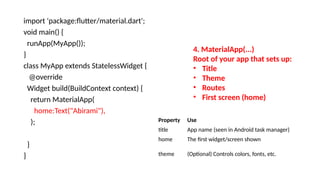
import 'package:flutter/material.dart';
void main() {
runApp(MyApp());
}
class MyApp extends StatelessWidget {
@override
Widget build(BuildContext context) {
return MaterialApp(
home:Text("Abirami"),
);
}
}
4. MaterialApp(...)
Root of your app that sets up:
• Title
• Theme
• Routes
• First screen (home)
Property Use
title App name (seen in Android task manager)
home The first widget/screen shown
theme (Optional) Controls colors, fonts, etc.
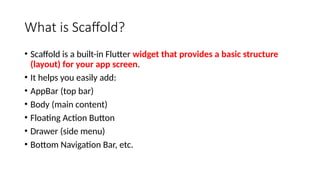
What is Scaffold?
• Scaffold is a built-in Flutter widget that provides a basic structure
(layout) for your app screen.
• It helps you easily add:
• AppBar (top bar)
• Body (main content)
• Floating Action Button
• Drawer (side menu)
• Bottom Navigation Bar, etc.
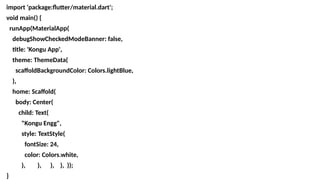
import 'package:flutter/material.dart';
void main() {
runApp(MaterialApp(
debugShowCheckedModeBanner: false,
title: 'Kongu App',
theme: ThemeData(
scaffoldBackgroundColor: Colors.lightBlue,
),
home: Scaffold(
body: Center(
child: Text(
"Kongu Engg",
style: TextStyle(
fontSize: 24,
color: Colors.white,
), ), ), ), ));
}
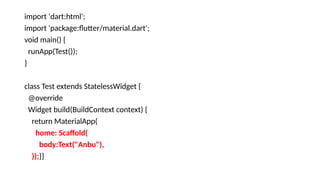
import 'dart:html';
import 'package:flutter/material.dart';
void main() {
runApp(Test());
}
class Test extends StatelessWidget {
@override
Widget build(BuildContext context) {
return MaterialApp(
home: Scaffold(
body:Text("Anbu"),
));}}
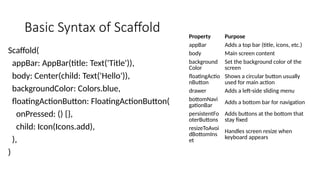
Basic Syntax of Scaffold
Scaffold(
appBar: AppBar(title: Text('Title')),
body: Center(child: Text('Hello')),
backgroundColor: Colors.blue,
floatingActionButton: FloatingActionButton(
onPressed: () {},
child: Icon(Icons.add),
),
)
Property Purpose
appBar Adds a top bar (title, icons, etc.)
body Main screen content
background
Color
Set the background color of the
screen
floatingActio
nButton
Shows a circular button usually
used for main action
drawer Adds a left-side sliding menu
bottomNavi
gationBar Adds a bottom bar for navigation
persistentFo
oterButtons
Adds buttons at the bottom that
stay fixed
resizeToAvoi
dBottomIns
et
Handles screen resize when
keyboard appears
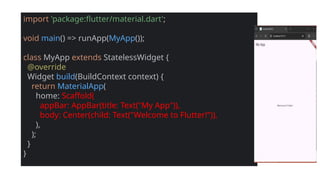
import 'package:flutter/material.dart';
void main() => runApp(MyApp());
class MyApp extends StatelessWidget {
@override
Widget build(BuildContext context) {
return MaterialApp(
home: Scaffold(
appBar: AppBar(title: Text("My App")),
body: Center(child: Text("Welcome to Flutter!")),
),
);
}
}
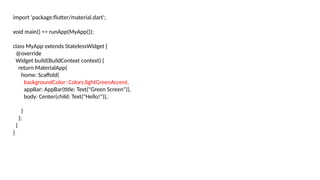
import 'package:flutter/material.dart';
void main() => runApp(MyApp());
class MyApp extends StatelessWidget {
@override
Widget build(BuildContext context) {
return MaterialApp(
home: Scaffold(
backgroundColor: Colors.lightGreenAccent,
appBar: AppBar(title: Text("Green Screen")),
body: Center(child: Text("Hello!")),
)
);
}
}
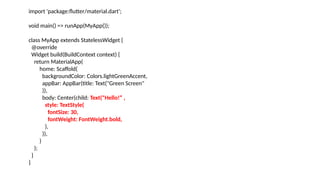
import 'package:flutter/material.dart';
void main() => runApp(MyApp());
class MyApp extends StatelessWidget {
@override
Widget build(BuildContext context) {
return MaterialApp(
home: Scaffold(
backgroundColor: Colors.lightGreenAccent,
appBar: AppBar(title: Text("Green Screen"
)),
body: Center(child: Text("Hello!“ ,
style: TextStyle(
fontSize: 30,
fontWeight: FontWeight.bold,
),
)),
)
);
}
}
Screen – background image
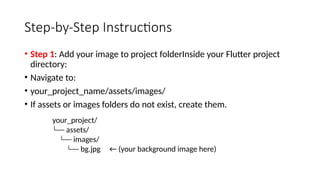
Step-by-Step Instructions
• Step 1: Add your image to project folderInside your Flutter project
directory:
• Navigate to:
• your_project_name/assets/images/
• If assets or images folders do not exist, create them.
your_project/
└── assets/
└── images/
└── bg.jpg ← (your background image here)
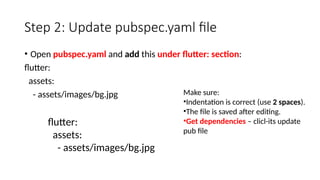
Step 2: Update pubspec.yaml file
• Open pubspec.yaml and add this under flutter: section:
flutter:
assets:
- assets/images/bg.jpg
flutter:
assets:
- assets/images/bg.jpg
Make sure:
•Indentation is correct (use 2 spaces).
•The file is saved after editing.
•Get dependencies – clicl-its update
pub file
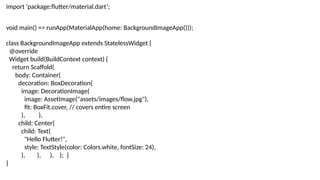
import 'package:flutter/material.dart’;
void main() => runApp(MaterialApp(home: BackgroundImageApp()));
class BackgroundImageApp extends StatelessWidget {
@override
Widget build(BuildContext context) {
return Scaffold(
body: Container(
decoration: BoxDecoration(
image: DecorationImage(
image: AssetImage("assets/images/flow.jpg"),
fit: BoxFit.cover, // covers entire screen
), ),
child: Center(
child: Text(
"Hello Flutter!",
style: TextStyle(color: Colors.white, fontSize: 24),
), ), ), ); }
}
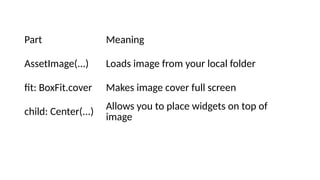
Part Meaning
AssetImage(...) Loads image from your local folder
fit: BoxFit.cover Makes image cover full screen
child: Center(...)
Allows you to place widgets on top of
image
ImageButton
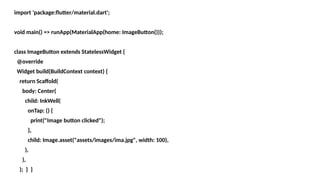
import 'package:flutter/material.dart';
void main() => runApp(MaterialApp(home: ImageButton()));
class ImageButton extends StatelessWidget {
@override
Widget build(BuildContext context) {
return Scaffold(
body: Center(
child: InkWell(
onTap: () {
print("Image button clicked");
},
child: Image.asset("assets/images/ima.jpg", width: 100),
),
),
); } }
Clickable image icon (like a
button)
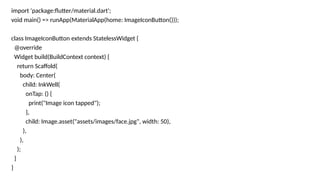
import 'package:flutter/material.dart';
void main() => runApp(MaterialApp(home: ImageIconButton()));
class ImageIconButton extends StatelessWidget {
@override
Widget build(BuildContext context) {
return Scaffold(
body: Center(
child: InkWell(
onTap: () {
print("Image icon tapped");
},
child: Image.asset("assets/images/face.jpg", width: 50),
),
),
);
}
}

Flutter for Beginners widgets types.pptx

  • 1.
    Flutter for Beginners Dr.T.Abirami AssociateProfessor Department of Information Technology Kongu Engineering College Perundurai abi.it@kongu.edu 9788654804
  • 2.
    🦋 What isFlutter? • Flutter is an open-source UI framework created by Google for building beautiful, fast, cross-platform apps — from a single codebase. • one set of Dart code to make: ✅ Android apps ✅ iOS apps ✅ Web apps ✅ Windows, macOS, and Linux desktop apps 💡 Write once, run anywhere.
  • 3.
    🎯 Purpose /Why Flutter was created • developers had to build separate apps for Android (Java/Kotlin) and iOS (Swift/Objective-C). Flutter’s goal is to remove that duplication. Purpose: • To build multi-platform apps using a single language (Dart). • To give native performance and beautiful UI on every device. • To make development faster using Hot Reload (you can see changes instantly).
  • 4.
    ⚙️What is Flutterused for? • Flutter is used to create: 🌍 Web apps (like dashboards, e-commerce sites, portals) 📱 Mobile apps (like Google Ads, Dream11, eBay Motors, BMW app) 💻 Desktop apps (like productivity or control panel tools) 🔌 Embedded UI (IoT devices, smart displays)
  • 5.
    💡 Need forFlutter •Develop Android + iOS + Web apps quickly. •Maintain only one codebase instead of multiple. •Create modern, visually rich UIs. •Avoid learning multiple languages (Kotlin, Swift, JS). •Save time, money, and reduce bugs across platforms.
  • 6.
    🚀 Advantages ofFlutter Feature Description Single codebase One Dart code runs on all platforms. Fast development (Hot Reload) UI/code changes instantly without full rebuild. Beautiful UI Uses its own rendering engine (Skia), not native components. High performance Compiles to native ARM code, runs fast like native apps. Open-source Free, large global community by Google. Strong community & packages 30,000+ plugins on pub.dev (e.g., Firebase, camera, maps). Custom widgets Build attractive, animated, and responsive UIs easily. Supports web and desktop Same app runs in Chrome, Windows, macOS, Linux.
  • 7.
    🧩 Programming Languageused • Flutter uses Dart, also developed by Google. • Dart is easy to learn for anyone with Java, C++, or Python background.
  • 8.
    ️ 🛠️Tools required toinstall Flutter Tool Purpose Git Used to download Flutter SDK and manage updates Dart SDK Comes with Flutter (no separate install needed) VS Code or any Editor For writing Flutter code Chrome browser To run Flutter Web apps Command line / Terminal To run Flutter commands
  • 9.
    🧩 Optional (forAndroid/iOS development) •Android SDK or Android Studio (for emulators and native build tools) •Xcode (only for macOS users building iOS apps)
  • 10.
    🧭 Installation (Step-by-Step) •🔹 Step 1: Download Flutter SDK • 👉 Official site: https://docs.flutter.dev/get-started/quick Choose your OS: • Flutter for Windows • Flutter for macOS • Flutter for Linux
  • 11.
    Step 2: Extractand add to PATH • git clone https://github.com/flutter/flutter.git -b stable C:srcflutter • setx PATH "%PATH%;C:srcflutterbin"
  • 12.
    Verify installation andenable web flutter --version
  • 13.
    Verify installation andenable web flutter channel stable This command switches your Flutter SDK to use the Stable channel — the safest and most reliable version of Flutter. Internally, Flutter SDK is just a Git repository. So, this command: flutter channel stable is equivalent to: git checkout stable
  • 14.
    • Flutter isdeveloped continuously by Google and has different release channels — like "branches" in Git — representing different stability levels of the SDK. • Flutter has four main channels: Channel Description Update Frequency Use Case stable Officially tested, production-ready releases ~Every 3 months For app releases, reliability beta Next version candidate; mostly stable but may have minor bugs Monthly Testing upcoming features early dev Frequently updated, less tested Weekly For developers who need latest framework improvements master Latest commits from Flutter’s GitHub (bleeding edge) Daily For Flutter contributors or very advanced users Flutter channel
  • 15.
    Create and runyour first app Step 1 : flutter create hello_world Step 2: cd hello_world Step 3: flutter run -d chrome
  • 21.
    project tree hello_world/ ─ ├ android/# Android native project (Gradle, manifests) ─ ├ ios/ # iOS native project (Xcode workspace) ─ ├ web/ # web build files (if web enabled) ─ ├ macos/ windows/ linux/ # optional desktop platform projects ─ ├ lib/ │ ─ ├ main.dart # app entry point (your Dart code) │ └─ src/ # optional: put feature code here ─ ├ test/ # unit/widget tests ─ ├ build/ # generated build outputs (auto-created) ─ ├ .dart_tool/ # tool state (auto-created) ─ ├ .vscode/ or .idea/ # editor config (optional) ─ ├ pubspec.yaml # project manifest (dependencies, assets) ─ ├ pubspec.lock # locked dependency versions (auto) ─ ├ analysis_options.yaml # static analysis rules (optional) ─ ├ README.md ─ ├ .gitignore └─ CHANGELOG.md (optional)
  • 22.
    Most important files& folders — what they mean lib/ • main.dart — entry point. Contains main() and runApp(...). This is where your app starts. • Put most of your app code here. Common patterns: lib/main.dart, lib/src/ or lib/screens/, lib/widgets/, lib/models/. pubspec.yaml (critical) • Project name, description, version. • dependencies: — packages your app uses (e.g., flutter, cupertino_icons, http). • dev_dependencies: — test/lint tools. • flutter: section — where you list assets and fonts.
  • 23.
  • 24.
    Auto Hot Reload(in VS Code or Android Studio) •In the terminal window where Flutter is running, press: •r → for hot reload •R → for hot restart •The change appears instantly in the app.
  • 25.
    packages 1. import 'package:flutter/material.dart'; 2.Purpose: Loads the Flutter Material Design library, which contains widgets like MaterialApp, Scaffold, AppBar, Text, etc. MaterialApp → provides theme and overall app structure. Scaffold → gives you a full page layout. AppBar → shows the top bar with title. Text → displays your content.
  • 26.
    🧱 MaterialApp 1 ️ 1️⃣ Use/ Purpose • Main root widget for Material Design apps. • It sets up themes, routes, navigation, and title bar. • Provides the base structure and styling (colors, fonts, transitions) following Google’s Material Design system. 🔹 Why we need it • Without MaterialApp, widgets like Scaffold, AppBar, and TextTheme won’t have access to Material styling. • It gives your app a consistent look and feel across platforms.
  • 27.
    Property Description home Thedefault screen widget of your app. title App title (used by Android/iOS task manager). theme Defines colors, fonts, and styles. routes Named routes (for navigation). debugShowChecked ModeBanner Hides debug banner. 🧱 1 ️ 1️⃣MaterialApp- Key Properties
  • 28.
  • 29.
    Entry point void main() { runApp(MyApp()); } main()is the starting point of every Dart/Flutter program. runApp() tells Flutter which widget to display first. MyApp() is a custom widget (your app), defined below.
  • 30.
    🧩 Scaffold 2 ️ 2️⃣ •Use / Purpose • Provides a basic visual layout structure for your screen (page). • Gives a ready-made framework that includes: • App bar • Body • Floating action button • Drawer (side menu) • Bottom navigation bar • 🔹 Why we need it • Without Scaffold, you’d have to manually handle screen layout and safe areas. • It handles system UI features automatically (like status bar padding, background color, etc.).
  • 31.
    Property Description appBar Topbar with title, icons, actions. body Main content of the screen. floatingActionButton Floating button (for quick actions). drawer Side navigation menu. bottomNavigationBar Bottom bar navigation. backgroundColor Screen background color. 🧩 Scaffold – Key Properties 2 ️ 2️⃣
  • 32.
    🔹 Example Scaffold( appBar: AppBar(title:Text('Home')), body: Center(child: Text('Welcome!')), floatingActionButton: FloatingActionButton( onPressed: () {}, child: Icon(Icons.add), ), )
  • 33.
    ️ 🎛️3️⃣AppBar • 🔹 Use/ Purpose • The top bar (header) of your app screen. • Used to show title, actions (like search, menu, settings), and navigation icons (back button, drawer icon). • 🔹 Why we need it • Gives a consistent and beautiful top header across all screens. • Provides built-in animation and system integration.
  • 34.
    🎛️3 ️ 3️⃣AppBar –Key Properties Property Description title Widget (usually Text) displayed in the center/left. backgroundCo lor Color of the AppBar. actions List of icons or widgets on the right. leading Widget on the left (e.g. back button). centerTitle Center the title (true/false).
  • 35.
    🔹 Example AppBar( title: Text('KonguEngg'), backgroundColor: Colors.blueAccent, actions: [ IconButton(onPressed: () {}, icon: Icon(Icons.search)), ], )
  • 36.
    ✍️4️⃣Text • 🔹 Use/ Purpose • Displays a string of text on the screen. • One of the simplest but most-used widgets in Flutter. • 🔹 Why we need it • Every label, title, or message on your screen uses a Text widget. • Highly customizable for style, font, color, and alignment.
  • 37.
    ✍️4 ️ 4️⃣Text –Key Properties Property Description data The text string to display. style Font size, color, weight, etc. textAlign Alignment (left, right, center). maxLines Limit number of visible lines. overflow Handle overflow text (ellipsis, clip).
  • 38.
    🔹 Example Text( 'Welcome toKongu Engineering College', style: TextStyle( fontSize: 22, fontWeight: FontWeight.bold, color: Colors.blue, ), textAlign: TextAlign.center, )
  • 39.
    🧱 What isa Widget? 1️ 1️ ⃣ • 👉 In Flutter, everything you see on the screen is a widget — text, buttons, images, layouts, and even the entire app itself. • A widget is just a building block of the user interface (UI). • Think of widgets like Lego pieces — each one does a small job, and you combine them to build your full app.
  • 40.
    🎯 Purpose ofa Widget 2️ ⃣ • Widgets are used to: • Build the UI layout. • Manage the state (data that changes on screen). • Handle user interactions (like button taps). • Apply styling and themes. • In short: a widget tells Flutter what to draw and how to behave.
  • 41.
    ⚙️ Why weneed Widgets 3️ 3️ ⃣ • Without widgets, you’d have to write raw layout code (like Android XML or iOS Storyboards). Flutter widgets make UI development: • Declarative (you describe what you want, Flutter handles how). • Faster (hot reload). • Consistent (same look across Android, iOS, Web).
  • 42.
    🧩 Types ofWidgets 4️ ⃣ • Flutter widgets are mainly divided into two types: Type Description When to use Stateless Widget UI does not change over time For static content Stateful Widget UI changes when data or user input changes For dynamic or interactive screens
  • 43.
    🧱 A) StatelessWidget import 'package:flutter/material.dart'; void main() => runApp(const MyApp()); class MyApp extends StatelessWidget { const MyApp({super.key}); @override Widget build(BuildContext context) { return const MaterialApp( home: Scaffold( body: Center( child: Text( 'Welcome to Kongu Engg', style: TextStyle(fontSize: 24, color: Colors.purple), ), ), ), ); } } Doesn’t change once built. Example: labels, icons, static pages. 🟢 Output: A simple screen showing “Welcome to Kongu Engg”. 🧠 UI stays same always — no data change.
  • 44.
    🎨 Using Scaffold.backgroundColor 1️ 1️ ⃣ import'package:flutter/material.dart'; void main() => runApp(const MyApp()); class MyApp extends StatelessWidget { const MyApp({super.key}); @override Widget build(BuildContext context) { return const MaterialApp( home: Scaffold( backgroundColor: Colors.lightBlueAccent, // sets background color 👈 body: Center( child: Text( 'Welcome', style: TextStyle(fontSize: 30, color: Colors.white), ), ), ), ); }}
  • 45.
    ✅ Flutter Code:Get name and print it
  • 46.
    🔁 B) StatefulWidget import 'package:flutter/material.dart'; void main() => runApp(const MyApp()); class MyApp extends StatefulWidget { const MyApp({super.key}); @override State<MyApp> createState() => _MyAppState(); } class _MyAppState extends State<MyApp> { int count = 0; @override Widget build(BuildContext context) { return MaterialApp( home: Scaffold( appBar: AppBar(title: const Text('Counter Example')), body: Center( child: Text( 'Count: $count’, style: const TextStyle(fontSize: 30), ), ), floatingActionButton: FloatingActionButton( onPressed: () { setState(() { count++; // updates UI }); }, child: const Icon(Icons.add),
  • 47.
    🧠 Additional categoriesof widgets 5 ️ 5️⃣ Category Example Widgets Purpose Layout Widgets Row, Column, Stack, Container, Center Arrange other widgets Input Widgets TextField, Checkbox, Radio, Slider, Button Take user input Display Widgets Text, Image, Icon, Card, ListTile Show information Interaction Widgets GestureDetector, InkWell Handle touch, tap, drag Styling Widgets Padding, Align, DecoratedBox Add space or decoration Scaffold Widgets Scaffold, AppBar, Drawer Structure the screen Navigation Widgets Navigator, BottomNavigationBar Move between screens
  • 48.
    import 'package:flutter/material.dart'; void main()=> runApp (const MaterialApp (home: WelcomeWidget()) ); class WelcomeWidget extends StatelessWidget { const WelcomeWidget({super.key}); @override Widget build(BuildContext context) { return const Scaffold( appBar: AppBar(title: Text('Widget Example')), body: Center(child: Text('Welcome to Flutter Widgets!')), ); } }
  • 49.
    🧩 Example: import 'package:flutter/material.dart'; voidmain() { runApp(const MyApp()); } class MyApp extends StatelessWidget { const MyApp({super.key}); @override Widget build(BuildContext context) { return const MaterialApp( home: Center( child: Text( 'Hello, Flutter!', style: TextStyle(fontSize: 30, color: Colors.blue), ), ), ); } } MaterialApp → a root widget (sets up theme/navigation) Center → a layout widget (positions child at center) Text → a UI widget (displays string)
  • 50.
    🧠 How they 5️ 5️⃣ all work together import 'package:flutter/material.dart'; void main() => runApp(const MyApp()); class MyApp extends StatelessWidget { const MyApp({super.key}); @override Widget build(BuildContext context) { return MaterialApp( debugShowCheckedModeBanner: false, home: Scaffold( appBar: AppBar(title: const Text('Kongu Engg')), body: const Center( child: Text( 'Welcome', style: TextStyle(fontSize: 28, fontWeight: FontWeight.bold), ), ), ), ); }}
  • 51.
    import 'package:flutter/material.dart'; void main(){ runApp(MaterialApp( home: Scaffold( body: Center( child: ElevatedButton( onPressed: () { // Action when button is pressed print("Button Pressed"); }, child: Text("Click Me"), style: ElevatedButton.styleFrom( backgroundColor: Colors.green, // button color foregroundColor: Colors.white, // text color padding: EdgeInsets.symmetric(horizontal: 50, vertical: 67), textStyle: TextStyle(fontSize: 45), ), ), ), ), ), ); }
  • 52.
    Example: Rectangle ElevatedButton shape:RoundedRectangleBorder( // Rectangle shape 👇 borderRadius: BorderRadius.zero, ),
  • 53.
    Class (shortcut stless)& properties (Ctrl+space keys) 3. class MyApp extends StatelessWidget • You’re creating a new widget called MyApp. • StatelessWidget means the screen does not change during runtime • (no dynamic content). class MyApp extends StatelessWidget { @override Widget build(BuildContext context) { return ...; // UI layout } }
  • 54.
    import 'package:flutter/material.dart'; void main(){ runApp(MyApp()); } class MyApp extends StatelessWidget { @override Widget build(BuildContext context) { return MaterialApp( home:Text("Abirami"), ); } } 4. MaterialApp(...) Root of your app that sets up: • Title • Theme • Routes • First screen (home) Property Use title App name (seen in Android task manager) home The first widget/screen shown theme (Optional) Controls colors, fonts, etc.
  • 55.
    What is Scaffold? •Scaffold is a built-in Flutter widget that provides a basic structure (layout) for your app screen. • It helps you easily add: • AppBar (top bar) • Body (main content) • Floating Action Button • Drawer (side menu) • Bottom Navigation Bar, etc.
  • 56.
    import 'package:flutter/material.dart'; void main(){ runApp(MaterialApp( debugShowCheckedModeBanner: false, title: 'Kongu App', theme: ThemeData( scaffoldBackgroundColor: Colors.lightBlue, ), home: Scaffold( body: Center( child: Text( "Kongu Engg", style: TextStyle( fontSize: 24, color: Colors.white, ), ), ), ), )); }
  • 57.
    import 'dart:html'; import 'package:flutter/material.dart'; voidmain() { runApp(Test()); } class Test extends StatelessWidget { @override Widget build(BuildContext context) { return MaterialApp( home: Scaffold( body:Text("Anbu"), ));}}
  • 58.
    Basic Syntax ofScaffold Scaffold( appBar: AppBar(title: Text('Title')), body: Center(child: Text('Hello')), backgroundColor: Colors.blue, floatingActionButton: FloatingActionButton( onPressed: () {}, child: Icon(Icons.add), ), ) Property Purpose appBar Adds a top bar (title, icons, etc.) body Main screen content background Color Set the background color of the screen floatingActio nButton Shows a circular button usually used for main action drawer Adds a left-side sliding menu bottomNavi gationBar Adds a bottom bar for navigation persistentFo oterButtons Adds buttons at the bottom that stay fixed resizeToAvoi dBottomIns et Handles screen resize when keyboard appears
  • 59.
    import 'package:flutter/material.dart'; void main()=> runApp(MyApp()); class MyApp extends StatelessWidget { @override Widget build(BuildContext context) { return MaterialApp( home: Scaffold( appBar: AppBar(title: Text("My App")), body: Center(child: Text("Welcome to Flutter!")), ), ); } }
  • 60.
    import 'package:flutter/material.dart'; void main()=> runApp(MyApp()); class MyApp extends StatelessWidget { @override Widget build(BuildContext context) { return MaterialApp( home: Scaffold( backgroundColor: Colors.lightGreenAccent, appBar: AppBar(title: Text("Green Screen")), body: Center(child: Text("Hello!")), ) ); } }
  • 61.
    import 'package:flutter/material.dart'; void main()=> runApp(MyApp()); class MyApp extends StatelessWidget { @override Widget build(BuildContext context) { return MaterialApp( home: Scaffold( backgroundColor: Colors.lightGreenAccent, appBar: AppBar(title: Text("Green Screen" )), body: Center(child: Text("Hello!“ , style: TextStyle( fontSize: 30, fontWeight: FontWeight.bold, ), )), ) ); } }
  • 62.
  • 63.
    Step-by-Step Instructions • Step1: Add your image to project folderInside your Flutter project directory: • Navigate to: • your_project_name/assets/images/ • If assets or images folders do not exist, create them. your_project/ └── assets/ └── images/ └── bg.jpg ← (your background image here)
  • 64.
    Step 2: Updatepubspec.yaml file • Open pubspec.yaml and add this under flutter: section: flutter: assets: - assets/images/bg.jpg flutter: assets: - assets/images/bg.jpg Make sure: •Indentation is correct (use 2 spaces). •The file is saved after editing. •Get dependencies – clicl-its update pub file
  • 65.
    import 'package:flutter/material.dart’; void main()=> runApp(MaterialApp(home: BackgroundImageApp())); class BackgroundImageApp extends StatelessWidget { @override Widget build(BuildContext context) { return Scaffold( body: Container( decoration: BoxDecoration( image: DecorationImage( image: AssetImage("assets/images/flow.jpg"), fit: BoxFit.cover, // covers entire screen ), ), child: Center( child: Text( "Hello Flutter!", style: TextStyle(color: Colors.white, fontSize: 24), ), ), ), ); } }
  • 66.
    Part Meaning AssetImage(...) Loadsimage from your local folder fit: BoxFit.cover Makes image cover full screen child: Center(...) Allows you to place widgets on top of image
  • 67.
  • 68.
    import 'package:flutter/material.dart'; void main()=> runApp(MaterialApp(home: ImageButton())); class ImageButton extends StatelessWidget { @override Widget build(BuildContext context) { return Scaffold( body: Center( child: InkWell( onTap: () { print("Image button clicked"); }, child: Image.asset("assets/images/ima.jpg", width: 100), ), ), ); } }
  • 69.
    Clickable image icon(like a button)
  • 70.
    import 'package:flutter/material.dart'; void main()=> runApp(MaterialApp(home: ImageIconButton())); class ImageIconButton extends StatelessWidget { @override Widget build(BuildContext context) { return Scaffold( body: Center( child: InkWell( onTap: () { print("Image icon tapped"); }, child: Image.asset("assets/images/face.jpg", width: 50), ), ), ); } }