by
NUR AZLIN BINTI ALWI KUTTY
KET090025
Supervisor : Dr. Wan Norliza Wan Mahadi
Date : 4 June 2013
 Objectives
 Introduction
 Simulation
 Result and Discussion
 Conclusion
 Future Recommendation 2
 To design and evaluate rectangular patch
antenna for mobile application.
 To investigate the application of
metamaterial for mobile communication.
 To design and simulate metamaterial patch
antenna.
 To make the comparison between patch
antenna with and without metamaterial. 3
Definitions:
• Periodic materials that derive their
properties from their structures and
cannot be acquired in nature
• Also called left-handed metamaterial.
Metamaterial
• A low profile antenna consisting of a
metal layer over dielectric substrate and
ground plane.
Patch
Antenna
4
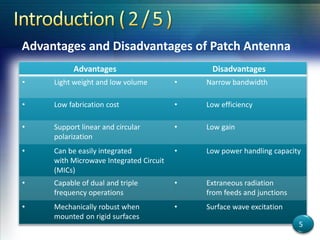
Advantages Disadvantages
• Light weight and low volume • Narrow bandwidth
• Low fabrication cost • Low efficiency
• Support linear and circular
polarization
• Low gain
• Can be easily integrated
with Microwave Integrated Circuit
(MICs)
• Low power handling capacity
• Capable of dual and triple
frequency operations
• Extraneous radiation
from feeds and junctions
• Mechanically robust when
mounted on rigid surfaces
• Surface wave excitation
Advantages and Disadvantages of Patch Antenna
5
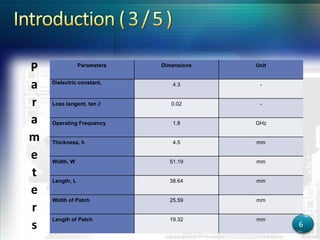
Parameters Dimensions Unit
Dielectric constant, 4.3 -
Loss tangent, tan ∂ 0.02 -
Operating Frequency 1.8 GHz
Thickness, h 4.5 mm
Width, W 51.19 mm
Length, L 38.64 mm
Width of Patch 25.59 mm
Length of Patch 19.32 mm
P
a
r
a
m
e
t
e
r
s 6
7
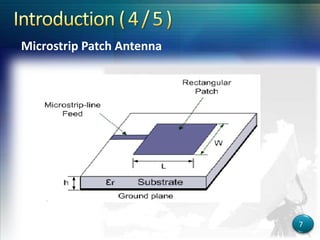
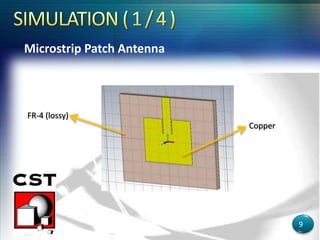
Microstrip Patch Antenna
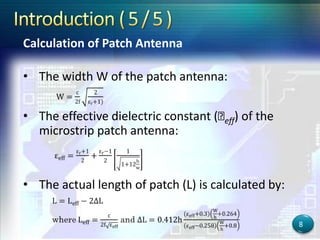
Calculation of Patch Antenna
• The width W of the patch antenna:
• The effective dielectric constant (ԑeff) of the
microstrip patch antenna:
• The actual length of patch (L) is calculated by:
8
Microstrip Patch Antenna
9
FR-4 (lossy)
Copper
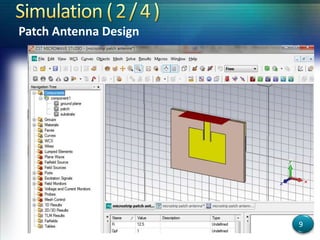
Patch Antenna Design
9
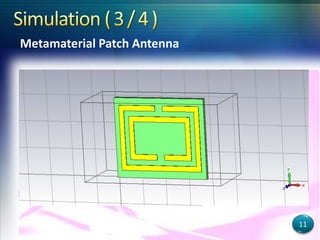
Metamaterial Patch Antenna
11
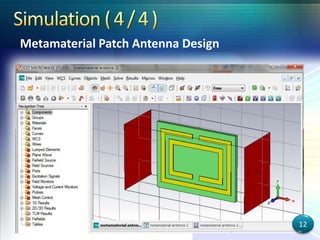
Metamaterial Patch Antenna Design
12
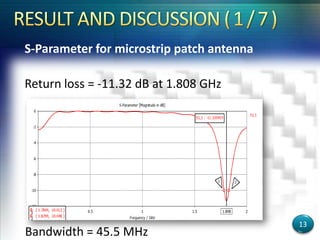
S-Parameter for microstrip patch antenna
Return loss = -11.32 dB at 1.808 GHz
Bandwidth = 45.5 MHz
13
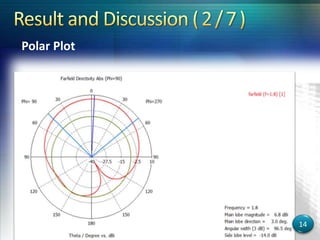
Polar Plot
14
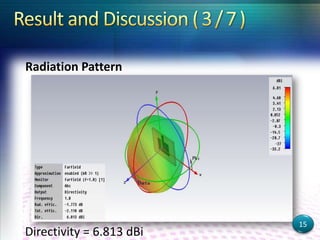
Radiation Pattern
Directivity = 6.813 dBi
15
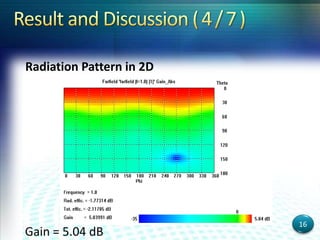
Radiation Pattern in 2D
Gain = 5.04 dB
16
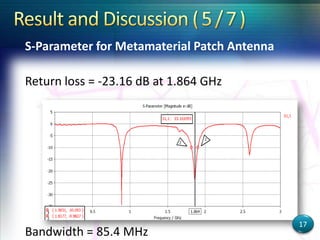
S-Parameter for Metamaterial Patch Antenna
Return loss = -23.16 dB at 1.864 GHz
Bandwidth = 85.4 MHz
17
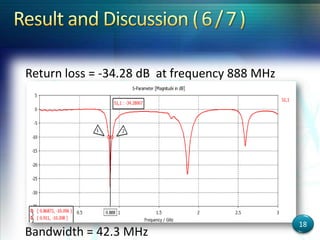
Return loss = -34.28 dB at frequency 888 MHz
Bandwidth = 42.3 MHz
18
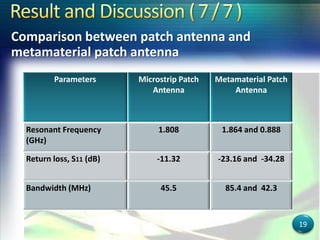
Parameters Microstrip Patch
Antenna
Metamaterial Patch
Antenna
Resonant Frequency
(GHz)
1.808 1.864 and 0.888
Return loss, S11 (dB) -11.32 -23.16 and -34.28
Bandwidth (MHz) 45.5 85.4 and 42.3
19
Comparison between patch antenna and
metamaterial patch antenna
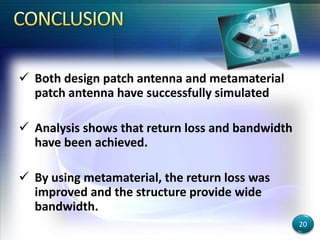
 Both design patch antenna and metamaterial
patch antenna have successfully simulated
 Analysis shows that return loss and bandwidth
have been achieved.
 By using metamaterial, the return loss was
improved and the structure provide wide
bandwidth.
20
 Other parameters such as gain and directivity
for metamaterial patch antenna design
 Use another shape of the metamaterial
structure on the conventional antenna
21
1. C.A. Balanis, Antenna Theory and Design, John Wiley & Sons, 1997.
2. Kafesaki, M., Koschny, T., Penciu, R.S., Gundogdu, T.F., Economou, E.N.
and Soukoulis, C.M. (2005) Left-handed Metamaterials: Detailed
Numerical Studies of the Transmission Properties. Journal of Optics A:
Pure and Applied Optics 7: S12-S22.
3. D.R. Smith, W.J. Padilla, D.C. Vier, S.C. Nemat-Nasser, S.
Schultz, Composite medium with simultaneously negative permeability
and permittivity, Physical Review Letters, vol. 84, pp. 4184-4187, 2000.
4. Sapana Yadav, Dr. Rekha Gupta, Neelima Choudhary, Bhim Singh, “At
1.881 GHz, Rectangular Microstrip Patch Antenna Loaded using Split
Rectangle Shaped of Metamaterial Structure for Bandwidth
Improvement”, International Journal of Advanced Technology &
Engineering Research ,Vol. 2, Issue 5, Sept. 2012.
22
Metamaterial Patch Antenna

Metamaterial Patch Antenna

  • 1.
    by NUR AZLIN BINTIALWI KUTTY KET090025 Supervisor : Dr. Wan Norliza Wan Mahadi Date : 4 June 2013
  • 2.
     Objectives  Introduction Simulation  Result and Discussion  Conclusion  Future Recommendation 2
  • 3.
     To designand evaluate rectangular patch antenna for mobile application.  To investigate the application of metamaterial for mobile communication.  To design and simulate metamaterial patch antenna.  To make the comparison between patch antenna with and without metamaterial. 3
  • 4.
    Definitions: • Periodic materialsthat derive their properties from their structures and cannot be acquired in nature • Also called left-handed metamaterial. Metamaterial • A low profile antenna consisting of a metal layer over dielectric substrate and ground plane. Patch Antenna 4
  • 5.
    Advantages Disadvantages • Lightweight and low volume • Narrow bandwidth • Low fabrication cost • Low efficiency • Support linear and circular polarization • Low gain • Can be easily integrated with Microwave Integrated Circuit (MICs) • Low power handling capacity • Capable of dual and triple frequency operations • Extraneous radiation from feeds and junctions • Mechanically robust when mounted on rigid surfaces • Surface wave excitation Advantages and Disadvantages of Patch Antenna 5
  • 6.
    Parameters Dimensions Unit Dielectricconstant, 4.3 - Loss tangent, tan ∂ 0.02 - Operating Frequency 1.8 GHz Thickness, h 4.5 mm Width, W 51.19 mm Length, L 38.64 mm Width of Patch 25.59 mm Length of Patch 19.32 mm P a r a m e t e r s 6
  • 7.
  • 8.
    Calculation of PatchAntenna • The width W of the patch antenna: • The effective dielectric constant (ԑeff) of the microstrip patch antenna: • The actual length of patch (L) is calculated by: 8
  • 9.
  • 10.
  • 11.
  • 12.
  • 13.
    S-Parameter for microstrippatch antenna Return loss = -11.32 dB at 1.808 GHz Bandwidth = 45.5 MHz 13
  • 14.
  • 15.
  • 16.
    Radiation Pattern in2D Gain = 5.04 dB 16
  • 17.
    S-Parameter for MetamaterialPatch Antenna Return loss = -23.16 dB at 1.864 GHz Bandwidth = 85.4 MHz 17
  • 18.
    Return loss =-34.28 dB at frequency 888 MHz Bandwidth = 42.3 MHz 18
  • 19.
    Parameters Microstrip Patch Antenna MetamaterialPatch Antenna Resonant Frequency (GHz) 1.808 1.864 and 0.888 Return loss, S11 (dB) -11.32 -23.16 and -34.28 Bandwidth (MHz) 45.5 85.4 and 42.3 19 Comparison between patch antenna and metamaterial patch antenna
  • 20.
     Both designpatch antenna and metamaterial patch antenna have successfully simulated  Analysis shows that return loss and bandwidth have been achieved.  By using metamaterial, the return loss was improved and the structure provide wide bandwidth. 20
  • 21.
     Other parameterssuch as gain and directivity for metamaterial patch antenna design  Use another shape of the metamaterial structure on the conventional antenna 21
  • 22.
    1. C.A. Balanis,Antenna Theory and Design, John Wiley & Sons, 1997. 2. Kafesaki, M., Koschny, T., Penciu, R.S., Gundogdu, T.F., Economou, E.N. and Soukoulis, C.M. (2005) Left-handed Metamaterials: Detailed Numerical Studies of the Transmission Properties. Journal of Optics A: Pure and Applied Optics 7: S12-S22. 3. D.R. Smith, W.J. Padilla, D.C. Vier, S.C. Nemat-Nasser, S. Schultz, Composite medium with simultaneously negative permeability and permittivity, Physical Review Letters, vol. 84, pp. 4184-4187, 2000. 4. Sapana Yadav, Dr. Rekha Gupta, Neelima Choudhary, Bhim Singh, “At 1.881 GHz, Rectangular Microstrip Patch Antenna Loaded using Split Rectangle Shaped of Metamaterial Structure for Bandwidth Improvement”, International Journal of Advanced Technology & Engineering Research ,Vol. 2, Issue 5, Sept. 2012. 22

Editor's Notes

  • #2 Transparent light effect(Basic)To reproduce one of the shapes on this slide, do the following:On the Home tab, in the Slides group, click Layout and then click Blank. On the Home tab, in the Drawing group, click Shapes, and then under Basic Shapes click Oval (first row, second option from the left). Press and hold SHIFT to constrain the shape to a circle, and then drag to draw a circle on the slide. On the Home tab, in the bottom right corner of the Drawing group, click the Format Shape dialog box launcher. In the Format Shape dialog box, click Line Color in the left pane, and then select No line in the Line Color pane. Also in the Format Shape dialog box, click Fill in the left pane, select Gradient fill in the Fill pane, and then do the following:In the Type list, select Radial.Click the button next to Direction, and then click From Center (third option from the left).Under Gradient stops, click Add or Remove until three stops appear in the drop-down list.Also under Gradient stops, customize the gradient stops that you added as follows:Select Stop 1 from the list, and then do the following:In the Stop position box, enter 0%.Click the button next to Color, and then under Theme Colors click Dark Blue, Text 2, Lighter 60% (third row, fourth option from the left).In the Transparency box, enter 80%.Select Stop 2 from the list, and then do the following: In the Stop position box, enter 50%.Click the button next to Color, and then under Dark Blue, Text 2, Lighter 40% (fourth row, fourth option from the left).In the Transparency box, enter 70%.Select Stop 3 from the list, and then do the following: In the Stop position box, enter 100%.Click the button next to Color, and then under Theme Colors click Dark Blue, Text 2, Lighter 40% (fourth row, fourth option from the left). In the Transparency box, enter 100%.On the Home tab, in the Drawing group, click Shape Effects, point to Soft Edges, and then click 10 Point. To reproduce the other shapes on this slide, do the following:Select the circle on the slide. On the Home tab, in the Clipboard group, click the arrow under Paste, and then click Duplicate. Repeat this process to create a total of 10 circles. On the slide, drag the circles to position them at random intervals. For each circle, press and hold SHIFT and then drag the adjustment handles to resize as needed.To reproduce the different color and transparency effects in each of the shapes, do the following:Select the shape. On the Home tab, in the bottom right corner of the Drawing group, click the Format Shape dialog box launcher. In the Format Shape dialog box, click Fill in the left pane, and then select Gradient fill in the Fill pane. Under Gradient stops, click Add or Remove until three stops appear in the drop-down list, and then do the following:For the first and third (small circle below larger circle) circles from the left:Select Stop 1 from the list, and then do the following:In the Stop position box, enter 0%.Click the button next to Color, and then under Theme Colors click Dark Blue, Text 2, Lighter 60% (third row, fourth option from the left).In the Transparency box, enter 90%.Select Stop 2 from the list, and then do the following: In the Stop position box, enter 50%.Click the button next to Color, and then under Dark Blue, Text 2, Lighter 40% (fourth row, fourth option from the left).In the Transparency box, enter 85%.Select Stop 3 from the list, and then do the following: In the Stop position box, enter 100%.Click the button next to Color, and then under Theme Colors click Dark Blue, Text 2, Lighter 40% (fourth row, fourth option from the left). In the Transparency box, enter 100%.For the second circle from the left, do not change the Gradient stops settings in the Format Shape dialog box. For the fourth circle from the left (large circle above third circle):Select Stop 1 from the list, and then do the following:In the Stop position box, enter 0%.Click the button next to Color, and then under Theme Colors click Dark Blue, Text 2, Lighter 60% (third row, fourth option from the left).In the Transparency box, enter 80%.Select Stop 2 from the list, and then do the following: In the Stop position box, enter 50%.Click the button next to Color, and then under Dark Blue, Text 2, Lighter 40% (fourth row, fourth option from the left).In the Transparency box, enter 70%.Select Stop 3 from the list, and then do the following: In the Stop position box, enter 100%.Click the button next to Color, and then under Theme Colors click Dark Blue, Text 2, Lighter 60% (third row, fourth option from the left). In the Transparency box, enter 100%.For the fifth circle from the left:Select Stop 1 from the list, and then do the following:In the Stop position box, enter 0%.Click the button next to Color, and then under Theme Colors click Dark Blue, Text 2, Lighter 40% (fourth row, fourth option from the left).In the Transparency box, enter 88%.Select Stop 2 from the list, and then do the following: In the Stop position box, enter 50%.Click the button next to Color, and then under Dark Blue, Text 2, Lighter 40% (fourth row, fourth option from the left).In the Transparency box, enter 71%.Select Stop 3 from the list, and then do the following: In the Stop position box, enter 100%.Click the button next to Color, and then under Theme Colors click Dark Blue, Text 2, Lighter 40% (fourth row, fourth option from the left). In the Transparency box, enter 100%.For the sixth circle from the left:Select Stop 1 from the list, and then do the following:In the Stop position box, enter 0%.Click the button next to Color, click More Colors, and then in the Colors dialog box, on the Custom tab, enter values for Red: 227, Green: 209, Blue: 143.In the Transparency box, enter 84%.Select Stop 2 from the list, and then do the following: In the Stop position box, enter 50%.Click the button next to Color, click More Colors, and then in the Colors dialog box, on the Custom tab, enter values for Red: 223, Green: 205, Blue: 75.In the Transparency box, enter 85%.Select Stop 3 from the list, and then do the following: In the Stop position box, enter 100%.Click the button next to Color, click More Colors, and then in the Colors dialog box, on the Custom tab, enter values for Red: 214, Green: 195, Blue: 84.In the Transparency box, enter 100%.For the seventh circle from the left:Select Stop 1 from the list, and then do the following:In the Stop position box, enter 0%.Click the button next to Color, and then under Theme Colors click Dark Blue, Text 2, Lighter 60% (third row, fourth option from the left).In the Transparency box, enter 60%.Select Stop 2 from the list, and then do the following: In the Stop position box, enter 50%.Click the button next to Color, and then under Dark Blue, Text 2, Lighter 40% (fourth row, fourth option from the left).In the Transparency box, enter 60%.Select Stop 3 from the list, and then do the following: In the Stop position box, enter 100%.Click the button next to Color, and then under Theme Colors click Dark Blue, Text 2, Lighter 40% (fourth row, fourth option from the left). In the Transparency box, enter 100%.For the eighth circle from the left, do not change the Gradient stops settings in the Format Shape dialog box. For the ninth circle from the left (small brown circle below larger blue circle):Select Stop 1 from the list, and then do the following:In the Stop position box, enter 0%.Click the button next to Color, click More Colors, and then in the Colors dialog box, on the Custom tab, enter values for Red: 227, Green: 209, Blue: 143.In the Transparency box, enter 70%.Select Stop 2 from the list, and then do the following: In the Stop position box, enter 50%.Click the button next to Color, click More Colors, and then in the Colors dialog box, on the Custom tab, enter values for Red: 223, Green: 205, Blue: 75.In the Transparency box, enter 85%.Select Stop 3 from the list, and then do the following: In the Stop position box, enter 100%.Click the button next to Color, click More Colors, and then in the Colors dialog box, on the Custom tab, enter values for Red: 214, Green: 195, Blue: 84.In the Transparency box, enter 100%.For the tenth circle from the left (large blue circle above ninth circle):Select Stop 1 from the list, and then do the following:In the Stop position box, enter 0%.Click the button next to Color, and then under Theme Colors click Dark Blue, Text 2, Lighter 60% (third row, fourth option from the left).In the Transparency box, enter 80%.Select Stop 2 from the list, and then do the following: In the Stop position box, enter 50%.Click the button next to Color, and then under Dark Blue, Text 2, Lighter 40% (fourth row, fourth option from the left).In the Transparency box, enter 74%.Select Stop 3 from the list, and then do the following: In the Stop position box, enter 100%.Click the button next to Color, and then under Theme Colors click Dark Blue, Text 2, Lighter 40% (fourth row, fourth option from the left). In the Transparency box, enter 100%.To reproduce the background on this slide, do the following: Right-click the slide background area, and then click Format Background. In the Format Background dialog box, click Fill in the left pane, select Gradient fill in the Fill pane, and then do the following:In the Type list, select Radial.Click the button next to Direction, and then click From Center (third option from the left).Under Gradient stops, click Add or Remove until two stops appear in the drop-down list.Also under Gradient stops, customize the gradient stops that you added as follows:Select Stop 1 from the list, and then do the following:In the Stop position box, enter 0%.Click the button next to Color, click More Colors, and then in the Colors dialog box, on the Custom tab, enter values for Red: 65, Green: 68, Blue: 97.Select Stop 2 from the list, and then do the following: In the Stop position box, enter 99%.Click the button next to Color, and then click Black, Text 1 (first row, second option from the left).