MENDELEY
WORKSHOP: ORGANIZING
REFERENCES USING MENDELEY

www.mendeley.com
izwan nizal mohd shaharanee
school of quantitative sciences
nizal@uum.edu.my
PART 1
What is Mendeley
 Desktop Version
 Overview
 Creating Library
 Add Files/Folder
 Import/Export Citation
 Web Importer




http://padlet.com/wall/huvv8q8w56
WHAT IS MENDELEY (MENDELEY.COM)


Mendeley is a free reference
manager and academic social network that can
help you organize your research, collaborate with
others online, and discover the latest research.
WHAT IS MENDELEY (MENDELEY.COM)







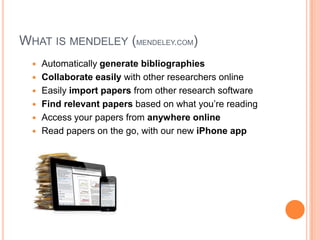
Automatically generate bibliographies
Collaborate easily with other researchers online
Easily import papers from other research software
Find relevant papers based on what you’re reading
Access your papers from anywhere online
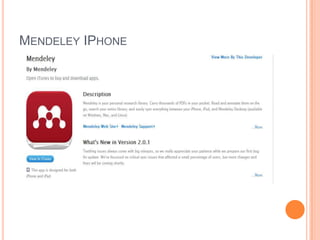
Read papers on the go, with our new iPhone app
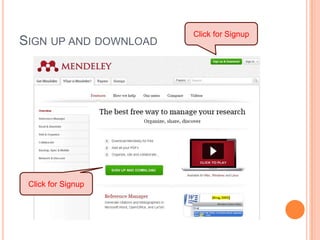
SIGN UP AND DOWNLOAD

Click for Signup

Click for Signup
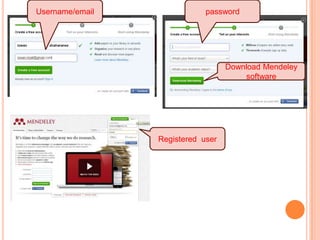
Username/email

password

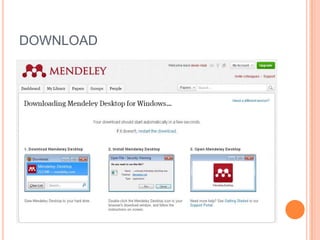
Download Mendeley
software

Registered user
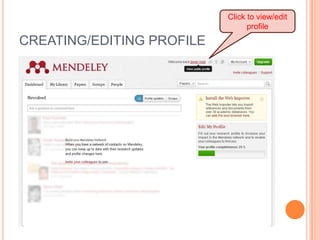
Click to view/edit
profile

CREATING/EDITING PROFILE
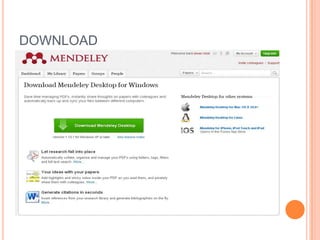
DOWNLOAD
DOWNLOAD
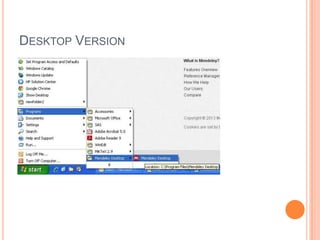
DESKTOP VERSION
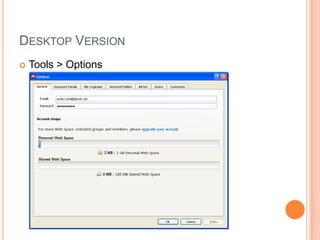
DESKTOP VERSION


Tools > Options
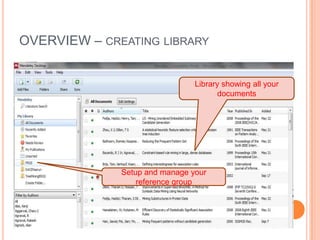
OVERVIEW – CREATING LIBRARY
Library showing all your
documents

Setup and manage your
reference group
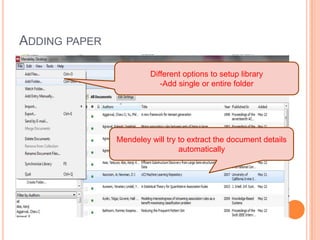
ADDING PAPER
Different options to setup library
-Add single or entire folder

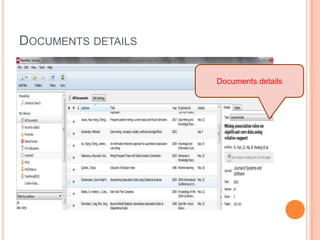
Mendeley will try to extract the document details
automatically
ADDING FILES AND FOLDER
Open the ExampleFolder
 Adding Files





File >> Add Files [ Browse the specific files]

Adding Folder


File >> Add Folder [ The whole pdf files will be added]
DOCUMENTS DETAILS
Documents details
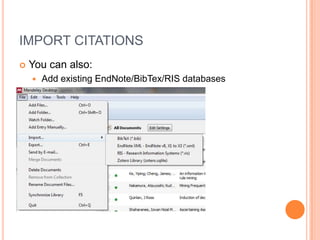
IMPORT CITATIONS


You can also:


Add existing EndNote/BibTex/RIS databases
IMPORT CITATIONS
Open GoogleScholar
 Search any article[ Example : izwan nizal]


Export Citation

Pdf file
IMPORT CITATIONS


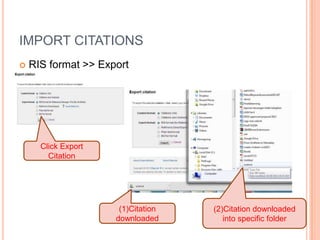
RIS format >> Export

Click Export
Citation

(1)Citation
downloaded

(2)Citation downloaded
into specific folder
IMPORT CITATIONS


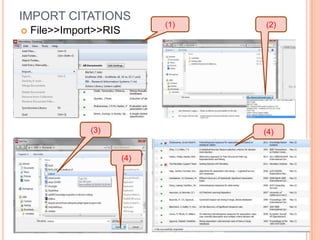
File>>Import>>RIS

(3)

(1)

(2)

(4)
(4)
WEB IMPORTER


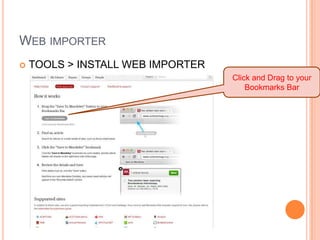
TOOLS > INSTALL WEB IMPORTER
Click and Drag to your
Bookmarks Bar
WEB IMPORTER


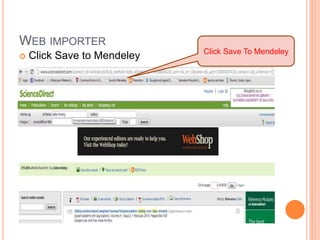
Click Save to Mendeley

Click Save To Mendeley
WEB IMPORTER


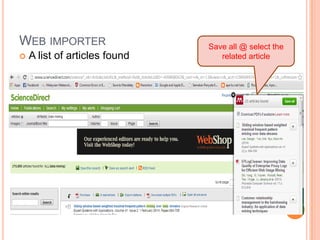
A list of articles found

Save all @ select the
related article
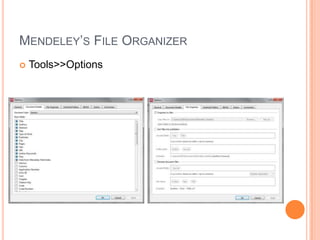
MENDELEY’S FILE ORGANIZER


Tools>>Options
PART 2
Citing Reference/Generating Bibliographies
 Merging Citation
 Citation Style
 Managing Documents and References
 Manage Library
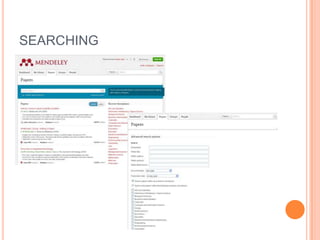
 Searching Documents
 Literature Search

CITING REFERENCES/GENERATING
BIBLIOGRAPHIES


Tools>> Install MS Word Plugin (Mendeley Desktop)



Open the Microsoft Word [ExampleIntroduction.doc]



References >> Insert Citations [Mendeley]

(2)Insert citation

(1)Put your cursor
where the citation
needed
(3) Go to
Mendeley
CITING REFERENCES/GENERATING
BIBLIOGRAPHIES

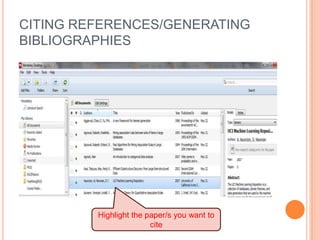
Highlight the paper/s you want to
cite
CITING REFERENCES/GENERATING
BIBLIOGRAPHIES
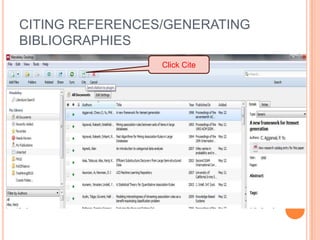
Click Cite
MERGING CITATIONS

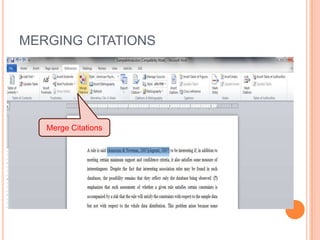
Merge Citations
CITING REFERENCES/GENERATING
BIBLIOGRAPHIES


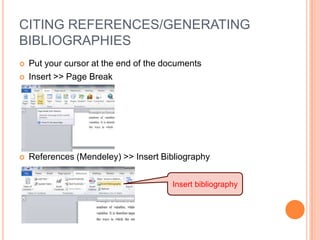
Put your cursor at the end of the documents
Insert >> Page Break



References (Mendeley) >> Insert Bibliography



Insert bibliography
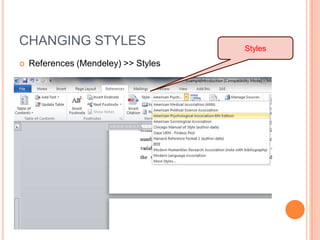
CHANGING STYLES


References (Mendeley) >> Styles

Styles
INSERT NEW STYLES
Download the new styles
Step 1:
 Save the new styles into CitationStyles1.0 Folder




Computer >> System (C) >> Program File >> Mendeley
Desktop>> CitationStyles -1.0

Step 2:
 Open Mendeley:


View >> Citation Style >> More Style >> [New Styles] >>
Use this style >> Done

Step 3:
 Open MSWord


Insert Citation >> [New Styles]
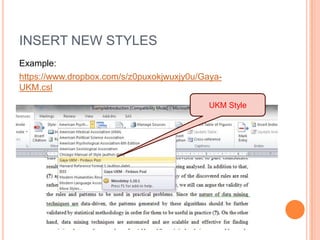
INSERT NEW STYLES
Example:
https://www.dropbox.com/s/z0puxokjwuxjy0u/GayaUKM.csl
UKM Style
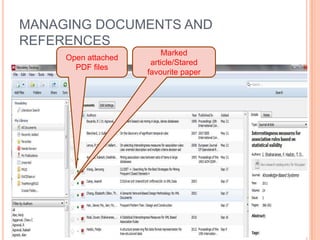
MANAGING DOCUMENTS AND
REFERENCES
Open attached
PDF files

Marked
article/Stared
favourite paper
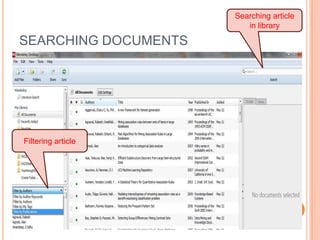
Searching article
in library

SEARCHING DOCUMENTS

Filtering article
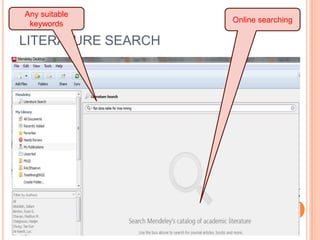
Any suitable
keywords

LITERATURE SEARCH

Online searching
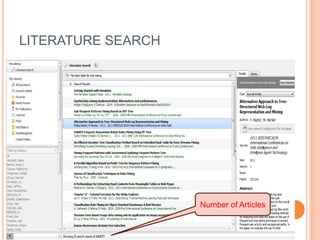
LITERATURE SEARCH

Number of Articles
PART 3
Notes, Annotate and Highlight
 Web Version
 Synchronize and Manage Library Online
 Sharing and Collaboration
 Creating Groups
 Mendeley IPhone

NOTES, ANNOTATE AND HIGHLIGHT


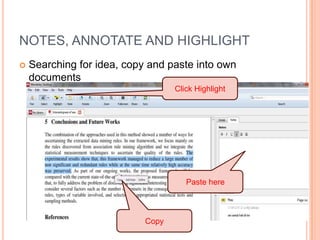
Searching for idea, copy and paste into own
documents
Click Highlight

Paste here

Copy
NOTES, ANNOTATE AND HIGHLIGHT
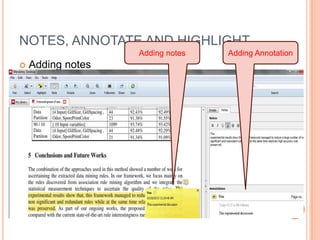
Adding notes


Adding notes

Adding Annotation
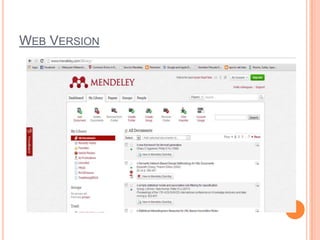
WEB VERSION

IPhone
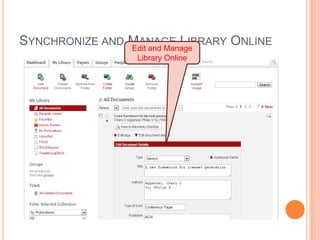
SYNCHRONIZE AND MANAGE LIBRARY ONLINE
Edit and Manage
Library Online
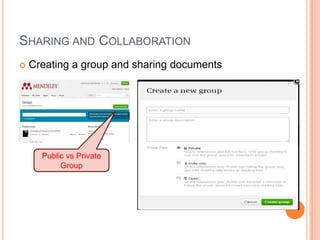
SHARING AND COLLABORATION


Creating a group and sharing documents

Public vs Private
Group
MENDELEY IPHONE
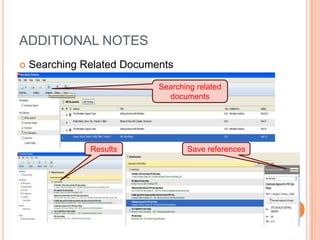
ADDITIONAL NOTES


Searching Related Documents
Searching related
documents

Results

Save references
SEARCHING
THANK YOU
nizal@uum.edu.my
 izwan.nizal@gmail.com




Future Workshop:


Unsupervised Data Mining : A Practical Approach

Mendeley Training