Lab Manual
Sameer Khanal
available at: https://www.slideshare.net/SameerKhanal1
Linkage Mapping using MapMaker
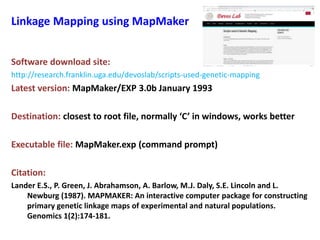
Software download site:
http://research.franklin.uga.edu/devoslab/scripts-used-genetic-mapping
Latest version: MapMaker/EXP 3.0b January 1993
Destination: closest to root file, normally ‘C’ in windows, works better
Executable file: MapMaker.exp (command prompt)
Citation:
Lander E.S., P. Green, J. Abrahamson, A. Barlow, M.J. Daly, S.E. Lincoln and L.
Newburg (1987). MAPMAKER: An interactive computer package for constructing
primary genetic linkage maps of experimental and natural populations.
Genomics 1(2):174-181.
Sample Data File for Linkage Mapping
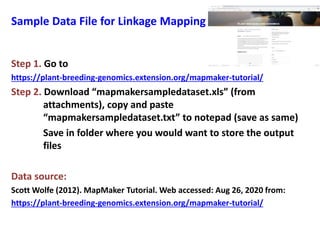
Step 1. Go to
https://plant-breeding-genomics.extension.org/mapmaker-tutorial/
Step 2. Download “mapmakersampledataset.xls” (from
attachments), copy and paste
“mapmakersampledataset.txt” to notepad (save as same)
Save in folder where you would want to store the output
files
Data source:
Scott Wolfe (2012). MapMaker Tutorial. Web accessed: Aug 26, 2020 from:
https://plant-breeding-genomics.extension.org/mapmaker-tutorial/
Sample Data File for Linkage Mapping
Mapping file information a:
Total number of markers: 27
Mapping population: F2 intercross (Parent A x Parent B)
Total number of individuals: 104
Marker symbol:
- 1 = Parent A (homozygous for parent A alleles)
- 2 = Heterozygous (both parent A and parent B alleles)
- 3 = Parent B (homozygous for parent B alleles)
- 4 = Not homozygous for parent A
- 5 = Not homozygous for parent B
a https://pbgworks.org/sites/pbgworks.org/files/mapmakersampletextfile.txt
Sample Data File for Linkage Mapping
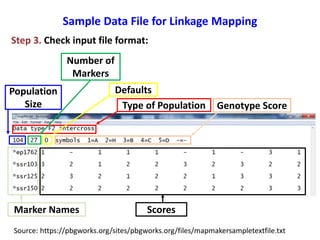
Step 3. Check input file format:
Source: https://pbgworks.org/sites/pbgworks.org/files/mapmakersampletextfile.txt
Type of Population
Population
Size
Number of
Markers
Defaults
Genotype Score
ScoresMarker Names
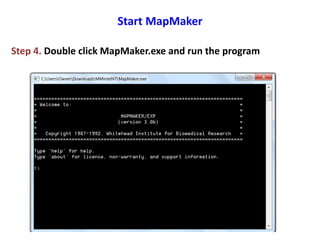
Start MapMaker
Step 4. Double click MapMaker.exe and run the program
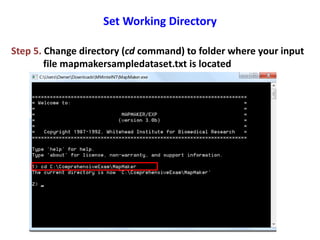
Set Working Directory
Step 5. Change directory (cd command) to folder where your input
file mapmakersampledataset.txt is located
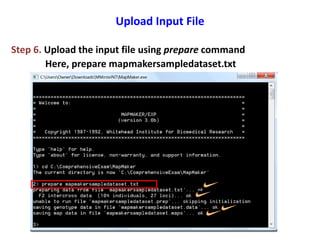
Upload Input File
Step 6. Upload the input file using prepare command
Here, prepare mapmakersampledataset.txt
Saving work
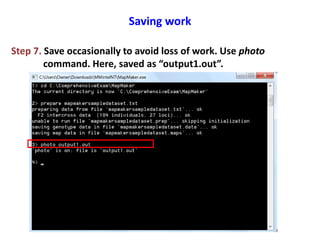
Step 7. Save occasionally to avoid loss of work. Use photo
command. Here, saved as “output1.out”.
Specify data
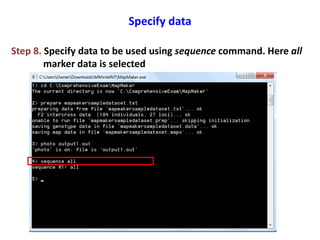
Step 8. Specify data to be used using sequence command. Here all
marker data is selected
Grouping
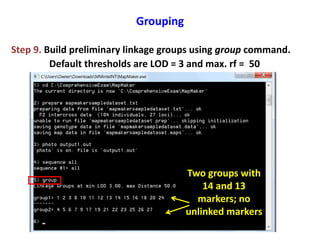
Step 9. Build preliminary linkage groups using group command.
Default thresholds are LOD = 3 and max. rf = 50
Two groups with
14 and 13
markers; no
unlinked markers
Grouping
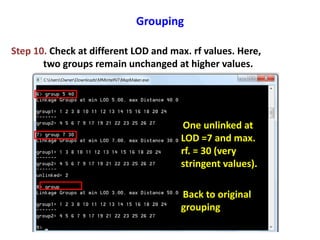
Step 10. Check at different LOD and max. rf values. Here,
two groups remain unchanged at higher values.
One unlinked at
LOD =7 and max.
rf. = 30 (very
stringent values).
Back to original
grouping
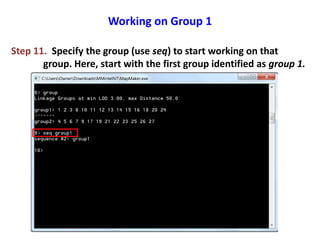
Working on Group 1
Step 11. Specify the group (use seq) to start working on that
group. Here, start with the first group identified as group 1.
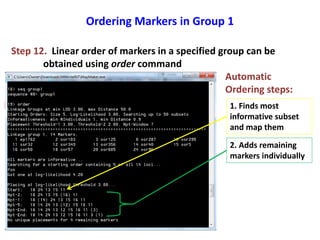
Ordering Markers in Group 1
Step 12. Linear order of markers in a specified group can be
obtained using order command
Automatic
Ordering steps:
1. Finds most
informative subset
and map them
2. Adds remaining
markers individually
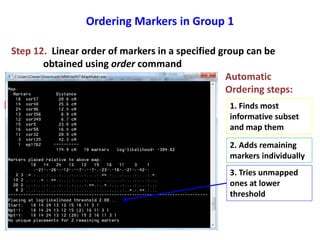
Ordering Markers in Group 1
Step 12. Linear order of markers in a specified group can be
obtained using order command
Automatic
Ordering steps:
1. Finds most
informative subset
and map them
2. Adds remaining
markers individually
3. Tries unmapped
ones at lower
threshold
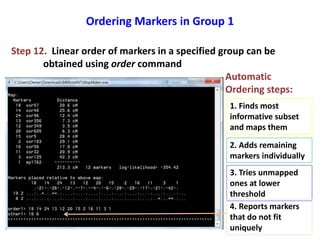
Ordering Markers in Group 1
Step 12. Linear order of markers in a specified group can be
obtained using order command
Automatic
Ordering steps:
1. Finds most
informative subset
and maps them
2. Adds remaining
markers individually
3. Tries unmapped
ones at lower
threshold
4. Reports markers
that do not fit
uniquely
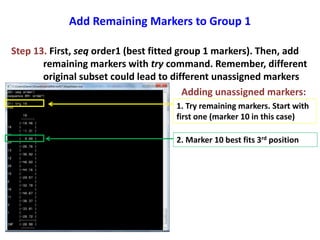
Add Remaining Markers to Group 1
Step 13. First, seq order1 (best fitted group 1 markers). Then, add
remaining markers with try command. Remember, different
original subset could lead to different unassigned markers
Adding unassigned markers:
1. Try remaining markers. Start with
first one (marker 10 in this case)
2. Marker 10 best fits 3rd position
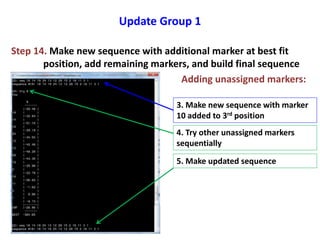
Update Group 1
Step 14. Make new sequence with additional marker at best fit
position, add remaining markers, and build final sequence
Adding unassigned markers:
3. Make new sequence with marker
10 added to 3rd position
4. Try other unassigned markers
sequentially
5. Make updated sequence
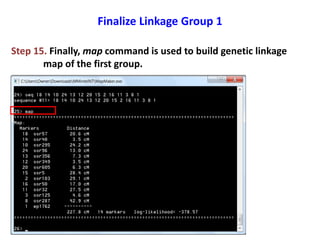
Finalize Linkage Group 1
Step 15. Finally, map command is used to build genetic linkage
map of the first group.
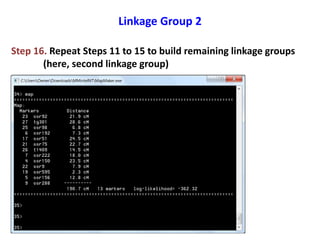
Linkage Group 2
Step 16. Repeat Steps 11 to 15 to build remaining linkage groups
(here, second linkage group)
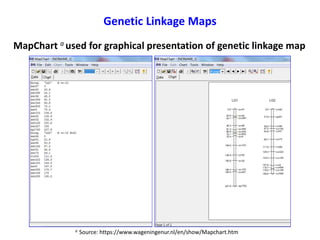
Genetic Linkage Maps
MapChart a used for graphical presentation of genetic linkage map
a Source: https://www.wageningenur.nl/en/show/Mapchart.htm

Linkage mapping lab

  • 1.
    Lab Manual Sameer Khanal availableat: https://www.slideshare.net/SameerKhanal1
  • 2.
    Linkage Mapping usingMapMaker Software download site: http://research.franklin.uga.edu/devoslab/scripts-used-genetic-mapping Latest version: MapMaker/EXP 3.0b January 1993 Destination: closest to root file, normally ‘C’ in windows, works better Executable file: MapMaker.exp (command prompt) Citation: Lander E.S., P. Green, J. Abrahamson, A. Barlow, M.J. Daly, S.E. Lincoln and L. Newburg (1987). MAPMAKER: An interactive computer package for constructing primary genetic linkage maps of experimental and natural populations. Genomics 1(2):174-181.
  • 3.
    Sample Data Filefor Linkage Mapping Step 1. Go to https://plant-breeding-genomics.extension.org/mapmaker-tutorial/ Step 2. Download “mapmakersampledataset.xls” (from attachments), copy and paste “mapmakersampledataset.txt” to notepad (save as same) Save in folder where you would want to store the output files Data source: Scott Wolfe (2012). MapMaker Tutorial. Web accessed: Aug 26, 2020 from: https://plant-breeding-genomics.extension.org/mapmaker-tutorial/
  • 4.
    Sample Data Filefor Linkage Mapping Mapping file information a: Total number of markers: 27 Mapping population: F2 intercross (Parent A x Parent B) Total number of individuals: 104 Marker symbol: - 1 = Parent A (homozygous for parent A alleles) - 2 = Heterozygous (both parent A and parent B alleles) - 3 = Parent B (homozygous for parent B alleles) - 4 = Not homozygous for parent A - 5 = Not homozygous for parent B a https://pbgworks.org/sites/pbgworks.org/files/mapmakersampletextfile.txt
  • 5.
    Sample Data Filefor Linkage Mapping Step 3. Check input file format: Source: https://pbgworks.org/sites/pbgworks.org/files/mapmakersampletextfile.txt Type of Population Population Size Number of Markers Defaults Genotype Score ScoresMarker Names
  • 6.
    Start MapMaker Step 4.Double click MapMaker.exe and run the program
  • 7.
    Set Working Directory Step5. Change directory (cd command) to folder where your input file mapmakersampledataset.txt is located
  • 8.
    Upload Input File Step6. Upload the input file using prepare command Here, prepare mapmakersampledataset.txt
  • 9.
    Saving work Step 7.Save occasionally to avoid loss of work. Use photo command. Here, saved as “output1.out”.
  • 10.
    Specify data Step 8.Specify data to be used using sequence command. Here all marker data is selected
  • 11.
    Grouping Step 9. Buildpreliminary linkage groups using group command. Default thresholds are LOD = 3 and max. rf = 50 Two groups with 14 and 13 markers; no unlinked markers
  • 12.
    Grouping Step 10. Checkat different LOD and max. rf values. Here, two groups remain unchanged at higher values. One unlinked at LOD =7 and max. rf. = 30 (very stringent values). Back to original grouping
  • 13.
    Working on Group1 Step 11. Specify the group (use seq) to start working on that group. Here, start with the first group identified as group 1.
  • 14.
    Ordering Markers inGroup 1 Step 12. Linear order of markers in a specified group can be obtained using order command Automatic Ordering steps: 1. Finds most informative subset and map them 2. Adds remaining markers individually
  • 15.
    Ordering Markers inGroup 1 Step 12. Linear order of markers in a specified group can be obtained using order command Automatic Ordering steps: 1. Finds most informative subset and map them 2. Adds remaining markers individually 3. Tries unmapped ones at lower threshold
  • 16.
    Ordering Markers inGroup 1 Step 12. Linear order of markers in a specified group can be obtained using order command Automatic Ordering steps: 1. Finds most informative subset and maps them 2. Adds remaining markers individually 3. Tries unmapped ones at lower threshold 4. Reports markers that do not fit uniquely
  • 17.
    Add Remaining Markersto Group 1 Step 13. First, seq order1 (best fitted group 1 markers). Then, add remaining markers with try command. Remember, different original subset could lead to different unassigned markers Adding unassigned markers: 1. Try remaining markers. Start with first one (marker 10 in this case) 2. Marker 10 best fits 3rd position
  • 18.
    Update Group 1 Step14. Make new sequence with additional marker at best fit position, add remaining markers, and build final sequence Adding unassigned markers: 3. Make new sequence with marker 10 added to 3rd position 4. Try other unassigned markers sequentially 5. Make updated sequence
  • 19.
    Finalize Linkage Group1 Step 15. Finally, map command is used to build genetic linkage map of the first group.
  • 20.
    Linkage Group 2 Step16. Repeat Steps 11 to 15 to build remaining linkage groups (here, second linkage group)
  • 21.
    Genetic Linkage Maps MapCharta used for graphical presentation of genetic linkage map a Source: https://www.wageningenur.nl/en/show/Mapchart.htm