Lesson 9
Windows Management
Computer Literacy
BASICS: A
Comprehensive Guide
to IC3, 4th Edition

1

Morrison / Wells
Objectives



Lesson 9










2

Log on and off the computer.
Identify desktop elements.
Manipulate windows.
Start programs and switch between windows.
Use desktop folders and icons.
Manage files.
Identify strategies for working with files.
Solve common file problems.

Morrison / Wells

CLB: A Comp Guide to IC3 4E
Vocabulary



Lesson 9







3

active window
application file
Computer window
data file
directory
file property
gadget

Morrison / Wells







hidden file
icon
Recycle Bin
shortcut
system file

CLB: A Comp Guide to IC3 4E
Logging On and Off the Computer

Lesson 9



4



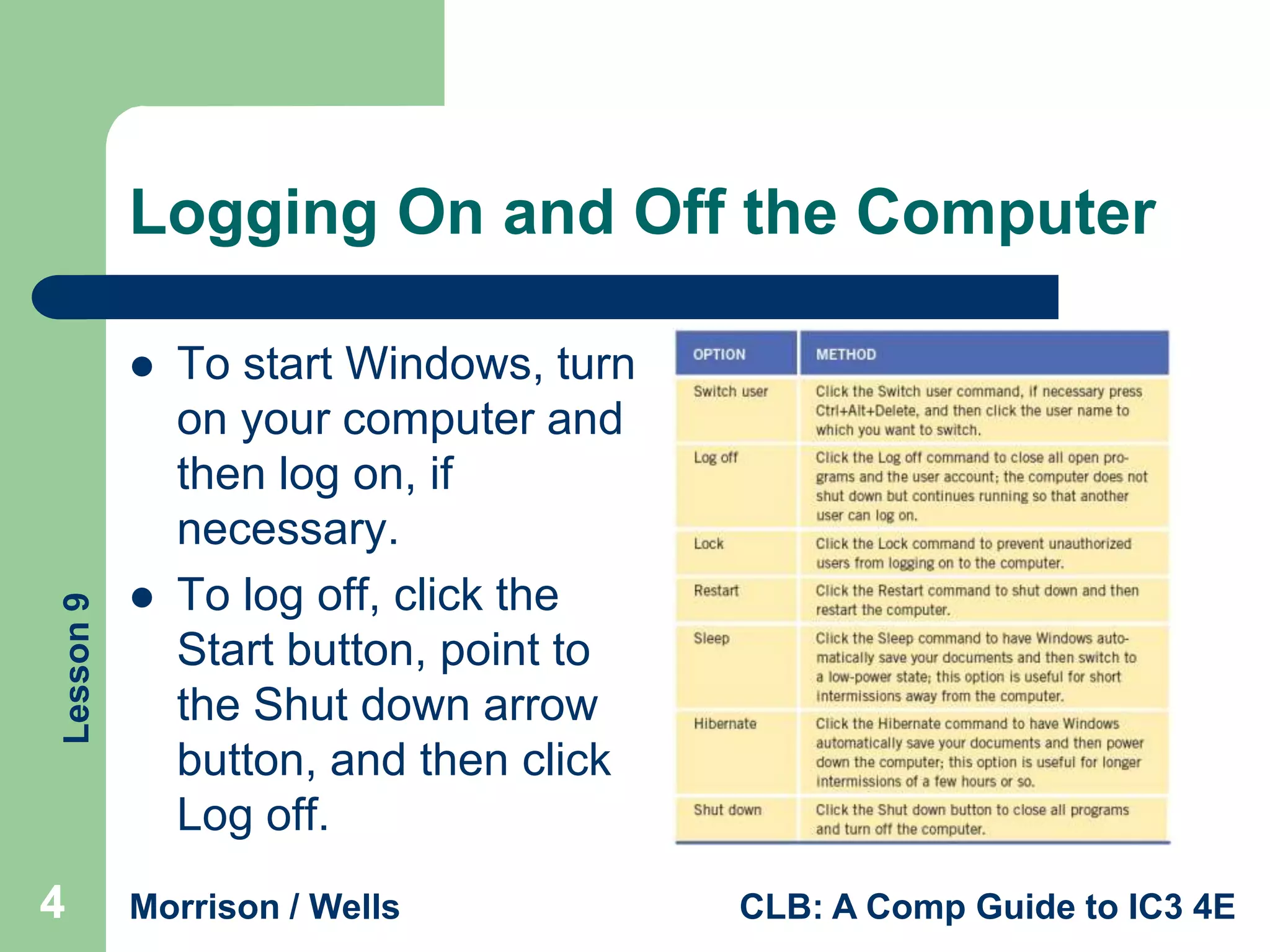
To start Windows, turn
on your computer and
then log on, if
necessary.
To log off, click the
Start button, point to
the Shut down arrow
button, and then click
Log off.

Morrison / Wells

CLB: A Comp Guide to IC3 4E
Logging On and Off the Computer
(continued)


Lesson 9



5

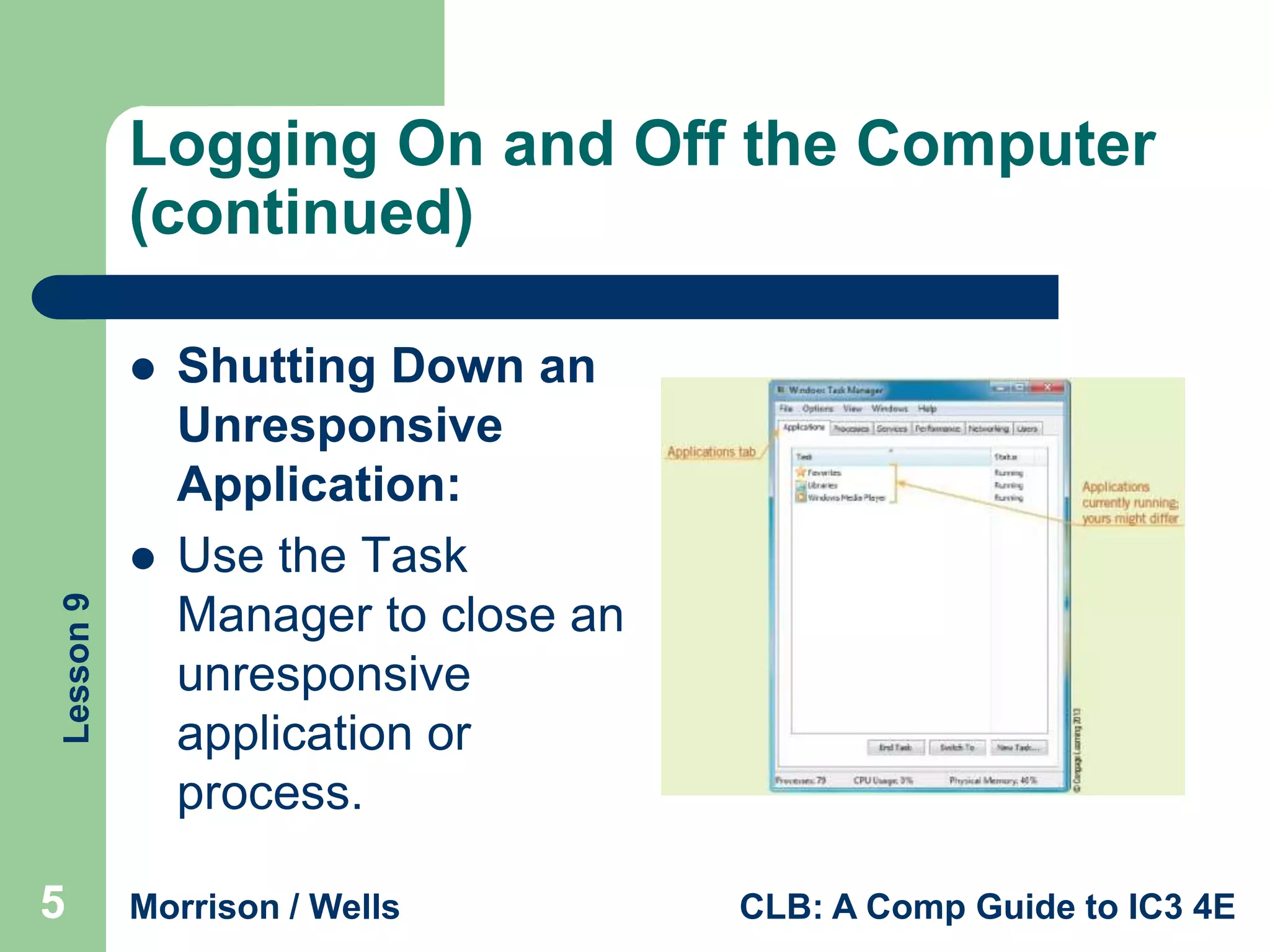
Shutting Down an
Unresponsive
Application:
Use the Task
Manager to close an
unresponsive
application or
process.

Morrison / Wells

CLB: A Comp Guide to IC3 4E
Identifying Desktop Elements



Lesson 9



The objects on the desktop are called icons.
The Recycle Bin is used to discard
unnecessary items.
The desktop contains three main sections:
–
–
–

6

The taskbar, which is located at the bottom of the
screen
The Start button, which opens the Start menu
The middle section, which contains the wallpaper,
open windows, and program and document icons

Morrison / Wells

CLB: A Comp Guide to IC3 4E
Identifying Desktop Elements
(continued)


Lesson 9







7

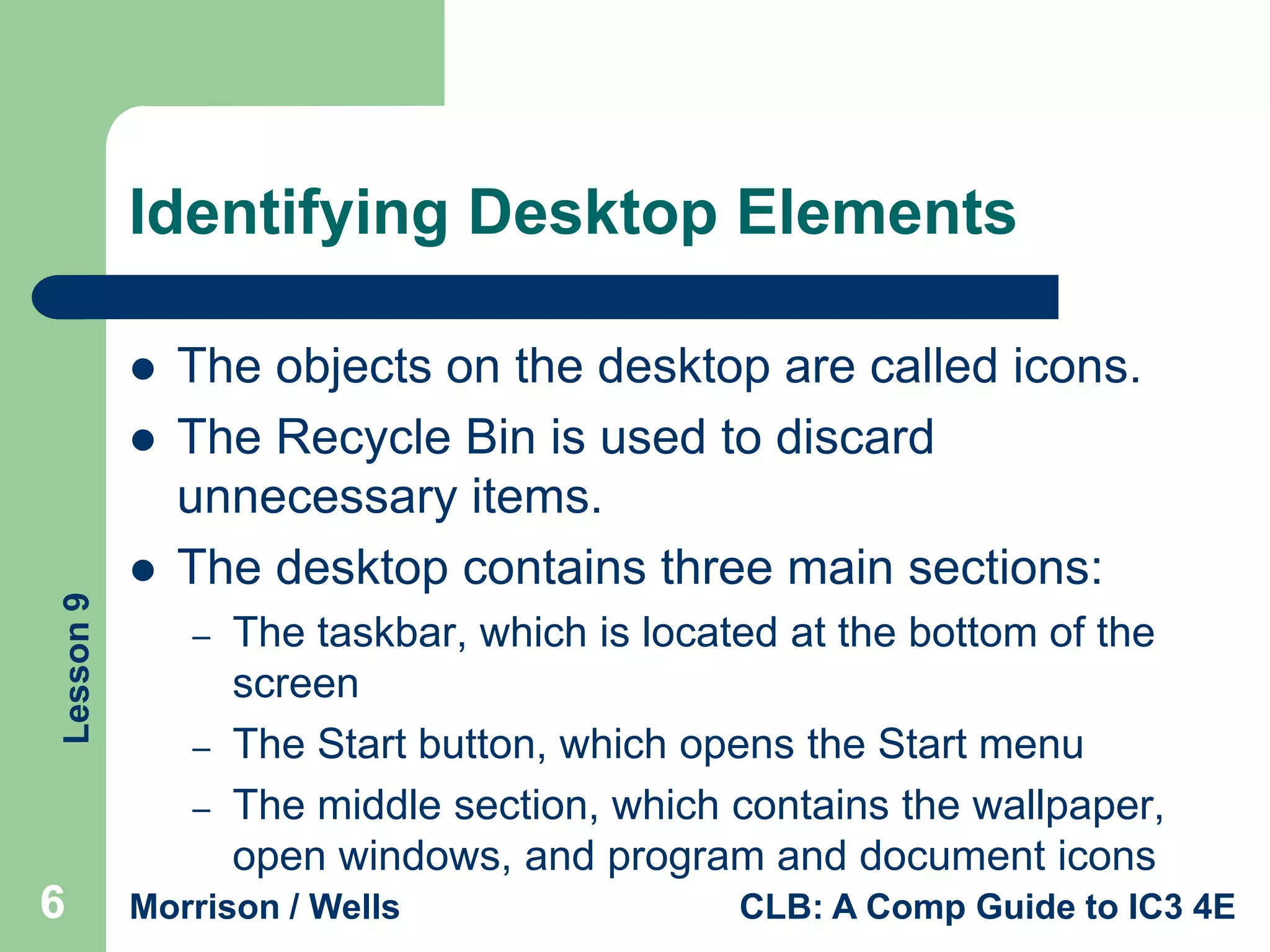
Customizing the Icons on
the Desktop:
Right-click an empty space
on the desktop to display a
shortcut menu and click
Personalize.
Click the Change desktop
icons.
Click the Computer check
box, then click Change
Icon.

Morrison / Wells

CLB: A Comp Guide to IC3 4E
Identifying Desktop Elements
(continued)


Lesson 9



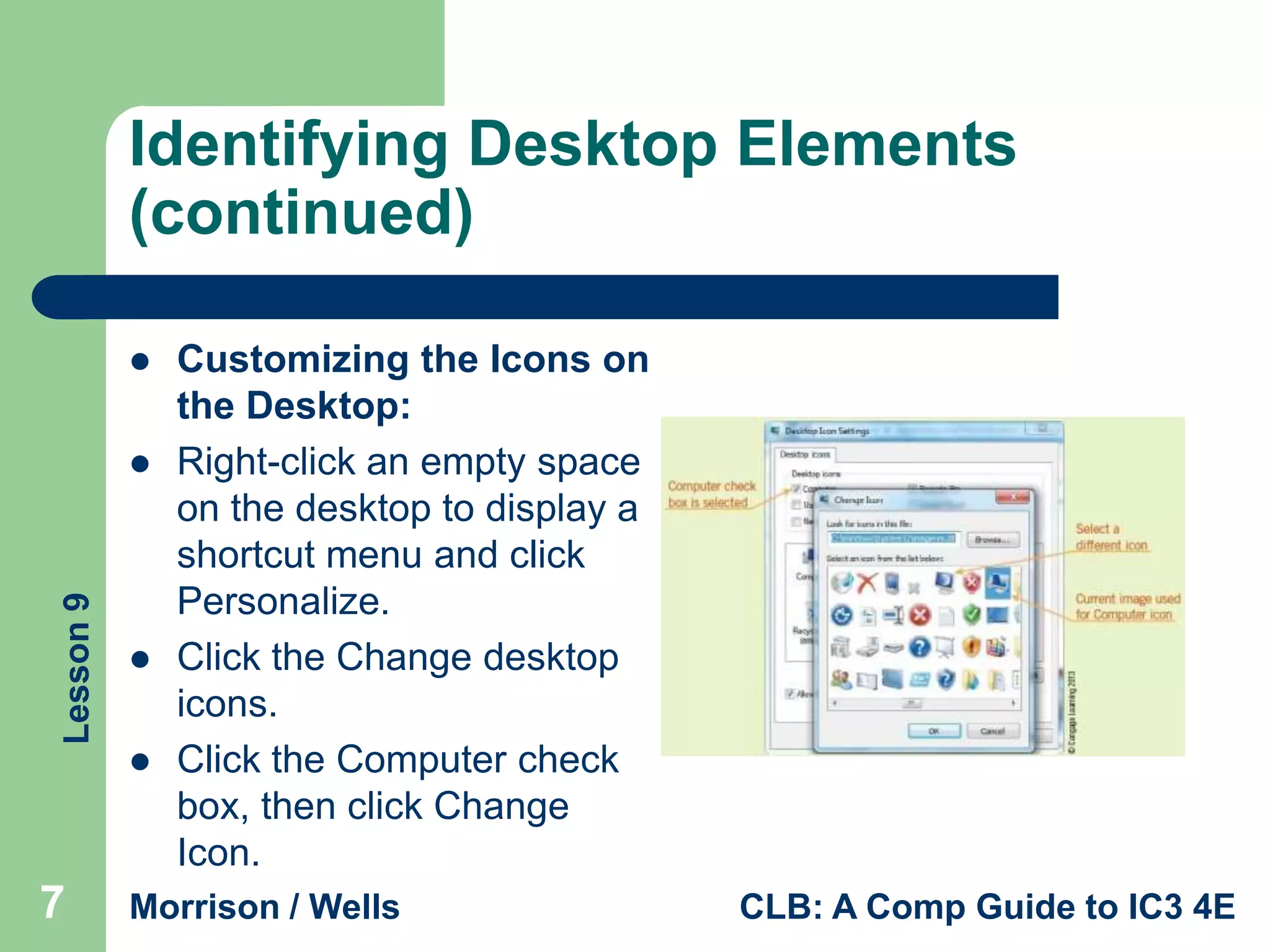
Identifying Other Graphical Elements:
A gadget is a small program that performs a limited
task such as displaying current weather information.

8

Morrison / Wells

CLB: A Comp Guide to IC3 4E
Manipulating Windows


Lesson 9






9

Click the Minimize button to hide the window without
closing it; you can display the window again by
clicking its button on the taskbar.
Click the Restore Down button to display the window
in less than a full screen.
The button in this position becomes the Maximize
button after you click the Restore Down button.
Click the Maximize button to have the window fill the
full screen.
Click the Close button to close the window.

Morrison / Wells

CLB: A Comp Guide to IC3 4E
Starting Programs and Switching
Between Windows


Lesson 9



10

When multiple windows are open on your
desktop, the one you are working with is
called the active window.
Accessing Online Support:
–
–
–

Windows Remote Assistance
Microsoft Answers
Microsoft customer support

Morrison / Wells

CLB: A Comp Guide to IC3 4E
Starting Programs and Switching
Between Windows (continued)


Lesson 9



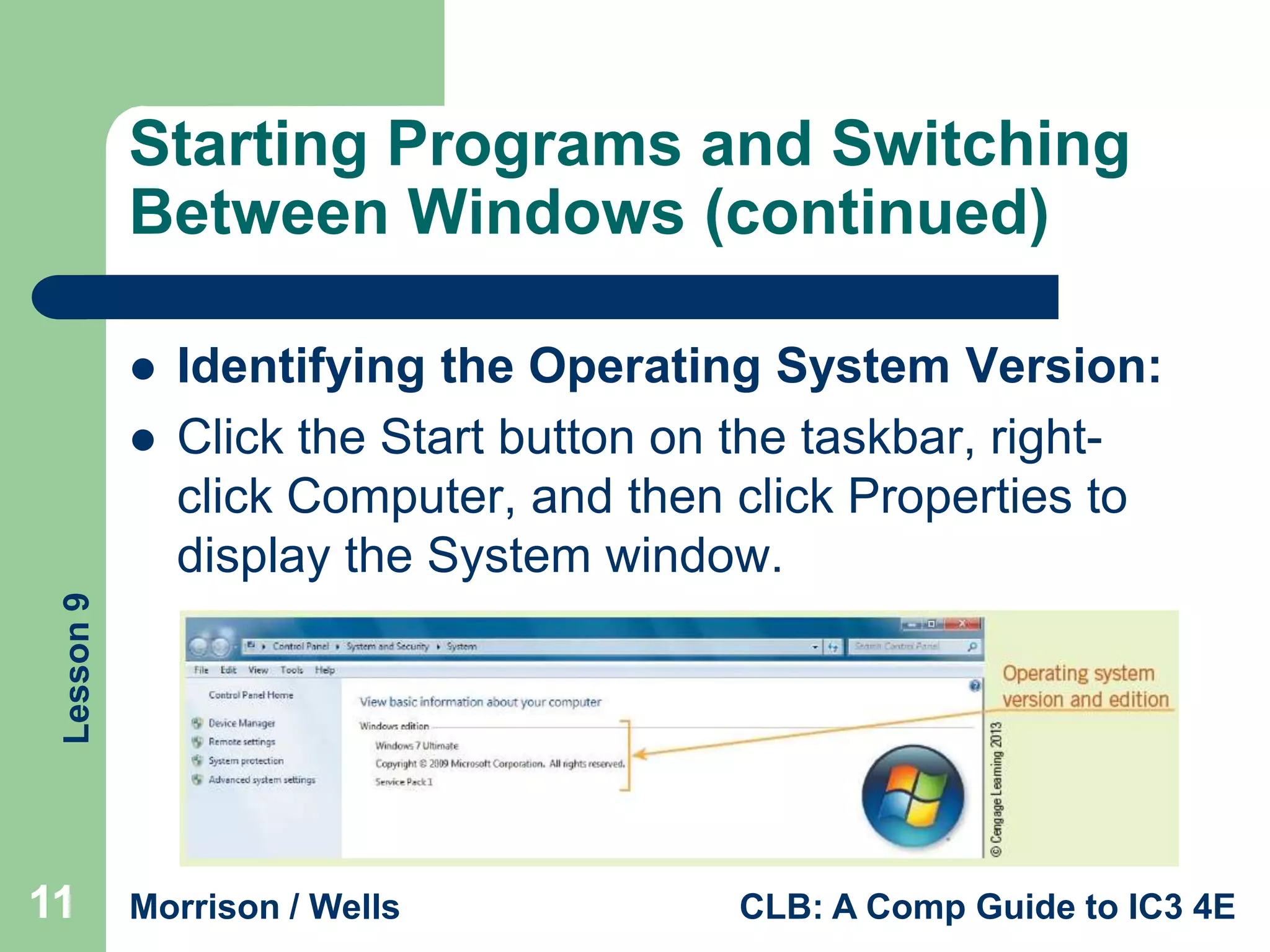
Identifying the Operating System Version:
Click the Start button on the taskbar, rightclick Computer, and then click Properties to
display the System window.

11

Morrison / Wells

CLB: A Comp Guide to IC3 4E
Using Desktop Folders and Icons

Lesson 9



12



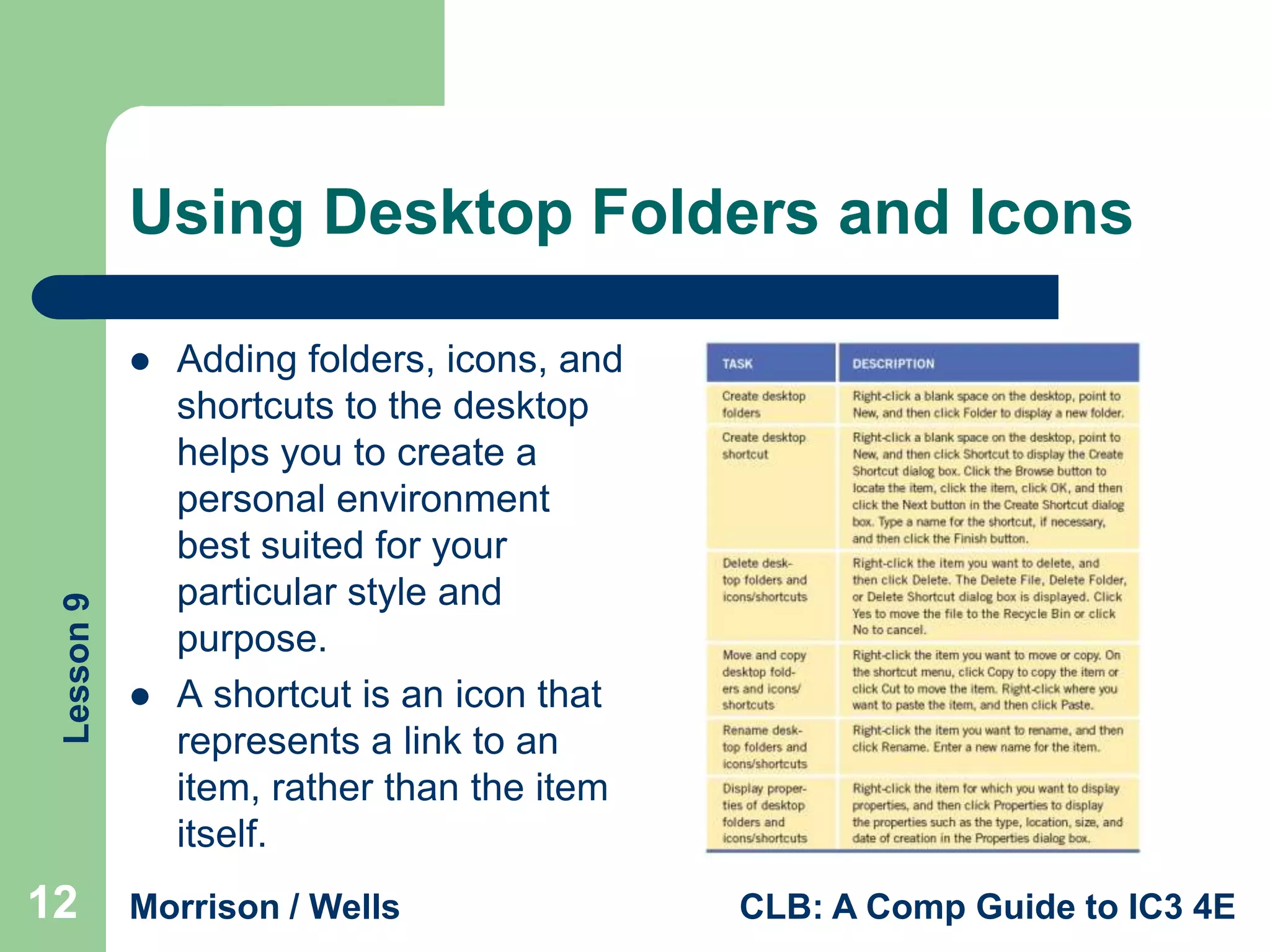
Adding folders, icons, and
shortcuts to the desktop
helps you to create a
personal environment
best suited for your
particular style and
purpose.
A shortcut is an icon that
represents a link to an
item, rather than the item
itself.

Morrison / Wells

CLB: A Comp Guide to IC3 4E
Managing Files



Lesson 9



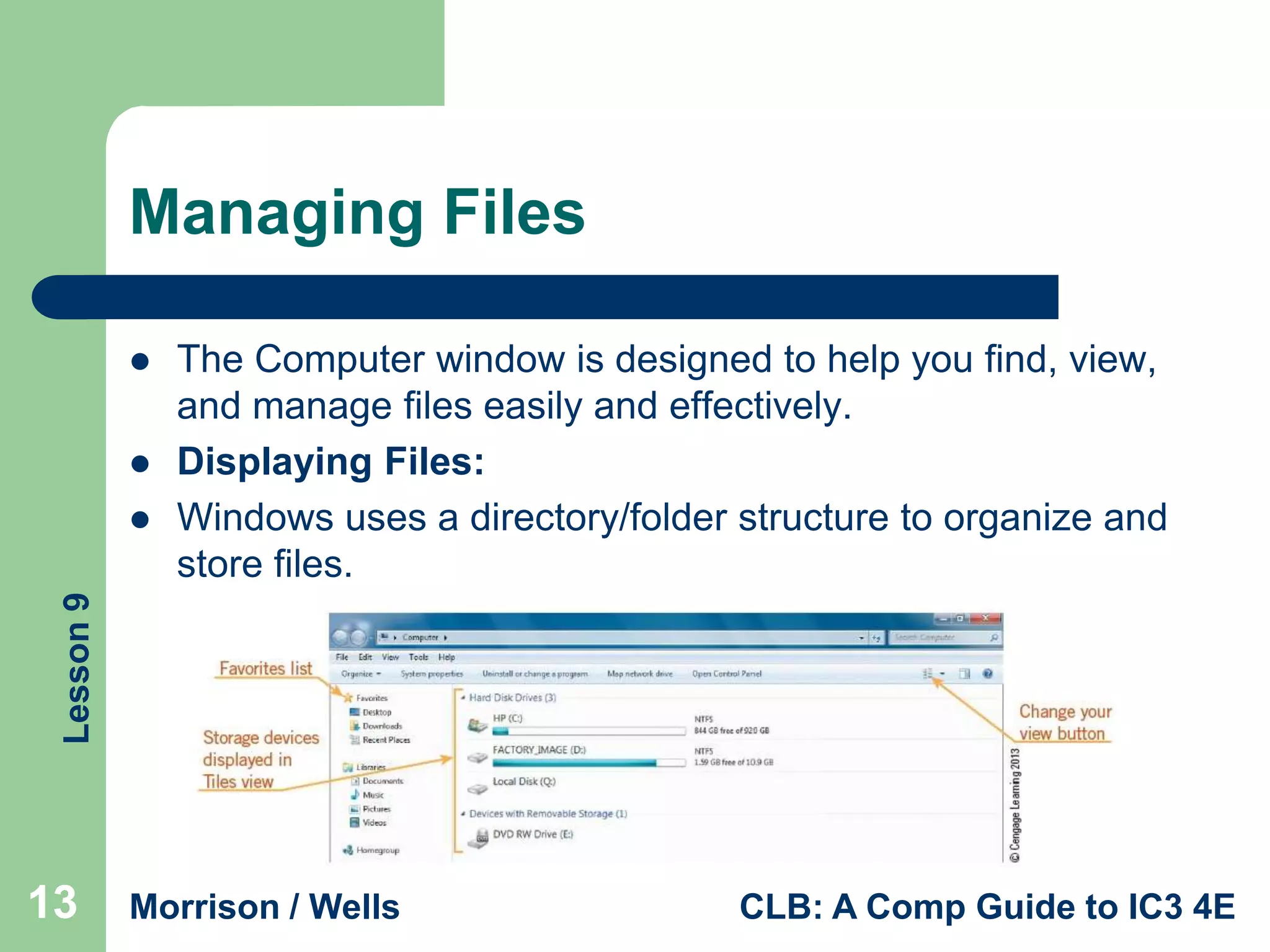
The Computer window is designed to help you find, view,
and manage files easily and effectively.
Displaying Files:
Windows uses a directory/folder structure to organize and
store files.

13

Morrison / Wells

CLB: A Comp Guide to IC3 4E
Managing Files (continued)


Lesson 9



14





Recognizing Types of Files:
System files usually are found in the Windows or
Program Files folder and are essential files
necessary for running Windows.
An application file is part of an application, such as a
word-processing program, a graphics program, and
so on.
A data file is one you create when working with an
application, such as a document you create when
working with Microsoft Word.

Morrison / Wells

CLB: A Comp Guide to IC3 4E
Managing Files (continued)



Lesson 9







15

Changing Directory and File Views:
A directory, or folder, is a container for files and
other directories.
Sorting Files:
You can use the Computer window to sort files by
name, size, type, date, or other characteristics.
Creating Folders:
You use folders to store, manage, and organize
files.

Morrison / Wells

CLB: A Comp Guide to IC3 4E
Managing Files (continued)





Lesson 9






16

Selecting Files:
To select a single file, click the filename or file icon.
Moving, Copying, Deleting, and Renaming Files:
To move a file, select the file and drag it to the new location.
You can use the same steps to copy a file by clicking Copy
instead of Cut.
To delete a file, right-click the filename or file icon to display
the shortcut menu, and then click Delete.
To rename a file, right-click the filename or file icon and then
click Rename.

Morrison / Wells

CLB: A Comp Guide to IC3 4E
Managing Files (continued)


Lesson 9



17




Retrieving Deleted Files:
Double-click the Recycle Bin; right-click the
filename that you want to restore; click
Restore.
Emptying the Recycle Bin:
Right-click the Recycle Bin icon on the
desktop and then click Empty Recycle Bin.

Morrison / Wells

CLB: A Comp Guide to IC3 4E
Managing Files (continued)


Lesson 9



18



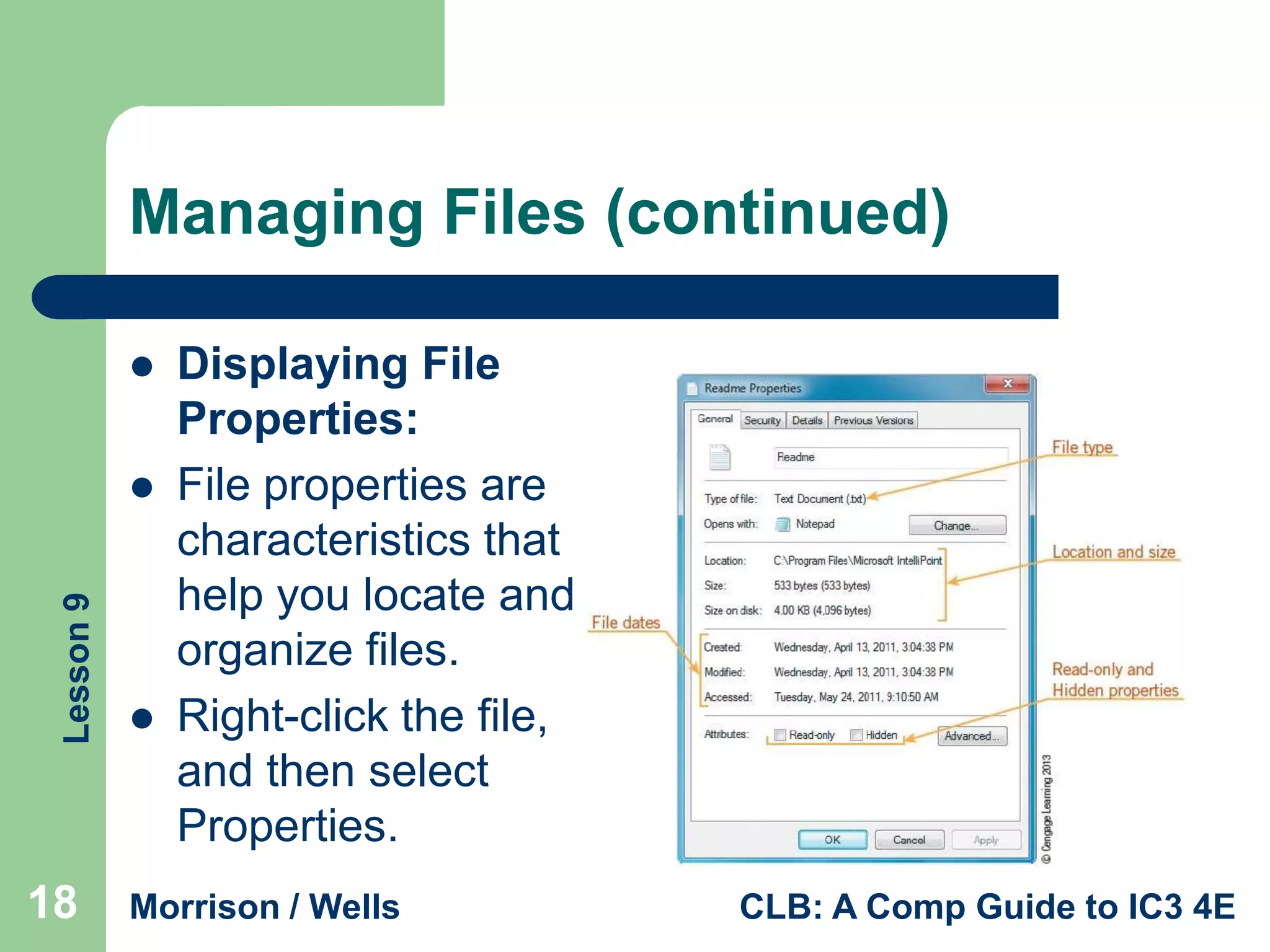
Displaying File
Properties:
File properties are
characteristics that
help you locate and
organize files.
Right-click the file,
and then select
Properties.

Morrison / Wells

CLB: A Comp Guide to IC3 4E
Managing Files (continued)


Lesson 9



19




Finding Files:
The Computer window provides tools to help
you search for files and folders, to find details
about the contents of the files and folders,
and to manage them.
Displaying and Identifying Hidden Files:
A hidden file is a file like any other except it is
not displayed in a folder window.

Morrison / Wells

CLB: A Comp Guide to IC3 4E
Identifying Strategies for Working
with Files



Lesson 9



20





Naming and Organizing Files and Folders:
Name files and folders using standardized names that
are easy to remember and help you stay organized.
Deleting Unneeded Files and Folders:
Saves disk space, helps avoid clutter, and enables
better access to the hard drive.
Backing up Files and Folders:
To protect these important documents, you should
back up files and folders to an external device on a
regular basis.

Morrison / Wells

CLB: A Comp Guide to IC3 4E
Solving Common File Problems
–
–

Lesson 9

–
–
–
–
–

21

You cannot find a file because it is hidden.
You cannot open a file because it is password
protected.
You cannot edit a file because it is a read-only file.
You cannot access a file.
You cannot open a file because it is damaged.
You cannot open a file in the program that created
it.
You cannot save a file because the drive is full.

Morrison / Wells

CLB: A Comp Guide to IC3 4E
Lesson 9

Summary

22

In this lesson, you learned:
 To start Windows, you turn on your computer, and then, if
necessary, log on by selecting your user name or picture
and entering a password. To end your Windows session,
you can log off and let another user work with Windows
by clicking the Start button, pointing to the Shut down
arrow button, and then clicking Log off.
 If you are working with an application that does not
respond to your actions, you can use the Windows Task
Manager to close the nonresponsive application or
process.
Morrison / Wells

CLB: A Comp Guide to IC3 4E
Summary (continued)

Lesson 9



23



The Windows 7 desktop is the main screen area that
appears after you turn on your computer. You can
place icons on the desktop that are shortcuts to start
a program, open a window, or access a Web site, for
example. You can also delete, move, and rename
the icons on the desktop.
The Recycle Bin appears on your desktop by default.
You use the Recycle Bin to discard unnecessary
items, such as folders. The Recycle Bin stores the
discarded items until you empty it.

Morrison / Wells

CLB: A Comp Guide to IC3 4E
Summary (continued)

Lesson 9



24



The desktop contains three main sections: the
taskbar, which is located at the bottom of the
screen; the Start button, which opens the Start
menu; and the middle section, which contains
program and document icons.
You use three buttons on a window’s title bar—
the Minimize button, the Maximize/Restore down
button, and the Close button—to control the way
a window is or is not displayed.

Morrison / Wells

CLB: A Comp Guide to IC3 4E
Summary (continued)

Lesson 9



25



To start a program in Windows 7, you click the Start
button and then click the program name. You can
also double-click the program icon, which might be
located on the desktop. More than one program can
be in memory at the same time. When multiple
windows are open on your desktop, the one you are
working with is called the active window.
To customize the desktop, you can create desktop
folders, add desktop icons or shortcuts, and delete,
move, and rename these objects.

Morrison / Wells

CLB: A Comp Guide to IC3 4E
Summary (continued)

Lesson 9



26



The Computer window is designed to help you find, view,
and manage files easily and effectively. Besides
displaying files and folders, you use the Computer window
to examine file types; change the view of the folder and its
files; sort files; manage folders; select, move, copy, delete,
and rename files; display file properties; and find files.
You should take caution when manipulating files by using
a standard naming convention to name folders, organizing
files and folders logically, deleting unnecessary files, and
regularly backing up important files.

Morrison / Wells

CLB: A Comp Guide to IC3 4E
Summary (continued)

Lesson 9



27

Be aware of common file management
problems, including locating files that are
difficult to find; learning how to work with
attributes to open files that are read-only,
hidden, or shared; and naming files to
preserve their file extension so they are
associated with the appropriate application.

Morrison / Wells

CLB: A Comp Guide to IC3 4E

Lesson 09

  • 1.
    Lesson 9 Windows Management ComputerLiteracy BASICS: A Comprehensive Guide to IC3, 4th Edition 1 Morrison / Wells
  • 2.
    Objectives   Lesson 9       2 Log onand off the computer. Identify desktop elements. Manipulate windows. Start programs and switch between windows. Use desktop folders and icons. Manage files. Identify strategies for working with files. Solve common file problems. Morrison / Wells CLB: A Comp Guide to IC3 4E
  • 3.
    Vocabulary   Lesson 9      3 active window applicationfile Computer window data file directory file property gadget Morrison / Wells      hidden file icon Recycle Bin shortcut system file CLB: A Comp Guide to IC3 4E
  • 4.
    Logging On andOff the Computer Lesson 9  4  To start Windows, turn on your computer and then log on, if necessary. To log off, click the Start button, point to the Shut down arrow button, and then click Log off. Morrison / Wells CLB: A Comp Guide to IC3 4E
  • 5.
    Logging On andOff the Computer (continued)  Lesson 9  5 Shutting Down an Unresponsive Application: Use the Task Manager to close an unresponsive application or process. Morrison / Wells CLB: A Comp Guide to IC3 4E
  • 6.
    Identifying Desktop Elements   Lesson9  The objects on the desktop are called icons. The Recycle Bin is used to discard unnecessary items. The desktop contains three main sections: – – – 6 The taskbar, which is located at the bottom of the screen The Start button, which opens the Start menu The middle section, which contains the wallpaper, open windows, and program and document icons Morrison / Wells CLB: A Comp Guide to IC3 4E
  • 7.
    Identifying Desktop Elements (continued)  Lesson9    7 Customizing the Icons on the Desktop: Right-click an empty space on the desktop to display a shortcut menu and click Personalize. Click the Change desktop icons. Click the Computer check box, then click Change Icon. Morrison / Wells CLB: A Comp Guide to IC3 4E
  • 8.
    Identifying Desktop Elements (continued)  Lesson9  Identifying Other Graphical Elements: A gadget is a small program that performs a limited task such as displaying current weather information. 8 Morrison / Wells CLB: A Comp Guide to IC3 4E
  • 9.
    Manipulating Windows  Lesson 9     9 Clickthe Minimize button to hide the window without closing it; you can display the window again by clicking its button on the taskbar. Click the Restore Down button to display the window in less than a full screen. The button in this position becomes the Maximize button after you click the Restore Down button. Click the Maximize button to have the window fill the full screen. Click the Close button to close the window. Morrison / Wells CLB: A Comp Guide to IC3 4E
  • 10.
    Starting Programs andSwitching Between Windows  Lesson 9  10 When multiple windows are open on your desktop, the one you are working with is called the active window. Accessing Online Support: – – – Windows Remote Assistance Microsoft Answers Microsoft customer support Morrison / Wells CLB: A Comp Guide to IC3 4E
  • 11.
    Starting Programs andSwitching Between Windows (continued)  Lesson 9  Identifying the Operating System Version: Click the Start button on the taskbar, rightclick Computer, and then click Properties to display the System window. 11 Morrison / Wells CLB: A Comp Guide to IC3 4E
  • 12.
    Using Desktop Foldersand Icons Lesson 9  12  Adding folders, icons, and shortcuts to the desktop helps you to create a personal environment best suited for your particular style and purpose. A shortcut is an icon that represents a link to an item, rather than the item itself. Morrison / Wells CLB: A Comp Guide to IC3 4E
  • 13.
    Managing Files   Lesson 9  TheComputer window is designed to help you find, view, and manage files easily and effectively. Displaying Files: Windows uses a directory/folder structure to organize and store files. 13 Morrison / Wells CLB: A Comp Guide to IC3 4E
  • 14.
    Managing Files (continued)  Lesson9  14   Recognizing Types of Files: System files usually are found in the Windows or Program Files folder and are essential files necessary for running Windows. An application file is part of an application, such as a word-processing program, a graphics program, and so on. A data file is one you create when working with an application, such as a document you create when working with Microsoft Word. Morrison / Wells CLB: A Comp Guide to IC3 4E
  • 15.
    Managing Files (continued)   Lesson9     15 Changing Directory and File Views: A directory, or folder, is a container for files and other directories. Sorting Files: You can use the Computer window to sort files by name, size, type, date, or other characteristics. Creating Folders: You use folders to store, manage, and organize files. Morrison / Wells CLB: A Comp Guide to IC3 4E
  • 16.
    Managing Files (continued)     Lesson9    16 Selecting Files: To select a single file, click the filename or file icon. Moving, Copying, Deleting, and Renaming Files: To move a file, select the file and drag it to the new location. You can use the same steps to copy a file by clicking Copy instead of Cut. To delete a file, right-click the filename or file icon to display the shortcut menu, and then click Delete. To rename a file, right-click the filename or file icon and then click Rename. Morrison / Wells CLB: A Comp Guide to IC3 4E
  • 17.
    Managing Files (continued)  Lesson9  17   Retrieving Deleted Files: Double-click the Recycle Bin; right-click the filename that you want to restore; click Restore. Emptying the Recycle Bin: Right-click the Recycle Bin icon on the desktop and then click Empty Recycle Bin. Morrison / Wells CLB: A Comp Guide to IC3 4E
  • 18.
    Managing Files (continued)  Lesson9  18  Displaying File Properties: File properties are characteristics that help you locate and organize files. Right-click the file, and then select Properties. Morrison / Wells CLB: A Comp Guide to IC3 4E
  • 19.
    Managing Files (continued)  Lesson9  19   Finding Files: The Computer window provides tools to help you search for files and folders, to find details about the contents of the files and folders, and to manage them. Displaying and Identifying Hidden Files: A hidden file is a file like any other except it is not displayed in a folder window. Morrison / Wells CLB: A Comp Guide to IC3 4E
  • 20.
    Identifying Strategies forWorking with Files   Lesson 9  20    Naming and Organizing Files and Folders: Name files and folders using standardized names that are easy to remember and help you stay organized. Deleting Unneeded Files and Folders: Saves disk space, helps avoid clutter, and enables better access to the hard drive. Backing up Files and Folders: To protect these important documents, you should back up files and folders to an external device on a regular basis. Morrison / Wells CLB: A Comp Guide to IC3 4E
  • 21.
    Solving Common FileProblems – – Lesson 9 – – – – – 21 You cannot find a file because it is hidden. You cannot open a file because it is password protected. You cannot edit a file because it is a read-only file. You cannot access a file. You cannot open a file because it is damaged. You cannot open a file in the program that created it. You cannot save a file because the drive is full. Morrison / Wells CLB: A Comp Guide to IC3 4E
  • 22.
    Lesson 9 Summary 22 In thislesson, you learned:  To start Windows, you turn on your computer, and then, if necessary, log on by selecting your user name or picture and entering a password. To end your Windows session, you can log off and let another user work with Windows by clicking the Start button, pointing to the Shut down arrow button, and then clicking Log off.  If you are working with an application that does not respond to your actions, you can use the Windows Task Manager to close the nonresponsive application or process. Morrison / Wells CLB: A Comp Guide to IC3 4E
  • 23.
    Summary (continued) Lesson 9  23  TheWindows 7 desktop is the main screen area that appears after you turn on your computer. You can place icons on the desktop that are shortcuts to start a program, open a window, or access a Web site, for example. You can also delete, move, and rename the icons on the desktop. The Recycle Bin appears on your desktop by default. You use the Recycle Bin to discard unnecessary items, such as folders. The Recycle Bin stores the discarded items until you empty it. Morrison / Wells CLB: A Comp Guide to IC3 4E
  • 24.
    Summary (continued) Lesson 9  24  Thedesktop contains three main sections: the taskbar, which is located at the bottom of the screen; the Start button, which opens the Start menu; and the middle section, which contains program and document icons. You use three buttons on a window’s title bar— the Minimize button, the Maximize/Restore down button, and the Close button—to control the way a window is or is not displayed. Morrison / Wells CLB: A Comp Guide to IC3 4E
  • 25.
    Summary (continued) Lesson 9  25  Tostart a program in Windows 7, you click the Start button and then click the program name. You can also double-click the program icon, which might be located on the desktop. More than one program can be in memory at the same time. When multiple windows are open on your desktop, the one you are working with is called the active window. To customize the desktop, you can create desktop folders, add desktop icons or shortcuts, and delete, move, and rename these objects. Morrison / Wells CLB: A Comp Guide to IC3 4E
  • 26.
    Summary (continued) Lesson 9  26  TheComputer window is designed to help you find, view, and manage files easily and effectively. Besides displaying files and folders, you use the Computer window to examine file types; change the view of the folder and its files; sort files; manage folders; select, move, copy, delete, and rename files; display file properties; and find files. You should take caution when manipulating files by using a standard naming convention to name folders, organizing files and folders logically, deleting unnecessary files, and regularly backing up important files. Morrison / Wells CLB: A Comp Guide to IC3 4E
  • 27.
    Summary (continued) Lesson 9  27 Beaware of common file management problems, including locating files that are difficult to find; learning how to work with attributes to open files that are read-only, hidden, or shared; and naming files to preserve their file extension so they are associated with the appropriate application. Morrison / Wells CLB: A Comp Guide to IC3 4E