Computer Skills1 by
Maram& Dareen
windows
• It is a GUI (Graphical User Interface) operating system which is
designed for personal computers.
• Windows is much easier to learn than MS-DOS operating system;
all files and folders are represented on the desktop by Icons (user-
friendly).
• With windows you can issue commands with a mouse instead of the
keyboard (user-friendly).
• Windows enable the user to open (use) more than one application
at the same time (multitasking).
• Windows enable the user to transfer data between the opened
programs (cut+past) or (copy+past) …(task-switching).
3.
Computer Skills1 by
Maram& Dareen
Desktop
• The first screen which is appears when loading windows (turn your
computer on).
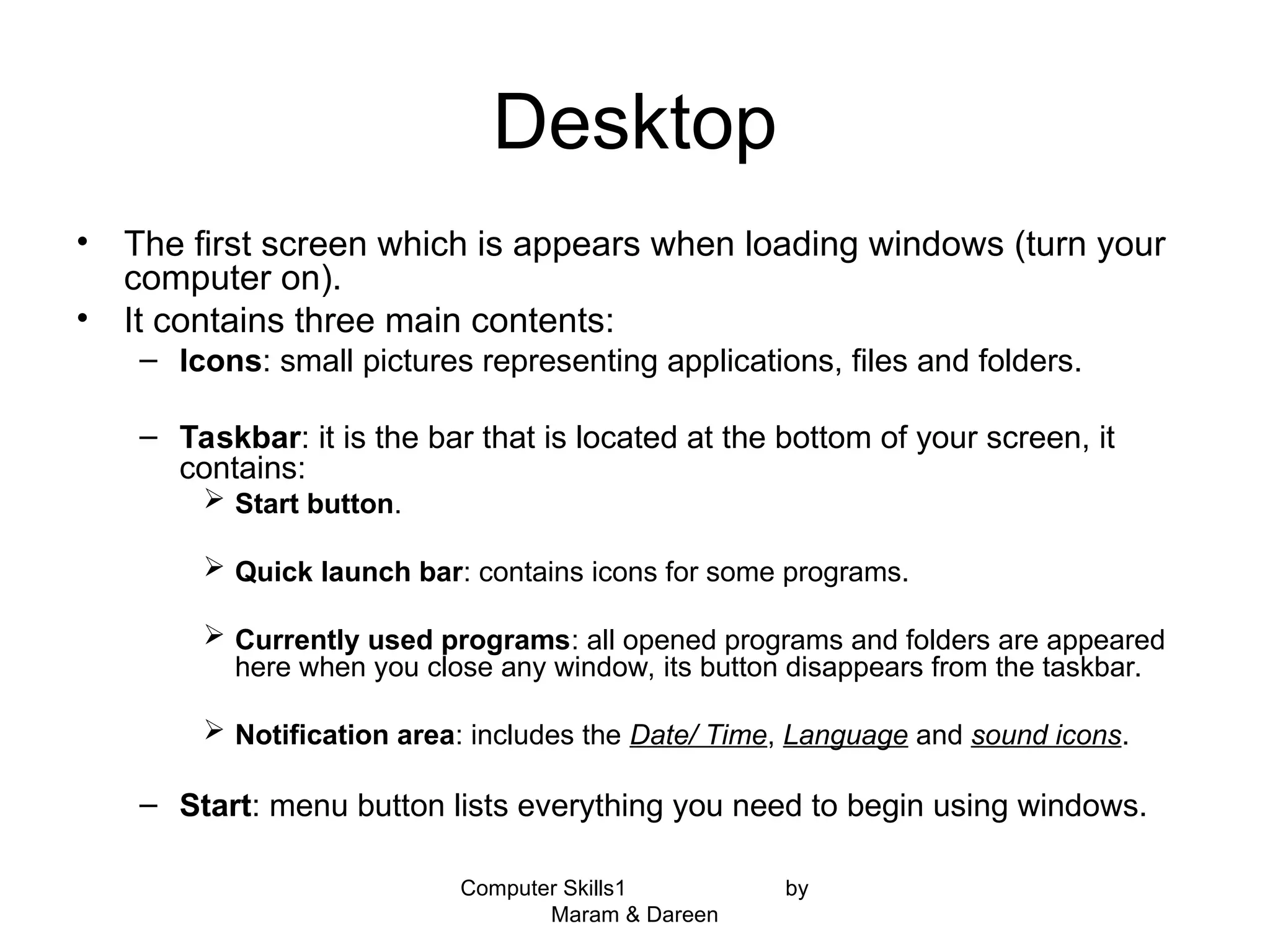
• It contains three main contents:
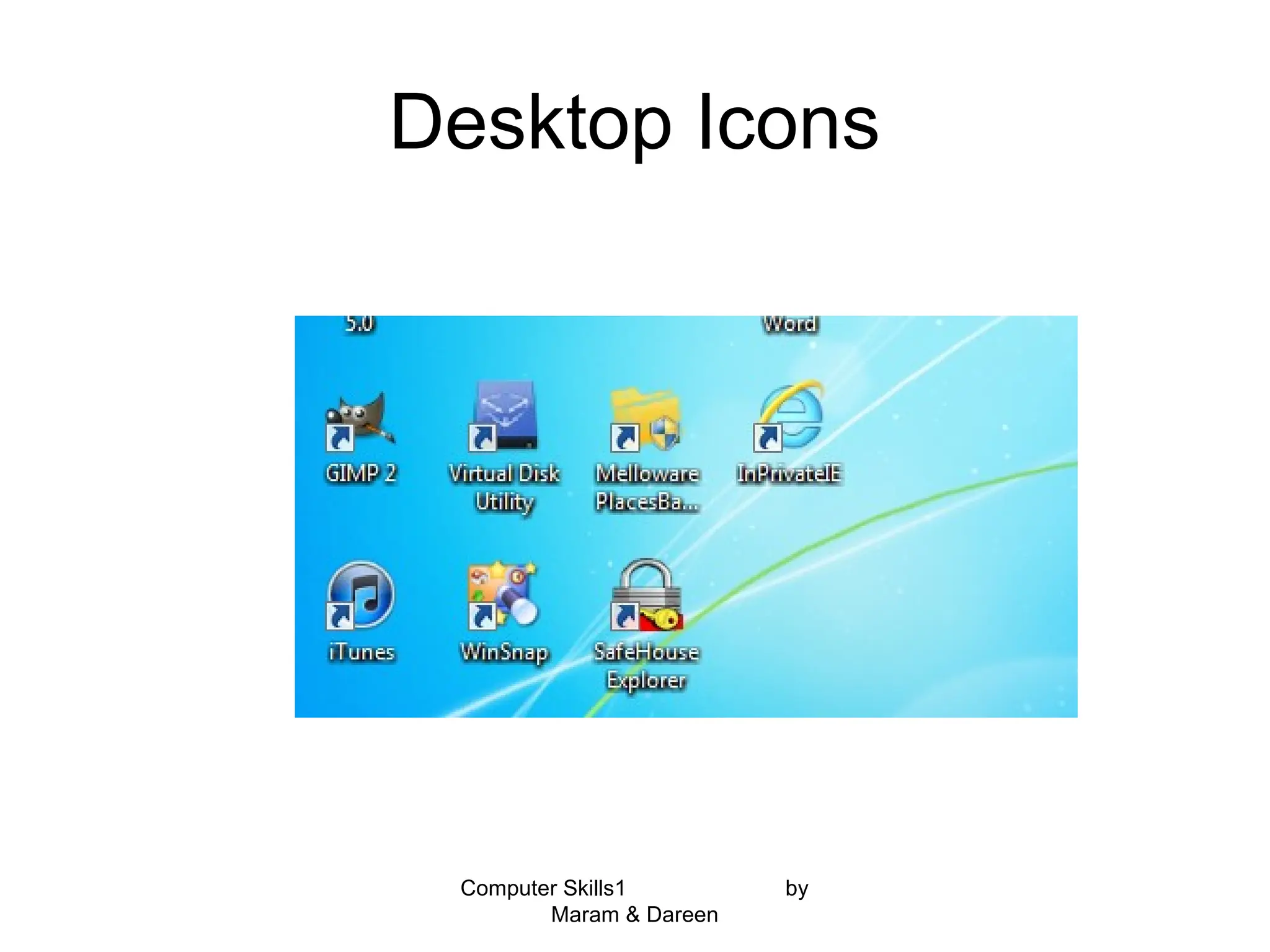
– Icons: small pictures representing applications, files and folders.
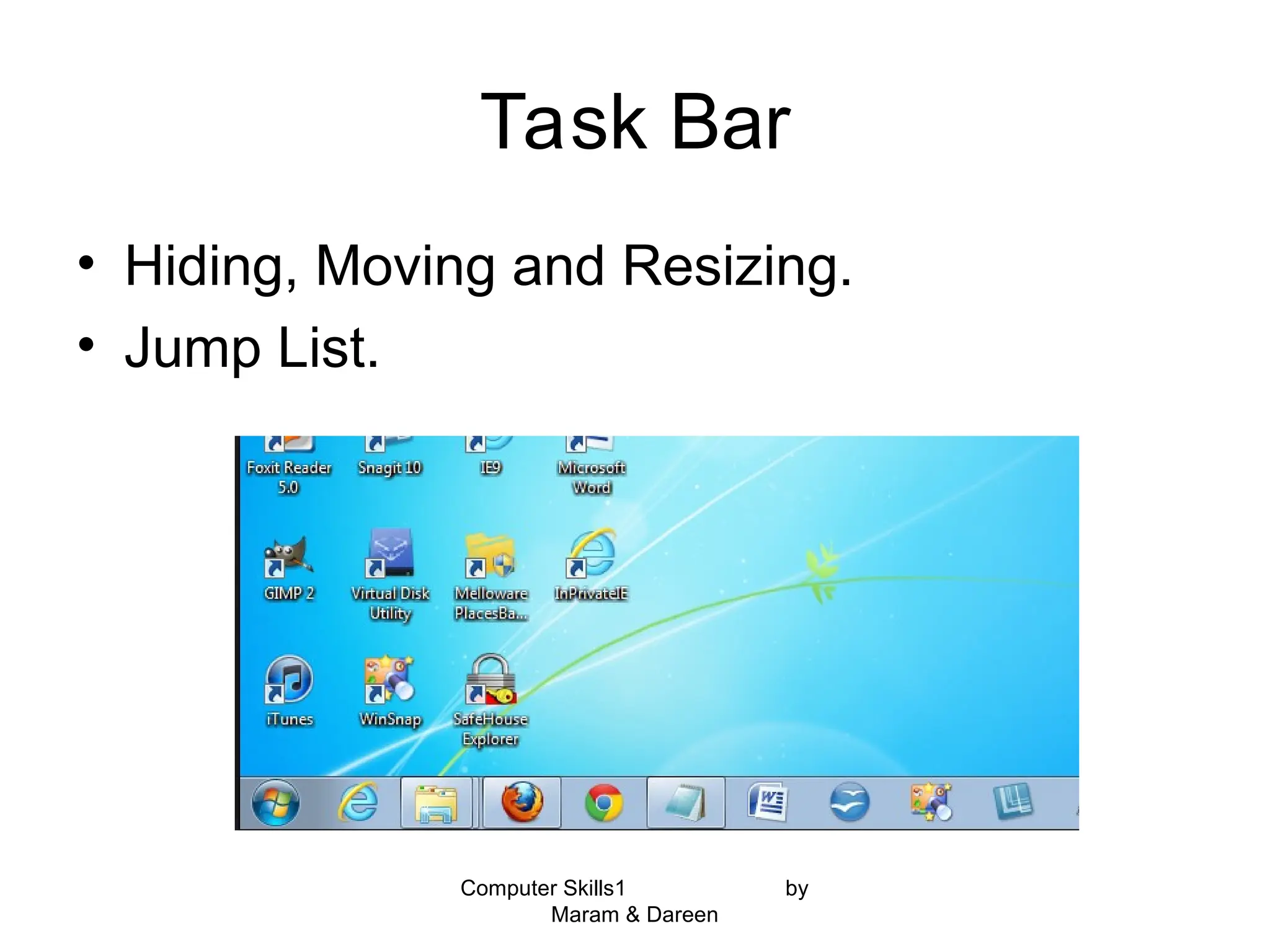
– Taskbar: it is the bar that is located at the bottom of your screen, it
contains:
Start button.
Quick launch bar: contains icons for some programs.
Currently used programs: all opened programs and folders are appeared
here when you close any window, its button disappears from the taskbar.
Notification area: includes the Date/ Time, Language and sound icons.
– Start: menu button lists everything you need to begin using windows.
4.
Computer Skills1 by
Maram& Dareen
Icons
• An object in windows (files, folders, programs).
• From the icon shape we could conclude many things
about it’s type and it’s work.
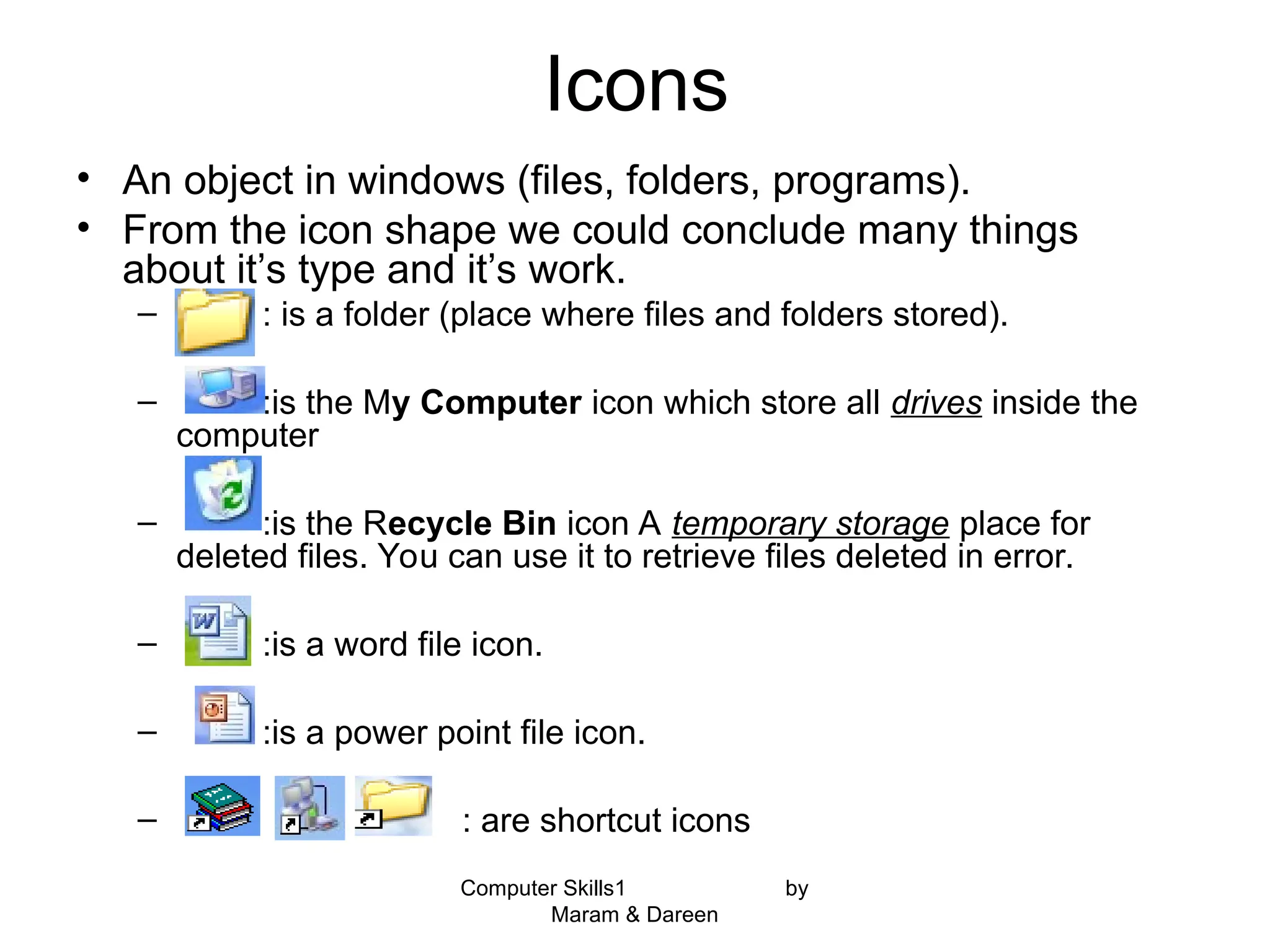
– : is a folder (place where files and folders stored).
– :is the My Computer icon which store all drives inside the
computer
– :is the Recycle Bin icon A temporary storage place for
deleted files. You can use it to retrieve files deleted in error.
– :is a word file icon.
– :is a power point file icon.
– : are shortcut icons
Computer Skills1 by
Maram& Dareen
Using Mouse
• A mouse: is a hand held input device that rolled
on a small flat surface.
– Click: to position a pointer on an object. Then quickly
press and release.
• left click: select an icon. Click+ctrl: select more than one icon
ctrl+A: select all icons.
• Right click: gives a pop-up menu.
– Double Click: press and release twice in rapid
succession. Usually used to open folders (icons).
– Drag: to drag an object you will hold down the left
button while moving the mouse.
7.
Task Bar
• Hiding,Moving and Resizing.
• Jump List.
Computer Skills1 by
Maram & Dareen
Start Menu
• Pina shortcut to the start menu.
• Adding folder/ file.
• Remove the most used programs.
• Running programs.
• Pictures library.
• Music library.
Computer Skills1 by
Maram & Dareen
12.
Windows
• Maximizing /minimizing/closing windows.
• Moving windows.
• Resizing.
• Active/Inactive.
• Switching between running widows:
(ALT +TAB)
• Arranging.
Computer Skills1 by
Maram & Dareen
Computer Skills1 by
Maram& Dareen
Control Panel
you can change the setting of your computer
from the control panel.
Desktop background.
Screen saver.
Date / time.
Region settings.
Keyboard Languages.
Volume settings.
Computer Skills1 by
Maram& Dareen
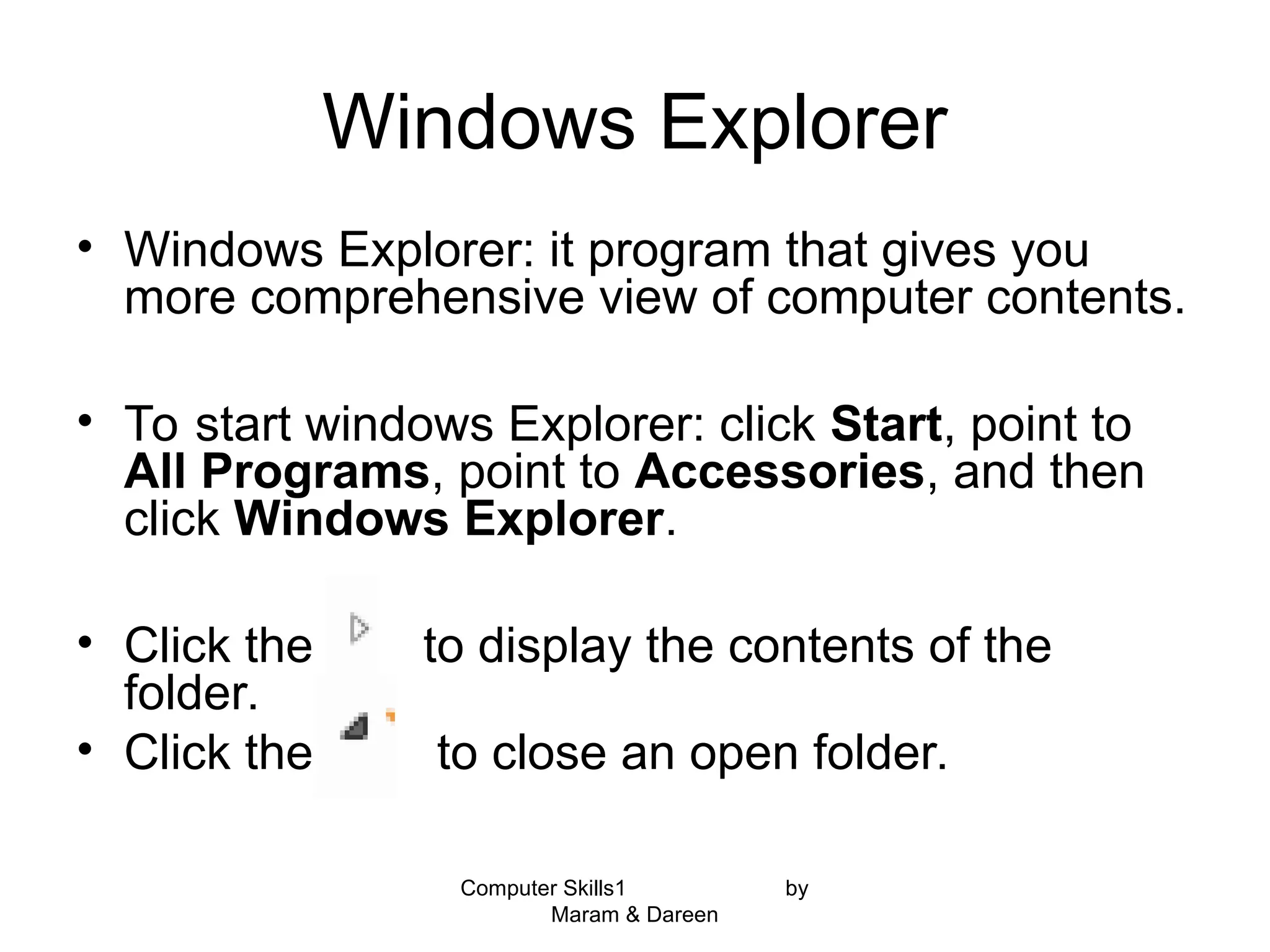
My Computer
• The “ computer” icon is the main icon in any computer it
is used to organize files and folders inside your computer.
• Double-click on my computer icon will open my computer
window.
• My computer window contains:
– Hard Disk Drivers: such as local Disk (c:) and (d:) .
These drives allow you to reach all files, folders, system folders and
programs saved in your computer.
– Devices with removable Storage, such as floppy A, CD Drives,
ZIP and USB flash memory.
– Network Drivers, which enables you to reach shared folders on
network.
Computer Skills1 by
Maram& Dareen
Windows Explorer
• Windows Explorer: it program that gives you
more comprehensive view of computer contents.
• To start windows Explorer: click Start, point to
All Programs, point to Accessories, and then
click Windows Explorer.
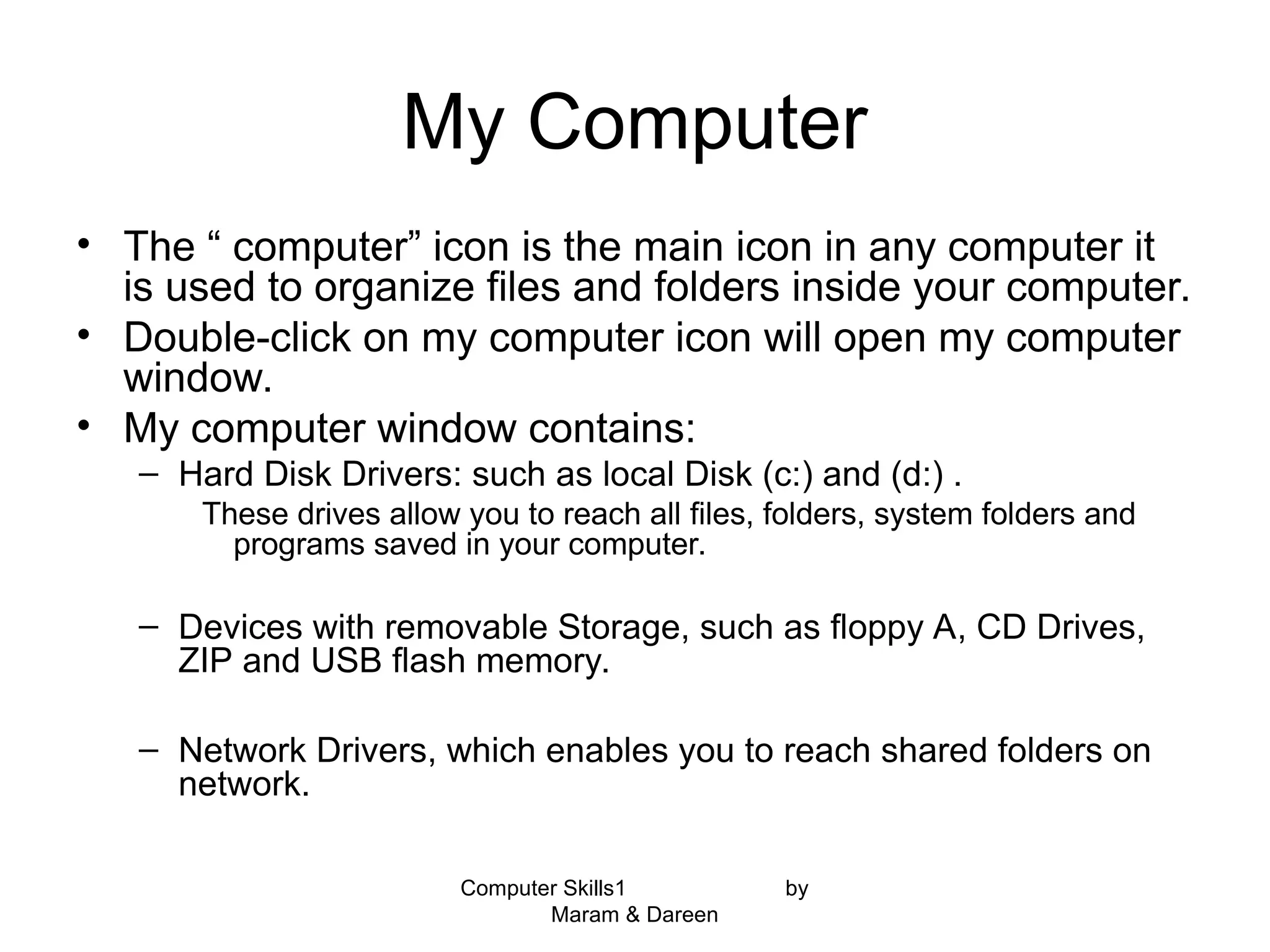
• Click the to display the contents of the
folder.
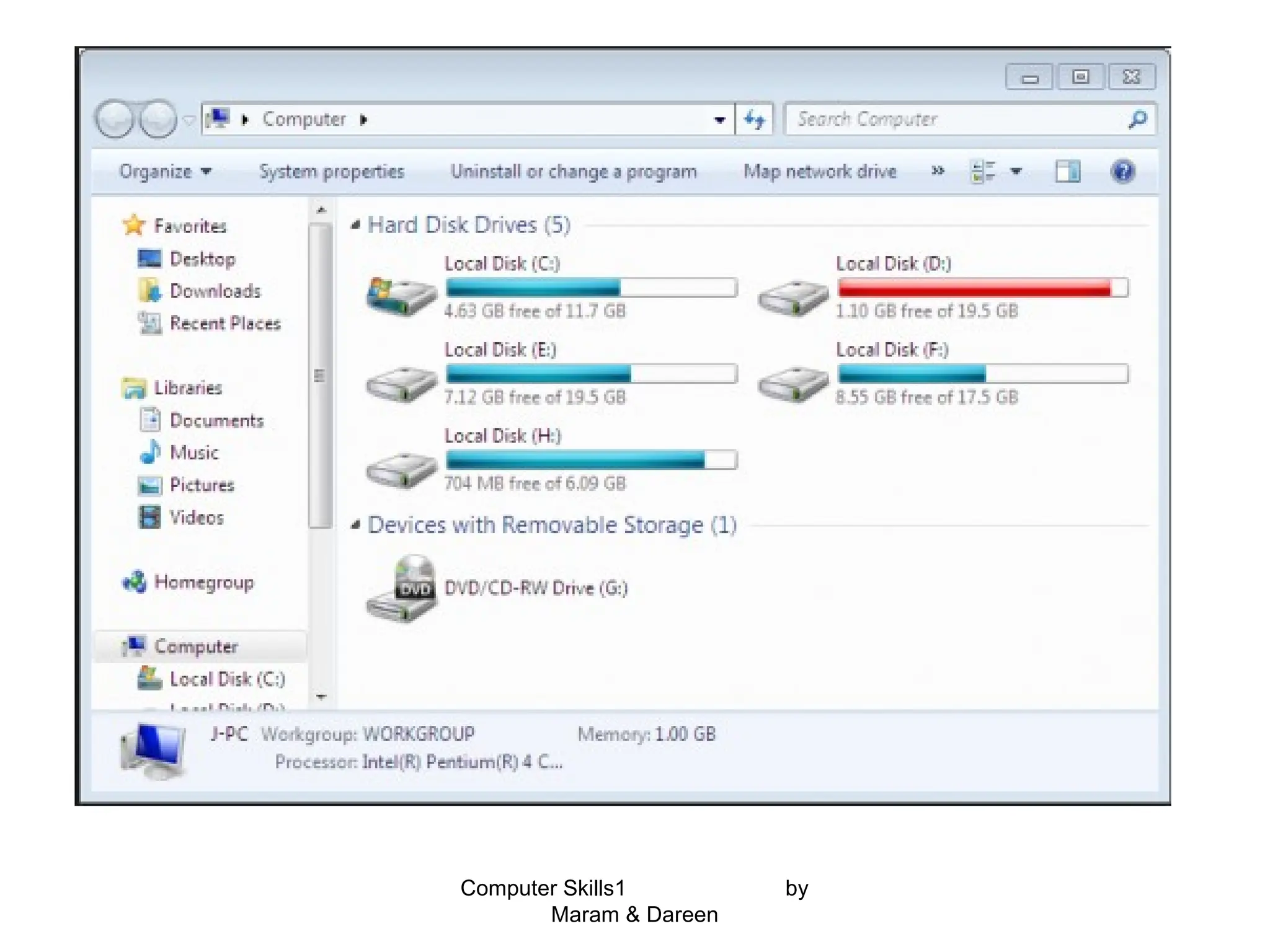
• Click the to close an open folder.
20.
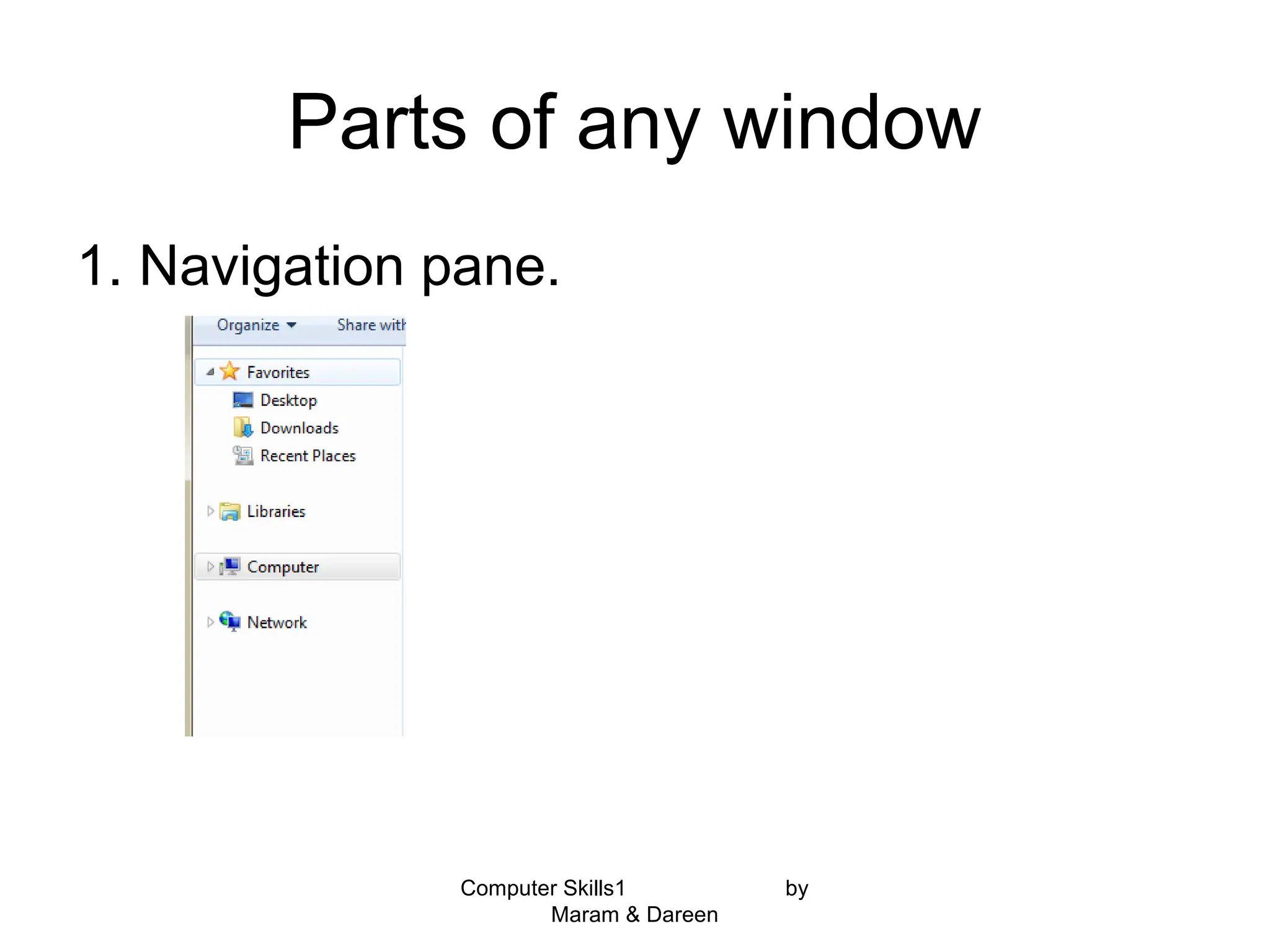
Parts of anywindow
1. Navigation pane.
Computer Skills1 by
Maram & Dareen
21.
Computer Skills1 by
Maram& Dareen
Window parts
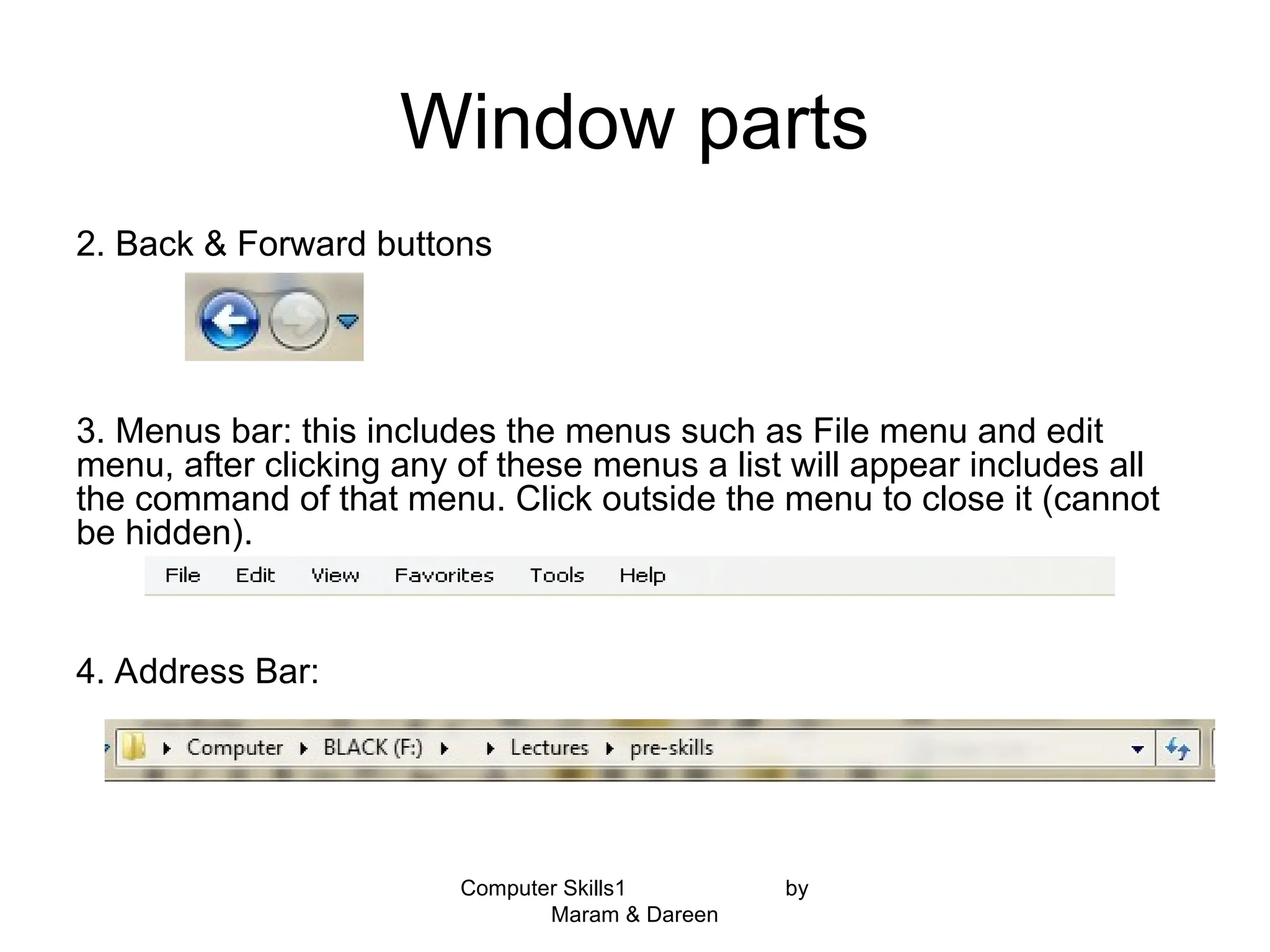
2. Back & Forward buttons
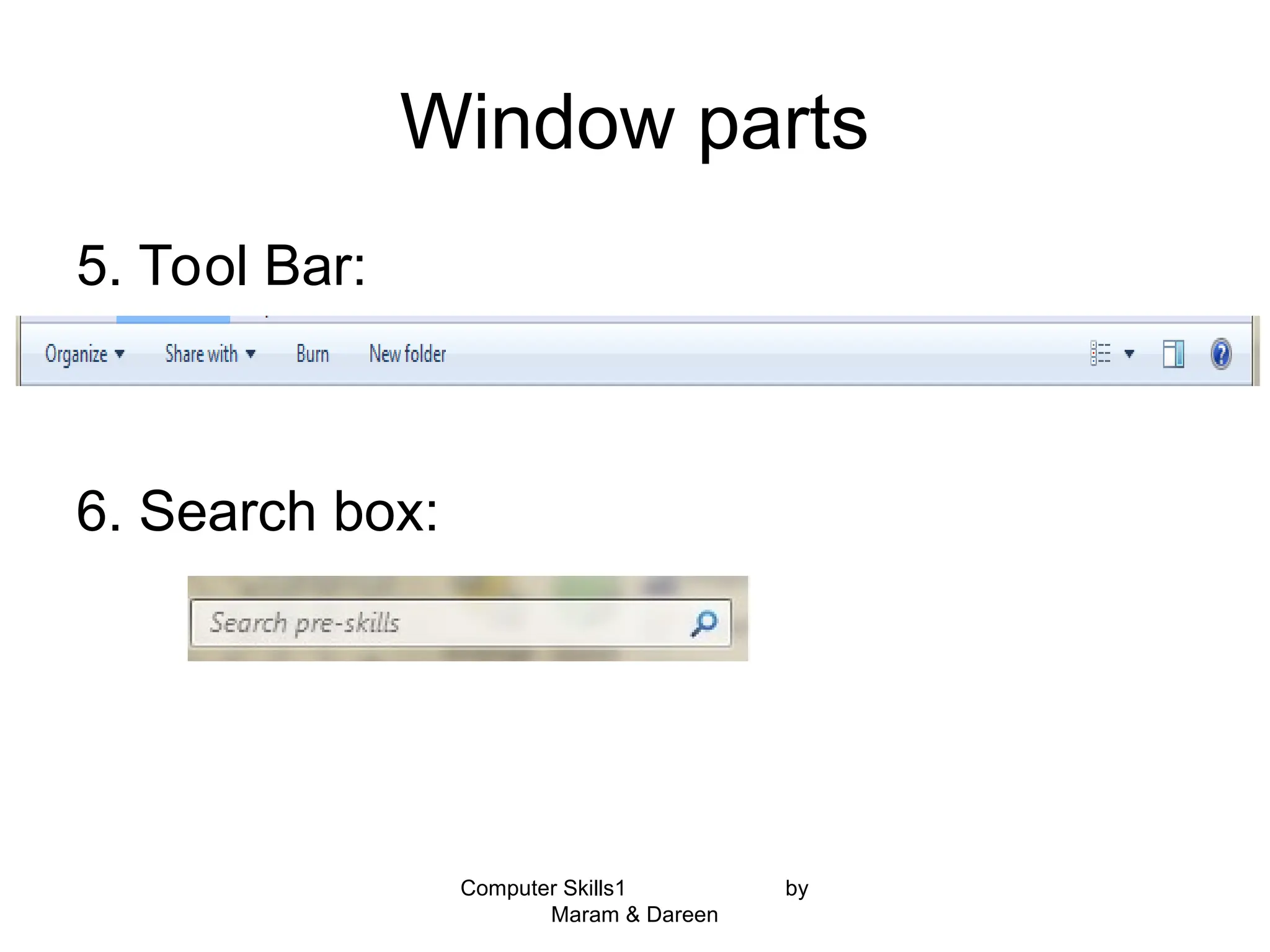
3. Menus bar: this includes the menus such as File menu and edit
menu, after clicking any of these menus a list will appear includes all
the command of that menu. Click outside the menu to close it (cannot
be hidden).
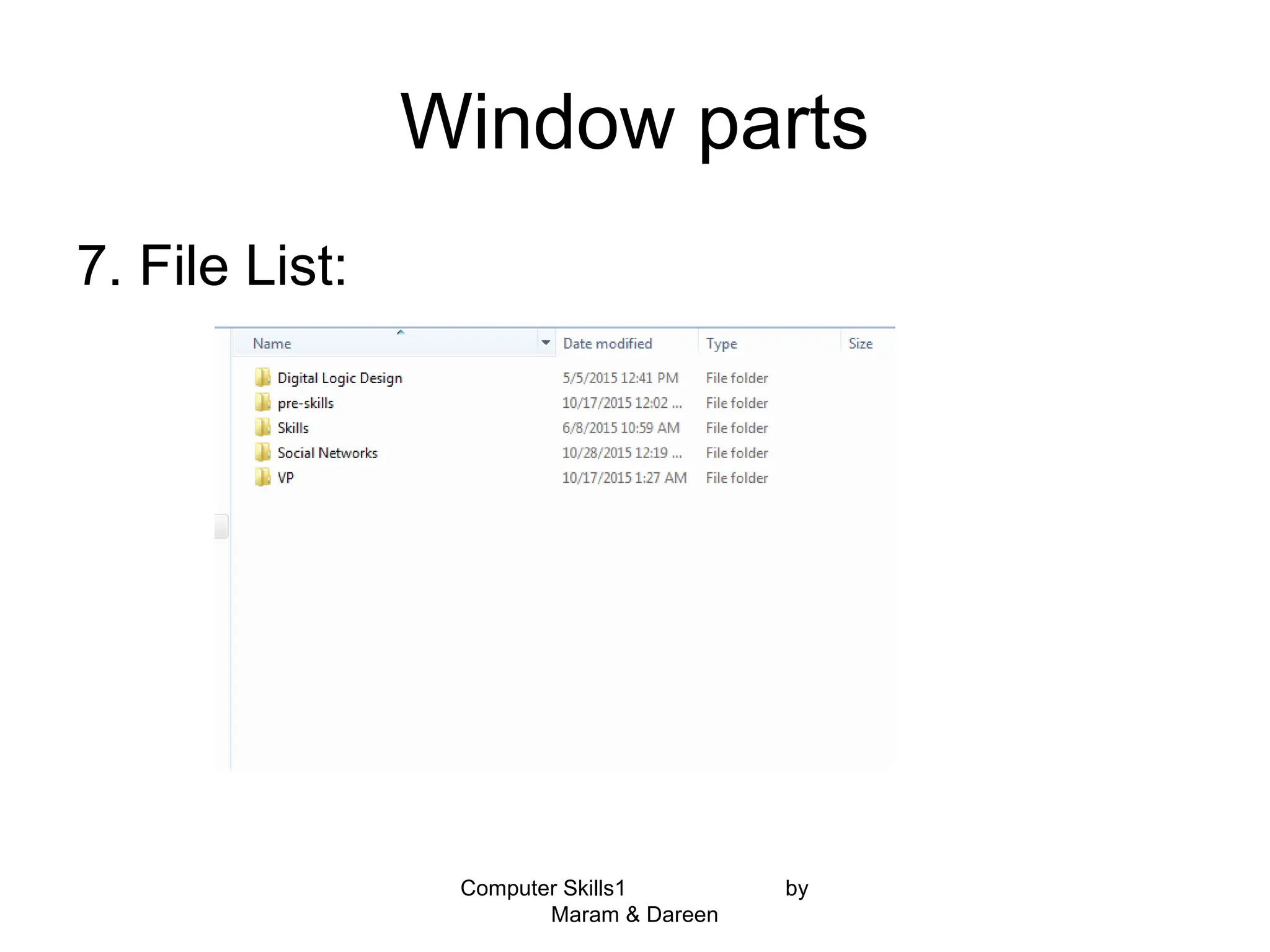
4. Address Bar:
Computer Skills1 by
Maram& Dareen
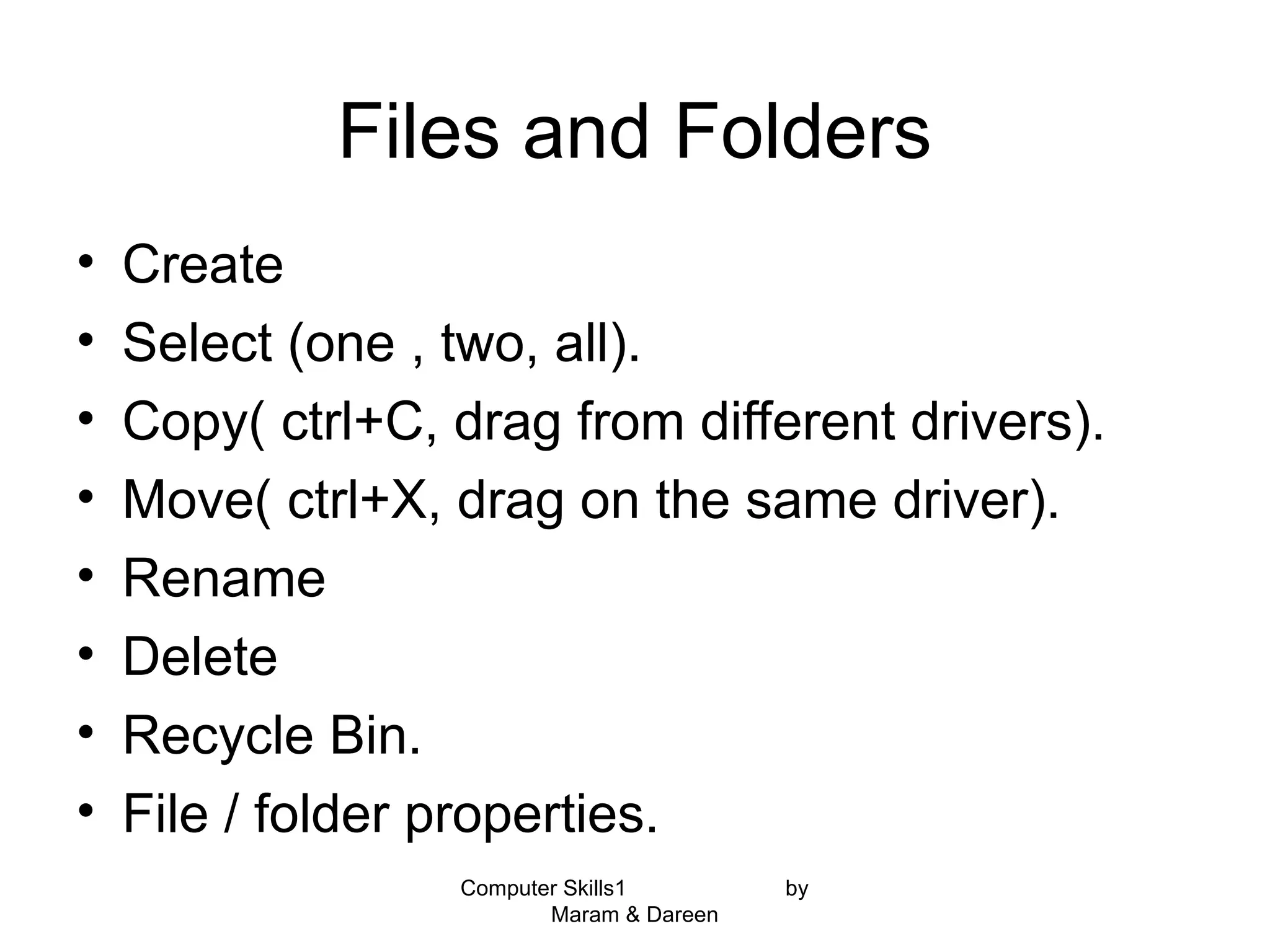
Files and Folders
• Create
• Select (one , two, all).
• Copy( ctrl+C, drag from different drivers).
• Move( ctrl+X, drag on the same driver).
• Rename
• Delete
• Recycle Bin.
• File / folder properties.
30.
Computer Skills1 by
Maram& Dareen
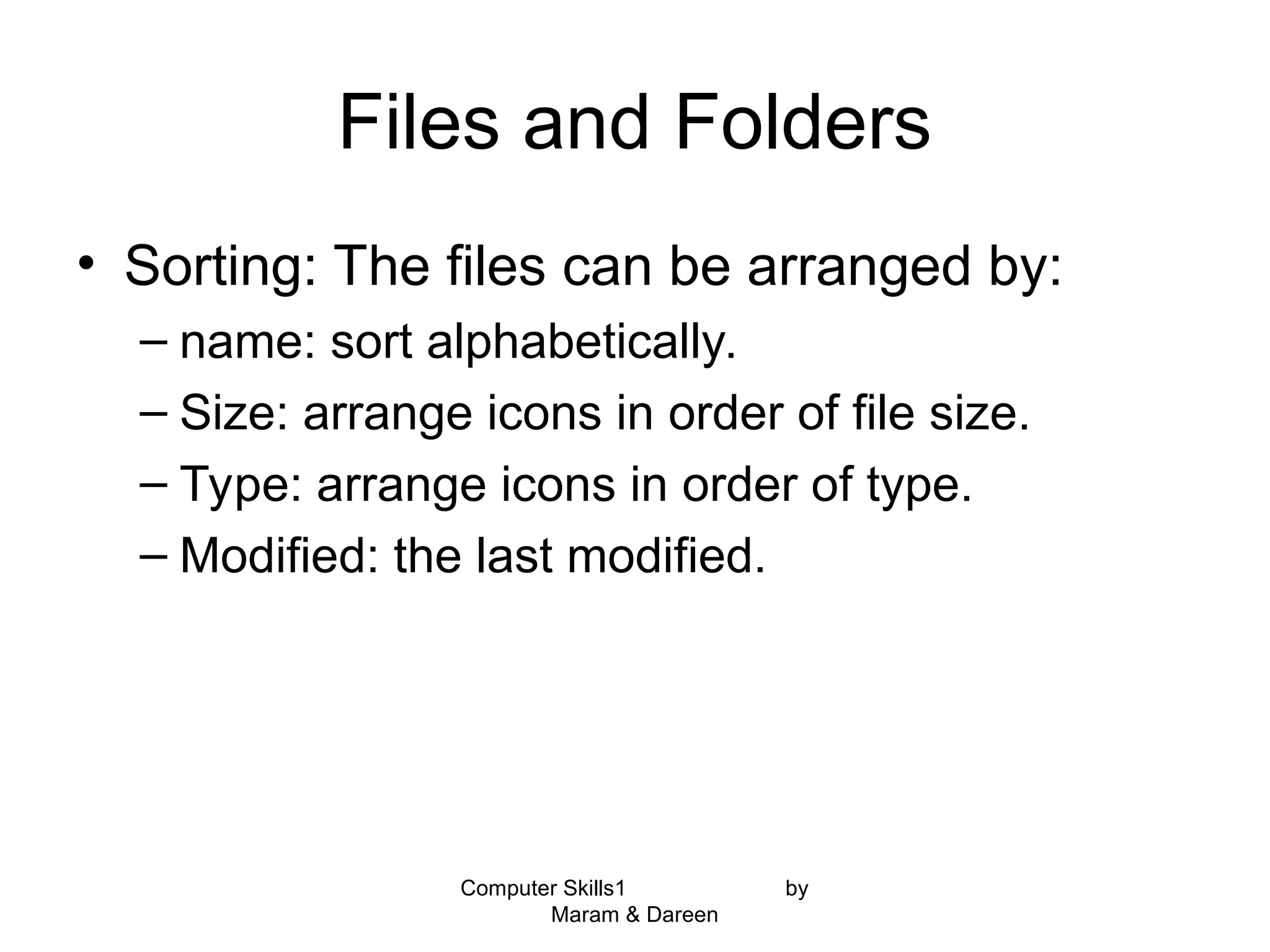
Files and Folders
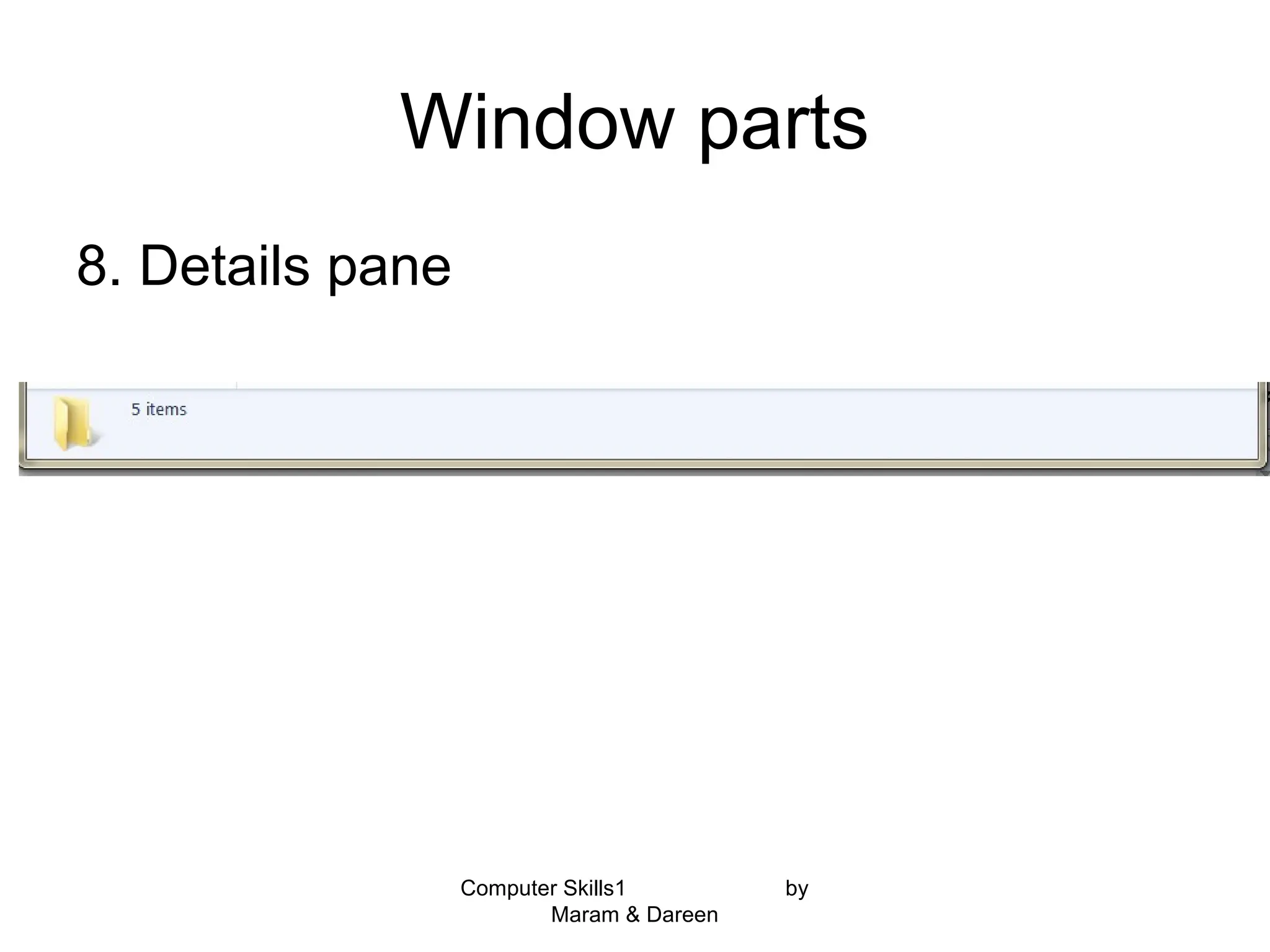
• Sorting: The files can be arranged by:
– name: sort alphabetically.
– Size: arrange icons in order of file size.
– Type: arrange icons in order of type.
– Modified: the last modified.
31.
Files and Folders
•Formatting .
• File compression.
• Searching file / folder.
Computer Skills1 by
Maram & Dareen
Computer Skills1 by
Maram& Dareen
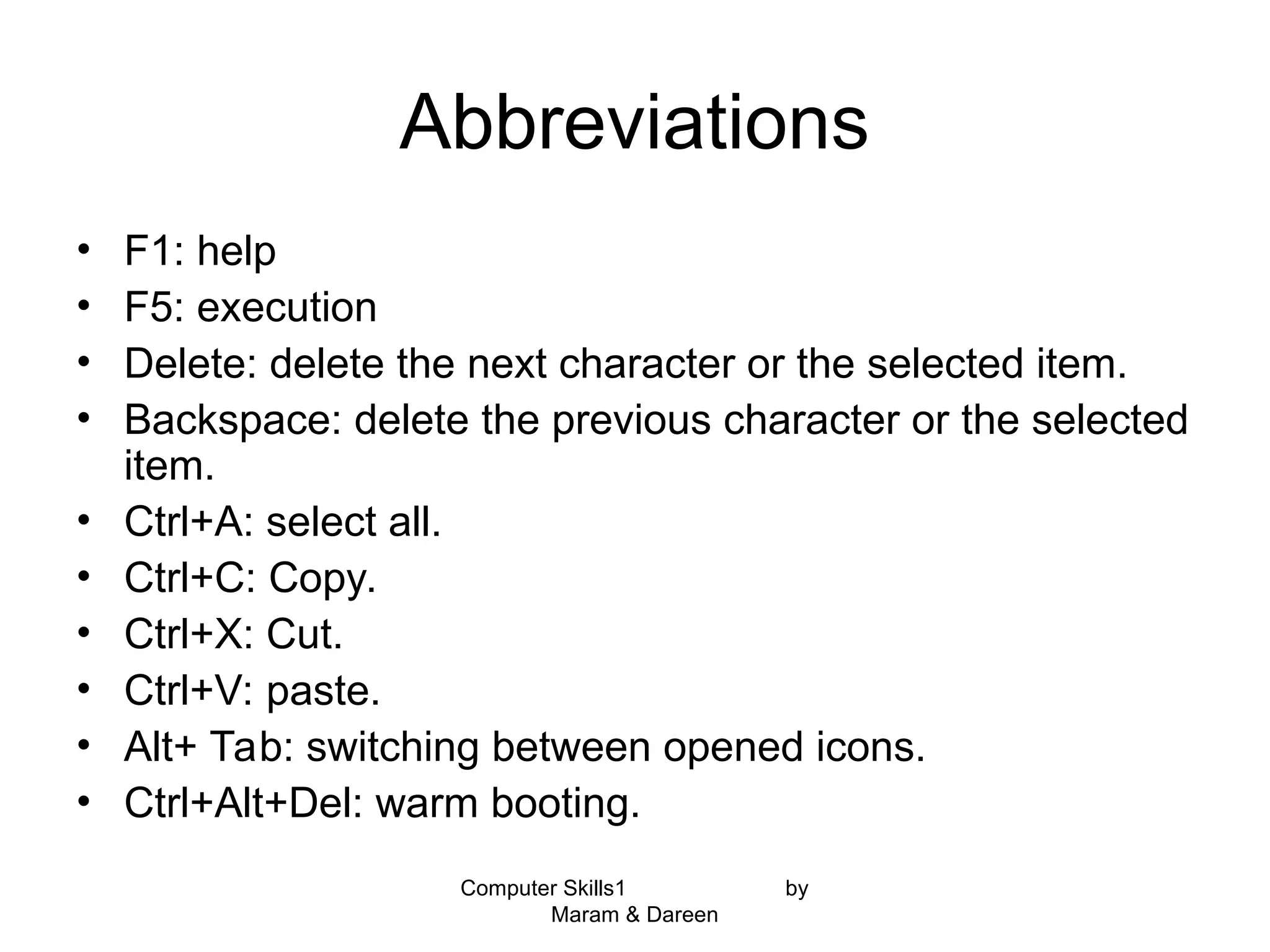
Abbreviations
• F1: help
• F5: execution
• Delete: delete the next character or the selected item.
• Backspace: delete the previous character or the selected
item.
• Ctrl+A: select all.
• Ctrl+C: Copy.
• Ctrl+X: Cut.
• Ctrl+V: paste.
• Alt+ Tab: switching between opened icons.
• Ctrl+Alt+Del: warm booting.


![Coded Agents – with UiPath SDK + LangGraph [Virtual Hands-on Workshop]](https://cdn.slidesharecdn.com/ss_thumbnails/codedagentsdeck-251215155422-5497c599-thumbnail.jpg?width=640&height=640&fit=bounds)


