How to use CanvaACE Virtual Professional
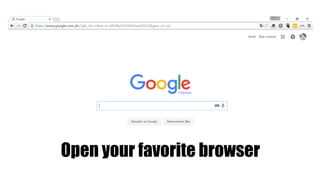
Open your favorite browser
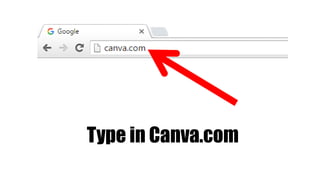
Type in Canva.com
Press Enter
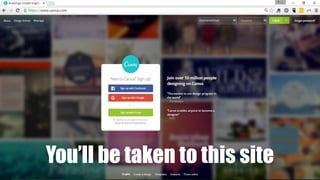
You’ll be taken to this site
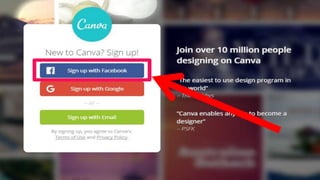
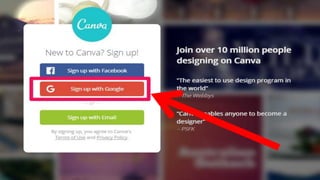
If you are new to Canva
You can sign up using your
Facebook account
Sign up with Google
Or create your own
account in Canva
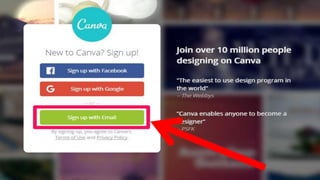
Let’s try creating our
own account
Click Sign up with Email
Then fill out
this portion
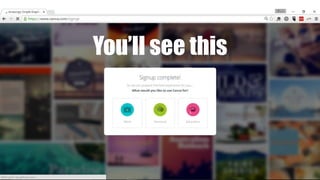
Once you’ve completed
signing up
You’ll see this
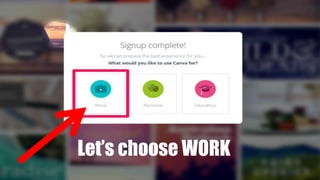
Let’s choose WORK
There will be a tutorial
on how to use Canva
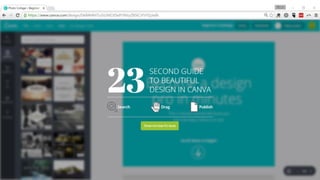
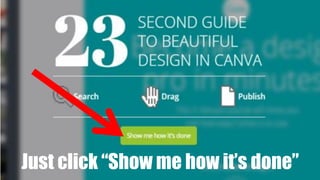
Just click “Show me how it’s done”
Follow the 23 second guide
on how to use Canva
Let’s now start in making
our own designs!
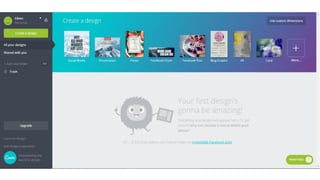
Here’s what it looks like
for the first time
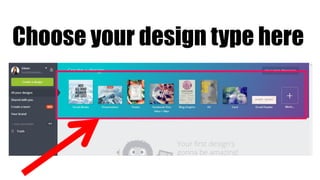
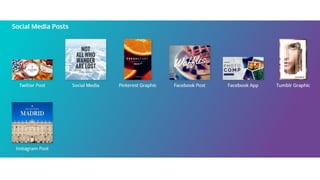
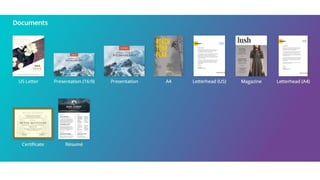
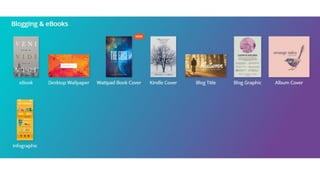
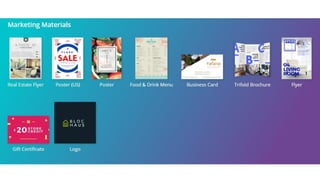
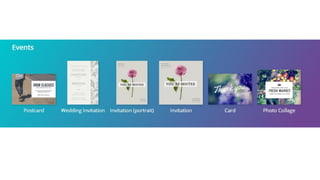
Choose your design type here
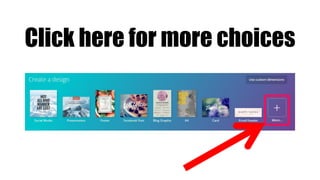
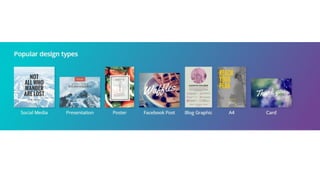
Click here for more choices
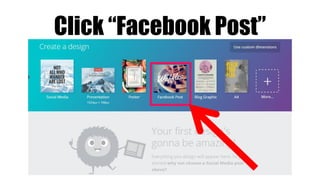
Let’s now start by making a
Facebook Post
Click “Facebook Post”
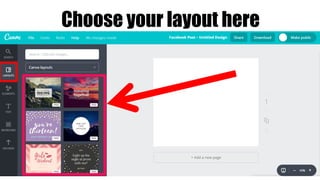
Choose your layout here
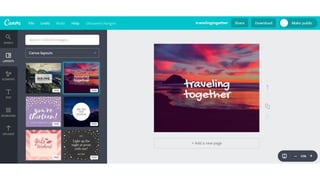
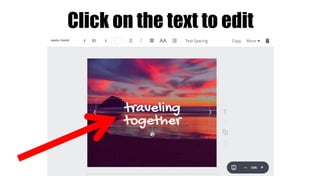
Click on the text to edit
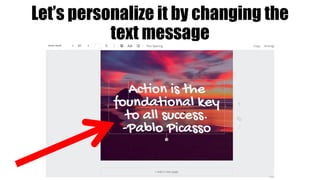
Let’s personalize it by changing the
text message
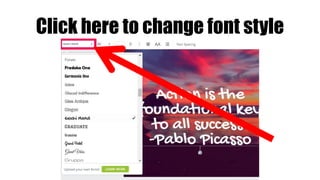
Click here to change font style
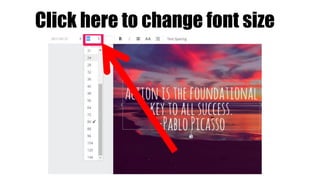
Click here to change font size
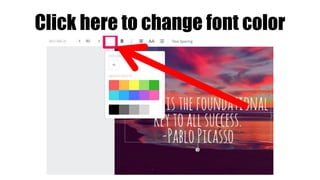
Click here to change font color
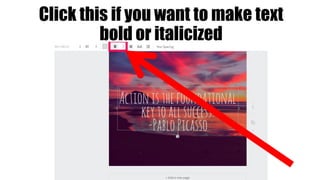
Click this if you want to make text
bold or italicized
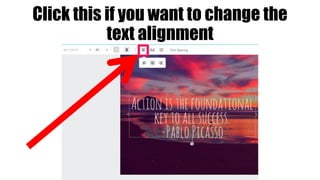
Click this if you want to change the
text alignment
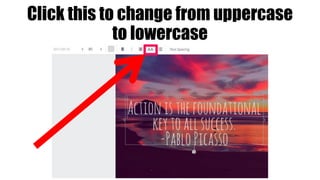
Click this to change from uppercase
to lowercase
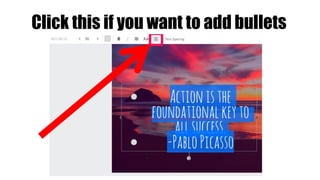
Click this if you want to add bullets
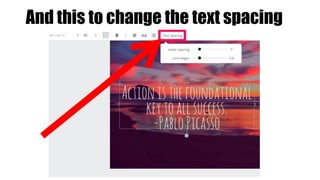
And this to change the text spacing
Let’s now change the
background photo
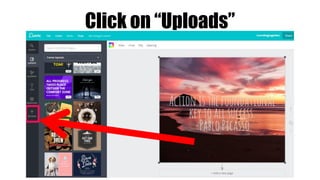
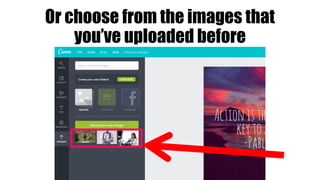
Click on “Uploads”
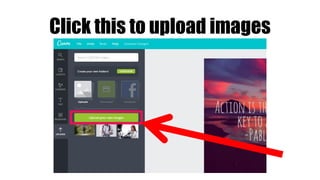
Click this to upload images
Or choose from the images that
you’ve uploaded before
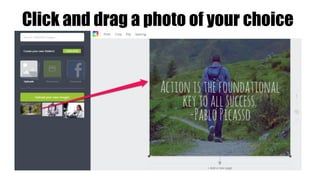
Click and drag a photo of your choice
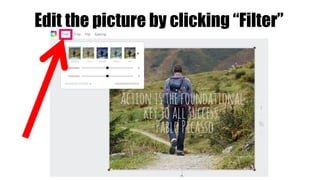
Edit the picture by clicking “Filter”
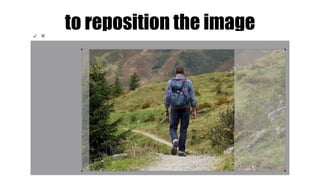
Click “Crop”
to reposition the image
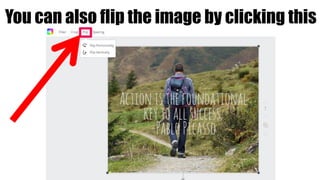
You can also flip the image by clicking this
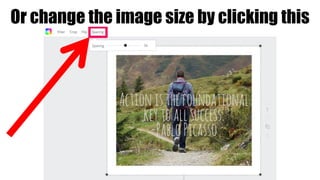
Or change the image size by clicking this
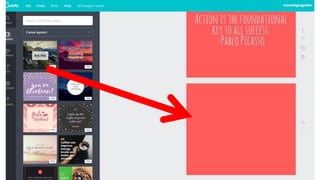
If you want to use a plain
background
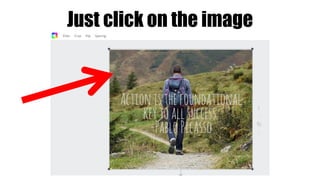
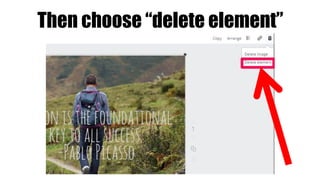
Just click on the image
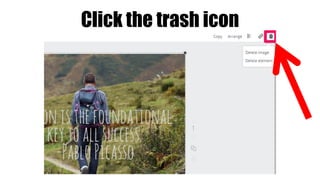
Click the trash icon
Then choose “delete element”
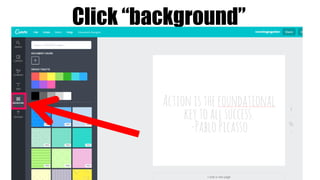
Click “background”
Choose the color
that you like
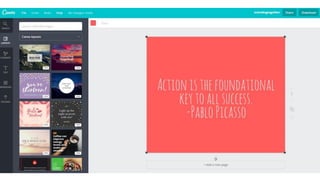
Or better yet, choose the color
that represents your brand
Let’s now try to explore the
other features of Canva
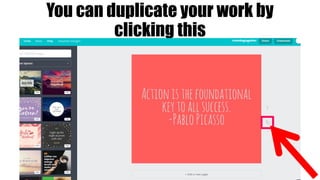
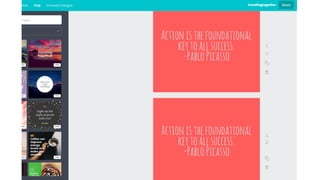
You can duplicate your work by
clicking this
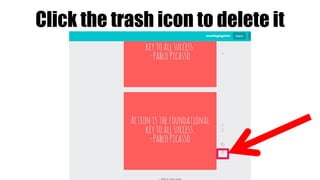
Click the trash icon to delete it
If you want to create
another poster
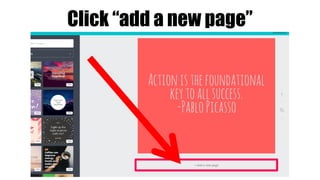
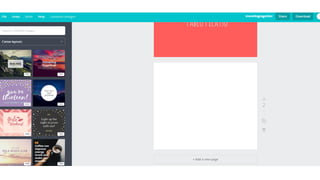
Click “add a new page”
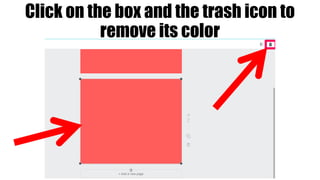
Click on the box and the trash icon to
remove its color
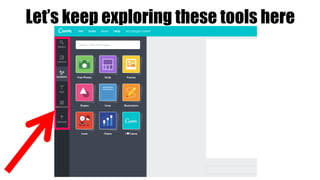
Let’s keep exploring these tools here
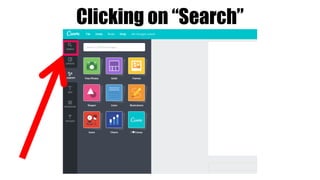
Clicking on “Search”
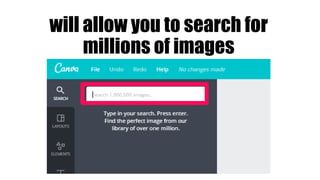
will allow you to search for
millions of images
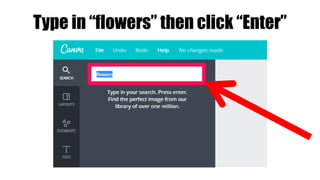
For example
Type in “flowers” then click “Enter”
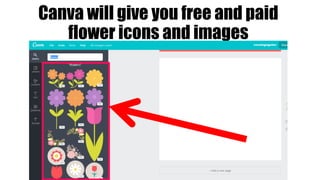
Canva will give you free and paid
flower icons and images
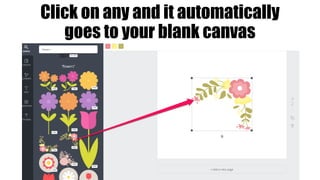
Click on any and it automatically
goes to your blank canvas
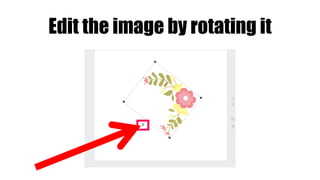
Edit the image by rotating it
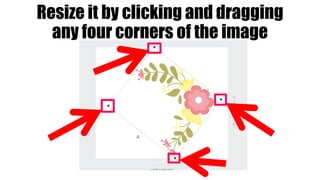
Resize it by clicking and dragging
any four corners of the image
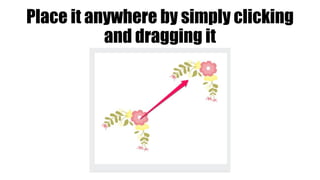
Place it anywhere by simply clicking
and dragging it
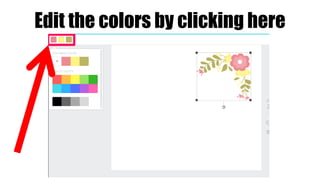
Edit the colors by clicking here
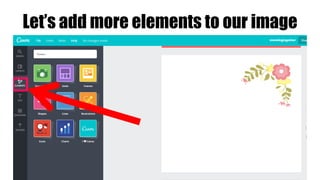
Let’s add more elements to our image
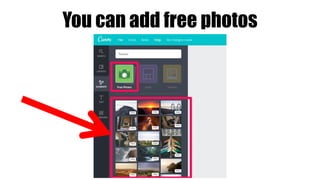
You can add free photos
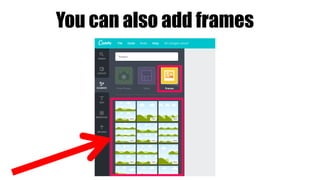
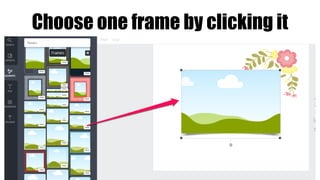
You can also add frames
where you can insert your
uploaded pictures
For example
Choose one frame by clicking it
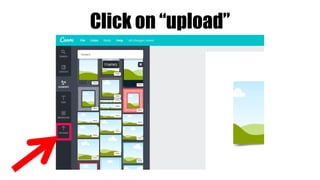
Click on “upload”
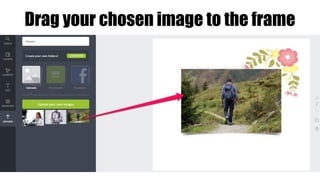
Drag your chosen image to the frame
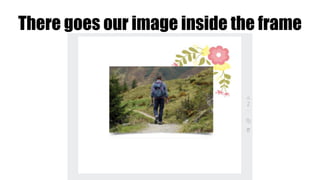
There goes our image inside the frame
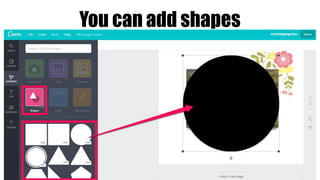
You can add shapes
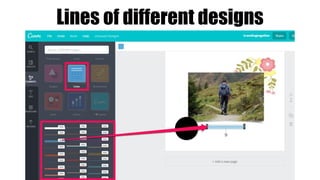
Lines of different designs
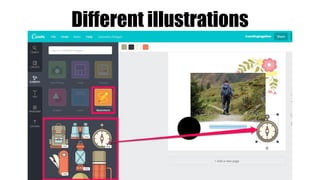
Different illustrations
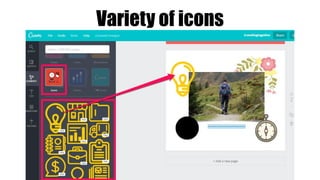
Variety of icons
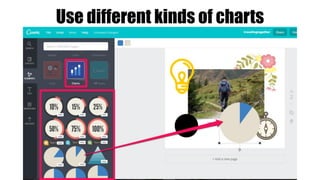
Use different kinds of charts
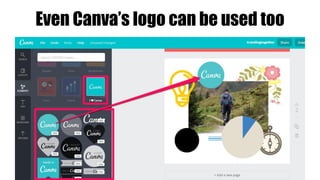
Even Canva’s logo can be used too
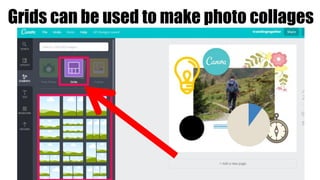
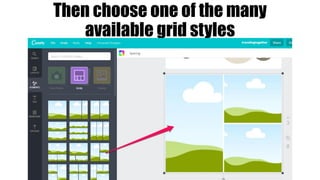
Grids can be used to make photo collages
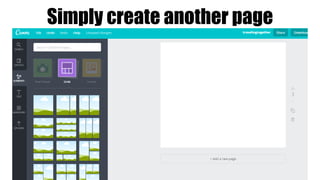
Simply create another page
Then choose one of the many
available grid styles
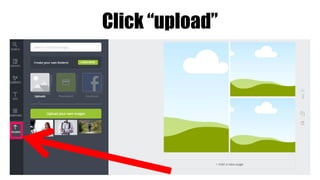
Click “upload”
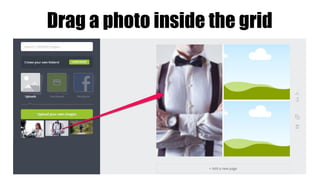
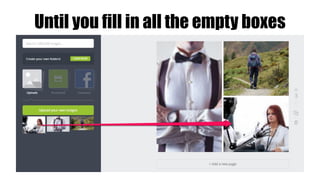
Drag a photo inside the grid
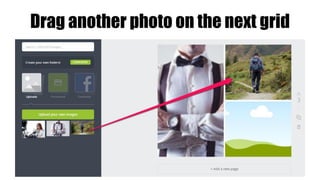
Drag another photo on the next grid
Until you fill in all the empty boxes
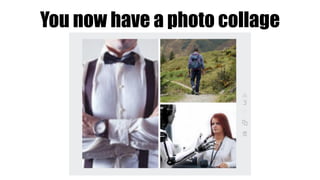
You now have a photo collage
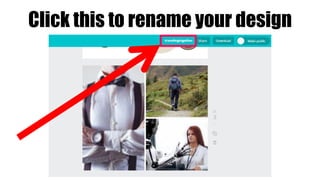
Click this to rename your design
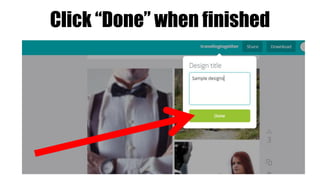
Click “Done” when finished
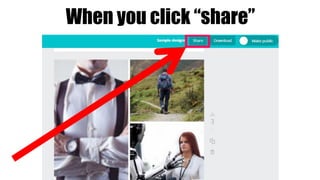
When you click “share”
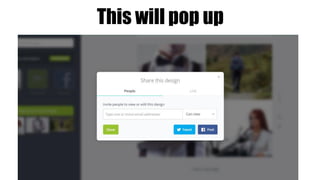
This will pop up
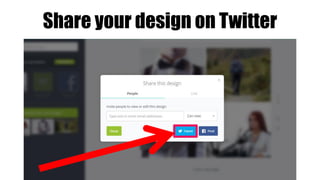
Share your design on Twitter
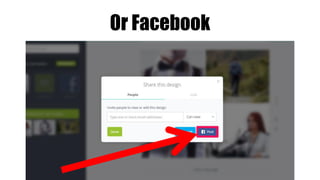
Or Facebook
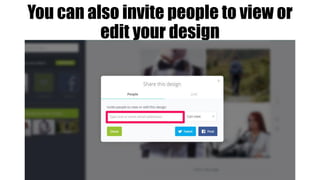
You can also invite people to view or
edit your design
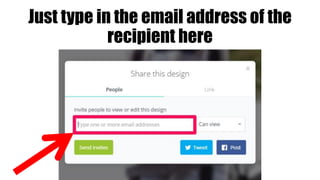
Just type in the email address of the
recipient here
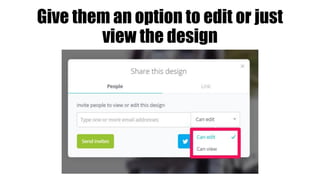
Give them an option to edit or just
view the design
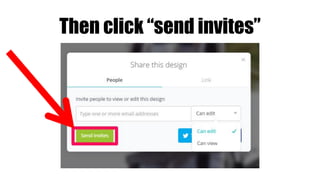
Then click “send invites”
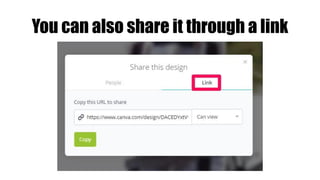
You can also share it through a link
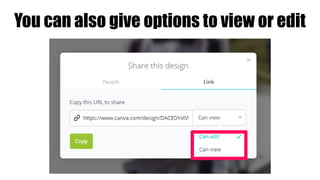
You can also give options to view or edit
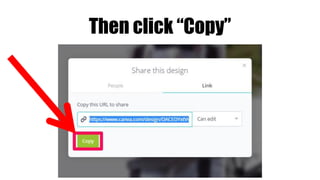
Then click “Copy”
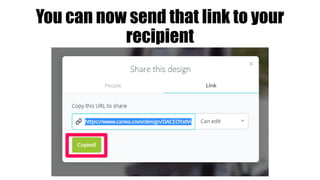
You can now send that link to your
recipient
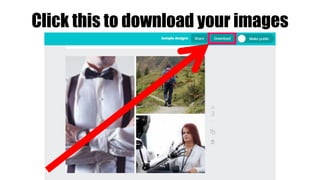
Click this to download your images
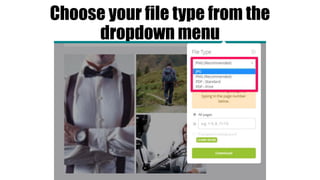
Choose your file type from the
dropdown menu
Multiple images will be
downloaded as a Zip file
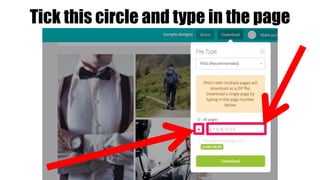
To download a single
page
Tick this circle and type in the page
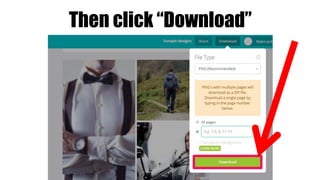
Then click “Download”
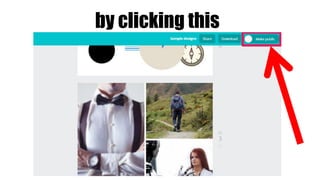
And finally, let the public
see your work
by clicking this
There you have it!
Being a graphic
designer doesn’t have to
be difficult
With this very user friendly tool
So go ahead and explore Canva
yourself!
Creativity is contagious,
pass it on
-Albert Einstein

How to use canva