User Guide
Understand all key features in 10 – 15 minutes
Enterprise & IT
Architecture Management
Content
The user guide will give you an overview
of the basic features of LeanIX.
Basics
Manage Information
Reporting
Collaboration
1
2
3
4
Basics
3
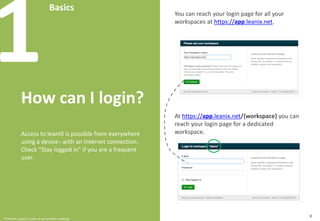
1How can I login?
Access to leanIX is possible from everywhere
using a device*) with an Internet connection.
Check “Stay logged in” if you are a frequent
user.
*) including iPhone native App
You can find your login page for all your
workspaces at https://app.leanix.net.
At https://app.leanix.net/{workspace} you
can find your login page for a dedicated
workspace.
Basics
4
1What are Fact	
Sheets?
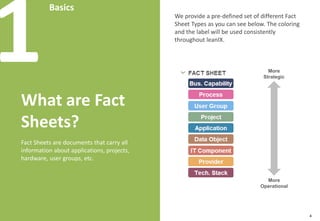
Fact	Sheets	are documents that carry	all	
information about applications,	projects,	
hardware,	user groups,	etc.
We provide a pre-defined set of different
Fact Sheet types as you can see below. The
coloring and the label will be used
consistently throughout leanIX.
More
Strategic
More
Operational
Basics
5
1Single click
navigation
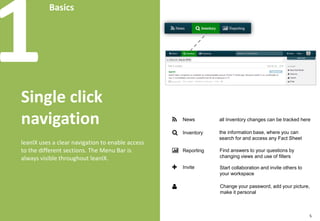
LeanIX uses a clear navigation to enable
access to the different sections. The Menu
Bar is always visible throughout leanIX.
Invite
Reporting
Inventory
News All Inventory changes can be
tracked here.
The information base, where you
can search for and access any Fact
Sheets.
Find answers to your questions by
changing views and use of filters.
Start collaborating and invite
others to your workspace.
Change your password, add your
picture, make it personal.
Basics
6
1What is already
in leanIX?
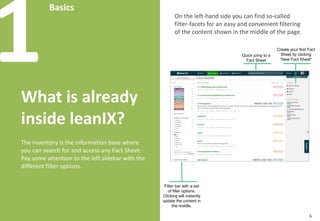
The Inventory is the information base where
you can search for and access any Fact
Sheets. Pay some attention to the left
sidebar with the different filter options.
Filter bar with a set of filter
options. Clicking will instantly
update the content in the
middle.
Create your first Fact
Sheet by clicking on
“New Fact Sheet”
On the left-hand side you can find so-called
filter-facets for an easy and convenient
filtering of the content shown in the middle
of the page.
Quick jump to
a Fact Sheet
Basics
7
1How can I mass
update?
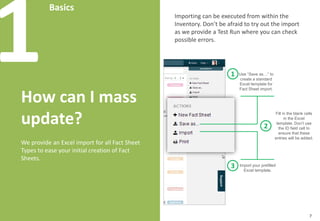
We provide an Excel import for all Fact Sheet
types to make your initial creation of Fact
Sheets easier.
Fill out the blank
cells in the Excel
template. Don’t
use the ID field
cell to ensure that
these entries will
be added.
Importing can be executed from within the
Inventory. Don’t be afraid to try out the
import as we provide a Test Run where you
can check possible errors.
Use “Save as…” to
create a standard
Excel template for
Fact Sheet import.
1
2
Import your
completed Excel
sheet.
3
Manage	Information
8
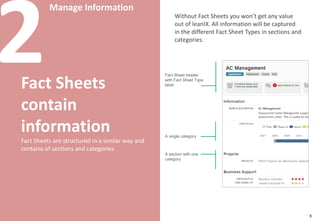
2Fact Sheets
contain
information
Fact Sheets are structured in a similar way
and contain sections and categories
Without Fact Sheets you won’t get any value
out of leanIX. All information will be
captured in the different Fact Sheet types in
sections and categories.
Fact Sheet
header with Fact
Sheet type label
A single category
A section with
one category
Manage	Information
9
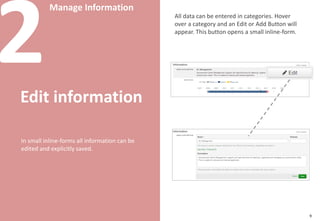
2Edit information
In small inline forms all information can be
edited and explicitly saved.
All data can be entered in categories. Hover
over a category and an Edit or Add Button
will appear. This button opens a small inline
form.
Manage	Information
10
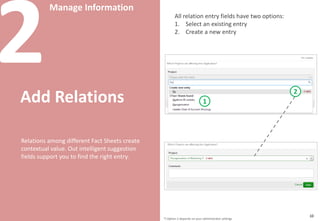
2Add
Relationships
Relationships among different Fact Sheets
create contextual value. Our intelligent
suggestion fields support you to find the
right entry.
All relationship entry fields have two
options:
1. Select an existing entry
2. Create a new entry
*) Option 2 depends on your administrator settings
1
2
Manage	Information
11
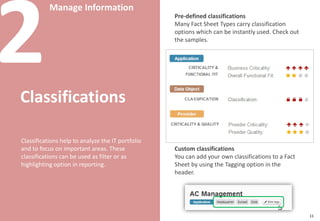
2Classifications
Classifications help to analyze your IT
portfolio and to focus on important areas.
These classifications can be used as filters or
as highlighting options in reporting.
Pre-defined classifications
Many Fact Sheet types carry classification
options which can be instantly used. Check
out the examples.
Custom classifications
You can add your own classifications to a
Fact Sheet by using the Tagging option in the
header.
Reporting
12
3Analyze your IT
portfolio
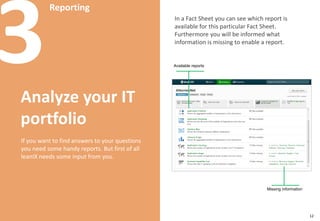
If you want to find answers to your questions
you need some handy reports. But first of all
leanIX needs some input from you.
In a Fact Sheet you can see which report is
available for this particular Fact Sheet.
Furthermore you will be informed what
information is missing to enable the creation
of a specific report.
Available reports
Missing
information
Reporting
13
3Highlight
different aspects
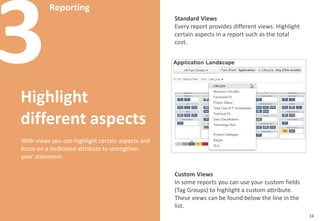
With views you can highlight certain aspects
and concentrate on a dedicated attribute for
more focused information.
Standard Views
Every report provides different views.
Highlight certain aspects in a report such as
the total cost.
Custom Views
In some reports you can use your custom
fields (Tag Groups) to highlight a custom
attribute. These views can be found below
the line in the list.
Reporting
14
3Filter
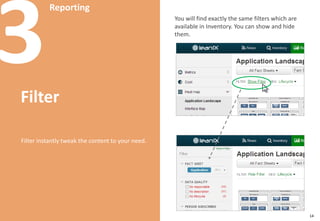
Filters instantly tweak the content according
to your needs. There is no need to learn an
artificial query language.
You will find exactly the same filters which
are available in the Inventory. You can show
and hide them.
Reporting
15
3Print a report
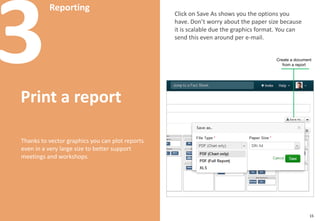
Thanks to vector graphics you can export
reports even in a very large size for better
use in meetings and workshops.
Create a
document from
a report
Click on “Save As” to show you the options
you have. Don’t worry about the paper size
because it is scalable due to the graphics
format. You can send this even by e-mail.
Collaboration
16
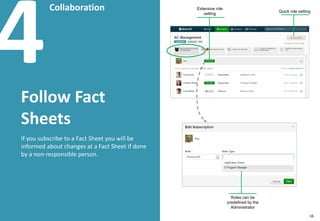
4Follow Fact
Sheets
If you subscribe to a Fact Sheet you will be
informed about changes at a Fact Sheet if
done by a non-responsible person.
Quick role
setting
Extensive role
setting
Roles can be predefined
by the Administrator
Collaboration
17
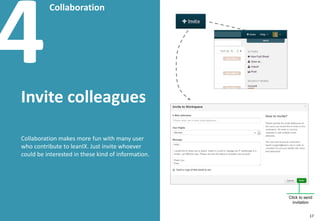
4Invite colleagues
Collaboration is more fun with many users
who contribute to leanIX. Just invite
whoever could be interested in this kind of
information.
Click to send invitation
Collaboration
18
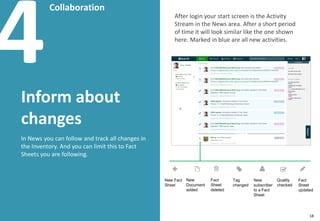
4Inform about
changes
In News you can follow and track all changes
in the Inventory. And you can restrict this to
Fact Sheets you are following.
After login your start screen is the Activity
Stream in the News area. After a short
period of time it will look similar like the one
shown here. Marked in blue are all new
activities.
New Fact
Sheet
New Document
added
Fact Sheet
deleted
Tag changed
New subscriber
to a Fact Sheet
Quality
checked
Fact Sheet
updated
Collaboration
19
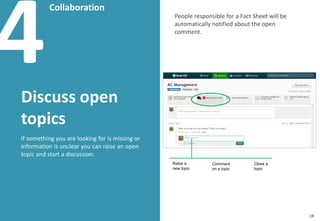
4Discuss open
topics
If something you are looking for is missing or
information is unclear you can raise an open
topic and start a discussion.
Raise a
new topic
Comment
on a topic
Close a
topic
People responsible for a Fact Sheet will be
automatically notified about the open
comment.
LeanIX Enterprise Architecture Management
20
Did you like our presentation? Click below to:
Thank you!
Share	on	L
Learn More about LeanIX
Share on LinkedIn
http://bit.ly/LeanIXDemoS
Request free demo
http://bit.ly/LeanIXDemoS

Enterprise & IT Architecture Management User Guide with LeanIX

  • 1.
    User Guide Understand allkey features in 10 – 15 minutes Enterprise & IT Architecture Management
  • 2.
    Content The user guidewill give you an overview of the basic features of LeanIX. Basics Manage Information Reporting Collaboration 1 2 3 4
  • 3.
    Basics 3 1How can Ilogin? Access to leanIX is possible from everywhere using a device*) with an Internet connection. Check “Stay logged in” if you are a frequent user. *) including iPhone native App You can find your login page for all your workspaces at https://app.leanix.net. At https://app.leanix.net/{workspace} you can find your login page for a dedicated workspace.
  • 4.
    Basics 4 1What are Fact Sheets? Fact Sheets aredocuments that carry all information about applications, projects, hardware, user groups, etc. We provide a pre-defined set of different Fact Sheet types as you can see below. The coloring and the label will be used consistently throughout leanIX. More Strategic More Operational
  • 5.
    Basics 5 1Single click navigation LeanIX usesa clear navigation to enable access to the different sections. The Menu Bar is always visible throughout leanIX. Invite Reporting Inventory News All Inventory changes can be tracked here. The information base, where you can search for and access any Fact Sheets. Find answers to your questions by changing views and use of filters. Start collaborating and invite others to your workspace. Change your password, add your picture, make it personal.
  • 6.
    Basics 6 1What is already inleanIX? The Inventory is the information base where you can search for and access any Fact Sheets. Pay some attention to the left sidebar with the different filter options. Filter bar with a set of filter options. Clicking will instantly update the content in the middle. Create your first Fact Sheet by clicking on “New Fact Sheet” On the left-hand side you can find so-called filter-facets for an easy and convenient filtering of the content shown in the middle of the page. Quick jump to a Fact Sheet
  • 7.
    Basics 7 1How can Imass update? We provide an Excel import for all Fact Sheet types to make your initial creation of Fact Sheets easier. Fill out the blank cells in the Excel template. Don’t use the ID field cell to ensure that these entries will be added. Importing can be executed from within the Inventory. Don’t be afraid to try out the import as we provide a Test Run where you can check possible errors. Use “Save as…” to create a standard Excel template for Fact Sheet import. 1 2 Import your completed Excel sheet. 3
  • 8.
    Manage Information 8 2Fact Sheets contain information Fact Sheetsare structured in a similar way and contain sections and categories Without Fact Sheets you won’t get any value out of leanIX. All information will be captured in the different Fact Sheet types in sections and categories. Fact Sheet header with Fact Sheet type label A single category A section with one category
  • 9.
    Manage Information 9 2Edit information In smallinline forms all information can be edited and explicitly saved. All data can be entered in categories. Hover over a category and an Edit or Add Button will appear. This button opens a small inline form.
  • 10.
    Manage Information 10 2Add Relationships Relationships among differentFact Sheets create contextual value. Our intelligent suggestion fields support you to find the right entry. All relationship entry fields have two options: 1. Select an existing entry 2. Create a new entry *) Option 2 depends on your administrator settings 1 2
  • 11.
    Manage Information 11 2Classifications Classifications help toanalyze your IT portfolio and to focus on important areas. These classifications can be used as filters or as highlighting options in reporting. Pre-defined classifications Many Fact Sheet types carry classification options which can be instantly used. Check out the examples. Custom classifications You can add your own classifications to a Fact Sheet by using the Tagging option in the header.
  • 12.
    Reporting 12 3Analyze your IT portfolio Ifyou want to find answers to your questions you need some handy reports. But first of all leanIX needs some input from you. In a Fact Sheet you can see which report is available for this particular Fact Sheet. Furthermore you will be informed what information is missing to enable the creation of a specific report. Available reports Missing information
  • 13.
    Reporting 13 3Highlight different aspects With viewsyou can highlight certain aspects and concentrate on a dedicated attribute for more focused information. Standard Views Every report provides different views. Highlight certain aspects in a report such as the total cost. Custom Views In some reports you can use your custom fields (Tag Groups) to highlight a custom attribute. These views can be found below the line in the list.
  • 14.
    Reporting 14 3Filter Filters instantly tweakthe content according to your needs. There is no need to learn an artificial query language. You will find exactly the same filters which are available in the Inventory. You can show and hide them.
  • 15.
    Reporting 15 3Print a report Thanksto vector graphics you can export reports even in a very large size for better use in meetings and workshops. Create a document from a report Click on “Save As” to show you the options you have. Don’t worry about the paper size because it is scalable due to the graphics format. You can send this even by e-mail.
  • 16.
    Collaboration 16 4Follow Fact Sheets If yousubscribe to a Fact Sheet you will be informed about changes at a Fact Sheet if done by a non-responsible person. Quick role setting Extensive role setting Roles can be predefined by the Administrator
  • 17.
    Collaboration 17 4Invite colleagues Collaboration ismore fun with many users who contribute to leanIX. Just invite whoever could be interested in this kind of information. Click to send invitation
  • 18.
    Collaboration 18 4Inform about changes In Newsyou can follow and track all changes in the Inventory. And you can restrict this to Fact Sheets you are following. After login your start screen is the Activity Stream in the News area. After a short period of time it will look similar like the one shown here. Marked in blue are all new activities. New Fact Sheet New Document added Fact Sheet deleted Tag changed New subscriber to a Fact Sheet Quality checked Fact Sheet updated
  • 19.
    Collaboration 19 4Discuss open topics If somethingyou are looking for is missing or information is unclear you can raise an open topic and start a discussion. Raise a new topic Comment on a topic Close a topic People responsible for a Fact Sheet will be automatically notified about the open comment.
  • 20.
    LeanIX Enterprise ArchitectureManagement 20 Did you like our presentation? Click below to: Thank you! Share on L Learn More about LeanIX Share on LinkedIn http://bit.ly/LeanIXDemoS Request free demo http://bit.ly/LeanIXDemoS