
 History.
 Architecture.
 Webi Report Sources.
 Creating Simple Reports.
 Edit and Save Options.
 Report Filters.
 How to enter Formulas in a report.
 How to add Variables in a Formula
 Ad-Hoc Reporting.
 Webi Stands for Web Intelligence. Webi is a
business reporting tool which is used to
analyses the data and create Ad- Hoc
Reports.
 Bo was started in the year 1990 with the
name SKIPPER SQL2.x
 In the year 2005 BO was introduced and later
the versions got upgraded.
 In 2007 SAP acquired this company and given
a new name as SAP Business Objects.
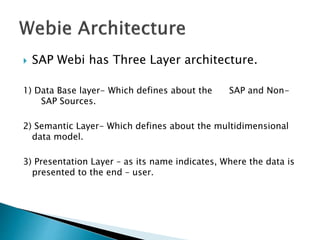
 SAP Webi has Three Layer architecture.
1) Data Base layer- Which defines about the SAP and Non-
SAP Sources.
2) Semantic Layer- Which defines about the multidimensional
data model.
3) Presentation Layer – as its name indicates, Where the data is
presented to the end – user.
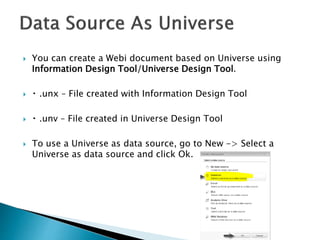
 You can create a Webi document based on Universe using
Information Design Tool/Universe Design Tool.
 .unx – File created with Information Design Tool
 .unv – File created in Universe Design Tool
 To use a Universe as data source, go to New -> Select a
Universe as data source and click Ok.
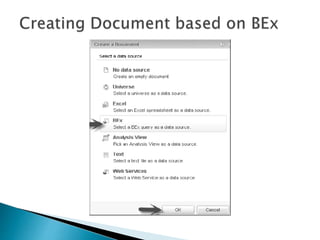
 The Business Explorer (BEx) is a component of SAP BI that
provides flexible reporting and analysis tools that we can use
for strategic analysis and supporting the decision-making
process in an organization. These tools include query,
reporting, and analysis functions.
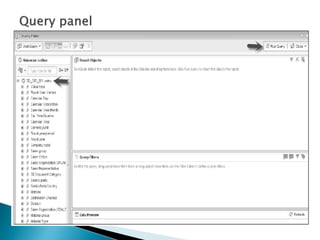
 Bex Query Pannel Screen Shot
 Query filters: are applied in Query Panel and they are used
to limit the number of rows from data sources and to return
the same in the document.
 Report filters : are applied at the report level on reports,
tables, charts, etc. These filters are not used to limit the data
retrieval from the data source and only hide certain values at
the report level.
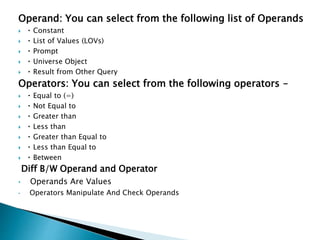
Operand: You can select from the following list of Operands
 Constant
 List of Values (LOVs)
 Prompt
 Universe Object
 Result from Other Query
Operators: You can select from the following operators –
 Equal to (=)
 Not Equal to
 Greater than
 Less than
 Greater than Equal to
 Less than Equal to
 Between
Diff B/W Operand and Operator
• Operands Are Values
• Operators Manipulate And Check Operands
To send a document to other users/groups, open the document via BI
Launchpad. Click ‘Send’ on toolbar -> Send to User.
 Select the users/groups to which you want to send the document
to from the list of users and groups. You can select
‘automatically generated’ to send the document with an auto
generated name. Select the specific name and enter the name
you want to send the document.
 You can also select “shortcut” to send a shortcut or “Copy” option
to send a copy of the document.
 Sending Documents Using FTP
 Use the navigation map to locate reports in a Web Intelligence
document.
 1. Open the document that you want to view.
 2. Click Web Intelligence > Left Pane > Normal. The left pane
opens.
 3. Click the navigation map icon.
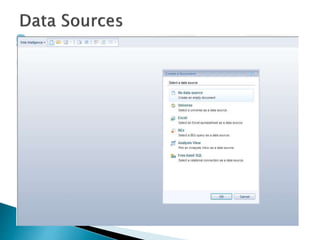
 We can create report using the sources UNIVERSE, BEX Queries,
Excel, Analysis View, Free Hand SQL etc.
 Universe : which is created by a universe designer with the help of
Business Object Designer.
 Bex Queries : Business Exchange Queries created by BEx Query
Designer, which based on a information cube in SAP BW system.
 Free Hand SQL : It would enable you to convert your desktop
intelligence document with a FHSQL data provider to web
intelligence.
 Select the source from which you want to retrieve the data. ie
Universe,Bex Query,Excel,Free Hand SQL etc.
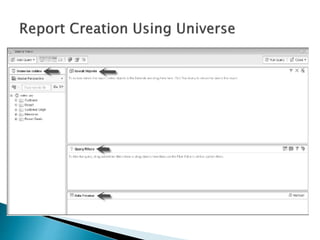
 Drag the objects in to the Result Objects field that you want to see
in the report.
Result Object
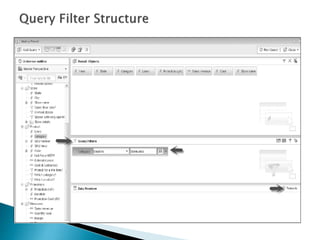
 Query Filters: Here we can provide the query restriction.
Query Filter Panel
Predefined Query Filters:
Filters are normally administrators and saved at the universe level.
They are used to populate data that is permanently available.
Quick Filters:
They are used to retrieve the value with out using of Filter editor.
Custom Query Filters
We can create custom query filters to meet the business
requirement or to hide the data from specific users.

SAP BO Web Intelligence Basics

  • 2.
     History.  Architecture. Webi Report Sources.  Creating Simple Reports.  Edit and Save Options.  Report Filters.  How to enter Formulas in a report.  How to add Variables in a Formula  Ad-Hoc Reporting.
  • 3.
     Webi Standsfor Web Intelligence. Webi is a business reporting tool which is used to analyses the data and create Ad- Hoc Reports.  Bo was started in the year 1990 with the name SKIPPER SQL2.x  In the year 2005 BO was introduced and later the versions got upgraded.  In 2007 SAP acquired this company and given a new name as SAP Business Objects.
  • 4.
     SAP Webihas Three Layer architecture. 1) Data Base layer- Which defines about the SAP and Non- SAP Sources. 2) Semantic Layer- Which defines about the multidimensional data model. 3) Presentation Layer – as its name indicates, Where the data is presented to the end – user.
  • 8.
     You cancreate a Webi document based on Universe using Information Design Tool/Universe Design Tool.  .unx – File created with Information Design Tool  .unv – File created in Universe Design Tool  To use a Universe as data source, go to New -> Select a Universe as data source and click Ok.
  • 11.
     The BusinessExplorer (BEx) is a component of SAP BI that provides flexible reporting and analysis tools that we can use for strategic analysis and supporting the decision-making process in an organization. These tools include query, reporting, and analysis functions.  Bex Query Pannel Screen Shot
  • 13.
     Query filters:are applied in Query Panel and they are used to limit the number of rows from data sources and to return the same in the document.  Report filters : are applied at the report level on reports, tables, charts, etc. These filters are not used to limit the data retrieval from the data source and only hide certain values at the report level.
  • 15.
    Operand: You canselect from the following list of Operands  Constant  List of Values (LOVs)  Prompt  Universe Object  Result from Other Query Operators: You can select from the following operators –  Equal to (=)  Not Equal to  Greater than  Less than  Greater than Equal to  Less than Equal to  Between Diff B/W Operand and Operator • Operands Are Values • Operators Manipulate And Check Operands
  • 16.
    To send adocument to other users/groups, open the document via BI Launchpad. Click ‘Send’ on toolbar -> Send to User.
  • 17.
     Select theusers/groups to which you want to send the document to from the list of users and groups. You can select ‘automatically generated’ to send the document with an auto generated name. Select the specific name and enter the name you want to send the document.  You can also select “shortcut” to send a shortcut or “Copy” option to send a copy of the document.  Sending Documents Using FTP
  • 22.
     Use thenavigation map to locate reports in a Web Intelligence document.  1. Open the document that you want to view.  2. Click Web Intelligence > Left Pane > Normal. The left pane opens.  3. Click the navigation map icon.
  • 23.
     We cancreate report using the sources UNIVERSE, BEX Queries, Excel, Analysis View, Free Hand SQL etc.  Universe : which is created by a universe designer with the help of Business Object Designer.  Bex Queries : Business Exchange Queries created by BEx Query Designer, which based on a information cube in SAP BW system.  Free Hand SQL : It would enable you to convert your desktop intelligence document with a FHSQL data provider to web intelligence.
  • 24.
     Select thesource from which you want to retrieve the data. ie Universe,Bex Query,Excel,Free Hand SQL etc.  Drag the objects in to the Result Objects field that you want to see in the report. Result Object
  • 25.
     Query Filters:Here we can provide the query restriction. Query Filter Panel Predefined Query Filters: Filters are normally administrators and saved at the universe level. They are used to populate data that is permanently available. Quick Filters: They are used to retrieve the value with out using of Filter editor. Custom Query Filters We can create custom query filters to meet the business requirement or to hide the data from specific users.