


Cristina B. Protacio 
Jimmy J. Tibayde Jr.
+ 
Tina Jimmy 
equals 
TIMMY
Layers 
an 
d 
Filters
WE WILL USE THE PAINTSHOP PRO
The greatest feature of Paint 
Shop Pro is that it allows you work 
in layers. Having the ability to 
layer the pieces of your graphics 
will allow you more freedom with 
your creative designs. We will 
discuss it here and you will learn 
more on how layers work.
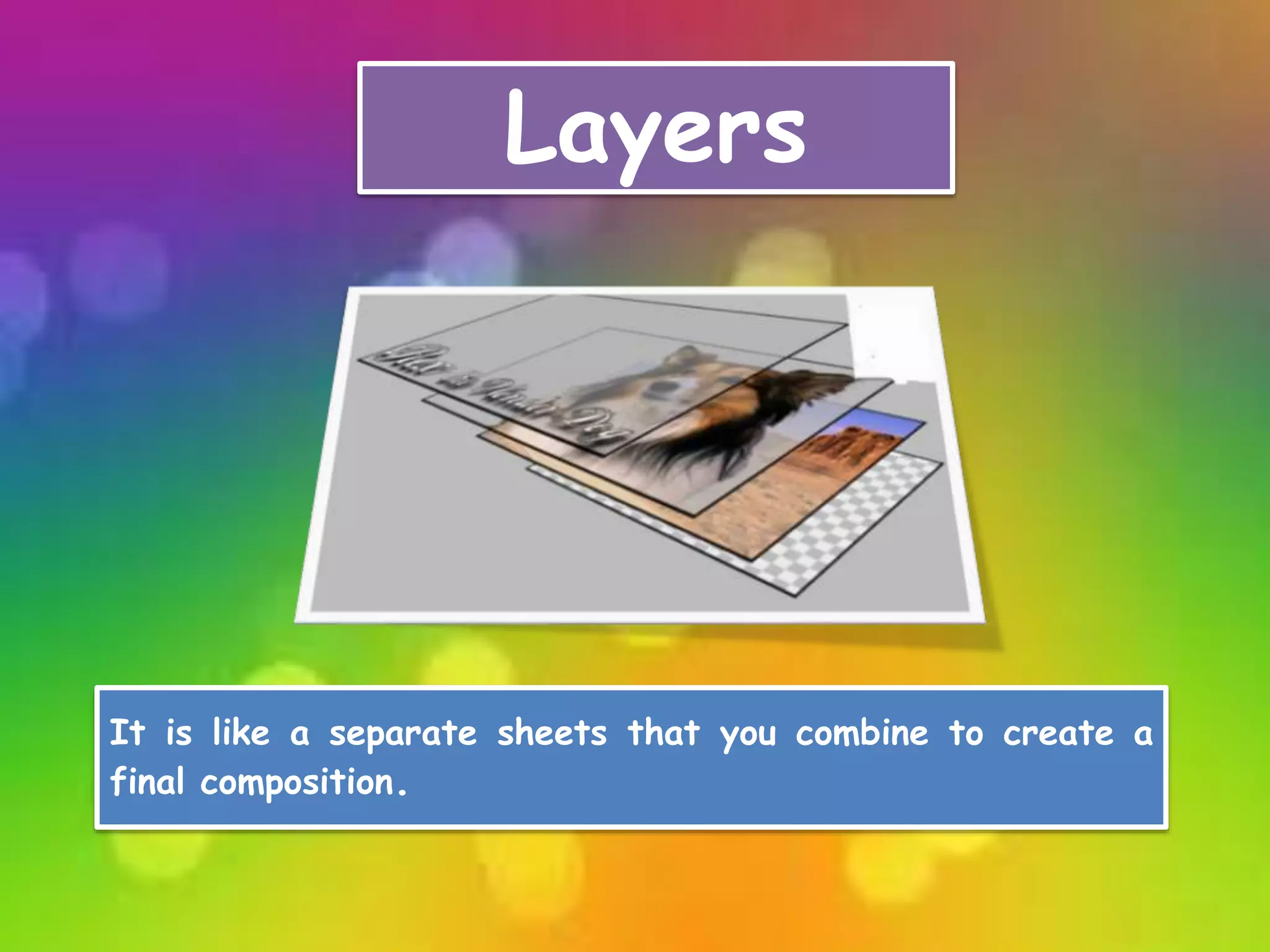
Layers 
It is like a separate sheets that you combine to create a 
final composition.
1 
2 
3 
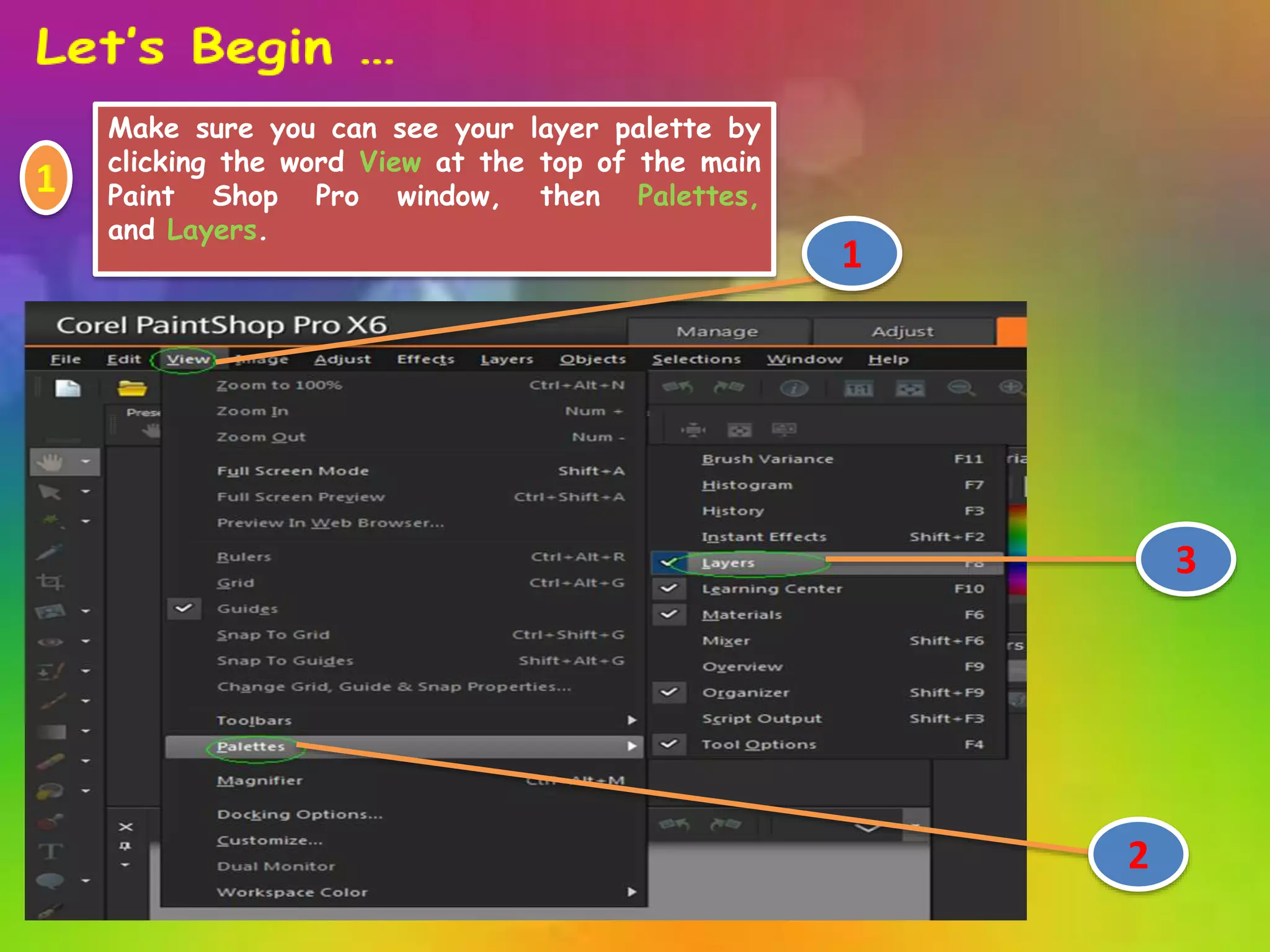
Make sure you can see your layer palette by 
clicking the word View at the top of the main 
Paint Shop Pro window, then Palettes, 
and Layers. 
1
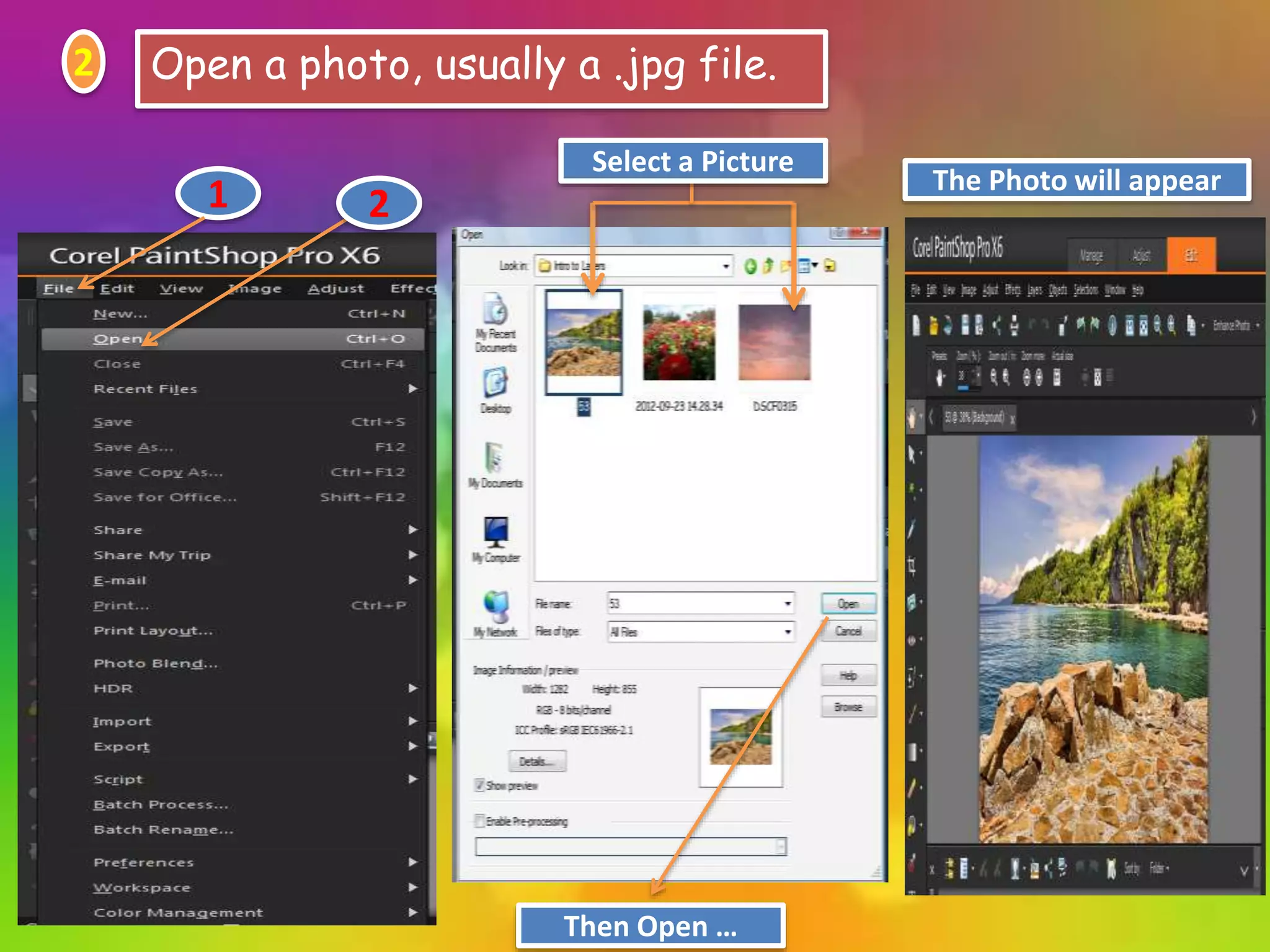
2 Open a photo, usually a .jpg file. 
1 2 
Select a Picture 
Then Open … 
The Photo will appear
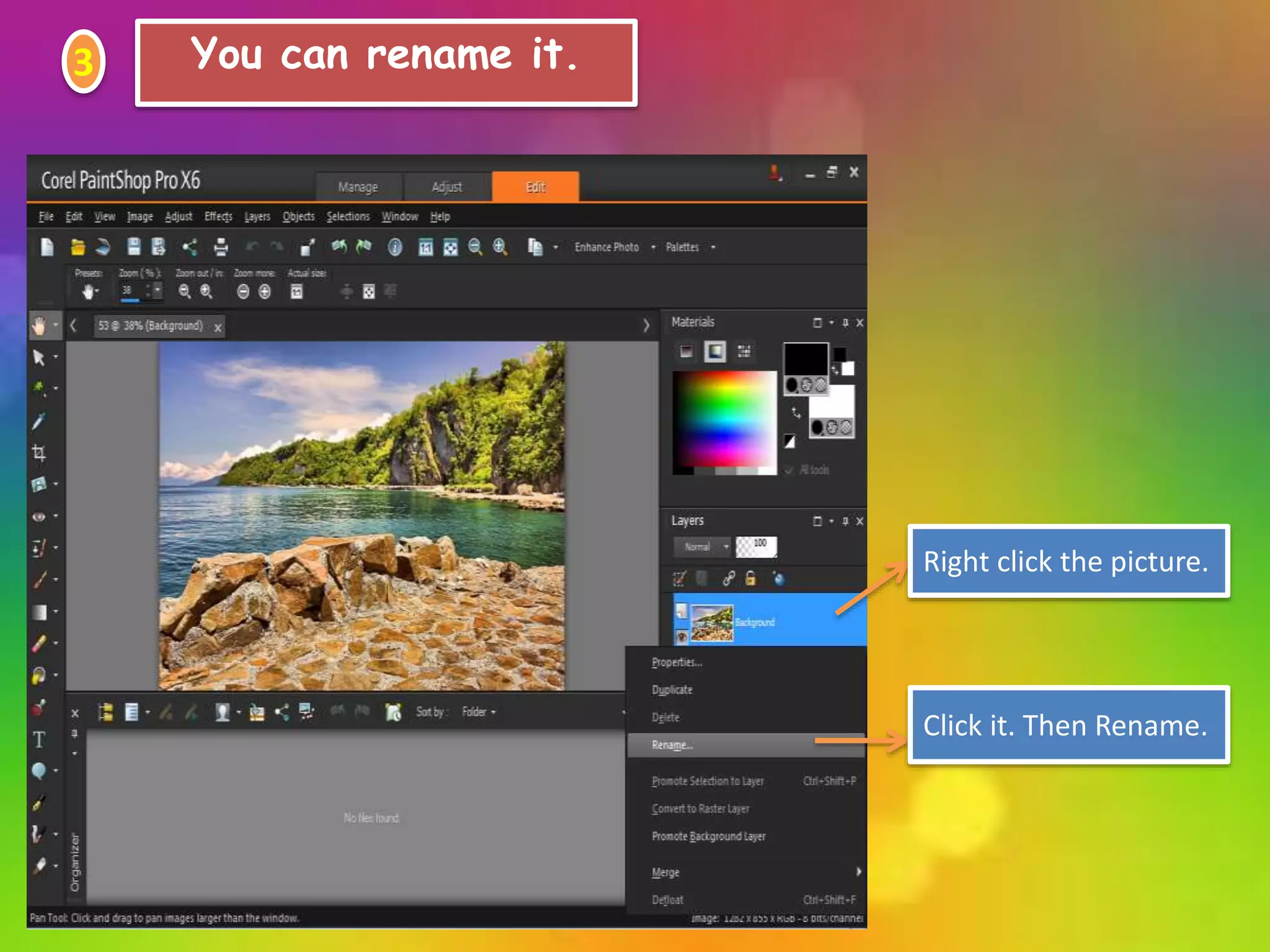
3 You can rename it. 
Right click the picture. 
Click it. Then Rename.
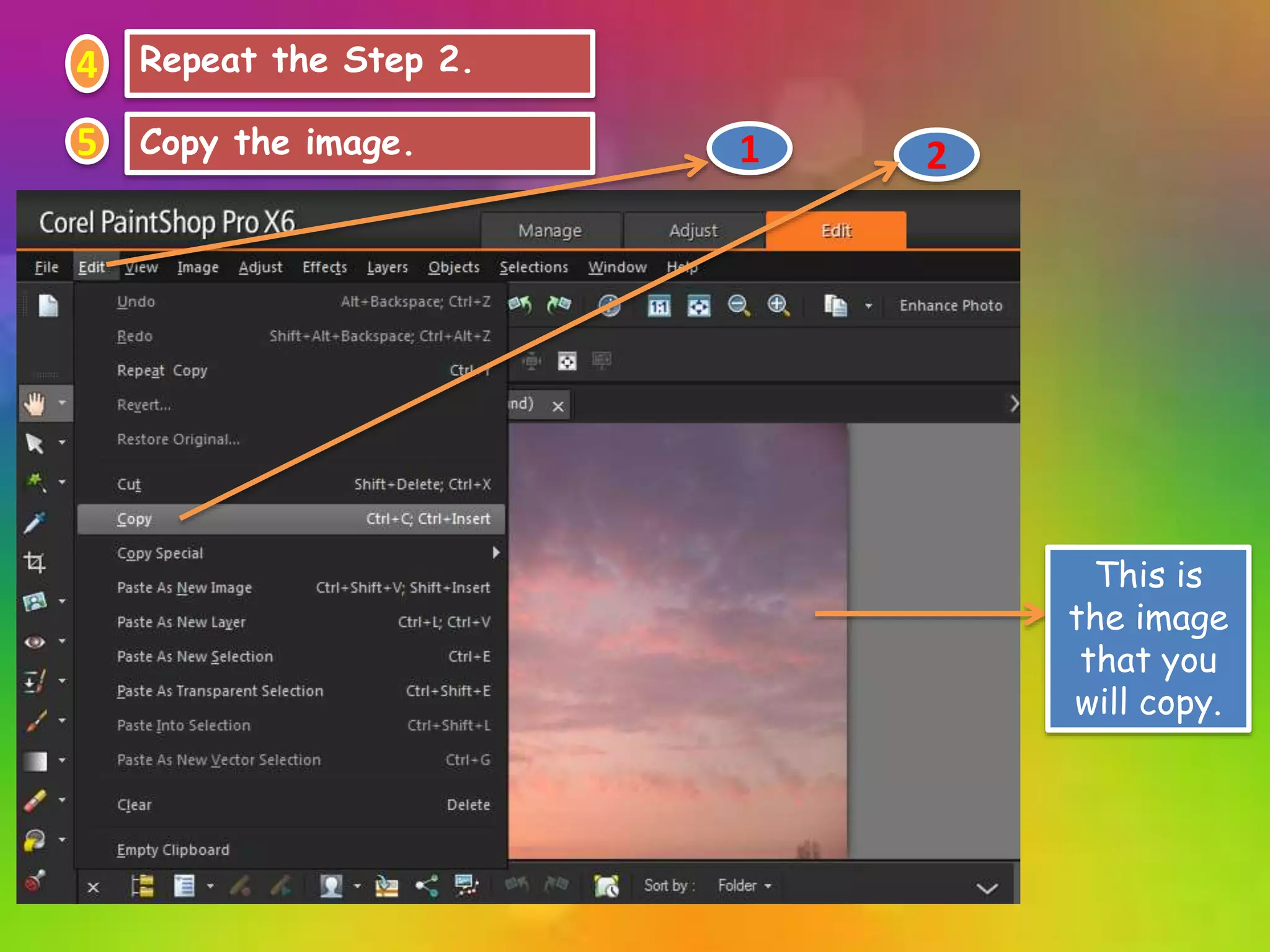
4 Repeat the Step 2. 
5 Copy the image. 1 2 
This is 
the image 
that you 
will copy.
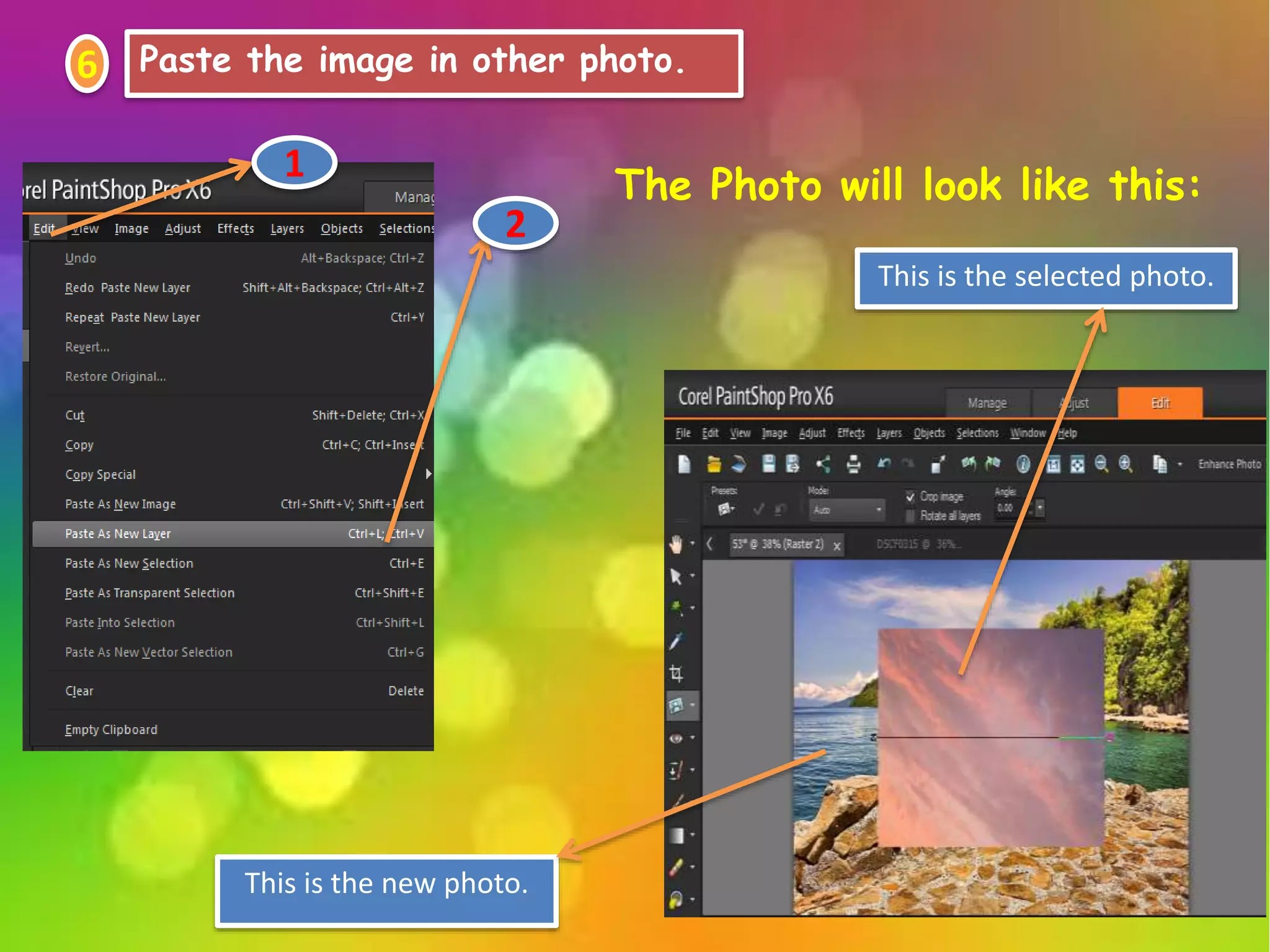
6 Paste the image in other photo. 
1 The Photo will look like this: 
This is the new photo. 
This is the selected photo. 
2
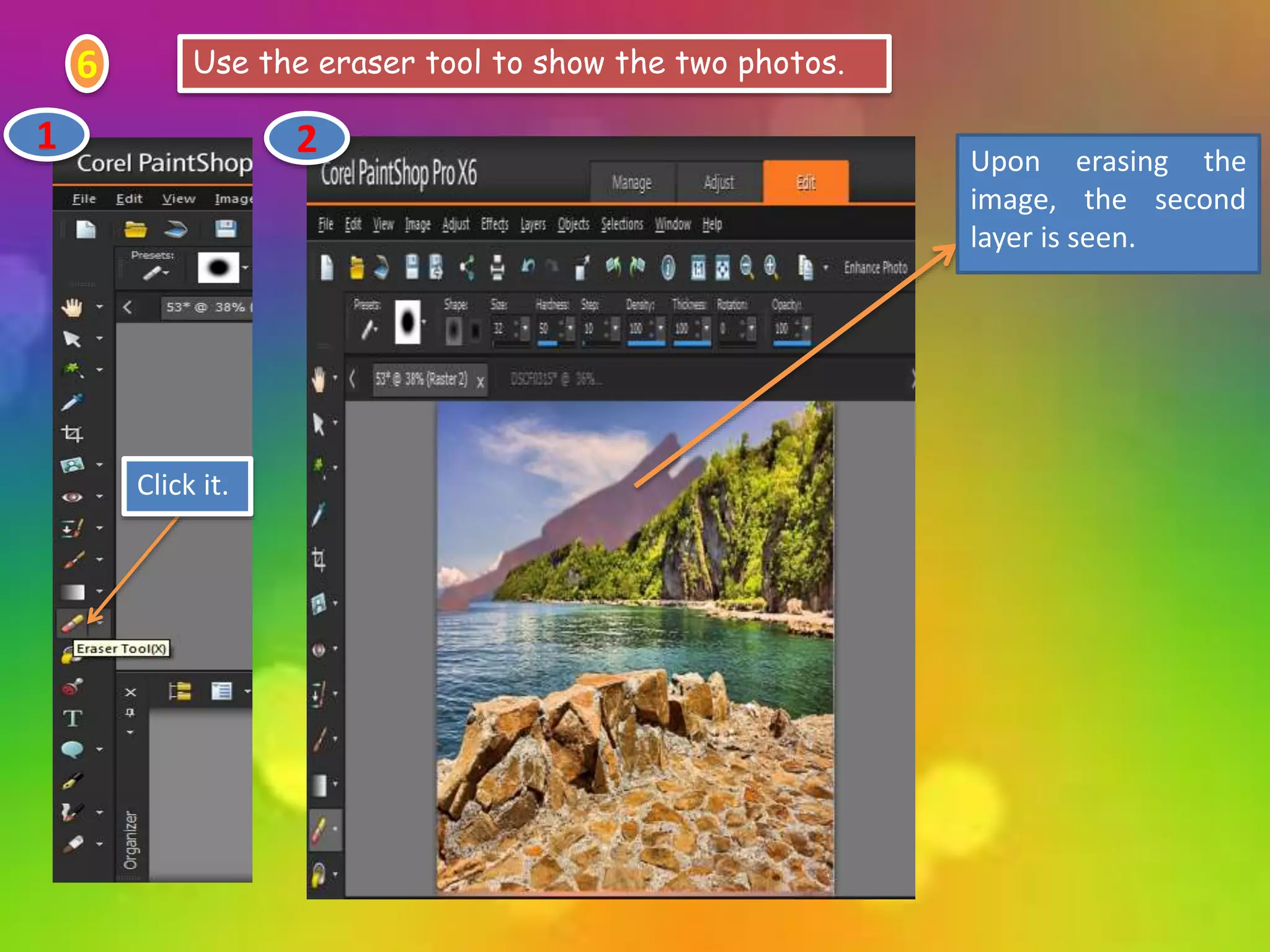
6 Use the eraser tool to show the two photos. 
Click it. 
Upon erasing the 
image, the second 
layer is seen. 
1 2
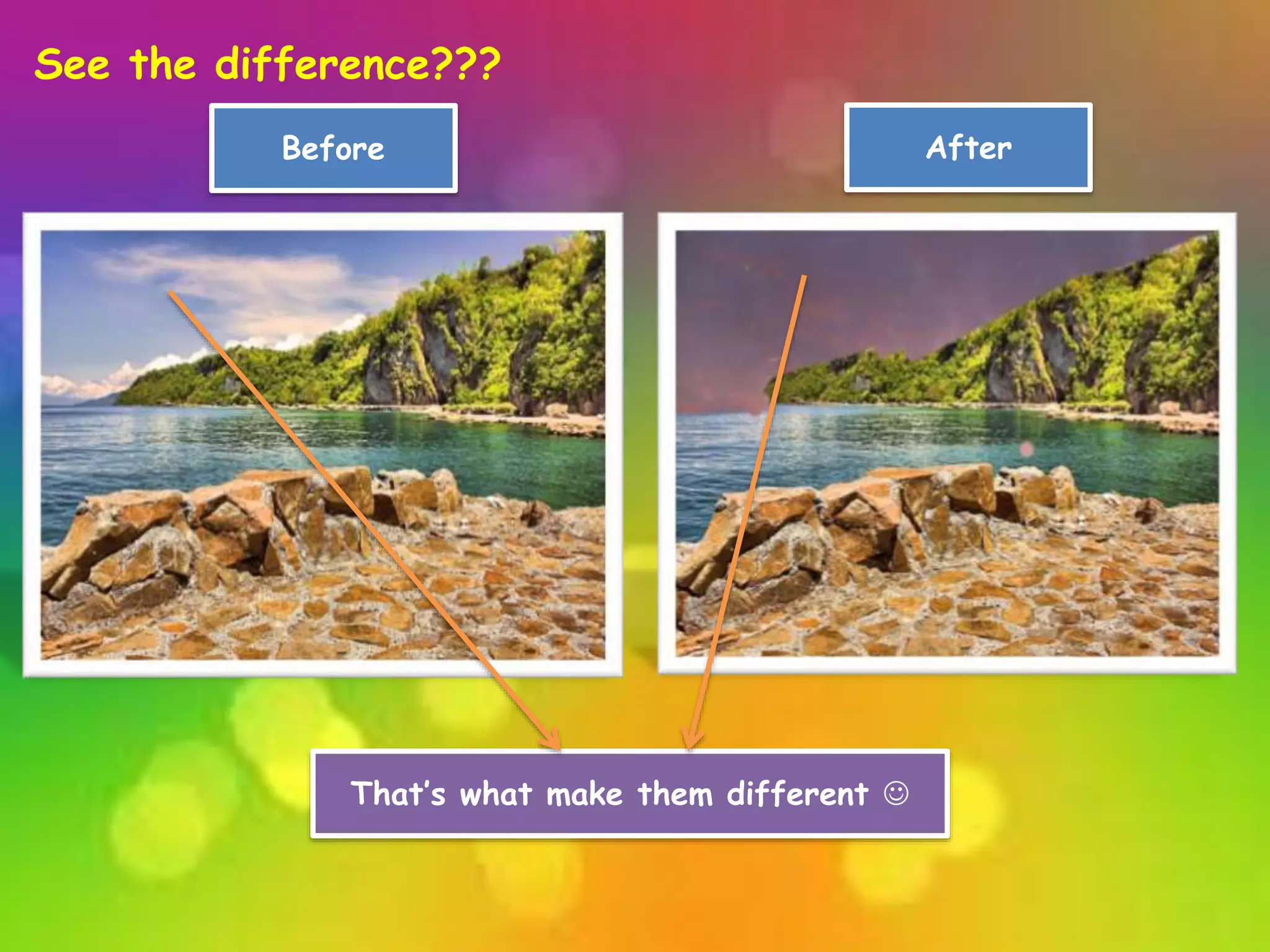
See the difference??? 
Before After 
That’s what make them different 
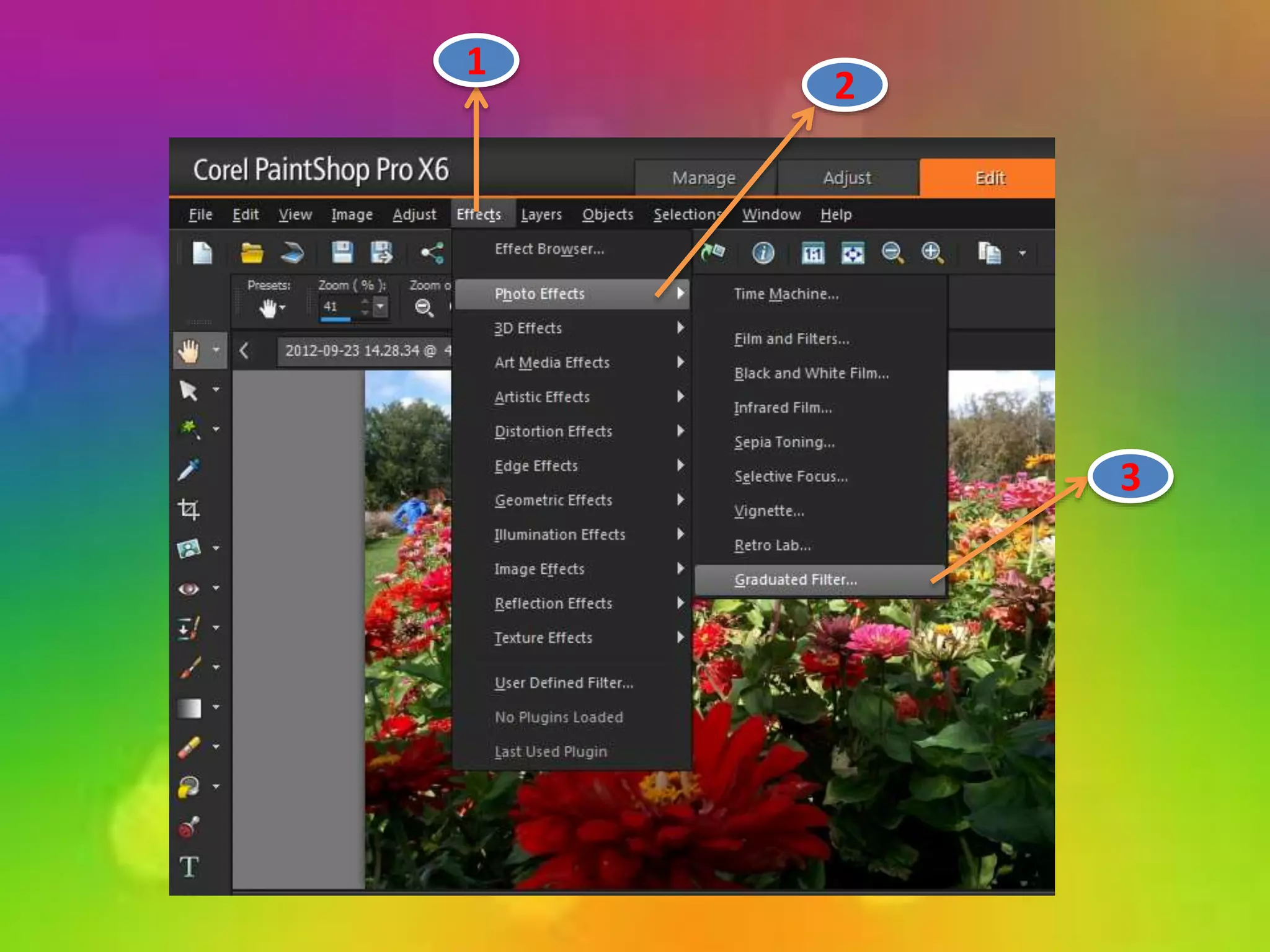
Filters
3 
2 
1
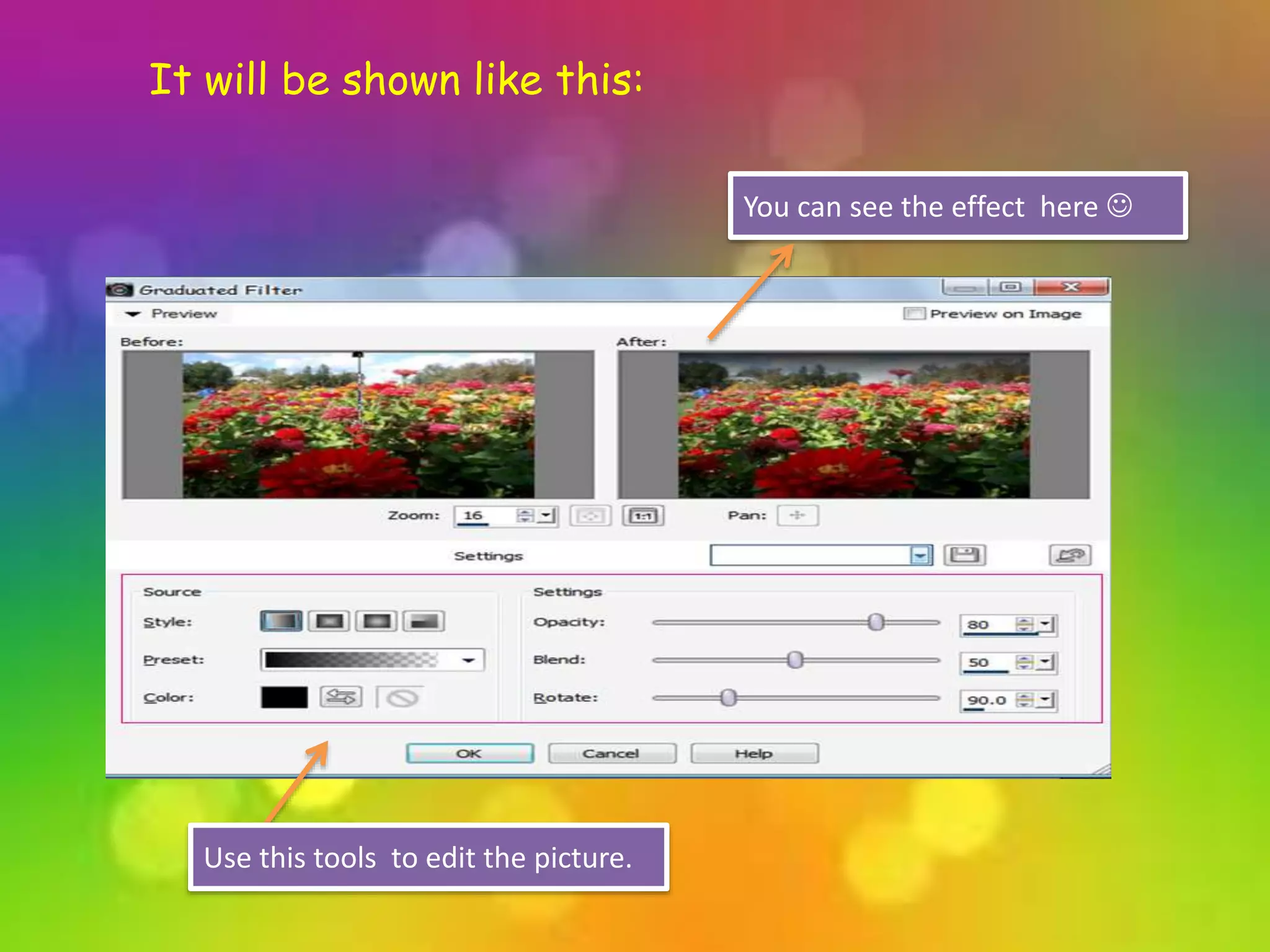
It will be shown like this: 
Use this tools to edit the picture. 
You can see the effect here 
More Video Tutorials to Learn 
More … 
Introduction to Layers 
Multi-Layer 
Graduated Filter Effect 
Face Filter

Layers and filters - Corel Paintshop Pro

  • 1.
    Cristina B. Protacio Jimmy J. Tibayde Jr.
  • 2.
    + Tina Jimmy equals TIMMY
  • 3.
    Layers an d Filters
  • 4.
    WE WILL USETHE PAINTSHOP PRO
  • 5.
    The greatest featureof Paint Shop Pro is that it allows you work in layers. Having the ability to layer the pieces of your graphics will allow you more freedom with your creative designs. We will discuss it here and you will learn more on how layers work.
  • 6.
    Layers It islike a separate sheets that you combine to create a final composition.
  • 7.
    1 2 3 Make sure you can see your layer palette by clicking the word View at the top of the main Paint Shop Pro window, then Palettes, and Layers. 1
  • 8.
    2 Open aphoto, usually a .jpg file. 1 2 Select a Picture Then Open … The Photo will appear
  • 9.
    3 You canrename it. Right click the picture. Click it. Then Rename.
  • 10.
    4 Repeat theStep 2. 5 Copy the image. 1 2 This is the image that you will copy.
  • 11.
    6 Paste theimage in other photo. 1 The Photo will look like this: This is the new photo. This is the selected photo. 2
  • 12.
    6 Use theeraser tool to show the two photos. Click it. Upon erasing the image, the second layer is seen. 1 2
  • 13.
    See the difference??? Before After That’s what make them different 
  • 14.
  • 15.
  • 16.
    It will beshown like this: Use this tools to edit the picture. You can see the effect here 
  • 17.
    More Video Tutorialsto Learn More … Introduction to Layers Multi-Layer Graduated Filter Effect Face Filter