1
Lesson 2:Knowing
your Mac
The Finder and Getting Around the Desktop
2
The Finder-
( “Your Mac’s General Manager”)
Finder Controls Everything on Mac
Launching Applications
Accessing and organizing files on hard Drive
Accessing attached Printers, CD’s etc
Desktop is part of the finder
Double click HD or Folder to open window
Sidebar is Part of Every Finder Window
3
Features
Menu Bar, Menulets, Spotlight
Desktop Background & Screensaver
Icons (Hard Drive, Folders, Files)
Windows (Open Folders or Devices) with sidebar
Dock (Most used Programs)
Mac Desktop Review
4
The Menu Bar
Gets program to Perform operations
Item after Black Apple is always program name
Finder menu Controls the Finder
Finder, File, Edit, View, Go, Window, help
Desktop windows not always in Finder
Clicking in any empty space on Desktop or
clicking Dock Finder icon brings up finder
5
The Dock
Easy Access to launching Applications
Icons are aliases -short-cuts to Programs
Easy to add and remove Applications
Contains your most used Apps
Right (bottom) side of Dock is for:
Files, Folders, TRASH CAN
Customize Dock via Apple/Dock
6
Finder Windows
Every Finder Window has:
Title and Move bar
Navigation/View/Search Tools
Sidebar, information, re-sizing corner
Know how to:
Open, Close and Size Windows
Move Files to folders
Copy Files to Disks
Delete items
7
The Sidebar: Quick Access
Devices
Hard Drive and attached Drives
iDisk & Network
CD’s, DVD’s, Flash Drives
Shared
Networked Computers
Places
Desktop, Home, Apps etc
Smart Searches
Mac Finder Tutorial
Apple: “Find Out How” ( http://
www.apple.com/findouthow/Find out
Howmac/
9
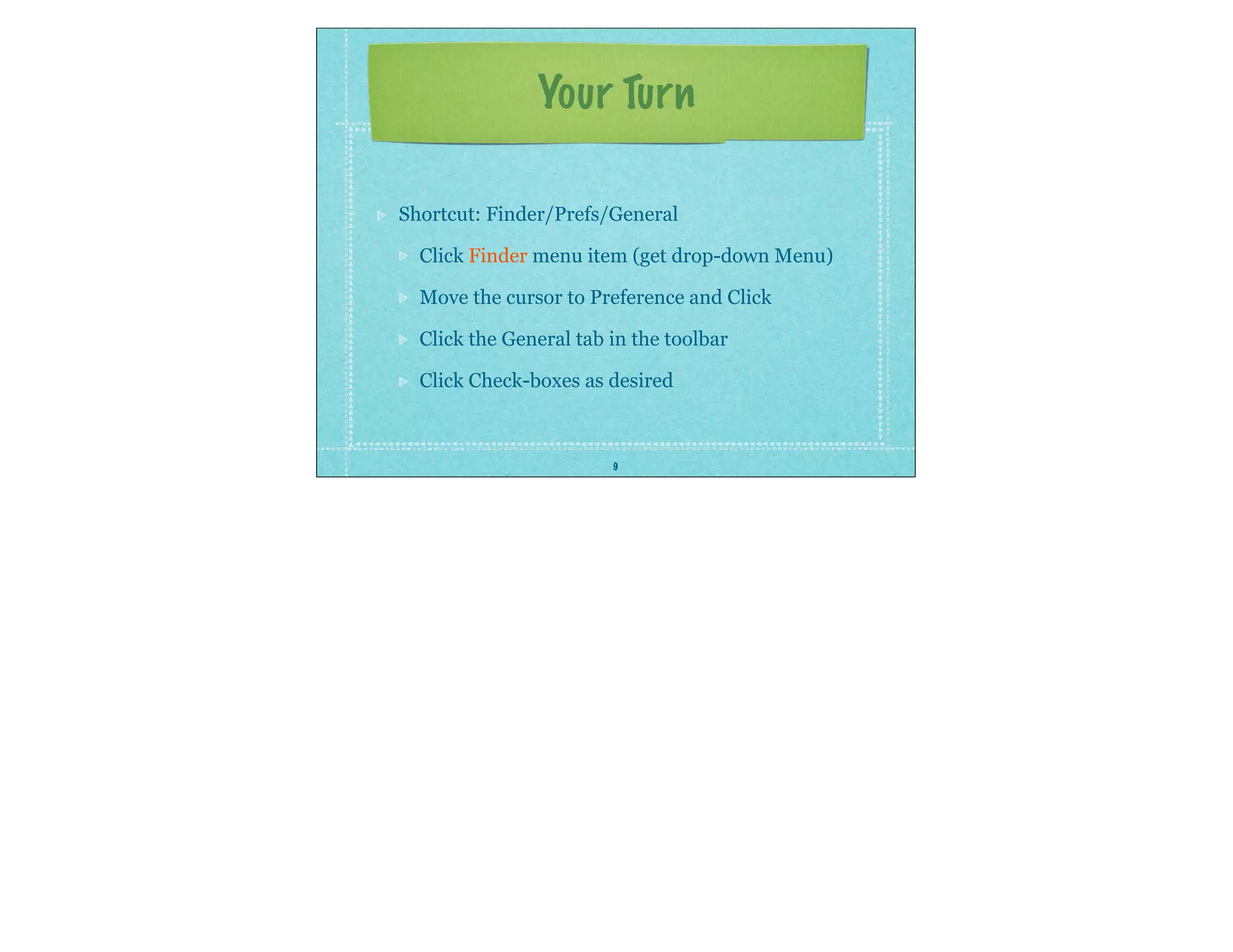
Your Turn
Shortcut: Finder/Prefs/General
Click Finder menu item (get drop-down Menu)
Move the cursor to Preference and Click
Click the General tab in the toolbar
Click Check-boxes as desired

Lesson2: The Finder

  • 1.
    1 Lesson 2:Knowing your Mac TheFinder and Getting Around the Desktop
  • 2.
    2 The Finder- ( “YourMac’s General Manager”) Finder Controls Everything on Mac Launching Applications Accessing and organizing files on hard Drive Accessing attached Printers, CD’s etc Desktop is part of the finder Double click HD or Folder to open window Sidebar is Part of Every Finder Window
  • 3.
    3 Features Menu Bar, Menulets,Spotlight Desktop Background & Screensaver Icons (Hard Drive, Folders, Files) Windows (Open Folders or Devices) with sidebar Dock (Most used Programs) Mac Desktop Review
  • 4.
    4 The Menu Bar Getsprogram to Perform operations Item after Black Apple is always program name Finder menu Controls the Finder Finder, File, Edit, View, Go, Window, help Desktop windows not always in Finder Clicking in any empty space on Desktop or clicking Dock Finder icon brings up finder
  • 5.
    5 The Dock Easy Accessto launching Applications Icons are aliases -short-cuts to Programs Easy to add and remove Applications Contains your most used Apps Right (bottom) side of Dock is for: Files, Folders, TRASH CAN Customize Dock via Apple/Dock
  • 6.
    6 Finder Windows Every FinderWindow has: Title and Move bar Navigation/View/Search Tools Sidebar, information, re-sizing corner Know how to: Open, Close and Size Windows Move Files to folders Copy Files to Disks Delete items
  • 7.
    7 The Sidebar: QuickAccess Devices Hard Drive and attached Drives iDisk & Network CD’s, DVD’s, Flash Drives Shared Networked Computers Places Desktop, Home, Apps etc Smart Searches
  • 8.
    Mac Finder Tutorial Apple:“Find Out How” ( http:// www.apple.com/findouthow/Find out Howmac/
  • 9.
    9 Your Turn Shortcut: Finder/Prefs/General ClickFinder menu item (get drop-down Menu) Move the cursor to Preference and Click Click the General tab in the toolbar Click Check-boxes as desired