Introductory Mac OS X Presented by ArrowQuick Solutions Monday, January 26, 2004
ArrowQuick Solutions Technology Services Business Web Development - design & programming websites Software Training - PC and Mac software Information Technology Services Systems Infrastructure Assessment, Analysis, Design Systems Infrastructure Outsourcing with MCG Fiber and Wireless Internet Connectivity Specialist Systems Maintenance Contracts Sister Company - ArrowGraphix Design and Printing, Color & B/W Copying, Desktop Publishing Multimedia Development - video editing and production
ArrowQuick Solutions Partners Rob Hammann Perry Lund Employees Eric Heikes - Web Development & Programming Amber Lake - Office Manager / Marketing Director Jill Bryan - Graphic Designer Jeff Loomans - Information Technology Specialist
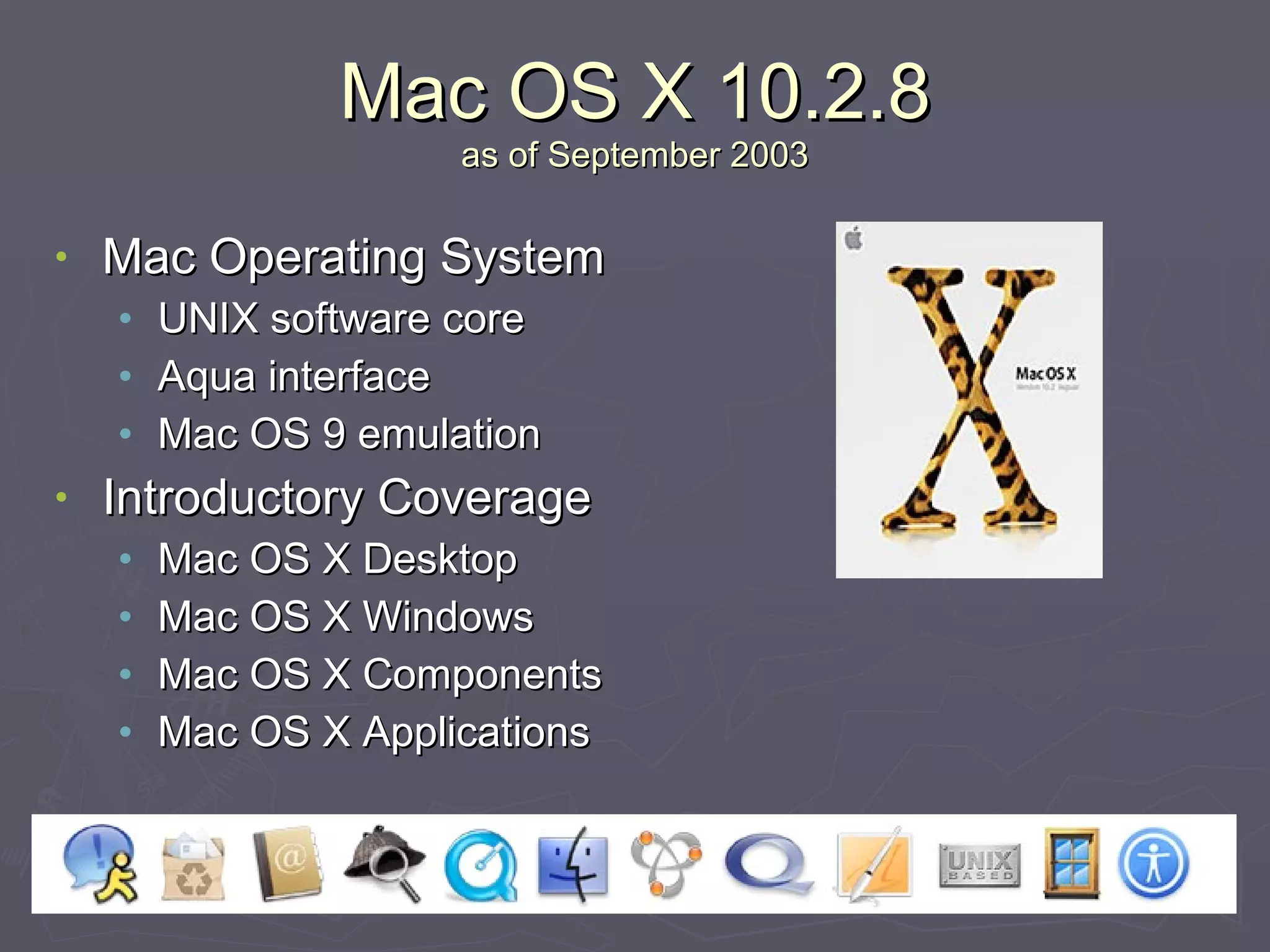
Mac OS X 10.2.8 as of September 2003 Mac Operating System UNIX software core Aqua interface Mac OS 9 emulation Introductory Coverage Mac OS X Desktop Mac OS X Windows Mac OS X Components Mac OS X Applications
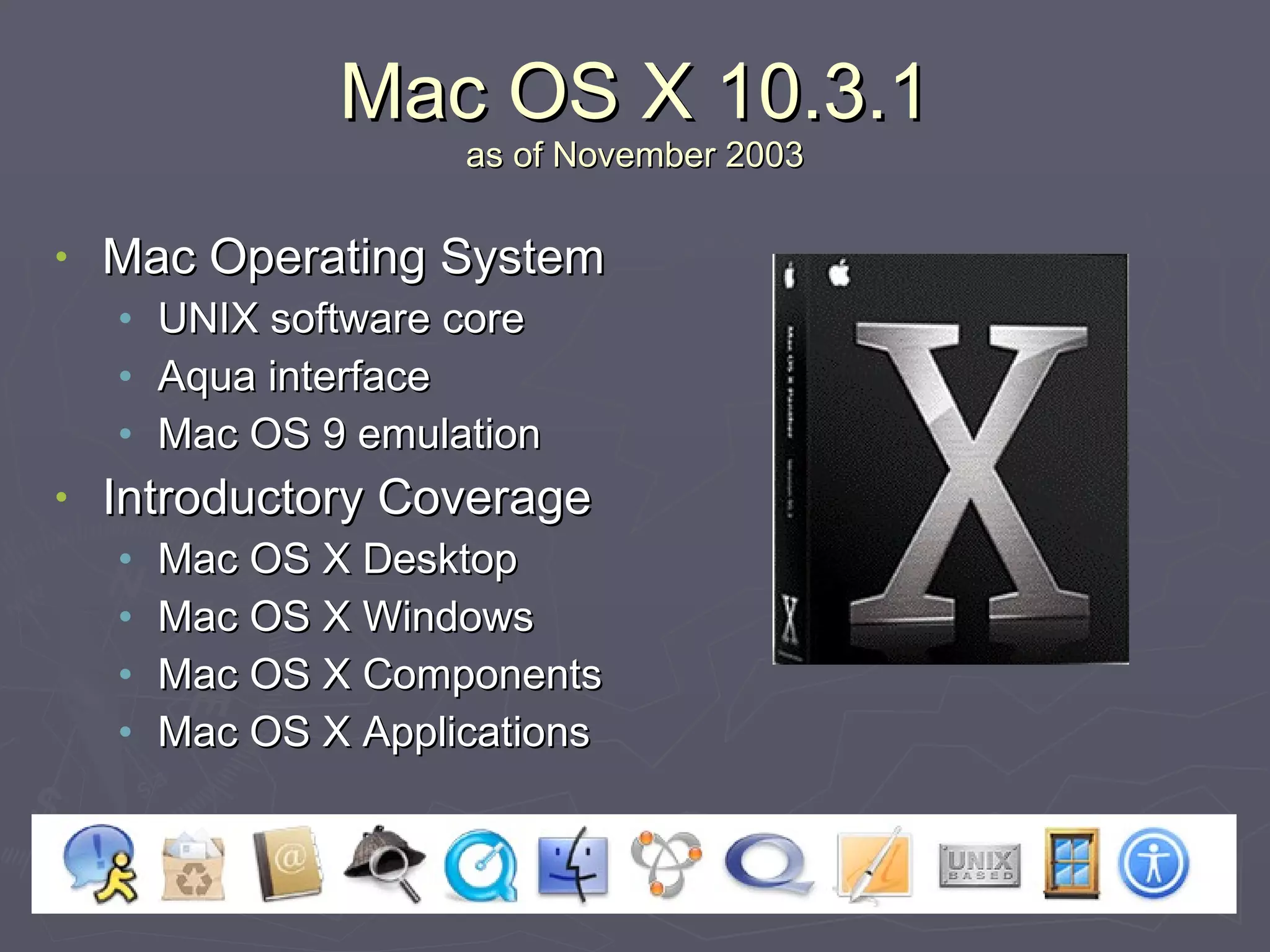
Mac OS X 10.3.1 as of November 2003 Mac Operating System UNIX software core Aqua interface Mac OS 9 emulation Introductory Coverage Mac OS X Desktop Mac OS X Windows Mac OS X Components Mac OS X Applications
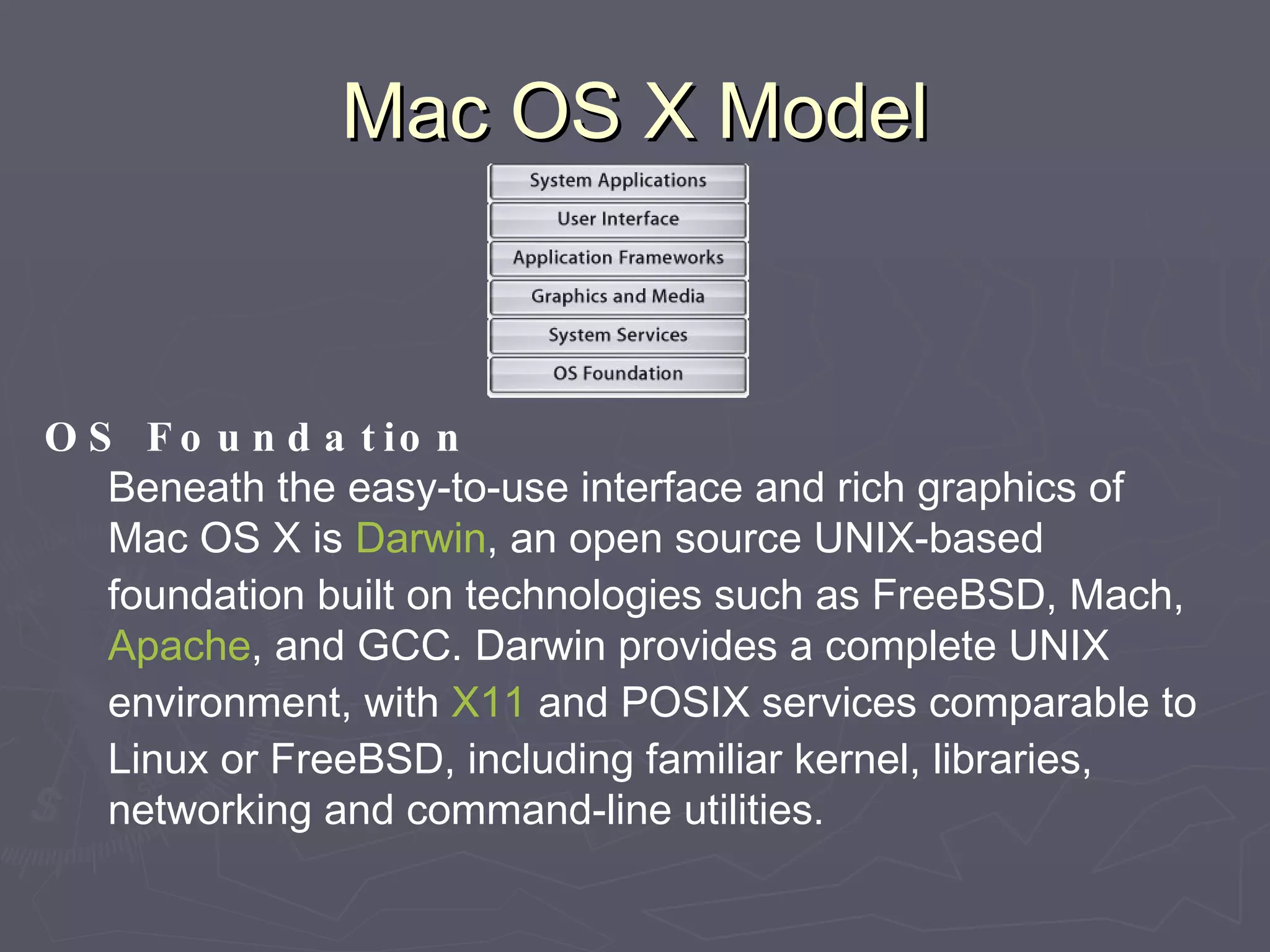
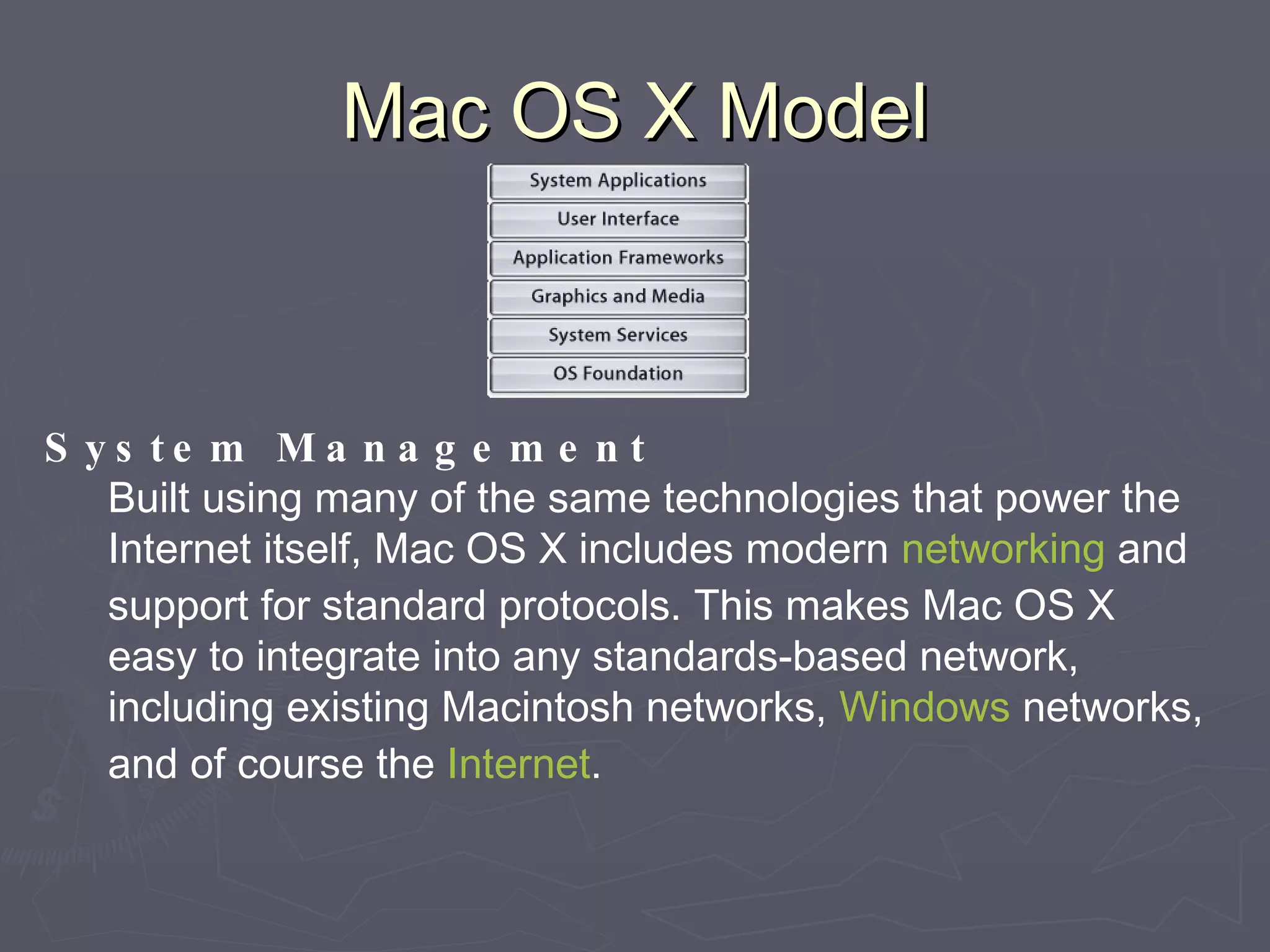
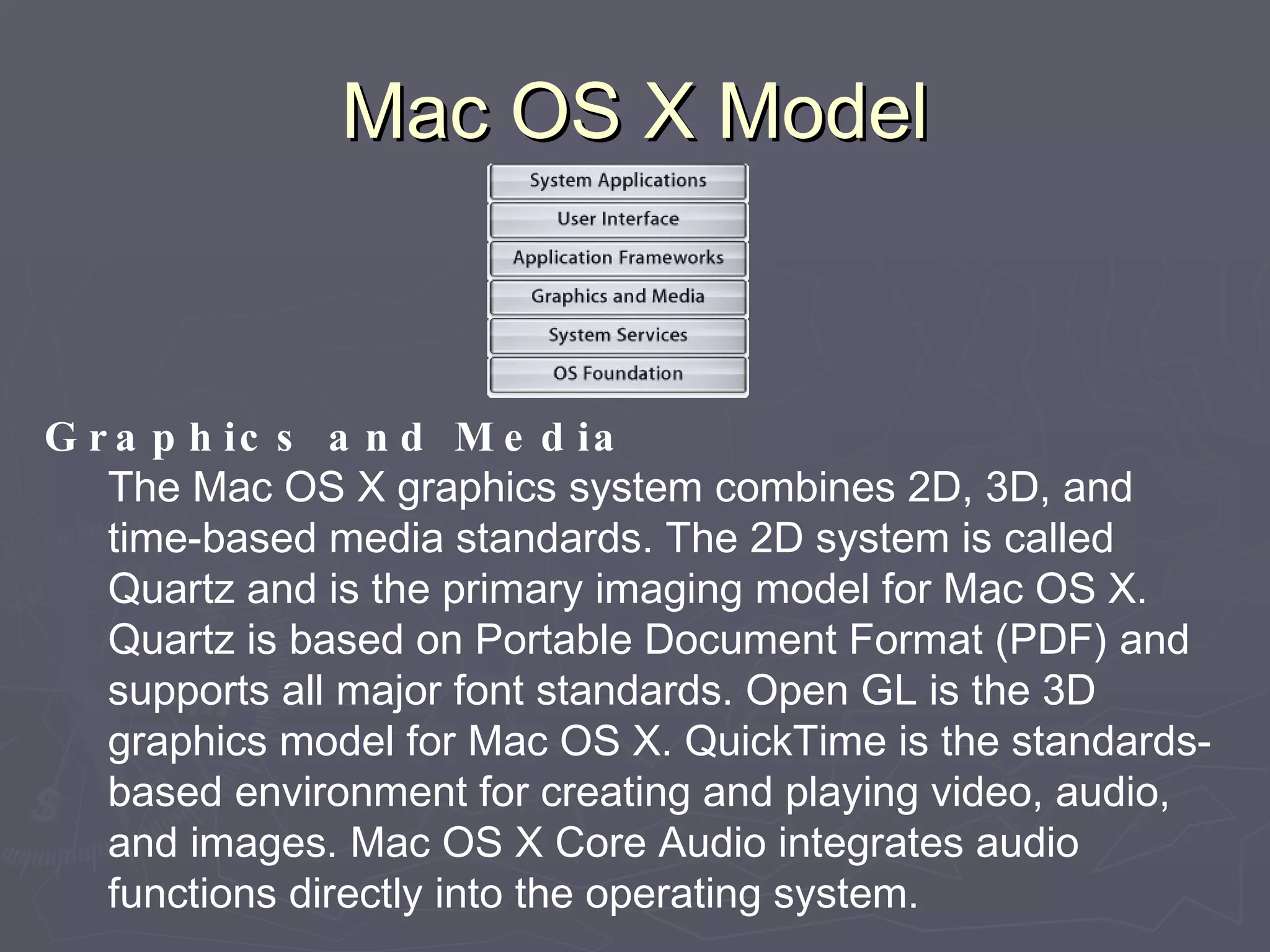
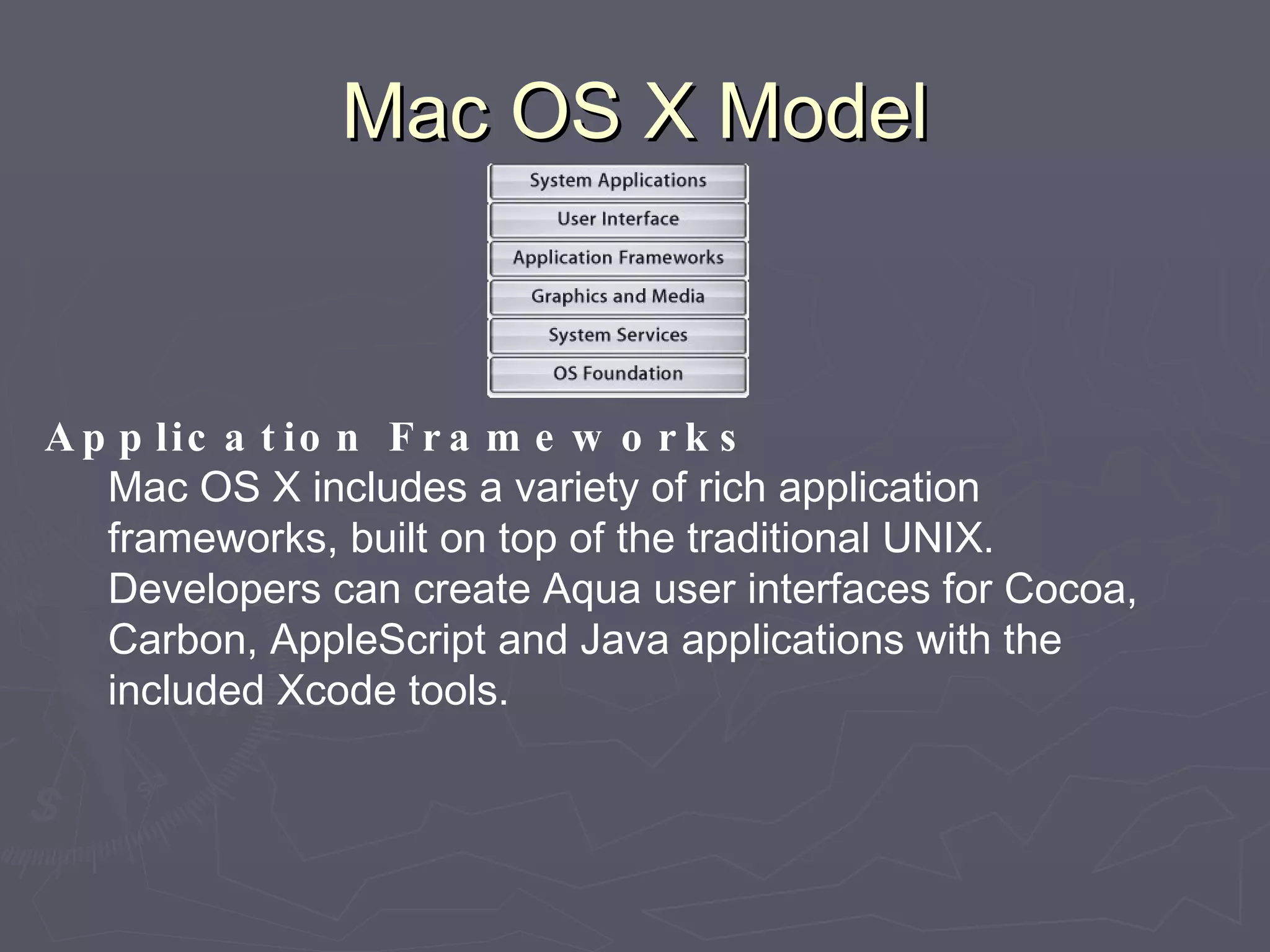
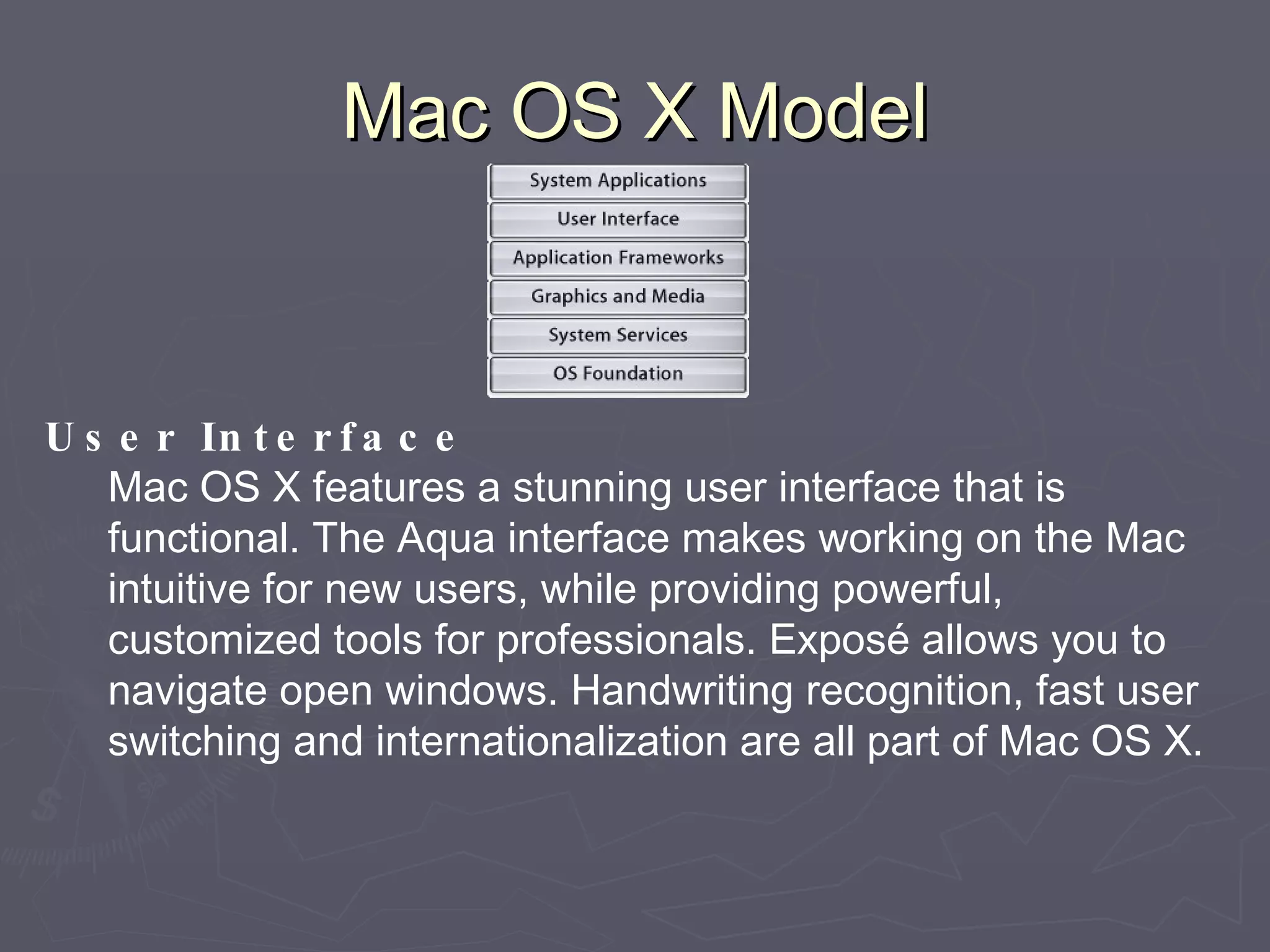
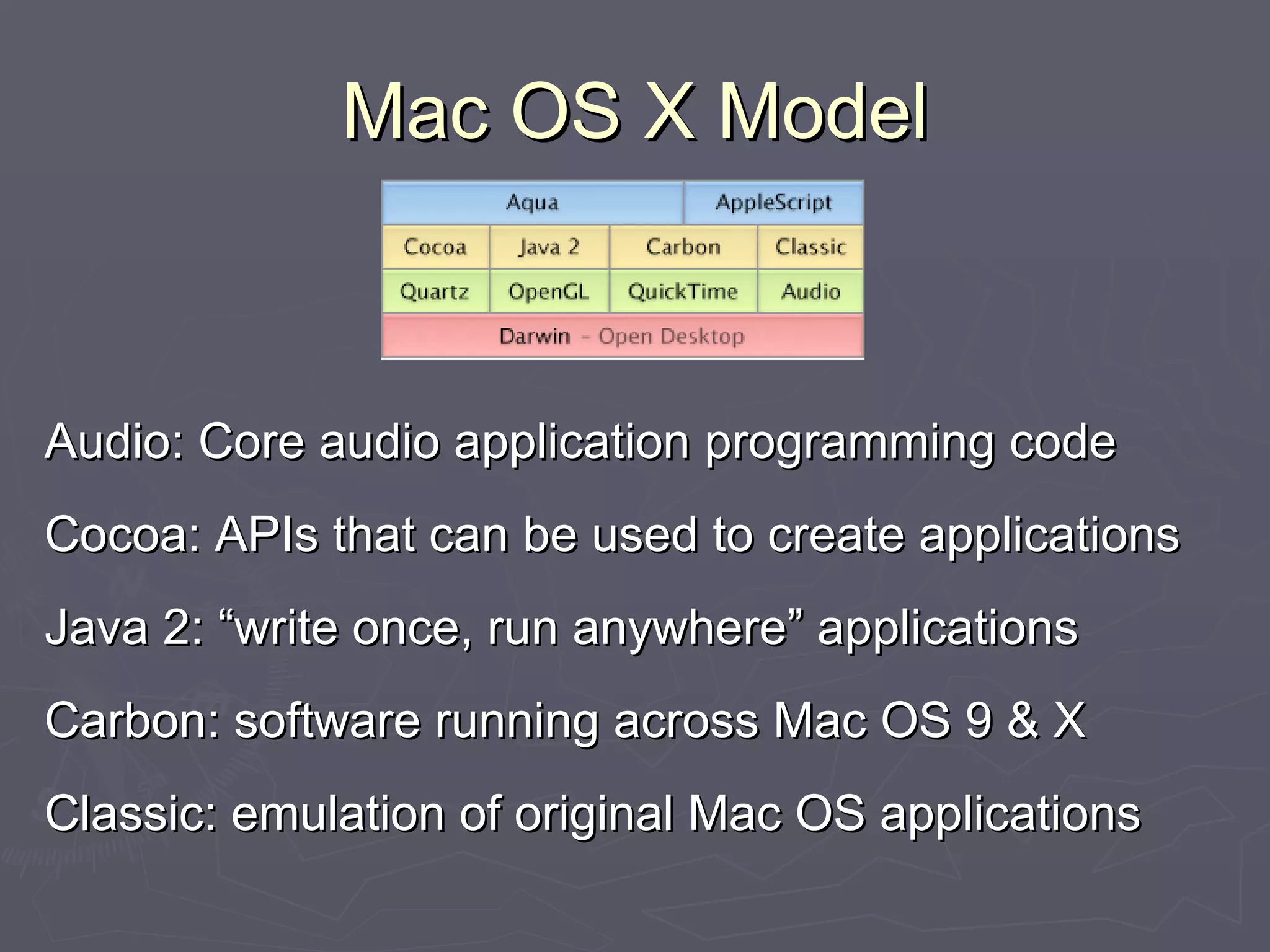
Mac OS X Model OS Foundation Beneath the easy-to-use interface and rich graphics of Mac OS X is  Darwin , an open source UNIX-based foundation built on technologies such as FreeBSD, Mach,  Apache , and GCC. Darwin provides a complete UNIX environment, with  X11  and POSIX services comparable to Linux or FreeBSD, including familiar kernel, libraries, networking and command-line utilities.
Mac OS X Model System Management Built using many of the same technologies that power the Internet itself, Mac OS X includes modern  networking  and support for standard protocols. This makes Mac OS X easy to integrate into any standards-based network, including existing Macintosh networks,  Windows  networks, and of course the  Internet .
Mac OS X Model Graphics and Media The Mac OS X graphics system combines 2D, 3D, and time-based media standards. The 2D system is called Quartz and is the primary imaging model for Mac OS X. Quartz is based on Portable Document Format (PDF) and supports all major font standards. Open GL is the 3D graphics model for Mac OS X. QuickTime is the standards-based environment for creating and playing video, audio, and images. Mac OS X Core Audio integrates audio functions directly into the operating system.
Mac OS X Model Application Frameworks Mac OS X includes a variety of rich application frameworks, built on top of the traditional UNIX. Developers can create Aqua user interfaces for Cocoa, Carbon, AppleScript and Java applications with the included Xcode tools.
Mac OS X Model User Interface Mac OS X features a stunning user interface that is functional. The Aqua interface makes working on the Mac intuitive for new users, while providing powerful, customized tools for professionals. Exposé allows you to navigate open windows. Handwriting recognition, fast user switching and internationalization are all part of Mac OS X.
Mac OS X Model Audio: Core audio application programming code Cocoa: APIs that can be used to create applications Java 2: “write once, run anywhere” applications Carbon: software running across Mac OS 9 & X Classic: emulation of original Mac OS applications
Mac OS X Movie http://movielibrary.lynda.com/html/modPage.asp?ID=44
Mac OS X Basics Overall, Mac OS X is a pleasant user experience, but it is different than Mac OS 9. Desktop Dock - organizational tool Menu bar - command and control Windows - where information is displayed Organization File Structure / Operations Applications
Mac OS X Login Login Mac OS X based on networked computer model of UNIX. Since UNIX and Mac OS X are a multi-user operating system, you must login! Automatic login with an account List of accounts to login Userid / Password model for login Type of login is dependent upon situation.
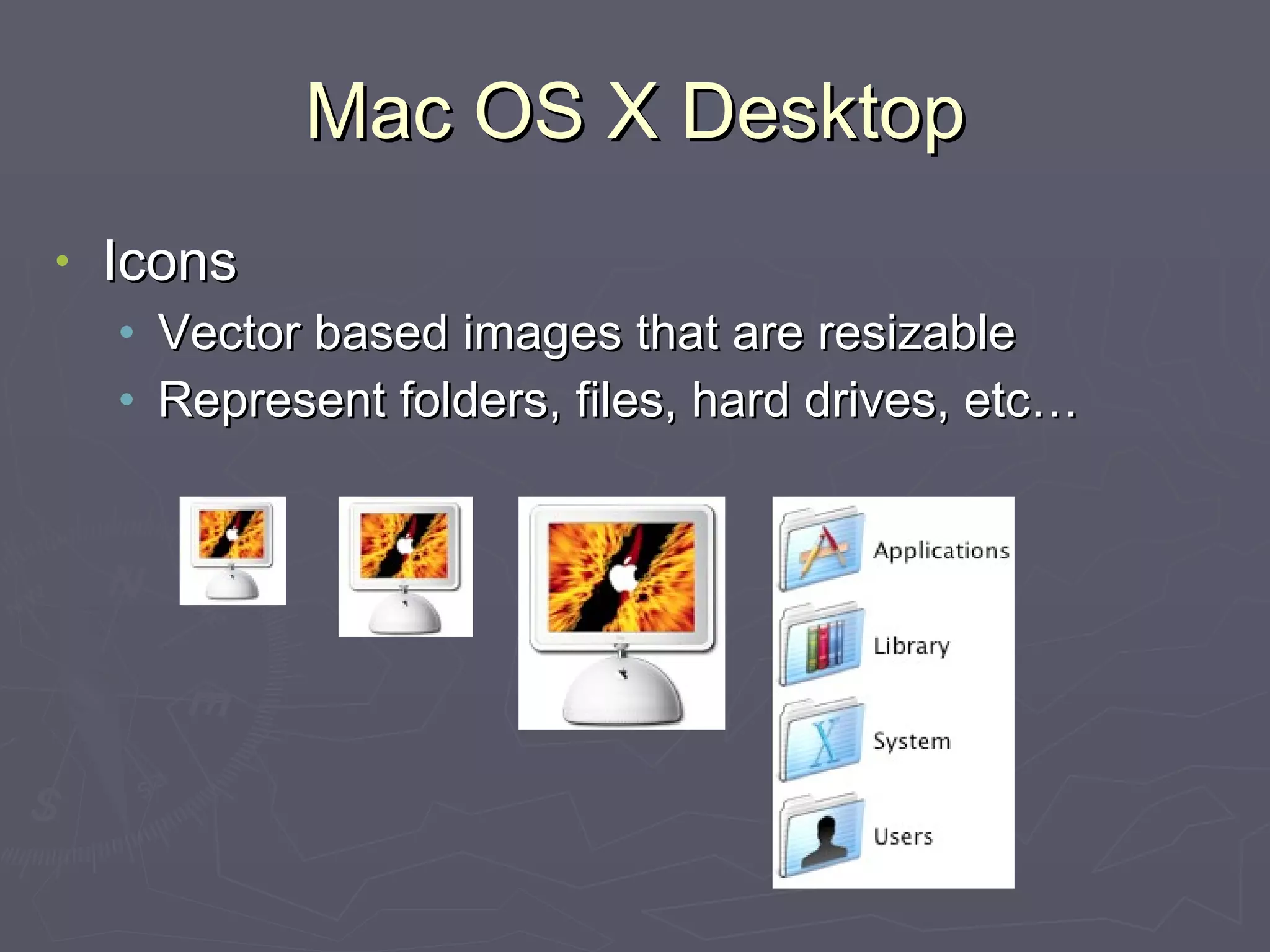
Mac OS X Desktop Icons Vector based images that are resizable Represent folders, files, hard drives, etc…
Mac OS X Dock
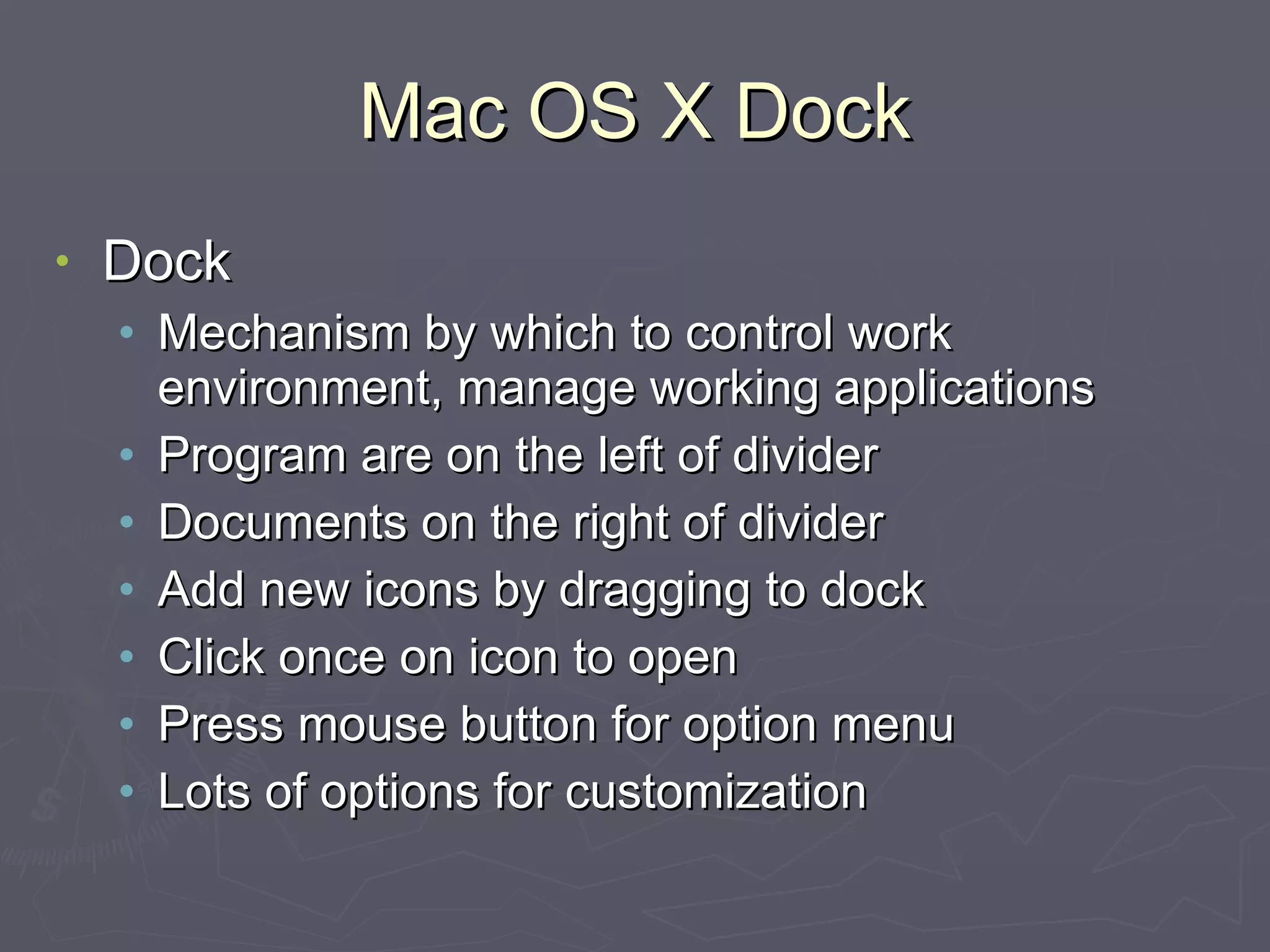
Mac OS X Dock Dock Mechanism by which to control work environment, manage working applications Program are on the left of divider Documents on the right of divider Add new icons by dragging to dock Click once on icon to open Press mouse button for option menu Lots of options for customization
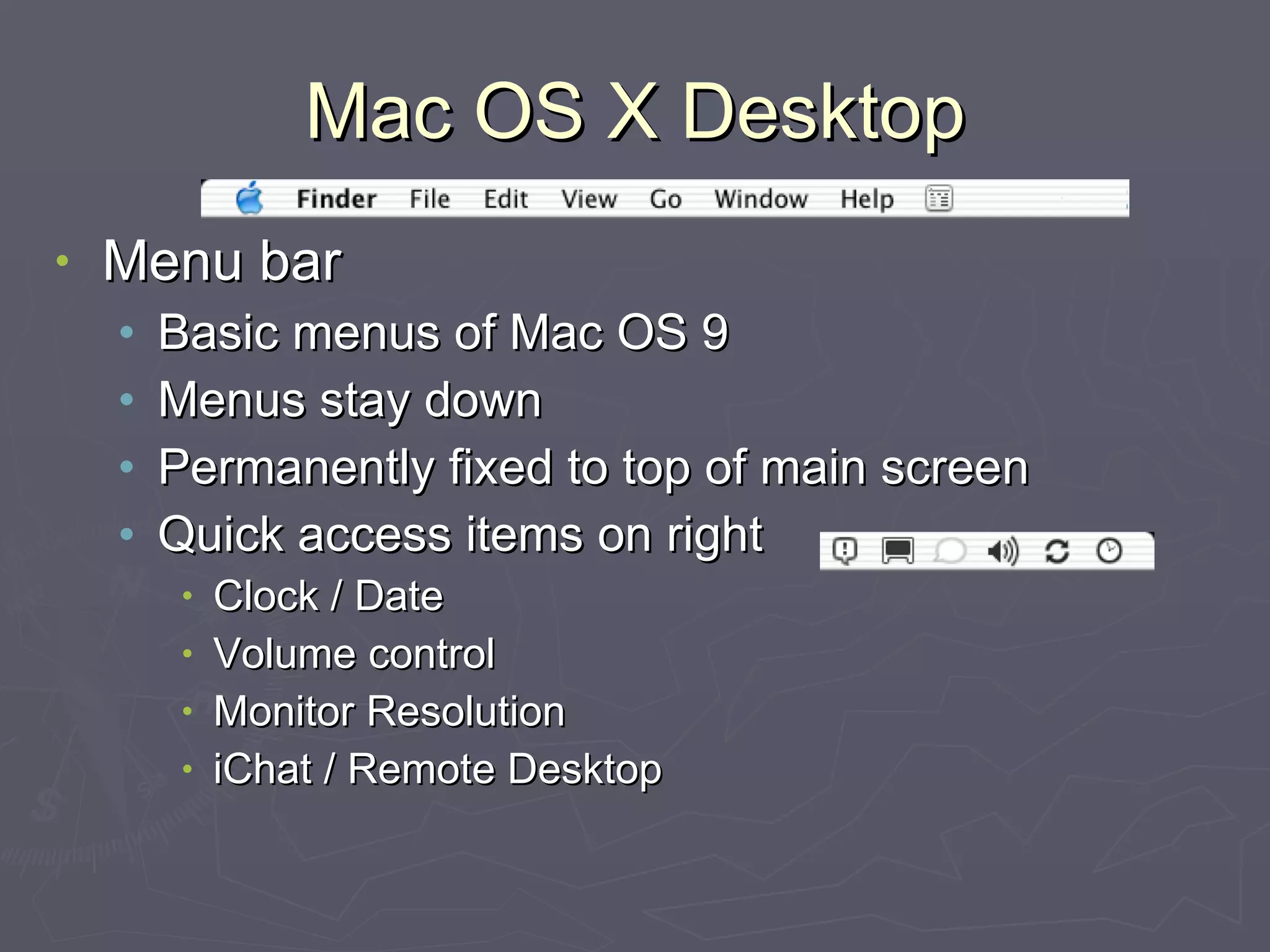
Mac OS X Desktop Menu bar Basic menus of Mac OS 9 Menus stay down Permanently fixed to top of main screen Quick access items on right Clock / Date Volume control Monitor Resolution iChat / Remote Desktop
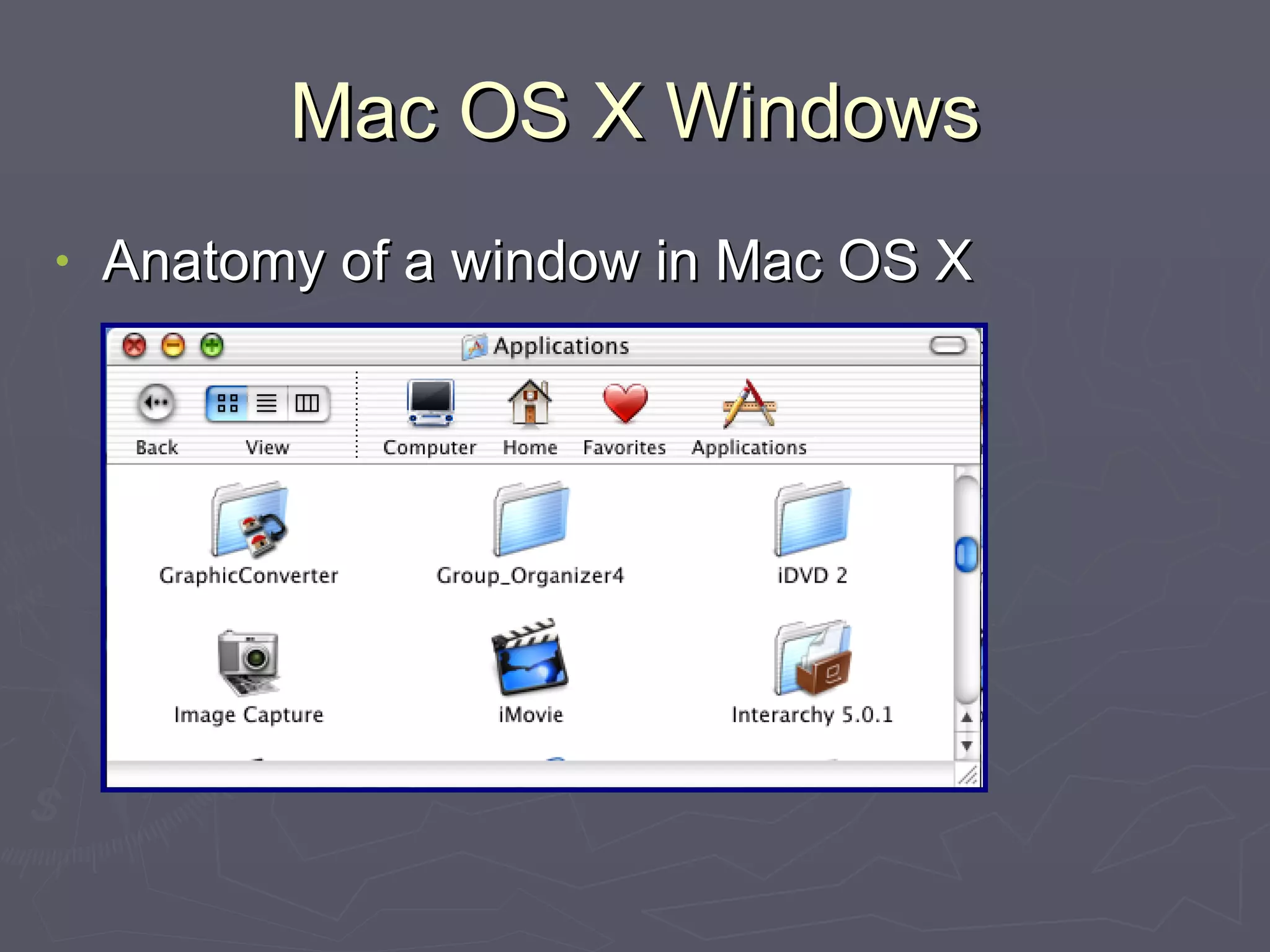
Mac OS X Windows Anatomy of a window in Mac OS X
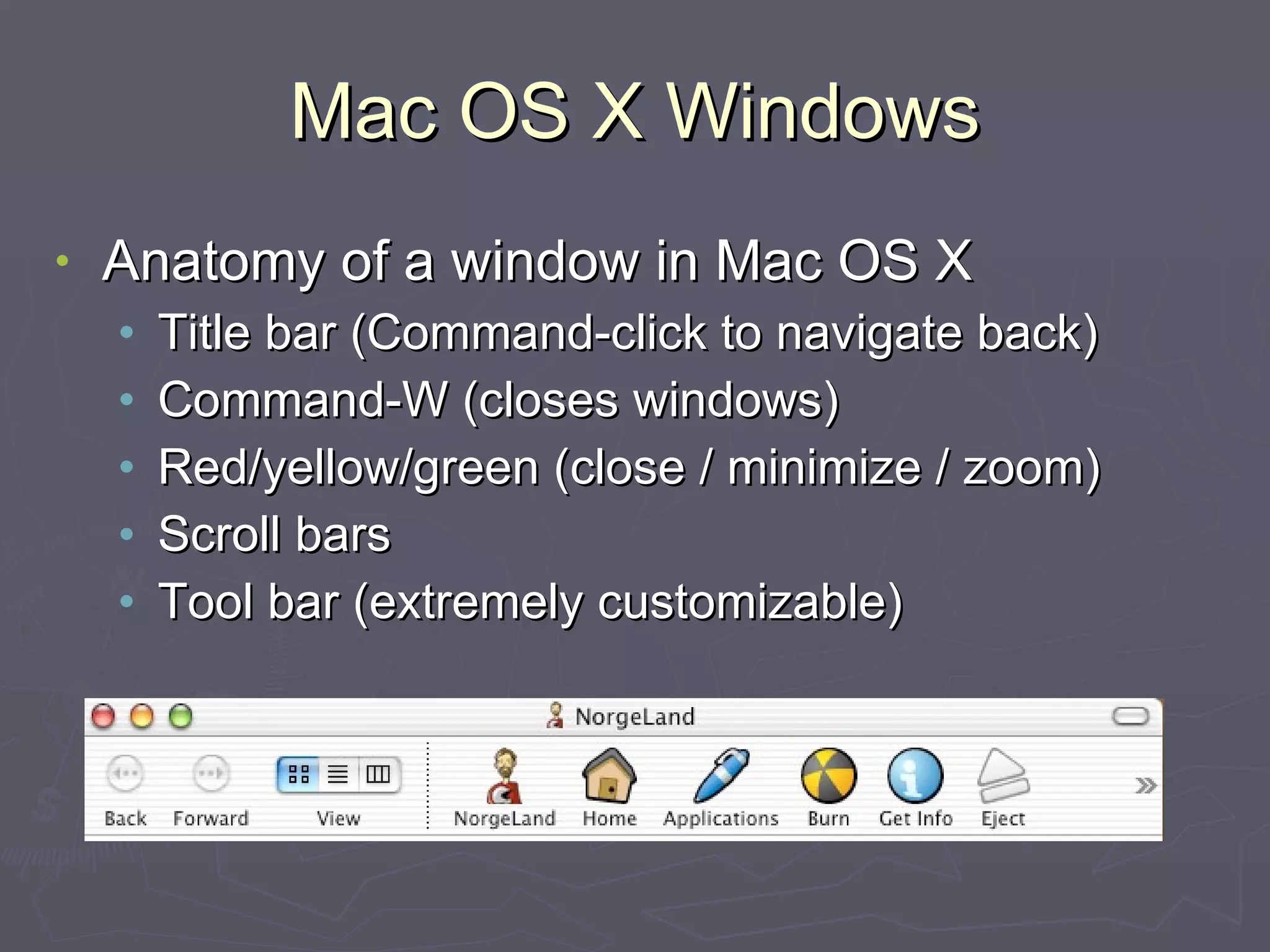
Mac OS X Windows Anatomy of a window in Mac OS X Title bar (Command-click to navigate back) Command-W (closes windows) Red/yellow/green (close / minimize / zoom) Scroll bars Tool bar (extremely customizable)
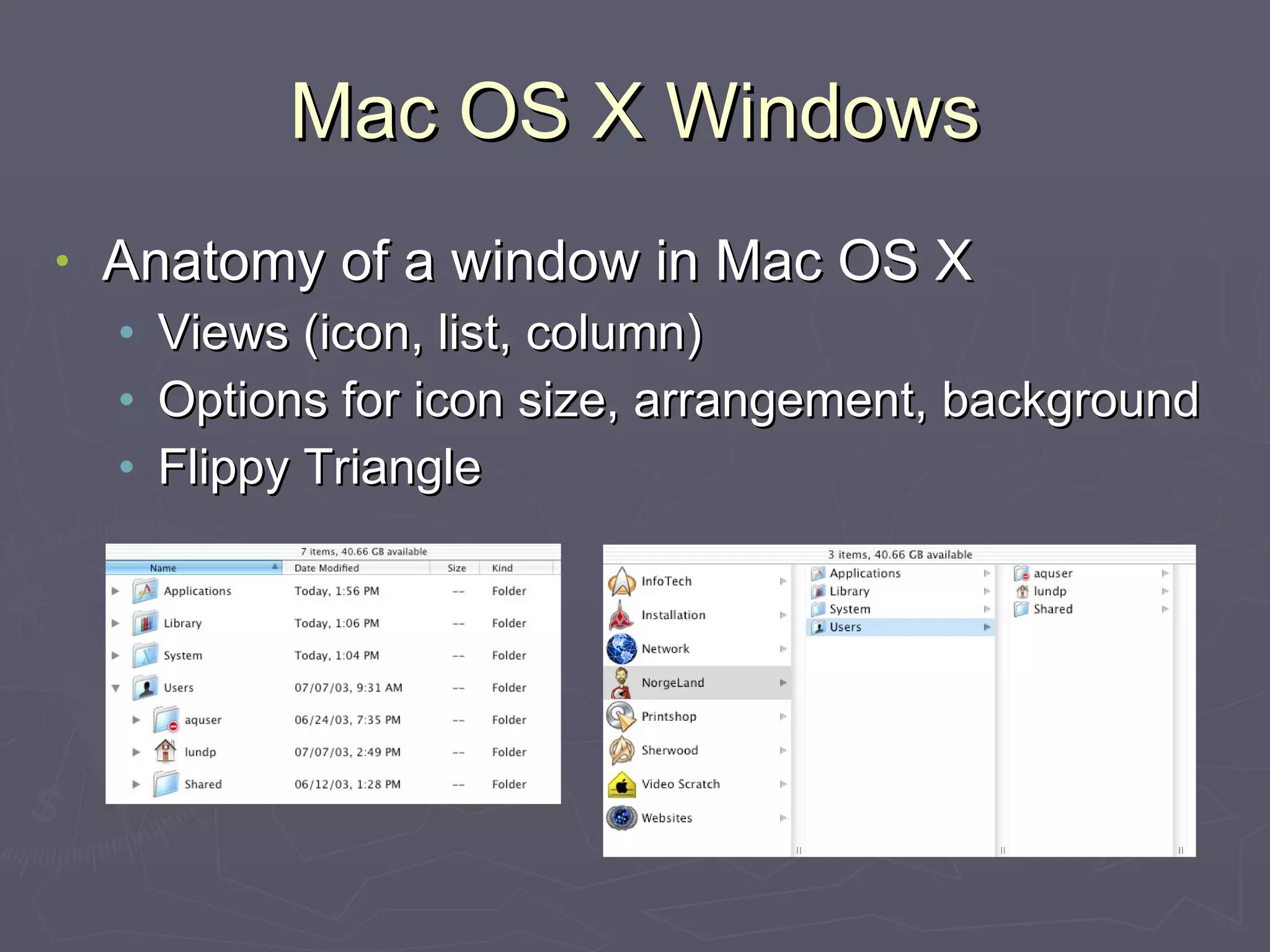
Mac OS X Windows Anatomy of a window in Mac OS X Views (icon, list, column) Options for icon size, arrangement, background Flippy Triangle
Mac OS X Windows Window Options
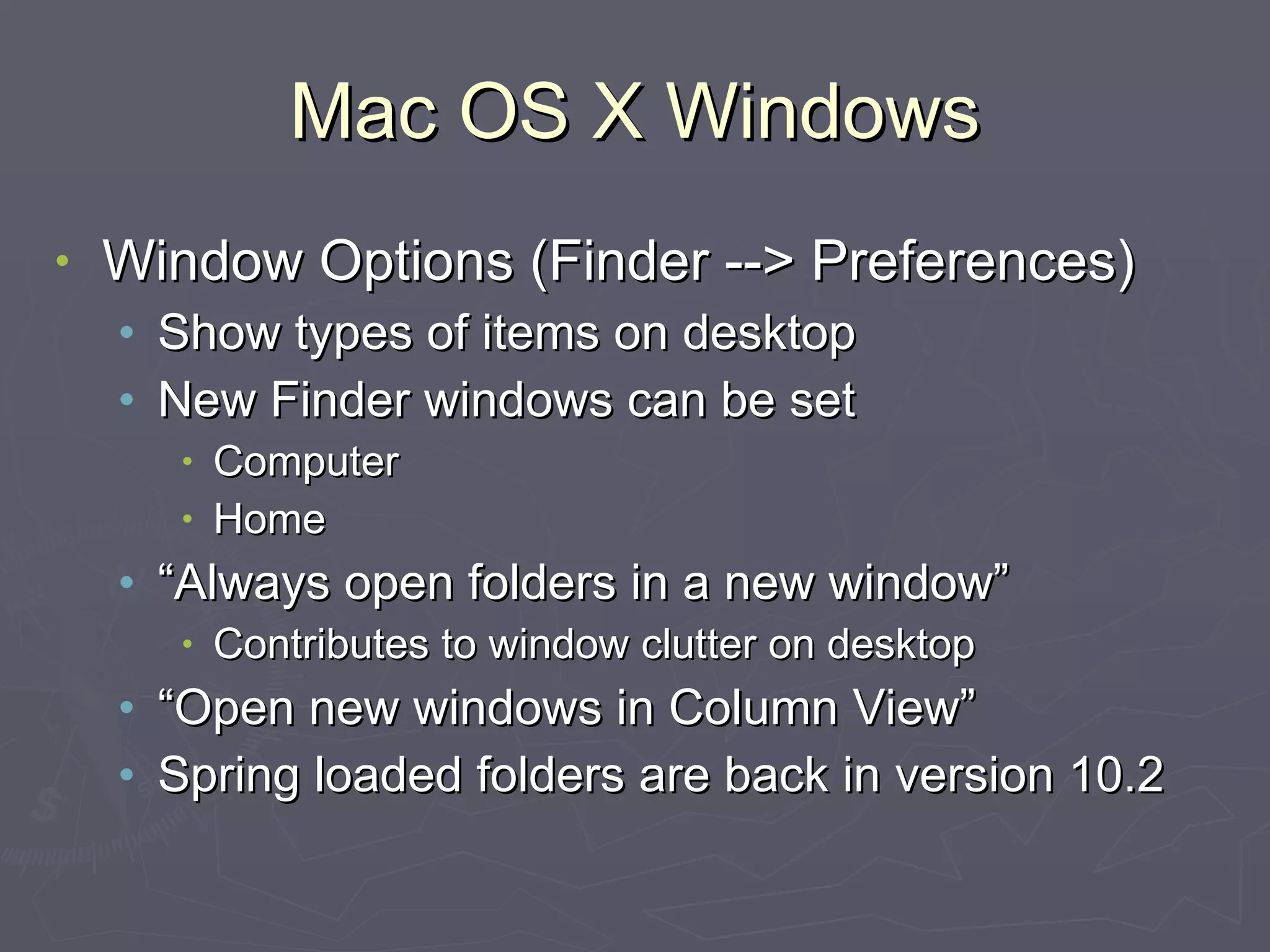
Mac OS X Windows Window Options (Finder --> Preferences) Show types of items on desktop New Finder windows can be set Computer Home “Always open folders in a new window” Contributes to window clutter on desktop “Open new windows in Column View” Spring loaded folders are back in version 10.2
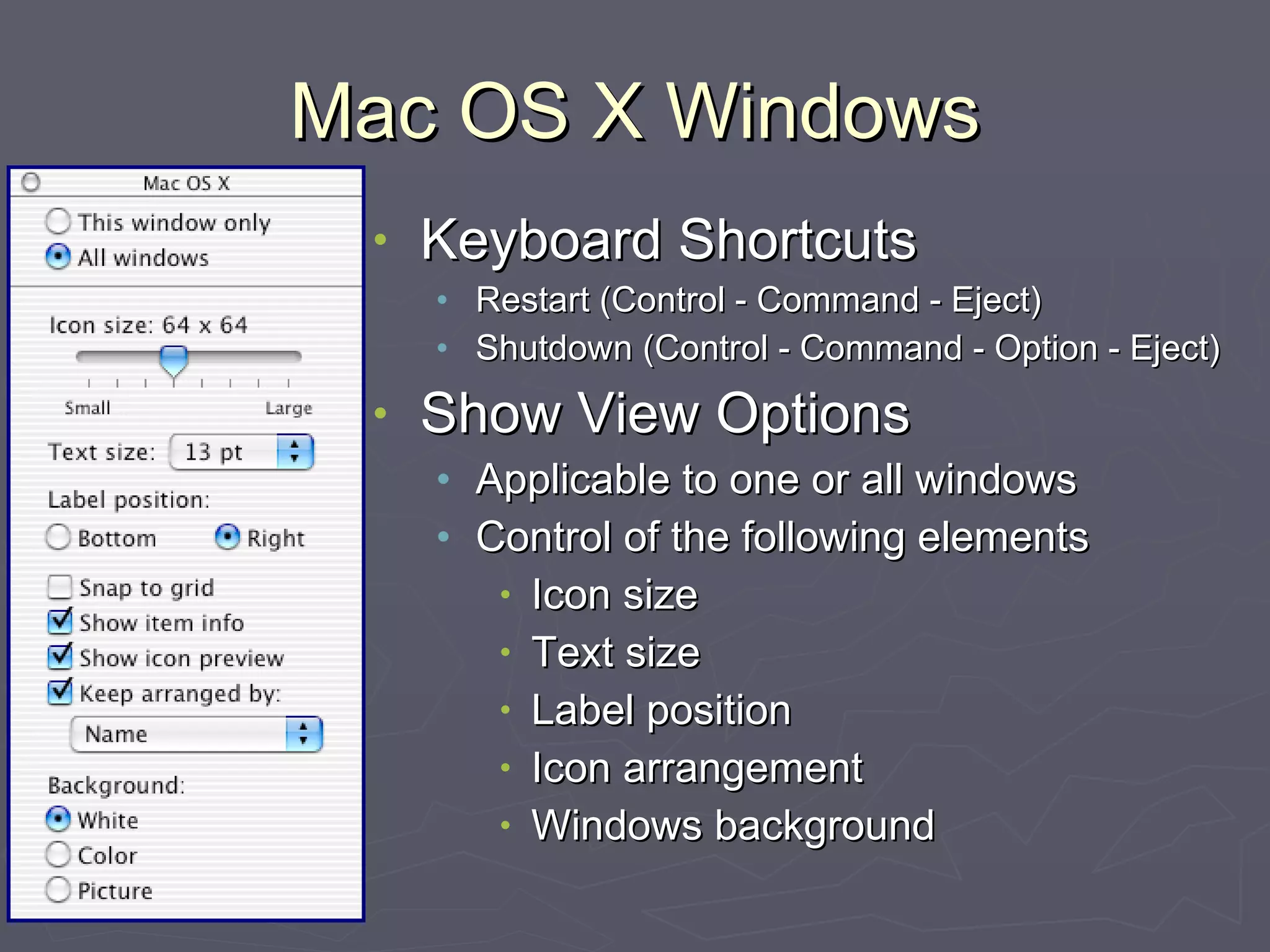
Mac OS X Windows Keyboard Shortcuts Restart (Control - Command - Eject) Shutdown (Control - Command - Option - Eject) Show View Options Applicable to one or all windows Control of the following elements Icon size Text size Label position Icon arrangement Windows background
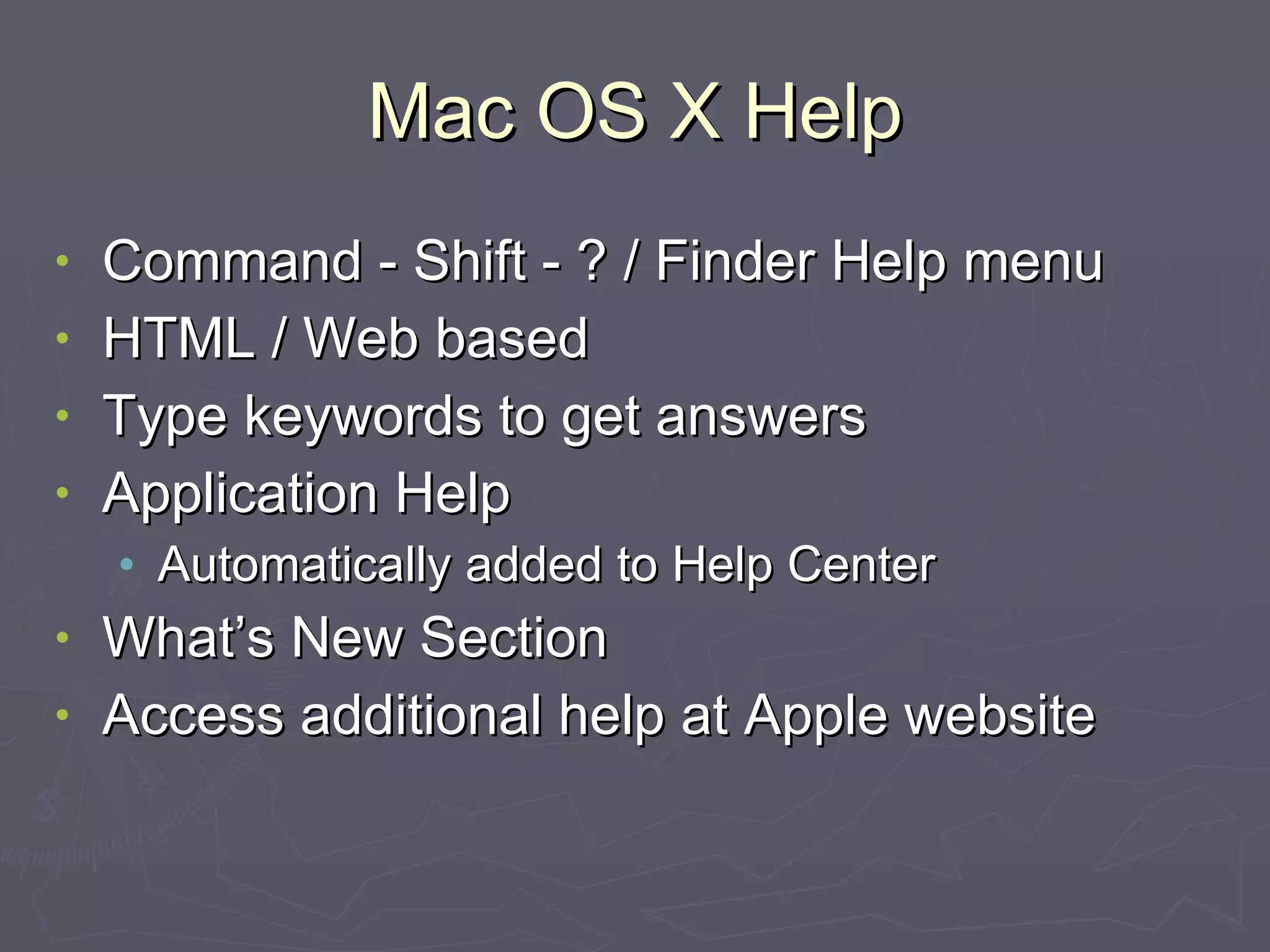
Mac OS X Help Command - Shift - ? / Finder Help menu HTML / Web based Type keywords to get answers Application Help Automatically added to Help Center What’s New Section Access additional help at Apple website
Break Time
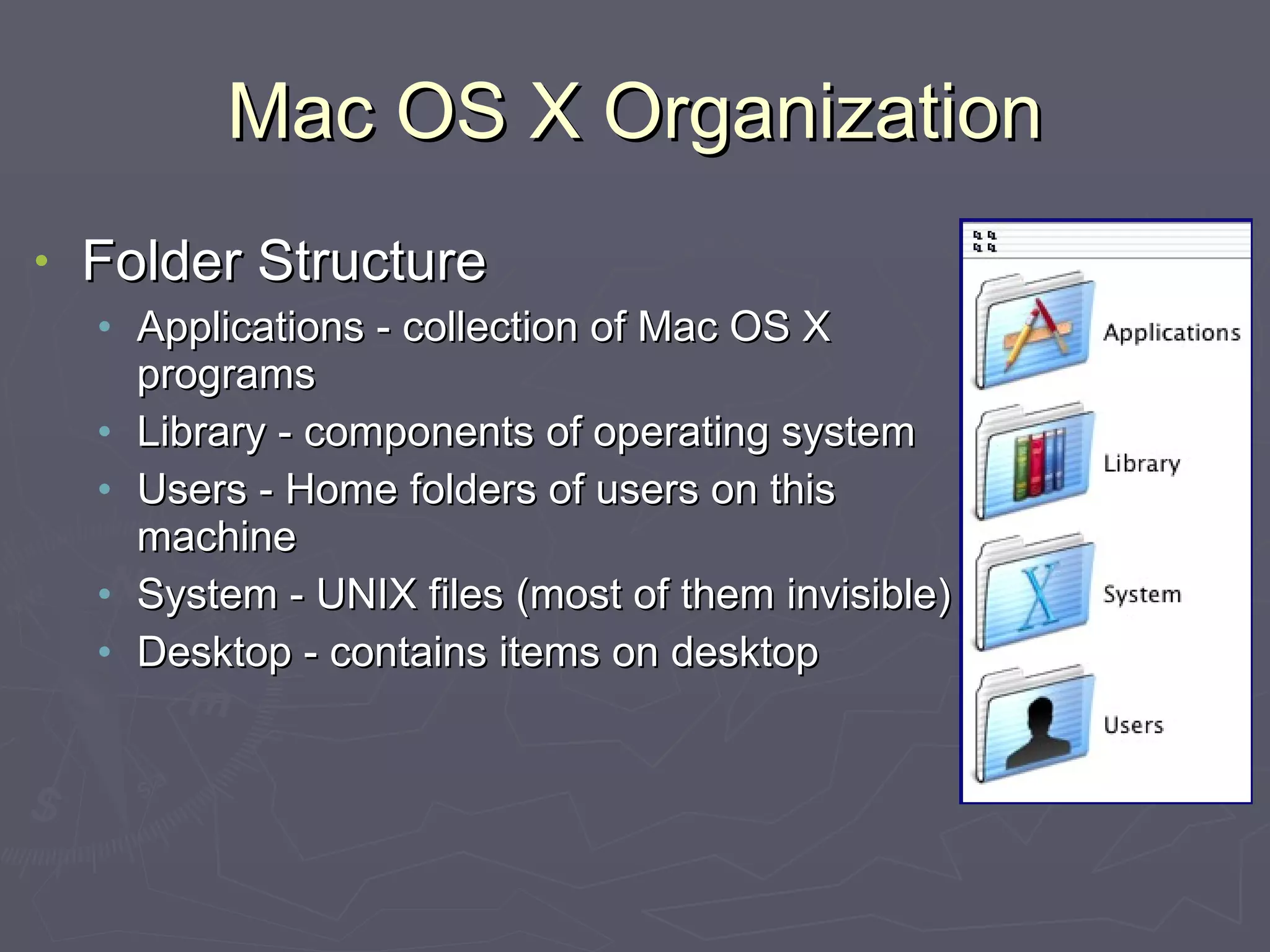
Mac OS X Organization Folder Structure Applications - collection of Mac OS X programs Library - components of operating system Users - Home folders of users on this machine System - UNIX files (most of them invisible) Desktop - contains items on desktop
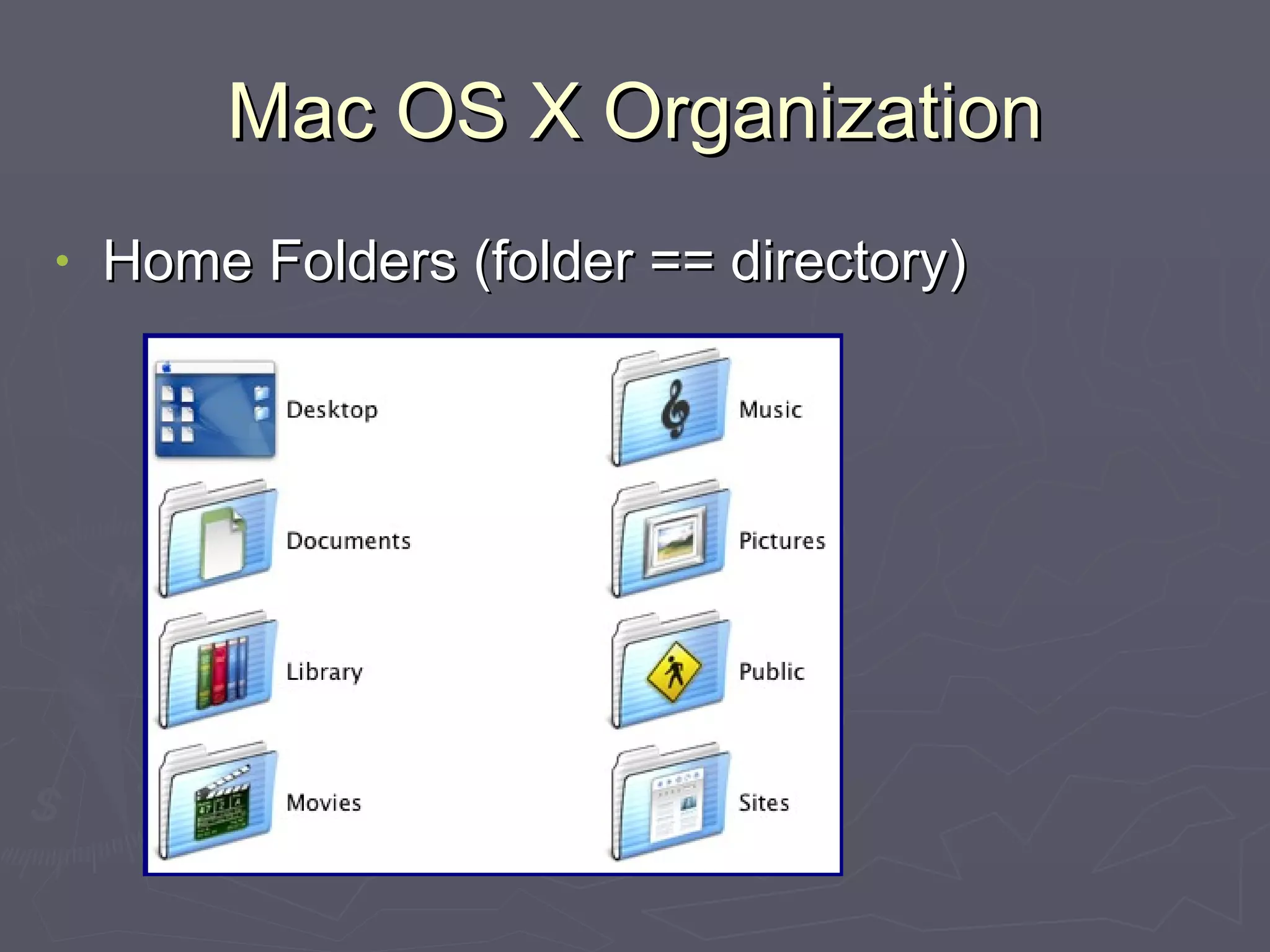
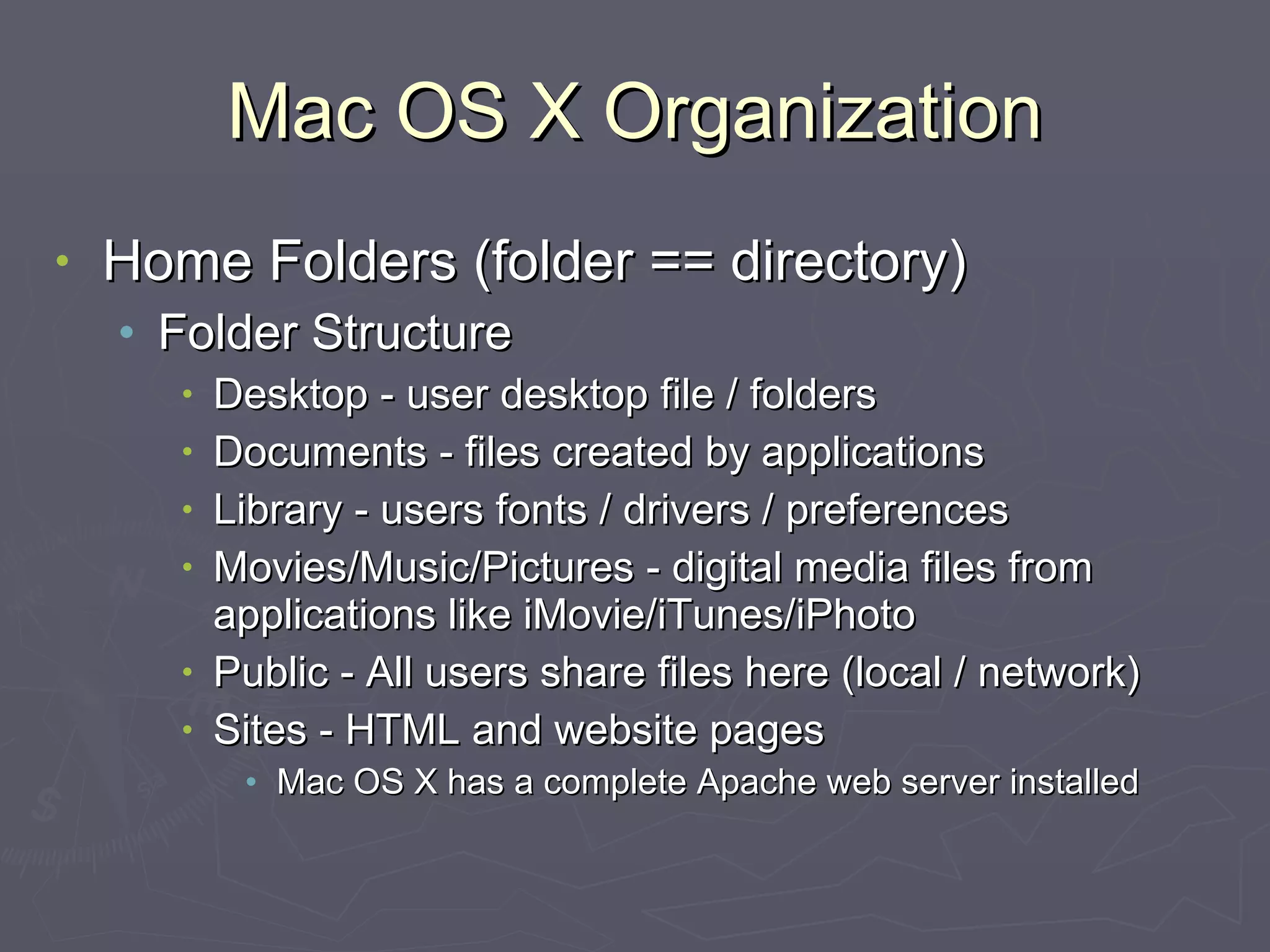
Mac OS X Organization Home Folders (folder == directory) Mac OS X is a multi-user system Each user account associated with a login receives a home folder You no longer place files anywhere you want on the hard drive as with prior operating systems You place files in your Home folder
Mac OS X Organization Home Folders (folder == directory)
Mac OS X Organization Home Folders (folder == directory) Folder Structure Desktop - user desktop file / folders Documents - files created by applications Library - users fonts / drivers / preferences Movies/Music/Pictures - digital media files from applications like iMovie/iTunes/iPhoto Public - All users share files here (local / network) Sites - HTML and website pages Mac OS X has a complete Apache web server installed
Mac OS X Organization Icon Naming (files and folders) 256 characters (long file naming) Only illegal character is a colon [:] Names can not start with period or slash Many applications don’t understand long file names because they must maintain Mac OS 9 compatibility Servers may not support long file names Selection of Icons Shift - click / group drag around icons Command - click for non contiguous range of icons
Mac OS X File Operations Copying / Moving Files Dragging a disk icon (volume) to another volume will create a shortcut Option dragging a disk icon (volume) to another volume will copy items Dragging from one folder to another folder will move the folder and its items Option dragging from one folder to another folder will copy the folder and its items Dragging a folder from one disk volume to another disk volume copies the folder
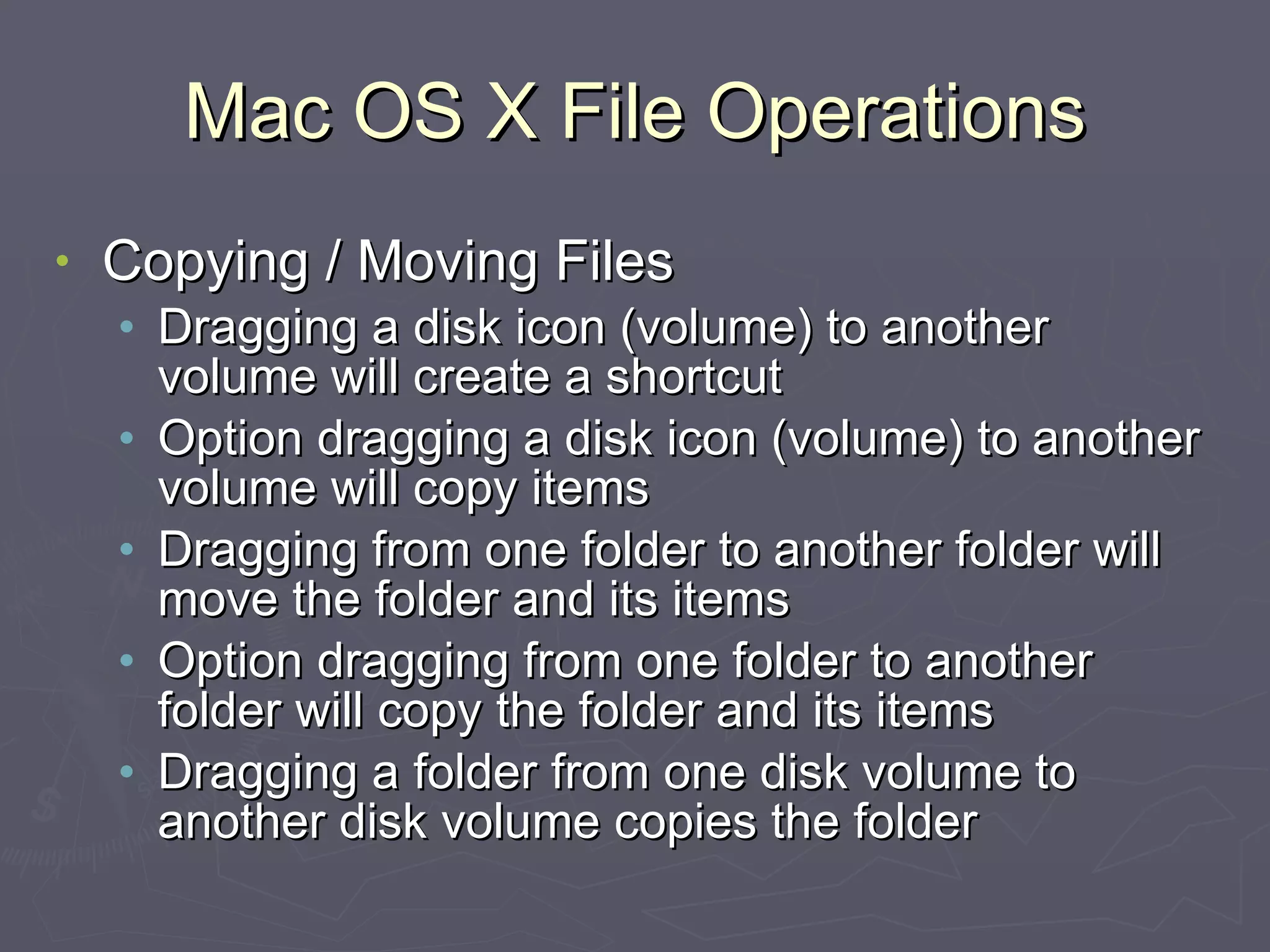
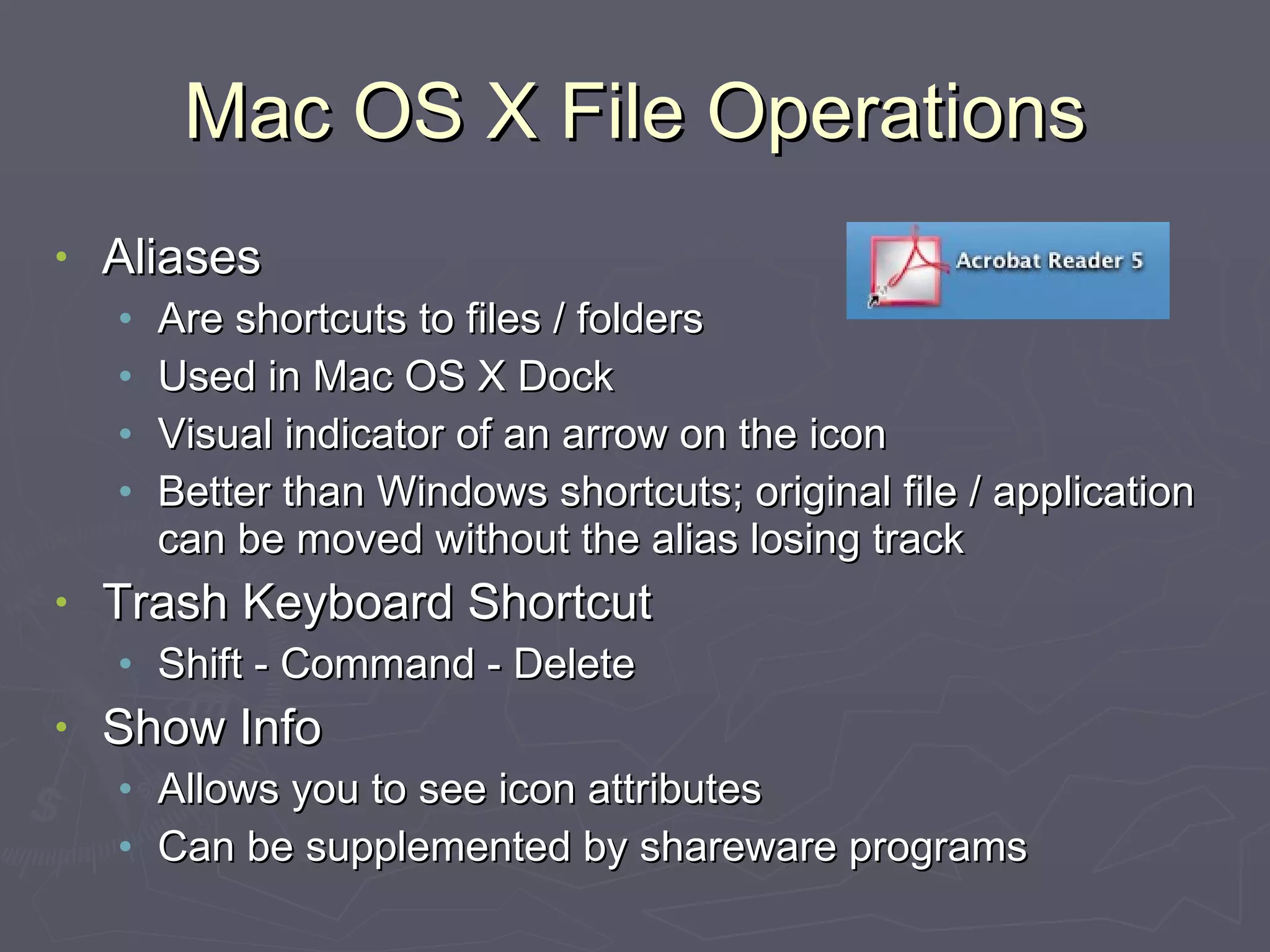
Mac OS X File Operations Aliases Are shortcuts to files / folders Used in Mac OS X Dock Visual indicator of an arrow on the icon Better than Windows shortcuts; original file / application can be moved without the alias losing track Trash Keyboard Shortcut Shift - Command - Delete Show Info Allows you to see icon attributes Can be supplemented by shareware programs
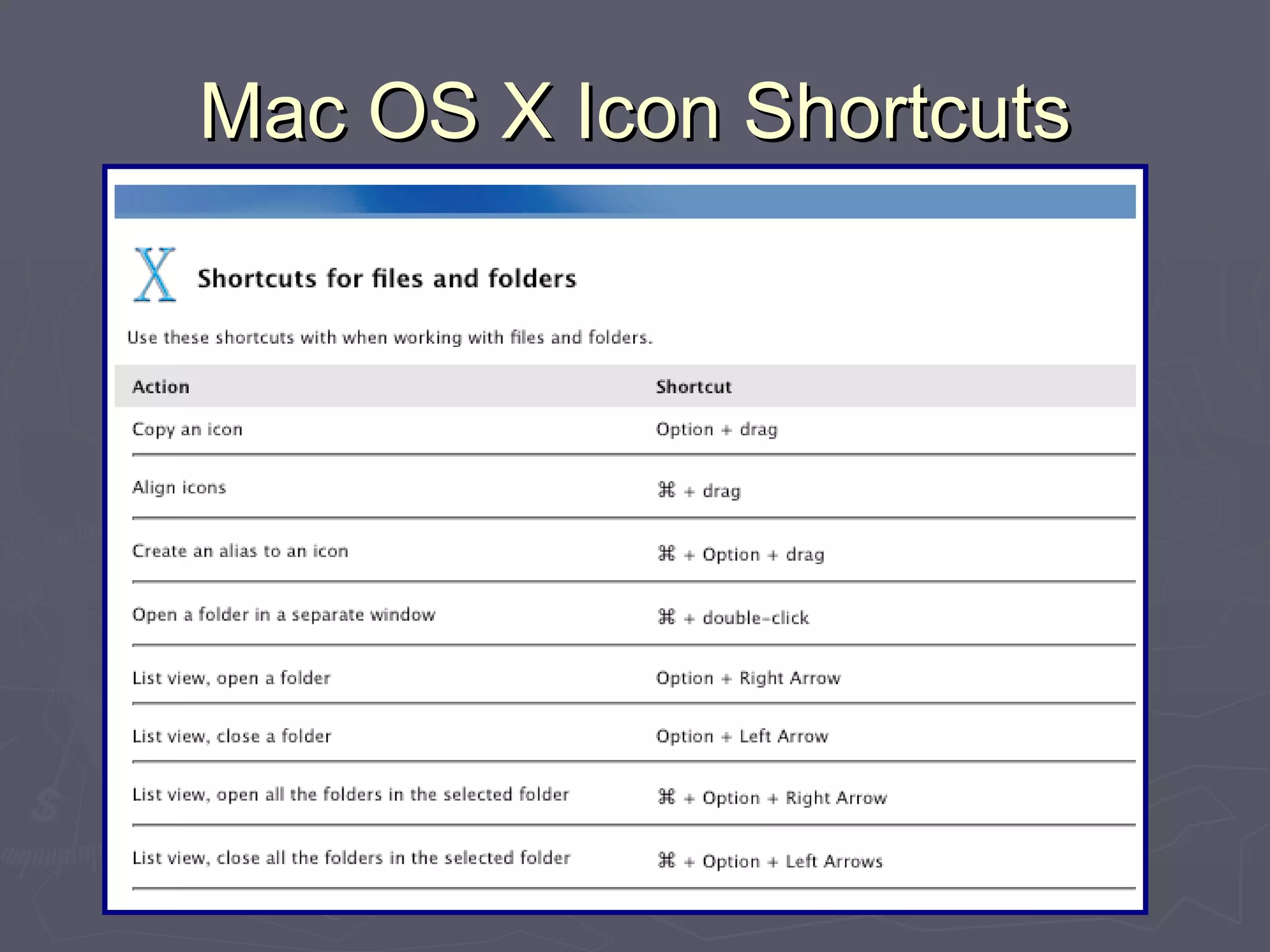
Mac OS X Icon Shortcuts
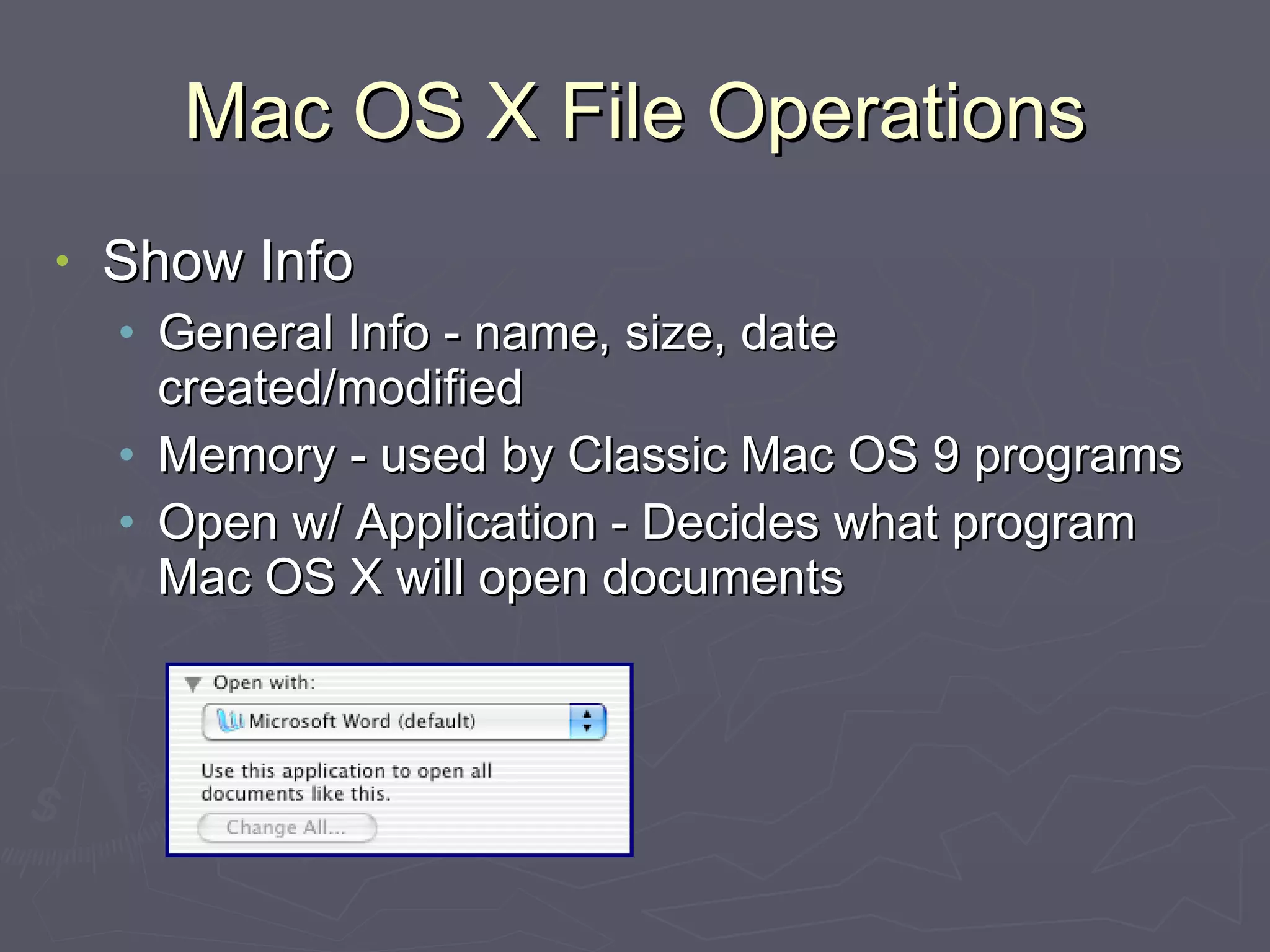
Mac OS X File Operations Show Info General Info - name, size, date created/modified Memory - used by Classic Mac OS 9 programs Open w/ Application - Decides what program Mac OS X will open documents
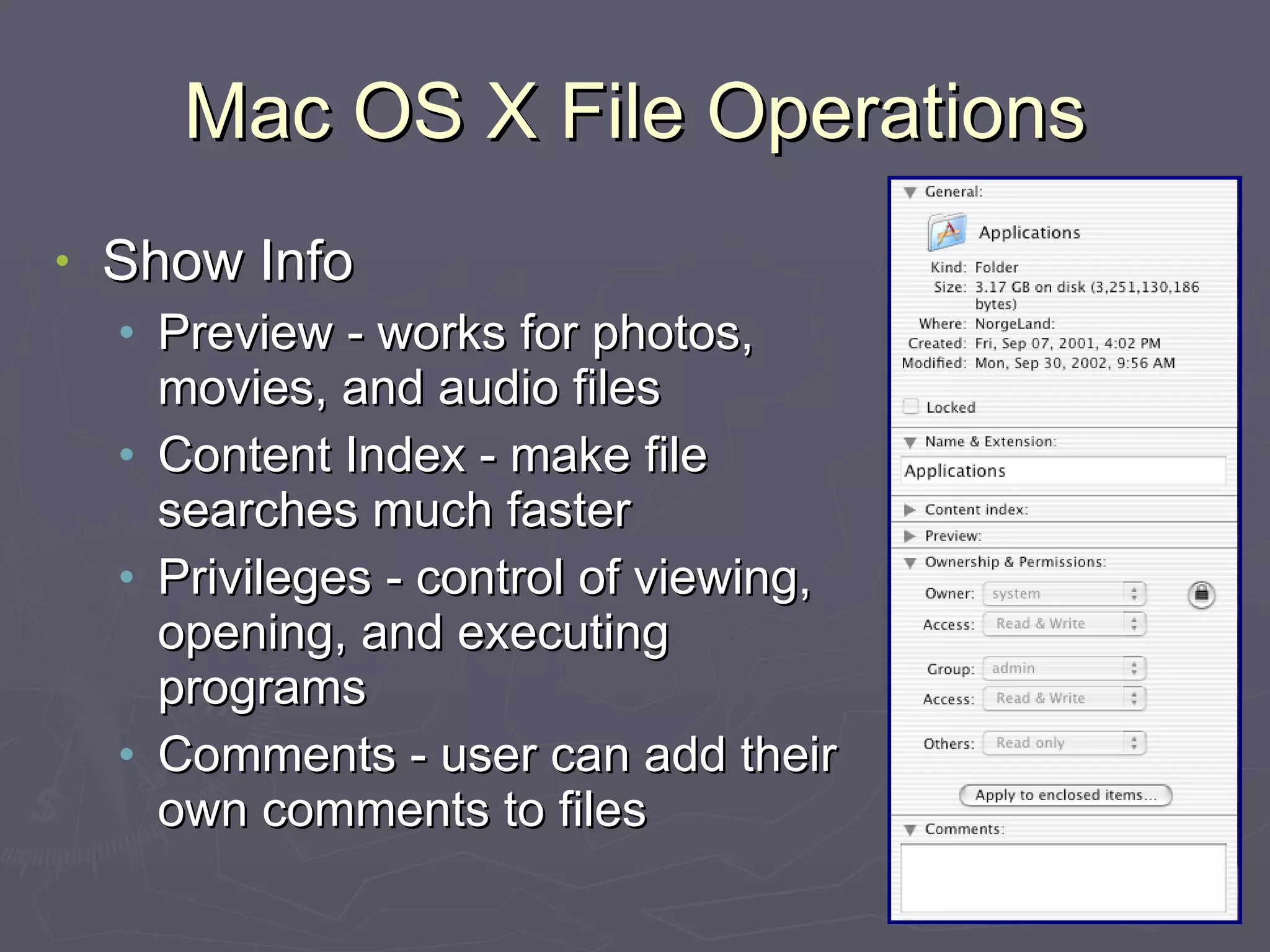
Mac OS X File Operations Show Info Preview - works for photos, movies, and audio files Content Index - make file searches much faster Privileges - control of viewing, opening, and executing programs Comments - user can add their own comments to files
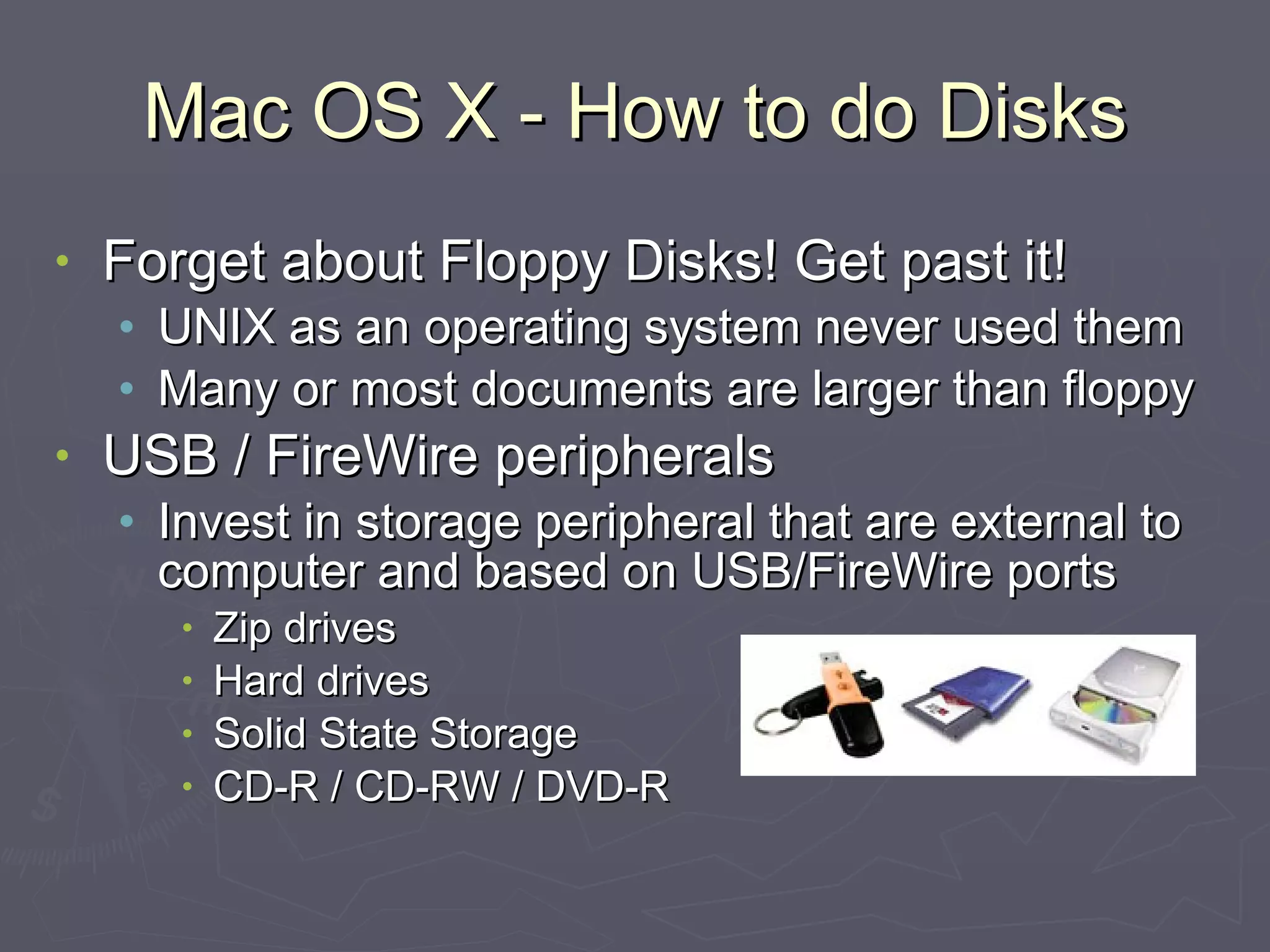
Mac OS X - How to do Disks Forget about Floppy Disks! Get past it! UNIX as an operating system never used them Many or most documents are larger than floppy USB / FireWire peripherals Invest in storage peripheral that are external to computer and based on USB/FireWire ports Zip drives Hard drives Solid State Storage CD-R / CD-RW / DVD-R
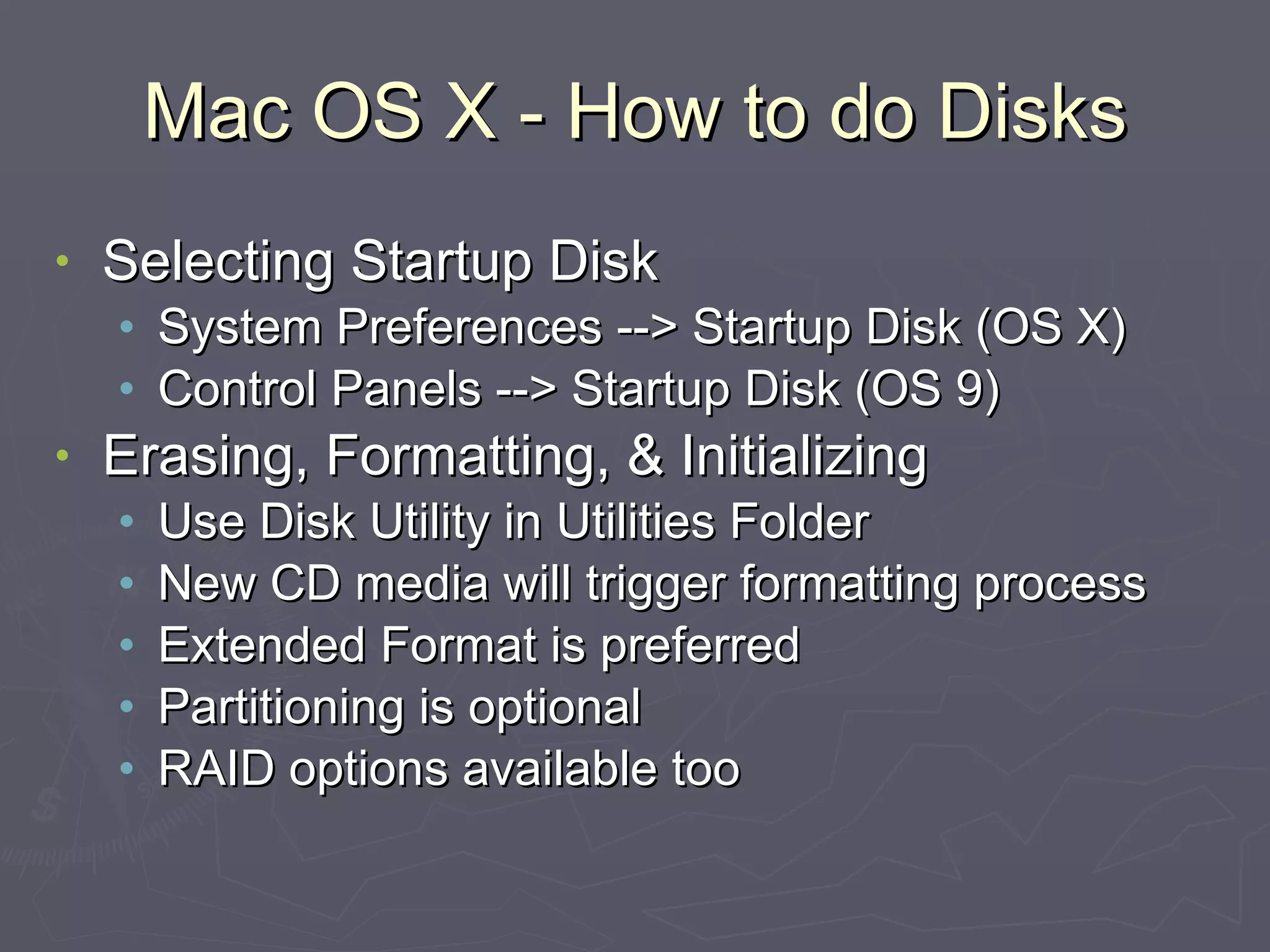
Mac OS X - How to do Disks Selecting Startup Disk System Preferences --> Startup Disk (OS X) Control Panels --> Startup Disk (OS 9) Erasing, Formatting, & Initializing Use Disk Utility in Utilities Folder New CD media will trigger formatting process Extended Format is preferred Partitioning is optional RAID options available too
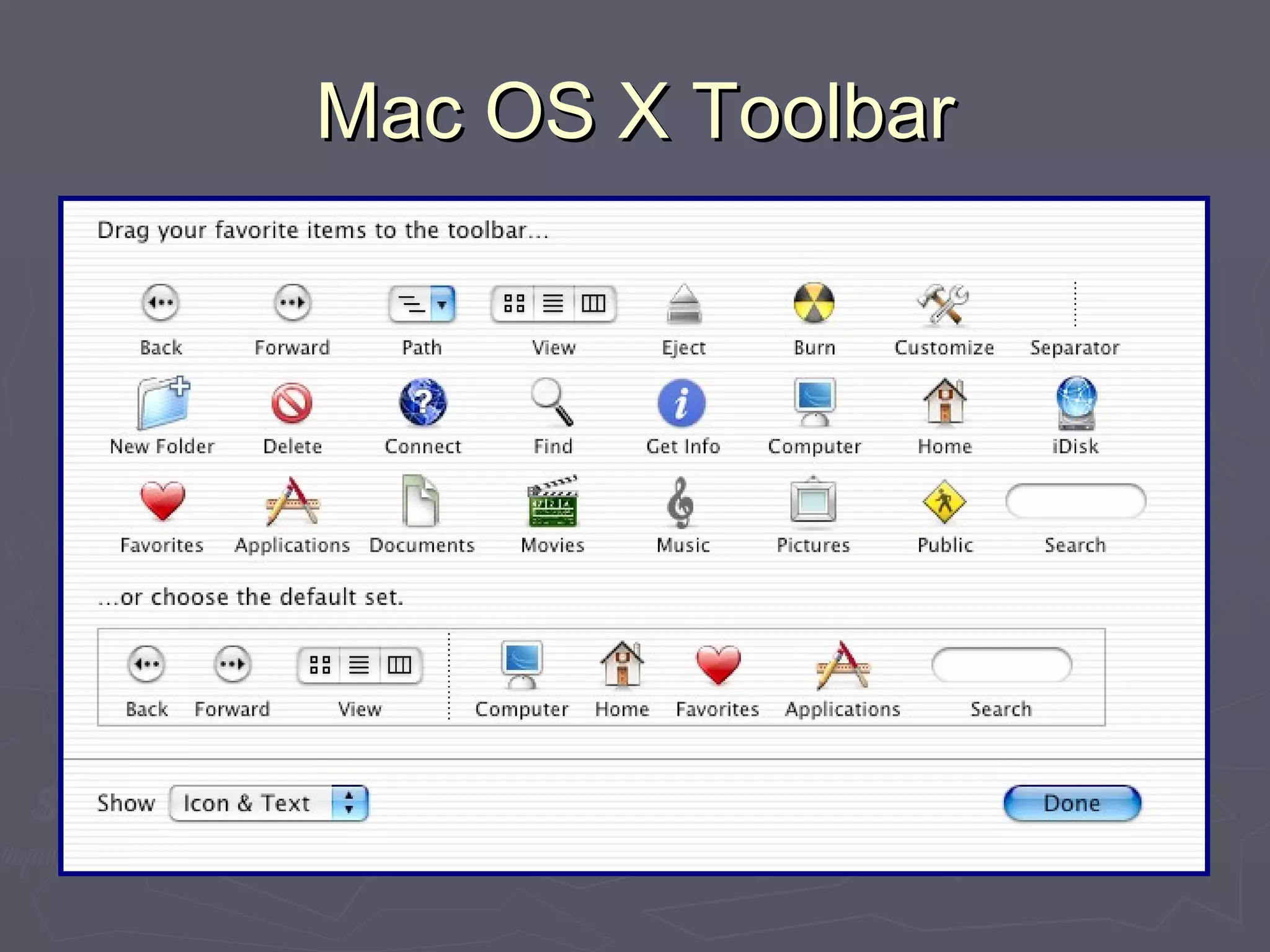
Mac OS X Toolbar
Mac OS X Toolbar Customizable View --> Customize Toolbar Add elements you use often Path Eject Burn CD iDisk Your Applications Your Documents
Break Time
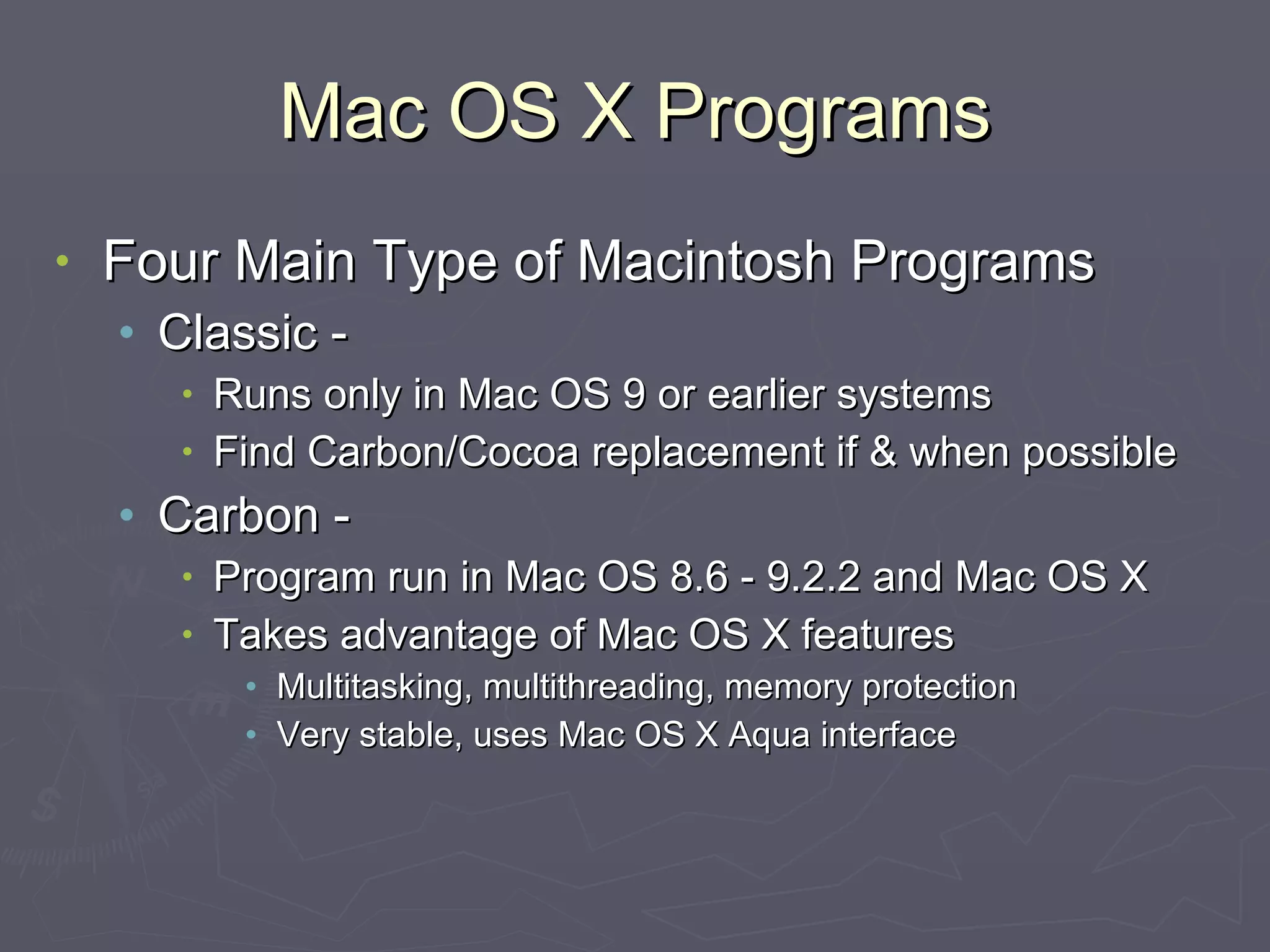
Mac OS X Programs Four Main Type of Macintosh Programs Classic -  Runs only in Mac OS 9 or earlier systems Find Carbon/Cocoa replacement if & when possible Carbon - Program run in Mac OS 8.6 - 9.2.2 and Mac OS X Takes advantage of Mac OS X features Multitasking, multithreading, memory protection Very stable, uses Mac OS X Aqua interface
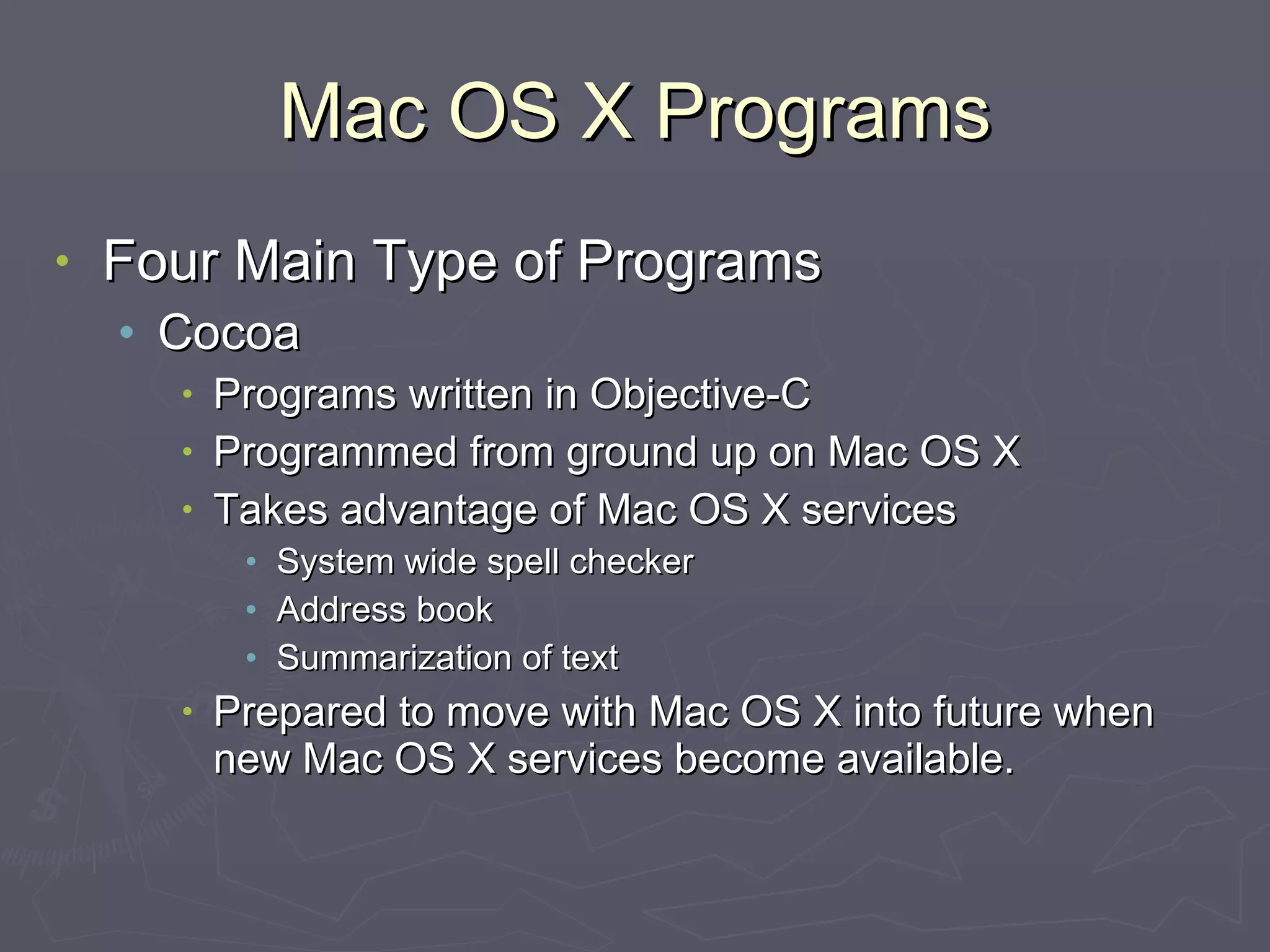
Mac OS X Programs Four Main Type of Programs Cocoa Programs written in Objective-C Programmed from ground up on Mac OS X Takes advantage of Mac OS X services System wide spell checker Address book Summarization of text Prepared to move with Mac OS X into future when new Mac OS X services become available.
Mac OS X Programs Three Main Type of Programs Java Programs written in Java language work on all computer systems with operating systems supporting Java. Examples - LimeWire, CrozzWord, Network Probe
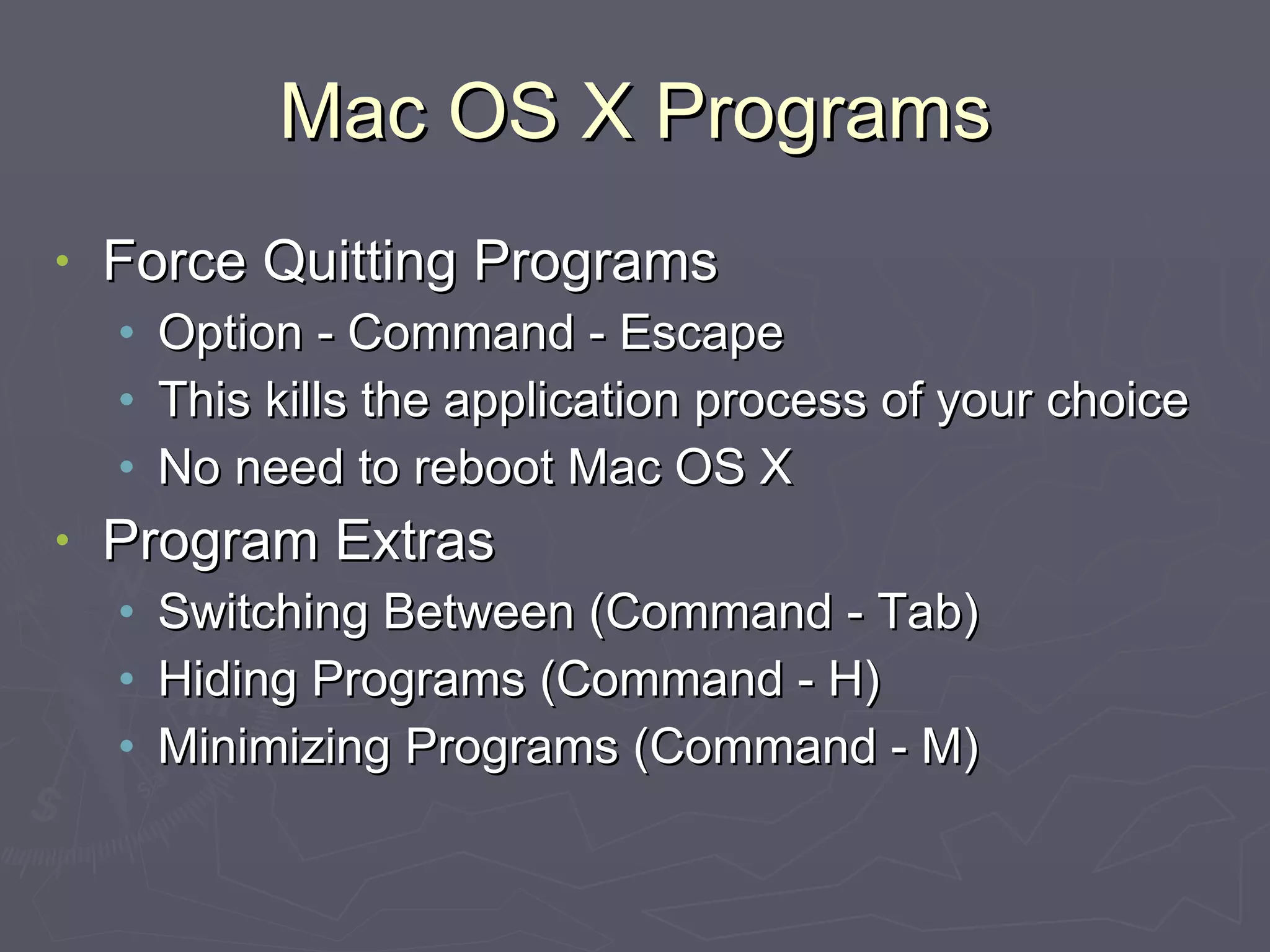
Mac OS X Programs Force Quitting Programs Option - Command - Escape This kills the application process of your choice No need to reboot Mac OS X Program Extras Switching Between (Command - Tab) Hiding Programs (Command - H) Minimizing Programs (Command - M)
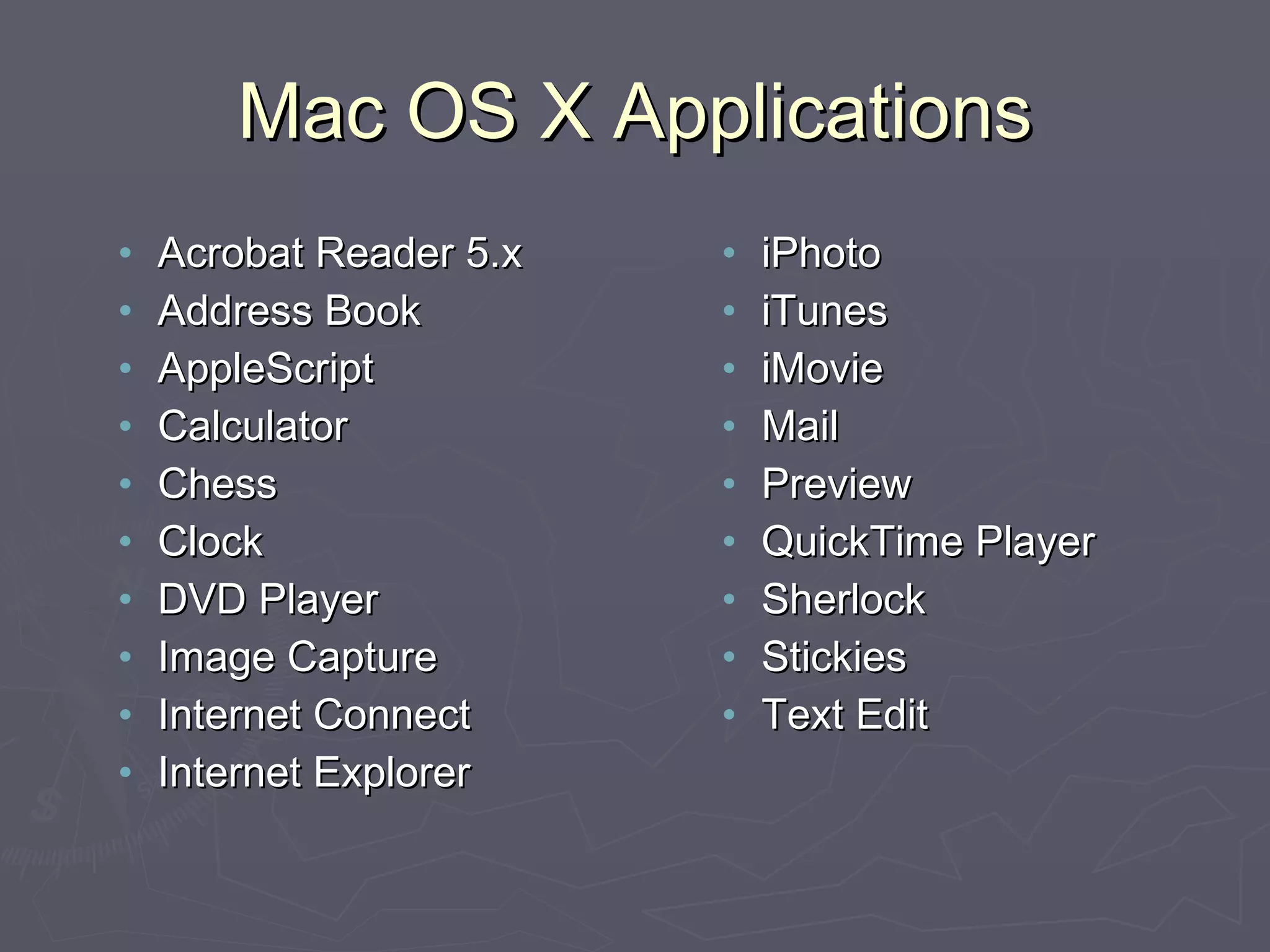
Mac OS X Applications Acrobat Reader 5.x Address Book AppleScript Calculator Chess Clock DVD Player Image Capture Internet Connect Internet Explorer iPhoto iTunes iMovie Mail Preview QuickTime Player Sherlock Stickies Text Edit
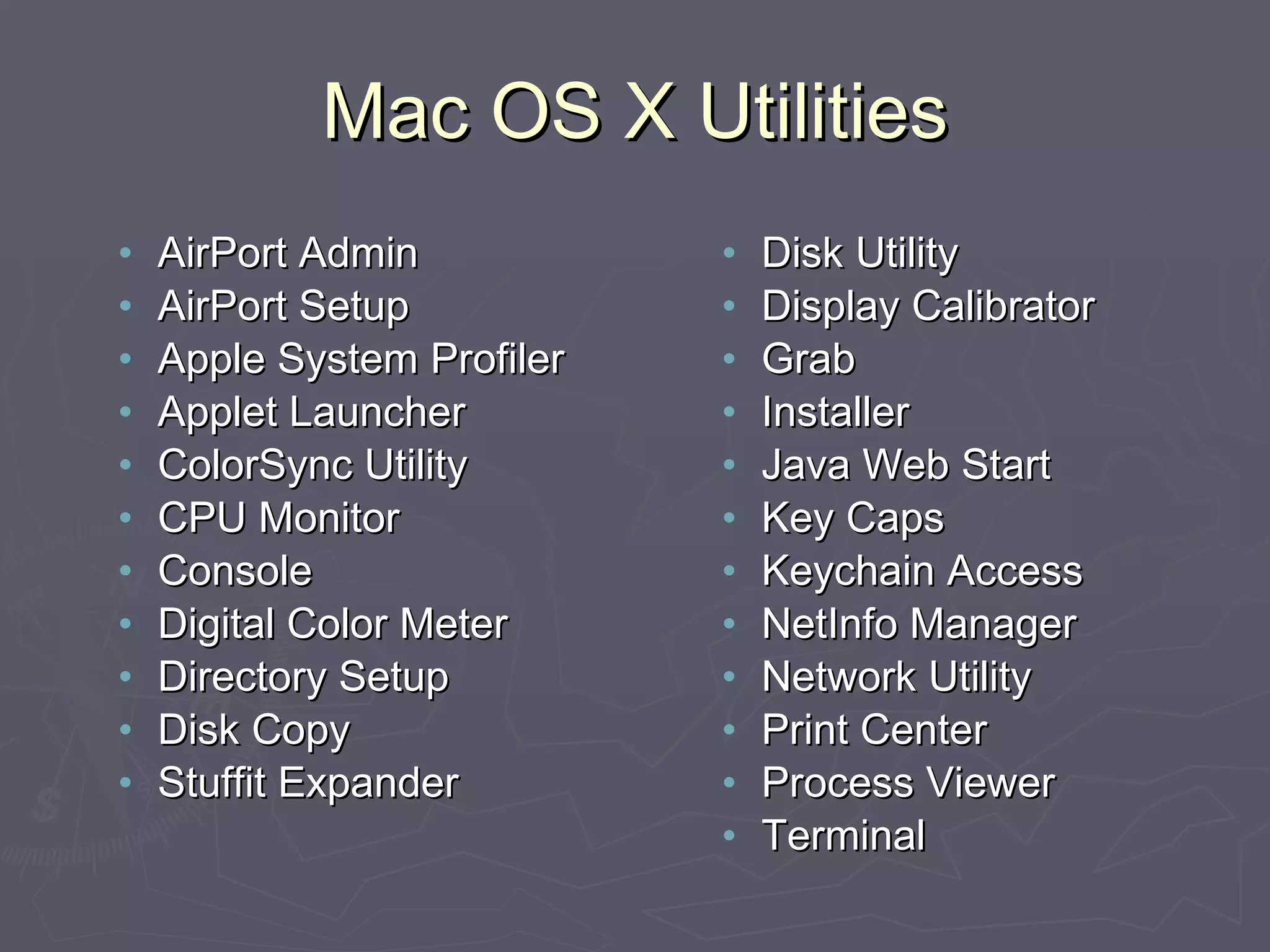
Mac OS X Utilities AirPort Admin AirPort Setup Apple System Profiler Applet Launcher ColorSync Utility CPU Monitor Console Digital Color Meter Directory Setup Disk Copy Stuffit Expander Disk Utility Display Calibrator Grab Installer Java Web Start Key Caps Keychain Access NetInfo Manager Network Utility Print Center Process Viewer Terminal
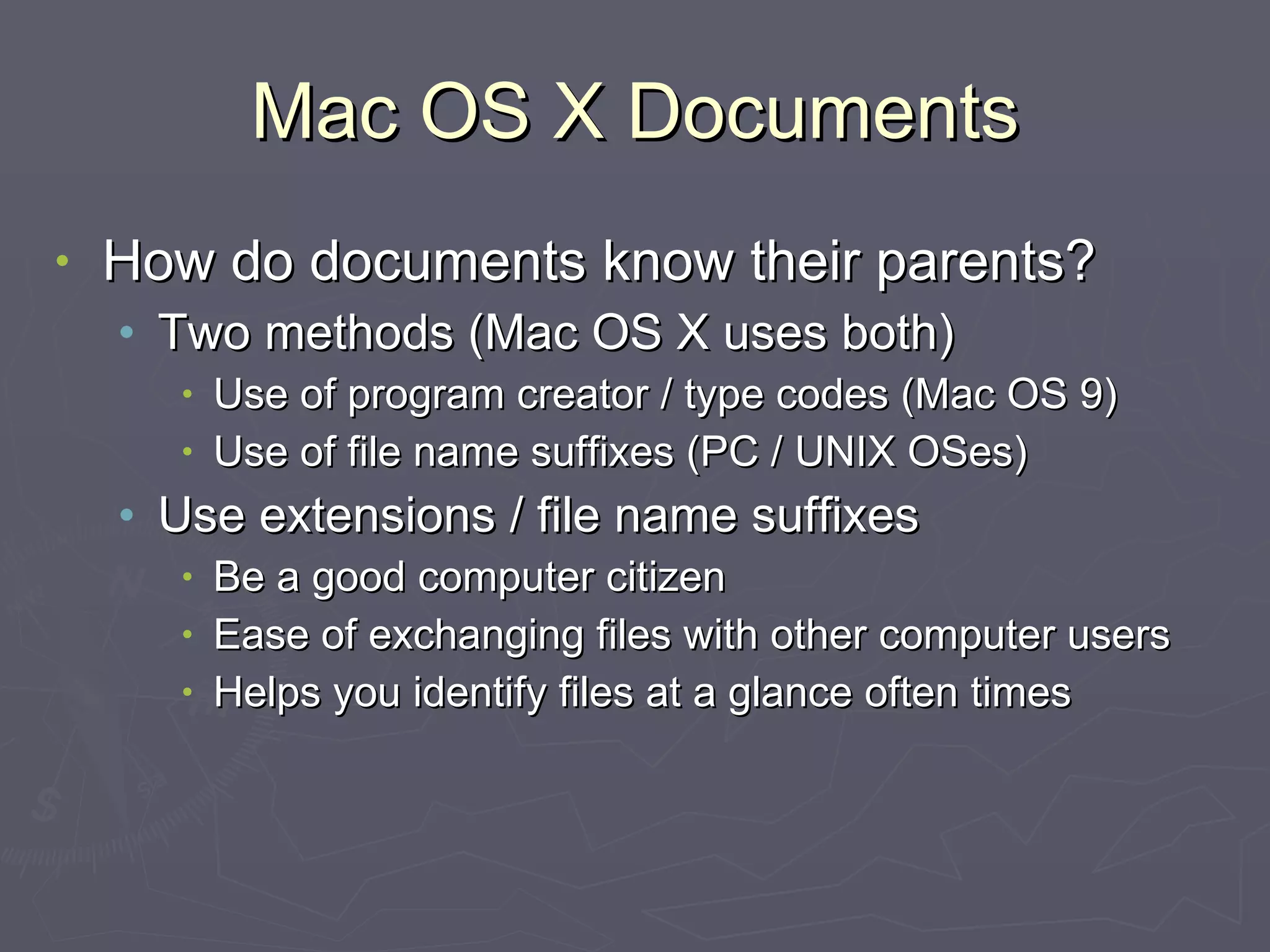
Mac OS X Documents How do documents know their parents? Two methods (Mac OS X uses both) Use of program creator / type codes (Mac OS 9) Use of file name suffixes (PC / UNIX OSes) Use extensions / file name suffixes Be a good computer citizen Ease of exchanging files with other computer users Helps you identify files at a glance often times
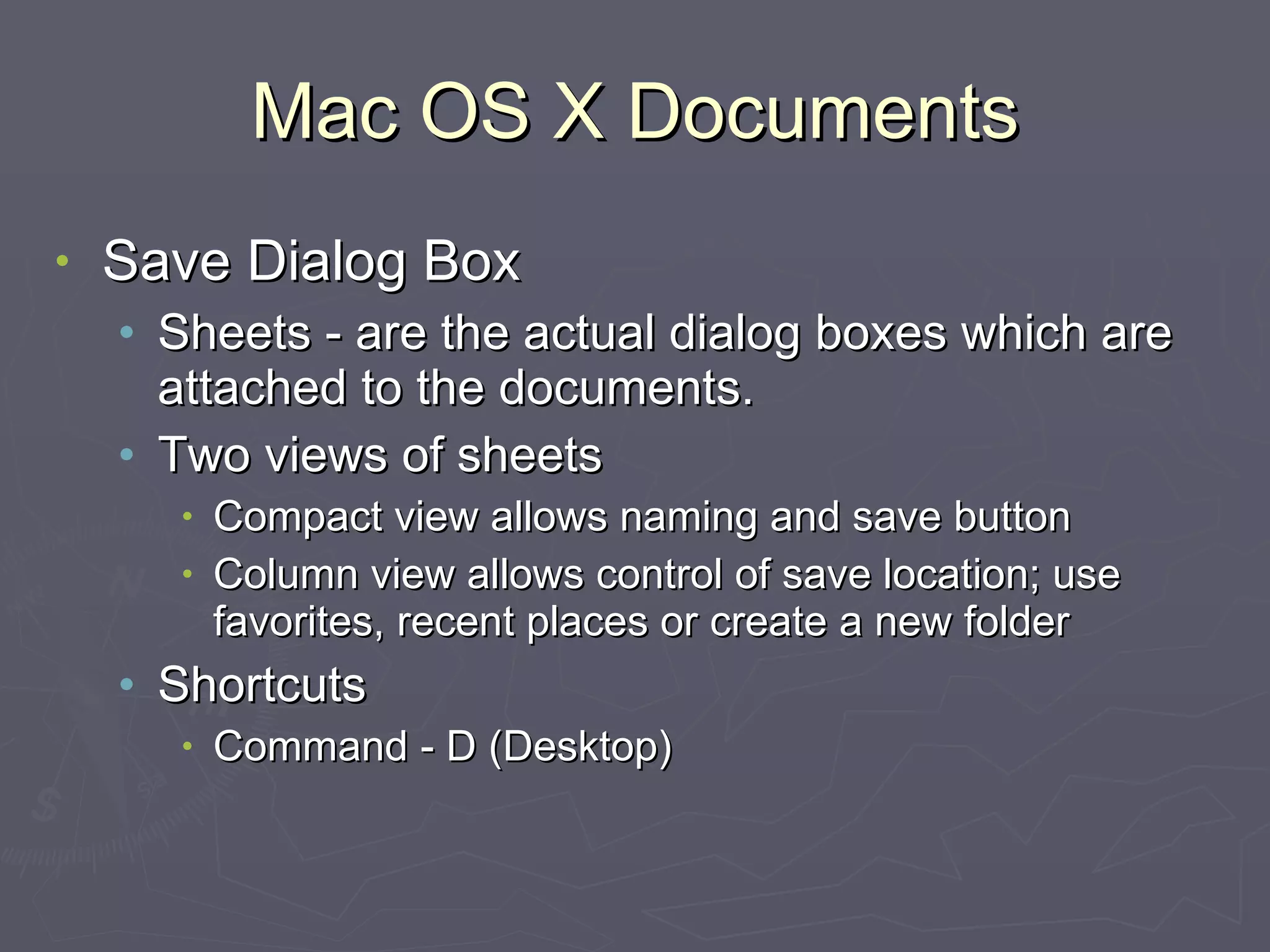
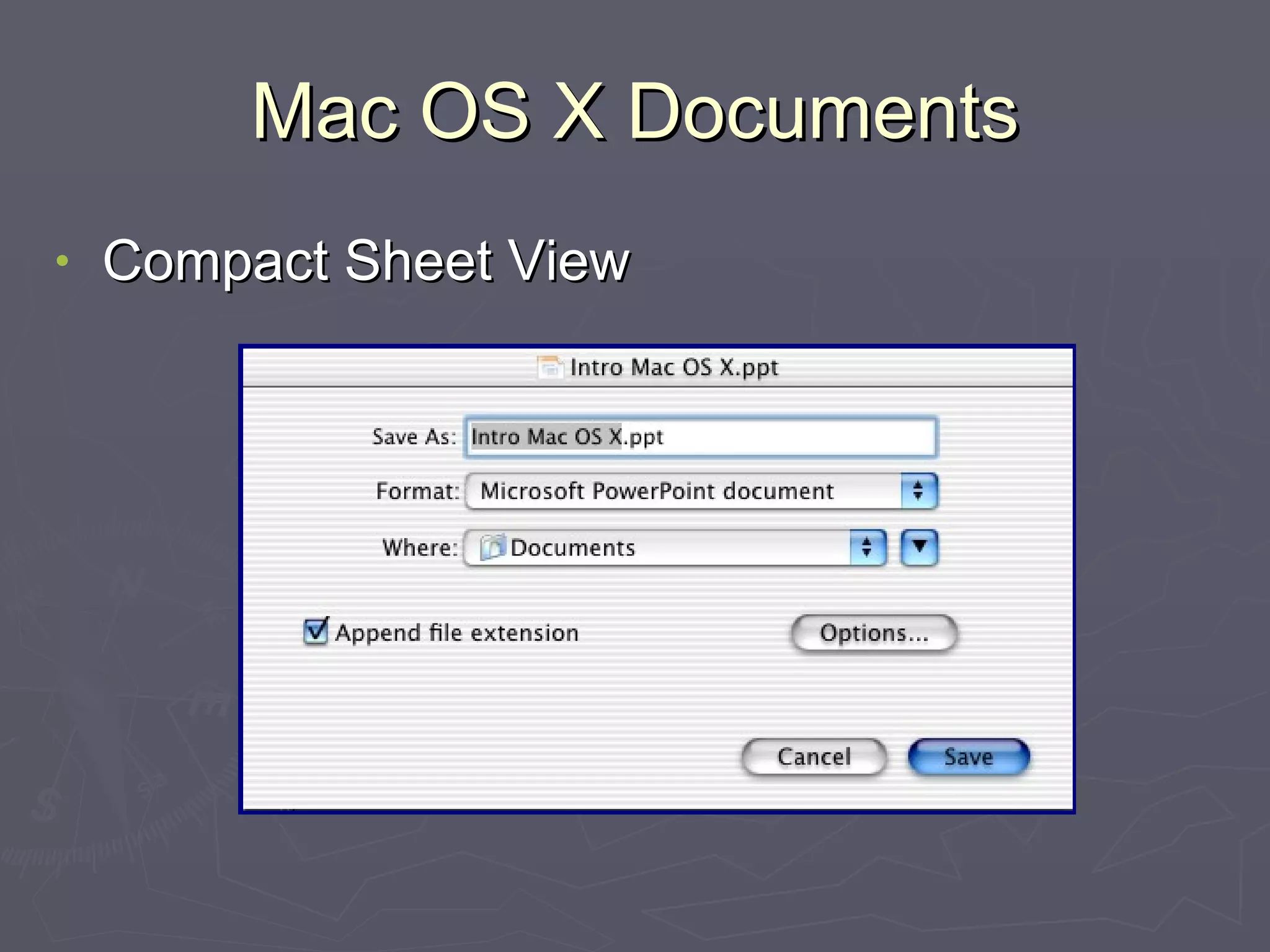
Mac OS X Documents Save Dialog Box Sheets - are the actual dialog boxes which are attached to the documents. Two views of sheets Compact view allows naming and save button Column view allows control of save location; use favorites, recent places or create a new folder Shortcuts Command - D (Desktop)
Mac OS X Documents Compact Sheet View
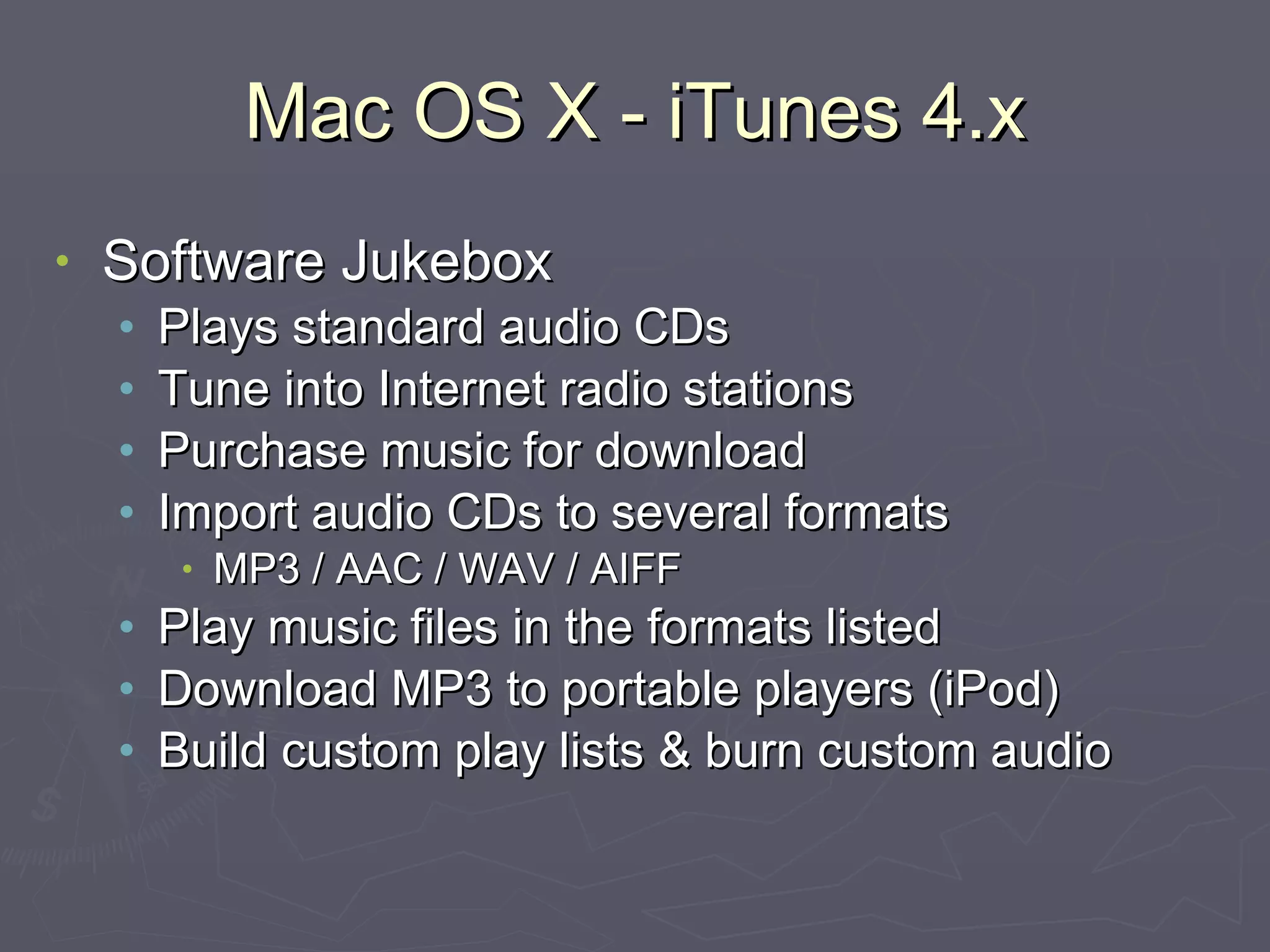
Mac OS X - iTunes 4.x Software Jukebox Plays standard audio CDs Tune into Internet radio stations Purchase music for download Import audio CDs to several formats MP3 / AAC / WAV / AIFF Play music files in the formats listed Download MP3 to portable players (iPod) Build custom play lists & burn custom audio
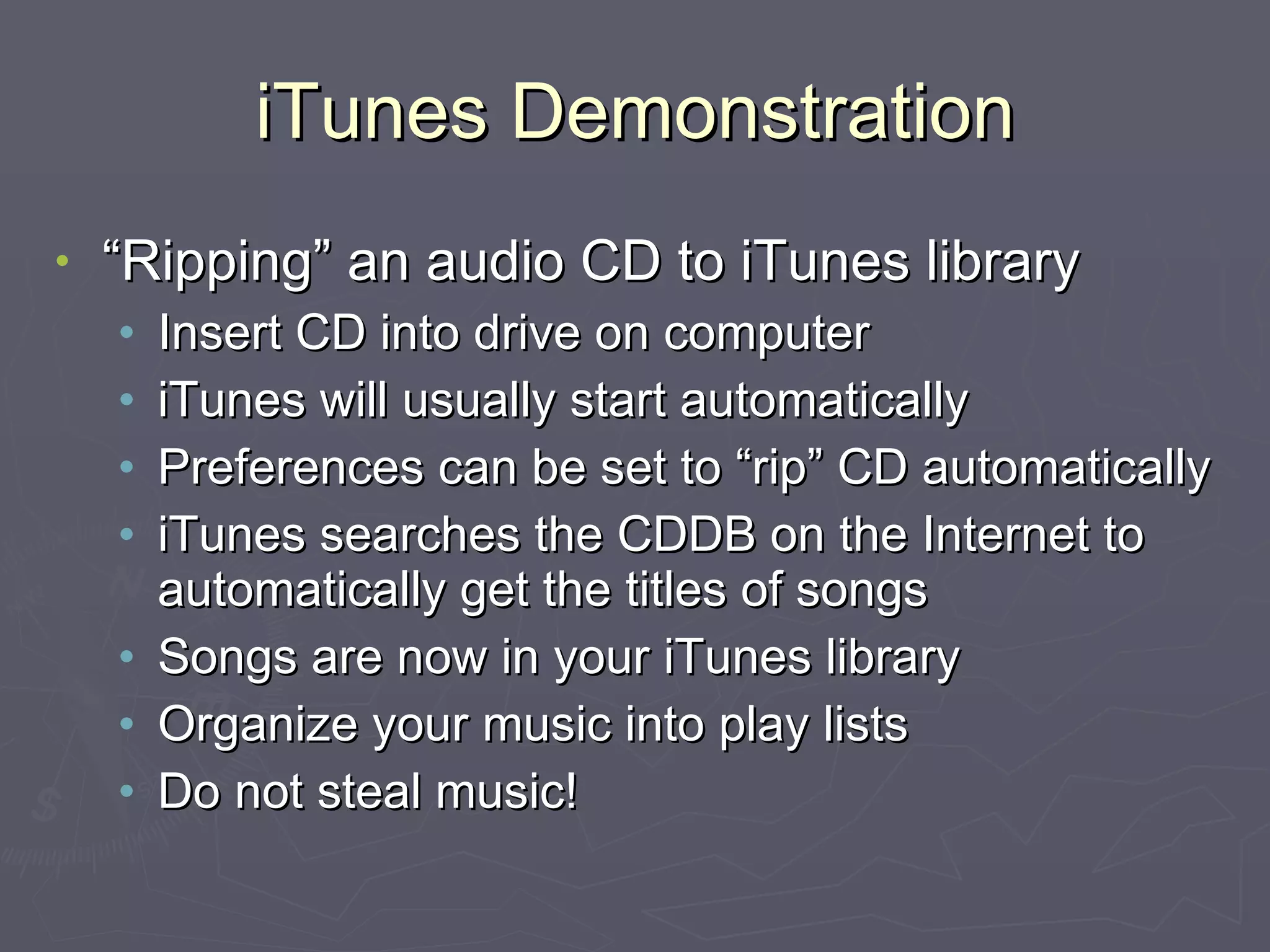
iTunes Demonstration “Ripping” an audio CD to iTunes library Insert CD into drive on computer iTunes will usually start automatically Preferences can be set to “rip” CD automatically iTunes searches the CDDB on the Internet to automatically get the titles of songs Songs are now in your iTunes library Organize your music into play lists Do not steal music!
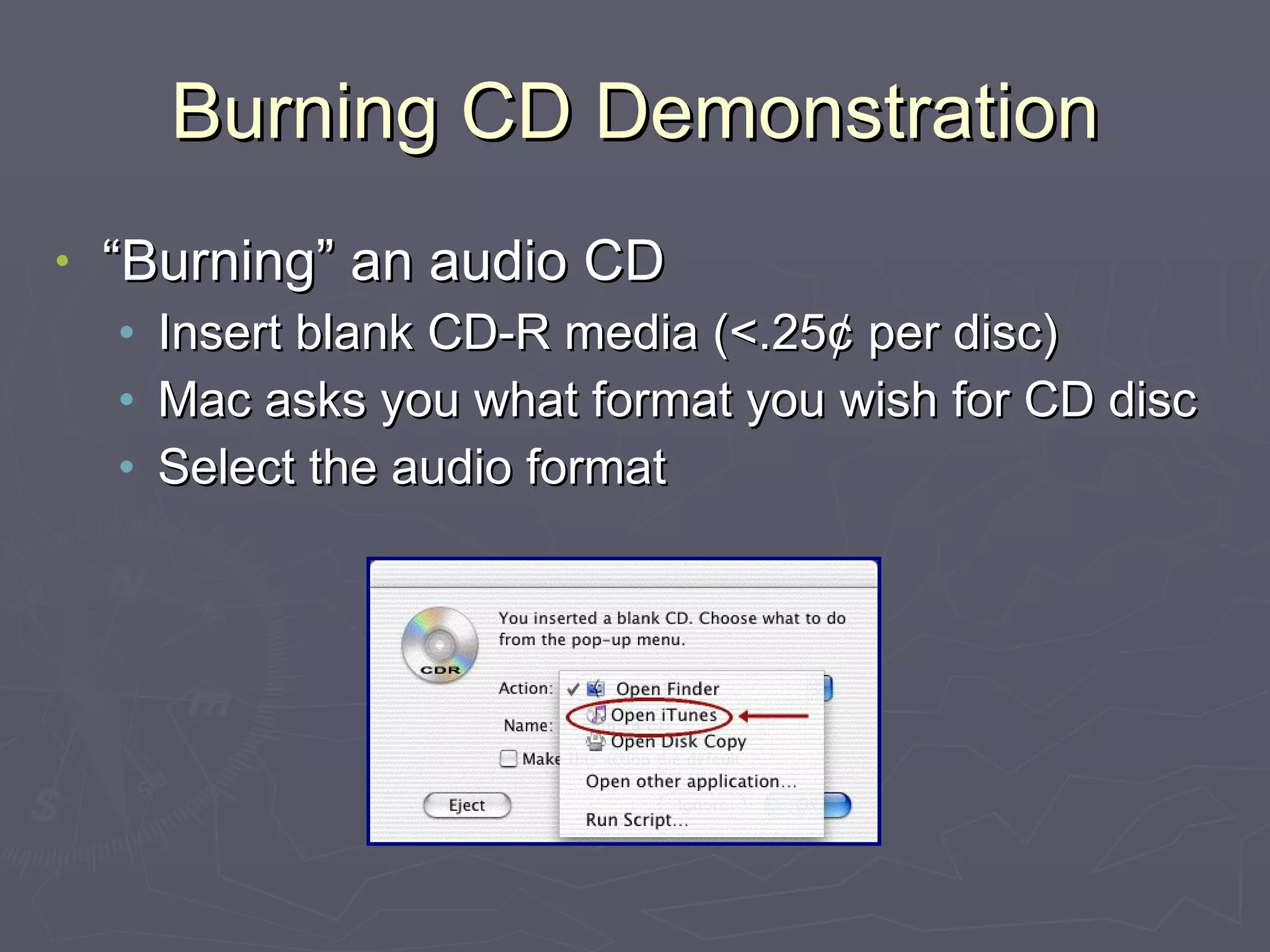
Burning CD Demonstration “Burning” an audio CD Insert blank CD-R media (<.25¢ per disc) Mac asks you what format you wish for CD disc Select the audio format
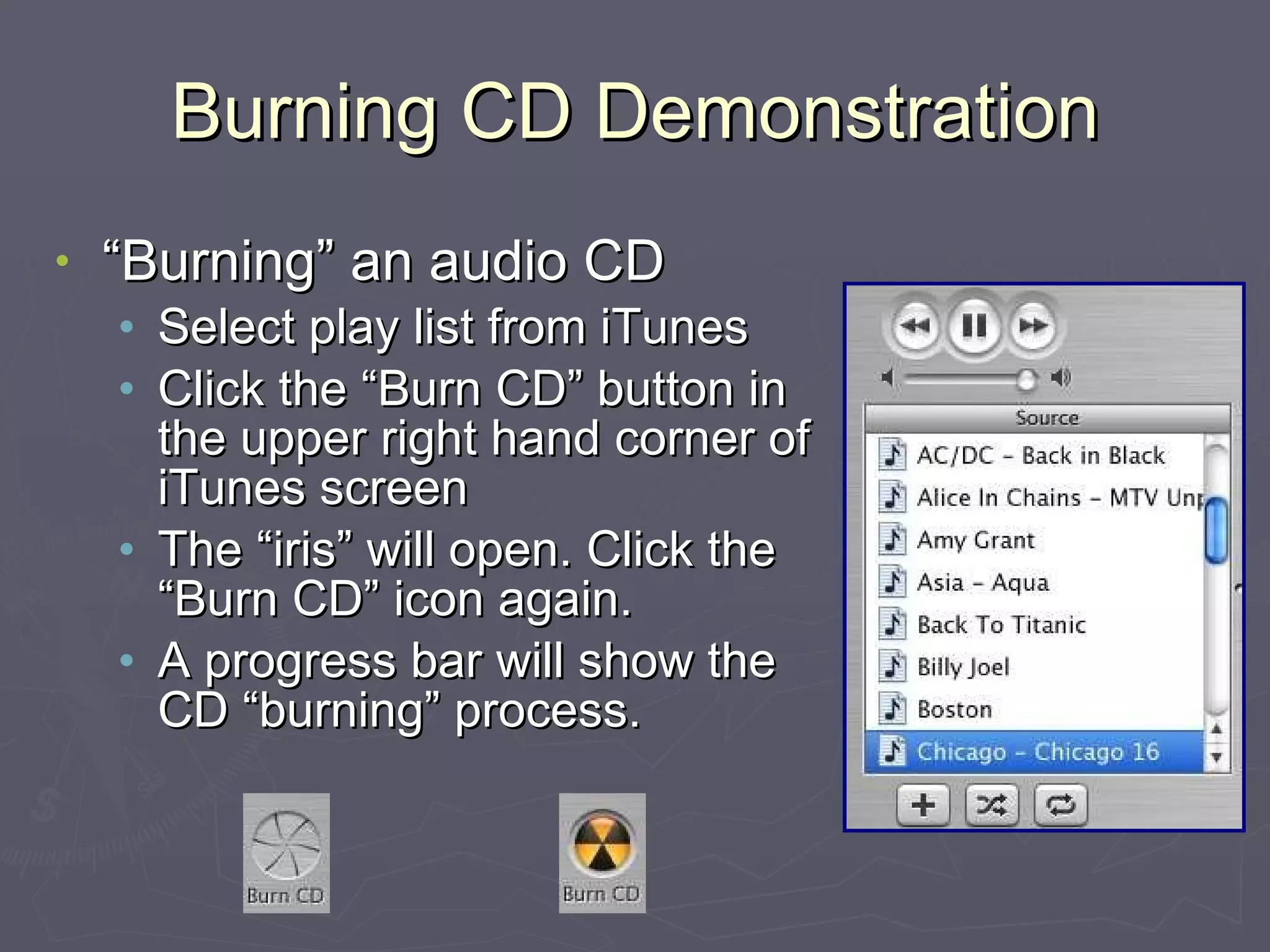
Burning CD Demonstration “Burning” an audio CD Select play list from iTunes Click the “Burn CD” button in the upper right hand corner of iTunes screen The “iris” will open. Click the “Burn CD” icon again. A progress bar will show the CD “burning” process.
Purchasing Music Select the Music Store in iTunes Select a Genre Use Search Tool Preview 30 second clips of any song Purchase any single song for 99¢ or any album for listed price (generally $9.99) With credit card information entered securely, click purchase iTunes downloads the music in AAC format Music can be used on 3 Macs and iPod

Introductory Mac OS X

  • 1.
    Introductory Mac OSX Presented by ArrowQuick Solutions Monday, January 26, 2004
  • 2.
    ArrowQuick Solutions TechnologyServices Business Web Development - design & programming websites Software Training - PC and Mac software Information Technology Services Systems Infrastructure Assessment, Analysis, Design Systems Infrastructure Outsourcing with MCG Fiber and Wireless Internet Connectivity Specialist Systems Maintenance Contracts Sister Company - ArrowGraphix Design and Printing, Color & B/W Copying, Desktop Publishing Multimedia Development - video editing and production
  • 3.
    ArrowQuick Solutions PartnersRob Hammann Perry Lund Employees Eric Heikes - Web Development & Programming Amber Lake - Office Manager / Marketing Director Jill Bryan - Graphic Designer Jeff Loomans - Information Technology Specialist
  • 4.
    Mac OS X10.2.8 as of September 2003 Mac Operating System UNIX software core Aqua interface Mac OS 9 emulation Introductory Coverage Mac OS X Desktop Mac OS X Windows Mac OS X Components Mac OS X Applications
  • 5.
    Mac OS X10.3.1 as of November 2003 Mac Operating System UNIX software core Aqua interface Mac OS 9 emulation Introductory Coverage Mac OS X Desktop Mac OS X Windows Mac OS X Components Mac OS X Applications
  • 6.
    Mac OS XModel OS Foundation Beneath the easy-to-use interface and rich graphics of Mac OS X is Darwin , an open source UNIX-based foundation built on technologies such as FreeBSD, Mach, Apache , and GCC. Darwin provides a complete UNIX environment, with X11 and POSIX services comparable to Linux or FreeBSD, including familiar kernel, libraries, networking and command-line utilities.
  • 7.
    Mac OS XModel System Management Built using many of the same technologies that power the Internet itself, Mac OS X includes modern networking and support for standard protocols. This makes Mac OS X easy to integrate into any standards-based network, including existing Macintosh networks, Windows networks, and of course the Internet .
  • 8.
    Mac OS XModel Graphics and Media The Mac OS X graphics system combines 2D, 3D, and time-based media standards. The 2D system is called Quartz and is the primary imaging model for Mac OS X. Quartz is based on Portable Document Format (PDF) and supports all major font standards. Open GL is the 3D graphics model for Mac OS X. QuickTime is the standards-based environment for creating and playing video, audio, and images. Mac OS X Core Audio integrates audio functions directly into the operating system.
  • 9.
    Mac OS XModel Application Frameworks Mac OS X includes a variety of rich application frameworks, built on top of the traditional UNIX. Developers can create Aqua user interfaces for Cocoa, Carbon, AppleScript and Java applications with the included Xcode tools.
  • 10.
    Mac OS XModel User Interface Mac OS X features a stunning user interface that is functional. The Aqua interface makes working on the Mac intuitive for new users, while providing powerful, customized tools for professionals. Exposé allows you to navigate open windows. Handwriting recognition, fast user switching and internationalization are all part of Mac OS X.
  • 11.
    Mac OS XModel Audio: Core audio application programming code Cocoa: APIs that can be used to create applications Java 2: “write once, run anywhere” applications Carbon: software running across Mac OS 9 & X Classic: emulation of original Mac OS applications
  • 12.
    Mac OS XMovie http://movielibrary.lynda.com/html/modPage.asp?ID=44
  • 13.
    Mac OS XBasics Overall, Mac OS X is a pleasant user experience, but it is different than Mac OS 9. Desktop Dock - organizational tool Menu bar - command and control Windows - where information is displayed Organization File Structure / Operations Applications
  • 14.
    Mac OS XLogin Login Mac OS X based on networked computer model of UNIX. Since UNIX and Mac OS X are a multi-user operating system, you must login! Automatic login with an account List of accounts to login Userid / Password model for login Type of login is dependent upon situation.
  • 15.
    Mac OS XDesktop Icons Vector based images that are resizable Represent folders, files, hard drives, etc…
  • 16.
  • 17.
    Mac OS XDock Dock Mechanism by which to control work environment, manage working applications Program are on the left of divider Documents on the right of divider Add new icons by dragging to dock Click once on icon to open Press mouse button for option menu Lots of options for customization
  • 18.
    Mac OS XDesktop Menu bar Basic menus of Mac OS 9 Menus stay down Permanently fixed to top of main screen Quick access items on right Clock / Date Volume control Monitor Resolution iChat / Remote Desktop
  • 19.
    Mac OS XWindows Anatomy of a window in Mac OS X
  • 20.
    Mac OS XWindows Anatomy of a window in Mac OS X Title bar (Command-click to navigate back) Command-W (closes windows) Red/yellow/green (close / minimize / zoom) Scroll bars Tool bar (extremely customizable)
  • 21.
    Mac OS XWindows Anatomy of a window in Mac OS X Views (icon, list, column) Options for icon size, arrangement, background Flippy Triangle
  • 22.
    Mac OS XWindows Window Options
  • 23.
    Mac OS XWindows Window Options (Finder --> Preferences) Show types of items on desktop New Finder windows can be set Computer Home “Always open folders in a new window” Contributes to window clutter on desktop “Open new windows in Column View” Spring loaded folders are back in version 10.2
  • 24.
    Mac OS XWindows Keyboard Shortcuts Restart (Control - Command - Eject) Shutdown (Control - Command - Option - Eject) Show View Options Applicable to one or all windows Control of the following elements Icon size Text size Label position Icon arrangement Windows background
  • 25.
    Mac OS XHelp Command - Shift - ? / Finder Help menu HTML / Web based Type keywords to get answers Application Help Automatically added to Help Center What’s New Section Access additional help at Apple website
  • 26.
  • 27.
    Mac OS XOrganization Folder Structure Applications - collection of Mac OS X programs Library - components of operating system Users - Home folders of users on this machine System - UNIX files (most of them invisible) Desktop - contains items on desktop
  • 28.
    Mac OS XOrganization Home Folders (folder == directory) Mac OS X is a multi-user system Each user account associated with a login receives a home folder You no longer place files anywhere you want on the hard drive as with prior operating systems You place files in your Home folder
  • 29.
    Mac OS XOrganization Home Folders (folder == directory)
  • 30.
    Mac OS XOrganization Home Folders (folder == directory) Folder Structure Desktop - user desktop file / folders Documents - files created by applications Library - users fonts / drivers / preferences Movies/Music/Pictures - digital media files from applications like iMovie/iTunes/iPhoto Public - All users share files here (local / network) Sites - HTML and website pages Mac OS X has a complete Apache web server installed
  • 31.
    Mac OS XOrganization Icon Naming (files and folders) 256 characters (long file naming) Only illegal character is a colon [:] Names can not start with period or slash Many applications don’t understand long file names because they must maintain Mac OS 9 compatibility Servers may not support long file names Selection of Icons Shift - click / group drag around icons Command - click for non contiguous range of icons
  • 32.
    Mac OS XFile Operations Copying / Moving Files Dragging a disk icon (volume) to another volume will create a shortcut Option dragging a disk icon (volume) to another volume will copy items Dragging from one folder to another folder will move the folder and its items Option dragging from one folder to another folder will copy the folder and its items Dragging a folder from one disk volume to another disk volume copies the folder
  • 33.
    Mac OS XFile Operations Aliases Are shortcuts to files / folders Used in Mac OS X Dock Visual indicator of an arrow on the icon Better than Windows shortcuts; original file / application can be moved without the alias losing track Trash Keyboard Shortcut Shift - Command - Delete Show Info Allows you to see icon attributes Can be supplemented by shareware programs
  • 34.
    Mac OS XIcon Shortcuts
  • 35.
    Mac OS XFile Operations Show Info General Info - name, size, date created/modified Memory - used by Classic Mac OS 9 programs Open w/ Application - Decides what program Mac OS X will open documents
  • 36.
    Mac OS XFile Operations Show Info Preview - works for photos, movies, and audio files Content Index - make file searches much faster Privileges - control of viewing, opening, and executing programs Comments - user can add their own comments to files
  • 37.
    Mac OS X- How to do Disks Forget about Floppy Disks! Get past it! UNIX as an operating system never used them Many or most documents are larger than floppy USB / FireWire peripherals Invest in storage peripheral that are external to computer and based on USB/FireWire ports Zip drives Hard drives Solid State Storage CD-R / CD-RW / DVD-R
  • 38.
    Mac OS X- How to do Disks Selecting Startup Disk System Preferences --> Startup Disk (OS X) Control Panels --> Startup Disk (OS 9) Erasing, Formatting, & Initializing Use Disk Utility in Utilities Folder New CD media will trigger formatting process Extended Format is preferred Partitioning is optional RAID options available too
  • 39.
    Mac OS XToolbar
  • 40.
    Mac OS XToolbar Customizable View --> Customize Toolbar Add elements you use often Path Eject Burn CD iDisk Your Applications Your Documents
  • 41.
  • 42.
    Mac OS XPrograms Four Main Type of Macintosh Programs Classic - Runs only in Mac OS 9 or earlier systems Find Carbon/Cocoa replacement if & when possible Carbon - Program run in Mac OS 8.6 - 9.2.2 and Mac OS X Takes advantage of Mac OS X features Multitasking, multithreading, memory protection Very stable, uses Mac OS X Aqua interface
  • 43.
    Mac OS XPrograms Four Main Type of Programs Cocoa Programs written in Objective-C Programmed from ground up on Mac OS X Takes advantage of Mac OS X services System wide spell checker Address book Summarization of text Prepared to move with Mac OS X into future when new Mac OS X services become available.
  • 44.
    Mac OS XPrograms Three Main Type of Programs Java Programs written in Java language work on all computer systems with operating systems supporting Java. Examples - LimeWire, CrozzWord, Network Probe
  • 45.
    Mac OS XPrograms Force Quitting Programs Option - Command - Escape This kills the application process of your choice No need to reboot Mac OS X Program Extras Switching Between (Command - Tab) Hiding Programs (Command - H) Minimizing Programs (Command - M)
  • 46.
    Mac OS XApplications Acrobat Reader 5.x Address Book AppleScript Calculator Chess Clock DVD Player Image Capture Internet Connect Internet Explorer iPhoto iTunes iMovie Mail Preview QuickTime Player Sherlock Stickies Text Edit
  • 47.
    Mac OS XUtilities AirPort Admin AirPort Setup Apple System Profiler Applet Launcher ColorSync Utility CPU Monitor Console Digital Color Meter Directory Setup Disk Copy Stuffit Expander Disk Utility Display Calibrator Grab Installer Java Web Start Key Caps Keychain Access NetInfo Manager Network Utility Print Center Process Viewer Terminal
  • 48.
    Mac OS XDocuments How do documents know their parents? Two methods (Mac OS X uses both) Use of program creator / type codes (Mac OS 9) Use of file name suffixes (PC / UNIX OSes) Use extensions / file name suffixes Be a good computer citizen Ease of exchanging files with other computer users Helps you identify files at a glance often times
  • 49.
    Mac OS XDocuments Save Dialog Box Sheets - are the actual dialog boxes which are attached to the documents. Two views of sheets Compact view allows naming and save button Column view allows control of save location; use favorites, recent places or create a new folder Shortcuts Command - D (Desktop)
  • 50.
    Mac OS XDocuments Compact Sheet View
  • 51.
    Mac OS X- iTunes 4.x Software Jukebox Plays standard audio CDs Tune into Internet radio stations Purchase music for download Import audio CDs to several formats MP3 / AAC / WAV / AIFF Play music files in the formats listed Download MP3 to portable players (iPod) Build custom play lists & burn custom audio
  • 52.
    iTunes Demonstration “Ripping”an audio CD to iTunes library Insert CD into drive on computer iTunes will usually start automatically Preferences can be set to “rip” CD automatically iTunes searches the CDDB on the Internet to automatically get the titles of songs Songs are now in your iTunes library Organize your music into play lists Do not steal music!
  • 53.
    Burning CD Demonstration“Burning” an audio CD Insert blank CD-R media (<.25¢ per disc) Mac asks you what format you wish for CD disc Select the audio format
  • 54.
    Burning CD Demonstration“Burning” an audio CD Select play list from iTunes Click the “Burn CD” button in the upper right hand corner of iTunes screen The “iris” will open. Click the “Burn CD” icon again. A progress bar will show the CD “burning” process.
  • 55.
    Purchasing Music Selectthe Music Store in iTunes Select a Genre Use Search Tool Preview 30 second clips of any song Purchase any single song for 99¢ or any album for listed price (generally $9.99) With credit card information entered securely, click purchase iTunes downloads the music in AAC format Music can be used on 3 Macs and iPod

Editor's Notes

  • #7 Mach is stress tested and highly optimized. The stability of the entire OS is based on Mach which is the only software that can access the hardware on the computer; this will not allow any other programs to crash the computer. Mach offers features protected memory, virtual memory, pre-emptive multitasking, symmetric multiprocessing, network kernel extensions, and multiple file system support
  • #13 Why use Mac OS X (from Lynda.com training website)
  • #15 Mac OS X is based on a multi user operating system and therefore inherently requires users to login to the computer desktop. Situations: home user with family sharing computer, company or business sharing computer, you as sole operator of computer, school environment (teacher versus lab computer)
  • #16 For people who wish to customize their icons, check out http://www.xicons.com/ or http://www.iconfactory.com/