This training is going to be your guide as we tour your new Apple computer. It is here to try to make learning this new system very easy and simple. Feel free to move through each lesson at your own pace. The materials have been developed to assist your learning process as you discover this new computer for yourself.To continue to the next slide, tap the space bar.
ABOUT BTOPThe American Recovery and Reinvestment Act provided the Department of Commerce’s National Telecommunications and Information Administration (NTIA) and the U.S. Department of Agriculture’s Rural Utilities Service (RUS) with $7.2 billion to expand access to broadband services in the United States. Of those funds, the Act provided $4.7 billion to NTIA to support the deployment of broadband infrastructure, enhance and expand public computer centers, encourage sustainable adoption of broadband service, and develop and maintain a nationwide public map of broadband service capability and availability.
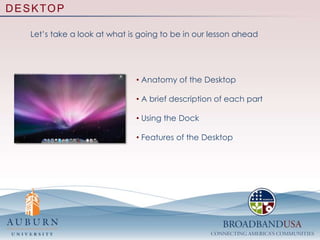
DESKTOPLet’s take a look at what is going to be in our lesson ahead Anatomy of the Desktop
 A brief description of each part
 Using the Dock
 Features of the DesktopDESKTOPGetting Started With The Desktop:The Desktop is what you could consider the base, or root, of everything that you do on your computer.  The Mac desktop consist of three main components: The  desktop space, the Dock, and the Menu Bar. The desktop space contains any folders or files that you want   easy access to. The Dock allows you to have quick access to applications,   aka programs, that you use often. The Menu Bar gives you the main operational functions of   the program you are currently in.
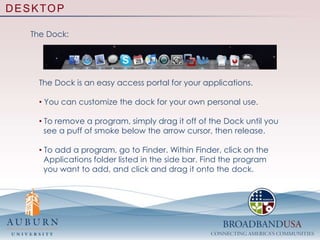
DESKTOPThe Dock:The Dock is an easy access portal for your applications.  You can customize the dock for your own personal use.
 To remove a program, simply drag it off of the Dock until you   see a puff of smoke below the arrow cursor, then release. To add a program, go to Finder. Within Finder, click on the   Applications folder listed in the side bar. Find the program   you want to add, and click and drag it onto the dock.
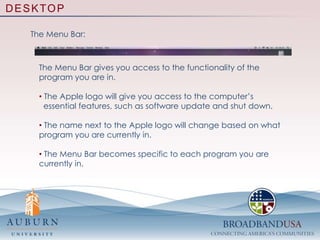
DESKTOPThe Menu Bar:The Menu Bar gives you access to the functionality of the program you are in.  The Apple logo will give you access to the computer’s   essential features, such as software update and shut down. The name next to the Apple logo will change based on what program you are currently in.
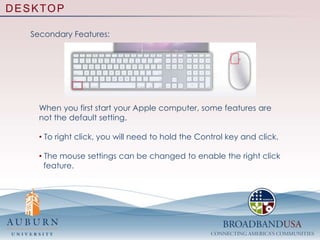
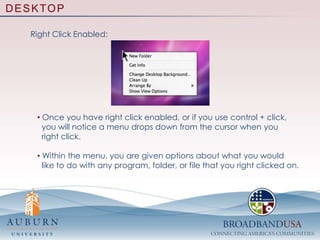
 The Menu Bar becomes specific to each program you are currently in.DESKTOPSecondary Features:When you first start your Apple computer, some features are not the default setting. To right click, you will need to hold the Control key and click.
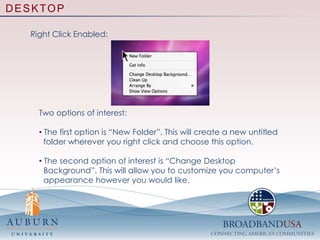
 The mouse settings can be changed to enable the right click   feature.
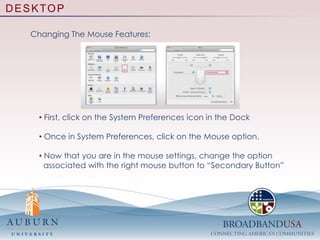
DESKTOPChanging The Mouse Features: First, click on the System Preferences icon in the Dock
 Once in System Preferences, click on the Mouse option.
 Now that you are in the mouse settings, change the option   associated with the right mouse button to “Secondary Button”

2_desktop

  • 2.
    This training isgoing to be your guide as we tour your new Apple computer. It is here to try to make learning this new system very easy and simple. Feel free to move through each lesson at your own pace. The materials have been developed to assist your learning process as you discover this new computer for yourself.To continue to the next slide, tap the space bar.
  • 3.
    ABOUT BTOPThe AmericanRecovery and Reinvestment Act provided the Department of Commerce’s National Telecommunications and Information Administration (NTIA) and the U.S. Department of Agriculture’s Rural Utilities Service (RUS) with $7.2 billion to expand access to broadband services in the United States. Of those funds, the Act provided $4.7 billion to NTIA to support the deployment of broadband infrastructure, enhance and expand public computer centers, encourage sustainable adoption of broadband service, and develop and maintain a nationwide public map of broadband service capability and availability.
  • 4.
    DESKTOPLet’s take alook at what is going to be in our lesson ahead Anatomy of the Desktop
  • 5.
    A briefdescription of each part
  • 6.
  • 7.
    Features ofthe DesktopDESKTOPGetting Started With The Desktop:The Desktop is what you could consider the base, or root, of everything that you do on your computer. The Mac desktop consist of three main components: The desktop space, the Dock, and the Menu Bar. The desktop space contains any folders or files that you want easy access to. The Dock allows you to have quick access to applications, aka programs, that you use often. The Menu Bar gives you the main operational functions of the program you are currently in.
  • 8.
    DESKTOPThe Dock:The Dockis an easy access portal for your applications. You can customize the dock for your own personal use.
  • 9.
    To removea program, simply drag it off of the Dock until you see a puff of smoke below the arrow cursor, then release. To add a program, go to Finder. Within Finder, click on the Applications folder listed in the side bar. Find the program you want to add, and click and drag it onto the dock.
  • 10.
    DESKTOPThe Menu Bar:TheMenu Bar gives you access to the functionality of the program you are in. The Apple logo will give you access to the computer’s essential features, such as software update and shut down. The name next to the Apple logo will change based on what program you are currently in.
  • 11.
    The MenuBar becomes specific to each program you are currently in.DESKTOPSecondary Features:When you first start your Apple computer, some features are not the default setting. To right click, you will need to hold the Control key and click.
  • 12.
    The mousesettings can be changed to enable the right click feature.
  • 13.
    DESKTOPChanging The MouseFeatures: First, click on the System Preferences icon in the Dock
  • 14.
    Once inSystem Preferences, click on the Mouse option.
  • 15.
    Now thatyou are in the mouse settings, change the option associated with the right mouse button to “Secondary Button”