Macintosh
Introduction to Mac OSX
What is Mac?
 'Mac' is a simple abbreviation for Macintosh, the line of
personal computers designed, manufactured, marketed, and
sold by Apple Inc.
 The current Macintosh models are targeted towards home,
education, and professional users.
 Macs are known for their elegant design, ease of use, and
user experience. Macs combine elegance, power and style.
 Mac OS X is a Completely Redesigned implementation of the
Macintosh operating system based on the BSD UNIX
operating system. UNIX is an advanced multi-platform
operating system that offers advanced features such as
enhanced networking, high performance, and security
Models
 Apple current Mac product line consists of the following
models:
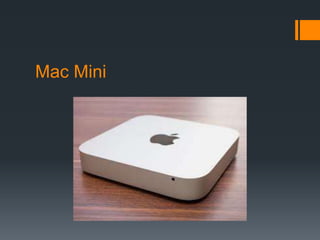
 Mac mini
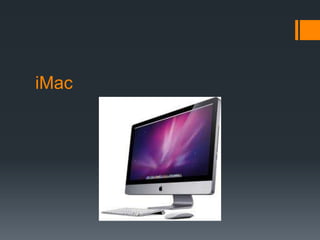
 iMac
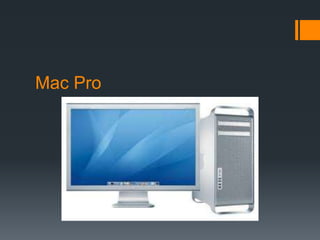
 Mac Pro
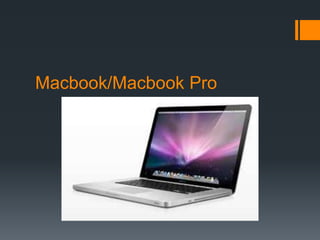
 MacBook
 MacBook Pro
 MacBook Air
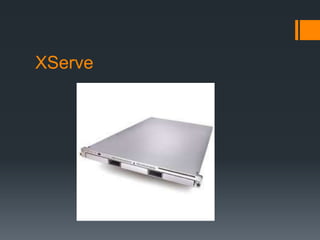
 Xserve
Mac Mini
iMac
Mac Pro
Macbook/Macbook Pro
Macbook Air
XServe
OS Versions
 Version 10.0: "Cheetah”
 Version 10.1: "Puma“
 Version 10.2: "Jaguar“
 Version 10.3: "Panther”
 Version 10.4: "Tiger"
 Version 10.5: "Leopard“
 Version 10.6: "Snow Leopard”
 Version 10.7: ”Lion”
 Version 10.8: ”Mountain Lion"
Why Mac OSX
Several reasons:
 Apple is not supporting Mac OS 9 anymore. OS X is the
future of Apple.
 Protective Memory
 When an OS 9 application crashes, the operating system may
become unstable, and you may need to reboot the computer.
 In OS X, when an application crashes, just that application
crashes. All your other applications that were running are still ok.
 Multi-user
 The current Macintosh models are powered by processors
(CPUs) from Intel.
 In the past, Apple relied on other firms to provide the chips
for Macs as Apple historically used competing processors
such as the PowerPC.
 In June 2005, Apple CEO Steve Jobs announced that Apple
would transition the Macintosh line from PowerPC
processors to Intel processors.
 The transition was completed on August 7, 2006.
Mac and Windows Differences
 Mouse buttons
 The Mac mouse has a single button whereas a Windows mouse has two
buttons. To display a contextual menu in a Mac environment, control +click
on an object, unless your system has an “Apple Mouse”, in which case you
have a right - click option.
 Keyboard shortcuts
 Most keyboard shortcuts are the same on the Mac as in Windows.
However, substitute the Command key [clover leaf] for the Ctrl key, and the
option key for the Alt key.
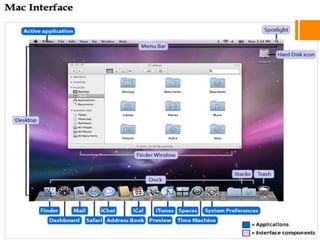
 Menu bars
 There is only one Menu bar across the top of the screen on the
Mac. In Windows, a separate bar appears at the top of every
window.
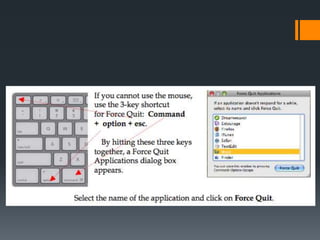
 Force quit
 If the computer freezes up, usually you will see the turning
rainbow pinwheel. First, try to quit the application that you are
currently working in. To do this, click anywhere on the desktop
and choose Apple > Force Quit
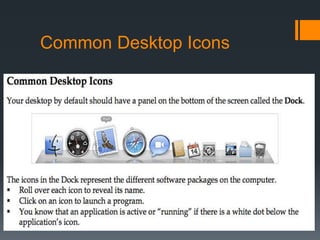
Common Desktop Icons
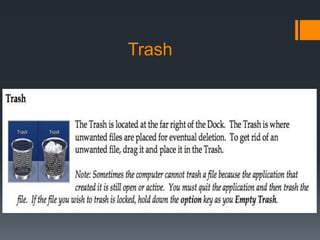
Trash
The Finder
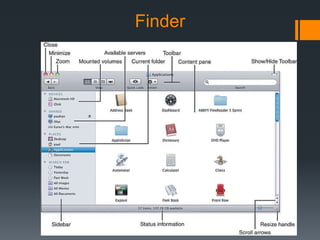
 The Finder shows you your files and folder in windows, and
can be used to find anything on your Mac. Each Finder
window has a sidebar to help you navigate. You can choose
to view windows as icons, lists, or columns.
Finder
Spotlight
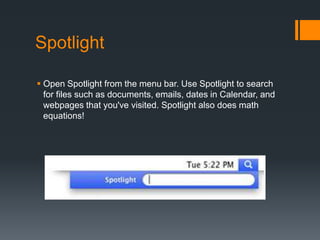
 Open Spotlight from the menu bar. Use Spotlight to search
for files such as documents, emails, dates in Calendar, and
webpages that you've visited. Spotlight also does math
equations!
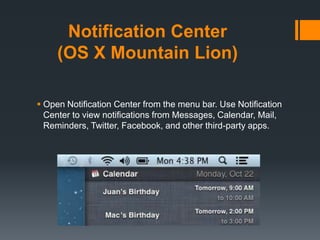
Notification Center
(OS X Mountain Lion)
 Open Notification Center from the menu bar. Use Notification
Center to view notifications from Messages, Calendar, Mail,
Reminders, Twitter, Facebook, and other third-party apps.
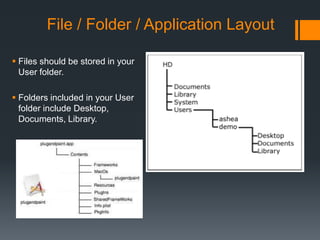
File / Folder / Application Layout
 Files should be stored in your
User folder.
 Folders included in your User
folder include Desktop,
Documents, Library.
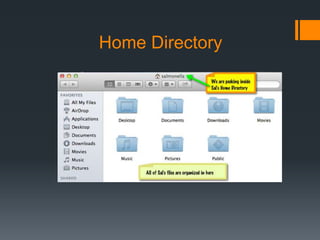
Home Directory
Applications that come with OS X
 iTunes
 Convert your audio CD tracks into MP3 files to store on your computer
 Listen to Internet Radio Stations
 iTunes Music Store - Purchase albums (about $9.99) or singles ($0.99)
[requires iTunes 4]
 iMovie
 Capture digital video from a camcorder
 Video-editing
 Transfer to VHS videotape or QuickTime
 iPhoto
 Create slideshows, picture albums
 iDVD
 Create DVDs (requires a Mac with a DVD-R/CD-RW SuperDrive)
 Safari
 Photo booth
Mac App Store
 You can find much more software for your Mac online with
the Mac App Store. Simply click its icon in the Dock to visit
the App Store. After purchasing and downloading,
applications are automatically installed in your Applications
folder, and added to the Launchpad.
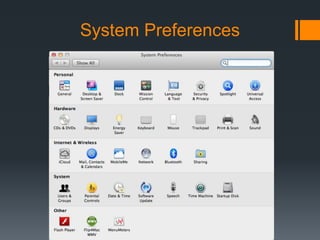
System Preferences
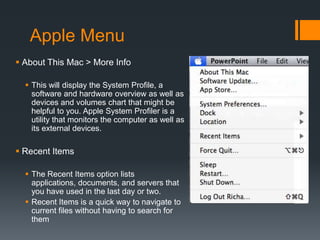
Apple Menu
 About This Mac > More Info
 This will display the System Profile, a
software and hardware overview as well as
devices and volumes chart that might be
helpful to you. Apple System Profiler is a
utility that monitors the computer as well as
its external devices.
 Recent Items
 The Recent Items option lists
applications, documents, and servers that
you have used in the last day or two.
 Recent Items is a quick way to navigate to
current files without having to search for
them
Sleep, restart and Shut down
 When you select one of these options under the Apple Menu, a
dialog box will appear. If you do nothing [and depending upon the
option you have selected], the computer will automatically carry
out the function in approximately 60 seconds
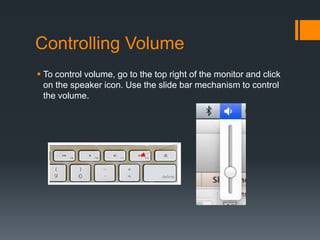
Controlling Volume
 To control volume, go to the top right of the monitor and click
on the speaker icon. Use the slide bar mechanism to control
the volume.
Other Essentials
 File Menu
 Create New folder
 Get Info
 Find
 Go Menu
 Connect to server
 Expose
 Spaces
 Activity Monitor
 Dashboard
 Time Machine
Thank You.

Mac osx basics

  • 1.
  • 2.
    What is Mac? 'Mac' is a simple abbreviation for Macintosh, the line of personal computers designed, manufactured, marketed, and sold by Apple Inc.  The current Macintosh models are targeted towards home, education, and professional users.  Macs are known for their elegant design, ease of use, and user experience. Macs combine elegance, power and style.  Mac OS X is a Completely Redesigned implementation of the Macintosh operating system based on the BSD UNIX operating system. UNIX is an advanced multi-platform operating system that offers advanced features such as enhanced networking, high performance, and security
  • 3.
    Models  Apple currentMac product line consists of the following models:  Mac mini  iMac  Mac Pro  MacBook  MacBook Pro  MacBook Air  Xserve
  • 4.
  • 5.
  • 6.
  • 7.
  • 8.
  • 9.
  • 10.
    OS Versions  Version10.0: "Cheetah”  Version 10.1: "Puma“  Version 10.2: "Jaguar“  Version 10.3: "Panther”  Version 10.4: "Tiger"  Version 10.5: "Leopard“  Version 10.6: "Snow Leopard”  Version 10.7: ”Lion”  Version 10.8: ”Mountain Lion"
  • 11.
    Why Mac OSX Severalreasons:  Apple is not supporting Mac OS 9 anymore. OS X is the future of Apple.  Protective Memory  When an OS 9 application crashes, the operating system may become unstable, and you may need to reboot the computer.  In OS X, when an application crashes, just that application crashes. All your other applications that were running are still ok.  Multi-user
  • 12.
     The currentMacintosh models are powered by processors (CPUs) from Intel.  In the past, Apple relied on other firms to provide the chips for Macs as Apple historically used competing processors such as the PowerPC.  In June 2005, Apple CEO Steve Jobs announced that Apple would transition the Macintosh line from PowerPC processors to Intel processors.  The transition was completed on August 7, 2006.
  • 13.
    Mac and WindowsDifferences  Mouse buttons  The Mac mouse has a single button whereas a Windows mouse has two buttons. To display a contextual menu in a Mac environment, control +click on an object, unless your system has an “Apple Mouse”, in which case you have a right - click option.  Keyboard shortcuts  Most keyboard shortcuts are the same on the Mac as in Windows. However, substitute the Command key [clover leaf] for the Ctrl key, and the option key for the Alt key.
  • 14.
     Menu bars There is only one Menu bar across the top of the screen on the Mac. In Windows, a separate bar appears at the top of every window.  Force quit  If the computer freezes up, usually you will see the turning rainbow pinwheel. First, try to quit the application that you are currently working in. To do this, click anywhere on the desktop and choose Apple > Force Quit
  • 17.
  • 18.
  • 19.
    The Finder  TheFinder shows you your files and folder in windows, and can be used to find anything on your Mac. Each Finder window has a sidebar to help you navigate. You can choose to view windows as icons, lists, or columns.
  • 20.
  • 21.
    Spotlight  Open Spotlightfrom the menu bar. Use Spotlight to search for files such as documents, emails, dates in Calendar, and webpages that you've visited. Spotlight also does math equations!
  • 22.
    Notification Center (OS XMountain Lion)  Open Notification Center from the menu bar. Use Notification Center to view notifications from Messages, Calendar, Mail, Reminders, Twitter, Facebook, and other third-party apps.
  • 23.
    File / Folder/ Application Layout  Files should be stored in your User folder.  Folders included in your User folder include Desktop, Documents, Library.
  • 24.
  • 25.
    Applications that comewith OS X  iTunes  Convert your audio CD tracks into MP3 files to store on your computer  Listen to Internet Radio Stations  iTunes Music Store - Purchase albums (about $9.99) or singles ($0.99) [requires iTunes 4]  iMovie  Capture digital video from a camcorder  Video-editing  Transfer to VHS videotape or QuickTime  iPhoto  Create slideshows, picture albums  iDVD  Create DVDs (requires a Mac with a DVD-R/CD-RW SuperDrive)  Safari  Photo booth
  • 26.
    Mac App Store You can find much more software for your Mac online with the Mac App Store. Simply click its icon in the Dock to visit the App Store. After purchasing and downloading, applications are automatically installed in your Applications folder, and added to the Launchpad.
  • 27.
  • 28.
    Apple Menu  AboutThis Mac > More Info  This will display the System Profile, a software and hardware overview as well as devices and volumes chart that might be helpful to you. Apple System Profiler is a utility that monitors the computer as well as its external devices.  Recent Items  The Recent Items option lists applications, documents, and servers that you have used in the last day or two.  Recent Items is a quick way to navigate to current files without having to search for them
  • 29.
    Sleep, restart andShut down  When you select one of these options under the Apple Menu, a dialog box will appear. If you do nothing [and depending upon the option you have selected], the computer will automatically carry out the function in approximately 60 seconds
  • 30.
    Controlling Volume  Tocontrol volume, go to the top right of the monitor and click on the speaker icon. Use the slide bar mechanism to control the volume.
  • 31.
    Other Essentials  FileMenu  Create New folder  Get Info  Find  Go Menu  Connect to server  Expose  Spaces  Activity Monitor  Dashboard  Time Machine
  • 32.