Computer
Keyboard
& its Usage
Keyboard
A primary input device that used to
enter text & give commands to the
computer by pressing buttons, or
keys.
Very much like electronic typewriter.
Typewriter
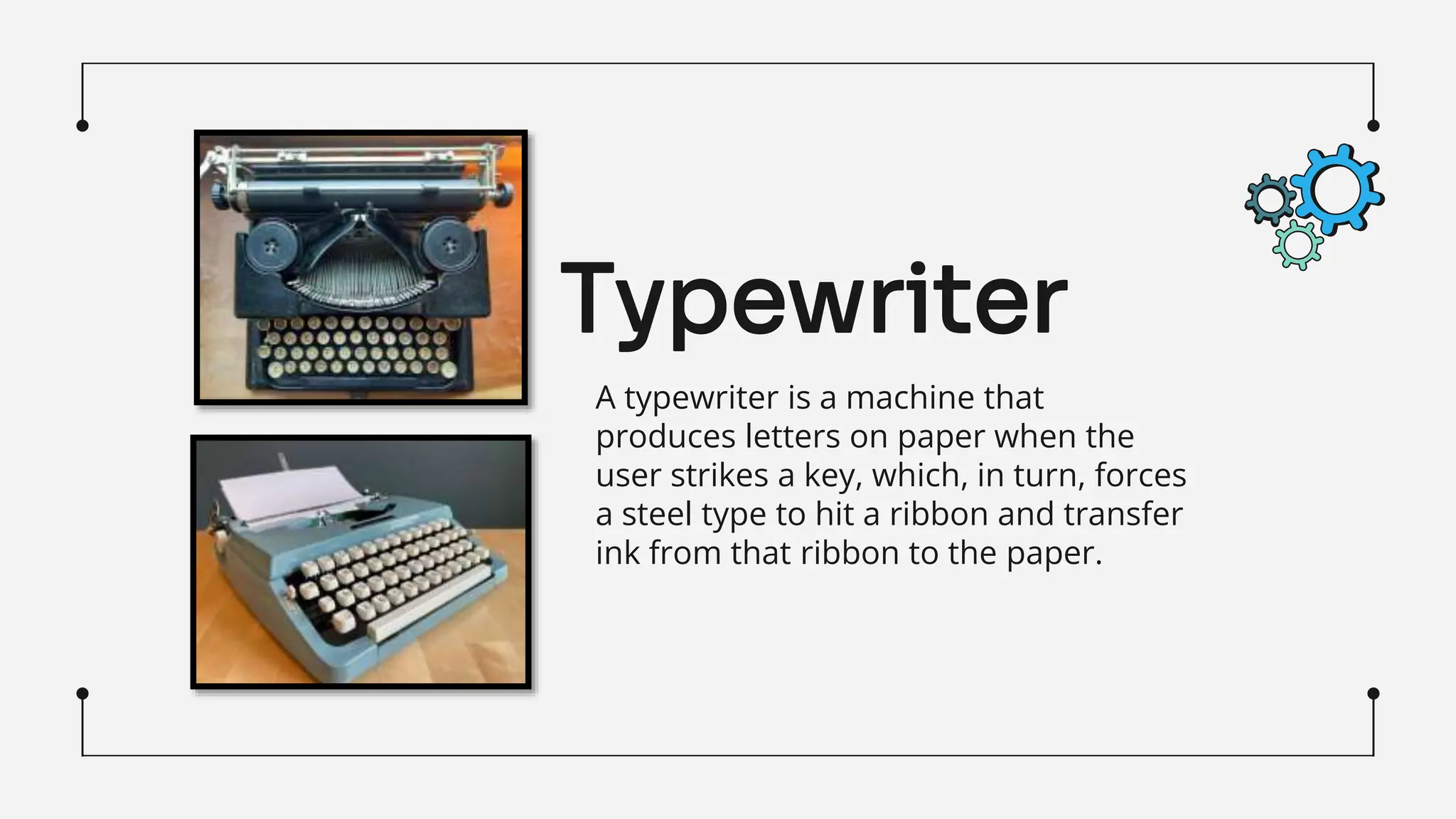
A typewriter is a machine that
produces letters on paper when the
user strikes a key, which, in turn, forces
a steel type to hit a ribbon and transfer
ink from that ribbon to the paper.
QWERTY Layout
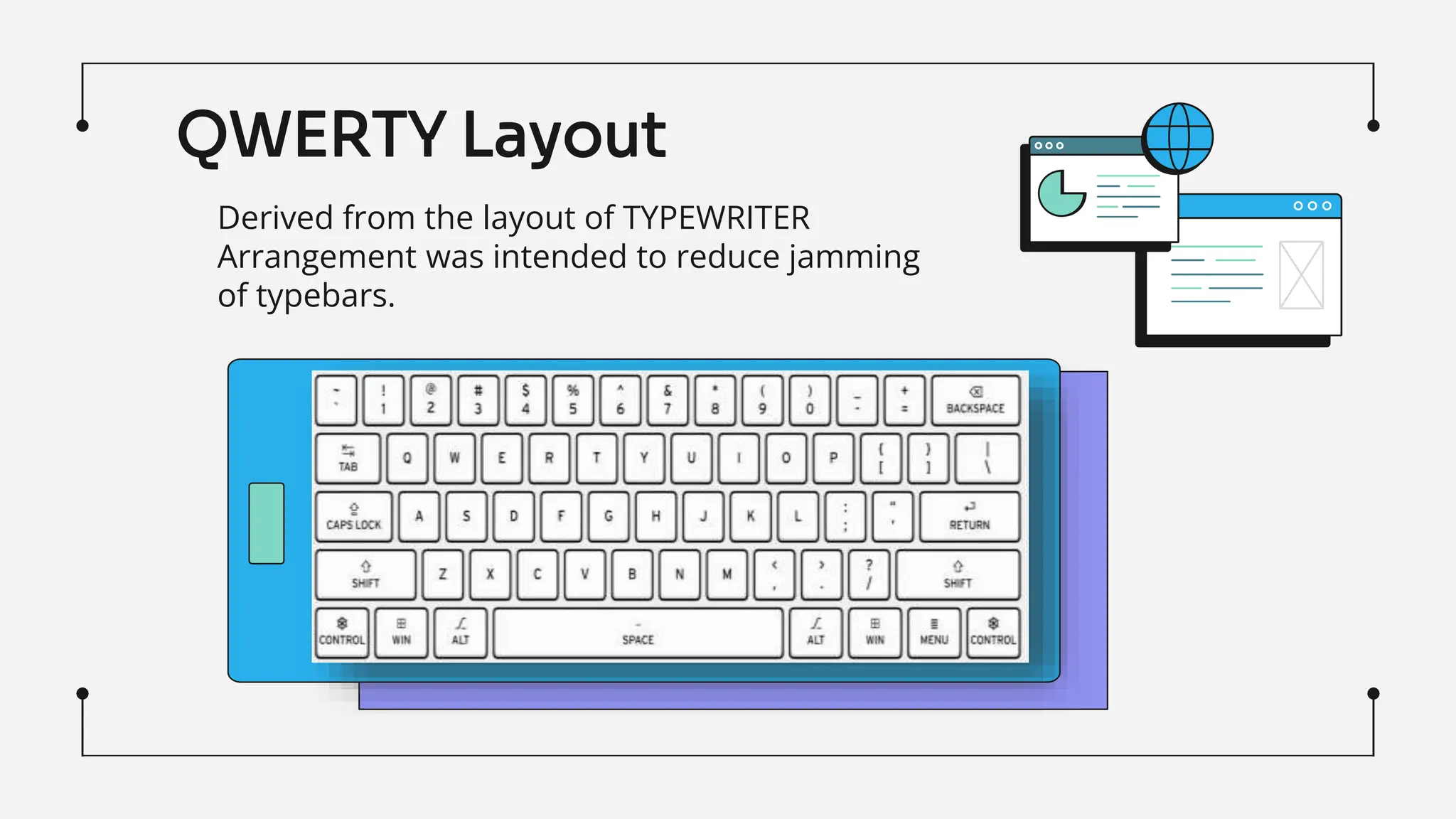
Derived from the layout of TYPEWRITER
Arrangement was intended to reduce jamming
of typebars.
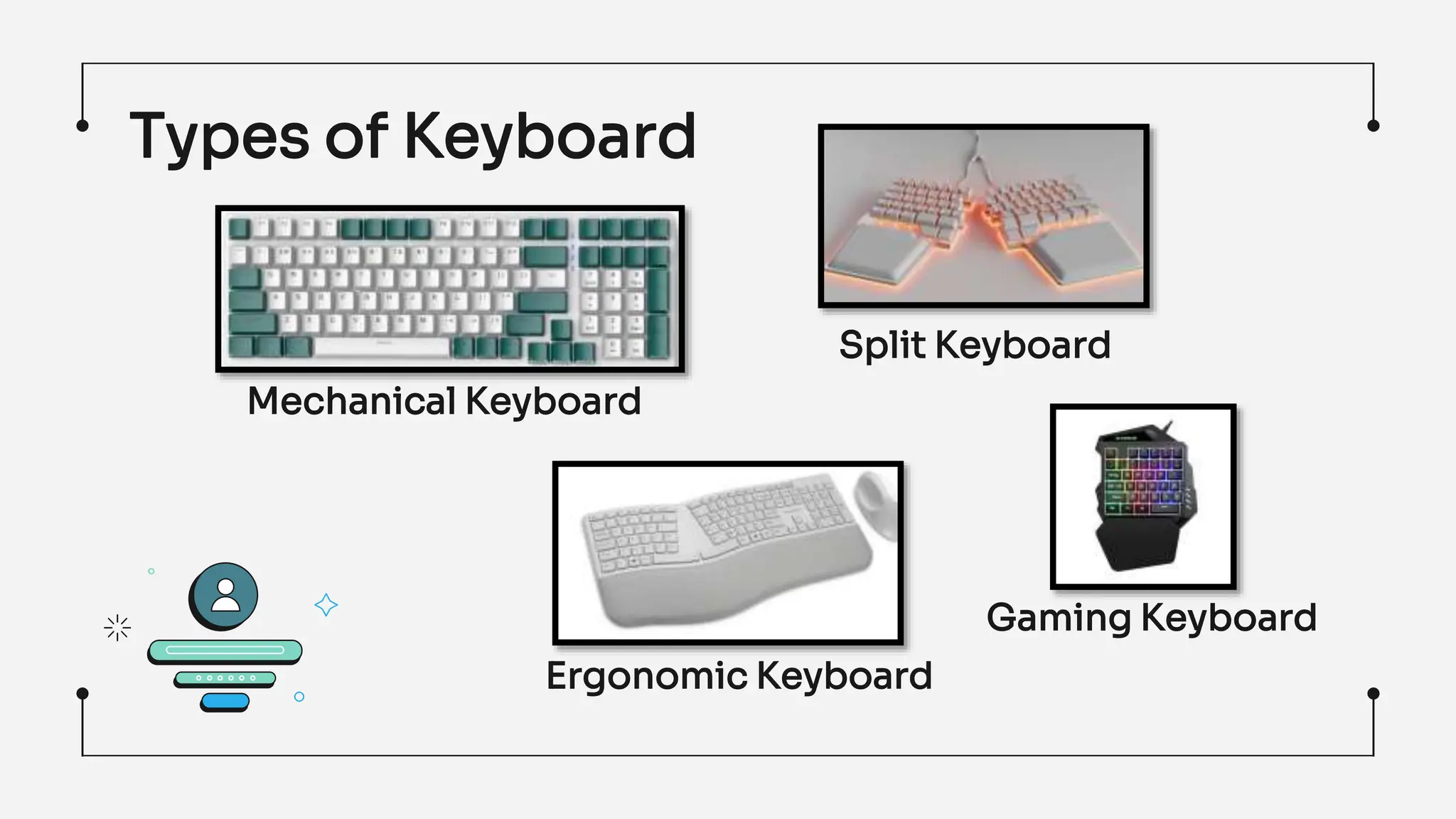
Types of Keyboard
Mechanical Keyboard
Gaming Keyboard
Ergonomic Keyboard
Split Keyboard
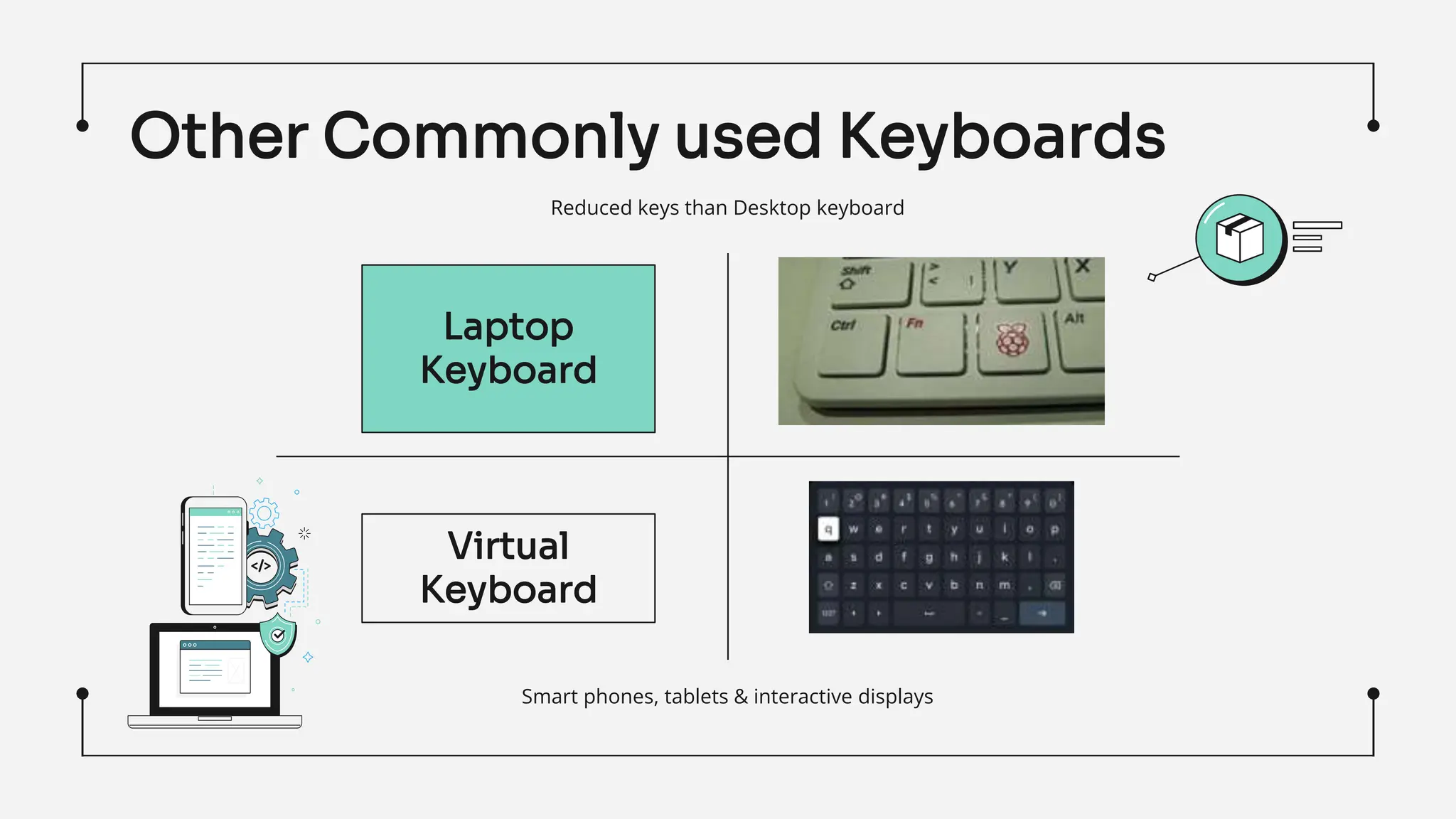
Other Commonly used Keyboards
Reduced keys than Desktop keyboard
Smart phones, tablets & interactive displays
Laptop
Keyboard
Virtual
Keyboard
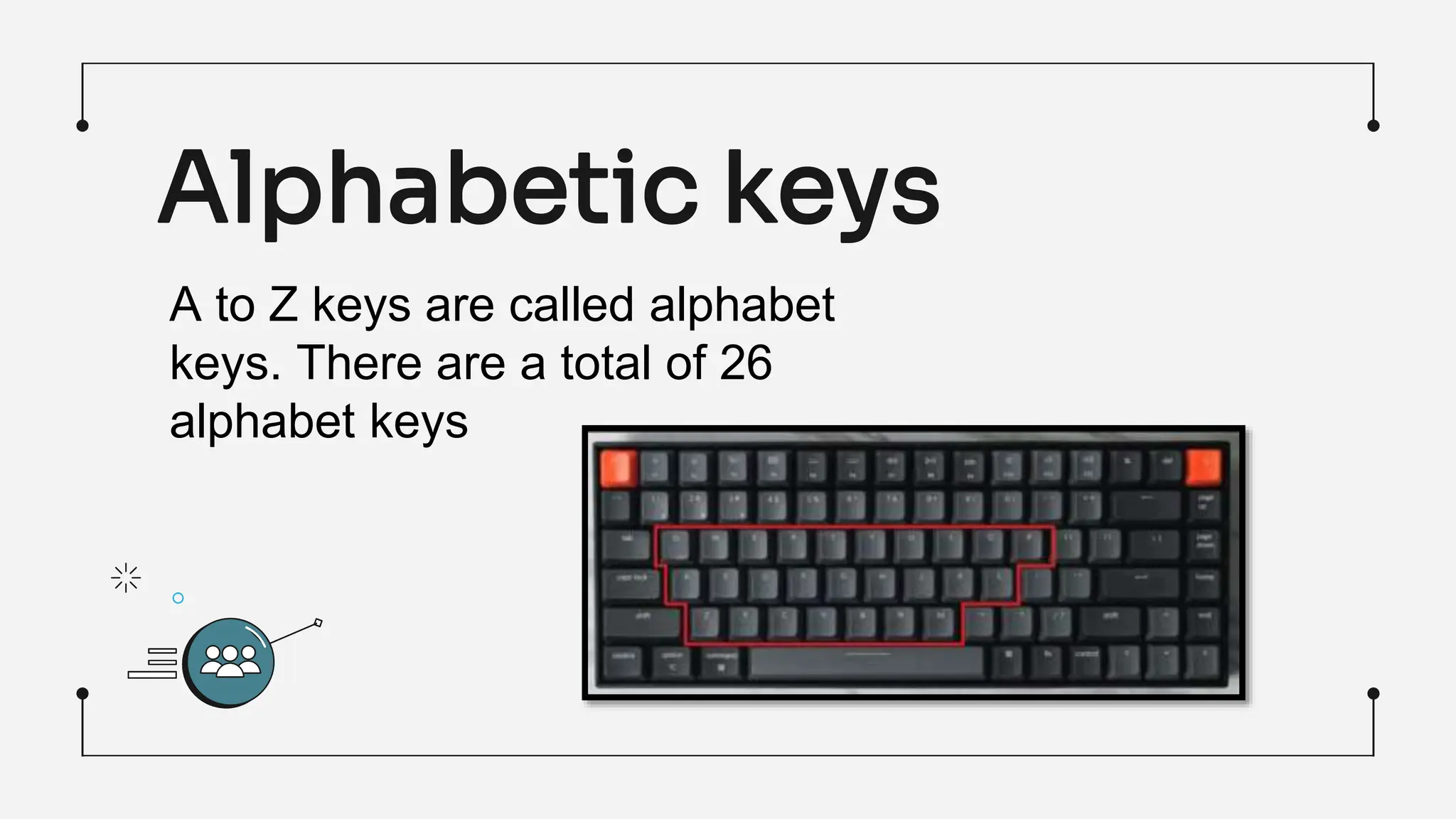
Alphabetic keys
A to Z keys are called alphabet
keys. There are a total of 26
alphabet keys
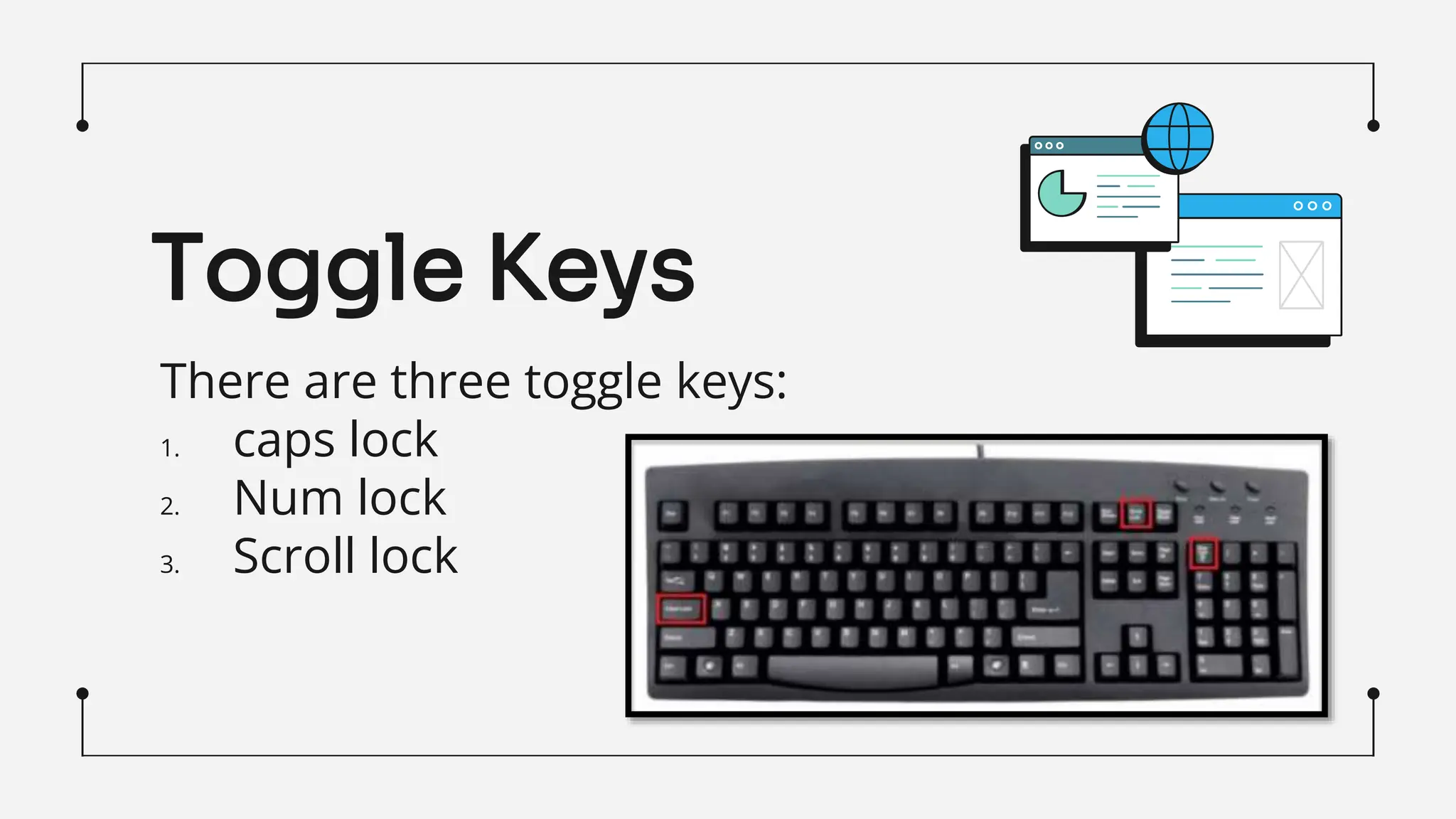
There are three toggle keys:
1. caps lock
2. Num lock
3. Scroll lock
Toggle Keys
Punctuation
keys
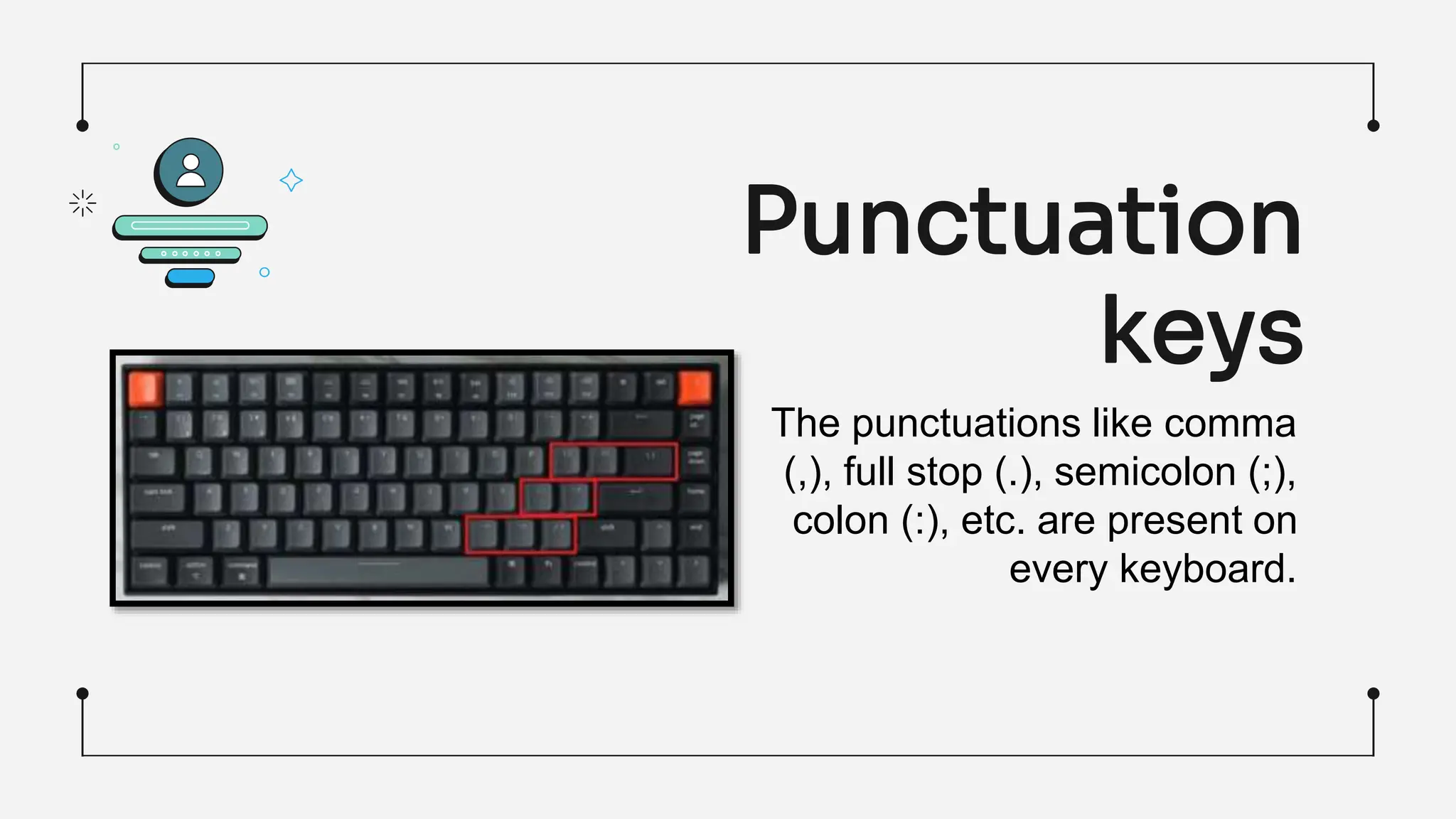
The punctuations like comma
(,), full stop (.), semicolon (;),
colon (:), etc. are present on
every keyboard.
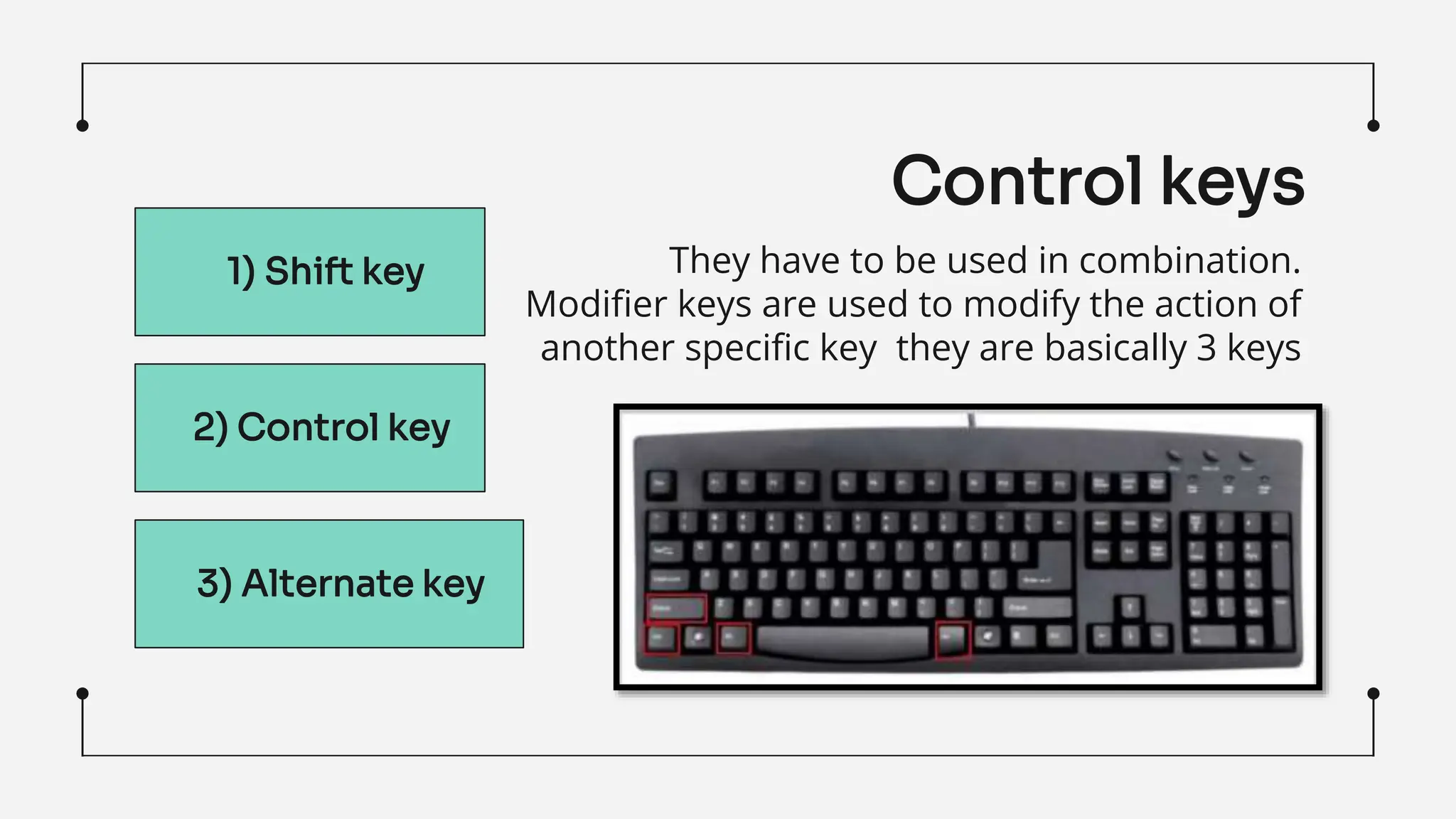
They have to be used in combination.
Modifier keys are used to modify the action of
another specific key they are basically 3 keys
1) Shift key
2) Control key
3) Alternate key
Control keys
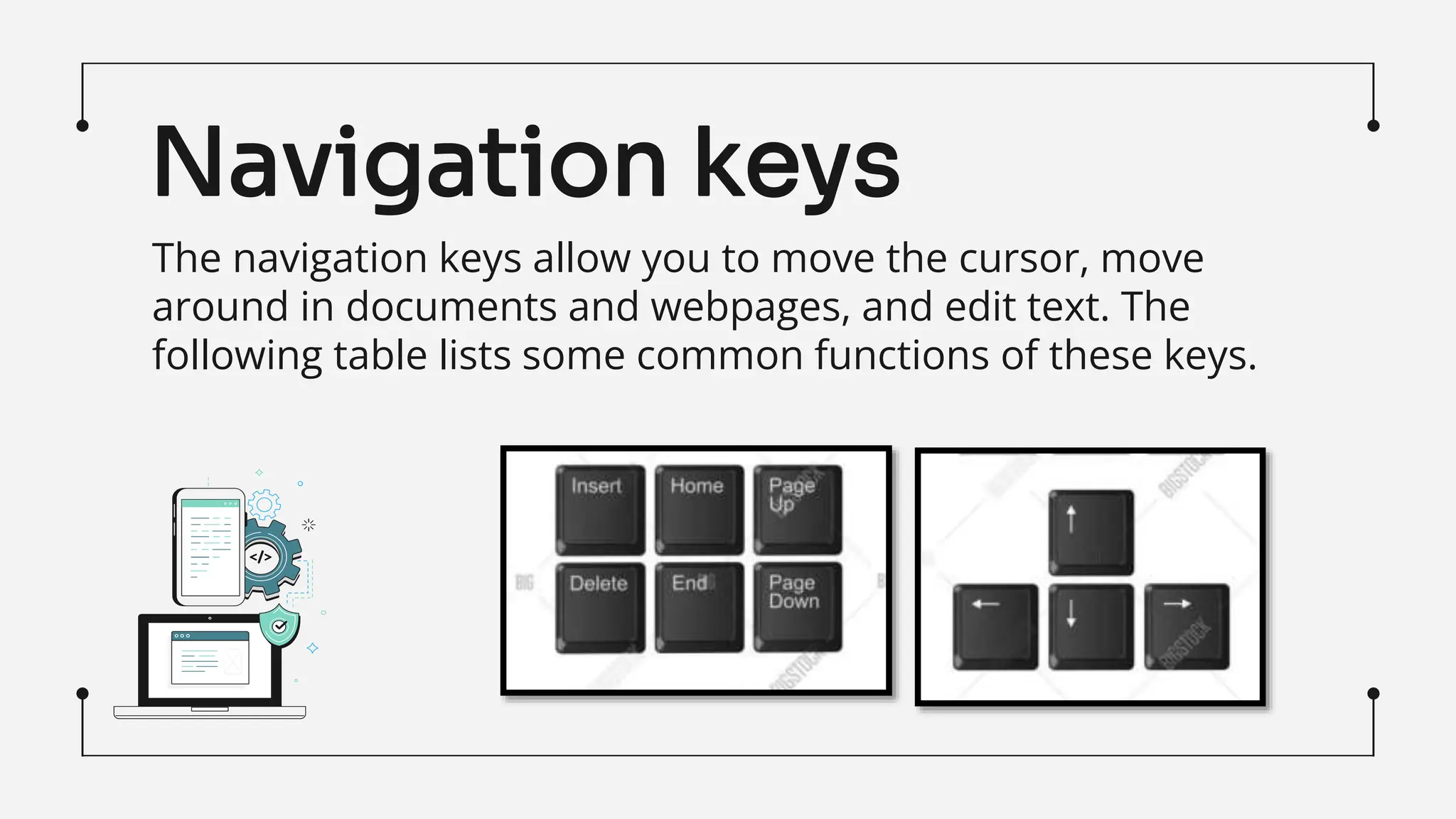
The navigation keys allow you to move the cursor, move
around in documents and webpages, and edit text. The
following table lists some common functions of these keys.
Navigation keys
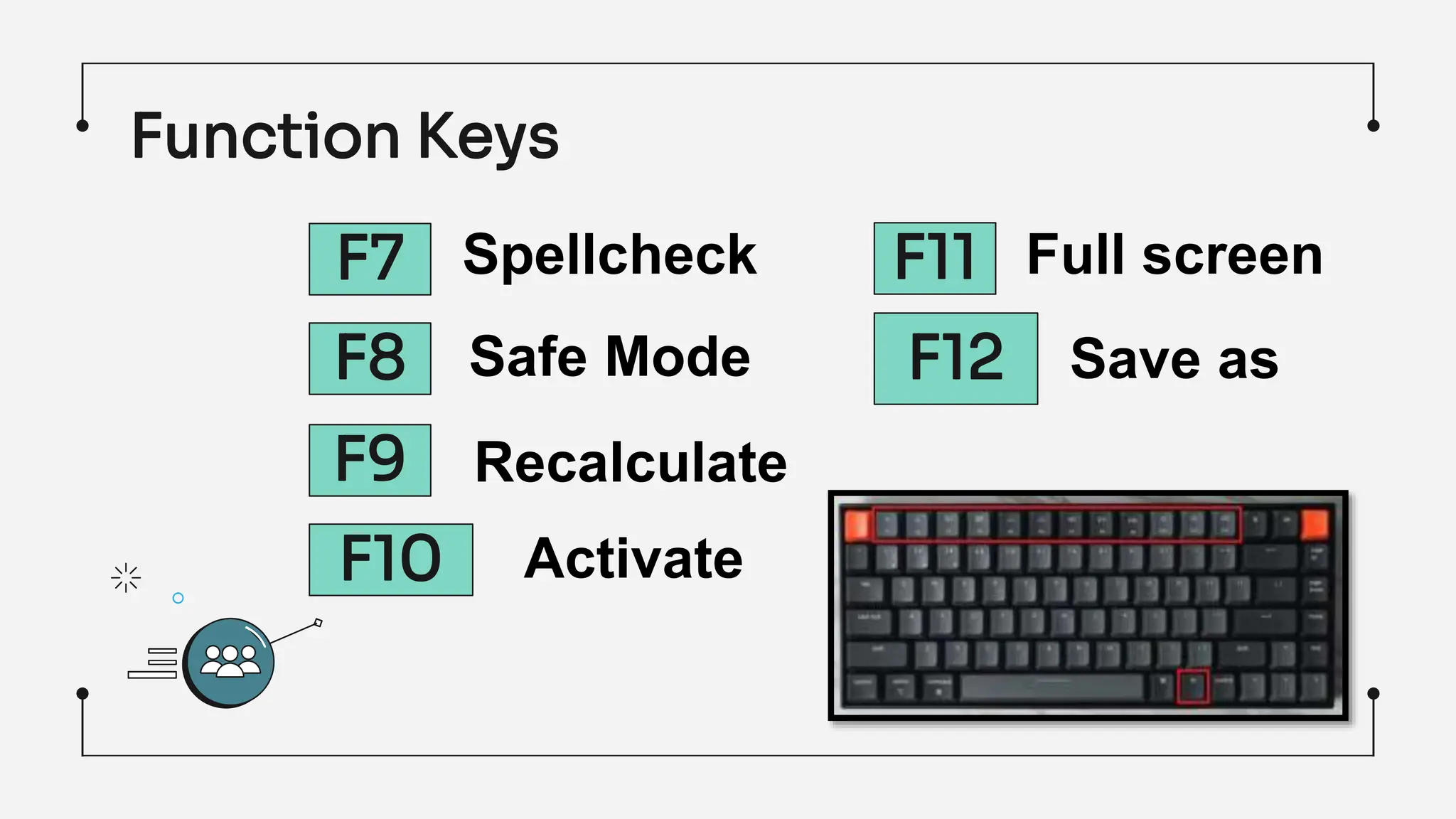
The function keys begin with the letter F and reside on the topmost
part of the keyboard. The function keys on the keyboard start from
F1 and end at F12.
Function Keys
F1
F2
F3
F4
F5
F6
Help
Rename
Search
Close
Refresh
Switch
Function Keys
F7
F8
F9
F10
F11
F12
Spellcheck
Recalculate
Safe Mode Save as
Activate
Full screen
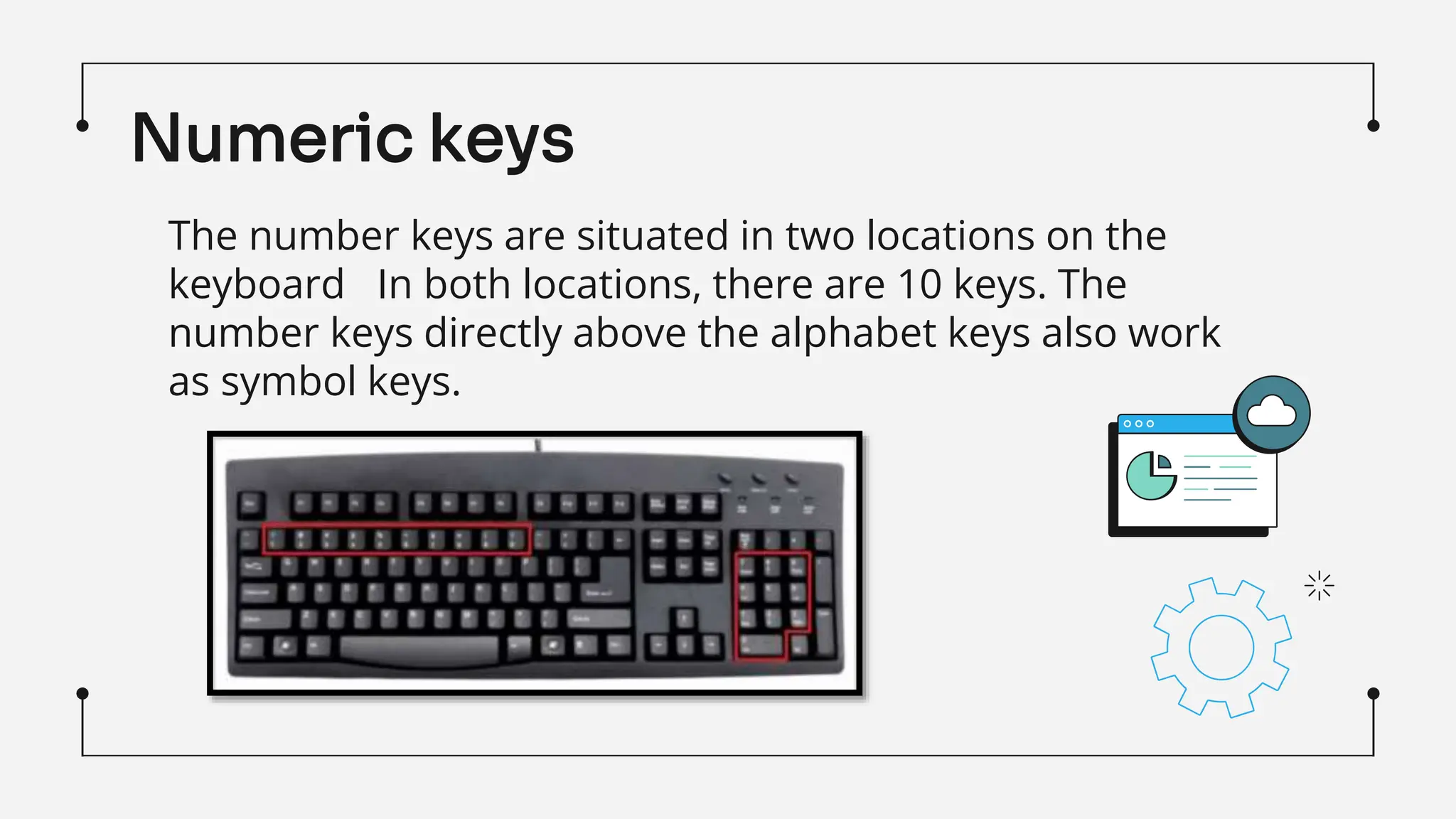
The number keys are situated in two locations on the
keyboard In both locations, there are 10 keys. The
number keys directly above the alphabet keys also work
as symbol keys.
Numeric keys
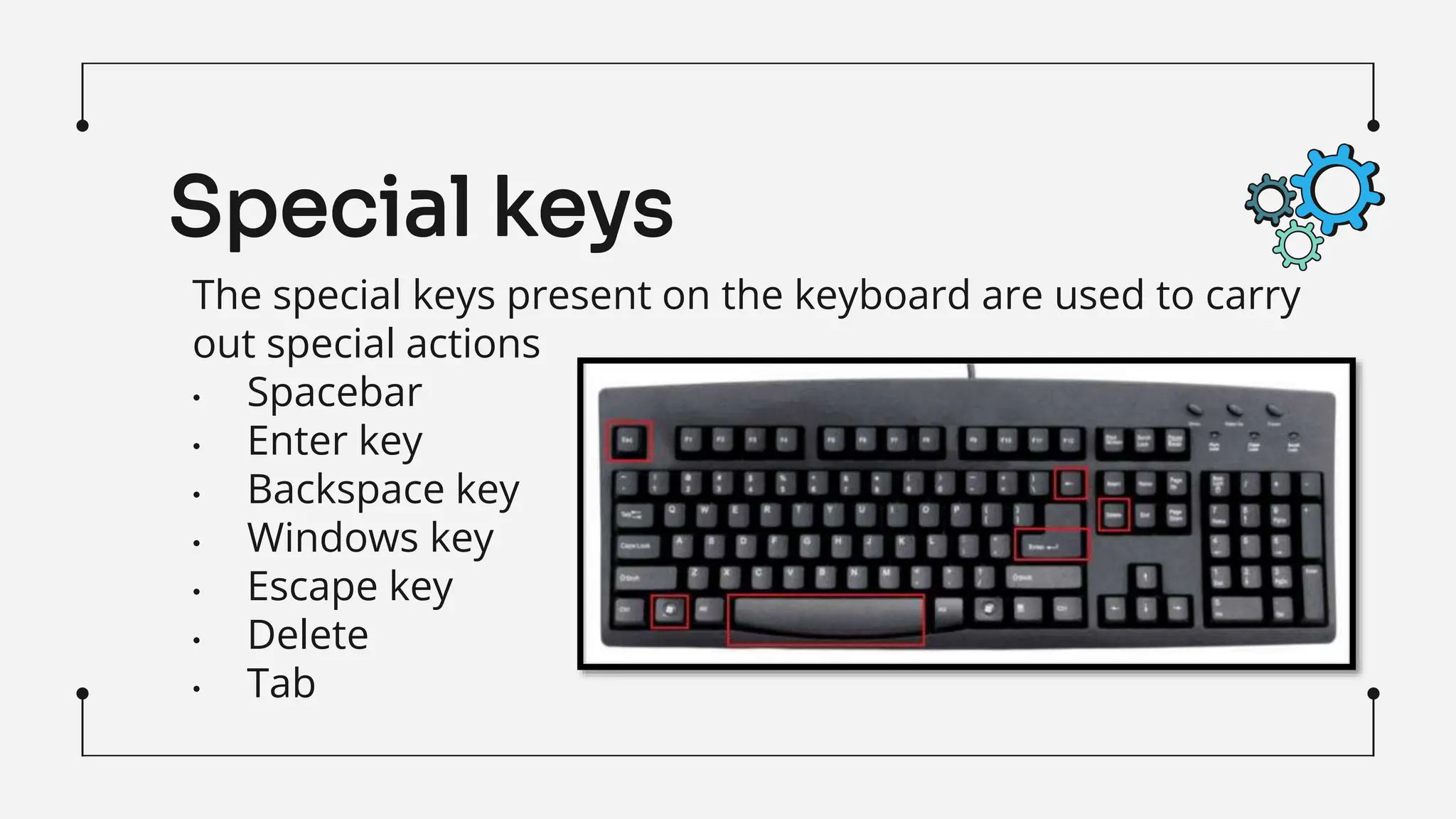
The special keys present on the keyboard are used to carry
out special actions
• Spacebar
• Enter key
• Backspace key
• Windows key
• Escape key
• Delete
• Tab
Special keys
Importance of Keyboard
Speed &
Efficiency
Reduces Mouse
dependency
Minimized
Distractions
Using the keyboard is
often faster than reaching
for the mouse and
navigating through menu.
Keyboard shortcuts allow
you to perform tasks
quickly, reducing the
number of steps required
to accomplish a task.
Constantly switching
between the keyboard
and mouse can slow you
down. Keyboard
shortcuts provide an
alternative method,
reducing dependency on
the mouse for every
action.
Keyboard shortcuts let
you stay focused on the
content you're working on
without being distracted
by navigating through
menus and options.
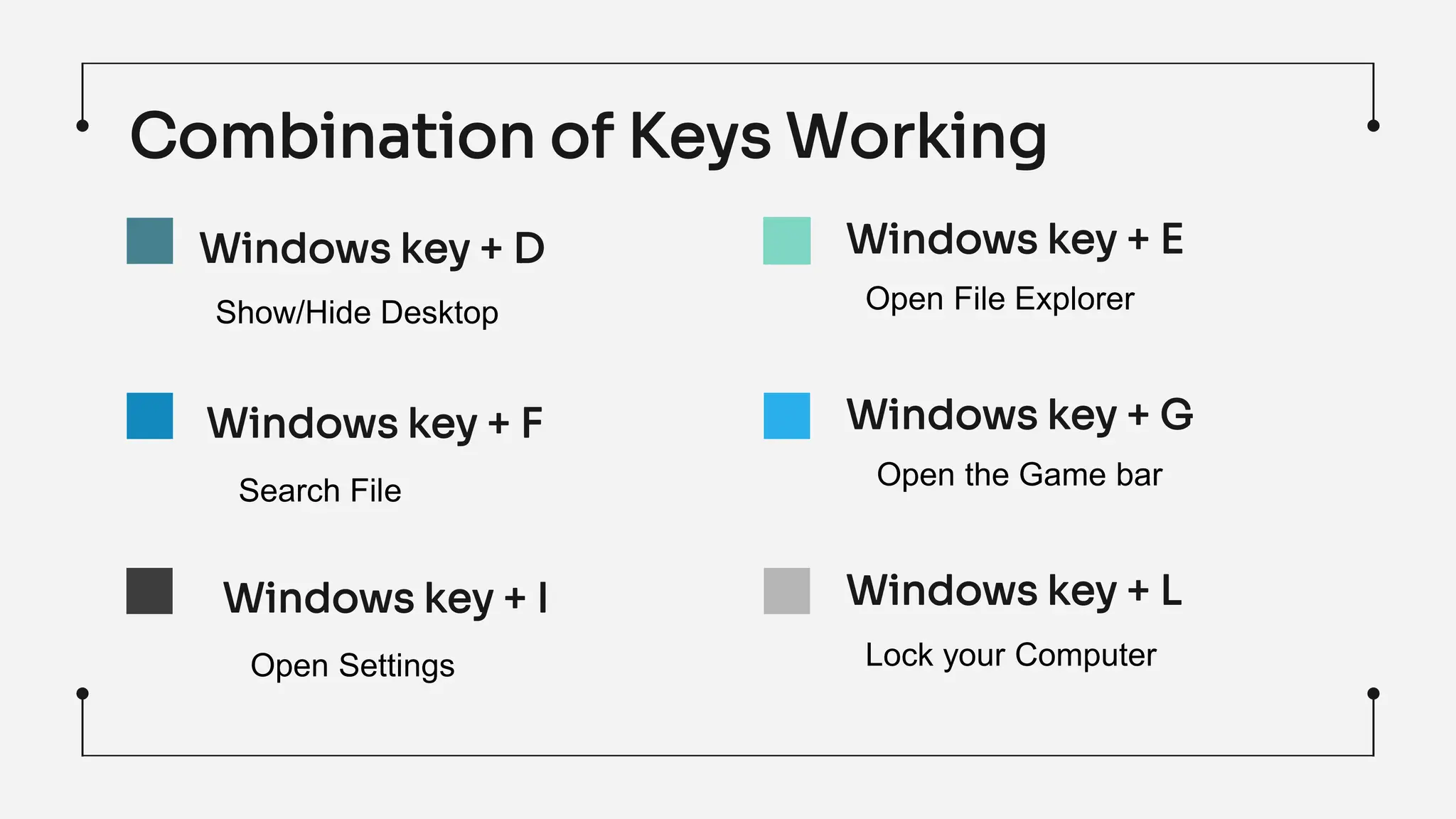
Combination of Keys Working
$100 M
Windows key + D Windows key + E
Windows key + G
Windows key + L
Windows key + F
Windows key + I
Show/Hide Desktop Open File Explorer
Search File Open the Game bar
Open Settings Lock your Computer
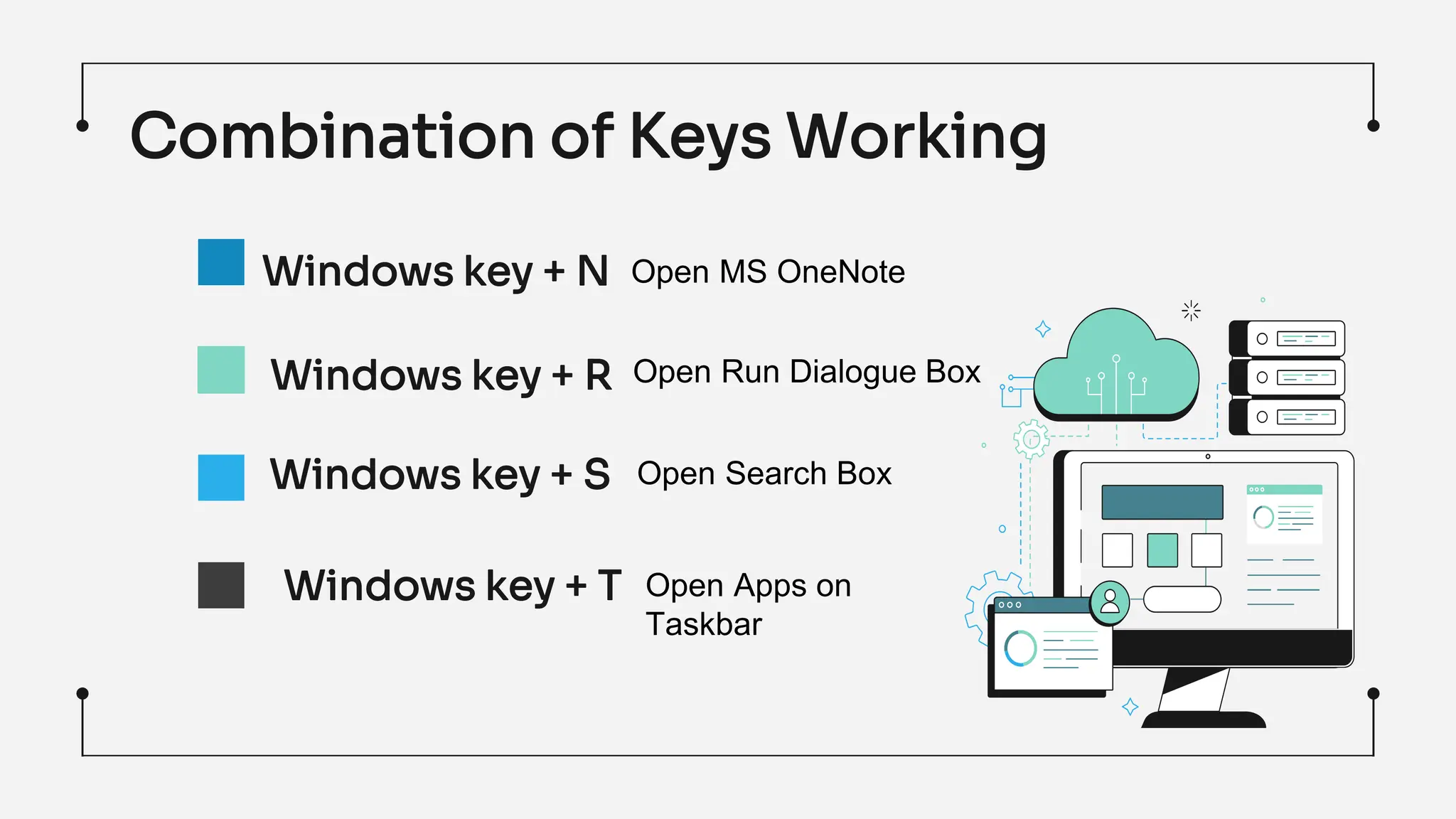
Windows key + N
Windows key + R
Windows key + S
Windows key + T
Open Search Box
Open Apps on
Taskbar
Open MS OneNote
Open Run Dialogue Box
Combination of Keys Working
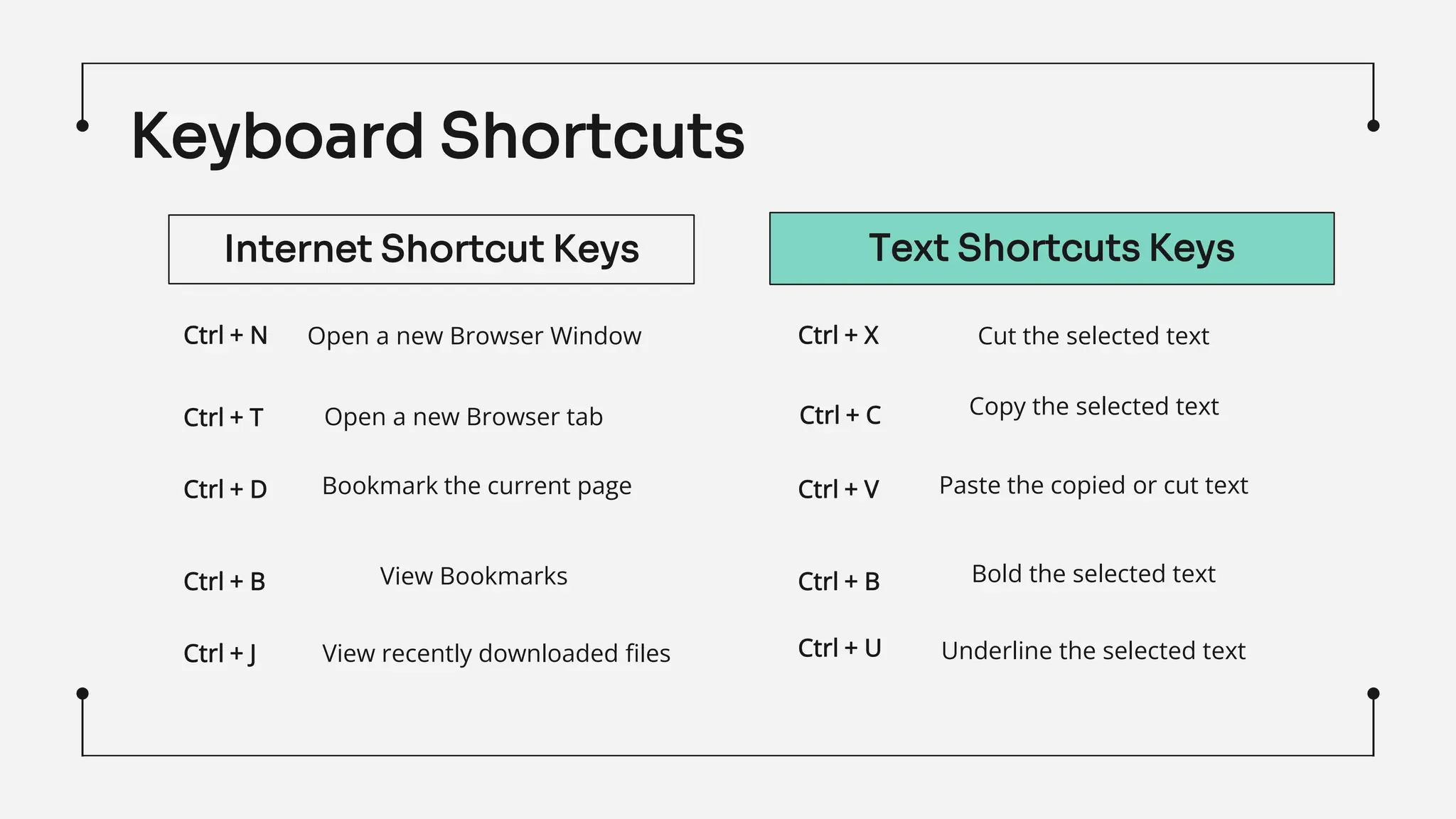
Keyboard Shortcuts
Ctrl + N
Ctrl + T
Ctrl + D
Ctrl + B
Open a new Browser Window
Open a new Browser tab
Bookmark the current page
View Bookmarks
Ctrl + J View recently downloaded files
Internet Shortcut Keys Text Shortcuts Keys
Ctrl + X
Ctrl + U
Ctrl + B
Ctrl + V
Ctrl + C
Cut the selected text
Underline the selected text
Bold the selected text
Copy the selected text
Paste the copied or cut text
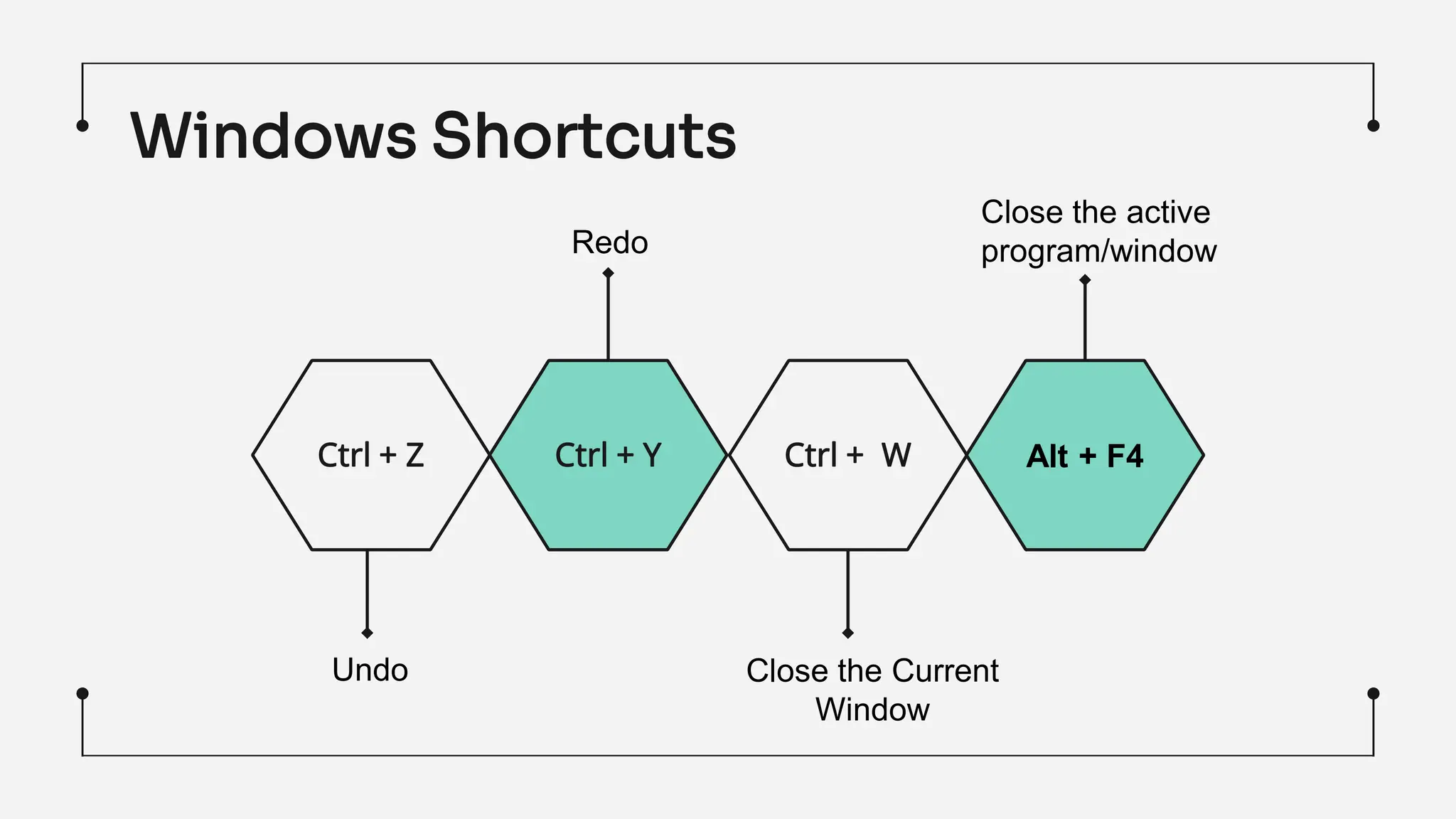
Windows Shortcuts
Ctrl + Z Ctrl + Y Ctrl + W Alt + F4
Close the active
program/window
Close the Current
Window
Redo
Undo
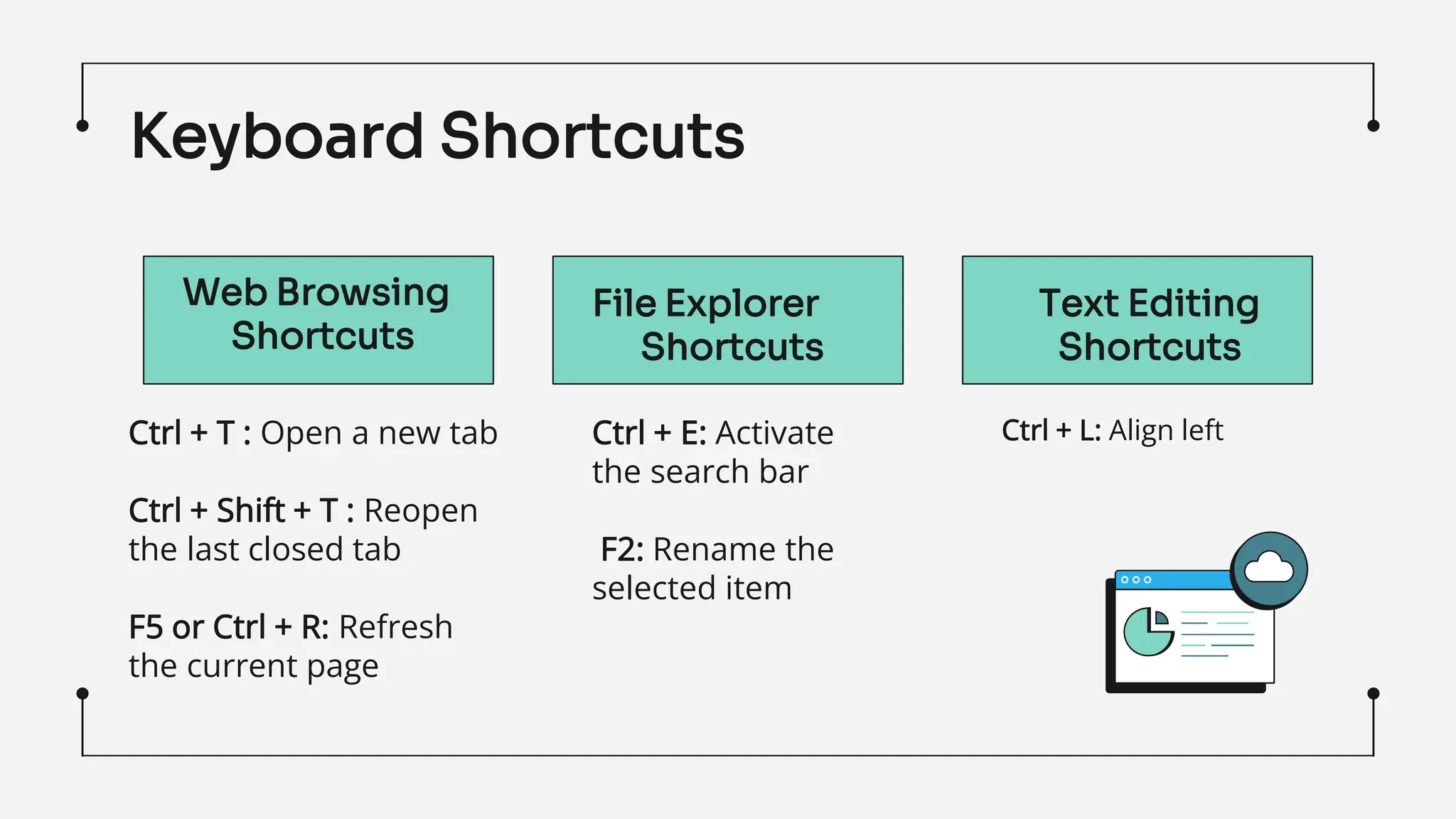
Ctrl + T : Open a new tab
Ctrl + Shift + T : Reopen
the last closed tab
F5 or Ctrl + R: Refresh
the current page
Ctrl + E: Activate
the search bar
F2: Rename the
selected item
Ctrl + L: Align left
Web Browsing
Shortcuts
File Explorer
Shortcuts
Text Editing
Shortcuts
Keyboard Shortcuts
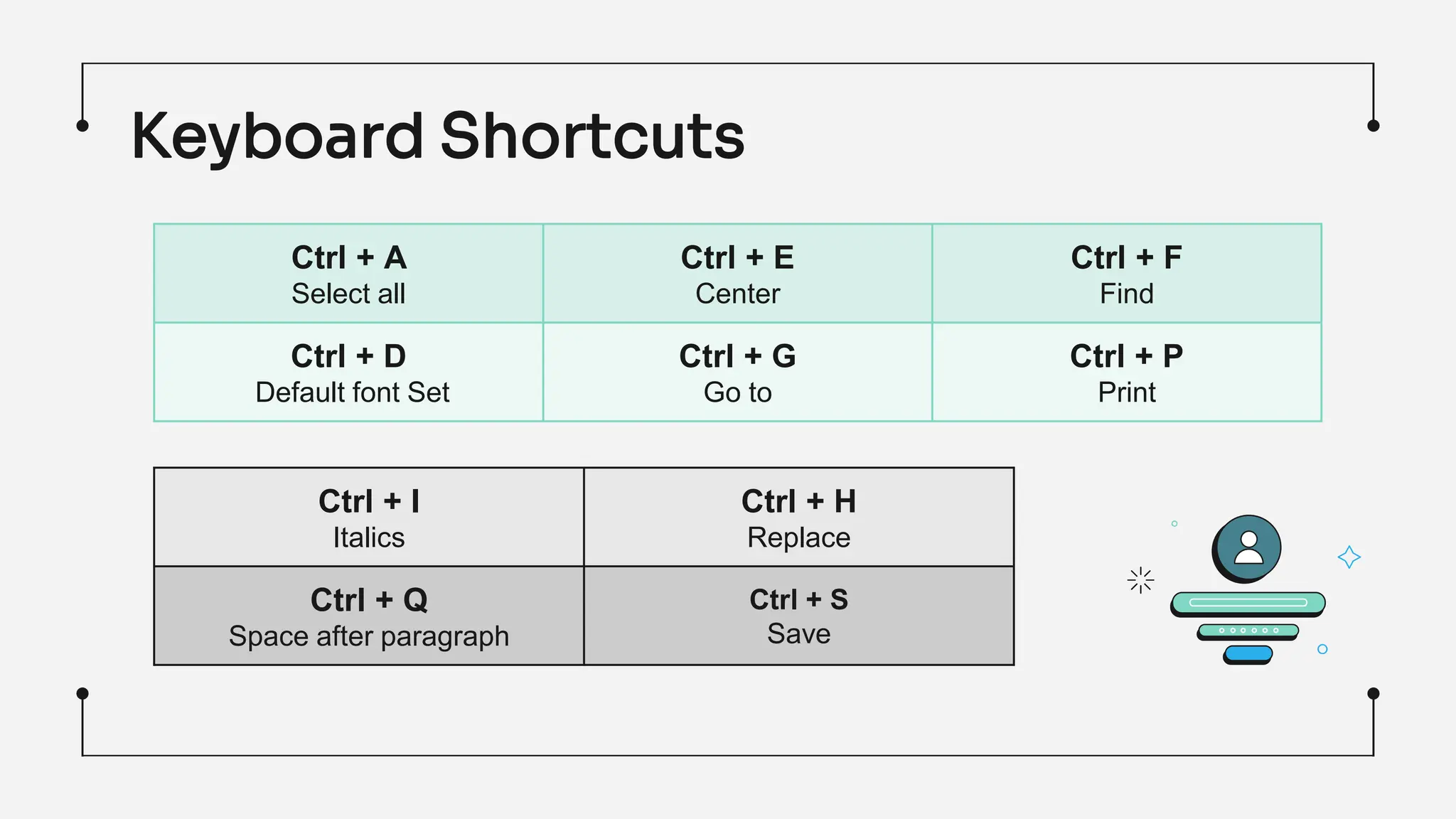
Keyboard Shortcuts
Ctrl + A
Select all
Ctrl + E
Center
Ctrl + F
Find
Ctrl + D
Default font Set
Ctrl + G
Go to
Ctrl + P
Print
Ctrl + I
Italics
Ctrl + H
Replace
Ctrl + Q
Space after paragraph
Ctrl + S
Save
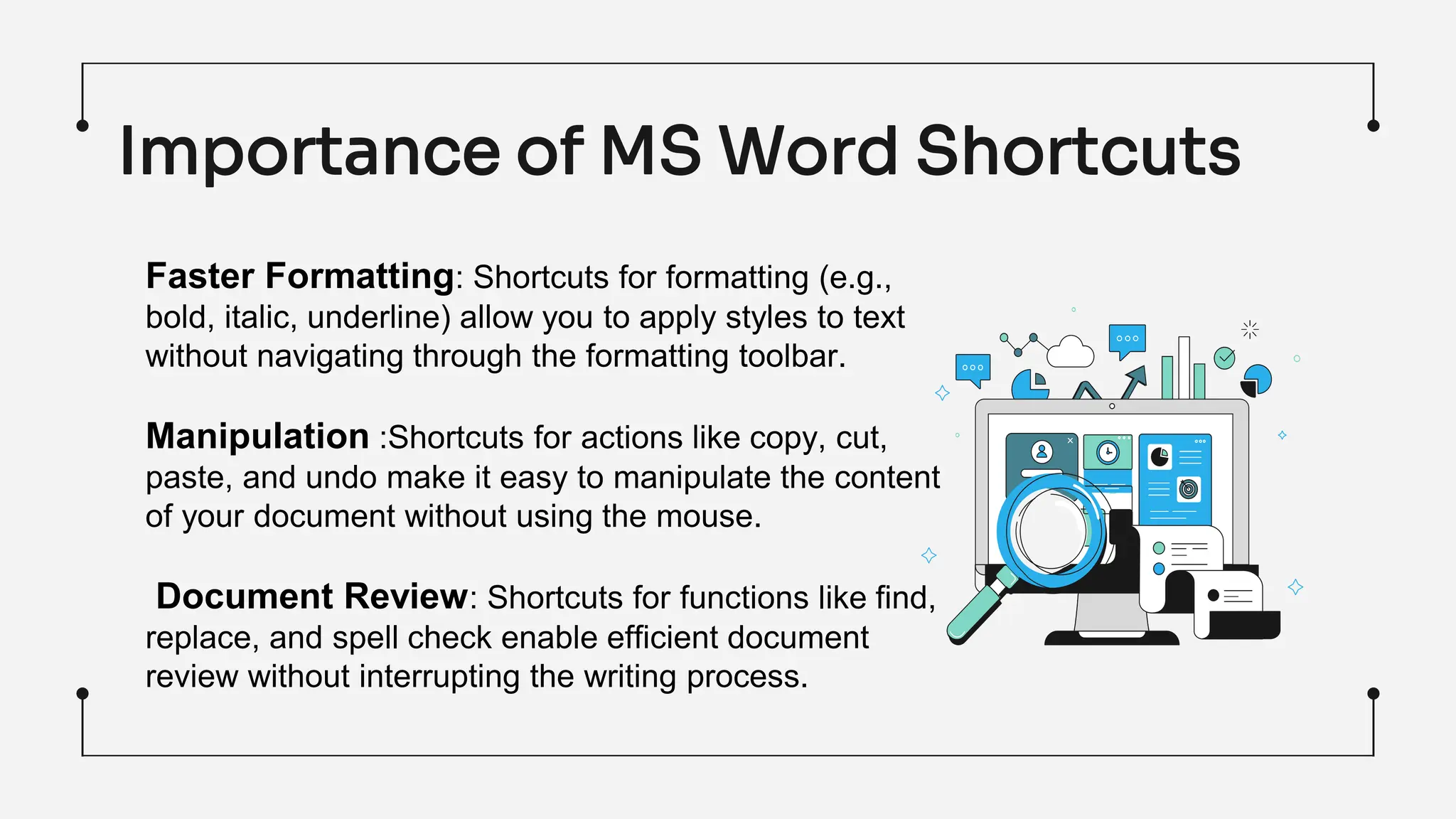
Importance of MS Word Shortcuts
Faster Formatting: Shortcuts for formatting (e.g.,
bold, italic, underline) allow you to apply styles to text
without navigating through the formatting toolbar.
Manipulation :Shortcuts for actions like copy, cut,
paste, and undo make it easy to manipulate the content
of your document without using the mouse.
Document Review: Shortcuts for functions like find,
replace, and spell check enable efficient document
review without interrupting the writing process.
Thank
You!!

Computer Keyboard & its usage.pptx

  • 1.
  • 2.
    Keyboard A primary inputdevice that used to enter text & give commands to the computer by pressing buttons, or keys. Very much like electronic typewriter.
  • 3.
    Typewriter A typewriter isa machine that produces letters on paper when the user strikes a key, which, in turn, forces a steel type to hit a ribbon and transfer ink from that ribbon to the paper.
  • 4.
    QWERTY Layout Derived fromthe layout of TYPEWRITER Arrangement was intended to reduce jamming of typebars.
  • 5.
    Types of Keyboard MechanicalKeyboard Gaming Keyboard Ergonomic Keyboard Split Keyboard
  • 6.
    Other Commonly usedKeyboards Reduced keys than Desktop keyboard Smart phones, tablets & interactive displays Laptop Keyboard Virtual Keyboard
  • 7.
    Alphabetic keys A toZ keys are called alphabet keys. There are a total of 26 alphabet keys
  • 8.
    There are threetoggle keys: 1. caps lock 2. Num lock 3. Scroll lock Toggle Keys
  • 9.
    Punctuation keys The punctuations likecomma (,), full stop (.), semicolon (;), colon (:), etc. are present on every keyboard.
  • 10.
    They have tobe used in combination. Modifier keys are used to modify the action of another specific key they are basically 3 keys 1) Shift key 2) Control key 3) Alternate key Control keys
  • 11.
    The navigation keysallow you to move the cursor, move around in documents and webpages, and edit text. The following table lists some common functions of these keys. Navigation keys
  • 12.
    The function keysbegin with the letter F and reside on the topmost part of the keyboard. The function keys on the keyboard start from F1 and end at F12. Function Keys F1 F2 F3 F4 F5 F6 Help Rename Search Close Refresh Switch
  • 13.
  • 14.
    The number keysare situated in two locations on the keyboard In both locations, there are 10 keys. The number keys directly above the alphabet keys also work as symbol keys. Numeric keys
  • 15.
    The special keyspresent on the keyboard are used to carry out special actions • Spacebar • Enter key • Backspace key • Windows key • Escape key • Delete • Tab Special keys
  • 16.
    Importance of Keyboard Speed& Efficiency Reduces Mouse dependency Minimized Distractions Using the keyboard is often faster than reaching for the mouse and navigating through menu. Keyboard shortcuts allow you to perform tasks quickly, reducing the number of steps required to accomplish a task. Constantly switching between the keyboard and mouse can slow you down. Keyboard shortcuts provide an alternative method, reducing dependency on the mouse for every action. Keyboard shortcuts let you stay focused on the content you're working on without being distracted by navigating through menus and options.
  • 17.
    Combination of KeysWorking $100 M Windows key + D Windows key + E Windows key + G Windows key + L Windows key + F Windows key + I Show/Hide Desktop Open File Explorer Search File Open the Game bar Open Settings Lock your Computer
  • 18.
    Windows key +N Windows key + R Windows key + S Windows key + T Open Search Box Open Apps on Taskbar Open MS OneNote Open Run Dialogue Box Combination of Keys Working
  • 19.
    Keyboard Shortcuts Ctrl +N Ctrl + T Ctrl + D Ctrl + B Open a new Browser Window Open a new Browser tab Bookmark the current page View Bookmarks Ctrl + J View recently downloaded files Internet Shortcut Keys Text Shortcuts Keys Ctrl + X Ctrl + U Ctrl + B Ctrl + V Ctrl + C Cut the selected text Underline the selected text Bold the selected text Copy the selected text Paste the copied or cut text
  • 20.
    Windows Shortcuts Ctrl +Z Ctrl + Y Ctrl + W Alt + F4 Close the active program/window Close the Current Window Redo Undo
  • 21.
    Ctrl + T: Open a new tab Ctrl + Shift + T : Reopen the last closed tab F5 or Ctrl + R: Refresh the current page Ctrl + E: Activate the search bar F2: Rename the selected item Ctrl + L: Align left Web Browsing Shortcuts File Explorer Shortcuts Text Editing Shortcuts Keyboard Shortcuts
  • 22.
    Keyboard Shortcuts Ctrl +A Select all Ctrl + E Center Ctrl + F Find Ctrl + D Default font Set Ctrl + G Go to Ctrl + P Print Ctrl + I Italics Ctrl + H Replace Ctrl + Q Space after paragraph Ctrl + S Save
  • 23.
    Importance of MSWord Shortcuts Faster Formatting: Shortcuts for formatting (e.g., bold, italic, underline) allow you to apply styles to text without navigating through the formatting toolbar. Manipulation :Shortcuts for actions like copy, cut, paste, and undo make it easy to manipulate the content of your document without using the mouse. Document Review: Shortcuts for functions like find, replace, and spell check enable efficient document review without interrupting the writing process.
  • 24.