You are going to use Audacity to record two jokes for your
Podcast.
Your First Podcast using Audacity
Using your jotters or scrap paper to plan two jokes you
would like to tell the class.
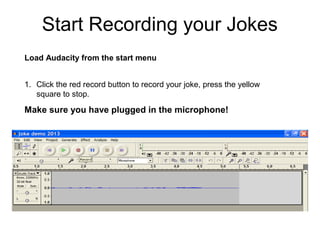
1. Click the red record button to record your joke, press the yellow
square to stop.
Make sure you have plugged in the microphone!
Load Audacity from the start menu
Start Recording your Jokes
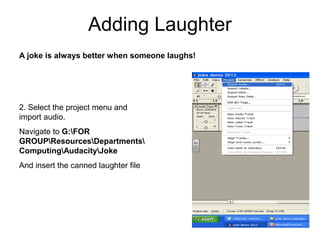
2. Select the project menu and
import audio.
Navigate to G:FOR
GROUPResourcesDepartments
ComputingAudacityJoke
And insert the canned laughter file
Adding Laughter
A joke is always better when someone laughs!
Editing your track
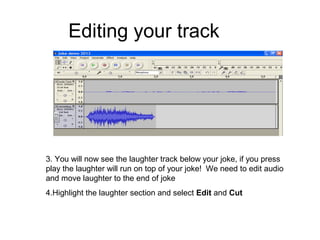
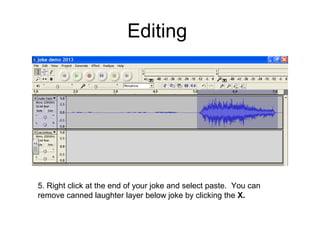
3. You will now see the laughter track below your joke, if you press
play the laughter will run on top of your joke! We need to edit audio
and move laughter to the end of joke
4.Highlight the laughter section and select Edit and Cut
Editing
5. Right click at the end of your joke and select paste. You can
remove canned laughter layer below joke by clicking the X.
Adding Effects
• You may wish to add special effects to
disguise your voice. Experiment with
some effects but make sure you can still
understand what is being said.
• Highlight your voice section and pick an
effect from the effect menu. Remember to
use UNDO if you change your mind!
Export as MP3
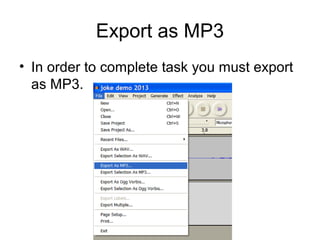
• In order to complete task you must export
as MP3.

Joke task

  • 1.
    You are goingto use Audacity to record two jokes for your Podcast. Your First Podcast using Audacity Using your jotters or scrap paper to plan two jokes you would like to tell the class.
  • 2.
    1. Click thered record button to record your joke, press the yellow square to stop. Make sure you have plugged in the microphone! Load Audacity from the start menu Start Recording your Jokes
  • 3.
    2. Select theproject menu and import audio. Navigate to G:FOR GROUPResourcesDepartments ComputingAudacityJoke And insert the canned laughter file Adding Laughter A joke is always better when someone laughs!
  • 4.
    Editing your track 3.You will now see the laughter track below your joke, if you press play the laughter will run on top of your joke! We need to edit audio and move laughter to the end of joke 4.Highlight the laughter section and select Edit and Cut
  • 5.
    Editing 5. Right clickat the end of your joke and select paste. You can remove canned laughter layer below joke by clicking the X.
  • 6.
    Adding Effects • Youmay wish to add special effects to disguise your voice. Experiment with some effects but make sure you can still understand what is being said. • Highlight your voice section and pick an effect from the effect menu. Remember to use UNDO if you change your mind!
  • 7.
    Export as MP3 •In order to complete task you must export as MP3.