
How to use Audacity  Aiden Yeh Wen Zao Ursuline College of Foreign Languages, Taiwan
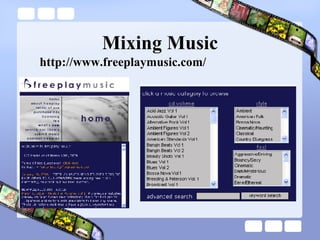
Mixing Music http://www.freeplaymusic.com/
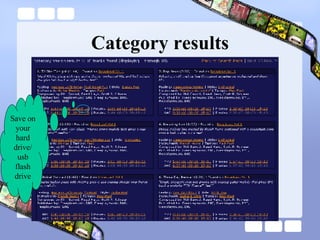
Category results Save on your hard drive/ usb flash drive
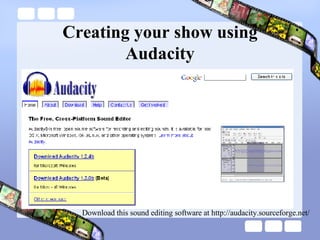
Creating your show using Audacity Download this sound editing software at  http://audacity.sourceforge.net/
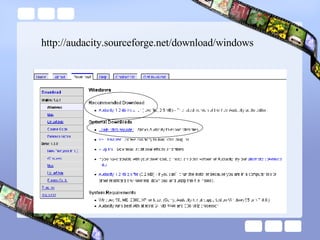
http://audacity.sourceforge.net/download/windows
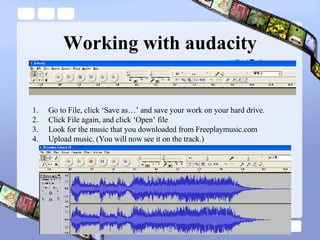
Working with audacity Go to File, click ‘Save as…’ and save your work on your hard drive. Click File again, and click ‘Open’ file Look for the music that you downloaded from Freeplaymusic.com Upload music. (You will now see it on the track.)
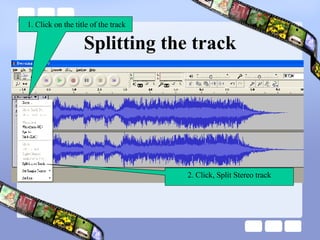
Splitting the track 1. Click on the title of the track 2. Click, Split Stereo track
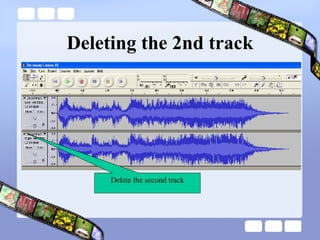
Deleting the 2nd track Delete the second track
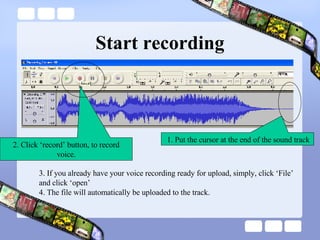
Start recording 2. Click ‘record’ button, to record voice. 1. Put the cursor at the end of the sound track 3. If you already have your voice recording ready for upload, simply, click ‘File’ and click ‘open’ 4. The file will automatically be uploaded to the track.
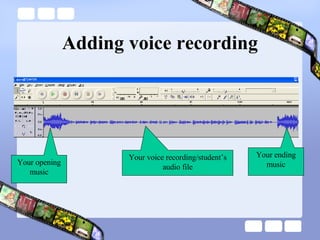
Adding voice recording Your opening music Your ending music Your voice recording/student’s audio file
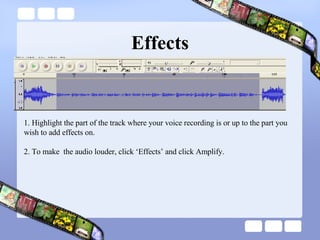
Effects 1. Highlight the part of the track where your voice recording is or up to the part you wish to add effects on. 2. To make  the audio louder, click ‘Effects’ and click Amplify.
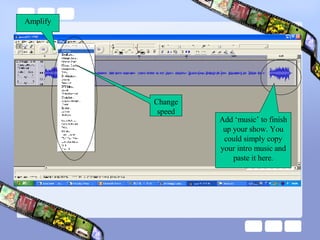
Amplify Change speed Add ‘music’ to finish up your show. You could simply copy your intro music and paste it here.
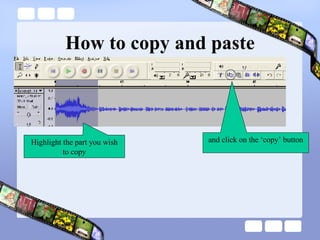
How to copy and paste Highlight the part you wish to copy and click on the ‘copy’ button
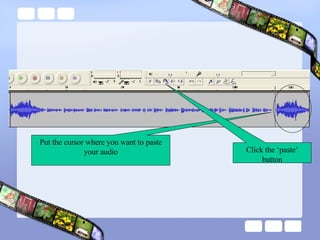
Put the cursor where you want to paste your audio Click the ‘paste’ button
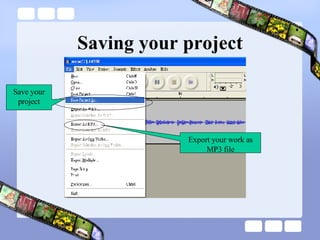
Saving your project Save your project Export your work as MP3 file
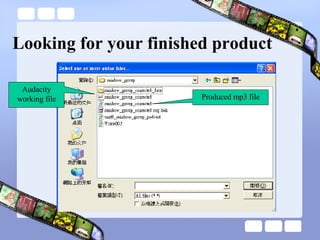
Looking for your finished product Audacity working file Produced mp3 file

Audacity

  • 1.
    How to useAudacity Aiden Yeh Wen Zao Ursuline College of Foreign Languages, Taiwan
  • 2.
  • 3.
    Category results Saveon your hard drive/ usb flash drive
  • 4.
    Creating your showusing Audacity Download this sound editing software at http://audacity.sourceforge.net/
  • 5.
  • 6.
    Working with audacityGo to File, click ‘Save as…’ and save your work on your hard drive. Click File again, and click ‘Open’ file Look for the music that you downloaded from Freeplaymusic.com Upload music. (You will now see it on the track.)
  • 7.
    Splitting the track1. Click on the title of the track 2. Click, Split Stereo track
  • 8.
    Deleting the 2ndtrack Delete the second track
  • 9.
    Start recording 2.Click ‘record’ button, to record voice. 1. Put the cursor at the end of the sound track 3. If you already have your voice recording ready for upload, simply, click ‘File’ and click ‘open’ 4. The file will automatically be uploaded to the track.
  • 10.
    Adding voice recordingYour opening music Your ending music Your voice recording/student’s audio file
  • 11.
    Effects 1. Highlightthe part of the track where your voice recording is or up to the part you wish to add effects on. 2. To make the audio louder, click ‘Effects’ and click Amplify.
  • 12.
    Amplify Change speedAdd ‘music’ to finish up your show. You could simply copy your intro music and paste it here.
  • 13.
    How to copyand paste Highlight the part you wish to copy and click on the ‘copy’ button
  • 14.
    Put the cursorwhere you want to paste your audio Click the ‘paste’ button
  • 15.
    Saving your projectSave your project Export your work as MP3 file
  • 16.
    Looking for yourfinished product Audacity working file Produced mp3 file