Rescue Mission Antonio Dallapè – 115401 Gabriele Baronti – 113188 Principles of Computer Graphics 2008 - 2009
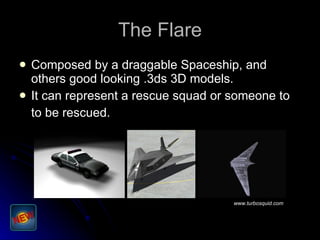
The Flare Composed by a draggable Spaceship, and others good looking .3ds 3D models. It can represent a rescue squad or someone to to be rescued. www.turbosquid.com
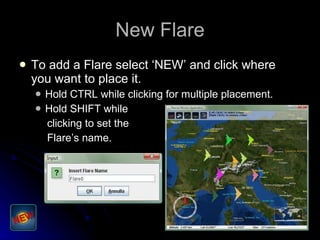
New Flare To add a Flare select ‘NEW’ and click where you want to place it. Hold CTRL while clicking for multiple placement. Hold SHIFT while clicking to set the Flare’s name.
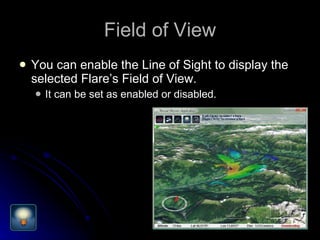
Field of View You can enable the Line of Sight to display the selected Flare’s Field of View. It can be set as enabled or disabled.
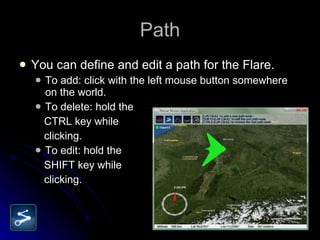
Path You can define and edit a path for the Flare. To add: click with the left mouse button somewhere on the world. To delete: hold the CTRL key while clicking. To edit: hold the  SHIFT key while clicking.
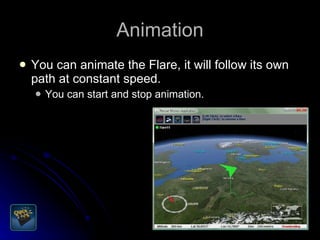
Animation You can animate the Flare, it will follow its own path at constant speed.  You can start and stop animation.
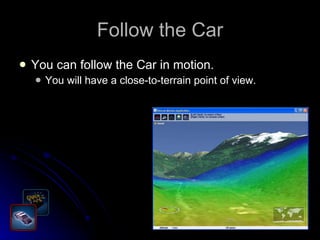
Follow the Car You can follow the Car in motion. You will have a close-to-terrain point of view.
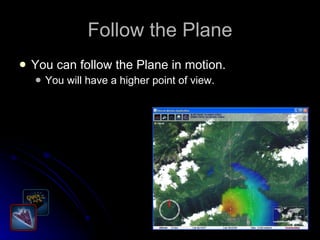
Follow the Plane You can follow the Plane in motion. You will have a higher point of view.
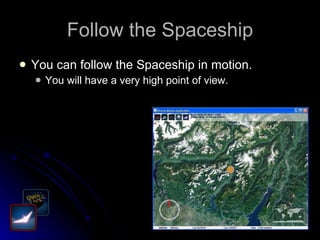
Follow the Spaceship You can follow the Spaceship in motion. You will have a very high point of view.
Save and Load You can save all the Flares (and the Paths) by pressing the S key. You can load the saved Flares by pressing the L key.
Car, Plane or Spaceship You can edit the Flare and show only the Car, the Plane, the Spaceship or all of them. Press 0 to show Car, Plane and Spaceship Press 1 to show only the Car Press 2 to show only the Plane Press 3 to show only the Spaceship

Rescue Mission

  • 1.
    Rescue Mission AntonioDallapè – 115401 Gabriele Baronti – 113188 Principles of Computer Graphics 2008 - 2009
  • 2.
    The Flare Composedby a draggable Spaceship, and others good looking .3ds 3D models. It can represent a rescue squad or someone to to be rescued. www.turbosquid.com
  • 3.
    New Flare Toadd a Flare select ‘NEW’ and click where you want to place it. Hold CTRL while clicking for multiple placement. Hold SHIFT while clicking to set the Flare’s name.
  • 4.
    Field of ViewYou can enable the Line of Sight to display the selected Flare’s Field of View. It can be set as enabled or disabled.
  • 5.
    Path You candefine and edit a path for the Flare. To add: click with the left mouse button somewhere on the world. To delete: hold the CTRL key while clicking. To edit: hold the SHIFT key while clicking.
  • 6.
    Animation You cananimate the Flare, it will follow its own path at constant speed. You can start and stop animation.
  • 7.
    Follow the CarYou can follow the Car in motion. You will have a close-to-terrain point of view.
  • 8.
    Follow the PlaneYou can follow the Plane in motion. You will have a higher point of view.
  • 9.
    Follow the SpaceshipYou can follow the Spaceship in motion. You will have a very high point of view.
  • 10.
    Save and LoadYou can save all the Flares (and the Paths) by pressing the S key. You can load the saved Flares by pressing the L key.
  • 11.
    Car, Plane orSpaceship You can edit the Flare and show only the Car, the Plane, the Spaceship or all of them. Press 0 to show Car, Plane and Spaceship Press 1 to show only the Car Press 2 to show only the Plane Press 3 to show only the Spaceship