Audacity to Podcast
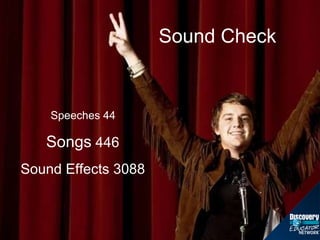
Sound Check Songs  446 Sound Effects 3088 Speeches 44
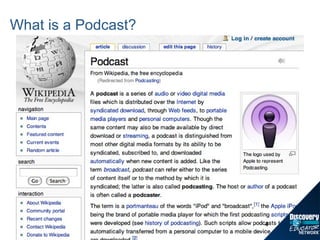
What is a Podcast?
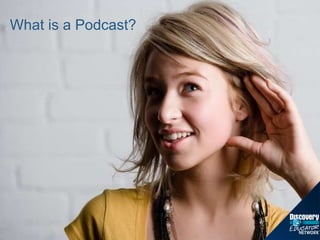
What is a Podcast?
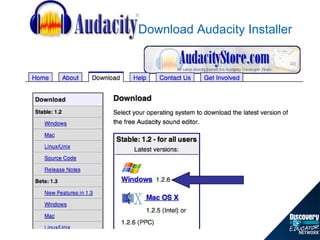
Download Audacity Installer
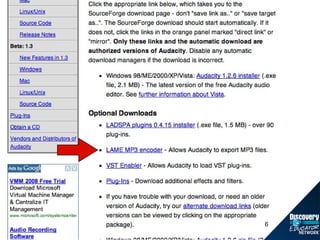
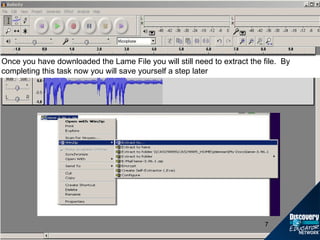
Once you have downloaded the Lame File you will still need to extract the file.  By completing this task now you will save yourself a step later
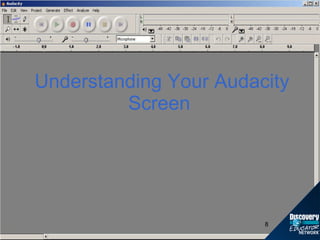
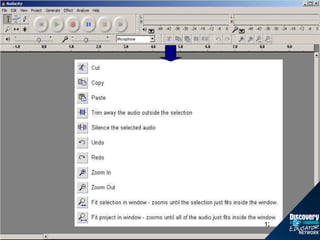
Understanding Your Audacity Screen
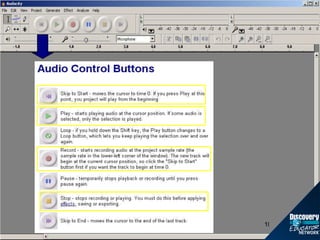
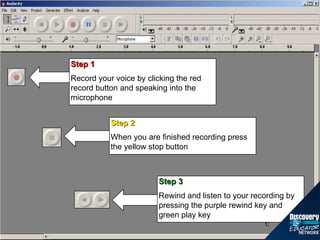
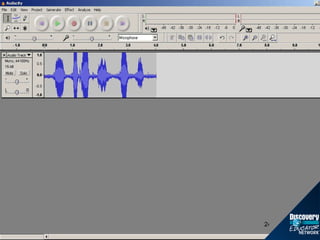
Step 3 Rewind and listen to your recording by pressing the purple rewind key and green play key Step 1 Record your voice by clicking the red record button and speaking into the microphone Step 2 When you are finished recording press the yellow stop button
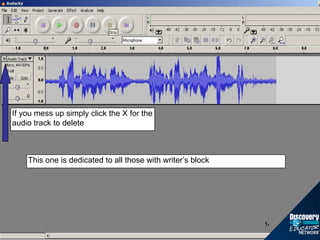
If you mess up simply click the X for the audio track to delete This one is dedicated to all those with writer’s block
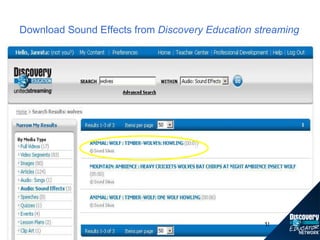
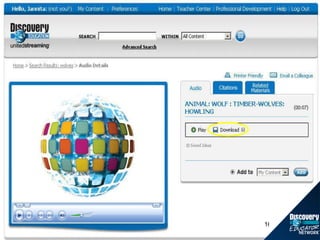
Download Sound Effects from  Discovery Education streaming
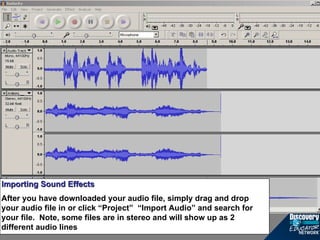
Importing Sound Effects After you have downloaded your audio file, simply drag and drop your audio file in or click “Project”  “Import Audio” and search for your file.  Note, some files are in stereo and will show up as 2 different audio lines
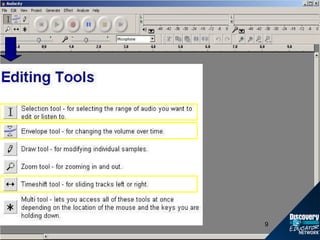
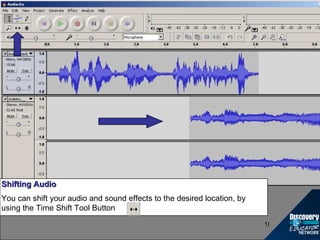
Shifting Audio You can shift your audio and sound effects to the desired location, by using the Time Shift Tool Button
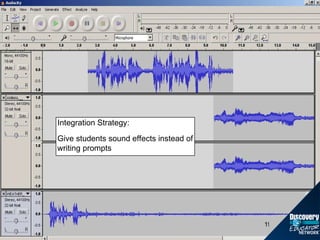
Integration Strategy: Give students sound effects instead of writing prompts
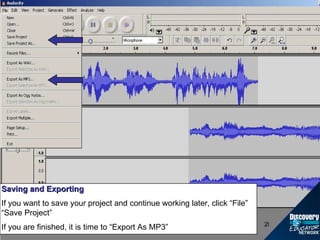
Saving and Exporting If you want to save your project and continue working later, click “File” “Save Project” If you are finished, it is time to “Export As MP3”
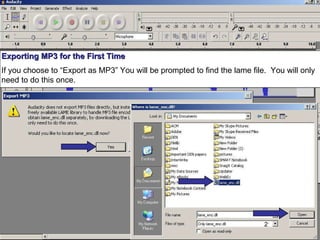
Exporting MP3 for the First Time If you choose to “Export as MP3” You will be prompted to find the lame file.  You will only need to do this once.
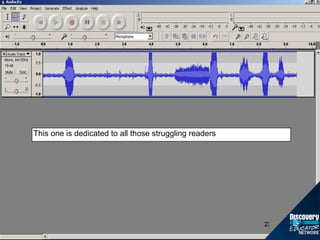
This one is dedicated to all those struggling readers
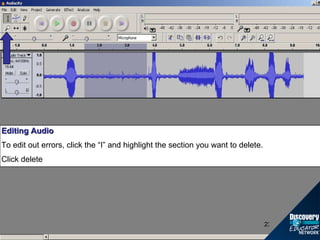
Editing Audio To edit out errors, click the “I” and highlight the section you want to delete. Click delete
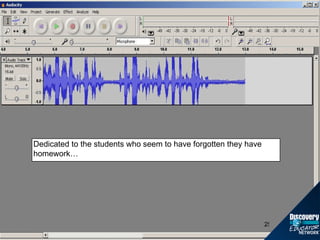
Dedicated to the students who seem to have forgotten they have homework…
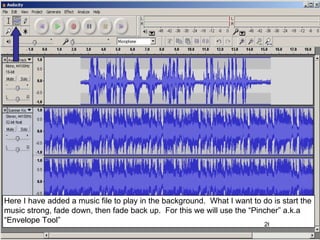
Here I have added a music file to play in the background.  What I want to do is start the music strong, fade down, then fade back up.  For this we will use the “Pincher” a.k.a “Envelope Tool”
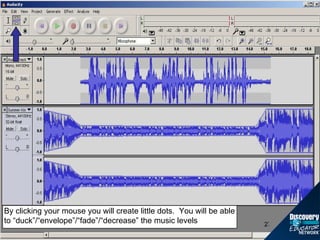
By clicking your mouse you will create little dots.  You will be able to “duck”/“envelope”/“fade”/“decrease” the music levels
Where to upload your podcasts for free…. Audio Podcasts www.gcast.com Phone In No ads www.podomatic.com www.odeo.com
Additional Resources Sounds & Sound Effects http://www.findsounds.com/  http://www.smartsound.com/  http://www.naturesongs.com/  http://soundamerica.com/  Videos http://www.kitzu.org/ http://www.archive.org/index.php http://memory.loc.gov/ammem/index.html Pictures www.pics4learning.com Music www.garageband.com http://freesound.iua.upf.edu/ http://ccmixter.org/ Speeches and Narrations http://www.historychannel.com/speeches/archive1.html  http://www.pbs.org/greatspeeches/timeline/  http://www.archive.org/index.php www.librivox.org www.gutenberg.org http://creativecommons.org/audio In addition to the great resources provided by Discovery  streaming   these other resources are exemplary media sites.
Listen Up Classroom Examples Room 208 ( http://bobsprankle.com/blog/ ) Radio Willow Web ( http://www.mpsomaha.org/willow/radio/ ) TechSavvy Girls ( http://web.mac.com/tntnzing/iWeb/techsavvygirlz/Podcasts/Podcasts.html )  Teachers Sharing Women of Web 2.0 ( http://www.womenofweb2.com/ )  Teach42 ( http://www.teach42.com/ )  Grammar Girls ( http://grammar.qdnow.com/ )

Audacity To Podcast

  • 1.
  • 2.
    Sound Check Songs 446 Sound Effects 3088 Speeches 44
  • 3.
    What is aPodcast?
  • 4.
    What is aPodcast?
  • 5.
  • 7.
    Once you havedownloaded the Lame File you will still need to extract the file. By completing this task now you will save yourself a step later
  • 8.
  • 13.
    Step 3 Rewindand listen to your recording by pressing the purple rewind key and green play key Step 1 Record your voice by clicking the red record button and speaking into the microphone Step 2 When you are finished recording press the yellow stop button
  • 14.
    If you messup simply click the X for the audio track to delete This one is dedicated to all those with writer’s block
  • 15.
    Download Sound Effectsfrom Discovery Education streaming
  • 17.
    Importing Sound EffectsAfter you have downloaded your audio file, simply drag and drop your audio file in or click “Project” “Import Audio” and search for your file. Note, some files are in stereo and will show up as 2 different audio lines
  • 18.
    Shifting Audio Youcan shift your audio and sound effects to the desired location, by using the Time Shift Tool Button
  • 19.
    Integration Strategy: Givestudents sound effects instead of writing prompts
  • 20.
    Saving and ExportingIf you want to save your project and continue working later, click “File” “Save Project” If you are finished, it is time to “Export As MP3”
  • 21.
    Exporting MP3 forthe First Time If you choose to “Export as MP3” You will be prompted to find the lame file. You will only need to do this once.
  • 22.
    This one isdedicated to all those struggling readers
  • 23.
    Editing Audio Toedit out errors, click the “I” and highlight the section you want to delete. Click delete
  • 25.
    Dedicated to thestudents who seem to have forgotten they have homework…
  • 26.
    Here I haveadded a music file to play in the background. What I want to do is start the music strong, fade down, then fade back up. For this we will use the “Pincher” a.k.a “Envelope Tool”
  • 27.
    By clicking yourmouse you will create little dots. You will be able to “duck”/“envelope”/“fade”/“decrease” the music levels
  • 28.
    Where to uploadyour podcasts for free…. Audio Podcasts www.gcast.com Phone In No ads www.podomatic.com www.odeo.com
  • 29.
    Additional Resources Sounds& Sound Effects http://www.findsounds.com/ http://www.smartsound.com/ http://www.naturesongs.com/ http://soundamerica.com/ Videos http://www.kitzu.org/ http://www.archive.org/index.php http://memory.loc.gov/ammem/index.html Pictures www.pics4learning.com Music www.garageband.com http://freesound.iua.upf.edu/ http://ccmixter.org/ Speeches and Narrations http://www.historychannel.com/speeches/archive1.html http://www.pbs.org/greatspeeches/timeline/ http://www.archive.org/index.php www.librivox.org www.gutenberg.org http://creativecommons.org/audio In addition to the great resources provided by Discovery streaming these other resources are exemplary media sites.
  • 30.
    Listen Up ClassroomExamples Room 208 ( http://bobsprankle.com/blog/ ) Radio Willow Web ( http://www.mpsomaha.org/willow/radio/ ) TechSavvy Girls ( http://web.mac.com/tntnzing/iWeb/techsavvygirlz/Podcasts/Podcasts.html ) Teachers Sharing Women of Web 2.0 ( http://www.womenofweb2.com/ ) Teach42 ( http://www.teach42.com/ ) Grammar Girls ( http://grammar.qdnow.com/ )