How to Use Sibelius
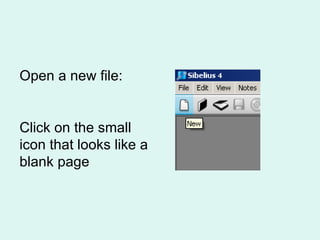
Open a new file: Click on the small icon that looks like a blank page
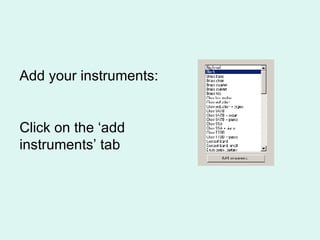
Add your instruments: Click on the ‘add instruments’ tab
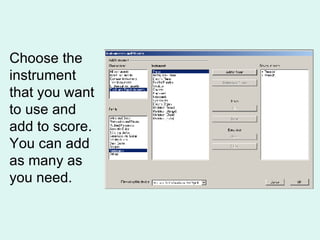
Choose the instrument that you want to use and add to score. You can add as many as you need.
Keep clicking OK, until it gives you the option to finish. You should add a title to your piece when it gives you the option to do so.
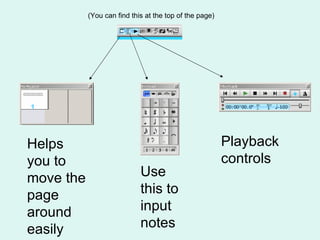
(You can find this at the top of the page) Helps you to move the page around easily Use this to input notes Playback controls
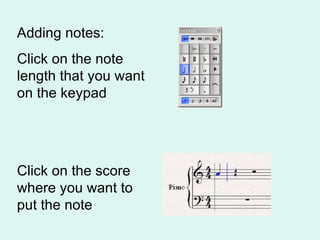
Adding notes: Click on the note length that you want on the keypad Click on the score where you want to put the note
Don’t forget!!! When the cursor is blue it will add something to the score every time you click your mouse button Press ‘escape’ and the cursor will return to white, enabling you to move the page and notes
NO SOUND?!! Headphones plugged in? Volume turned up next to headphone socket? Computer volume turned up? Still no sound? Then read on!
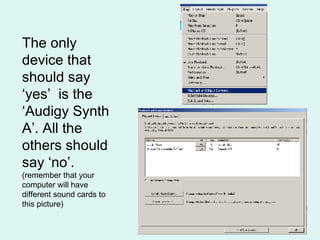
The only device that should say ‘yes’  is the ‘Audigy Synth A’. All the others should say ‘no’.  (remember that your computer will have different sound cards to this picture)
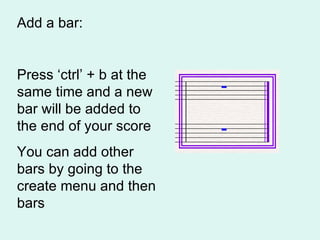
Add a bar: Press ‘ctrl’ + b at the same time and a new bar will be added to the end of your score You can add other bars by going to the create menu and then bars
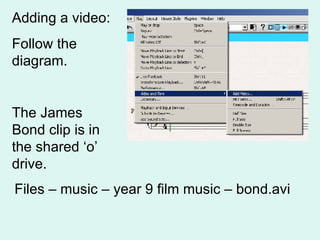
Adding a video: Follow the diagram. The James Bond clip is in the shared ‘o’ drive. Files – music – year 9 film music – bond.avi
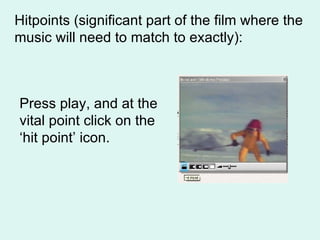
Hitpoints (significant part of the film where the music will need to match to exactly): Press play, and at the vital point click on the ‘hit point’ icon.
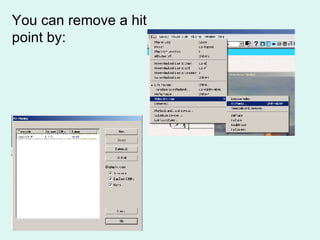
You can remove a hit point by:
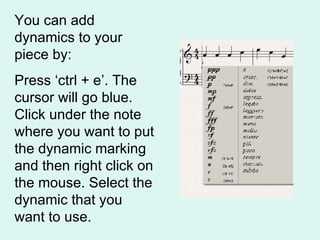
You can add dynamics to your piece by: Press ‘ctrl + e’. The cursor will go blue. Click under the note where you want to put the dynamic marking and then right click on the mouse. Select the dynamic that you want to use.
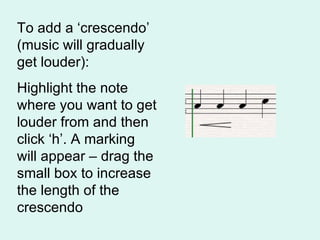
To add a ‘crescendo’ (music will gradually get louder): Highlight the note where you want to get louder from and then click ‘h’. A marking will appear – drag the small box to increase the length of the crescendo
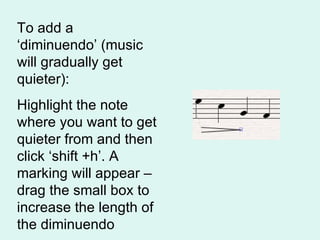
To add a ‘diminuendo’ (music will gradually get quieter): Highlight the note where you want to get quieter from and then click ‘shift +h’. A marking will appear – drag the small box to increase the length of the diminuendo

Yr9fmpsib

  • 1.
    How to UseSibelius
  • 2.
    Open a newfile: Click on the small icon that looks like a blank page
  • 3.
    Add your instruments:Click on the ‘add instruments’ tab
  • 4.
    Choose the instrumentthat you want to use and add to score. You can add as many as you need.
  • 5.
    Keep clicking OK,until it gives you the option to finish. You should add a title to your piece when it gives you the option to do so.
  • 6.
    (You can findthis at the top of the page) Helps you to move the page around easily Use this to input notes Playback controls
  • 7.
    Adding notes: Clickon the note length that you want on the keypad Click on the score where you want to put the note
  • 8.
    Don’t forget!!! Whenthe cursor is blue it will add something to the score every time you click your mouse button Press ‘escape’ and the cursor will return to white, enabling you to move the page and notes
  • 9.
    NO SOUND?!! Headphonesplugged in? Volume turned up next to headphone socket? Computer volume turned up? Still no sound? Then read on!
  • 10.
    The only devicethat should say ‘yes’ is the ‘Audigy Synth A’. All the others should say ‘no’. (remember that your computer will have different sound cards to this picture)
  • 11.
    Add a bar:Press ‘ctrl’ + b at the same time and a new bar will be added to the end of your score You can add other bars by going to the create menu and then bars
  • 12.
    Adding a video:Follow the diagram. The James Bond clip is in the shared ‘o’ drive. Files – music – year 9 film music – bond.avi
  • 13.
    Hitpoints (significant partof the film where the music will need to match to exactly): Press play, and at the vital point click on the ‘hit point’ icon.
  • 14.
    You can removea hit point by:
  • 15.
    You can adddynamics to your piece by: Press ‘ctrl + e’. The cursor will go blue. Click under the note where you want to put the dynamic marking and then right click on the mouse. Select the dynamic that you want to use.
  • 16.
    To add a‘crescendo’ (music will gradually get louder): Highlight the note where you want to get louder from and then click ‘h’. A marking will appear – drag the small box to increase the length of the crescendo
  • 17.
    To add a‘diminuendo’ (music will gradually get quieter): Highlight the note where you want to get quieter from and then click ‘shift +h’. A marking will appear – drag the small box to increase the length of the diminuendo