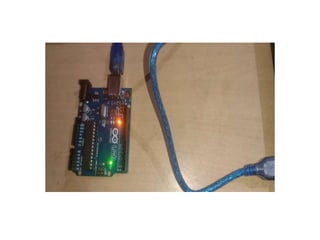
Introduction to Arduino
By
Sana Mateen
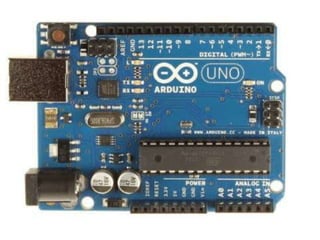
Arduino UNO
• The Arduino UNO is a standard board of
Arduino. Here UNO means 'one' in Italian.
• Arduino UNO is based on an
ATmega328P microcontroller.
• It is easy to use compared to other boards,
such as the Arduino Mega board, etc.
• The board consists of digital and analog
Input/Output pins (I/O), shields, and other
circuits.
• It is programmed based on IDE, which stands
for Integrated Development Environment. It
can run on both online and offline platforms.
• The IDE is common to all available boards of
Arduino.
The components of Arduino UNO board
• ATmega328 Microcontroller- It is a single chip
Microcontroller of the ATmel family. The processor
code inside it is of 8-bit. It combines Memory (SRAM,
EEPROM, and Flash), Analog to Digital Converter, SPI
serial ports, I/O lines, registers, timer, external and
internal interrupts, and oscillator.
• ICSP pin - The In-Circuit Serial Programming pin allows
the user to program using the firmware of the Arduino
board.
• Power LED Indicator- The ON status of LED shows the
power is activated. When the power is OFF, the LED will
not light up.
• Digital I/O pins- The digital pins have the value HIGH or
LOW. The pins numbered from D0 to D13 are digital
pins.
• TX and RX LED's- The successful flow of data is
represented by the lighting of these LED's.
• AREF- The Analog Reference (AREF) pin is used
to feed a reference voltage to the Arduino
UNO board from the external power supply.
• Reset button- It is used to add a Reset button
to the connection.
• USB- It allows the board to connect to the
computer. It is essential for the programming
of the Arduino UNO board.
• Crystal Oscillator- The Crystal oscillator has a
frequency of 16MHz, which makes the Arduino
UNO a powerful board.
• Voltage Regulator- The voltage regulator
converts the input voltage to 5V.
• GND- Ground pins. The ground pin acts as a pin
with zero voltage.
• Vin- It is the input voltage.
• Analog Pins- The pins numbered from A0 to A5
are analog pins. The function of Analog pins is to
read the analog sensor used in the connection. It
can also act as GPIO (General Purpose Input
Output) pins.
• We can program the Arduino UNO using the
Arduino IDE. The Arduino IDE is the Integral
Development program, which is common to all
the boards.
• We can also use Arduino Web Editor, which
allows us to upload sketches and write the code
from our web browser (Google Chrome
recommended) to any Arduino Board. It is an
online platform.
• The USB connection is essential to connect the
computer with the board. After the connection,
the PWR pins will light in green. It is a green
power LED.
Steps
• The steps to get started with Arduino UNO are
listed below:
• Install the drivers of the board.
• As soon we connect the board to the
computer, Windows from XP to 10 will
automatically install the board drivers.
• But, if you have expanded or downloaded the
zip package, follow the below steps:
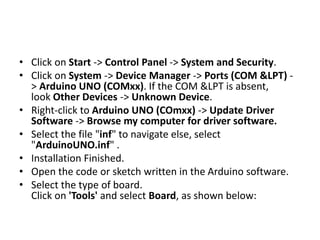
• Click on Start -> Control Panel -> System and Security.
• Click on System -> Device Manager -> Ports (COM &LPT) -
> Arduino UNO (COMxx). If the COM &LPT is absent,
look Other Devices -> Unknown Device.
• Right-click to Arduino UNO (COmxx) -> Update Driver
Software -> Browse my computer for driver software.
• Select the file "inf" to navigate else, select
"ArduinoUNO.inf" .
• Installation Finished.
• Open the code or sketch written in the Arduino software.
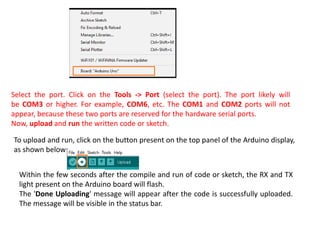
• Select the type of board.
Click on 'Tools' and select Board, as shown below:
Select the port. Click on the Tools -> Port (select the port). The port likely will
be COM3 or higher. For example, COM6, etc. The COM1 and COM2 ports will not
appear, because these two ports are reserved for the hardware serial ports.
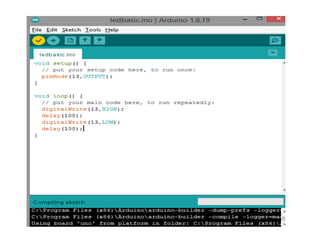
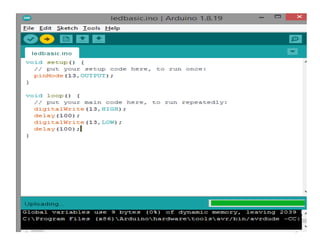
Now, upload and run the written code or sketch.
To upload and run, click on the button present on the top panel of the Arduino display,
as shown below:
Within the few seconds after the compile and run of code or sketch, the RX and TX
light present on the Arduino board will flash.
The 'Done Uploading' message will appear after the code is successfully uploaded.
The message will be visible in the status bar.
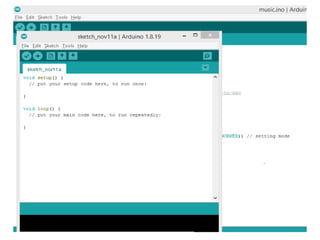
What is Setup? What type of code is
written in the setup block?
• It contains an initial part of the code to be
executed.
• The pin modes, libraries, variables, etc., are
initialized in the setup section.
• It is executed only once during the uploading
of the program and after reset or power up of
the Arduino board.
What is Loop? What type of code is
written in the Loop block?
• The loop contains statements that are
executed repeatedly.
• The section of code inside the curly brackets is
repeated depending on the value of variables.
Time in Arduino
• The time in Arduino programming is measured
in a millisecond.
• Where, 1 sec = 1000 milliseconds
• We can adjust the timing according to the
milliseconds.
• For example, for a 5-second delay, the time
displayed will be 5000 milliseconds.
• pinMode ( )
• The specific pin number is set as the INPUT or OUTPUT
in the pinMode () function.
• The Syntax is: pinMode (pin, mode)
• Where,
• pin: It is the pin number. We can select the pin
number according to the requirements.
• Mode: We can set the mode as INPUT or OUTPUT
according to the corresponding pin number.
• Example: We want to set the 13 pin number as the
output pin.
• Code:
• pinMode (13, OUTPUT);
• digitalWrite( )
• The digitalWrite ( ) function is used to set the value of a
pin as HIGH or LOW.
• Where,
• HIGH: It sets the value of the voltage. For the 5V board,
it will set the value of 5V, while for 3.3V, it will set the
value of 3.3V.
• LOW: It sets the value = 0 (GND).
• If we do not set the pinMode as OUTPUT, the LED
may light dim.
• The syntax is: digitalWrite( pin, value HIGH/LOW)
• pin: We can specify the pin number or the declared
variable.
• Let's understand with an example.
• Example:
• digitalWrite (13, HIGH);
• digitalWrite (13, LOW);
• The HIGH will ON the LED and LOW will OFF
the LED connected to pin number 13.
• What is the difference between digitalRead ()
and digitalWrite ()?
• The digitalRead () function will read the
HIGH/LOW value from the digital pin, and the
digitalWrite () function is used to set the
HIGH/LOW value of the digital pin.
• delay ( )
• The delay () function is a blocking function to
pause a program from doing a task during the
specified duration in milliseconds.
• For example, - delay (2000)
• Where, 1 sec = 1000millisecond
IOT ARDUINO UNO.pptx

IOT ARDUINO UNO.pptx

  • 1.
  • 2.
    Arduino UNO • TheArduino UNO is a standard board of Arduino. Here UNO means 'one' in Italian. • Arduino UNO is based on an ATmega328P microcontroller. • It is easy to use compared to other boards, such as the Arduino Mega board, etc. • The board consists of digital and analog Input/Output pins (I/O), shields, and other circuits.
  • 3.
    • It isprogrammed based on IDE, which stands for Integrated Development Environment. It can run on both online and offline platforms. • The IDE is common to all available boards of Arduino.
  • 5.
    The components ofArduino UNO board
  • 6.
    • ATmega328 Microcontroller-It is a single chip Microcontroller of the ATmel family. The processor code inside it is of 8-bit. It combines Memory (SRAM, EEPROM, and Flash), Analog to Digital Converter, SPI serial ports, I/O lines, registers, timer, external and internal interrupts, and oscillator. • ICSP pin - The In-Circuit Serial Programming pin allows the user to program using the firmware of the Arduino board. • Power LED Indicator- The ON status of LED shows the power is activated. When the power is OFF, the LED will not light up. • Digital I/O pins- The digital pins have the value HIGH or LOW. The pins numbered from D0 to D13 are digital pins.
  • 7.
    • TX andRX LED's- The successful flow of data is represented by the lighting of these LED's. • AREF- The Analog Reference (AREF) pin is used to feed a reference voltage to the Arduino UNO board from the external power supply. • Reset button- It is used to add a Reset button to the connection. • USB- It allows the board to connect to the computer. It is essential for the programming of the Arduino UNO board.
  • 8.
    • Crystal Oscillator-The Crystal oscillator has a frequency of 16MHz, which makes the Arduino UNO a powerful board. • Voltage Regulator- The voltage regulator converts the input voltage to 5V. • GND- Ground pins. The ground pin acts as a pin with zero voltage. • Vin- It is the input voltage. • Analog Pins- The pins numbered from A0 to A5 are analog pins. The function of Analog pins is to read the analog sensor used in the connection. It can also act as GPIO (General Purpose Input Output) pins.
  • 9.
    • We canprogram the Arduino UNO using the Arduino IDE. The Arduino IDE is the Integral Development program, which is common to all the boards. • We can also use Arduino Web Editor, which allows us to upload sketches and write the code from our web browser (Google Chrome recommended) to any Arduino Board. It is an online platform. • The USB connection is essential to connect the computer with the board. After the connection, the PWR pins will light in green. It is a green power LED.
  • 10.
    Steps • The stepsto get started with Arduino UNO are listed below: • Install the drivers of the board. • As soon we connect the board to the computer, Windows from XP to 10 will automatically install the board drivers. • But, if you have expanded or downloaded the zip package, follow the below steps:
  • 11.
    • Click onStart -> Control Panel -> System and Security. • Click on System -> Device Manager -> Ports (COM &LPT) - > Arduino UNO (COMxx). If the COM &LPT is absent, look Other Devices -> Unknown Device. • Right-click to Arduino UNO (COmxx) -> Update Driver Software -> Browse my computer for driver software. • Select the file "inf" to navigate else, select "ArduinoUNO.inf" . • Installation Finished. • Open the code or sketch written in the Arduino software. • Select the type of board. Click on 'Tools' and select Board, as shown below:
  • 12.
    Select the port.Click on the Tools -> Port (select the port). The port likely will be COM3 or higher. For example, COM6, etc. The COM1 and COM2 ports will not appear, because these two ports are reserved for the hardware serial ports. Now, upload and run the written code or sketch. To upload and run, click on the button present on the top panel of the Arduino display, as shown below: Within the few seconds after the compile and run of code or sketch, the RX and TX light present on the Arduino board will flash. The 'Done Uploading' message will appear after the code is successfully uploaded. The message will be visible in the status bar.
  • 14.
    What is Setup?What type of code is written in the setup block? • It contains an initial part of the code to be executed. • The pin modes, libraries, variables, etc., are initialized in the setup section. • It is executed only once during the uploading of the program and after reset or power up of the Arduino board.
  • 15.
    What is Loop?What type of code is written in the Loop block? • The loop contains statements that are executed repeatedly. • The section of code inside the curly brackets is repeated depending on the value of variables.
  • 16.
    Time in Arduino •The time in Arduino programming is measured in a millisecond. • Where, 1 sec = 1000 milliseconds • We can adjust the timing according to the milliseconds. • For example, for a 5-second delay, the time displayed will be 5000 milliseconds.
  • 19.
    • pinMode () • The specific pin number is set as the INPUT or OUTPUT in the pinMode () function. • The Syntax is: pinMode (pin, mode) • Where, • pin: It is the pin number. We can select the pin number according to the requirements. • Mode: We can set the mode as INPUT or OUTPUT according to the corresponding pin number. • Example: We want to set the 13 pin number as the output pin. • Code: • pinMode (13, OUTPUT);
  • 20.
    • digitalWrite( ) •The digitalWrite ( ) function is used to set the value of a pin as HIGH or LOW. • Where, • HIGH: It sets the value of the voltage. For the 5V board, it will set the value of 5V, while for 3.3V, it will set the value of 3.3V. • LOW: It sets the value = 0 (GND). • If we do not set the pinMode as OUTPUT, the LED may light dim. • The syntax is: digitalWrite( pin, value HIGH/LOW) • pin: We can specify the pin number or the declared variable.
  • 21.
    • Let's understandwith an example. • Example: • digitalWrite (13, HIGH); • digitalWrite (13, LOW); • The HIGH will ON the LED and LOW will OFF the LED connected to pin number 13.
  • 22.
    • What isthe difference between digitalRead () and digitalWrite ()? • The digitalRead () function will read the HIGH/LOW value from the digital pin, and the digitalWrite () function is used to set the HIGH/LOW value of the digital pin.
  • 23.
    • delay () • The delay () function is a blocking function to pause a program from doing a task during the specified duration in milliseconds. • For example, - delay (2000) • Where, 1 sec = 1000millisecond