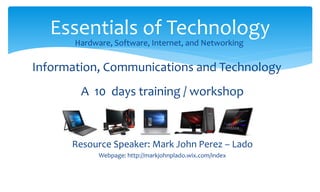
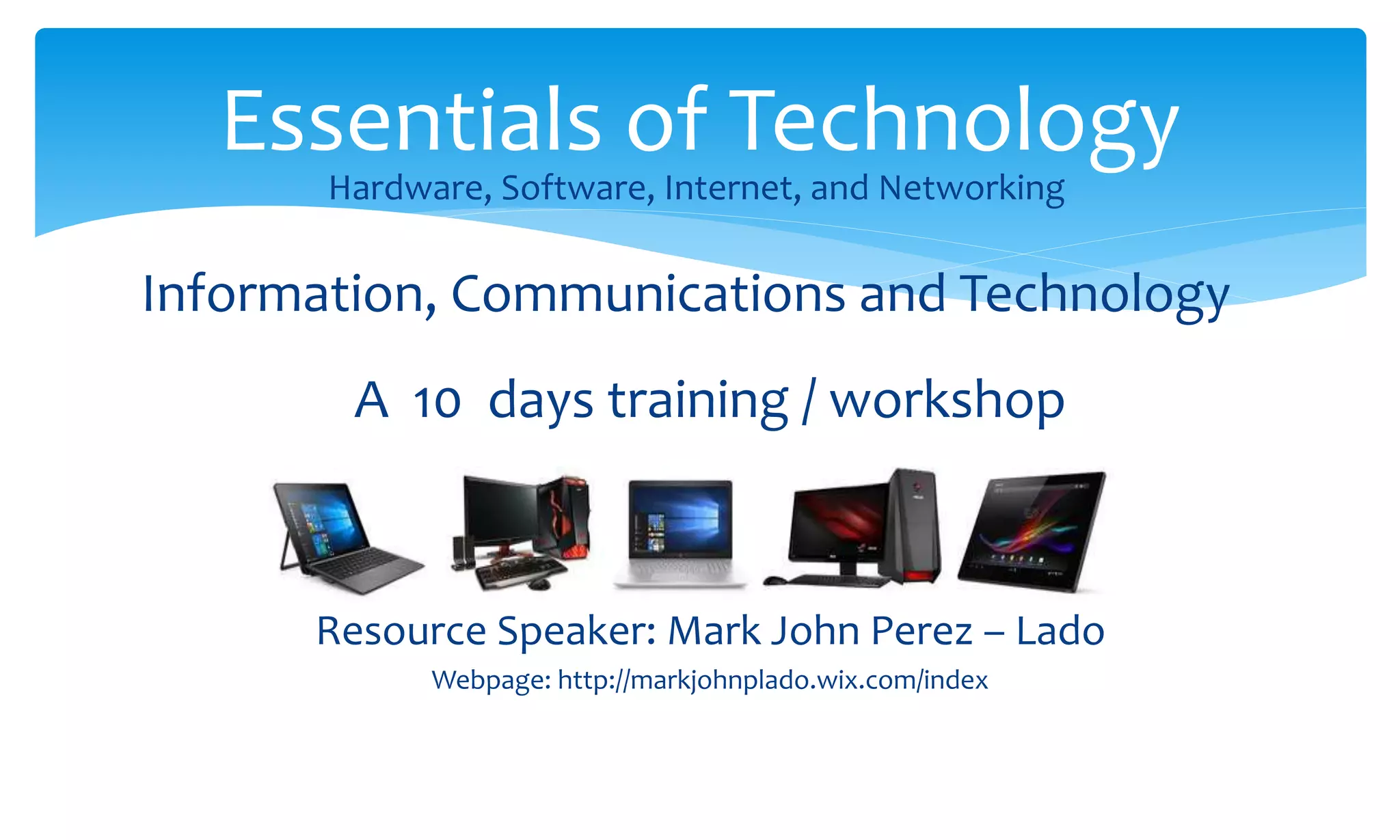
A 10 days training / workshop
Resource Speaker: Mark John Perez – Lado
Webpage: http://markjohnplado.wix.com/index
Essentials of Technology
Hardware, Software, Internet, and Networking
Information, Communications and Technology
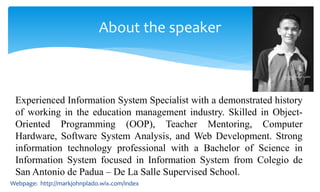
Experienced Information System Specialist with a demonstrated history
of working in the education management industry. Skilled in Object-
Oriented Programming (OOP), Teacher Mentoring, Computer
Hardware, Software System Analysis, and Web Development. Strong
information technology professional with a Bachelor of Science in
Information System focused in Information System from Colegio de
San Antonio de Padua – De La Salle Supervised School.
About the speaker
Webpage: http://markjohnplado.wix.com/index
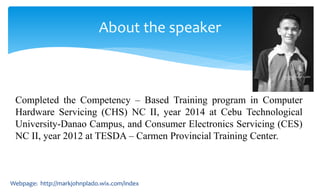
Completed the Competency – Based Training program in Computer
Hardware Servicing (CHS) NC II, year 2014 at Cebu Technological
University-Danao Campus, and Consumer Electronics Servicing (CES)
NC II, year 2012 at TESDA – Carmen Provincial Training Center.
About the speaker
Webpage: http://markjohnplado.wix.com/index
Former Jobs:
• Full time IT administrator / computer teacher
Carmen Christian School Inc. (2017 – 2018)
• Part-time college IT Instructor
University of the Visayas – Danao Campus (2017 – 2018)
• Part-time college Engineering, and Information System Instructor
CSAP – Guinsay, Danao City (2017 – 2018)
About the speaker
Webpage: http://markjohnplado.wix.com/index
Contact Information:
Email: markjohnplado@gmail.com
Webpage:http://markjohnplado.wix.com/index
Mobile: (0920) 297 - 8338
About the speaker
 Familiarize yourself with characteristics of computers
 Identify the basic components of a computer
 Explain the importance of various units of a computer
 Differentiate between system software and application
software
 Explain the importance of operating system
 Know the internal parts of the system unit.
 Get acquainted in the elements of computer system.
Day 1 - Objectives
An electronic device that stores and
manipulates information. It is maybe in
the form of text, graphics, video, or
sounds. The instructions that direct the
computer are called software or
computer program.
Computer Definition
A computer is a programmable machine
designed to perform arithmetic and logical
operations automatically and sequentially
on the input given by the user and gives the
desired output after processing.
Computer Definition
Computer components are divided into two
major categories namely hardware and
software. Hardware is the machine itself and its
connected devices such as monitor, keyboard,
mouse and etc. Software are the set of
programs that make use of hardware for
performing various functions.
Computer Definition
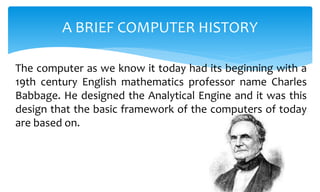
The computer as we know it today had its beginning with a
19th century English mathematics professor name Charles
Babbage. He designed the Analytical Engine and it was this
design that the basic framework of the computers of today
are based on.
A BRIEF COMPUTER HISTORY
Generally speaking, computers can be classified into
three generations. Each generation lasted for a
certain period of time, and each gave us either a new
and improved computer or an improvement to the
existing computer.
A BRIEF COMPUTER HISTORY
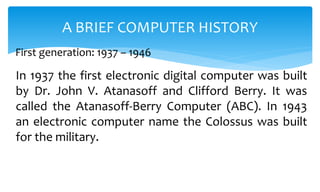
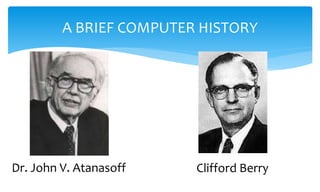
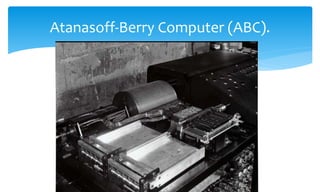
In 1937 the first electronic digital computer was built
by Dr. John V. Atanasoff and Clifford Berry. It was
called the Atanasoff-Berry Computer (ABC). In 1943
an electronic computer name the Colossus was built
for the military.
A BRIEF COMPUTER HISTORY
First generation: 1937 – 1946
A BRIEF COMPUTER HISTORY
Dr. John V. Atanasoff Clifford Berry
Atanasoff-Berry Computer (ABC).
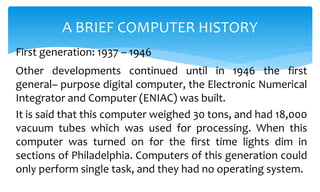
Other developments continued until in 1946 the first
general– purpose digital computer, the Electronic Numerical
Integrator and Computer (ENIAC) was built.
It is said that this computer weighed 30 tons, and had 18,000
vacuum tubes which was used for processing. When this
computer was turned on for the first time lights dim in
sections of Philadelphia. Computers of this generation could
only perform single task, and they had no operating system.
A BRIEF COMPUTER HISTORY
First generation: 1937 – 1946
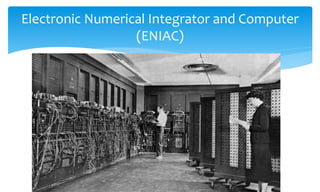
Electronic Numerical Integrator and Computer
(ENIAC)
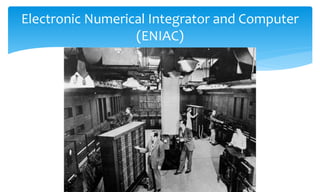
Electronic Numerical Integrator and Computer
(ENIAC)
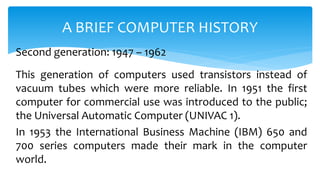
This generation of computers used transistors instead of
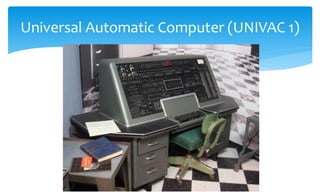
vacuum tubes which were more reliable. In 1951 the first
computer for commercial use was introduced to the public;
the Universal Automatic Computer (UNIVAC 1).
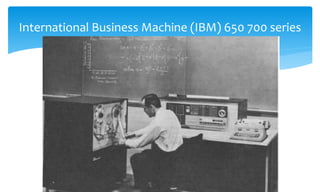
In 1953 the International Business Machine (IBM) 650 and
700 series computers made their mark in the computer
world.
A BRIEF COMPUTER HISTORY
Second generation: 1947 – 1962
Universal Automatic Computer (UNIVAC 1)
International Business Machine (IBM) 650 700 series
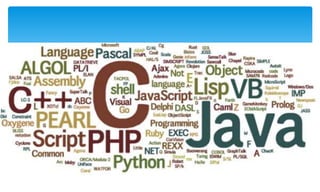
During this generation of computers over 100 computer
programming languages were developed, computers had
memory and operating systems.
Storage media such as tape and disk were in use also were
printers for output.
A BRIEF COMPUTER HISTORY
Second generation: 1947 – 1962
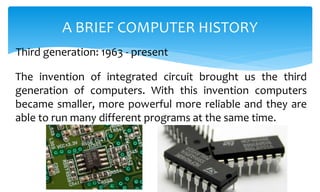
The invention of integrated circuit brought us the third
generation of computers. With this invention computers
became smaller, more powerful more reliable and they are
able to run many different programs at the same time.
A BRIEF COMPUTER HISTORY
Third generation: 1963 - present
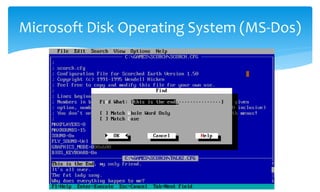
In 1980 Microsoft Disk Operating System (MS-Dos) was born
and in 1981 IBM introduced the personal computer (PC) for
home and office use.
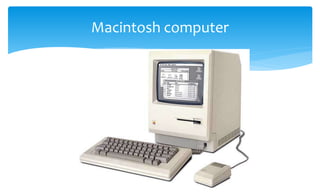
Three years later Apple gave us the Macintosh computer
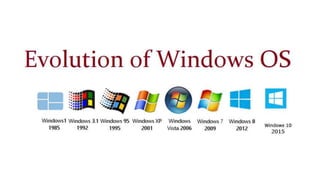
with its icon driven interface and the 90s gave us Windows
operating system.
A BRIEF COMPUTER HISTORY
Third generation: 1963 - present
Microsoft Disk Operating System (MS-Dos)
Apple Logo and Windows Logo
Macintosh computer
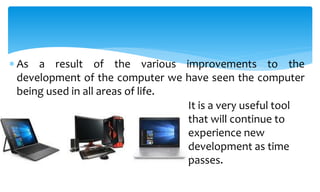
 As a result of the various improvements to the
development of the computer we have seen the computer
being used in all areas of life.
It is a very useful tool
that will continue to
experience new
development as time
passes.
Computers are usually categories into three general categories:
COMPUTER FUNDAMENTALS
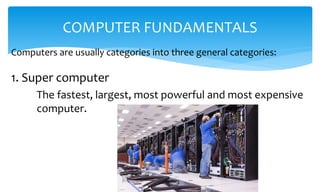
1. Super computer
The fastest, largest, most powerful and most expensive
computer.
Computers are usually categories into three general categories:
COMPUTER FUNDAMENTALS
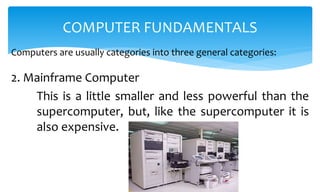
2. Mainframe Computer
This is a little smaller and less powerful than the
supercomputer, but, like the supercomputer it is
also expensive.
Computers are usually categories into three general categories:
COMPUTER FUNDAMENTALS
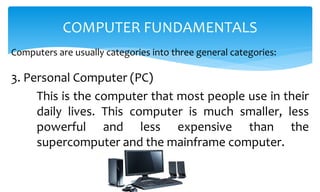
3. Personal Computer (PC)
This is the computer that most people use in their
daily lives. This computer is much smaller, less
powerful and less expensive than the
supercomputer and the mainframe computer.
There are two main types of personal computers.
Macintosh (Macs) and the PC compatibles (PC). The main
differences between the two are the operating systems and
the processor they use.
This category of computer has two additional types of
computers. These are mobile computer and handheld
computer.
COMPUTER FUNDAMENTALS
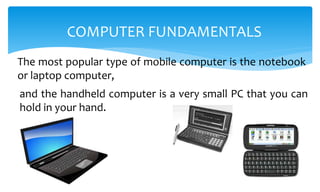
The most popular type of mobile computer is the notebook
or laptop computer,
COMPUTER FUNDAMENTALS
and the handheld computer is a very small PC that you can
hold in your hand.
BASIC PARTS OF A COMPUTER
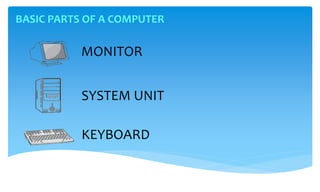
MONITOR
SYSTEM UNIT
KEYBOARD
BASIC PARTS OF A COMPUTER
MONITOR
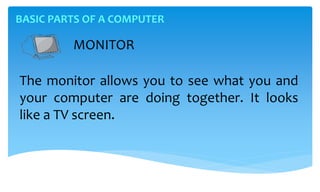
The monitor allows you to see what you and
your computer are doing together. It looks
like a TV screen.
BASIC PARTS OF A COMPUTER
SYSTEM UNIT
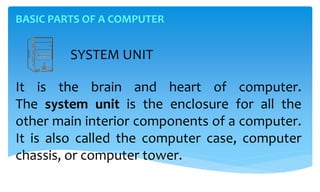
It is the brain and heart of computer.
The system unit is the enclosure for all the
other main interior components of a computer.
It is also called the computer case, computer
chassis, or computer tower.
BASIC PARTS OF A COMPUTER
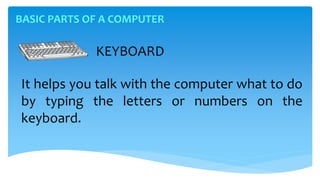
It helps you talk with the computer what to do
by typing the letters or numbers on the
keyboard.
KEYBOARD
COMPUTER PERIPHERALS
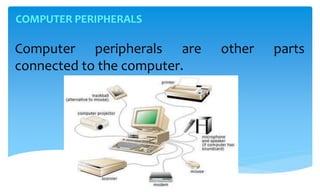
Computer peripherals are other parts
connected to the computer.
COMPUTER PERIPHERALS
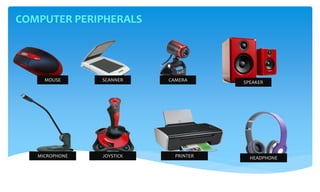
MOUSE SCANNER CAMERA SPEAKER
MICROPHONE JOYSTICK PRINTER HEADPHONE
COMPUTER PERIPHERALS
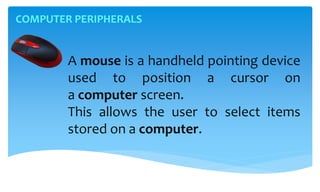
A mouse is a handheld pointing device
used to position a cursor on
a computer screen.
This allows the user to select items
stored on a computer.
COMPUTER PERIPHERALS
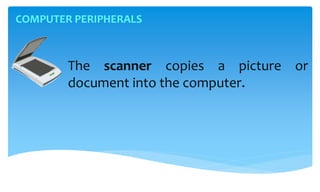
The scanner copies a picture or
document into the computer.
COMPUTER PERIPHERALS
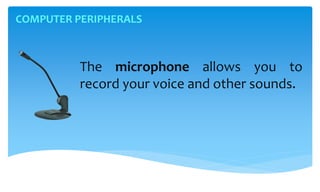
The microphone allows you to
record your voice and other sounds.
COMPUTER PERIPHERALS
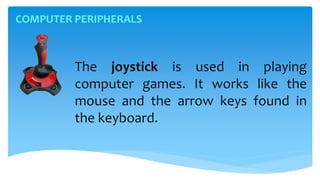
The joystick is used in playing
computer games. It works like the
mouse and the arrow keys found in
the keyboard.
COMPUTER PERIPHERALS
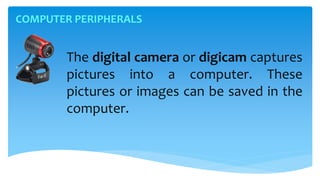
The digital camera or digicam captures
pictures into a computer. These
pictures or images can be saved in the
computer.
COMPUTER PERIPHERALS
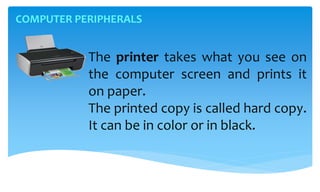
The printer takes what you see on
the computer screen and prints it
on paper.
The printed copy is called hard copy.
It can be in color or in black.
COMPUTER PERIPHERALS
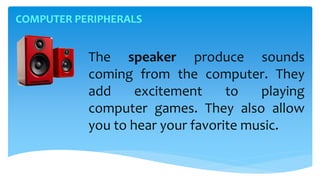
The speaker produce sounds
coming from the computer. They
add excitement to playing
computer games. They also allow
you to hear your favorite music.
COMPUTER PERIPHERALS
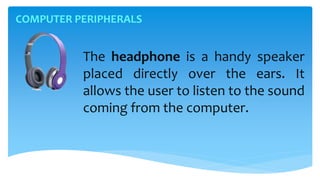
The headphone is a handy speaker
placed directly over the ears. It
allows the user to listen to the sound
coming from the computer.
COMPUTER DEVICES
 Input devices
 Processing devices
 Output devices
 Storage devices
COMPUTER DEVICES
Input devices
They are parts of a computer that receive
instructions from the user. They also give
commands to the computer.
COMPUTER DEVICES
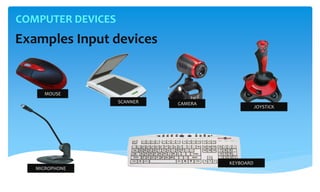
Examples Input devices
MOUSE
SCANNER CAMERA
MICROPHONE
JOYSTICK
KEYBOARD
COMPUTER DEVICES
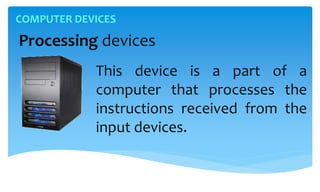
Processing devices
This device is a part of a
computer that processes the
instructions received from the
input devices.
COMPUTER DEVICES
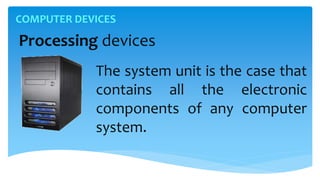
Processing devices
The system unit is the case that
contains all the electronic
components of any computer
system.
COMPUTER DEVICES
Processing devices
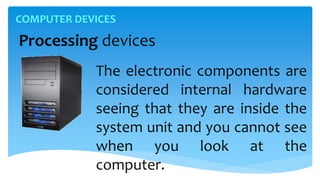
The electronic components are
considered internal hardware
seeing that they are inside the
system unit and you cannot see
when you look at the
computer.
COMPUTER DEVICES
Processing devices
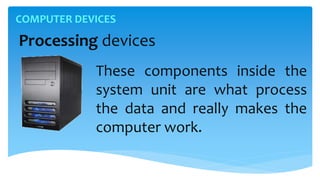
These components inside the
system unit are what process
the data and really makes the
computer work.
COMPUTER DEVICES
Output devices
They are parts of a computer that
produces the results of the instructions
processes by the Central Processing Unit.
COMPUTER DEVICES
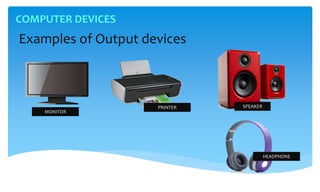
Examples of Output devices
SPEAKERPRINTER
HEADPHONE
MONITOR
COMPUTER DEVICES
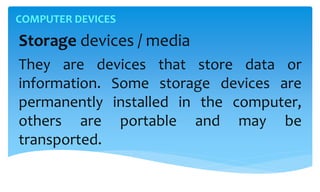
Storage devices / media
They are devices that store data or
information. Some storage devices are
permanently installed in the computer,
others are portable and may be
transported.
COMPUTER DEVICES
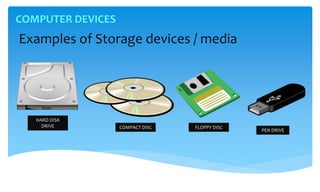
Examples of Storage devices / media
HARD DISK
DRIVE COMPACT DISC FLOPPY DISC
PEN DRIVE
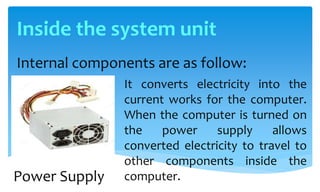
Inside the system unit
Internal components are as follow:
It converts electricity into the
current works for the computer.
When the computer is turned on
the power supply allows
converted electricity to travel to
other components inside the
computer.Power Supply
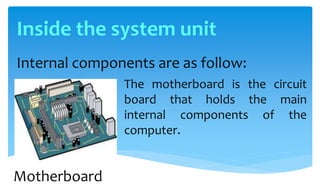
Internal components are as follow:
The motherboard is the circuit
board that holds the main
internal components of the
computer.
Motherboard
Inside the system unit
Internal components are as follow:
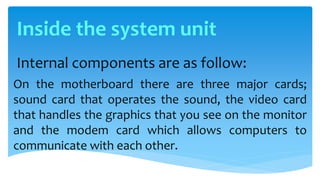
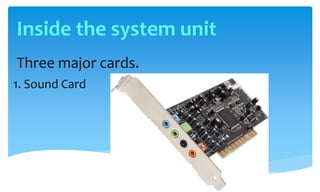
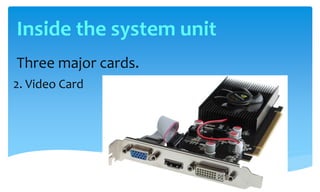
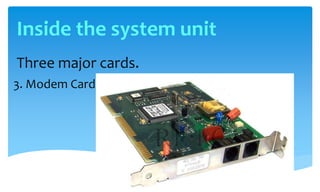
On the motherboard there are three major cards;
sound card that operates the sound, the video card
that handles the graphics that you see on the monitor
and the modem card which allows computers to
communicate with each other.
Inside the system unit
Three major cards.
1. Sound Card
Inside the system unit
Three major cards.
2. Video Card
Inside the system unit
Three major cards.
3. Modem Card
Inside the system unit
Internal components are as follow:
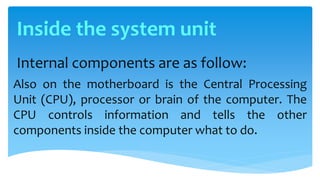
Also on the motherboard is the Central Processing
Unit (CPU), processor or brain of the computer. The
CPU controls information and tells the other
components inside the computer what to do.
Inside the system unit
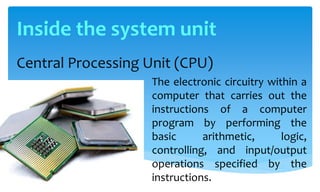
Central Processing Unit (CPU)
The electronic circuitry within a
computer that carries out the
instructions of a computer
program by performing the
basic arithmetic, logic,
controlling, and input/output
operations specified by the
instructions.
Inside the system unit
Internal components are as follow:
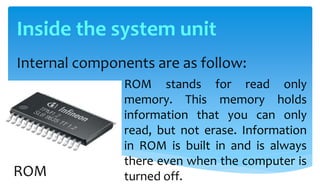
ROM stands for read only
memory. This memory holds
information that you can only
read, but not erase. Information
in ROM is built in and is always
there even when the computer is
turned off.ROM
Inside the system unit
Internal components are as follow:
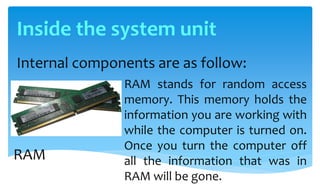
RAM stands for random access
memory. This memory holds the
information you are working with
while the computer is turned on.
Once you turn the computer off
all the information that was in
RAM will be gone.
RAM
Inside the system unit
Internal components are as follow:
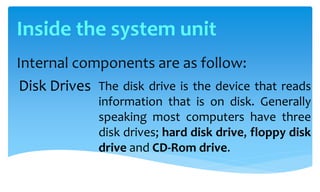
The disk drive is the device that reads
information that is on disk. Generally
speaking most computers have three
disk drives; hard disk drive, floppy disk
drive and CD-Rom drive.
Disk Drives
Inside the system unit
Internal components are as follow:
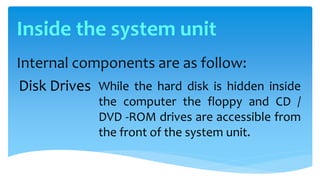
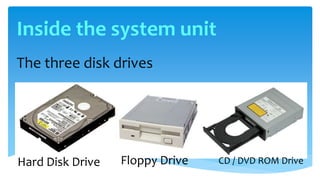
While the hard disk is hidden inside
the computer the floppy and CD /
DVD -ROM drives are accessible from
the front of the system unit.
Disk Drives
Inside the system unit
The three disk drives
Hard Disk Drive Floppy Drive CD / DVD ROM Drive
Inside the system unit
ELEMENTS OF A COMPUTER SYSTEM
1. HARDWARE
2. SOFTWARE
3. FIRMWARE
4. PEOPLEWARE
ELEMENTS OF A COMPUTER SYSTEM
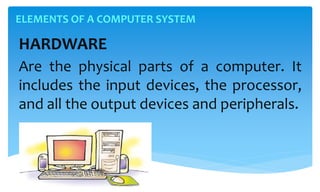
HARDWARE
Are the physical parts of a computer. It
includes the input devices, the processor,
and all the output devices and peripherals.
ELEMENTS OF A COMPUTER SYSTEM
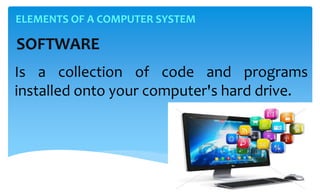
SOFTWARE
Is a collection of code and programs
installed onto your computer's hard drive.
ELEMENTS OF A COMPUTER SYSTEM
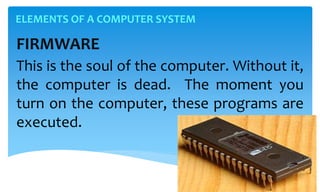
FIRMWARE
This is the soul of the computer. Without it,
the computer is dead. The moment you
turn on the computer, these programs are
executed.
ELEMENTS OF A COMPUTER SYSTEM
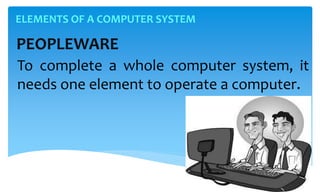
PEOPLEWARE
To complete a whole computer system, it
needs one element to operate a computer.
COMPUTER SOFTWARE
Is the set of programs that makes the hardware
perform a set of tasks in particular order. Hardware
and software are complimentary to each other. Both
have to work together to produce meaningful
results. Computer software is classified into two
broad categories; system software and application
software.
COMPUTER SOFTWARE
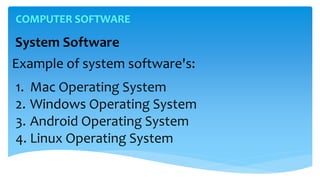
1. Mac Operating System
2. Windows Operating System
3. Android Operating System
4. Linux Operating System
COMPUTER SOFTWARE
System Software
Example of system software's:
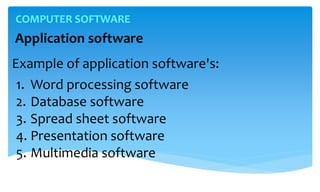
Example of application software's:
1. Word processing software
2. Database software
3. Spread sheet software
4. Presentation software
5. Multimedia software
COMPUTER SOFTWARE
Application software
End of Day 1
Resource Speaker: Mark John Perez – Lado
Webpage: http://markjohnplado.wix.com/index
Essentials of Technology
Hardware, Software, Internet, and Networking
Information, Communications and Technology

Introduction to Computing - Essentials of Technology - Day 1

  • 1.
    A 10 daystraining / workshop Resource Speaker: Mark John Perez – Lado Webpage: http://markjohnplado.wix.com/index Essentials of Technology Hardware, Software, Internet, and Networking Information, Communications and Technology
  • 2.
    Experienced Information SystemSpecialist with a demonstrated history of working in the education management industry. Skilled in Object- Oriented Programming (OOP), Teacher Mentoring, Computer Hardware, Software System Analysis, and Web Development. Strong information technology professional with a Bachelor of Science in Information System focused in Information System from Colegio de San Antonio de Padua – De La Salle Supervised School. About the speaker Webpage: http://markjohnplado.wix.com/index
  • 3.
    Completed the Competency– Based Training program in Computer Hardware Servicing (CHS) NC II, year 2014 at Cebu Technological University-Danao Campus, and Consumer Electronics Servicing (CES) NC II, year 2012 at TESDA – Carmen Provincial Training Center. About the speaker Webpage: http://markjohnplado.wix.com/index
  • 4.
    Former Jobs: • Fulltime IT administrator / computer teacher Carmen Christian School Inc. (2017 – 2018) • Part-time college IT Instructor University of the Visayas – Danao Campus (2017 – 2018) • Part-time college Engineering, and Information System Instructor CSAP – Guinsay, Danao City (2017 – 2018) About the speaker Webpage: http://markjohnplado.wix.com/index
  • 5.
  • 7.
     Familiarize yourselfwith characteristics of computers  Identify the basic components of a computer  Explain the importance of various units of a computer  Differentiate between system software and application software  Explain the importance of operating system  Know the internal parts of the system unit.  Get acquainted in the elements of computer system. Day 1 - Objectives
  • 8.
    An electronic devicethat stores and manipulates information. It is maybe in the form of text, graphics, video, or sounds. The instructions that direct the computer are called software or computer program. Computer Definition
  • 9.
    A computer isa programmable machine designed to perform arithmetic and logical operations automatically and sequentially on the input given by the user and gives the desired output after processing. Computer Definition
  • 10.
    Computer components aredivided into two major categories namely hardware and software. Hardware is the machine itself and its connected devices such as monitor, keyboard, mouse and etc. Software are the set of programs that make use of hardware for performing various functions. Computer Definition
  • 11.
    The computer aswe know it today had its beginning with a 19th century English mathematics professor name Charles Babbage. He designed the Analytical Engine and it was this design that the basic framework of the computers of today are based on. A BRIEF COMPUTER HISTORY
  • 12.
    Generally speaking, computerscan be classified into three generations. Each generation lasted for a certain period of time, and each gave us either a new and improved computer or an improvement to the existing computer. A BRIEF COMPUTER HISTORY
  • 13.
    In 1937 thefirst electronic digital computer was built by Dr. John V. Atanasoff and Clifford Berry. It was called the Atanasoff-Berry Computer (ABC). In 1943 an electronic computer name the Colossus was built for the military. A BRIEF COMPUTER HISTORY First generation: 1937 – 1946
  • 14.
    A BRIEF COMPUTERHISTORY Dr. John V. Atanasoff Clifford Berry
  • 15.
  • 16.
    Other developments continueduntil in 1946 the first general– purpose digital computer, the Electronic Numerical Integrator and Computer (ENIAC) was built. It is said that this computer weighed 30 tons, and had 18,000 vacuum tubes which was used for processing. When this computer was turned on for the first time lights dim in sections of Philadelphia. Computers of this generation could only perform single task, and they had no operating system. A BRIEF COMPUTER HISTORY First generation: 1937 – 1946
  • 17.
    Electronic Numerical Integratorand Computer (ENIAC)
  • 18.
    Electronic Numerical Integratorand Computer (ENIAC)
  • 19.
    This generation ofcomputers used transistors instead of vacuum tubes which were more reliable. In 1951 the first computer for commercial use was introduced to the public; the Universal Automatic Computer (UNIVAC 1). In 1953 the International Business Machine (IBM) 650 and 700 series computers made their mark in the computer world. A BRIEF COMPUTER HISTORY Second generation: 1947 – 1962
  • 20.
  • 21.
    International Business Machine(IBM) 650 700 series
  • 22.
    During this generationof computers over 100 computer programming languages were developed, computers had memory and operating systems. Storage media such as tape and disk were in use also were printers for output. A BRIEF COMPUTER HISTORY Second generation: 1947 – 1962
  • 24.
    The invention ofintegrated circuit brought us the third generation of computers. With this invention computers became smaller, more powerful more reliable and they are able to run many different programs at the same time. A BRIEF COMPUTER HISTORY Third generation: 1963 - present
  • 25.
    In 1980 MicrosoftDisk Operating System (MS-Dos) was born and in 1981 IBM introduced the personal computer (PC) for home and office use. Three years later Apple gave us the Macintosh computer with its icon driven interface and the 90s gave us Windows operating system. A BRIEF COMPUTER HISTORY Third generation: 1963 - present
  • 26.
    Microsoft Disk OperatingSystem (MS-Dos)
  • 27.
    Apple Logo andWindows Logo
  • 28.
  • 31.
     As aresult of the various improvements to the development of the computer we have seen the computer being used in all areas of life. It is a very useful tool that will continue to experience new development as time passes.
  • 32.
    Computers are usuallycategories into three general categories: COMPUTER FUNDAMENTALS 1. Super computer The fastest, largest, most powerful and most expensive computer.
  • 33.
    Computers are usuallycategories into three general categories: COMPUTER FUNDAMENTALS 2. Mainframe Computer This is a little smaller and less powerful than the supercomputer, but, like the supercomputer it is also expensive.
  • 34.
    Computers are usuallycategories into three general categories: COMPUTER FUNDAMENTALS 3. Personal Computer (PC) This is the computer that most people use in their daily lives. This computer is much smaller, less powerful and less expensive than the supercomputer and the mainframe computer.
  • 35.
    There are twomain types of personal computers. Macintosh (Macs) and the PC compatibles (PC). The main differences between the two are the operating systems and the processor they use. This category of computer has two additional types of computers. These are mobile computer and handheld computer. COMPUTER FUNDAMENTALS
  • 36.
    The most populartype of mobile computer is the notebook or laptop computer, COMPUTER FUNDAMENTALS and the handheld computer is a very small PC that you can hold in your hand.
  • 37.
    BASIC PARTS OFA COMPUTER MONITOR SYSTEM UNIT KEYBOARD
  • 38.
    BASIC PARTS OFA COMPUTER MONITOR The monitor allows you to see what you and your computer are doing together. It looks like a TV screen.
  • 39.
    BASIC PARTS OFA COMPUTER SYSTEM UNIT It is the brain and heart of computer. The system unit is the enclosure for all the other main interior components of a computer. It is also called the computer case, computer chassis, or computer tower.
  • 40.
    BASIC PARTS OFA COMPUTER It helps you talk with the computer what to do by typing the letters or numbers on the keyboard. KEYBOARD
  • 41.
    COMPUTER PERIPHERALS Computer peripheralsare other parts connected to the computer.
  • 42.
    COMPUTER PERIPHERALS MOUSE SCANNERCAMERA SPEAKER MICROPHONE JOYSTICK PRINTER HEADPHONE
  • 43.
    COMPUTER PERIPHERALS A mouseis a handheld pointing device used to position a cursor on a computer screen. This allows the user to select items stored on a computer.
  • 44.
    COMPUTER PERIPHERALS The scannercopies a picture or document into the computer.
  • 45.
    COMPUTER PERIPHERALS The microphoneallows you to record your voice and other sounds.
  • 46.
    COMPUTER PERIPHERALS The joystickis used in playing computer games. It works like the mouse and the arrow keys found in the keyboard.
  • 47.
    COMPUTER PERIPHERALS The digitalcamera or digicam captures pictures into a computer. These pictures or images can be saved in the computer.
  • 48.
    COMPUTER PERIPHERALS The printertakes what you see on the computer screen and prints it on paper. The printed copy is called hard copy. It can be in color or in black.
  • 49.
    COMPUTER PERIPHERALS The speakerproduce sounds coming from the computer. They add excitement to playing computer games. They also allow you to hear your favorite music.
  • 50.
    COMPUTER PERIPHERALS The headphoneis a handy speaker placed directly over the ears. It allows the user to listen to the sound coming from the computer.
  • 51.
    COMPUTER DEVICES  Inputdevices  Processing devices  Output devices  Storage devices
  • 52.
    COMPUTER DEVICES Input devices Theyare parts of a computer that receive instructions from the user. They also give commands to the computer.
  • 53.
    COMPUTER DEVICES Examples Inputdevices MOUSE SCANNER CAMERA MICROPHONE JOYSTICK KEYBOARD
  • 54.
    COMPUTER DEVICES Processing devices Thisdevice is a part of a computer that processes the instructions received from the input devices.
  • 55.
    COMPUTER DEVICES Processing devices Thesystem unit is the case that contains all the electronic components of any computer system.
  • 56.
    COMPUTER DEVICES Processing devices Theelectronic components are considered internal hardware seeing that they are inside the system unit and you cannot see when you look at the computer.
  • 57.
    COMPUTER DEVICES Processing devices Thesecomponents inside the system unit are what process the data and really makes the computer work.
  • 58.
    COMPUTER DEVICES Output devices Theyare parts of a computer that produces the results of the instructions processes by the Central Processing Unit.
  • 59.
    COMPUTER DEVICES Examples ofOutput devices SPEAKERPRINTER HEADPHONE MONITOR
  • 60.
    COMPUTER DEVICES Storage devices/ media They are devices that store data or information. Some storage devices are permanently installed in the computer, others are portable and may be transported.
  • 61.
    COMPUTER DEVICES Examples ofStorage devices / media HARD DISK DRIVE COMPACT DISC FLOPPY DISC PEN DRIVE
  • 62.
    Inside the systemunit Internal components are as follow: It converts electricity into the current works for the computer. When the computer is turned on the power supply allows converted electricity to travel to other components inside the computer.Power Supply
  • 63.
    Internal components areas follow: The motherboard is the circuit board that holds the main internal components of the computer. Motherboard Inside the system unit
  • 64.
    Internal components areas follow: On the motherboard there are three major cards; sound card that operates the sound, the video card that handles the graphics that you see on the monitor and the modem card which allows computers to communicate with each other. Inside the system unit
  • 65.
    Three major cards. 1.Sound Card Inside the system unit
  • 66.
    Three major cards. 2.Video Card Inside the system unit
  • 67.
    Three major cards. 3.Modem Card Inside the system unit
  • 68.
    Internal components areas follow: Also on the motherboard is the Central Processing Unit (CPU), processor or brain of the computer. The CPU controls information and tells the other components inside the computer what to do. Inside the system unit
  • 69.
    Central Processing Unit(CPU) The electronic circuitry within a computer that carries out the instructions of a computer program by performing the basic arithmetic, logic, controlling, and input/output operations specified by the instructions. Inside the system unit
  • 70.
    Internal components areas follow: ROM stands for read only memory. This memory holds information that you can only read, but not erase. Information in ROM is built in and is always there even when the computer is turned off.ROM Inside the system unit
  • 71.
    Internal components areas follow: RAM stands for random access memory. This memory holds the information you are working with while the computer is turned on. Once you turn the computer off all the information that was in RAM will be gone. RAM Inside the system unit
  • 72.
    Internal components areas follow: The disk drive is the device that reads information that is on disk. Generally speaking most computers have three disk drives; hard disk drive, floppy disk drive and CD-Rom drive. Disk Drives Inside the system unit
  • 73.
    Internal components areas follow: While the hard disk is hidden inside the computer the floppy and CD / DVD -ROM drives are accessible from the front of the system unit. Disk Drives Inside the system unit
  • 74.
    The three diskdrives Hard Disk Drive Floppy Drive CD / DVD ROM Drive Inside the system unit
  • 75.
    ELEMENTS OF ACOMPUTER SYSTEM 1. HARDWARE 2. SOFTWARE 3. FIRMWARE 4. PEOPLEWARE
  • 76.
    ELEMENTS OF ACOMPUTER SYSTEM HARDWARE Are the physical parts of a computer. It includes the input devices, the processor, and all the output devices and peripherals.
  • 77.
    ELEMENTS OF ACOMPUTER SYSTEM SOFTWARE Is a collection of code and programs installed onto your computer's hard drive.
  • 78.
    ELEMENTS OF ACOMPUTER SYSTEM FIRMWARE This is the soul of the computer. Without it, the computer is dead. The moment you turn on the computer, these programs are executed.
  • 79.
    ELEMENTS OF ACOMPUTER SYSTEM PEOPLEWARE To complete a whole computer system, it needs one element to operate a computer.
  • 80.
  • 81.
    Is the setof programs that makes the hardware perform a set of tasks in particular order. Hardware and software are complimentary to each other. Both have to work together to produce meaningful results. Computer software is classified into two broad categories; system software and application software. COMPUTER SOFTWARE
  • 82.
    1. Mac OperatingSystem 2. Windows Operating System 3. Android Operating System 4. Linux Operating System COMPUTER SOFTWARE System Software Example of system software's:
  • 83.
    Example of applicationsoftware's: 1. Word processing software 2. Database software 3. Spread sheet software 4. Presentation software 5. Multimedia software COMPUTER SOFTWARE Application software
  • 84.
    End of Day1 Resource Speaker: Mark John Perez – Lado Webpage: http://markjohnplado.wix.com/index Essentials of Technology Hardware, Software, Internet, and Networking Information, Communications and Technology