.
WELCOME
omputer
ONCEPTS
C
GRADE 11
LESSON 1
Brief History Of
Computer
and its
Development
OBJECTIVES
At the end of this lesson you
should be able to:
 Understand where computer technology originated
 Recognize the development of ICT
 Apply the use of ICT at home, school, and work
 Use ICT in order to keep abreast with current trends
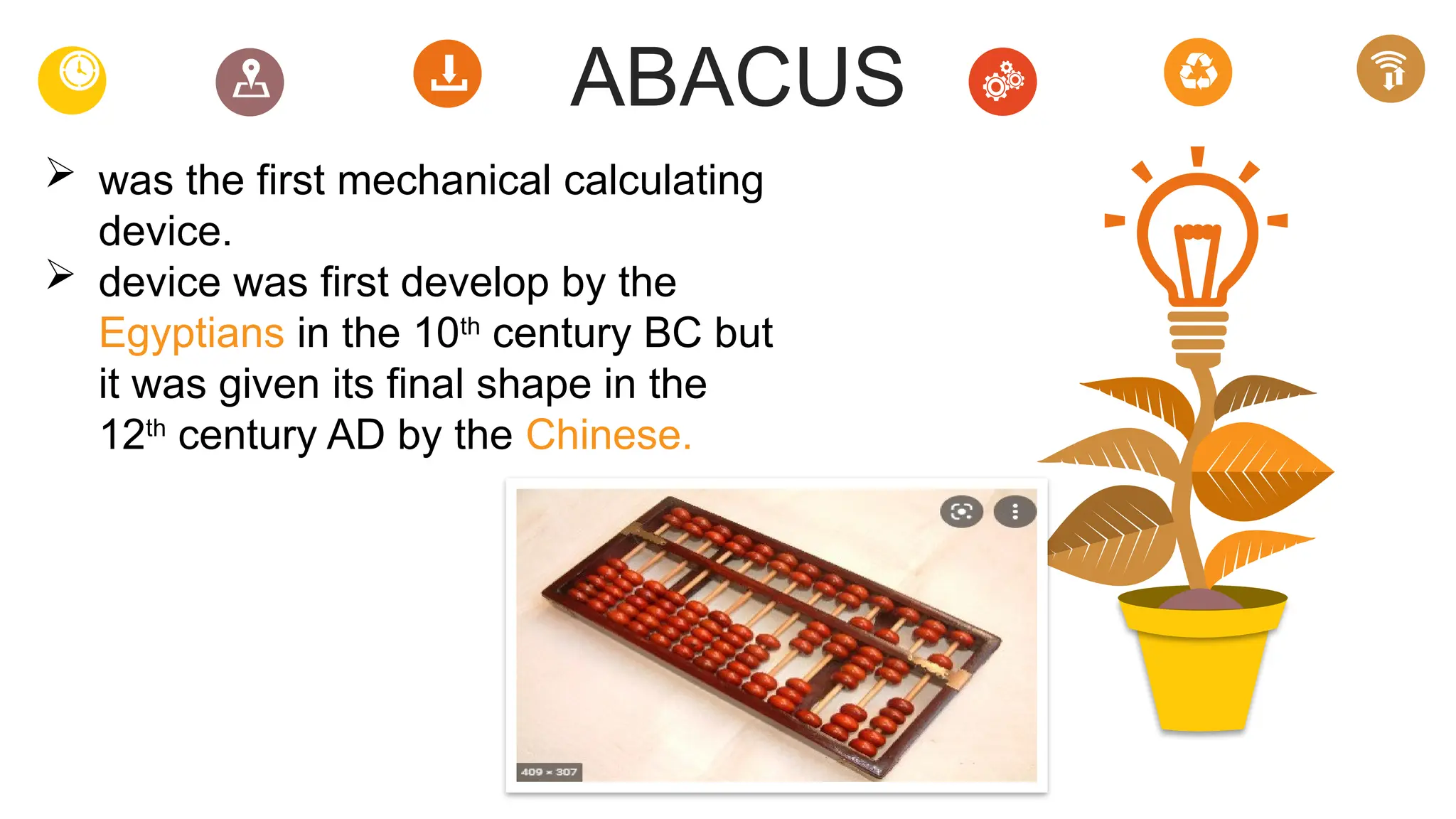
ABACUS
 was the first mechanical calculating
device.
 device was first develop by the
Egyptians in the 10th
century BC but
it was given its final shape in the
12th
century AD by the Chinese.
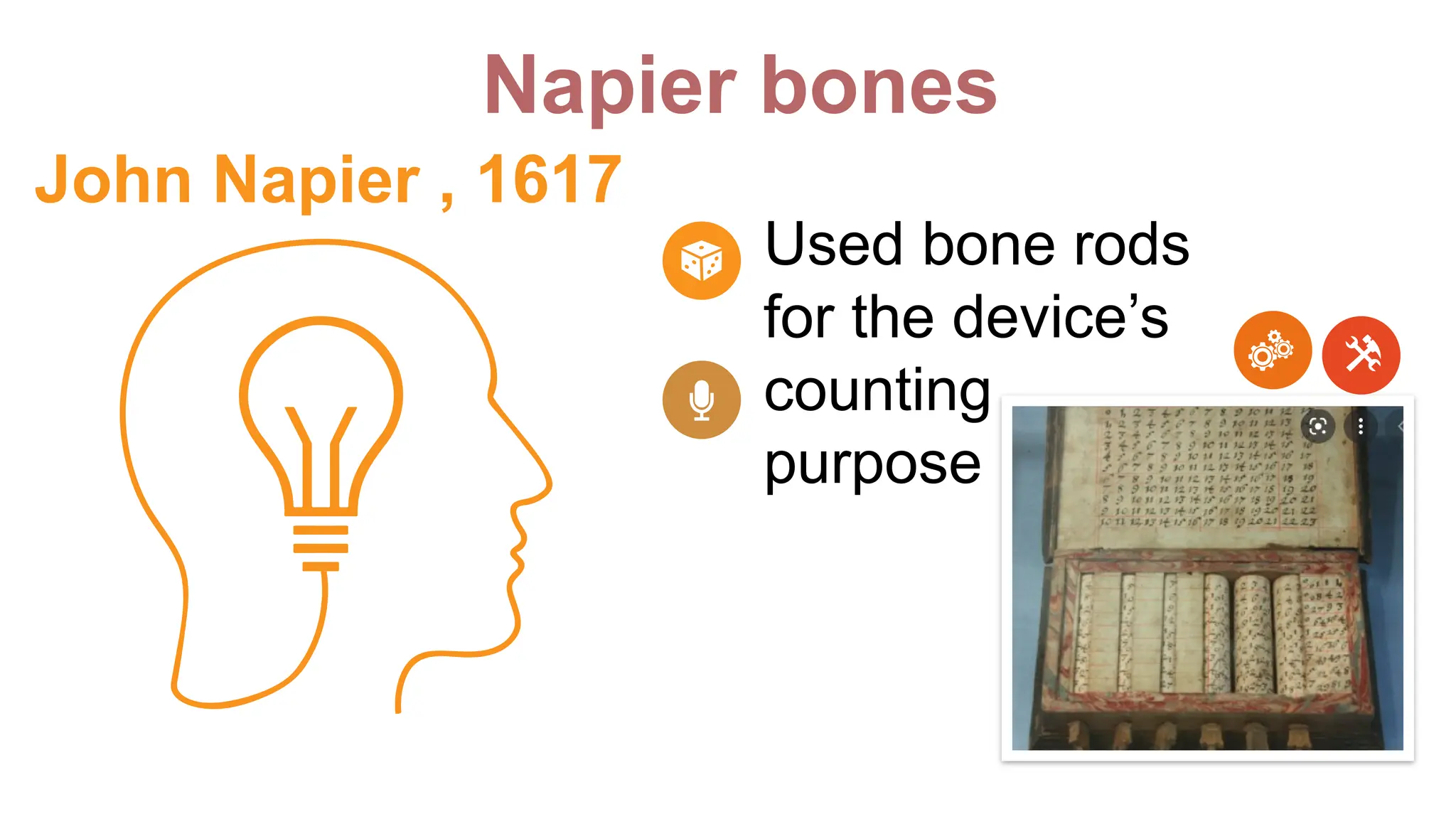
Napier bones
Used bone rods
for the device’s
counting
purpose
John Napier , 1617
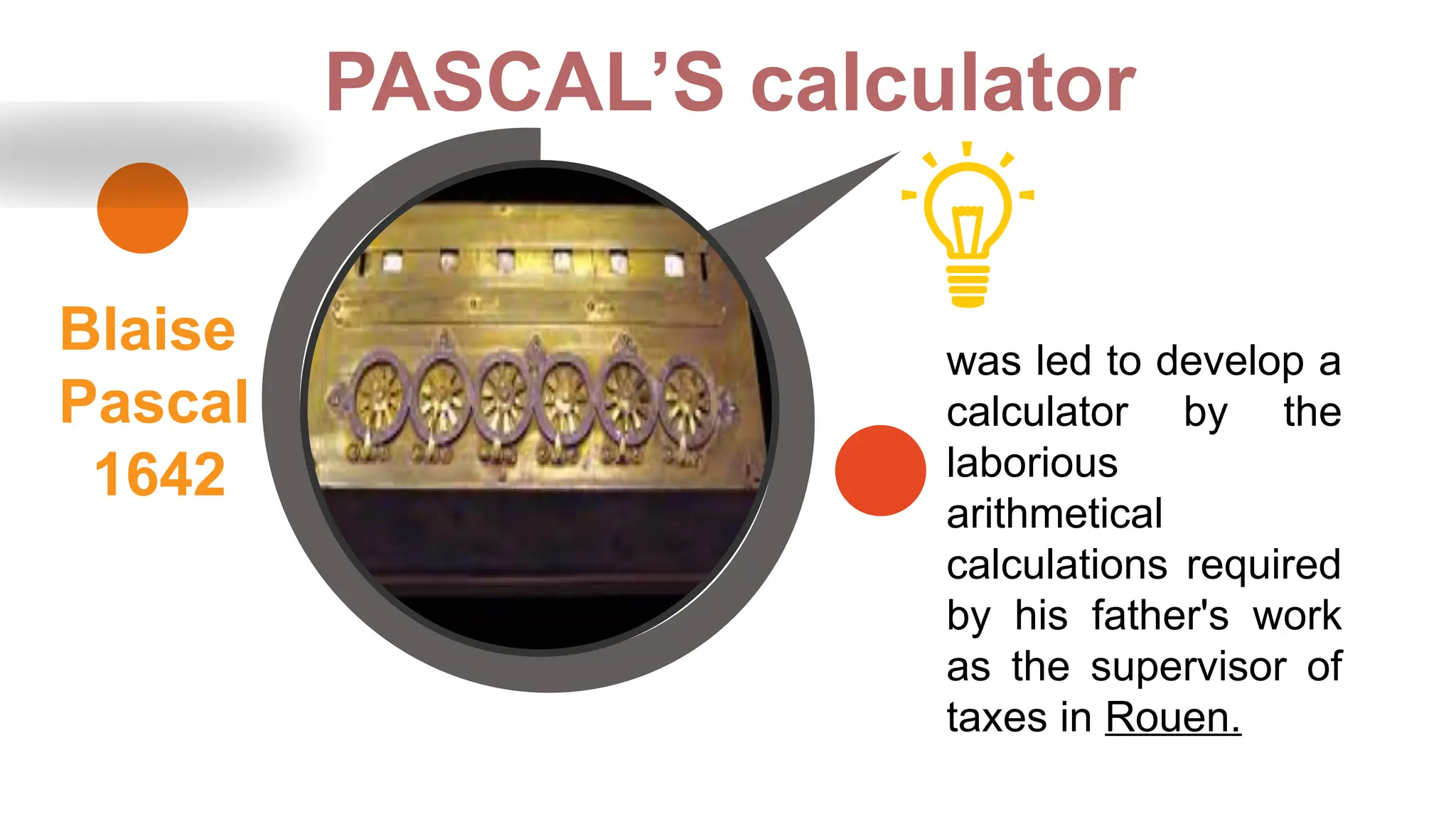
PASCAL’S calculator
Blaise
Pascal
1642
was led to develop a
calculator by the
laborious
arithmetical
calculations required
by his father's work
as the supervisor of
taxes in Rouen.
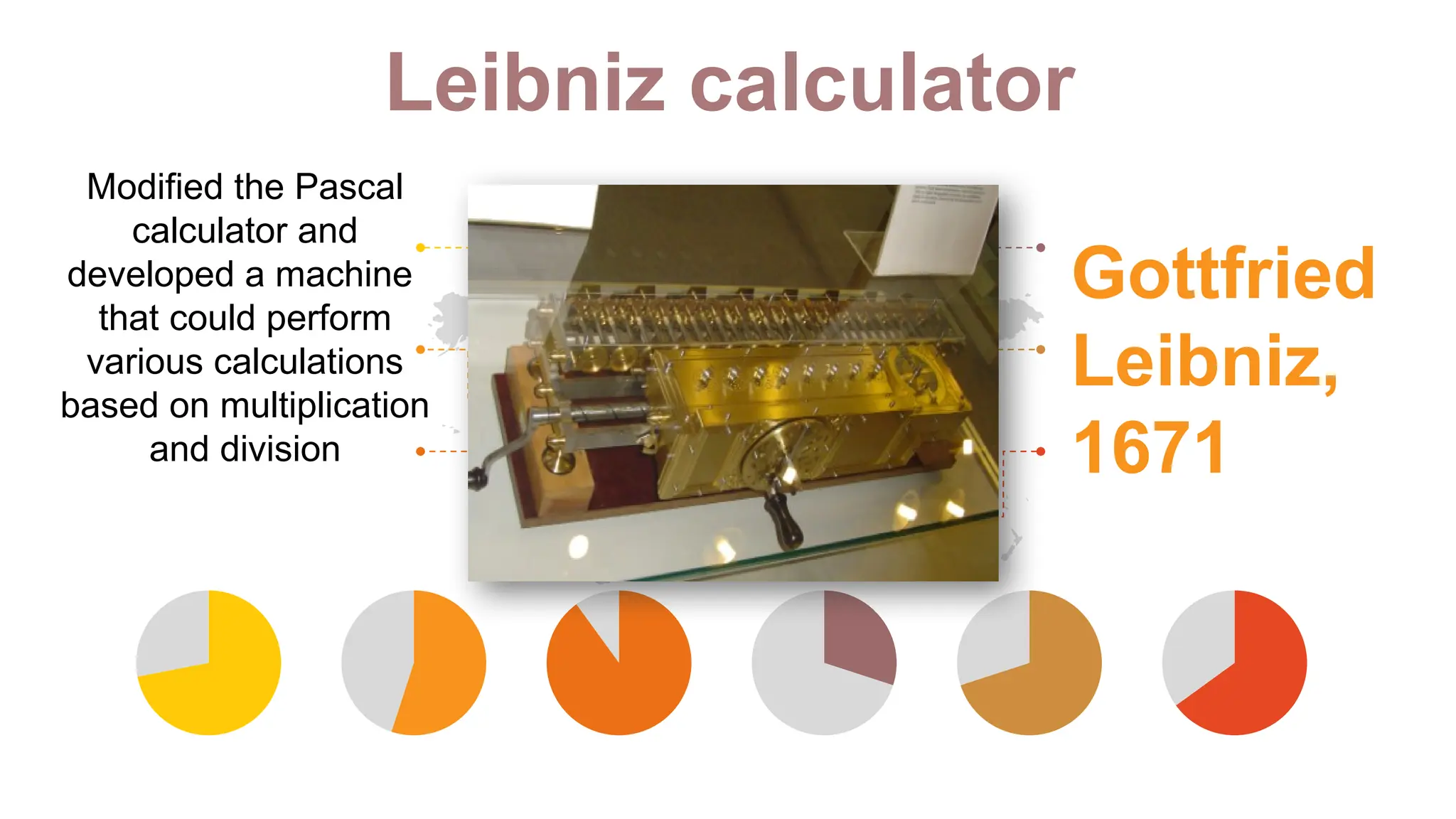
Leibniz calculator
Gottfried
Leibniz,
1671
Modified the Pascal
calculator and
developed a machine
that could perform
various calculations
based on multiplication
and division
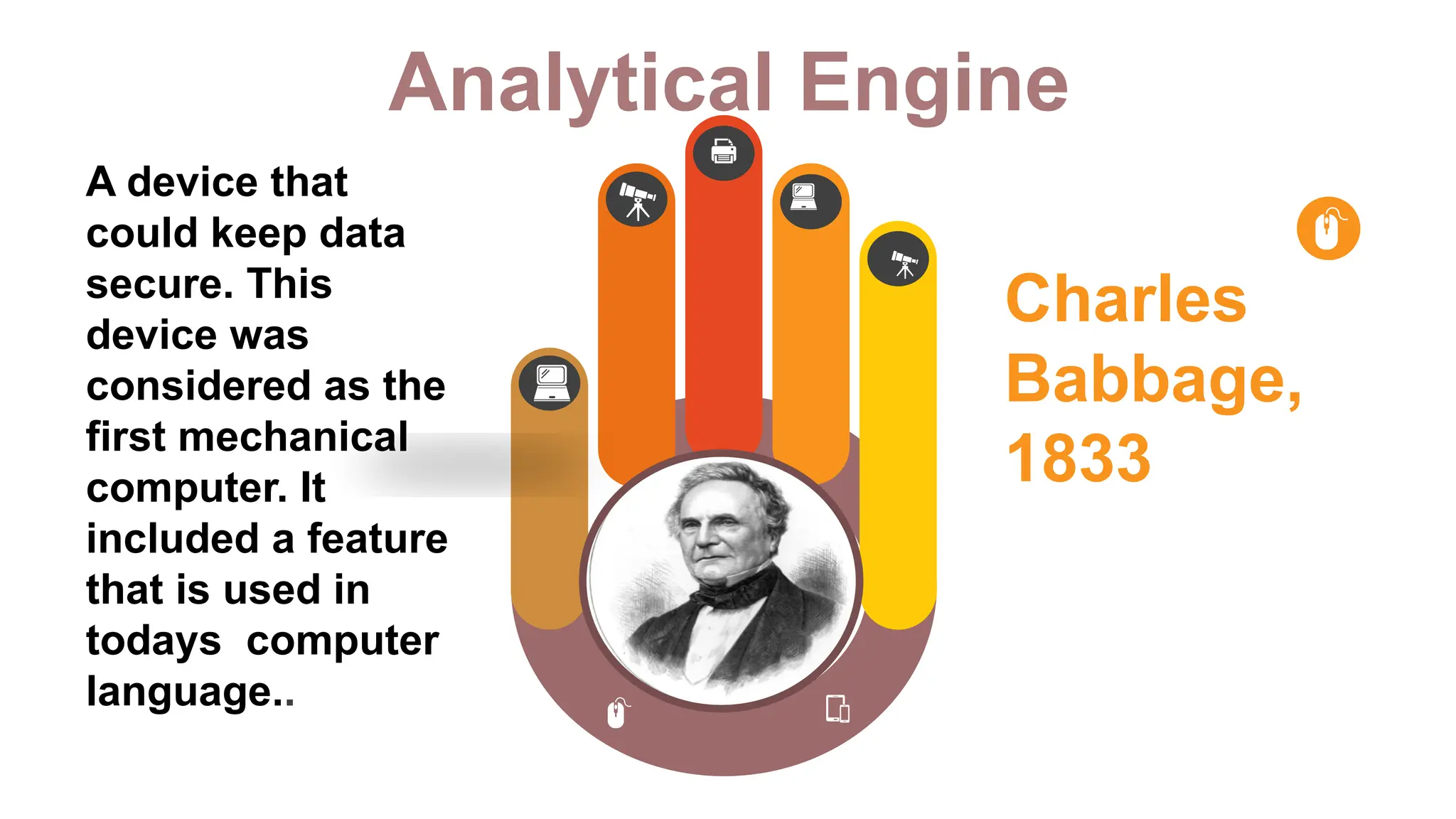
Analytical Engine
Charles
Babbage,
1833
A device that
could keep data
secure. This
device was
considered as the
first mechanical
computer. It
included a feature
that is used in
todays computer
language..
Generations of Computers
Contents A
First Generation Computers
Contents B
Second Generation Computers
Contents D
Fourth Generation Computers
Contents C
Third Generation Computers
Place Your Picture Here
First Generation Computers
01
02
03
04
Electronic
Numerical
Integrator and
Calculator or
ENIAC.
.
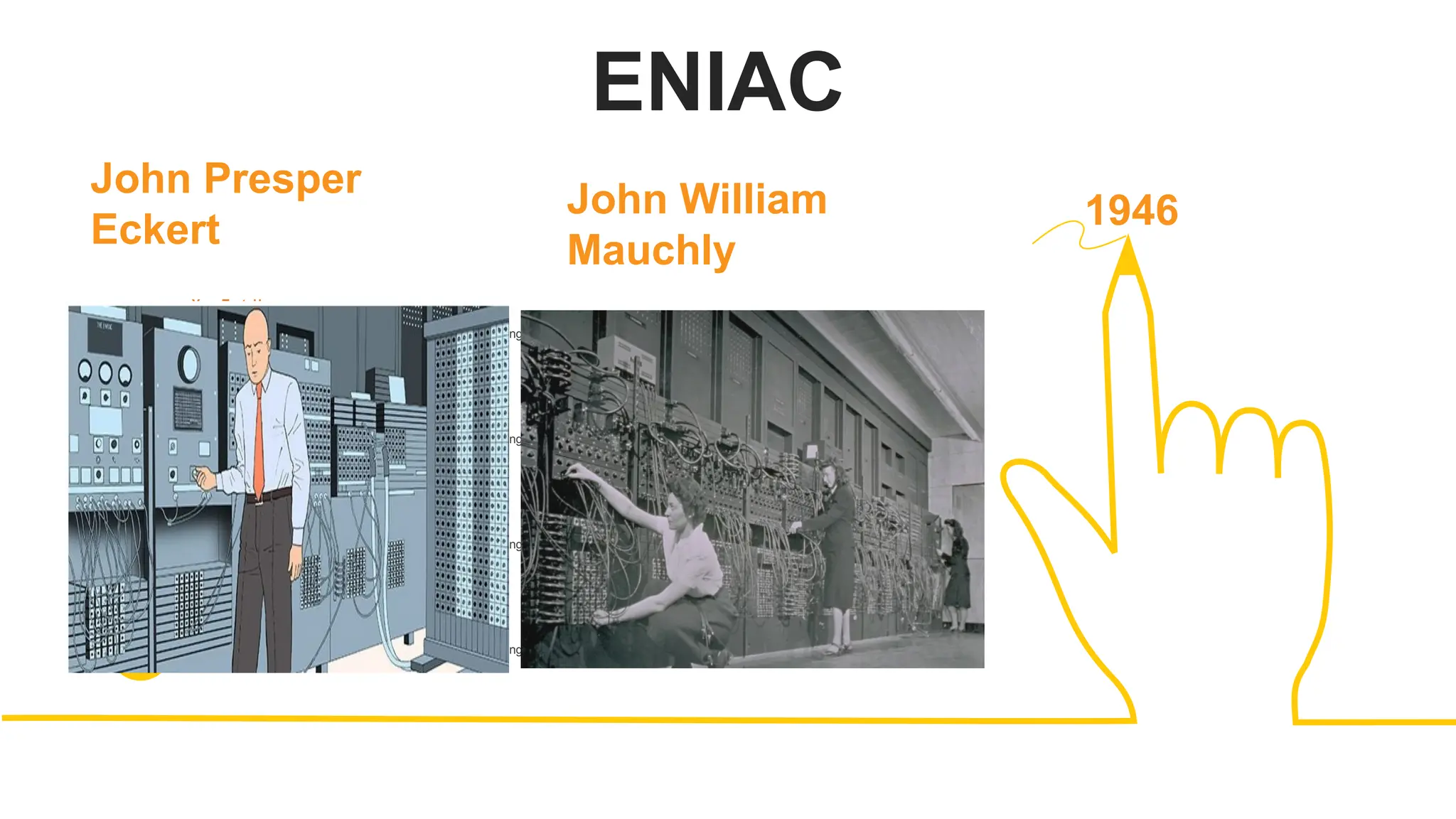
 was a very huge and big
computer it took up the
space of a whole room
and was only able to
store limited or small
amounts of information.
It was so rudimentary
that a basic cellphone
from year 2000 is 1300
times more powerful
than ENIAC.
ENIAC
01
Your Text Here
You can simply impress your audience and add a unique zing and appeal to your Presentations. Easy to change colors,
photos and Text.
Your Text Here
You can simply impress your audience and add a unique zing and appeal to your Presentations. Easy to change colors,
photos and Text.
Your Text Here
You can simply impress your audience and add a unique zing and appeal to your Presentations. Easy to change colors,
photos and Text.
Your Text Here
You can simply impress your audience and add a unique zing and appeal to your Presentations. Easy to change colors,
photos and Text.
02
03
04
John Presper
Eckert
John William
Mauchly
1946
Second Generation Computers
Transistors, were used as electronic
components instead of vacuum tubes. A
transistor is much smaller than a
vacuum tube , this paved the way for
second generation computers to become
smaller compared with the first
generation computers.
Third Generation Computers
You can simply impress
your audience and add a
unique zing and appeal
to your Presentations.
Easy to change colors,
photos and Text.
Add Title
You can simply impress
your audience and add a
unique zing and appeal
to your Presentations.
Easy to change colors,
photos and Text.
Add Title
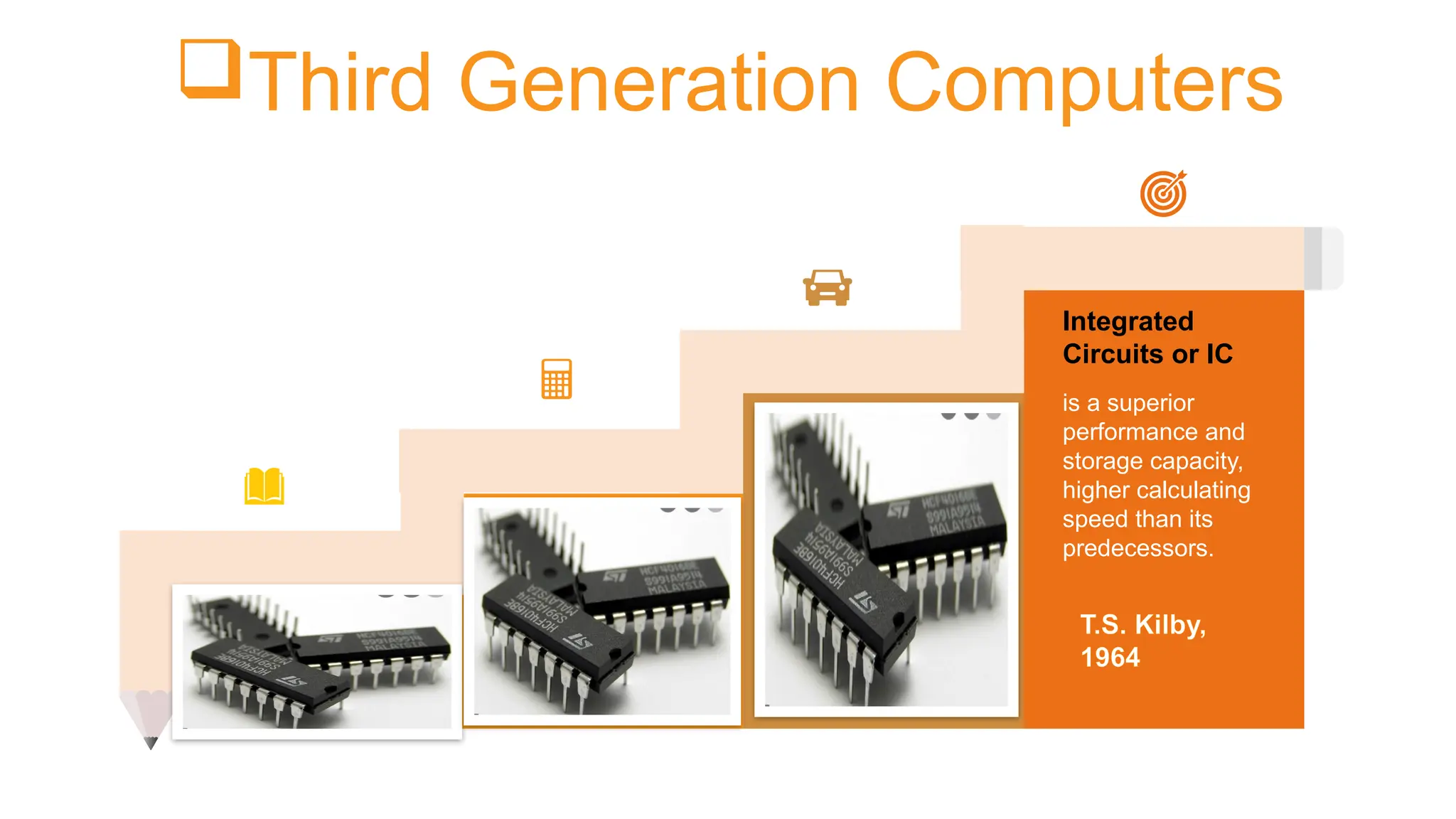
is a superior
performance and
storage capacity,
higher calculating
speed than its
predecessors.
Integrated
Circuits or IC
You can simply impress
your audience and add a
unique zing.
Add Title T.S. Kilby,
1964
Fourth Generation Computers
Ted
Hoff
Microprocessor
is a single chip which is used in computer for any
arithmetical or logical function to be performed in in any
program .
Intel
4004
Fifth Generation Computers
1st
Contents
3rd
Contents
2nd.
Contents
4th
Contents
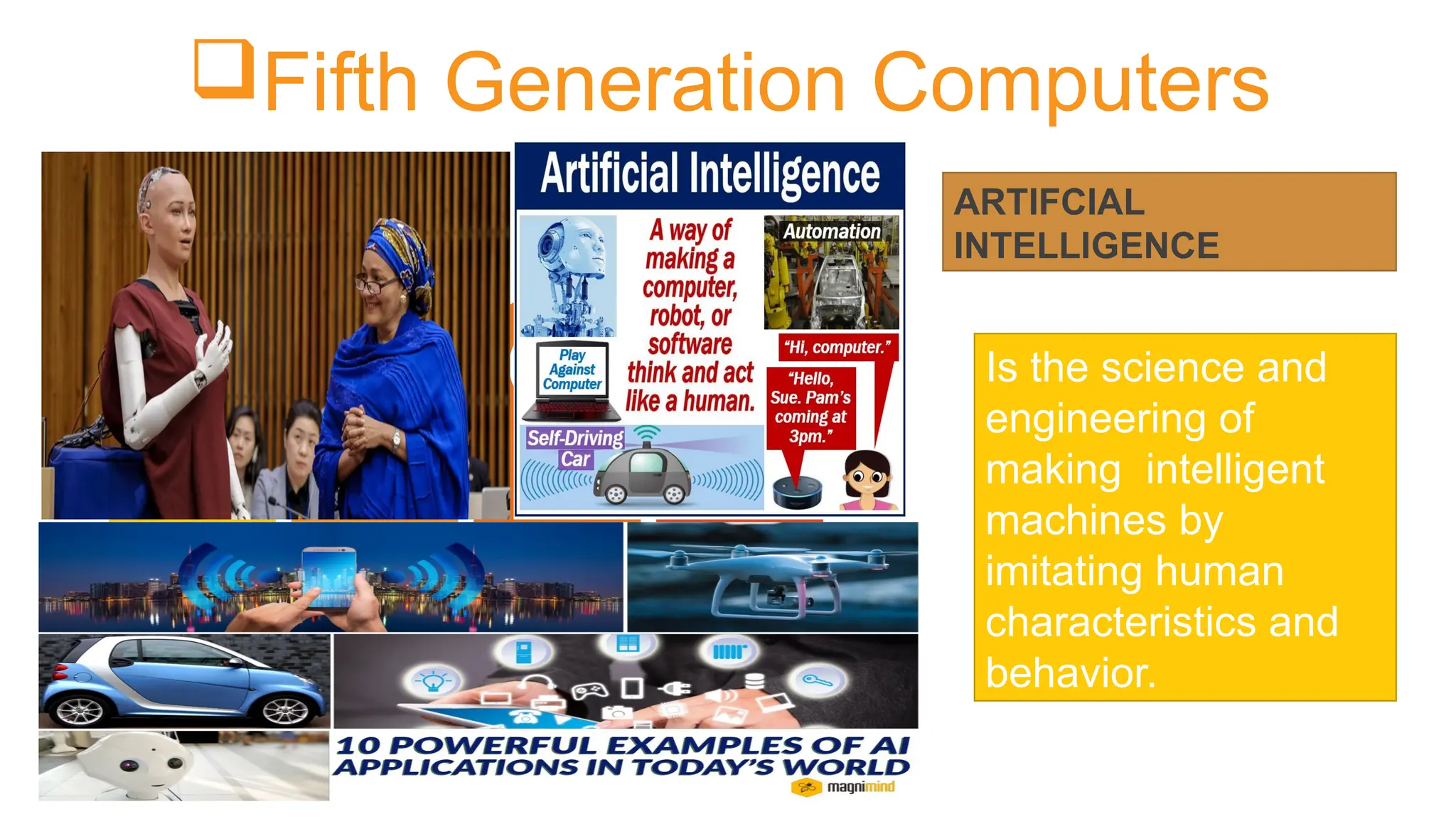
ARTIFCIAL
INTELLIGENCE
Is the science and
engineering of
making intelligent
machines by
imitating human
characteristics and
behavior.
AI
DATA
Data
and
Information
INFORMATION
can be defined
as represents of
facts , concepts
or instructions
is the processed
data on which
decisions and
actions are based
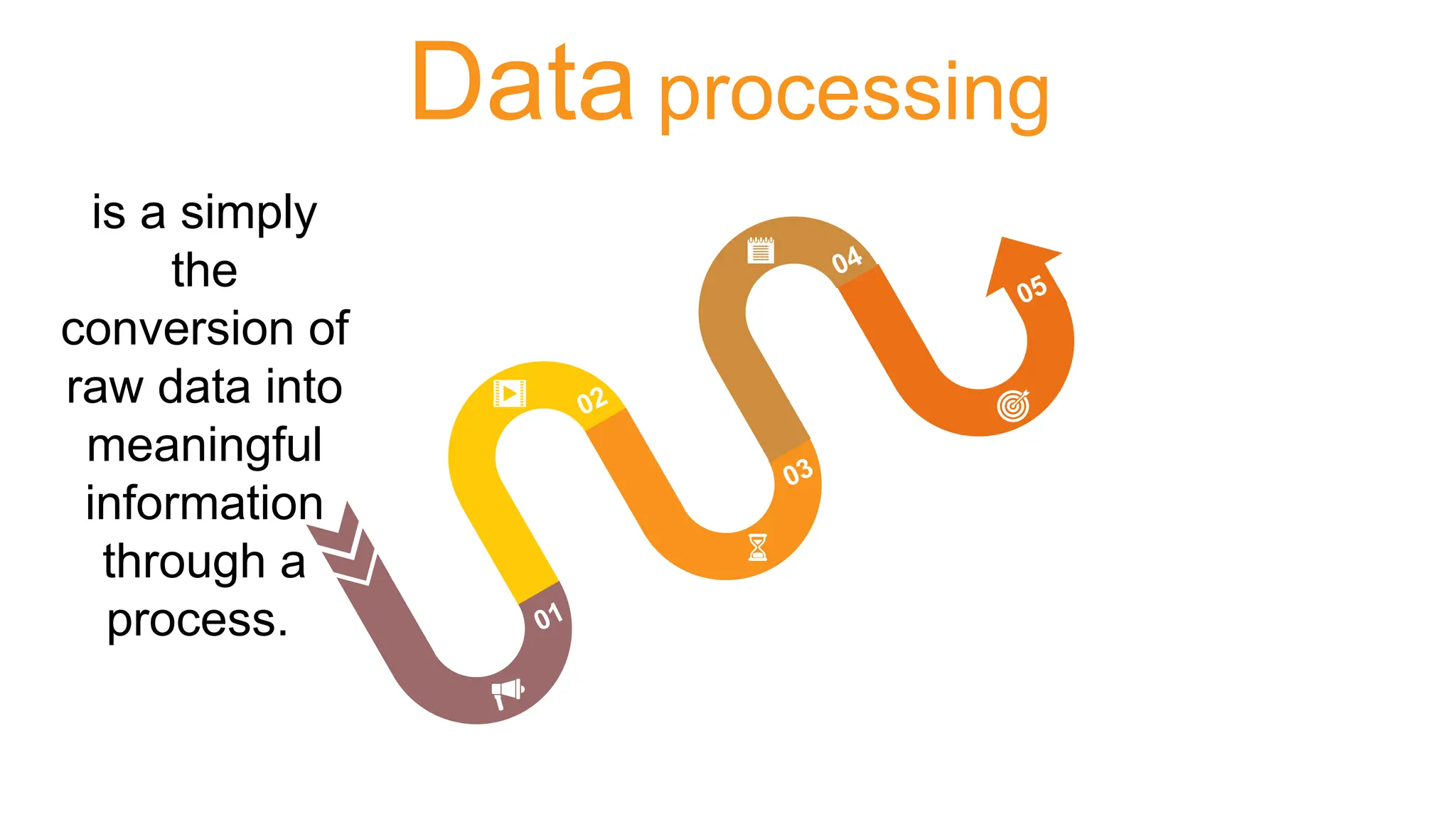
Data processing
01
02
03
04
05
is a simply
the
conversion of
raw data into
meaningful
information
through a
process.
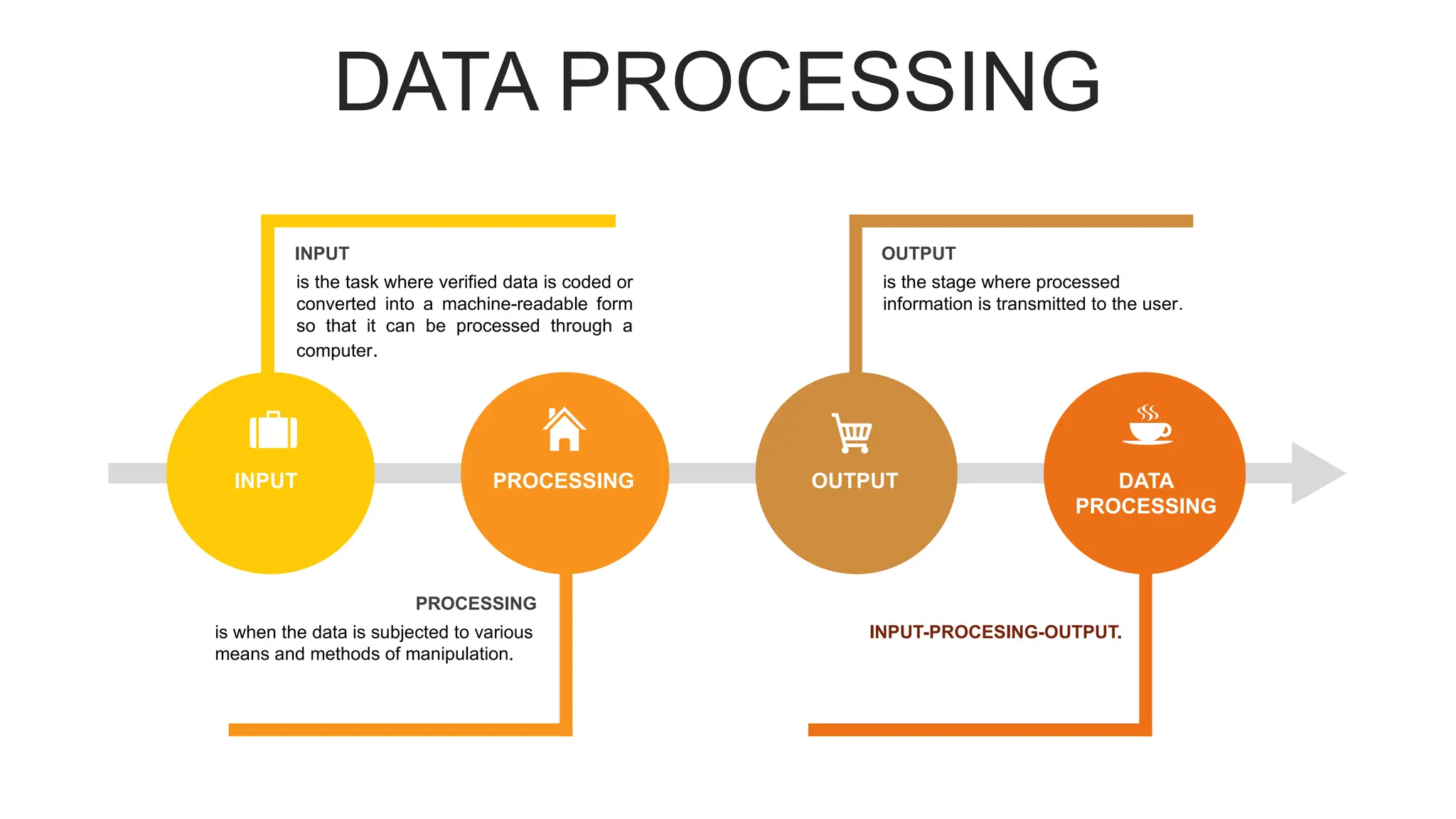
DATA PROCESSING
INPUT PROCESSING OUTPUT DATA
PROCESSING
is when the data is subjected to various
means and methods of manipulation.
PROCESSING
INPUT-PROCESING-OUTPUT.
is the task where verified data is coded or
converted into a machine-readable form
so that it can be processed through a
computer.
INPUT
is the stage where processed
information is transmitted to the user.
OUTPUT
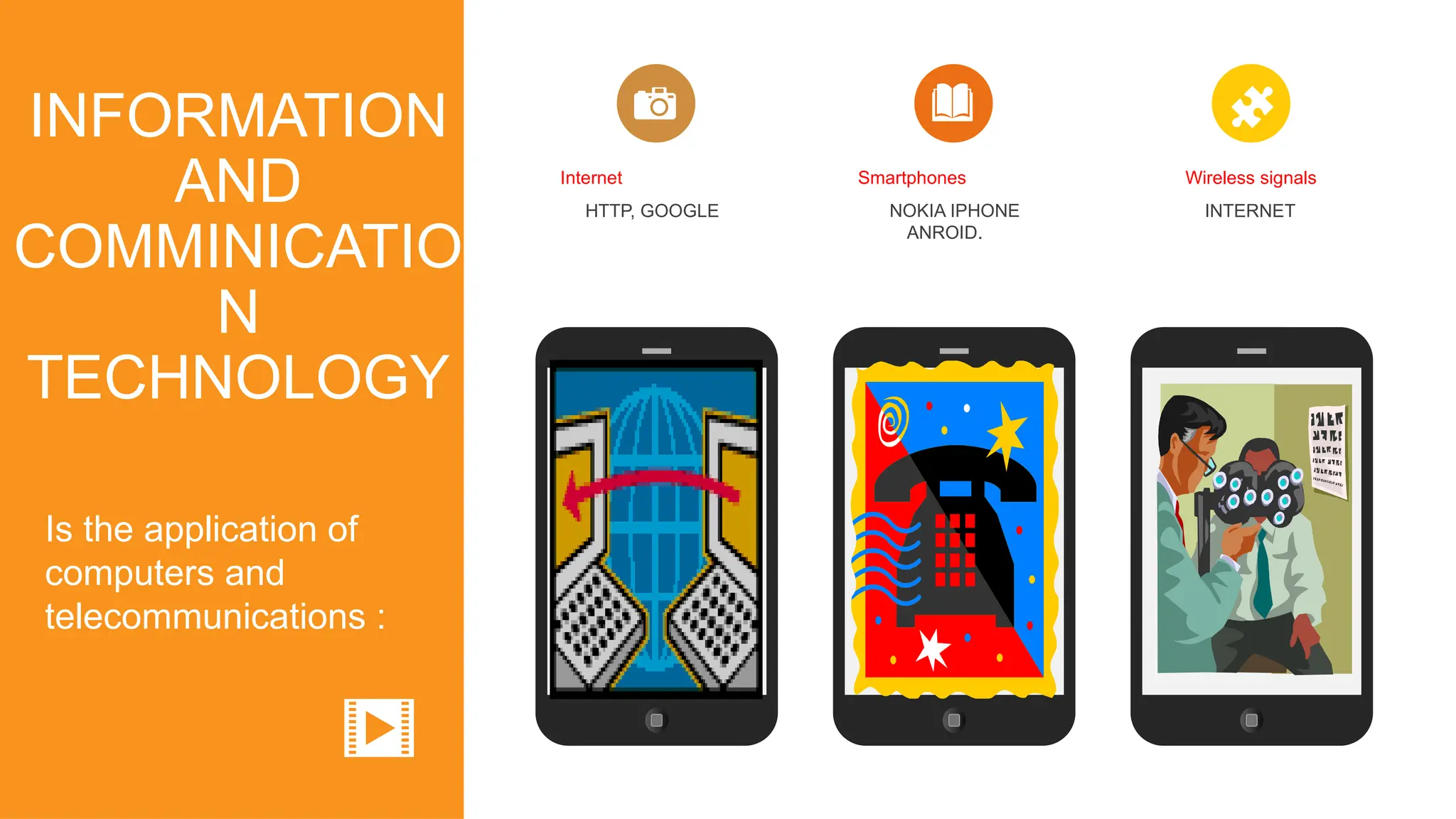
Is the application of
computers and
telecommunications :
HTTP, GOOGLE
Internet
NOKIA IPHONE
ANROID.
Smartphones
INTERNET
Wireless signals
INFORMATION
AND
COMMINICATIO
N
TECHNOLOGY
Your Picture Here Your Picture Here Your Picture Here
At the end of this lesson, you should be able to:
Understand how computer works
Recognize the number system
Convert Binary and decimal numbers
HARWARE
COMPONENETS
Objectives
COMPUTER HARDWARE
PHYSICAL PARTS OF
COMPUTER
It includes the
Electrical parts, electronic parts, and
mechanical parts of a computer.
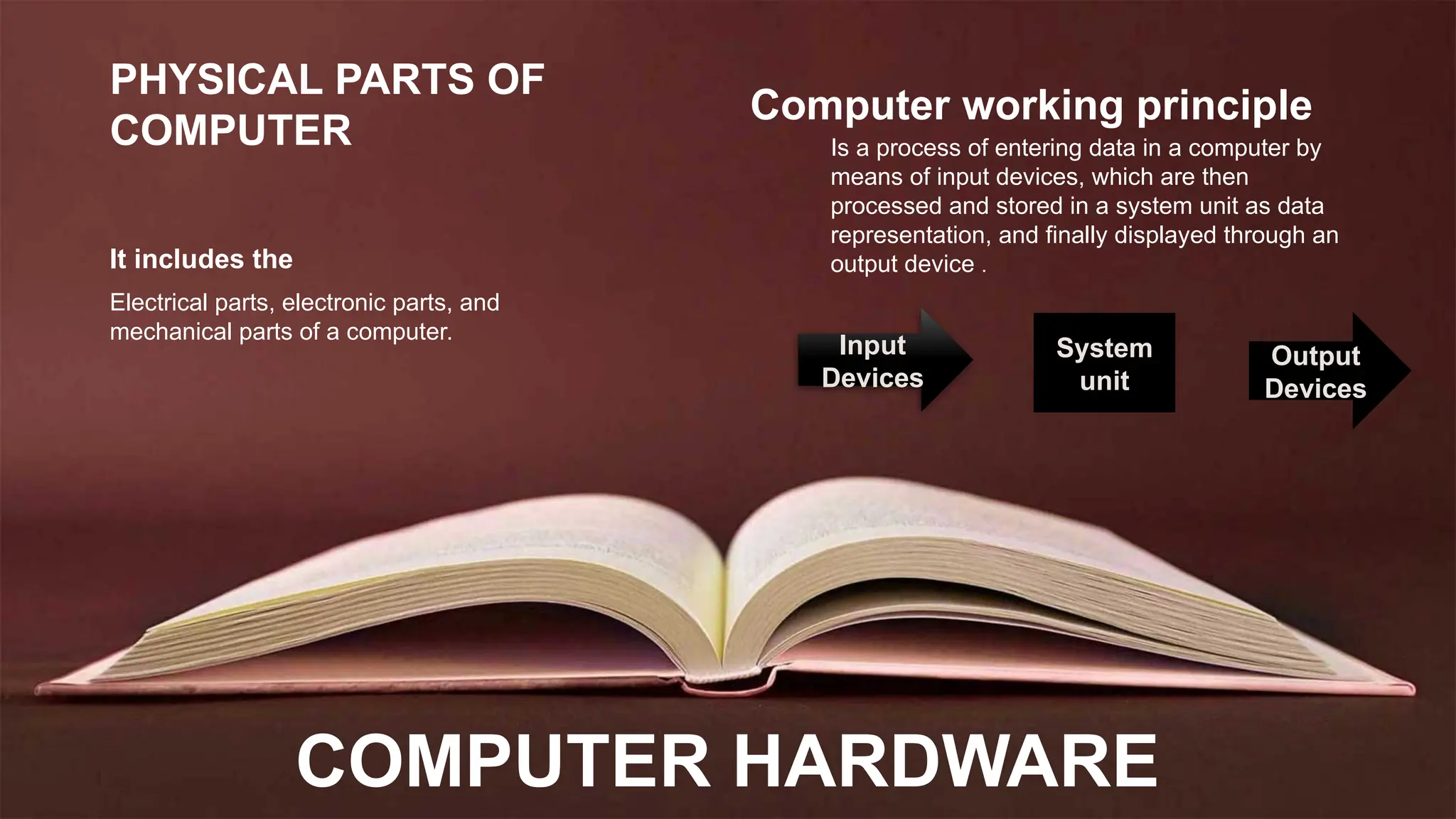
Computer working principle
Is a process of entering data in a computer by
means of input devices, which are then
processed and stored in a system unit as data
representation, and finally displayed through an
output device .
Input
Devices
System
unit
Output
Devices
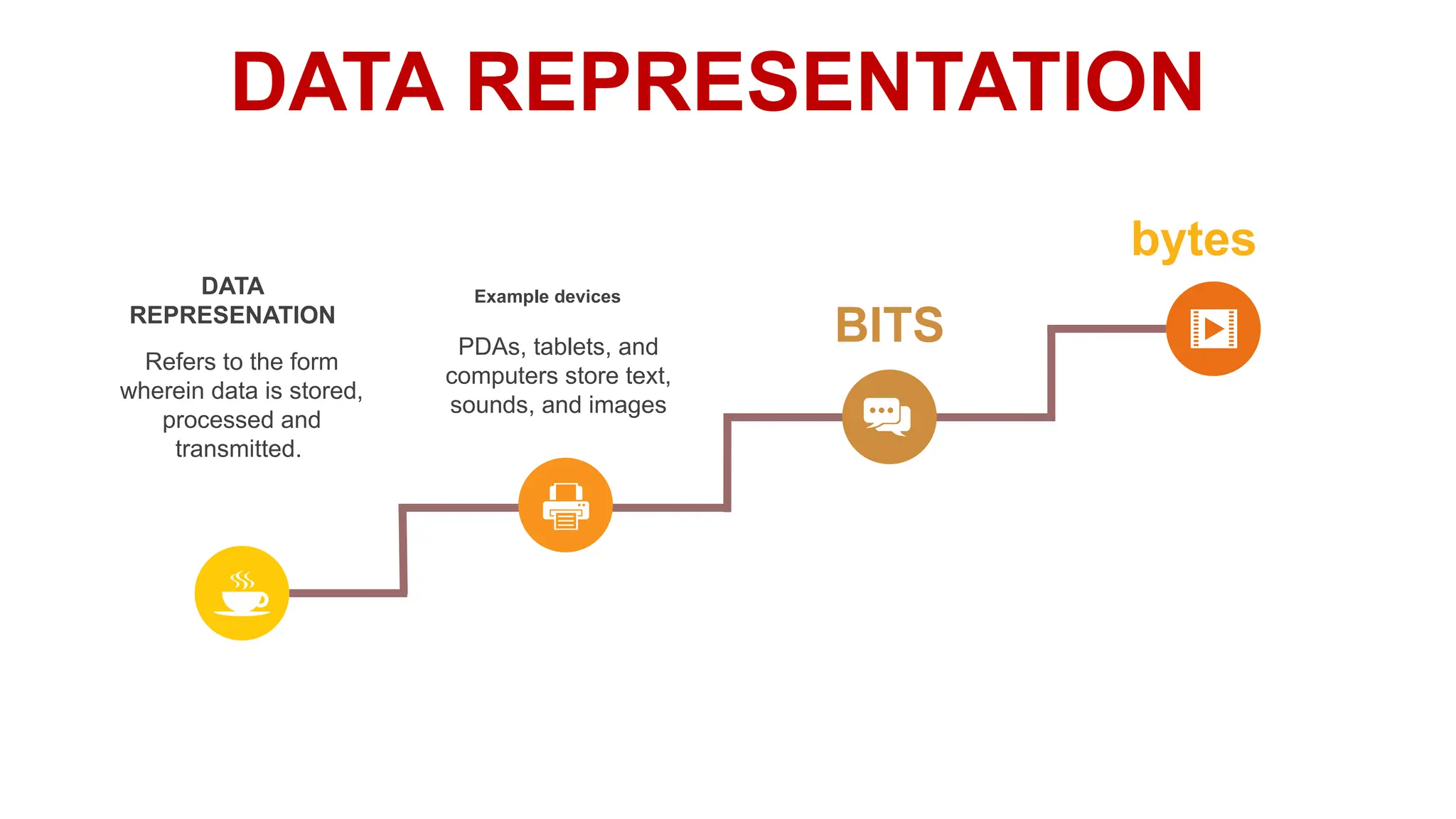
DATA REPRESENTATION
DATA
REPRESENATION
Refers to the form
wherein data is stored,
processed and
transmitted.
Example devices
PDAs, tablets, and
computers store text,
sounds, and images
BITS
bytes
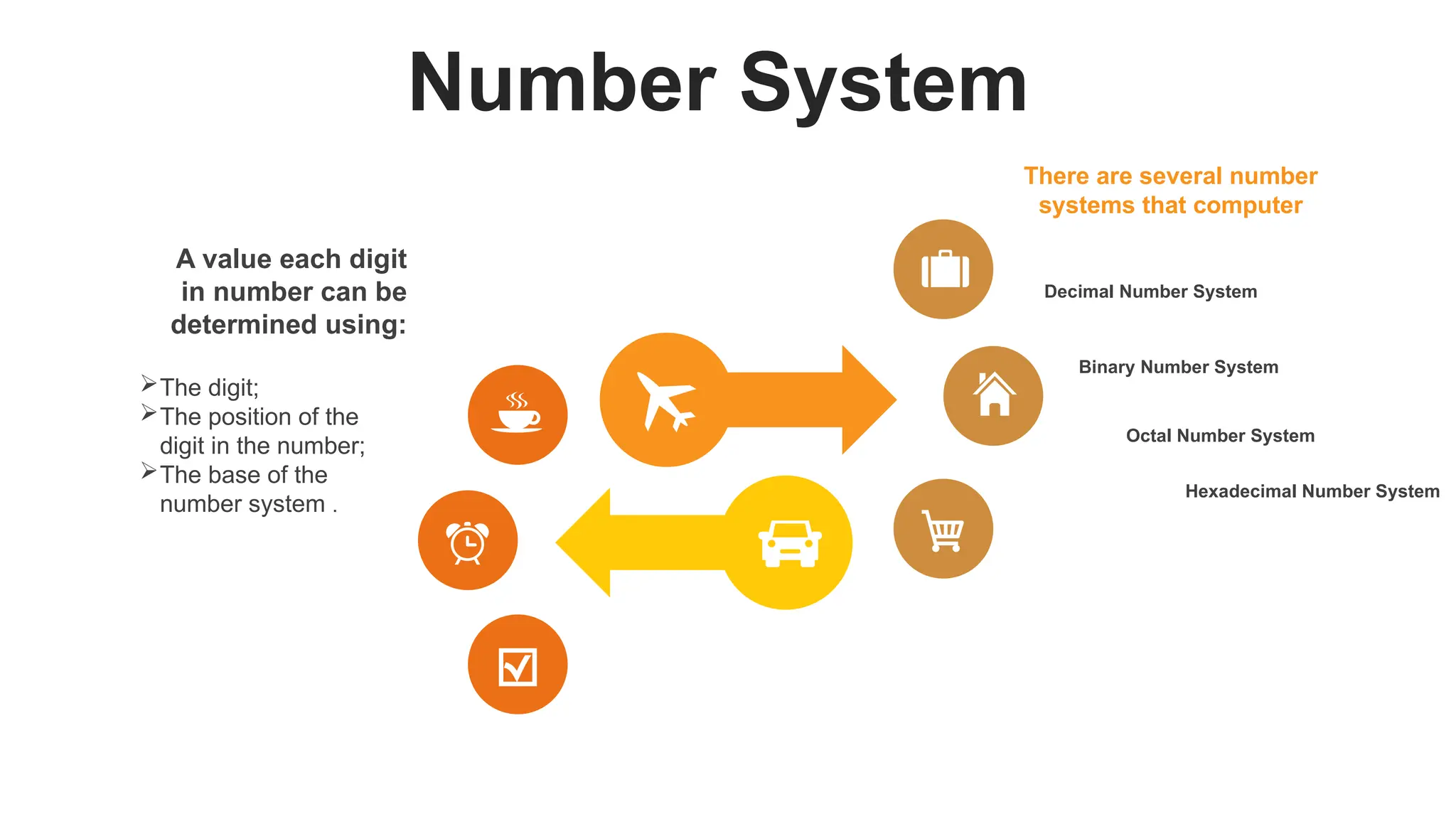
Number System
A value each digit
in number can be
determined using:
The digit;
The position of the
digit in the number;
The base of the
number system .
Decimal Number System
Binary Number System
Octal Number System
There are several number
systems that computer
Hexadecimal Number System
o Is the foundation of
modern computers and
digital communication
DIGITAL
ELECTRONICS
COMPUTER HARDWARE .
Digital Electronics
01
03
05
02
04
06
Read- Only Memory
 It keeps its content even when the
computer is turned off. This is because
once data has been written onto a ROM
Chip, it can not be removed, but can
only be read.
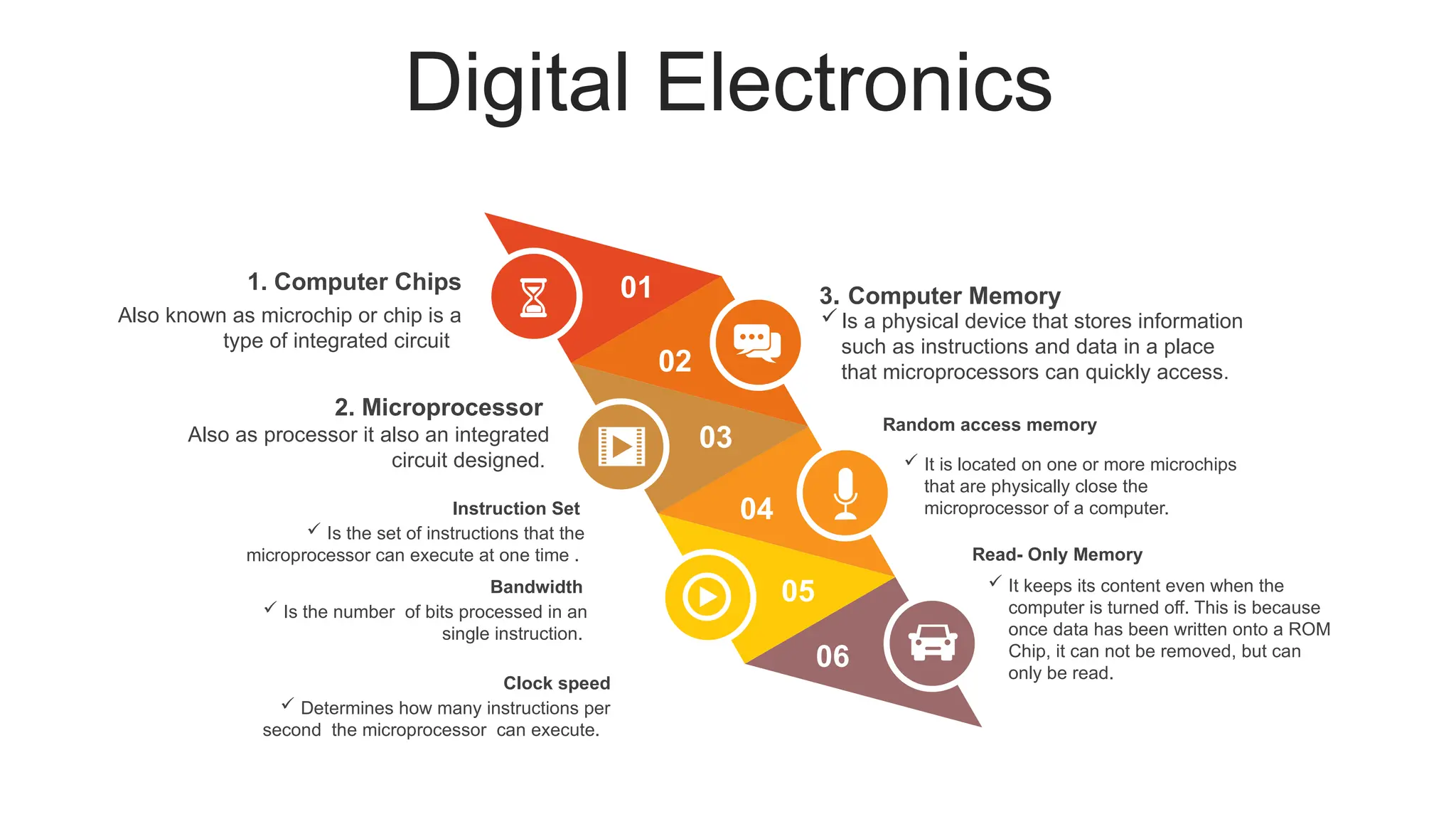
1. Computer Chips
Also known as microchip or chip is a
type of integrated circuit
Random access memory
 It is located on one or more microchips
that are physically close the
microprocessor of a computer.
2. Microprocessor
Also as processor it also an integrated
circuit designed.
Instruction Set
 Is the set of instructions that the
microprocessor can execute at one time .
Bandwidth
 Is the number of bits processed in an
single instruction.
Clock speed
 Determines how many instructions per
second the microprocessor can execute.
3. Computer Memory
Is a physical device that stores information
such as instructions and data in a place
that microprocessors can quickly access.
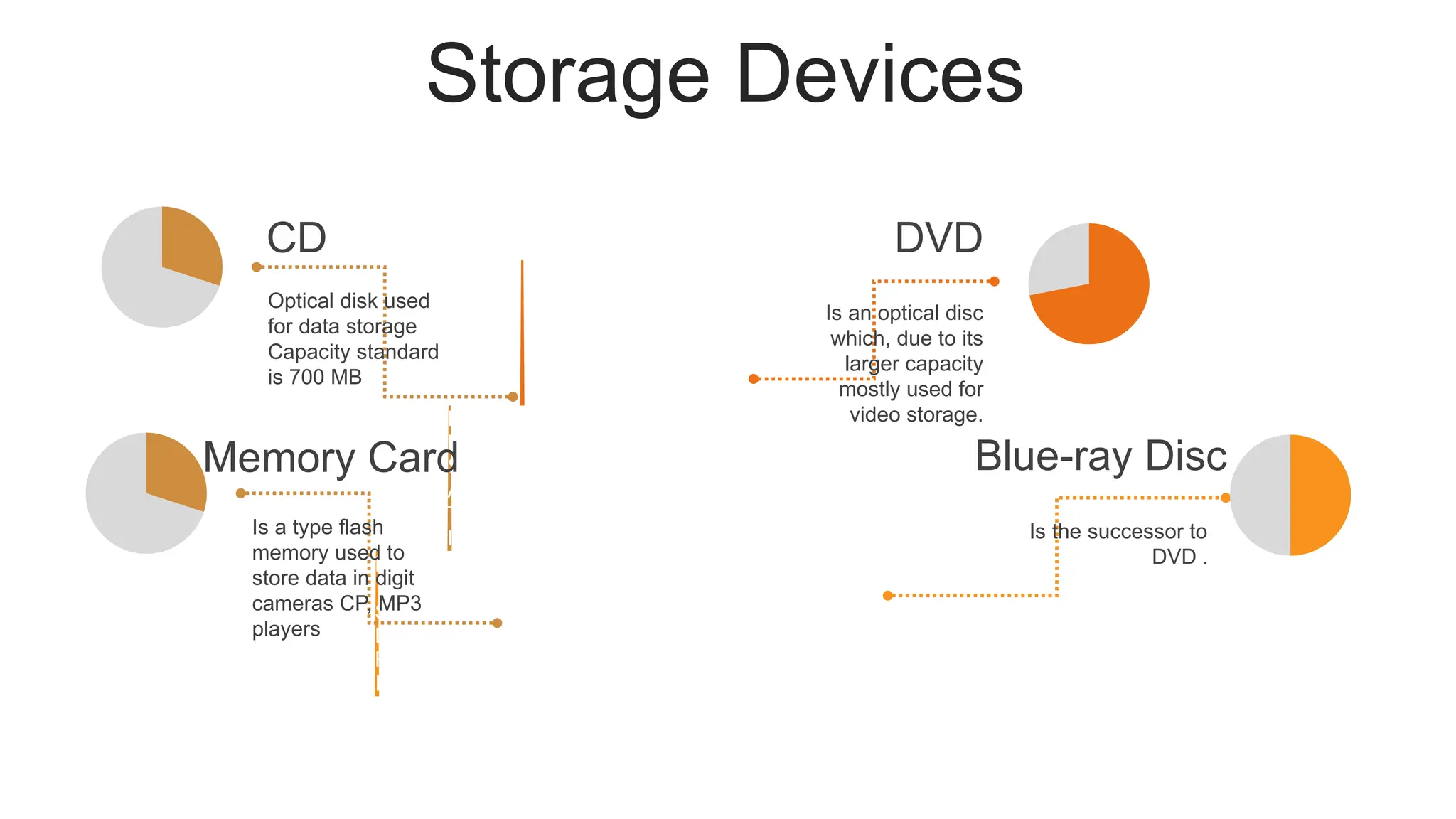
Storage Devices
D
I
G
I
T
A
L
V
E
R
S
A
T
I
L
E
D
I
S
C
U
N
I
V
E
R
S
A
L
S
E
R
I
A
L
B
U
Is an optical disc
which, due to its
larger capacity
mostly used for
video storage.
DVD
Is the successor to
DVD .
Blue-ray Disc
Optical disk used
for data storage
Capacity standard
is 700 MB
CD
Is a type flash
memory used to
store data in digit
cameras CP, MP3
players
Memory Card
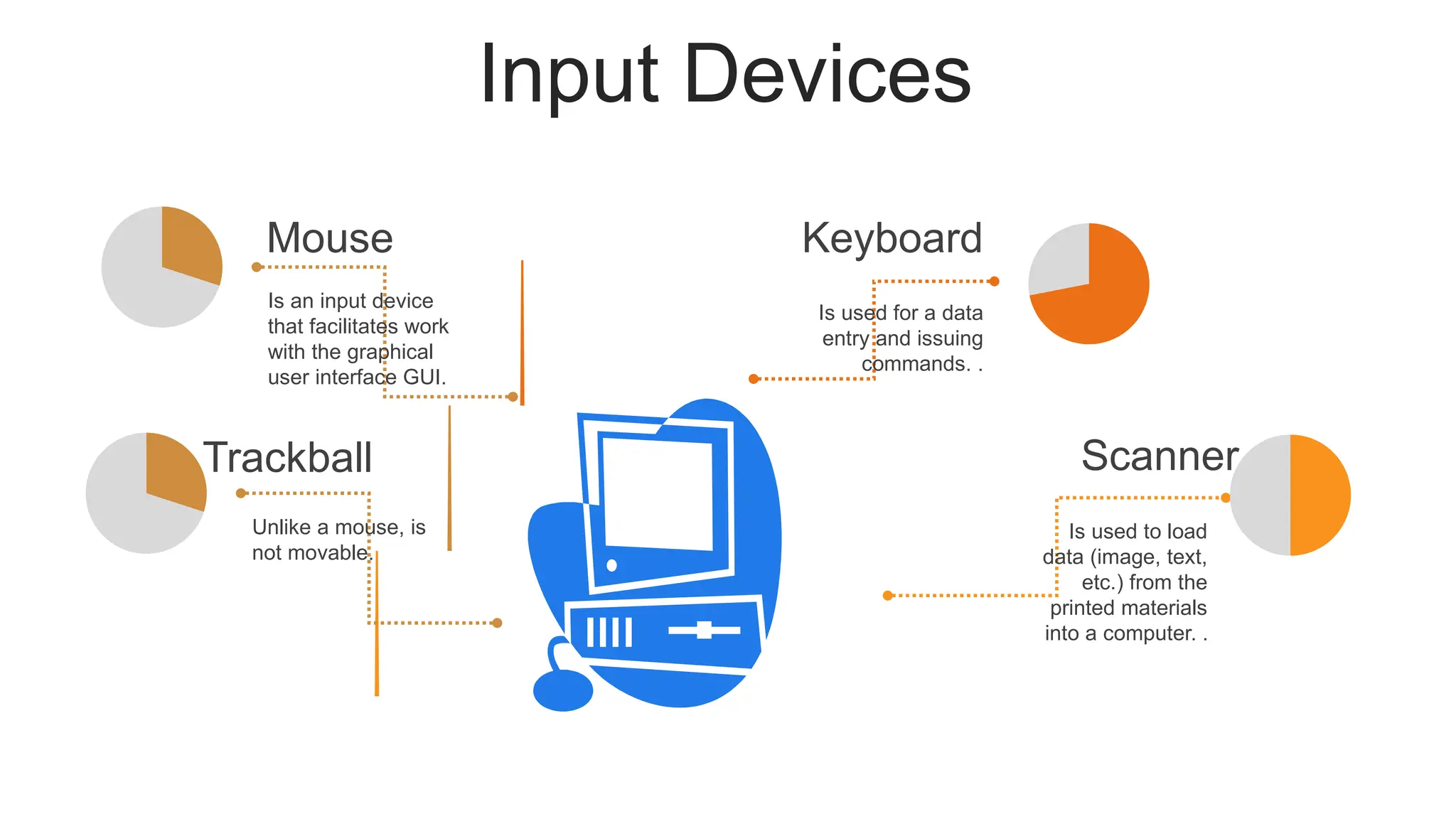
Input Devices
Is used for a data
entry and issuing
commands. .
Keyboard
Is used to load
data (image, text,
etc.) from the
printed materials
into a computer. .
Scanner
Is an input device
that facilitates work
with the graphical
user interface GUI.
Mouse
Unlike a mouse, is
not movable.
Trackball
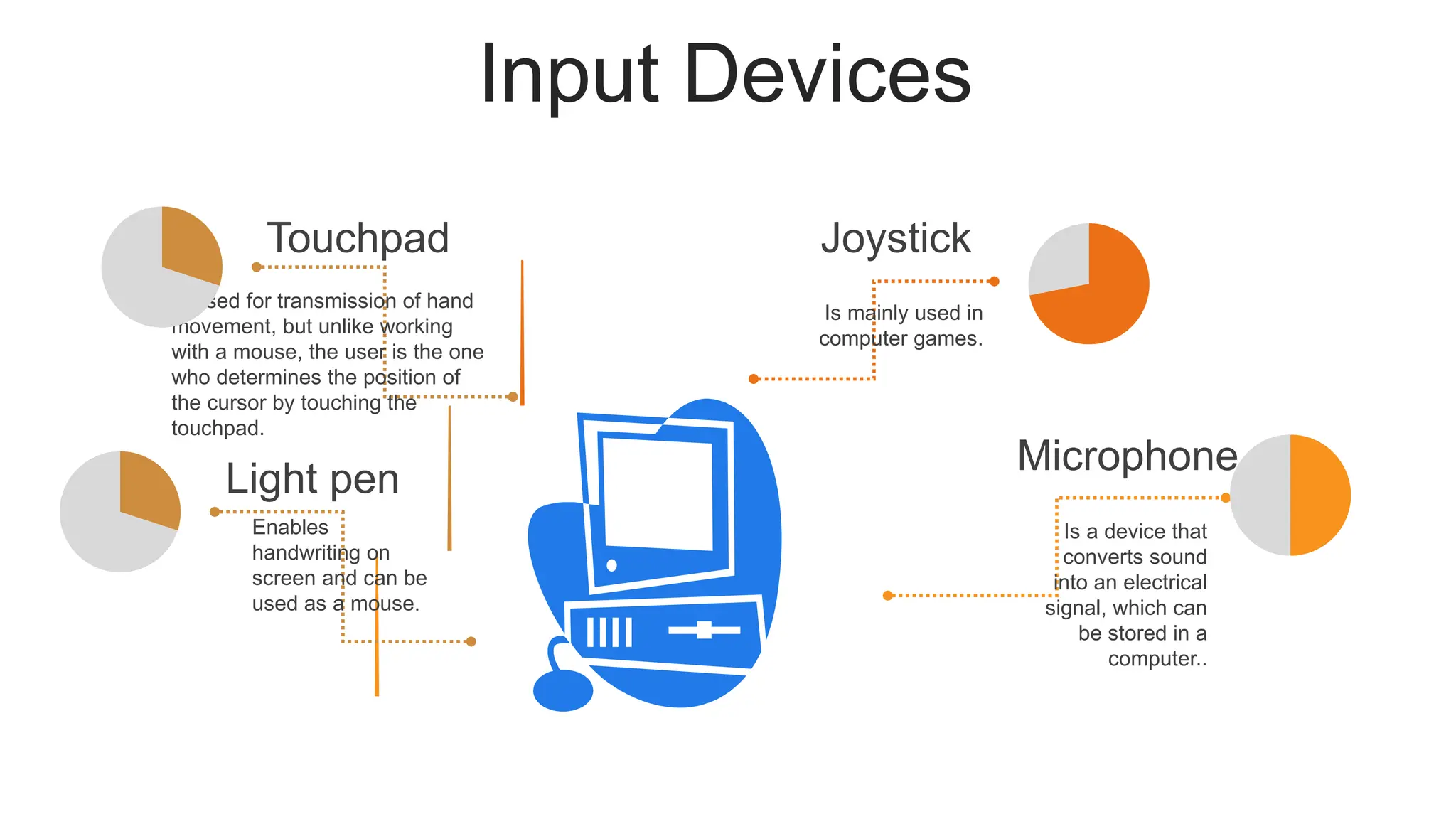
Input Devices
Is mainly used in
computer games.
Joystick
Is a device that
converts sound
into an electrical
signal, which can
be stored in a
computer..
Microphone
Is used for transmission of hand
movement, but unlike working
with a mouse, the user is the one
who determines the position of
the cursor by touching the
touchpad.
Touchpad
Enables
handwriting on
screen and can be
used as a mouse.
Light pen
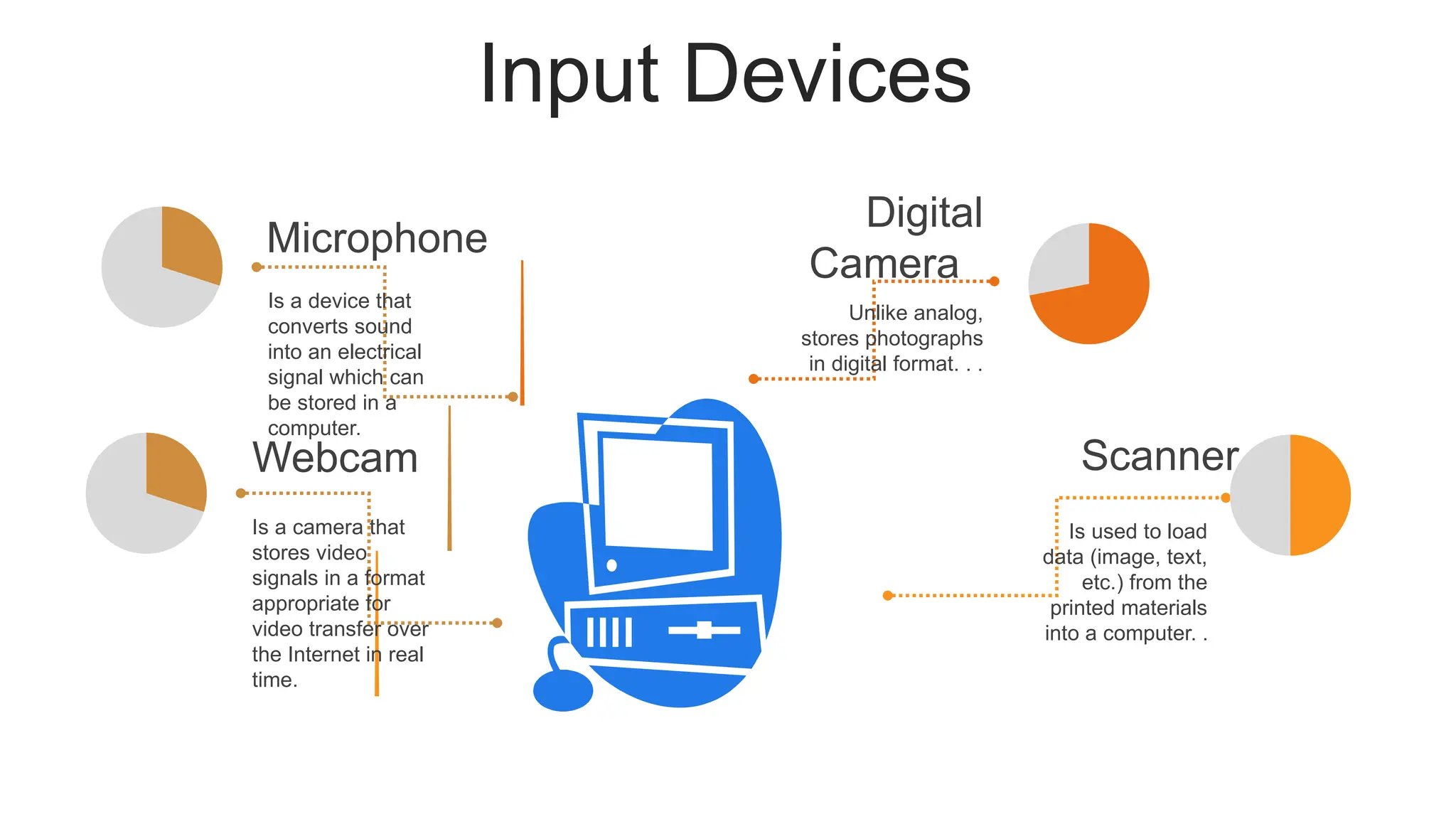
Input Devices
Unlike analog,
stores photographs
in digital format. . .
Digital
Camera
Is used to load
data (image, text,
etc.) from the
printed materials
into a computer. .
Scanner
Is a device that
converts sound
into an electrical
signal which can
be stored in a
computer.
Microphone
Is a camera that
stores video
signals in a format
appropriate for
video transfer over
the Internet in real
time.
Webcam
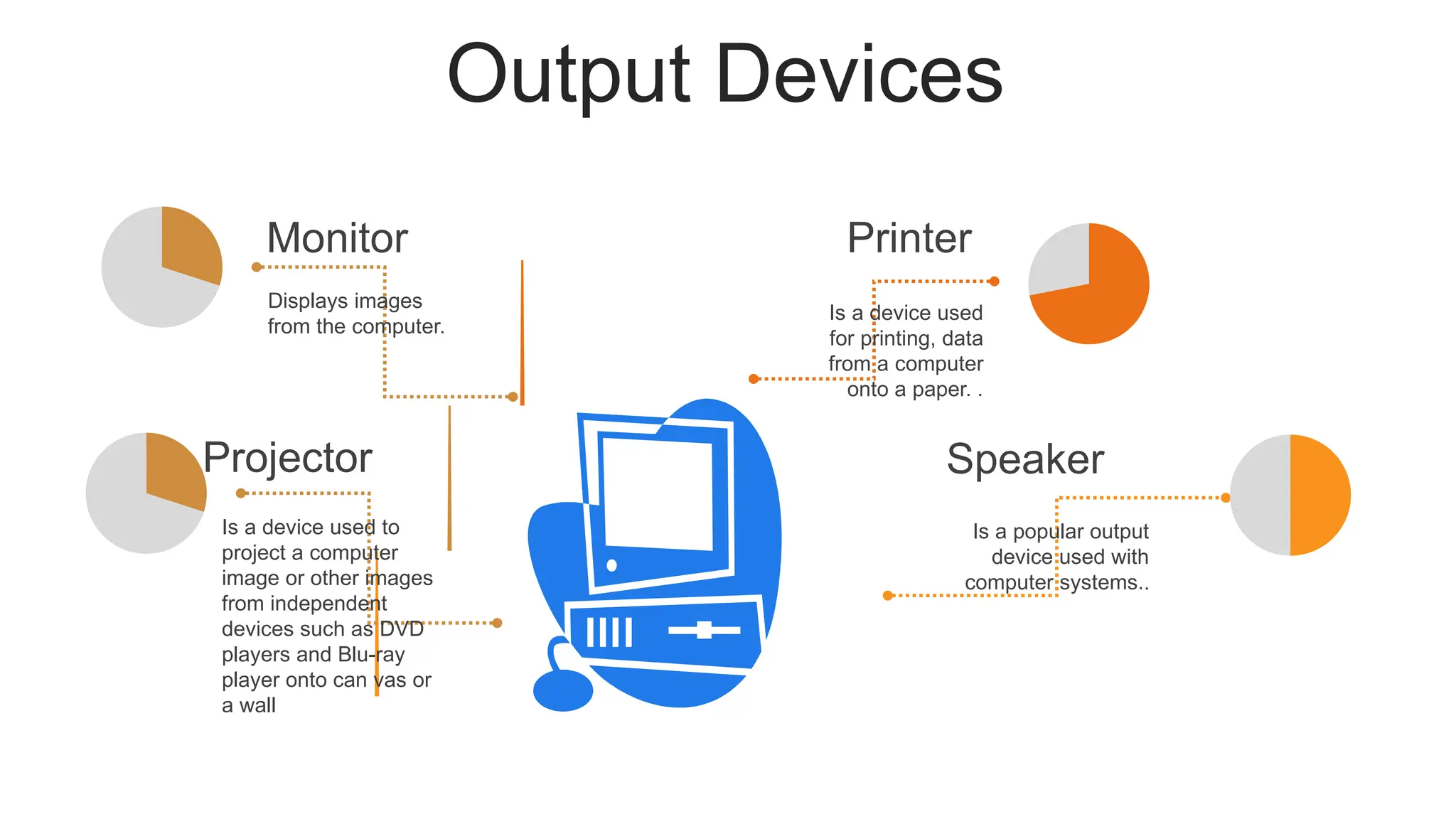
Output Devices
Is a device used
for printing, data
from a computer
onto a paper. .
Printer
Is a popular output
device used with
computer systems..
Speaker
Displays images
from the computer.
Monitor
Is a device used to
project a computer
image or other images
from independent
devices such as DVD
players and Blu-ray
player onto can vas or
a wall
Projector
Classification of
Computers
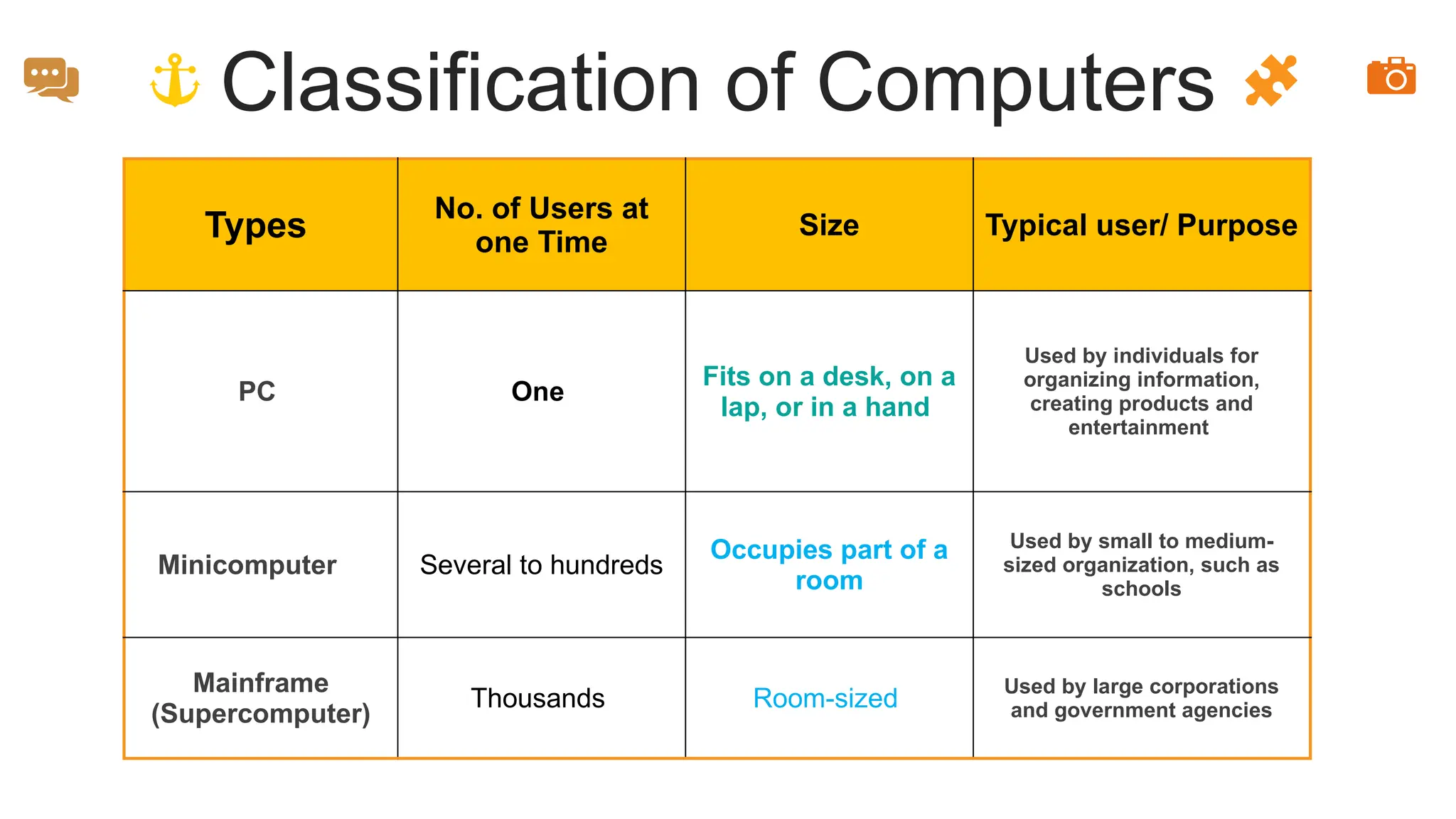
Classification of Computers
Types
No. of Users at
one Time
Size Typical user/ Purpose
PC One
Fits on a desk, on a
lap, or in a hand
Used by individuals for
organizing information,
creating products and
entertainment
Minicomputer Several to hundreds
Occupies part of a
room
Used by small to medium-
sized organization, such as
schools
Mainframe
(Supercomputer)
Thousands Room-sized
Used by large corporations
and government agencies
Classifications
of
Computers
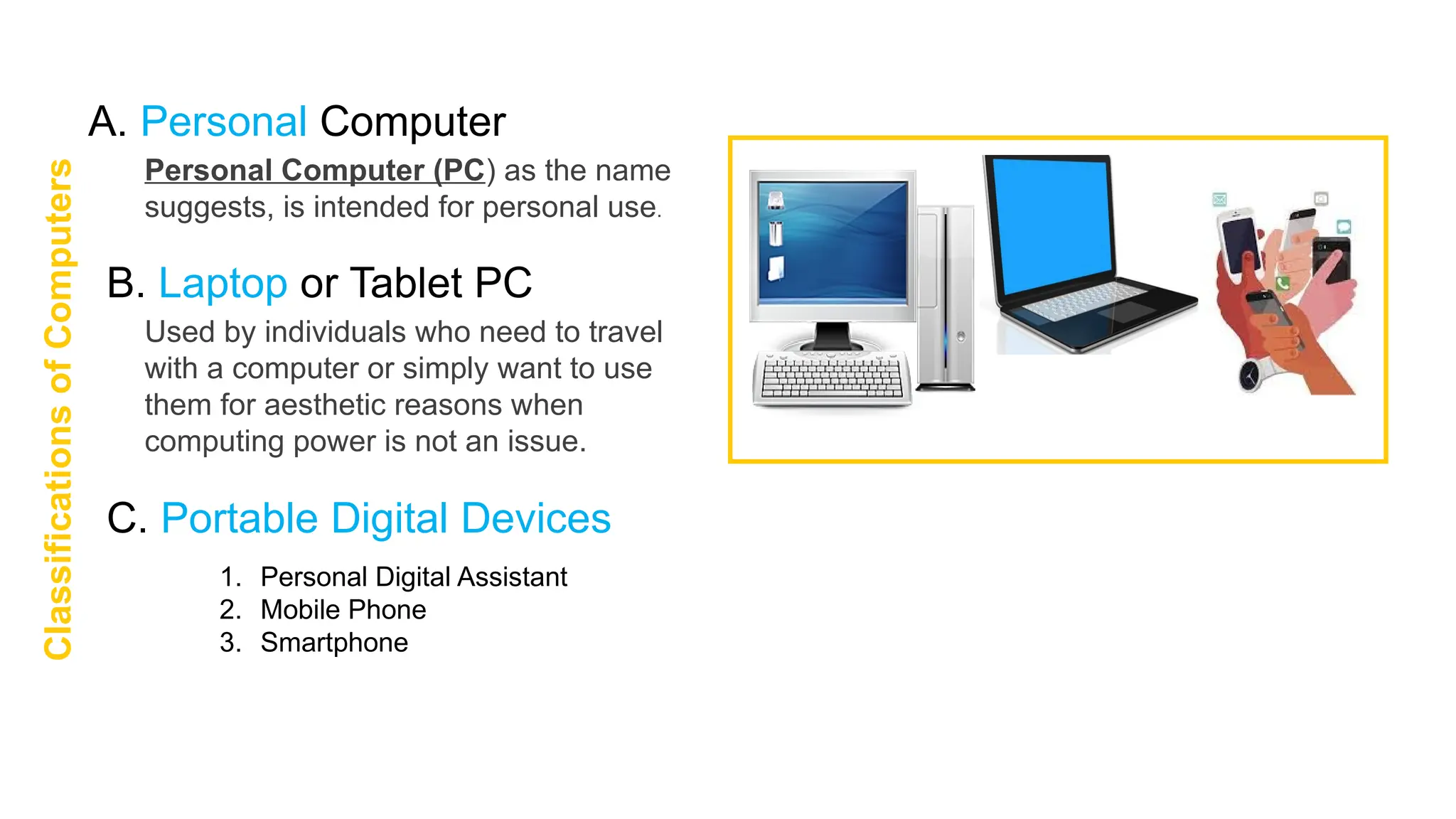
A. Personal Computer
Personal Computer (PC) as the name
suggests, is intended for personal use.
B. Laptop or Tablet PC
Used by individuals who need to travel
with a computer or simply want to use
them for aesthetic reasons when
computing power is not an issue.
C. Portable Digital Devices
1. Personal Digital Assistant
2. Mobile Phone
3. Smartphone
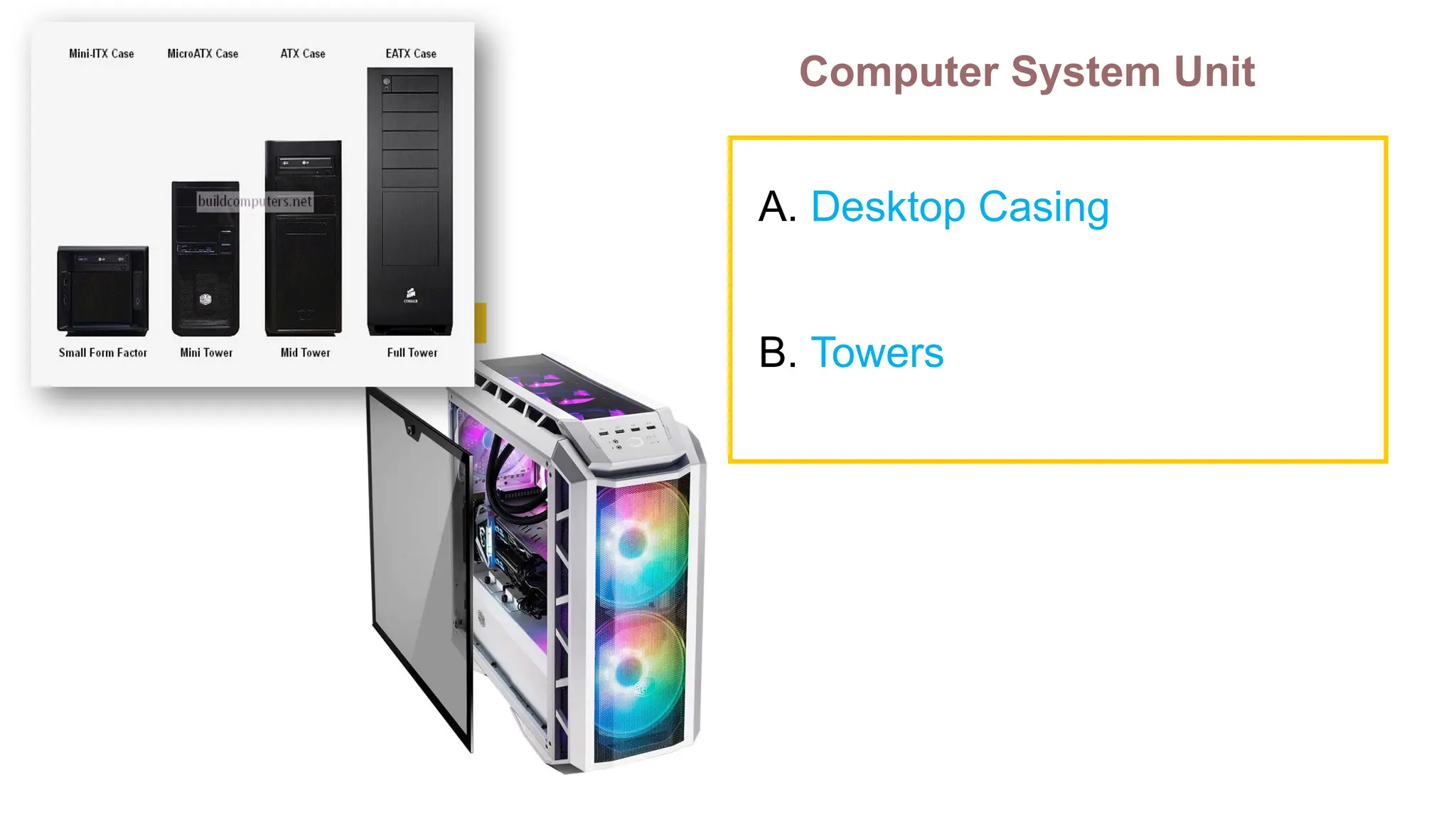
Computer System Unit
A. Desktop Casing
B. Towers
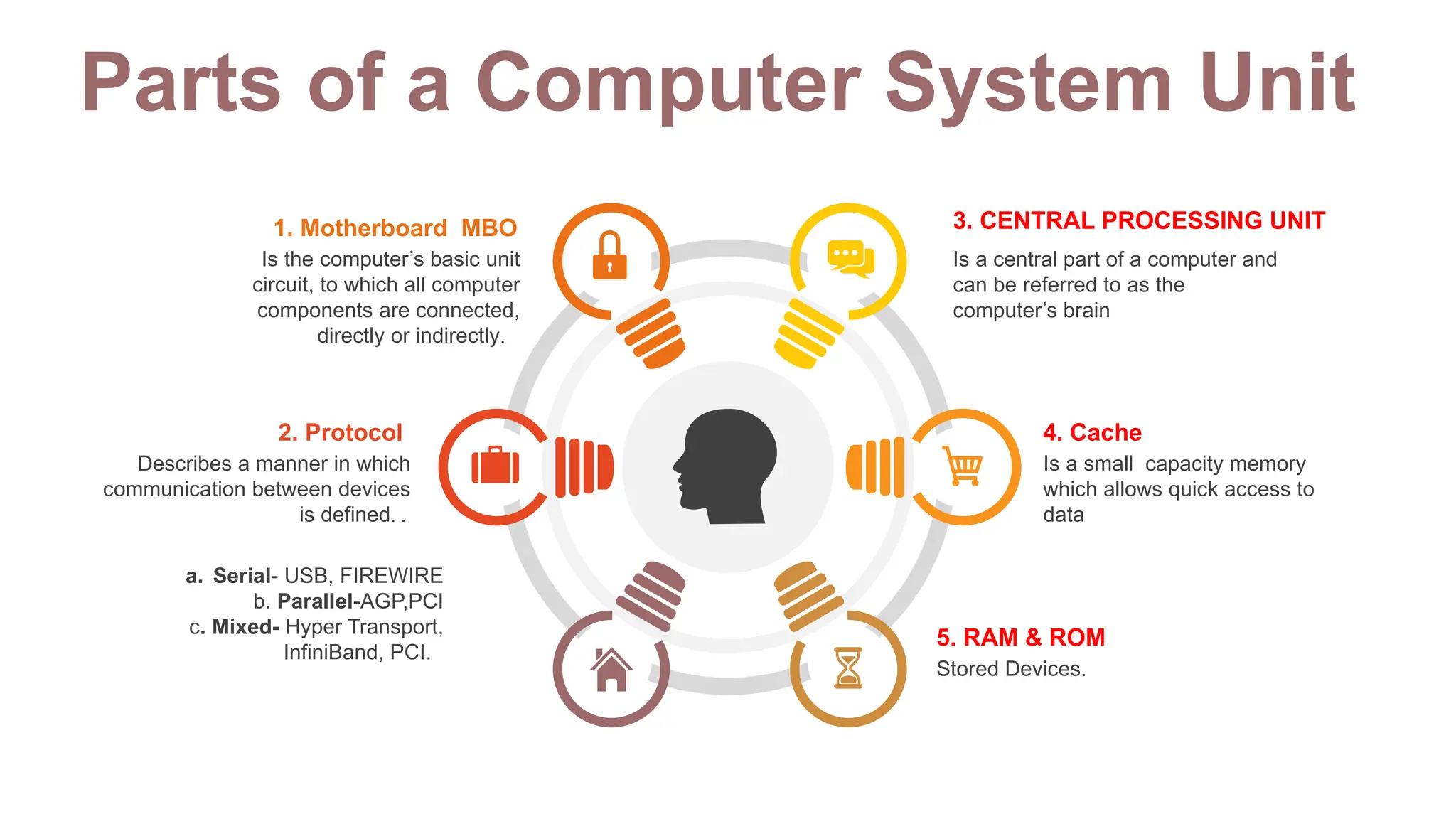
Parts of a Computer System Unit
Is a central part of a computer and
can be referred to as the
computer’s brain
3. CENTRAL PROCESSING UNIT
Is a small capacity memory
which allows quick access to
data
4. Cache
Stored Devices.
5. RAM & ROM
Is the computer’s basic unit
circuit, to which all computer
components are connected,
directly or indirectly.
1. Motherboard MBO
Describes a manner in which
communication between devices
is defined. .
2. Protocol
a. Serial- USB, FIREWIRE
b. Parallel-AGP,PCI
c. Mixed- Hyper Transport,
InfiniBand, PCI.
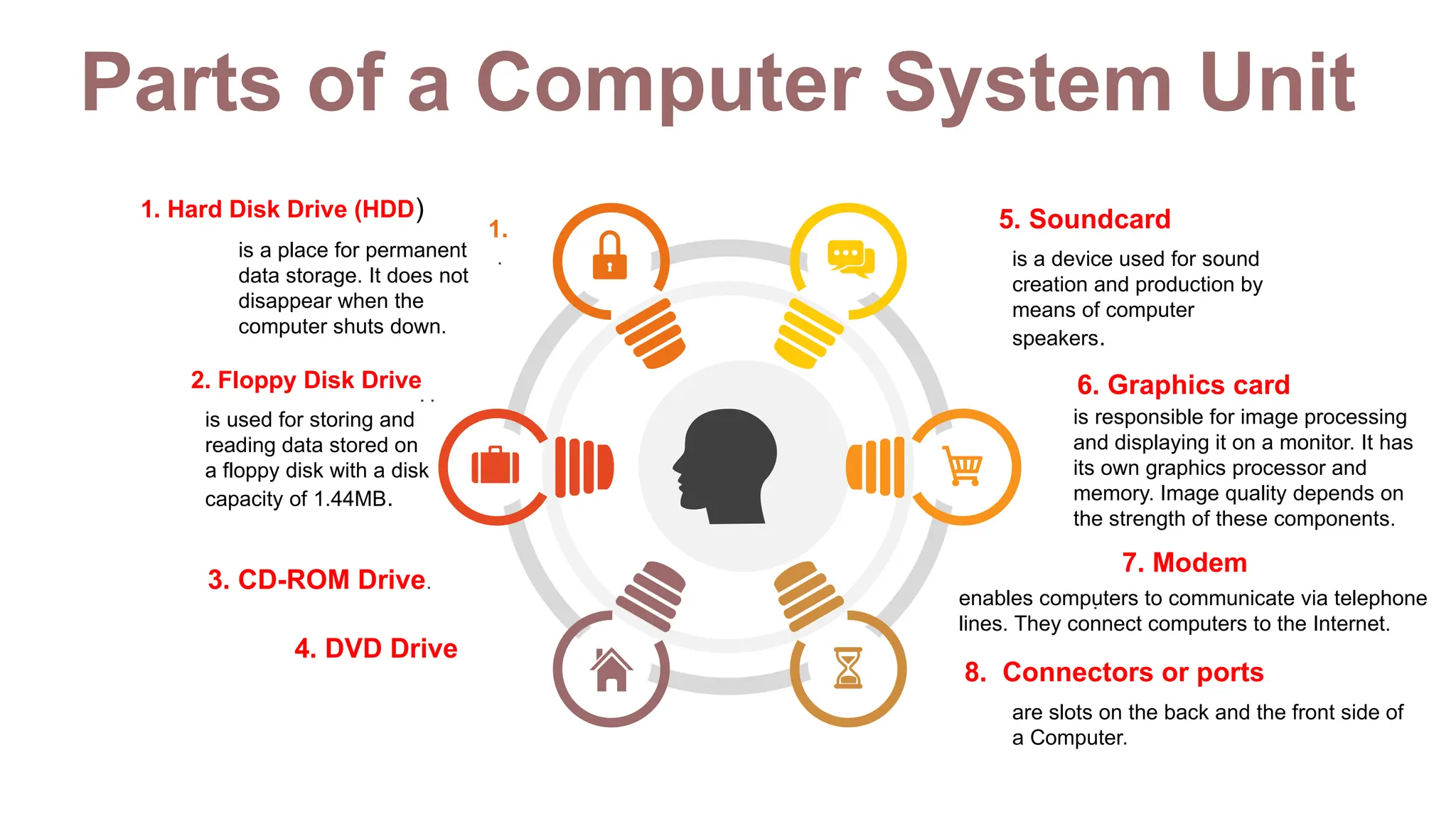
Parts of a Computer System Unit
.
.
1.
. .
3. CD-ROM Drive.
1. Hard Disk Drive (HDD)
is a place for permanent
data storage. It does not
disappear when the
computer shuts down.
2. Floppy Disk Drive
is used for storing and
reading data stored on
a floppy disk with a disk
capacity of 1.44MB.
4. DVD Drive
5. Soundcard
is a device used for sound
creation and production by
means of computer
speakers.
6. Graphics card
is responsible for image processing
and displaying it on a monitor. It has
its own graphics processor and
memory. Image quality depends on
the strength of these components.
7. Modem
enables computers to communicate via telephone
lines. They connect computers to the Internet.
8. Connectors or ports
are slots on the back and the front side of
a Computer.
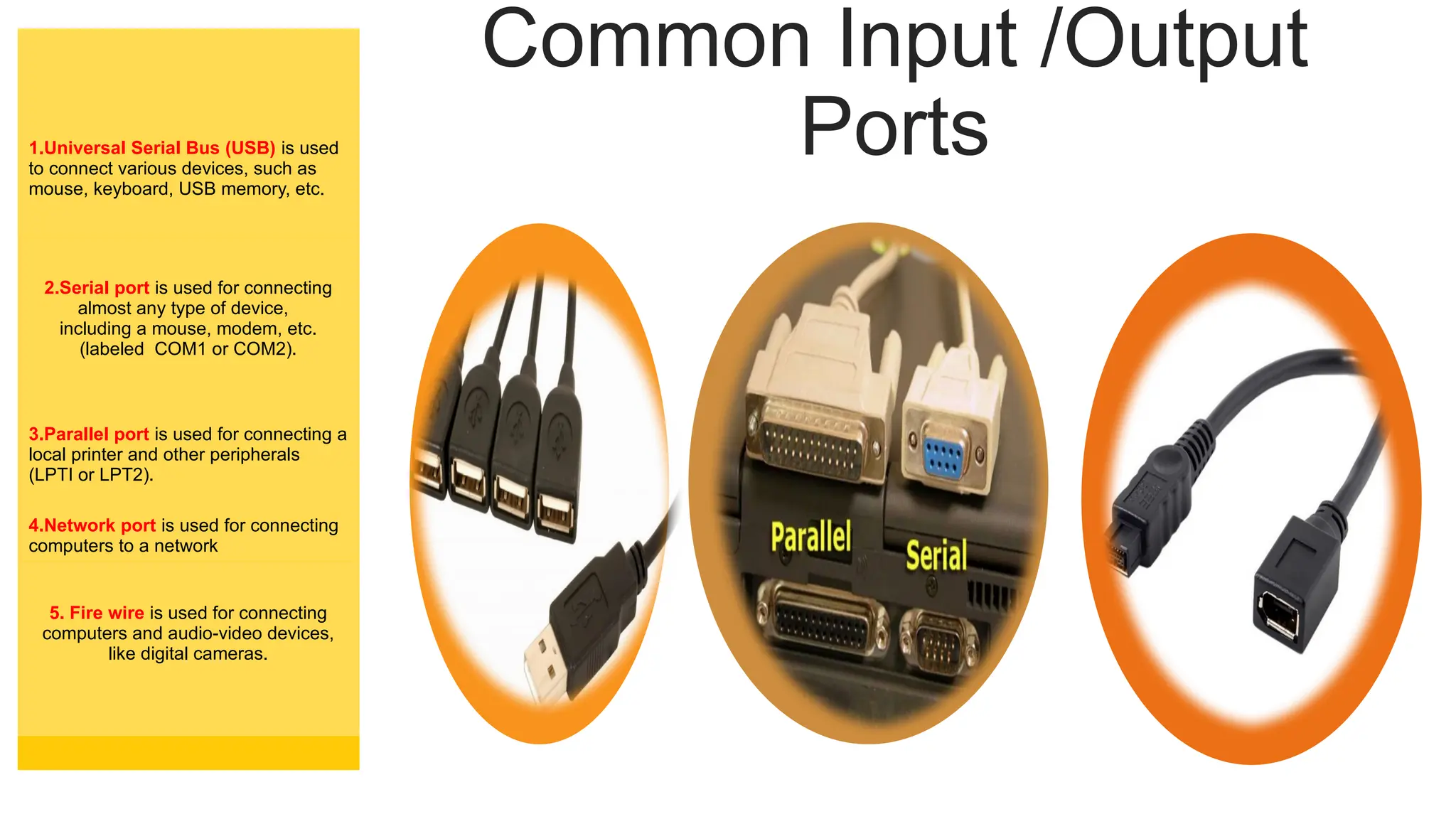
Common Input /Output
Ports
1.Universal Serial Bus (USB) is used
to connect various devices, such as
mouse, keyboard, USB memory, etc.
2.Serial port is used for connecting
almost any type of device,
including a mouse, modem, etc.
(labeled COM1 or COM2).
3.Parallel port is used for connecting a
local printer and other peripherals
(LPTI or LPT2).
4.Network port is used for connecting
computers to a network
5. Fire wire is used for connecting
computers and audio-video devices,
like digital cameras.
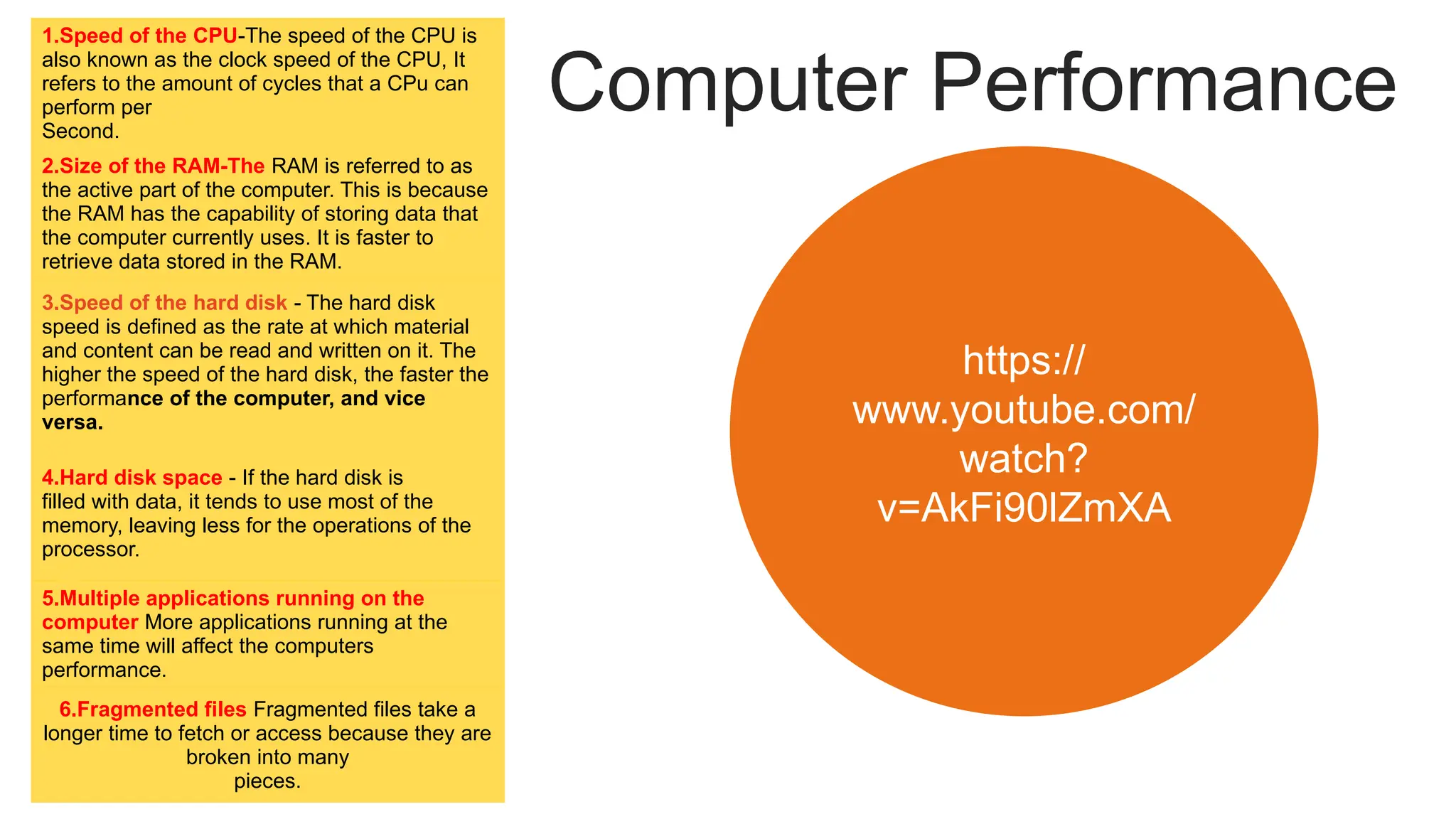
Computer Performance
1.Speed of the CPU-The speed of the CPU is
also known as the clock speed of the CPU, It
refers to the amount of cycles that a CPu can
perform per
Second.
2.Size of the RAM-The RAM is referred to as
the active part of the computer. This is because
the RAM has the capability of storing data that
the computer currently uses. It is faster to
retrieve data stored in the RAM.
3.Speed of the hard disk - The hard disk
speed is defined as the rate at which material
and content can be read and written on it. The
higher the speed of the hard disk, the faster the
performance of the computer, and vice
versa.
4.Hard disk space - If the hard disk is
filled with data, it tends to use most of the
memory, leaving less for the operations of the
processor.
5.Multiple applications running on the
computer More applications running at the
same time will affect the computers
performance.
6.Fragmented files Fragmented files take a
longer time to fetch or access because they are
broken into many
pieces.
https://
www.youtube.com/
watch?
v=AkFi90lZmXA
Software
Components of
Computer
Objectives
At the end of this lesson, you should be able to:
 understand how software directs the
computer to manage its resources;
 distinguish between system software and application
software
 understand copyright and copyright violations;
 understand software license
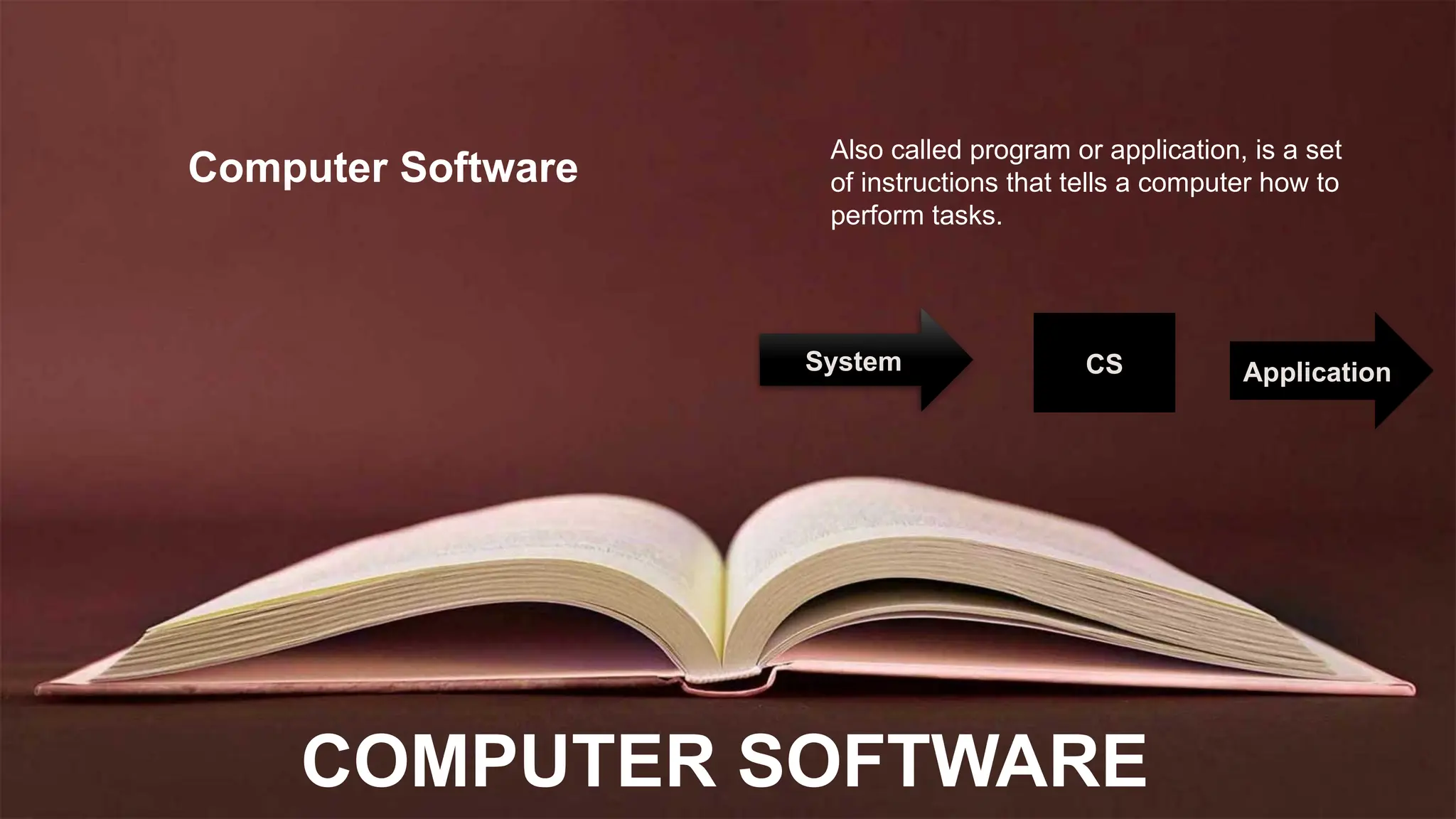
COMPUTER SOFTWARE
Computer Software
Also called program or application, is a set
of instructions that tells a computer how to
perform tasks.
System CS Application
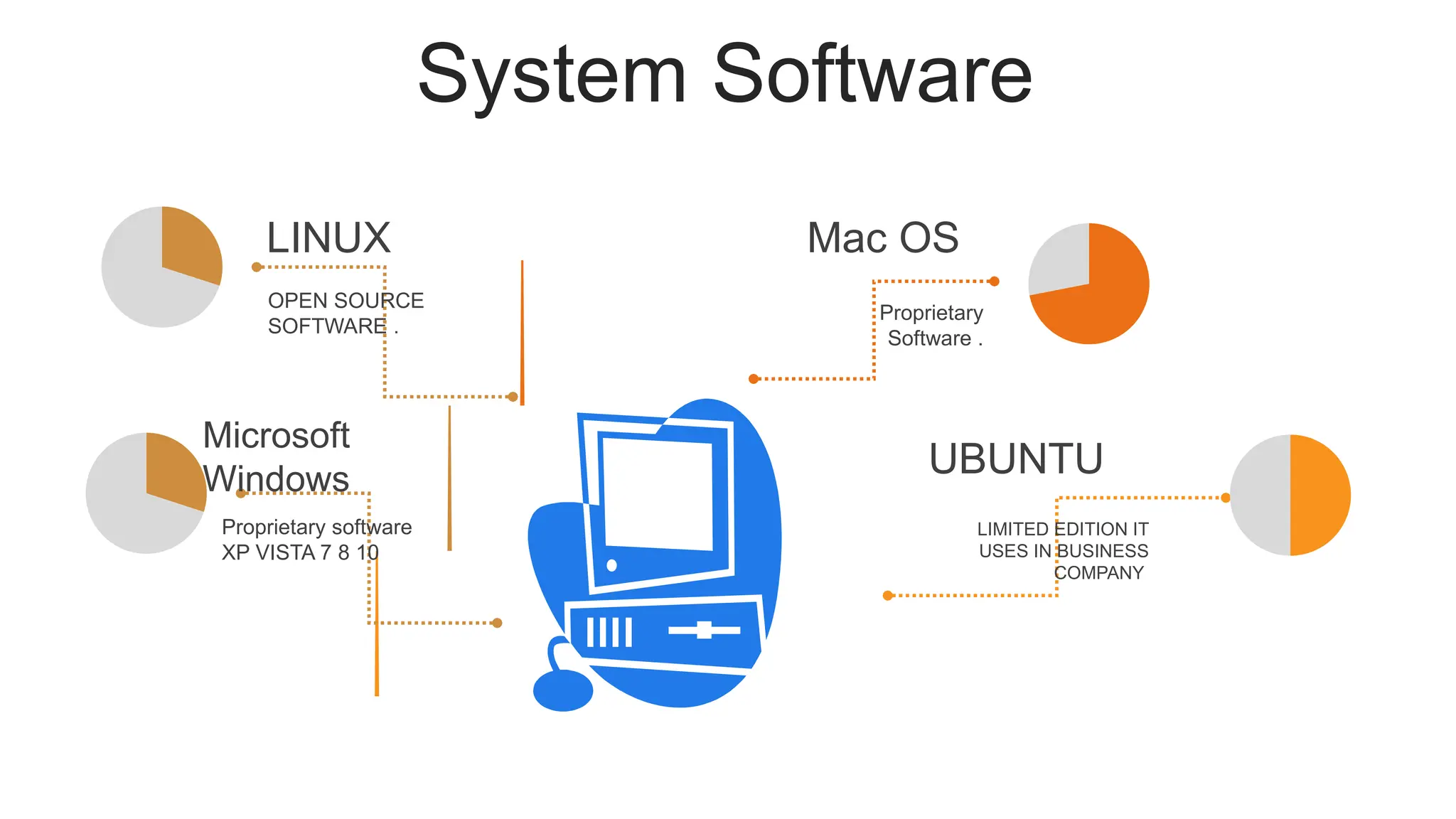
System Software
Proprietary
Software .
Mac OS
LIMITED EDITION IT
USES IN BUSINESS
COMPANY
UBUNTU
OPEN SOURCE
SOFTWARE .
LINUX
Proprietary software
XP VISTA 7 8 10
Microsoft
Windows
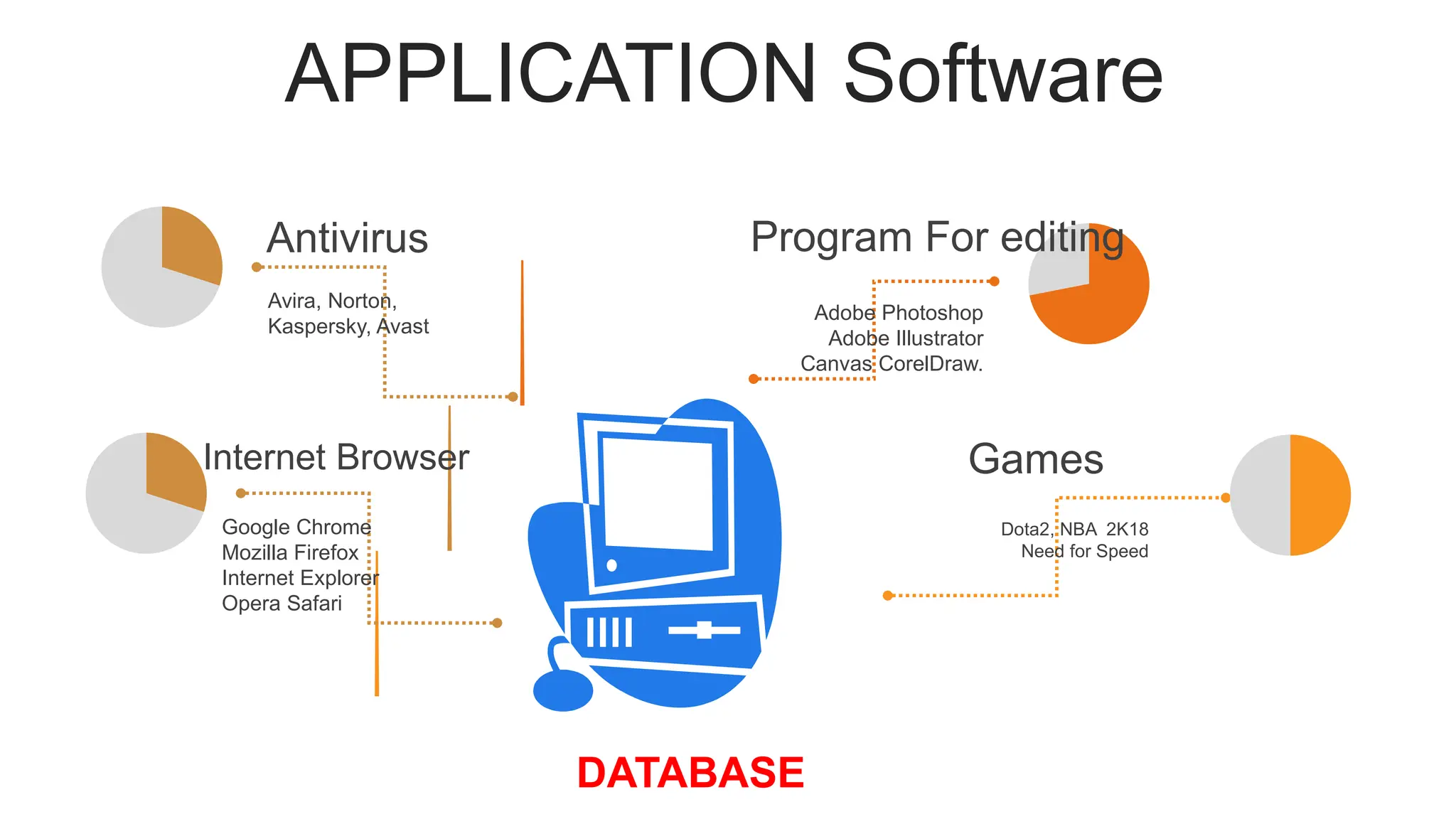
APPLICATION Software
Adobe Photoshop
Adobe Illustrator
Canvas CorelDraw.
Program For editing
Dota2, NBA 2K18
Need for Speed
Games
Avira, Norton,
Kaspersky, Avast
Antivirus
Google Chrome
Mozilla Firefox
Internet Explorer
Opera Safari
Internet Browser
DATABASE
THANK YOU
INTRODUCTION TO
DATABASE
MANAGEMENT SYSTEM
LESSON
2
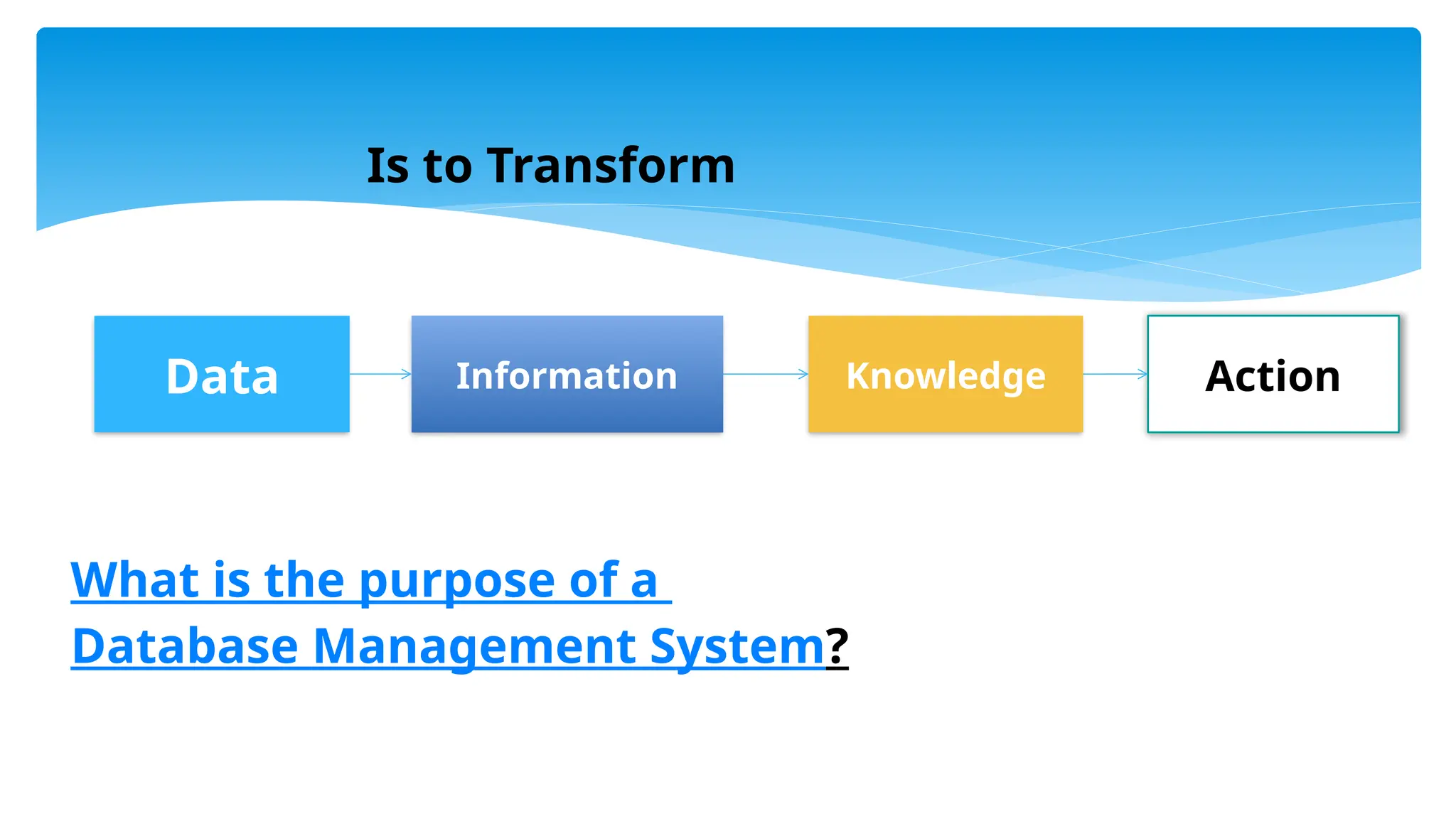
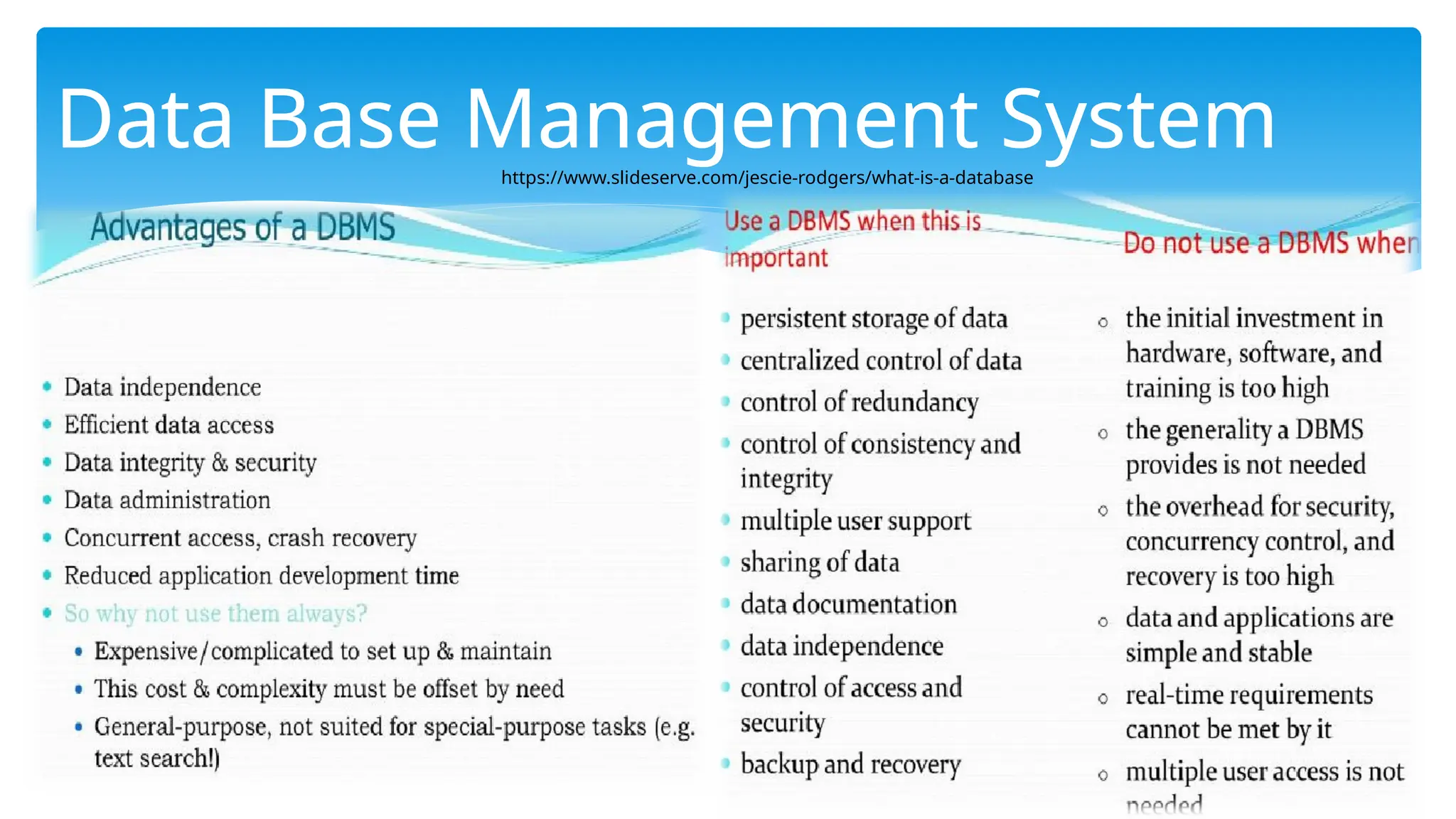
What is the purpose of a
Database Management System?
Data Information Knowledge Action
Is to Transform
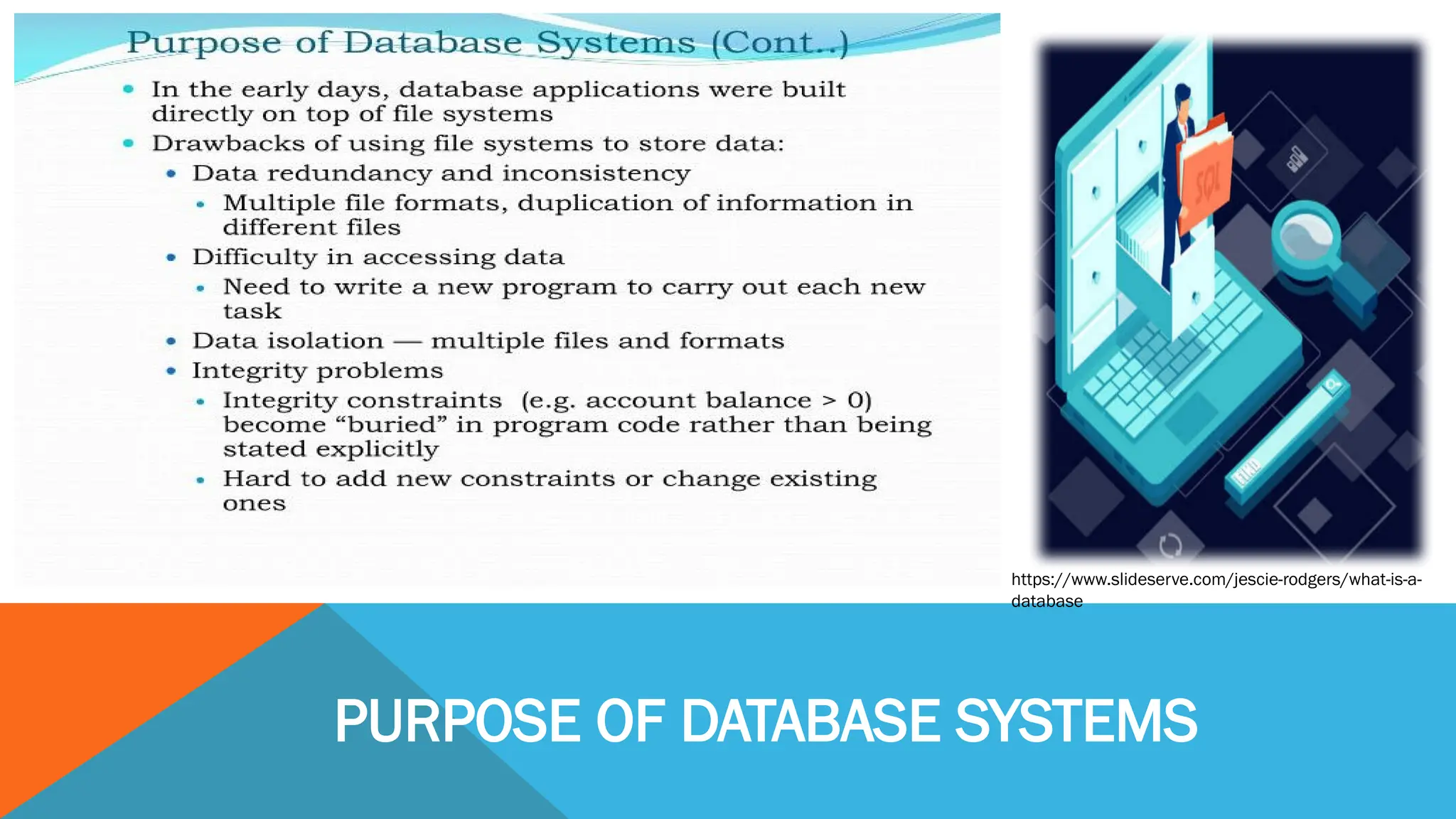
PURPOSE OF DATABASE SYSTEMS
https://www.slideserve.com/jescie-rodgers/what-is-a-
database
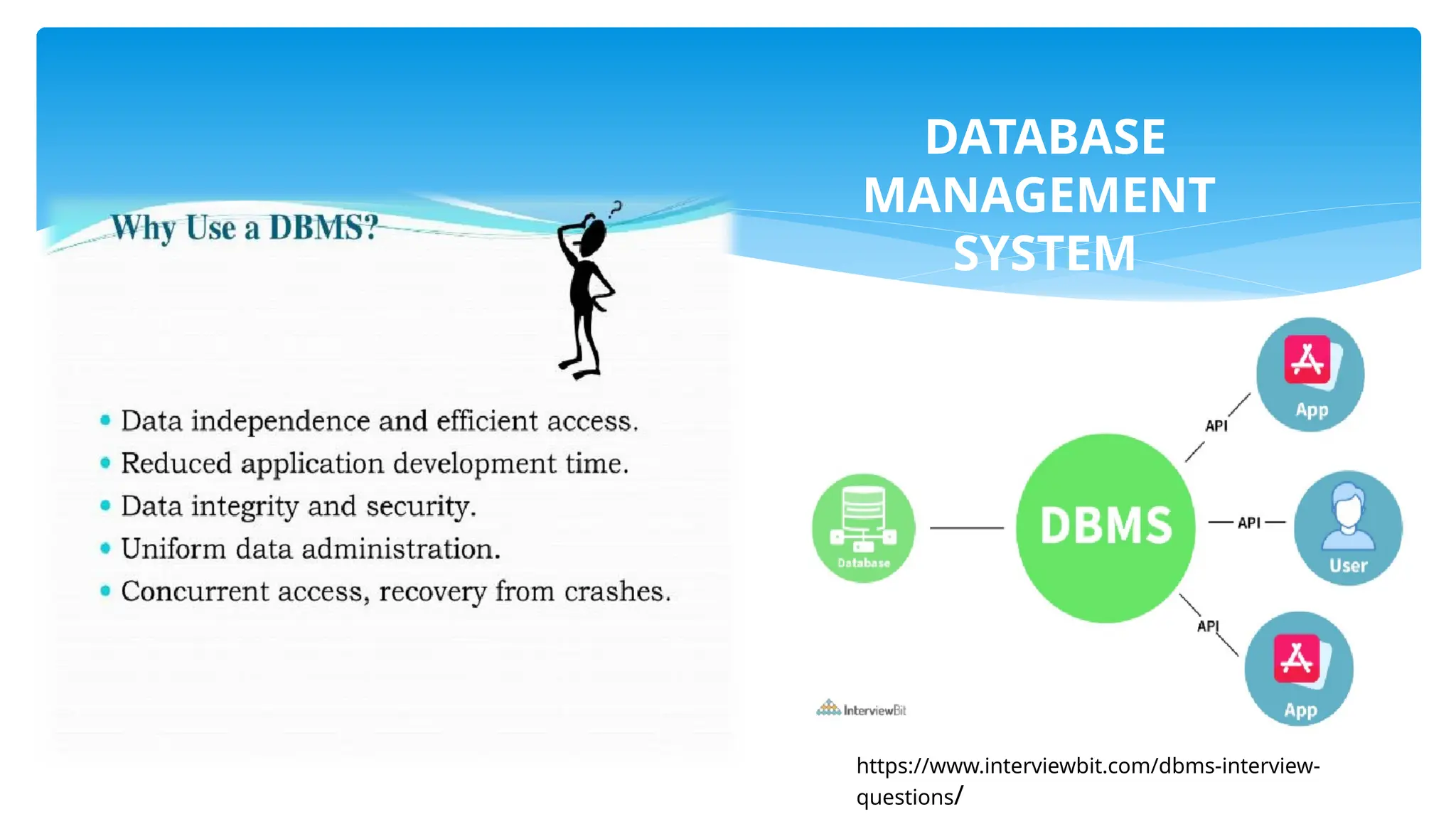
DATABASE
MANAGEMENT
SYSTEM
https://www.interviewbit.com/dbms-interview-
questions/
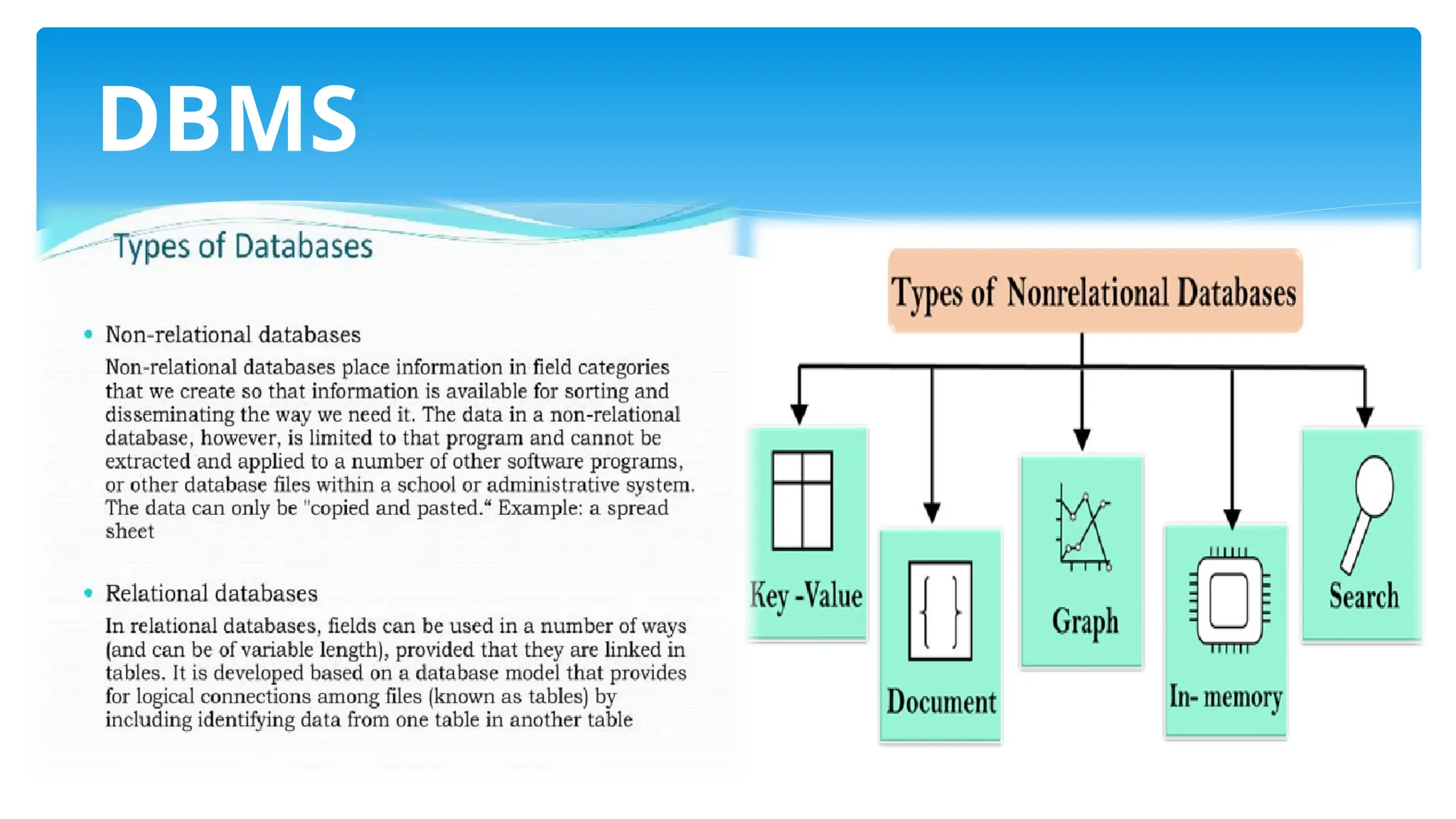
DBMS
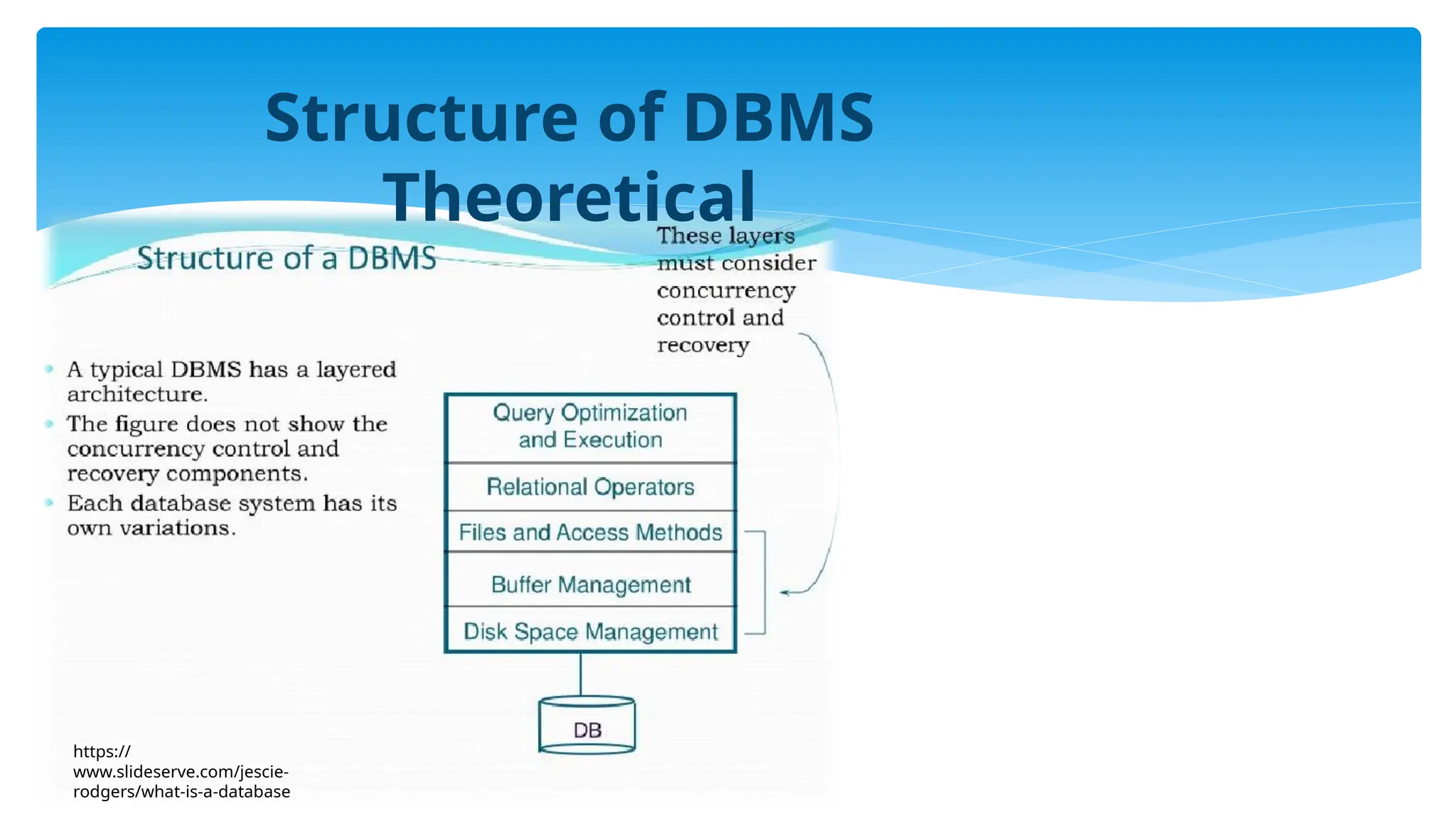
Structure of DBMS
Theoretical
https://
www.slideserve.com/jescie-
rodgers/what-is-a-database
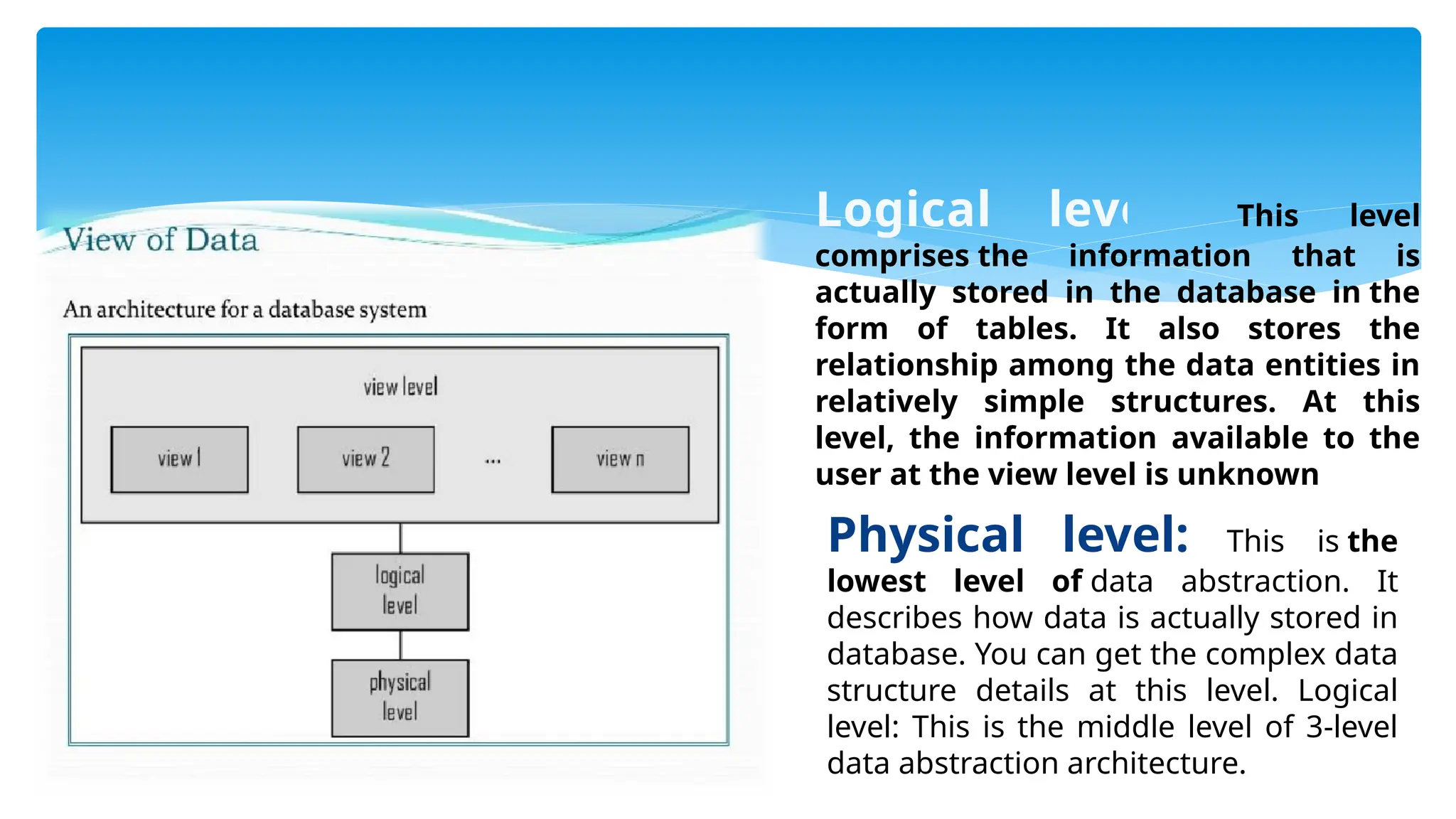
Logical level: This level
comprises the information that is
actually stored in the database in the
form of tables. It also stores the
relationship among the data entities in
relatively simple structures. At this
level, the information available to the
user at the view level is unknown
Physical level: This is the
lowest level of data abstraction. It
describes how data is actually stored in
database. You can get the complex data
structure details at this level. Logical
level: This is the middle level of 3-level
data abstraction architecture.
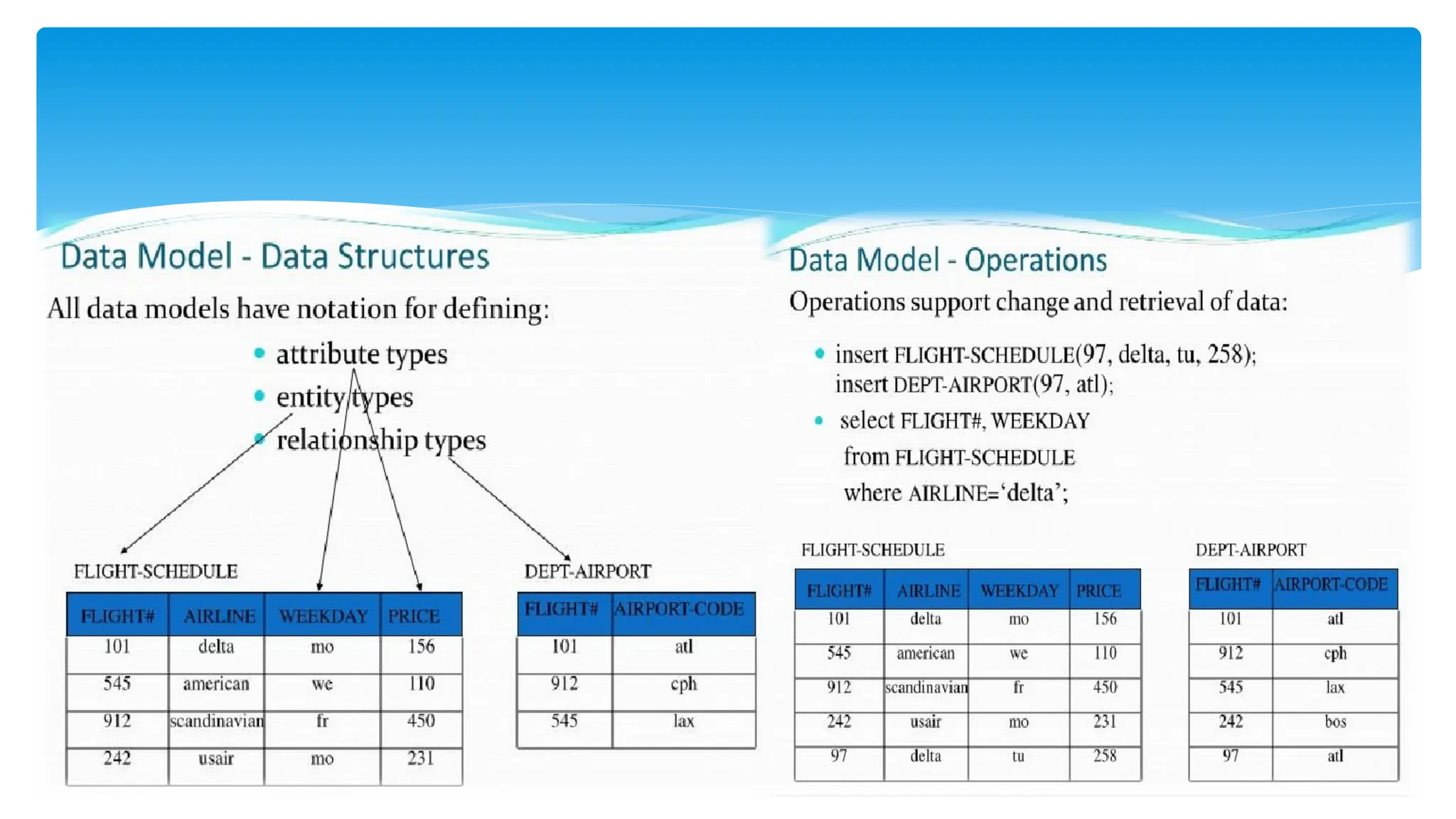
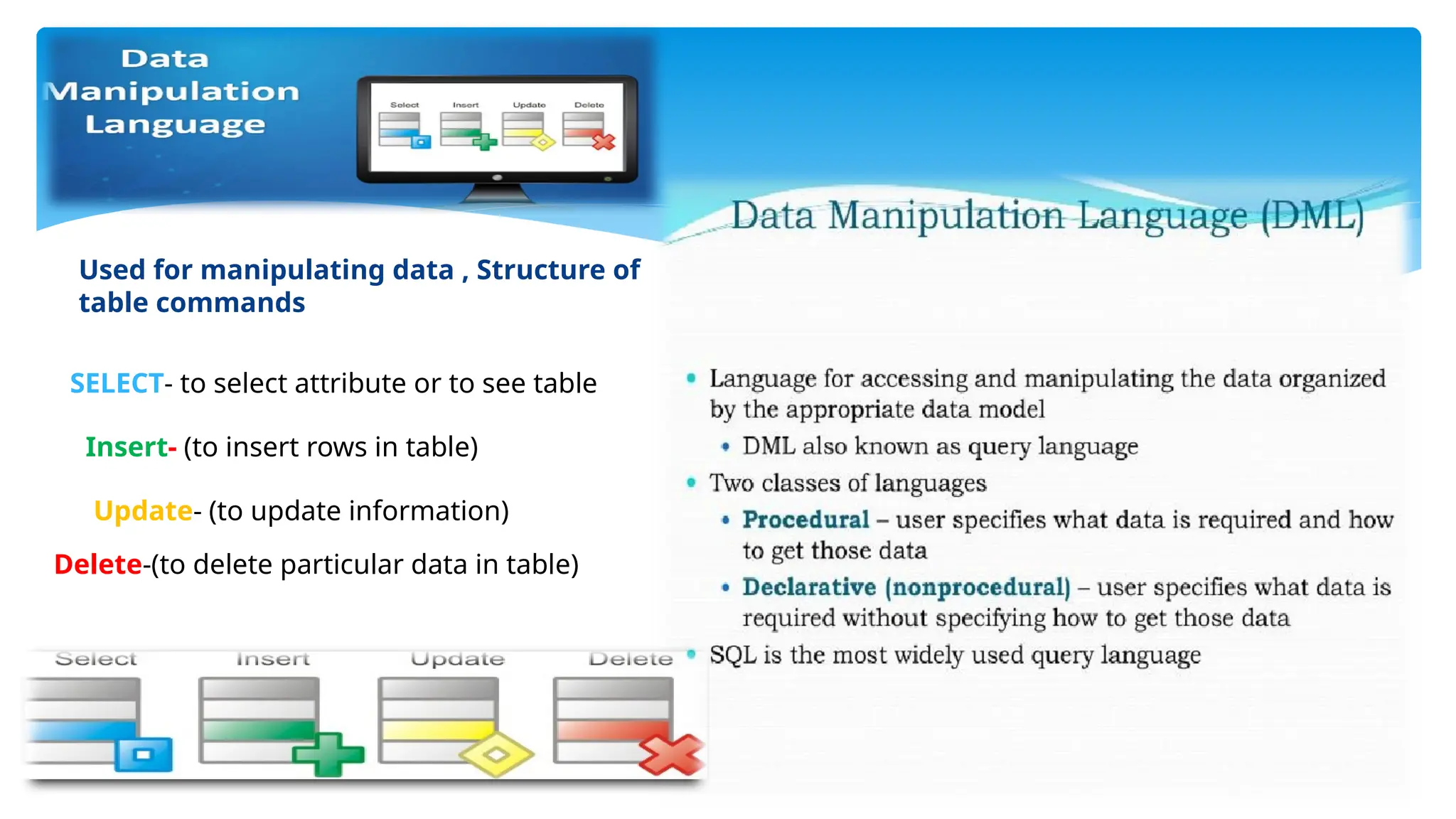
Used for manipulating data , Structure of
table commands
SELECT- to select attribute or to see table
Insert- (to insert rows in table)
Update- (to update information)
Delete-(to delete particular data in table)
Data Base Management System
https://www.slideserve.com/jescie-rodgers/what-is-a-database
THANK
YOU!!!!!
Flowcharting
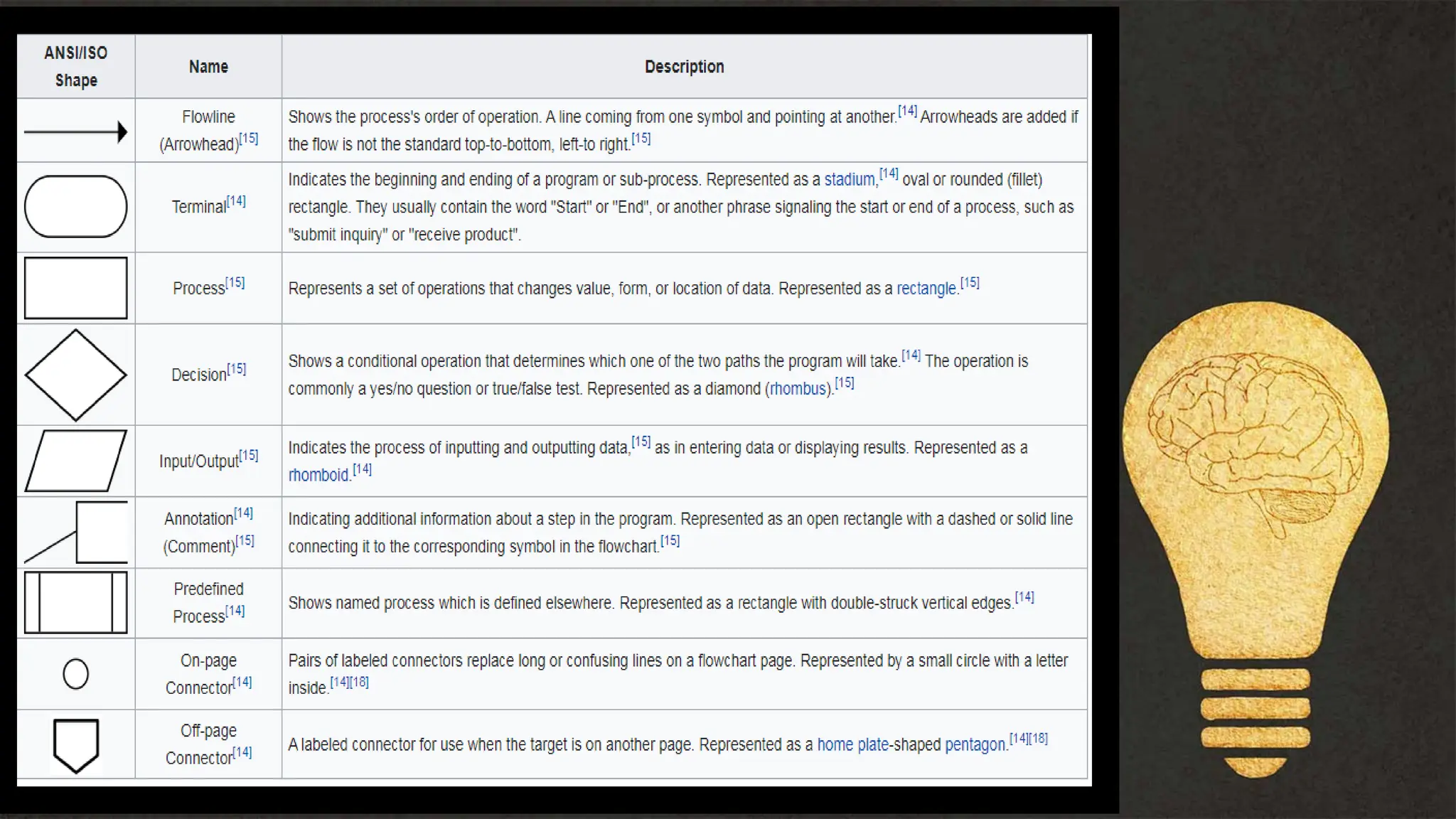
 Shapes used in
flowchart
 Purpose of flowchart
LESSON 3
At the end of the lesson, the learner should be able to:
 To explain the importance of flowchart planning
 To interpret flowchart.
 To design their own flowchart.
 To solve problems using flowchart.
 Distinguish the weakness and strengths of Flowchart
OBJECTIVES
A flowchart is simply a graphical
representation of steps. It shows steps in
sequential order and is widely used in
presenting the flow of algorithms, workflow or
processes. Typically, a flowchart shows the
steps as boxes of various kinds, and their order
by connecting them with arrows.
FLOWCHART
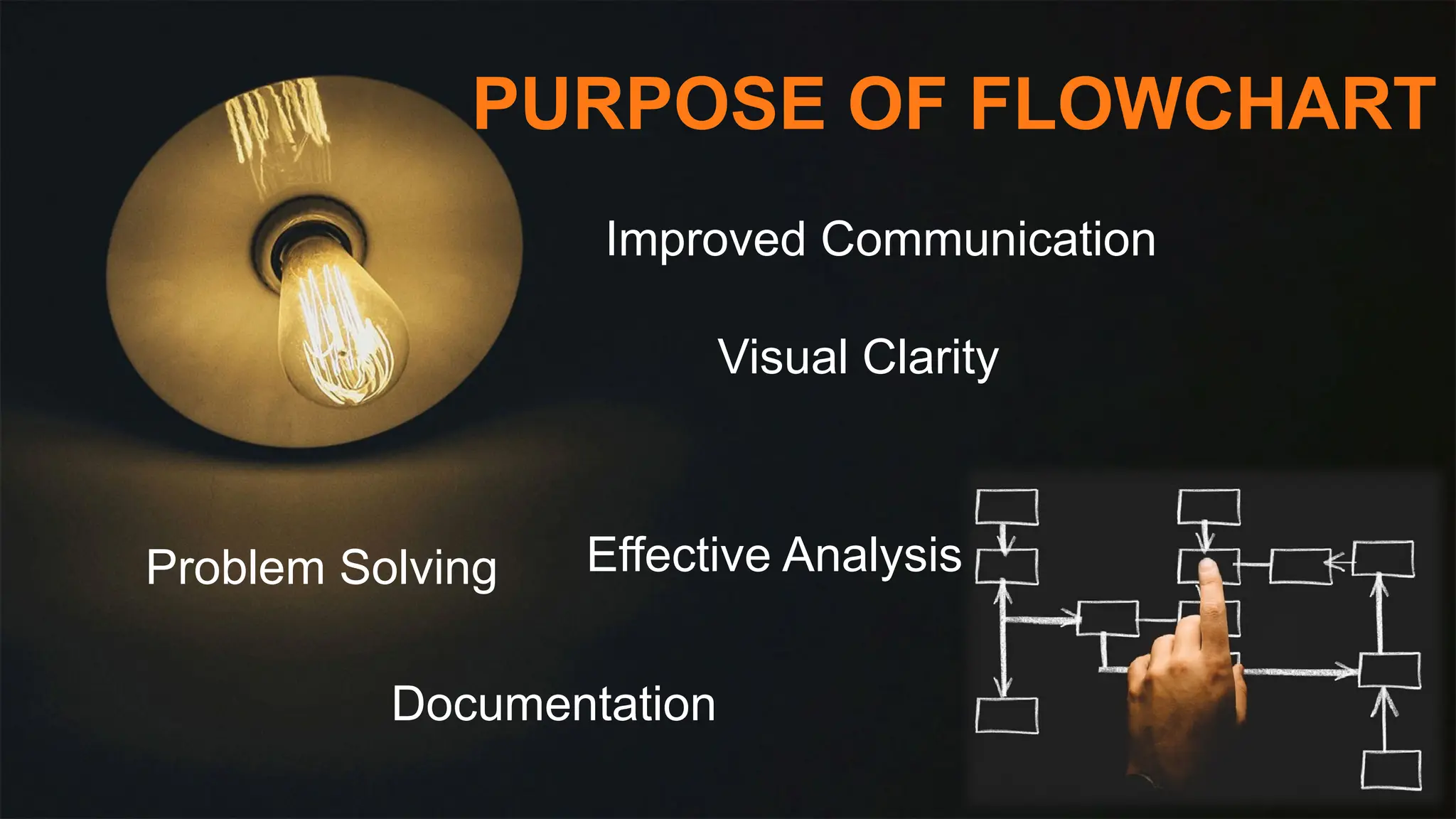
PURPOSE OF FLOWCHART
Improved Communication
Visual Clarity
Effective Analysis
Problem Solving
Documentation
Lesson 4
Safety Signs and Symbols
At the end of the lesson, the learner should be able to:
 to explain the importance of Safety
 to distinguished the difference between ergonomics and aesthetics
 to determine the 5s methodology
 to explained the meaning of safety
OBJECTIVES
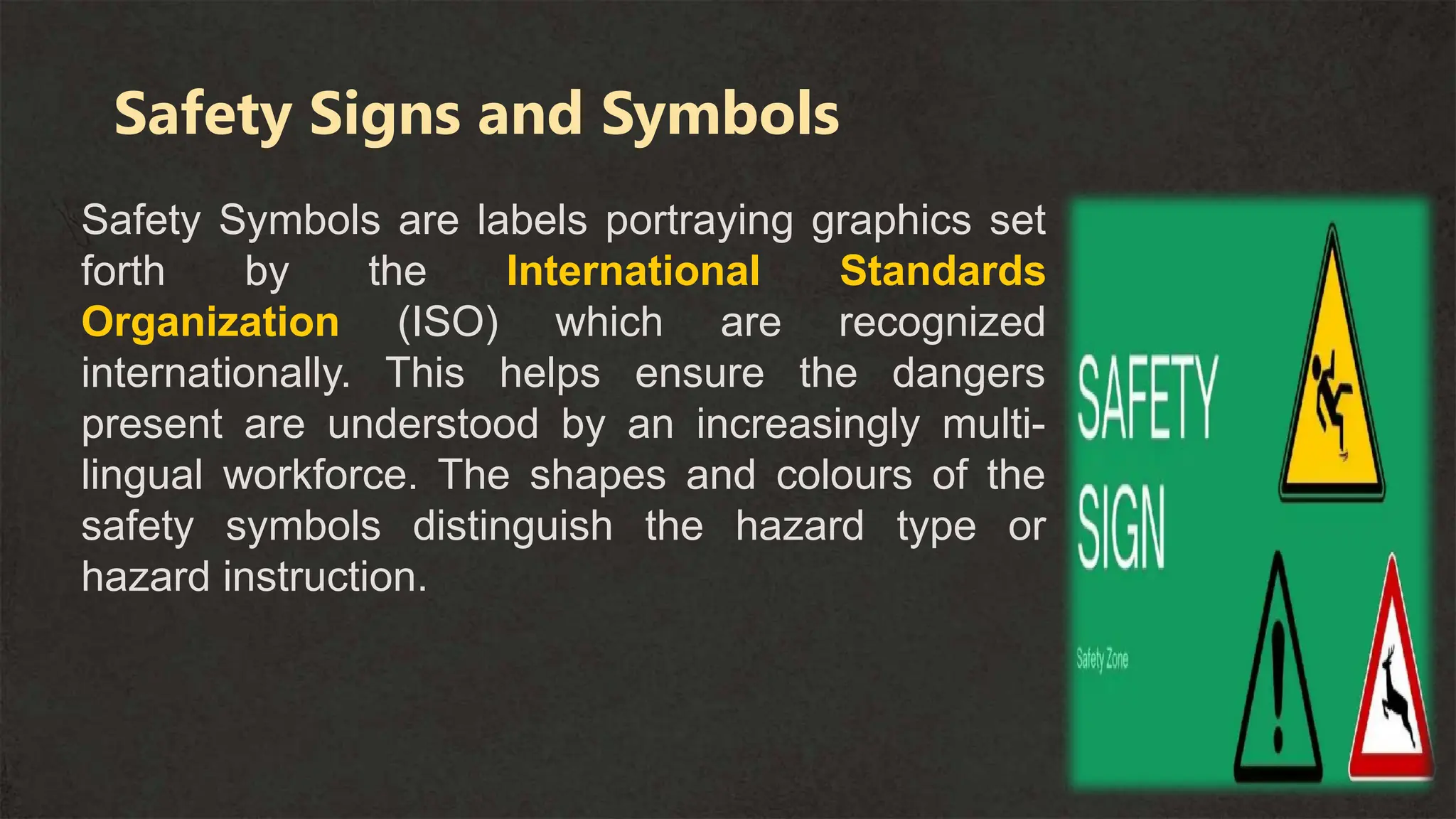
Safety Symbols are labels portraying graphics set
forth by the International Standards
Organization (ISO) which are recognized
internationally. This helps ensure the dangers
present are understood by an increasingly multi-
lingual workforce. The shapes and colours of the
safety symbols distinguish the hazard type or
hazard instruction.
Safety Signs and Symbols
These Safety symbols are divides into four (4) categories:
1.Prohibition Symbols
2. Warning Symbols
3. Mandatory sign
4. Emergency sign
These Safety symbols are divides into four (4) categories
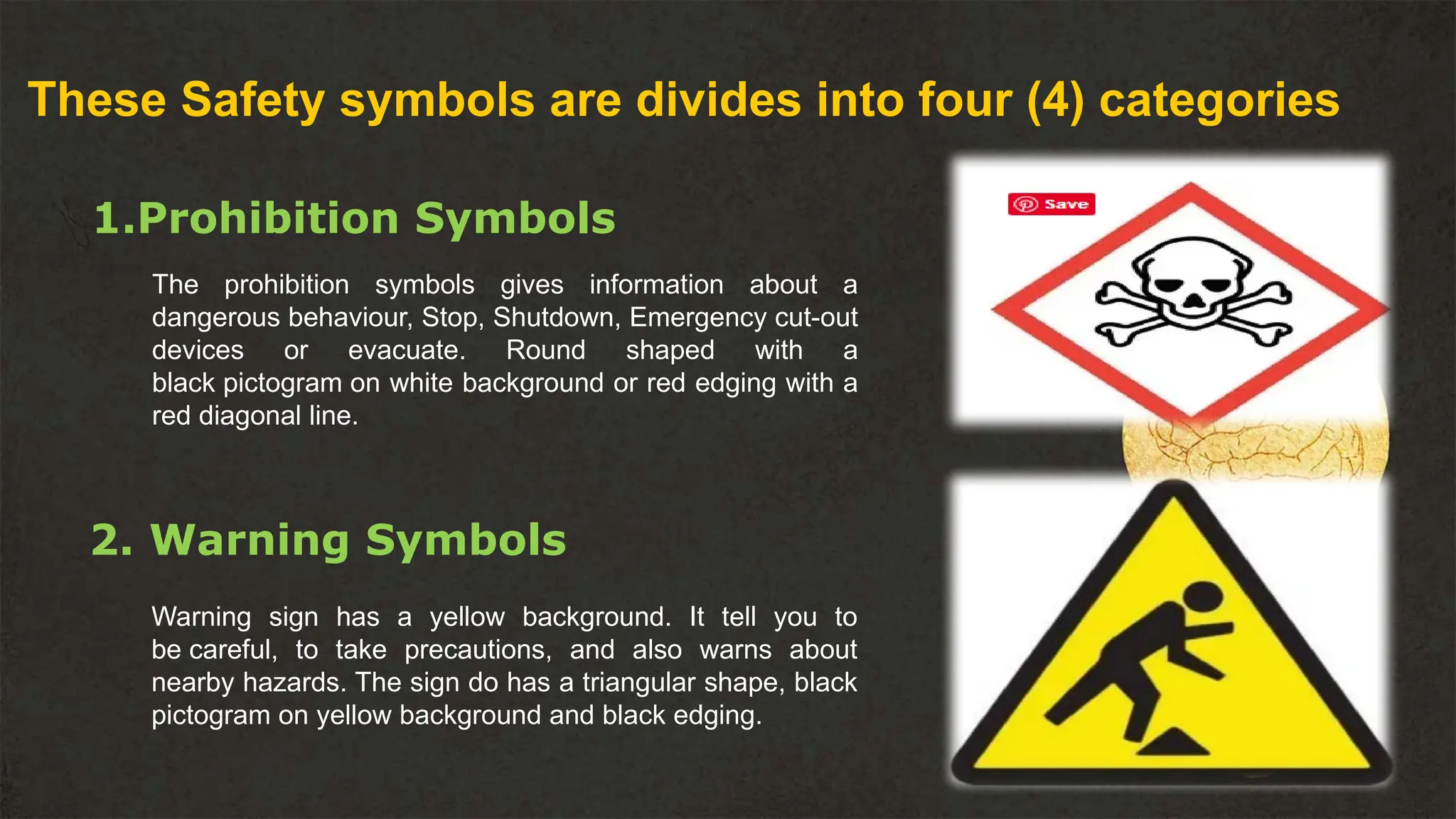
1.Prohibition Symbols
The prohibition symbols gives information about a
dangerous behaviour, Stop, Shutdown, Emergency cut-out
devices or evacuate. Round shaped with a
black pictogram on white background or red edging with a
red diagonal line.
2. Warning Symbols
Warning sign has a yellow background. It tell you to
be careful, to take precautions, and also warns about
nearby hazards. The sign do has a triangular shape, black
pictogram on yellow background and black edging.
These Safety symbols are divides into four (4) categories
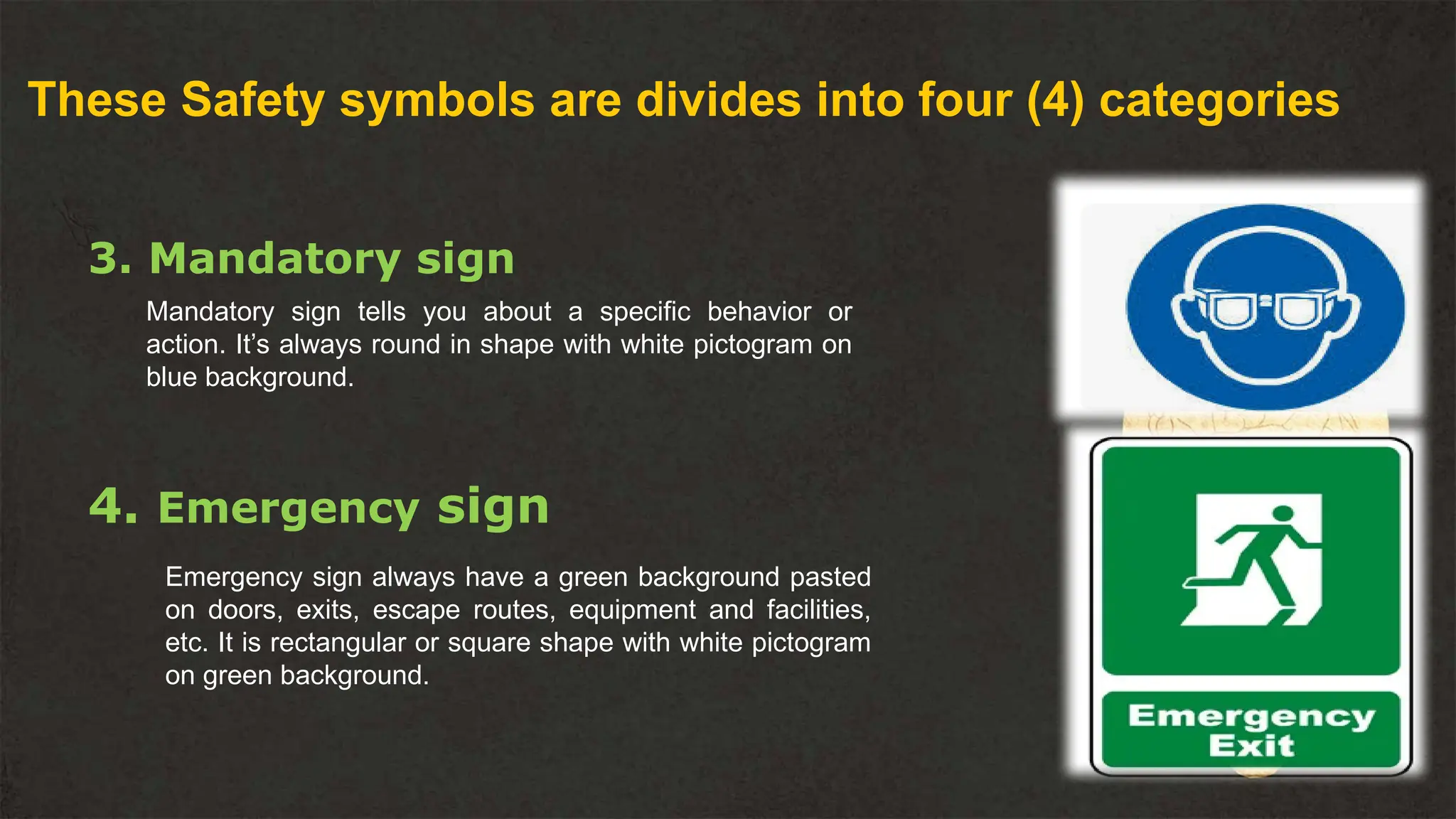
3. Mandatory sign
Mandatory sign tells you about a specific behavior or
action. It’s always round in shape with white pictogram on
blue background.
4. Emergency sign
Emergency sign always have a green background pasted
on doors, exits, escape routes, equipment and facilities,
etc. It is rectangular or square shape with white pictogram
on green background.
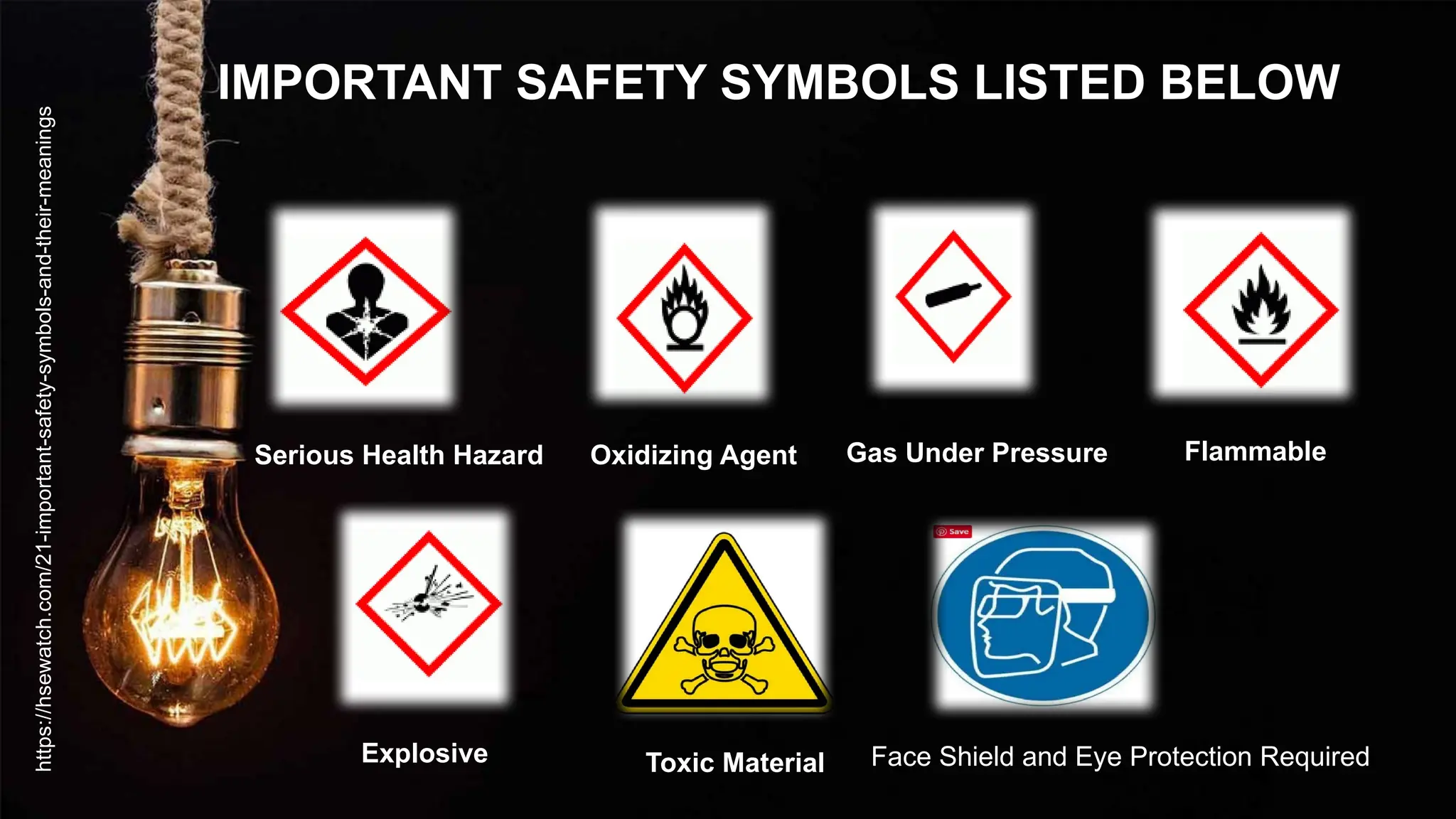
IMPORTANT SAFETY SYMBOLS LISTED BELOW
Serious Health Hazard Oxidizing Agent Gas Under Pressure Flammable
Explosive Toxic Material Face Shield and Eye Protection Required
https://hsewatch.com/21-important-safety-symbols-and-their-meanings
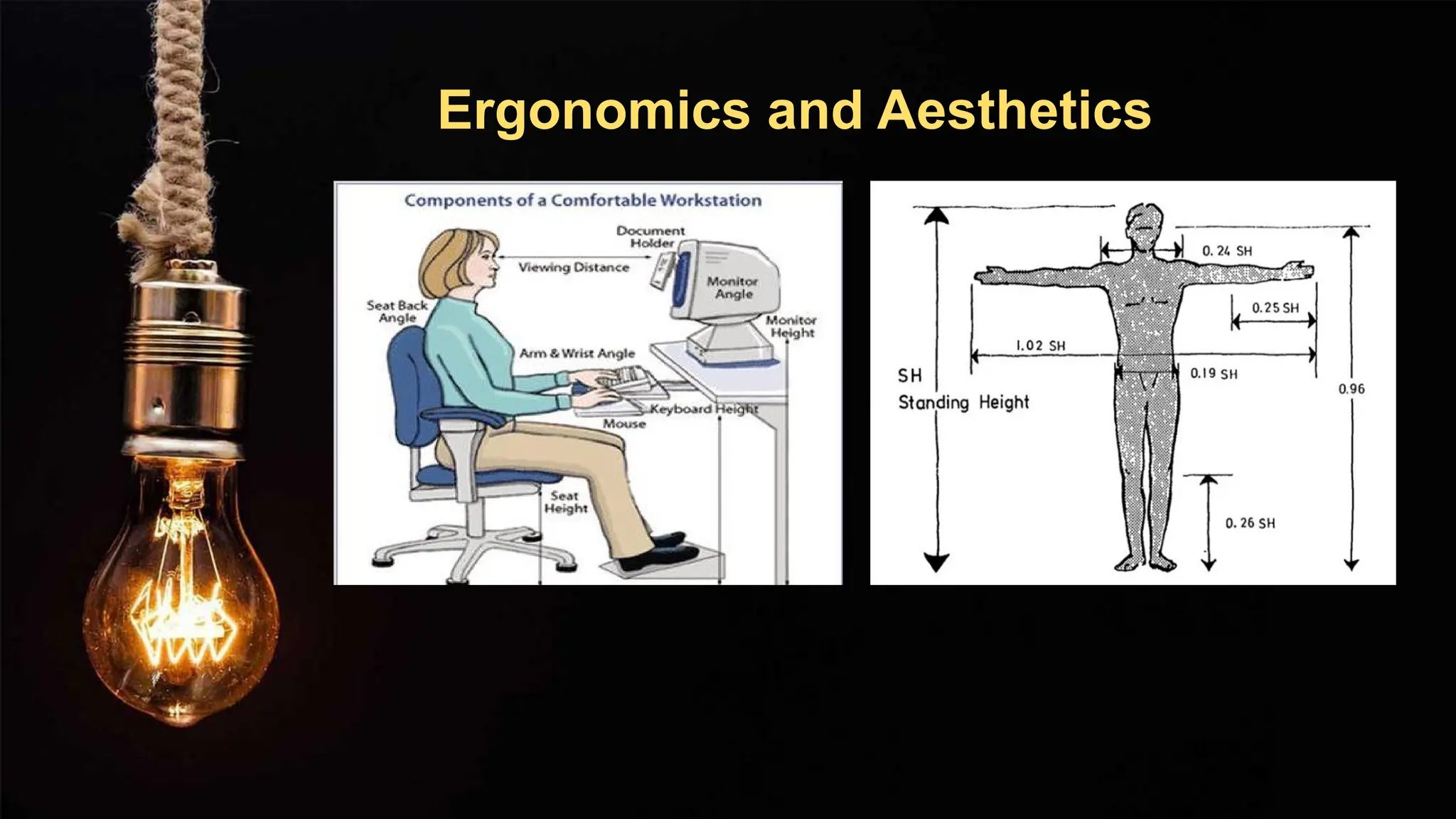
Ergonomics and Aesthetics
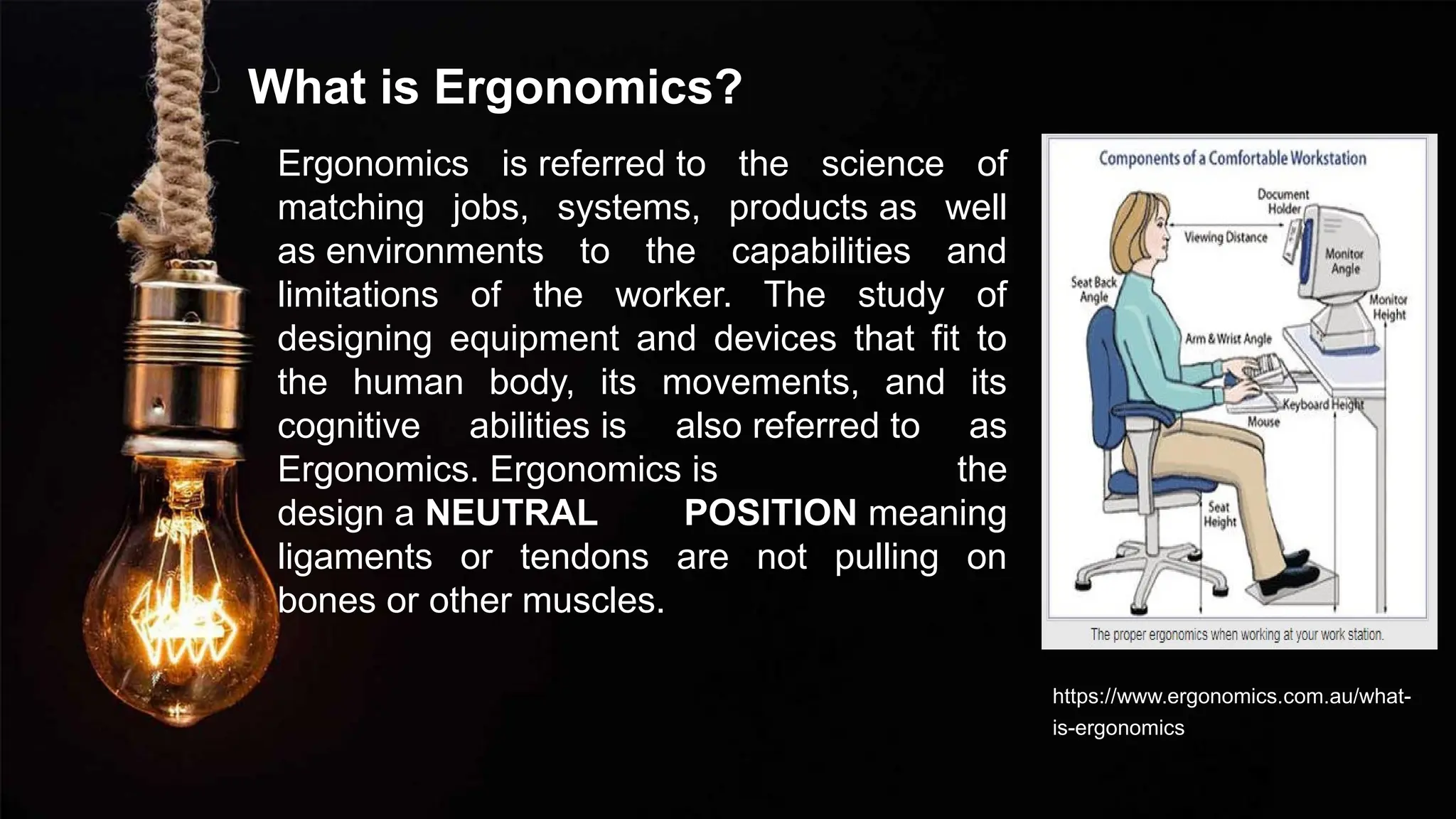
What is Ergonomics?
Ergonomics is referred to the science of
matching jobs, systems, products as well
as environments to the capabilities and
limitations of the worker. The study of
designing equipment and devices that fit to
the human body, its movements, and its
cognitive abilities is also referred to as
Ergonomics. Ergonomics is the
design a NEUTRAL POSITION meaning
ligaments or tendons are not pulling on
bones or other muscles.
https://www.ergonomics.com.au/what-
is-ergonomics/
What is Aesthetics?
Aesthetics - is a branch of philosophy
dealing with the nature of beauty, art,
and taste, and with the creation and
appreciation of beauty. It is more
scientifically defined as the study of
sensory or sensory-emotional values,
sometimes called judgments of
sentiment and taste. More broadly,
scholars in the field define aesthetics as
"critical reflection on art, culture and
nature.
https://slideplayer.com/slide/8363179/
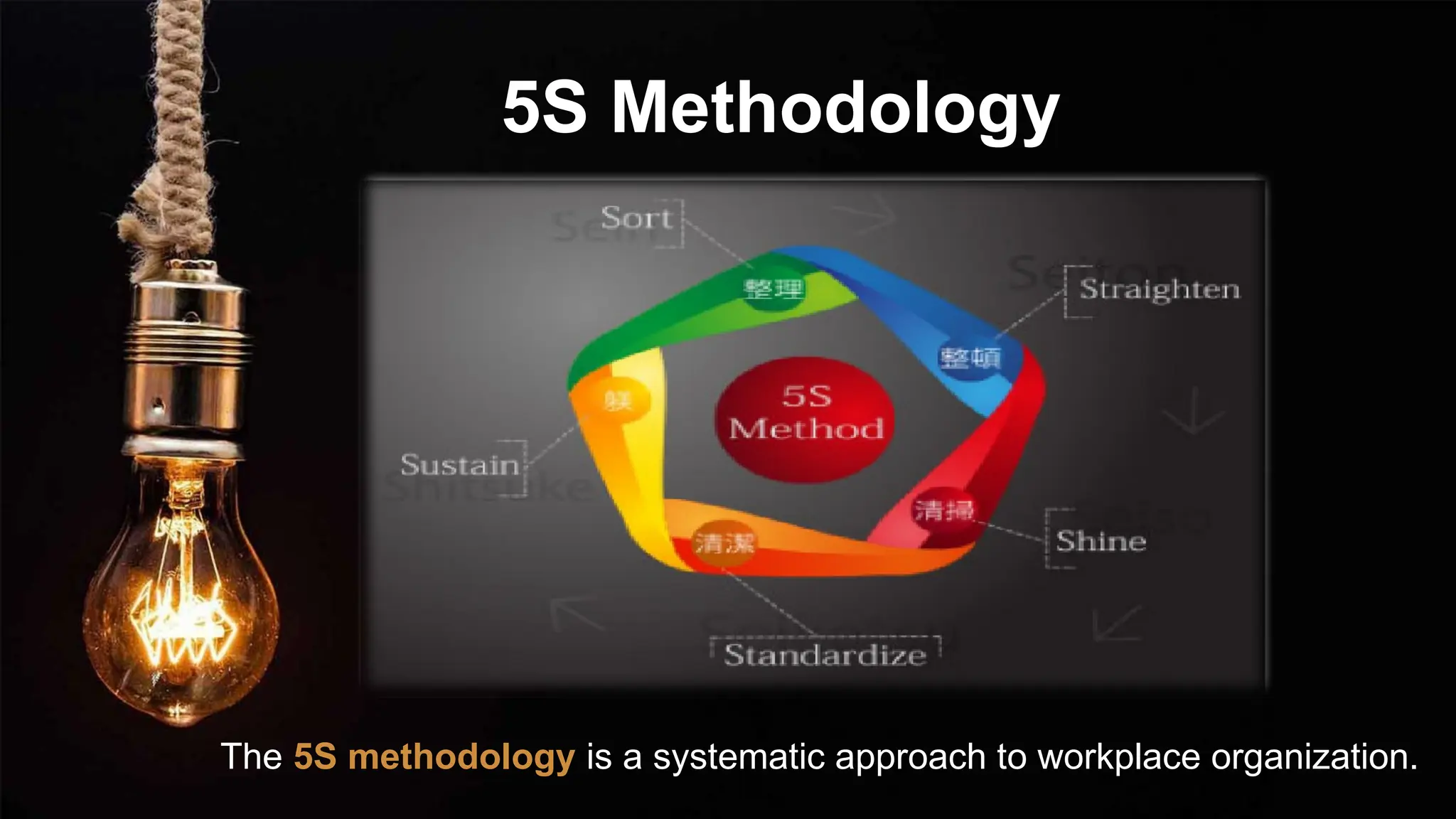
5S Methodology
The 5S methodology is a systematic approach to workplace organization.

THANK YOU!!!!

Computer 11- DATABASE management y.pptx

  • 1.
  • 2.
    LESSON 1 Brief HistoryOf Computer and its Development
  • 3.
    OBJECTIVES At the endof this lesson you should be able to:  Understand where computer technology originated  Recognize the development of ICT  Apply the use of ICT at home, school, and work  Use ICT in order to keep abreast with current trends
  • 4.
    ABACUS  was thefirst mechanical calculating device.  device was first develop by the Egyptians in the 10th century BC but it was given its final shape in the 12th century AD by the Chinese.
  • 5.
    Napier bones Used bonerods for the device’s counting purpose John Napier , 1617
  • 6.
    PASCAL’S calculator Blaise Pascal 1642 was ledto develop a calculator by the laborious arithmetical calculations required by his father's work as the supervisor of taxes in Rouen.
  • 7.
    Leibniz calculator Gottfried Leibniz, 1671 Modified thePascal calculator and developed a machine that could perform various calculations based on multiplication and division
  • 8.
    Analytical Engine Charles Babbage, 1833 A devicethat could keep data secure. This device was considered as the first mechanical computer. It included a feature that is used in todays computer language..
  • 9.
    Generations of Computers ContentsA First Generation Computers Contents B Second Generation Computers Contents D Fourth Generation Computers Contents C Third Generation Computers Place Your Picture Here
  • 10.
    First Generation Computers 01 02 03 04 Electronic Numerical Integratorand Calculator or ENIAC. .  was a very huge and big computer it took up the space of a whole room and was only able to store limited or small amounts of information. It was so rudimentary that a basic cellphone from year 2000 is 1300 times more powerful than ENIAC.
  • 11.
    ENIAC 01 Your Text Here Youcan simply impress your audience and add a unique zing and appeal to your Presentations. Easy to change colors, photos and Text. Your Text Here You can simply impress your audience and add a unique zing and appeal to your Presentations. Easy to change colors, photos and Text. Your Text Here You can simply impress your audience and add a unique zing and appeal to your Presentations. Easy to change colors, photos and Text. Your Text Here You can simply impress your audience and add a unique zing and appeal to your Presentations. Easy to change colors, photos and Text. 02 03 04 John Presper Eckert John William Mauchly 1946
  • 12.
    Second Generation Computers Transistors,were used as electronic components instead of vacuum tubes. A transistor is much smaller than a vacuum tube , this paved the way for second generation computers to become smaller compared with the first generation computers.
  • 13.
    Third Generation Computers Youcan simply impress your audience and add a unique zing and appeal to your Presentations. Easy to change colors, photos and Text. Add Title You can simply impress your audience and add a unique zing and appeal to your Presentations. Easy to change colors, photos and Text. Add Title is a superior performance and storage capacity, higher calculating speed than its predecessors. Integrated Circuits or IC You can simply impress your audience and add a unique zing. Add Title T.S. Kilby, 1964
  • 14.
    Fourth Generation Computers Ted Hoff Microprocessor isa single chip which is used in computer for any arithmetical or logical function to be performed in in any program . Intel 4004
  • 15.
    Fifth Generation Computers 1st Contents 3rd Contents 2nd. Contents 4th Contents ARTIFCIAL INTELLIGENCE Isthe science and engineering of making intelligent machines by imitating human characteristics and behavior. AI
  • 16.
    DATA Data and Information INFORMATION can be defined asrepresents of facts , concepts or instructions is the processed data on which decisions and actions are based
  • 17.
    Data processing 01 02 03 04 05 is asimply the conversion of raw data into meaningful information through a process.
  • 18.
    DATA PROCESSING INPUT PROCESSINGOUTPUT DATA PROCESSING is when the data is subjected to various means and methods of manipulation. PROCESSING INPUT-PROCESING-OUTPUT. is the task where verified data is coded or converted into a machine-readable form so that it can be processed through a computer. INPUT is the stage where processed information is transmitted to the user. OUTPUT
  • 19.
    Is the applicationof computers and telecommunications : HTTP, GOOGLE Internet NOKIA IPHONE ANROID. Smartphones INTERNET Wireless signals INFORMATION AND COMMINICATIO N TECHNOLOGY Your Picture Here Your Picture Here Your Picture Here
  • 20.
    Your Picture HereYour Picture Here Your Picture Here
  • 21.
    At the endof this lesson, you should be able to: Understand how computer works Recognize the number system Convert Binary and decimal numbers HARWARE COMPONENETS Objectives
  • 22.
    COMPUTER HARDWARE PHYSICAL PARTSOF COMPUTER It includes the Electrical parts, electronic parts, and mechanical parts of a computer. Computer working principle Is a process of entering data in a computer by means of input devices, which are then processed and stored in a system unit as data representation, and finally displayed through an output device . Input Devices System unit Output Devices
  • 23.
    DATA REPRESENTATION DATA REPRESENATION Refers tothe form wherein data is stored, processed and transmitted. Example devices PDAs, tablets, and computers store text, sounds, and images BITS bytes
  • 24.
    Number System A valueeach digit in number can be determined using: The digit; The position of the digit in the number; The base of the number system . Decimal Number System Binary Number System Octal Number System There are several number systems that computer Hexadecimal Number System
  • 25.
    o Is thefoundation of modern computers and digital communication DIGITAL ELECTRONICS COMPUTER HARDWARE .
  • 26.
    Digital Electronics 01 03 05 02 04 06 Read- OnlyMemory  It keeps its content even when the computer is turned off. This is because once data has been written onto a ROM Chip, it can not be removed, but can only be read. 1. Computer Chips Also known as microchip or chip is a type of integrated circuit Random access memory  It is located on one or more microchips that are physically close the microprocessor of a computer. 2. Microprocessor Also as processor it also an integrated circuit designed. Instruction Set  Is the set of instructions that the microprocessor can execute at one time . Bandwidth  Is the number of bits processed in an single instruction. Clock speed  Determines how many instructions per second the microprocessor can execute. 3. Computer Memory Is a physical device that stores information such as instructions and data in a place that microprocessors can quickly access.
  • 27.
    Storage Devices D I G I T A L V E R S A T I L E D I S C U N I V E R S A L S E R I A L B U Is anoptical disc which, due to its larger capacity mostly used for video storage. DVD Is the successor to DVD . Blue-ray Disc Optical disk used for data storage Capacity standard is 700 MB CD Is a type flash memory used to store data in digit cameras CP, MP3 players Memory Card
  • 28.
    Input Devices Is usedfor a data entry and issuing commands. . Keyboard Is used to load data (image, text, etc.) from the printed materials into a computer. . Scanner Is an input device that facilitates work with the graphical user interface GUI. Mouse Unlike a mouse, is not movable. Trackball
  • 29.
    Input Devices Is mainlyused in computer games. Joystick Is a device that converts sound into an electrical signal, which can be stored in a computer.. Microphone Is used for transmission of hand movement, but unlike working with a mouse, the user is the one who determines the position of the cursor by touching the touchpad. Touchpad Enables handwriting on screen and can be used as a mouse. Light pen
  • 30.
    Input Devices Unlike analog, storesphotographs in digital format. . . Digital Camera Is used to load data (image, text, etc.) from the printed materials into a computer. . Scanner Is a device that converts sound into an electrical signal which can be stored in a computer. Microphone Is a camera that stores video signals in a format appropriate for video transfer over the Internet in real time. Webcam
  • 31.
    Output Devices Is adevice used for printing, data from a computer onto a paper. . Printer Is a popular output device used with computer systems.. Speaker Displays images from the computer. Monitor Is a device used to project a computer image or other images from independent devices such as DVD players and Blu-ray player onto can vas or a wall Projector
  • 32.
  • 33.
    Classification of Computers Types No.of Users at one Time Size Typical user/ Purpose PC One Fits on a desk, on a lap, or in a hand Used by individuals for organizing information, creating products and entertainment Minicomputer Several to hundreds Occupies part of a room Used by small to medium- sized organization, such as schools Mainframe (Supercomputer) Thousands Room-sized Used by large corporations and government agencies
  • 34.
    Classifications of Computers A. Personal Computer PersonalComputer (PC) as the name suggests, is intended for personal use. B. Laptop or Tablet PC Used by individuals who need to travel with a computer or simply want to use them for aesthetic reasons when computing power is not an issue. C. Portable Digital Devices 1. Personal Digital Assistant 2. Mobile Phone 3. Smartphone
  • 35.
    Computer System Unit A.Desktop Casing B. Towers
  • 36.
    Parts of aComputer System Unit Is a central part of a computer and can be referred to as the computer’s brain 3. CENTRAL PROCESSING UNIT Is a small capacity memory which allows quick access to data 4. Cache Stored Devices. 5. RAM & ROM Is the computer’s basic unit circuit, to which all computer components are connected, directly or indirectly. 1. Motherboard MBO Describes a manner in which communication between devices is defined. . 2. Protocol a. Serial- USB, FIREWIRE b. Parallel-AGP,PCI c. Mixed- Hyper Transport, InfiniBand, PCI.
  • 37.
    Parts of aComputer System Unit . . 1. . . 3. CD-ROM Drive. 1. Hard Disk Drive (HDD) is a place for permanent data storage. It does not disappear when the computer shuts down. 2. Floppy Disk Drive is used for storing and reading data stored on a floppy disk with a disk capacity of 1.44MB. 4. DVD Drive 5. Soundcard is a device used for sound creation and production by means of computer speakers. 6. Graphics card is responsible for image processing and displaying it on a monitor. It has its own graphics processor and memory. Image quality depends on the strength of these components. 7. Modem enables computers to communicate via telephone lines. They connect computers to the Internet. 8. Connectors or ports are slots on the back and the front side of a Computer.
  • 38.
    Common Input /Output Ports 1.UniversalSerial Bus (USB) is used to connect various devices, such as mouse, keyboard, USB memory, etc. 2.Serial port is used for connecting almost any type of device, including a mouse, modem, etc. (labeled COM1 or COM2). 3.Parallel port is used for connecting a local printer and other peripherals (LPTI or LPT2). 4.Network port is used for connecting computers to a network 5. Fire wire is used for connecting computers and audio-video devices, like digital cameras.
  • 39.
    Computer Performance 1.Speed ofthe CPU-The speed of the CPU is also known as the clock speed of the CPU, It refers to the amount of cycles that a CPu can perform per Second. 2.Size of the RAM-The RAM is referred to as the active part of the computer. This is because the RAM has the capability of storing data that the computer currently uses. It is faster to retrieve data stored in the RAM. 3.Speed of the hard disk - The hard disk speed is defined as the rate at which material and content can be read and written on it. The higher the speed of the hard disk, the faster the performance of the computer, and vice versa. 4.Hard disk space - If the hard disk is filled with data, it tends to use most of the memory, leaving less for the operations of the processor. 5.Multiple applications running on the computer More applications running at the same time will affect the computers performance. 6.Fragmented files Fragmented files take a longer time to fetch or access because they are broken into many pieces. https:// www.youtube.com/ watch? v=AkFi90lZmXA
  • 40.
  • 41.
    Objectives At the endof this lesson, you should be able to:  understand how software directs the computer to manage its resources;  distinguish between system software and application software  understand copyright and copyright violations;  understand software license
  • 42.
    COMPUTER SOFTWARE Computer Software Alsocalled program or application, is a set of instructions that tells a computer how to perform tasks. System CS Application
  • 43.
    System Software Proprietary Software . MacOS LIMITED EDITION IT USES IN BUSINESS COMPANY UBUNTU OPEN SOURCE SOFTWARE . LINUX Proprietary software XP VISTA 7 8 10 Microsoft Windows
  • 44.
    APPLICATION Software Adobe Photoshop AdobeIllustrator Canvas CorelDraw. Program For editing Dota2, NBA 2K18 Need for Speed Games Avira, Norton, Kaspersky, Avast Antivirus Google Chrome Mozilla Firefox Internet Explorer Opera Safari Internet Browser DATABASE
  • 45.
  • 46.
  • 52.
    What is thepurpose of a Database Management System? Data Information Knowledge Action Is to Transform
  • 53.
    PURPOSE OF DATABASESYSTEMS https://www.slideserve.com/jescie-rodgers/what-is-a- database
  • 54.
  • 55.
  • 56.
  • 57.
    Logical level: Thislevel comprises the information that is actually stored in the database in the form of tables. It also stores the relationship among the data entities in relatively simple structures. At this level, the information available to the user at the view level is unknown Physical level: This is the lowest level of data abstraction. It describes how data is actually stored in database. You can get the complex data structure details at this level. Logical level: This is the middle level of 3-level data abstraction architecture.
  • 67.
    Used for manipulatingdata , Structure of table commands SELECT- to select attribute or to see table Insert- (to insert rows in table) Update- (to update information) Delete-(to delete particular data in table)
  • 68.
    Data Base ManagementSystem https://www.slideserve.com/jescie-rodgers/what-is-a-database
  • 69.
  • 70.
    Flowcharting  Shapes usedin flowchart  Purpose of flowchart LESSON 3
  • 71.
    At the endof the lesson, the learner should be able to:  To explain the importance of flowchart planning  To interpret flowchart.  To design their own flowchart.  To solve problems using flowchart.  Distinguish the weakness and strengths of Flowchart OBJECTIVES
  • 72.
    A flowchart issimply a graphical representation of steps. It shows steps in sequential order and is widely used in presenting the flow of algorithms, workflow or processes. Typically, a flowchart shows the steps as boxes of various kinds, and their order by connecting them with arrows. FLOWCHART
  • 74.
    PURPOSE OF FLOWCHART ImprovedCommunication Visual Clarity Effective Analysis Problem Solving Documentation
  • 75.
  • 76.
    At the endof the lesson, the learner should be able to:  to explain the importance of Safety  to distinguished the difference between ergonomics and aesthetics  to determine the 5s methodology  to explained the meaning of safety OBJECTIVES
  • 77.
    Safety Symbols arelabels portraying graphics set forth by the International Standards Organization (ISO) which are recognized internationally. This helps ensure the dangers present are understood by an increasingly multi- lingual workforce. The shapes and colours of the safety symbols distinguish the hazard type or hazard instruction. Safety Signs and Symbols
  • 78.
    These Safety symbolsare divides into four (4) categories: 1.Prohibition Symbols 2. Warning Symbols 3. Mandatory sign 4. Emergency sign
  • 79.
    These Safety symbolsare divides into four (4) categories 1.Prohibition Symbols The prohibition symbols gives information about a dangerous behaviour, Stop, Shutdown, Emergency cut-out devices or evacuate. Round shaped with a black pictogram on white background or red edging with a red diagonal line. 2. Warning Symbols Warning sign has a yellow background. It tell you to be careful, to take precautions, and also warns about nearby hazards. The sign do has a triangular shape, black pictogram on yellow background and black edging.
  • 80.
    These Safety symbolsare divides into four (4) categories 3. Mandatory sign Mandatory sign tells you about a specific behavior or action. It’s always round in shape with white pictogram on blue background. 4. Emergency sign Emergency sign always have a green background pasted on doors, exits, escape routes, equipment and facilities, etc. It is rectangular or square shape with white pictogram on green background.
  • 81.
    IMPORTANT SAFETY SYMBOLSLISTED BELOW Serious Health Hazard Oxidizing Agent Gas Under Pressure Flammable Explosive Toxic Material Face Shield and Eye Protection Required https://hsewatch.com/21-important-safety-symbols-and-their-meanings
  • 82.
  • 83.
    What is Ergonomics? Ergonomicsis referred to the science of matching jobs, systems, products as well as environments to the capabilities and limitations of the worker. The study of designing equipment and devices that fit to the human body, its movements, and its cognitive abilities is also referred to as Ergonomics. Ergonomics is the design a NEUTRAL POSITION meaning ligaments or tendons are not pulling on bones or other muscles. https://www.ergonomics.com.au/what- is-ergonomics/
  • 84.
    What is Aesthetics? Aesthetics- is a branch of philosophy dealing with the nature of beauty, art, and taste, and with the creation and appreciation of beauty. It is more scientifically defined as the study of sensory or sensory-emotional values, sometimes called judgments of sentiment and taste. More broadly, scholars in the field define aesthetics as "critical reflection on art, culture and nature. https://slideplayer.com/slide/8363179/
  • 85.
    5S Methodology The 5Smethodology is a systematic approach to workplace organization.
  • 86.