STE3701 Komputer Dalam Pendidikan Amali Authorware 7
Minggu Tajuk Amali 1 Introduction to Authorware: Introduction System Requirement 2 Icon Basics: Display: Toolbox, Inspectors Erase Wait   Text: RTF Define Styles Scroll Grid
Introduction a multimedia* authoring tool easy to use (compared to programming language) visual icon (WYSIWYG) flowline method function: more than Power Point *  multimedia: use of text, image, audio, video & animation elements to convey information interactively
Usage of Authorware create e-learning content create multimedia training material as student assessment tool
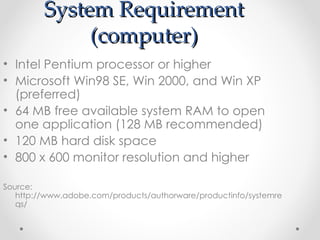
System Requirement (computer) Intel Pentium processor or higher Microsoft Win98 SE, Win 2000, and Win XP (preferred) 64 MB free available system RAM to open one application (128 MB recommended) 120 MB hard disk space 800 x 600 monitor resolution and higher Source: http://www.adobe.com/products/authorware/productinfo/systemreqs/
Prerequisite Knowledge Use the mouse & keyboard for basic input & selection Select & drag objects using the mouse Resize windows Locate directories (folders) Locate files within directories Create & name directories Copy files
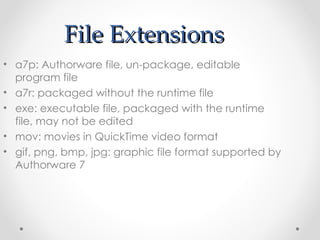
File Extensions a7p: Authorware file, un-package, editable program file a7r: packaged without the runtime file exe: executable file, packaged with the runtime file, may not be edited mov: movies in QuickTime video format gif, png, bmp, jpg: graphic file format supported by Authorware 7
Installing Authorware 7
Opening a new file in Authorware
Interface Menus Toolbar Icon palette Flowline Design window Presentation window
Icons Display: present text or graphic on screen Wait: pause the program, set to wait for a length of time or next user’s action Erase: erase objects from the screen Motion:
Screen resolution Size of presentation window > Properties Default: 640x480, standard:  800x600 Position:  center on screen

Introduction to Authorware

  • 1.
    STE3701 Komputer DalamPendidikan Amali Authorware 7
  • 2.
    Minggu Tajuk Amali1 Introduction to Authorware: Introduction System Requirement 2 Icon Basics: Display: Toolbox, Inspectors Erase Wait   Text: RTF Define Styles Scroll Grid
  • 3.
    Introduction a multimedia*authoring tool easy to use (compared to programming language) visual icon (WYSIWYG) flowline method function: more than Power Point * multimedia: use of text, image, audio, video & animation elements to convey information interactively
  • 4.
    Usage of Authorwarecreate e-learning content create multimedia training material as student assessment tool
  • 5.
    System Requirement (computer)Intel Pentium processor or higher Microsoft Win98 SE, Win 2000, and Win XP (preferred) 64 MB free available system RAM to open one application (128 MB recommended) 120 MB hard disk space 800 x 600 monitor resolution and higher Source: http://www.adobe.com/products/authorware/productinfo/systemreqs/
  • 6.
    Prerequisite Knowledge Usethe mouse & keyboard for basic input & selection Select & drag objects using the mouse Resize windows Locate directories (folders) Locate files within directories Create & name directories Copy files
  • 7.
    File Extensions a7p:Authorware file, un-package, editable program file a7r: packaged without the runtime file exe: executable file, packaged with the runtime file, may not be edited mov: movies in QuickTime video format gif, png, bmp, jpg: graphic file format supported by Authorware 7
  • 8.
  • 9.
    Opening a newfile in Authorware
  • 10.
    Interface Menus ToolbarIcon palette Flowline Design window Presentation window
  • 11.
    Icons Display: presenttext or graphic on screen Wait: pause the program, set to wait for a length of time or next user’s action Erase: erase objects from the screen Motion:
  • 12.
    Screen resolution Sizeof presentation window > Properties Default: 640x480, standard: 800x600 Position: center on screen

Editor's Notes

  • #9 Prepare installer, allocate time for them to install (may need to unintall the previous version also) and patch+insert serial number
  • #10 - Launch authorware7, close the New Project pop-up window
  • #11 - Toolbar: restart button, but we focus on icon palette - For each presentation window (user interface) will have separate design window