
Internet Search Tips Making the most of your internet search (Google, and more…)
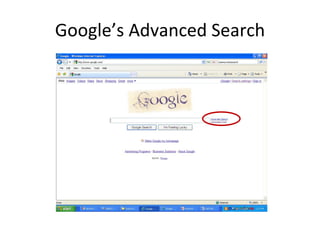
Google’s Advanced Search
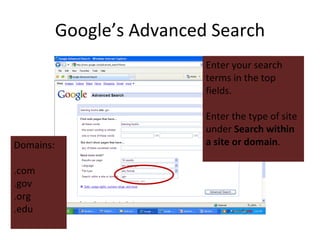
Google’s Advanced Search Enter your search terms in the top fields. Enter the type of site under  Search within a site or domain . Domains: .com .gov .org .edu
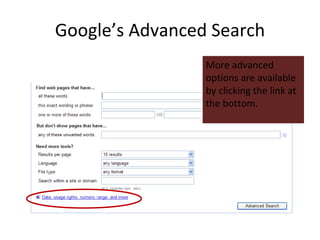
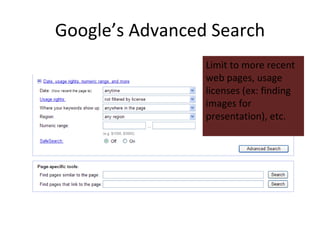
Google’s Advanced Search More advanced options are available by clicking the link at the bottom.
Google’s Advanced Search Limit to more recent web pages, usage licenses (ex: finding  images for presentation), etc.
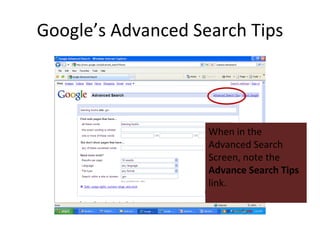
Google’s Advanced Search Tips When in the Advanced Search Screen, note the  Advance Search Tips  link.
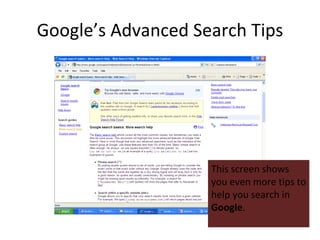
Google’s Advanced Search Tips This screen shows you even more tips to help you search in  Google .
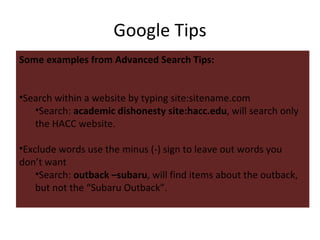
Google Tips Some examples from Advanced Search Tips: Use “quotes” to find your words together in a phrase.  “ Indiana Jones”  will look for those words together, not Indiana and Jones. Use an asterisk to find part of a word.  educat* = education, educators, educating, etc…)
Google Tips Some examples from Advanced Search Tips: Search within a website by typing site:sitename.com  Search:  academic dishonesty site:hacc.edu , will search only the HACC website. Exclude words use the minus (-) sign to leave out words you don’t want  Search:  outback –subaru , will find items about the outback, but not the “Subaru Outback”.
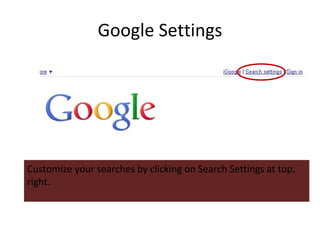
Google Settings Customize your searches by clicking on Search Settings at top, right.
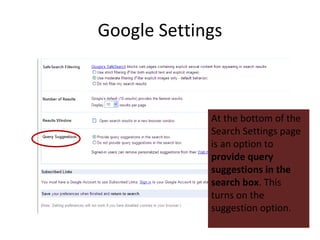
Google Settings At the bottom of the Search Settings page is an option to  provide query suggestions in the search box . This turns on the suggestion option.
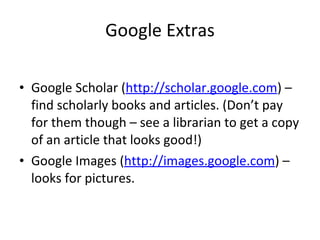
Google Extras   Google Scholar ( http://scholar.google.com ) – find scholarly books and articles. (Don’t pay for them though – see a librarian to get a copy of an article that looks good!) Google Images ( http://images.google.com ) – looks for pictures.
Non-Google Search Engines   Yahoo ( http://www.yahoo.com )  Bing (http://www.bing.com/) AOL (http://www.aol.com/) Ask ( http://www.ask.com/ )
Search Directories Directories – Information organized by a person.  (Fewer, but better results) Yahoo Directory ( http://directory.yahoo.com ) Librarians Index to the Internet ( http://www.lii.org ) USA.gov (government information ( http://www.usa.gov ) InfoMine ( http://infomine.ucr.edu )
MetaSearch Engines “ Metasearch” engines – these search multiple places! Clusty ( http://www.clusty.com ) – searches Ask, Open Directory, Gigablast and more DogPile ( http://www.dogpile.com ) – searches Google, Yahoo, bing! and Ask!  Mamma (http://www.mamma.com/)  More searches:  http://delicious.com/lisaref/searches
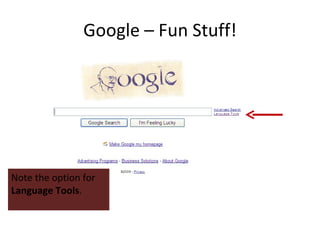
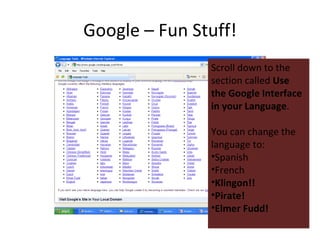
Google – Fun Stuff! Note the option for  Language Tools .
Google – Fun Stuff! Scroll down to the section called  Use the Google Interface in your Language .  You can change the language to: Spanish French Klingon!! Pirate! Elmer Fudd!
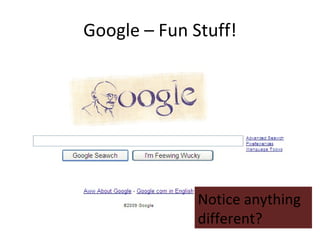
Google – Fun Stuff! Notice anything different?

Internet Search Tips (Google)

  • 1.
  • 2.
    Internet Search TipsMaking the most of your internet search (Google, and more…)
  • 3.
  • 4.
    Google’s Advanced SearchEnter your search terms in the top fields. Enter the type of site under Search within a site or domain . Domains: .com .gov .org .edu
  • 5.
    Google’s Advanced SearchMore advanced options are available by clicking the link at the bottom.
  • 6.
    Google’s Advanced SearchLimit to more recent web pages, usage licenses (ex: finding images for presentation), etc.
  • 7.
    Google’s Advanced SearchTips When in the Advanced Search Screen, note the Advance Search Tips link.
  • 8.
    Google’s Advanced SearchTips This screen shows you even more tips to help you search in Google .
  • 9.
    Google Tips Someexamples from Advanced Search Tips: Use “quotes” to find your words together in a phrase. “ Indiana Jones” will look for those words together, not Indiana and Jones. Use an asterisk to find part of a word. educat* = education, educators, educating, etc…)
  • 10.
    Google Tips Someexamples from Advanced Search Tips: Search within a website by typing site:sitename.com Search: academic dishonesty site:hacc.edu , will search only the HACC website. Exclude words use the minus (-) sign to leave out words you don’t want Search: outback –subaru , will find items about the outback, but not the “Subaru Outback”.
  • 11.
    Google Settings Customizeyour searches by clicking on Search Settings at top, right.
  • 12.
    Google Settings Atthe bottom of the Search Settings page is an option to provide query suggestions in the search box . This turns on the suggestion option.
  • 13.
    Google Extras  Google Scholar ( http://scholar.google.com ) – find scholarly books and articles. (Don’t pay for them though – see a librarian to get a copy of an article that looks good!) Google Images ( http://images.google.com ) – looks for pictures.
  • 14.
    Non-Google Search Engines  Yahoo ( http://www.yahoo.com ) Bing (http://www.bing.com/) AOL (http://www.aol.com/) Ask ( http://www.ask.com/ )
  • 15.
    Search Directories Directories– Information organized by a person. (Fewer, but better results) Yahoo Directory ( http://directory.yahoo.com ) Librarians Index to the Internet ( http://www.lii.org ) USA.gov (government information ( http://www.usa.gov ) InfoMine ( http://infomine.ucr.edu )
  • 16.
    MetaSearch Engines “Metasearch” engines – these search multiple places! Clusty ( http://www.clusty.com ) – searches Ask, Open Directory, Gigablast and more DogPile ( http://www.dogpile.com ) – searches Google, Yahoo, bing! and Ask! Mamma (http://www.mamma.com/) More searches: http://delicious.com/lisaref/searches
  • 17.
    Google – FunStuff! Note the option for Language Tools .
  • 18.
    Google – FunStuff! Scroll down to the section called Use the Google Interface in your Language . You can change the language to: Spanish French Klingon!! Pirate! Elmer Fudd!
  • 19.
    Google – FunStuff! Notice anything different?