Mastering the Search
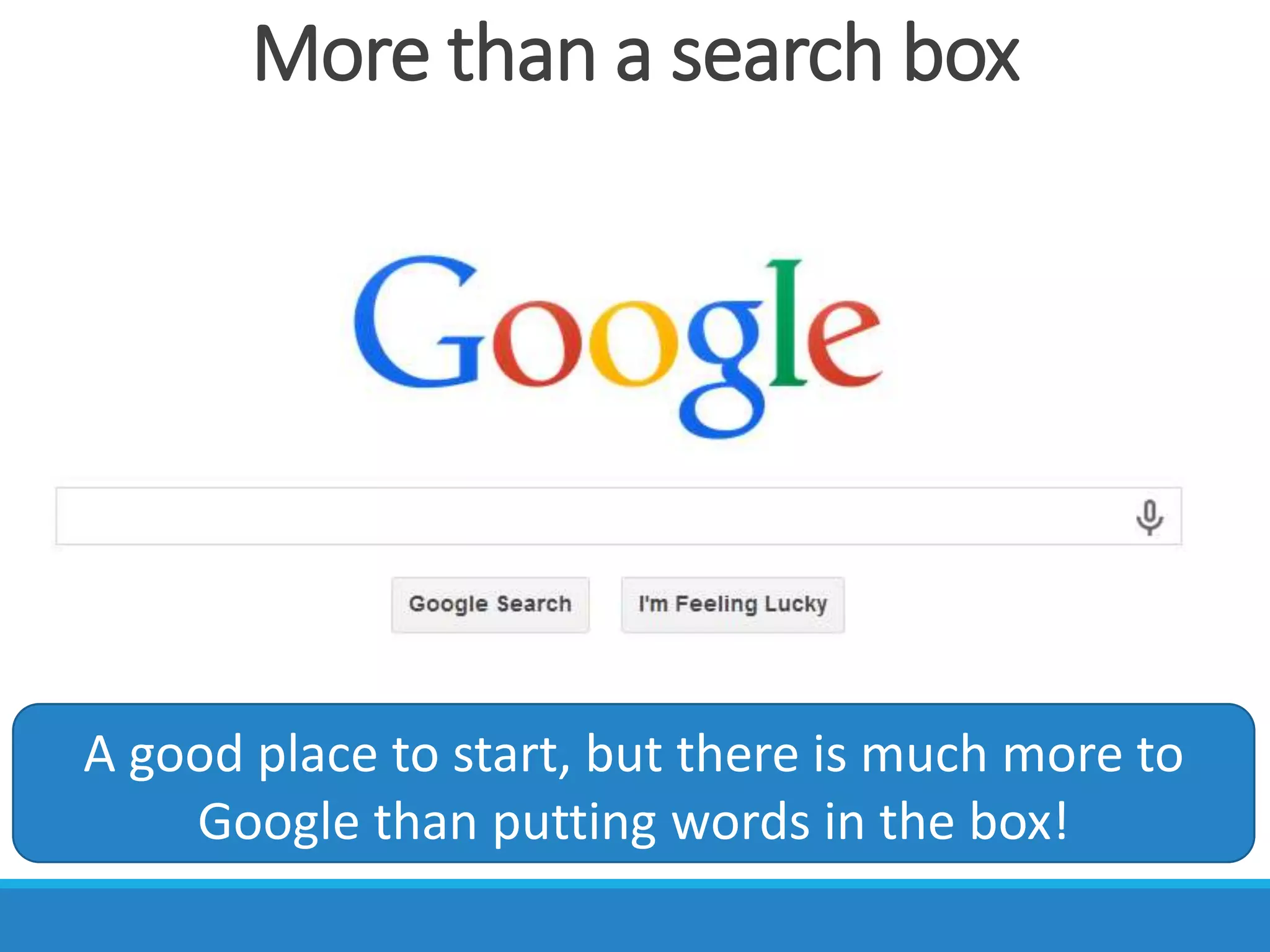
More than a search box
A good place to start, but there is much more to
Google than putting words in the box!
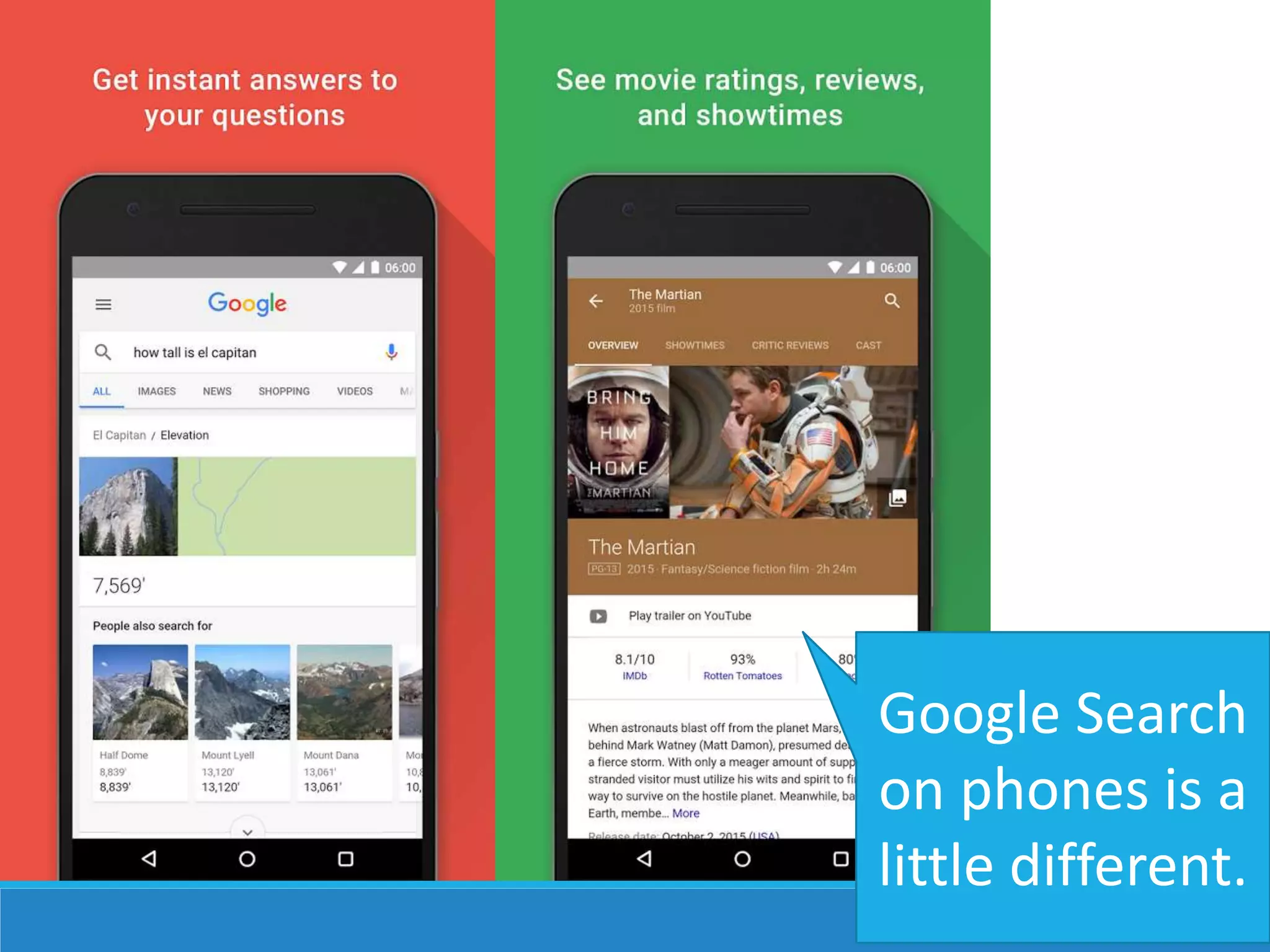
Google Search
on phones is a
little different.
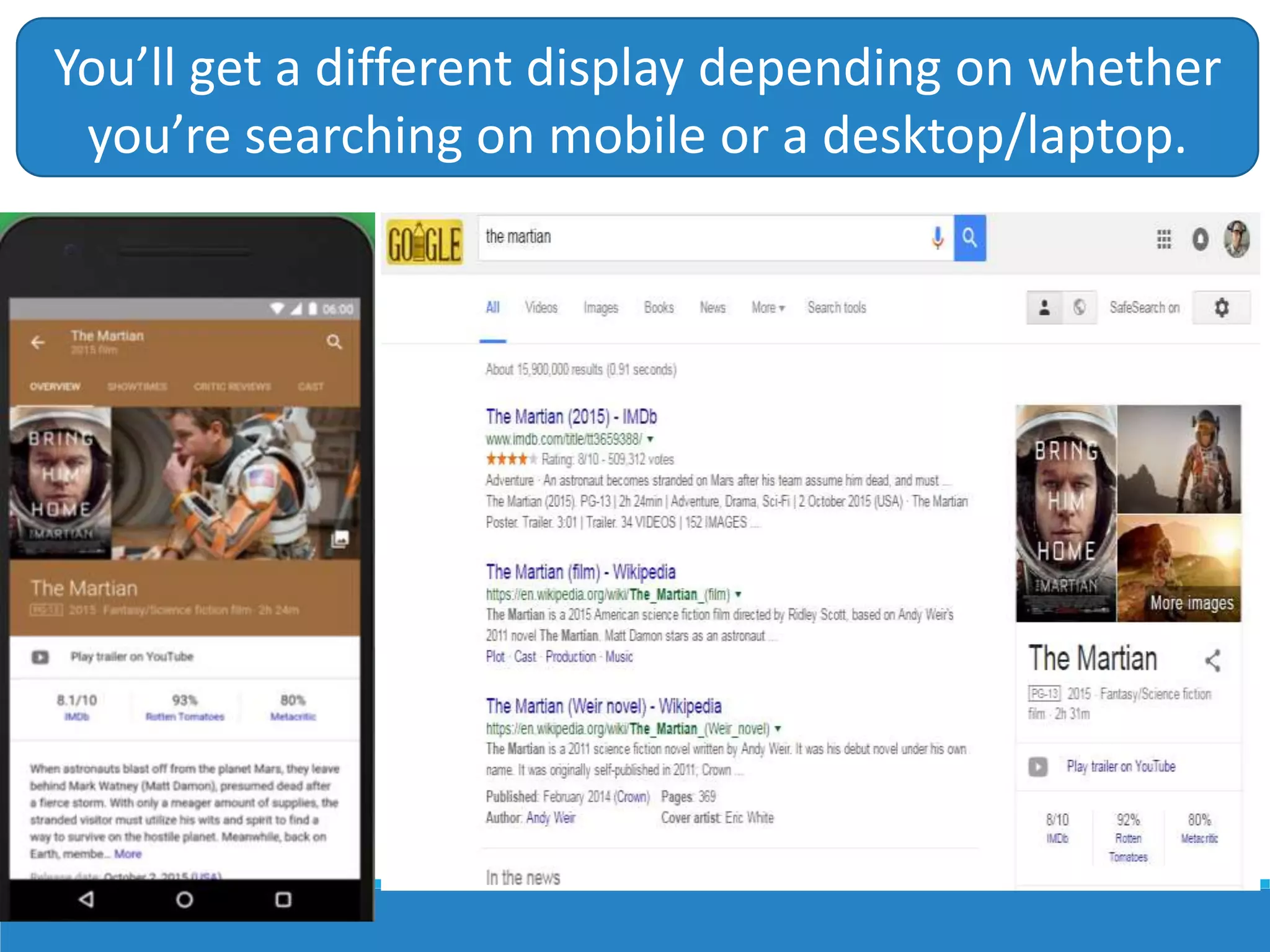
You’ll get a different display depending on whether
you’re searching on mobile or a desktop/laptop.
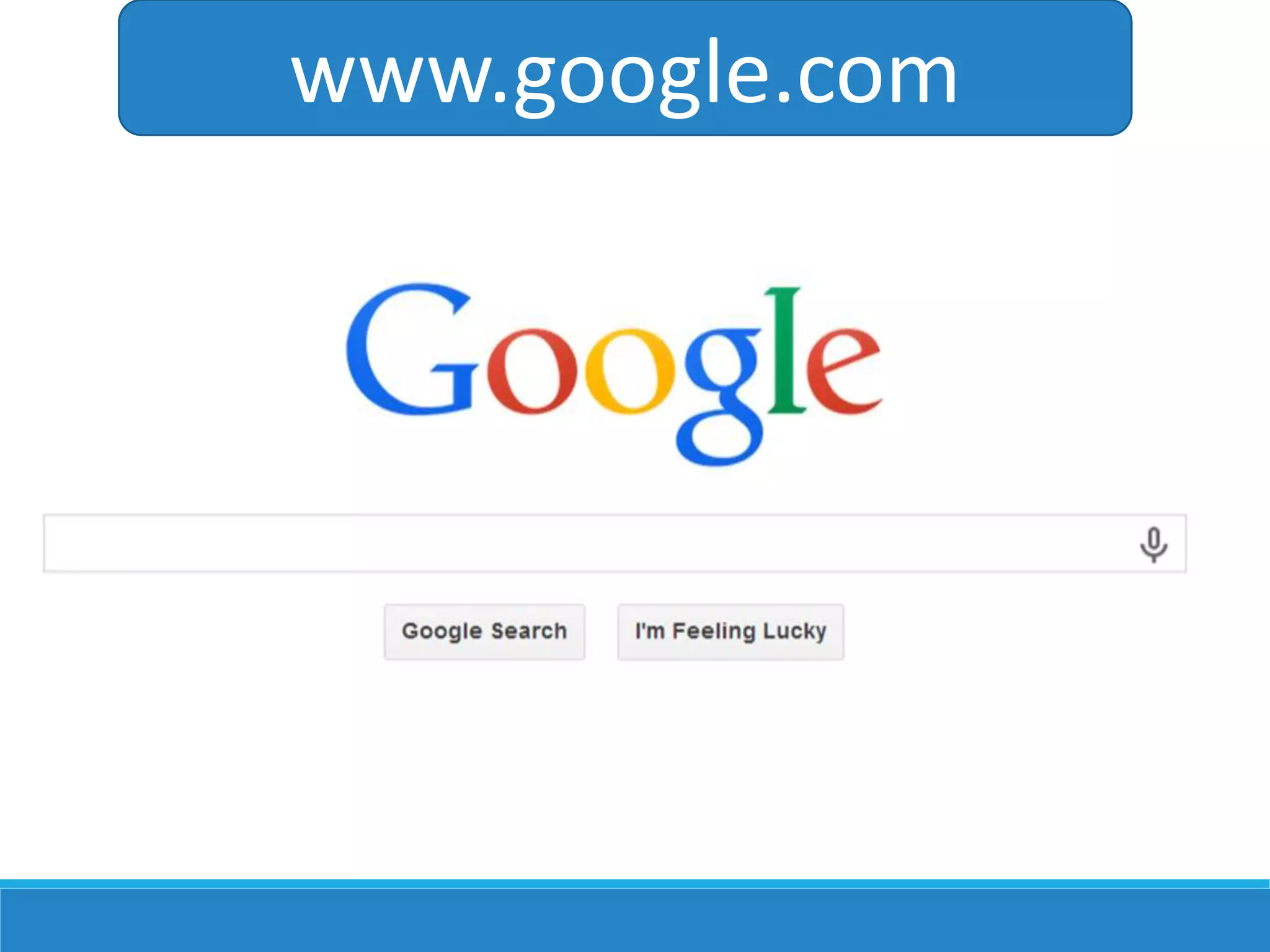
www.google.com
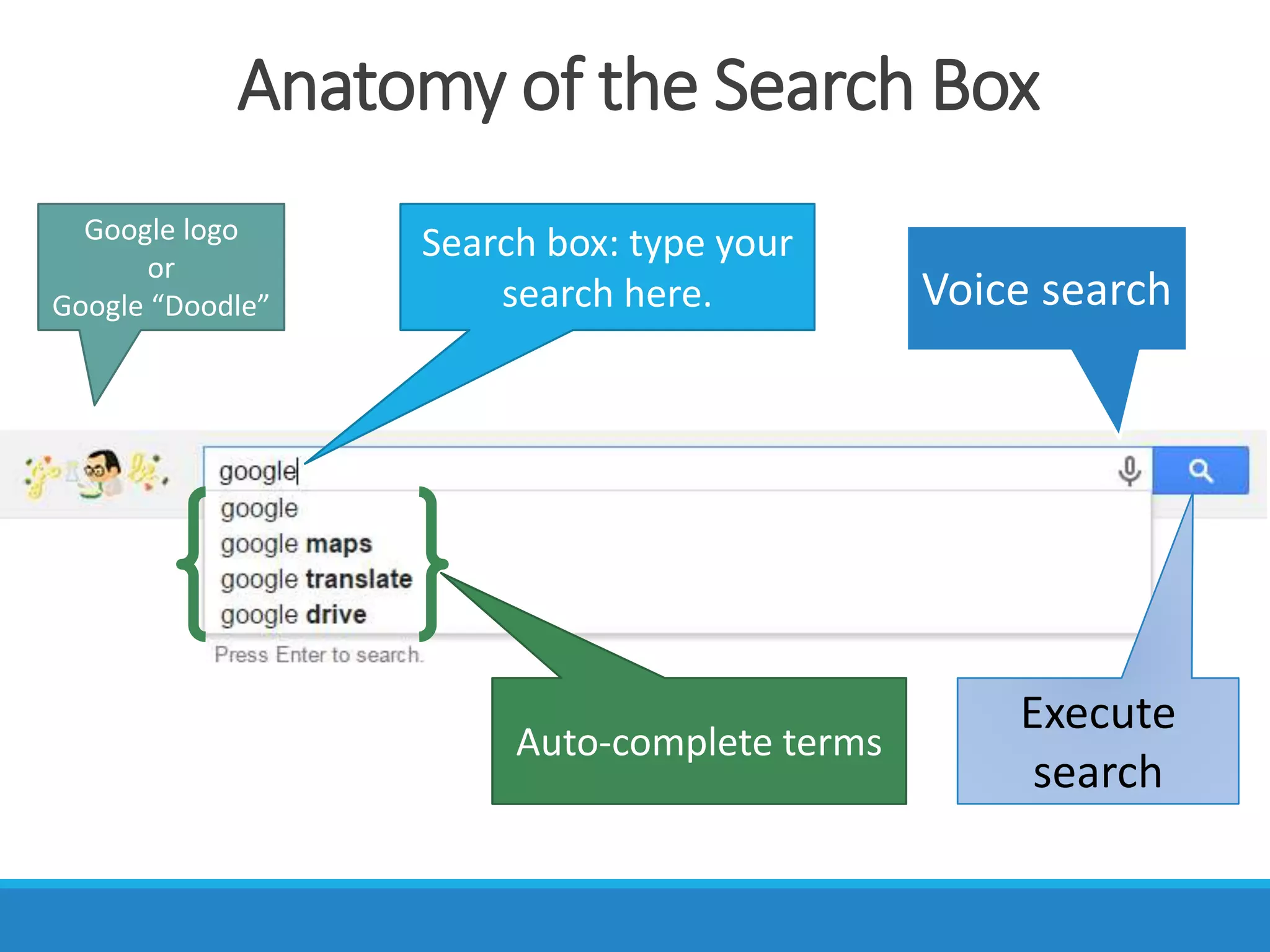
Anatomy of the Search Box
Google logo
or
Google “Doodle”
Search box: type your
search here.
Auto-complete terms
Voice search
Execute
search
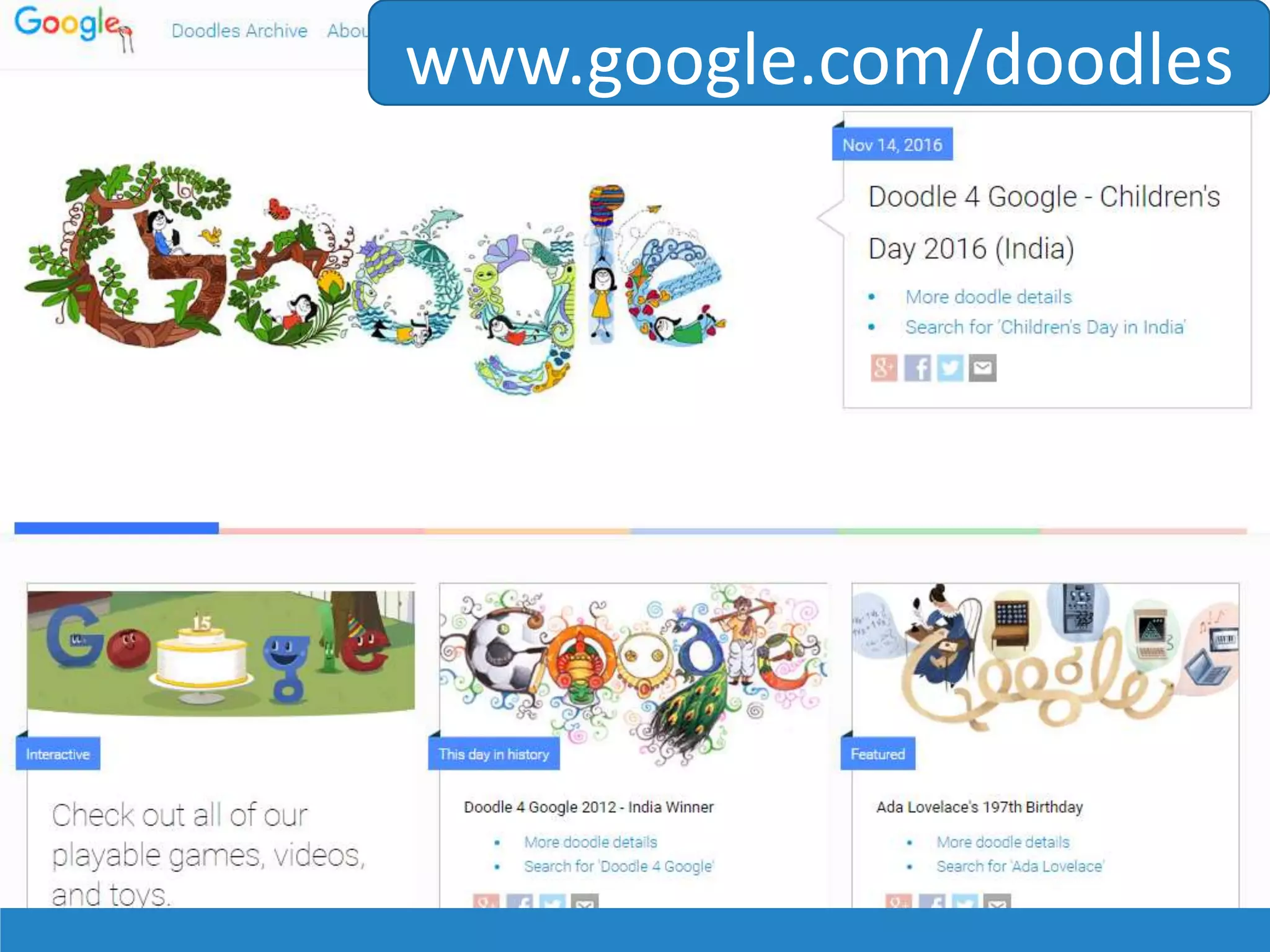
www.google.com/doodles
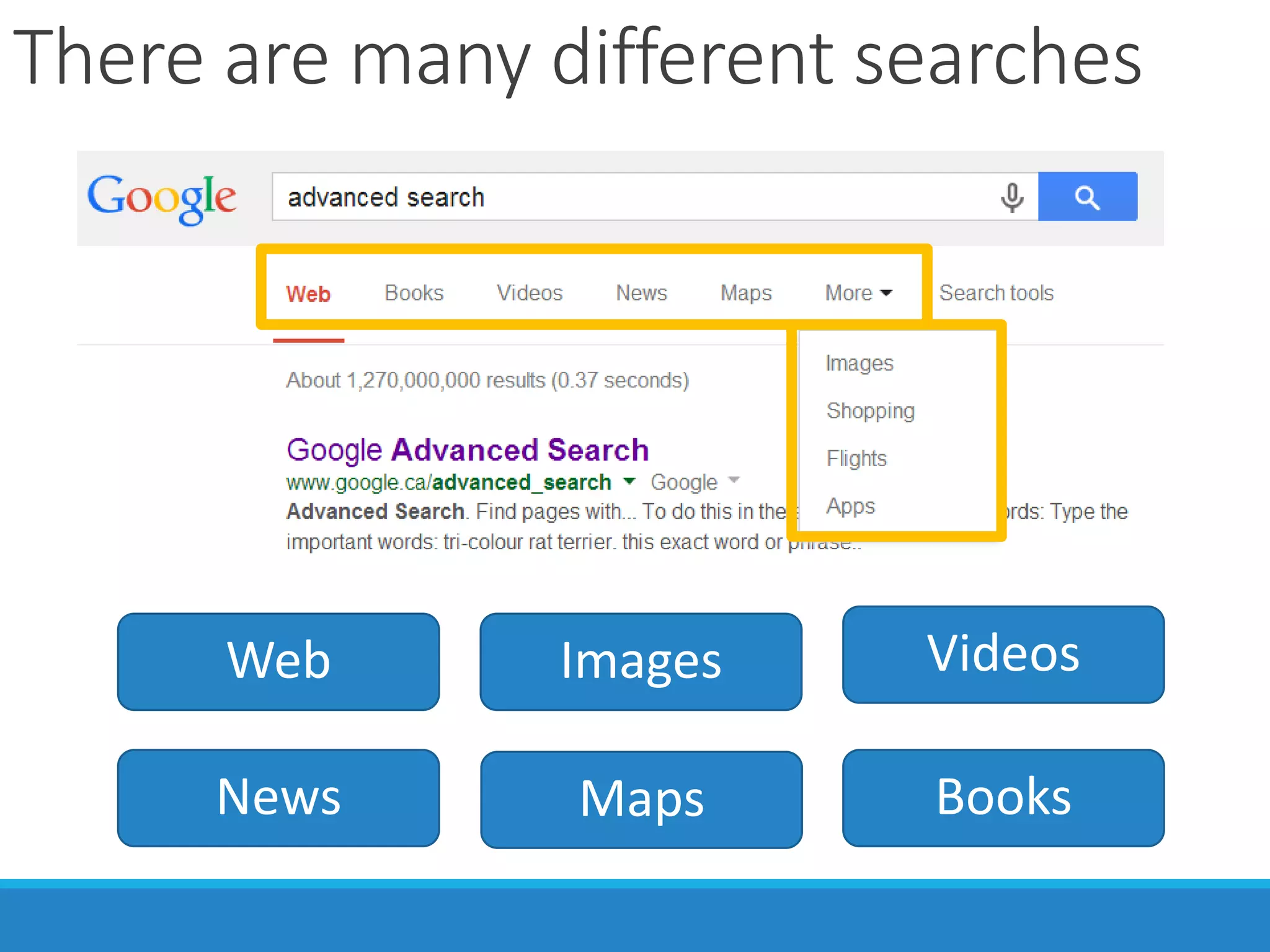
There are many different searches
Web
News Maps
Videos
Books
Images
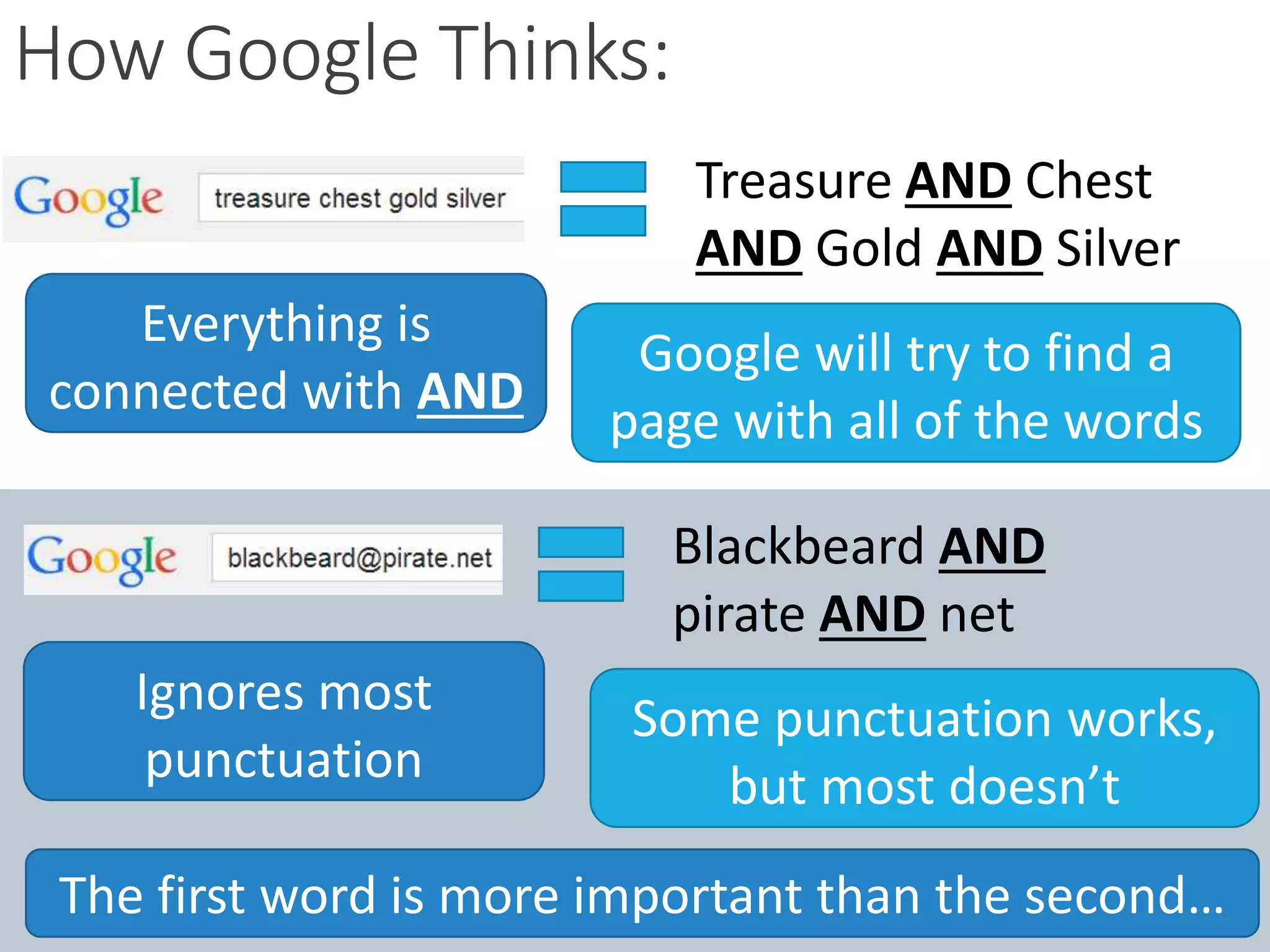
How Google Thinks:
Everything is
connected with AND
Treasure AND Chest
AND Gold AND Silver
Google will try to find a
page with all of the words
Ignores most
punctuation
Blackbeard AND
pirate AND net
Some punctuation works,
but most doesn’t
The first word is more important than the second…
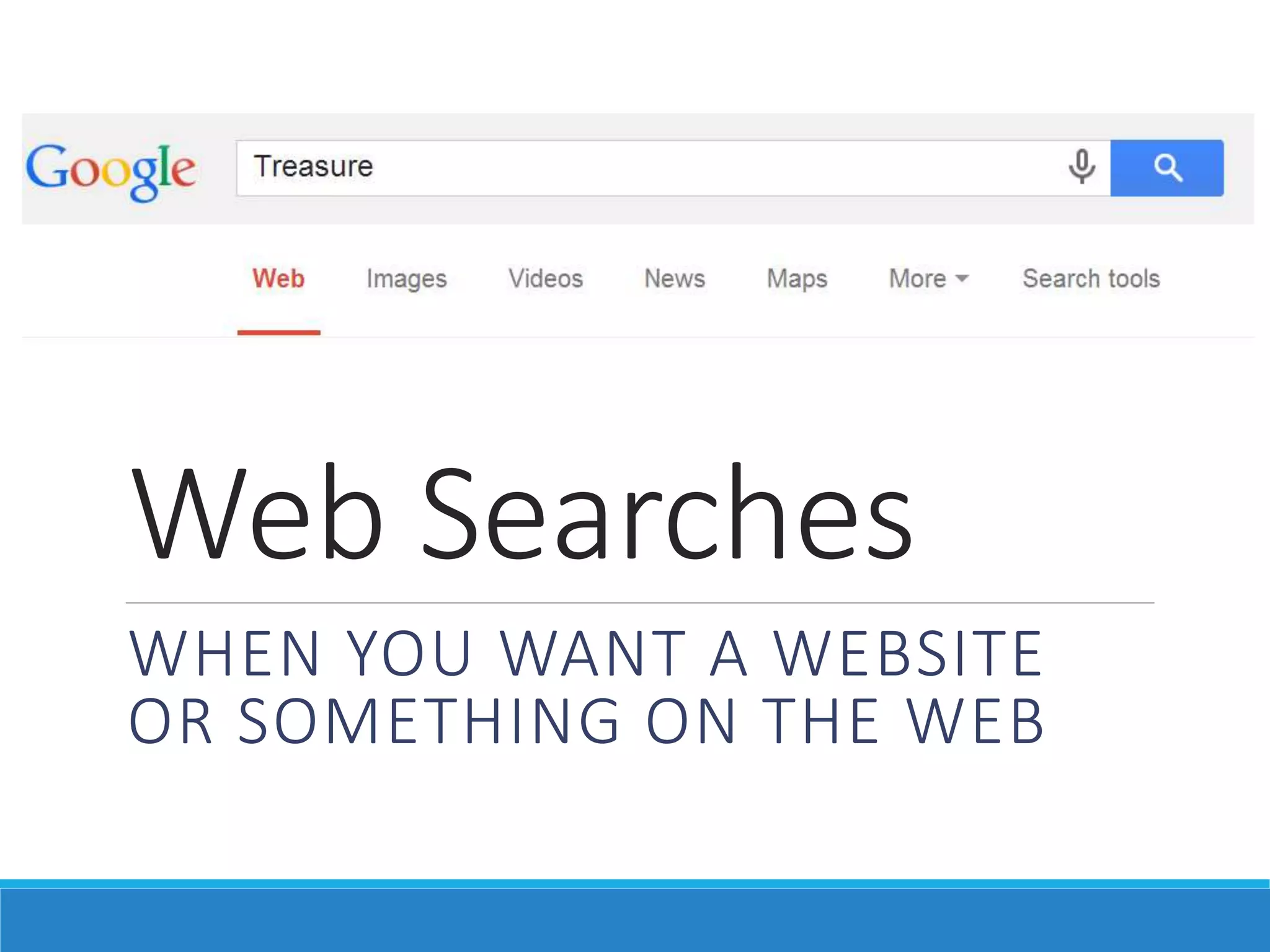
Web Searches
WHEN YOU WANT A WEBSITE
OR SOMETHING ON THE WEB
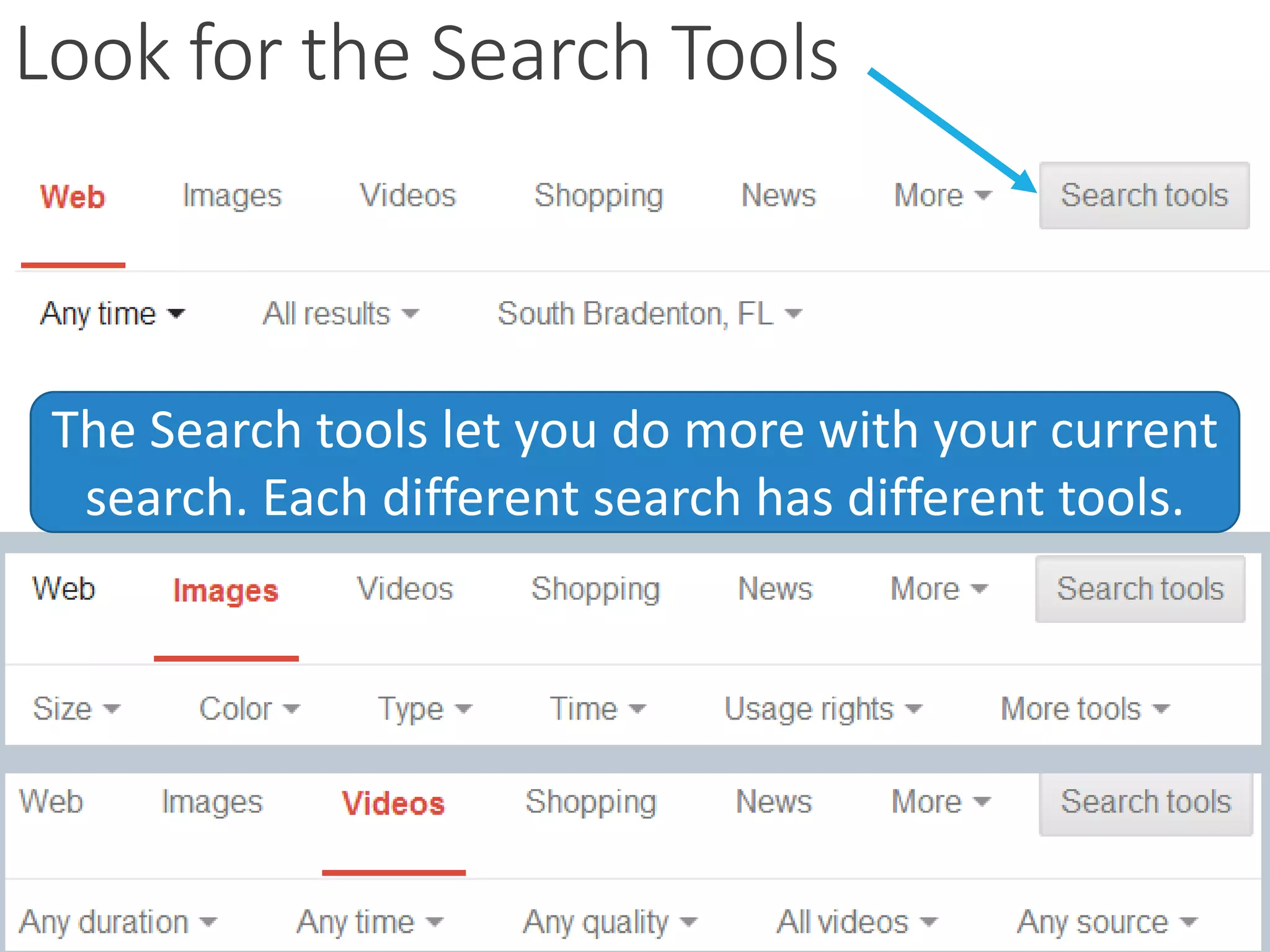
Look for the Search Tools
The Search tools let you do more with your current
search. Each different search has different tools.
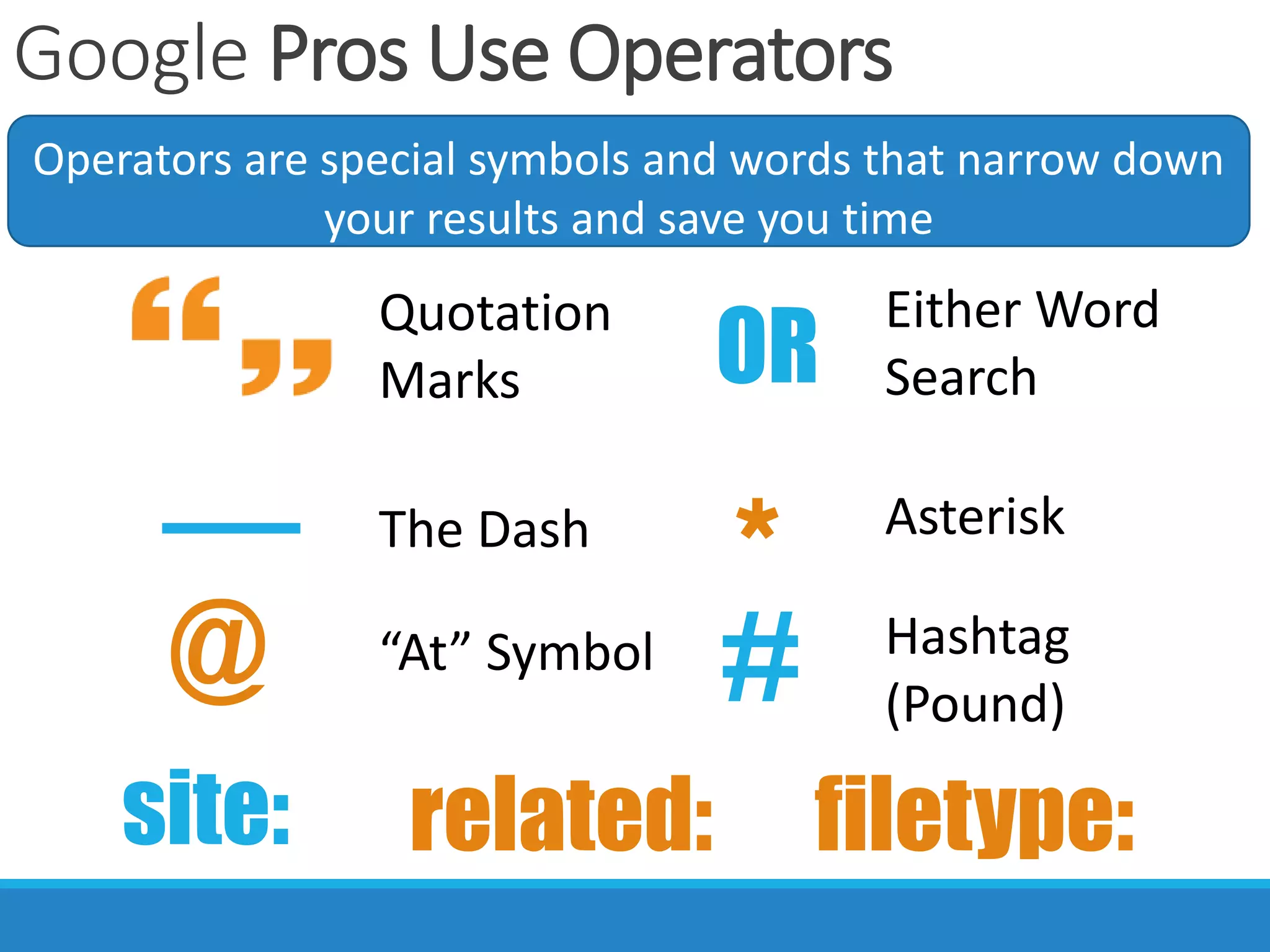
Google Pros Use Operators
Operators are special symbols and words that narrow down
your results and save you time
Quotation
Marks
The Dash
site: related:
*
OR
Either Word
Search
Asterisk
filetype:
@ “At” Symbol
# Hashtag
(Pound)
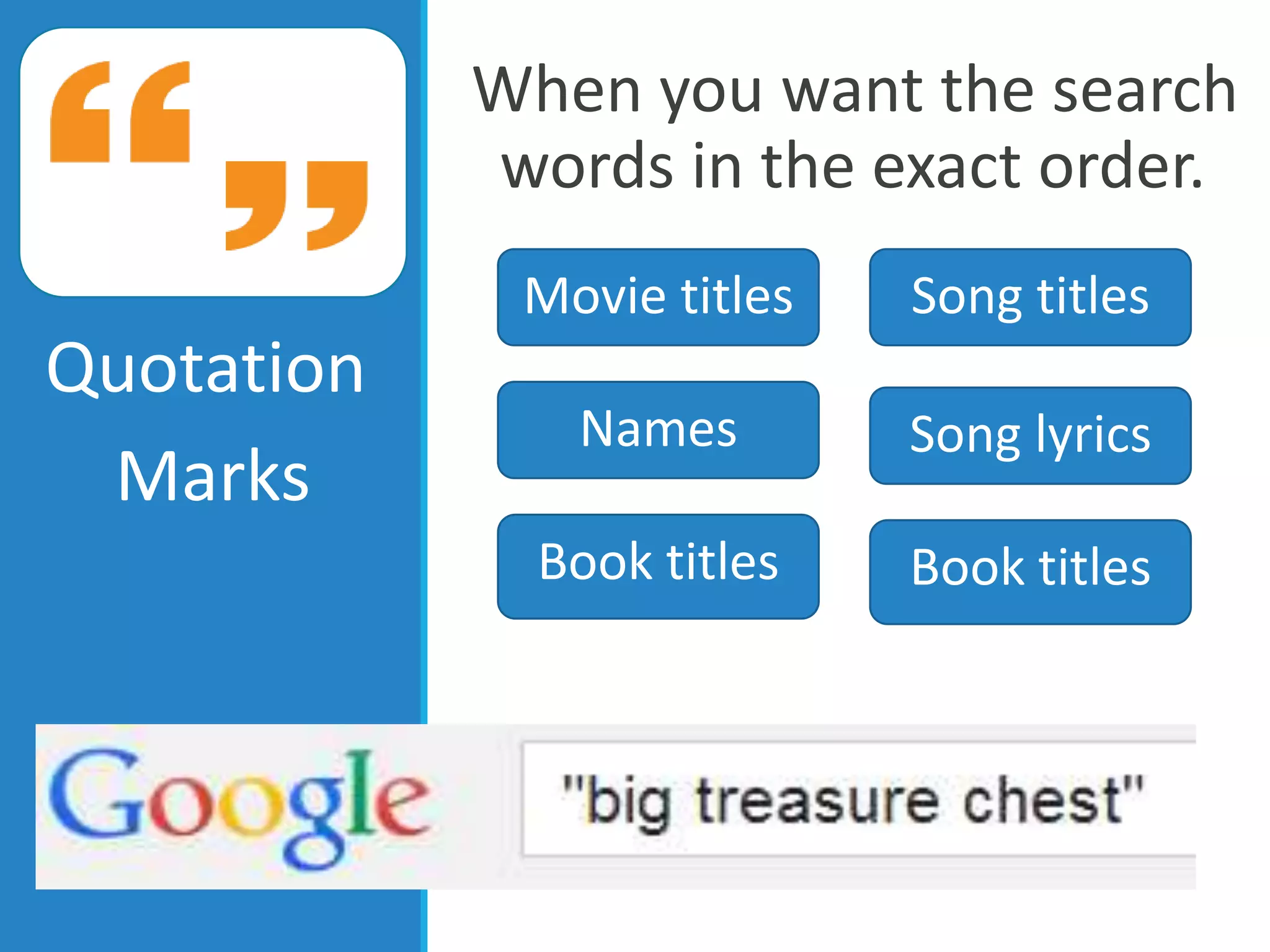
When you want the search
words in the exact order.
Quotation
Marks
Movie titles Song titles
Song lyricsNames
Book titles Book titles
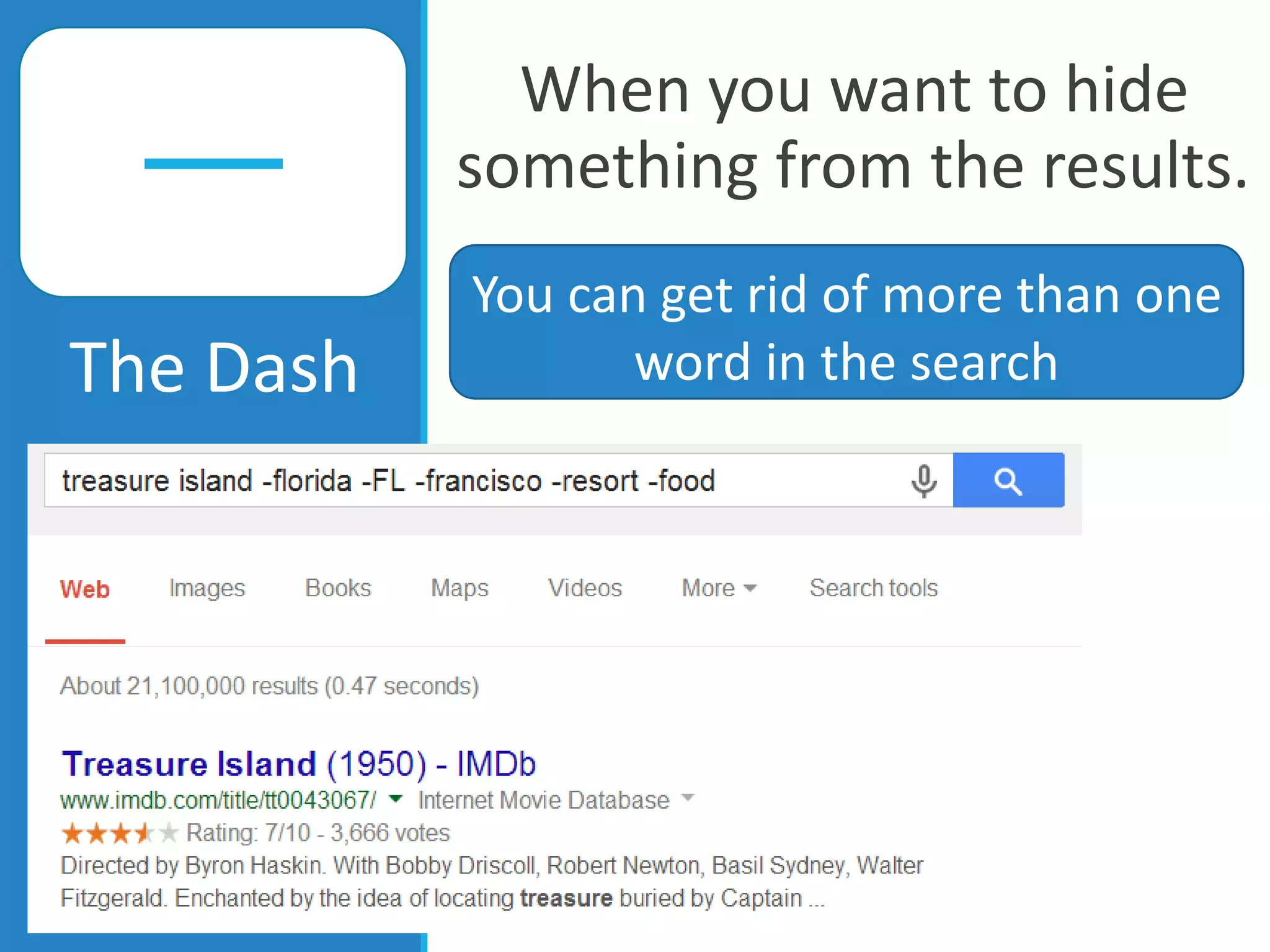
When you want to hide
something from the results.
The Dash
You can get rid of more than one
word in the search
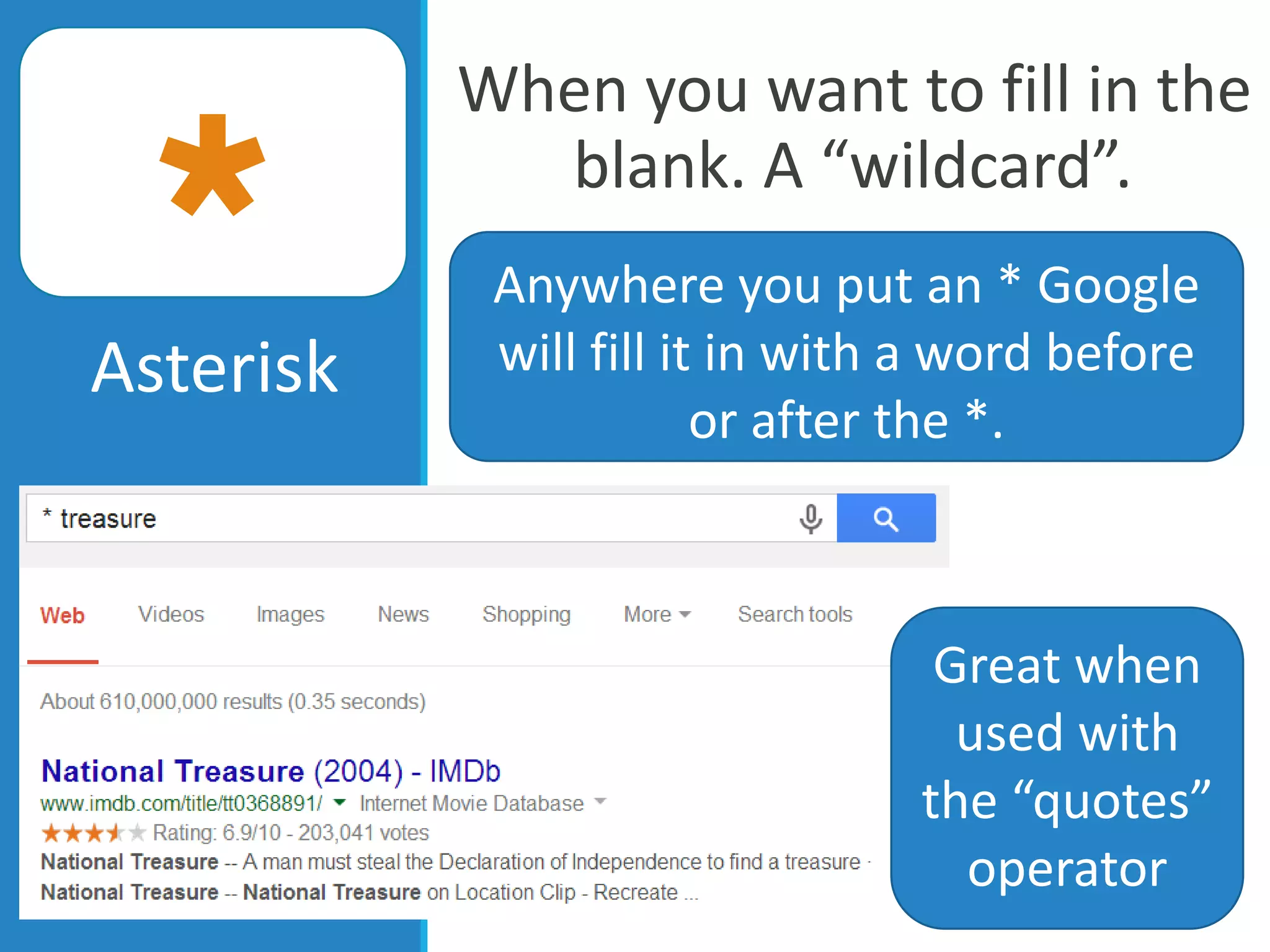
When you want to fill in the
blank. A “wildcard”.
Asterisk
Anywhere you put an * Google
will fill it in with a word before
or after the *.
Great when
used with
the “quotes”
operator
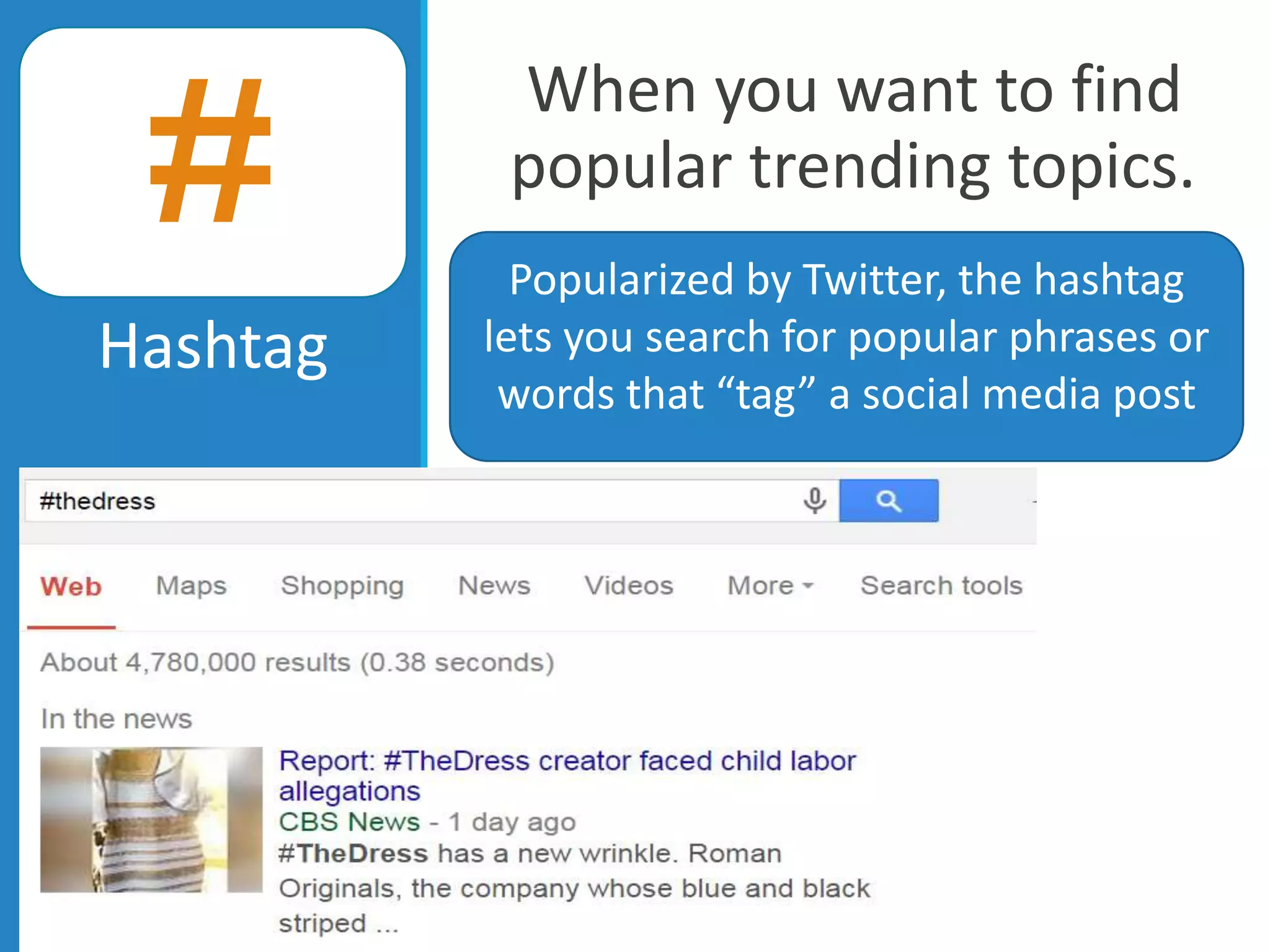
When you want to find
popular trending topics.
Hashtag
Popularized by Twitter, the hashtag
lets you search for popular phrases or
words that “tag” a social media post
#
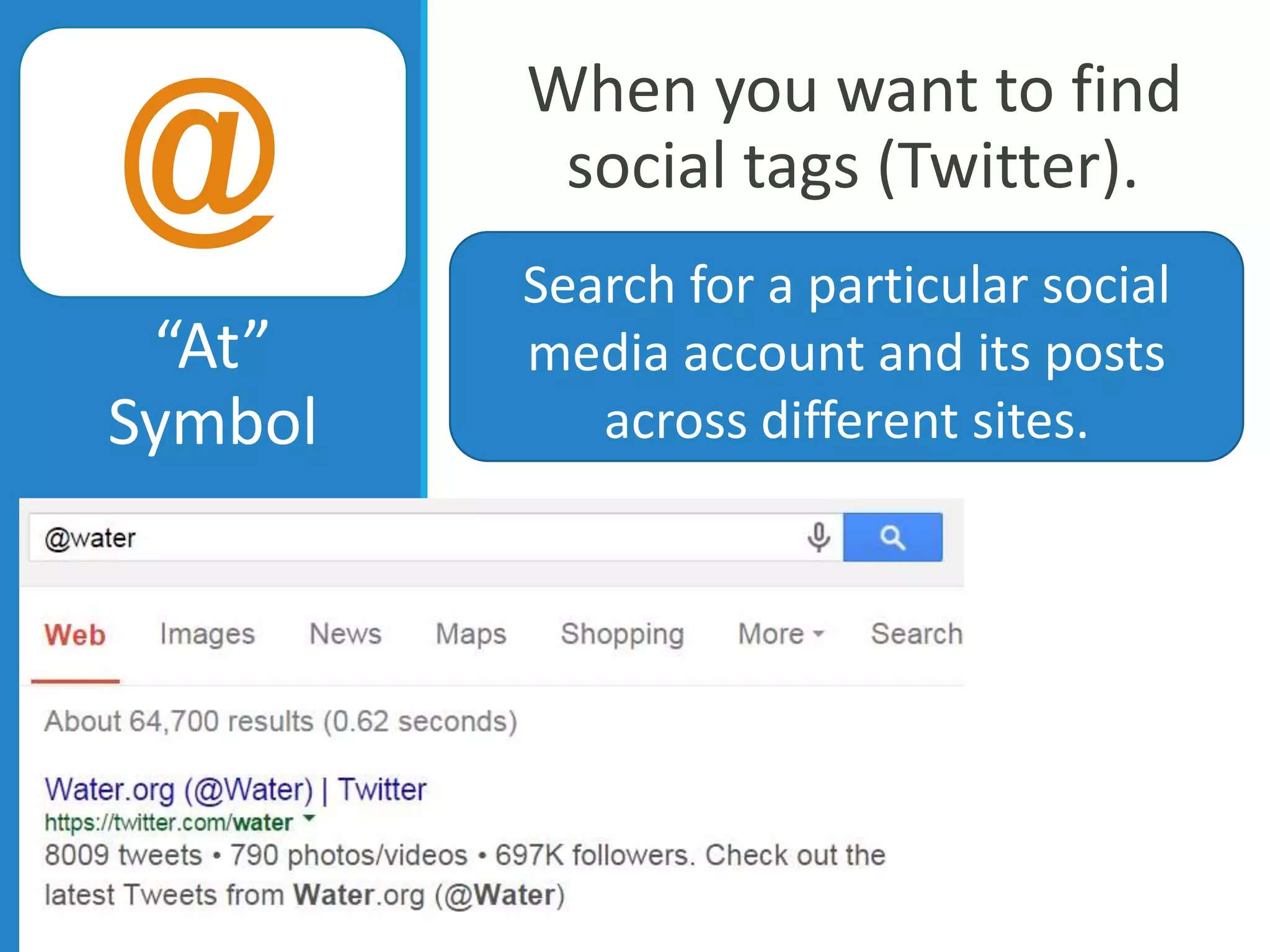
When you want to find
social tags (Twitter).
“At”
Symbol
Search for a particular social
media account and its posts
across different sites.
@
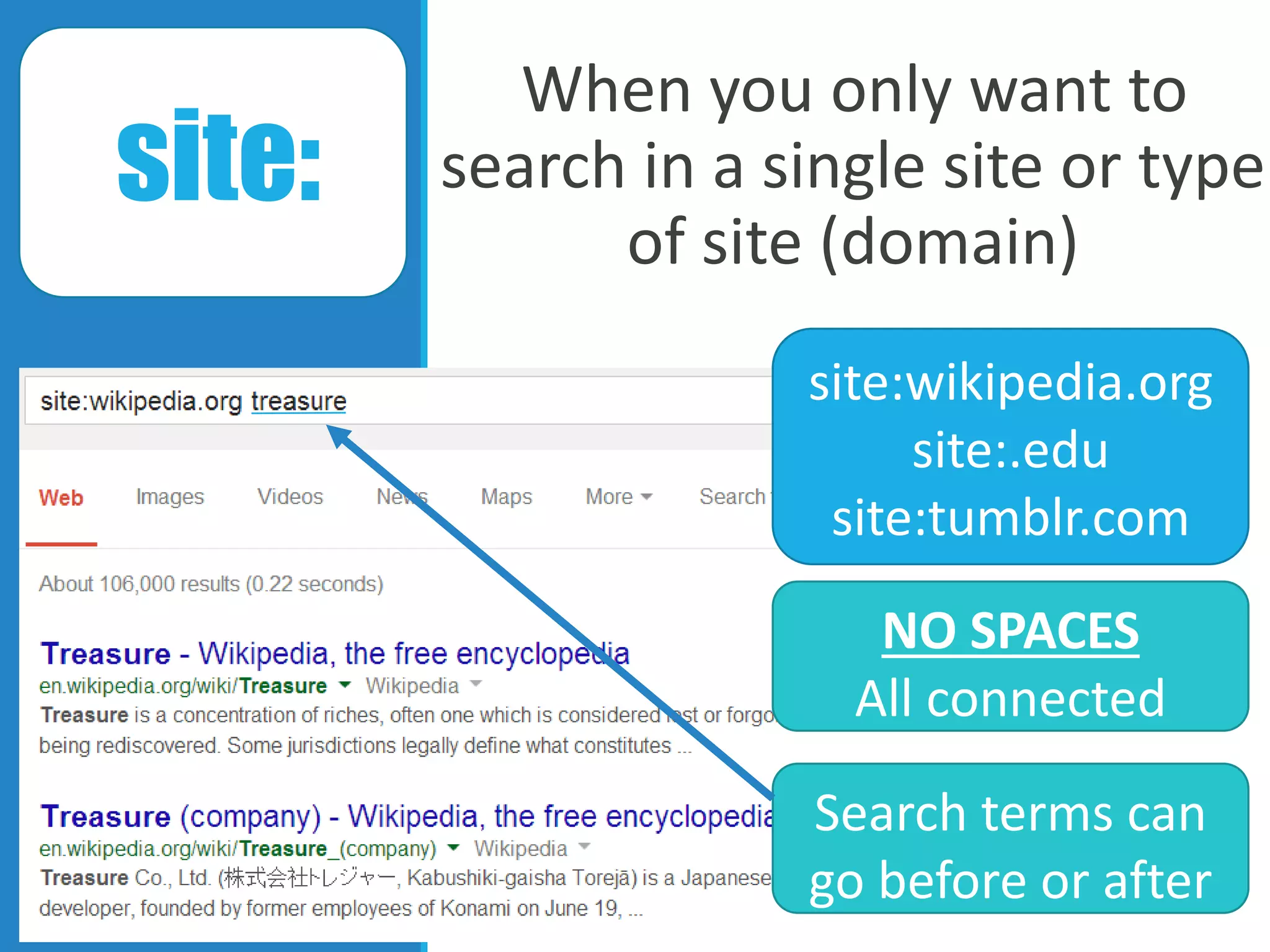
When you only want to
search in a single site or type
of site (domain)
site:
site:wikipedia.org
site:.edu
site:tumblr.com
NO SPACES
All connected
Search terms can
go before or after
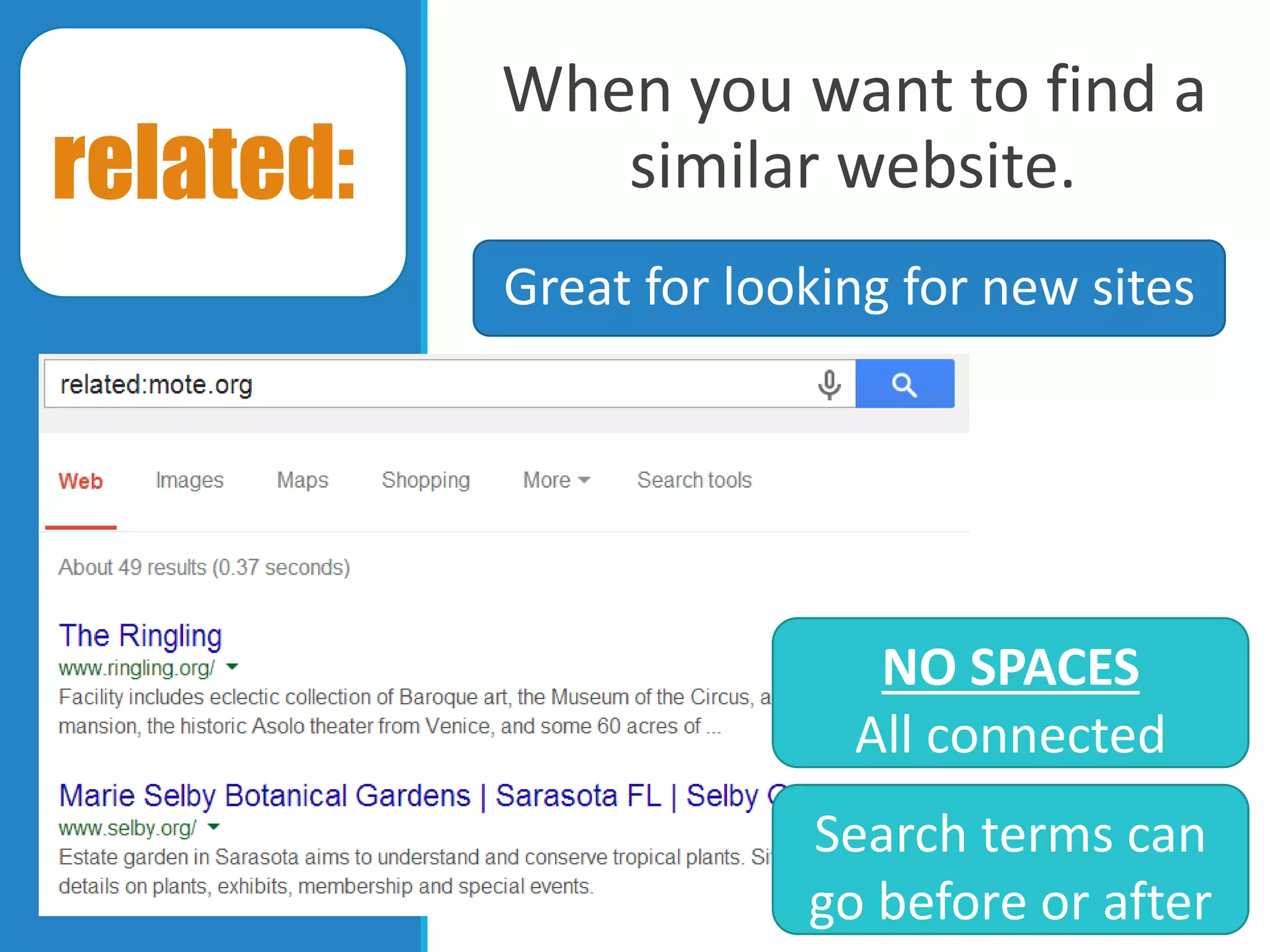
When you want to find a
similar website.
NO SPACES
All connected
Search terms can
go before or after
related:
Great for looking for new sites
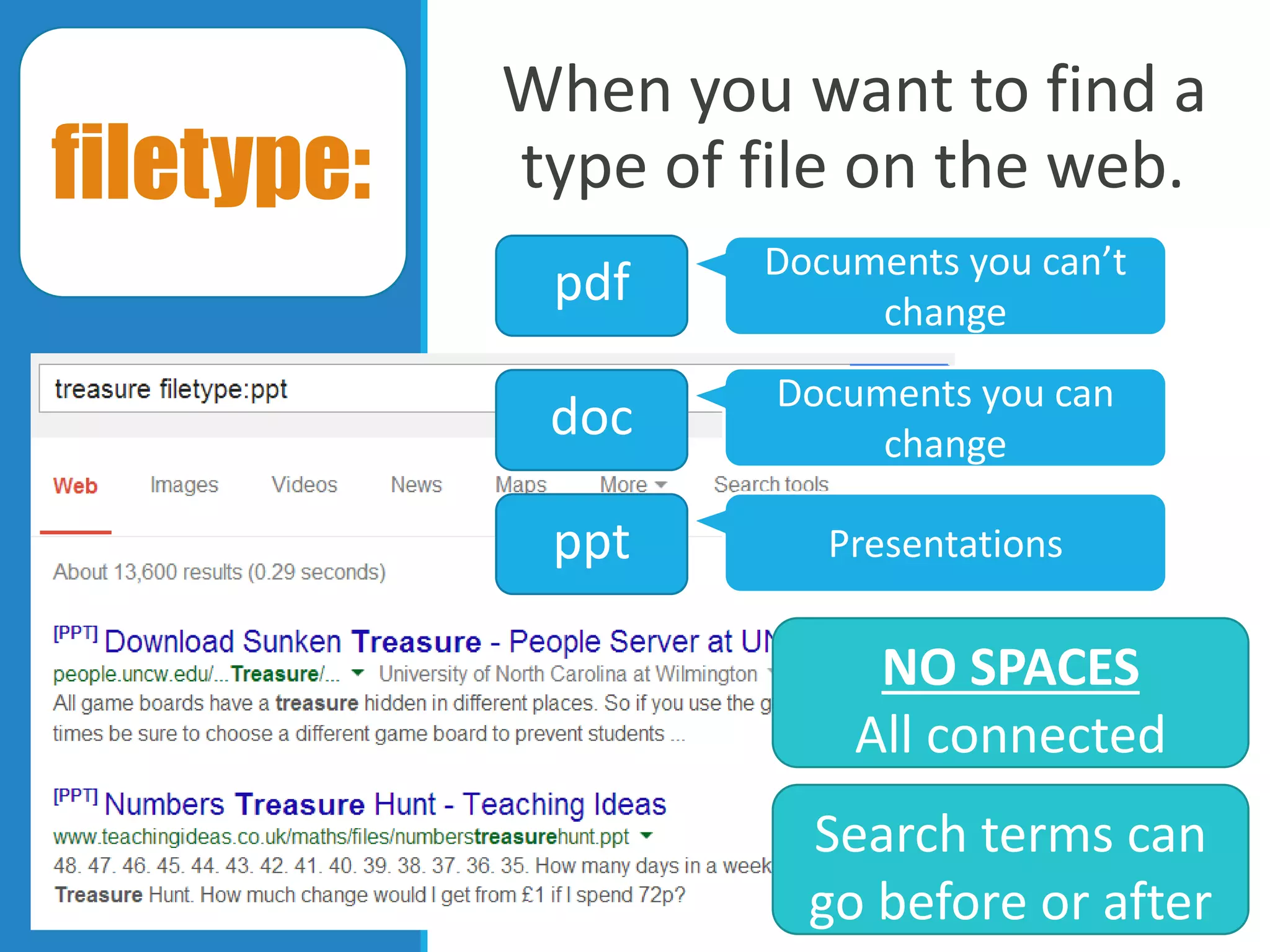
When you want to find a
type of file on the web.
pdf
NO SPACES
All connected
Search terms can
go before or after
filetype:
doc
ppt
Documents you can’t
change
Documents you can
change
Presentations
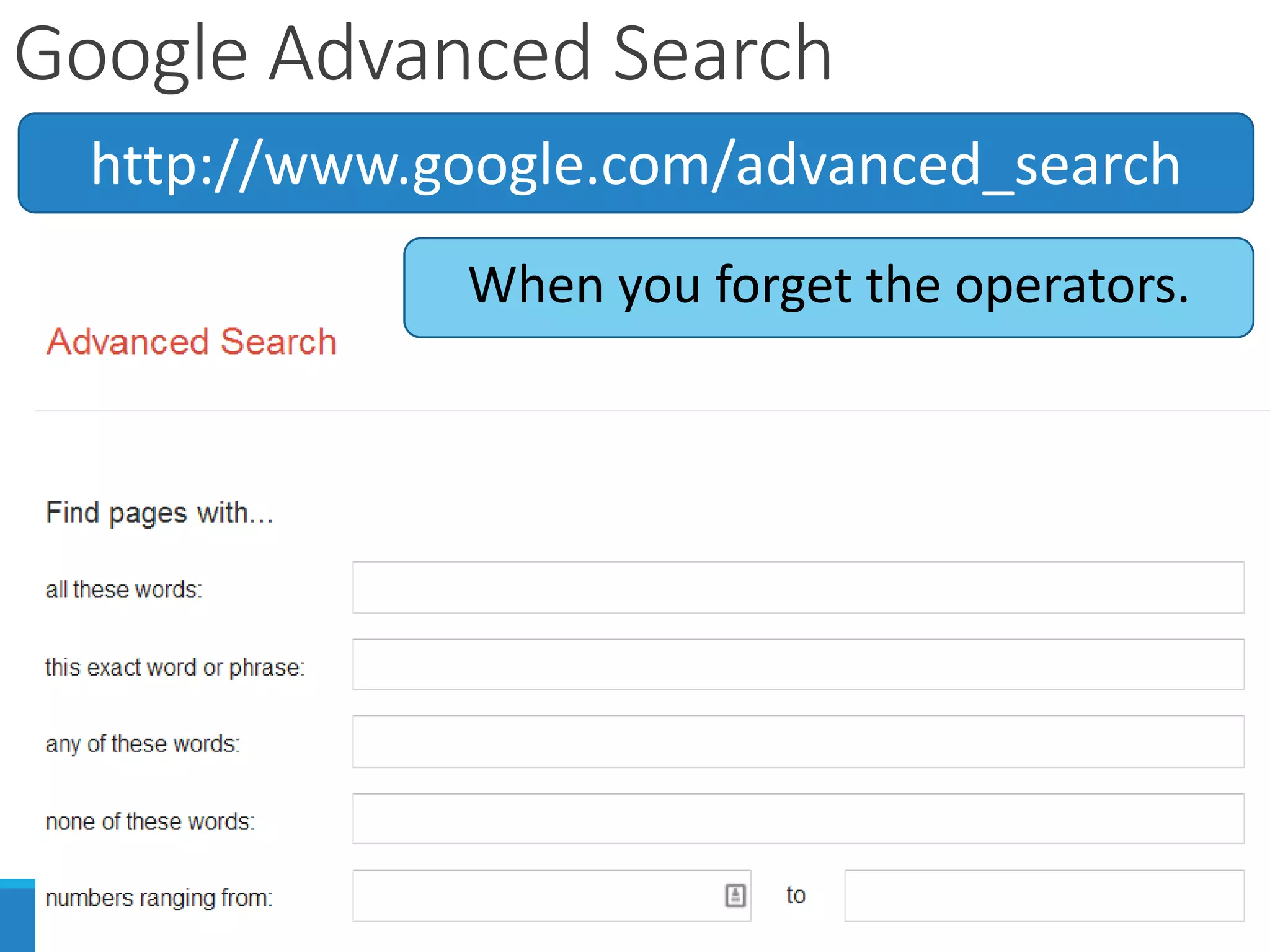
Google Advanced Search
http://www.google.com/advanced_search
When you forget the operators.
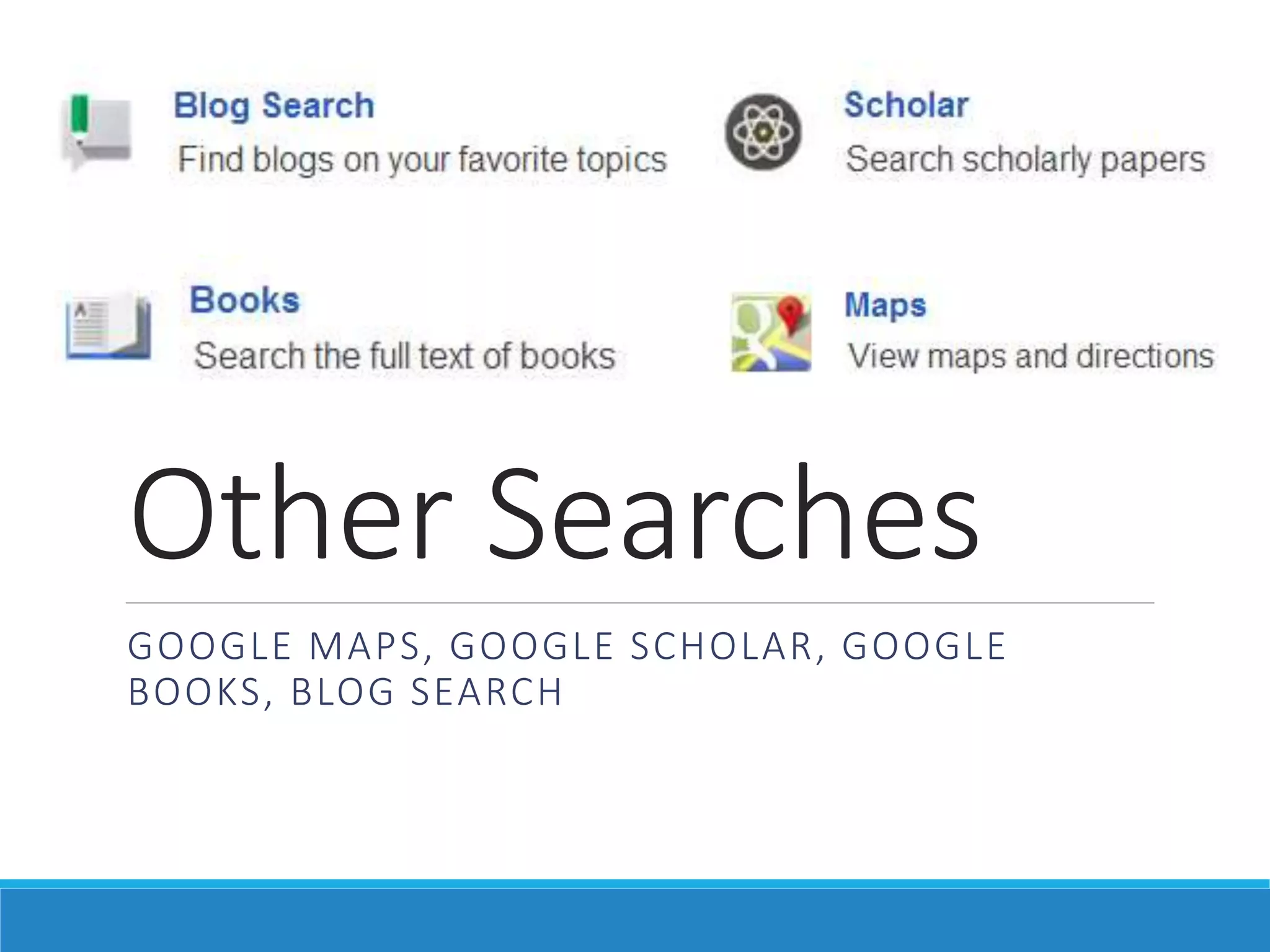
Other Searches
GOOGLE MAPS, GOOGLE SCHOLAR, GOOGLE
BOOKS, BLOG SEARCH
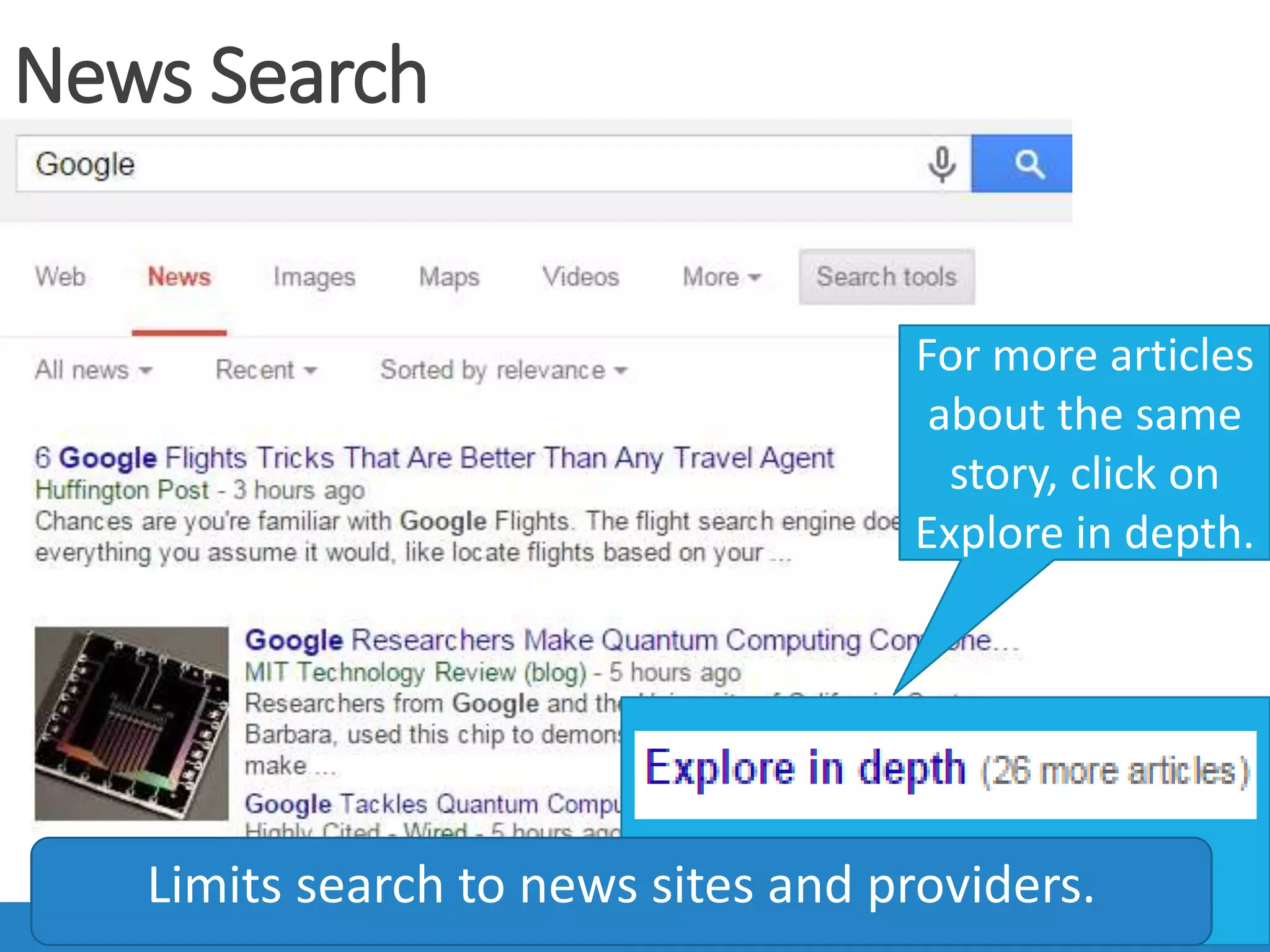
News Search
Limits search to news sites and providers.
For more articles
about the same
story, click on
Explore in depth.
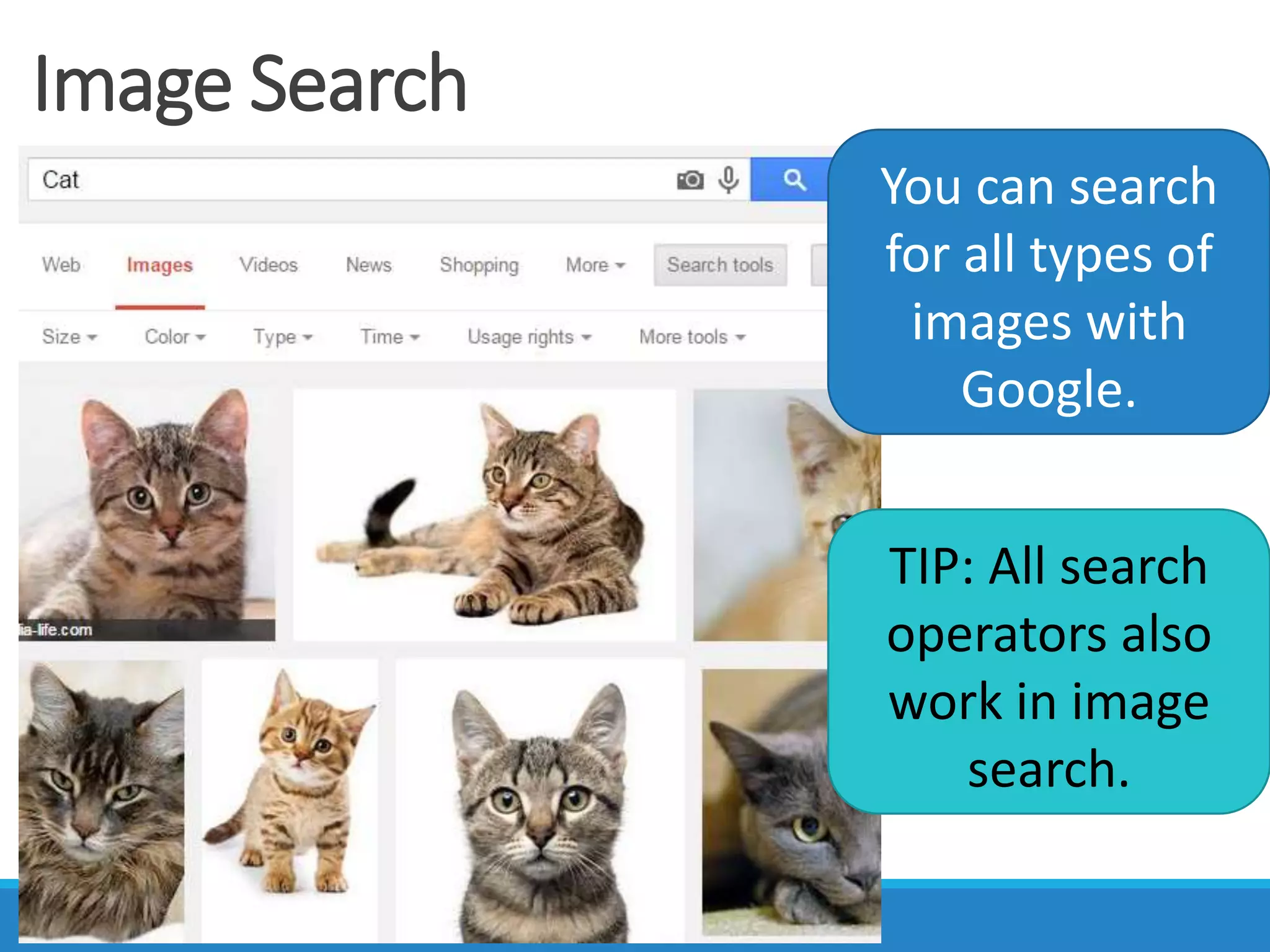
Image Search
You can search
for all types of
images with
Google.
TIP: All search
operators also
work in image
search.
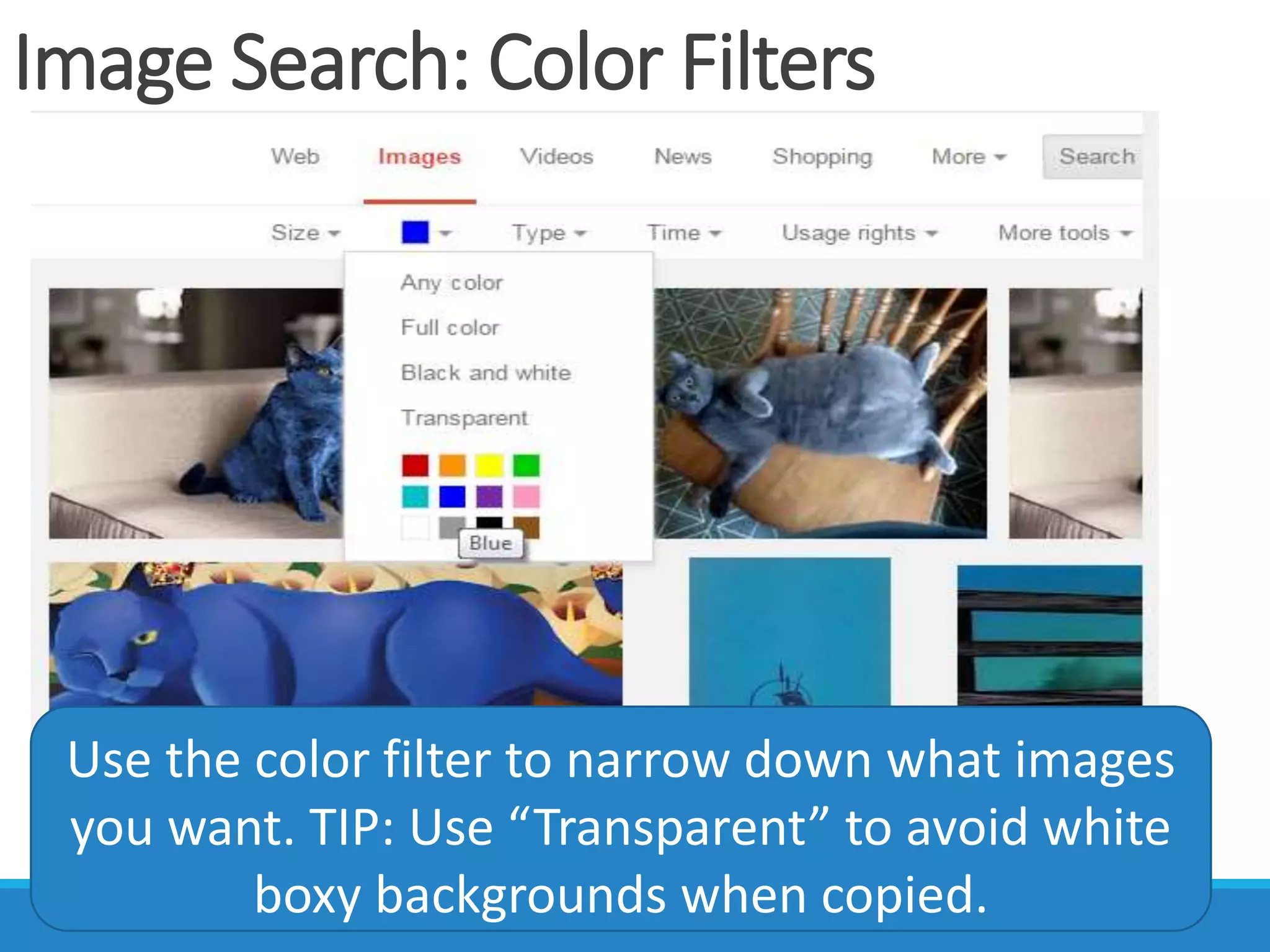
Image Search: Color Filters
Use the color filter to narrow down what images
you want. TIP: Use “Transparent” to avoid white
boxy backgrounds when copied.
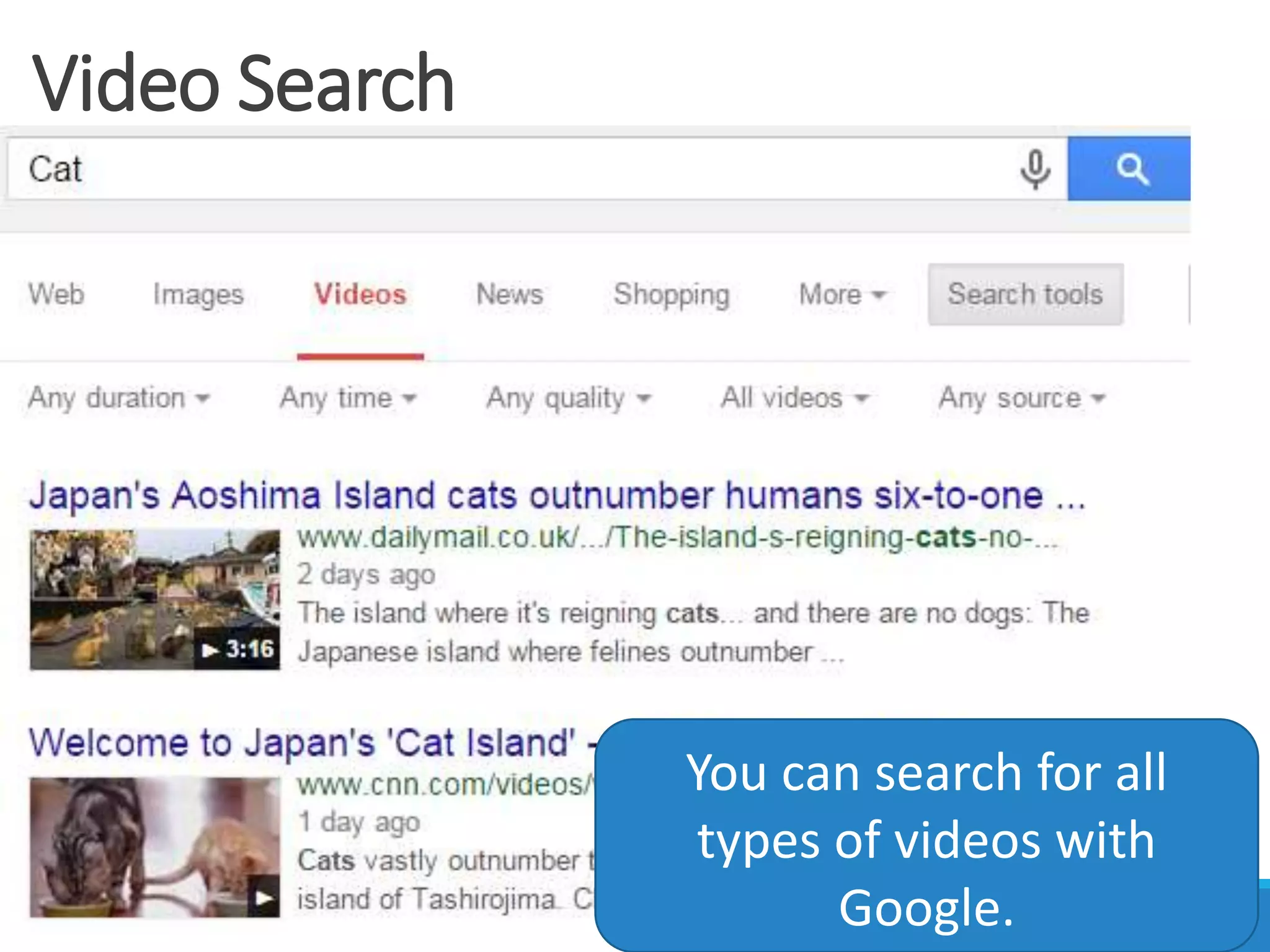
Video Search
You can search for all
types of videos with
Google.
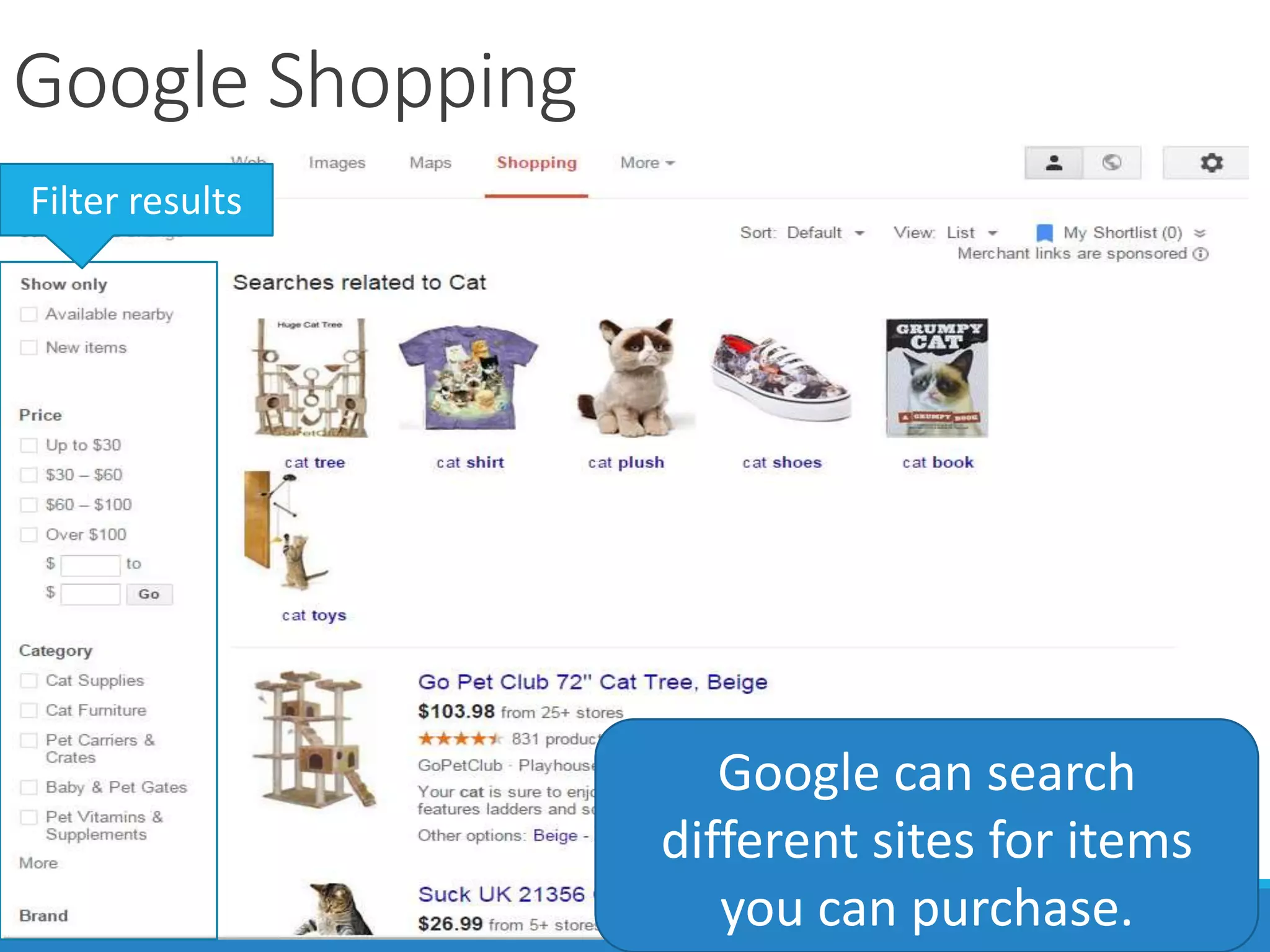
Google Shopping
Google can search
different sites for items
you can purchase.
Filter results
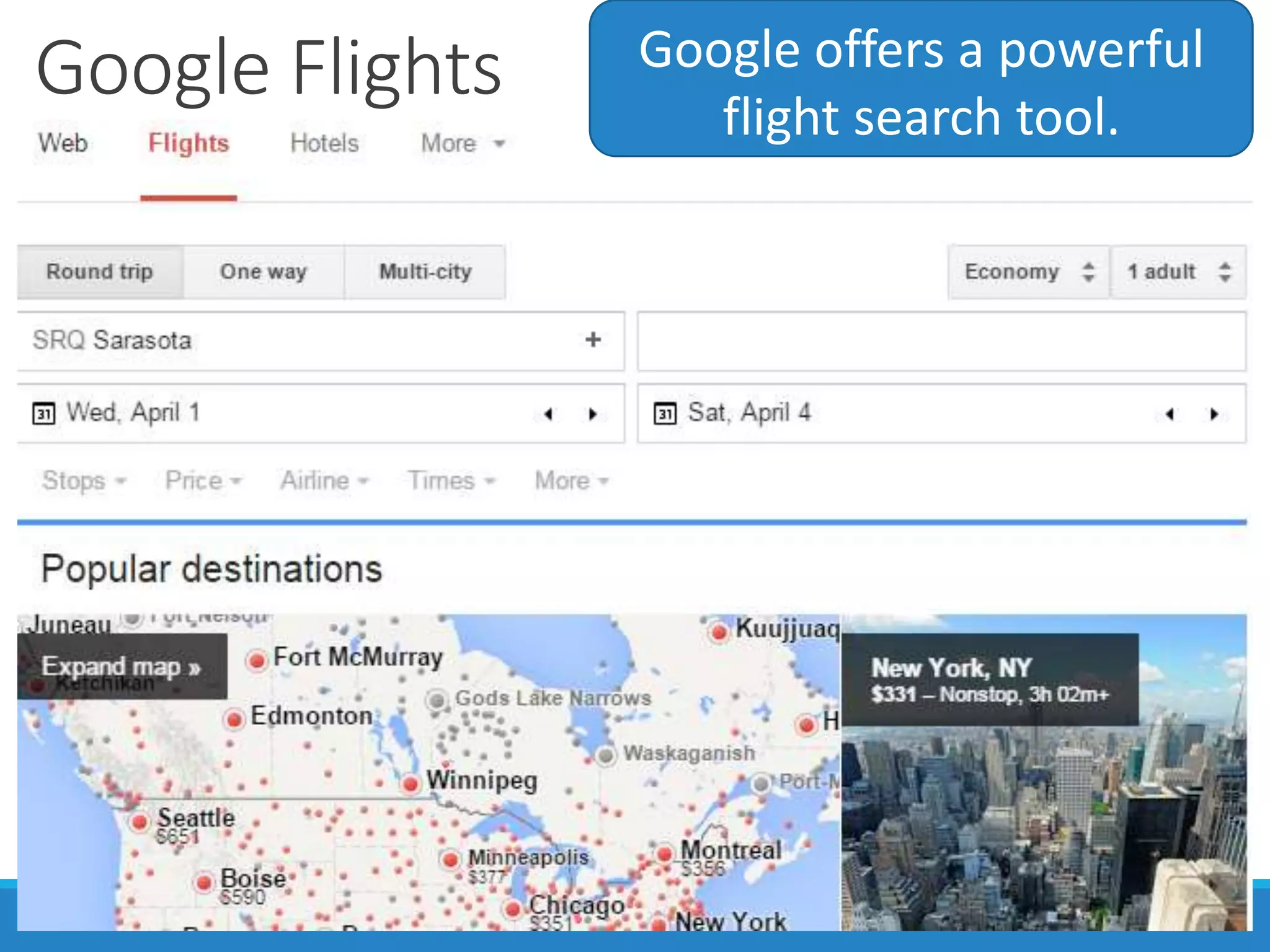
Google Flights Google offers a powerful
flight search tool.
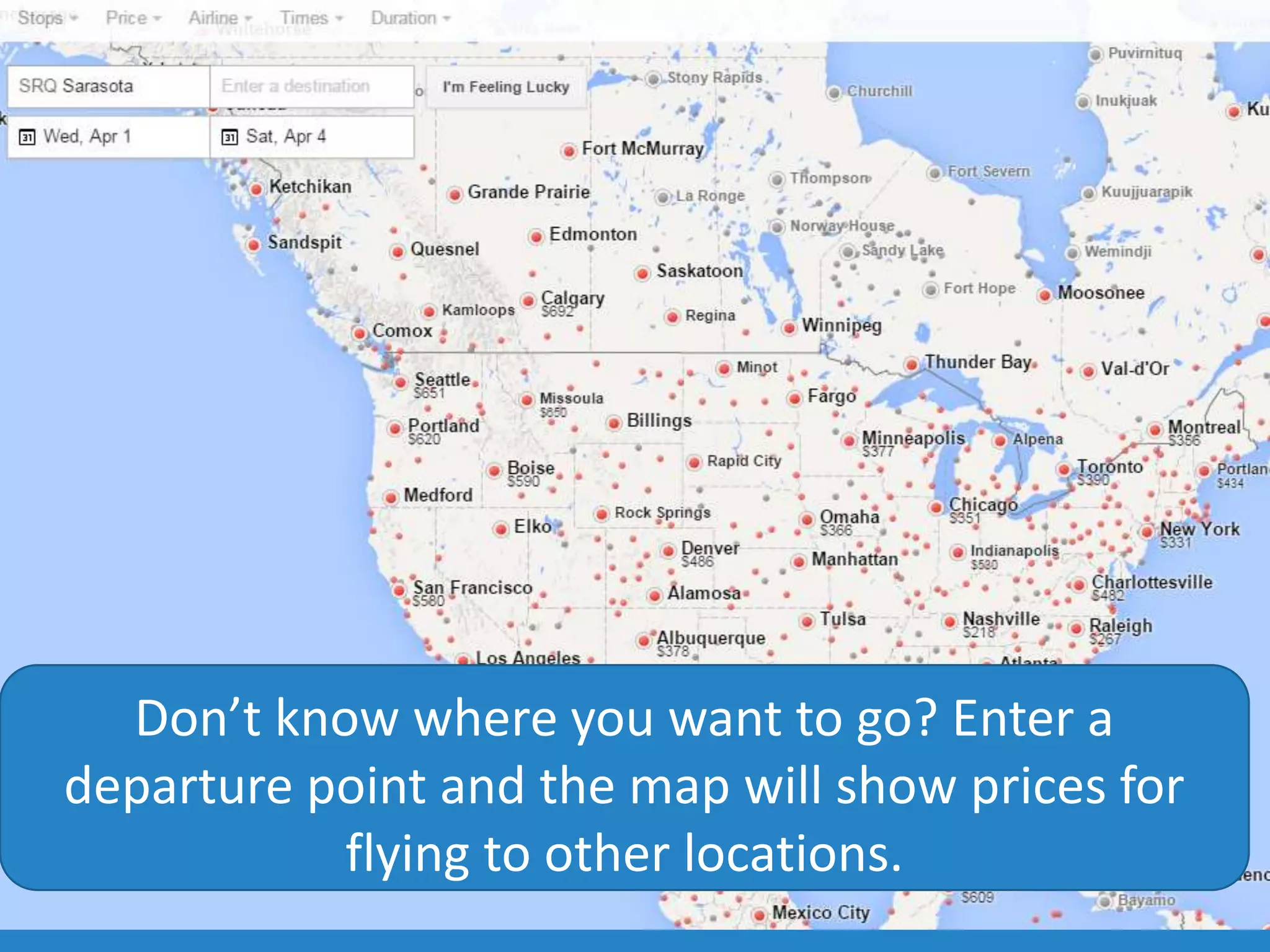
Don’t know where you want to go? Enter a
departure point and the map will show prices for
flying to other locations.
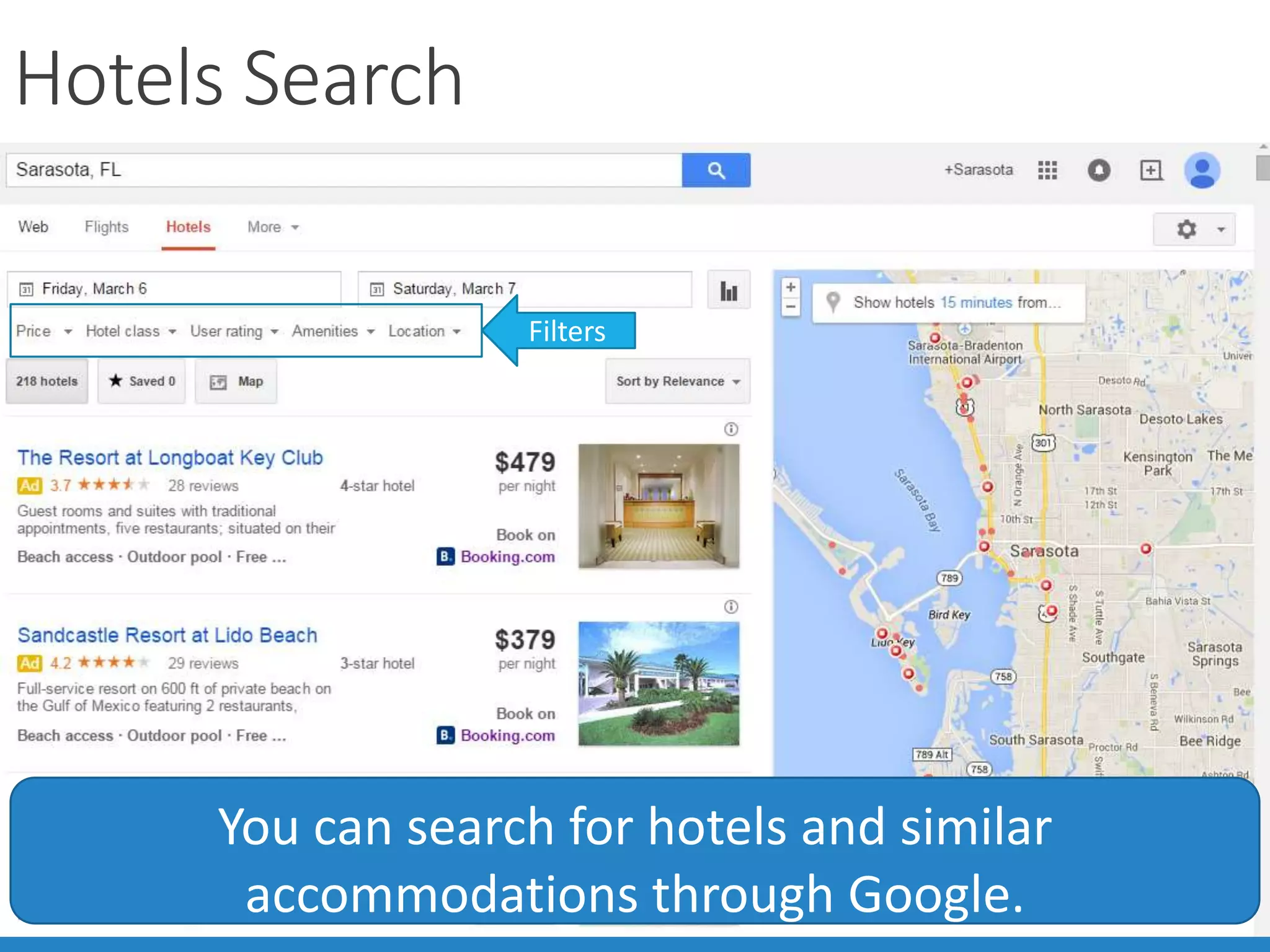
Hotels Search
You can search for hotels and similar
accommodations through Google.
Filters
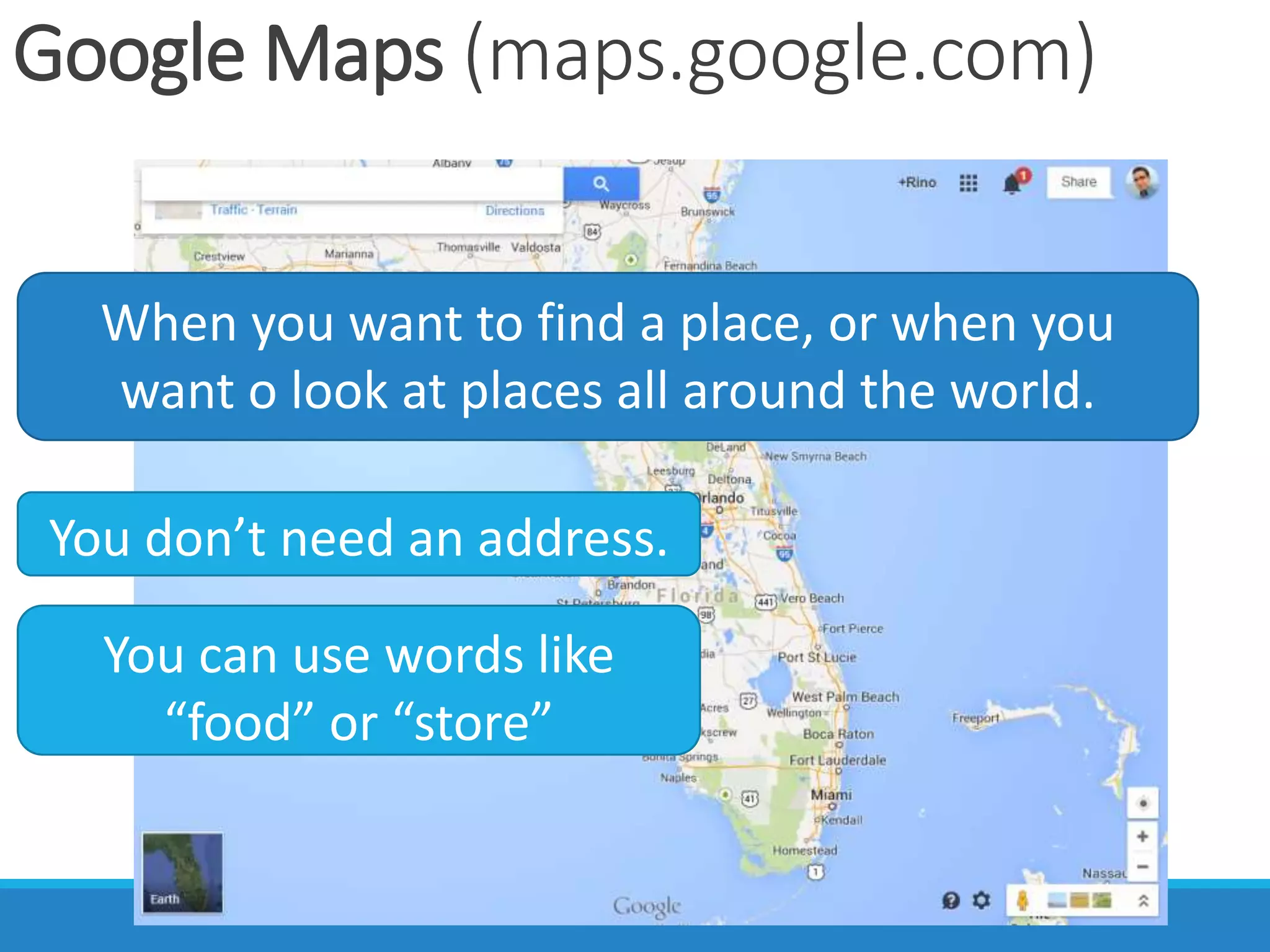
Google Maps (maps.google.com)
When you want to find a place, or when you
want o look at places all around the world.
You don’t need an address.
You can use words like
“food” or “store”
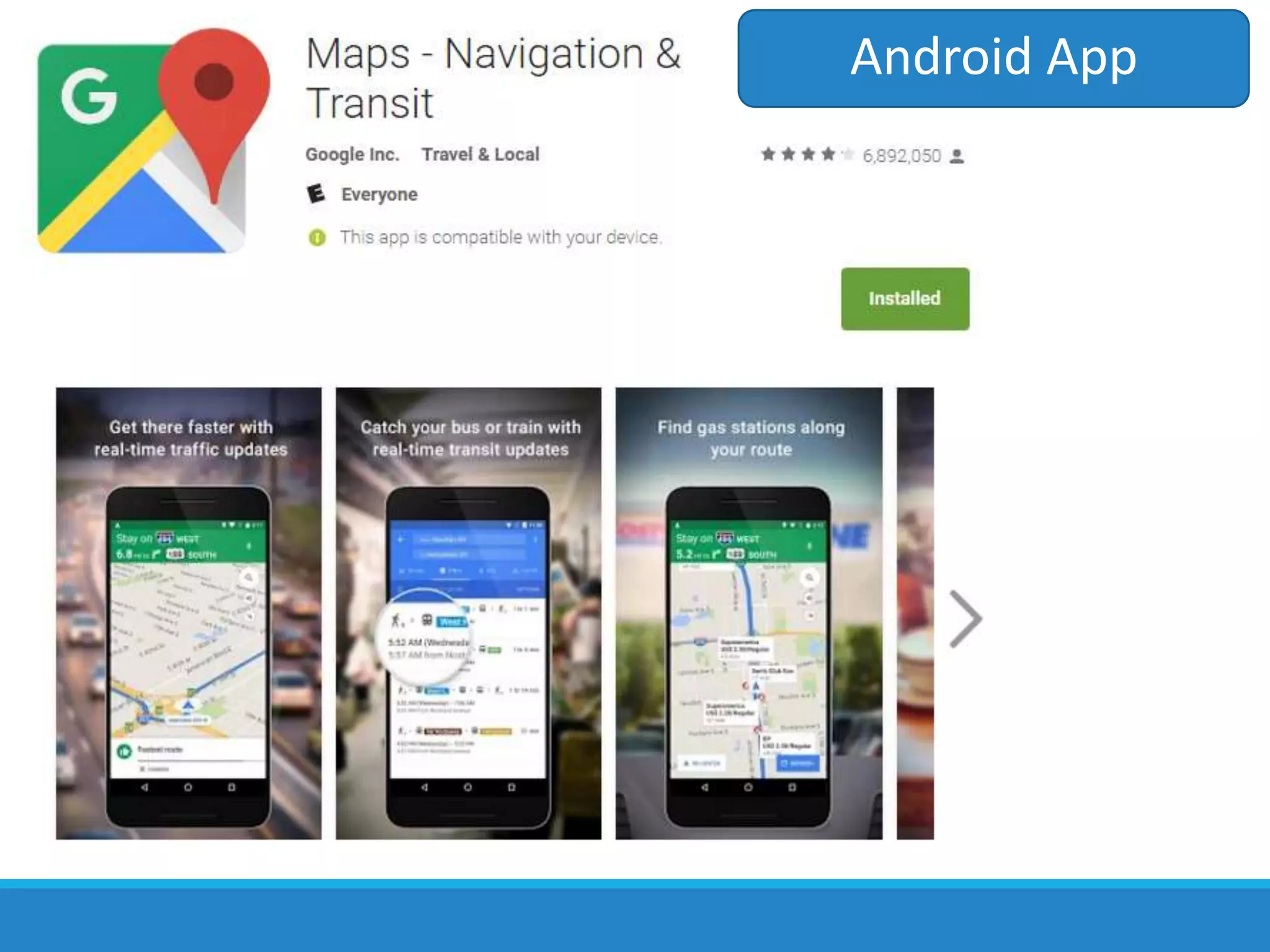
Android App
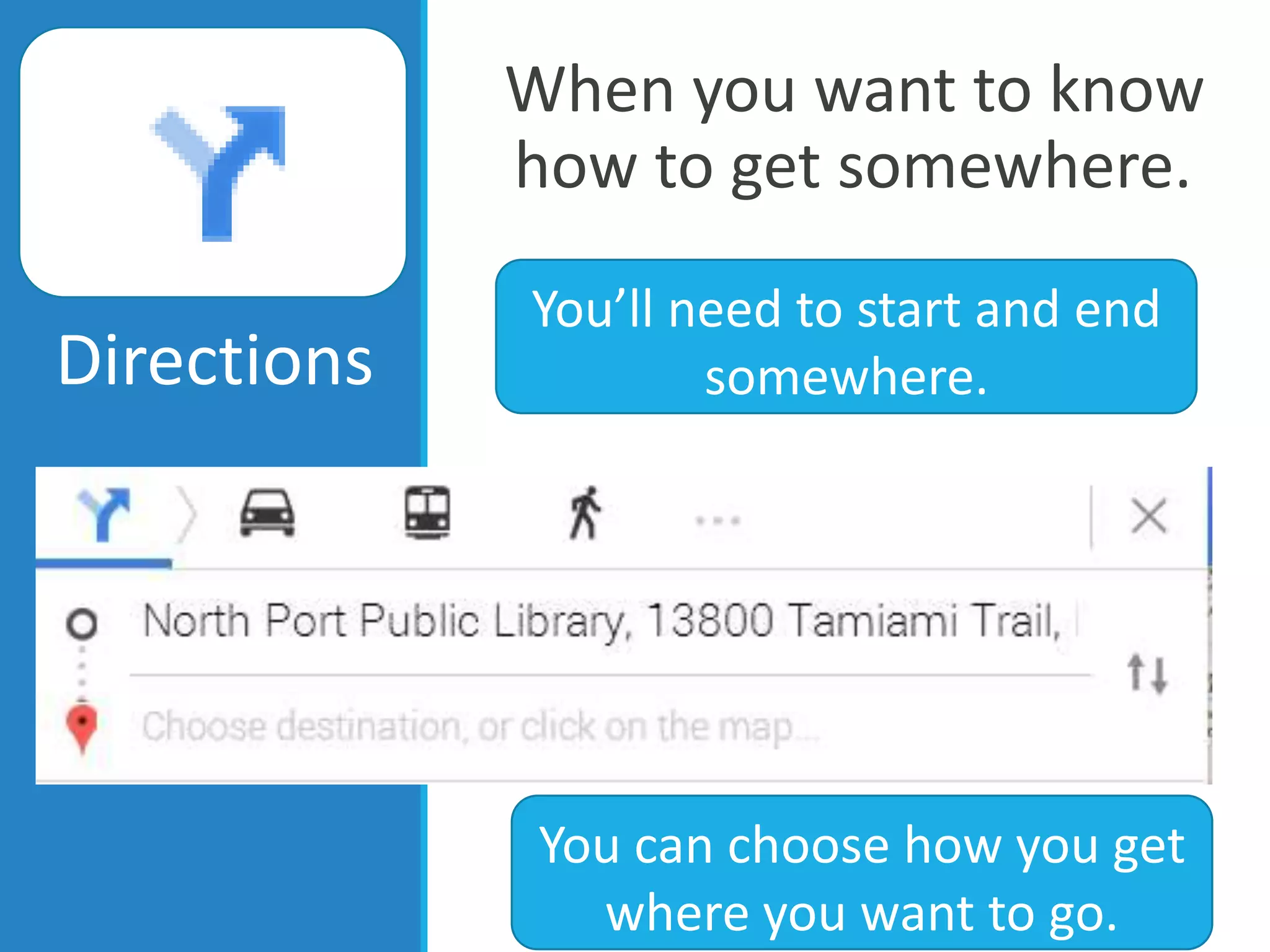
When you want to know
how to get somewhere.
Directions
You’ll need to start and end
somewhere.
You can choose how you get
where you want to go.
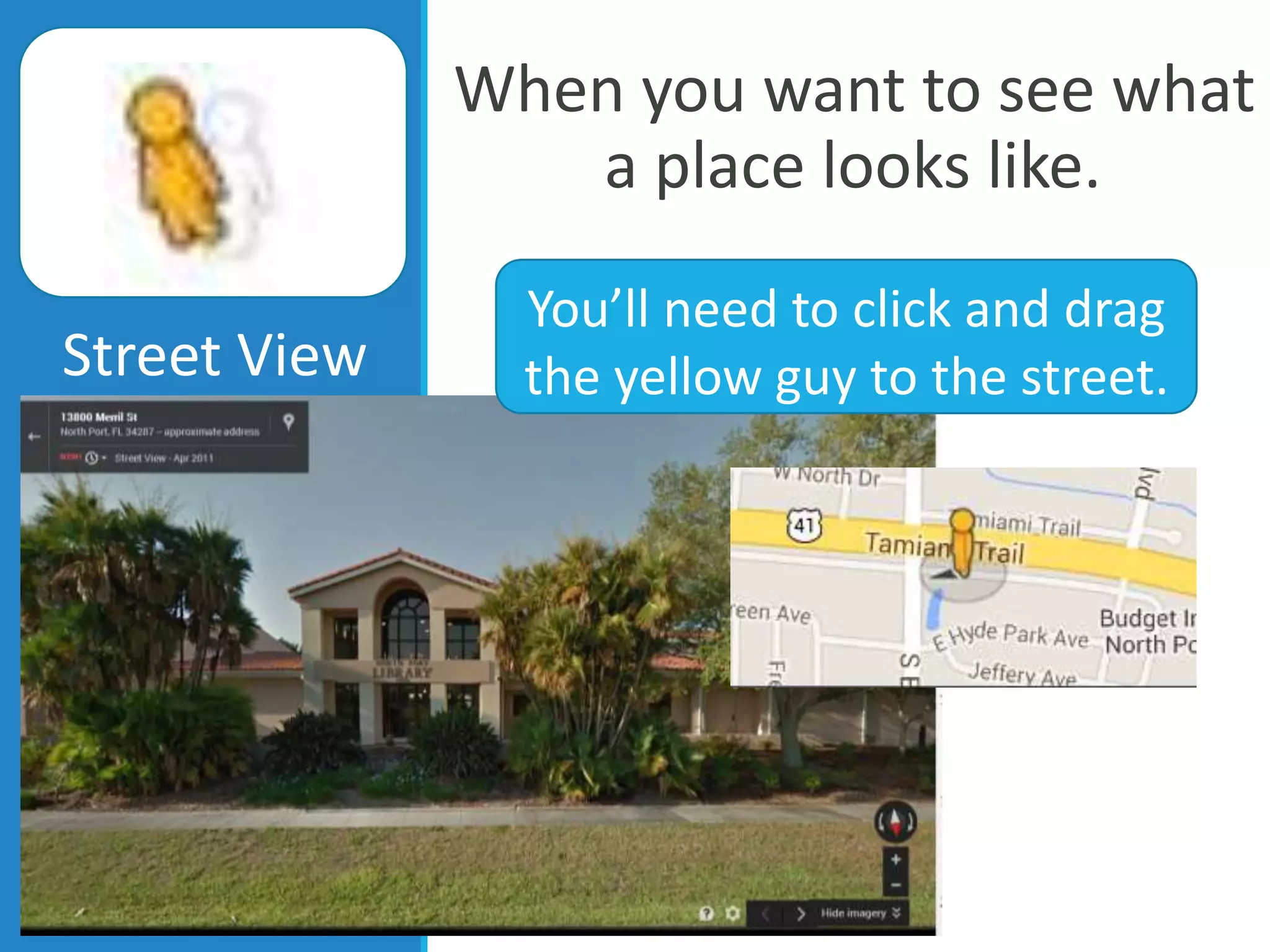
When you want to see what
a place looks like.
Street View
You’ll need to click and drag
the yellow guy to the street.
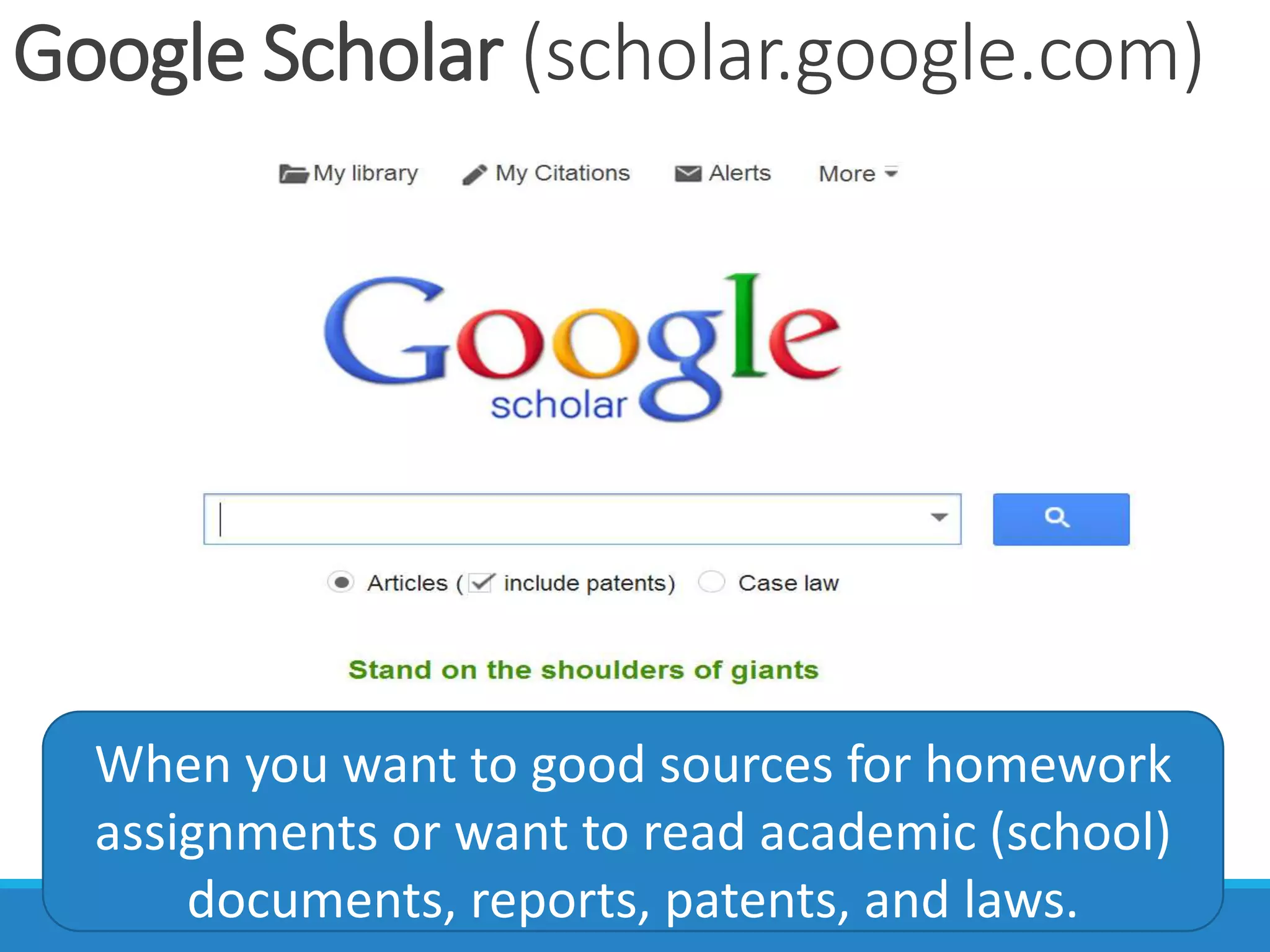
Google Scholar (scholar.google.com)
When you want to good sources for homework
assignments or want to read academic (school)
documents, reports, patents, and laws.
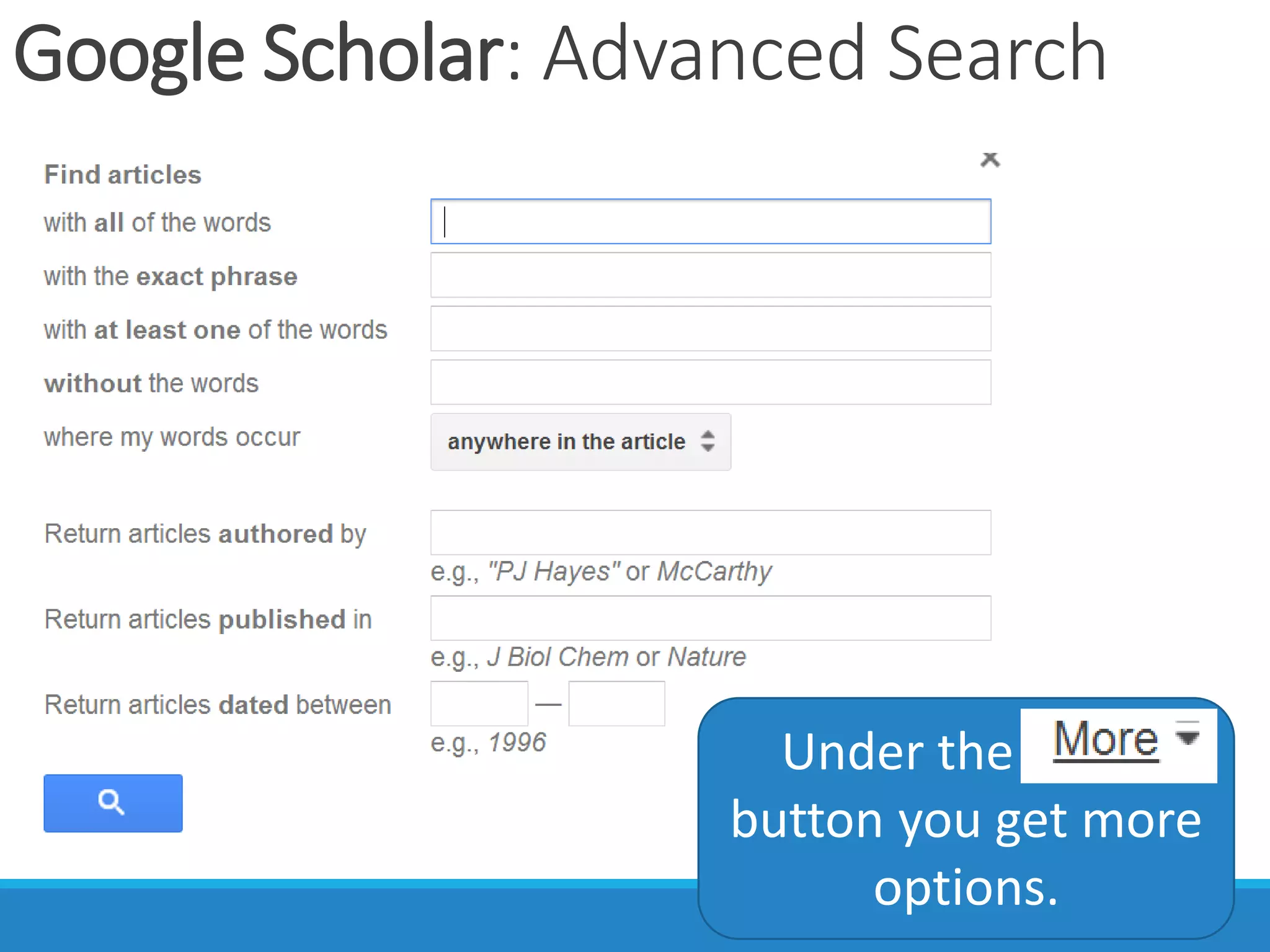
Google Scholar: Advanced Search
Under the More
button you get more
options.
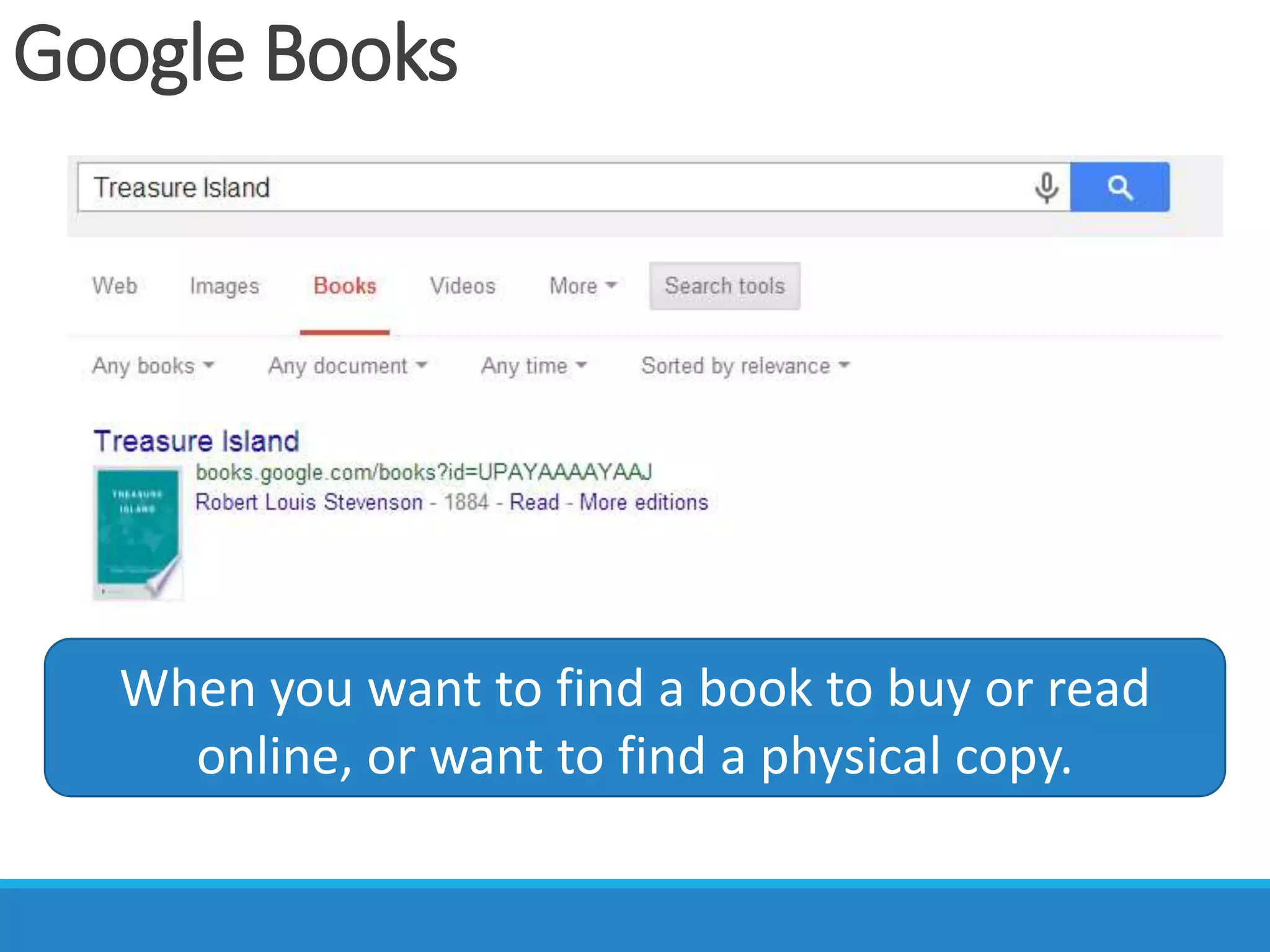
Google Books
When you want to find a book to buy or read
online, or want to find a physical copy.
Google Books: Where’s the book?
When you search for a book you can find if a
library near you has a copy.
Google Tricks
CALCULATOR, UNIT CONVERTER, DEFINITIONS, AND
TRANSLATOR
*ALSO WORK ON MOBILE DEVICES (PHONES)
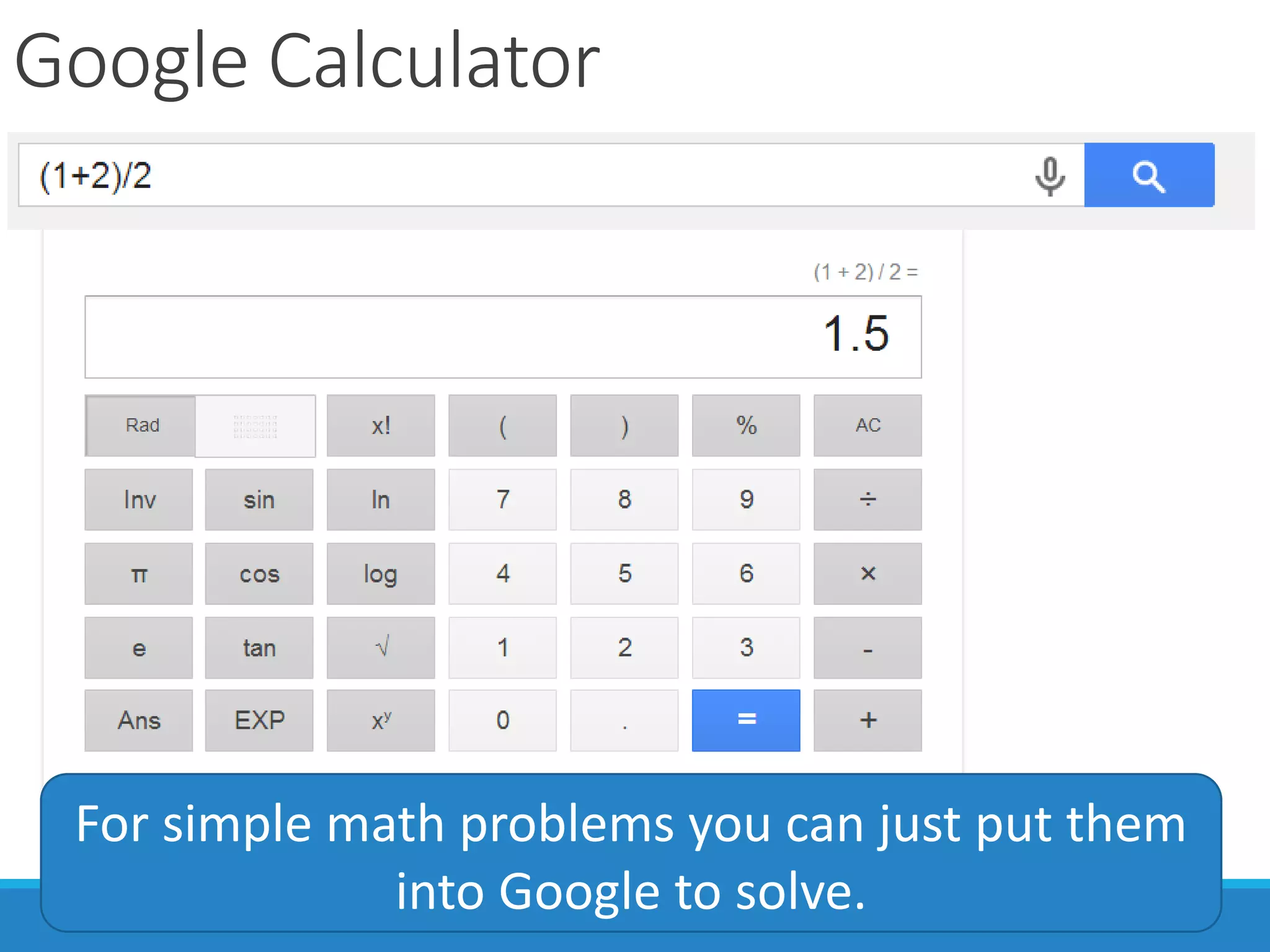
Google Calculator
For simple math problems you can just put them
into Google to solve.
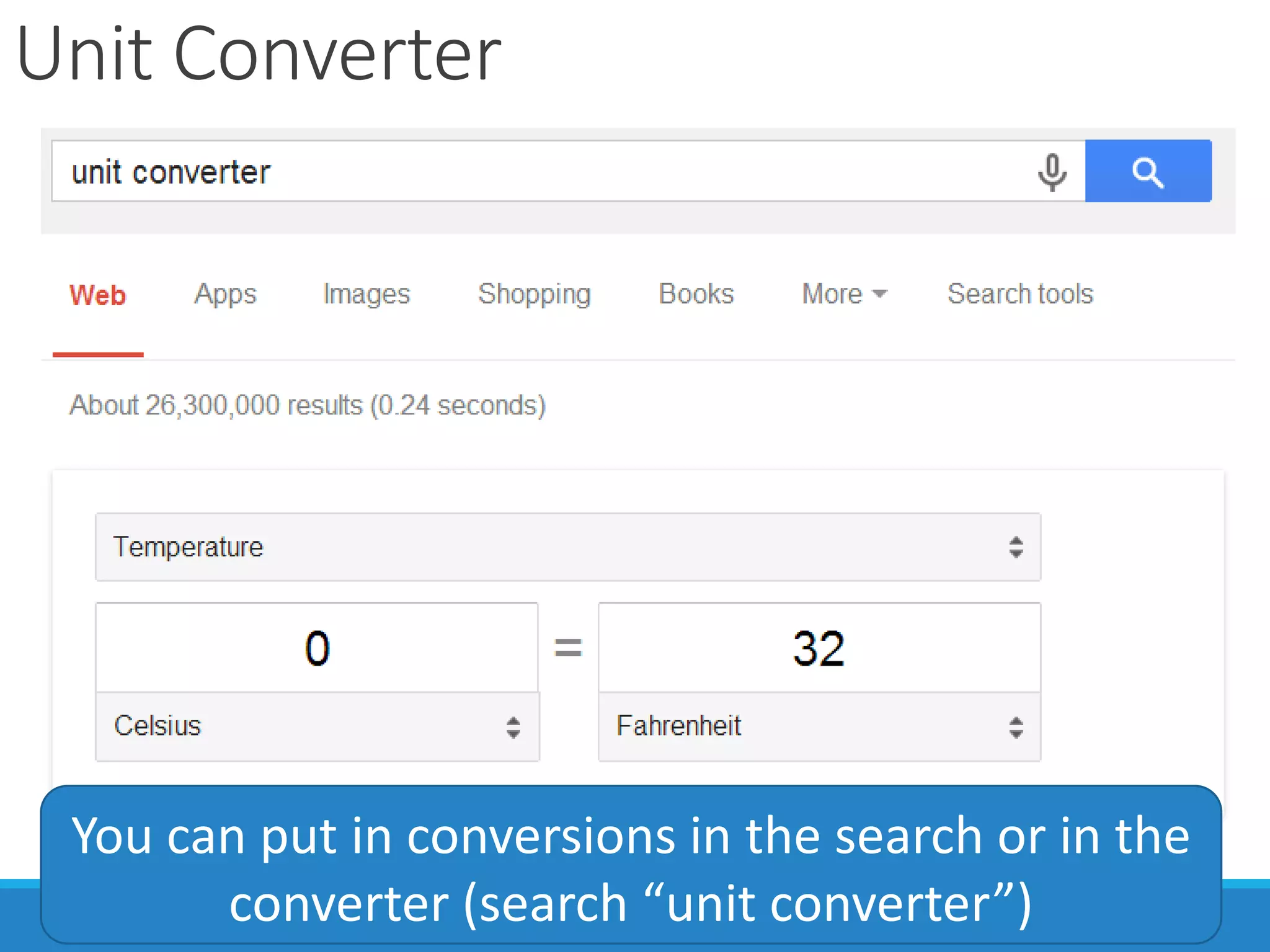
Unit Converter
You can put in conversions in the search or in the
converter (search “unit converter”)
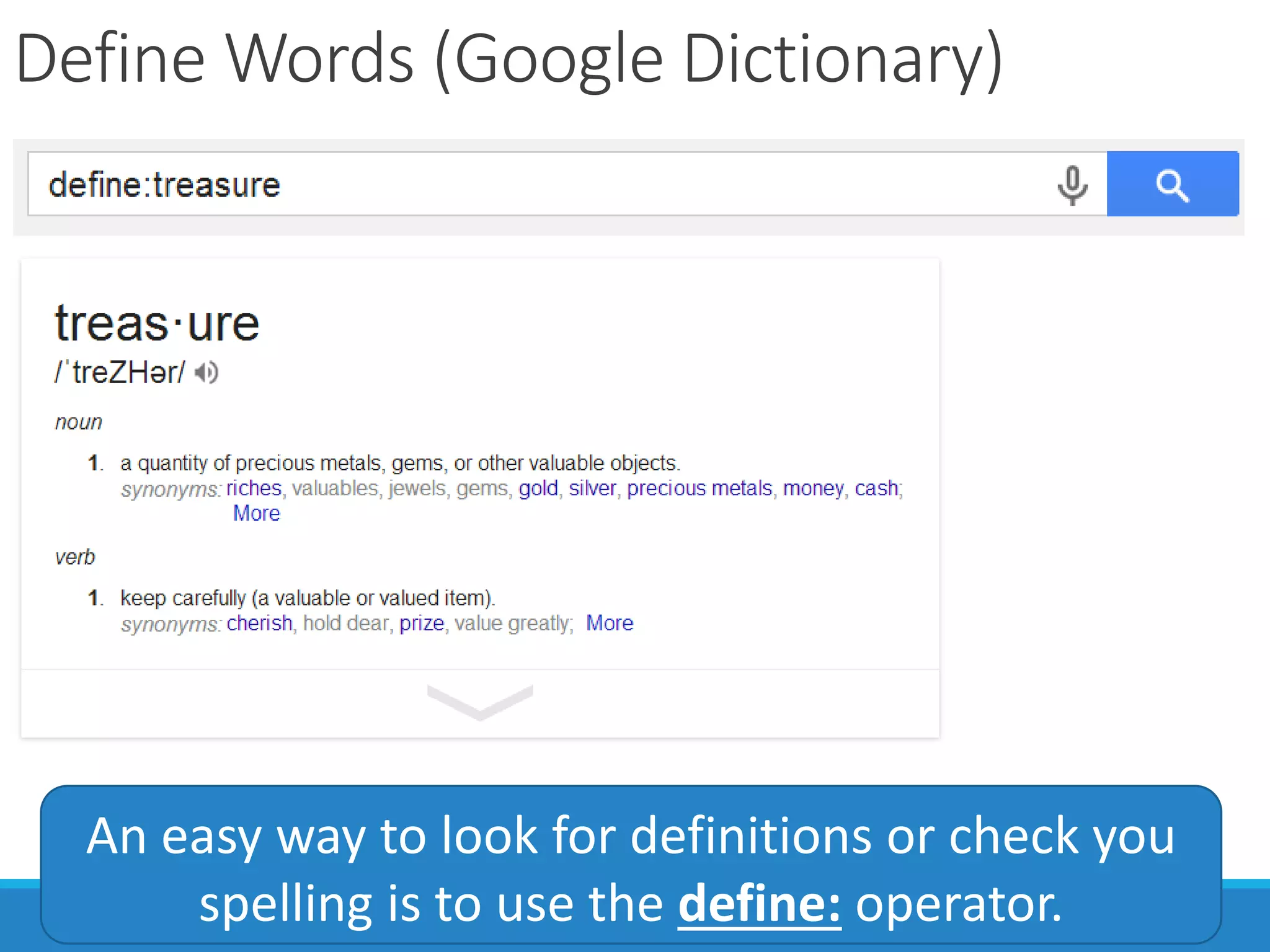
Define Words (Google Dictionary)
An easy way to look for definitions or check you
spelling is to use the define: operator.
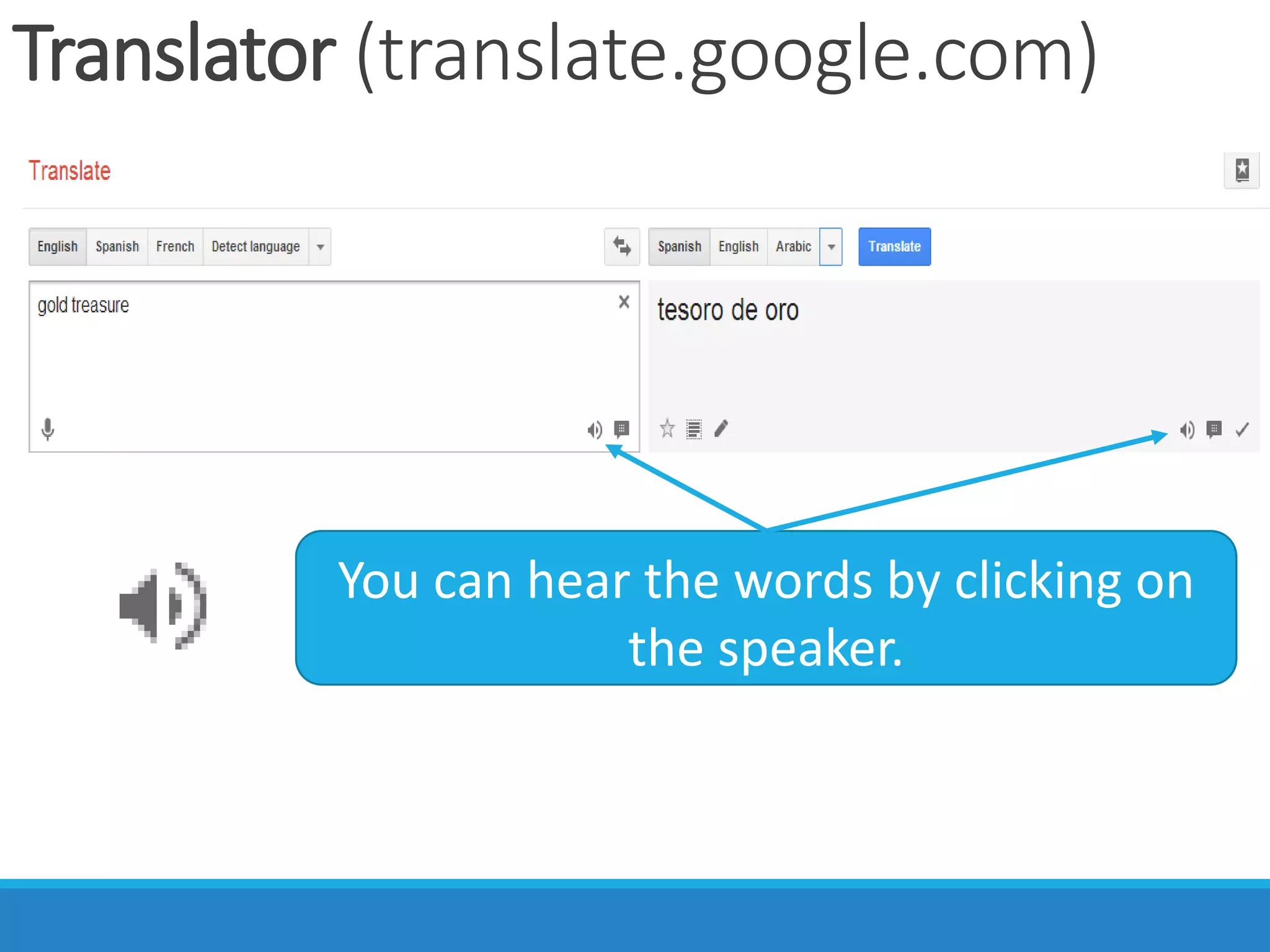
Translator (translate.google.com)
You can hear the words by clicking on
the speaker.
Questions?
RINO LANDA, LIBRARIAN
SARASOTA COUNTY LIBRARIES & HISTORICAL
RESOURCES
UPDATED MARCH 24, 2016
FAIR USE NOTICE: This presentation contains copyrighted material the use of which
has not always been specifically authorized by the copyright owner, including but not
limited to logos and product images. Such material is made available in an effort to
educate the public through illustrative examples and to properly identify content.
The use of this presentation for educational purposes is held to constitute a 'fair use'
of any such copyrighted material as provided for in section 107 of the US Copyright
Law. In accordance with Title 17 U.S.C. Section 107, the material on this presentation
is distributed without profit to those who have expressed a prior interest in receiving
the included information for research and educational purposes.
If you wish to use copyrighted material from this presentation for purposes of your
own that go beyond 'fair use', you must obtain permission from the copyright owner.
CC BY-NC-SA 4.0
Licensed under a
Creative Commons Attribution-NonCommercial-
ShareAlike 4.0 International License
Originally created by Rino A. Landa, 03/05/15

Mastering Google Search

  • 1.
  • 2.
    More than asearch box A good place to start, but there is much more to Google than putting words in the box!
  • 3.
    Google Search on phonesis a little different.
  • 4.
    You’ll get adifferent display depending on whether you’re searching on mobile or a desktop/laptop.
  • 5.
  • 6.
    Anatomy of theSearch Box Google logo or Google “Doodle” Search box: type your search here. Auto-complete terms Voice search Execute search
  • 7.
  • 8.
    There are manydifferent searches Web News Maps Videos Books Images
  • 9.
    How Google Thinks: Everythingis connected with AND Treasure AND Chest AND Gold AND Silver Google will try to find a page with all of the words Ignores most punctuation Blackbeard AND pirate AND net Some punctuation works, but most doesn’t The first word is more important than the second…
  • 10.
    Web Searches WHEN YOUWANT A WEBSITE OR SOMETHING ON THE WEB
  • 11.
    Look for theSearch Tools The Search tools let you do more with your current search. Each different search has different tools.
  • 12.
    Google Pros UseOperators Operators are special symbols and words that narrow down your results and save you time Quotation Marks The Dash site: related: * OR Either Word Search Asterisk filetype: @ “At” Symbol # Hashtag (Pound)
  • 13.
    When you wantthe search words in the exact order. Quotation Marks Movie titles Song titles Song lyricsNames Book titles Book titles
  • 14.
    When you wantto hide something from the results. The Dash You can get rid of more than one word in the search
  • 15.
    When you wantto fill in the blank. A “wildcard”. Asterisk Anywhere you put an * Google will fill it in with a word before or after the *. Great when used with the “quotes” operator
  • 16.
    When you wantto find popular trending topics. Hashtag Popularized by Twitter, the hashtag lets you search for popular phrases or words that “tag” a social media post #
  • 17.
    When you wantto find social tags (Twitter). “At” Symbol Search for a particular social media account and its posts across different sites. @
  • 18.
    When you onlywant to search in a single site or type of site (domain) site: site:wikipedia.org site:.edu site:tumblr.com NO SPACES All connected Search terms can go before or after
  • 19.
    When you wantto find a similar website. NO SPACES All connected Search terms can go before or after related: Great for looking for new sites
  • 20.
    When you wantto find a type of file on the web. pdf NO SPACES All connected Search terms can go before or after filetype: doc ppt Documents you can’t change Documents you can change Presentations
  • 21.
  • 22.
    Other Searches GOOGLE MAPS,GOOGLE SCHOLAR, GOOGLE BOOKS, BLOG SEARCH
  • 23.
    News Search Limits searchto news sites and providers. For more articles about the same story, click on Explore in depth.
  • 24.
    Image Search You cansearch for all types of images with Google. TIP: All search operators also work in image search.
  • 25.
    Image Search: ColorFilters Use the color filter to narrow down what images you want. TIP: Use “Transparent” to avoid white boxy backgrounds when copied.
  • 26.
    Video Search You cansearch for all types of videos with Google.
  • 27.
    Google Shopping Google cansearch different sites for items you can purchase. Filter results
  • 28.
    Google Flights Googleoffers a powerful flight search tool.
  • 29.
    Don’t know whereyou want to go? Enter a departure point and the map will show prices for flying to other locations.
  • 30.
    Hotels Search You cansearch for hotels and similar accommodations through Google. Filters
  • 31.
    Google Maps (maps.google.com) Whenyou want to find a place, or when you want o look at places all around the world. You don’t need an address. You can use words like “food” or “store”
  • 32.
  • 33.
    When you wantto know how to get somewhere. Directions You’ll need to start and end somewhere. You can choose how you get where you want to go.
  • 34.
    When you wantto see what a place looks like. Street View You’ll need to click and drag the yellow guy to the street.
  • 36.
    Google Scholar (scholar.google.com) Whenyou want to good sources for homework assignments or want to read academic (school) documents, reports, patents, and laws.
  • 37.
    Google Scholar: AdvancedSearch Under the More button you get more options.
  • 38.
    Google Books When youwant to find a book to buy or read online, or want to find a physical copy.
  • 39.
    Google Books: Where’sthe book? When you search for a book you can find if a library near you has a copy.
  • 40.
    Google Tricks CALCULATOR, UNITCONVERTER, DEFINITIONS, AND TRANSLATOR *ALSO WORK ON MOBILE DEVICES (PHONES)
  • 41.
    Google Calculator For simplemath problems you can just put them into Google to solve.
  • 42.
    Unit Converter You canput in conversions in the search or in the converter (search “unit converter”)
  • 43.
    Define Words (GoogleDictionary) An easy way to look for definitions or check you spelling is to use the define: operator.
  • 44.
    Translator (translate.google.com) You canhear the words by clicking on the speaker.
  • 46.
    Questions? RINO LANDA, LIBRARIAN SARASOTACOUNTY LIBRARIES & HISTORICAL RESOURCES UPDATED MARCH 24, 2016
  • 47.
    FAIR USE NOTICE:This presentation contains copyrighted material the use of which has not always been specifically authorized by the copyright owner, including but not limited to logos and product images. Such material is made available in an effort to educate the public through illustrative examples and to properly identify content. The use of this presentation for educational purposes is held to constitute a 'fair use' of any such copyrighted material as provided for in section 107 of the US Copyright Law. In accordance with Title 17 U.S.C. Section 107, the material on this presentation is distributed without profit to those who have expressed a prior interest in receiving the included information for research and educational purposes. If you wish to use copyrighted material from this presentation for purposes of your own that go beyond 'fair use', you must obtain permission from the copyright owner. CC BY-NC-SA 4.0 Licensed under a Creative Commons Attribution-NonCommercial- ShareAlike 4.0 International License Originally created by Rino A. Landa, 03/05/15