Instructional Tools for
Teachers and Librarians
MAKING THE MOST OF TECHNOLOGICAL RESOURCES

              PRESENTED BY MARY BETH PHAUP
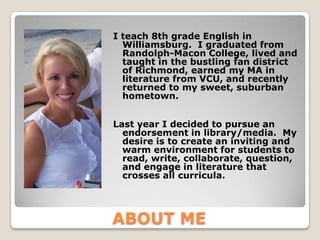
I teach 8th grade English in
  Williamsburg. I graduated from
  Randolph-Macon College, lived and
  taught in the bustling fan district
  of Richmond, earned my MA in
  literature from VCU, and recently
  returned to my sweet, suburban
  hometown.


Last year I decided to pursue an
  endorsement in library/media. My
  desire is to create an inviting and
  warm environment for students to
  read, write, collaborate, question,
  and engage in literature that
  crosses all curricula.


ABOUT ME
During this presentation, you will learn
 about six new instructional technology
 tools that can be used in your classroom
 or library.

I will provide information about the tool
  and suggestions for classroom use.


    SESSION DESCRIPTION
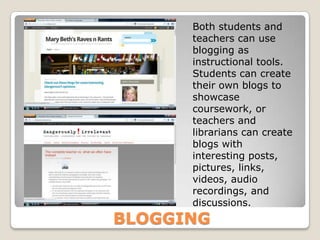
Both students and
      teachers can use
      blogging as
      instructional tools.
      Students can create
      their own blogs to
      showcase
      coursework, or
      teachers and
      librarians can create
      blogs with
      interesting posts,
      pictures, links,
      videos, audio
      recordings, and
      discussions.
BLOGGING
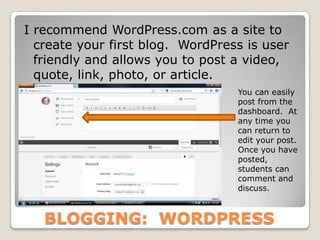
I recommend WordPress.com as a site to
  create your first blog. WordPress is user
  friendly and allows you to post a video,
  quote, link, photo, or article.
                                  You can easily
                                  post from the
                                  dashboard. At
                                  any time you
                                  can return to
                                  edit your post.
                                  Once you have
                                  posted,
                                  students can
                                  comment and
                                  discuss.


   BLOGGING: WORDPRESS
   Blog to keep parents up to date about what is going
    on in your classroom/library.
   Blog to help students with homework after school.
   Create a blog where students can write their own
    stories.
   Create a blog where students can discuss novels they
    are reading.
   Create a blog to showcase student work.
   Create a professional blog with lesson plans and links
    to relevant articles.

Web 2.0 in the Classroom’s website provides excellent
 uses for blogging in the classroom. Check out the
 link below!

Ways to use Blogs in your Classroom


          USES FOR BLOGGING
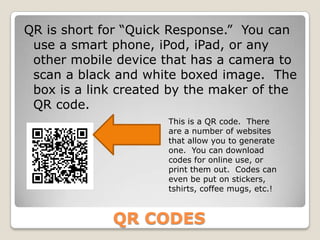
QR is short for “Quick Response.” You can
 use a smart phone, iPod, iPad, or any
 other mobile device that has a camera to
 scan a black and white boxed image. The
 box is a link created by the maker of the
 QR code.
                      This is a QR code. There
                      are a number of websites
                      that allow you to generate
                      one. You can download
                      codes for online use, or
                      print them out. Codes can
                      even be put on stickers,
                      tshirts, coffee mugs, etc.!


             QR CODES
The following websites can be used to
 generate QR codes:
www.qrstuff.com
www.qrcode.kaywa.com
www.qurify.com
www.smartytags.com
www.createqr.org
www.createqrcode.appspot.com

Creating a QR code is easy and free.


   GENERATING A QR CODE
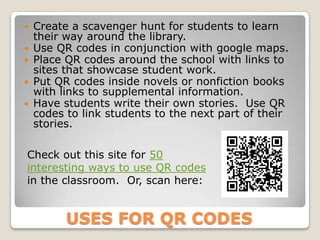
 Create a scavenger hunt for students to learn
  their way around the library.
 Use QR codes in conjunction with google maps.
 Place QR codes around the school with links to
  sites that showcase student work.
 Put QR codes inside novels or nonfiction books
  with links to supplemental information.
 Have students write their own stories. Use QR
  codes to link students to the next part of their
  stories.

Check out this site for 50
interesting ways to use QR codes
in the classroom. Or, scan here:


       USES FOR QR CODES
There are a variety of websites available
 that allow you to do interesting things
 with digital photographs.

These sites can be used across content
 areas and grade levels and are great for
 differentiation.


          IMAGE EDITORS
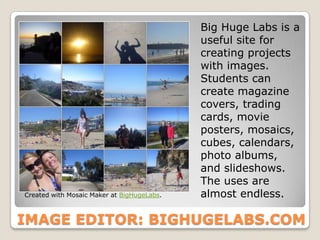
Big Huge Labs is a
                                            useful site for
                                            creating projects
                                            with images.
                                            Students can
                                            create magazine
                                            covers, trading
                                            cards, movie
                                            posters, mosaics,
                                            cubes, calendars,
                                            photo albums,
                                            and slideshows.
                                            The uses are
Created with Mosaic Maker at BigHugeLabs.   almost endless.

IMAGE EDITOR: BIGHUGELABS.COM
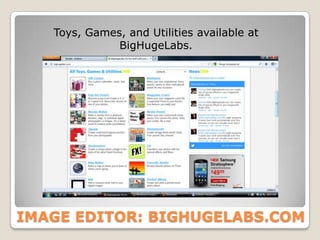
Toys, Games, and Utilities available at
              BigHugeLabs.


IMAGE EDITOR: BIGHUGELABS.COM
•Students create a magazine cover
as a visual to a biography written on      www.picnik.com
a famous person.                           www.photofunia.com
                                           www.befunky.com
•Students use mosaic maker to              www.imagechef.com
create a mosaic that illustrates the       www.photo505.com
events in a story.
                                           www.dumpr.com
•Students use mapmaker to map out          www.yourgen.com/comic
where historical or current events
take place.

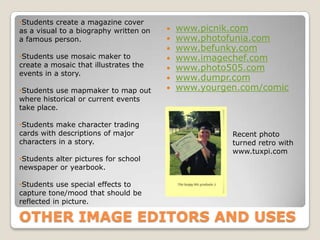
•Students make character trading
cards with descriptions of major                      Recent photo
characters in a story.                                turned retro with
                                                      www.tuxpi.com
•Students alter pictures for school
newspaper or yearbook.

•Students use special effects to
capture tone/mood that should be
reflected in picture.

OTHER IMAGE EDITORS AND USES
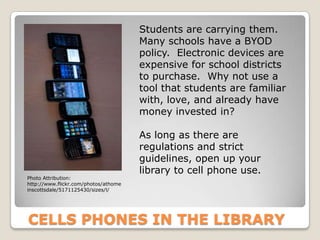
Students are carrying them.
                                      Many schools have a BYOD
                                      policy. Electronic devices are
                                      expensive for school districts
                                      to purchase. Why not use a
                                      tool that students are familiar
                                      with, love, and already have
                                      money invested in?

                                      As long as there are
                                      regulations and strict
                                      guidelines, open up your
                                      library to cell phone use.
Photo Attribution:
http://www.flickr.com/photos/athome
inscottsdale/5171125430/sizes/l/


CELLS PHONES IN THE LIBRARY
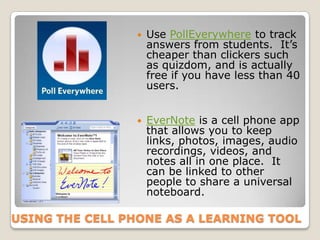
   Use PollEverywhere to track
                    answers from students. It’s
                    cheaper than clickers such
                    as quizdom, and is actually
                    free if you have less than 40
                    users.


                   EverNote is a cell phone app
                    that allows you to keep
                    links, photos, images, audio
                    recordings, videos, and
                    notes all in one place. It
                    can be linked to other
                    people to share a universal
                    noteboard.

USING THE CELL PHONE AS A LEARNING TOOL
Photo Attribution: http://www.flickr.com/photos/ww4f/2387915131/sizes/o/


Students can use twitter to create a live discussion about a film or
  novel. The teacher can instruct students to use a common hash tag
  so that the feed will mimic a group discussion. Many students
  already have twitter accounts set up on their phones.

For students who do not have a device, they can use TweetCall at 1-
  877-TweetCall and speak their tweet onto the phone. It will appear
  on the live feed.

In addition, students can use cell phones as a camera or video camera
   for projects, as a GPS, to read e-books or online articles, as
   calculators, dictionaries, and as a device to record lectures or
   discussions for later review, all of which can be linked up via twitter.


    USING TWITTER AS A LEARNING TOOL
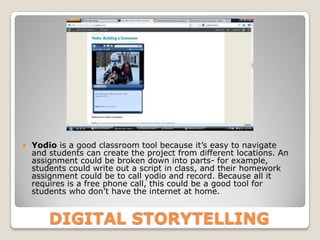
   Yodio is a good classroom tool because it’s easy to navigate
    and students can create the project from different locations. An
    assignment could be broken down into parts- for example,
    students could write out a script in class, and their homework
    assignment could be to call yodio and record. Because all it
    requires is a free phone call, this could be a good tool for
    students who don’t have the internet at home.


        DIGITAL STORYTELLING
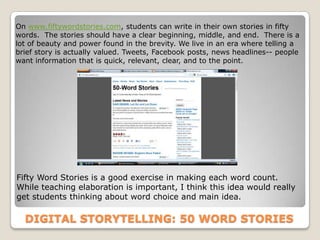
On www.fiftywordstories.com, students can write in their own stories in fifty
words. The stories should have a clear beginning, middle, and end. There is a
lot of beauty and power found in the brevity. We live in an era where telling a
brief story is actually valued. Tweets, Facebook posts, news headlines-- people
want information that is quick, relevant, clear, and to the point.


Fifty Word Stories is a good exercise in making each word count.
While teaching elaboration is important, I think this idea would really
get students thinking about word choice and main idea.

  DIGITAL STORYTELLING: 50 WORD STORIES
The University of Houston has complied a
 list of educational uses for digital
 storytelling. The link to their website
 below lists ideas for all content areas and
 grade levels.

  Educational Uses for Digital Storytelling


             Photo Attribution:
             http://www.flickr.com/photos/paoletti/4532339057/


    DIGITAL STORYTELLING
Many times, students are more technologically
  advanced than their teachers and librarians.
  Be open to learning about new applications
  and tools that students discover that can be
  lended to classroom use.

 When using technology, students are not
  passive learners- they are naturally
  generating, obtaining, sharing, and
  manipulating information. Students play the
  most active roll in learning.

 Technology enhances student self esteem and
  is grounded in collaboration, one of the most
  important skills a child can learn.


CLOSING: TECHNOLOGY IN CLASSROOMS

Instructional tools for teachers and librarians

  • 1.
    Instructional Tools for Teachersand Librarians MAKING THE MOST OF TECHNOLOGICAL RESOURCES PRESENTED BY MARY BETH PHAUP
  • 2.
    I teach 8thgrade English in Williamsburg. I graduated from Randolph-Macon College, lived and taught in the bustling fan district of Richmond, earned my MA in literature from VCU, and recently returned to my sweet, suburban hometown. Last year I decided to pursue an endorsement in library/media. My desire is to create an inviting and warm environment for students to read, write, collaborate, question, and engage in literature that crosses all curricula. ABOUT ME
  • 3.
    During this presentation,you will learn about six new instructional technology tools that can be used in your classroom or library. I will provide information about the tool and suggestions for classroom use. SESSION DESCRIPTION
  • 4.
    Both students and teachers can use blogging as instructional tools. Students can create their own blogs to showcase coursework, or teachers and librarians can create blogs with interesting posts, pictures, links, videos, audio recordings, and discussions. BLOGGING
  • 5.
    I recommend WordPress.comas a site to create your first blog. WordPress is user friendly and allows you to post a video, quote, link, photo, or article. You can easily post from the dashboard. At any time you can return to edit your post. Once you have posted, students can comment and discuss. BLOGGING: WORDPRESS
  • 6.
    Blog to keep parents up to date about what is going on in your classroom/library.  Blog to help students with homework after school.  Create a blog where students can write their own stories.  Create a blog where students can discuss novels they are reading.  Create a blog to showcase student work.  Create a professional blog with lesson plans and links to relevant articles. Web 2.0 in the Classroom’s website provides excellent uses for blogging in the classroom. Check out the link below! Ways to use Blogs in your Classroom USES FOR BLOGGING
  • 7.
    QR is shortfor “Quick Response.” You can use a smart phone, iPod, iPad, or any other mobile device that has a camera to scan a black and white boxed image. The box is a link created by the maker of the QR code. This is a QR code. There are a number of websites that allow you to generate one. You can download codes for online use, or print them out. Codes can even be put on stickers, tshirts, coffee mugs, etc.! QR CODES
  • 8.
    The following websitescan be used to generate QR codes: www.qrstuff.com www.qrcode.kaywa.com www.qurify.com www.smartytags.com www.createqr.org www.createqrcode.appspot.com Creating a QR code is easy and free. GENERATING A QR CODE
  • 9.
     Create ascavenger hunt for students to learn their way around the library.  Use QR codes in conjunction with google maps.  Place QR codes around the school with links to sites that showcase student work.  Put QR codes inside novels or nonfiction books with links to supplemental information.  Have students write their own stories. Use QR codes to link students to the next part of their stories. Check out this site for 50 interesting ways to use QR codes in the classroom. Or, scan here: USES FOR QR CODES
  • 10.
    There are avariety of websites available that allow you to do interesting things with digital photographs. These sites can be used across content areas and grade levels and are great for differentiation. IMAGE EDITORS
  • 11.
    Big Huge Labsis a useful site for creating projects with images. Students can create magazine covers, trading cards, movie posters, mosaics, cubes, calendars, photo albums, and slideshows. The uses are Created with Mosaic Maker at BigHugeLabs. almost endless. IMAGE EDITOR: BIGHUGELABS.COM
  • 12.
    Toys, Games, andUtilities available at BigHugeLabs. IMAGE EDITOR: BIGHUGELABS.COM
  • 13.
    •Students create amagazine cover as a visual to a biography written on  www.picnik.com a famous person.  www.photofunia.com  www.befunky.com •Students use mosaic maker to  www.imagechef.com create a mosaic that illustrates the  www.photo505.com events in a story.  www.dumpr.com •Students use mapmaker to map out  www.yourgen.com/comic where historical or current events take place. •Students make character trading cards with descriptions of major Recent photo characters in a story. turned retro with www.tuxpi.com •Students alter pictures for school newspaper or yearbook. •Students use special effects to capture tone/mood that should be reflected in picture. OTHER IMAGE EDITORS AND USES
  • 14.
    Students are carryingthem. Many schools have a BYOD policy. Electronic devices are expensive for school districts to purchase. Why not use a tool that students are familiar with, love, and already have money invested in? As long as there are regulations and strict guidelines, open up your library to cell phone use. Photo Attribution: http://www.flickr.com/photos/athome inscottsdale/5171125430/sizes/l/ CELLS PHONES IN THE LIBRARY
  • 15.
    Use PollEverywhere to track answers from students. It’s cheaper than clickers such as quizdom, and is actually free if you have less than 40 users.  EverNote is a cell phone app that allows you to keep links, photos, images, audio recordings, videos, and notes all in one place. It can be linked to other people to share a universal noteboard. USING THE CELL PHONE AS A LEARNING TOOL
  • 16.
    Photo Attribution: http://www.flickr.com/photos/ww4f/2387915131/sizes/o/ Studentscan use twitter to create a live discussion about a film or novel. The teacher can instruct students to use a common hash tag so that the feed will mimic a group discussion. Many students already have twitter accounts set up on their phones. For students who do not have a device, they can use TweetCall at 1- 877-TweetCall and speak their tweet onto the phone. It will appear on the live feed. In addition, students can use cell phones as a camera or video camera for projects, as a GPS, to read e-books or online articles, as calculators, dictionaries, and as a device to record lectures or discussions for later review, all of which can be linked up via twitter. USING TWITTER AS A LEARNING TOOL
  • 17.
    Yodio is a good classroom tool because it’s easy to navigate and students can create the project from different locations. An assignment could be broken down into parts- for example, students could write out a script in class, and their homework assignment could be to call yodio and record. Because all it requires is a free phone call, this could be a good tool for students who don’t have the internet at home. DIGITAL STORYTELLING
  • 18.
    On www.fiftywordstories.com, studentscan write in their own stories in fifty words. The stories should have a clear beginning, middle, and end. There is a lot of beauty and power found in the brevity. We live in an era where telling a brief story is actually valued. Tweets, Facebook posts, news headlines-- people want information that is quick, relevant, clear, and to the point. Fifty Word Stories is a good exercise in making each word count. While teaching elaboration is important, I think this idea would really get students thinking about word choice and main idea. DIGITAL STORYTELLING: 50 WORD STORIES
  • 19.
    The University ofHouston has complied a list of educational uses for digital storytelling. The link to their website below lists ideas for all content areas and grade levels. Educational Uses for Digital Storytelling Photo Attribution: http://www.flickr.com/photos/paoletti/4532339057/ DIGITAL STORYTELLING
  • 20.
    Many times, studentsare more technologically advanced than their teachers and librarians. Be open to learning about new applications and tools that students discover that can be lended to classroom use. When using technology, students are not passive learners- they are naturally generating, obtaining, sharing, and manipulating information. Students play the most active roll in learning. Technology enhances student self esteem and is grounded in collaboration, one of the most important skills a child can learn. CLOSING: TECHNOLOGY IN CLASSROOMS