Introduction: Channel 
Order Application (COA) 
Slides
What This Deck Will Cover 
• What is the Channel Order Application 
• How to Access the Channel Order Application 
• Inside the Channel Order Application 
• Submitting Orders 
• What Happens Post Order Submission 
• Your next steps!
What Is the Channel Order Application 
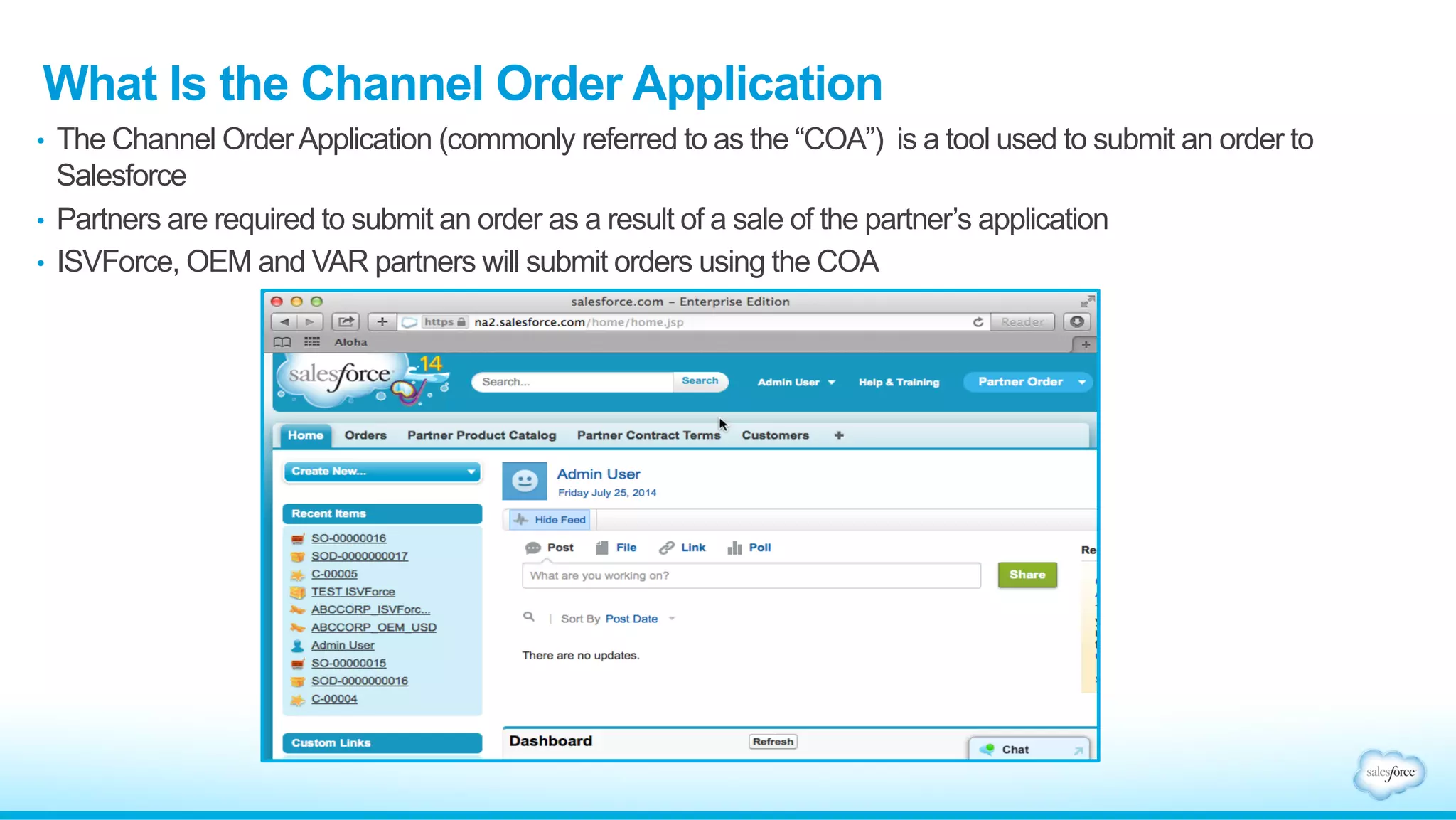
• The Channel Order Application (commonly referred to as the “COA”) is a tool used to submit an order to 
Salesforce 
• Partners are required to submit an order as a result of a sale of the partner’s application 
• ISVForce, OEM and VAR partners will submit orders using the COA
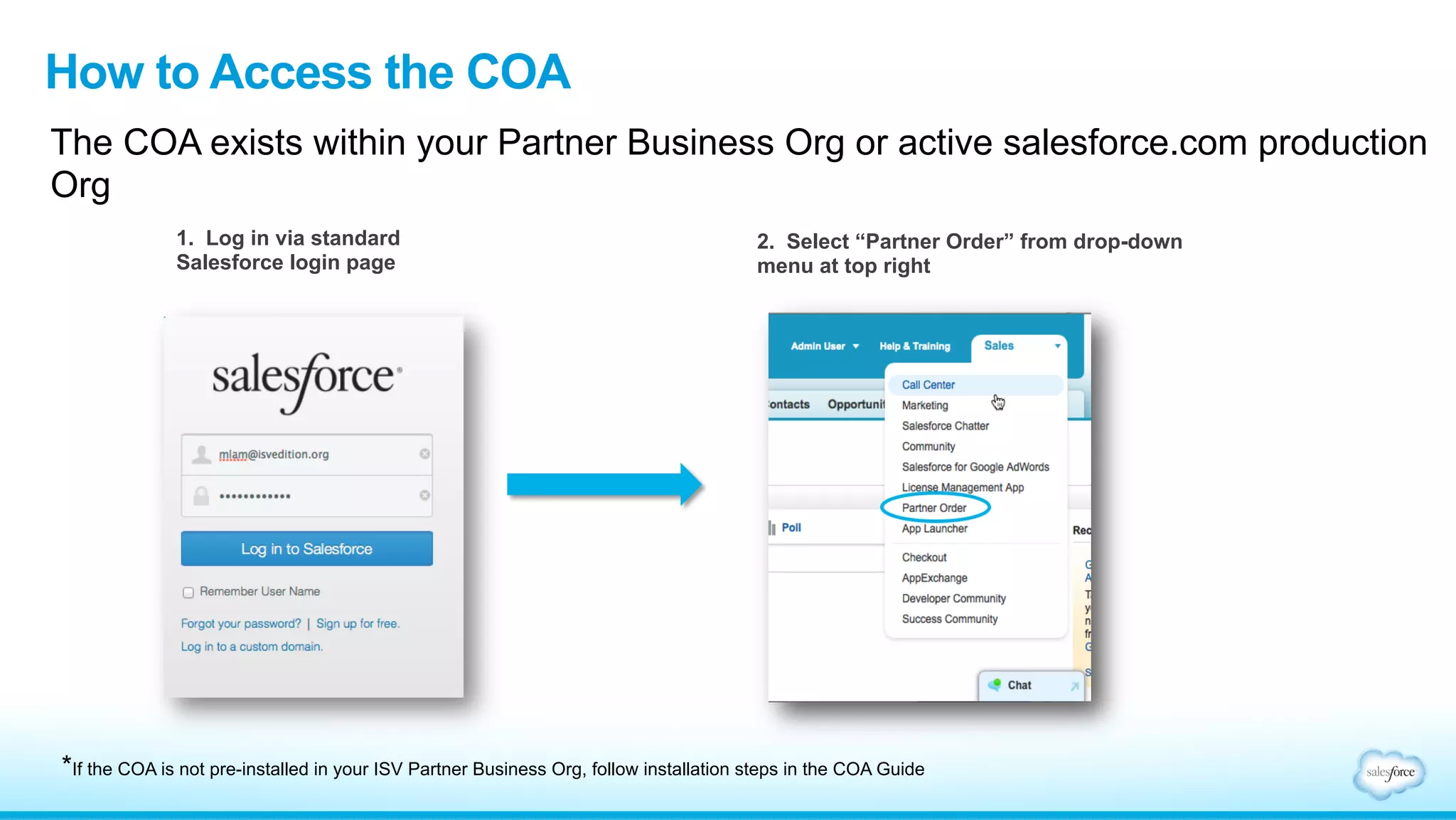
How to Access the COA 
The COA exists within your Partner Business Org or active salesforce.com production 
Org 
2. Select “Partner Order” from drop-down 
menu at top right 
1. Log in via standard 
Salesforce login page 
*If the COA is not pre-installed in your ISV Partner Business Org, follow installation steps in the COA Guide
Who Are Common Users of the COA 
Anyone who is involved in submitting orders will interact with the COA to place or track 
orders to salesforce.com 
Common Job Functions of COA Users: 
• Order Management 
• Sales Operations 
• Billing 
• Data Entry 
• Accounts Payable
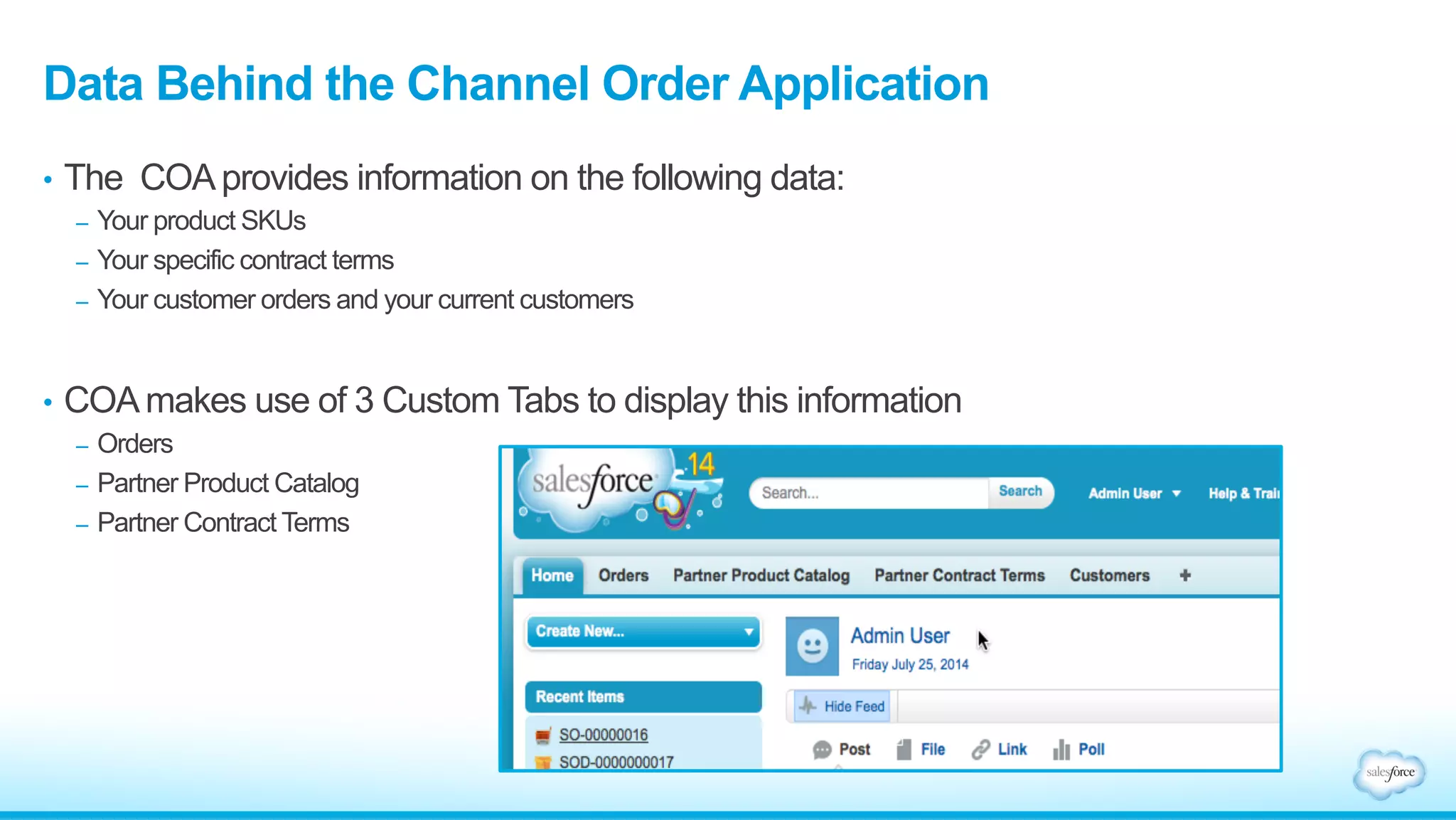
Data Behind the Channel Order Application 
• The COA provides information on the following data: 
– Your product SKUs 
– Your specific contract terms 
– Your customer orders and your current customers 
• COA makes use of 3 Custom Tabs to display this information 
– Orders 
– Partner Product Catalog 
– Partner Contract Terms
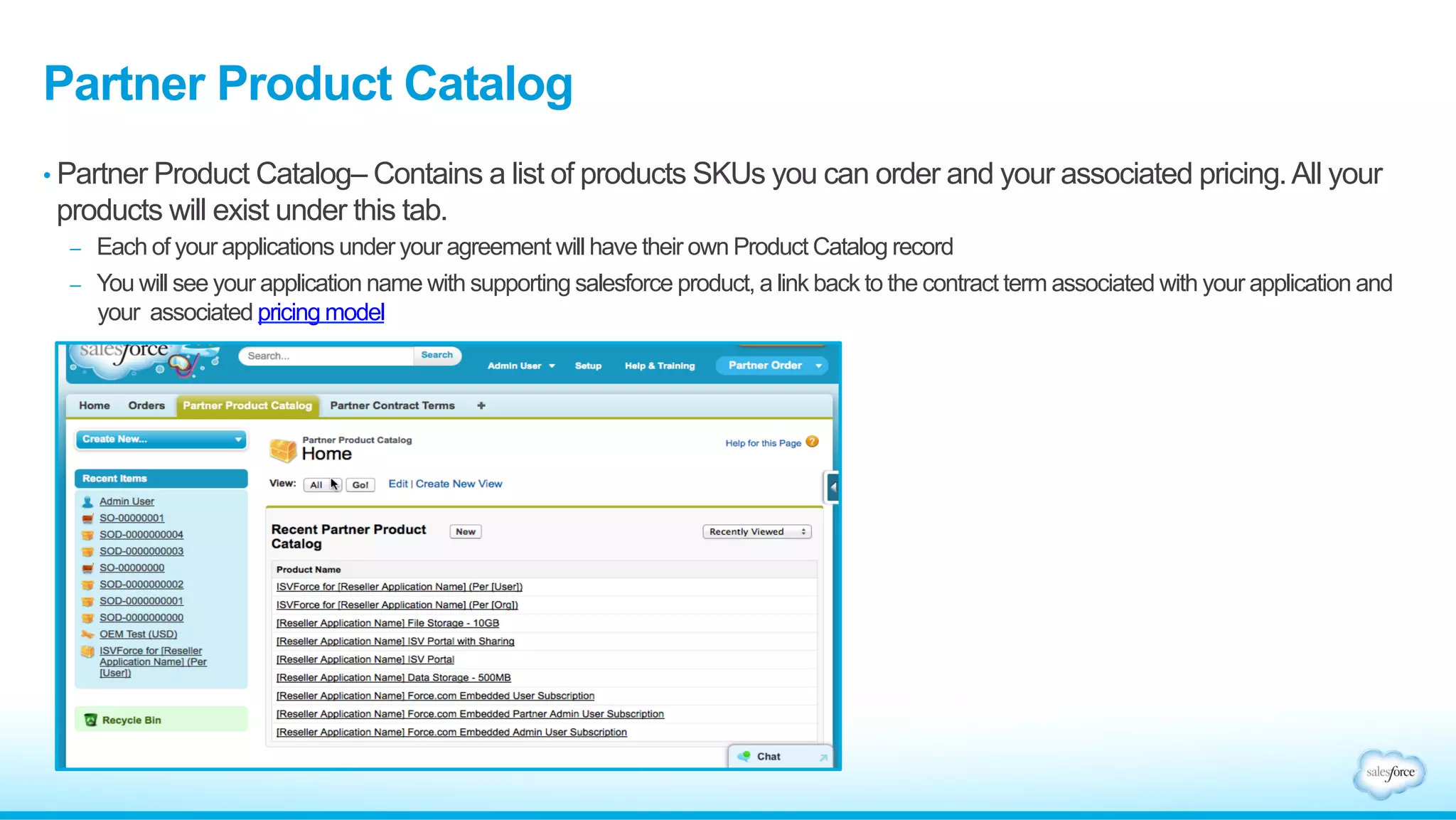
Partner Product Catalog 
• Partner Product Catalog– Contains a list of products SKUs you can order and your associated pricing. All your 
products will exist under this tab. 
– Each of your applications under your agreement will have their own Product Catalog record 
– You will see your application name with supporting salesforce product, a link back to the contract term associated with your application and 
your associated pricing model
Partner Contract Term 
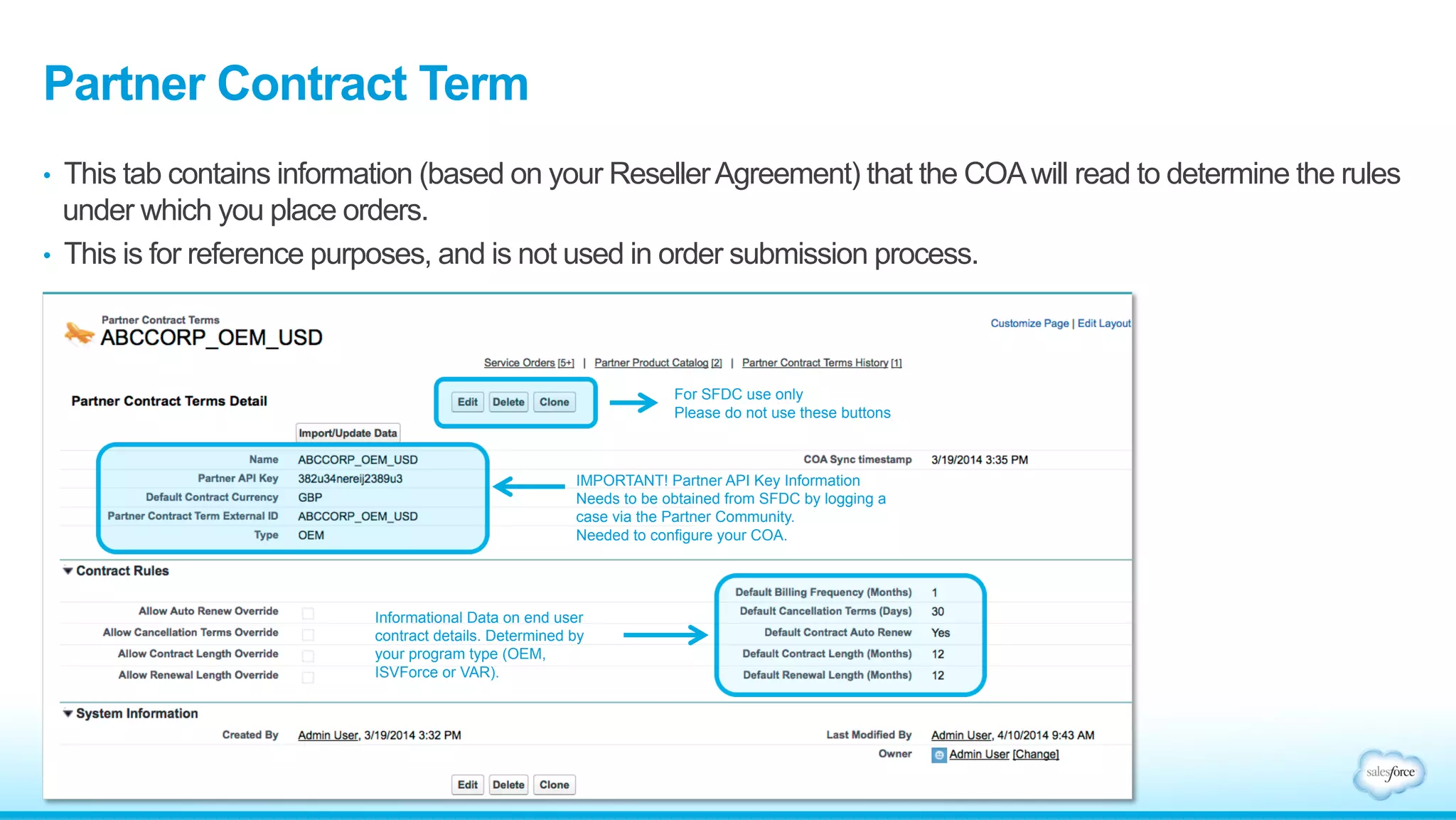
• This tab contains information (based on your Reseller Agreement) that the COA will read to determine the rules 
under which you place orders. 
• This is for reference purposes, and is not used in order submission process. 
IMPORTANT! Partner API Key Information 
Needs to be obtained from SFDC by logging a 
case via the Partner Community. 
Needed to configure your COA. 
Informational Data on end user 
contract details. Determined by 
your program type (OEM, 
ISVForce or VAR). 
For SFDC use only 
Please do not use these buttons
Orders 
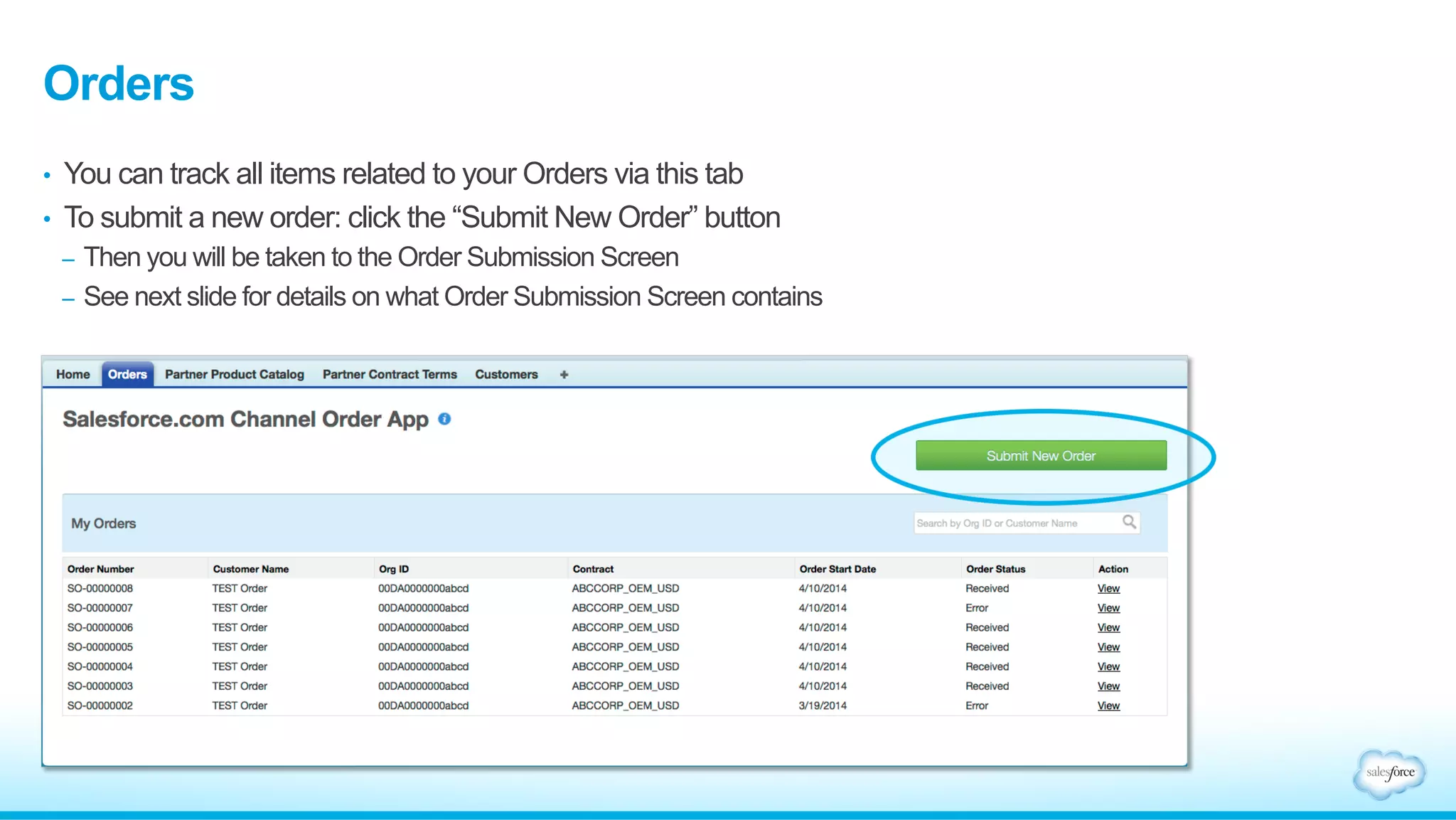
• You can track all items related to your Orders via this tab 
• To submit a new order: click the “Submit New Order” button 
– Then you will be taken to the Order Submission Screen 
– See next slide for details on what Order Submission Screen contains
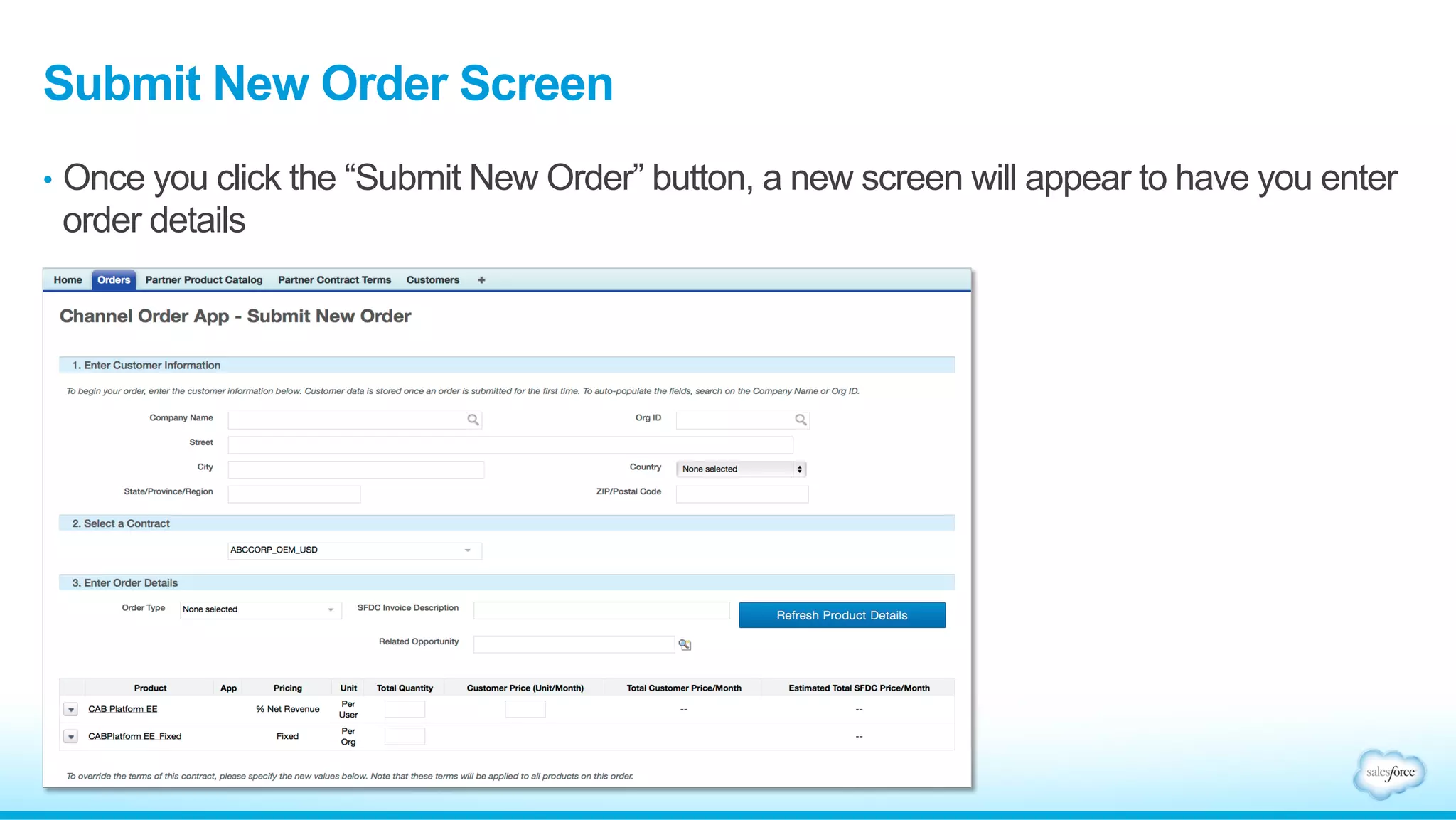
Submit New Order Screen 
• Once you click the “Submit New Order” button, a new screen will appear to have you enter 
order details
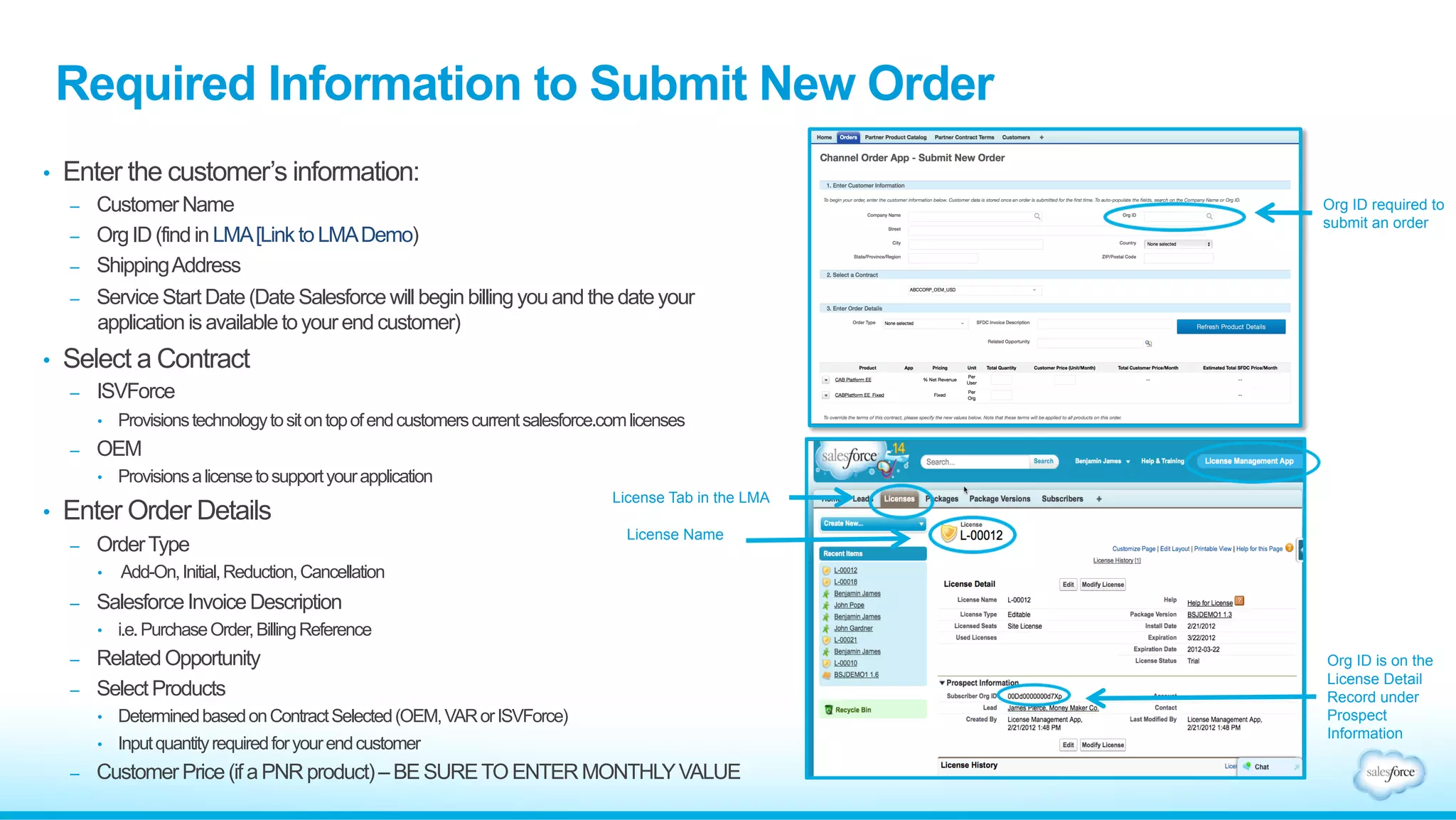
Required Information to Submit New Order 
• Enter the customer’s information: 
– Customer Name 
– Org ID (find in LMA [Link to LMA Demo) 
– Shipping Address 
– Service Start Date (Date Salesforce will begin billing you and the date your 
application is available to your end customer) 
• Select a Contract 
– ISVForce 
• Provisions technology to sit on top of end customers current salesforce.com licenses 
– OEM 
• Provisions a license to support your application 
• Enter Order Details 
– Order Type 
• Add-On, Initial, Reduction, Cancellation 
– Salesforce Invoice Description 
• i.e. Purchase Order, Billing Reference 
– Related Opportunity 
– Select Products 
• Determined based on Contract Selected (OEM, VAR or ISVForce) 
• Input quantity required for your end customer 
– Customer Price (if a PNR product) – BE SURE TO ENTER MONTHLY VALUE 
Org ID required to 
submit an order 
License Tab in the LMA 
License Name 
Org ID is on the 
License Detail 
Record under 
Prospect 
Information
Required Information to Submit New Order (continued) 
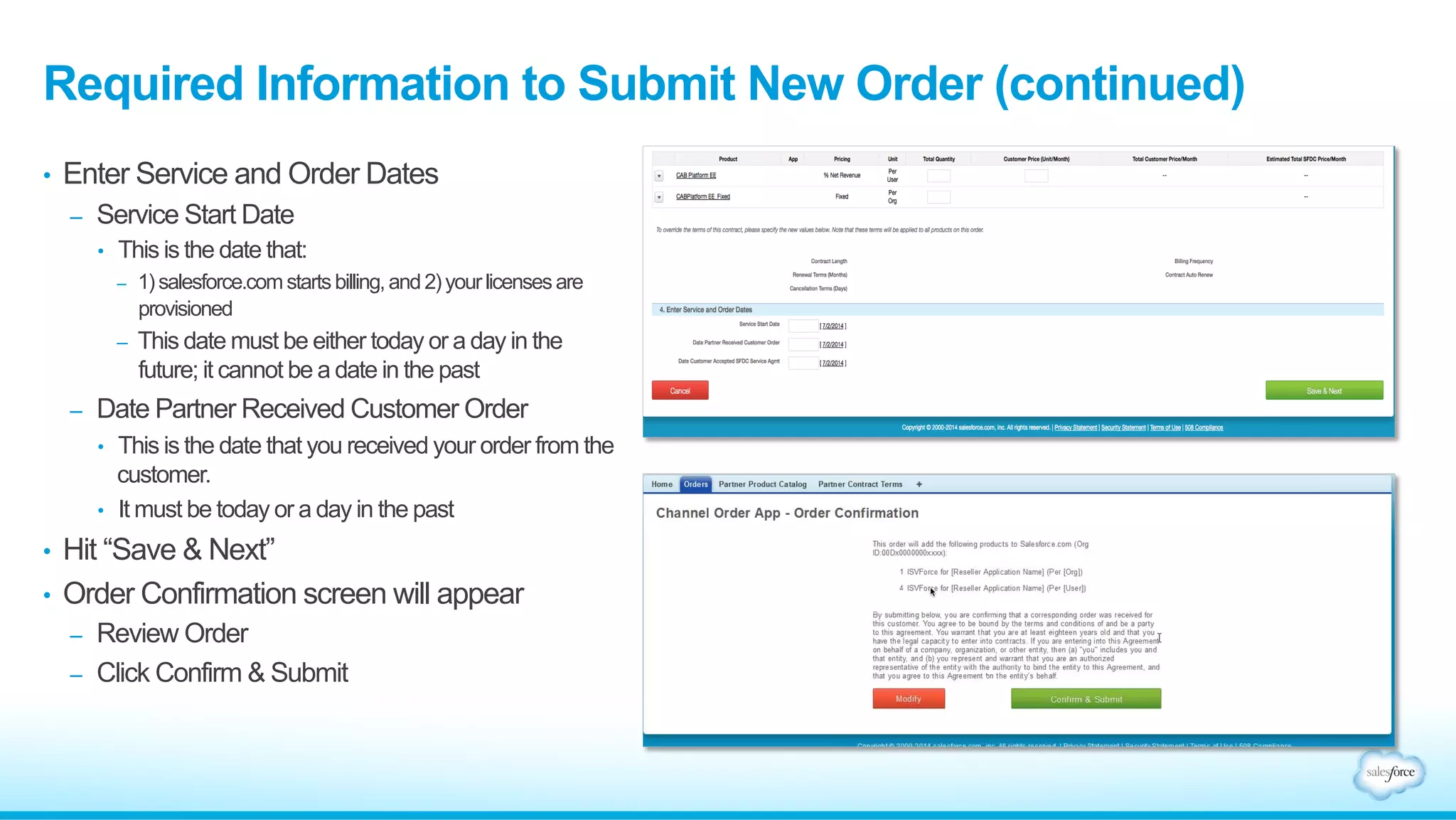
• Enter Service and Order Dates 
– Service Start Date 
• This is the date that: 
– 1) salesforce.com starts billing, and 2) your licenses are 
provisioned 
– This date must be either today or a day in the 
future; it cannot be a date in the past 
– Date Partner Received Customer Order 
• This is the date that you received your order from the 
customer. 
• It must be today or a day in the past 
• Hit “Save & Next” 
• Order Confirmation screen will appear 
– Review Order 
– Click Confirm & Submit
What happens post submission? 
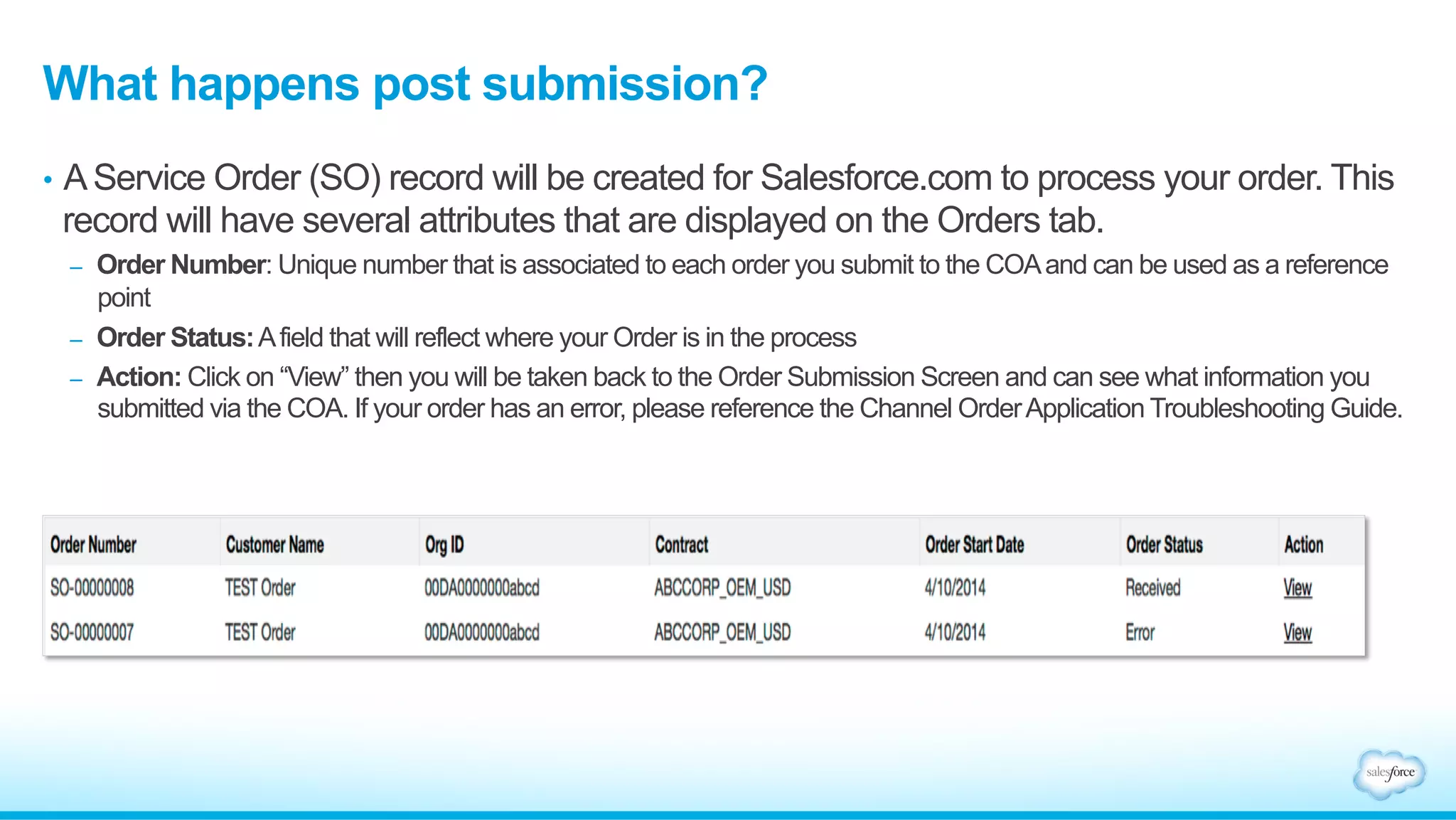
• A Service Order (SO) record will be created for Salesforce.com to process your order. This 
record will have several attributes that are displayed on the Orders tab. 
– Order Number: Unique number that is associated to each order you submit to the COA and can be used as a reference 
point 
– Order Status: A field that will reflect where your Order is in the process 
– Action: Click on “View” then you will be taken back to the Order Submission Screen and can see what information you 
submitted via the COA. If your order has an error, please reference the Channel Order Application Troubleshooting Guide.
Order Status Definitions 
Received Order is received by SFDC, submission was 
successful and is now in the SFDC queue to process 
In Process SFDC internal Order management team is working on 
the Order and verifying Order information 
Error Issue with the order and message will be posted in 
the External Error Comment field on the Order record 
Activated A booked Order that has yet to go live into a 
customers Org 
Provisioned Order has been enabled in your customers Org 
Common Order Status Sequence 
Received → In Process → Provisioned 
Received → Error → In Process → Provisioned 
Received → In Process → Error → 
Error Comment: 
Partner Action 
Required] 
→ 
Once Partner 
Action Taken 
Provisioned 
Received → In Process → Activated → Provisioned
Next Steps 
1. Follow the “Onboarding Checklist” 
2. Review all resources in the Partner Community – Distribute page 
– Channel Order Application Demos 
• Installation and “How to Use the COA” 
– Channel Order Application Guide 
– Channel Order Application Troubleshooting Guide 
– ISVforce Guide

Install & Use the Channel Order App

  • 1.
    Introduction: Channel OrderApplication (COA) Slides
  • 2.
    What This DeckWill Cover • What is the Channel Order Application • How to Access the Channel Order Application • Inside the Channel Order Application • Submitting Orders • What Happens Post Order Submission • Your next steps!
  • 3.
    What Is theChannel Order Application • The Channel Order Application (commonly referred to as the “COA”) is a tool used to submit an order to Salesforce • Partners are required to submit an order as a result of a sale of the partner’s application • ISVForce, OEM and VAR partners will submit orders using the COA
  • 4.
    How to Accessthe COA The COA exists within your Partner Business Org or active salesforce.com production Org 2. Select “Partner Order” from drop-down menu at top right 1. Log in via standard Salesforce login page *If the COA is not pre-installed in your ISV Partner Business Org, follow installation steps in the COA Guide
  • 5.
    Who Are CommonUsers of the COA Anyone who is involved in submitting orders will interact with the COA to place or track orders to salesforce.com Common Job Functions of COA Users: • Order Management • Sales Operations • Billing • Data Entry • Accounts Payable
  • 6.
    Data Behind theChannel Order Application • The COA provides information on the following data: – Your product SKUs – Your specific contract terms – Your customer orders and your current customers • COA makes use of 3 Custom Tabs to display this information – Orders – Partner Product Catalog – Partner Contract Terms
  • 7.
    Partner Product Catalog • Partner Product Catalog– Contains a list of products SKUs you can order and your associated pricing. All your products will exist under this tab. – Each of your applications under your agreement will have their own Product Catalog record – You will see your application name with supporting salesforce product, a link back to the contract term associated with your application and your associated pricing model
  • 8.
    Partner Contract Term • This tab contains information (based on your Reseller Agreement) that the COA will read to determine the rules under which you place orders. • This is for reference purposes, and is not used in order submission process. IMPORTANT! Partner API Key Information Needs to be obtained from SFDC by logging a case via the Partner Community. Needed to configure your COA. Informational Data on end user contract details. Determined by your program type (OEM, ISVForce or VAR). For SFDC use only Please do not use these buttons
  • 9.
    Orders • Youcan track all items related to your Orders via this tab • To submit a new order: click the “Submit New Order” button – Then you will be taken to the Order Submission Screen – See next slide for details on what Order Submission Screen contains
  • 10.
    Submit New OrderScreen • Once you click the “Submit New Order” button, a new screen will appear to have you enter order details
  • 11.
    Required Information toSubmit New Order • Enter the customer’s information: – Customer Name – Org ID (find in LMA [Link to LMA Demo) – Shipping Address – Service Start Date (Date Salesforce will begin billing you and the date your application is available to your end customer) • Select a Contract – ISVForce • Provisions technology to sit on top of end customers current salesforce.com licenses – OEM • Provisions a license to support your application • Enter Order Details – Order Type • Add-On, Initial, Reduction, Cancellation – Salesforce Invoice Description • i.e. Purchase Order, Billing Reference – Related Opportunity – Select Products • Determined based on Contract Selected (OEM, VAR or ISVForce) • Input quantity required for your end customer – Customer Price (if a PNR product) – BE SURE TO ENTER MONTHLY VALUE Org ID required to submit an order License Tab in the LMA License Name Org ID is on the License Detail Record under Prospect Information
  • 12.
    Required Information toSubmit New Order (continued) • Enter Service and Order Dates – Service Start Date • This is the date that: – 1) salesforce.com starts billing, and 2) your licenses are provisioned – This date must be either today or a day in the future; it cannot be a date in the past – Date Partner Received Customer Order • This is the date that you received your order from the customer. • It must be today or a day in the past • Hit “Save & Next” • Order Confirmation screen will appear – Review Order – Click Confirm & Submit
  • 13.
    What happens postsubmission? • A Service Order (SO) record will be created for Salesforce.com to process your order. This record will have several attributes that are displayed on the Orders tab. – Order Number: Unique number that is associated to each order you submit to the COA and can be used as a reference point – Order Status: A field that will reflect where your Order is in the process – Action: Click on “View” then you will be taken back to the Order Submission Screen and can see what information you submitted via the COA. If your order has an error, please reference the Channel Order Application Troubleshooting Guide.
  • 14.
    Order Status Definitions Received Order is received by SFDC, submission was successful and is now in the SFDC queue to process In Process SFDC internal Order management team is working on the Order and verifying Order information Error Issue with the order and message will be posted in the External Error Comment field on the Order record Activated A booked Order that has yet to go live into a customers Org Provisioned Order has been enabled in your customers Org Common Order Status Sequence Received → In Process → Provisioned Received → Error → In Process → Provisioned Received → In Process → Error → Error Comment: Partner Action Required] → Once Partner Action Taken Provisioned Received → In Process → Activated → Provisioned
  • 15.
    Next Steps 1.Follow the “Onboarding Checklist” 2. Review all resources in the Partner Community – Distribute page – Channel Order Application Demos • Installation and “How to Use the COA” – Channel Order Application Guide – Channel Order Application Troubleshooting Guide – ISVforce Guide