1
 System software: The operating system and utility
programs that control a computer system and allow
you to use your computer
 Enables the boot process, launches applications,
transfers files, controls hardware configuration,
manages hard drive, and protects from unauthorized use
 Application software: Programs that allow a user to
perform specific tasks on a computer
 Word processing, playing a game, preparing taxes,
browsing the Web, and so forth
2
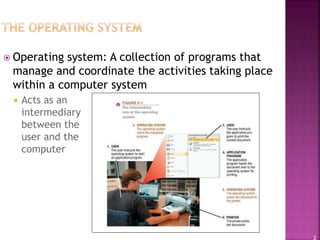
 Operating system: A collection of programs that
manage and coordinate the activities taking place
within a computer system
 Acts as an
intermediary
between the
user and the
computer
3
 Interfacing with users (typically via a Graphical
User Interface)
 Booting the computer
 Kernel is loaded into memory
 Processes are started
 msconfig used to control startup of processes
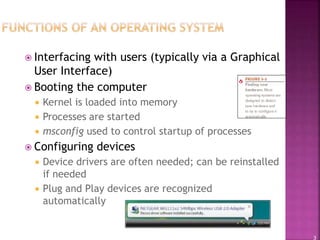
 Configuring devices
 Device drivers are often needed; can be reinstalled
if needed
 Plug and Play devices are recognized
automatically
4
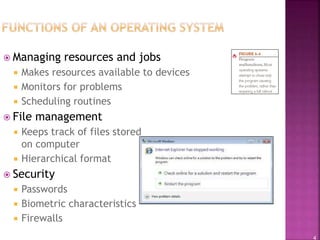
 Managing resources and jobs
 Makes resources available to devices
 Monitors for problems
 Scheduling routines
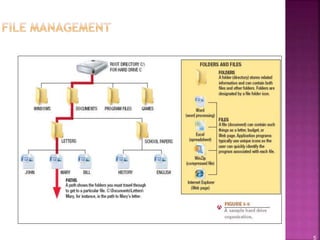
 File management
 Keeps track of files stored
on computer
 Hierarchical format
 Security
 Passwords
 Biometric characteristics
 Firewalls
5
6
 Multitasking: The ability of an operating system
to have more than one program (task) open at
one time
 CPU rotates between tasks
 Switching is done quickly
 Appears as though all programs executing at the same time
 Multithreading: The ability to rotate between
multiple threads so that processing is completed
faster and more efficiently
 Thread: Sequence of instructions within a program that is
independent of other threads
7
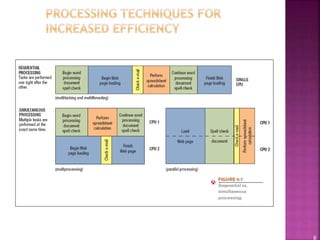
 Multiprocessing and parallel processing: Multiple
processors (or multiple cores) are used in one
computer system to perform work more efficiently
 Simultaneous processing: Performs tasks at the same
time
 Multiprocessing: Each CPU (or core) typically works on a
different job
 Used with personal computers with multi-core processors
 Parallel processing: CPUs or cores typically works
together to complete one job more quickly
 Used with servers and mainframes
8
9
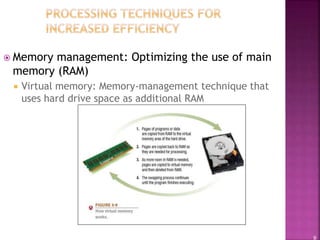
 Memory management: Optimizing the use of main
memory (RAM)
 Virtual memory: Memory-management technique that
uses hard drive space as additional RAM
10
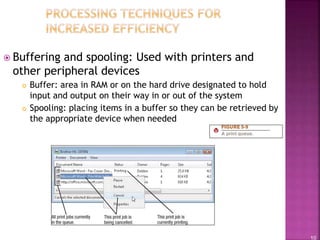
 Buffering and spooling: Used with printers and
other peripheral devices
 Buffer: area in RAM or on the hard drive designated to hold
input and output on their way in or out of the system
 Spooling: placing items in a buffer so they can be retrieved by
the appropriate device when needed
11
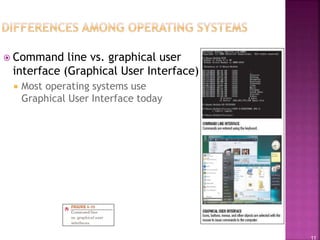
 Command line vs. graphical user
interface (Graphical User Interface)
 Most operating systems use
Graphical User Interface today
12
 Personal vs. server operating system
 Personal operating system: designed to be installed on a
single computer
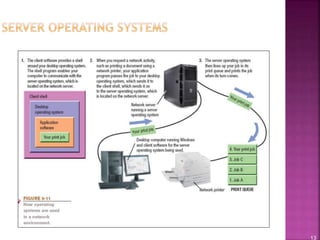
 Server operating system: designed to be installed on a
network server
 Client computers still use a personal operating system
 Server operating system controls access to network resources
 Many operating systems come in both versions
 Mobile and embedded operating systems also exist
13
14
 Types of processors supported
 Desktop, mobile, server, etc.
 Number of processors
 32-bit or 64-bit CPUs
 Support for other technologies
 New types of buses
 Virtualization
 Power-saving features
 Touch and gesture input
15
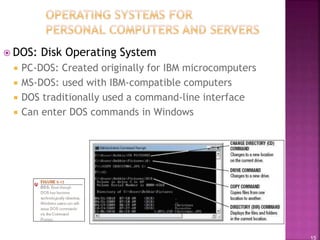
 DOS: Disk Operating System
 PC-DOS: Created originally for IBM microcomputers
 MS-DOS: used with IBM-compatible computers
 DOS traditionally used a command-line interface
 Can enter DOS commands in Windows
16
 Windows: The predominate personal operating
system developed by Microsoft Corporation
 Windows 1.0 through Windows 3.x: Operating
environments for DOS
 Windows 95 and Windows 98: Used a similar GUI to
the one used with Windows 3.x
 Windows NT (New Technology): first 32-bit version of
Windows designed for high-end workstations and
servers
 Windows Me (Millennium Edition): designed for home
computers, improved home networking and a shared
Internet connection
17
 Windows 2000: replaced Windows NT; was geared
towards high-end business workstations and servers,
support for wireless devices
 Windows XP: Replaced both Windows 2000 and
Windows Me
 Improved photo, video, and music editing and sharing
 Improved networking capabilities
 Support for handwriting and voice input
 Large user base, MS will support until 2014
18
 Windows Vista: Replaced Windows XP
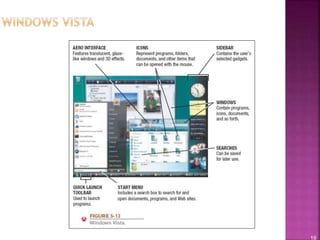
 Features the Aero visual interface
 Transparency and animations
 Live Thumbnails
 Additional features
 Sidebar, Instant Search, etc.
 The Vista Start menu is more streamlined
 Improved networking and multimedia
 Built-in security features
 Hardware requirements for Vista have increased over earlier
versions of Windows
19
20
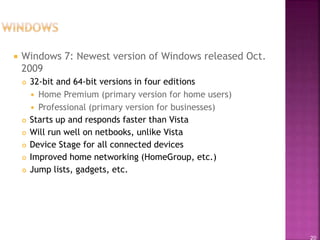
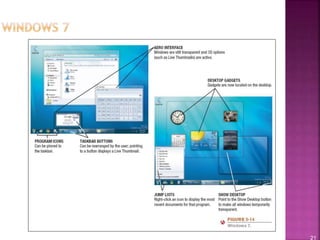
 Windows 7: Newest version of Windows released Oct.
2009
 32-bit and 64-bit versions in four editions
 Home Premium (primary version for home users)
 Professional (primary version for businesses)
 Starts up and responds faster than Vista
 Will run well on netbooks, unlike Vista
 Device Stage for all connected devices
 Improved home networking (HomeGroup, etc.)
 Jump lists, gadgets, etc.
21
22
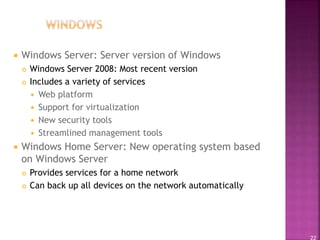
 Windows Server: Server version of Windows
 Windows Server 2008: Most recent version
 Includes a variety of services
 Web platform
 Support for virtualization
 New security tools
 Streamlined management tools
 Windows Home Server: New operating system based
on Windows Server
 Provides services for a home network
 Can back up all devices on the network automatically
23
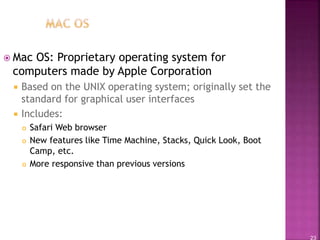
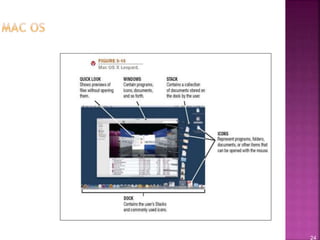
 Mac OS: Proprietary operating system for
computers made by Apple Corporation
 Based on the UNIX operating system; originally set the
standard for graphical user interfaces
 Includes:
 Safari Web browser
 New features like Time Machine, Stacks, Quick Look, Boot
Camp, etc.
 More responsive than previous versions
24
25
 UNIX: Operating system developed in the late
1960s for midrange servers
 Multiuser, multitasking operating system
 More expensive, requires a higher level of technical
knowledge; tends to be harder to install, maintain,
and upgrade
 “UNIX” initially referred to the original UNIX operating
system, now refers to a group of similar operating
systems based on UNIX
 Single UNIX Specification: A standardized UNIX
environment
26
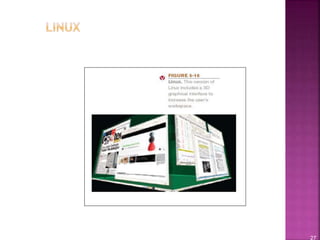
 Linux: Version (flavor) of UNIX available without
charge over the Internet
 Increasingly being used with personal computers,
servers, mainframes, and supercomputers
 Is open-source software: has been collaboratively
modified by volunteer programmers all over the world
 Originally used a command line interface, most recent
versions use a GUI
 Strong support from mainstream companies, such as
Sun, IBM, HP, and Novell
 Much less expensive than Windows or Mac OS
27
28
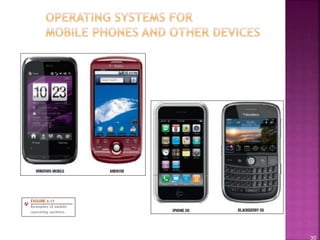
 Windows Mobile: Designed for mobile phones
 Look and feel of desktop versions
 Current version 6.1, next version to be called
Microsoft Phone.
 Windows Embedded: Designed for consumer and
industrial devices that are not perosonal
computers
 Cash register, GPS devices, ATMs, medical devices and
robots.
 Windows Automotive and Microsoft Auto for cars
 Ford Sync
 Android: Linux based OS developed by Open
Handset Alliance (including Google)
29
 iPhone OS: Designed for Apple Mobile phones and
mobile devices.
 BlackBerry Operating System: Designed for
BlackBerry devices
 Palm OS and Palm webOS: Designed for Palm
devices
 Symbian OS: Designed for use with smart phones
 Embedded Linux: Used with mobile phones, GPS
devices, and other mobile devices
30
 First Version of Android.
 The focus of Android beta is testing
incorporating usability.
 Android beta will generally have many more
problems on speed and performance.
 First full version of android.
 Released on September 23, 2008.
 Wi-Fi and Bluetooth support.
 Quite slow in operating.
 copy and paste feature in the web browser
is not present.
 Released on April 30, 2009.
 Added auto-rotation option.
 Copy and Paste feature added in the web
browser.
 Increased speed and performance but not
upto required level.
 Released on September 15, 2009.
 Voice search and Search box were
added.
 Faster OS boot times and fast web
browsing experience.
 Typing is quite slower.
 Released on October 26, 2009.
 Bluetooth 2.1 support.
 Improved typing speed on virtual
keyboard, with smarter dictionary.
 no Adobe flash media support.
 Released on May 20, 2010.
 Support for Adobe Flash 10.1
 Improved Application launcher with better browser
 No internet calling.
 Released on December 6, 2010.
 Updated User Interface with high efficiency and speed
 Internet calling
 One touch word selection and copy/paste.
 New keyboard for faster word input.
 More successful version of Android than previous versions.
 not supports multi-core processors.
 Released on February 22, 2011.
 Support for multi-core processors
 Ability to encrypt all user data.
 This version of android is only
available for tablets.
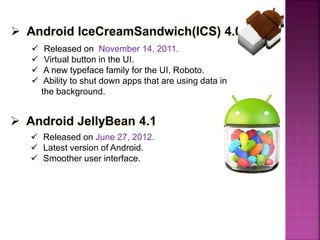
 Released on November 14, 2011.
 Virtual button in the UI.
 A new typeface family for the UI, Roboto.
 Ability to shut down apps that are using data in
the background.
 Released on June 27, 2012.
 Latest version of Android.
 Smoother user interface.
35
 Larger computers sometimes use operating systems
designed solely for that type of system
 IBM’s z/OS and i/5OS operating systems are
designed for their servers and mainframes
 Windows, UNIX, and Linux are also used with both
mainframes and supercomputers
 Often a group of Linux computers are linked
together to form what is referred to as a Linux
supercomputing cluster
36
 Search tools: Designed to search for files on the
user’s hard drive
 Windows includes search tools
 Google, Yahoo desktop search
 Diagnostic programs: Evaluate your system and
make recommendations for fixing any errors found
 Disk management programs: Diagnose and repair
problems related to your hard drive
 Uninstall utilities: Remove programs from your hard
drive without leaving bits and pieces behind
 Important to properly uninstall programs, not just delete them
37
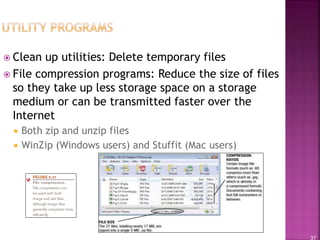
 Clean up utilities: Delete temporary files
 File compression programs: Reduce the size of files
so they take up less storage space on a storage
medium or can be transmitted faster over the
Internet
 Both zip and unzip files
 WinZip (Windows users) and Stuffit (Mac users)
38
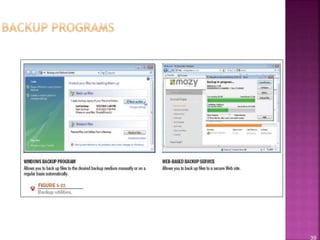
 Backup and recovery utilities: Make the backup
and restoration process easier
 Backup: Duplicate copy of data or other computer
content
 Good backup procedures are critical for businesses
 Individuals should back up important documents,
e-mail, photos, home video, etc.
 Store backup data on a CD or DVD, second hard drive,
flash memory drive, or upload to the Internet
 Back up your entire computer once all programs have
been installed, so your system can be restored to that
configuration.
39
40
 Security programs: Protect computers and users
 Antivirus programs
 Antispyware programs
 Firewalls
 Many are included in Windows and other operating
systems
 Discussed in detail in Chapter 9
41
 Will continue to become more user-friendly
 Will eventually be driven primarily by a voice
interface
 Likely to continue to become more stable and self-
healing
 Will likely continue to include improved security
features and to support multiple processors and
other technological improvements
 May be used primarily to access software available
through the Internet or other networks

Ict 5

  • 1.
    1  System software:The operating system and utility programs that control a computer system and allow you to use your computer  Enables the boot process, launches applications, transfers files, controls hardware configuration, manages hard drive, and protects from unauthorized use  Application software: Programs that allow a user to perform specific tasks on a computer  Word processing, playing a game, preparing taxes, browsing the Web, and so forth
  • 2.
    2  Operating system:A collection of programs that manage and coordinate the activities taking place within a computer system  Acts as an intermediary between the user and the computer
  • 3.
    3  Interfacing withusers (typically via a Graphical User Interface)  Booting the computer  Kernel is loaded into memory  Processes are started  msconfig used to control startup of processes  Configuring devices  Device drivers are often needed; can be reinstalled if needed  Plug and Play devices are recognized automatically
  • 4.
    4  Managing resourcesand jobs  Makes resources available to devices  Monitors for problems  Scheduling routines  File management  Keeps track of files stored on computer  Hierarchical format  Security  Passwords  Biometric characteristics  Firewalls
  • 5.
  • 6.
    6  Multitasking: Theability of an operating system to have more than one program (task) open at one time  CPU rotates between tasks  Switching is done quickly  Appears as though all programs executing at the same time  Multithreading: The ability to rotate between multiple threads so that processing is completed faster and more efficiently  Thread: Sequence of instructions within a program that is independent of other threads
  • 7.
    7  Multiprocessing andparallel processing: Multiple processors (or multiple cores) are used in one computer system to perform work more efficiently  Simultaneous processing: Performs tasks at the same time  Multiprocessing: Each CPU (or core) typically works on a different job  Used with personal computers with multi-core processors  Parallel processing: CPUs or cores typically works together to complete one job more quickly  Used with servers and mainframes
  • 8.
  • 9.
    9  Memory management:Optimizing the use of main memory (RAM)  Virtual memory: Memory-management technique that uses hard drive space as additional RAM
  • 10.
    10  Buffering andspooling: Used with printers and other peripheral devices  Buffer: area in RAM or on the hard drive designated to hold input and output on their way in or out of the system  Spooling: placing items in a buffer so they can be retrieved by the appropriate device when needed
  • 11.
    11  Command linevs. graphical user interface (Graphical User Interface)  Most operating systems use Graphical User Interface today
  • 12.
    12  Personal vs.server operating system  Personal operating system: designed to be installed on a single computer  Server operating system: designed to be installed on a network server  Client computers still use a personal operating system  Server operating system controls access to network resources  Many operating systems come in both versions  Mobile and embedded operating systems also exist
  • 13.
  • 14.
    14  Types ofprocessors supported  Desktop, mobile, server, etc.  Number of processors  32-bit or 64-bit CPUs  Support for other technologies  New types of buses  Virtualization  Power-saving features  Touch and gesture input
  • 15.
    15  DOS: DiskOperating System  PC-DOS: Created originally for IBM microcomputers  MS-DOS: used with IBM-compatible computers  DOS traditionally used a command-line interface  Can enter DOS commands in Windows
  • 16.
    16  Windows: Thepredominate personal operating system developed by Microsoft Corporation  Windows 1.0 through Windows 3.x: Operating environments for DOS  Windows 95 and Windows 98: Used a similar GUI to the one used with Windows 3.x  Windows NT (New Technology): first 32-bit version of Windows designed for high-end workstations and servers  Windows Me (Millennium Edition): designed for home computers, improved home networking and a shared Internet connection
  • 17.
    17  Windows 2000:replaced Windows NT; was geared towards high-end business workstations and servers, support for wireless devices  Windows XP: Replaced both Windows 2000 and Windows Me  Improved photo, video, and music editing and sharing  Improved networking capabilities  Support for handwriting and voice input  Large user base, MS will support until 2014
  • 18.
    18  Windows Vista:Replaced Windows XP  Features the Aero visual interface  Transparency and animations  Live Thumbnails  Additional features  Sidebar, Instant Search, etc.  The Vista Start menu is more streamlined  Improved networking and multimedia  Built-in security features  Hardware requirements for Vista have increased over earlier versions of Windows
  • 19.
  • 20.
    20  Windows 7:Newest version of Windows released Oct. 2009  32-bit and 64-bit versions in four editions  Home Premium (primary version for home users)  Professional (primary version for businesses)  Starts up and responds faster than Vista  Will run well on netbooks, unlike Vista  Device Stage for all connected devices  Improved home networking (HomeGroup, etc.)  Jump lists, gadgets, etc.
  • 21.
  • 22.
    22  Windows Server:Server version of Windows  Windows Server 2008: Most recent version  Includes a variety of services  Web platform  Support for virtualization  New security tools  Streamlined management tools  Windows Home Server: New operating system based on Windows Server  Provides services for a home network  Can back up all devices on the network automatically
  • 23.
    23  Mac OS:Proprietary operating system for computers made by Apple Corporation  Based on the UNIX operating system; originally set the standard for graphical user interfaces  Includes:  Safari Web browser  New features like Time Machine, Stacks, Quick Look, Boot Camp, etc.  More responsive than previous versions
  • 24.
  • 25.
    25  UNIX: Operatingsystem developed in the late 1960s for midrange servers  Multiuser, multitasking operating system  More expensive, requires a higher level of technical knowledge; tends to be harder to install, maintain, and upgrade  “UNIX” initially referred to the original UNIX operating system, now refers to a group of similar operating systems based on UNIX  Single UNIX Specification: A standardized UNIX environment
  • 26.
    26  Linux: Version(flavor) of UNIX available without charge over the Internet  Increasingly being used with personal computers, servers, mainframes, and supercomputers  Is open-source software: has been collaboratively modified by volunteer programmers all over the world  Originally used a command line interface, most recent versions use a GUI  Strong support from mainstream companies, such as Sun, IBM, HP, and Novell  Much less expensive than Windows or Mac OS
  • 27.
  • 28.
    28  Windows Mobile:Designed for mobile phones  Look and feel of desktop versions  Current version 6.1, next version to be called Microsoft Phone.  Windows Embedded: Designed for consumer and industrial devices that are not perosonal computers  Cash register, GPS devices, ATMs, medical devices and robots.  Windows Automotive and Microsoft Auto for cars  Ford Sync  Android: Linux based OS developed by Open Handset Alliance (including Google)
  • 29.
    29  iPhone OS:Designed for Apple Mobile phones and mobile devices.  BlackBerry Operating System: Designed for BlackBerry devices  Palm OS and Palm webOS: Designed for Palm devices  Symbian OS: Designed for use with smart phones  Embedded Linux: Used with mobile phones, GPS devices, and other mobile devices
  • 30.
  • 31.
     First Versionof Android.  The focus of Android beta is testing incorporating usability.  Android beta will generally have many more problems on speed and performance.  First full version of android.  Released on September 23, 2008.  Wi-Fi and Bluetooth support.  Quite slow in operating.  copy and paste feature in the web browser is not present.
  • 32.
     Released onApril 30, 2009.  Added auto-rotation option.  Copy and Paste feature added in the web browser.  Increased speed and performance but not upto required level.  Released on September 15, 2009.  Voice search and Search box were added.  Faster OS boot times and fast web browsing experience.  Typing is quite slower.  Released on October 26, 2009.  Bluetooth 2.1 support.  Improved typing speed on virtual keyboard, with smarter dictionary.  no Adobe flash media support.
  • 33.
     Released onMay 20, 2010.  Support for Adobe Flash 10.1  Improved Application launcher with better browser  No internet calling.  Released on December 6, 2010.  Updated User Interface with high efficiency and speed  Internet calling  One touch word selection and copy/paste.  New keyboard for faster word input.  More successful version of Android than previous versions.  not supports multi-core processors.  Released on February 22, 2011.  Support for multi-core processors  Ability to encrypt all user data.  This version of android is only available for tablets.
  • 34.
     Released onNovember 14, 2011.  Virtual button in the UI.  A new typeface family for the UI, Roboto.  Ability to shut down apps that are using data in the background.  Released on June 27, 2012.  Latest version of Android.  Smoother user interface.
  • 35.
    35  Larger computerssometimes use operating systems designed solely for that type of system  IBM’s z/OS and i/5OS operating systems are designed for their servers and mainframes  Windows, UNIX, and Linux are also used with both mainframes and supercomputers  Often a group of Linux computers are linked together to form what is referred to as a Linux supercomputing cluster
  • 36.
    36  Search tools:Designed to search for files on the user’s hard drive  Windows includes search tools  Google, Yahoo desktop search  Diagnostic programs: Evaluate your system and make recommendations for fixing any errors found  Disk management programs: Diagnose and repair problems related to your hard drive  Uninstall utilities: Remove programs from your hard drive without leaving bits and pieces behind  Important to properly uninstall programs, not just delete them
  • 37.
    37  Clean uputilities: Delete temporary files  File compression programs: Reduce the size of files so they take up less storage space on a storage medium or can be transmitted faster over the Internet  Both zip and unzip files  WinZip (Windows users) and Stuffit (Mac users)
  • 38.
    38  Backup andrecovery utilities: Make the backup and restoration process easier  Backup: Duplicate copy of data or other computer content  Good backup procedures are critical for businesses  Individuals should back up important documents, e-mail, photos, home video, etc.  Store backup data on a CD or DVD, second hard drive, flash memory drive, or upload to the Internet  Back up your entire computer once all programs have been installed, so your system can be restored to that configuration.
  • 39.
  • 40.
    40  Security programs:Protect computers and users  Antivirus programs  Antispyware programs  Firewalls  Many are included in Windows and other operating systems  Discussed in detail in Chapter 9
  • 41.
    41  Will continueto become more user-friendly  Will eventually be driven primarily by a voice interface  Likely to continue to become more stable and self- healing  Will likely continue to include improved security features and to support multiple processors and other technological improvements  May be used primarily to access software available through the Internet or other networks