1
Computer Software
Computer softwareis the key to productive use of computers. Software can be
categorized into many ways:
i) Based on Functionality
Application software.
System Software
Utilities & Drivers
Operating system software
ii) Based on Cost
Open Source Software
Proprietary Software
2.
2
Application Software
Application Softwareconsists of programs that
tell a computer how to produce information.
Some of the more commonly used packages are:
Word processing
Electronic spreadsheet
Database
Presentation graphics
3.
Operating System
• ComputerSystem = Hardware + Software
• Software = Application Software + System Software(OS)
• An Operating System is a system Software that acts as an
intermediary/interface between a user of a computer and the computer
hardware.
• Operating system goals:
Execute user programs and make solving user problems easier
Make the computer system convenient to use
Use the computer hardware in an efficient manner
4.
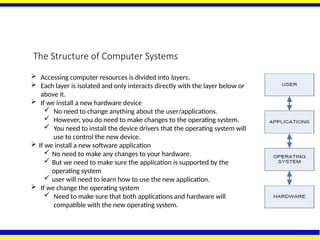
The Structure ofComputer Systems
Accessing computer resources is divided into layers.
Each layer is isolated and only interacts directly with the layer below or
above it.
If we install a new hardware device
No need to change anything about the user/applications.
However, you do need to make changes to the operating system.
You need to install the device drivers that the operating system will
use to control the new device.
If we install a new software application
No need to make any changes to your hardware.
But we need to make sure the application is supported by the
operating system
user will need to learn how to use the new application.
If we change the operating system
Need to make sure that both applications and hardware will
compatible with the new operating system.
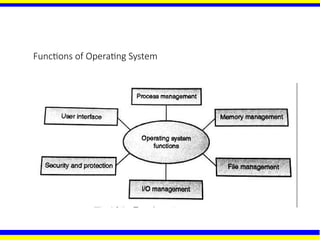
1. Process Management
•A process is a program in execution.
• A process needs certain resources, including CPU time, memory, files, and I/O devices to
accomplish its task.
• Simultaneous execution leads to multiple processes. Hence creation, execution and
termination of a process are the most basic functionality of an OS
• If processes are dependent, than they may try to share same resources. thus task of
process synchronization comes to the picture.
• If processes are independent, than a due care needs to be taken to avoid their overlapping
in memory area.
• Based on priority, it is important to allow more important processes to execute first than
others.
7.
2. Memory management
•Memory is a large array of words or bytes, each with its own address.
• It is a repository of quickly accessible data shared by the CPU and I/O devices.
• Main memory is a volatile storage device. When the computer made turn off
everything stored in RAM will be erased automatically.
• In addition to the physical RAM installed in your computer, most modern operating
systems allow your computer to use a virtual memory system. Virtual memory
allows your computer to use part of a permanent storage device (such as a hard
disk) as extra memory.
• The operating system is responsible for the following activities in connections with
memory management:
Keep track of which parts of memory are currently being used and by whom.
Decide which processes to load when memory space becomes available.
Allocate and de-allocate memory space as needed.
8.
3. File Management
•A file is a collection of related information defined by its creator.
• File systems provide the conventions for the encoding, storage and management of
data on a storage device such as a hard disk.
FAT12 (floppy disks)
FAT16 (DOS and older versions of Windows)
FAT32 (older versions of Windows)
NTFS (newer versions of Windows)
EXT3 (Unix/Linux)
HFS+ (Max OS X)
• The operating system is responsible for the following activities in connections with file
management:
✦ File creation and deletion.
✦ Directory creation and deletion.
✦ Support of primitives for manipulating files and directories.
✦ Mapping files onto secondary storage.
✦ File backup on stable (nonvolatile) storage media.
9.
4. Device Managementor I/O Management
• Device controllers are components on the motherboard (or on expansion cards) that act as an
interface between the CPU and the actual device.
• Device drivers, which are the operating system software components that interact with the devices
controllers.
• A special device (inside CPU) called the Interrupt Controller handles the task of receiving interrupt
requests and prioritizes them to be forwarded to the processor.
• Deadlocks can occur when two (or more) processes have control of different I/O resources that are
needed by the other processes, and they are unwilling to give up control of the device.
• It performs the following activities for device management.
Keeps tracks of all devices connected to system.
Designates a program responsible for every device known as Input/output controller.
Decides which process gets access to a certain device and for how long.
Allocates devices in an effective and efficient way.
Deallocates devices when they are no longer required.
10.
5. Security &Protection
• The operating system uses password protection to
protect user data and similar other techniques.
• It also prevents unauthorized access to programs
and user data by assigning access right permission
to files and directories.
• The owners of information stored in a multiuser or
networked computer system may want to control
use of that information, concurrent processes
should not interfere with each other.
11.
6. User InterfaceMechanism
• A user interface (UI) controls how you enter data
and instructions and how information is displayed
on the screen
• There are two types of user interfaces
1. Command Line Interface (CLI)
2. Graphical user Interface (GUI)
12.
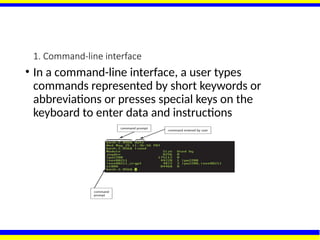
1. Command-line interface
•In a command-line interface, a user types
commands represented by short keywords or
abbreviations or presses special keys on the
keyboard to enter data and instructions
13.
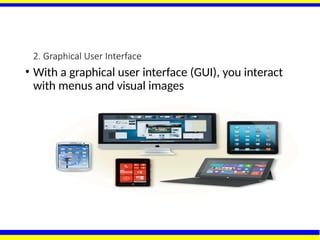
2. Graphical UserInterface
• With a graphical user interface (GUI), you interact
with menus and visual images
14.
History of OperatingSystem
The First Generation (1940's to early 1950's)
No Operating System
All programming was done in absolute machine language, often by wiring up plug-boards to
control the machine’s basic functions.
The Second Generation (1955-1965)
First operating system was introduced in the early 1950's.It was called GMOS
Created by General Motors for IBM's machine the 701.
Single-stream batch processing systems
The Third Generation (1965-1980)
Introduction of multiprogramming
Development of Minicomputer
The Fourth Generation (1980-Present Day)
Development of PCs
Birth of Windows/MaC OS
15.
Types of OperatingSystems
1. Batch Operating System
2. Multiprogramming Operating System
3. Time-Sharing OS
4. Multiprocessing OS
5. Distributed OS
6. Network OS
7. Real Time OS
8. Embedded OS
16.
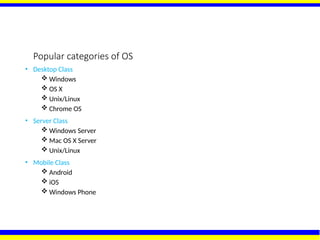
Popular categories ofOS
• Desktop Class
Windows
OS X
Unix/Linux
Chrome OS
• Server Class
Windows Server
Mac OS X Server
Unix/Linux
• Mobile Class
Android
iOS
Windows Phone
17.
Why windows 10?
•Windows 10 is the latest Microsoft Operating
System.
• Is replacing Windows 7 on campus
• Much more friendly than Windows 8
• More Secure (wannacry virus)
• Runs better (uses fewer resources)
18.
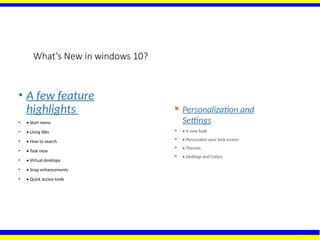
What’s New inwindows 10?
• A few feature
highlights
• • Start menu
• • Using tiles
• • How to search
• • Task view
• • Virtual desktops
• • Snap enhancements
• • Quick access tools
Personalization and
Settings
• A new look
• Personalize your lock screen
• Themes
• Desktop and Colors
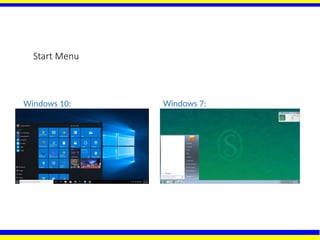
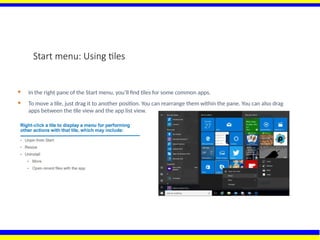
Start menu: Usingtiles
In the right pane of the Start menu, you’ll find tiles for some common apps.
To move a tile, just drag it to another position. You can rearrange them within the pane. You can also drag
apps between the tile view and the app list view.
22.
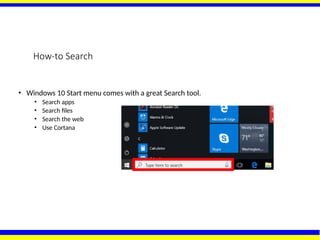
How-to Search
• Windows10 Start menu comes with a great Search tool.
• Search apps
• Search files
• Search the web
• Use Cortana
23.
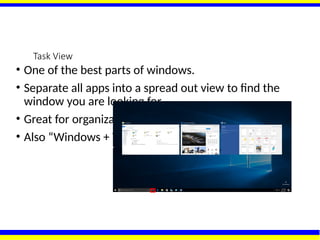
Task View
• Oneof the best parts of windows.
• Separate all apps into a spread out view to find the
window you are looking for.
• Great for organization!
• Also “Windows + TAB”
24.
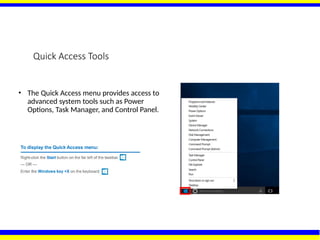
Quick Access Tools
•The Quick Access menu provides access to
advanced system tools such as Power
Options, Task Manager, and Control Panel.
25.
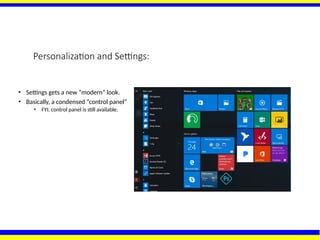
Personalization and Settings:
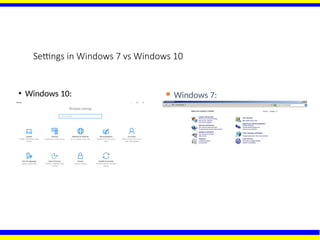
•Settings gets a new “modern” look.
• Basically, a condensed “control panel”
• FYI, control panel is still available.
Personalization Settings
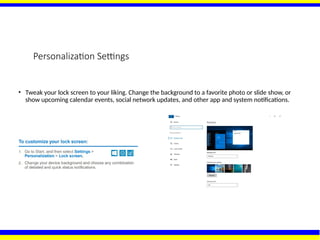
• Tweakyour lock screen to your liking. Change the background to a favorite photo or slide show, or
show upcoming calendar events, social network updates, and other app and system notifications.
31.
Personalization settings (cont.)
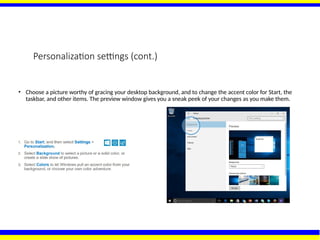
•Choose a picture worthy of gracing your desktop background, and to change the accent color for Start, the
taskbar, and other items. The preview window gives you a sneak peek of your changes as you make them.
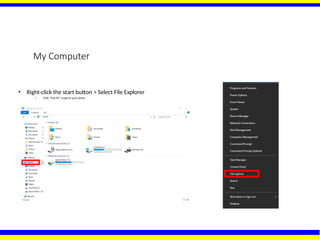
My Computer
• Right-clickthe start button > Select File Explorer
• Click “This PC” to get to your drives.
35.
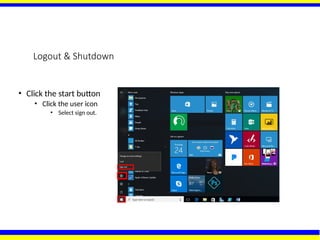
Logout & Shutdown
•Click the start button
• Click the user icon
• Select sign out.
36.
How do I“switch users”?
• Common when you need to login on someone
else’s PC.
• Select “other user” on login screen.
• Sign in with AD information.
37.
Adding Shortcuts todesktop
• Click the Start button
• Scroll to the app you want
• Hold down the left mouse button
• Drag the app to the desktop
38.
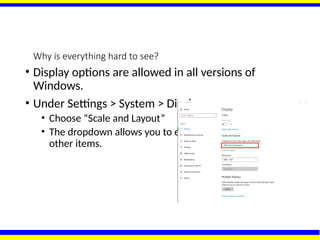
Why is everythinghard to see?
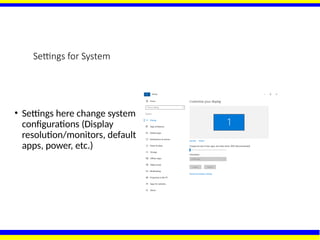
• Display options are allowed in all versions of
Windows.
• Under Settings > System > Display
• Choose “Scale and Layout”
• The dropdown allows you to enlarge text, apps, and
other items.
39.
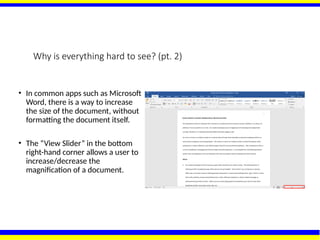
Why is everythinghard to see? (pt. 2)
• In common apps such as Microsoft
Word, there is a way to increase
the size of the document, without
formatting the document itself.
• The “View Slider” in the bottom
right-hand corner allows a user to
increase/decrease the
magnification of a document.